
Incognito & secure fields
When the keyboard deliberately forgets: incognito mode, passwords, and secure fields.
WM Keyboard has two separate ways of not learning from you. Incognito mode is a switch that you, or a private-browsing tab, control. Secure fields are declared outright by the app you’re typing into. They pause different things, so it’s worth keeping them apart.
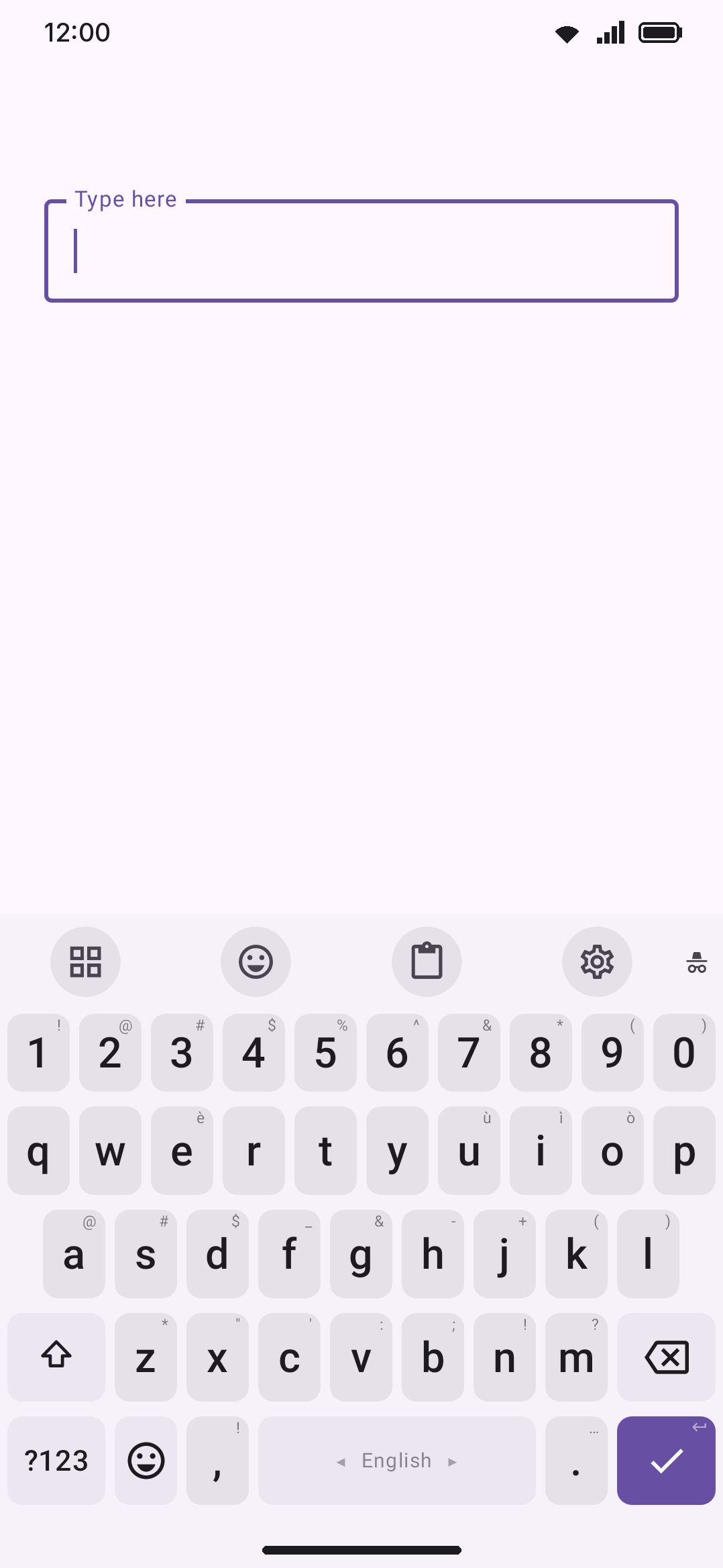
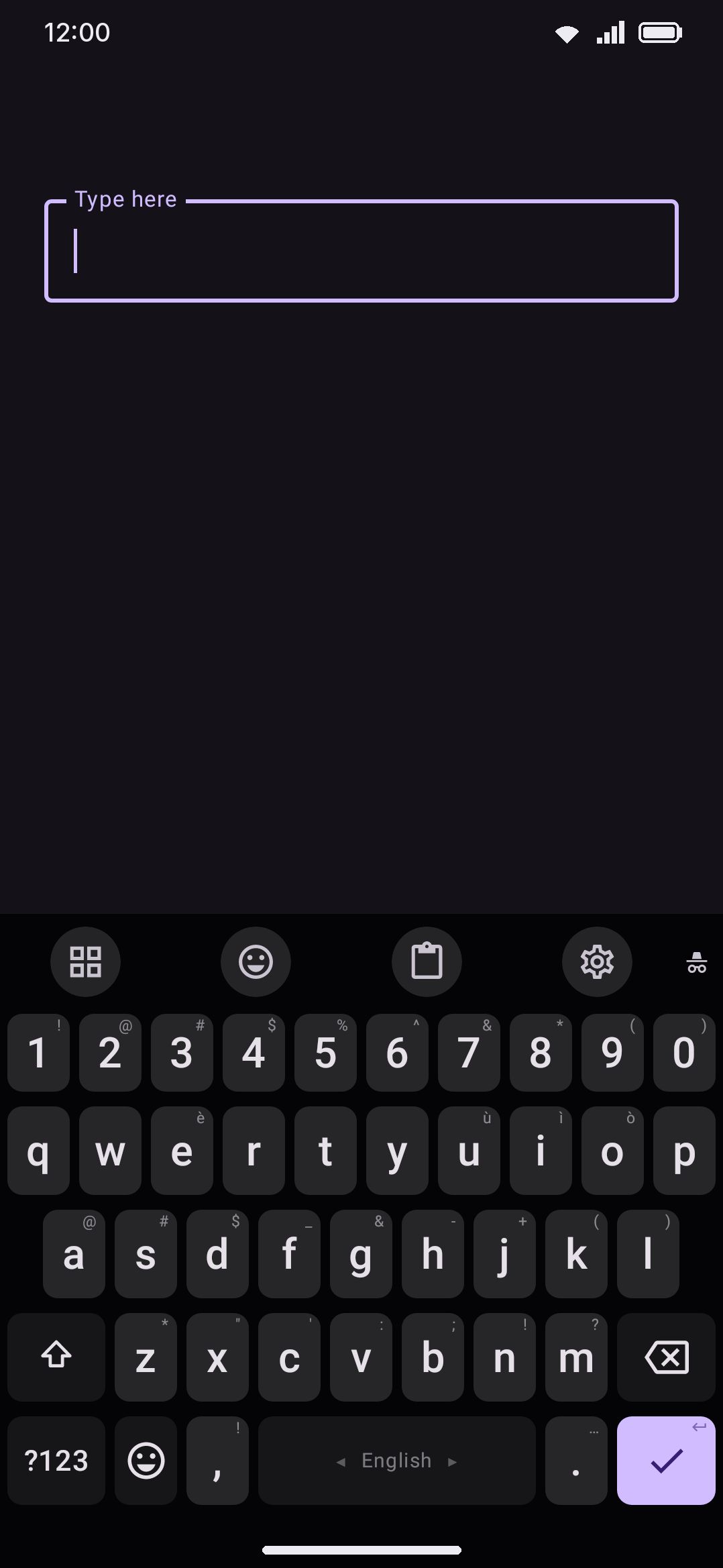
Turning incognito on
Section titled “Turning incognito on”Incognito is one boolean, flipped from either of two places:
- The Incognito tool in the toolbox. Tap it to toggle. You feel a short
vibration and see a toast, either
Incognito is on. The keyboard does not learn what you type.orIncognito is off. The tool isn’t pinned to the toolbar by default, so open the toolbox (the grid button) to find it the first time. - WM KeyboardPrivacyLearning on this deviceIncognito mode, which is the same switch, off by default.
Both control one underlying setting, so toggling either place flips the other.
WM Keyboard can also turn incognito on for you. When a field asks Android not to personalize learning from it, incognito switches on for that field alone and switches back off the moment you leave it. A Chrome incognito tab sets that flag on every field inside it, and other browsers and some password managers do the same for their own private screens. This never touches the manual switch, so a private tab can’t leave incognito on everywhere else. It’s controlled by WM KeyboardPrivacyLearning on this deviceFollow private browsing, on by default.
That automatic trigger relies entirely on a flag the host app has to set. An
app that never sends it can’t be detected this way, and the keyboard has no
other way to know it’s inside a private tab. Tap the Incognito tool while a
field is already auto-incognito and there’s nothing left for the switch to
turn off, so you get a toast instead: This field is always incognito.
What incognito pauses
Section titled “What incognito pauses”Turning incognito on does seven things:
- Pauses clipboard capture. Nothing you copy joins clipboard history while it’s on.
- Pauses learning. The on-device word and phrase lexicon stops picking up anything new, and so does the CJK pick history. The two go quiet together. “Add words to the system dictionary” rides on the same gate, so it stops writing out to Android’s dictionary too.
- Pauses emoji history. Emoji you tap stop joining the panel’s Recent and Most used tabs, under the same Pause learning switch as the lexicon. Emoji favourites and the skin tone you picked for each are unaffected.
- Stops the typing counters. Typing statistics record nothing while incognito is on, and the paused stretch is kept out of the active-time sums rather than counted as idle. Same Pause learning switch again.
- Blocks smart replies. The system’s smart replies don’t appear. A proposed reply means the system read the conversation, which is what incognito is there to stop. The saved-login chips a password manager draws above the keyboard are not blocked: they record nothing, the keyboard never sees what is in them, and a private tab is where you log in.
- Pauses AI history. If you’ve turned AI history on, nothing is recorded while incognito is: not the text you send, not the answer. This one has no switch of its own, because a record of what you wrote in incognito is the exact thing incognito exists to prevent.
- Shows a badge. A small icon appears next to the toolbar, and the Incognito tool itself lights up as active, so you can tell at a glance that it’s on.
The first four of those seven answer to switches of their own, tucked away from the Privacy screen under WM KeyboardToolsIncognito. Pause learning covers the lexicon, the emoji history and the typing counters together, and Pause clipboard capture covers the clipboard. Both are on by default. Turn both off there and flipping “Incognito mode” on Privacy still blocks smart replies, still pauses AI history, and still shows the badge. Those three are the effects neither switch can reach, because they follow incognito unconditionally. The one-time-code chip and the “you just copied a code” chip keep working in incognito: reading a code out of a notification or offering back what you just copied records nothing, and a login in a private tab is where a code is wanted.
Password and secure fields
Section titled “Password and secure fields”Independently of incognito, the keyboard checks whether the field you’re typing into is a password field. That’s the input type declared by Android password boxes, visible-password fields and PIN-style number fields alike. Detection needs no permission and no guessing, because it reads straight off the field’s declared input type.
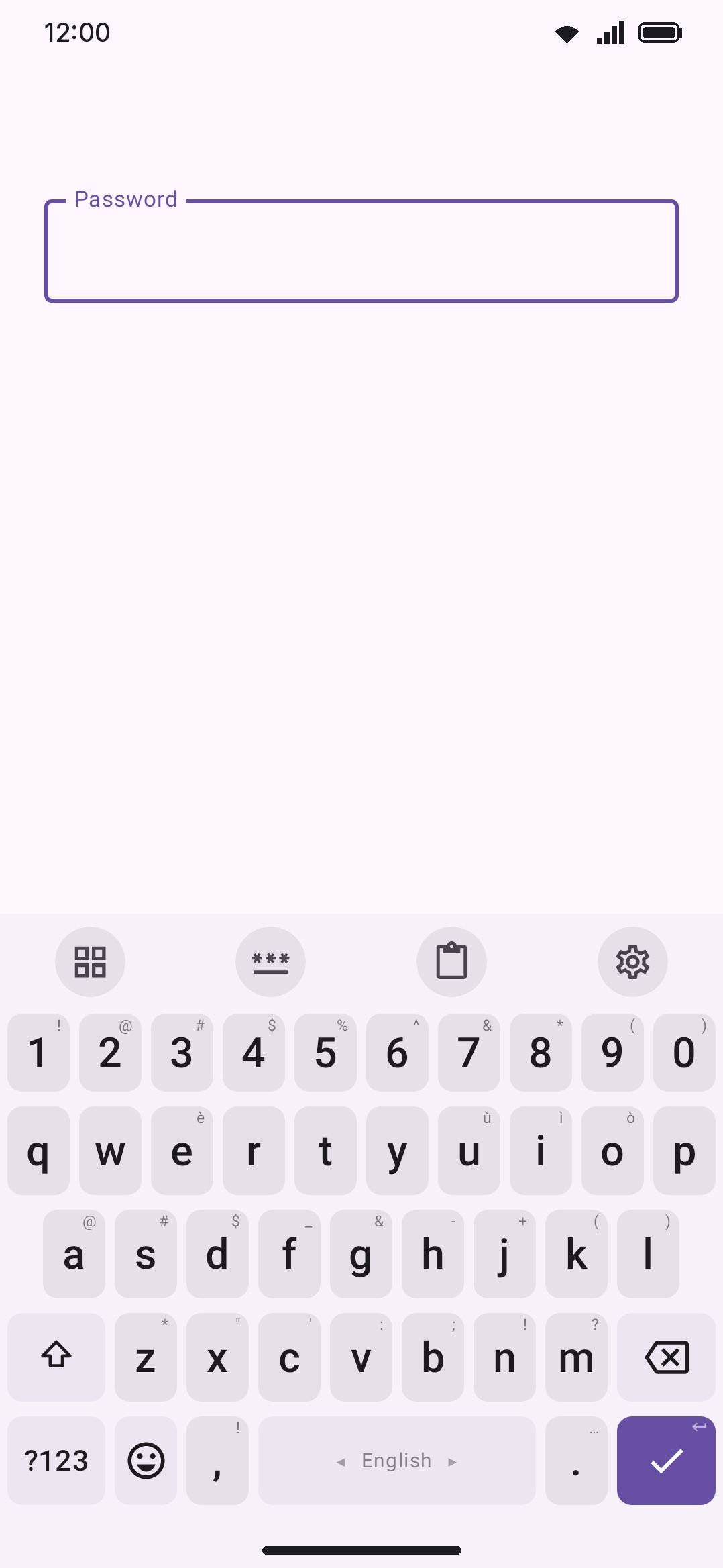
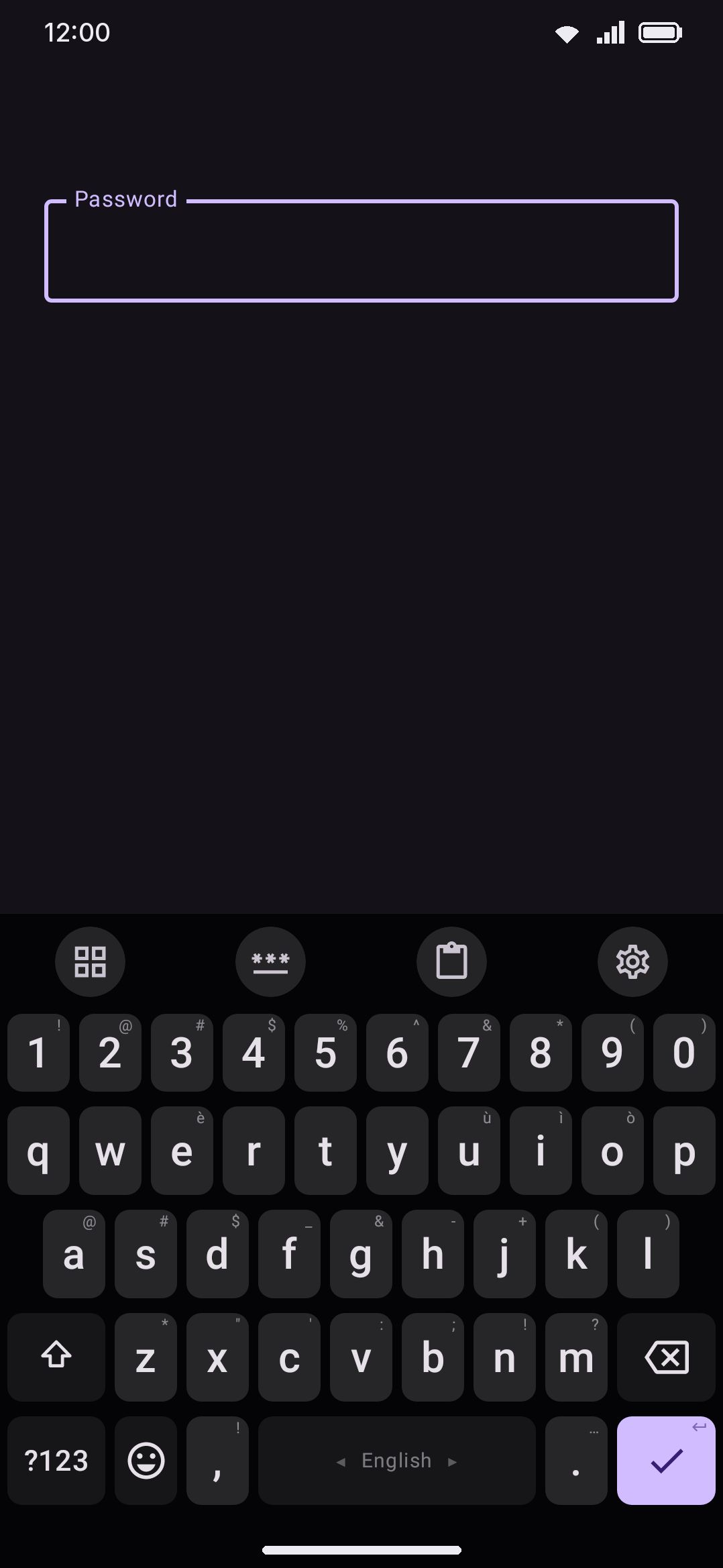
A secure field switches off, for as long as it has focus:
- The suggestion strip. This is the one thing the Suggestions in every field override can never bring back.
- Autocorrect and gesture typing.
- Autocapitalization for handwritten words.
- Smart suggestion chips (calculator, currency, unit conversions, tool shortcuts).
- Learning. The same lexicon incognito pauses is paused here too.
- Voice dictation, entirely. Tap the voice tool in a password field and
you get
You cannot use voice typing in a password fieldinstead of a recording. That’s a hard block rather than a hidden strip.
What a secure field does not switch off is character entry itself. Transliteration composing still runs in password fields. That’s the mechanism that turns romanized keystrokes into Bengali script, or into any other script you transliterate for, and without it the raw Latin letters would commit instead. Handwriting recognition still commits the word you wrote. It just offers no candidate list to pick from, and doesn’t remember the word afterward.
Clipboard hygiene around passwords
Section titled “Clipboard hygiene around passwords”The clipboard tool treats password-shaped clips two different ways, depending on whether you’re copying or pasting.
When you copy something, a clip can be flagged sensitive two ways. The app it came from can mark it: Android lets an app label what it puts on the clipboard, and a password manager does exactly that when you copy a login. Or, while Let the keyboard find them is on, an on-device check can flag it. That check only counts a clip when the whole thing is one token that reads as generated rather than typed, meaning a short one-time-code shape or a longer mix of cases, digits and symbols. A code quoted inside a message, or a copied link, is left alone.
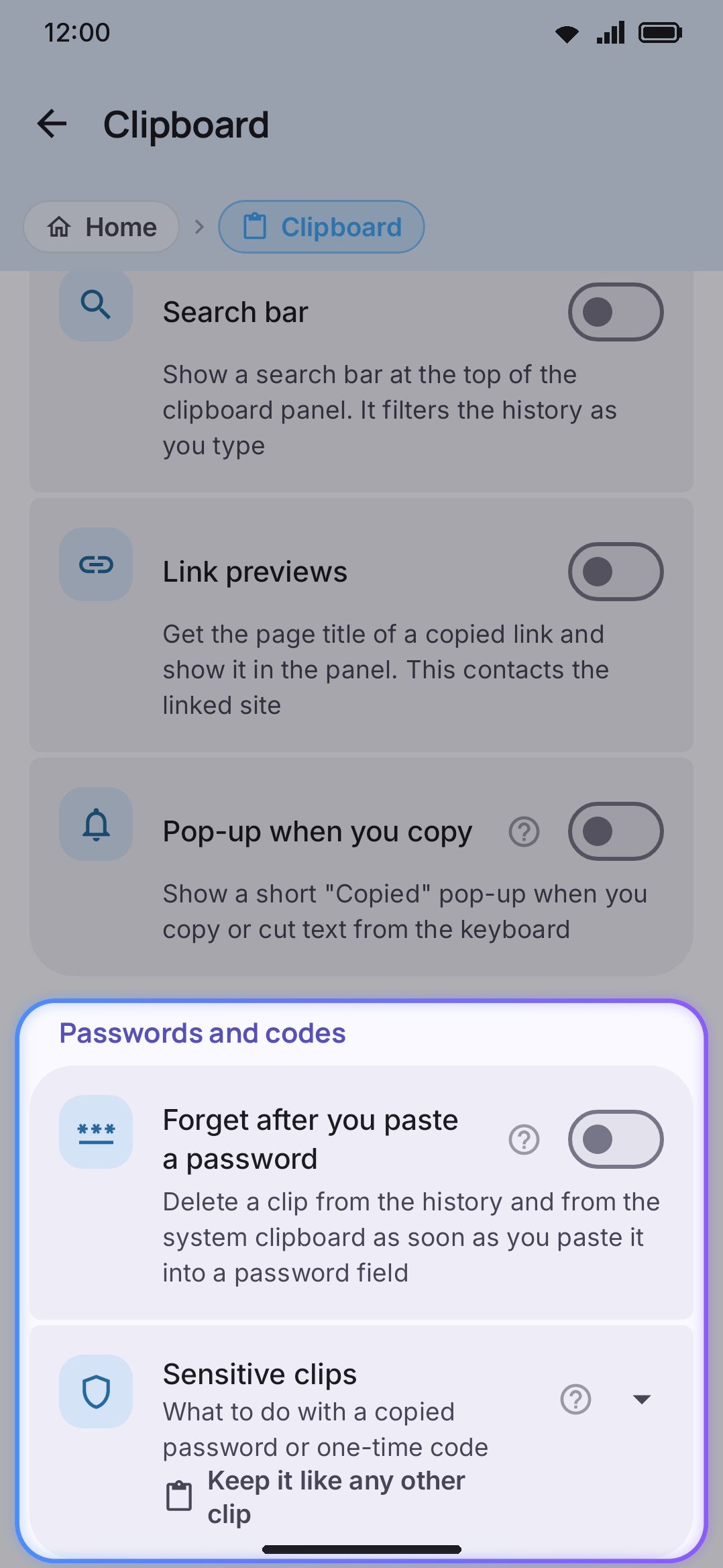
WM KeyboardClipboardSensitive clips decides what happens to a flagged clip: keep it like any other (the default), hide it and delete it quickly, or never save it at all. A hidden clip renders as a row of dots behind a lock icon, with a character count under them. Tap it and it pastes straight into the field, the same as any other clip, so there’s no reveal-in-place. Pinning one overrides all of that, because pinning is an explicit “keep this.”
Pasting is the other half, and it ignores the sensitivity detection above entirely. Paste anything into a password field (from the clipboard panel, the paste chip, hold-V, or Ctrl+V) and the keyboard deletes that entry from history and clears the system clipboard behind it. Nothing is left sitting there for every other app on the device to read. This only fires for pastes the keyboard itself makes, so a paste through the field’s own long-press menu isn’t covered. It’s controlled by Forget after you paste a password, off by default, under WM KeyboardClipboardPasswords and codes. That switch sits beside the sensitive-clip options below rather than with the rest of clipboard history.
Neither of these depends on incognito being on. They run any time the clipboard tool is enabled. And regardless of all of the above, nothing is captured into history at all, sensitive or not, while you’re inside a secure field or while incognito’s clipboard pause applies.
What incognito doesn’t hide
Section titled “What incognito doesn’t hide”Incognito and secure fields are local-processing decisions: pause learning, pause clipboard capture, hide a strip. Neither one stops text you type from reaching the app you typed it into. That was never their job. Two things are worth knowing specifically:
- Network tools aren’t gated by either. Translate, web and image search, GIF and sticker search, and the AI tool all send whatever you type into their panel to that tool’s own provider, exactly as normal. That holds whether incognito is on or off, and it holds inside a password field too, since only voice dictation is blocked there. If you don’t want a particular tool touching the network, disable that tool. Incognito won’t do it for you. See Network policy for the full rundown of what each tool sends.
- Voice dictation can leave the device even when it isn’t blocked. By default it uses Android’s own speech recognizer, which prefers an on-device model but falls back to a network recognizer for languages the on-device model doesn’t cover. That fallback has nothing to do with incognito. Only the secure-field check above ever blocks it.
Options
Section titled “Options”- Incognito mode (default off). Pauses learning and clipboard capture until you turn it off again.
- Follow private browsing (default on). Switches incognito on by itself for a field that asks for it, for as long as that field has focus.
- Pause learning (default on). Covers the lexicon, the CJK pick history and the emoji history together.
- Pause clipboard capture (default on). Covers clipboard history.
- Follow private browsing is the same setting as above, shown again here because this is also where you’d look for it.
- Forget after you paste a password (default off). Deletes a clip from history and from the system clipboard the moment it’s pasted into a password field.
- Sensitive clips (default Keep it like any other clip). The other options are “Hide it and delete it quickly” and “Never save it”.
- Let the keyboard find them (default on). Only shown once Sensitive clips isn’t set to “Keep it like any other clip”. Extends the app’s own sensitive-clip flag with an on-device shape check.
- Forget sensitive clips after (default 5 minutes, adjustable from 1 to 120). Only shown while Sensitive clips is “Hide it and delete it quickly”. Independent of the ordinary clipboard history expiry.
For every other clipboard and tool setting, see the tool settings reference and Privacy settings reference.
Details & edge cases
Section titled “Details & edge cases”- Incognito and secure fields stack independently. A password field is already secure on its own account, and its detection doesn’t depend on incognito being on. Learning is off there either way. Autofill chips are gated by neither: a password field is where a password manager has something to offer, and incognito is where you’re most likely to be logging in, so the chips stay in both.
- Existing learned words are never touched. Turning on incognito, or turning off “Learn from typing” entirely, only stops new words and patterns from being recorded. Nothing already learned is deleted. Wiping what’s already stored is a separate action; see Your data on device.
- “Add words to the system dictionary” follows the same learning and incognito gate as the keyboard’s own lexicon, so it pauses alongside it rather than needing incognito awareness of its own.
- The badge is the only visual difference. Outside the small icon next to the toolbar and the active state on the Incognito tool, the keyboard looks identical whether incognito is on or off. There’s no separate “incognito theme.”
- A field can’t be un-incognito’d from the app side. Once a field sets the no-personalized-learning flag, the only way to type into it without incognito is to leave the field. “Follow private browsing” reads that flag, and there’s nothing you can override per-field.
See Network policy for what leaves the device outside of typing itself, and Your data on device for the full inventory of what’s stored locally and how to clear it.