
Handwriting
Write with your finger or stylus, and on-device recognition turns the ink into text.
Handwriting turns a full-width canvas into a keyboard. Write a letter or a word with a finger or a stylus, and the keyboard recognizes it on-device and drops it into your text. Full edition only: it runs on Google ML Kit’s digital ink models, which only ship in the full build.
Opening the panel
Section titled “Opening the panel”Open Handwriting from the toolbar (or the toolbox if you haven’t pinned it) to swap the keyboard for a full-width writing canvas. A fixed action rail sits on the right with four keys: Delete, Space, Enter, and a keyboard icon that closes the panel and returns you to normal typing.
Write anywhere on the canvas. Strokes render live as you draw, and dim to partial opacity while recognition is running. A single tap still counts as a stroke (enough to register a period or the dot on an “i”), so short marks aren’t lost.
If two or more of your enabled languages have a handwriting model, a small chip in the top-left corner shows the active one. Tap it to cycle through the rest. With only one language available, no chip appears.
Fixing a stroke
Section titled “Fixing a stroke”Two different controls undo ink, and they don’t do the same thing:
- Undo last stroke, an icon that appears in the bottom-left corner once you’ve drawn something, removes only the most recent stroke and re-runs recognition on whatever ink remains.
- The rail’s Delete key is different: while ink is still waiting to be recognized, pressing it throws away all pending strokes at once rather than deleting already-committed text. It’s the natural “no, not that” reaction mid-word. Once the strokes have already turned into text, Delete goes back to deleting committed characters normally, and it auto-repeats on a hold like it does on the main keyboard.
Handwriting without opening the panel
Section titled “Handwriting without opening the panel”There’s a second way to write by hand that doesn’t need the panel at all. Turn on Glide typing and a Handwrite with swipes choice appears underneath it. Set that choice to “Handwrite”. A swipe across the letter keys then draws a stroke on the keyboard itself instead of gliding a word. Recognition and insertion work exactly like the panel, and a plain tap still types its key. The default is “Type words”, so this is off until you change it.
Picking “Handwrite” swaps one set of options for another:
- Extra time for a dot or a cross appears: default 700 ms, adjustable from 0–1500 ms. Letters like i, j, and t need a second mark after the main stroke. For this long after you finish a stroke, a tap over the letters is folded into that same character, as the dot or the cross, instead of typing the key underneath it. Set it to 0 to turn the leeway off.
- The glide-only rows go away: Glide across the spacebar, Ask when a glide is unclear and the four rows under it, Space after a glided word and Delay after typing. None of them means anything once a swipe draws ink rather than a word.
If the language you’re typing in has no downloaded model yet, a one-time notice points you at the Handwriting settings screen instead of silently failing.
Downloading language models
Section titled “Downloading language models”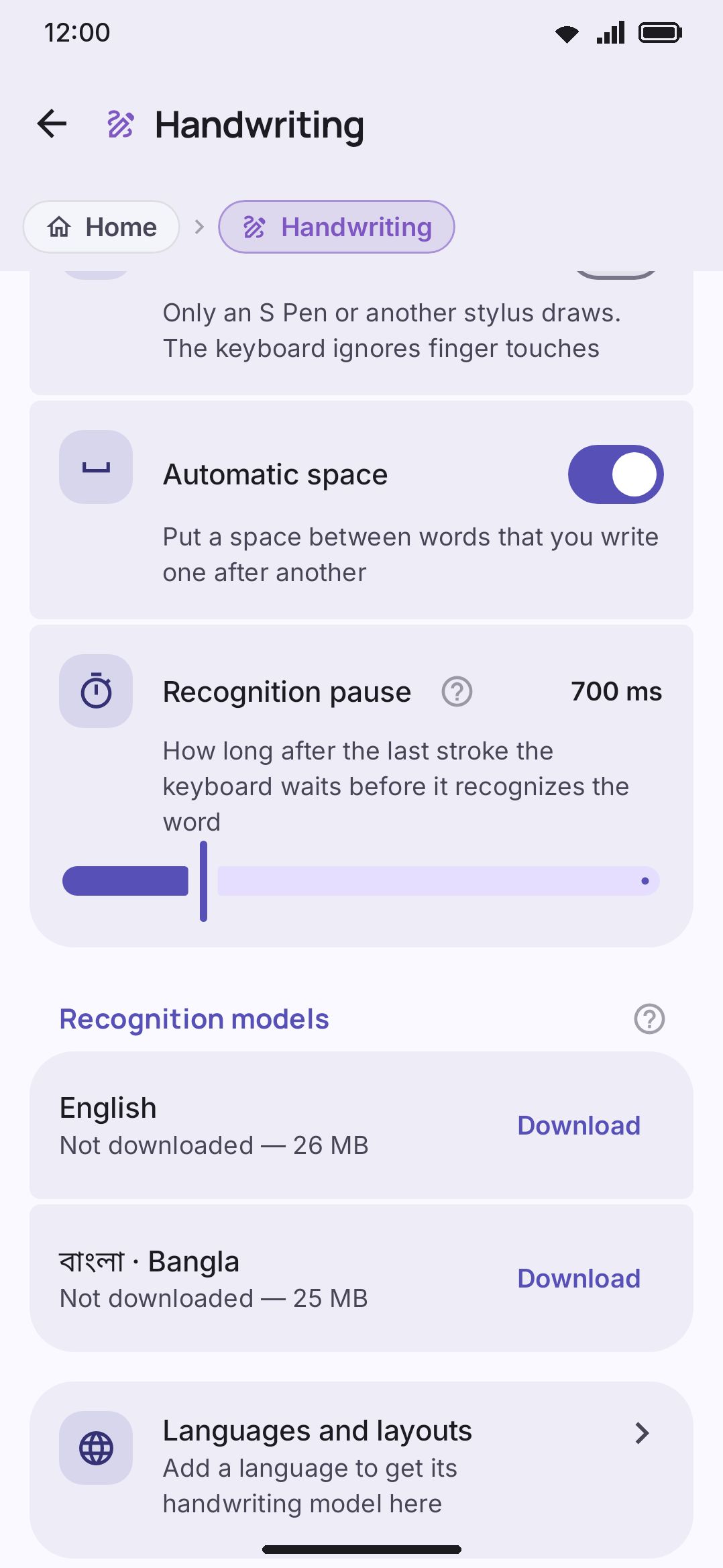
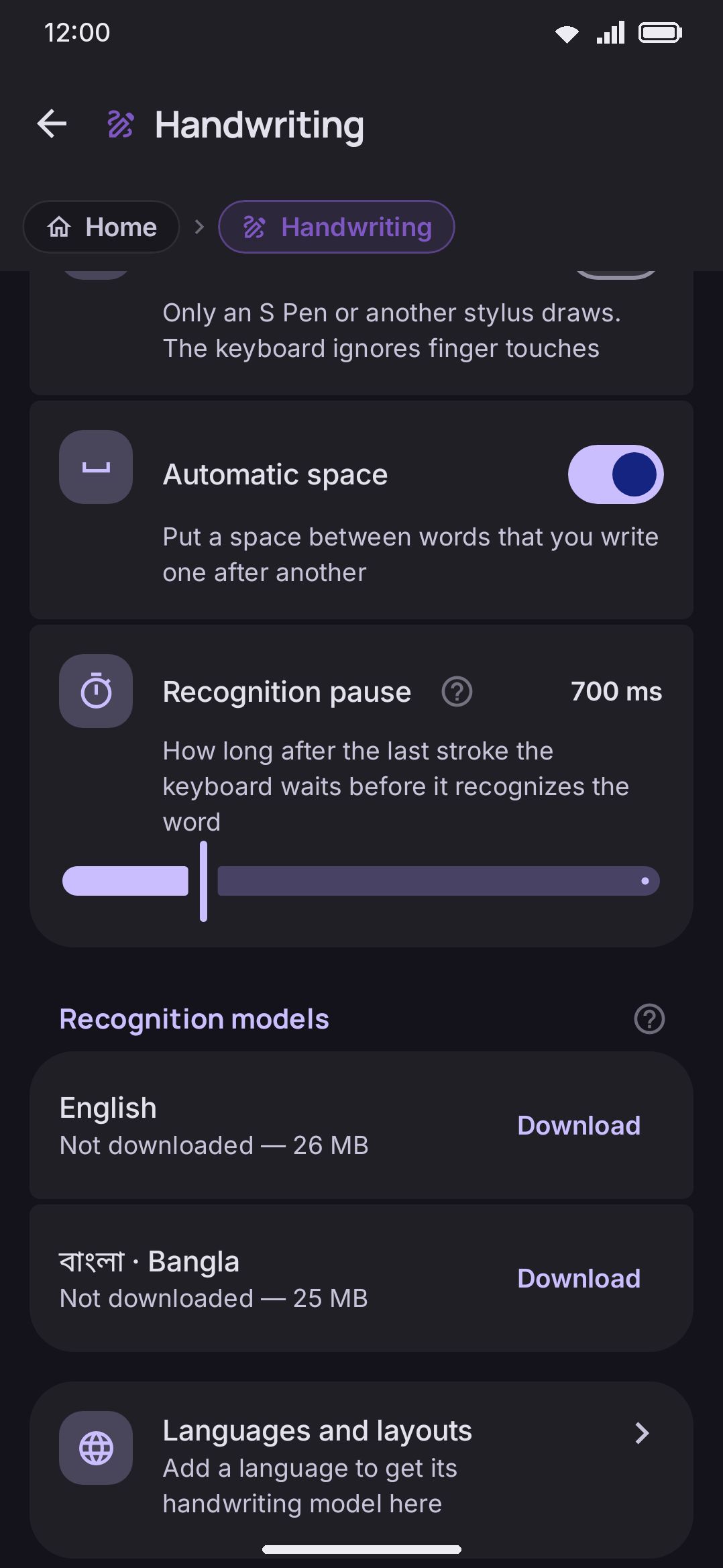
The Recognition models section lists one row per enabled language that ML Kit can recognize, with its own status: not downloaded (with a download button, and the space that model would take), downloading (counting megabytes toward the total), downloaded and working offline (with a delete/trash icon), or download failed. Recognition runs entirely on-device once a model is on your phone, so after that one download the language works with no network connection at all. See network policy for what else does and doesn’t touch the network.
Model sizes vary more than you might expect, so each row shows its own rather than one rounded figure for everything. Bangla installs 24.6 MB, English (US) 25.8 MB, French 26.1 MB, and Chinese only 7.9 MB. Roughly half of that crosses the network, because the files travel compressed and get unpacked on the phone. The numbers come out of ML Kit’s own manifest rather than an estimate, so the progress readout counts real megabytes toward a real total.
You can start a download from the panel too. Open Handwriting in a language whose model is missing and it offers a Download button instead of a canvas. The panel shows the same running total, and that button turns into Cancel while the download is going, so you are never stuck watching it.
On the Play Store build the recogniser itself is an extra part of the app (about 3 MB) that Google Play delivers the first time a model is downloaded. The same Download button covers both: the readout counts the recogniser’s bytes first, then the model’s. Until that part is here the rows cannot say how much a model takes, and the languages list still shows every language the recogniser knows, because that list is built into the app. Direct-download builds carry the recogniser from the start.
The first time handwriting is used after the keyboard starts, the model check and any download wait about ten seconds before anything happens. ML Kit fetches the models through Google’s Mobile Data Download service, and that service sets up its full list of models before it answers anything. On a fresh start WM Keyboard clears the service’s list first, because re-listing models it already knew about could leave every check and every download waiting forever. A model you already downloaded stays downloaded through this, and nothing is fetched again.
Downloads can also take longer than their size suggests, because the service can go quiet for a while before any bytes move. That is the real reason the readout counts megabytes: it tells you whether a download is slow or actually stuck. If nothing arrives for twenty seconds, both the panel and the settings row say so. After ninety seconds of silence the download gives up and clears out what it had already written, so trying again starts fresh instead of rejoining a transfer that already died.
The list of available models isn’t hardcoded in WM Keyboard. It’s read straight out of ML Kit’s own digital ink library, then filtered down to the languages you have enabled. So enabling a new keyboard language surfaces its handwriting model on its own, with nothing WM-Keyboard-specific to configure. The flip side: the catalog of which languages have a model at all only grows when ML Kit itself grows.
If an enabled language has no ink model, it’s called out separately underneath the list: writing in that language falls back to the nearest language that does have one, rather than failing outright. And if none of your enabled languages has a model, the list itself is replaced by a note asking you to add a language on the Languages screen first. A Languages and layouts row at the bottom of the section takes you straight there either way.
Options
Section titled “Options”- Stylus only: off by default. With it on, only a stylus (S Pen or similar) draws on the canvas, and finger touches are ignored completely. Even with it off, a finger touch is briefly ignored right after a stylus stroke, so a palm resting on the screen while you write doesn’t add stray ink.
- Automatic space: on by default. Inserts a space between words you write one after another, but never before punctuation.
- Recognition pause: default 700 ms, adjustable from 300–2000 ms. How long the canvas waits after your last stroke before it sends the word off for recognition. Shorter feels snappier. It can also cut a multi-stroke letter or a Bengali conjunct in half if you pause mid-letter, where a longer wait gives you room to breathe between strokes.
Details & edge cases
Section titled “Details & edge cases”- Palm rejection happens automatically and isn’t a setting: once the canvas sees a stylus point, it ignores finger touches for 800 ms afterward.
- There’s no hover preview, no air-gesture support, and no S Pen side-button handling. The only stylus-specific behavior is palm rejection.
- Auto-capitalization at the start of a sentence only applies when you’re writing in American English with Auto-capitalize on, and never in a password or other secure field. Bangla and other languages without letter case are skipped entirely.
- The recognizer only sees the last 20 characters of text before your cursor as context (a limit set by ML Kit itself, not WM Keyboard).
- Handwriting has no direct-boot support: neither the panel nor handwriting-by-swipe works before you’ve unlocked your device once after a restart, unlike some other tools. If Power Saving mode is set to drop on-device models to save battery, handwriting-by-swipe is switched back to plain gesture typing until you turn it back on.
Why full only
Section titled “Why full only”Digital ink recognition depends on com.google.mlkit:digital-ink-recognition. That library is compiled into the full build and left out of the lite build entirely, rather than hidden behind a toggle. So the Handwriting tool doesn’t appear in the toolbar or toolbox on lite, and the “Handwrite with swipes” choice under Gesture typing is full-only too. See Full vs Lite if you’re deciding between builds.