
Key press
Every row on the Key press screen (control type, range, and default) for haptics, sound, the backspace swipe, popup, timing, and press-and-hold shortcuts.
The Key press screen collects everything about the physical act of pressing a key: vibration, sound, the backspace swipe, the preview bubble, timing, and press-and-hold shortcuts. This page lists them in the order they appear on screen. It’s the field reference. For the reasoning behind each option, read Sound & vibration and Typing basics instead.
Options
Section titled “Options”The Key press screen is a hub. Haptics and sound, Key popup and Press and hold shortcuts are pages of their own; Alternate keys and Timing stay on the hub.
Haptics and sound
Section titled “Haptics and sound”| Setting | Control | Options / range | Default |
|---|---|---|---|
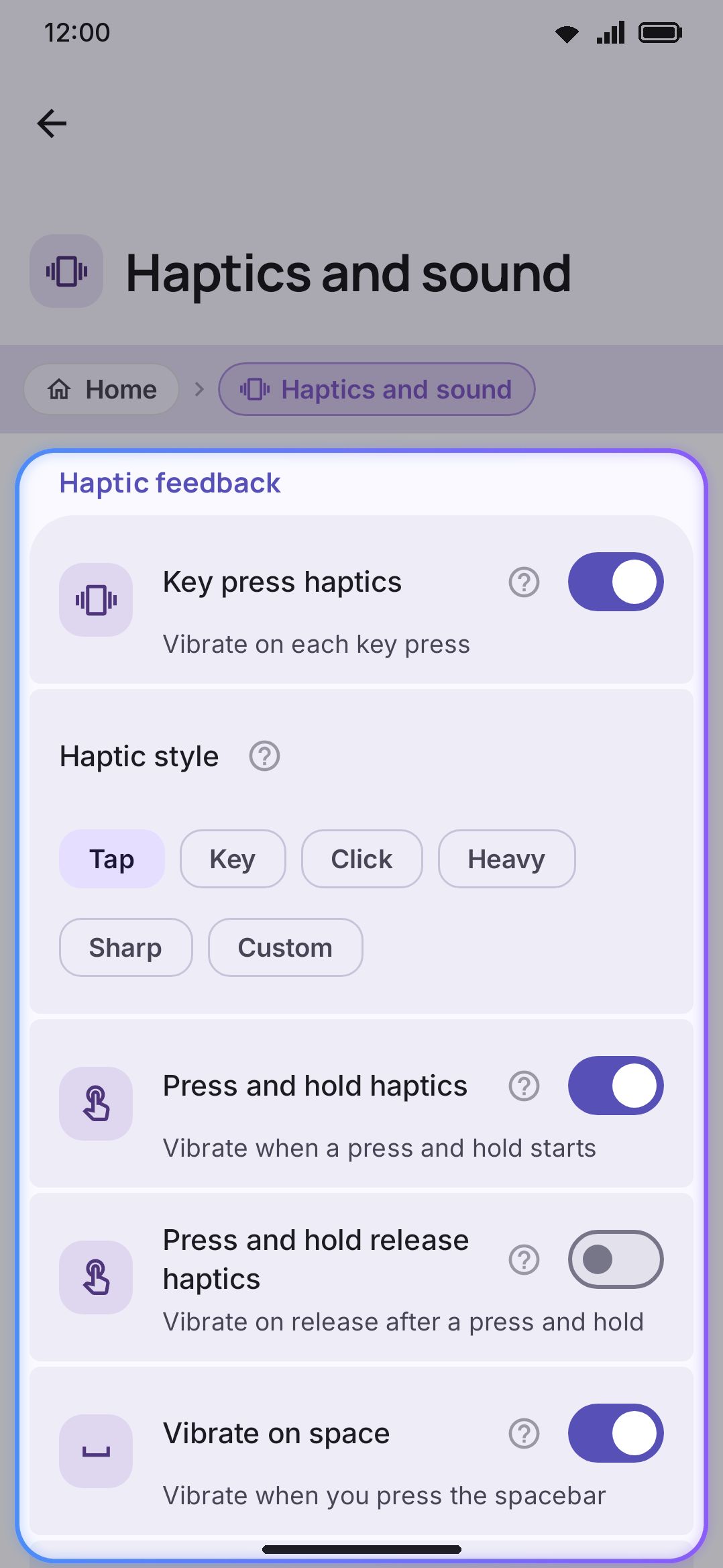
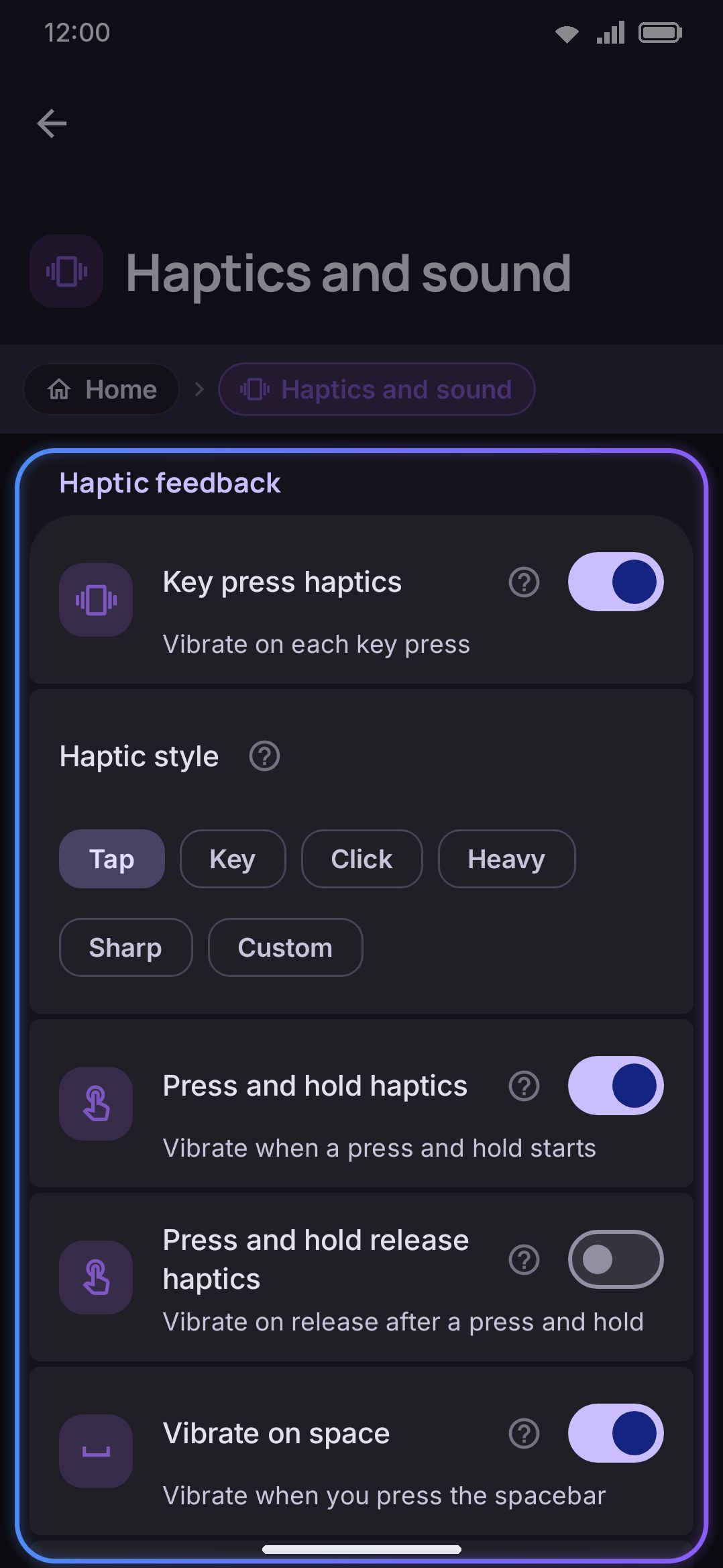
| Key press haptics | Toggle | On / Off | On |
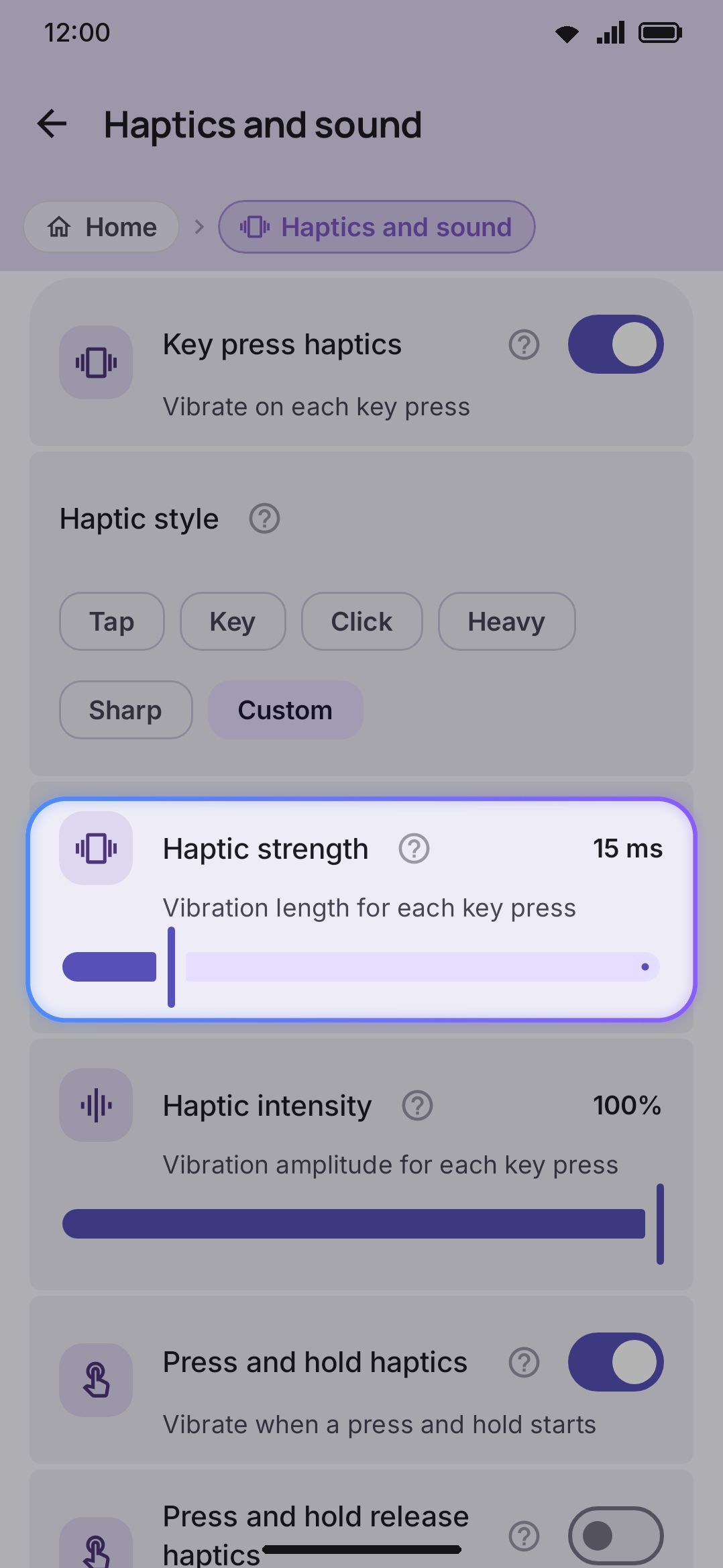
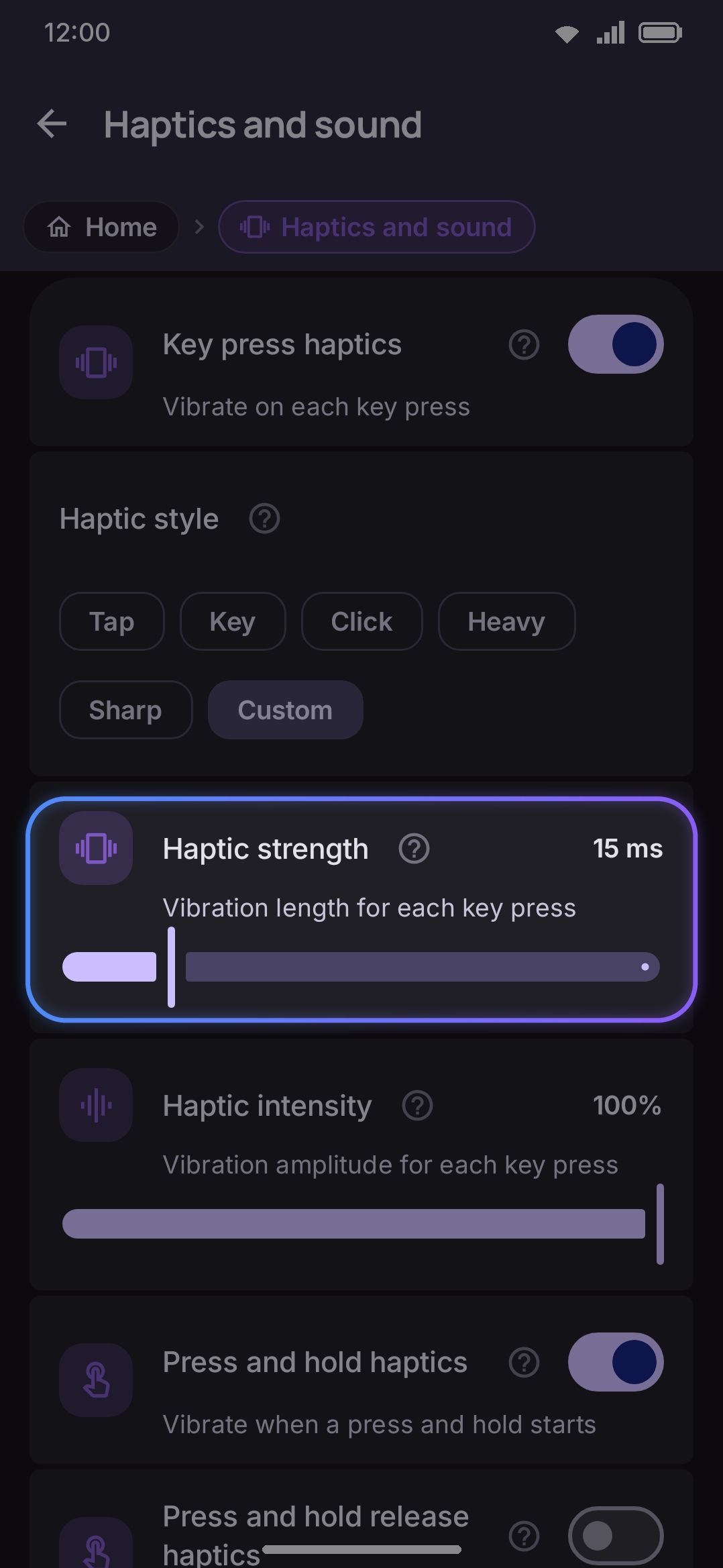
| Haptic style | Choice (chips) | Tap / Key / Click / Heavy / Sharp / Custom | Tap |
| Haptic strength (Custom only) | Slider | 5–60 ms | 15 ms |
| Haptic intensity (Custom, Sharp) | Slider | 1–255, shown as a percentage | 255 (100%) |
| Press and hold haptics | Toggle | On / Off | On |
| Press and hold release haptics | Toggle | On / Off | Off |
| Vibrate on space (shown only while Key press haptics is on) | Toggle | On / Off | On |
| Vibrate on delete swipe (same) | Toggle | On / Off | On |
| Vibrate on key repeat (same) | Toggle | On / Off | On |
| Follow the system touch feedback setting (same) | Toggle | On / Off | Off |
| Mute haptics in Do Not Disturb (same) | Toggle | On / Off | Off |
| Click on key repeat (shown only while Key sound is on) | Toggle | On / Off | On |
Key press haptics is the master switch. Turn it off and the five per-event rows below it disappear rather than grey out.
Haptic style picks how the buzz is produced. Tap and Key hand it to the platform’s own haptic call, which is what stock keyboards use, so it follows the vendor’s tuning and the system haptic-intensity setting. Tap asks for the keyboard-specific waveform most vendors tune, and it’s the default. Key asks for the general button press. Click and Heavy use a hardware-tuned effect (Android 10+). Sharp plays a hardware click primitive whose strength follows the intensity slider (Android 11+). Custom drives the vibration motor straight from the strength and intensity sliders. A style a device can’t produce falls back to a hardware Click, then to Custom.
Two of the per-event rows are odd ones out. Click on key repeat has nothing to do with vibration at all: it’s the sound half of “Vibrate on key repeat”, playing the key sound on every auto-repeat while ⌫ or Space is held, and it does nothing unless Key sound is on. Follow the system touch feedback setting isn’t a per-event gate either. It hands the master switch over to Android’s own touch-vibration toggle. It ships off, so turning off touch feedback in Android’s sound settings leaves the keyboard buzzing. Turn this on if you expect the system switch to cover the keyboard too.
Key press sound
Section titled “Key press sound”| Setting | Control | Options / range | Default |
|---|---|---|---|
| Key sound | Toggle | On / Off | Off |
| Sound style | Choice (chips) | Click / Standard / Pop / Thock / Chime / Custom / Sound pack | Click |
| Installed sound library (Custom only) | List + import | up to 30 installed sounds | Nothing installed |
| Installed sound packs (Sound pack only) | List + import | up to 20 installed packs | Nothing installed |
| Key release sound (Sound pack only, and only for a pack that has key-up recordings) | Toggle | On / Off | On |
| Sound volume | Slider | 5%–100% | 50% |
Seven chips, not six. Click and Standard come from the device’s own system sound pack; Pop, Thock and Chime are synthesized in-app and sound identical on every device. The last two both name something you’ve installed rather than a fixed waveform, so each reveals its own list when you pick it — and each also selects the first thing in that list as you tap the chip, so the keyboard changes sound straight away rather than clicking until you make a second choice. With nothing installed yet, the chip still selects: the list it reveals is where you install one.
Choosing Custom reveals your installed sound library and an Import a sound file (.mp3) button, and the label undersells it, since it also accepts .ogg and .wav files. The library holds up to 30 sounds between imports and installed sound addons.
Choosing Sound pack reveals a second, separate list with its own Import a sound pack (.wmsoundpack) button, holding up to 20 packs. A pack is one keyboard recorded many times over, up to 32 recordings, and the keyboard picks a different one per key press. Each pack’s row says what it carries, so “10 recordings • keys sound on the way up” means the pack was recorded with key-up sounds as well. For those packs only, a Key release sound toggle appears under the list. It’s on by default. Packs without key-up recordings don’t show it, because there’d be nothing for it to do. Tap a pack in the list and it plays a full keystroke rather than just the way down. See Sound & vibration for the longer version.
Installing a Sound addon highlights this Sound style row and offers to switch to it right after install, the same “Use it now?” flow other addon types use (see Installing addons).
A theme can carry a key sound of its own, and where it does, it wins over everything on this row — that’s the theme being the theme, the same way it wins on colours. It only wins with a sound it can actually make, though: a theme naming a sound or pack this device doesn’t have falls back to whatever is picked here. See Font and sound.
Key popup
Section titled “Key popup”| Setting | Control | Options / range | Default |
|---|---|---|---|
| Key popup | Toggle | On / Off | On |
| Popup on number pads (shown only while Key popup is on) | Toggle | On / Off | Off |
| Minimum popup duration (same) | Slider | 0–300 ms | 140 ms |
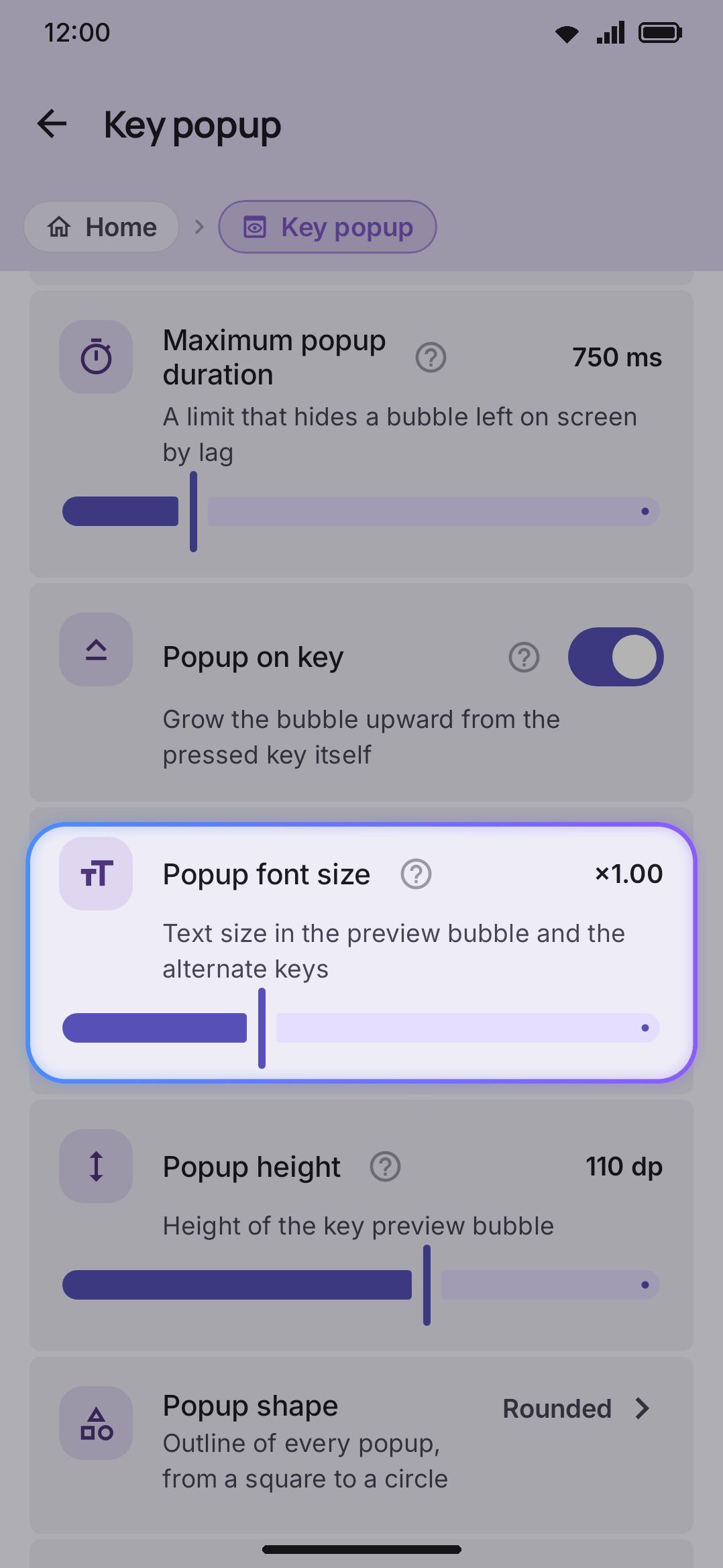
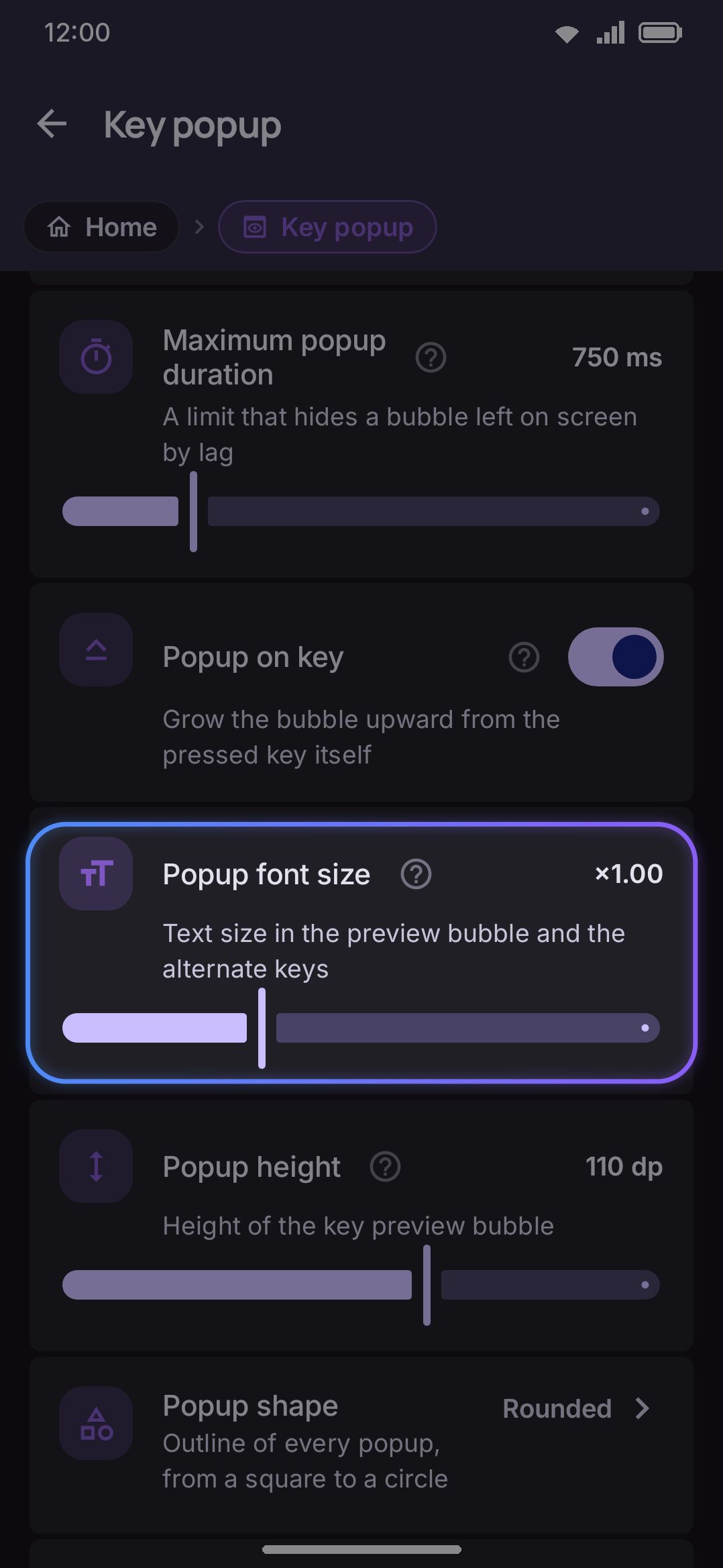
| Maximum popup duration (same) | Slider | 400–2000 ms | 750 ms |
| Popup on key (shown only while Key popup is on) | Toggle | On / Off | On |
| Popup font size | Slider | ×0.70–×1.60 | ×1.00 |
| Popup height (shown only while Key popup is on) | Slider | 32–160 dp | 110 dp on-key, 65 dp floating |
| Popup distance above key (shown only while Key popup is on and Popup on key is off) | Slider | 0–96 dp | 10 dp |
| Popup sideways shift (same) | Slider | −64–64 dp | 0 dp |
| Popup shape | Nav row (shape picker) | the twelve key shapes | Rounded |
| Popup corner radius | Slider | 0–40 dp | 12 dp |
| Popup color (shown only while Key popup is on) | Color picker | any color, or Automatic | Automatic |
| Popup text color (same) | Color picker | any color, or Automatic | Automatic |
Minimum popup duration keeps the bubble visible for at least that long after release, so a fast tap doesn’t flash it for a single frame. Maximum popup duration is a safety cap rather than a comfort setting. It force-hides a bubble stranded on screen when the release event is dropped under UI lag. It’s measured from the press, not from the release, and there’s normally no reason to lower it. Popup on key switches between two looks: the bubble growing up out of the pressed key (the stock-keyboard look), or a compact bubble floating above your fingertip with a gap.
Popup height looks like one slider, but it stores a value per bubble style, because the two want very different numbers. An on-key bubble is measured from the bottom of the key it covers, so most of its height goes on climbing back out from under your finger. A floating bubble already starts above the key. Flip Popup on key and the slider shows the other style’s height. A drag in one mode never resizes the other. A theme can carry its own pair of popup heights too, and when it sets one for the style in use the theme wins; the row then says so and stops responding until the theme lets go. An on-key bubble is never drawn shorter than the key plus its label, whatever this slider or a theme asks for, because a bubble that stops under your finger is a bubble you never see.
Popup distance above key and Popup sideways shift place the floating bubble, and appear only while Popup on key is off. The distance is how far above the pressed key the bubble sits. Raise it when your finger covers the bubble, which is the usual complaint about the floating style, and the keyboard makes the same amount of extra room above the top row so a bubble there is still drawn in full. The sideways shift moves the bubble left (a negative value) or right (a positive value) of the key, which gets it out from behind the hand that holds the phone. It’s a screen-space shift rather than a start-relative one, because it’s about your hand and not about the script, so an RTL layout doesn’t mirror it. Near the edge of the keyboard the bubble stops at the edge instead of leaving the screen.
Popup color and Popup text color are the bubble’s background and the character inside it. Both read Automatic until you pick one, which means the bubble follows the keyboard theme. A color picked here wins over the theme, and the reset control on the row puts it back to Automatic. Unlike the shape and the radius, these two stop at the preview bubble: press-and-hold alternates, the language picker and the panel menus stay on the theme’s popup color. A per-key style from a layout still overrides both.
Popup shape and Popup corner radius reach past the preview bubble. They set the outline of every popup surface the keyboard draws, press-and-hold alternates, the language picker and the panel menus included. The radius applies only to the rounded and cut shapes. The rest size their corners off the popup itself. A theme can override either one.
Delete keys
Section titled “Delete keys”| Setting | Type | Default | Shown when |
|---|---|---|---|
| Swipe to delete | Toggle | On | always |
| Swipe deletes | Words / Characters | Words | Swipe to delete on |
| Show what you will delete | Toggle | On | Swipe to delete on |
| Word delete distance | Slider, 32–120 dp | 72 dp | Swipe deletes = Words |
| Character delete distance | Slider, 8–48 dp | 20 dp | Swipe deletes = Characters |
| Swipe on forward delete | Toggle | On | always |
A leftward drag on ⌫ deletes more than the one character a press does, and Swipe deletes sets what one step of it takes off. Word delete distance is how far you drag before the first word goes, with later words coming off faster on a fixed curve, so that one number tunes the whole gesture; Character delete distance is the flat cost of one character, with no curve. Show what you will delete makes the swipe select the text and delete it when you lift your finger, so a swipe that went too far can be dragged back.
Swipe on forward delete gives ⌦ the same drag pointed the other way: rightward, over the text after the cursor. It has its own on/off switch and then borrows every other row above, so the two delete keys cannot end up tuned differently. No built-in layout carries a ⌦ key; add one in the layout editor. Full writeup: Gestures. This group moved here from the Typing screen: what a key does under a swipe is a key-press matter.
Alternate keys
Section titled “Alternate keys”This group is about the press-and-hold popup, not the preview bubble above it. The two are different popups and they size separately.
| Setting | Control | Options / range | Default |
|---|---|---|---|
| Alternate key size | Slider | ×0.70–×3.20 | ×1.00 |
| Alternate key spacing | Slider | 0–32 dp | 10 dp |
| Alternate key columns | Stepper | Auto, then 3–11 | Auto |
| Closest to the key first | Toggle | On / Off | Off |
| Choose without lifting | Toggle | On / Off | On |
Alternate key size goes twice as far as Popup font size does, because the alternates popup grows to hold whatever you give it while the preview bubble has a fixed height to stay inside. If you’d already raised the popup font size before this slider existed, it starts at that value, so nothing shrank on you. From there the two are independent.
Alternate key spacing is the room around each character. It’s both the gap you see and the target you tap, so raise it if you keep hitting the neighbour. A roomier popup is a wider one, and a wider one wraps onto more rows.
Alternate key columns is Auto by default, which fits as many per row as the screen allows and lets the popup’s shape follow the width of the characters. Pick a number instead and every row gets that many equal columns, so a key with a dozen alternates reads as a block and each character stays where you last found it. The stepper walks Auto, 3, 4 and up to 11 one press at a time.
The number you pick is a ceiling. If that many columns at your spacing don’t fit across the screen, the spacing on either side of each character shrinks first, evenly, so every character stays whole and centred in its column. If even the bare characters don’t fit, for example 11 columns at a big Alternate key size, the popup uses as many columns as do fit. Either way the popup keeps a small margin from both edges of the screen, so one as wide as the screen sits centred rather than pushed against a side.
This one is the keyboard-wide default. A single key can carry a count of its own, set on Columns in the popup in the layout editor’s key sheet, and where it does, that wins. Keys start at “From settings”, so this row is what they all follow until you say otherwise.
Closest to the key first decides which end of a multi-row popup the first alternate goes to. Off, the popup fills like lines of text: first alternate top left, and on a tall popup that’s the corner furthest from your thumb. On, it fills from the key outward, so the first alternate sits on the row nearest your finger and the overflow climbs away. That’s the AOSP behaviour, and it’s the shorter reach on keys with long lists. On a one-row popup the two look identical.
Choose without lifting is the popup’s press-and-hold behaviour, and it’s on out of the box. The first alternate is highlighted the moment the popup opens, sliding your finger moves the highlight, and letting go types whatever is highlighted. So a hold and a straight release gives you the first alternate, the way every stock keyboard works. Slide well clear of the popup before you let go and nothing is typed. Turn it off and the popup goes back to waiting: it stays open after you lift, and you tap the one you want. That’s two steps, but each one is easier to aim, which is worth having if your hands aren’t steady.
Timing
Section titled “Timing”| Setting | Control | Options / range | Default |
|---|---|---|---|
| Press and hold delay | Slider | 100–800 ms | 300 ms |
| Time before a key repeats | Slider | 150–800 ms | 300 ms |
| Delete repeat interval | Slider | 20–200 ms | 50 ms |
| Holding delete clears words | Toggle | On / Off | Off |
| Word delete interval | Slider | 60–500 ms (shown while the toggle above is on) | 140 ms |
| Space repeat interval | Slider | 20–200 ms | 100 ms |
| Repeating key interval | Slider | 20–200 ms | 50 ms |
| Caps lock double press | Slider | 150–600 ms | 350 ms |
Press and hold delay is how long you hold a key before its alternates popup (accents, digits, symbols) appears. Time before a key repeats is the separate wait before a held ⌫ or Space starts repeating. The two used to share one number, so slowing down accent popups for a tremor slowed down backspace with it. The same wait covers any key you turned Repeat while held on in the key layout editor.
The repeat interval is two sliders, because delete and space are held for opposite reasons. Delete repeat interval sets how fast a held ⌫ clears text, and faster is usually better. Space repeat interval does the same for a held Space. A runaway row of spaces has to be undone afterwards, so that one is worth setting slower, and it ships slower: delete at 50 ms, space at 100 ms.
Holding delete clears words changes what the repeat takes: one whole word per tick instead of one letter, on ⌫ and ⌦ alike, each clearing the way its own key points. A single press is untouched and still deletes one character. Word clearing runs on Word delete interval rather than the letter one, and ships slower on purpose: at 50 ms a word a held key empties a paragraph before you can lift your finger. The words come off the way a delete swipe takes them, so the whitespace beside the cursor goes with the word beyond it. Both settings are off and hidden respectively out of the box; the swipe gestures are separate, under Delete keys above.
Repeating key interval is the third of those speeds, and it belongs to the keys you set to repeat yourself — a row of arrow keys is the usual one. It ships at delete’s 50 ms, because an arrow key and a backspace are held for the same reason: keep going until the cursor is where you want it. Delete and space keep their own numbers, so changing this one leaves them alone.
Caps lock double press is the window for two Shift taps to lock caps. It only matters on the way into caps lock. A single tap while Shift or Caps Lock is already on always turns it off, whatever the timing.
Press and hold shortcuts
Section titled “Press and hold shortcuts”| Setting | Control | Options / range | Default |
|---|---|---|---|
| Press and hold hints | Toggle | On / Off | On |
| All accents on press and hold | Toggle | On / Off | Off |
| Shifted letter on press and hold | Toggle | On / Off | Off |
| Press and hold ?123 for the number pad | Toggle | On / Off | On |
| Press and hold enter for emoji | Toggle | On / Off | Off |
| Currency keys | Free-text field, space-separated | Any characters | ৳ € £ ¥ ₹ ₿ |
| Ctrl shortcuts as raw key events | Toggle | On / Off | Off |
| Hold shortcuts | Filter chips, any number | Select all, Copy, Cut, Paste, Undo, Redo | All six on |
| Action first (shown once at least one hold shortcut is on) | Toggle | On / Off | Off |
| Slide from 🌐 for shortcuts | Toggle | On / Off | Off |
| Shortcut keys (shown once a hold shortcut or the 🌐 slide is on) | Nav row → dialog | one letter per action | a c v x z y |
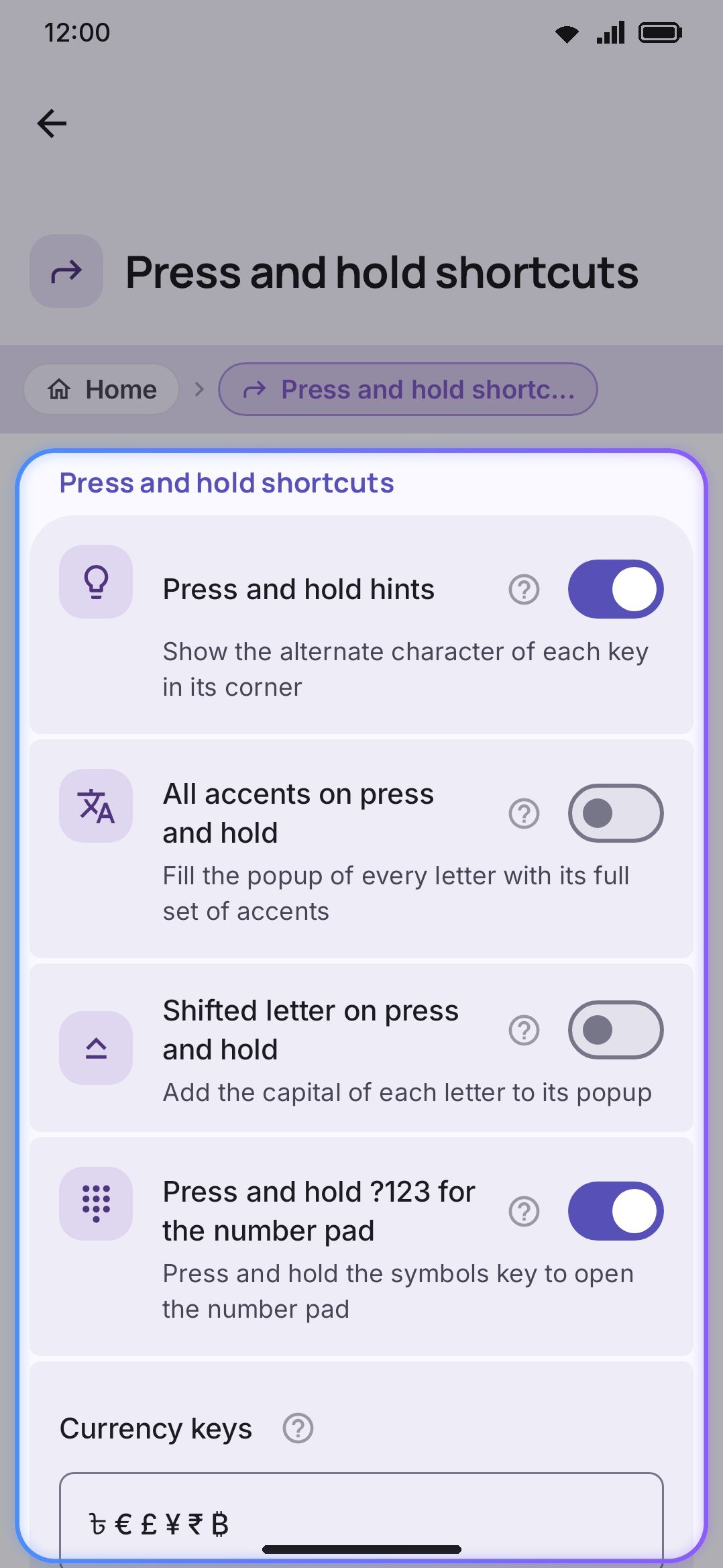
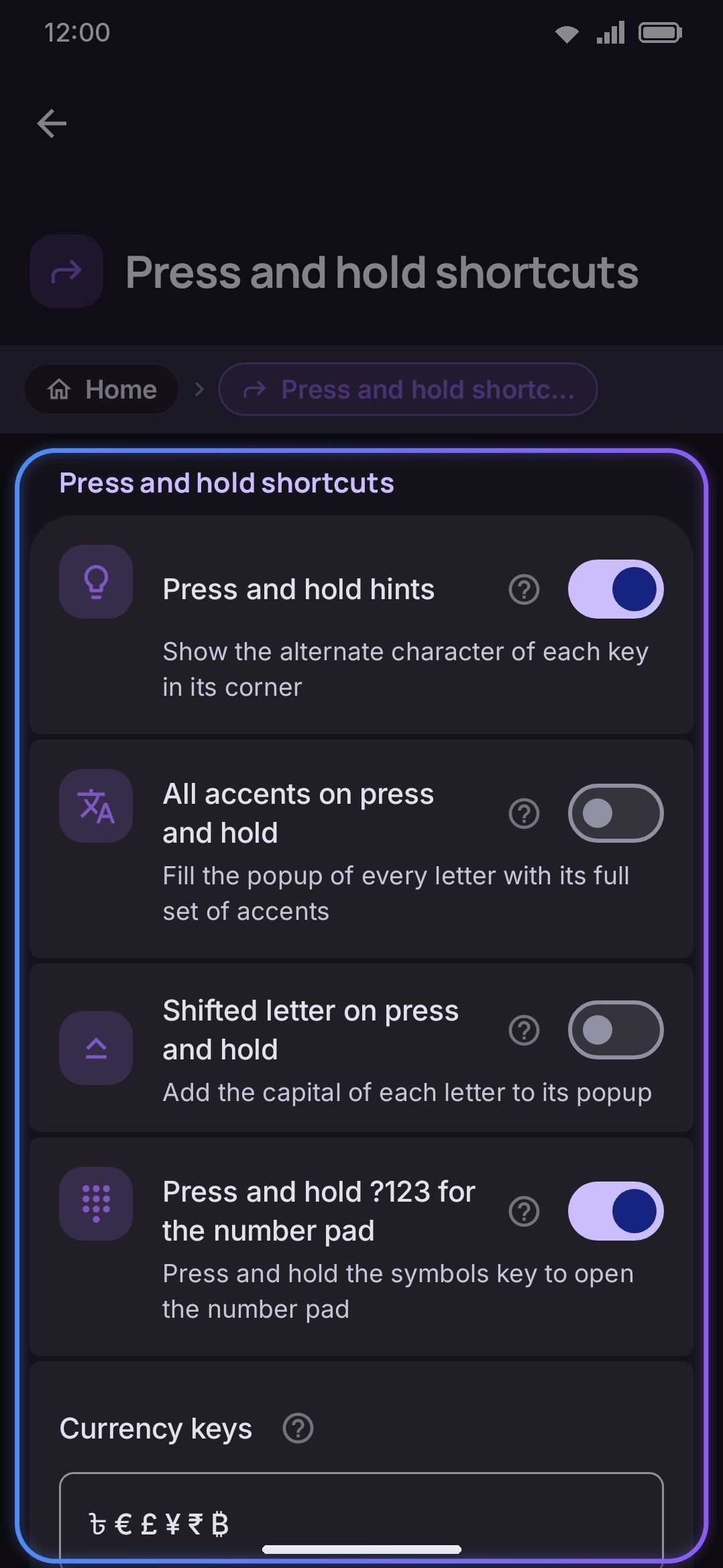
Press and hold hints puts a small corner label on each key, previewing its first press-and-hold character.
All accents on press and hold adds the complete accent set to every Latin letter’s popup, on top of whatever the layout already lists. Letters only.
Shifted letter on press and hold adds the character each key types under Shift, which is the capital in Latin scripts, to the end of its popup. A key that already lists it keeps the one the layout wrote. It pairs with the drag off ?123 or ABC, where the Shift key is on the layer your finger has left.
Press and hold ?123 for the number pad is on out of the box. Hold the symbols key and a full number pad panel opens over the current field. A quick tap still switches to the symbol layer as usual.
Press and hold enter for emoji is off by default. Turn it on and holding Enter opens a popup with an emoji entry first, so with Choose without lifting on (the default) a plain hold and release opens the emoji panel. In a field where Enter shows Send, Go or Search, the line break it replaces stays in the same popup, one slide along. A tap still does what Enter always does. The same switch also sits under Layout & size → Bottom row keys, beside Comma key opens emoji.
Currency keys is stored empty by default. The field shows and edits the built-in set (৳ € £ ¥ ₹ ₿) until you type your own space-separated list. Clear it back to blank and the built-in set comes back.
Ctrl shortcuts as raw key events only matters for a Ctrl key on a custom layout, whether you tap it or drag from it onto another key. Off, A/C/V/X route through Android’s clipboard actions, which work in web pages and Compose apps too. On, the raw key event goes through instead. A terminal app needs that, since it reads Ctrl+C as interrupt rather than copy.
Hold shortcuts is one row of six chips, all on by default: Select all, Copy, Cut, Paste, Undo and Redo. Each one goes into that letter’s press-and-hold popup, after the accents the key already has, so holding C still offers çć and copy sits at the end of the row. Copy and cut both fall back to select-all when nothing is selected, so one hold copies or cuts the whole field. Turn a chip off and only its own entry goes.
Action first sits next to Hold shortcuts and starts off. Off, holding a shortcut letter still opens on its first accent, the same as a letter with no shortcuts. Copy or cut still sits at the end of that popup. Turn it on and the shortcut moves to the front instead, so a plain hold on C runs Copy right away. Keep your finger down and slide on to reach çć instead of releasing. It needs Choose without lifting, under Alternate keys, turned on, since a popup that just sits open has nothing to run on release.
Slide from 🌐 for shortcuts is off by default. On, pressing 🌐 and sliding onto one of the six shortcut keys runs that key’s action when you lift, whether or not its hold shortcut is on. See Switching languages.
Shortcut keys is one row for all six bindings rather than six rows, and it appears whenever at least one of them, or the 🌐 slide, is on. The shipped a c v x z y is a QWERTY answer, so a layout without those letters (Bangla, Russian) needs the whole set moved onto keys it actually draws. The row’s subtitle lists the keys currently bound. Tap it to open a dialog with one field per switched-on action, saved in one go.
Details & edge cases
Section titled “Details & edge cases”- The five per-event toggles fold away rather than grey out. With Key press haptics off, Vibrate on space, Vibrate on delete swipe, Vibrate on key repeat, Follow the system touch feedback setting and Mute haptics in Do Not Disturb all leave the screen. Click on key repeat follows Key sound instead, not Key press haptics, so it disappears only when Key sound is off.
- Press and hold delay lives here only. The Timing slider runs 100–800 ms and the stored value takes the whole range. Accessibility → Touch shows the current value and links back to this screen.
- A few rows on this screen aren’t reachable from in-app settings search. Haptic style, Click on key repeat, Follow the system touch feedback setting, Sound style, Key release sound, Time before a key repeats and Shortcut keys are all real, rendered rows here. They’re just missing from the search index. Everything else is indexed, Key sound, Sound volume, Maximum popup duration, Popup shape, Popup corner radius and Press and hold ?123 among them.
- Most rows here grow a restore button once you move them, but four never do. Change a toggle, a slider or the Shortcut keys row and a small restore control appears beside it, putting just that setting back. The two chip rows (Haptic style, Sound style), the Popup shape picker and the Currency keys field are hand-built controls with no restore of their own. Clearing Currency keys back to blank is how you get its built-in set again. See Putting one setting back.
- The “Sound & haptics” toolbar tool isn’t a separate settings surface. Its page carries the Key sound switch, plus a nav row into the Haptics and sound page, so a change on either surface writes to the same settings. See Sound & vibration.
- Currency keys shows the built-in default even though the stored value is empty. The field only starts writing your own list once you edit it. Clear it back to blank and you get the same default again, not an empty popup.
- No edition differences. Haptics, key sounds, popups, timing and press-and-hold shortcuts all work identically on the full and lite builds.
Related pages
Section titled “Related pages”- Sound & vibration: the why behind the Haptic feedback and Key press sound groups, plus the ringer/DND distinction and the toolbar shortcut.
- Typing basics: the why behind the Key popup, Timing, and Press and hold shortcuts groups, plus multi-touch and key repeat behaviour.
- Accessibility settings: the link back to Press and hold delay, and Ignore repeated presses, which interacts with this screen’s key-repeat timing.
- Installing addons and Addons overview: how a Sound addon lands in the Key press sound library.