
Glide typing
Swipe across the keys to write whole words, with live preview and alternates.
Glide typing lets you write a word by sliding one finger from letter to letter without lifting it. WM Keyboard watches the shape of the stroke rather than which keys it happens to cross, so a loose, fast swipe still lands the right word.
Turning it on
Section titled “Turning it on”Glide typing is on by default, and it isn’t tied to one language. What it needs is a layout that types the letters you press rather than converting them, plus a word list covering enough of that layout’s alphabet. English gets it on every layout registered under English, QWERTY or otherwise: AZERTY, Dvorak, Colemak, Workman and Halmak all glide, because the word list comes from the language and every one of those grids can spell it. Other languages glide as soon as their word list is installed and covers the keys. French, German, Spanish and the rest ship no built-in list, so until you download one under Dictionaries a swipe on them has nothing to decode against and lands as taps. The keyboard says so rather than leaving you guessing: the first time you type in such a language with glide typing on, a chip on the suggestion strip reads “Glide typing needs a French word list”. Tap it to open the language’s page, where the list downloads, or ✕ to dismiss it. It shows once per language and goes away as soon as you type.
A swipe only turns into a glide when several things line up at once:
- You’re on the letters layer. Glide typing doesn’t apply to the symbols or number pages.
- The swipe has somewhere to land. With no panel open that’s your field. With a panel open it’s that panel’s own text box, if it has one: emoji and clipboard search, the dictionary lookup, a media panel’s search bar (GIF, sticker, web, image, Wikipedia, Translate, App launcher, Vocabulary, QR), the AI prompt, Find and replace, the Learn-from-text speller, a plugin’s text field, and the word card’s spelling bar all take a swiped word at their own caret. See Panels and captured keys. The keypad boxes — the calculator’s expression and the converters’ amount — take none, since a word list means nothing on a keypad.
- The layout types letters rather than converting them. Hangul, Vietnamese and the CJK input methods all turn keystrokes into something other than the keys pressed, so a stroke over them spells a reading, not a word. The phonetic layouts are the exception: Avro for Bangla and Hindi phonetic. They convert too, but the grid is Latin and the output is another script, so a stroke is decoded against a romanized vocabulary rather than the native one: the language’s known-spellings map, joined by its downloaded romanized word list (Banglish, Hinglish) if you have one. Without that spelling map there’s nothing to read the stroke against, and the layout quietly stops gliding rather than guessing. The fixed Bengali layouts, Probhat and Jatiya, shape clusters instead of converting, so a stroke over them is decoded against the Bengali word list on the ordinary path.
- The active word list covers enough of the layout’s letters. Edit a layout in the layout editor and drop letters the language needs, and glide typing quietly turns itself off for that layout rather than guessing at a key that isn’t there. It’s worth checking first if swiping stops working after an edit. A finished dictionary download re-asks the same question, so a language can start gliding a minute after you add it. Only the language’s own list is asked: a language you’ve added under Also suggest from doesn’t count against the layout, so English with Polish mixed in still glides on QWERTY, and Polish words that need letters the grid lacks just aren’t offered from a swipe. The same goes for lists you import under Custom dictionaries. While the language has a bundled or downloaded list, that list alone answers, so an English list kept under Arabic can’t switch Arabic glide off, and a few imported Latin words can’t switch it on for a grid that can’t spell Arabic either. Imported words the grid can draw are swiped like any others. Your imports only get the say when they’re all the language has: no list downloaded, or the language set to read its imported lists alone.
- You’re not in the middle of a typing-test tool run, unless the test’s own glide switch is on.
- The field allows it at all. Secure fields (password boxes) and structured keypads (email, number, phone, date/time) skip glide typing the same way they skip autocorrect: there’s no dictionary word to guess on a PIN pad. A URL bar is the exception: it gets a swipe like a text field does, since a browser’s address bar is typed as often as it’s searched, even though autocorrect and learning still skip it.
The word list behind a glide is whatever dictionary is active for the language you’re typing. That’s the bundled one, or a bigger downloaded list if you’ve installed one under Dictionaries, since a larger downloaded list always takes over from the bundled copy. Words you’ve typed and had WM Keyboard learn are folded in too, and weighted heavily, so a word you’ve typed even once becomes an easy swipe target next time.
The trail
Section titled “The trail”While you swipe, a comet-style trail follows your finger: thick and opaque at the head, thinning and fading toward the tail, so the stroke dissolves behind you instead of leaving the whole path drawn on screen. It takes its color from your theme’s accent color by default, or from a color the theme sets specifically for it. Lifting your finger doesn’t clear it instantly. The trail stays where it is and finishes fading on its own.
Three sliders under the same Gestures group tune it (trail width, how long it lingers, and its opacity). See Options for their ranges and defaults.
Live preview while you swipe
Section titled “Live preview while you swipe”You don’t have to wait until you lift your finger to see what WM Keyboard thinks you’re writing. Partway through a swipe, the suggestion strip already fills in with the current best guesses, and it updates as you keep moving. Those guesses are decoded against the same word list used for the final commit, so the word you see mid-swipe is never a preview of something different from what lands when you lift.
Watching the candidates reshuffle under your finger isn’t for everyone. One word on the strip (WM KeyboardTypingGestures, off by default) holds the strip to a single word for as long as the stroke is down: the same word the floating preview shows, and the same word a lift commits. The emoji, punctuation and rewrite chips left over from the word before the stroke stand down with the extra candidates, so the row carries one thing. Lift your finger and the alternates fill the strip as they always have, and the ambiguity picker still offers them mid-stroke if you hold still.
If you also use words on the keys, that feature has its own answer for what a stroke does to the keys, under While gliding. It ships set to Nothing, so the keys stay bare for as long as your finger is down and the words come back when you lift. The other two choices put the decoder’s alternatives on the keys so you can steer into one, or put the next word on the keys while you’re still drawing this one, ready to flick the moment the swipe ends. See During a glide.
Finishing a long word early
Section titled “Finishing a long word early”A swipe is normally read from end to end: the first letter goes where you started and the last where you stopped, so “dictionary” can’t be offered until you have glided all ten letters. Finish long words early (WM KeyboardTypingGestures, off by default) lets the keyboard offer a word your stroke has only started, the way tapping four letters of it would. The guess shows in the floating preview and on the strip like any other reading, and lifting your finger types it. It’s colored rather than only bolded when the keyboard is sure of it, under Color the word a lift will type.
Two rules keep it from running ahead of you:
- A word you have drawn in full keeps its place. Gliding “thing” all the way to the g reads “thing”, not “things”, and “that” stays “that” even when “that’s” is a word you use a lot. A longer word only takes over when it’s clearly the likelier one, letter for letter, over what you have actually spelled. “When sure” asks for a wide lead; “Eager” offers the longer word as soon as it’s ahead at all.
- Under “Prefer my words” and “Only my words”, a guess is always one of your own words. The dictionary still reads a stroke you finish, but it never finishes one for you, so a rare dictionary word can’t jump in ahead of a word you have written a hundred times. Guessing the rest of a word is about twice as accurate out of one person’s vocabulary as out of a dictionary, which is why the two settings belong together. Up to 0.5.11 the first rule stopped applying under “Prefer my words”: a guess at one of your own words pushed the whole dictionary reading aside before the lead was measured, so “exam” came back “example” and “When sure” behaved exactly like “Eager”. Your own words are still preferred, but only a word your stroke really spells can set that comparison now.
Lifting early on a guessed word is a choice, much like tapping a suggestion, so the strip treats it as one. Instead of the stroke’s other readings (words that end where your finger stopped, which is nowhere useful), it fills with the word’s neighbours: the plural, the possessive, the verb form, the shorter word the guess ran past. Lift on “dictionary” and “dictionary’s” and “dictionaries” sit beside it; lift on “functionality” and “functional” is one tap away. Not available on phonetic layouts such as Avro and Hindi phonetic, where a stroke spells a romanization rather than the word itself.
A word you finish early teaches your swipe style only what you actually drew. Lift on “dictionary” after “d-i-c-t” and the keyboard learns where your finger landed on those four keys, not on the six it never reached. No shape is kept for the word either: the shapes are of whole words, and yours was only the start of one. The word itself is still learned like any other.
Alternates, and fixing a wrong guess
Section titled “Alternates, and fixing a wrong guess”The moment you lift your finger, the best-scoring word commits to the field. The decoder hands back as many candidates as the suggestion strip has slots for, and the strip fills them from that list. The word that just committed is bolded in the center slot by default, following the same “best suggestion in the middle” layout that autocorrect and normal typing use, with its next-best rival to the left and a third option to the right. Tap any of them to swap it in for the word that just landed. Widen the strip (WM KeyboardTypingSuggestions, Number of suggestions, three by default and up to six) and every extra slot gets a candidate too.
Tap-to-replace only works while your cursor is still sitting exactly where the glide left it. Move the caret away, or type something else first, and the alternates for that word retire. The same guard governs a plain backspace: press it right after a glide and it deletes the whole swiped word in one go rather than a character at a time, since a wrong swipe shouldn’t cost a letter-by-letter cleanup. That takes the trailing space with it, so one press puts the cursor back where the swipe found it.
When a swipe is a genuine toss-up
Section titled “When a swipe is a genuine toss-up”Some strokes have no single right answer. On a fixed Bangla layout ক and খ share a key, so a word and its aspirated twin are drawn in exactly the same shape, and on any layout a hurried stroke can fit two words equally well. Rather than commit the likelier one and leave you to notice, Ask when a glide is unclear (on by default) offers the choice while your finger is still down.
When a stroke’s best candidate barely leads its runner-up, keep your finger down and hold it still. After Time to hold still (350 ms by default) the closest words appear just above your fingertip, in their own window, so a stroke that ends on the top row floats them over the suggestion strip rather than hiding them under the keys. The keyboard’s own first choice wears a thin outline, so you can see what a lift anywhere else will type. Slide onto a word and lift to type it. Lift without choosing and the keyboard commits its best guess exactly as it always did, and the same words are on the suggestion strip either way, so ignoring the picker costs nothing.
The moment the words appear, the stroke is finished. Sliding to a word does not redraw it, so the word you land on is the word that lands in the field. Change your mind about the whole swipe and slide down, more than a key below where you stopped: the words fade, a small “Lift to cancel” note appears, and lifting there types nothing at all. Slide back up and the words come back.
Four settings under the toggle tune it:
- When to ask decides how close a call a stroke has to be. Near ties asks only when the two words fit almost equally well. Close calls, the default, asks when the best word barely beats the next one. Any doubt asks whenever another word comes close. Every pause asks each time you hold still, whatever the keyboard thinks.
- Time to hold still is the pause before the words appear, from 150 ms to 1 s. Small movements do not count, so a finger resting on the glass still counts as still.
- Hold longer to always ask (on by default) lets a stroke the keyboard is sure of ask anyway: keep holding for twice the time and the words appear. Turn it off and a confident stroke never asks, however long you hold.
- Words to choose from sets how many words appear, from two to five. Up to three share a row above your finger; four or five add a second row above the first.
The picker appears only in the “Type words” swipe mode, since a handwritten stroke resolves through a different path. It works on a chained stroke too: pause on the last word of a swipe that crossed the spacebar and the choice is for that word. A word that is a snippet trigger or a personal dictionary shortcut shows what it expands to, like omw = on my way, since that is what lifting on it types.
The space after a glided word
Section titled “The space after a glided word”Lifting your finger commits the word and a space, so you can glide the next word or tap it out without the two running together. The space belongs to the keyboard rather than to you, which is what makes the next three things work:
- Punctuation takes it back. Type
.,?!;:straight after a glide, or a closing)]}", and the space steps aside, so you get “hello.” and not “hello .”. Opening brackets keep it, because “hello (world)” is what you meant. - A space press is spent on it. Reaching for the spacebar out of habit doesn’t leave a double gap. The press confirms the space that’s already there. Press space again and you get the usual double-space full stop, exactly as if you’d typed the word out.
- Backspace still undoes the whole thing. The word and its space come out together.
A word glided back into the middle of a sentence, where a space already follows, doesn’t get a second one. The space is skipped in structured fields too: passwords, email addresses, web addresses and number pads, the same set that turns off every other typing courtesy.
Turn this off with Space after a glided word (see Options) and a glided word commits bare. Words chained in one stroke are still spaced from each other either way. The setting only governs the space after the last one.
Gliding a whole phrase
Section titled “Gliding a whole phrase”You don’t have to lift your finger between words. Start a glide, cross the spacebar without pausing, and keep gliding straight into the next word. Each crossing commits the word so far plus a space and starts decoding the next one, so a whole short phrase can land from a single unbroken stroke.
Only the final word of a multi-word glide gets alternates in the suggestion strip and the backspace-whole-word undo. The earlier words in the phrase have already committed and moved on. This behavior has its own toggle, Glide across spacebar: turn it off and a swipe that crosses the spacebar is read as a single word instead (see Options).
How it picks a word
Section titled “How it picks a word”The decoder scores every dictionary word that could plausibly match your stroke and returns the best one, weighing three things:
- Shape. How closely the drawn path matches the ideal path through that word’s letters. Both are resampled to the same number of points, so a fast, loose swipe compares fairly against a careful one.
- Start and end anchoring. How close your stroke actually started and ended to that word’s first and last letter keys. A word is thrown out early if the stroke doesn’t begin and end near its endpoints at all.
- Word frequency, as a small tiebreaker. It’s what makes “the” win out over similarly-shaped rivals like “they” or “them” when the early part of the stroke looks the same.
How forgiving those gates are is yours to set. Start error radius, End error radius and Path error radius live in the Advanced tuning fold (WM KeyboardTypingGestures) and are all measured in key widths. The first two are how far the ends of your stroke may sit from a word’s first and last letter, and the third is how close the stroke has to pass a key on the way for that letter to still be available. They ship at 1.6×, 1.6× and 1.5×. Raise them when your swipes run wide or cut corners and the word you wanted keeps missing, and lower them to hold the keyboard to the keys you really crossed, which prunes the search a little as well. Going much under 1.3× is where words start dropping out, so move down in small steps and swipe a few sentences before you decide. They’re also the quickest way to compare how a layout behaves under your thumb, since a fixed layout with crowded keys wants a different tolerance than a roomy one.
None of those three looks at the word that came before. The stroke decoder is deliberately context-free: it reads the path and the candidate’s own frequency, nothing else. Context arrives one step later. The shortlist it hands back is then reordered by the words already in the field, through the same n-gram reranker the suggestion strip uses, and it’s the top word after that reorder that commits. That step is Context-aware suggestions (WM KeyboardTypingAutomatic corrections, on by default and gated on autocorrect being on). Turn it off and the decoder’s own order stands, so a glide commits purely on shape, anchoring and frequency.
A couple of shape quirks are worth knowing. Double letters only need one pass over the key, so “good” traces g-o-d, because drawing a letter twice in a row adds nothing a shape comparison can see. A small circle on the key says you meant the letter twice, and it has a section of its own below, with the two marks that say a letter is in the word at all. And a word needing a character with no key on your current layout, an accented letter your layout doesn’t have, say, is quietly left out of the running rather than causing an error.
Punctuation inside a word is the exception to that last rule. Hyphens, dots, at signs, underscores, ampersands, plus signs and slashes aren’t on the keyboard’s letter grid, so you can’t draw them, and words are spelled with them all the time. Swipe the letters and leave the punctuation out: fdroid for “f-droid”, coop for “co-op”, wasime for “wasi.me”. The word comes back punctuated the way your dictionary spells it. Where both spellings exist, the unpunctuated one goes first on the strip and the punctuated one sits right beside it, so “email” wins over “e-mail” on a tie and loses to it when your dictionary says “e-mail” is much the commoner of the two.
Some entries in a downloaded or imported word list are never offered for a swipe. The big English download is built from film subtitles, which spell out speech as people said it. That gives you cut-off words (“that-”, “can-”), words with the full stop still on them (“no.”), and stutters (“n-no”, “c-c-can”). Each one draws the same as the real word, so all they could ever do was take the strip’s other slots. A word list entry that ends on punctuation, or whose part before the hyphen starts the part after it again, is skipped. That rule also catches a handful of real words such as “D-Day” and “t-test”. Words you added yourself or the keyboard learned from you are never skipped, however they’re spelled.
The apostrophe is the one piece of punctuation left out of this, because contractions are exactly where guessing goes wrong. “its” against “it’s”, “were” against “we’re” and “shed” against “she’d” are all one stroke each, and picking between them on word frequency alone would be a coin toss. It has its own answer instead: set Apostrophe in a glide to a key and swipe through that key.
Marking a letter as you glide
Section titled “Marking a letter as you glide”Some words are the same stroke. “good” and “god” are: the o is one key and your finger crosses it one time, so the shape of the path has nothing to say about which word you meant. So are “write”, “wire” and “wrote”, which all draw the same straight line along the top row of a QWERTY keyboard. Without a mark, the commoner word wins on frequency alone. There are two kinds of mark you can make on a key, and they mean different things:
- Stay on the key: “this letter is in the word”. Slow to a stop on the i and carry on, and every word with no i there loses, so “wrote” drops away and “write” and “wire” are left. The stop counts for the key you stop on, not the keys next to it. The keyboard measures the pause against your own speed in that same stroke rather than in seconds, so it works the same whether you glide quickly or carefully. This one can’t be switched off.
- Rub back and forth on the key: the same thing, without stopping. A wiggle is the moving way to make a pause, for when stopping feels slow. It’s off out of the box, because a slow turn drawn with an unsteady finger looks much the same to the keyboard, and reading it marks keys you only went past. Turn it on if it’s the mark you naturally make.
- Draw a small circle on the key: “this letter, twice”. Swype’s mark, and the only one that doubles a letter. Go around on the o once and carry on for “good”. The circle costs the word nothing: the loop is taken back out of the distance your finger travelled, so “god” is no worse off for having been drawn with one. The circle belongs to the one key nearest its middle, so the keys its edge passes over stay out of the word, and a circle on the f of “off” can’t turn into “odd”. A circle on the last letter, with nothing after it but the lift, also says the word ends there, so with Finish long words early on a circle closing “see” stays “see” and isn’t read as the start of a longer word.
A pause or a rub never doubles a letter. A doubled letter drawn without a circle is still on offer, but the single spelling leads, so an unmarked “god” stroke reads as “god” and a circle on the o is how you get “good”. If you always pick the same word from the strip for a stroke, the keyboard learns that too.
Each has a row in the Advanced tuning fold (WM KeyboardTypingGestures). Pause to mark a letter sets how long a stop has to be. Loop to double a letter turns the circle on and off, and under it Loop sensitivity sets how much of a circle a curl has to be, Biggest loop that counts keeps a wide sweep through a ring of keys (the way “murderer” is drawn) from reading as a mark, and Loop centring sets how near the letter the middle of the circle has to sit. Wiggle to mark a letter does the same for the rub, with a strength and a size of its own.
These are worth moving because they’re about your hand, not your layout: a careful glide pauses everywhere and a quick one barely pauses at all, and the same curl is a deliberate circle from one person and a shaky corner from another. If words lose letters you only went past, raise the pause; if your stops don’t seem to count, lower it. If doubled letters keep appearing on their own, raise the loop sensitivity; if your circles don’t count, lower it.
Autocorrect and learning
Section titled “Autocorrect and learning”Going back to a misread swipe
Section titled “Going back to a misread swipe”Putting the cursor back on a swiped word puts that stroke’s other readings on the strip, ahead of the strip’s own answer. This matters more than it sounds. The strip normally reads the letters standing in the field, so a stroke misread as “form” offers “forms” and “fort”: respellings of the wrong word, never the word you drew. The readings the stroke actually produced do contain it, so those go first, and taking one is both the fix and a lesson: it counts as a correction of that stroke, the same as re-picking straight after the swipe.
The readings are kept for the last 500 swiped words in the field and go when the field does. Each set is tied to the spot its word sits in, so the same word typed somewhere else in the text never picks up that stroke’s readings.
Sometimes the readings don’t contain it either. Under Only my words a swipe is answered out of the words the keyboard has learned from you, so a word it has never seen you write cannot come back however you draw it — that is the trade the setting makes. The stroke itself is still there, though, and it is the only record of what you meant: the letters left in the text are the keyboard’s guess, not your finger’s path. So hold any word on the suggestion strip while the cursor sits in the wrong word and pick Search all words — the stroke is read again against every word list you have, past the sandbox and past the vocabulary limit, and the strip fills with what the full dictionary makes of it. Take the right word and it both fixes the text and teaches the stroke: the hand model, the shape for that word and the pair, exactly as though you had picked it the moment you swiped. This is the proofreading pass a swipe otherwise doesn’t get; tap typing has it for free, one letter at a time.
The search is asked for rather than automatic, because it is the slow, noisy decode that the vocabulary limit and Only my words exist to avoid — running it on every word you read back would undo the setting. If you’d rather not go through the menu, Offer a full search while proofreading puts a small search button on the strip whenever the cursor lands in a swiped word whose stroke is still kept. Tap it to run the search; hold it to send it away. It is an icon rather than a sentence on purpose — the words beside it are the ones the search is offering to improve on, and a chip that spelled the offer out took half a phone’s strip with it. It’s still off until you turn it on.
Paths are much heavier than readings, so only the newest 24 swiped words in the field keep theirs. Past that the readings remain and the full search is no longer offered.
Autocorrect never runs a second pass over a glided word. The decoder only ever returns real dictionary words in the first place, so there’s no typo to fix. What glide typing does share with normal typing is learning: every word a glide commits goes through the same learning path a tapped-out word does. It’s reinforced in your personal dictionary and recorded as following whatever word came before, which is what powers next-word prediction later. It works the other direction too. A word you’ve recently typed or had autocorrected becomes swipeable right away, since learning a word immediately refreshes the list glide typing decodes against.
Learning from a glide follows the same rules as any other typing. It respects the “Learn from typing” toggle, pauses under incognito, and skips entirely in fields that don’t allow typing intelligence. There’s no glide-specific exception.
What a swipe teaches
Section titled “What a swipe teaches”A kept swipe teaches three more things besides the word, all under Learn my swipe style. The first is where your finger actually lands. Nobody swipes through the exact middle of every key: a thumb cuts the far keys short and lands low on the near ones, and every swipe used to pay for that. Each swipe you keep records where your finger really passed each letter, and later swipes are read against keys moved to match, so a consistent miss stops costing anything, and so does a hand that draws every word a little smaller than the keyboard and never quite reaches the far keys. The second is how you draw each word. The decoder compares a stroke against the textbook path through a word’s keys, and nobody draws that either: you cut the same corners the same way every time. So a few of your own shapes are kept per word (three, unless you change Shapes kept per word under Advanced tuning), and a word you have swiped before is read against them as well as the textbook path. The shape only lands once the word has settled as a learned word, never at the moment you swipe it, so a swipe you take back or replace teaches nothing, and one you replace marks the shape that read it wrongly. The third is what you do about a wrong reading. Take a different word off the strip, lift on a picker word that wasn’t the leader, or backspace a swiped word straight away, and the keyboard remembers it against that pair of words. It is a nudge, not a rule: three consistent corrections are enough to flip a close call, and the same stroke then reads your word first without asking, but no habit overturns a reading the stroke makes clearly, and a correction the other way cancels the first. Backspacing a swiped word takes its lessons back.
Only the shapes are filed under words, and only under words already in your personal dictionary. The finger positions are numbers on a grid, and the corrected readings are scrambled fingerprints of the words, so those files say nothing readable about what you wrote. All three travel in a backup under Swipe style, which is off until you turn it on, for the same reason the dictionary is: the shapes are filed under the words you drew them for. Forget my swipe style deletes all three and starts over, and leaves your learned words alone; the word card a held suggestion opens can also forget the shapes of one word.
Your hand is allowed to change its mind. A word you start drawing from a different place, or hold at a different angle, is a new shape: keep drawing it the new way and the new shape settles in and the old one fades out, rather than the first way you ever drew it holding the slot for good.
It also no longer matters how you make the correction. Taking the right word off the strip, backspacing the wrong word and picking off the strip that comes back, and backspacing it and simply drawing again all teach the keyboard the same three things. Backspacing first used to teach nothing at all: the stroke was thrown away the moment the word came off, so there was nothing left to attach the right answer to, and the same correction could be made over and over without the reading ever moving. Now the stroke waits a few seconds for whatever you put in its place.
One more shift-related detail: only the first word of a multi-word glide honors a held Shift, capitalizing it or, under caps lock, the whole word. Words chained afterward in the same stroke always land lowercase.
Capitalizing without leaving the stroke
Section titled “Capitalizing without leaving the stroke”Tapping Shift and then swiping is two gestures for one word, and it breaks the flow that makes gliding worth using. That’s why most people simply stop capitalizing swiped names. So the stroke can say it itself: draw through the Shift key on your way and the word comes out capitalized. Cross it twice in one stroke and the whole word is in capitals, the same ladder tapping the key walks up.
The detour spells nothing. The walk out to the Shift key and the walk back are cut from the path before the word is read, not only the key itself, so going out to the key and back never adds a letter: a stroke drawn t→Shift→h→e→r→e reads as “there”, not as whatever lies between t and the key. Nothing happens unless the key is genuinely crossed, so ordinary swipes near it are unaffected, and the switch (Glide over Shift to capitalize) turns it off entirely. The preview keeps up: from the moment the stroke crosses the key, the word floating above your finger and the candidates on the strip show the capital the lift will type.
What a pass over Shift capitalizes chooses what a crossing means. Whole word is the ladder above. One letter reads each crossing as a capital for the letter your finger just left, so a stroke can write HeLLo or LeanType: glide to the letter, out to Shift, and on to the next letter, as many times as the word needs. Under that reading a whole-word shout is one trip rather than two: end the stroke on the Shift key and every letter is a capital. A capital the keyboard armed itself at a sentence start still stands, so a drawn capital and an automatic one can be different letters of the same word.
This is also the one way a swipe can teach a capital. A capital the keyboard chose is never evidence of how you spell a word (see Personal dictionary); a capital you drew is.
Options
Section titled “Options”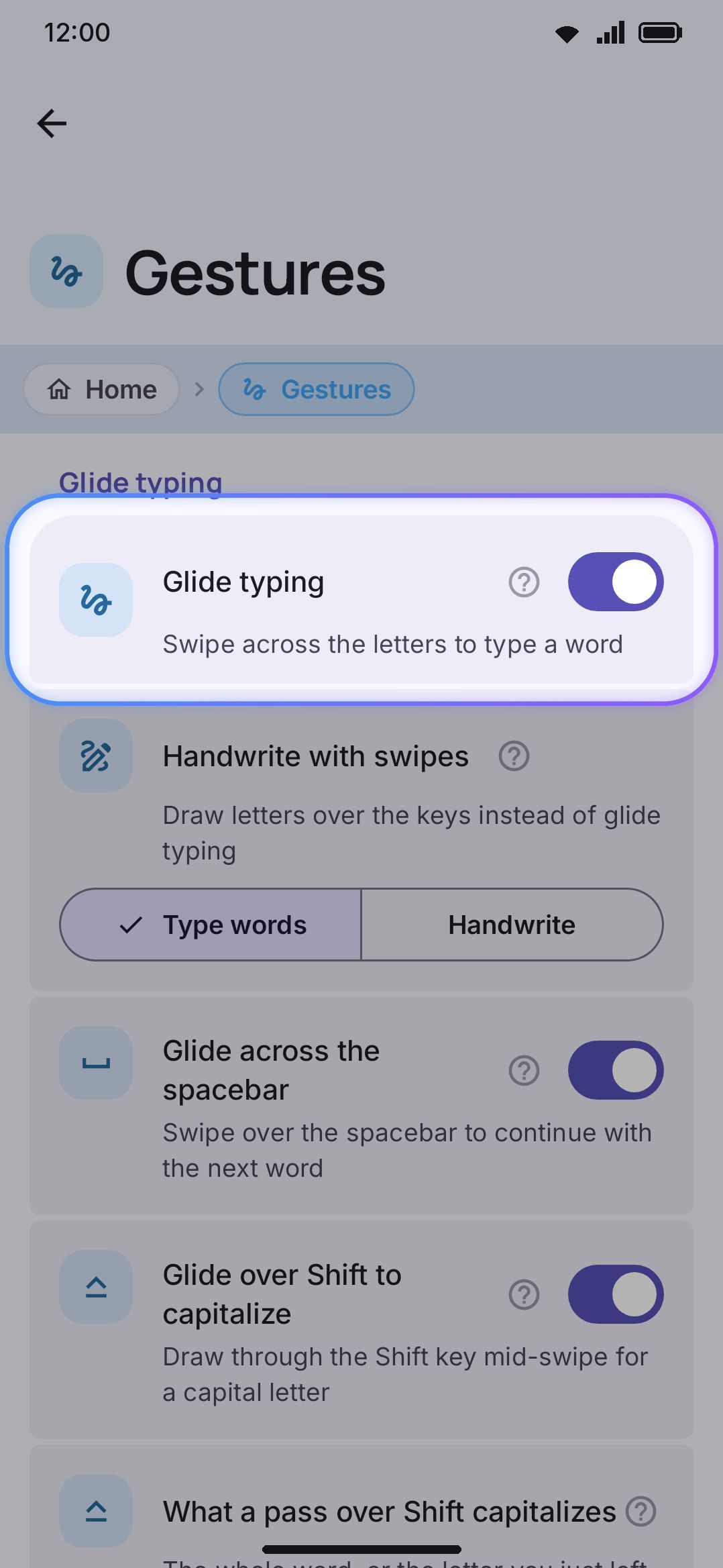
| Setting | Default | Notes |
|---|---|---|
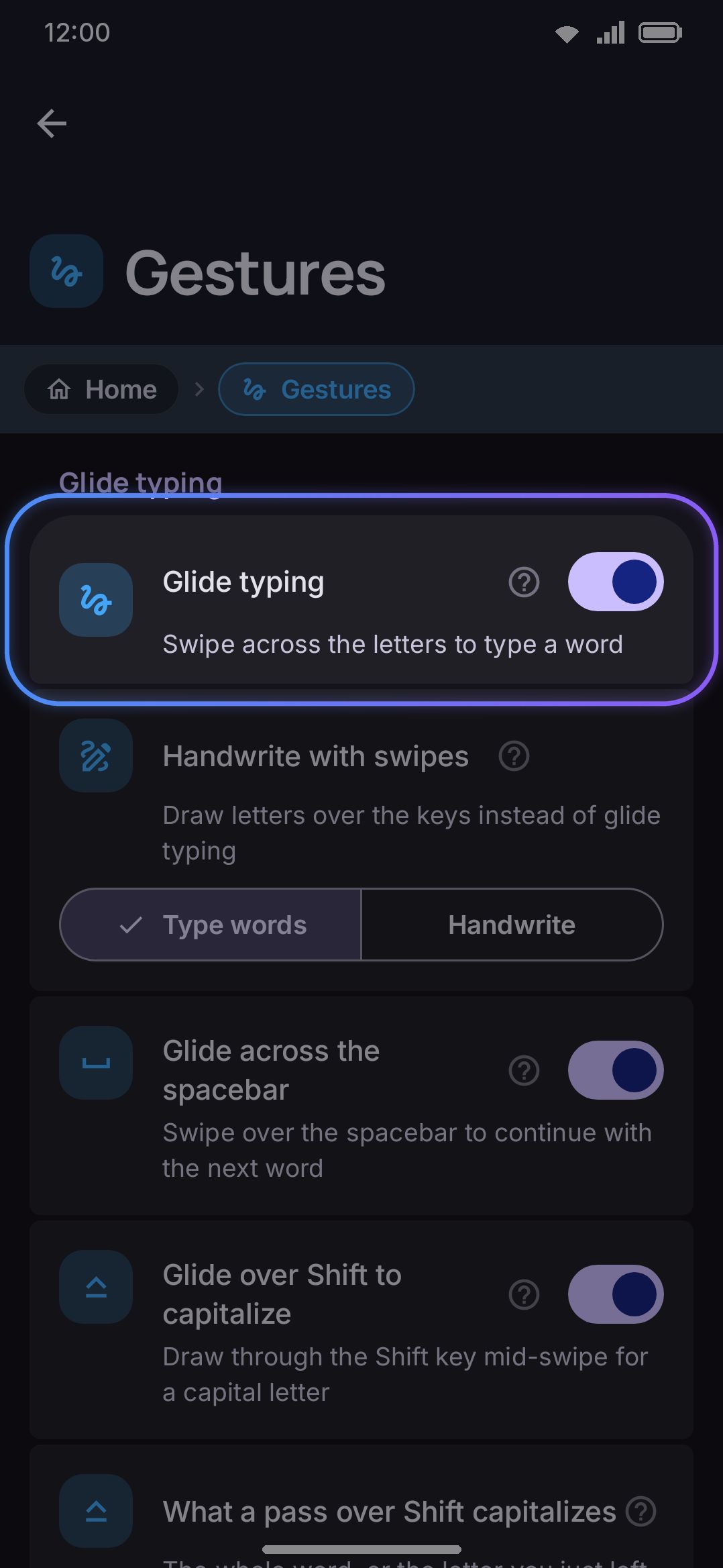
| Glide typing | On | Master switch for glide typing. |
| Glide across the spacebar | On | Only shown while glide typing (not handwriting) is the active swipe mode. Turn off to treat a spacebar-crossing swipe as one word. |
| Glide over Shift to capitalize | On | Only shown while glide typing is the active swipe mode. Draw through the Shift key mid-swipe for a capital, twice for all capitals. See Capitalizing without leaving the stroke. |
| What a pass over Shift capitalizes | Whole word | Only shown while Glide over Shift to capitalize is on. Whole word: one pass for a capital, two for all capitals. One letter: each pass capitalizes the letter the finger came from, and ending the stroke on Shift makes the whole word capitals. |
| Ask when a glide is unclear | On | Only shown while glide typing is the active swipe mode. When a stroke’s best word barely beats its runner-up, hold still without lifting to pick between them. See When a swipe is a genuine toss-up. |
| When to ask | Close calls | Only shown while Ask when a glide is unclear is on. How close a call a stroke has to be: Near ties, Close calls, Any doubt or Every pause. |
| Time to hold still | 350 ms | Only shown while Ask when a glide is unclear is on. How long the finger rests before the words appear. Range 150 ms to 1000 ms. |
| Hold longer to always ask | On | Only shown while Ask when a glide is unclear is on, and hidden under Every pause. A stroke the keyboard is sure of still asks after twice the hold time. |
| Words to choose from | 3 | Only shown while Ask when a glide is unclear is on. How many words the picker offers, 2 to 5. |
| Learn my swipe style | On | The keyboard learns where your finger really lands on each key, how you draw each word, and which words you take over a swipe’s reading, and reads later swipes by it. See What a swipe teaches. Off freezes what has been learned. |
| Forget my swipe style | Deletes what the switch above learned, after a confirm. Learned words are not affected. | |
| Space after a glided word | On | Only shown while glide typing is the active swipe mode. A glided word is followed by a space; punctuation typed next takes it back. Turn off to commit the word bare. |
| Swipe start distance | 2.0× | How far a touch has to travel, as a multiple of the system’s touch slop, before it’s read as the start of a glide rather than a tap. Range 0.5×–4×; lower is more sensitive but can mistake a stationary tap for a glide. |
| Delay after typing | 160 ms | A brief window right after a tap where a glide needs to travel further before it takes over, so fast tapping doesn’t misfire into an accidental swipe. Range 0–500 ms; 0 turns it off. |
| Trail width | 10 dp | Thickness of the trail at the head (the tail tapers to about 30% of this). Range 2–24 dp. |
| Trail length | 350 ms | How long a point on the trail lingers before fading out. Range 100–1200 ms. |
| Trail opacity | 55% | Peak opacity of the trail. Range 0%–100%; set it to 0 to glide with no trail at all. Power saving drives the same value to 0 on its own, see Details & edge cases. |
| Word preview | On | Only shown while glide typing is the active swipe mode. The word decoded so far floats above your finger and updates as you draw. It rides in its own window, so near the top row it rises over the suggestion strip instead of sitting on the keys. Off leaves it to the suggestion strip. |
| Preview distance above finger | 56 dp | How far above the fingertip the floating word sits. Range 0–160 dp. Raise it when your hand covers the word. |
| Preview sideways shift | 0 dp | Moves the floating word left (negative) or right (positive) of the fingertip. Range −80–80 dp. |
| Preview text size | 18 sp | Size of the floating word. Range 12–32 sp. |
| Preview color / Preview text color | Automatic | Background and text of the floating word. Automatic follows the keyboard theme’s popup colour. |
| One word on the strip | Off | Only shown while glide typing is the active swipe mode. While the stroke is down, the suggestion strip carries only the word the keyboard reads at that moment instead of the whole candidate list. The alternates come back when you lift. |
| Whose words a glide can produce | Every word | Every word, Prefer my words, Only my words or Automatic. Only my words answers a swipe out of the words the keyboard has learned from you and nothing else, so downloaded and imported word lists sit out. Automatic starts at Every word and asks on the suggestion strip before moving up (tap the question to say yes, tap its cross to say never, or hold it to open this setting first); once you say yes it works like that option, and the line under the setting says which. Picking any other option puts Automatic back at the start. Backspacing a glided word always searches the whole dictionary, and so does Search all words on a word you come back to. |
| Offer a full search while proofreading | Off | Puts a small search button on the suggestion strip when the cursor lands inside a swiped word whose stroke is still kept, for searching that stroke against every word list. Tap it to search, hold it to dismiss. The same search is always available from a held word on the strip; this only saves the hold. See Going back to a misread swipe. |
| Finish long words early | Off | Off, When sure or Eager. Lets a swipe be read as a word it has only started, and lifting types it. A word you have drawn in full is never overtaken by a longer one unless the longer one is clearly likelier; under Prefer my words and Only my words the guess is always one of your own words. See Finishing a long word early. |
| Color the word a lift will type | When sure | Never, When sure, Any early word or Always. Which word on the strip and in the preview gets the strip’s own colour, meaning “this is what a lift types”, not just bold. |
Advanced tuning
Section titled “Advanced tuning”A fold further down the same screen, closed until you open it, holding the weights the decoder reads a stroke with. The first three decide which words a stroke may be read as at all; the next eight decide how a stroke marks a letter, as in the word or as written twice, and the last is how many of your own shapes are kept for a word. Every row has its own reset, so you can move one, glide a few sentences, and put it back if it was worse. The whole group is hidden while glide typing is off or the swipe mode is Handwrite.
| Setting | Default | Notes |
|---|---|---|
| Start error radius | 1.6× | How far from a word’s first letter your finger may go down and still get that word, in key widths. Raise it if your swipes start off the key, lower it to be stricter about where a word begins. Range 0.5×–4×. |
| End error radius | 1.6× | The same for where you lift. It’s separate because the end of a swipe is only where a movement stopped, so it tends to be looser than the start. Range 0.5×–4×. |
| Path error radius | 1.5× | How close the stroke has to pass to a key for that letter to still be available to a word, in key widths. Raise it to cut corners freely, lower it to keep the keyboard to the keys you actually crossed. Range 0.5×–4×. |
| Pause to mark a letter | 3.0× | How long a stop on a key has to be to say the letter is in the word. Words without that letter lose; the stop never writes a letter twice. A multiple of your own speed in that same stroke, not a number of seconds, so it reads a quick glide and a careful one alike. Lower it if your stops don’t seem to count, raise it if a careful glide marks keys it only went past. Range 1×–8×. |
| Loop to double a letter | On | Reads a small circle drawn on a key as that letter twice, Swype’s mark, and the only mark that doubles a letter. The circle costs the word nothing, and it belongs to the one key nearest its middle, so the keys around it stay out of the word. Turn it off if your swipes curl on the way and you get doubled letters you didn’t ask for. |
| Loop sensitivity | 1.0× | How much drawn path a curl needs, in key widths, before it counts as a circle. Low catches a small curl and also the shake of a slow turn; high asks for a circle drawn on purpose. Range 0.5×–2×. |
| Biggest loop that counts | 0.8× | How wide a circle may be and still be a mark on one key, in key widths. A word like “murderer” goes around a ring of neighbouring keys and draws a wide circle meaning nothing of the sort, so this stays under one key’s width. Range 0.4×–1.2×. |
| Loop centring | 0.60× | How near the letter’s key the middle of the circle has to sit, in key widths. A circle drawn through a key sits about a third of a key to one side, so very low finds no letter for the mark. The circle only ever goes to the one nearest key, so high only accepts circles drawn further off centre. Range 0.35×–1×. |
| Wiggle to mark a letter | Off | Reads a rub back and forth over a key the way it reads a pause: the letter is in the word. It never writes the letter twice. Off because a slow turn drawn with an unsteady finger looks much the same, and the cost is keys marked that you only went past. |
| Wiggle strength | 50% | What a rub is worth against a full stop on the key. 100% makes the two equal; lower leaves the rub as a hint a much commoner word can still win against. Only shown while the switch above is on. Range 10%–100%. |
| Biggest wiggle that counts | 0.50× | How far the finger may travel in a rub, in key widths. Stays under one key’s width, or a word drawn back and forth between two neighbouring keys reads as a rub on one. Only shown while the switch above is on. Range 0.2×–0.9×. |
| Shapes kept per word | 3 | How many of your own ways of drawing one word your swipe style keeps apart. Raise it if you swipe some words several different ways and one of them keeps being forgotten; the shapes travel in a backup under Swipe style, so you can see how many your words really use. Lowering it takes the extras out of use at once, and they’re only deleted when that word next learns a new shape, so moving it back up before then loses nothing. Only shown while Learn my swipe style is on. Range 1–20. |
The three marks have a section of their own: Marking a letter as you glide.
Handwrite with swipes lives in this same settings group but belongs to a different feature. It’s a two-option picker (Type words or Handwrite) rather than a toggle, and it decides what a letter-area swipe means in the first place: see Handwriting.
Details & edge cases
Section titled “Details & edge cases”Power Saving mode splits glide typing into two independent switches. By default, power saving drops only the trail: it forces trail opacity to zero, so nothing is drawn while you swipe, and decoding and committing carry on as normal. Turning glide typing off altogether under power saving is a separate option, and it’s off by default. Decoding a swipe really is the most expensive thing the keyboard does, but it’s also why many people installed a gesture keyboard, so the cheap fix ships on and the expensive one is opt-in. See Power saving.
A layout that can’t spell the language turns glide typing off rather than breaking it. The decoder throws out any word holding a character the grid can’t produce, so a layout covering only a fraction of a language would never fail loudly. It would decode against that fraction and commit confident nonsense. Instead, WM Keyboard takes the language’s most common words, counts how many the layout can draw end to end, and wants at least 90% of them before it will glide. The threshold sits short of 100% on purpose: real word lists carry a few loanwords and proper nouns in other scripts, and demanding every one of them would fail layouts that handle everything people actually type. The common words come from the language’s own bundled or downloaded list. Up to 0.5.10 an imported list was counted alongside it with an equal share, so one import the grid couldn’t spell (an English list under Arabic, or a compiled .dict that 0.5.9 had copied in without unpacking it) halved the score and every swipe landed as taps, with nothing on screen to say why. Imports no longer count while the language has a list of its own, and those old .dict copies are repaired automatically.
Multi-word glides only leave the last word revertible. If a phrase-length glide gets one word wrong, tap-to-fix and the backspace-whole-word shortcut apply only to the final word in the stroke. The earlier words are ordinary committed text by then.
The bigram context updates correctly when you swap an alternate. Tap an alternate to replace a glide’s word and the “what word came before” tracking re-links to the word before the one you just replaced, rather than to the discarded guess. Next-word prediction stays accurate after a correction.
See also the gesture cheat sheet for every gesture on one page, and Reference → Settings → Typing for the full Typing screen.