
Typing
Every setting on the Typing screen: autocorrect, suggestions, smart chips, one-time codes, gestures, Enter, volume keys, and physical keyboards.
The Typing screen is a hub. Six of its groups are pages of their own (Automatic corrections, Suggestions, Smart chips, One-time codes, Gestures, Physical keyboard) and two short groups stay on the hub: Enter key and Volume keys. The Delete keys group used to sit here too; it lives on Key press now, with the rest of what a key does under your finger. The tool-shortcuts letter list is one tap deeper still. Most of what’s here has its own task-focused guide too, linked from each group below. This page is the field-by-field reference, for checking a default or finding a setting by name.
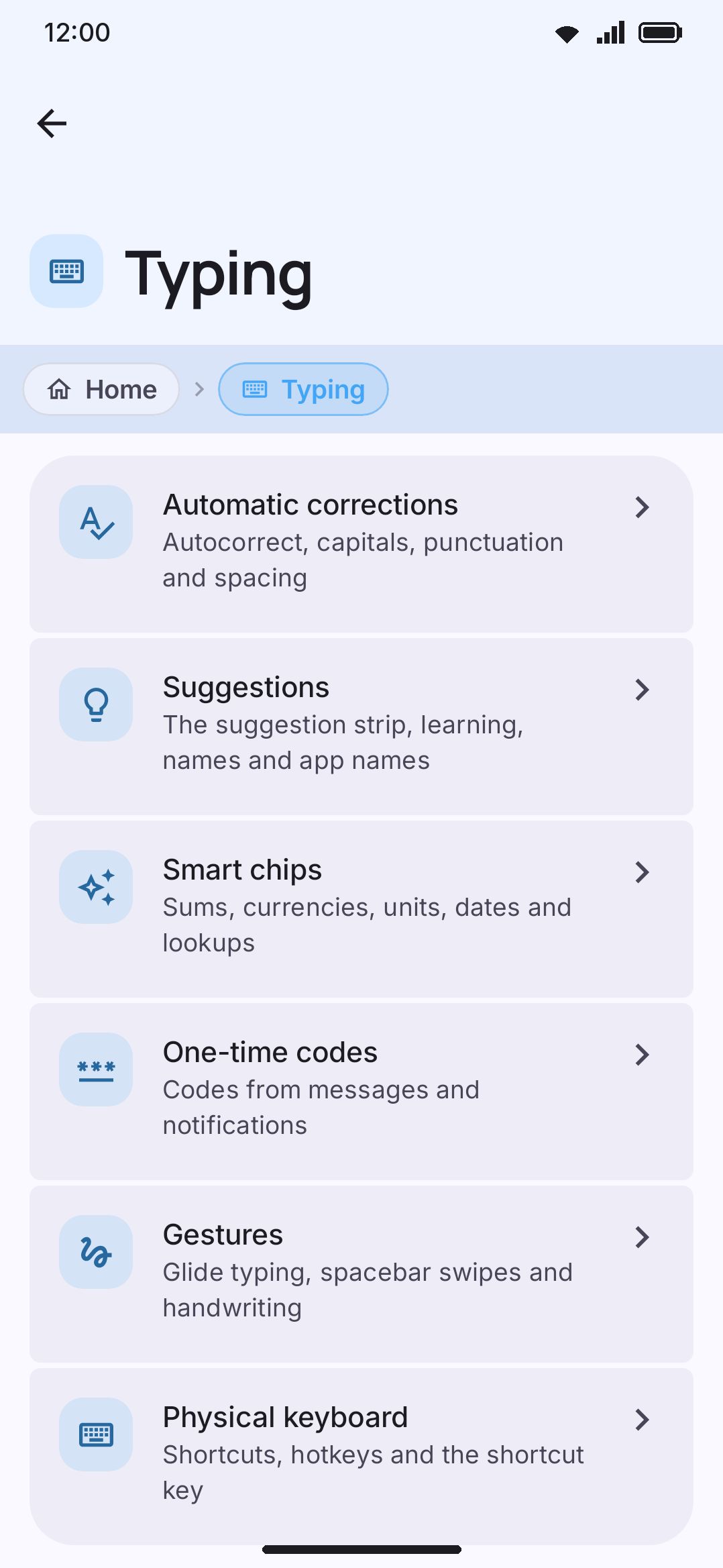
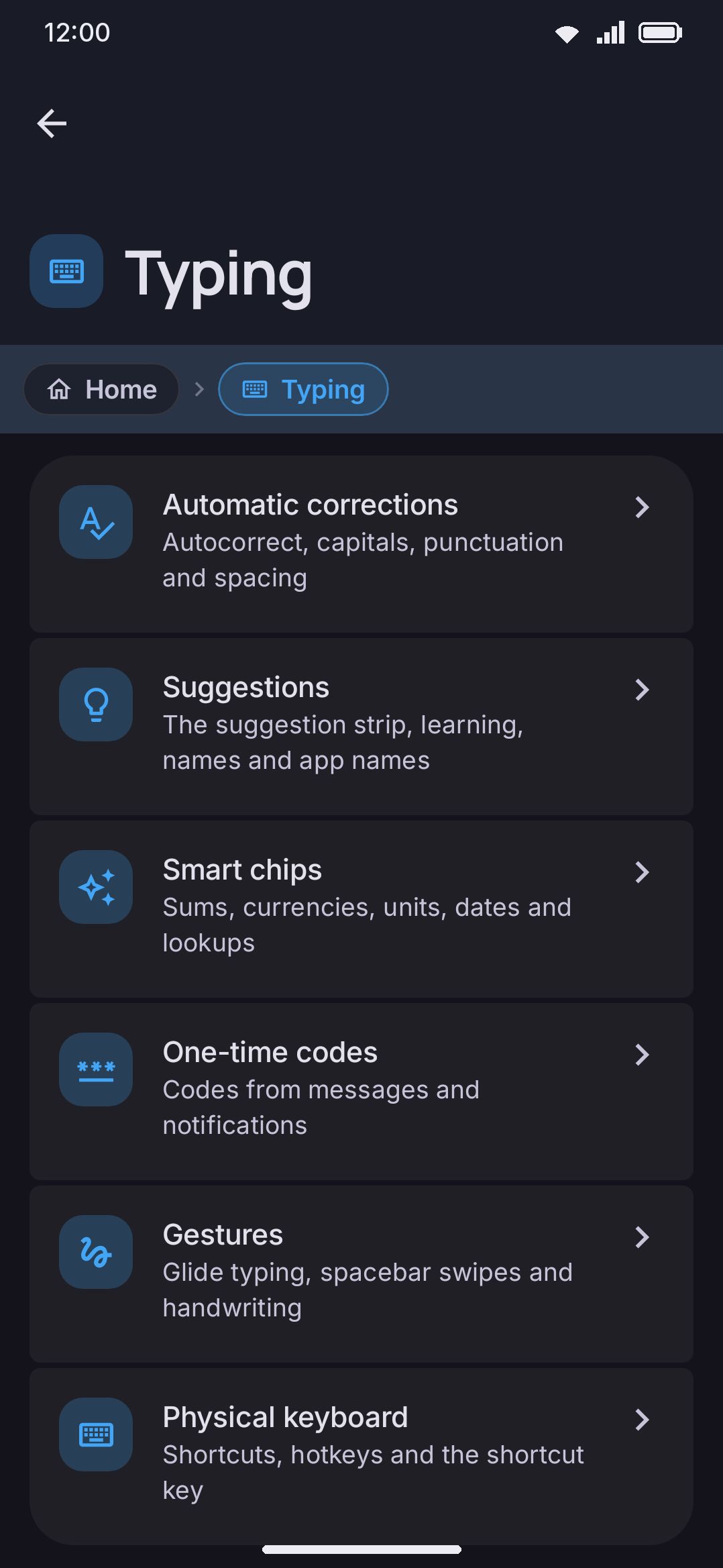
Automatic corrections
Section titled “Automatic corrections”| Setting | Type | Default | Shown when |
|---|---|---|---|
| Autocorrect | Toggle | On | always |
| Autocorrect confidence | Slider, ×1.5–×10 | ×4.0 | Autocorrect on |
| Adaptive confidence | Toggle | On | Autocorrect on |
| Typing rhythm | Slider, 0%–100% | 0% (off) | Autocorrect on |
| Undo autocorrect with backspace | Toggle | On | Autocorrect on |
| Undo a correction from the strip | Toggle | On | Autocorrect on |
| How often to offer the undo | Slider, 0%–100% | 50% | Autocorrect on and Undo a correction from the strip on |
| Remember my undos | Choice: Off / Light / Normal / Strict | Normal | Autocorrect on |
| Learn from my fixes | Toggle | On | Autocorrect on |
| Learned corrections | Screen | Autocorrect on | |
| Learn where my taps land | Toggle, with a Forget button | On | Autocorrect on |
| Skip words in capital letters | Toggle | On | Autocorrect on |
| Block offensive words | Toggle | On | Autocorrect on |
| Context-aware suggestions | Toggle | On | Autocorrect on |
| Add missing spaces | Toggle | On | Autocorrect on |
| Detect the language you type | Toggle | On | Autocorrect on |
| Detection strength | Choice: Gentle / Balanced / Aggressive | Balanced | Autocorrect on and Detect the language you type on |
| Remember each app’s language | Toggle | On | Autocorrect on and Detect the language you type on |
| Fix number row slips | Toggle | On | Autocorrect on and the number row is shown |
| Adapt to app tone | Toggle | On | always |
| Fix missing apostrophes | Toggle | On | always |
| Automatic capital letters | Toggle | On | always |
| Double space | Choice: Two spaces / Full stop / Tab | Full stop | always |
| Double space speed | Slider, 200–800 ms | 400 ms | Double space is Full stop or Tab |
| Automatic space after punctuation | Toggle | Off | always |
| Remove a space before punctuation | Toggle | On | always |
| Marks that pull the space out | Text | .,?!;:।،؛؟۔ | Remove a space before punctuation on |
| Space before French punctuation | Toggle | On | always |
| Space after a suggestion | Toggle | On | always |
| Wrap the selection with brackets | Toggle | On | always |
| Close brackets for me | Toggle | Off | always |
| Shift changes the case of the selection | Toggle | On | always |
Autocorrect is this group’s master switch, and fourteen rows hang off it: the confidence slider, the two rows that tune how hard it tries (Adaptive confidence, Typing rhythm), and everything down to Fix number row slips. Three of those fourteen carry a second condition. How often to offer the undo needs Undo a correction from the strip on. Detection strength needs Detect the language you type on. Fix number row slips shows up only while the number row is actually on screen, since it corrects a digit to the letter below it. From Adapt to app tone downwards the rows stay put whether autocorrect is on or off.
Undo a correction from the strip puts the word you typed on a chip so you can take a correction back after backspace can no longer reach it, and How often to offer the undo is the bar a correction has to fall under to earn that chip. See Autocorrect.
Remember my undos is one choice of four, and it governs how long the keyboard holds on to a correction you undid, not whether undoing works. See Autocorrect.
Learn from my fixes remembers the typos you repair by hand, and the slips behind them, and Learn where my taps land learns where your finger lands on each key from the words you keep. Learned corrections opens the list of both. See Learning from your own fixes.
Space before French punctuation types the space French keeps in front of !, ?, ;, : and » — and behind « — and stops the two rules above from taking it back. It only does anything in the languages that are written that way — French, Breton, Occitan, Walloon, Picard, Norman and Franco-Provençal — and every other language types exactly as it did before. See Autocorrect.
Double space is one choice: Two spaces, Full stop or Tab. The Double space speed slider only appears while it is Full stop or Tab. Space after a suggestion lives in this group even though it governs the suggestion strip, not autocorrect. That’s where the app’s own settings screen files it, so that’s where it is here.
Three of these rows rank candidates rather than correct them, and they sit here because that’s where the app puts them. Context-aware suggestions reorders the strip using the words before what you’re typing. Adapt to app tone nudges chat-speak up in messaging apps and down in email. Typing rhythm lets a fast, sloppy burst make autocorrect fire more eagerly than slow deliberate typing does. Rhythm ships at 0%, so it does nothing until you move the slider.
Full writeup: Autocorrect covers the confidence math, what a word is never corrected to, and reverting a correction with backspace. Mixed-language typing covers Detect the language you type and its three strengths. Suggestions & prediction covers auto-space-after-suggestion, context reranking and app tone, and Gestures and Text editing cover selection-wrap and shift-recase.
Suggestions
Section titled “Suggestions”| Setting | Type | Default | Shown when |
|---|---|---|---|
| Suggestions | Toggle | On | always |
| Punctuation suggestions | Toggle | Off | Suggestions on |
| Punctuation marks | Text field | .,?!' | Punctuation suggestions on |
| Number of suggestions | Slider, 2–6 | 3 | always |
| Scroll the suggestions | Toggle | Off | always |
| Learn a word after | Slider, 1–5 (“Once” at 1) | Once | always |
| Offer corrections it isn’t sure about | Toggle | On | Autocorrect on |
| Ask before saving new words | Toggle | Off | always |
| Remember a new word after | Slider, 1–10 (“Straight away” at 1) | 3 | Ask before saving new words off |
| Suggestions in every field | Toggle | On | always |
| Suggestion strip always visible | Toggle | Off | Suggestions on |
| Best suggestion in the middle | Toggle | On | always |
| Shorten long words | In the middle / At the end | In the middle | Scroll the suggestions off |
| Suggest contact names | Toggle | Off | always (requests Contacts permission) |
| Suggest contact emails | Toggle | Off | always (requests Contacts permission) |
| Contact emails in email fields too | Toggle | On | Suggest contact emails on |
| Suggest app names | Toggle | Off | always |
| Inline emoji search | Toggle | On | always |
| Password manager suggestions | Toggle | On | Android 11+ only |
| Smart replies | Toggle | On | Android 11+ only |
| Only offer new words | Toggle | Off | always |
| Numbers from the letter keys | Toggle | Off | always |
| Autopilot | Nav row | n/a | always (opens the Autopilot screen below) |
| Words on the keys | Nav row | n/a | always (opens the Words on the keys screen below) |
| Personal dictionary | Nav row | n/a | always (opens the Personal dictionary screen) |
| Custom dictionaries | Nav row | n/a | always (opens the Custom dictionaries screen) |
| Suggestion blacklist | Nav row | n/a | always (opens the Suggestion blacklist screen) |
| Word menu | Chips | Never suggest, Add, Delete, Synonyms | always |
| Synonym sources | Drag list with switches | Vocabulary packs, Datamuse thesaurus, Wiktionary, Free Dictionary API, Similar words, all on | always |
| Adjust rank changes | Choice | Both | always |
| Delete edits imported lists | Toggle | On | always |
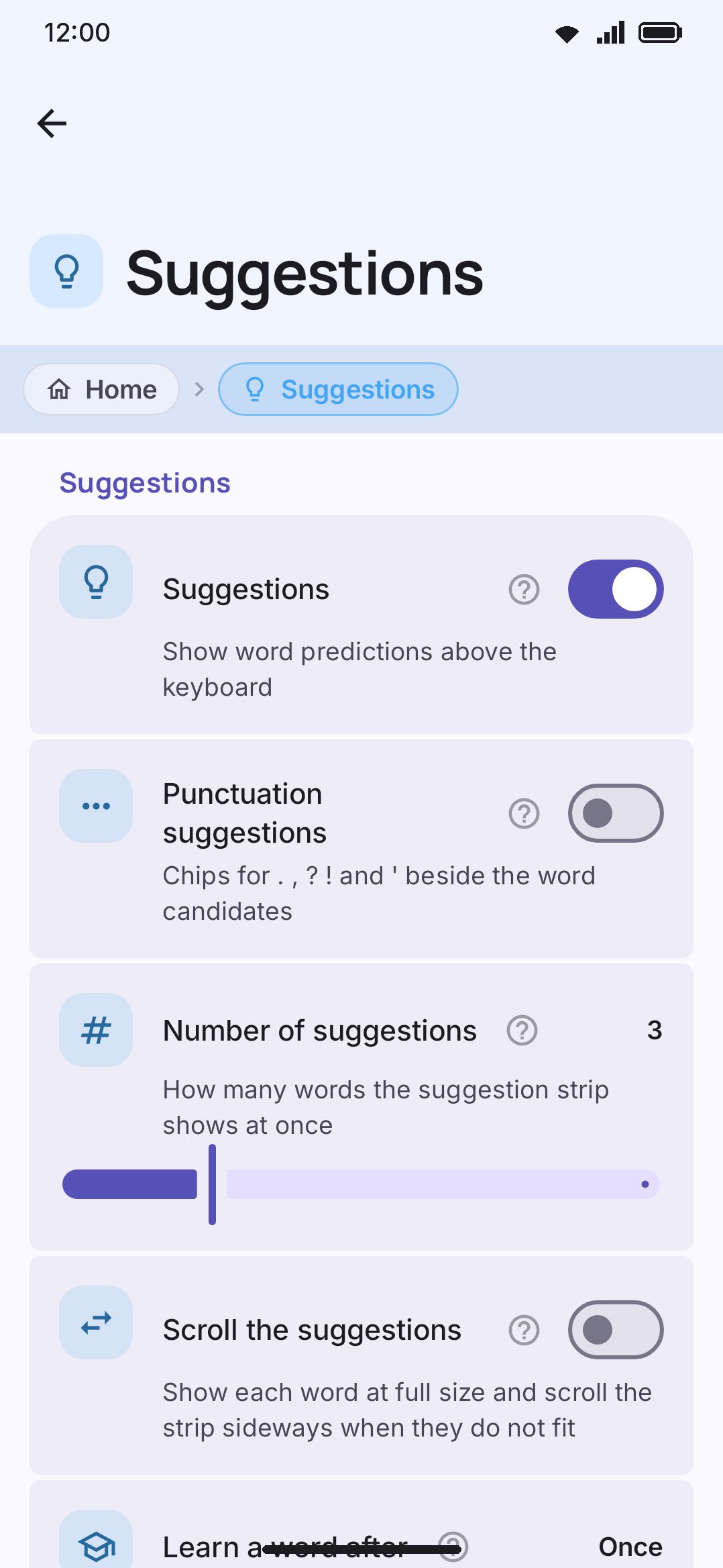
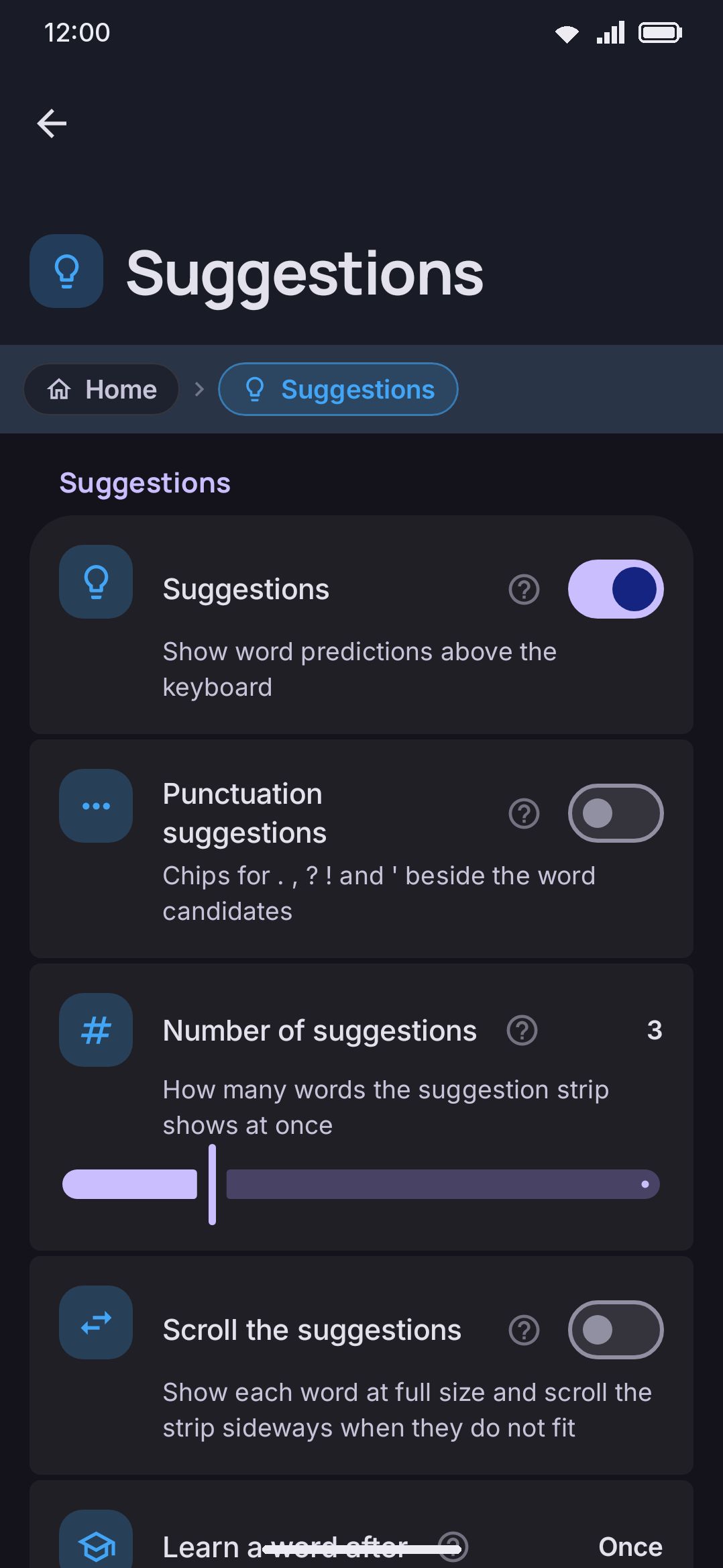
Suggestions is the master switch for the whole strip: word completions, typo corrections offered as candidates, and next-word prediction. Punctuation marks sets which marks the punctuation chips offer, one per character, in the order you want them. Leave it blank and it falls back to the shipped .,?!'. Number of suggestions splits the strip evenly, so raising it on a narrow screen buys candidates at the cost of reading each one. Scroll the suggestions lifts that trade: each word keeps its natural size and the strip scrolls sideways when they overrun it, so five or six candidates read fine on a narrow phone. Short words still fill the strip exactly as before. Shorten long words picks where a word that still overruns its slot is cut: in the middle, so both its start and its ending stay readable (Punct…tion), or at the end (Punctuat…). The color the strip paints a correction in lives with the rest of its looks, under Look & feel / Toolbar.
Remember a new word after is how many times you have to type a word nothing recognises before it’s saved to your personal dictionary at all. It only counts a use once you’ve moved on and left the word alone, so a typo you go back and fix never counts. Set it to 1 to save every new word straight away, which is what versions before this did. Words already in a dictionary skip this entirely and are counted the moment you type them.
Ask before saving new words replaces that counting with a chip on the suggestion strip reading Add "yourword"?. Nothing is saved unless you tap it, and the ✕ stops the keyboard asking about that word again. Turning it on hides the slider above, since the two answer the same question different ways.
Learn a word after is a further threshold, applied to words already in your dictionary: how many reinforcements before autocorrect leaves the word alone. At the default of 1 the slider reads “Once”. Suggestions are untouched either way: a word under the count can still be offered, it just isn’t shielded from correction.
All three are covered in full on Personal dictionary.
Word menu picks which of the four optional items the press-and-hold menu on a suggested word offers; Edit is always on it. Synonym sources sets where the menu’s Synonyms looks, in order: each source is asked only when the ones above it had no synonyms for the word or could not be reached. Drag to reorder, and switch a source off to never ask it. Adjust rank changes decides which rank controls the word card shows: the learned weight (the personal dictionary’s own count), a separate rank adjustment that can move any word up or down, or both. All three settings are covered on Personal dictionary.
Delete edits imported lists governs what happens when you delete one of your own imported words from the strip. On, the word is removed from that list’s file for good. Off, the list stays untouched and the word is blacklisted instead, the same as a word from a downloaded list, which can’t be edited.
Offer corrections it isn’t sure about puts a fix that came close to firing on the strip as a chip rather than dropping it. It never applies anything on its own, and a correction you have already undone once is never offered. See Autocorrect.
The three navigation rows at the bottom open their own screens rather than an inline setting. The subtitle on Suggestion blacklist starts as “Words to never suggest or autocorrect to” and becomes a running count (“3 words never suggested”) once you’ve added something. All three are documented in full on Dictionaries & words.
Full writeup: Suggestions & prediction for the strip itself, Contact-aware typing for the three permission-gated toggles, Password manager chips & smart replies for the two Android-11 toggles, Autocorrect for autopilot, and Words on the keys for the octopus screen.
The Autopilot screen
Section titled “The Autopilot screen”| Setting | Control | Default | Shown when |
|---|---|---|---|
| Autopilot | Toggle | On | always (needs Suggestions on to bias toward anything) |
| Strength | Slider 1–10 | 5 | Autopilot on |
| Show the effect | Toggle | Off | Autopilot on |
| Size of the effect | Slider ×1.0–×3.0 | ×1.0 | Show the effect on |
| Outline the touch areas | Toggle | Off | Autopilot on |
Strength is how far a favoured letter reaches over the key next to it. At 1 only a tap on the exact edge changes hands; at 10 an expected letter claims most of the space between itself and a letter the word list isn’t expecting. No letter ever reaches more than one key width from its own centre, whatever the slider says, and a press in the middle of a key is never reassigned at any strength.
The other rows make the invisible visible. Show the effect draws each expected letter over the board at the size its touch area has grown to, so you can watch the strength setting work while you type. At most three letters are drawn at once, and they’re the three the word list expects most, ranked by likelihood rather than by how much room each one won: on a crowded row the likeliest letter can be hemmed in by its neighbours and grow the least of the lot, and it’s still the one you’re looking for. What each one is drawn with is the ground the bias won it, measured against where the boundary would have sat with nothing favoured at all. On a layout whose keys differ in width that is not the same as the key you see, since the halfway line between a wide key and a narrow one already falls inside the wide one. The keys themselves never move. Outline the touch areas draws a thin line around the same edge, which is what your press is judged against. Both are off by default, since the point of the feature is that you don’t notice it.
The drawing follows your typing and nothing else. It disappears for the length of a glide, which owns the board while it’s being drawn, and moving the caret into a word you typed earlier doesn’t bring it back.
Size of the effect is how big the drawing gets, and nothing else: your presses land in the same places at every value. ×1.0 draws each area at its true size. Above that it is the growth that multiplies, not the whole key, so a letter that claimed no extra space still draws at the size of its key and only the difference gets larger. Raise it to see a gentle strength setting at a glance, or leave it at ×1.0 for the honest picture. The outline follows the same size, so the two always agree.
The Words on the keys screen
Section titled “The Words on the keys screen”| Setting | Type | Default | Shown when |
|---|---|---|---|
| Words on the keys | Toggle | Off | always |
| Where the words sit | Choice: Above the key / Own lane / Inside the key | Above the key | Words on the keys on |
| How many words | Slider, 3–26 | 6 | Words on the keys on |
| What may appear | Multi-choice: Completions / Corrections / Next words | All three | Words on the keys on |
| While gliding | Choice: Nothing / Other readings / The next word | Nothing | Words on the keys on, glide typing on |
| Flick up to pick | Toggle | On | Words on the keys on |
| Flick sensitivity | Choice: Strict / Balanced / Relaxed | Balanced | Flick up to pick on |
| Tap the word to pick | Toggle | On | Words on the keys on |
| Word size | Slider, ×0.6–×1.6 | ×1.0 | Words on the keys on |
| Hide the corner hint | Toggle | Off | Words on the keys on |
| Long-press characters too | Toggle | Off | Words on the keys on |
Words on the keys floats a predicted word over the key that would type it next: with hel typed, hello sits over L and help over P. It only adds to the suggestion strip, never replaces it, and ships off. Where the words sit chooses the geometry: above the key without growing the keyboard, in a lane of its own with more room and a taller board, or inside the key sharing its small box with the letter. How many words trades quiet for coverage. Low values show only the words the keyboard is confident about and often leave the board empty; high values fill nearly every key that can carry one, and a key too narrow for its word stays bare rather than showing it cramped. What may appear limits the kinds of guess allowed on the keys: completions continue the word you’re typing, corrections fix it and draw in a different color where the match breaks down, and next words appear over their first letters after a space, before you’ve typed anything.
While gliding asks the same question about a stroke, and it has its own answer because the two surfaces want different things. Nothing, the default, leaves the keys bare until you lift. Other readings floats the alternatives the decoder is still holding, each over the key that reaches it, so you can steer mid-swipe. The next word offers what would follow the word you’re drawing, over the key it starts with, so a glide typist can flick it the moment the swipe ends. None of the three changes what appears at the lift: a finished glide always puts the next-word offer on the keys. See Words on the keys.
Two gestures take a floating word. Flick up to pick reads a straight, mostly vertical stroke off a key as picking its word rather than starting a glide, and Flick sensitivity sets how far off straight up, and how curved, that stroke may still be and count. Tap the word to pick writes it with a direct tap on the small floating text, though on the top row only the half hanging over the key can be tapped.
Hide the corner hint clears a key’s long-press hint while it’s carrying a word, since the two sit close enough to read as one thing; a key with nothing to say keeps its hint either way. Long-press characters too, off by default, also floats words that need a long press to reach their next letter, at the cost of a key promising a word a plain press won’t finish.
Smart chips
Section titled “Smart chips”| Setting | Type | Default | Shown when |
|---|---|---|---|
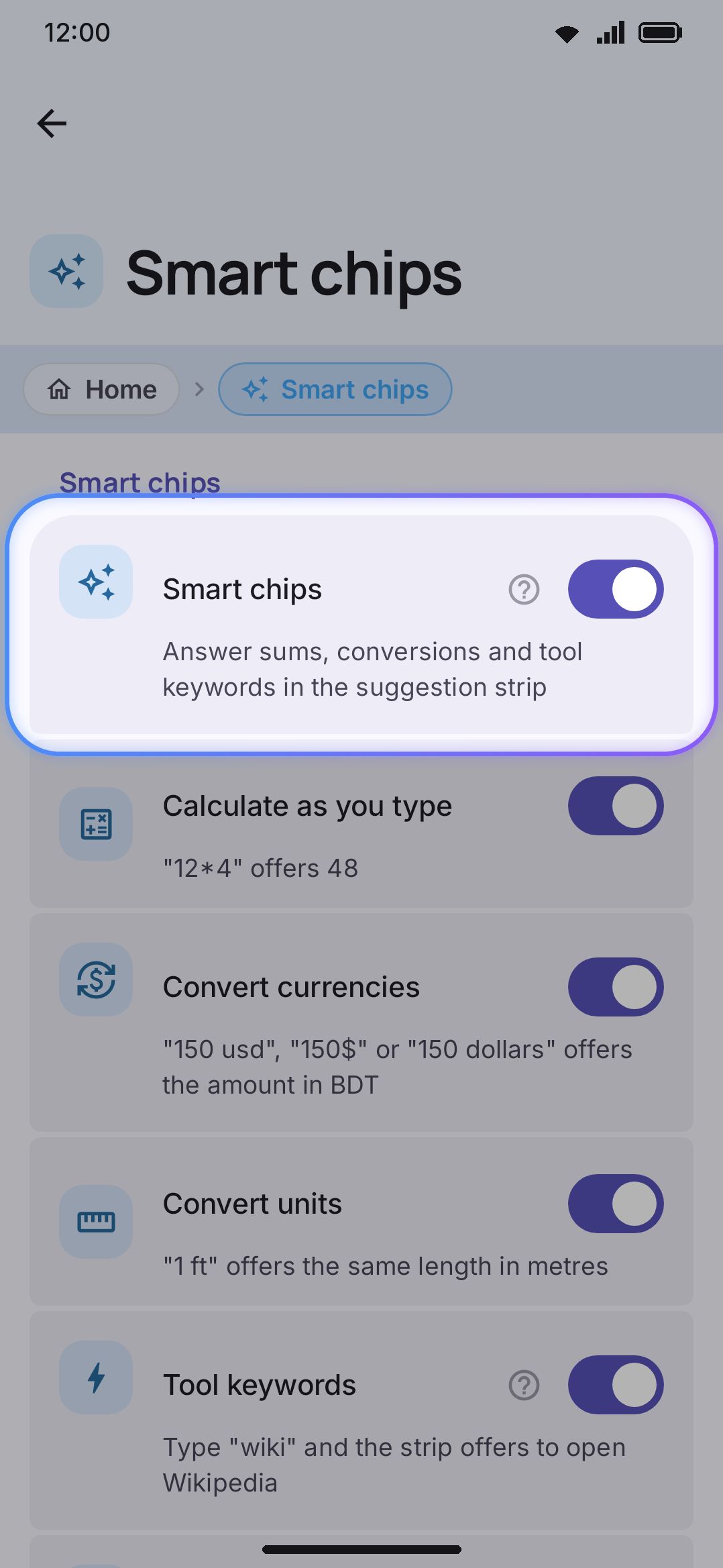
| Smart chips | Toggle | On | always |
| Calculate as you type | Toggle | On | Smart chips on |
| Convert currencies | Toggle | On | Smart chips on |
| Convert units | Toggle | On | Smart chips on |
| Tool keywords | Toggle | On | Smart chips on |
| Resolve dates | Toggle | On | Smart chips on |
| Answer weather questions | Toggle | On | Smart chips on |
| Offer lookups | Toggle | On | Smart chips on |
| Translate hints | Toggle | On | Smart chips on |
| GIFs for celebrations | Toggle | On | Smart chips on |
| Group long numbers | Toggle | On | Smart chips on |
| Grouping style | Choice: Automatic / Thousands / Lakh and crore | Automatic | Group long numbers on |
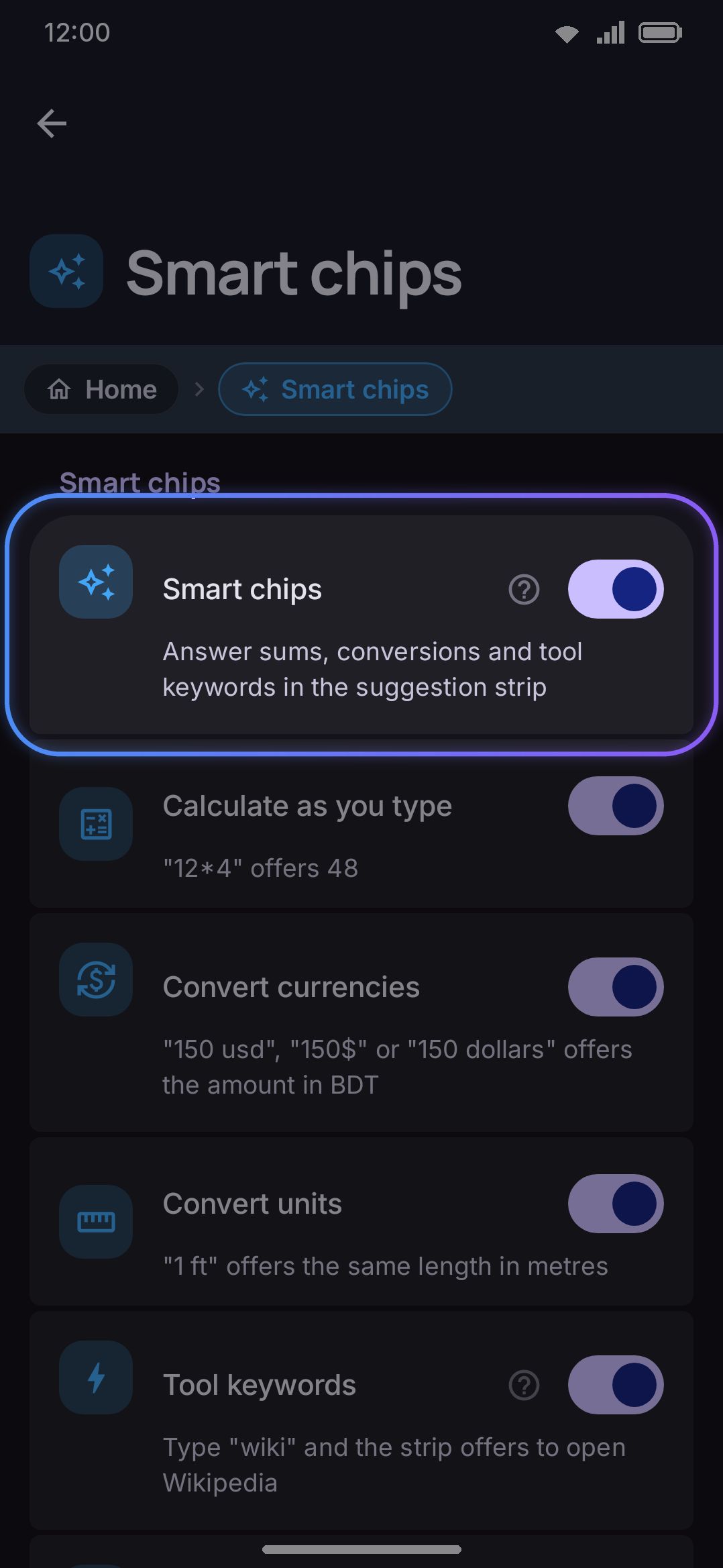
Convert currencies’ own subtitle ends with your live target currency code instead of describing the setting, so out of the box it reads “…offers the amount in BDT”. It updates the moment you change that currency inside the Currency converter tool. The same three calculate/currency/unit toggles are mirrored inside each tool’s own Options screen. See Smart chips for where. Five of the rows above are the phrase-triggered chips: “next friday” offers a date, “will it rain” the forecast, “define serendipity” a dictionary lookup, “in spanish” the translator, and “happy birthday” a GIF search. Group long numbers offers a typed run of digits back grouped, so 1234567 gets a chip reading 1,234,567, and one press types the grouped form; Grouping style picks where the separators fall, following the language you’re typing in when it’s Automatic.
Full writeup: Smart chips.
One-time codes
Section titled “One-time codes”| Setting | Type | Default | Shown when |
|---|---|---|---|
| Codes from notifications | Toggle | Off | always |
| Allow notification access | Nav row | n/a | Codes from notifications on and access not granted yet |
| Only in code boxes | Toggle | Off | Codes from notifications on |
| Offer a code for | Slider, 1–10 min | 3 min | Codes from notifications on |
| Clear the notification | Toggle | Off | Codes from notifications on |
| Type codes one character at a time | Toggle | On | always |
Codes from notifications is the only row here that needs a grant. Turn it on and you get a disclosure, then the system’s notification-listener screen. The Allow notification access row is the way back to that screen, and it disappears once access is granted. Turn the toggle off and the keyboard stops reading notifications at once, dropping any code it was holding.
Type codes one character at a time sits outside the enabled block on purpose. It governs how every code is typed, including one tapped from a clipboard chip, which needs no notification access at all.
Full writeup: One-time codes, and Permissions for the grant itself.
Gestures
Section titled “Gestures”| Setting | Type | Default | Shown when |
|---|---|---|---|
| Glide typing | Toggle | On | always |
| Handwrite with swipes | Choice: Type words / Handwrite | Type words | Full edition only and Glide typing on |
| Glide across the spacebar | Toggle | On | Glide typing on and swipe mode is Type words |
| Glide over Shift to capitalize | Toggle | On | Glide typing on and swipe mode is Type words |
| What a pass over Shift capitalizes | Choice: Whole word / One letter | Whole word | Glide over Shift to capitalize on |
| Ask when a glide is unclear | Toggle | On | Glide typing on and swipe mode is Type words |
| When to ask | Choice: Near ties / Close calls / Any doubt / Every pause | Close calls | Ask when a glide is unclear on |
| Time to hold still | Slider, 150–1000 ms | 350 ms | Ask when a glide is unclear on |
| Hold longer to always ask | Toggle | On | Ask when a glide is unclear on, and When to ask is not Every pause |
| Words to choose from | Slider, 2–5 | 3 | Ask when a glide is unclear on |
| Learn my swipe style | Toggle | On | Glide typing on and swipe mode is Type words |
| Forget my swipe style | Action, with a confirm | Glide typing on and swipe mode is Type words | |
| Words a glide can produce | Choice: Everything / Large / Medium / Small | Large | Glide typing on and swipe mode is Type words |
| Whose words a glide can produce | Choice: Every word / Prefer my words / Only my words / Automatic | Every word | Glide typing on and swipe mode is Type words |
| Offer a full search while proofreading | Toggle | Off | Glide typing on and swipe mode is Type words |
| Steadiness of the word while you glide | Choice: Off / Light / Steady / Very steady | Light | Glide typing on and swipe mode is Type words |
| Finish long words early | Choice: Off / When sure / Eager | Off | Glide typing on and swipe mode is Type words |
| Color the word a lift will type | Choice: Never / When sure / Any early word / Always | When sure | Glide typing on and swipe mode is Type words |
| Where the color shows | Choice: Strip / Strip and pill / Strip, pill and keys | Strip and pill | Glide typing on and swipe mode is Type words |
| Space after a glided word | Toggle | On | Glide typing on and swipe mode is Type words |
| Apostrophe in a glide | Choice: Off / Comma / Full stop / Spacebar / Apostrophe key | Off | Glide typing on and swipe mode is Type words |
| Swipe start distance | Slider, 0.5×–4× | 2.0× | Glide typing on |
| Delay after typing | Slider, 0–500 ms (“Off” at 0) | 160 ms | Glide typing on and swipe mode is Type words |
| Extra time for a dot or a cross | Slider, 0–1500 ms (“Off” at 0) | 700 ms | Full edition only and swipe mode is Handwrite |
| Trail width | Slider, 2–24 dp | 10 dp | Glide typing on |
| Trail length | Slider, 100–1200 ms | 350 ms | Glide typing on |
| Trail opacity | Slider, 0%–100% | 55% | Glide typing on |
| Word preview | Toggle | On | Glide typing on and swipe mode is Type words |
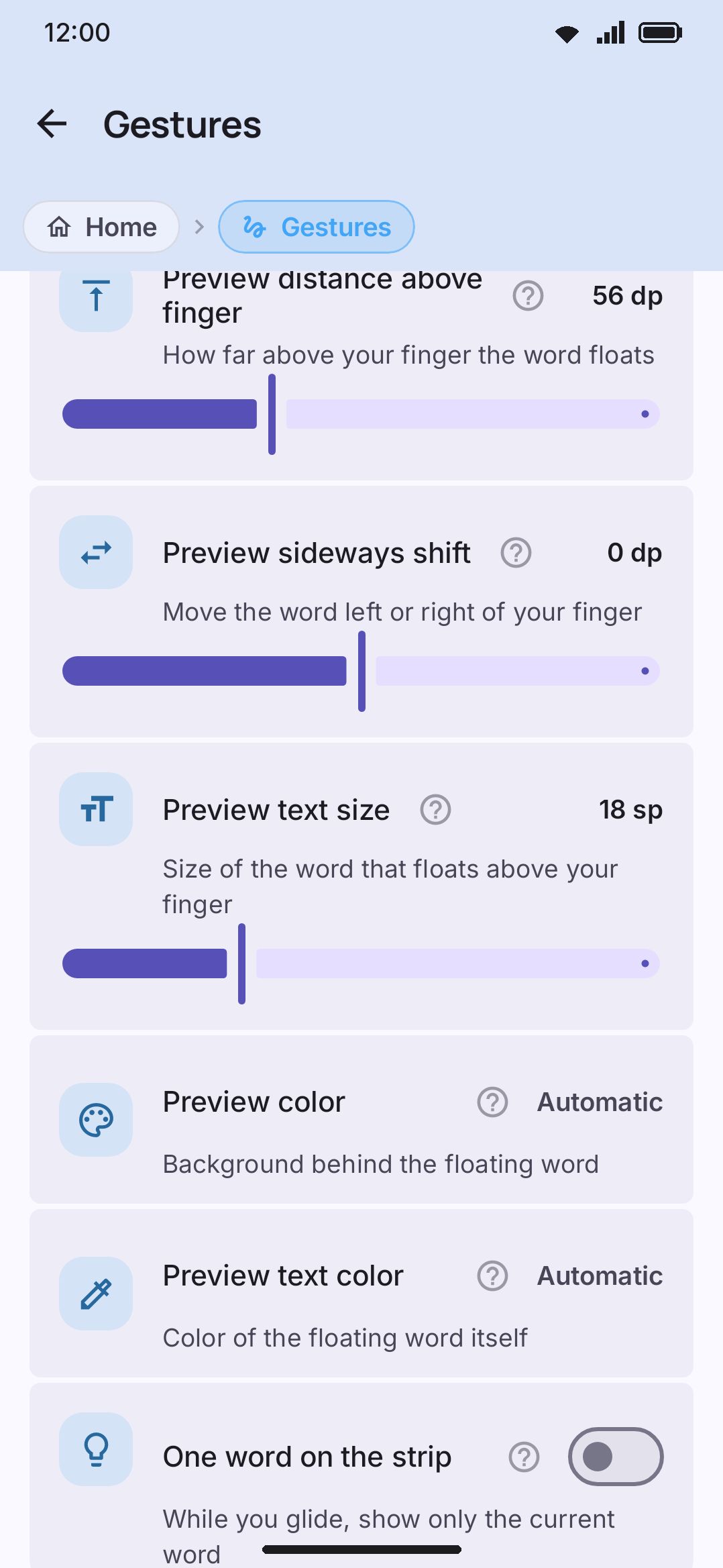
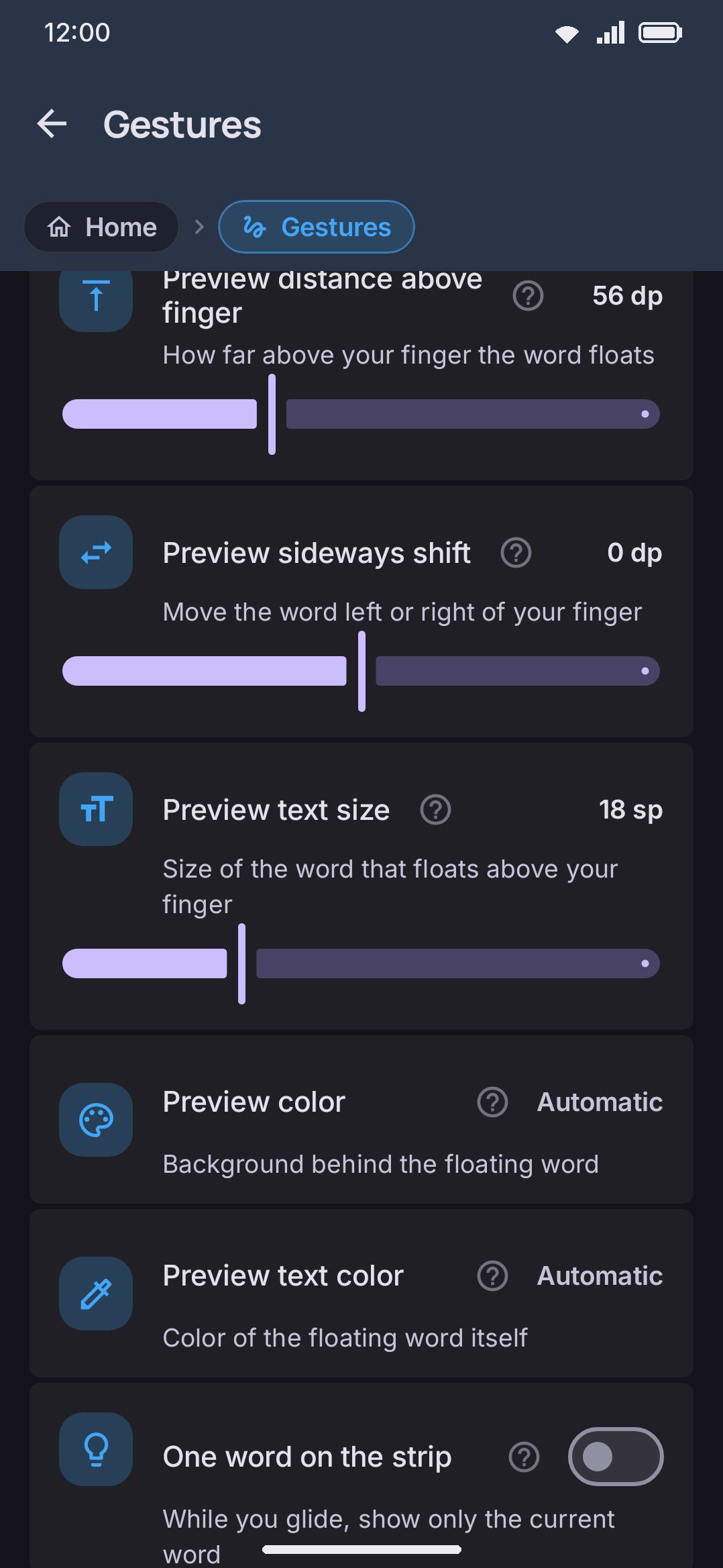
| Preview distance above finger | Slider, 0–160 dp | 56 dp | Word preview on |
| Preview sideways shift | Slider, −80–80 dp | 0 dp | Word preview on |
| Preview text size | Slider, 12–32 sp | 18 sp | Word preview on |
| Preview color | Color picker, or Automatic | Automatic | Word preview on |
| Preview text color | Color picker, or Automatic | Automatic | Word preview on |
| One word on the strip | Toggle | Off | Glide typing on and swipe mode is Type words |
| Quick swipe on the spacebar | Choice: Nothing / Language / Cursor / Numpad | Language | always |
| Press and hold, then swipe | Choice: Nothing / Language / Cursor / Numpad | Cursor | always |
| 2-D cursor touchpad | Toggle | Off | either swipe slot above is Cursor |
| Cursor speed | Slider, 8–32 dp | 16 dp | either swipe slot above is Cursor |
| Cursor magnifier | Toggle | On | either swipe slot above is Cursor |
| Swipe down to hide the keyboard | Toggle | Off | always (this is the spacebar’s swipe, see note below) |
| Swipe down to type the hint | Toggle | Off | always |
| Swipe up for a capital | Toggle | Off | always |
| Swipe to add ‘s | Choice: Off / Comma / Full stop / Apostrophe key | Off | always |
| Spacebar long press keys | Text field | Blank (the hold opens the language picker) | always |
| Arrows on the spacebar | Toggle | On | either swipe slot above is Language |
| The spacebar shows | Choice: Language / Layout / Both | Language | always |
| Language picker shape | Choice: List / Carousel | List | always |
| Picker for more than four layouts | Toggle | On | always |
| Spacebar text | Text field | Blank (falls back to the live spacebar label) | always |
Handwrite with swipes is a two-option picker rather than a toggle. It decides what a letter-area swipe means, and it only appears in the full edition, which is the one that bundles the ML Kit handwriting model. Extra time for a dot or a cross is the mirror image of Delay after typing. One guards against reading a tap as the start of a glide, the other against reading a tap as a handwriting dot. Only one of the pair is ever on screen, since they hang off opposite Handwrite with swipes choices.
Ask when a glide is unclear covers the strokes that have no single right answer. Hold your finger still at the end of one and the closest words appear just above your fingertip. Slide onto one and lift to take it. Lift without choosing and you get the best guess, as before. The stroke is finished the moment the words appear, so sliding to one does not redraw it, and sliding down away from the words and lifting types nothing at all. It matters most on a fixed Bangla layout, where ক and খ share a key, so a word and its aspirated twin are drawn identically. The four rows under it set When to ask (how close a call a stroke has to be, from Near ties to Every pause), Time to hold still (the pause before the words appear), Hold longer to always ask (a confident stroke still asks after twice the pause) and Words to choose from (two to five). See When a swipe is a genuine toss-up.
Full writeup: Gestures for the spacebar/backspace/volume-key drags, Glide typing for the glide sub-settings, and Handwriting for handwrite mode.
Advanced tuning
Section titled “Advanced tuning”A fold further down the same screen, closed until you open it. Every row in it is a weight the glide decoder reads a stroke with, and the whole group is hidden unless glide typing is on and the swipe mode is Type words. Each row keeps its own reset, so nothing here is a one-way door.
| Setting | Type | Default | Shown when |
|---|---|---|---|
| Start error radius | Slider, 0.5×–4× | 1.6× | always |
| End error radius | Slider, 0.5×–4× | 1.6× | always |
| Path error radius | Slider, 0.5×–4× | 1.5× | always |
| Pause to mark a letter | Slider, 1×–8× | 3.0× | always |
| Loop to double a letter | Toggle | On | always |
| Loop sensitivity | Slider, 0.5×–2× | 1.0× | Loop to double a letter on |
| Biggest loop that counts | Slider, 0.4×–1.2× | 0.8× | Loop to double a letter on |
| Loop centring | Slider, 0.35×–1× | 0.60× | Loop to double a letter on |
| Wiggle to mark a letter | Toggle | Off | always |
| Wiggle strength | Slider, 10%–100% | 50% | Wiggle to mark a letter on |
| Biggest wiggle that counts | Slider, 0.2×–0.9× | 0.50× | Wiggle to mark a letter on |
| Shapes kept per word | Slider, 1–20 | 3 | Learn my swipe style on |
The first three decide which words a stroke may be read as at all. The rest decide how a stroke marks a letter, which shape alone cannot: a pause on the key or a rub back and forth over it says the letter is in the word, and a small circle on it says the letter is written twice. Every value is in key widths except the pause, which is a multiple of your own speed in that same stroke, and the wiggle’s strength, which is a percentage of a full stop. The last row is a count: how many of your own shapes Learn my swipe style keeps for one word.
Full writeup: Marking a letter as you glide.
Enter key
Section titled “Enter key”| Setting | Type | Default |
|---|---|---|
| Shift and Enter type a new line | Toggle | On |
With this on, holding Shift (or pressing it first on a physical keyboard) makes Enter insert a line break instead of triggering the field’s Send/Go/Search action. Only a shift you pressed yourself counts: auto-capitalize’s own shift doesn’t arm it, and caps lock is ignored.
It also puts a small second glyph in the Enter key’s top right corner, holding whichever of the two the key isn’t currently doing: the newline symbol next to a Send icon, and the Send icon next to the newline symbol once Shift is up. The two trade places on the shift rather than one replacing the other.
Turning it off doesn’t take line breaks away. Press and hold Enter in any field where it shows the app’s action, and the popup offers one.
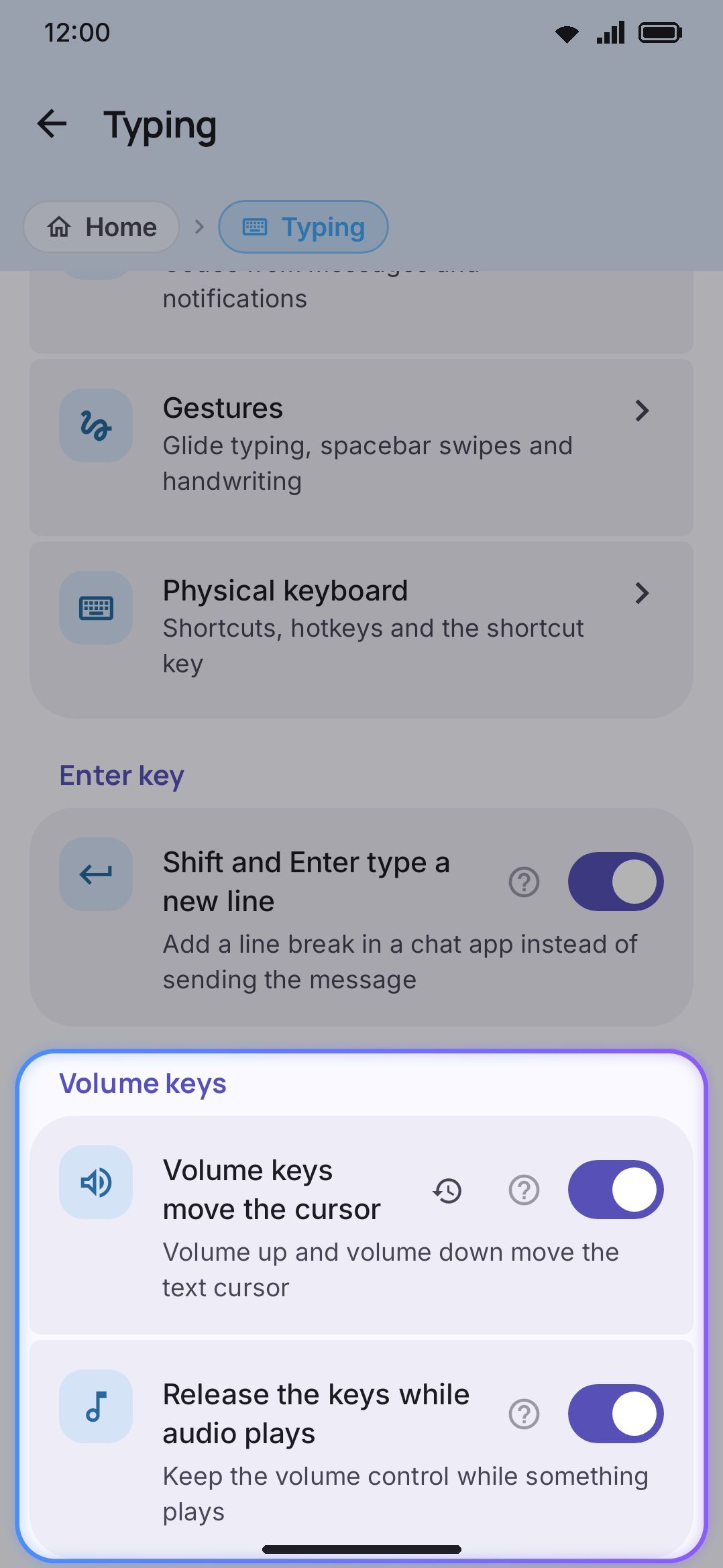
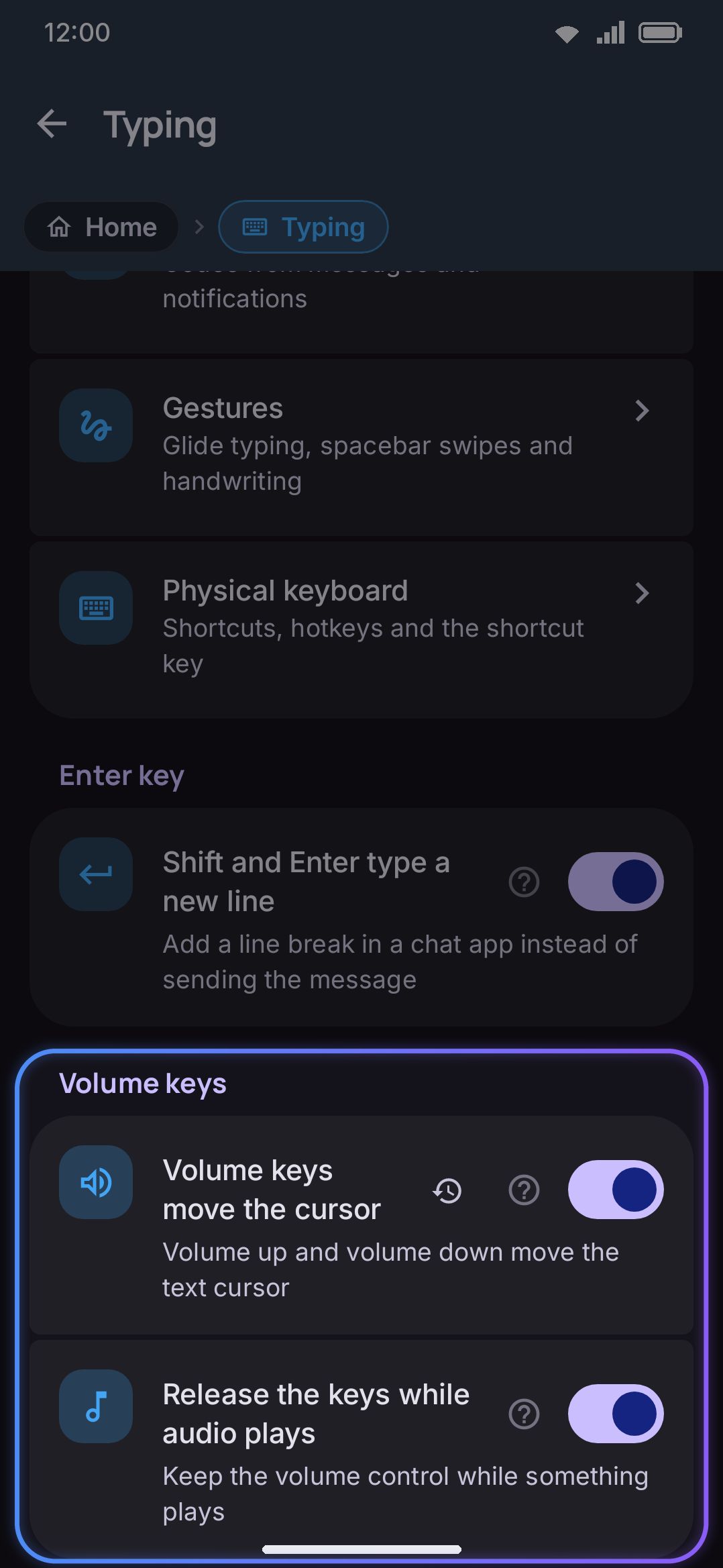
Volume keys
Section titled “Volume keys”| Setting | Type | Default | Shown when |
|---|---|---|---|
| Volume keys move the cursor | Toggle | Off | always |
| Release the keys while audio plays | Toggle | On | Volume keys move the cursor on |
With Volume keys move the cursor on, volume down/up step the text cursor left/right instead of changing the volume while the keyboard is showing. Release the keys while audio plays hands the keys back to normal volume control the instant something is actually playing, re-checked on every keypress.
Full writeup: Gestures.
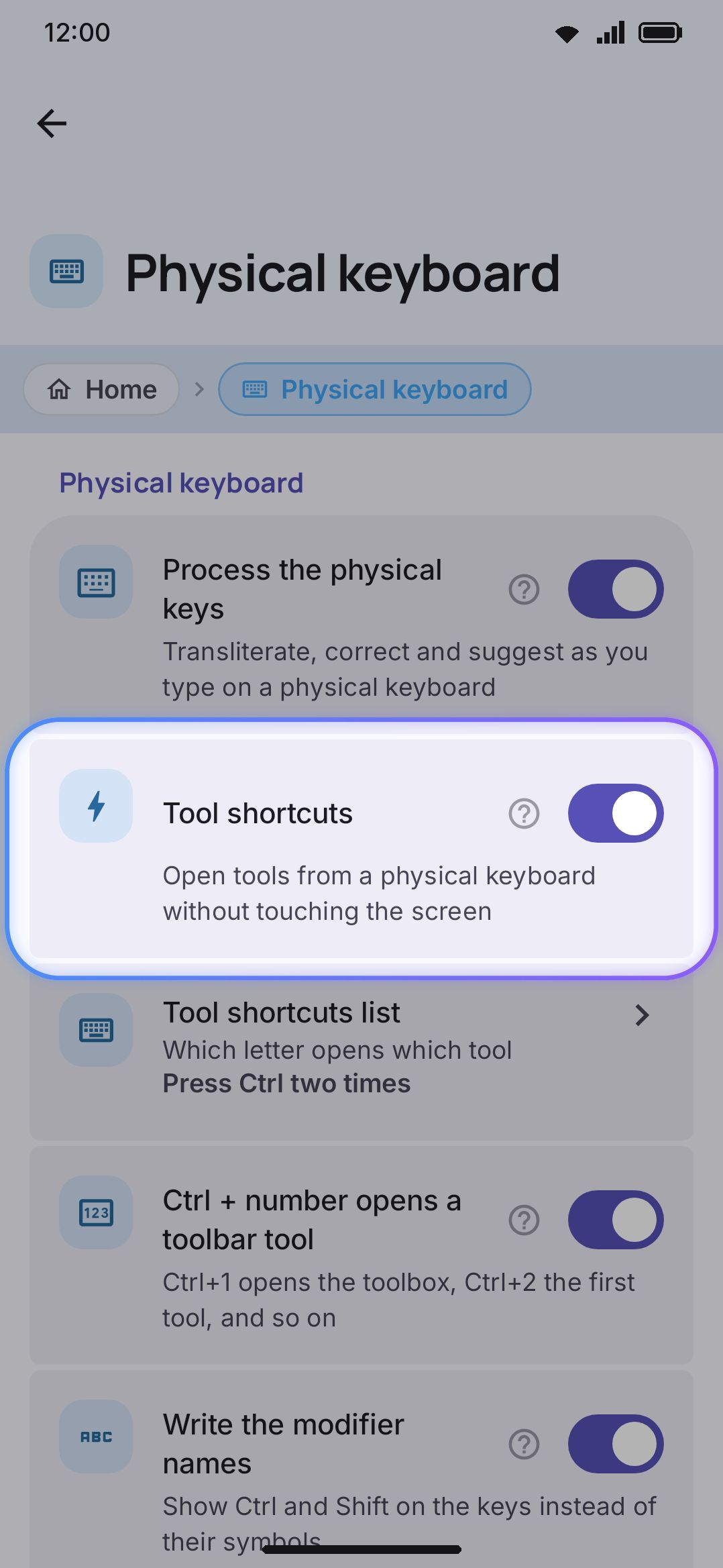
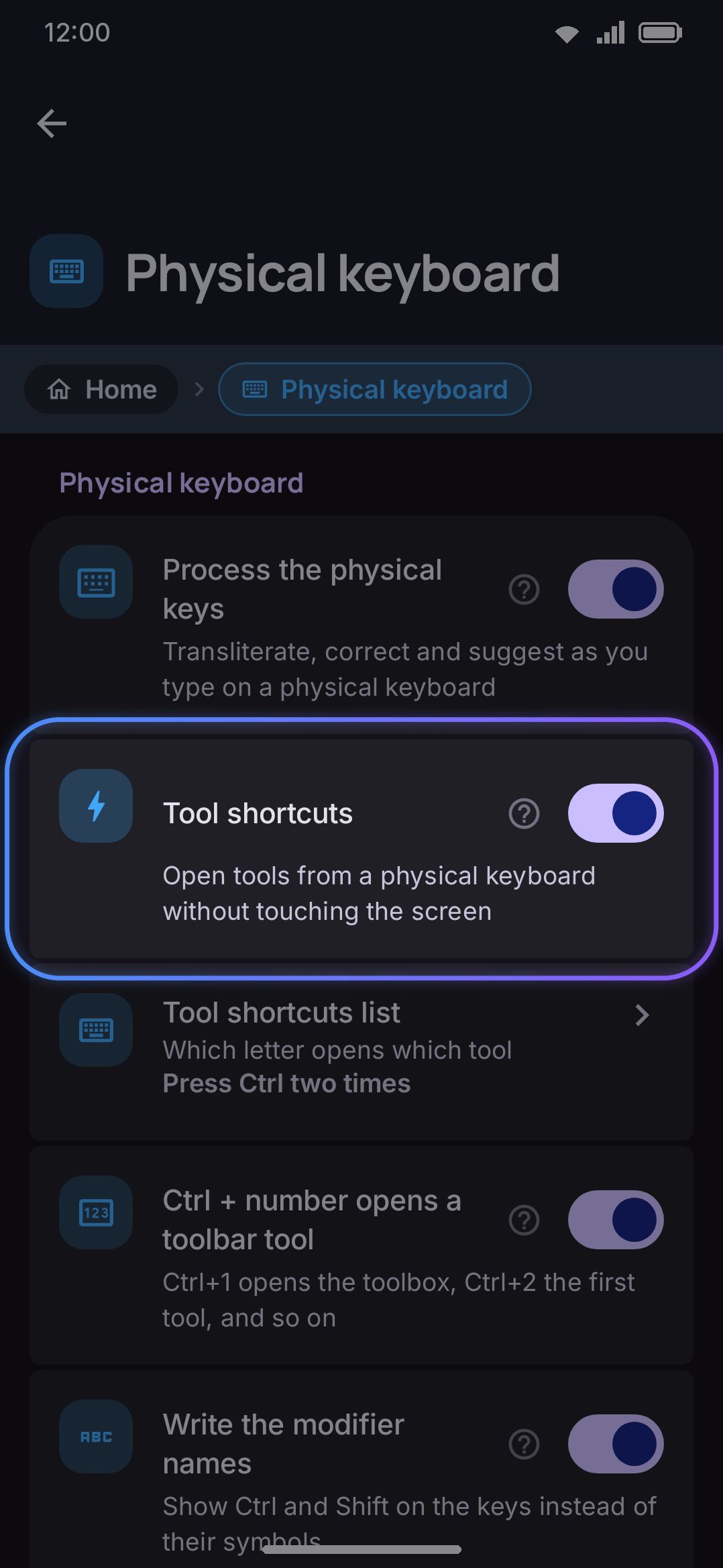
Physical keyboard
Section titled “Physical keyboard”| Setting | Type | Default | Shown when |
|---|---|---|---|
| Process the physical keys | Toggle | On | always |
| Tool shortcuts | Toggle | On | always |
| Tool shortcuts list | Nav row | value = current shortcut key, e.g. “Double-tap Ctrl” | Tool shortcuts on |
| Ctrl + number opens a toolbar tool | Toggle | On | Tool shortcuts on |
| Write the modifier names | Toggle | On | Tool shortcuts on |
| Time to press a key | Slider, 1.0s–30.0s | 8.0s | Tool shortcuts on |
| Arrow keys move over the keys | Toggle | Off (On on a television) | always |
| Arrow keys move a highlight | Toggle | On | always |
| Esc closes the tool | Toggle | On | always |
| Number keys select suggestions | Choice: Off / After the shortcut key / Alt + number | Alt + number | always |
| Show the suggestion numbers | Toggle | On | Number keys select suggestions is Alt + number |
| macOS shortcuts | Toggle | Off | always |
| Ctrl+Space changes the language | Toggle | On | always |
| Show the keyboard for shortcuts | Toggle | On | always |
Arrow keys move over the keys puts a ring on the keyboard itself, so a television remote can type: the arrows move it and the centre button presses what it is on. It reaches the suggestion strip and the toolbar as well as the keys, and holding the centre button opens the ringed key’s long-press alternates. A television turns it on for itself; everywhere else it starts off, because the arrow keys belong to the app’s text field. See Android TV and Google TV.
Process the physical keys only governs typed characters. Turning it off stops physical keys from running through autocorrect and suggestions, but Tool shortcuts, panel navigation, and Esc keep working regardless, since none of them touch typed text.
Three rows decide how much the keyboard takes from your apps. Check them first if a shortcut you rely on stops working. Ctrl + number opens a toolbar tool claims Ctrl+1 to Ctrl+0 while a text field has focus, which is exactly what browsers and editors use to switch tabs. Ctrl+Space changes the language claims the chord code editors use for completions. macOS shortcuts is off by default and only makes sense on a Mac keyboard, because on a PC one the Meta key is the Search/Windows key and belongs to the system.
Number keys select suggestions ships on Alt + number, so a digit picks a strip candidate with no shortcut key first. Show the suggestion numbers only appears in that mode. It puts the key under each suggestion for as long as a physical keyboard is attached, and on “After the shortcut key” the numbers already show at the moment they work. Time to press a key is how long the badges stay up after the shortcut key. Nothing else happens until they clear or you press one.
Full writeup: Hardware keyboards.
The Tool shortcuts list screen
Section titled “The Tool shortcuts list screen”Tapping Tool shortcuts list opens a dedicated screen (route hwshortcuts) with no reference page of its own, so it’s documented here instead. It has two groups:
- Shortcut key: one nav row showing the current trigger, a double-tapped modifier or a captured chord, defaulting to Double-tap Ctrl. Tap it to open a capture dialog and record a different double-tap, or an arbitrary chord live from an attached keyboard. A chord apps commonly claim for themselves (Ctrl+C, Ctrl+V, Ctrl+S, Ctrl+Tab) is still accepted, with a warning rather than a block.
- Tools: one row per supported tool, bound ones first sorted by letter, then unbound ones. Each row shows the tool’s icon, its name, and its assigned letter, or “None” where nothing is bound. A tool turned off under Tools shows a “This tool is off in Tools” caption instead. Tap a row to open a dialog with a one-character field. Type a letter or a digit there, since the field works with no keyboard plugged in. If that character is already taken, the dialog says which tool loses it and the button reads Move the letter.
A Reset to defaults button at the bottom restores every letter and the shortcut key itself, behind a confirmation dialog.
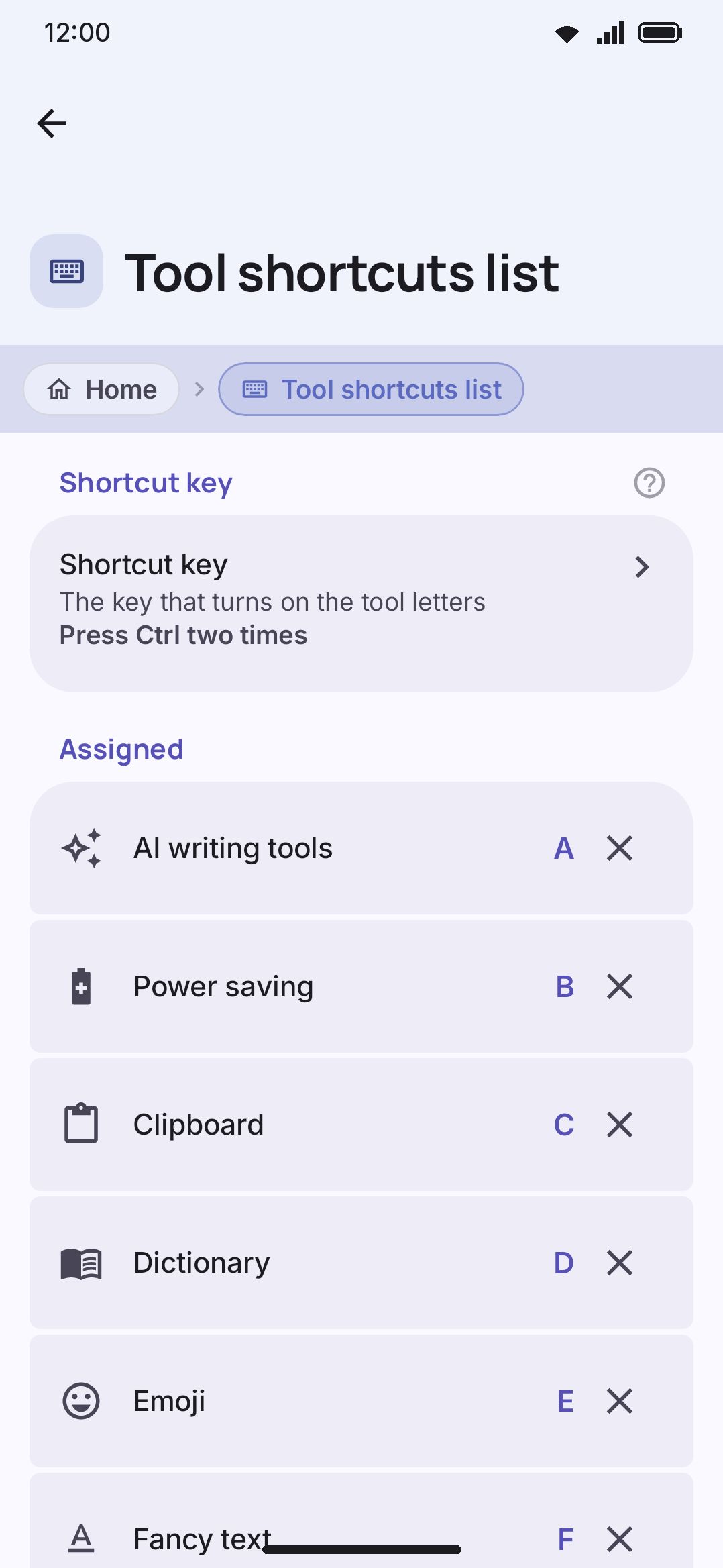
T (toolbox) and ? (cheat sheet) are reserved and can never be bound to a tool. Every one of the other 25 letters ships bound to something, close to each tool’s own initial. This page only covers the settings screen. The full binding table lives on Hardware keyboards, and the printable cheat sheet on Hardware shortcuts.
Details & edge cases
Section titled “Details & edge cases”- “Space after a suggestion” sits in the wrong-sounding group on purpose. It reads like a Suggestions setting, but the app itself files it under Automatic corrections, alongside the other space-insertion rules (double-space period/tab, auto-space after punctuation) it shares logic with.
- Structured and secure fields gate autocorrect, suggestions and the autopilot bias together. Smart chips use a related but separate check. Those first three share one check keyed on field kind: plain text only. Password fields, email fields and every keypad field (number, phone, date, time, date-time) lose all three, whatever each toggle says. A URL field is the one exception, and only for suggestions: with Suggestions in every field on, the keyboard composes the words you type in a browser’s address bar and completes them from the strip, while autocorrect and the autopilot bias stay off there, so an address is never second-guessed. Smart chips instead follow whether the app has asked to hide the suggestion strip. So with Suggestions in every field on (the default), a calc or currency chip can still appear in an email field where autocorrect and suggestions stay off. Number, phone, date and password fields block chips either way.
- Three separate settings each add a space, and none of them covers the others. “Automatic space after punctuation” spaces what follows a mark. “Space after a suggestion” spaces a word tapped from the strip. “Space after a glided word” spaces a word a swipe committed. All three treat that space as the keyboard’s to take back, so punctuation typed next removes it and a space press is spent on it. Each has its own switch, and turning one off leaves the other two alone.
- The two swipe-down settings are genuinely independent: “Swipe down to hide the keyboard” here under Gestures, and “Swipe down to hide” for the toolbar under Appearance. Turning one on has no effect on the other.
- Handwrite with swipes only exists in the full edition, since it needs the bundled ML Kit handwriting model. On lite, the Gestures group goes straight from Glide typing to Glide across the spacebar.
- “Apostrophe in a glide” takes one key, and picking the spacebar switches off “Glide across the spacebar”. One crossing can’t mean both “the word ends here” and “put an apostrophe here”, so while the spacebar is the apostrophe key the multi-word split stands down. The other three choices (comma, full stop, a real apostrophe key if your layout has one) leave it alone. Picking a key your current layout doesn’t have does nothing at all rather than falling back to some other key. The chosen key still types its own character when you press it, and going through it in a glide is always optional: the same word drawn straight still decodes. This setting is only about the apostrophe. Every other piece of in-word punctuation (hyphen, dot, at sign, underscore, ampersand, plus, slash) needs no key and no setting: draw the letters, skip the punctuation, and a word your dictionary spells “f-droid” comes back spelled that way. See Glide typing.
- “Swipe to add ‘s” is a gesture of its own, not part of glide typing. It takes its own key (comma, full stop, or a real apostrophe key if the layout has one), works with glide typing on or off, and extends whatever word sits behind the cursor: one you glided, one you tapped out, or one you’re still typing. Swiping to
t,d,m,l,rorvadds't,'d,'m,'ll,'reor'veinstead ('tonly after a word ending in n), and a line from the key to your finger shows the swipe while you draw it. Only the shape is strict: a short stroke from that key to the letter with a path no more than 1.6× the straight line between the two keys, which is what keeps a real word glided between the same two keys from being read as a possessive. A space after the word moves behind the's, so the field reads “developer’s ” and never “developer ‘s”. Straight after a glide, one backspace still takes the whole word back. The possessive joins your personal dictionary, so next time you can glide “developer’s” in one stroke. It adds English endings to English words only: on an English layout, or on another language’s layout with English among its secondary languages (Banglish on Avro, say), where it takes a word in plain Latin letters and leaves a Bengali word alone. - Every screen on this page has a deep link.
wmkeyboard://settings/typing,wmkeyboard://settings/typing/corrections,wmkeyboard://settings/hwshortcutsand the rest. A single row has one too:wmkeyboard://setting/typing_autocorrect_titleopens Automatic corrections and flashes the Autocorrect switch. See Deep links for the full table. - Autopilot needs Suggestions on, not Autocorrect. It biases boundary taps toward whichever letter the suggestion engine’s own prediction favours, so with Suggestions off there’s nothing for it to bias toward.
- Three rows sit in Automatic corrections without being corrections. Context-aware suggestions, Adapt to app tone and Typing rhythm all reorder or reweight candidates. Two of them still hang off the Autocorrect switch, Context-aware suggestions and Typing rhythm, so turn autocorrect off and the reranking goes with it. Adapt to app tone stays.
- Every row with a control carries the per-setting reset, sliders, pickers and the two text fields included. A restore button next to a control means that row no longer matches the shipped default listed above. The navigation rows (Personal dictionary, Custom dictionaries, Suggestion blacklist, Tool shortcuts list) have nothing to reset, since they only open another screen.
For dictionary and blacklist screens opened from this page, see Dictionaries & words. For the toolbar and key-appearance settings that sit next to this screen, see Appearance. For the printable shortcut and gesture tables, see Hardware shortcuts and Gesture cheat sheet.