
Search, Wikipedia & dictionary
Web and image search, a three-tab Wikipedia reader, and instant word definitions: four lookup tools built into the keyboard.
This page covers four separate tools, each with its own panel and its own settings screen: Web search and Image search (backed by Brave, or by a SearXNG server you name on the F-Droid build), a three-tab Wikipedia reader, and an English dictionary. Web search, Image search, and Wikipedia never read what’s already in your field. You type a query into the panel’s own search bar, and nothing out of the field you’re typing in is sent anywhere. Dictionary is the one exception. With its auto-lookup setting on, which is the default, opening the tool reads your current selection or the word at the cursor and looks that up. See Looking up definitions below.
Web and image search
Section titled “Web and image search”Open Web search or Image search from the toolbar, or from the toolbox if you haven’t pinned them. Neither is pinned by default. On a hardware keyboard, double-tap Ctrl for the leader key, then press W for web search or I for image search.
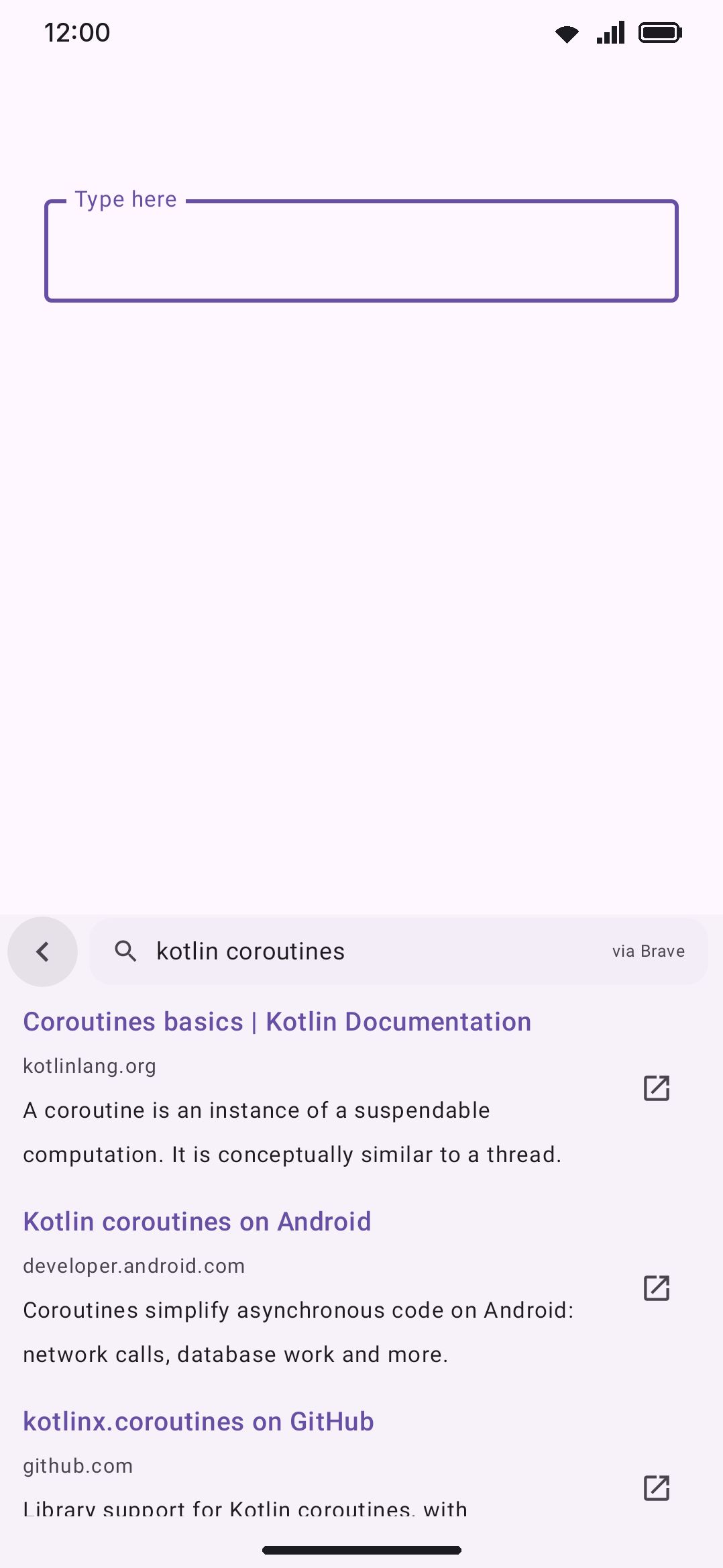
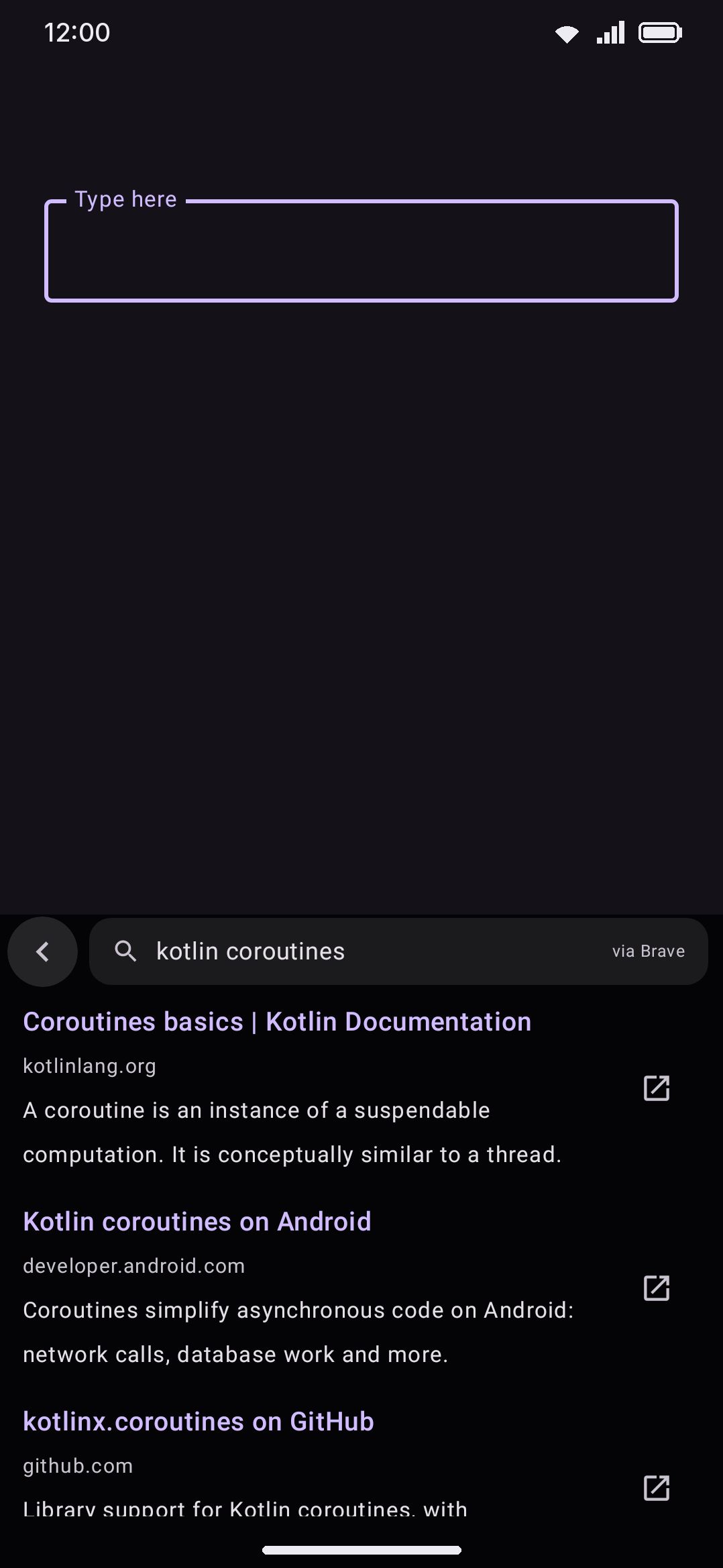
Both tools run on the Brave Search API by default, or on a SearXNG instance you name on the F-Droid build. Typing routes into the panel’s own header search bar rather than your field, the same key-rerouting trick the GIF, sticker, and Wikipedia panels use. Unlike GIFs and stickers, neither search runs live as you type. Both wait for you to press the search action before firing a request.
- Web search: tap a result to insert its URL at the cursor. A separate open-in-browser icon on each row launches the link in your browser instead, which leaves the keyboard entirely. They’re two distinct actions. Each row shows the title, host, and an HTML-stripped snippet.
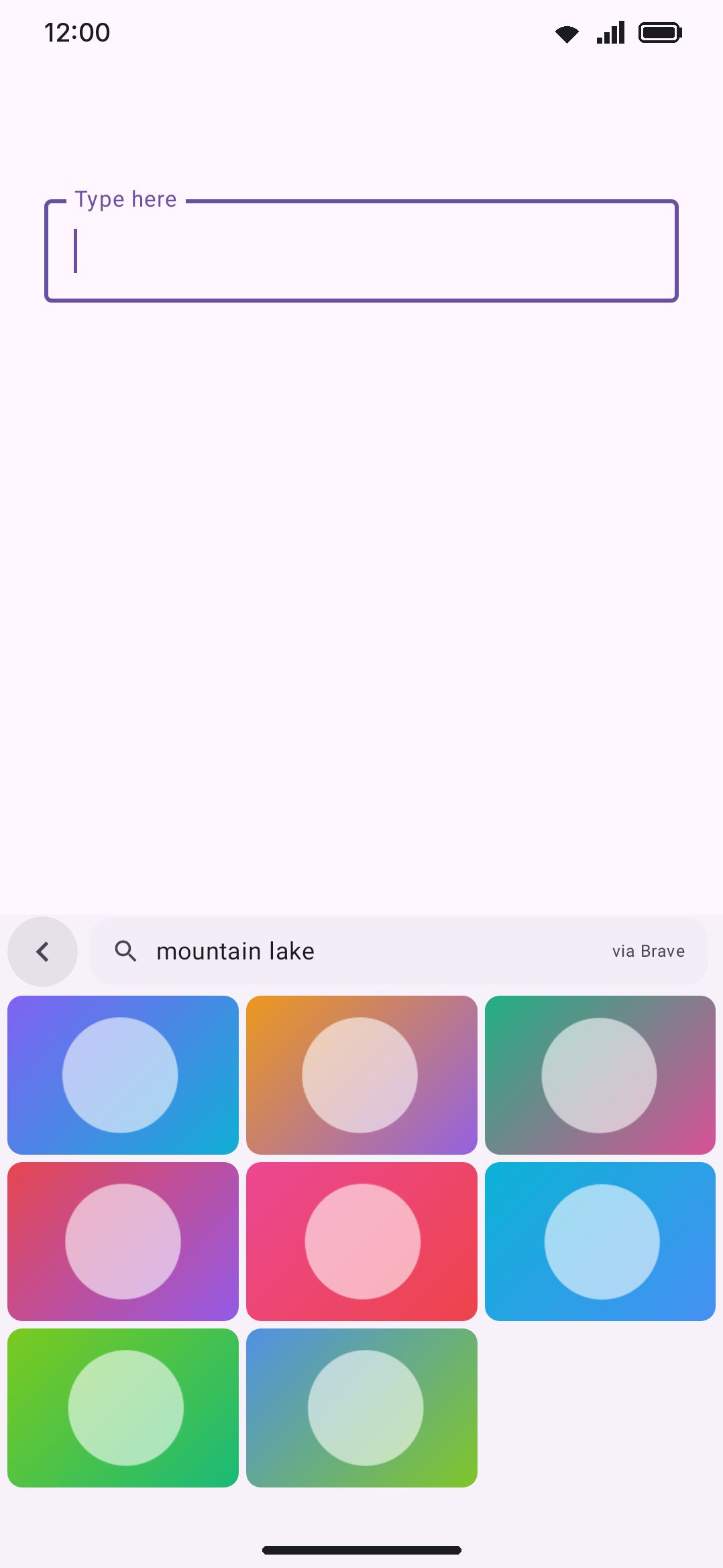
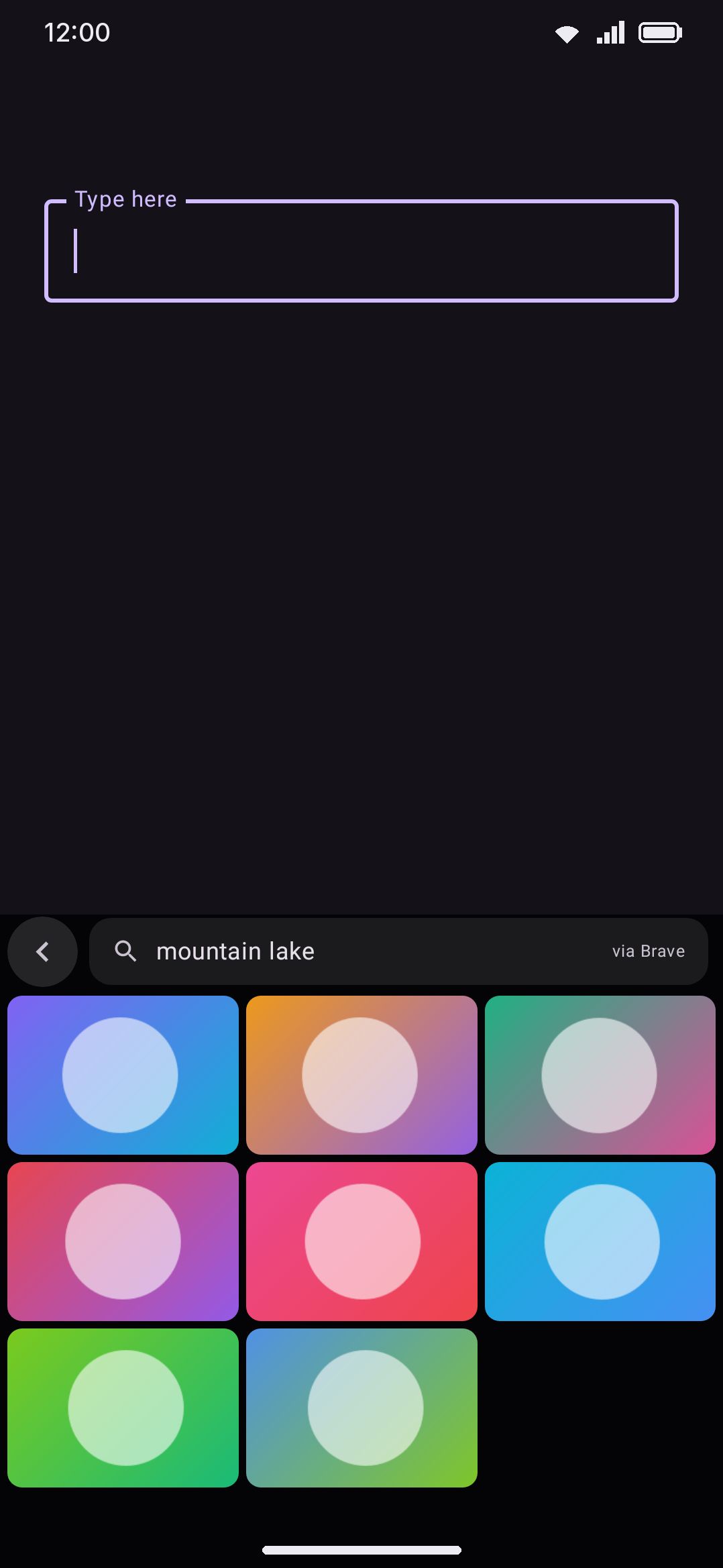
- Image search: tap a thumbnail to download the full image and insert it directly, on the same
commitContentpath the clipboard and GIF tools use. Long-press a thumbnail to insert its URL as plain text instead. The grid dedupes results by image URL before drawing them, since Brave can return the same full-size image for more than one widely-reposted result.
To search with a picture instead of words, tap the camera button at the right of image search’s search bar. It opens the camera tool, and after the shutter the photo goes to Google Lens, a search site, or the share sheet, whichever Search with names on the camera tool’s settings page. Back from the camera returns you here.
Results stay put after you leave. Open one link in your browser, come back, and open the tool again: the same list is there under the same search, so reading several results costs one request, not one per visit, and the list can’t change under you. Tap the ✕ at the end of the search bar to clear it and start a new search, or tap the bar itself to edit the search you ran. Web search and image search each keep their own. They’re held in memory only, so they’re gone once Android closes the keyboard.
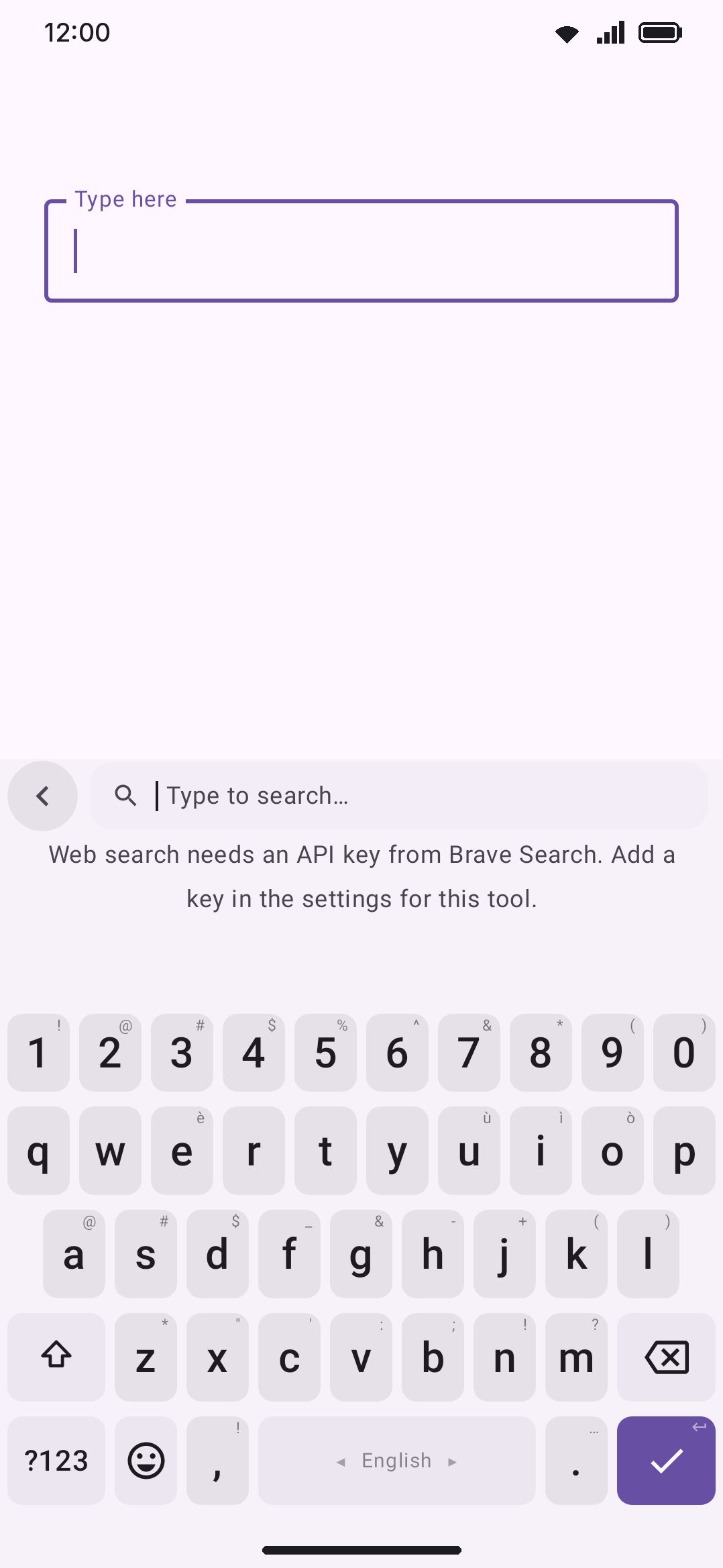
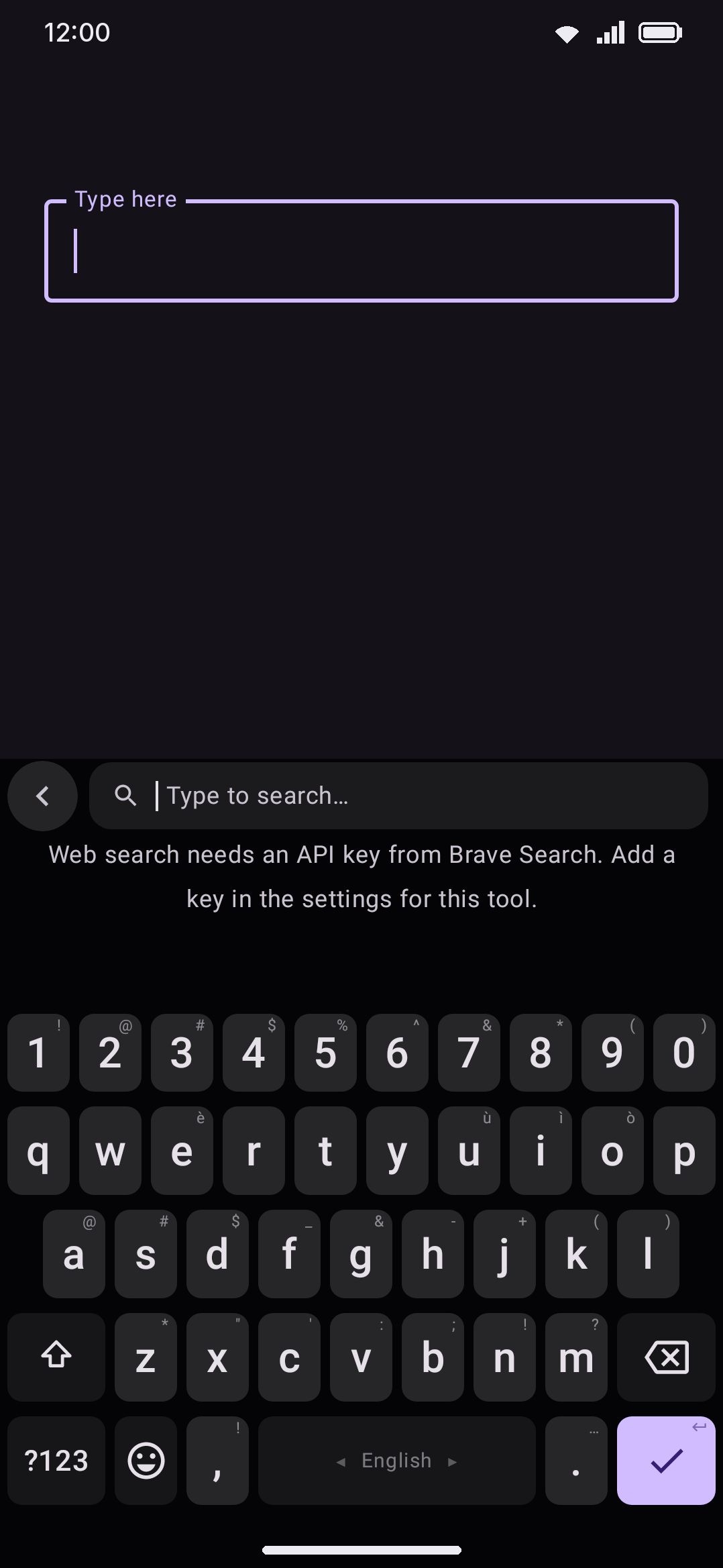
Without something to search with, neither tool appears on the keyboard at all. There’s no button that opens a panel with nothing behind it. Until then the two tools are off the toolbar, out of the toolbox, and out of the smart chips, and a hardware shortcut bound to either one does nothing. On the Tools screen they’re still listed, with their switch greyed out and a reason in place of the usual description. Everywhere except the F-Droid build, that reads “Needs an API key. Press this row to add one.” The F-Droid build reads “Needs a SearXNG instance” instead, since it offers a self-hosted server as another way in. Fill in whichever the screen is asking for and both tools come straight back.
Options
Section titled “Options”Web search and image search are two separate tool screens, reached from Tools / Web search and Tools / Image search. They share almost the same settings block:
- Turn on: already on, like every tool. Switching it off removes that tool from both the toolbar and the toolbox. The switch can’t be pressed while there’s nothing to search with, since there’s nothing to turn on.
- Icon colour: only shown if colorful tool icons are turned on globally.
- SearXNG instance: F-Droid build only, blank by default. Paste the address of a SearXNG server, your own or one you trust, and both tools search it instead of Brave, even if a Brave key is also set. See Servers for the same field shared across tools.
- Brave API key: blank by default. Paste a key from
api-dashboard.search.brave.comto use your own quota. Leave it blank and the app falls back to a key baked into the build, if this build ships one. The field saves as you type, with no separate save button. Under it you’ll read “The app uses your key”, “This field is blank. The app uses the key that is built into the app.”, or “From api-dashboard.search.brave.com, with a free monthly credit”, depending on which applies. - SafeSearch: on by default. It filters explicit results. Web search maps it to Brave’s “moderate” filter. Image search only offers strict or off, so the same toggle maps to “strict” there.
- Results for each search: a slider from 1 to 10, defaulting to 8. (“Each search uses one API request either way,” the app notes.) The Brave API itself allows up to 20 results per request. The app’s slider stops lower, at 10.
- Results per row: image search only, and 3 by default. How many image results sit side by side, from 2 to 5. Fewer columns means bigger previews, which is easier to judge before you send one.
The settings page’s own caption: “Web and image search share everything here. They search the whole web. The Brave plan includes a free monthly credit of about a thousand searches. Brave asks for attribution, so the panel shows ‘via Brave’.” That attribution is a small “via Brave” label inside the search bar, at its right end (just before the ✕ when there’s a search to clear), shown whenever a usable key exists.
Reading Wikipedia
Section titled “Reading Wikipedia”Open Wikipedia from the toolbar, or the toolbox if you haven’t pinned it. It isn’t pinned by default either. Unlike the other three tools on this page, Wikipedia has no leader-key letter of its own out of the box. From a hardware keyboard the toolbox shortcut is the way in: double-tap Ctrl, then press T. You can also rebind a letter to it yourself. The panel takes the whole keyboard, the toolbar row included, with a back button and the search bar in its header. While you type a search it shrinks to that header so the keys fit underneath. Results list article titles with short descriptions, and tapping one opens the article.
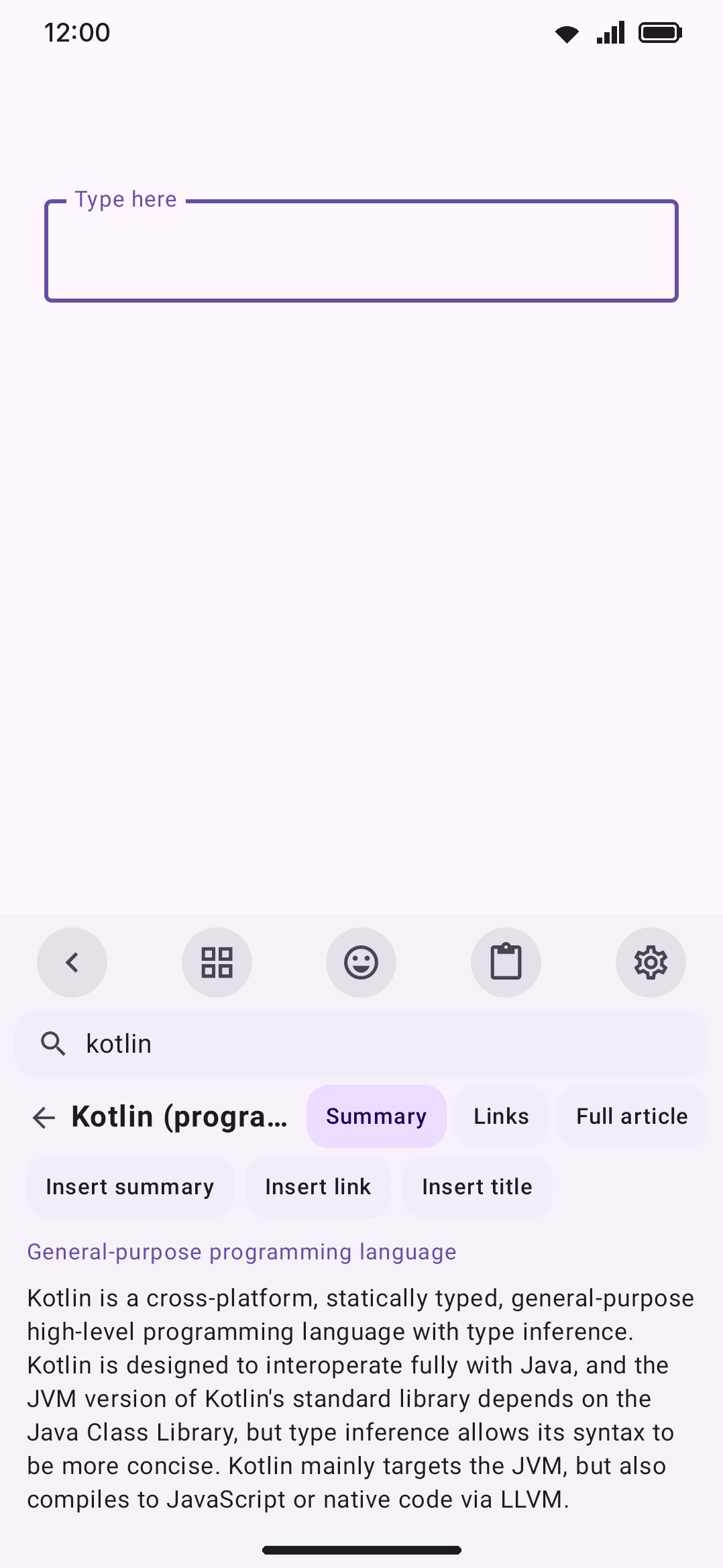
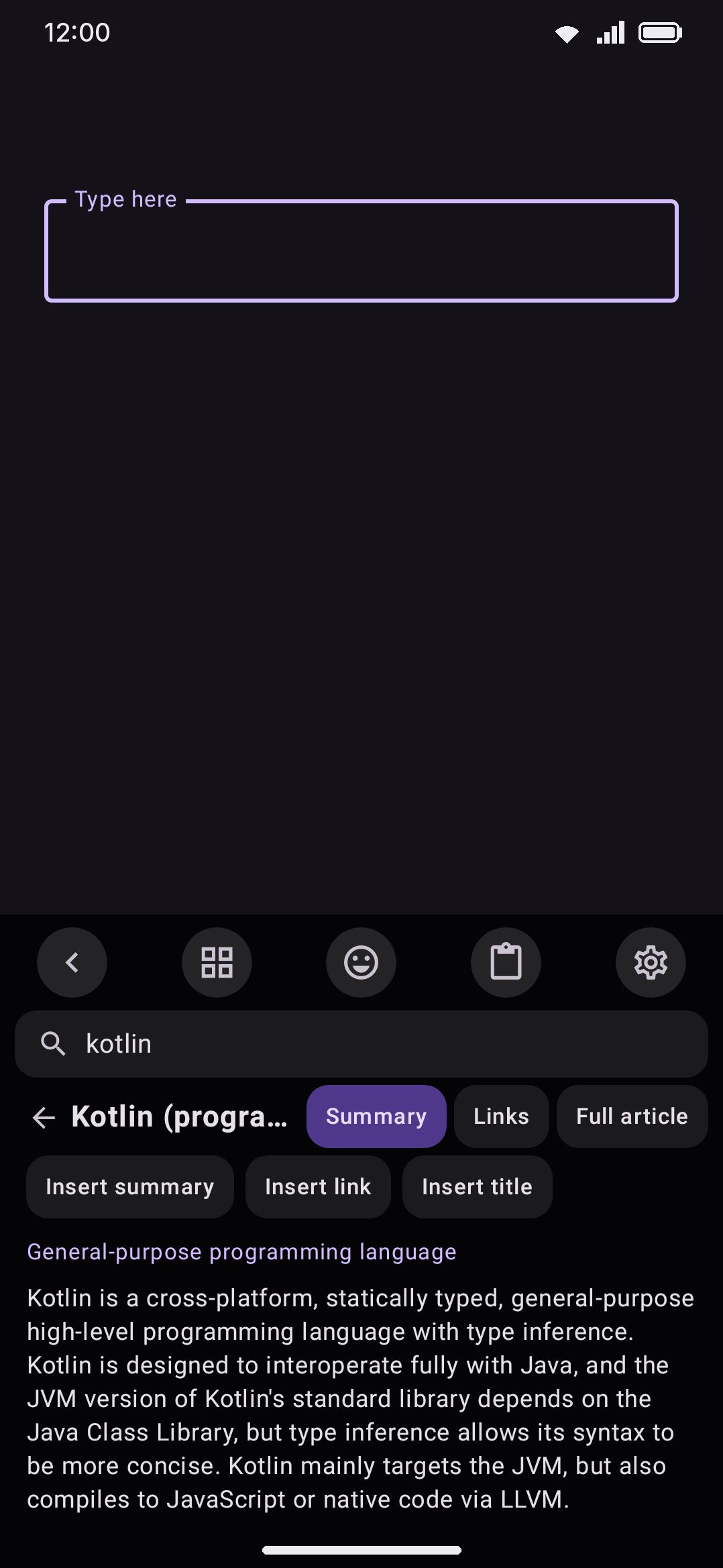
An open article has three tabs:
- Summary: the article’s short description plus its extract, with Insert summary, Insert link, and Insert title chips.
- Links: the article’s outgoing links, namespace 0 only, so no Talk: or File: noise. The list is capped by Links per article in the tool’s options: 50 to 500, defaulting to 200. 500 is as many as Wikipedia returns at once. The tab loads the first time you open it, and each link gets its own Insert chip.
- Full article: the complete plain-text extract, split into paragraphs. Tap any paragraph to insert just that paragraph. Also loaded on first visit rather than up front.
Two buttons beside the article’s title are for reading it in more room. The expand button grows the panel up the screen, to as much as 80% of its height, and tapping it again brings it back to the keyboard’s height; search results always stay at the normal height. The other opens the article’s page on wikipedia.org in your browser.
Under the title, next to the tabs, Copy copies the article’s text (the full article once you’ve opened that tab, otherwise the summary) with its address after it.
Once you’ve opened an article from a results list, a back arrow appears and returns you to those results instead of a blank search. The idle screen puts it simply, with en swapped for whichever language you’ve set below: “Search for a subject on en.wikipedia.org. Read the summary, open the links, and insert text or the address of the article.”
Asking the AI about an article
Section titled “Asking the AI about an article”With the AI tool on, an Ask AI chip sits next to the tabs, beside Copy. It opens the AI panel’s chat on a new conversation with the article attached: the full article when you’ve opened that tab, otherwise the summary, along with its title, description and address. The keys come up under the message box so you can type your question straight away, or pick Explain simply, Summarise or Hard words to start one for you. Nothing is sent until you send it.
To ask about one part, long-press a word in the summary or in a paragraph of the full article. The word is selected, with a handle at each end to drag it wider, and a bar over it offers Ask AI, Copy, Insert, Quote and Select all. Ask AI sends the passage along with the paragraph it came from, so the model reads it in context. Quote inserts the passage in quotation marks followed by the article it came from: "…" (from [Wikipedia: Cat](https://en.wikipedia.org/wiki/Cat)) when Markdown links is on in the tool’s options, "…" (Wikipedia: Cat, https://en.wikipedia.org/wiki/Cat) when it’s off. Tap anywhere else to let the selection go. A selection stays inside one paragraph. Copy and Quote work without the AI tool.
Options
Section titled “Options”- Turn on: already on.
- Icon colour: only shown if colorful tool icons are on globally.
- Wikipedia language: a free-text subdomain code (
en,bn,de,fr,es…), defaulting toen. It changes which language’s Wikipedia every request in the tool reads from. Search, summaries, links, and the full article all follow it. - Markdown links: off by default. Turn it on to insert links as
[Title](url)instead of a bare URL, in both the Summary tab’s “Insert link” chip and every Links-tab chip. - Links per article: how many outgoing links the Links tab lists, from 50 to 500 and defaulting to 200. A long article can have hundreds, and anything past your number is cut.
The settings page’s caption: “The searches and the article text come from the free APIs of wikipedia.org, only while you use the tool.” No API key is needed anywhere in this tool. It calls Wikipedia’s free public REST and MediaWiki APIs directly.
Looking up definitions
Section titled “Looking up definitions”The dictionary looks up English words in a chain of sources you put in order (see Dictionary sources below). None of them needs a key or an account. Open Dictionary with auto-lookup on, which is the default (see Options below), and it immediately looks up your current selection, or the word touching the cursor if nothing is selected.
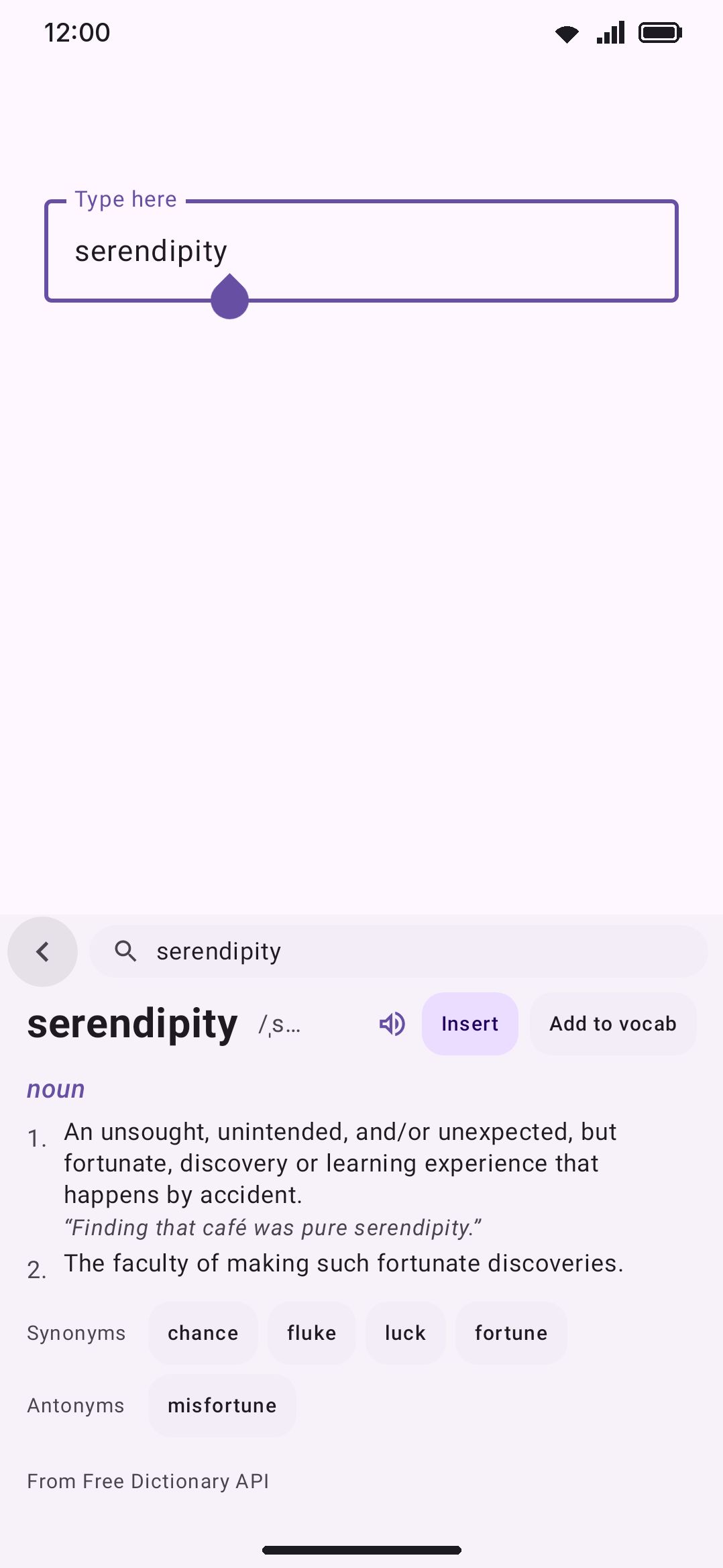
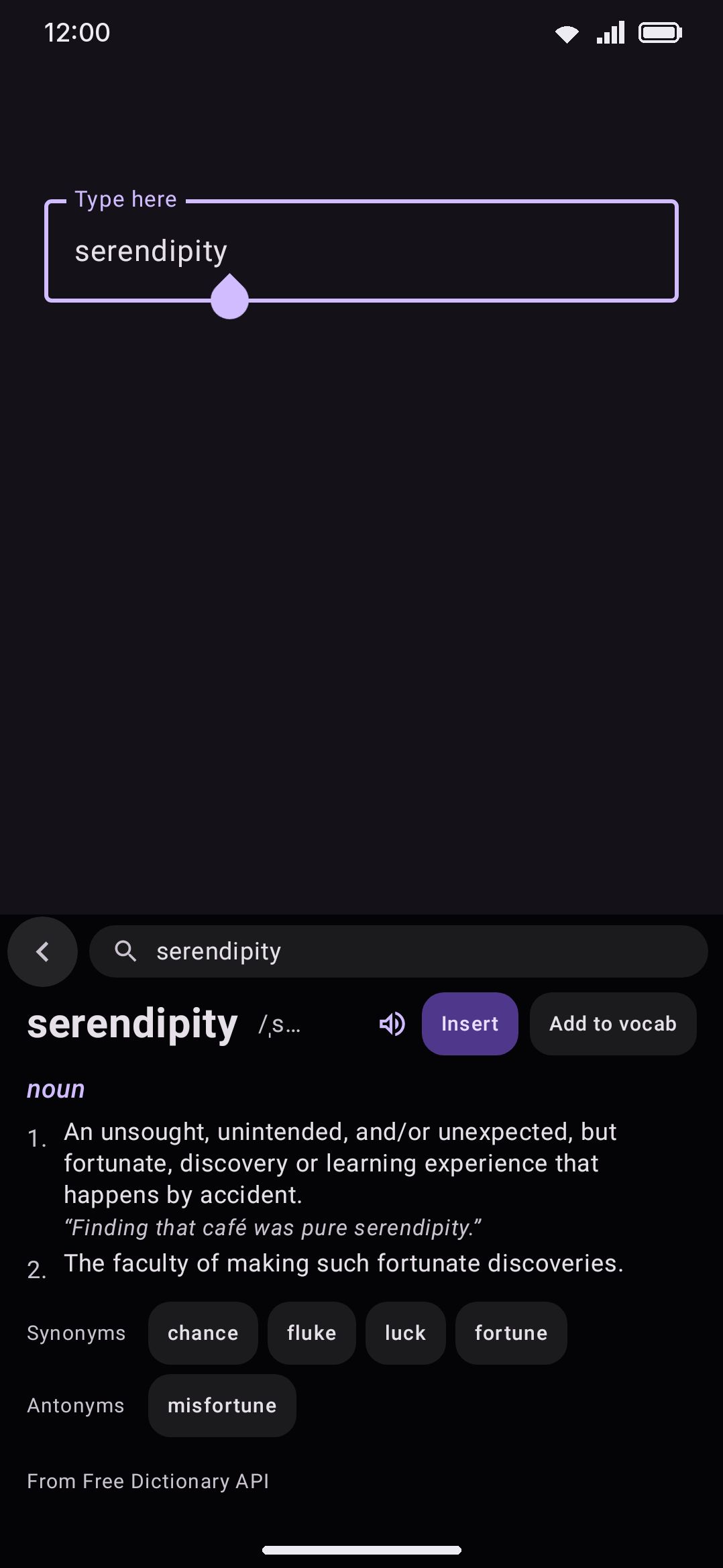
- Auto-lookup only picks up Latin-script words. A word holding any character outside that range, Bengali script for instance, is skipped quietly rather than looked up and shown “not found.” The word also has to be 40 characters or fewer and hold at least one letter. Surrounding quotes and hyphens are trimmed off first.
- If there’s nothing to look up and no earlier result is still on screen, the tool drops straight into its own search field instead.
- Headwords render in a serif display font (Lora), deliberately distinct from the rest of the keyboard’s typography, falling back to the system serif if the font hasn’t downloaded yet.
- Each entry shows the word and, when the source has them, its IPA phonetic transcription and a pronunciation-audio play button. The Wiktionary definitions source carries neither. An Insert chip types the headword itself at the cursor, not a definition.
- Each meaning lists its part of speech, numbered definitions with optional italic example sentences, and up to 12 tappable synonym/antonym chips per row. Tapping a chip looks that word up in turn.
- A line under the last entry names the source that answered, for example “From Wiktionary”.
- A Copy chip beside the search bar copies everything the look-up found as text. With the AI tool on, an Ask AI chip beside it opens a chat about the same text, and a long press on a definition or an example selects it, with Ask AI, Copy and Insert on a bar over it. See Asking the AI about an article, which works the same way.
- “The app cannot reach the dictionary” means no source could be reached: you’re offline, or every online source you left on is down. A word that every reachable source answered for, without an entry, shows “No entry for” instead.
Dictionary sources
Section titled “Dictionary sources”The tool asks the first source that is on. When that source doesn’t know the word, or can’t be reached, it asks the next one, so one service being down doesn’t stop the tool. The default order, all on:
- Vocabulary packs: the vocabulary packs you downloaded, read on the device. Only knows the packs’ words, but sends nothing and works offline.
- Wiktionary: Wiktionary’s full entry through kaikki.org, with definitions, examples, IPA and recordings.
- Wiktionary definitions: Wiktionary’s own definition endpoint on wiktionary.org. Definitions and examples only, but small and fast.
- Free Dictionary API: dictionaryapi.dev. Last because it’s often down for days at a time; while it’s down, every look-up waits about 8 seconds on it before giving up.
Drag a source to change the order, and switch one off to never ask it. With every source off, the panel says so rather than looking anything up. Before version 0.5.12 the Free Dictionary API was the only source, so an outage there broke the tool on every device.
Options
Section titled “Options”- Turn on: already on.
- Icon colour: only shown if colorful tool icons are on globally.
- Look up the word at the cursor: on by default. Its description on the settings screen reads “The tool searches the selected word or the current word when it opens”. Turn it off and Dictionary always opens on its own empty search field.
- Dictionary sources: a drag list with a switch per source. See Dictionary sources above.
- Servers (F-Droid build only): the addresses of kaikki.org, Wiktionary and the Free Dictionary API, for a mirror or a copy you host yourself.
The settings page’s caption: “Definitions come from the sources below, in their order. The keyboard sends the word that you look up to an online source only when you use the tool.” Power saving’s “Background network” toggle overrides this row. While that toggle is on, auto-lookup is forced off whatever you’ve set here. A look-up nobody explicitly asked for is exactly what it exists to stop.
Details & edge cases
Section titled “Details & edge cases”- Only two of the four need to be unlocked. Web search and image search need a Brave key, yours or the one baked into this build. On the F-Droid build, a SearXNG instance address unlocks them instead. Wikipedia and Dictionary work out of the box against free, keyless public APIs.
- Default hardware letters: W for web search, I for image search, D for dictionary. Wikipedia has no letter of its own out of the box, so reach it through the toolbox (T), or rebind a letter to it yourself.
- Discoverable by typing. Typing “search”, “images”, “wiki”/“wikipedia”, or “define”/“dict” as the last word before your cursor offers a smart chip that opens the matching tool. The keyword list is editable per tool, and only shows while that tool is enabled.
- None of these four are edition-gated. Full and lite behave identically across all four tools here.
- Attribution. Brave Search results, Wikipedia’s article text, Wiktionary’s entries, and the Free Dictionary API’s definitions are all credited under “Online services” on the app’s About → Open-source licences screen, alongside the terms each service is used under. Wikipedia’s and Wiktionary’s text is CC BY-SA, which keeps its own license independent of the app’s.
For what leaves your device and when, across every network tool, see network policy. For the GIF and sticker tools’ different, search-as-you-type behavior, see GIFs.