
Resize the keyboard
Drag the keyboard's height, position and side margins in place, over the keys, instead of hunting for sliders in Settings.
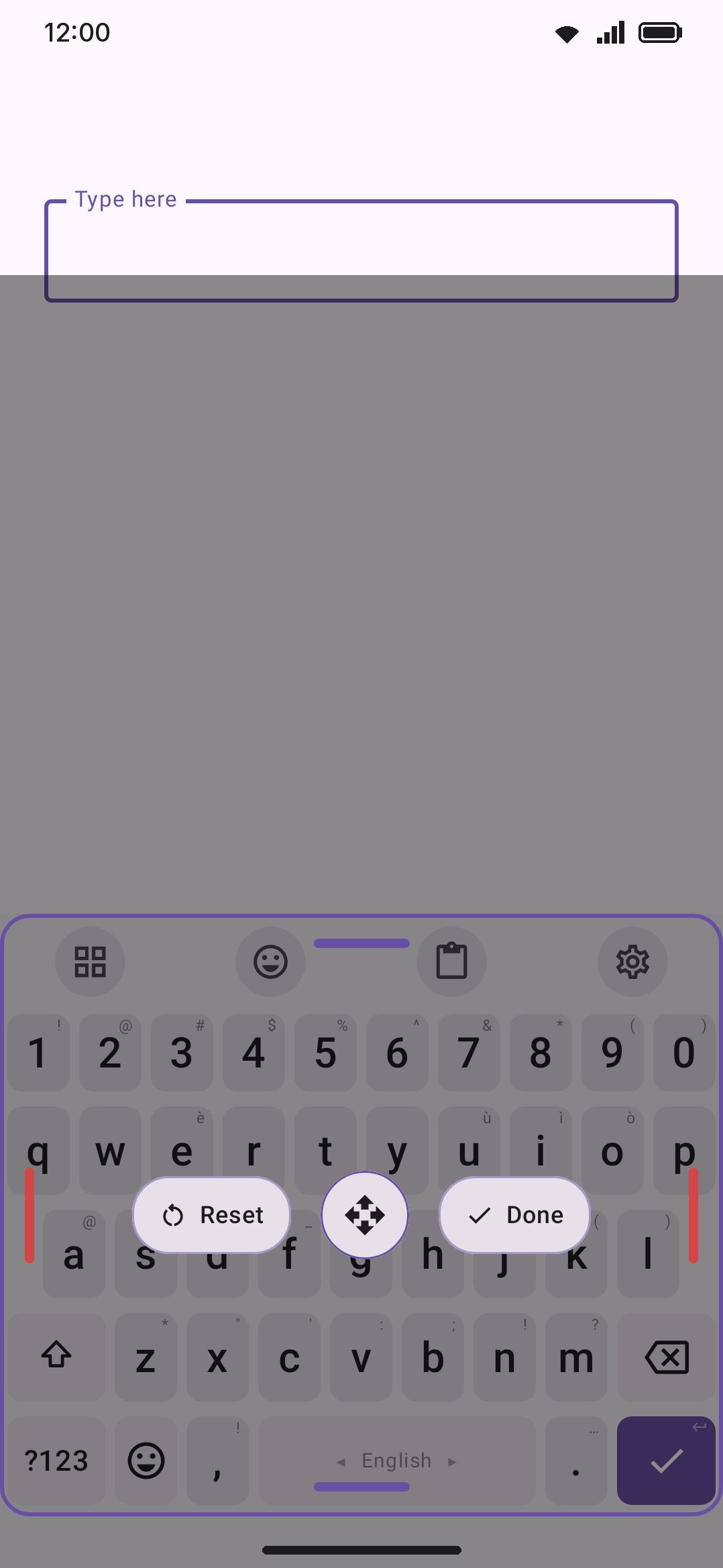
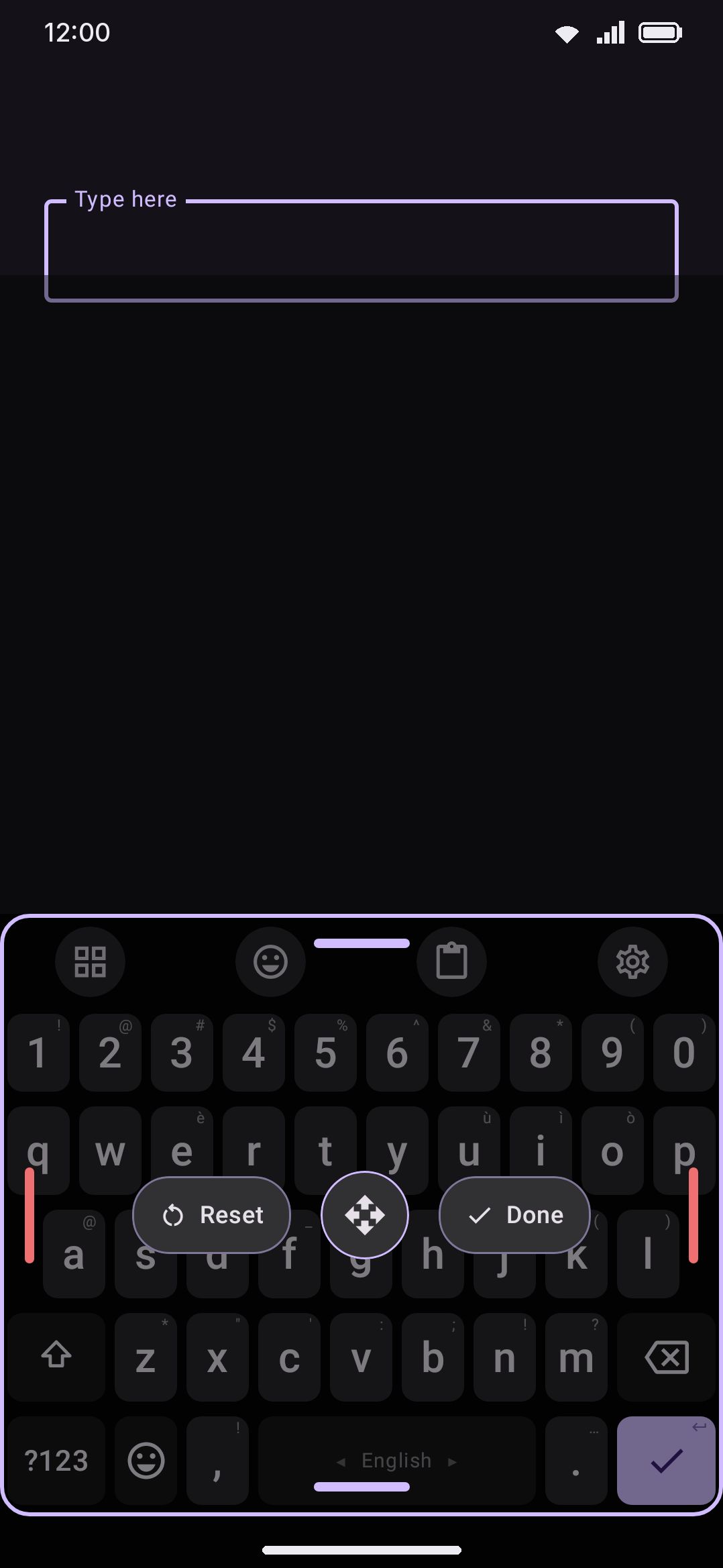
Resize is the tool for the moment you think “this keyboard is a bit too short,” without wanting to go digging through Settings for a slider. Tap it and the keyboard dims, an outline appears around it with a handle on each edge, and you drag until it looks right. Nothing is saved until you press Done.
Turning it on
Section titled “Turning it on”Resize is one of the 72 toolbar tools, filed under Keyboard modes on the Tools screen next to Modes, One-handed, Split and Floating. Its row is just a switch: everything it changes already has a slider on the WM KeyboardLayout & size screen, and the tool is only the in-place way to drag them.
Once it’s on, it waits in the toolbox like any other tool, and you can drag it up onto the toolbar if you resize often enough to want it one tap away. See The toolbar for how pinning works.
Dragging
Section titled “Dragging”Five things move:
- The top handle scales the keys. Both the key height and the number row height change together, keeping their ratio, so a taller keyboard doesn’t leave the number row looking stranded. The bottom edge stays put.
- The bottom handle moves the bottom edge and leaves the top edge where it is. Drag it down and the keys grow into the gap below the keyboard; drag it up and the gap grows while the keys shrink. It stops when the gap runs out either way, so it can never lift the top edge.
- The left and right handles set the margin on that side of the keyboard, the same Left padding and Right padding values the Layout screen has as sliders. Each side is independent, so a right-handed thumb can shave the left edge alone.
- The round move button in the middle slides the whole keyboard up and down without changing its height, so you can lift it off the navigation bar with a thumb in the middle of the board rather than reaching for its edge.
While the tool is open the keyboard area on screen is held at the tallest the keyboard could reach, so the app above it moves once when you enter and once when you leave rather than on every frame of a drag.
Either side of the move button:
- Reset puts everything back to the values the tool opened with. It doesn’t reset to the app’s defaults, just to where you started this session, so a drag you regret costs you nothing.
- Done saves and leaves.
Everything behind the outline is covered by a scrim that swallows every touch, so you cannot type by accident while you’re dragging. Push a handle as far as it goes and it turns red and buzzes once, which is how you know you’ve hit the limit rather than lost the drag.
The limits are the same ones the sliders in Settings use: key height and number row height run from 32dp to 100dp, the gap under the keyboard runs from 0dp to 160dp, and each side margin runs from 0% to 30% of the screen width.
What gets saved, and where
Section titled “What gets saved, and where”Done writes to whichever screen shape you’re currently in. In portrait, that’s the plain Key height, Bottom padding, Left padding and Right padding values under WM KeyboardLayout & sizeSize and position, plus the Number row height slider that sits one group higher under WM KeyboardLayout & sizeNumber row. In landscape, or unfolded, it writes that shape’s own override instead, exactly as if you’d opened the per-screen group in Settings and moved the sliders there yourself. Resizing in landscape therefore never disturbs your portrait sizing. See Size, position & one-handed use for how the per-screen overrides work.
Only the values you actually moved get written. Nudge the keyboard up without touching the top handle and no key height is saved at all, so a tablet still keeps its larger shipped default rather than being frozen at whatever number the drag happened to start from.
Details & edge cases
Section titled “Details & edge cases”- Tapping the tool again cancels. A second tap while resize mode is open closes it without saving, which is also what happens if you reach it twice from a hardware shortcut.
- Done is the only thing that saves. Anything else that takes the keyboard down drops the session unchanged: switching apps, hiding the keyboard, or the system Back gesture, which just dismisses the keyboard here. So does rotating, folding, unfolding, or moving to another display, since that swaps the screen shape out from under a preview that belongs to the old one.
- It only works docked. With the floating keyboard on, the tool refuses and says “Dock the keyboard to resize it”: floating has its own drag grip on the frame, and these handles are laid out against the docked shape.
- One-handed mode switches off when you enter. So does any open panel, which closes through the normal path rather than just vanishing, so nothing is left behind it.
- It does nothing while the voice bar is up. Finish or dismiss the dictation strip first.
- It works before you unlock. Resize is one of the 45 tools available during direct boot, since it only touches the keyboard’s own geometry.
- A theme that pins its own key height wins afterwards. Some themes ship a key height as part of their look. The drag previews fine and the value is saved, but the theme’s number is what gets drawn once you’re out of resize mode. A per-screen override beats the theme, so the same drag does stick in landscape or unfolded.
- No hardware shortcut letter by default. About two dozen tools have a default leader-key letter and Resize isn’t one of them, but you can bind one under WM KeyboardTypingPhysical keyboard. See Hardware keyboards.
- The pill toolbox draws no arrow on it. Resize doesn’t open a panel or an activity, so it reads as an action rather than a destination, alongside Undo and Flashlight.
Related pages
Section titled “Related pages”- Size, position & one-handed use: every sizing slider the tool drags, plus per-screen overrides, split and floating.
- The toolbar: pinning, the toolbox, and direct boot.
- Tools: the master list of all 75 tools and what each row on the Tools screen does.