
Autocorrect
Confidence-gated corrections that know when not to fire.
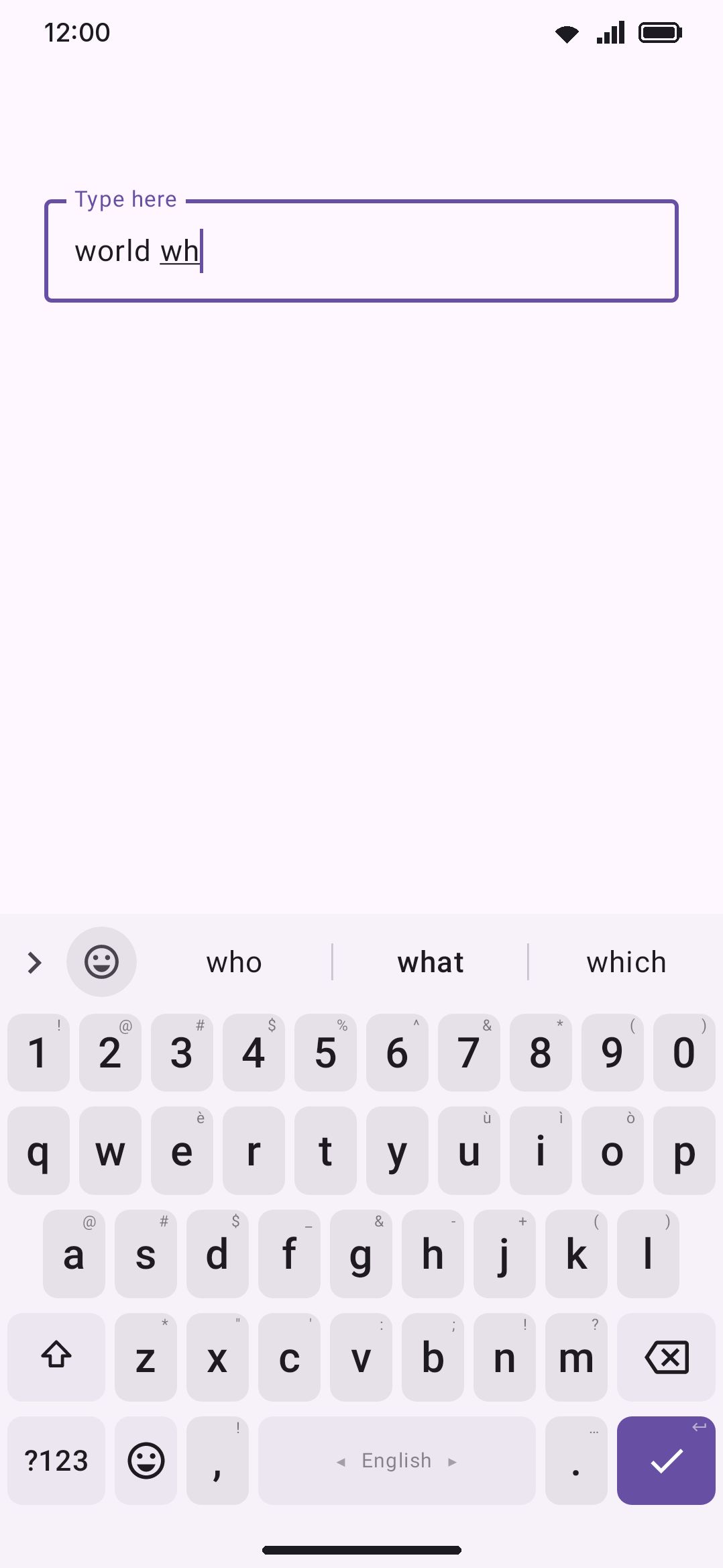
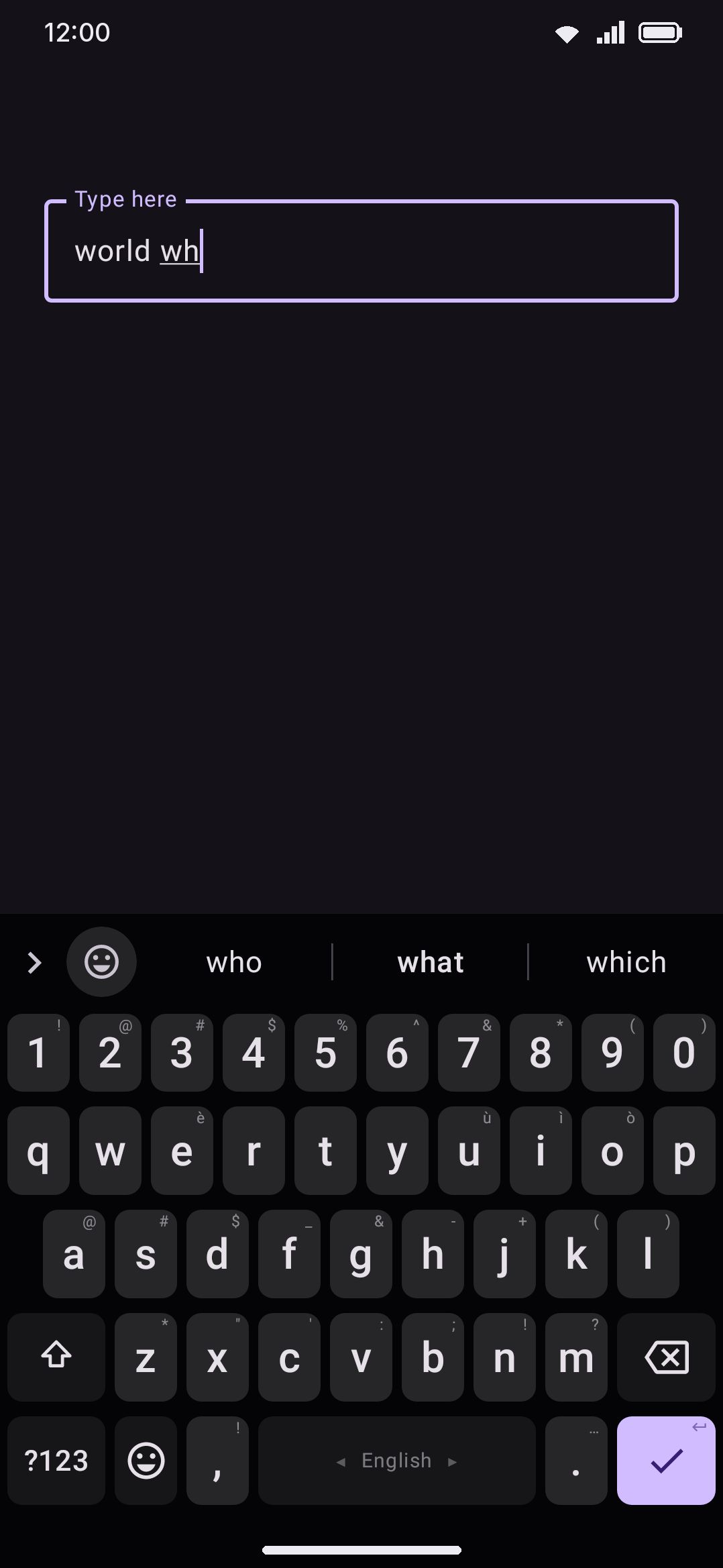
Autocorrect fixes typos as you finish typing a word, but only when one candidate is clearly the right fix. A fat-fingered slip that’s obviously “world” gets corrected. A word that sits genuinely between two real words is left alone for the suggestion strip to offer instead. This page is about that confidence gate, and about everything built around it: reverting a correction, the words autocorrect never touches, and the auto-space rules that ride along with it.
How a correction is chosen
Section titled “How a correction is chosen”Space and Enter trigger autocorrect. A full stop or other punctuation does not: ending a word with one commits it exactly as typed. When you press space or Enter, WM Keyboard checks the word against every word one edit away: one letter dropped, added, doubled, swapped with its neighbour, or substituted. A word that is one letter short of a longer word (“hell” for “hello”) counts as that same single edit. Two-edit candidates reach the suggestion strip but are never applied silently. Two independent sources score the candidates: the word lists (bundled, downloaded, imported, and any secondary language’s) and your own personal dictionary of learned words.
- Two sources agreeing is enough on its own. If the dictionary’s best guess and your personal dictionary’s best guess land on the exact same word, it’s applied. The confidence factor below isn’t even consulted.
- Otherwise, the best candidate has to clearly win. It’s applied only if it outscores the runner-up by the confidence factor (4× by default, see Options). A close call is left alone rather than guessed at.
- The edit itself is weighted by how it happens. Cheapest, and so likeliest, are three: a swapped pair of letters, a doubled letter (the hold-repeat slip in “helllo”), and a substitution toward a key right next to the one you meant. A dropped letter, or a stray one typed next to where your finger actually landed, costs noticeably more. A substitution or an insertion nowhere near the key you hit is the most expensive of all and rarely survives. The neighbour test uses the adjacency map for your active layout, so the same typo resolves differently on QWERTY than on AZERTY or Dvorak, and where the keyboard has your real tap coordinates it uses those instead of the map.
- A missing accent is not a typo. Typing
zwhere the word hasż,eforé, orlforłcosts almost nothing and does not count as an edit, because the accented letter is on the same key. So “juz” becomes “już”, and a word with every accent left off (“zolw” for “żółw”) is found as easily as a word with one. - The fix keeps your capitalization. Typing “hte” mid-sentence corrects to “the”. Typing “Hte” at the start of one corrects to “The.”
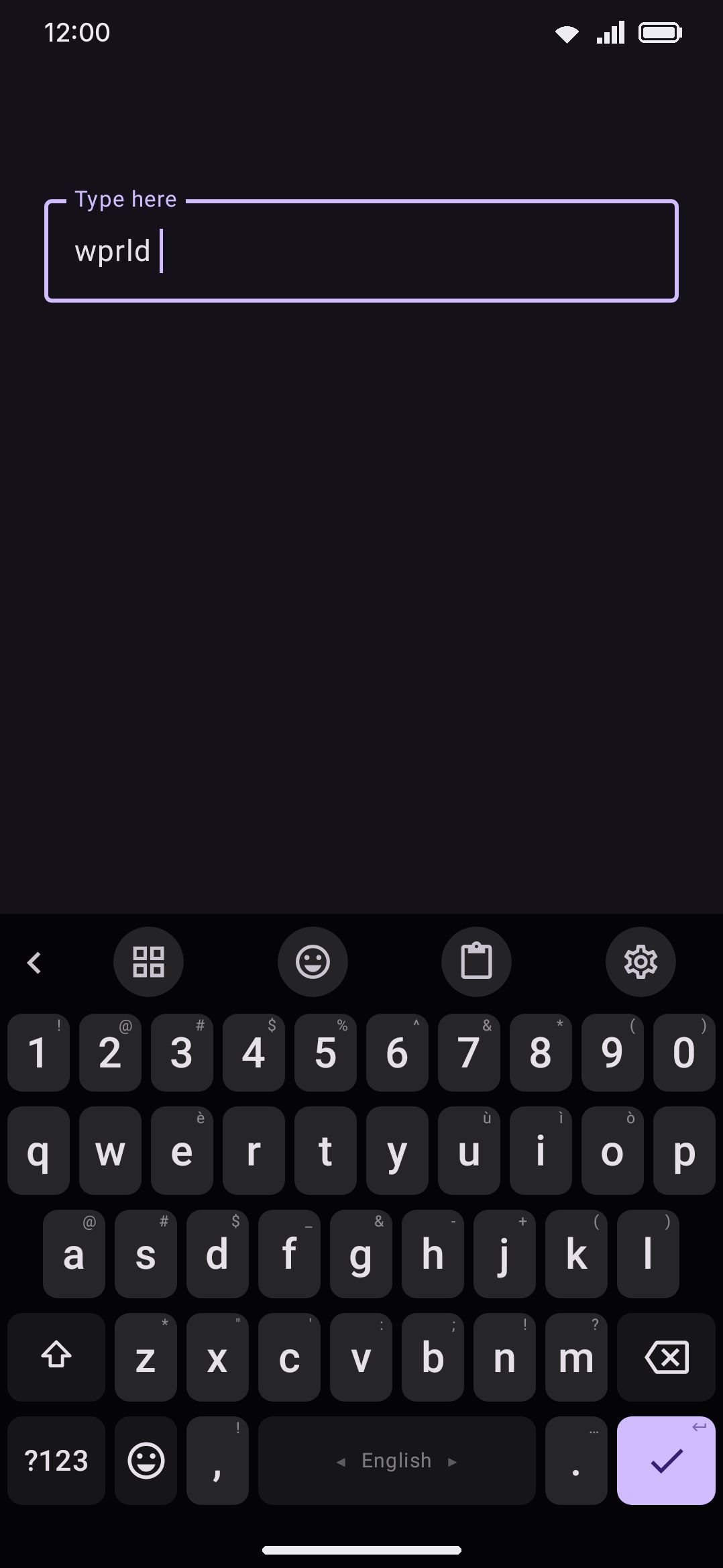
The two candidates have to be genuinely far apart in score, which keeps autocorrect conservative by design. “helo” is evenly split between “hello” and “help”, and “tesr” between “test” and “tear”, so both are left for you to resolve yourself. An unambiguous slip like “wprld” resolves immediately.
Words it never touches
Section titled “Words it never touches”A word is never a correction target, whatever the confidence factor is set to, if any of these apply:
- It’s shorter than three letters. Too little signal to guess at safely.
- It’s already a known word. Anything in the active dictionary, a downloaded or custom wordlist, a secondary-language dictionary, or your own personal dictionary is left exactly as typed. A known word is never “corrected.” There is one exception: a spelling that the word list holds only because people type another word without its accents. The Polish list contains “juz”, but “już” is more than fifty times as common, so “juz” is corrected. When both spellings are common words, such as Polish “ze” and “że”, the one you typed stays. The French list holds “cest”, “jai” and “quil” as words for the same reason (real text is full of elisions typed without their apostrophe), and those are corrected the same way, to “c’est”, “j’ai” and “qu’il”; Italian “cera” against “era” goes to “c’era” on the same terms, and so do the other eliding languages. The larger downloaded word lists also hold common typos, because the text they are counted from has typos in it: the Medium English list holds “wheee”, “thw” and “teh”. A spelling is treated as one of those typos when two things are true. First, it is further down its list than the 50,000 words the Small download keeps. Second, a word one slip away is at least a thousand times as common. So “wheee” is corrected to “where” and “thw” to “the”, on any download size. A real word that is only rare, such as “cress” next to “dress”, is left as typed. A word you added to Android’s personal dictionary is never treated this way. A word nothing recognises doesn’t become known just by being typed once: it has to be typed and left alone three times before it joins your dictionary, which is what stops a typo shielding itself from the fix it needed. See Personal dictionary for that, and Learn a word after under WM KeyboardTypingSuggestions for a further threshold on top of it.
- It’s a contact’s name or an installed app’s label, if contact and app-name suggestions have indexed it.
- It’s in your suggestion blacklist, or offensive-word filtering catches it. A blacklisted or filtered word is dropped from the candidate pool before scoring, so it can never be silently forced in as a fix.
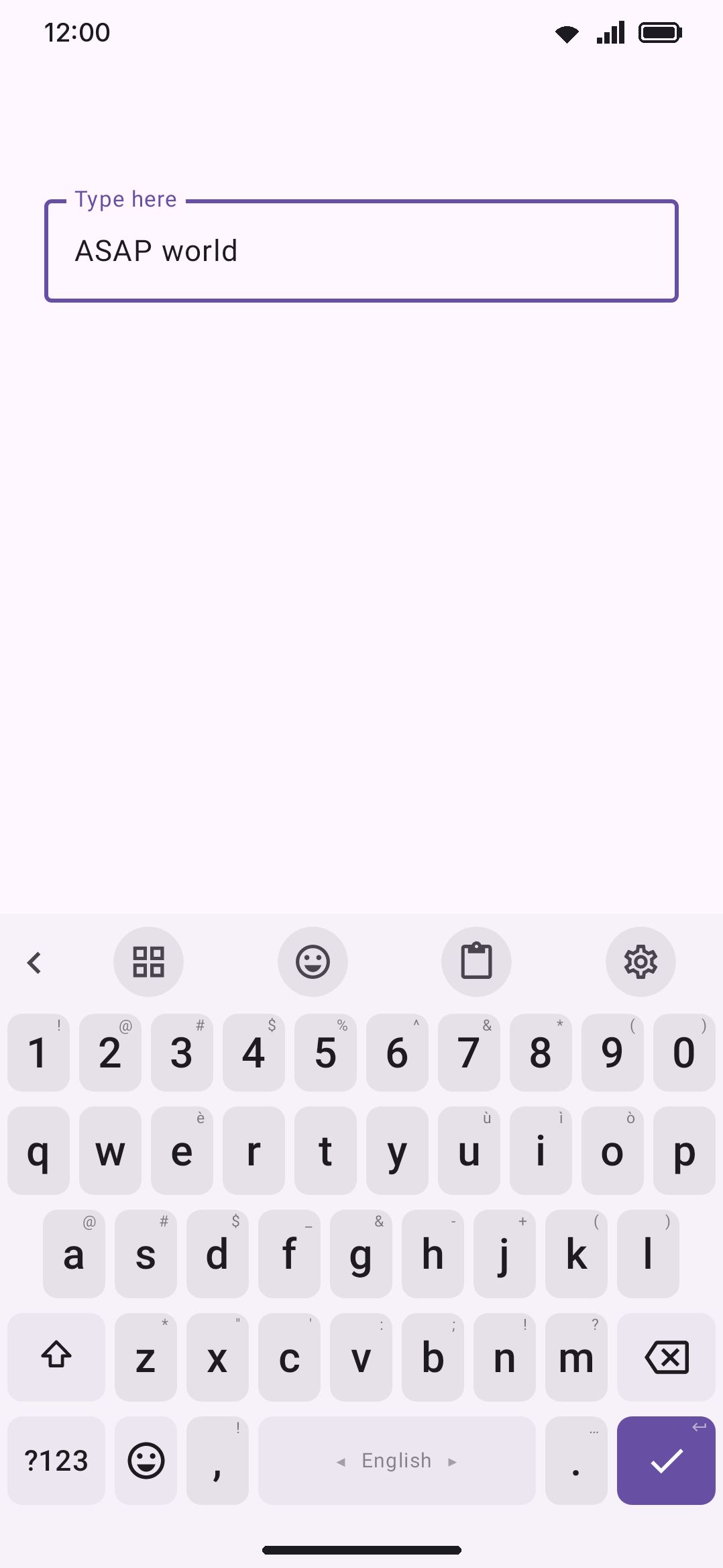
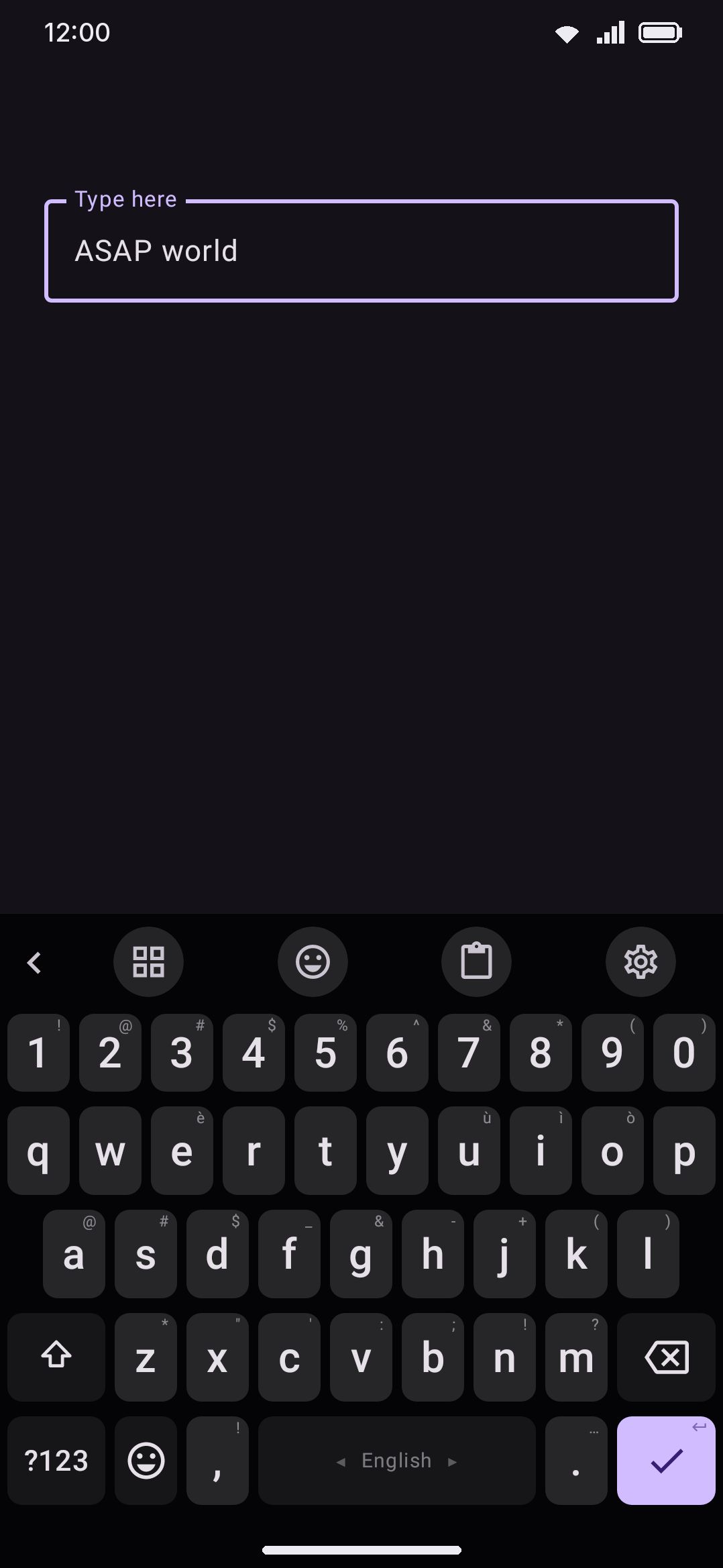
- It’s typed in ALL CAPS. Acronyms and shouted words (ASAP, NOOO) are usually capitals on purpose. This is its own toggle, on by default (see Options). A leading capital on an otherwise-lowercase word (“Wprld”) is still corrected normally; only a fully-capitalized word is spared.
- The active language isn’t English and has no bundled dictionary of its own. The bundled English dictionary feeds autocorrect only while your active language is English, or has English configured as a secondary language. Type in French, German, or another language and corrections come from that language’s own dictionary and whatever you’ve personally taught the keyboard.
- The field is a password field, or any structured field: email, web address, number pad, phone pad. Autocorrect, like the rest of typing intelligence, is off in all of them.
Undoing a correction
Section titled “Undoing a correction”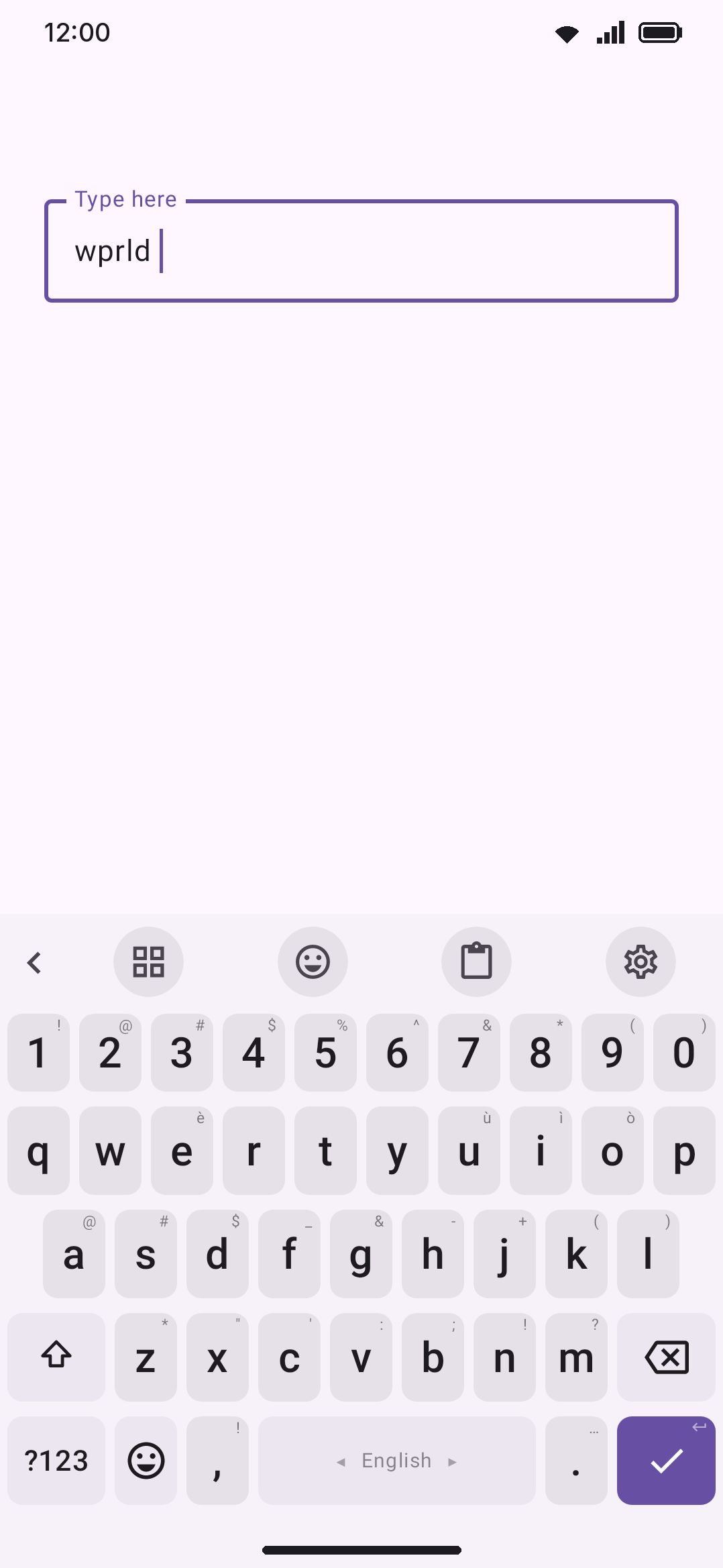
⌫ right after an autocorrected word undoes it, as long as nothing else has touched the text since. The cursor has to be sitting exactly where the correction left it, and the text right before it has to still read as the corrected word plus the space or line break that ended it. Backspace then deletes both and retypes what you originally typed instead. Move the cursor, tap elsewhere, or keep typing first and the undo is gone. Only the immediate next backspace can trigger it.
The same word won’t be “corrected” again next time either way: undoing a correction retires that exact pair on the spot, and a second undo of it blocks the pair for good. That part is unconditional, because a rejection has to hold even with learning switched off.
Reverting also counts double towards teaching the original word to your personal dictionary, which is the strongest of the signals that feed that count. It doesn’t save the word outright any more. Undoing a correction is also what you do when the fix simply wasn’t the word you wanted, and saving on the first undo turned out to be the shortest path from one stray swipe to a misspelling stuck in your dictionary. This follow-on teaching only happens if learning from typing is on, which it is by default. It’s skipped in incognito mode (when incognito is set to pause learning) and in a secure field.
One related behavior is easy to mistake for this toggle. Arming Shift live re-cases every chip in the suggestion strip, not only an autocorrect candidate, to match what would actually be committed if you tapped it. Shift is a latch rather than a hold here, so the chips stay re-cased until the shift state clears. That’s a strip-wide display rule rather than a way to reject a correction. See Suggestions & prediction for how it works.
What counts as rejecting a correction
Section titled “What counts as rejecting a correction”Backspace is the fastest way to reject a correction, but it is not the only one, and for a long time it was the only one the keyboard could see. Fixing a word three words later, selecting it and retyping, or tidying the sentence before sending all rejected the correction just as clearly and taught the keyboard nothing. Worse, they counted as successes, so the adaptive gate read a better record than autocorrect was actually earning and loosened where it should have tightened.
A correction is now judged once the text around it has settled, on the same signals the personal dictionary uses: you close the keyboard, send or clear the field, move to another field, or simply type far enough past it.
- You never went back into that text. The correction stands, and counts as accepted.
- You did go back into it. The keyboard reads the field once, at that point only, and looks for which spelling is there now. Your original word standing where the fix was is a rejection. The corrected word still there is an accept. This reading counts for less than a backspace, and it is thrown away entirely when your word is not a word the keyboard knows. That case is the trap it exists to avoid: you glance back, decide you mistyped, fix it by hand without noticing the keyboard already fixed it, and make the same slip again. The field then looks exactly like a rejection while nothing was rejected at all. A word that really is yours, a name or a nickname, joins your personal dictionary after a few sightings, and from then on its undos count in full.
- Neither is there, or the text is gone. No verdict at all. Deleting the sentence, or sending a message before anything could be checked, teaches nothing rather than something invented.
The read only ever happens at one of those settling points, never while you are typing.
Taking a correction back later
Section titled “Taking a correction back later”Backspace only reaches a correction in the moment it happens. One more letter and it is out of reach, which is awkward, because that is usually when you notice it. The word looks right at a glance, you read the sentence back a beat later, and by then the only way out is to select the word and retype it.
So the keyboard puts the word you actually typed on a chip at the start of the suggestion strip. Press it and your word goes back, and the keyboard reads that exactly as it reads a backspace: the pair is retired, and your word counts towards your personal dictionary. The chip stands until you end the sentence. It shows between words rather than in the middle of one, because putting the word back means editing text behind where you are typing.
There’s a second way back, one that outlasts the sentence. Every autocorrected word also carries a mark the app itself can read, naming the word you actually typed. In an app that supports it, this draws the same brief underline other keyboards use. Tap the word anywhere in the document, however long after, and it offers your original spelling back. It has no expiry, because it lives in the text rather than on the strip. Not every app reads the mark, so where it doesn’t, the chip above is the only way back.
Not every correction gets a chip, and that is the point. A chip after every correction is one more thing to look past, and by the time the one that matters arrives you have stopped reading the strip. So the keyboard scores each correction it applies on two things:
- How sure it was. A correction that only just cleared the confidence gate scores low. One that both the dictionary and your own lexicon named scores high.
- How far it moved the word. A short word with one neighbouring letter changed scores high, because you can see what happened at a glance. A letter no finger slip explains, or a word split into two, scores low.
A correction that scores under the bar gets a chip. How often to offer the undo under WM KeyboardTypingAutomatic corrections is that bar: at the lowest setting almost nothing gets a chip, at the highest every correction does. Undo a correction from the strip, just above it, turns the whole thing off.
The chip shares its slot with the join, revision and near-miss chips, and comes last of the four. Those three are about the word you are typing now. This one is about a word you have already left behind.
How long an undo lasts
Section titled “How long an undo lasts”Undoing a correction does two things. It puts your word back, which is immediate and never in doubt. It also tells the keyboard something about that exact pair of words, and Remember my undos under WM KeyboardTypingAutomatic corrections sets how long that second part lasts. Only the pair is affected. Other fixes for the same typo carry on as before.
| Level | What an undo costs the correction |
|---|---|
| Off | Nothing. The keyboard corrects the word again next time. |
| Light | The pair needs far more confidence from then on. It is never retired. |
| Normal | One undo stops the pair for the rest of that run of typing. Two retire it, and a retired pair is offered as a chip once more after a long quiet spell. |
| Strict | The first undo retires the pair for good, however the keyboard read it, and it is never offered again. |
Normal is the default and the level the rest of this page describes. Under it, a backspace on the correction stops that pair for the next twenty corrections and until you move to another field, whichever comes first. After that the counts on disk take over: a pair undone once fights uphill, a pair undone twice does not fire at all. Corrections you let stand count too, and three of them buy back one undo, so a pair you undid in a hurry is not sentenced for the six months the expiry clock takes.
A retired pair is not gone forever. Once it has sat quiet for about forty saves of the learning file, it is let out on probation: it can reach the suggestion chip again, though it still never rewrites your word on its own. Accept it three times and it is an ordinary correction once more. This is what stops a single bad undo from silently retiring a fix you actually wanted, with nothing on the screen ever saying why.
Pick Light if you find the keyboard gives up on corrections too easily. Pick Strict if you want an undo to be final. Off keeps the undo itself and forgets everything else.
Learning from your own fixes
Section titled “Learning from your own fixes”Most typos autocorrect misses end the same way: you notice the word, go back, and fix it by hand. That fix used to teach the keyboard nothing. Now it teaches two things.
The pair. The keyboard remembers what you typed and what you changed it to, once the text around the fix has settled the way learned words do (see Words wait their turn). Fix the same typo a second time and autocorrect makes that fix for you from then on, with the undo chip showing the first few times so you can see it happen. After one fix it offers the fix on the strip instead of applying it, and it will not apply a different guess of its own over a word you have already shown it the answer to. If autocorrect had changed the word to the wrong thing and you fixed that by hand, the pair it learns starts from your original typo, and the wrong correction is marked as rejected.
A typo that is itself a real word (“form” for “from”) is held to a higher bar: three fixes, and the words before it have to agree that the other word was meant. Otherwise every “form” would turn into “from”.
The slip. Each pair is also read letter by letter, and the difference is counted as a habit of your hands on this layout: a 3 typed for an e, a b where the space bar was, a doubled letter missed. Once a layout has taught eight of those, autocorrect treats the slips you actually make as cheaper, so the same slip in a word you never fixed is understood too. A habit never makes a correction fire on its own; it only changes which words are in the running, and the confidence gate decides as before. Habits are learned only from typos you typed yourself, never from a real word swapped for another, from a swiped word, or from a word picked off the strip.
Where your taps land. Separately, every word you type and leave standing records where your finger landed on each of its letters, and later taps are read against keys moved to match. This is the tapping twin of the glide typing hand model, and it learns from kept autocorrects as well: a correction you let stand is the plainest statement of which letter a tap was meant for.
The keyboard learns a fix in three situations: you backspace into a word you just committed and retype it, you tap into a word and edit it in place, or you select a word and type over it. It follows only the edits it makes itself, and checks the word against the field once, when you leave it. A learned fix you then undo, by backspace or the undo chip, counts against the pair, and a pair undone twice is retired exactly like any other correction. Everything learned here ages out on the same clock as the rest of the personal dictionary.
Learned corrections under WM KeyboardTypingAutomatic corrections lists every pair you have taught, with how often, and the slips the keyboard has noticed. Delete a pair there to forget it, or forget all of them at once. Learn from my fixes turns the whole thing off. Learn where my taps land turns the tap model off on its own, with its own Forget button underneath. Both stores travel with the Dictionary section of an export, and are deleted with the rest of the learned data.
Corrections it offers instead of applying
Section titled “Corrections it offers instead of applying”Applying a correction and offering one are not the same question. Applying has to be nearly certain, because being wrong rewrites what you wrote and you may not notice. Offering costs you a chip you can ignore. So everything that came close to the bar without clearing it, which used to be discarded silently, is now offered as a chip at the start of the suggestion strip instead. Tap it to apply the fix; carry on typing and it goes away.
The bar for a chip is about a third of the bar for a silent replacement, and it moves with every knob above it: raise the confidence slider and both go up together. A correction you have already rejected once is not offered, because being asked twice is worse than not being helped. The one exception is a retired pair that has sat quiet for a long time: it comes back as a chip rather than staying invisible forever. See How long an undo lasts. Turn the chips off with Offer corrections it isn’t sure about under WM KeyboardTypingSuggestions.
Tapping the chip is itself evidence that the gate is too tight for that pair, so it feeds back the same way an accepted correction does. Backspace undoes it like any other correction.
Auto-space and punctuation
Section titled “Auto-space and punctuation”Two related rules ride along with autocorrect and share its “sentence in progress” bookkeeping. Each has its own toggle:
- Double space inserts a period. Type two spaces in a row within a fraction of a second and the first space becomes
.. Deleting a space and retyping it “undoes” nothing here; a following Shift is what cancels it. A separate, off-by-default setting can make a double space insert a tab instead, which takes priority over the period rule when both are on. - Punctuation auto-inserts the space after it. Off by default. When it’s on, a sentence-ending or clause mark inserts a trailing space automatically: period, exclamation point, question mark, comma, semicolon, colon, and the Bengali
।. You don’t need a separate spacebar tap before the next word. A mark typed straight after a digit is part of the number and gets no space, so5,000,3.14and5:00stay whole. A full stop inside an email address gets none either, sotest@pm.medoesn’t come out astest@pm. Me; a comma or question mark after the address still does. A run of marks like ”…” or ”?!” isn’t pulled apart into ”… !”, because the space from the previous mark is taken back before the next one lands. A closing mark does the same thing: type"hi.and the closing quote hugs the full stop rather than landing a space past it. This is also gated off in password and structured fields, same as autocorrect itself.
Shift cancels a pending auto-space
Section titled “Shift cancels a pending auto-space”Right after either rule above inserts a space, the very next Shift press does something different from arming Shift or Caps Lock. It deletes that trailing space, as long as nothing has changed the text since, and cancels the auto-capitalization the period would otherwise have armed for the next sentence. It’s a one-shot. Press any other key first and the pending state clears, after which a plain space press just confirms the space already there rather than adding a second one.
A mark takes the keyboard’s space back
Section titled “A mark takes the keyboard’s space back”Whenever the keyboard types a space for you rather than you typing it, a mark typed straight after it takes that space back so it hugs the word it belongs to. That covers the space after a glided word, the space after a word tapped from the suggestion strip, and the space the punctuation rule above inserts: word: and not word :. A space you typed yourself is yours, and no mark removes it.
The marks that do this are the ones that end a word or build a longer one: the full stop and its family, the closing brackets, the percent sign, and the slash, backslash, apostrophe, dashes and underscore that spell “and/or”, “hello’s”, “well-known” and “snake_case”. # and @ are not among them, because a hashtag and a mention attach to the word after them: check this #cool wants the space in front of the hash kept. In a web address field # and @ join the list, along with &, =, + and ~, since an address has no spaces anywhere in it.
The rule runs before the keyboard decides what else the mark means, which matters for two of them. A colon on a word boundary also opens an emoji search, and an apostrophe goes into the word being corrected so that “hello’s” stays one word. Both still hug the word first. If the emoji search does complete, the space comes back, since an emoji stands off the word in front of it: a swiped “party” then :tada: gives party 🎉.
The straight double quote is the one mark that has to look at what came before it, because it is both ends of a quotation. The keyboard counts the quotes already on the line: an even count means this one opens, so the space in front of it stays, and an odd count means it closes, so the space goes. he said "hello" comes out right either way. The apostrophe is left out of this on purpose, since it is a letter inside a word and counting it would say nothing.
Getting to the mark does not spend the space. A colon and a slash live on the symbols page, so reaching either one means pressing ?123 first, and that press changes only what is drawn. The same goes for shift, the Fn and number pages, and the globe key. Any key that puts text in the field does spend it, panels included, because what comes out of a panel is text like any other.
A mark takes your own space back
Section titled “A mark takes your own space back”The rule above never touches a space you typed. Remove a space before punctuation is the setting that does, and it is on by default: with it on, Hey . lands as Hey. and yes , no as yes, no, the moment the mark is typed. It is narrow on purpose. The mark has to come after a word, a number or something that closes one (a bracket, a quote), so a mark at the start of a line or after another mark keeps its space, and a line break is never treated as a slip. A space in a password, an address or a number pad is left alone, same as every other rule here. One backspace straight after puts the space back.
Which marks do this is yours to set. The list under the switch takes one character per mark with nothing between them, and starts out as the sentence and clause marks: .,?!;:, the Bengali ।, and the Arabic comma, semicolon, question mark and full stop (،؛؟۔), which hug their words exactly as the Latin ones do. You do not have to edit it for French: the languages that keep a space in front of a mark are handled on their own, below, and are never hugged whatever the list says.
The space in front of a mark
Section titled “The space in front of a mark”French does the opposite of everything above. !, ?, ;, : and the guillemets are double marks there, and they take a space on both sides: Bonjour !, Quoi ?, voici :. Space before French punctuation is the switch for that, on by default, and it types the space for you and keeps every other rule from swallowing it again.
It is a no-break space, so the mark can never wrap onto the next line on its own — which is the whole reason the rule exists in print. Type the space yourself and it is replaced with the no-break one; type none and you get one anyway; let the keyboard put one there after a swipe or a strip pick and it stays. One backspace straight after takes it out again, for the times you are quoting code rather than writing a sentence.
The same guards apply as everywhere else on this page. The mark has to follow a word, a number or a closing bracket, so a mark at the start of a line, after a line break, or after another mark is left exactly as you typed it, and passwords, addresses and number pads are untouched. One knock-on: in these languages a colon after a word is punctuation rather than the start of an emoji shortcode, so :tada: opens the emoji search at the start of a line but not in the middle of a sentence.
French quotation marks get the same treatment from both ends. » takes its space in front like any other mark, and « takes one behind — typed with the mark, so « then a swiped word gives « oui rather than «oui. Quoting in French is « oui » with no spacebar taps of your own.
Seven languages are written this way and carry the rule: French, Breton, Occitan, Walloon, Picard, Norman and Franco-Provençal. Every other language, Haitian Creole and Catalan included, types exactly as it did before — the switch has nothing to act on.
A glided word joins an opening bracket
Section titled “A glided word joins an opening bracket”Glide typing types a space in front of each word as well as after it, so two swiped words do not run together. That space is skipped when the character in front of it is one the word belongs against: an opening bracket, an opening quote, or the start of the line. he said " then a glided “hello” gives he said "hello. The double quote is read the same way as above, by counting the quotes on the line, so a closing quote still gets its space. In a web address field there is no leading space at all, since an address has no spaces in it.
The joining marks work the same way, with one extra test. A slash, a backslash, a dash, an underscore, &, =, + and ~ hold two words together when they are up against the word behind them, so The/ then a glided “And” gives The/And. The same marks stand between two words when they have a space in front of them, and then the glided word gets its space: hello - gives hello - world, while well- gives well-known.
# and @ are openers rather than joiners, because they attach to the word after them wherever they sit. check this # then a glided “cool” gives check this #cool.
Brackets close themselves
Section titled “Brackets close themselves”Close brackets for me is off by default. Turn it on and an opening bracket types its closing half behind the cursor, with the cursor left between the two, so you carry straight on inside the pair: press ( and you get () with the caret in the middle, ready for what goes in it.
Three presses behave differently once it’s on:
- The opening bracket types the pair.
([{do it, and so do the CJK and fullwidth brackets:([{〈《「『「【〔〖〘〚⟨⟦. - The closing bracket, pressed when that very character is already the next one in front of the cursor, steps over it instead of typing a second one. Typing both halves out of habit gives you
(), not()). - Backspace on an empty pair takes both halves out in one press, so undoing the bracket undoes the closer that came with it. A pair with anything inside it deletes one character at a time, as always.
Two kinds of character are deliberately left out. Quotes — ", ', `, « — because the apostrophe in “don’t” is the same key, and a keyboard that closed it would be wrong far more often than right; select some text and press the quote instead, which wraps the selection in the pair. < for the same sort of reason: outside code it is a less-than sign, and 5 < is nobody opening a bracket.
The rule also stands down when the bracket lands in front of a word — ( typed immediately before world is you putting brackets around that word by hand, and a closer dropped into the middle of it would only have to be deleted again. A space, a mark, another bracket or the end of the text all leave room for the pair. Passwords, web addresses, email fields and number pads are untouched, the same hard gate every other rule on this page sits behind.
Reducing typos before they happen
Section titled “Reducing typos before they happen”Autopilot nudges which key a borderline tap resolves to, biasing toward whichever neighboring letter is more likely to continue the word you’re typing. Fewer boundary mis-taps happen in the first place, before autocorrect would ever need to fix them. It has its own screen under the Suggestions settings group rather than sitting alongside autocorrect, since it needs suggestions on to have anything to bias toward. Its Strength slider sets how far a favoured letter reaches, and two optional views draw the touch areas it has claimed. See Suggestions & prediction for the rest of how the suggestion engine ranks candidates.
Options
Section titled “Options”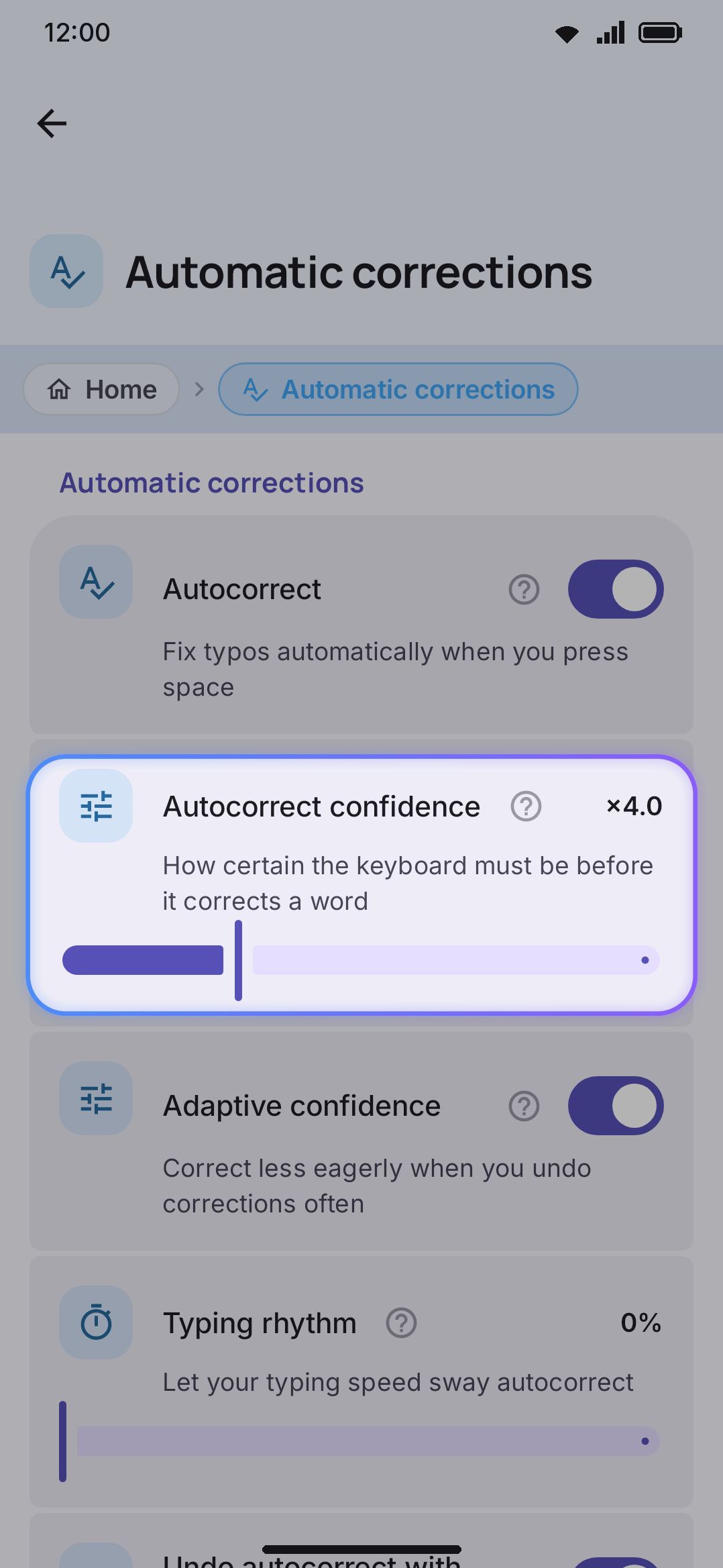
| Setting | Default | Shown when |
|---|---|---|
| Autocorrect | On | always |
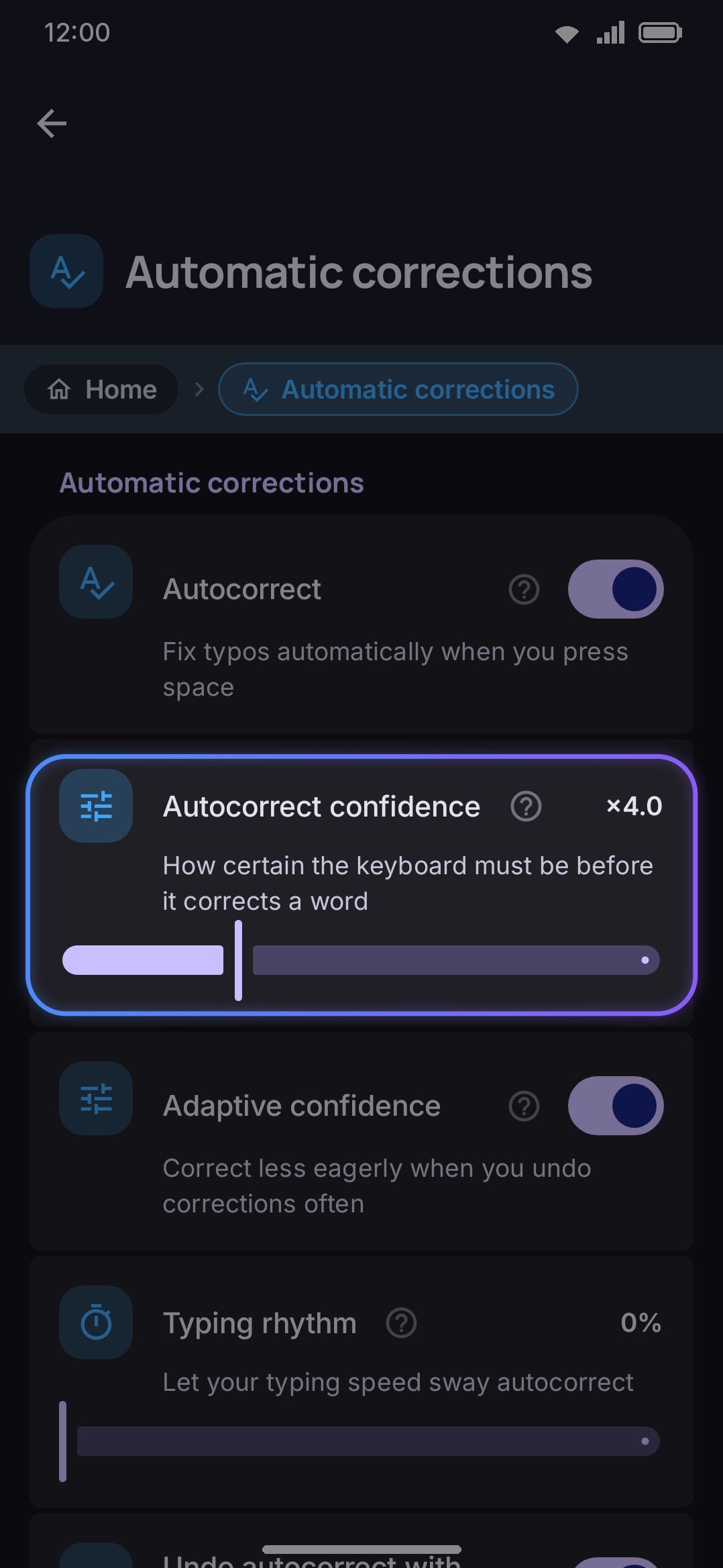
| Autocorrect confidence | 4.0× (range 1.5×–10×) | Autocorrect on |
| Adaptive confidence | On | Autocorrect on |
| Typing rhythm | 0% (range 0%–100%) | Autocorrect on |
| Undo autocorrect with backspace | On | Autocorrect on |
| Undo a correction from the strip | On | Autocorrect on |
| How often to offer the undo | 50% (range 0%–100%) | Autocorrect on, and Undo a correction from the strip on |
| Remember my undos | Normal (Off / Light / Normal / Strict) | Autocorrect on |
| Learn from my fixes | On | Autocorrect on |
| Learned corrections | (a screen) | Autocorrect on |
| Learn where my taps land | On | Autocorrect on |
| Skip words in capital letters | On | Autocorrect on |
| Block offensive words | On | Autocorrect on |
| Context-aware suggestions | On | Autocorrect on |
| Add missing spaces | On | Autocorrect on |
| Detect the language you type | On | Autocorrect on |
| Detection strength | Balanced (Gentle / Balanced / Aggressive) | Autocorrect on, and Detect the language you type on |
| Fix number row slips | On | Autocorrect on, and the number row is shown |
| Fix missing apostrophes | On | always |
| Double space | Full stop (Two spaces / Full stop / Tab) | always |
| Double space speed | 400 ms (range 200–800 ms) | Double space is Full stop or Tab |
| Automatic space after punctuation | Off | always |
| Remove a space before punctuation | On | always |
| Marks that pull the space out | .,?!;:।،؛؟۔ | Remove a space before punctuation on |
| Space before French punctuation | On | always |
| Close brackets for me | Off | always |
The table covers the rows this page is about. The same group also carries Adapt to app tone and Space after a suggestion (both described on Suggestions & prediction), Automatic capital letters, and the two selection rules, wrap-with-a-pair and shift-re-cases-the-selection.
The Autocorrect toggle is the master switch for the seventeen rows marked “Autocorrect on” above, from the confidence slider down to Fix number row slips. It is not a switch for the whole group. The apostrophe fix, both double-space rules, the auto-space after punctuation and the space-before-punctuation fix carry on working with autocorrect off, which is the point of them having their own toggles. Autocorrect is also reachable as a one-tap toolbar tool that flips the same switch without leaving the keyboard, showing a brief “Autocorrect on”/“Autocorrect off” confirmation.
Autocorrect confidence is the ratio the top candidate must beat the runner-up by. It’s a continuous slider from 1.5× to 10×, labeled with the exact multiplier (for example “×4.0”). Lower makes autocorrect fire more eagerly, on less-certain calls. Higher restricts it to only the most unambiguous typos. Two-source agreement (see How a correction is chosen) always bypasses this slider, whatever it’s set to.
Three more rows change what autocorrect does without you touching the slider:
- Adaptive confidence (on) watches how often corrections get rejected and raises the bar when a lot of them do. It stays out of the way until twenty corrections have been judged, and it can move the gate anywhere from 0.85× the slider (a spotless record) up to 2.5× it, with the result always held inside the slider’s own 1.5×–10× range. That is the whole of this row: it moves one global gate. The memory of individual corrections you undid is a separate setting, Remember my undos, described in How long an undo lasts.
- Remember my undos (Normal) sets how long the keyboard keeps an undo. It is the row to reach for if autocorrect either forgets a fix you rejected or refuses to fix a word you want fixed. See How long an undo lasts.
- Learn from my fixes (on) and Learn where my taps land (on) are the two halves of Learning from your own fixes: the first remembers the typos you repair by hand and the slips behind them, the second where your finger lands on each key. Learned corrections opens the list of what has been learned.
- Typing rhythm (0%, so off until you move it) measures how fast you typed the word. A quick sloppy burst makes autocorrect a bit braver. Slow deliberate typing, as with an unusual name or a word from another language, makes it hold back. The slider is how much the rhythm is allowed to sway things.
- Detection strength decides how hard the language the keyboard reads the field as leans on ranking, from a light nudge at Gentle through Balanced to a heavy tilt at Aggressive. It reweights the word lists rather than moving the confidence gate, so it changes which word autocorrect reaches for, not how sure it has to be. See Mixed-language typing.
The other new rows are corrections in their own right rather than gate tuning:
- Add missing spaces (on) splits a word you typed without its space when both halves are known words and nothing else explains it. “ofthe” becomes “of the”, and a letter next to the spacebar can stand in for the space itself, so “amibtomake” becomes “ami tomake”. That second reading asks more of the evidence, because the word lists have gaps and an unlisted word that happens to break into two listed ones (“config”, “inbox”) is far commoner than a spacebar miss: the tap has to have landed low on its key, toward the spacebar, and the two words have to be a pair you have typed before. Until then it stays a suggestion on the strip. Neither reading will ever end on a single letter: a downloaded word list is built from a corpus tokenised at the apostrophe, so it carries a bare “s”, “t” and “don” as ordinary words, and without that rule “thats” reads as “that s”. The first half may still be one letter, because “alot” really is “a lot”. Backspace right after puts your text back, like any other correction.
- Fix number row slips (on) treats a lone digit inside a word as a tap that landed one row too high, so “as3” can commit as “ase”. Only a same-length, single-digit swap is ever trusted: a word starting with a digit, or one with two or more digits, is left alone. The row only appears while the number row is on, since that’s the only time the slip is possible.
- Context-aware suggestions (on) reorders the top candidates using the words before them, drawing on your own word pairs, common English pairs and the words already in this conversation. It only reorders where there’s real evidence, and it never changes which word autocorrect applies.
Details & edge cases
Section titled “Details & edge cases”- Structured and secure fields are a hard gate, not a per-setting one. Autocorrect, both auto-space rules, and the autopilot bias all share one underlying check: the field must be a plain text field, not a password field or a keypad (email, web address, phone, number). There’s no way to enable autocorrect specifically in a password field.
- An autocorrected word earns no personal-dictionary credit at the moment it’s committed, so the engine’s own guess isn’t reinforced as if you’d typed it deliberately. Reverting it with backspace teaches the original word instead (see Undoing a correction).
- The revert window is exact, not fuzzy. It only fires if the caret is still precisely where the correcting commit left it and the text immediately before it is still
"corrected word" + " ", unchanged. Any cursor movement, or any edit elsewhere in the field, silently disarms it. There’s no “undo history” beyond the single most recent correction. - Two-source agreement bypasses the slider. If your personal dictionary and the standard dictionary happen to name the same fix for a typo, it’s applied even below the confidence slider’s threshold. The slider only governs cases where the two disagree, or where only one source has an opinion. It can’t resurrect a rejected fix, though: a blacklisted, filtered or retired candidate is dropped from the pool before this test ever runs.
- The confidence check is symmetric with the engine’s internal default. The slider’s default position (4.0×) matches the value the underlying suggestion engine falls back to if a setting were ever missing, so a fresh install and an explicitly-set default behave identically.
For the rest of the suggestion strip, including completions, next-word prediction, and how learning ranks your own words over time, see Suggestions & prediction. To keep a word out of both suggestions and autocorrect entirely, use the suggestion blacklist.