
Calendar
A month view of your device calendar, with up to two of eight non-Gregorian calendars riding alongside Gregorian.
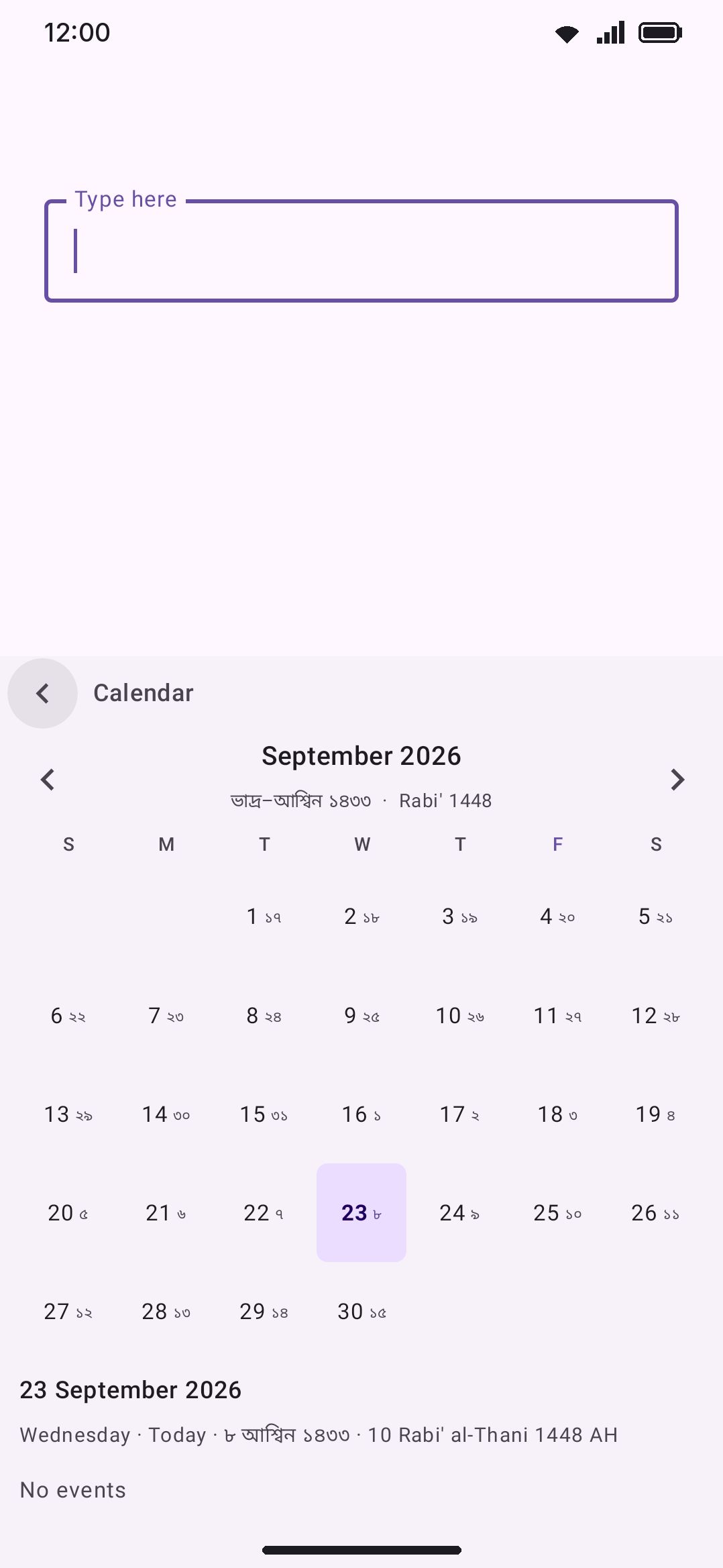
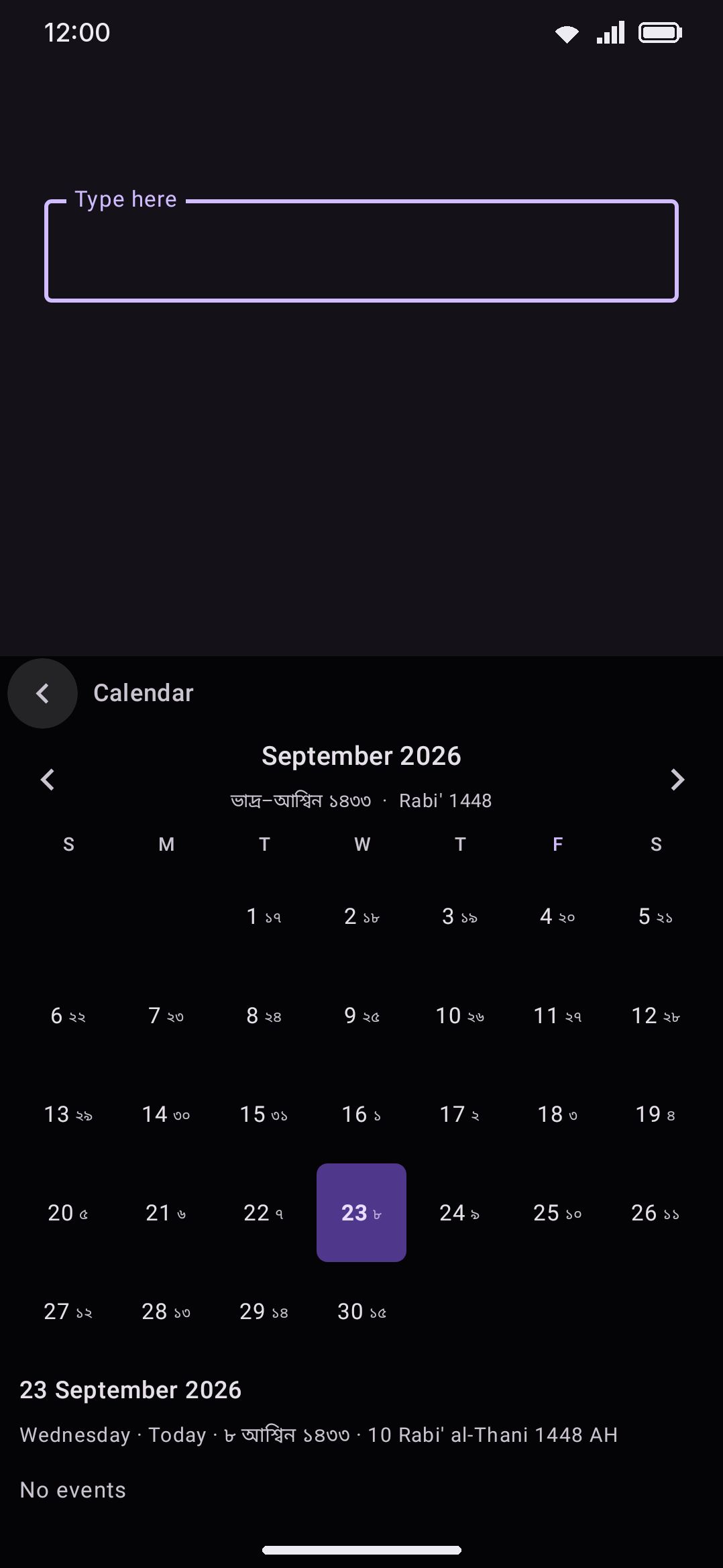
The Calendar tool opens a full month grid inside the keyboard rather than a today list. Browse any month, and up to two non-Gregorian calendars ride alongside the Gregorian dates in the header and inside each day cell. Tap a day to see its date across every calendar you’ve picked, plus whatever’s on your device calendar for that day.
Browsing the month
Section titled “Browsing the month”Open Calendar from the toolbar, or from the toolbox if you haven’t pinned it. The < and > arrows step a month at a time. Navigate away from the current month and a Today chip appears next to the month label. Tap it to jump straight back and reselect today. The weekday row along the top tints your weekend in the accent color, and which days those are is a setting that starts off from your phone’s region (see Options).
Tapping a day cell doesn’t leave the panel. It updates the summary and event list below the grid. Today’s cell gets an accent-colored outline, and the day you’ve selected gets a filled pill.
If either of your two chosen calendars has day numbers that don’t line up one-to-one with the Gregorian grid, its day number rides inside the cell as a small second number next to the Gregorian one. Bengali dates render in Bengali numerals (০–৯). The first day of a Chinese lunar month shows the month name instead of a bare “1”, since that’s the only cue in the grid that a lunar month just turned over.
Below the grid, the selected day shows its full Gregorian date, weekday, a relative label (Today, Tomorrow, Yesterday, “in N days,” or “N days ago”), and then the same date in whichever alternate calendars you’ve picked.
Today’s events
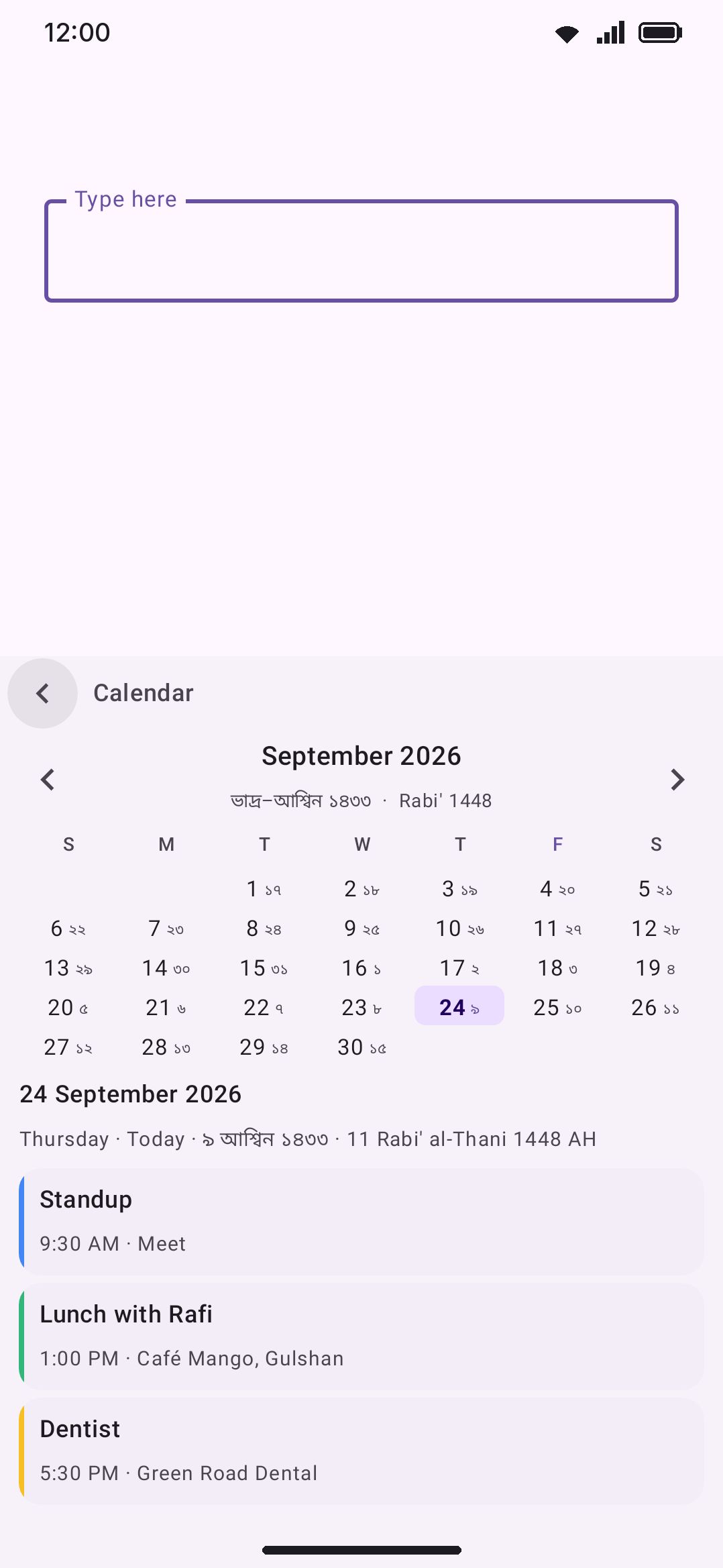
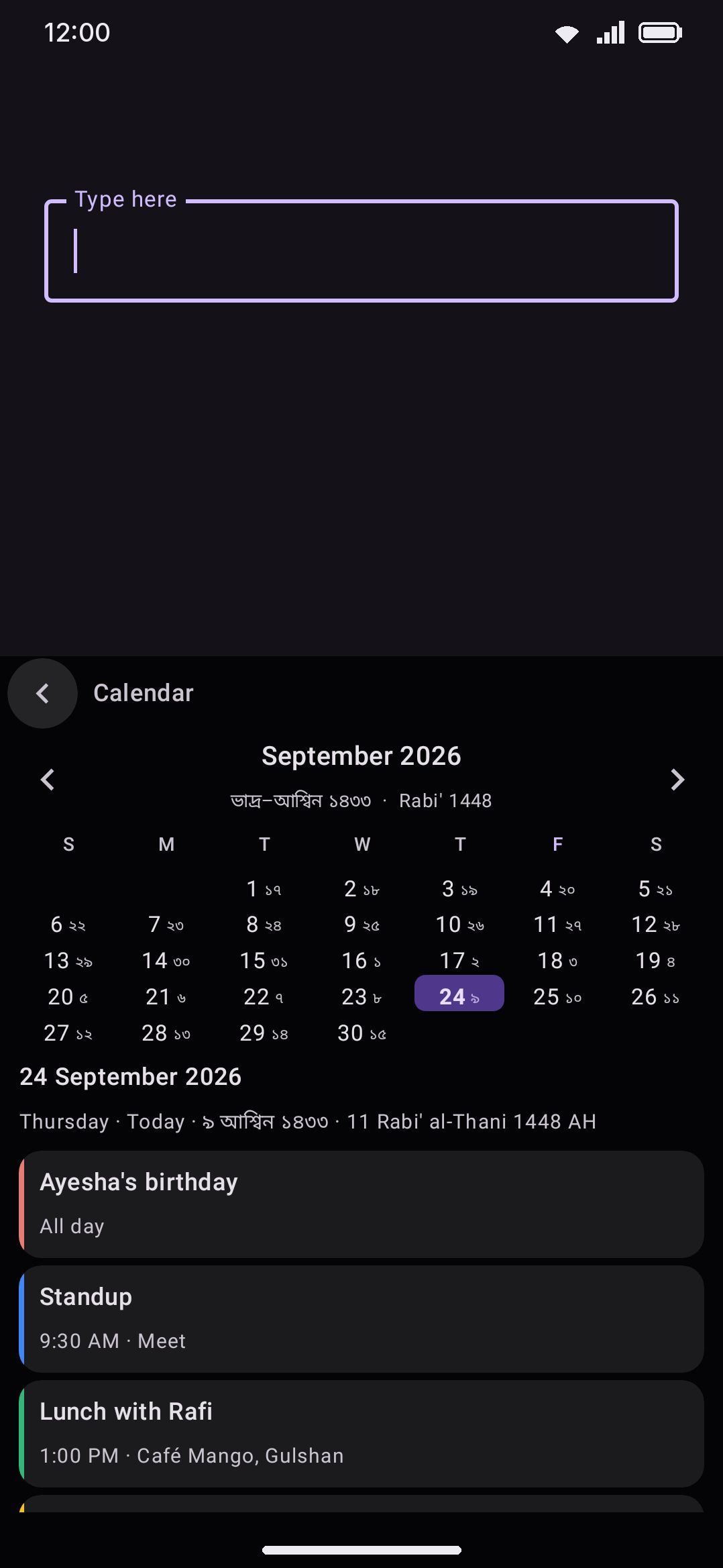
Section titled “Today’s events”The bottom of the panel reads events straight from your device calendar for whichever day is selected. Until you grant calendar access, it shows a one-line prompt with an Allow button instead of any event data. Once granted, it queries in the background every time you change the selected day: a blank area while loading, “No events” if the day is clear, or a scrolling list of event cards otherwise.
Each event card shows a colored stripe down the left edge (the calendar’s own display color, or the accent color if the calendar doesn’t provide one), followed by the title, then the time. All-day events show “All day” instead of a clock time, and an event with a location appends it after the time. Recurring events are expanded per occurrence, so a weekly meeting shows up on every day it actually lands on rather than only its first occurrence.
Calendar permission
Section titled “Calendar permission”The keyboard only asks for calendar access the first time you tap Allow in the panel, never at install or first launch. An on-screen keyboard service can’t request runtime permissions directly. So tapping Allow opens an invisible trampoline activity. It shows a short explanation of what the calendar access is for, then the system permission dialog, then closes itself the instant you answer. The camera tool uses the same pattern for its own permission. If you revoke calendar access in system Settings and come back to the keyboard, the panel notices as soon as it regains focus and drops back to the Allow prompt.
Access is read-only in both directions. The tool only ever issues a read query against the calendar provider, and it has no code path that inserts, edits or deletes anything on your calendar.
Options
Section titled “Options”Like every tool, Calendar opens with a Turn on switch and, while colorful tool icons are on globally, an Icon colour override (a soft red by default). Under those sits the Keyword shortcut group: Trigger words, pre-filled with “calendar, schedule”, a Match capitals toggle off by default, and a Reset to defaults row once you’ve edited the words. Then the tool’s own settings:
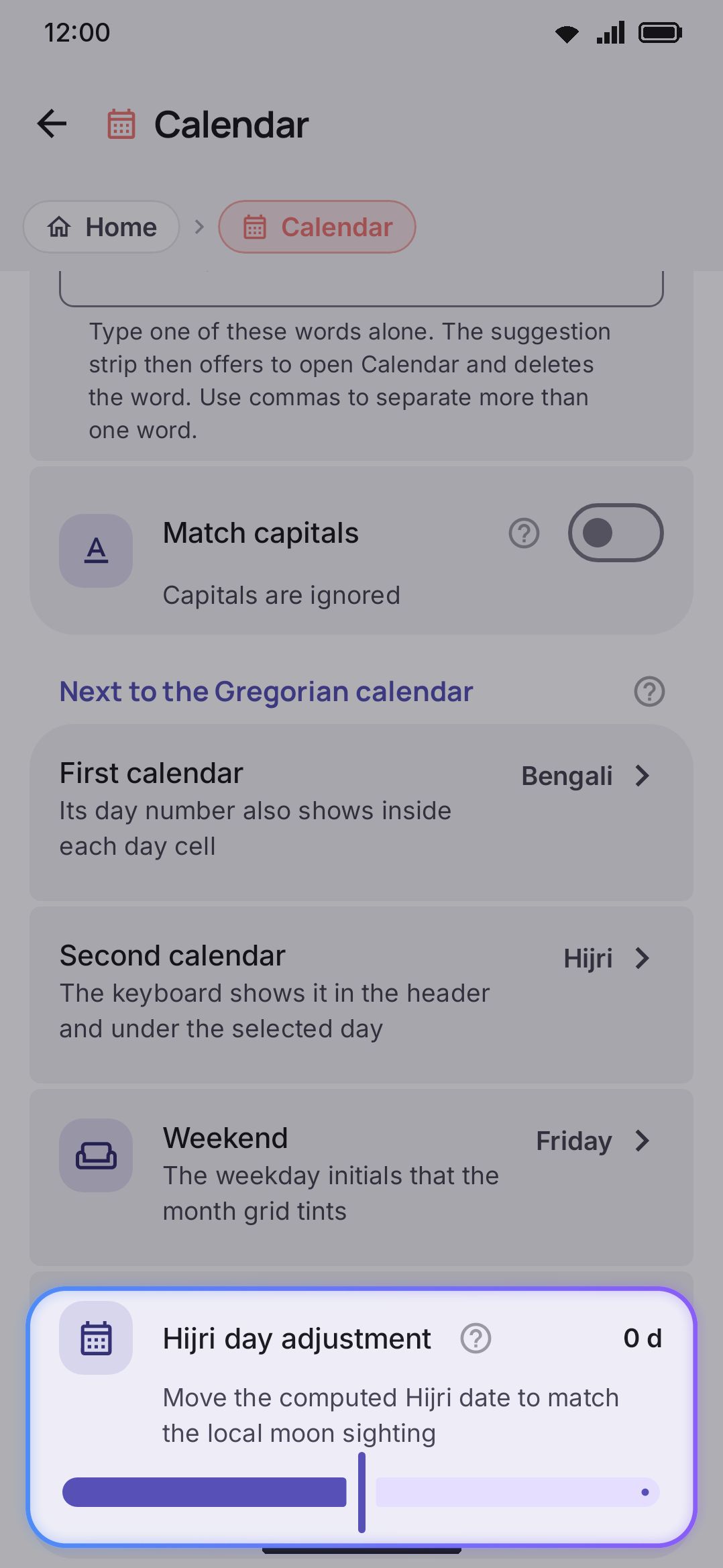
- First calendar: the default depends on your phone’s region. That’s the Bengali calendar in Bangladesh, era years in Japan, Hindu (Saka) in India, Hijri across much of the Arab world, and None where no second calendar is in common use. Choose from Bengali, Hijri, Chinese, Hebrew, Hindu (Saka), Persian (Solar Hijri), Buddhist (Thai solar), Japanese (era years), or None. Its day number is the one that also shows up inside each day cell. Buddhist and Japanese days line up one-to-one with Gregorian, so if you pick either the cell falls back to Second calendar’s day number instead, where that one has its own.
- Second calendar: the same nine choices, also region-defaulted. Bangladesh gets Hijri alongside the Bengali calendar, Japan gets the Chinese calendar alongside era years, and most places get None. It shows in the month header and under the selected day, alongside First calendar.
- Weekend: which weekday initials the month grid tints. Seven presets: Saturday & Sunday, Friday & Saturday, Thursday & Friday, Friday, Saturday, Sunday, or no weekend at all. The default comes from your phone’s region: Friday and Saturday across much of the Middle East, Friday in Bangladesh, Thursday and Friday in Iran and Afghanistan, Saturday in Nepal, Sunday alone in India, Mexico and the Philippines, and Saturday and Sunday everywhere else.
- Hijri day adjustment: a slider from −2 to +2 days, default 0. It only appears when First or Second calendar is set to Hijri. The tool computes Hijri dates with the tabular (arithmetic) calendar rather than real moon sighting, so real Islamic months can start a day or two off from the tables. Use this to match your local authority’s sighting-based calendar.
Accuracy varies by calendar: Chinese dates are computed astronomically (real new-moon and solar-longitude calculations), so they’re exact for the modern era. Hebrew, Persian, Hindu (Saka), Buddhist, and Japanese are all exact arithmetic conversions. Hijri is the only one that’s an approximation, which is why it’s the only one with an adjustment slider.
The same First calendar / Second calendar / Weekend pickers also appear on the first-run setup page during onboarding, if you’ve kept Calendar enabled: anything you set there is the same setting, just asked up front. All three already open on the region’s guess, so that page is where you see it and correct it.
Details & edge cases
Section titled “Details & edge cases”- Calendar has no text-insertion path of its own. Tapping a day only changes what the panel displays. There’s no way to insert a date from any of the eight calendar systems into your text field, because the tool is a viewer rather than a picker.
- Calendar isn’t pinned to the toolbar out of the box, and it’s only in the “show me everything” starter set that setup lands, not the minimal or the recommended one. Pick either of those two simpler answers and Calendar starts switched off, so you’ll want to turn it on yourself under Settings → Tools.
- Reopening Calendar from the toolbar while the panel is already open closes it, same as most other panel tools.
- The region defaults are a guess, and only ever a starting one. They come from the same permission-free signals as suggested languages: the SIM’s country, then the network’s, then your locale’s region. Those are consulted only until you pick something. Once you have, your pick is what sticks, wherever the phone travels.
- Nothing about the Calendar tool touches the network. See network policy for what does.