
Addons & plugins
Repositories, installed addons, sticker packs and the plugin manager.
The Addons screen is where WM Keyboard reaches past what ships in the app. Themes, layouts, dictionaries, fonts, sounds and more get browsed and installed straight from a repository URL. This page is the field reference for every screen in that tree, plus the separate sticker-pack and plugin managers that live alongside it. For the reasoning behind any of it, start with What are addons? and WM Keyboard plugins instead.
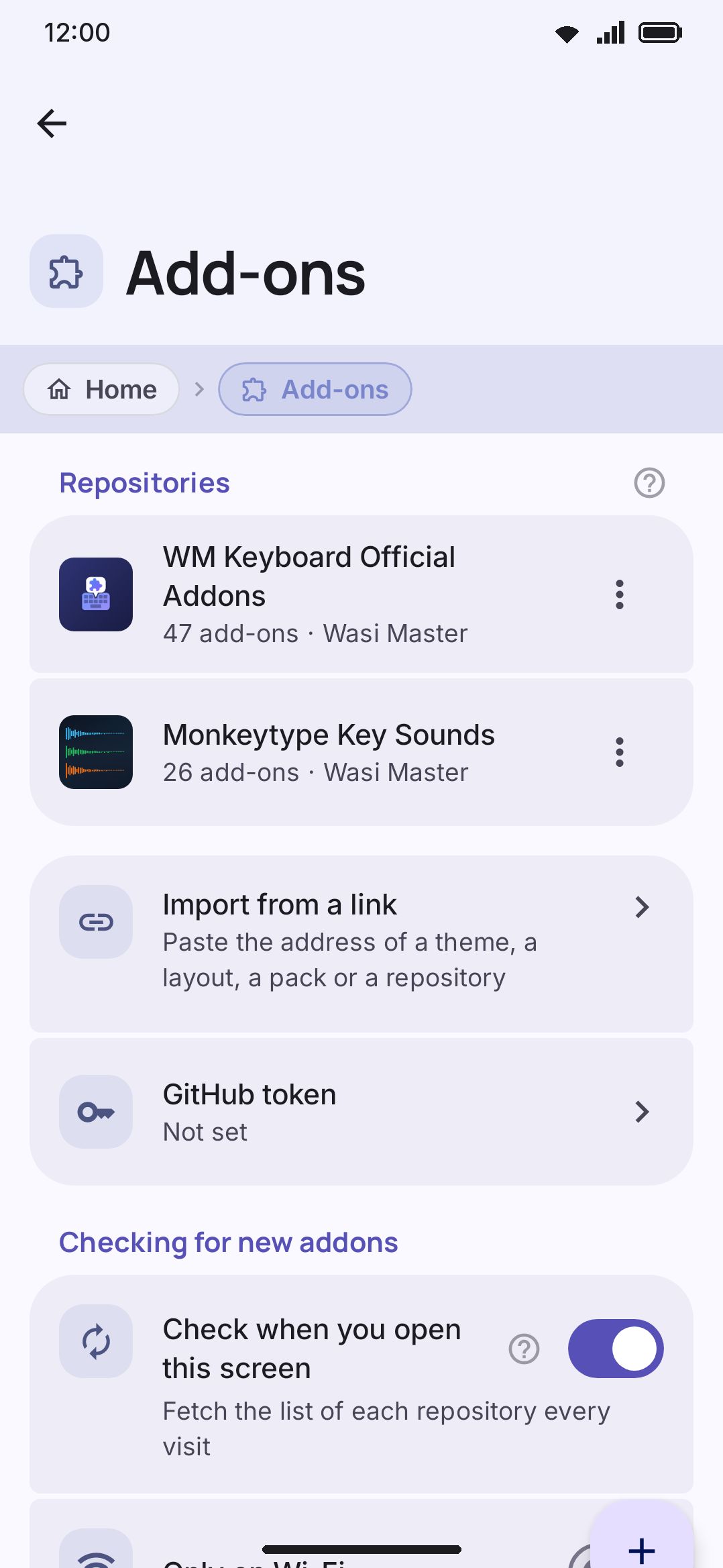
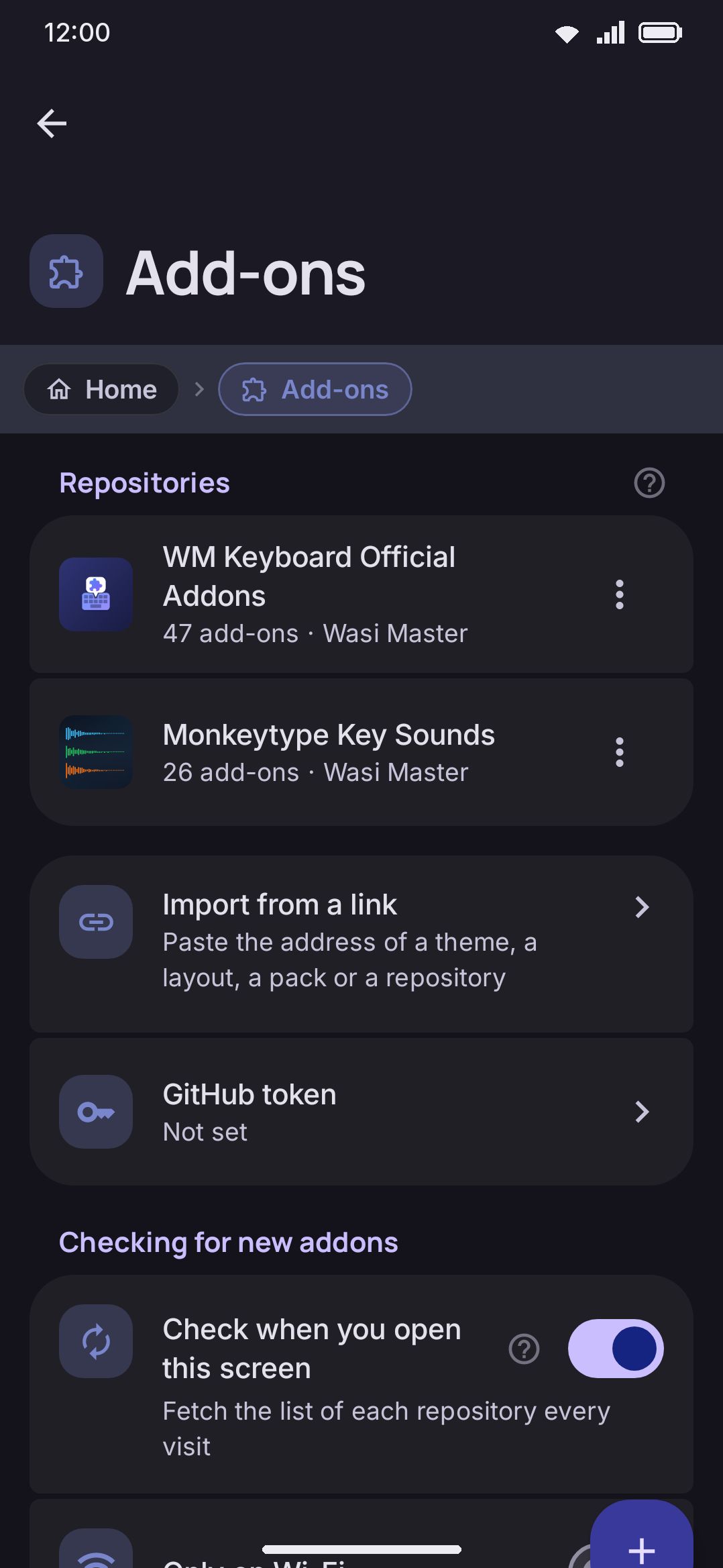
Repositories and installed addons
Section titled “Repositories and installed addons”The Addons screen opens with a caption explaining the trust model in plain terms: an addon repository is an ordinary web page listing themes, layouts, dictionaries, snippets, sticker packs, icon packs, fonts, emoji fonts and key sounds, and an addon holds plain data, so installing one never runs code. A floating Add repository button sits over the list. Pull the list down to fetch every repository again; a pull is ignored while one is already running.
Below that:
- Repositories: one row per repository you’ve added. It shows the repository’s name, or the raw URL if the manifest doesn’t name itself. The subtitle carries the addon count and author, or says the app hasn’t loaded it yet, or that it can’t read it. An overflow menu (⋮) offers Refresh, Open the homepage (only if the manifest declares an
https://one), and Remove. Tapping a loaded row opens its catalogue. A row with no manifest yet doesn’t respond to taps. - Installed: only shown once you’ve installed at least one addon. Name, then “Type · version · repository name” underneath, tinted by type.
- Checking for new addons: two switches over the fetch-every-visit behaviour, shown only once you have at least one repository. Check when you open this screen is on by default and fetches each repository’s list on every visit. Only on Wi-Fi appears under it, off by default, and skips that check on a metered connection. Pulling the repository list down fetches every repository regardless of either switch, because making the gesture is the request.
The first time you ever open this screen, it seeds the two repositories the app ships with: the sample addon repository and the Monkeytype key sounds. A marker records each address separately, so removing one keeps it gone while a repository added in a later version still reaches you. An empty repository list says there are no repositories yet, and invites you to add one by address.
Add repository opens a single text field, labelled Repository URL. A line underneath resolves as you type and names the address the app will actually read, or says it can’t read that address and that the address must be https. The Add button stays disabled until the address resolves. A github.com/user/repo address resolves to that repository’s wmkeyboard-repo.json on its default branch, or on the branch or tag from a /tree/<ref> or /blob/<ref> path. A URL ending in .json is used as-is. Anything else has wmkeyboard-repo.json appended. An address that parses but can’t be fetched is added, then removed again, with a message saying the app cannot read an addon repository at that address. You can have up to 30 repositories in your list at once.
Browsing a repository and an addon’s page
Section titled “Browsing a repository and an addon’s page”Tapping a loaded repository opens its catalogue. At the top is a Search field matching name, description, author and tags case-insensitively, then a row of type filter chips: All, plus one chip per addon type the manifest actually contains. Results render as a two-column card grid. Each card shows the addon’s first screenshot, or a centered type glyph if it has none, then its name, type, and a “vX.Y · size · author” line. A status badge in the corner doubles as the install button: a download arrow when not installed, a check when installed, an “Update” chip when a newer version exists, a spinner while downloading, or an X on failure. Tapping the badge installs directly from the grid without opening the addon’s own page. An empty result set says nothing matches your search. A repository that can’t be read at all tells you so, and points you at Refresh on the Addons screen.
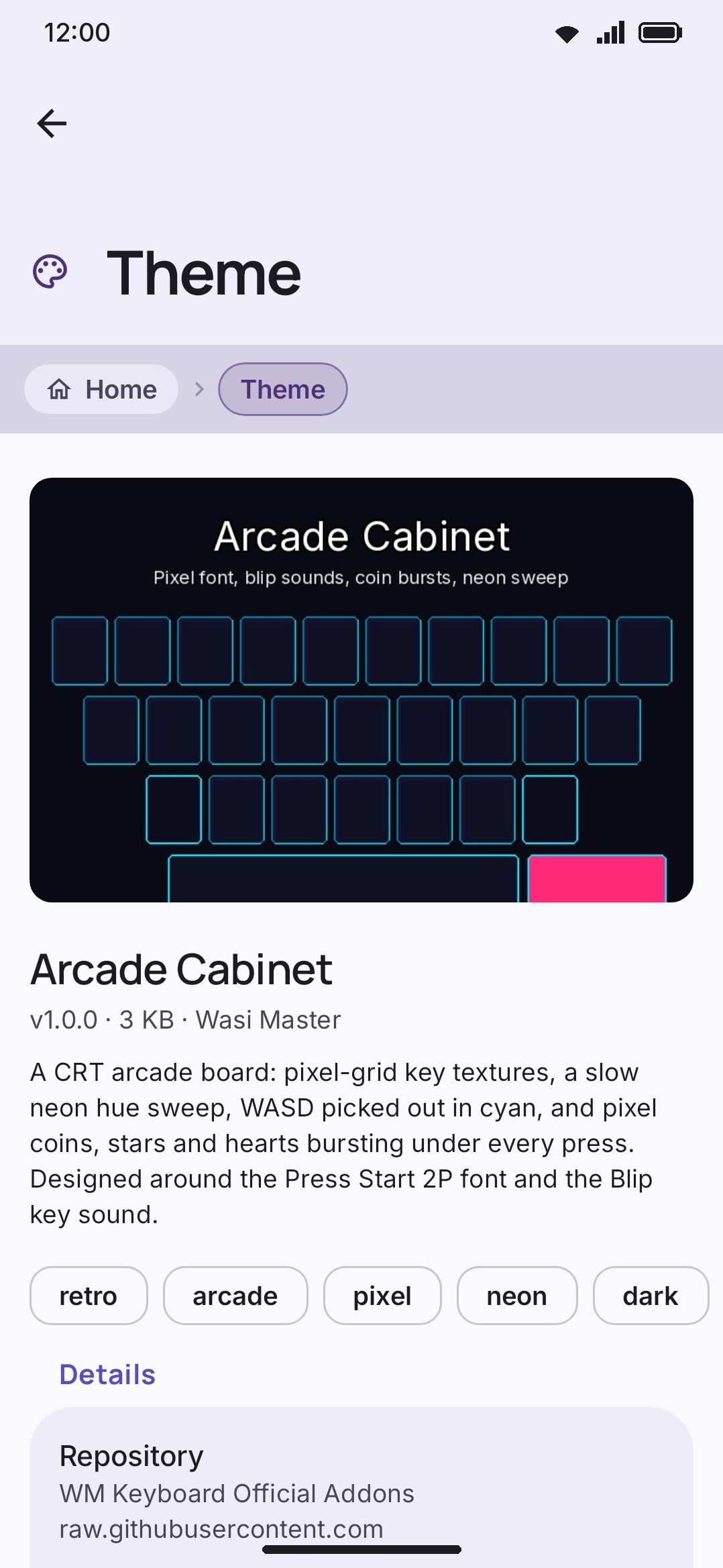
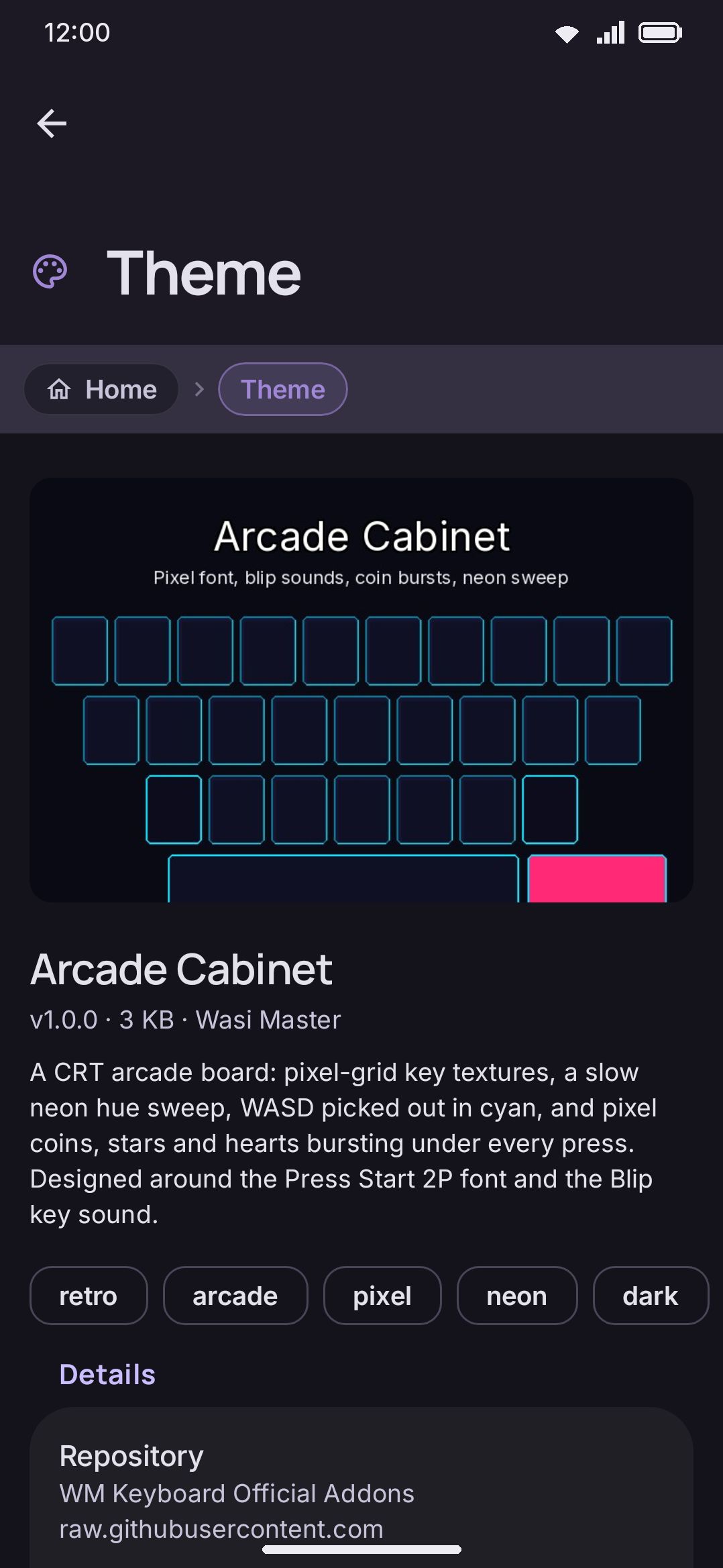
Tapping a card opens its detail page, which shows, top to bottom:
- Previews, if the manifest has any. A single screenshot renders full-width, capped at 340dp tall. More than one renders as a fixed-height horizontal strip. Tapping either opens a full-screen viewer.
- Name, then “Type · version · author”, then the description, then a row of non-interactive tag chips if the manifest declares any.
- A Preview button, shown only for addon types the app knows how to preview without installing (see the table below). It downloads the payload to cache and shows it inline. That means a snippet list, a dictionary’s word count and first words, an emoji-keyword count and sample rows, a vocabulary pack’s word count and sample words with their definitions, a “Play the sound” row, or a sticker thumbnail strip. For a plugin it’s the declared permission list under “What this plugin can do”, alongside the reassurance that a plugin runs in a sandbox and cannot see what you type, read your clipboard, or use the internet, and cannot ask for any of it.
- A Details group: Repository (name, host, and a note that installing will add it if you haven’t already), Size, Language(s) if declared, and Licence. Tapping the licence row opens the full text in a scrolling dialog.
- If the addon declares a minimum app version newer than your build, a caption says so and disables Install. If the addon is a plugin and “Allow plugins” is off, a caption points you at the switch with an “Open Plugins” shortcut, and Install stays disabled until you turn it on.
- Actions: Install, Update, or Installed (disabled once current). An error-tinted Uninstall shows once installed. A progress bar with Cancel shows while downloading. And once installed, an outlined “Use it: open
<Type>” button jumps straight to where the addon lives (see the table below).
If a repository has changed or gone offline since you installed something from it, the detail page falls back to what was saved locally at install time: name, type, version, author, description, and an Uninstall button. No update comparison is available there. Reaching a detail page for an addon that no longer exists anywhere tells you the app can’t find it, and that the repository has possibly changed.
After installing
Section titled “After installing”For types with an obvious slot to fill, finishing an install shows a prompt asking whether to switch to it now (see Installing addons for the full question-and-button wording per type). Fonts, dictionaries, emoji keyword packs, snippet packs, sticker packs and vocabulary packs skip the prompt; they’re live the moment they land.
| Type | Max size | Preview button | “Use” opens |
|---|---|---|---|
| Theme | 16 MB | No | Themes |
| Layout | 4 MB | No | Layout & size → Your layouts |
| Dictionary | 32 MB | Yes | Custom dictionaries |
| Emoji keywords | 8 MB | Yes | Emoji keywords |
| Snippets | 4 MB | Yes | Snippets |
| Stickers | 64 MB | Yes | Sticker packs → Your packs |
| Icon pack | 8 MB | No | Icons → Icon pack |
| Font | 32 MB | No | Fonts → Installed fonts |
| Emoji font | 32 MB | No | Emoji → Emoji font |
| Sound | 4 MB | Yes | Key press → Sound style |
| Sound pack | 16 MB | Yes | Key press → Sound pack |
| Plugin | 1 MB | Yes (capabilities only) | Plugins → Allow plugins |
| Vocabulary | 8 MB | Yes | Vocabulary packs → Installed packs |
Sound and Sound pack are two different types. A sound is one recording the whole keyboard uses. A pack is a set of them, one keyboard’s worth of individually recorded keys, which is why it gets four times the size budget. Each recording inside a pack is still held to the same 4 MB a lone sound gets. Both offer a preview, and both land in Key press, just in different rows.
A repository manifest can declare an “Unknown” type too, but the app filters those entries out before they’re ever shown. It’s a defensive fallback, not something you’ll see as an installable card. See Deep links for the wmkeyboard://addons, wmkeyboard://repo and wmkeyboard://addon links that can open any of these screens directly. None of them install anything or add a repository on their own.
Managing sticker packs
Section titled “Managing sticker packs”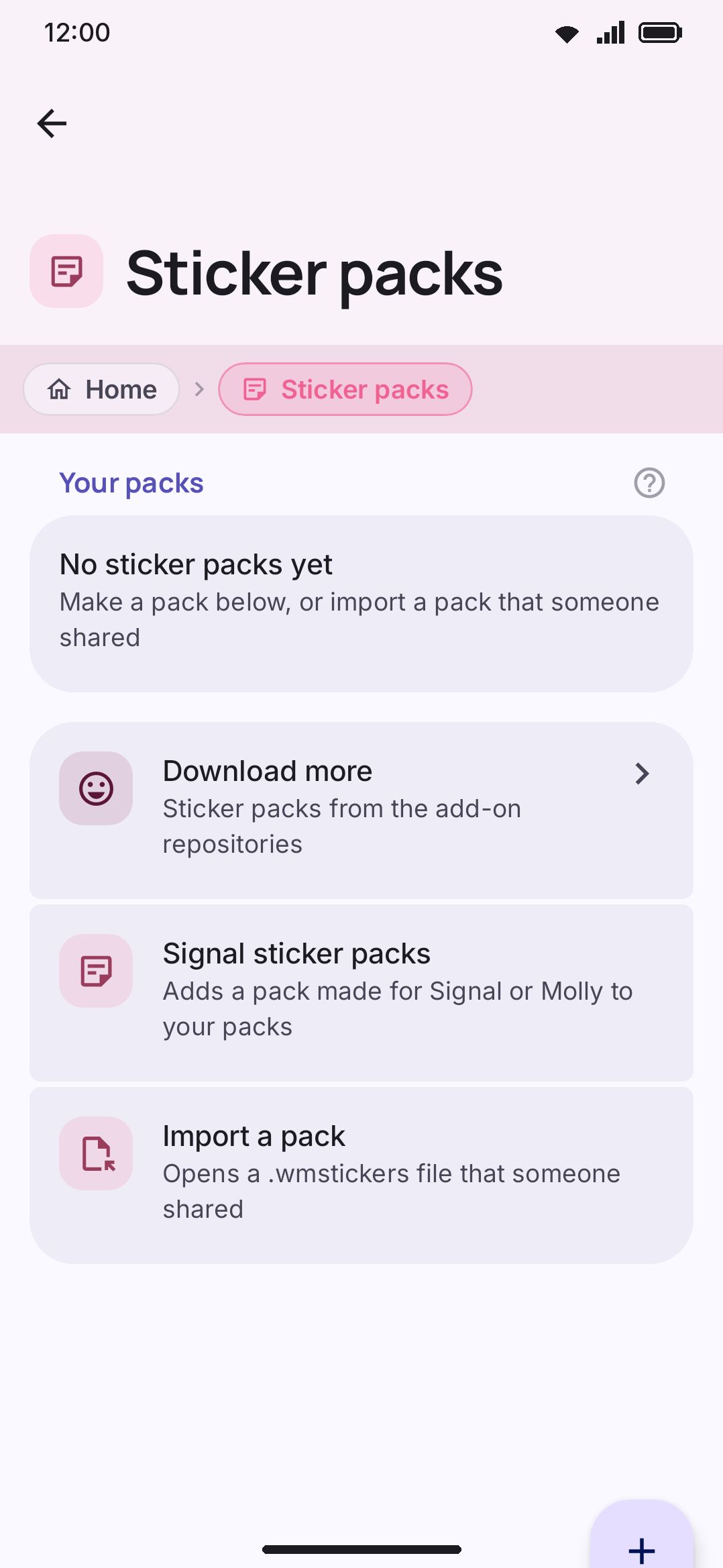
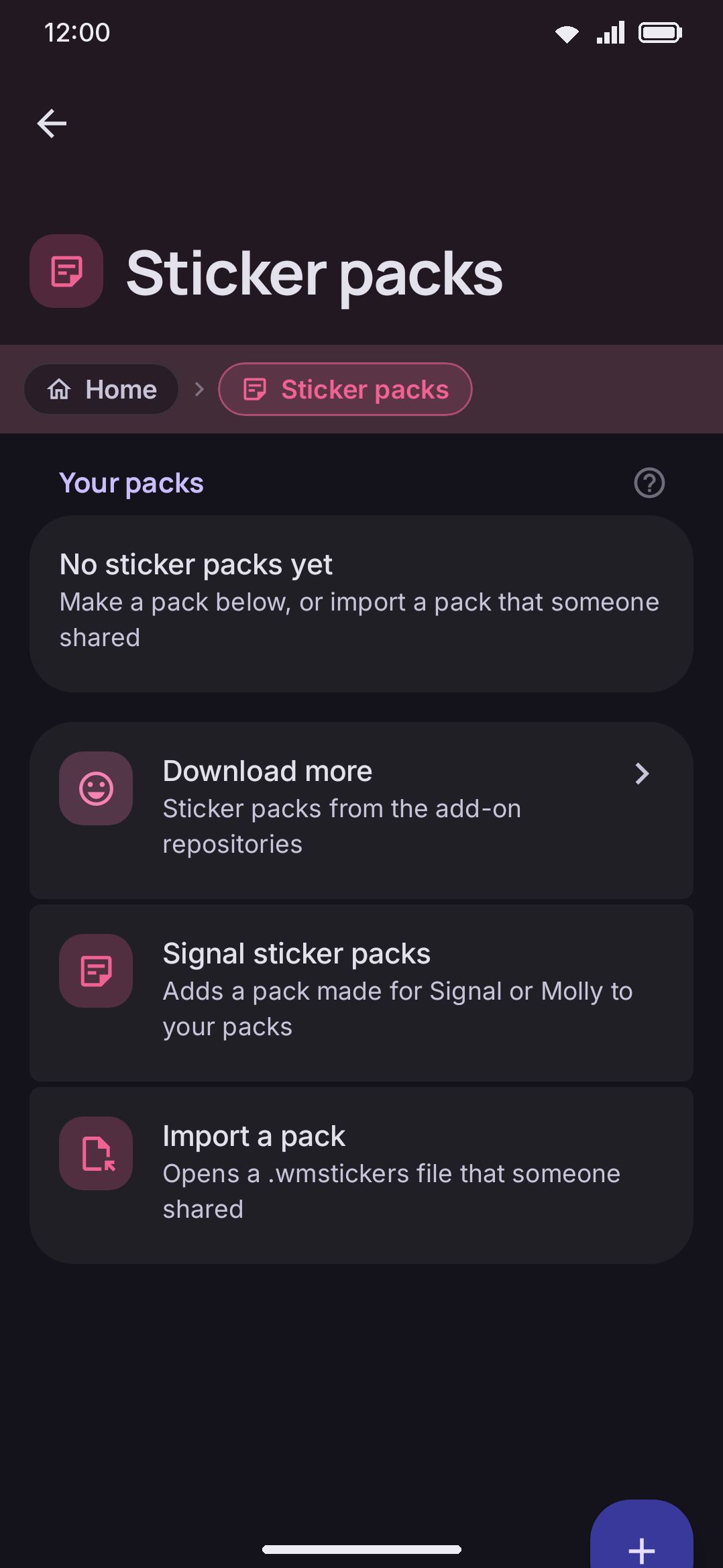
The Sticker packs screen opens with a caption. These are your own stickers, sent from the “My stickers” tab of the sticker tool. Still images become 512×512 WebP files, so WhatsApp receives them as real stickers. Animated GIFs are kept as they are and send as images.
-
Your packs: one row per pack. Name, then “Empty” or a sticker count, a strip of up to six thumbnails, and trailing Export (shares a
.wmstickersfile) and Delete buttons. Deleting asks first and says how many stickers go with the pack. -
New pack: a name dialog, then you land straight in the new pack. At the cap it tells you how many packs you already have.
-
Import a pack: a file picker for
.wmstickersarchives. On success it reports how many stickers came in, plus any repair notes. A bad file gets either “That file is not a WM Keyboard sticker pack.” or a note that the app cannot read any sticker in it. At the cap it asks you to delete a pack first, and any other failure reports that the file could not be read. -
Signal sticker packs: opens its own screen (route
signal_stickers). Add a pack from a link takes asignal.art/addstickerslink, or thesgnl://addstickersform, in a field that starts empty. A link that isn’t a pack link says so under the field, and the button stays off until it is one. Find packs on signalstickers.org opens that gallery in your browser, and its “Add to Signal” button comes back to the keyboard through the app chooser. Opening a pack shows a preview with the pack’s name, its maker, a sticker count and the stickers. Add this pack downloads them with a “Downloading N of M” and then an “Adding N of M” progress row, and reports the result the same way Import a pack does. A pack you already added shows “You have this pack” instead, and pressing it opens your copy. A pack Signal no longer has, and a link whose key does not open the pack, each get their own message with a Try again row. See Signal sticker packs for where the stickers come from.
You can have up to 50 packs, and up to 200 stickers per pack. Opening a pack (route sticker_pack/{packId}, title “Edit sticker pack”) shows its name, which you tap to rename. Under that is an Add stickers row, a photo picker taking up to 30 images per trip, with an “N of 200 used” subtitle, then a grid of what’s already inside. An empty pack tells you to add stickers from your photos, or to press and hold a Klipy or GIPHY sticker in the keyboard. Tapping a sticker opens an edit dialog: rename it, edit its space-separated search words, open the image editor (crop, background removal, border), move it up or down, move it to another pack, or delete it. Adding photos reports how many were added, how many were rejected for being over 2 MB (the animated-file cap) or unreadable as an image, and whether the pack is now full. Any source file over 12 MB is rejected before it’s even processed, and a still is always re-encoded down to roughly 100 KB.
Sticker packs have two separate ways to end up in Your packs: the manual New-pack / Add-stickers flow described here, and installing an addon of the Stickers type, which lands in this same list. If a pack appears here that you don’t remember creating, it likely came in through Addons rather than through this screen.
Turning on plugins
Section titled “Turning on plugins”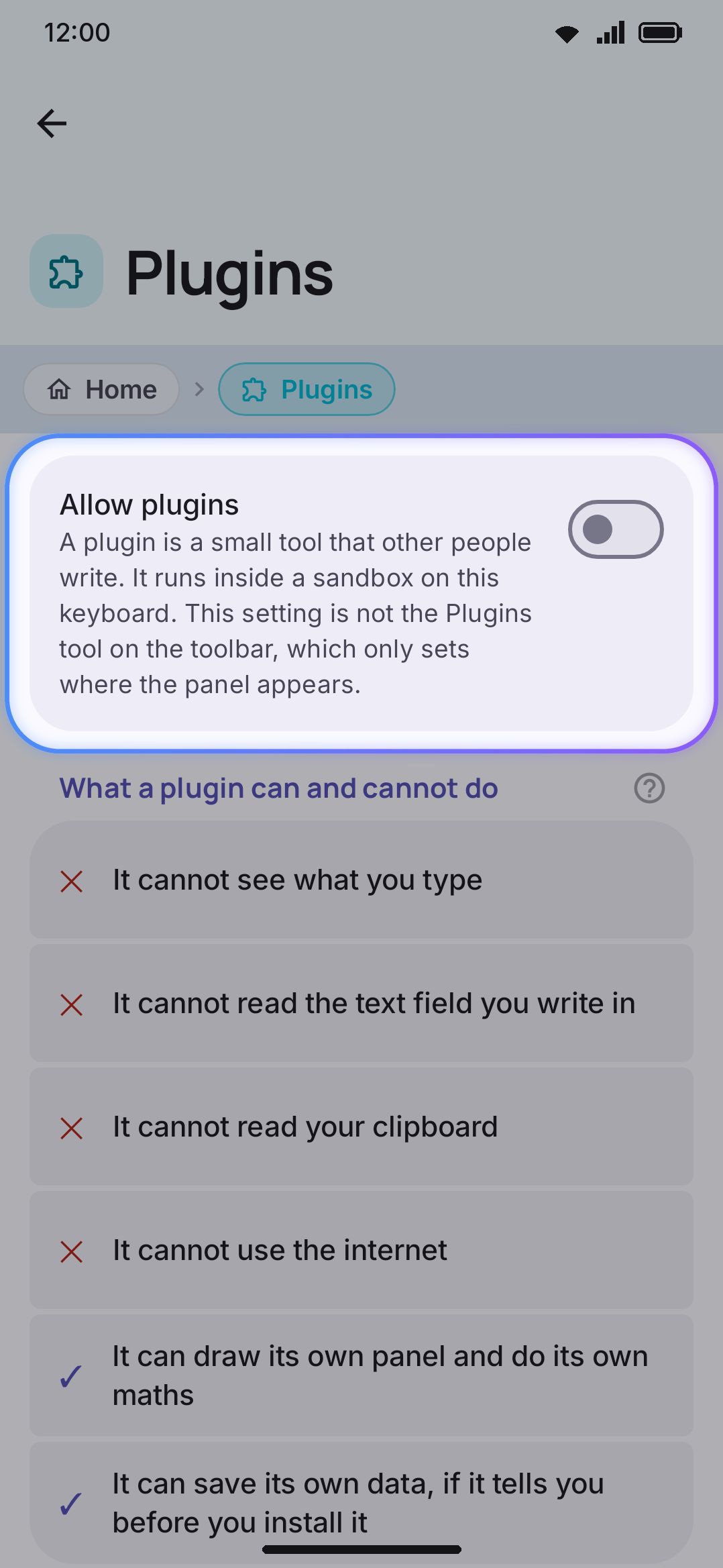
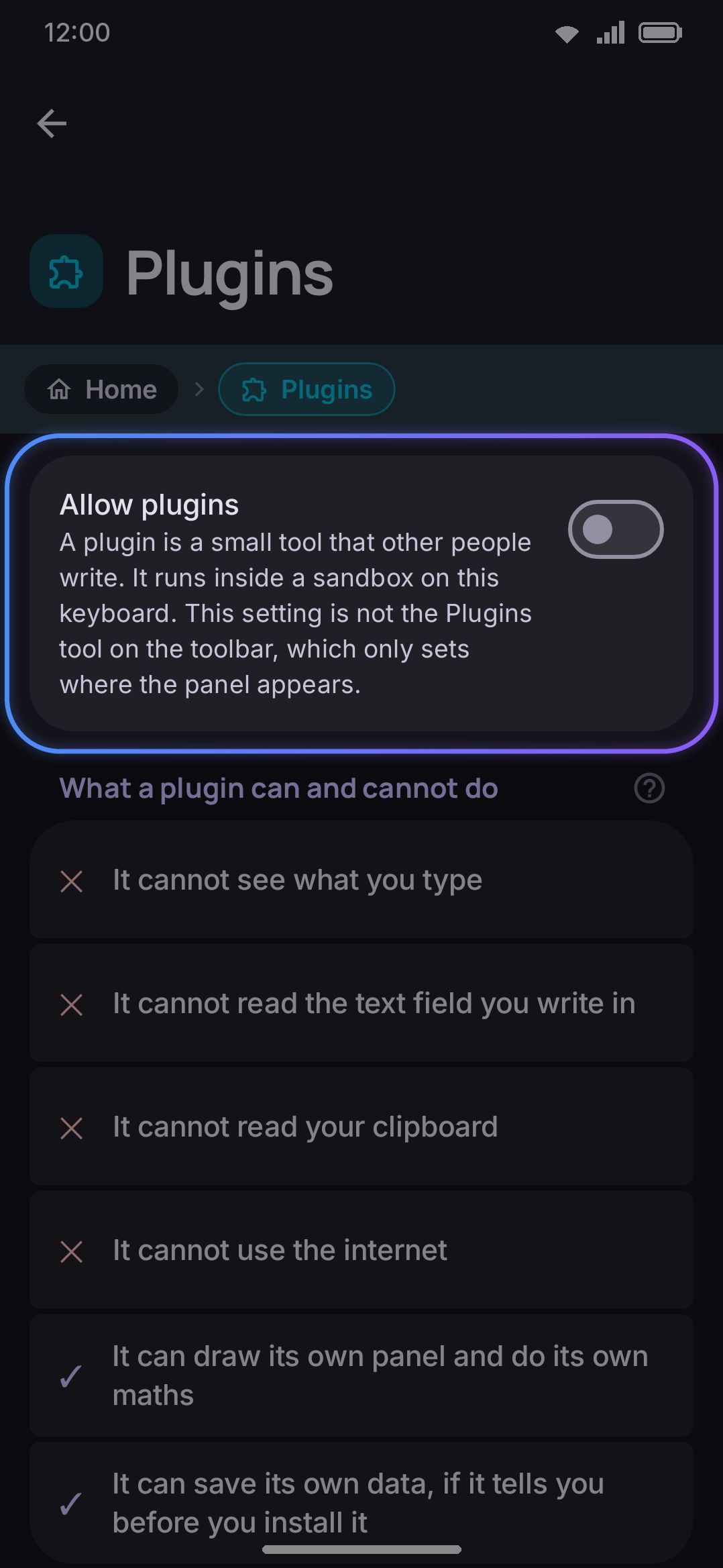
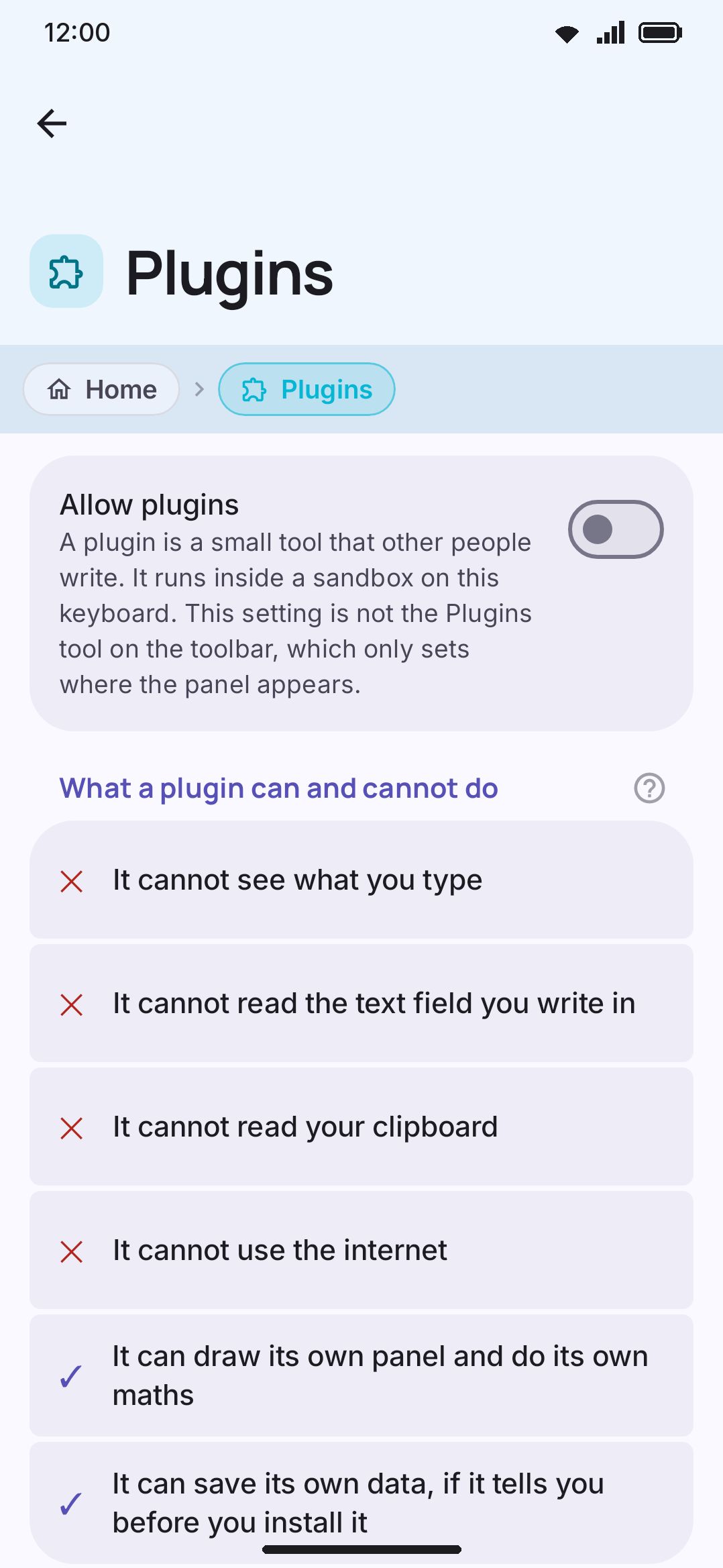
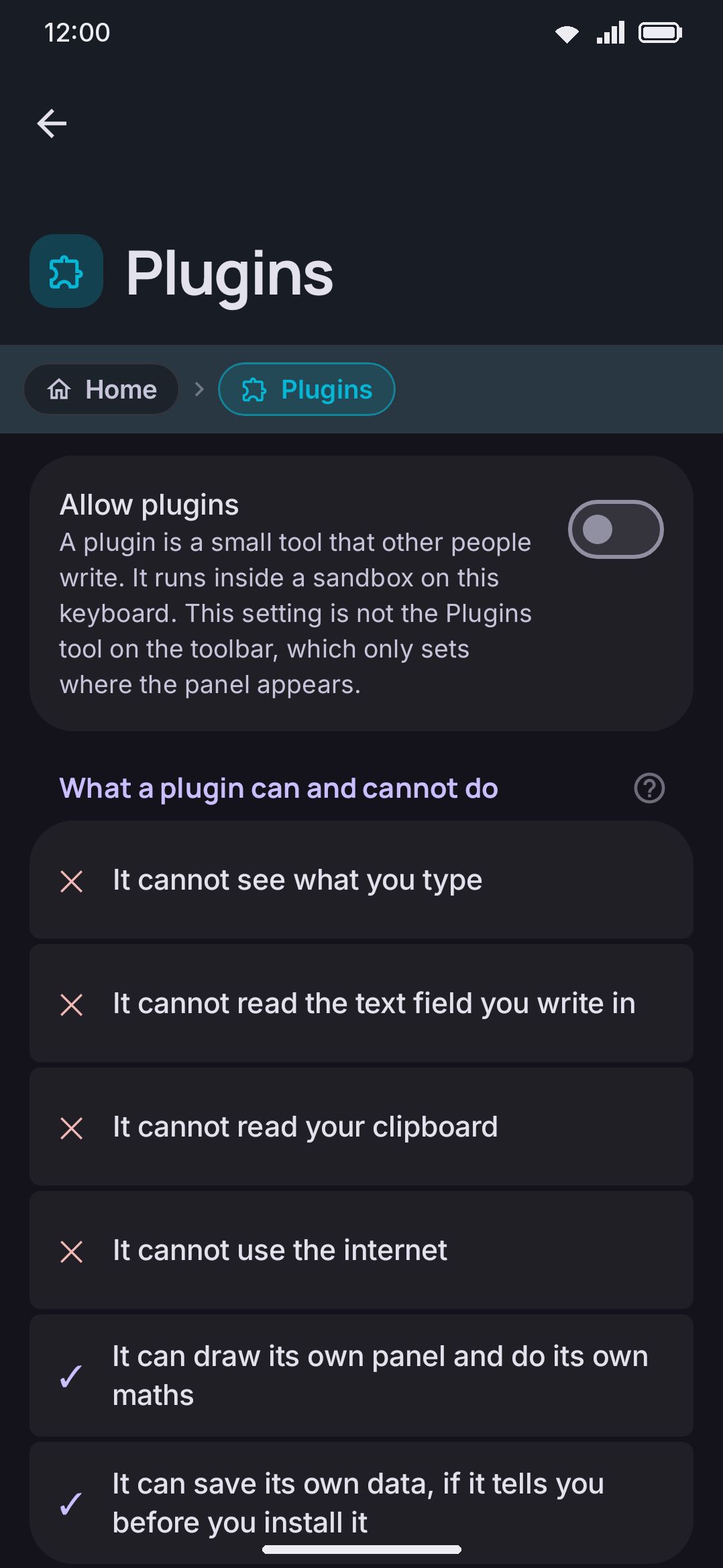
Allow plugins is a subsystem-wide switch, off by default. Its subtitle explains the scope: a plugin is a small tool that other people write, running inside a sandbox on this keyboard, and this switch is not the Plugins tool on the toolbar, which only sets where the panel appears. Under it sits Switch off a plugin that hangs, on by default. It is what turns a plugin off after two strikes. Turn it off and the keyboard still counts and shows the strikes, but never disables the plugin for you.
Below those, a static “What a plugin can and cannot do” group lists six facts that never change and aren’t settings. A plugin can’t see what you type, can’t read the text field you write in, can’t read your clipboard, and can’t use the internet. It can draw its own panel and do its own maths, and it can save its own data if it told you so before you installed it.
Below that, a Write your own group always shows, whether or not Allow plugins is on. Writing and testing a plugin runs nothing on the keyboard, so there’s no reason to wait for the switch. Its one row, Write a plugin, opens the in-app plugin editor.
With plugins allowed, two more groups appear. Installed carries one row per plugin: its name, then “Version X by Y” underneath, with ”. Turned off” appended for a disabled one. The row is the link, so tapping anywhere on it opens that plugin. With nothing installed the group says so instead. Add carries a Download more row into the addon catalogue and Install from a file, which asks for a .wmplugin file, plus a note that plugins also install from Addons. Either install path shows the same confirmation dialog first: name, description, version, author, and either a line saying it doesn’t ask for anything outside its own panel or an “It can:” list of the permissions it declared. Installing reports success by name. A wrong file reports that it isn’t a WM Keyboard plugin, the cap reports how many plugins you already have, and anything else reports that the plugin could not be installed. The cap is 50 plugins.
Opening a plugin (route plugin/{pluginId}, title “Plugin”) shows its name, description, version and author, then:
- Turned on: a per-plugin switch, independent of “Allow plugins” above. Its subtitle normally reads “Show this plugin in the Plugins panel”. Once the plugin has been auto-disabled it says the app turned the plugin off because it stopped responding two times. While “Allow plugins” itself is off, this switch is greyed out instead. Its subtitle then takes priority over the auto-disabled one, saying no plugin runs while Allow plugins is off, under Tools then Plugins. WM Keyboard tracks failures per plugin and switches one off after two in a row, rather than leaving a broken panel in your toolbar.
- Edit the code: opens the same in-app editor as “Write a plugin”. It preloads a draft made from this plugin’s installed code, so you can change and test its Lua.
- What it can do: its declared permissions, or “Nothing outside its own panel” if it asked for none.
- Stored data: “Uses X KB of Y KB”, where the ceiling is 64 KB per plugin, plus a button to delete the stored data.
- Log: shown only once the plugin has printed something or errored. It holds the last 40 lines, plus a button to delete the log.
- Uninstall: a plain text button with a bin icon, in its own group at the bottom. It confirms first, and the dialog says the app deletes the plugin’s script and all the data it saved. (The error-red Uninstall button is the one on an addon’s page in the catalogue, not this one.)
Options
Section titled “Options”| Setting | Control | Default |
|---|---|---|
| Check when you open this screen | Toggle | On |
| Only on Wi-Fi (shown only while the switch above is on) | Toggle | Off |
Those two are the only preferences in this part of the tree. A repository list and an installed-addon record are files rather than toggles, so nothing else here has a default to go back to. You remove the entries instead.
WM KeyboardToolsPlugins| Setting | Control | Default |
|---|---|---|
| Allow plugins | Toggle | Off |
| Switch off a plugin that hangs | Toggle | On |
Unlike most of this app’s settings, both of these are stored in the plugin subsystem’s own file-backed store rather than the shared KeyboardSettings/DataStore preferences. They behave like any other switch from the settings screen.
| Setting | Control | Default |
|---|---|---|
| Turned on | Toggle | On (per plugin, until auto-disabled) |
Details & edge cases
Section titled “Details & edge cases”- Settings search doesn’t reach most of this tree. The top-level “Addons” entry is indexed, along with “Plugins”, “Allow plugins”, “Manage plugins”, “Install from a file” and “Write a plugin” under Tools › Plugins, and “Stickers”, “Sticker packs”, “New pack”, “Import a pack” and “Edit image” under Tools › Stickers. Backup adds its own “Sticker packs” and “Add-on repositories” rows. The catalogue, an addon’s own detail page, and a plugin’s own detail page have no search entry. You always reach them by tapping through, never by typing their name into settings search.
- The per-plugin switch is separate from the subsystem-wide Allow plugins switch. Turning off Allow plugins hides the whole Plugins panel. Turning off one plugin’s own switch, by hand or automatically after two failures, only hides that plugin and leaves the rest running.
- A plugin is the one addon type that must carry a checksum. Every other type’s
sha256is optional and only checked when present. A plugin manifest entry without one is refused outright, because it’s the only type that runs code rather than just being read. - No edition differences. Nothing in the Addons, sticker-pack, or plugin screens is gated to the full or lite build, and neither are the caps above. Both editions install and run the same fourteen addon types.
See What are addons? for the trust model behind repositories. Installing addons and Updates & management cover the install and update flow in narrative form. For what a plugin can build and what stops it from doing anything else, read WM Keyboard plugins with Plugin permissions and Plugin security.