
Backup & restore
Export everything, back up on a timer to places you choose, keep devices in sync, and control what Android's own backup may take.
WM Keyboard backs itself up three ways. One is a config file you export and move yourself. One is an automatic backup, on a timer, to places you choose. The third is Android’s own backup system, off until you turn it on. All of them exist so a reinstall or a new phone doesn’t mean retyping every setting and rebuilding every theme. Separately, sync keeps two or more devices the same while you use them all.
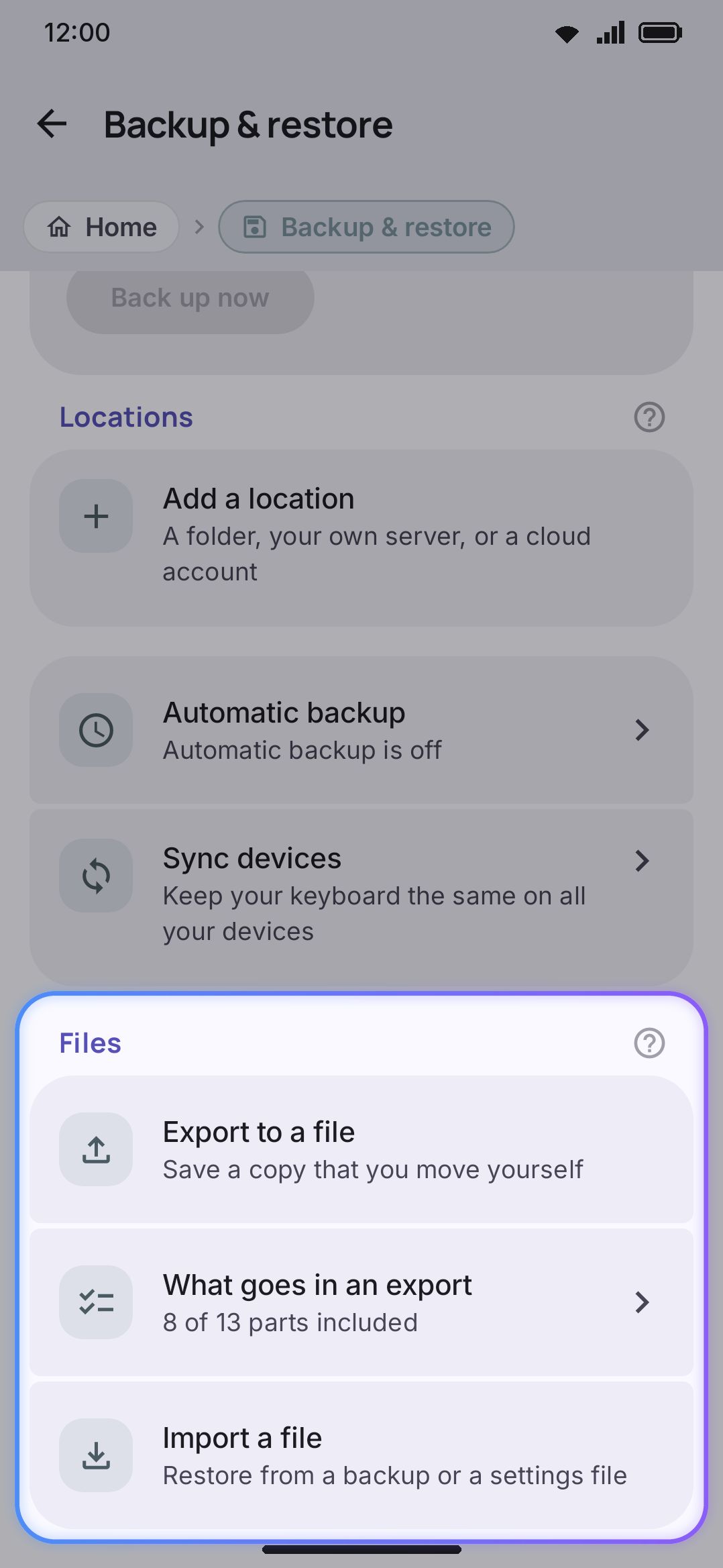
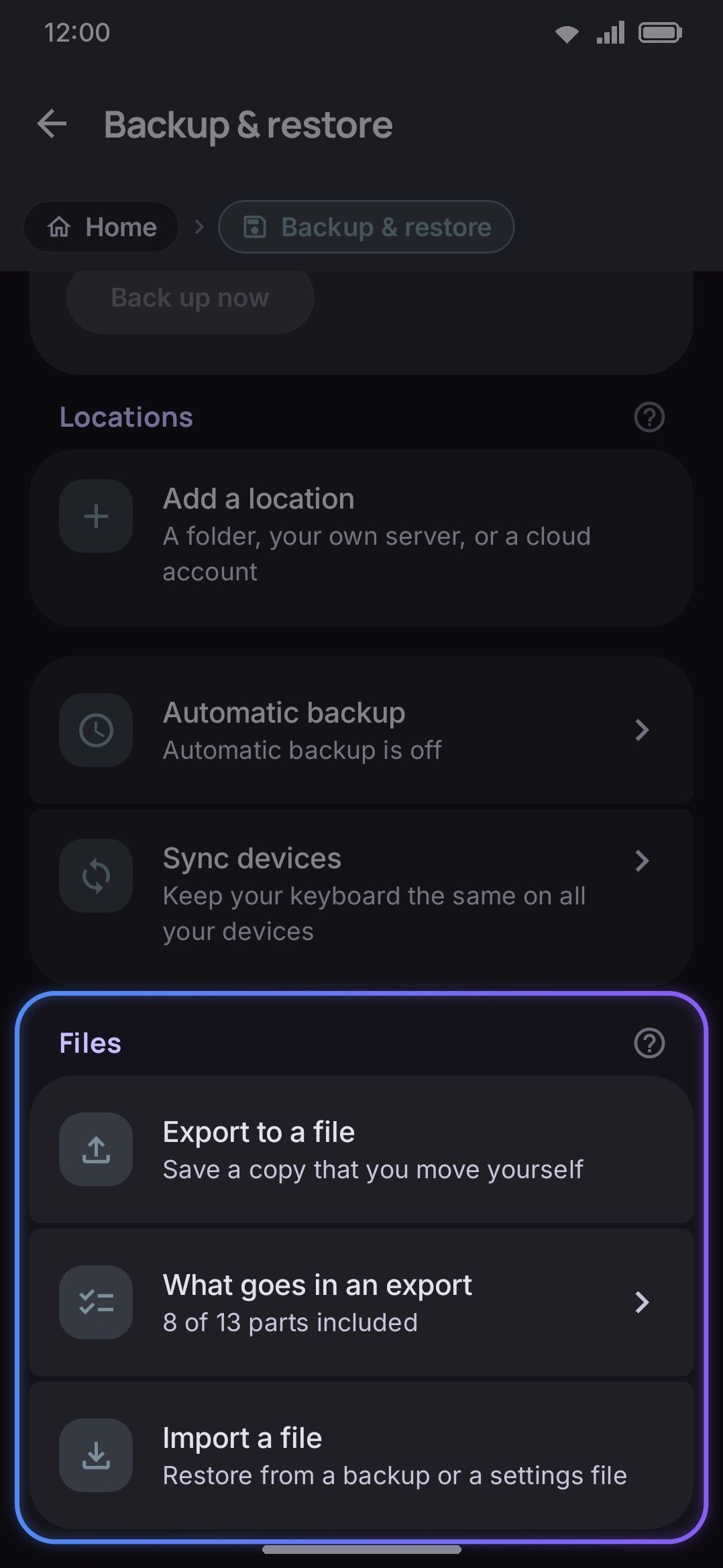
Exporting a config file
Section titled “Exporting a config file”Open Backup & restore, then What goes in an export. Each section is its own switch:
| Section | Default | What it covers |
|---|---|---|
| Settings | On | Every keyboard preference |
| Include API keys | Off | Translate, GIF, search and AI keys (only shown while Settings is on) |
| Themes | On | Your custom themes, including their background images |
| Dictionary | Off | Words and next-word patterns the keyboard learned from you |
| Clipboard | Off | Saved clipboard history (text only; images and files stay local) |
| Snippets | On | Your saved text snippets |
| Sticker packs | Off | Your own sticker packs, stickers and all (but not the photos you cut them out of) |
| Icon packs | Off | Your own icon packs, images and all |
| Custom word lists | On | Word lists you imported for any language |
| Addon repositories | On | The repository addresses you added, so a restore can reinstall from them |
| Emoji history | On | Your recent emoji, your favourites and the skin tone you last picked for each |
| Typing statistics | On | Your daily typing counts and your all-time speed |
| Vocabulary | On | Your word lists, imported packs and learning progress. Downloaded packs are left out; they can be downloaded again |
| Swipe style | Off | Where your finger lands when you swipe, the readings you corrected, and the shape you draw each word in |
Sticker packs and icon packs default off because their images make the file large, not because there’s anything private about them. Turn them on and a restore on another phone gets working packs rather than empty shells. The personal ones, dictionary, clipboard and swipe style, default off because they’re your typing history rather than configuration. Emoji history and typing statistics are personal too but default on, since both are small and neither can be downloaded again if you lose it. The statistics are counts only, never anything you typed.
Tap Export to a file to write a wmkeyboard-backup-<date>-<time>.wmconfig.json
file through Android’s own save dialog. It goes wherever you choose, not to
any WM Keyboard server. What you pick is remembered. The automatic backup and
sync each have a list of their own, because a file you hand to someone, a copy
for yourself and what your devices share are three different decisions.
Importing a file
Section titled “Importing a file”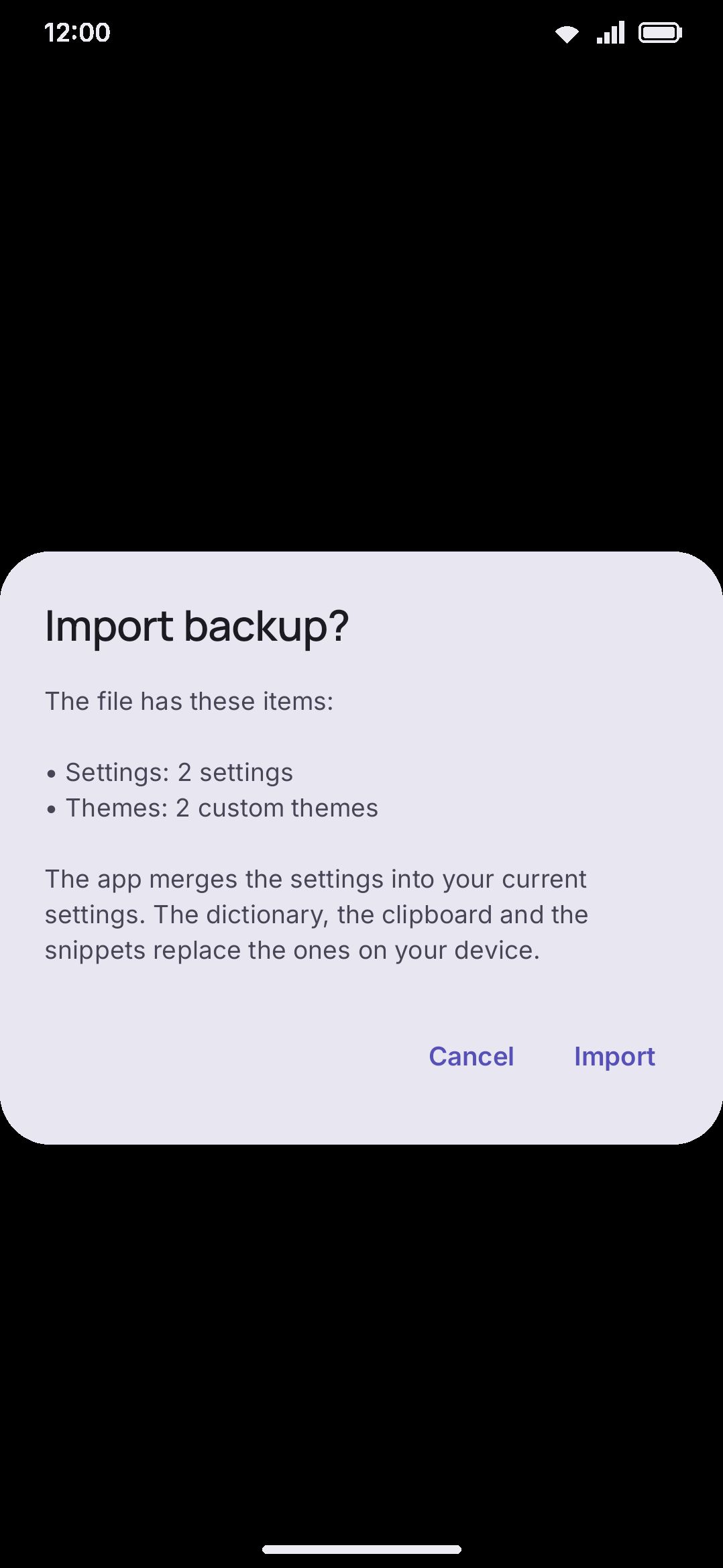
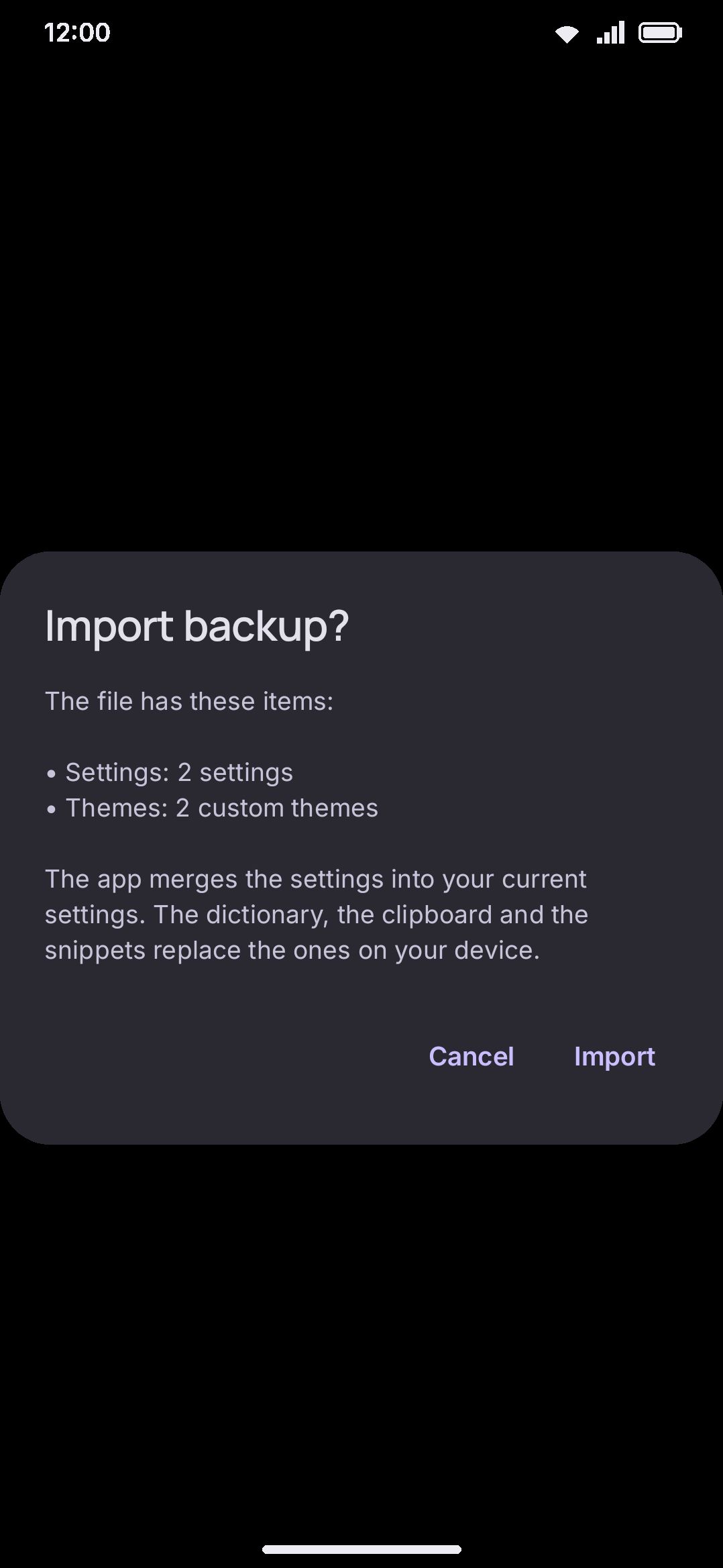
Tap Import a file. A file picker opens, and the app reads your chosen file before it touches anything. A confirmation dialog lists exactly what’s inside, for example “Themes: 3 custom themes”. If the file isn’t a WM Keyboard backup, the app refuses it outright.
Opening a .wmconfig.json file from a file manager works the same way. It
launches the same confirmation dialog rather than importing silently.
Each section behaves differently once you confirm, and the difference matters more than the in-app dialog’s one-line summary suggests:
| Section | On import |
|---|---|
| Settings | Merges. Only the preferences named in the file are overwritten; everything else on the device is untouched. |
| Themes | Replaces. Your entire custom-theme list is swapped for what’s in the file: custom themes you made since the backup are gone. |
| Dictionary, clipboard, snippets | Replaces. The on-device copy is overwritten by what’s in the file. |
| Sticker packs, icon packs, custom word lists | Replaces. The whole local collection is cleared and rebuilt from the file. |
| Addon repositories | Merges. Incoming addresses are added to your existing list rather than replacing it (duplicates are skipped). |
| Emoji history, typing statistics | Replaces. The counts in the file overwrite the ones on the device. |
| Vocabulary | Replaces. Your own word lists and progress are rebuilt from the file; packs downloaded from the catalogue are untouched, since the bundle never carried them. |
| Swipe style | Replaces. All three files come from the bundle, and a keyboard already running picks them up rather than saving its own copies back over them. |
If the file includes API keys, the dialog warns you before you confirm; see Secrets stay out by default below.
Settings import is rollback-safe. After writing, the keyboard re-reads its own settings to make sure they still parse. If a hand-edited file breaks that, the whole write is undone and you see “The app could not apply the settings. Your settings did not change.” rather than ending up with a half-applied preference set. The other sections in a full-config bundle still apply even if the settings portion rolls back.
Secrets stay out by default
Section titled “Secrets stay out by default”Every secret is excluded from an export unless you turn on Include API keys, which only appears while the Settings section itself is included. That’s more than the tool keys: Translate, Klipy, GIPHY, Brave, Unsplash, Pexels, every AI provider key including Grok, DeepSeek and the OpenAI-compatible one, the Hugging Face token, and the passwords and tokens for your backup locations (WebDAV, S3, SFTP, SMB, FTP, Git, IMAP, Dropbox, OneDrive) plus your backup passphrase.
AI history never travels, with or without that switch, and there is no section for it to travel in. The two settings that control it do, because they’re configuration. The records themselves are your own writing, and an off-by-default log of it is the last thing that should ride along in a file you mail to yourself. The learned dictionary has a section of its own but it’s off by default, for the same reason.
Leave Include API keys off and the file is safe to store in a synced folder or hand to someone else. Turn it on and the keys sit in the file as plain text. The app warns you after export: “The app exported the backup with your API keys in it. Keep that file as safe as a password.” An incoming file with keys in it gets a warning before you confirm the import, because those keys will overwrite the ones already set on the device.
This redaction is specific to the file you export yourself. It doesn’t apply to Android’s own backup below. Turn that on and it copies your saved API keys along with everything else, because the whole settings store travels there as one piece.
Automatic backup
Section titled “Automatic backup”Exporting by hand only helps if you remember to do it. Automatic backup writes the same kind of file for you on a schedule, by default while your device charges and sits on Wi-Fi, to the locations you choose. Add as many as you like, of any kind, on the Backup & restore screen:
| Location | What it needs | Works without Google |
|---|---|---|
| Folder | A folder you pick, anywhere with a files app behind it: your device, an SD card, Drive, Dropbox, Nextcloud, OneDrive | Yes |
| WebDAV | A Nextcloud, ownCloud, Seafile, Koofr, pCloud, Yandex Disk, kDrive, Hetzner Storage Box, 4shared or other WebDAV folder, and a login. Nextcloud can sign in through the browser | Yes |
| S3 | A bucket on Amazon S3, Cloudflare R2, Backblaze B2, Wasabi, Google Cloud Storage, DigitalOcean, Hetzner, Scaleway, OVHcloud, Akamai, Storj, IDrive e2, MinIO, Garage or anything else that speaks S3, and an access key pair | Yes |
| SFTP | An SSH server, and a password or a private key | Yes |
| Windows share (SMB) | A shared folder on a Windows computer or a NAS, and a login. Encrypted unless you turn it off | Yes |
| FTP | An FTP server, a login, and TLS unless you turn it off | Yes |
| Git repository | A private repository on GitHub, GitLab, Gitea or Forgejo (Codeberg included), and an access token | Yes |
| Email (IMAP) | A mail account, and usually an app password. Each backup is one email in a folder of its own | Yes |
| Google Drive | A one-time permission, for a hidden folder of the app’s own or for a folder you can see in My Drive. Either way the app can see nothing else | No, needs Play services |
| Dropbox | Signing in. The app gets a folder of its own under Apps | Yes |
| OneDrive | Signing in. The app gets a folder of its own under Apps | Yes |
None of these send anything to a WM Keyboard server. There is no account with us, and nothing of yours passes through anything we run. Test the connection in each location’s sheet tells you straight away whether it works, rather than after the first night’s backup fails.
You choose which locations get backups. On the Automatic backup screen, Back up to has a tick box for each location. Each backup is built and checked once, then copied to every ticked location. One that fails says so on its card, and the others still get their copy.
Two conditions guard the scheduled job, and you own both. Only while charging is on by default, so a backup waits for the charger. Only on Wi-Fi is on by default too, so it waits for a connection Android doesn’t count as metered. Most backups are small. One carrying sticker packs or icon packs is not, and it goes out every interval, which is why Wi-Fi is the default. Turn it off and a backup uploads over mobile data as soon as it’s due. The Wi-Fi toggle only appears while a ticked location needs a connection. A Folder is storage on your own device, so it backs up offline either way. There is one ceiling you don’t set: when the sticker packs, icon packs and imported word lists would push the file past 16 MB, an automatic run drops those three sections and backs up everything else. A manual export never does.
Turning Only while charging off is worth knowing about for the opposite reason. A phone that’s only ever charged in the car may never be plugged in at the end of an interval. A backup that never finds a charger never runs, and nothing tells you so.
The app keeps a few backups and deletes the oldest. You choose how many. It never deletes the newest one, and it never deletes an older backup until the new one has been written, read back and checked. A backup that fails halfway costs you the new copy and never an old one. Each backup’s name says which device and which installation made it, and each device counts and deletes only its own, so several phones can share one Dropbox without eating each other’s backups.
Backups can carry a passphrase. Set one and the file is encrypted, and you need the passphrase to restore it. The app stores that passphrase on your device, because a backup that runs while you’re asleep has nobody to type it. So it protects the file where it lands, in a cloud folder for instance, and not against a person holding your unlocked device. Write it down. Without it, a backup cannot be restored. The same passphrase protects the sync files.
API keys are your call. What goes in a backup has its own Include API keys switch. Without a passphrase, the switch strongly suggests turning one on first and asks you to confirm, because anyone who can open the location could read the keys. It doesn’t refuse.
Some locations send a credential with every upload. WebDAV sends your
password on every request, so a WebDAV address on plain http is refused
outright. A Git server typed as http:// gets a warning, because the token
crosses in the clear, and so does IMAP with security set to None. SFTP is
always encrypted, and remembers the server’s key from the first connection:
a server that later shows a different key is refused, because that is what a
machine in the middle looks like. SMB encrypts the whole session by default
and refuses a server that can’t. A Git repository that isn’t private is
refused unless you allow it, since its history keeps every backup ever
written to it. FTP without TLS is allowed, because some older servers offer
nothing else, and the screen says plainly what it costs. An S3 endpoint on
plain http is allowed too, for the MinIO box on your own network: the
request is signed rather than carrying the secret key, but the signature and
the file both go over the wire in the clear, and the screen says so under the
endpoint field. Turn on a passphrase if you use either.
Nothing is backed up while your device is locked. The parts that matter most, like your learned words, live in storage that only exists once you’ve unlocked the device after a restart. A backup taken before then would be nearly empty, and rotating that in would push out a real one, so the app waits.
Restoring from a location
Section titled “Restoring from a location”Each location’s menu has Restore from followed by its name. It lists every automatic backup there, from every device that uses it, newest first, with “This device” marking this phone’s. Pick one and the app downloads it and shows the same confirmation as importing a file, listing what’s inside before anything changes. An encrypted backup opens with your stored passphrase, or asks for one when it doesn’t. For a Google Drive location in the hidden app folder this is the only way back: that folder is hidden from every other app, the Drive app included. Choose A folder you can see instead and the backups are ordinary files in My Drive as well.
Sync between devices
Section titled “Sync between devices”Sync keeps your devices the same while you use them all: change a setting or a theme on your phone, and your tablet has it soon after. It uses your locations, and nothing else. Each device keeps one sync file at every location you tick under Sync through, and reads the files of the others. For each setting, and for each theme, snippet or learned word, the newest change wins, and a deletion spreads like any other change.
- When: Soon after a change (about a minute after you stop changing things, plus a check every hour and when the app starts), On a schedule, or Only when I ask.
- What: What syncs has its own list of the same sections a backup has. By default that’s settings, themes and snippets. Learned words, clipboard and the rest are there to turn on.
- Where: your devices must share at least one ticked location. Tick more and the file goes to each, so sync keeps working while one service is down.
- First sync: a device that joins takes the settings your other devices already agreed on, rather than pushing its own over them. Anything only it has goes to the others.
- Keep on this device: tick Toolbar and toolbox or Languages and layouts to keep that part different on this device. It isn’t sent, and your other devices’ changes to it aren’t taken.
- Without a cloud account: any location your devices can all reach works. On a Tailscale network, share a folder from a computer with Taildrive and add it on each device as a WebDAV location with the Tailscale Taildrive service. The files stay on your own computer, and Tailscale encrypts them on the way.
Some settings stay on each device, because they only fit that device: the keyboard size and position on each screen, one-handed mode, the floating keyboard, the hardware keyboard, paired KDE Connect computers, the app lock, and what’s installed or downloaded on it. Sync API keys and passwords is off by default, and like the backup switch it strongly suggests a passphrase first without requiring one. Use the same passphrase on every device, or the others can’t read this one’s file, and the screen says so.
Sync settings are never exported, backed up or synced themselves. A phone restored from a backup doesn’t start syncing until you turn it on.
Android’s own backup
Section titled “Android’s own backup”Separately from exporting a file, you can let Android’s built-in backup system cover the keyboard too (the same mechanism that restores your other apps after a factory reset or backs up during a phone-to-phone transfer).
WM KeyboardPrivacyAndroid backupBack up with AndroidThis is off by default. With it off, Android’s backup agent writes nothing for WM Keyboard at all: not a partial copy, nothing. Turn it on and a backup made this way restores settings, themes, layouts, snippets, learned words, sticker and icon packs, and plugins on a new device or after a reinstall.
A few things are always left out of an Android backup, regardless of the toggle. They’re large, and the keyboard can fetch them again: on-device speech and AI models, downloaded dictionaries, emoji keyword packs, and the scratch files the camera and document scanner write while you’re using them. Clipboard images are excluded too, though the clip text itself travels. So are the photos your own stickers were cut out of, which the sticker editor keeps on the phone so you can edit a sticker again later. The stickers themselves still travel. None of this is a secrecy decision. It’s Android’s own backup quota, which is only a few tens of megabytes per app and drops the whole backup if you exceed it.
Two more conditions apply only to this path, not to a manual .wmconfig.json
export:
- Encryption-gated. A cloud backup is only made on a device that can encrypt it under your own screen lock. If the device can’t, no backup is written even with the toggle on.
- Restore isn’t gated by the toggle. If you ever receive a backup made while the switch was on, after a reinstall say, it restores regardless of the switch’s current state. The reasoning is simple. A restore can only replay data an earlier install was allowed to back up, so blocking it on a fresh install would discard a backup you already opted into.
Options
Section titled “Options”Reach it from the home screen, or search “Backup & restore” in settings search. The export switches are the ones described in Exporting a config file above, and they’re ordinary stored settings, so what you tick stays ticked when you come back. The automatic backup and sync keep lists of their own. Field by field, everything is on Backup & restore settings.
WM KeyboardPrivacyAndroid backupBack up with Android- Back up with Android (default off). Folds the keyboard into Android’s own backup and phone-to-phone transfer system, subject to the exclusions and the encryption requirement covered in Android’s own backup above.
Moving to a new phone
Section titled “Moving to a new phone”Themes, sticker packs, icon packs, custom word lists and your own vocabulary lists all replace rather than merge on import. Restore onto a phone that already has its own customizations in those categories and they’re discarded in favor of what’s in the file. Do this on a fresh install where you can, or go in expecting the overwrite.
- On the old phone, open Backup & restore. Choose the sections you want in What goes in an export, then tap Export to a file.
- Move that file to the new phone however you like. It’s a plain file you control, so email, a cable or any file-sync app all work.
- Install WM Keyboard on the new phone. Open the file from a file manager, or open Backup & restore and tap Import a file.
- Optionally, turn on WM KeyboardPrivacyAndroid backupBack up with Android for ongoing coverage between manual exports.
If the old phone backs up automatically, you can skip the file. On the new phone, add the same location, open its menu and choose Restore from. To keep using both phones, turn on sync on each instead, ticking a location they share.
A manual export is the more complete of the two paths for anything it includes. It isn’t subject to Android’s size quota or its encryption requirement, so a set of sticker packs too large for an Android backup still moves fine as a file you export by hand.
Details & edge cases
Section titled “Details & edge cases”- File formats. Export produces one file type,
.wmconfig.json, the full-bundle format described above. An older, settings-only.wmsettings.jsonformat still exists and is still accepted on import, for backups made by earlier versions of the app. Nothing in the current app writes one anymore. Opening either from a file manager prompts you to import it. It doesn’t install anything the way tapping a theme or plugin file does. - Theme backgrounds do travel. A custom theme’s background image is embedded in the export file and written back to local storage on import, so a restore on a different phone gets a working theme with the image included rather than just the color settings.
- A failed write leaves nothing behind. If the app can’t write to the file you chose, you get “The app could not write that file.” rather than a half-written export. An automatic backup goes further. It writes the file locally, reads it back and parses it, and only copies it to your locations if that worked. Nothing older is deleted until the new one is safely there, so a backup that fails halfway costs you the new copy and never an old one.
- Backups don’t cover installed addons directly. What travels in the Addons section is the repository list, not the addon files themselves. Those are already accounted for in Themes, Icon packs and the rest. See What are addons? for how repositories and installed addons relate.
- The reference page for every field and default on the Backup & restore screen lives at Backup & restore settings.
See Network policy for what leaves the device outside of backups, and Data collection for what the keyboard learns from you in the first place.