
Smart chips
Inline answers above the keys: calculations, conversions, and useful bits pulled from your clipboard.
Smart chips watch the last 48 characters before your cursor. The moment that text looks like something a tool can answer, the answer lands on the suggestion strip in place of word candidates. Tap the chip to type the answer, or its gear button to open the full tool with the same numbers already loaded. A few chips have nothing to type and only ever open a tool. Those carry no gear, and the whole chip is the door. The gear also stays hidden while its tool is switched off under Tools, since there would be nothing for it to open.
Doing the math
Section titled “Doing the math”Type an expression like 12*8 and the strip offers 96 as a tappable chip. It recognizes + - * / × ÷ − ^ % ( ), √, π, and e, along with implicit multiplication (2π, 3(4+1)). A plain division counts on its own, so 1/2 offers 0.5. Tap the chip and the result replaces what you typed. Type = yourself and the answer is appended instead, leaving your sum in place, so 12*4= becomes 12*4=48.
Permutations and combinations use the shorthand a calculator keypad uses: 5p3 offers 60 and 4c2 offers 6. Both letters have to sit tight between two digits, so page 5 c 2 stays a sentence.
A few things deliberately don’t trigger a chip. A bare number on its own isn’t a sum, and a trailing % reads as “percent” rather than an instruction to divide by 100. Named functions and word-operators like sin, sqrt, log, or mod never show up as an inline chip either. Apart from p and c, the symbol scanner only looks for digits, operators, and the two symbols π/e. Anything with more letters than that works only by opening the Calculator tool itself.
Some arithmetic gets written as a sentence, though, and a second scanner catches three shapes of it: a share of an amount (15% of 200, 15% on 200, 15% tip on 4500), a discount (20% off 1500, 20% off of 1500), and a bill split (split 4500 between 3, split 4500 3 ways, 4500 split 3 ways; among and by work as well as between, and people, persons or friends as well as ways). Each one produces an ordinary calc chip, and the gear opens the Calculator on the equivalent sum.
The chip’s gear icon opens Calculator with your expression prefilled. Result precision (decimal places) is shared with the unit converter, and there’s a separate degrees/radians switch for trig, set below in Options.
Converting currencies and units
Section titled “Converting currencies and units”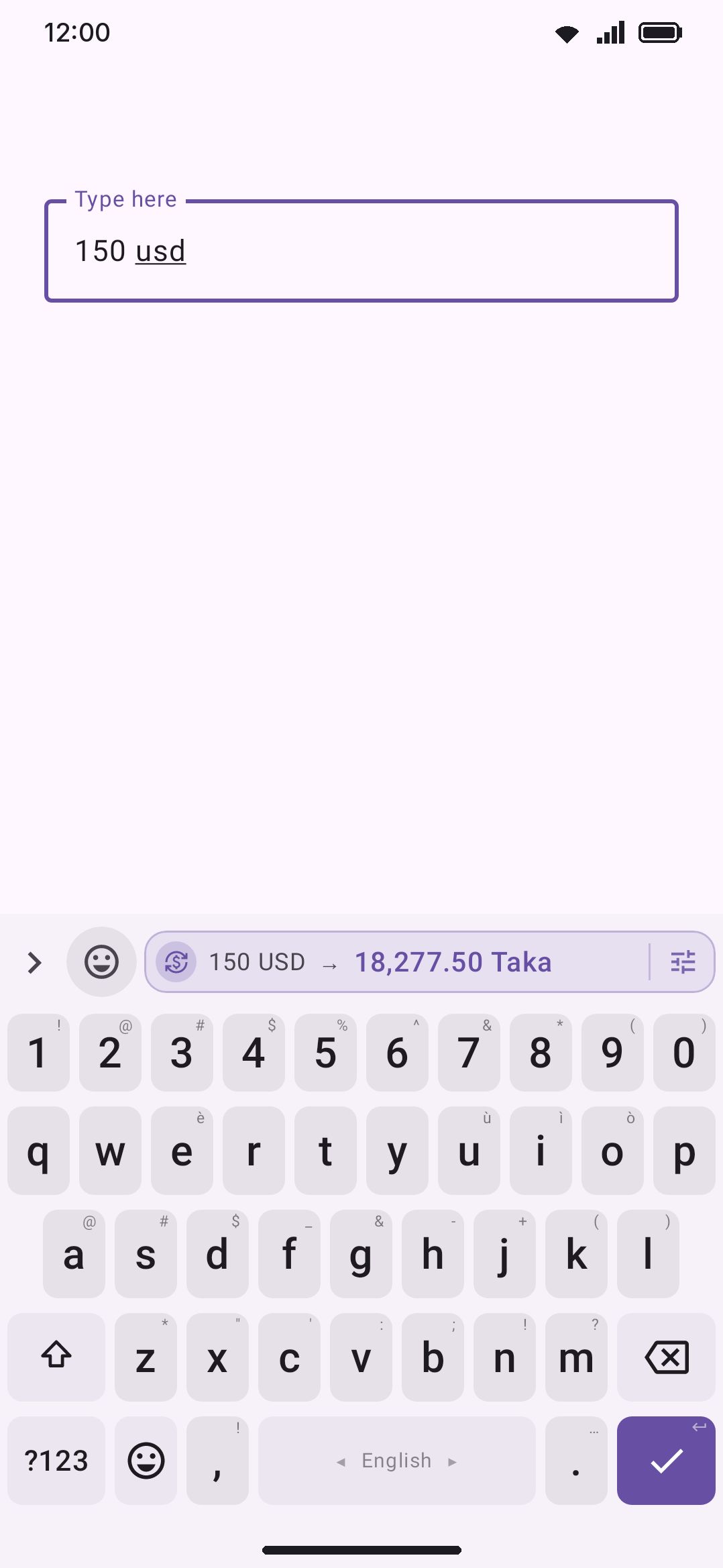
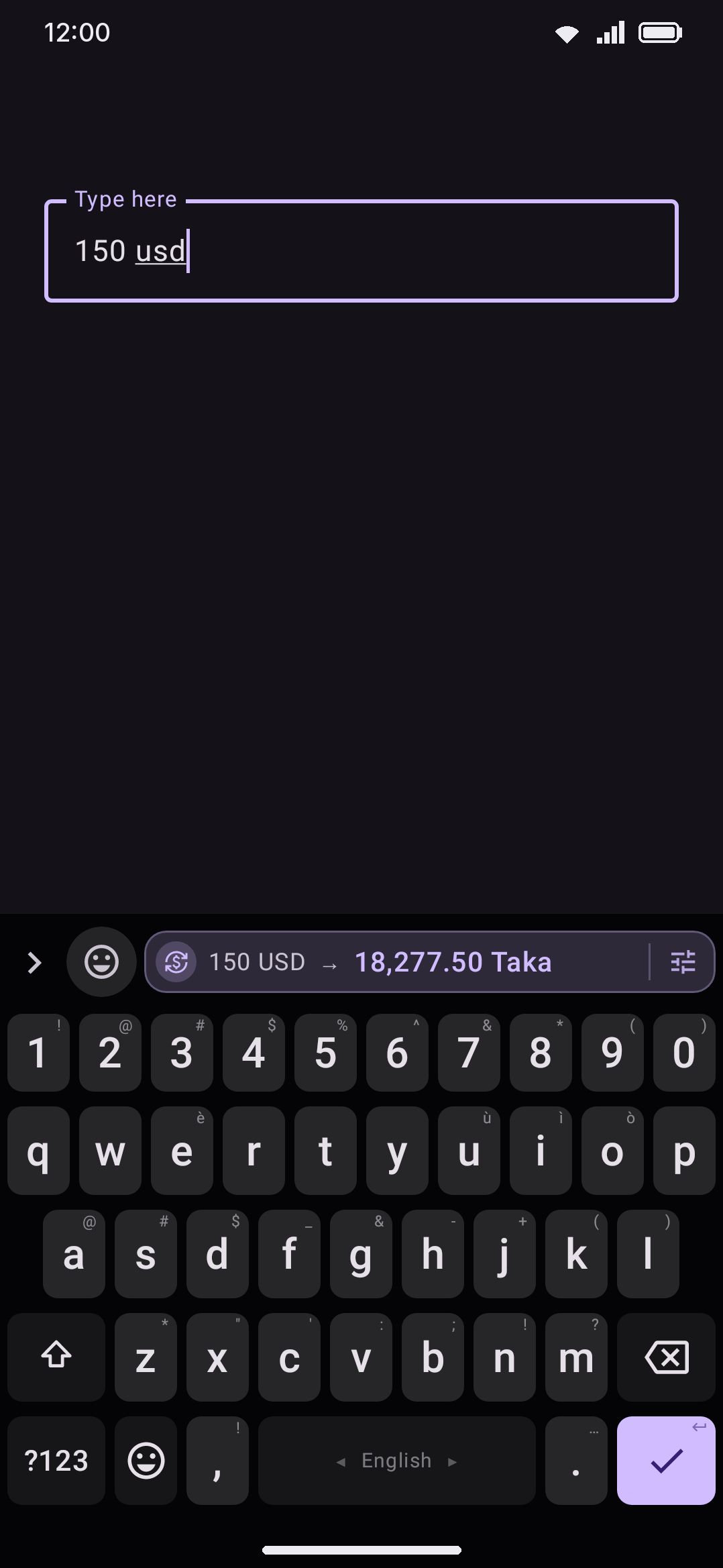
Type an amount next to a currency (150 usd, 150$, $150, or 150 dollars) and the strip converts it into your other currency. Symbols, spelled-out words and 3-letter codes all work. Big amounts can be written the short way or the long way: 1.5k usd, 2m dollars, 3 crore taka, 2 million dollars, even 1 thousand 500 dollars. k, m and b are thousand, million and billion, and lakh and crore work as well. If what you typed is already in your target currency, the chip flips and converts the other way, so either side of your currency pair gets an answer. The result shows a currency’s name rather than its code (Taka, not BDT), unless you pick the symbol (৳18,000.00) or the code under Write the result as in the Currency converter options. If exchange rates haven’t loaded yet, the chip shows a brief spinner while they fetch. In the F-Droid edition it reads Get the rate instead and fetches only when you tap it, unless Fetch rates as you type is on in the Currency converter options.
Coins work the same way, and they’re on out of the box. 1 btc, 0.5 ETH, 2 bitcoin, 100 doge and 100000 sats all convert into your currency. Point your pair at a coin and the conversion runs the other way, so 1000000 bdt becomes a fraction of a bitcoin, with enough digits to actually read. Tickers that double as ordinary English words, such as DOT, LINK and NEAR, only count in capitals, so “meet me in 1 near future” stays a sentence. Coin prices load the first time you type a coin amount, not before.
Units follow the same shape. Type 1 ft (or 1ft) and the chip offers the same length in meters, across 14 categories: length, mass, temperature, area, volume, speed, time, data, energy, power, pressure, angle, frequency, and fuel economy. Spelled-out magnitudes work here too, so 1 thousand miles converts as 1000 miles and 2 lakh km as 200,000 km. Only the words, though: 5m is five meters and 1.5k stays out of unit territory, since the single letters already mean something metric. Short, easy-to-confuse abbreviations (c, f, in, s, and a couple dozen others) only count glued directly to the number, so 30c triggers and 30 c doesn’t, and ordinary sentences don’t turn into unwanted chips. The unit it converts into is whichever one you paired it with last time you used the converter. The first time, it falls back to a sensible default: feet to meters, kilograms to pounds, and so on.
Anything landing in feet is read as feet plus inches, since that’s how people say it. 1m becomes 3 ft 3.37 in, not 3.2808399 ft. The chip answers in the same style you asked in, so 1m gets symbols back while 1 meter gets 3 feet 3.37 inches. Feet and inches under Tools / Unit converter / Options turns this off if you’d rather have the decimal.
The chip fits itself to the strip
Section titled “The chip fits itself to the strip”A conversion chip prefers to echo what you actually wrote: type 100 dollar and the left side reads 100 Dollar, not 100 USD. When the full answer doesn’t fit the strip, the chip gives things up one at a time instead of cutting the number off mid-digit. First to go is a .00 tail on the result, then exact decimals (a rounded preview wears a ~, as in ~৳122,001), then names shrink to codes and codes to symbols, then the font steps down a size. Only as a last resort does a spelled-out amount flatten to digits, so 1 thousand becomes 1000.
Unit chips walk the same ladder. 1609.344 km rounds to 1609.34 km and then ~1609 km, and a spelled-out unit shrinks to its symbol (miles to mi) before the amount gives up its words. A feet-and-inches answer walks its own version: it drops the spelled-out names first (3 feet 3.37 inches to 3 ft 3.37 in), then the fraction of an inch (~3 ft 3 in), and finally the units themselves, for the prime marks everyone reads as feet and inches anyway (~3'3"). None of this changes what a tap types. The inserted amount is always the exact, full-precision result.
Both chip types share the same wide look ([icon] query → result [gear]) and take the full width of the strip, since a recognized calculation or conversion is a better use of that space than word candidates. The date and weather chips further down this page are drawn the same way.
Grouping long numbers
Section titled “Grouping long numbers”Type a long run of digits on its own, like 1234567, and the strip offers it back with separators in place. Tap the chip and the grouped number replaces what you typed.
Which grouping you get follows the language you’re typing in. English and most other languages get thousands, so 1234567 reads as 1,234,567. Bangla, Hindi, Urdu, Nepali, Tamil and the other South Asian languages get the lakh and crore grouping, where only the last group holds three digits: 1,00,000, 10,00,000, 1,00,00,000. Grouping style in Options fixes one of the two if you’d rather not have it follow the language.
A number typed in Bangla digits comes back in Bangla digits, and a decimal point you’ve already typed carries its fraction through untouched, so 1234567.89 offers 1,234,567.89. The chip is drawn like the calculation and conversion chips, and its gear opens the Calculator with the number loaded.
This chip is deliberately hard to trigger, since most long digit runs are not amounts. See Why a chip stays quiet for the rules.
Keyword chips open a tool
Section titled “Keyword chips open a tool”Type a tool’s keyword on its own (wiki, calc, and so on) and a narrower chip offers to open that tool, dropping the word you typed. The text-editing tool is the one exception: edit stays in the field, since that tool works on the text that’s already there. This chip stays narrow instead of filling the strip, because the word you’re typing might genuinely just be that word, and word candidates keep the rest of the row.
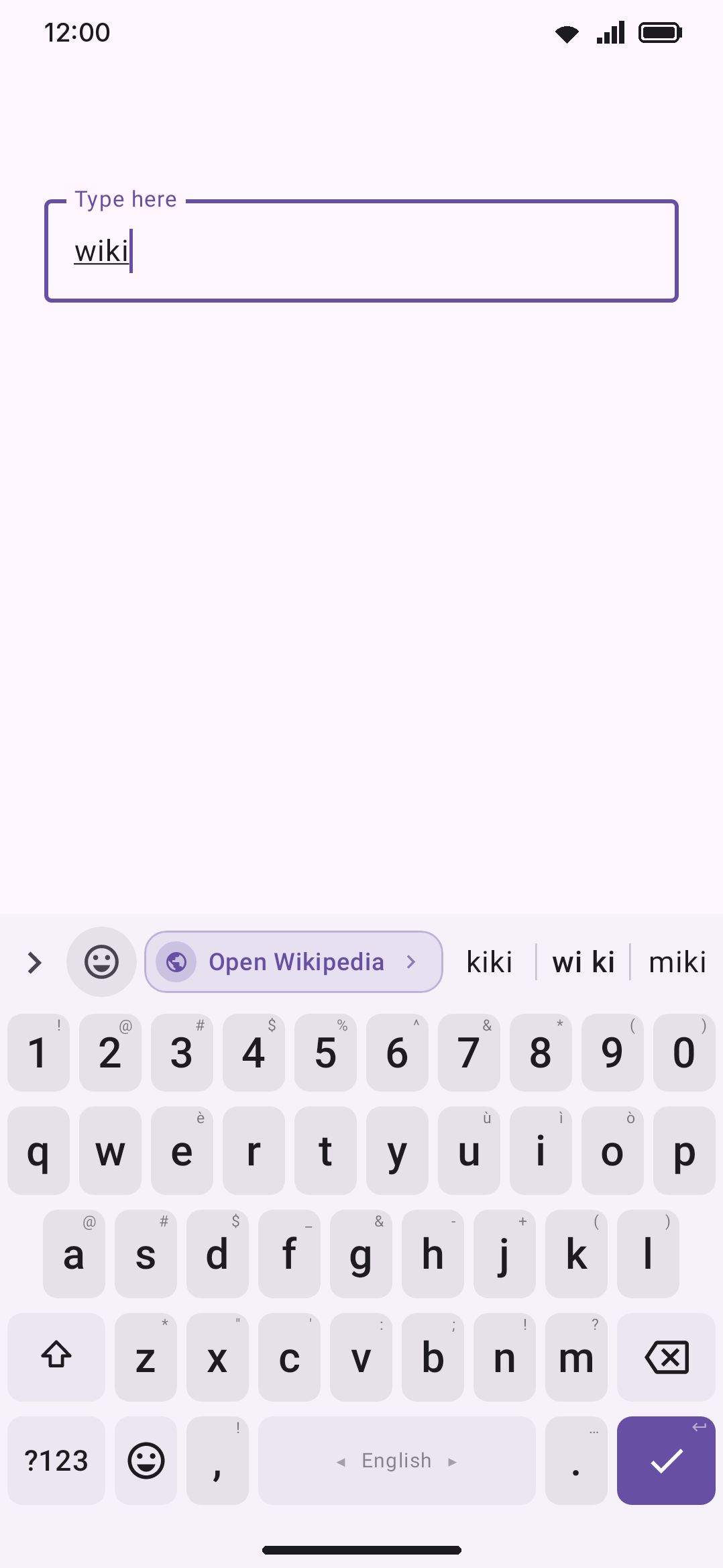
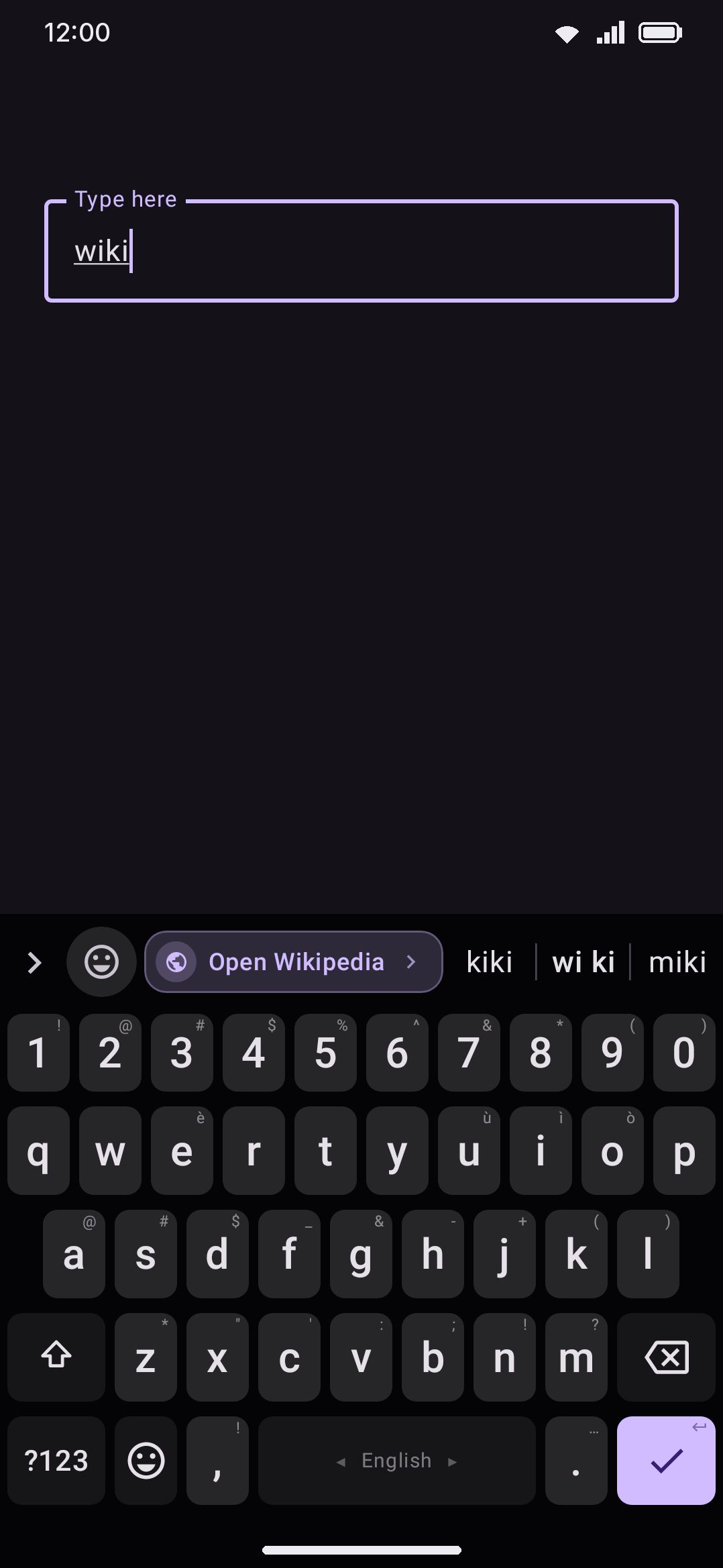
Each tool’s own settings list the words that open it, and let you change or clear them. Matching ignores capitals by default, and a per-tool Match capitals switch makes that tool compare literally instead, which is how AI can open the AI tool without every auto-capitalised “Ai” doing the same.
Chips that read the sentence
Section titled “Chips that read the sentence”Five more families watch for text that isn’t a sum or a keyword but still sounds like a job a tool does. They ride the same master switch and each has its own toggle in Options.
- Resolve dates. A forward-pointing phrase (
tomorrow,next friday,aug 14,the 15th) gets a wide chip showing the date it lands on. A tap keeps your phrase and appends the date in brackets, so “next friday” becomes “next friday (21 Aug)”. The gear opens the Calendar on that day. Only forward dates count, because “last friday” needs no annotating. - Answer weather questions.
will it rain,how's the weather,how hot is itand similar get a wide chip with the conditions on it. This one never types into your field, since the question was probably meant for the person you’re writing to. Tapping it opens the Weather tool instead. It needs a weather location set, and shows a spinner while the forecast fetches. In the F-Droid edition it reads Get the forecast instead, and the first tap fetches the forecast rather than opening the tool, unless Fetch the forecast as you type is on in the Weather tool’s options. - Offer lookups.
define serendipityorwhat does X meanoffers the Dictionary;who is Tesla,what is Xortell me about Xoffers Wikipedia. Narrow chip, and it leaves your question alone. - Translate hints.
how do you say,translate this, orin spanish(sixteen language names are recognised) offers the Translate tool. Narrow, and it leaves your text alone. - GIFs for celebrations.
happy birthday,congrats,eid mubarak,শুভ জন্মদিনand a handful more offer a GIF search already pointed at the occasion. It falls back to the sticker panel when the GIF tool is off. Your own stickers work differently: they turn up by themselves when you type their title, a keyword or an emoji, and you send one with a single tap. See Stickers as you type.
All five only fire when the tool they would open is switched on under Tools. If one of these switches is on while its tool is off, a note under the switch names the tool, with a Turn on button that switches it back on. The narrow ones are hints rather than answers, so each gets one shot per field: once you type past a lookup or intent chip, that tool won’t hint again until you move to another field. One wiring quirk is worth knowing. GIFs for celebrations sits inside Translate hints rather than beside it, so turning the translate hints off takes the celebration GIFs with them, while turning the GIFs off leaves translate alone.
Pulling fragments out of your clipboard
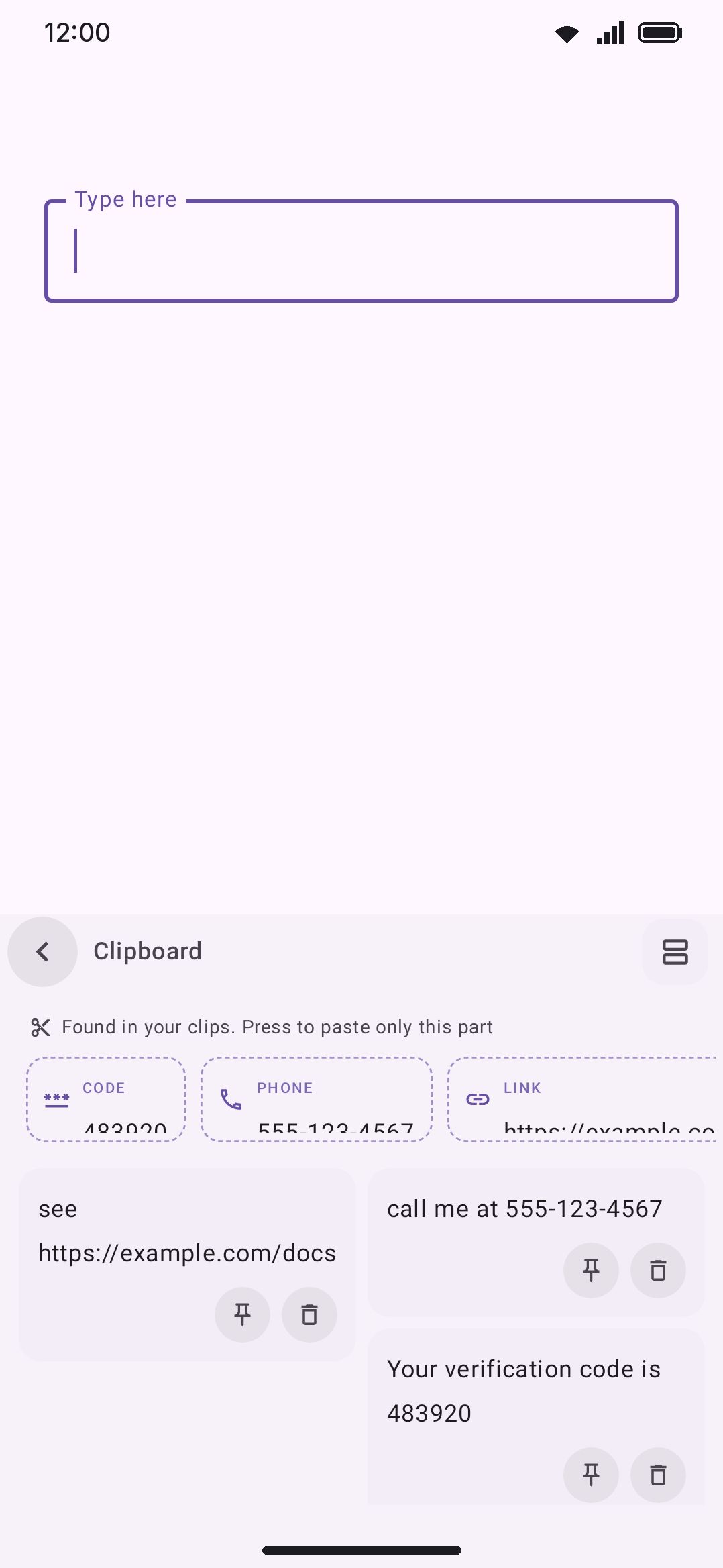
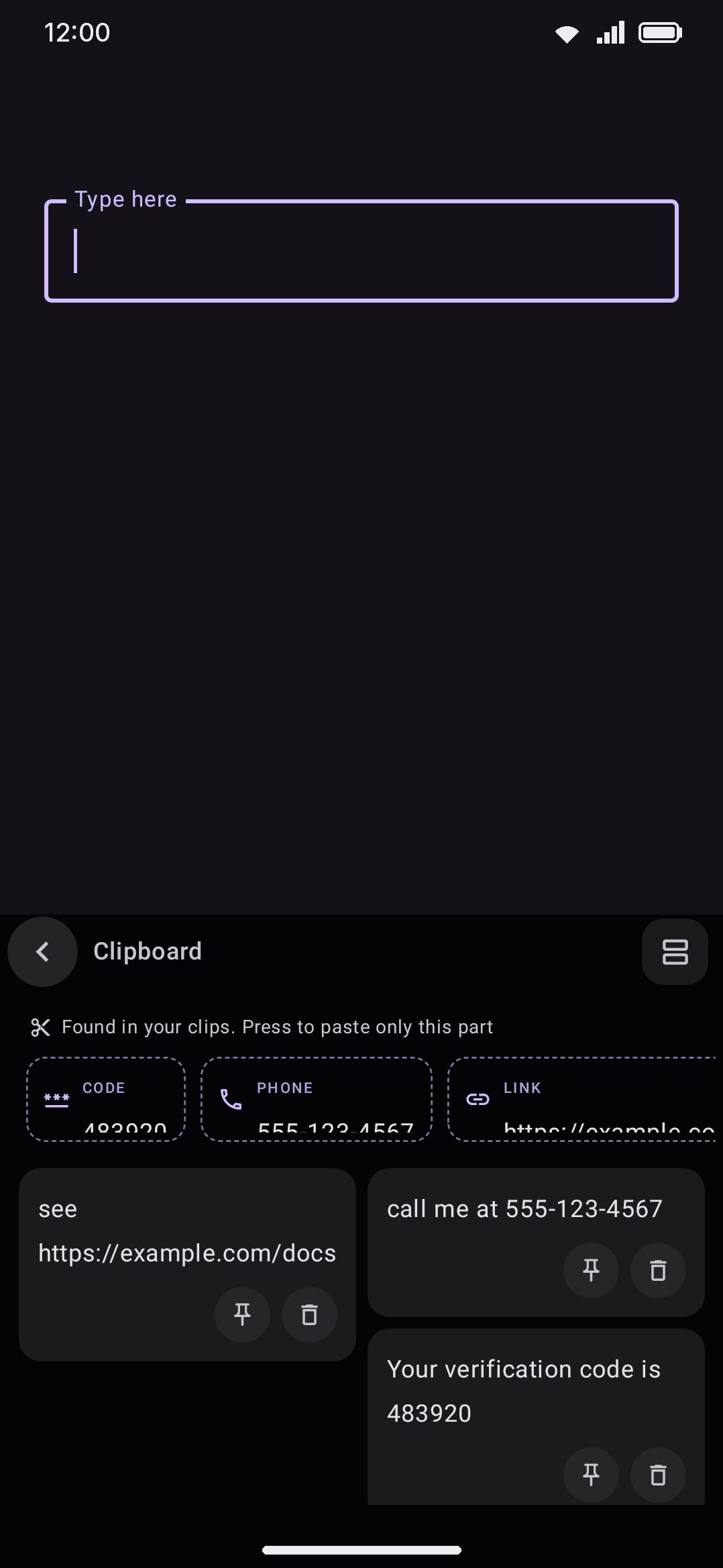
Section titled “Pulling fragments out of your clipboard”Open the Clipboard tool and a row of dashed-outline chips sits above the grid of copied items. It surfaces one-time codes, phone numbers, and links found buried inside your clipboard history, not only in your latest copy. The scan covers your recent clips, sorts codes before phone numbers before links, and shows up to a dozen chips at once. Long-press a chip to see the fragment highlighted inside the clip it came from. Tap it to paste just that fragment, leaving the full clip in history untouched.
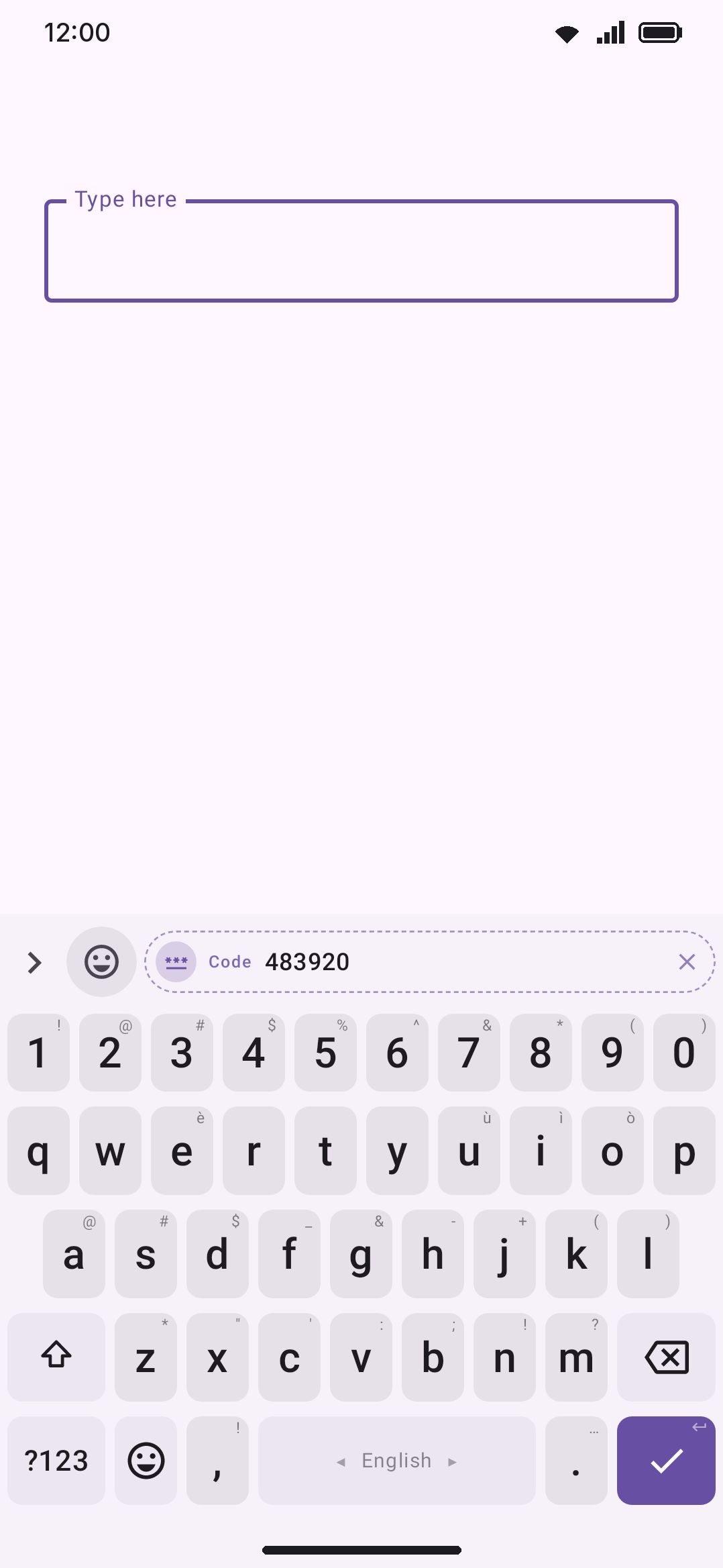
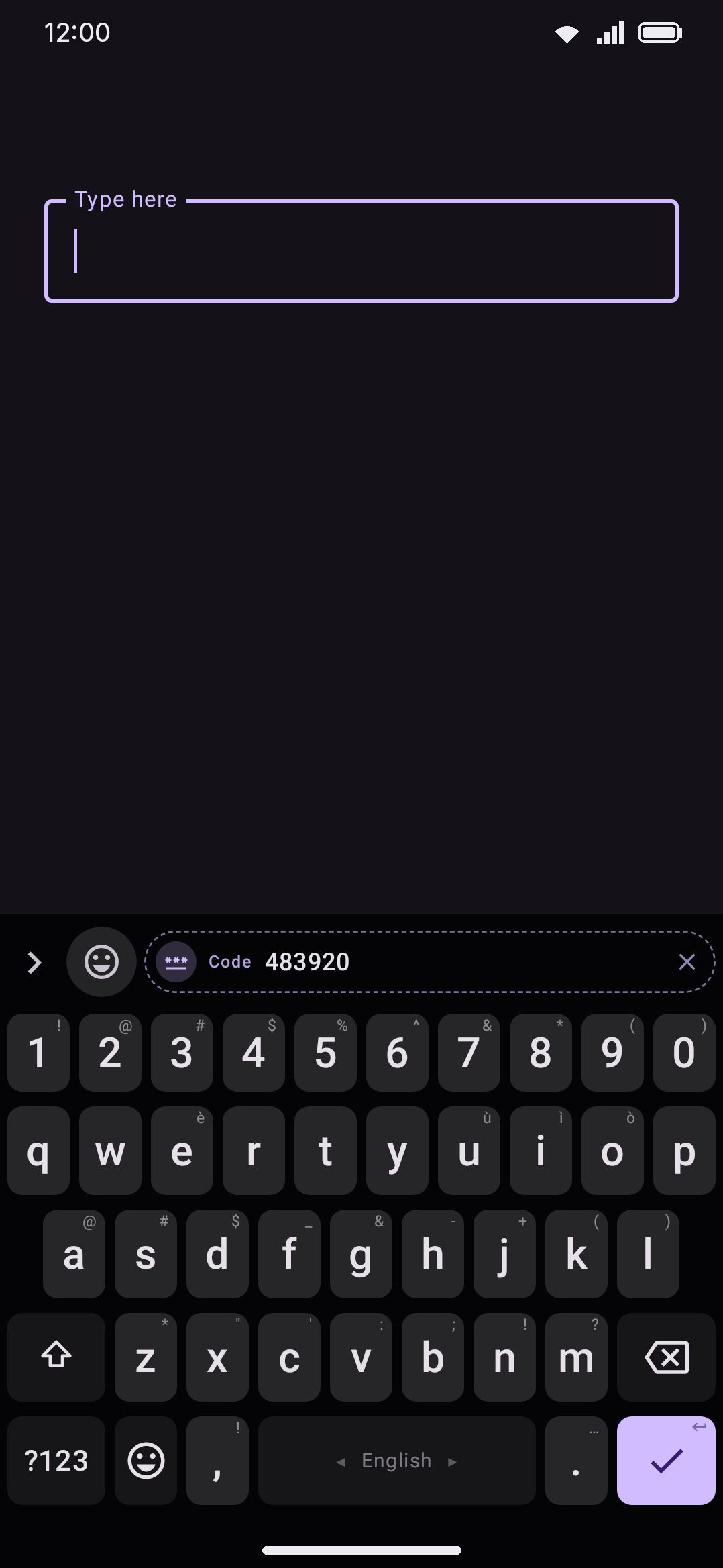
One fast path doesn’t need the panel at all. Copy a bare one-time code, then tap into a box that asks for a code, and the strip offers it as a dashed Code chip in place of the usual “paste your last copy” chip. It’s deliberately that narrow. A copied code counts as a secret, so it stays off the strip in an ordinary message field, and a code quoted inside a longer message never becomes a chip there at all: pulling a fragment out of a message is what the Clipboard panel above is for. The fast path is also OTP-only, so a freshly copied phone number or link shows as the ordinary full-clip paste chip until you open the panel for the fragment version.
Both surfaces are covered by the same setting (see Options), and neither one scans a clip you’ve marked sensitive, or an image or file clip.
A code you never copied has its own route to the strip. If you let the keyboard watch notifications, a verification code that arrives in one raises its own chip above the keys with no copy-paste step at all. That’s a separate, off-by-default feature with its own page: see One-time codes.
Why a chip stays quiet
Section titled “Why a chip stays quiet”Each detector has guards against the shapes of text that look like a trigger but usually aren’t:
- Dates (
12/04,12/04/2025,2024-07) never read as arithmetic. A zero-padded pair reads as a date, and a lone-between two plain numbers needs a second operator to count as a sum. Either way, an explicit=forces the answer. - Order numbers and prices don’t turn into phone numbers. A leading
#,$,£, or€rules a run of digits out. - Years don’t turn into codes. A bare 4-digit value between 1900 and 2099 is rejected even next to a code-sounding word.
- Google’s
G-123456SMS prefix is stripped before the code check, since it’s branding rather than part of the code. - A code needs a nearby keyword (
otp,verification,code,pin,2fa, and similar) within 40 characters. A deny-list (zip,postal,hex,swift,ifsc, and others) stops things like “zip code 90210” from qualifying anyway. tryin lowercase reads as the English verb, not Turkish lira. TypeTRYin capitals to convert it.- Short unit abbreviations (
c,f,in,s,k, and others) only count glued to the number, so “meet me in 5” or “about 30 c out” stay quiet. - Long numbers are only offered grouped when they read as a quantity. The run needs five digits at least and fifteen at most, and a leading zero rules it out, since that marks a phone number, an account or a PIN. It also has to stand on its own: anything joined to a letter, a
.,-,/,:,#or+on its left is a version, a date, a ratio or an identifier, and a number that already carries separators is left as it is. Currency, unit and calculation chips all win over it, because a number that means something is worth more than a number that is merely long. And it stays out of fields that ask for a number at all, such as an amount box, a card form or a PIN, since those want the digits they asked for. - Unpunctuated digit runs longer than 11 digits aren’t treated as phone numbers unless they start with
+. That shape rule is what stands in for knowing where you live, so it steps aside once you’ve listed your own phone formats and the masks decide the length instead.
Options
Section titled “Options”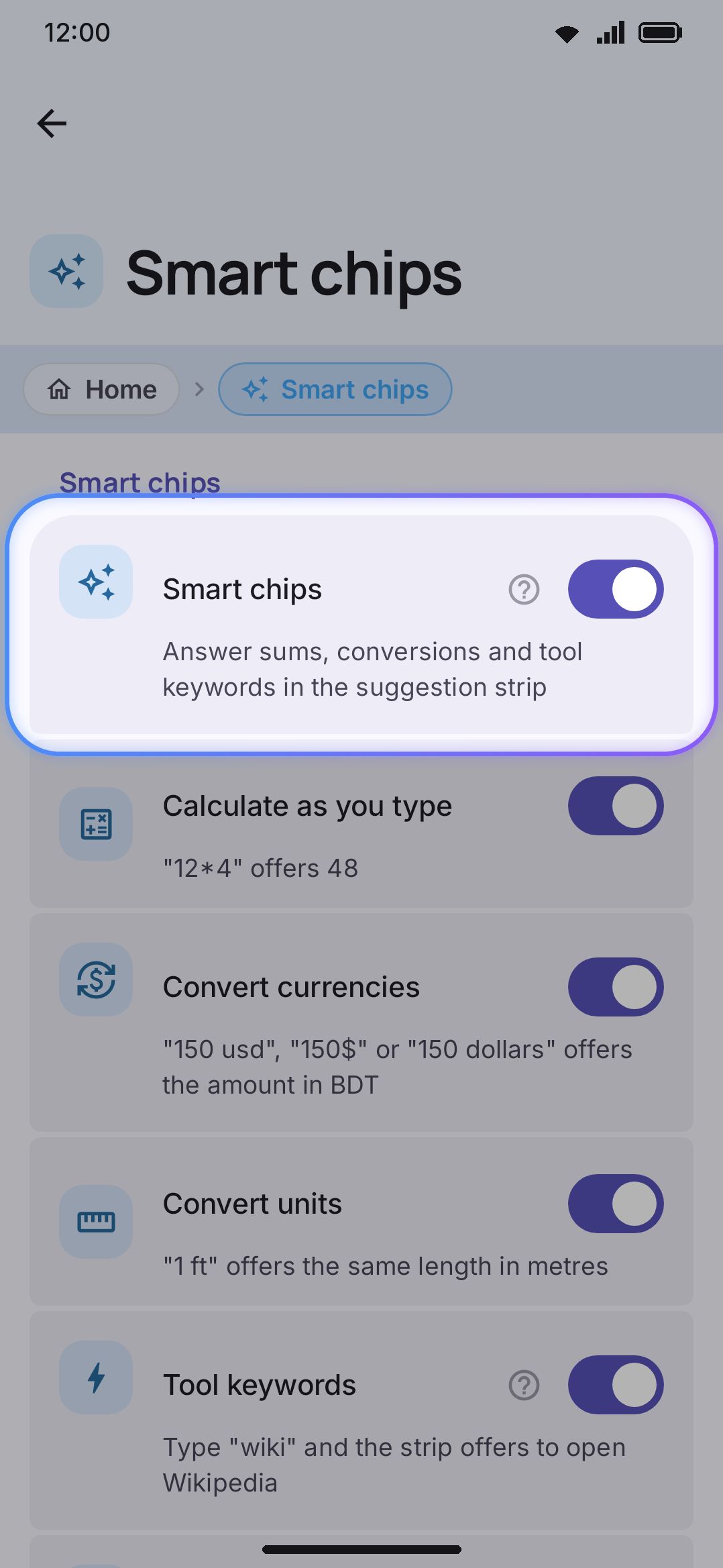
- Smart chips: the master switch, default on. Turn it off and all ten chip families below go at once.
- Calculate as you type: default on.
- Convert currencies: default on.
- Convert units: default on.
- Tool keywords: default on.
- Resolve dates: default on.
- Answer weather questions: default on.
- Offer lookups: default on.
- Translate hints: default on.
- GIFs for celebrations: default on.
- Group long numbers: default on.
- Grouping style: Automatic, Thousands or Lakh and crore, default Automatic, which follows the language you’re typing in.
Each tool’s own page (Calculator, Unit converter, Currency converter) links back here with a Suggestion chip row that shows whether its chip is on. The switches themselves live only under Smart chips.
A few related settings live under each tool instead:
- Degrees (Calculator, default on) and Result precision (0–12 decimal places, default 8). Precision also shapes the unit converter’s output.
- Decimal places for currency (0–6, default 2), Write the result as (Name, Symbol or Code, default Name) and Refresh the rates every (1–48 hours, default 6), under WM KeyboardToolsCurrency converterOptions.
- Convert coins (default on), Coin decimal places (Auto to 12, default Auto), Refresh coin prices every (1–60 minutes, default 5) and the Coins chip grid, under WM KeyboardToolsCurrency converterCryptocurrency. The same screen picks which source each kind of rate is fetched from.
- Detect codes, numbers and links (default on), under WM KeyboardClipboard, governs the Clipboard panel’s entity strip. The fresh-copy code chip is a separate pair of settings on that same screen: Suggest the last copy (default on), since the code chip is a variant of that chip, and Suggest copied codes (default Any field), which is what allows a copied code onto the strip at all.
Details & edge cases
Section titled “Details & edge cases”- A chip won’t reconsider text it just inserted. After you tap one, the strip mutes until you edit the field again, so converting 150 USD to Taka doesn’t immediately offer to convert the Taka amount right back.
- Smart chips step aside for secure fields, fields that ask for no suggestions, any open panel, and CJK-style conversion composing, since a chip would otherwise steal the space a pinyin reading needs for its own candidates.
- They’re independent of word prediction. Turning off suggestions elsewhere doesn’t turn off any of the smart chips.
- Power saving mode can flip the master switch off (its own Smart chips toggle lives under Power saving, off by default), so every chip family goes at once, but it leaves clipboard entity detection alone. Codes, numbers, and links keep getting pulled out of your clips even while chips elsewhere are dimmed.
- Exchange rates come from open.er-api.com (about 160 currencies, updated daily), with frankfurter.dev (European Central Bank, about 30 currencies) as a fallback. Coin prices come from Coinbase with the jsDelivr currency-api behind it. The F-Droid edition starts both from currency-api, which is open data, with Frankfurter behind the currency rates. None of them needs an account or a key, and any of them can be swapped for another under the tool’s settings. See network policy for what else touches the network.
- A coin chip shows the ticker (
BTC) where a currency chip shows a name (Taka), because coin names shorten badly. It also keeps five meaningful digits rather than two decimals, so a small fraction of a coin still reads as a number instead of0.00. - The currency and unit pair a chip converts into isn’t set from a Settings screen. It’s remembered from whichever pair you last used inside the Currency converter or Unit converter panel itself.
- Chips answer what you typed. Selection actions answer what you selected: a different bar, a different trigger, and its own switch under Advanced. The two never share the strip, because nothing is being typed while text is selected.