
Utility tools
Calculator, unit and currency converters, a symbol picker, QR and password generators, and a typing-speed test: seven related tools, six of them entirely offline.
This page covers seven tools that share a theme: arithmetic, conversion and generation. The toolbox draws every tool as one ranked grid with no sections, so the split shows up on the WM KeyboardTools screen instead. A scientific Calculator, a Unit converter, a Special symbols picker, a QR code generator and a Password generator sit under Create and convert, alongside Typing speed test, which measures rather than generates but lands in the same group. Currency converter is filed under Online tools, because it’s the only one that has to touch the network for live exchange rates. The other six run their math or generation entirely on the device.
For Wikipedia, web/image search, and the AI writing tools (also reachable from the toolbox but documented on their own pages), see Search, Wikipedia & dictionary and AI tools. For what the toolbar and toolbox are and how pinning works, see The toolbar.
Doing the math
Section titled “Doing the math”Open Calculator from the toolbar or toolbox. It isn’t pinned by default. On a hardware keyboard, double-tap Ctrl for the leader key, then press L.
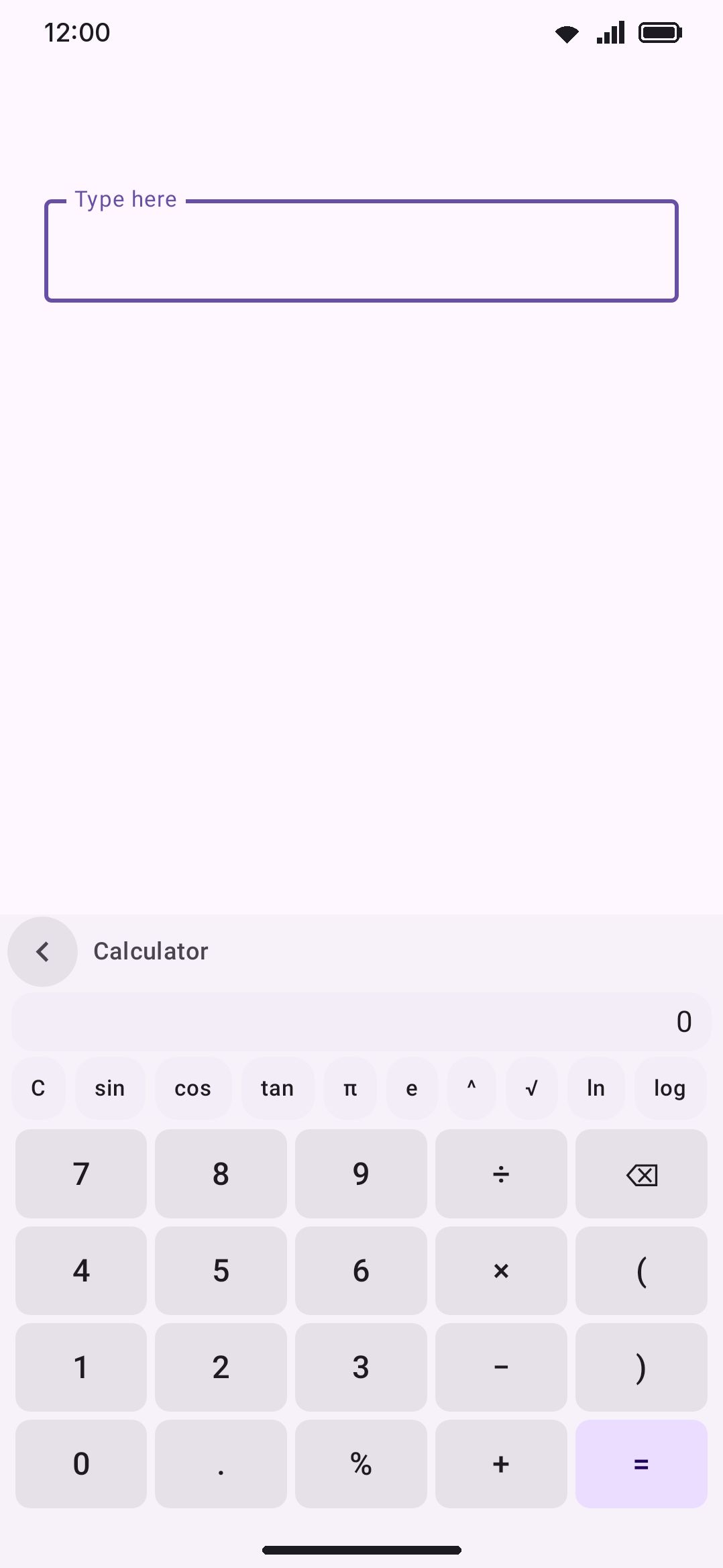
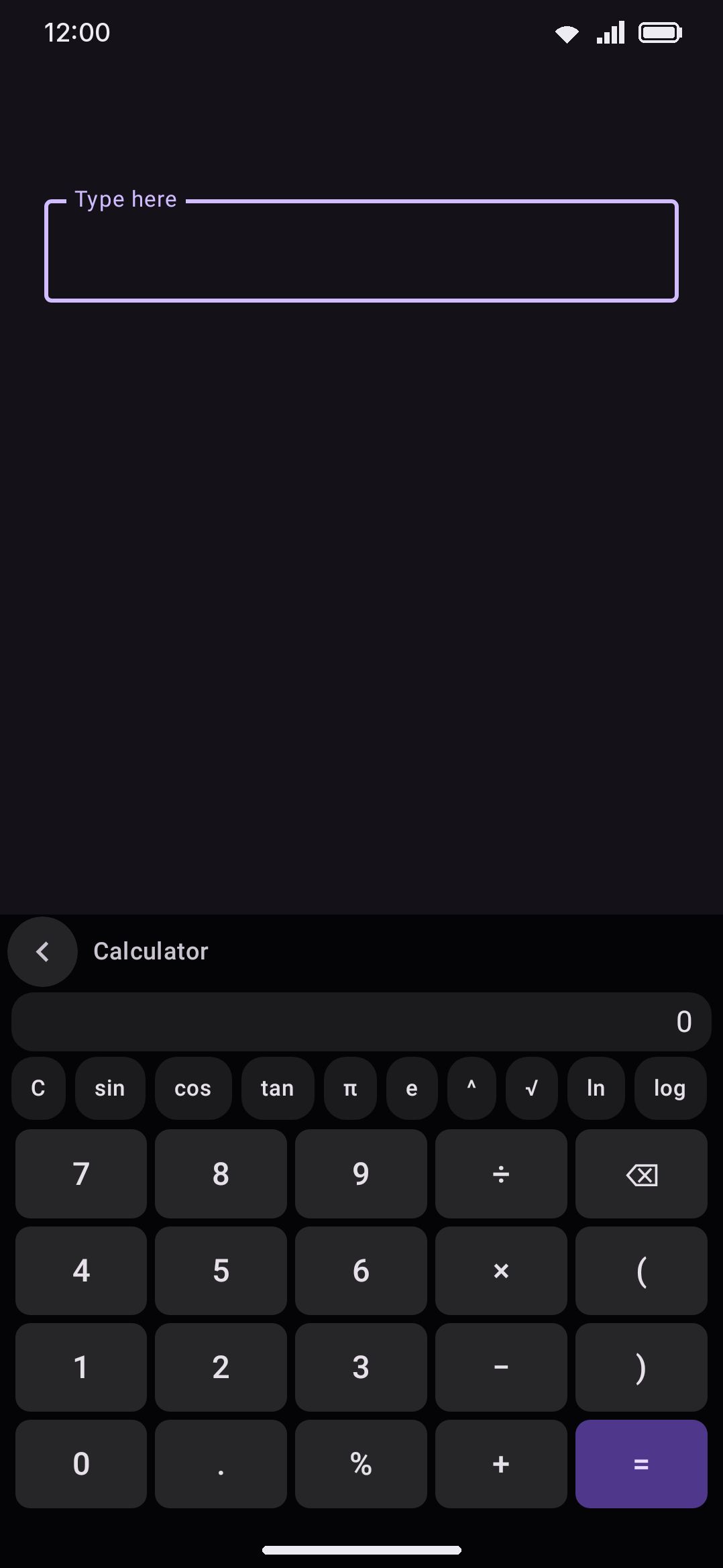
The panel evaluates your expression live as you type. It takes + - × ÷ * / mod % ^ ( ), implicit multiplication (2π, 3(4+1)), and the constants π/pi and e. A scrolling function row offers C, sin, cos, tan, π, e, ^, √, ln, log (base 10), abs and mod as one-tap chips. Typed out by name, asin/acos/atan/sinh/cosh/tanh/sqrt/cbrt/exp/floor/ceil/round all work too. A trailing % divides by 100, and a % followed by a number is modulo, same as mod. Permutations and combinations use the keypad shorthand, 5p3 and 4c2.
- The deg/rad chip in the scrolling function row flips trig between degrees and radians, and remembers your choice.
- = replaces the expression with its result, so
12*4becomes48and the next thing you type carries on from that number. - An Insert chip appears next to the live result whenever it evaluates successfully, and types the formatted number at the cursor.
- Opening Calculator from a smart chip (the inline
96that appears when you type12*8on the strip) prefills the expression with what you already typed.
The custom keypad (7 8 9 ÷ ⌫, 4 5 6 × (, 1 2 3 − ), 0 . % + =, or 1 2 3 on top with Phone layout) replaces the letter rows entirely while the panel is open. There’s nothing to type past what the calculator itself accepts.
Options
Section titled “Options”- Suggestion chip: shows whether Calculate as you type is on and opens Smart chips, where the switch lives.
- Degrees: on by default. Off switches trig functions to radians.
- Phone layout: off by default. It puts 1 2 3 on the keypad’s top row, like a dialer and the numpad, instead of 7 8 9 like a desk calculator. The operator keys stay where they are.
- Result precision: a slider from 0 to 12 decimal places, defaulting to 8. Trailing zeros are stripped either way, and this same setting shapes the unit converter’s output below.
Converting units and currencies
Section titled “Converting units and currencies”Unit converter and Currency converter share a layout: category or currency chips up top, a swap icon between the two sides, a live result, and the same digit keypad. Only one of them touches the network. That keypad is simpler than Calculator’s, just digits, a decimal point and backspace, because neither converter evaluates an expression.
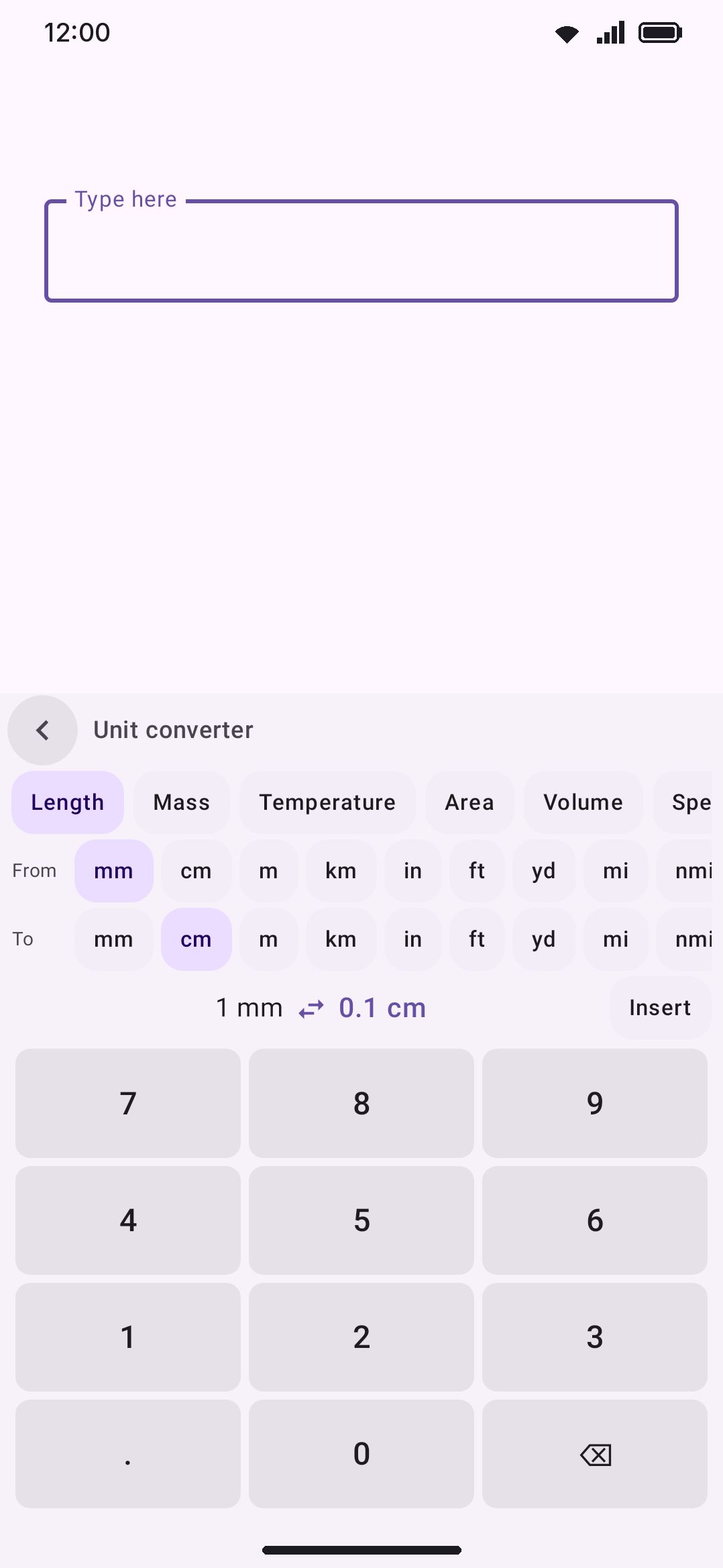
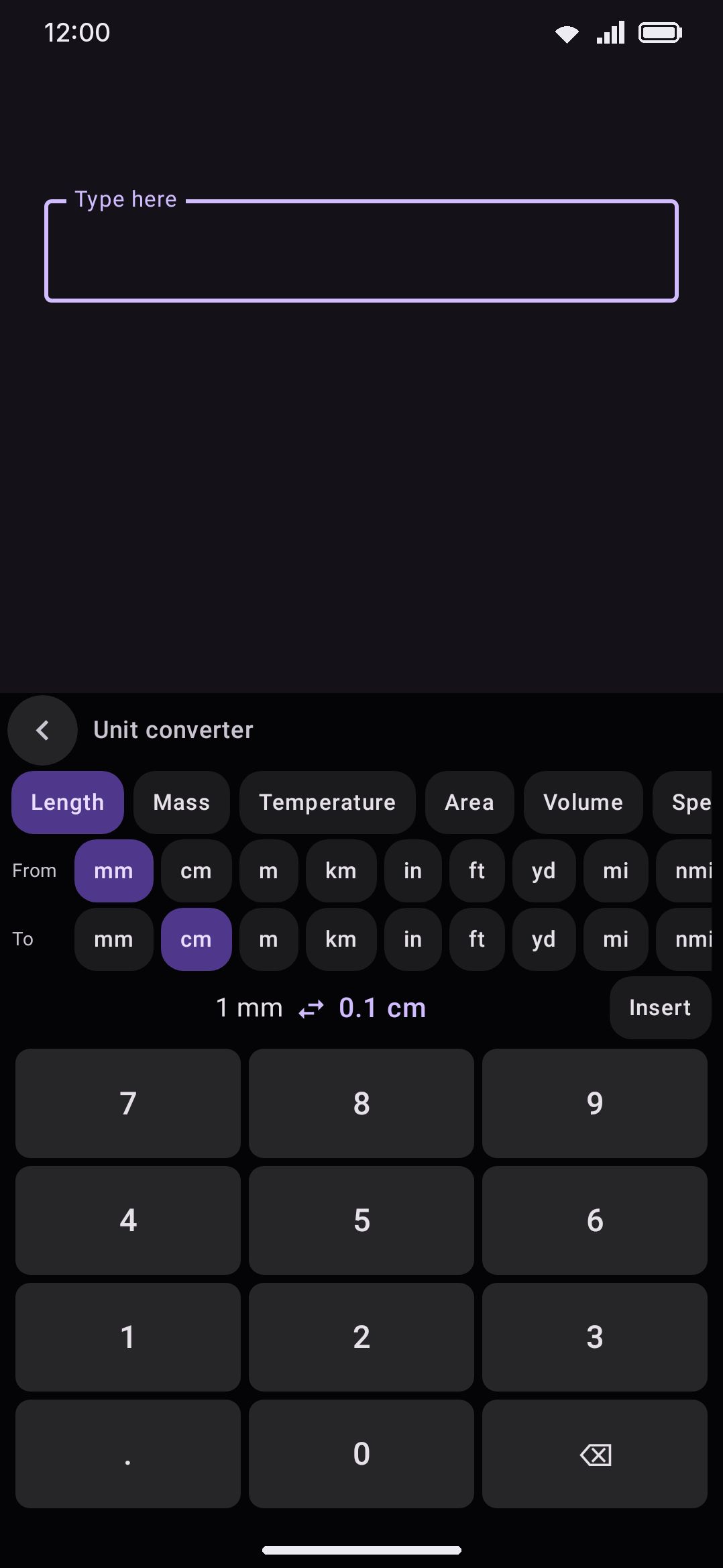
Unit converter covers 14 categories, all converted locally: length, mass, temperature, area, volume, speed, time, data, energy, power, pressure, angle, frequency, and fuel economy. Pick a category. Pick a From and a To unit. Type a value, then tap Insert. The panel remembers the unit pair you used last per category, so switching to Volume and back to Length restores each one’s own last pair rather than sharing a single memory slot.
Currency converter needs live exchange rates. It fetches from open.er-api.com (roughly 160 currencies, updated daily) and falls back to frankfurter.dev (European Central Bank, roughly 30 currencies) if that fails. The F-Droid edition starts from the jsDelivr currency-api instead (about 340 codes, coins included, published as open data), with Frankfurter behind it, so a fresh install there reaches only sources that are free software. The others stay one setting away. None of them needs a key. Rates are quoted against USD and cross-converted locally, so one fetch covers every pair. A refresh icon on the panel forces a new fetch. Otherwise it only refetches once the cached rates are older than the refresh interval set below, and that cache doesn’t survive the keyboard process restarting, so the first open after a while can show a brief “Downloading the exchange rates…” message.
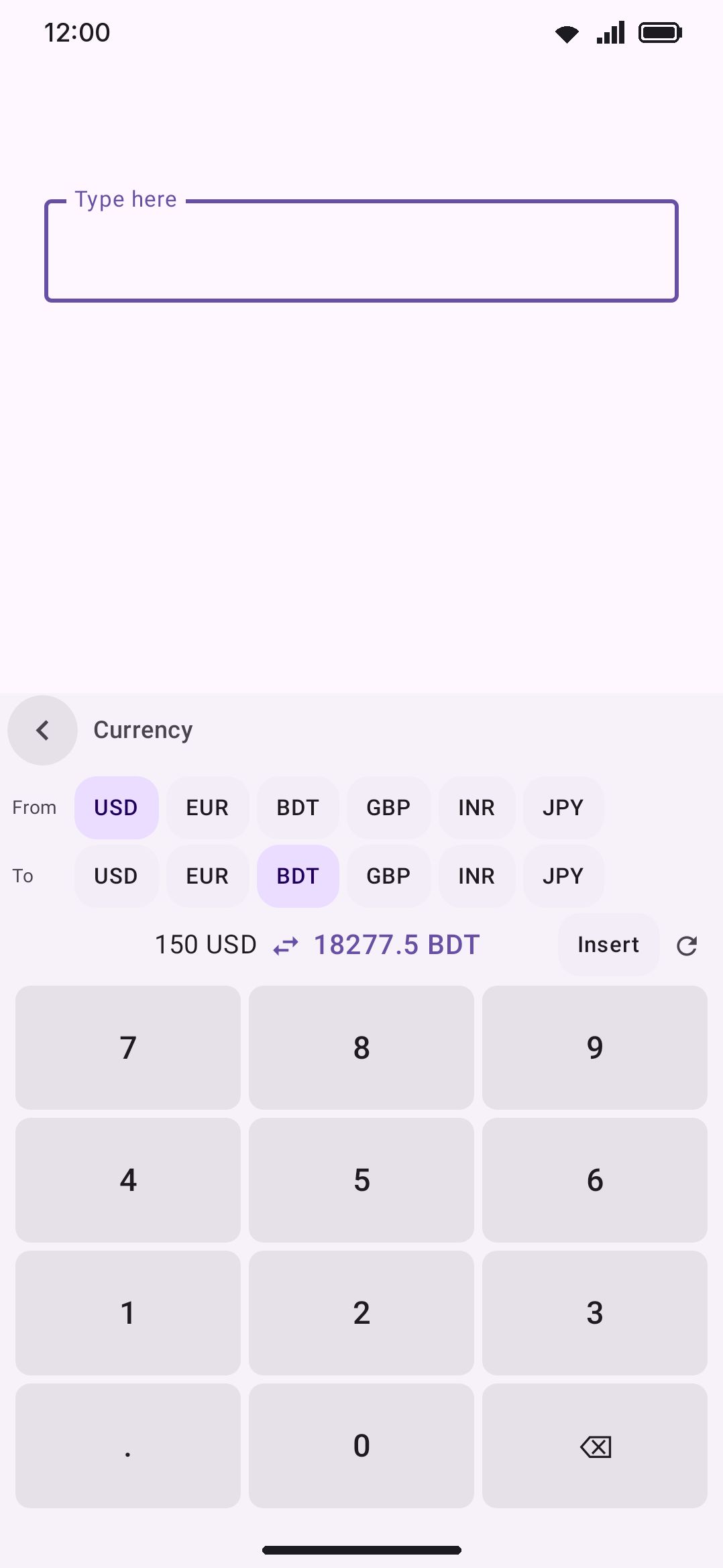
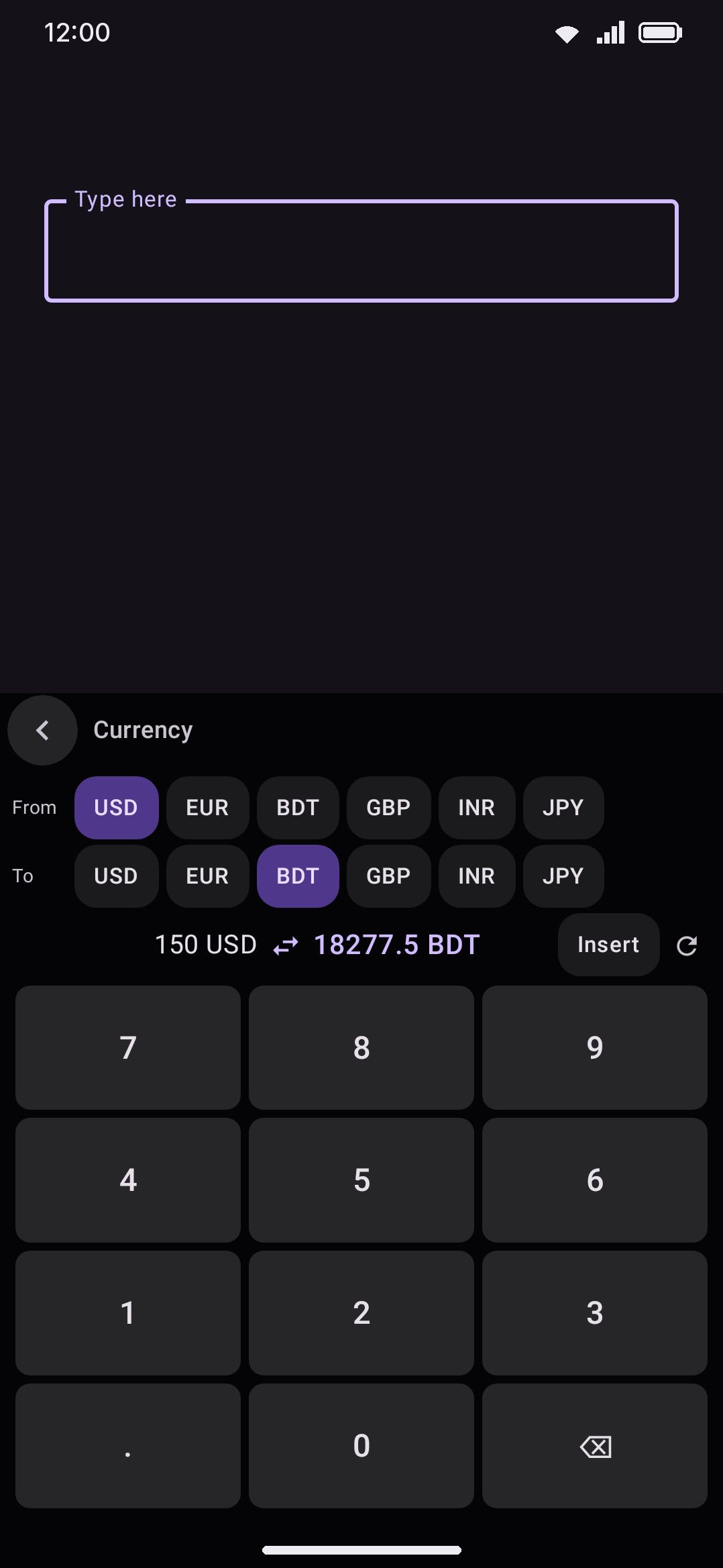
The currency picker pins 15 common codes to the front of the list: USD, EUR, BDT, GBP, INR, JPY, CNY, AUD, CAD, SGD, AED, SAR, MYR, TRY, PKR. Everything else the current rate table has follows, sorted alphabetically.
Cryptocurrency rides in the same panel. With coins on (they are by default) the picker grows a Crypto section between the pinned codes and the alphabetical tail. Picking a coin on either side converts against it exactly like a currency. Coin prices come from api.coinbase.com, with the jsDelivr currency-api behind it and CoinGecko as the other choice (the F-Droid edition starts from currency-api alone), and they’re only fetched when you actually pick a coin or type a coin amount. Coin results keep far more of the number than the two decimals a currency gets, since a fraction of a bitcoin at two decimals is just 0.00. In the panel that means up to twelve decimal places with the trailing zeros stripped. The inline strip chip settles for five significant digits instead, because it has a chip’s worth of room.
Both converters are also reachable inline. Typing 1 ft or 150 usd on the strip offers a smart chip with the converted amount, and the sliders icon at the end of the chip opens the matching panel with the category or pair already set. That inline mechanism is covered on the smart chips page, not here.
Options
Section titled “Options”- Suggestion chip: shows whether Convert as you type is on and opens Smart chips, where the switch lives.
- Feet and inches: on by default. Anything converting into feet is read as feet plus inches, so 1 metre comes back as
3 ft 3.37 inrather than3.2808399 ft. Turn it off for the plain decimal.
- Suggestion chip: shows whether Convert as you type is on and opens Smart chips, where the switch lives.
- Fetch rates as you type: on by default, off in the F-Droid edition. On, a currency chip fetches the rates it needs as soon as you type an amount. Off, the chip reads Get the rate and fetches nothing until you tap it. The panel fetches when you open it either way, and rates the keyboard already has convert with no fetch.
- Decimal places: a slider from 0 to 6, defaulting to 2.
- Write the result as: how a currency chip names the currency it converted into. Name (the default) writes
96.04 Rupee, Symbol writes₹96.04and Code writes96.04 INR. A currency with no symbol of its own falls back to its code, and coins keep their ticker whichever you pick. - Refresh rates every: a slider from 1 to 48 hours, defaulting to 6. Upstream rates only update about once a day, so anything under 24 hours mostly changes how soon a failed fetch gets retried.
- Currency rates from: which source to fetch fiat rates from, either ExchangeRate-API (the default, or currency-api in the F-Droid edition), Frankfurter, Coinbase, or the jsDelivr currency-api. Try the other sources underneath decides whether the rest stand behind it as fallbacks.
- Convert coins: on by default. Reads amounts like
1 btcand shows the Crypto section on the panel. - Coin decimal places: a slider from Auto to 12, defaulting to Auto. On Auto the panel keeps up to twelve decimal places and trims the trailing zeros, and the inline chip keeps five significant digits. Pick a number instead and both work to that count.
- Refresh coin prices every: a slider from 1 to 60 minutes, defaulting to 5.
- Coin prices from: Coinbase (the default, or currency-api in the F-Droid edition), the jsDelivr currency-api, or CoinGecko, with the same Try the other sources switch.
- Coins: a chip for each of the 39 coins the keyboard knows, 20 of them on to begin with, plus Add a ticker for anything else your source quotes. At least one coin always stays on.
Power saving mode doesn’t touch either converter’s own network fetch. Its background-network toggle only forces off clipboard link previews, QR-scan link previews and dictionary auto-lookup, never the currency panel opening or refreshing. See network policy for what leaves the device and when.
Typing special symbols
Section titled “Typing special symbols”Special symbols is a tap-to-type picker for characters that are otherwise a hunt to find: fractions, real math operators, Greek letters, arrows, currency signs, super/subscripts, punctuation marks, shapes and stars, and a Misc catch-all, nine categories in all. Tap a category chip, then tap a symbol to type it exactly like a regular key.
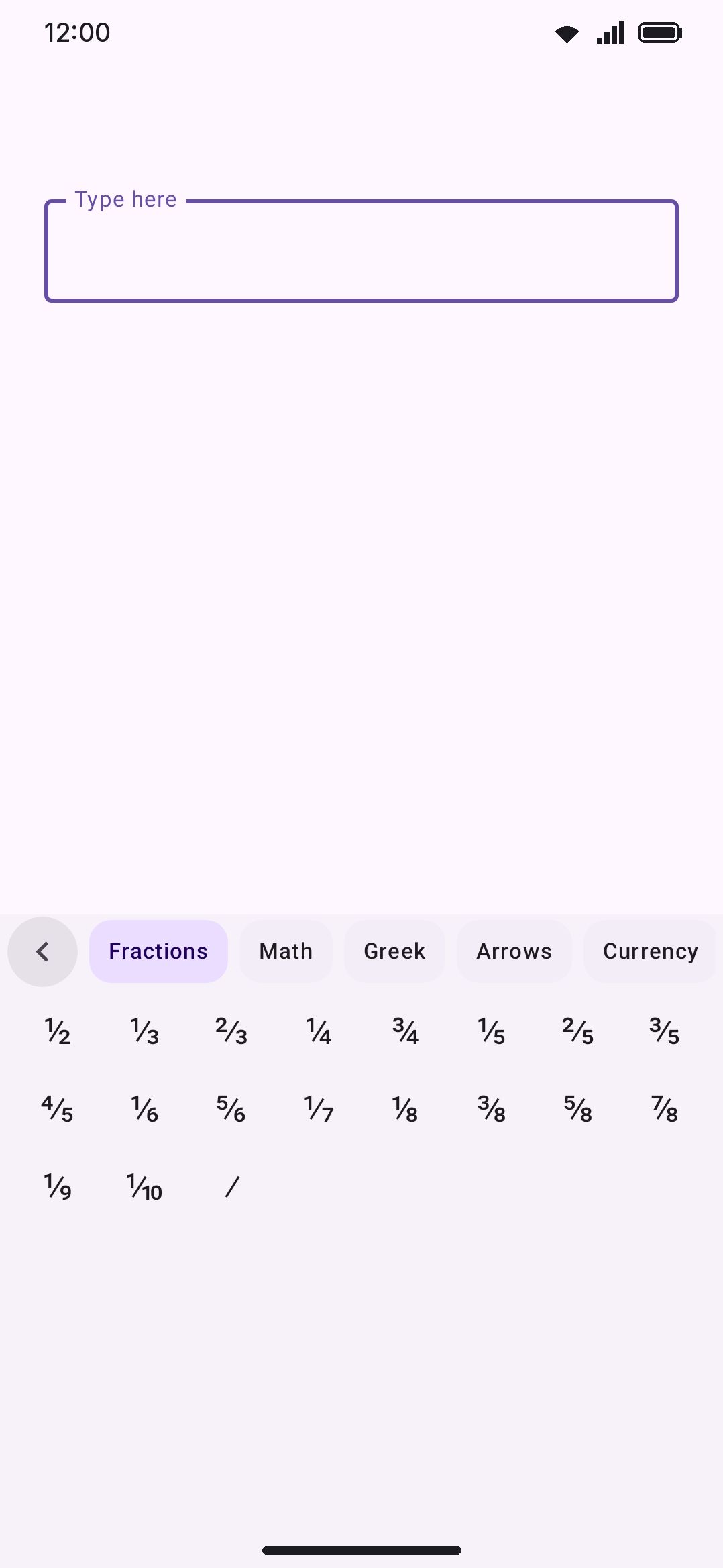
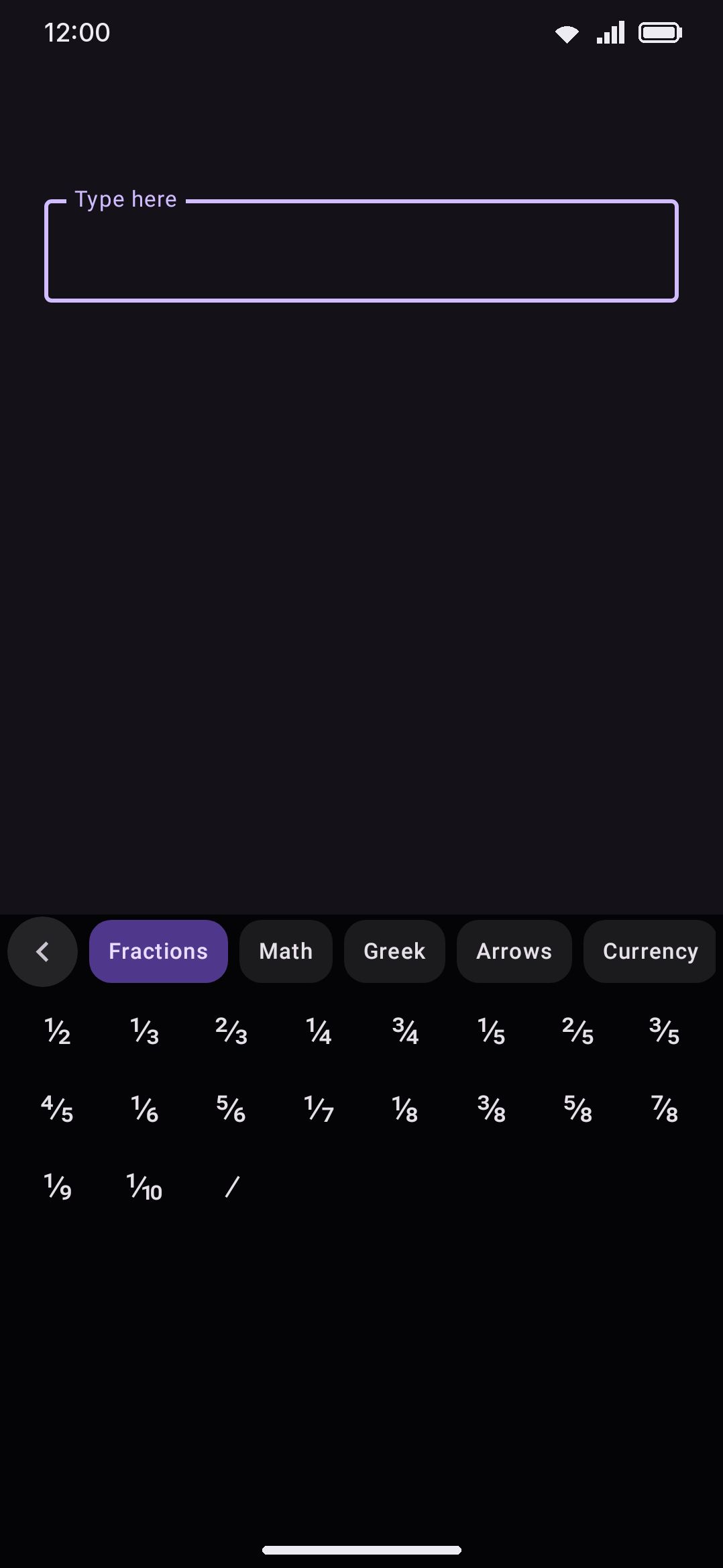
Every symbol you tap is remembered under a Recents chip at the front of the category row, capped at 24 and most recent first. A repeat tap moves a symbol back to the front instead of duplicating it. A few characters render invisibly, so they get a text label instead of a blank cell: non-breaking space shows as “NBSP”, zero-width space as “ZWSP”, zero-width joiner as “ZWJ”.
This tool is separate from the symbol row (off by default), a strip of one-tap characters that sits above the key grid and is covered under Modes & the symbol row. That’s a persistent row you configure once, while Special symbols is a picker you open on demand.
Options
Section titled “Options”- Clear recent symbols: a single action. The row shows how many symbols are currently remembered, or “No recents yet”.
Making a QR code
Section titled “Making a QR code”QR code generator turns whatever you type into a scannable code and sends it as an image. Like the typing test below, it keeps the letter rows on screen instead of replacing them, because you type into it. Opening it seeds its own editable buffer with the focused field’s text as a starting point. From there it’s independent: your keystrokes route into the QR content rather than the field, and the field itself is never touched until you send.
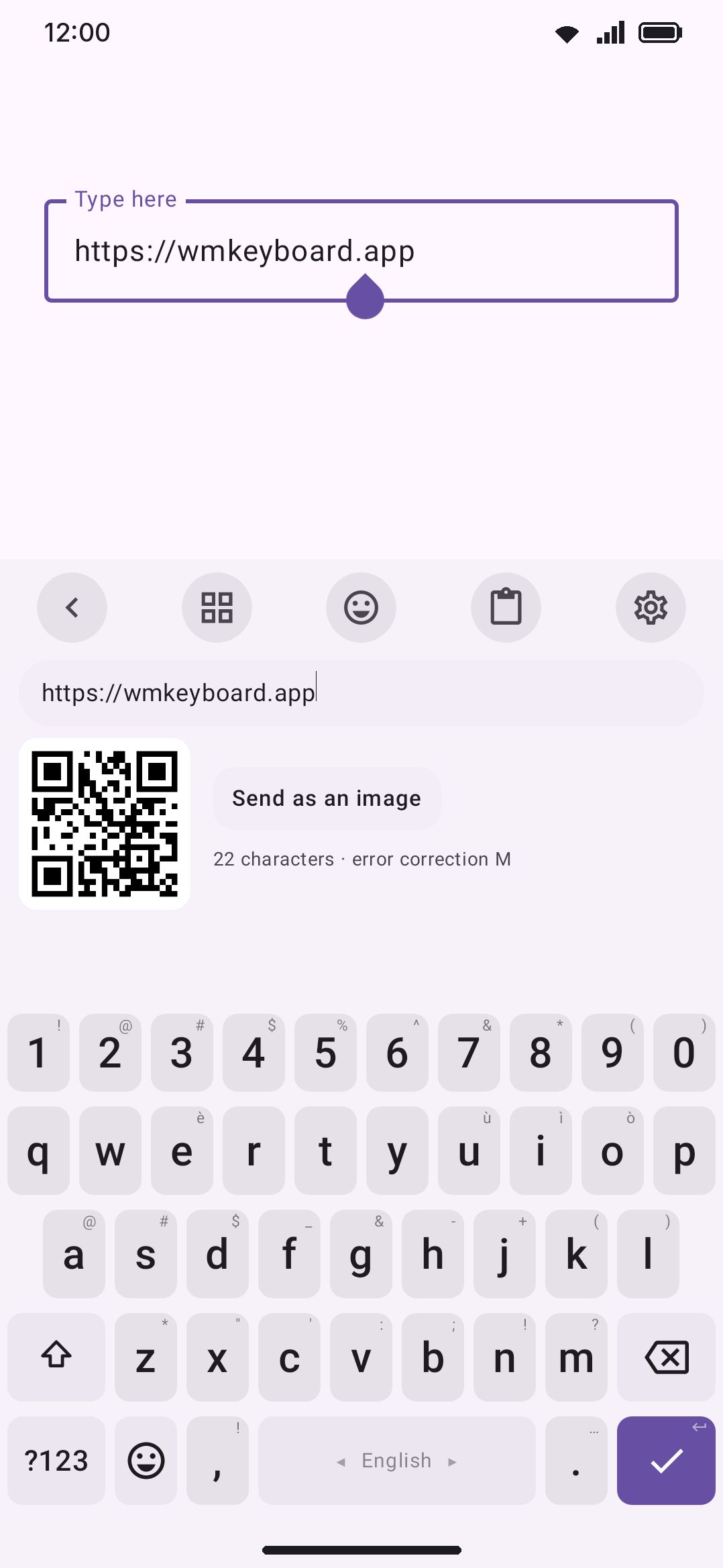
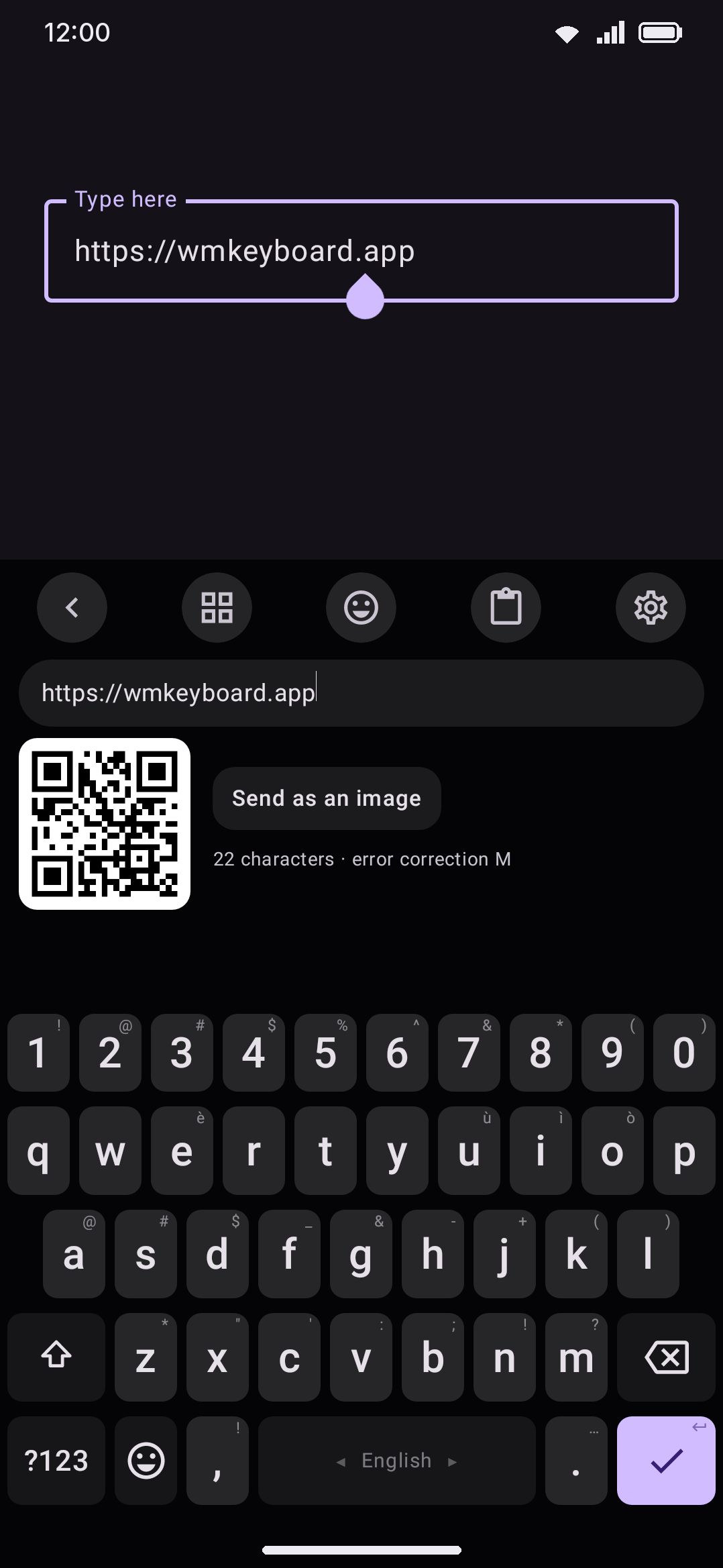
The preview updates as you type, up to Longest text characters (500 to 4,000, default 2,000). Past that it replaces the code with “The text is too long for one QR code,” followed by your current character count. A longer payload encodes at a lower error correction level, which is why the two rows sit together in settings. Send as image commits the PNG through the same commitContent path the clipboard and sticker tools use. If the receiving field or app doesn’t advertise support for it, the code falls back to the system clipboard instead, with a toast telling you to paste it in.
Options
Section titled “Options”- Image size: a slider from 256 to 2048 px, defaulting to 1024. This only affects the PNG that gets sent. The on-panel preview is a fixed small size regardless.
- Send as: Image or Sticker, defaulting to Image. It’s the same Image/Sticker switch the GIF and sticker tools use, but it has no visible effect here. A WhatsApp-style sticker only goes out for WebP source images, and a generated QR code is always saved as a PNG, so it sends as a plain image either way.
- Save to gallery: off by default. Also copies each generated code into Pictures/WM Keyboard.
- Error correction: a segmented L/M/Q/H row, defaulting to M. Higher levels survive more smudging and damage but fit less text into the same code.
- Longest text: a slider from 500 to 4,000 characters, defaulting to 2,000. Raise it to fit a longer link or note. If the code then refuses to build, lower the error correction above it, or shorten the text.
Generating a password
Section titled “Generating a password”Password generator makes passwords or passphrases with SecureRandom entirely on the device. Nothing generated here is ever stored or logged, and there’s no history to clear because none is kept.
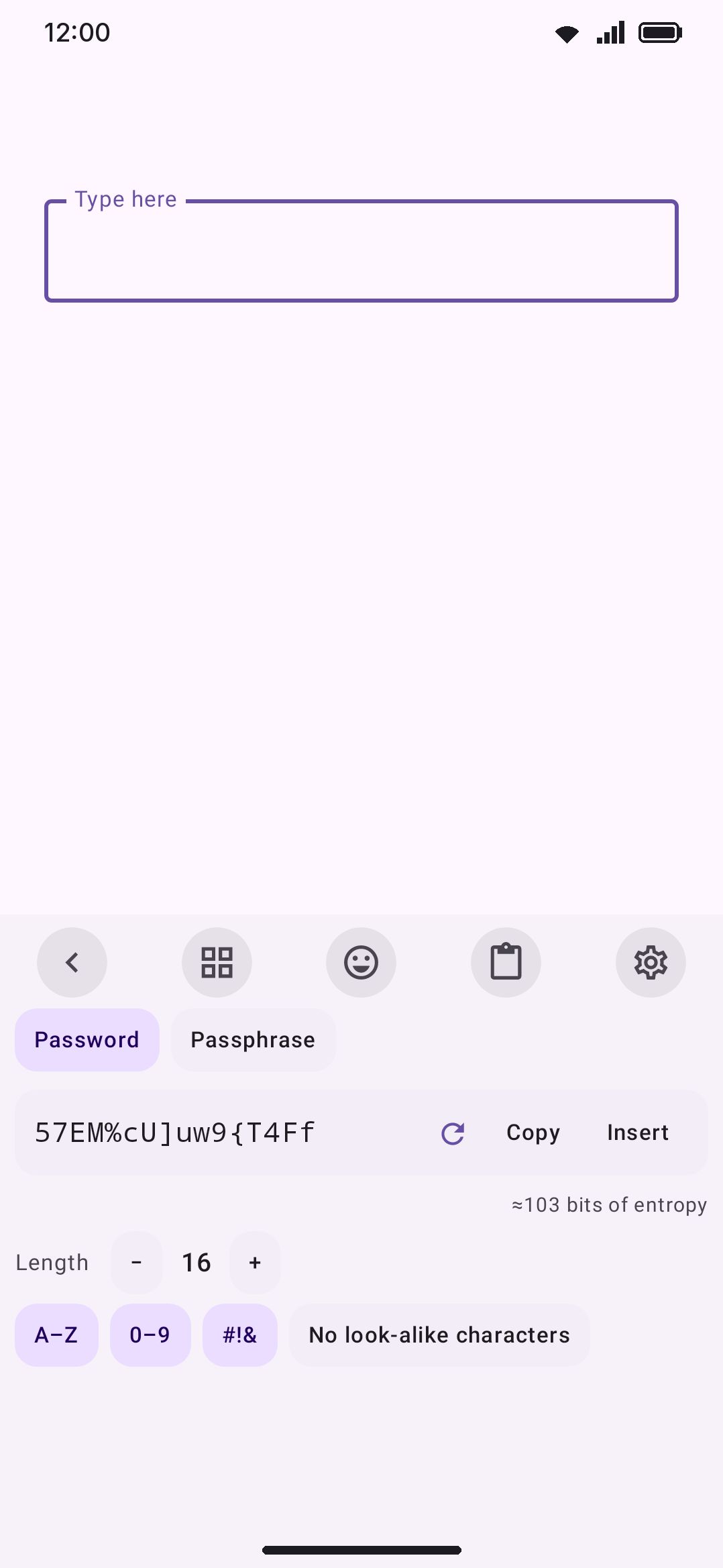
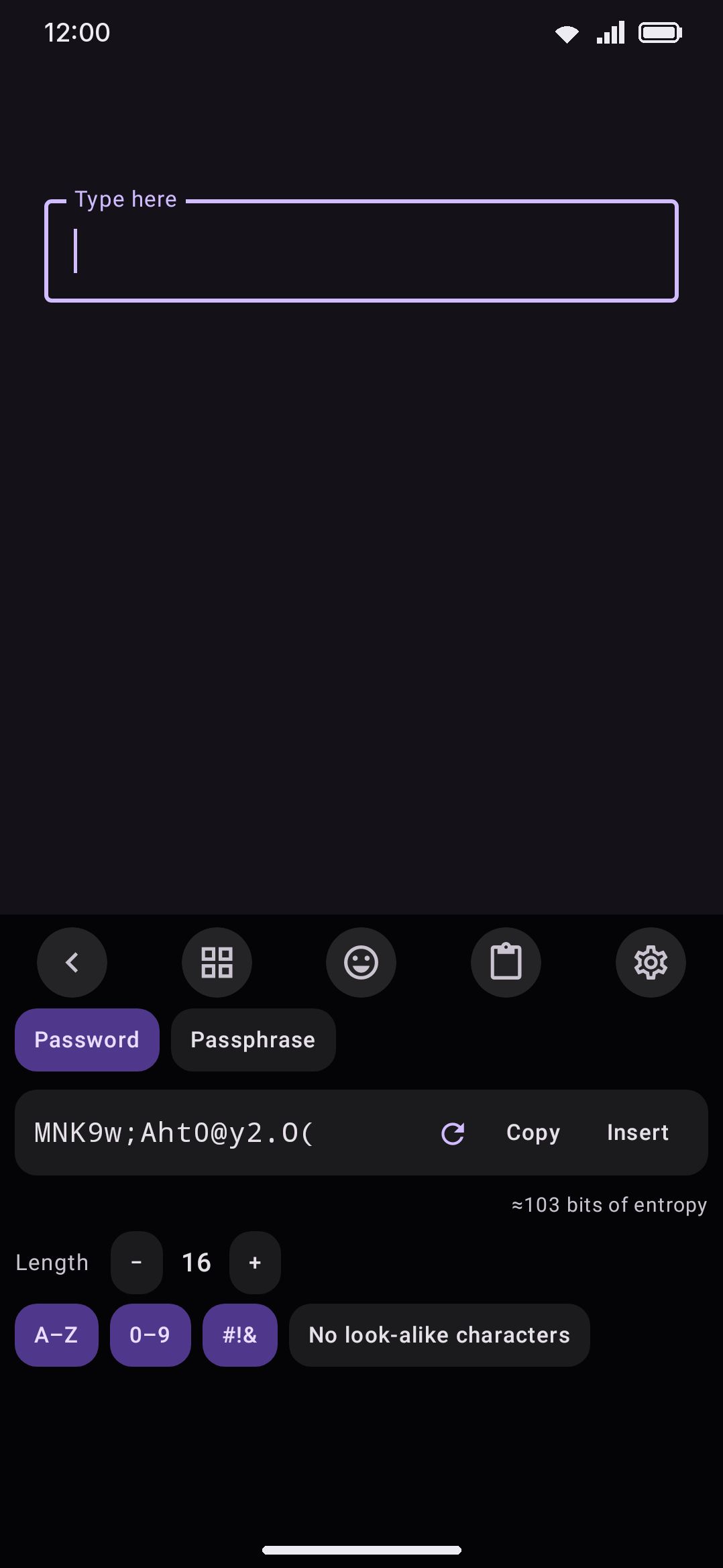
Password mode picks one character from every enabled class first, fills the rest at random, then shuffles the whole string so the guaranteed characters aren’t front-loaded. Passphrase mode draws words from the keyboard’s own bundled English dictionary, filtered down to short (4–8 letter), plain-lowercase, distinct words. That works regardless of which language you’re actually typing in, with no separate wordlist to download. Both modes show a rough “≈N bits of entropy” estimate, and both have Copy and Insert chips plus a regenerate icon. Once in a long while the entropy line picks up a second caption. See Easter eggs.
Options
Section titled “Options”Password
- Length: a slider from 4 to 64, defaulting to 16.
- Uppercase letters, Digits, Symbols: all on by default.
- Symbols to use: empty by default, which means the built-in punctuation set. Shown only while Symbols is on. Some sites accept only a few marks. Type just those and the generator draws from them alone, so you don’t have to generate again and again until a password comes out clean.
- Exclude look-alikes: off by default. Strips easily-confused characters (
Il1O0o5S8Band a few punctuation marks) from the pool.
Passphrase
- Words: a slider from 2 to 10, defaulting to 4.
- Separator: free text between words, defaulting to
-. Leave it blank for no separator. - Capitalize words: off by default (
correct-horse→Correct-Horse). - Include a digit: off by default. Appends a random digit to one random word in the phrase.
Testing your typing speed
Section titled “Testing your typing speed”Typing speed test leaves the key rows alone while a run is going, the same way the QR generator does. You type the prompt on the real keys while the panel scores it from above. The results screen needs no keys, so the panel takes their height back for the scores. Shift is forced off the moment a run starts, so a field’s auto-capitalization can’t turn your first keystroke into a false miss. The clock doesn’t start until you type your first character either, so time spent reading the prompt costs you nothing.
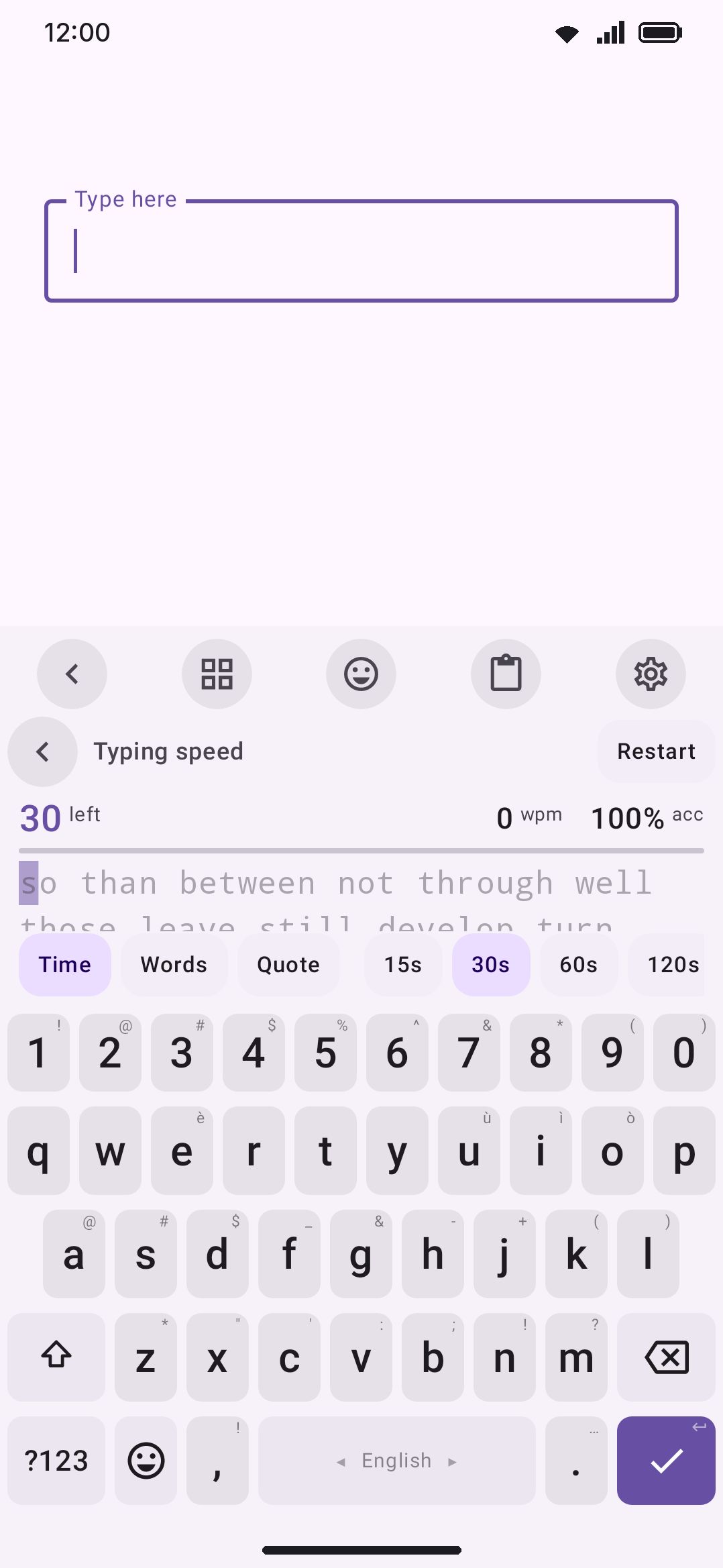
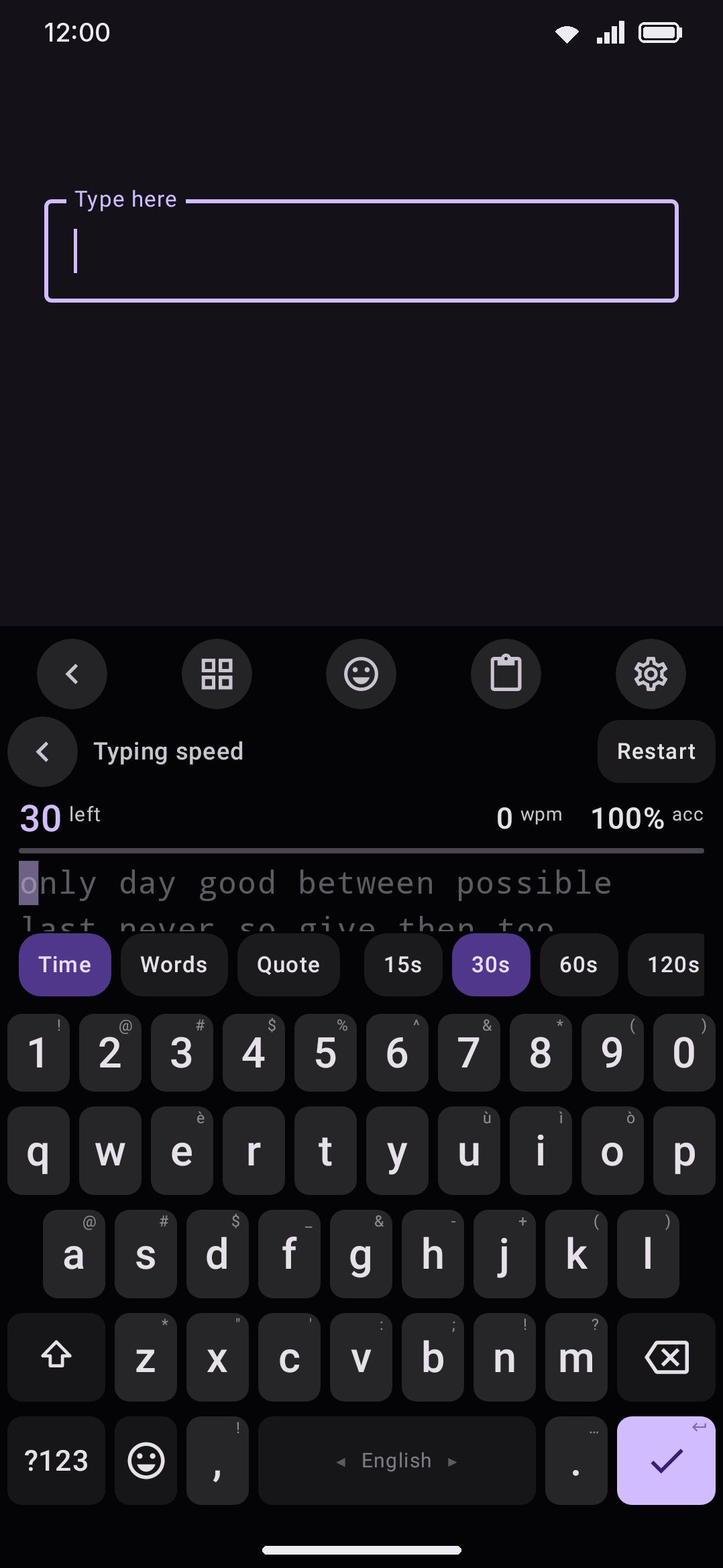
Three modes decide when a run ends: Time (the default, 30 seconds), Word count (default 25 words), and Quote (types out one short public-domain quotation, however long it runs). Time and Word-count prompts draw from the 200 most common words of the test’s language, deliberately short and high-frequency so the test measures typing rather than vocabulary. Turning on Punctuation or Numbers sprinkles capitals, commas, full stops and the occasional numeral into the prompt. Both are off by default, and both are hidden entirely in Quote mode.
Other languages
Section titled “Other languages”The test runs in whichever language the keyboard is in. The last chip on the settings strip names that language. Tap it to pick any language your enabled layouts cover, and the keyboard switches to that language’s layout and deals a fresh prompt. A spacebar language swipe during a run does the same. English, Bangla and Hindi ship their own word lists and quotations. Any other language builds its prompt from the most common words of its downloaded or imported dictionary, so a language with no dictionary yet shows a note instead of a prompt, and Quote mode is greyed out for it. On a transliterating layout such as Avro or Hindi phonetic you type the romanised keys as usual, and the test scores the native-script word that comes out. It waits for the whole word before scoring it, because a key there can’t be judged as it lands: k is ক on its way to খ, and a conjunct isn’t itself until its last key. So the syllable under the cursor stays uncoloured while you spell it, and the keys behind it are marked right or wrong once the space closes the word. Keys you backspaced away still count against you, exactly as a mistyped letter does on a direct layout. A layout that converts what you type, such as Pinyin or kana, can’t be scored, and the panel says so.
Numbers and punctuation follow the language too: a Bangla prompt gets Bangla numerals and ends its sentences with the danda. Personal bests are kept per language, so a 30-second Bangla record never overwrites a 30-second English one. The records list in settings names the language on every non-English row.
Glide and suggestions
Section titled “Glide and suggestions”Two more chips on the strip, Glide and Suggestions, let the keyboard’s own helpers take part in a run so you can compare scores with and without them. Both are off by default.
- Glide lets you swipe words during a test. The stroke is decoded exactly as it would be in a text field, and the word lands as if you had typed every letter, followed by its space. A stroke that decodes to the wrong word costs what mistyping it would have. The chip is greyed out where gesture typing isn’t available for the language and layout at all. This switch is independent of the main Glide typing setting, so you can measure gestures even if you keep them off day to day.
- Suggestions puts the keyboard’s own suggestion strip back where it always sits, in the row directly above the keys, with next-word predictions between words. It is the real strip, in the same slots, at the same size, under your own strip settings, so practising with it is practice at the thing you actually type against. Tapping one finishes the current word and moves on. The tap counts as one keystroke, correct only if the word matched. The words go into the test and never into the field behind the panel.
Both switches also live under WM KeyboardToolsTyping speed testTyping aids.
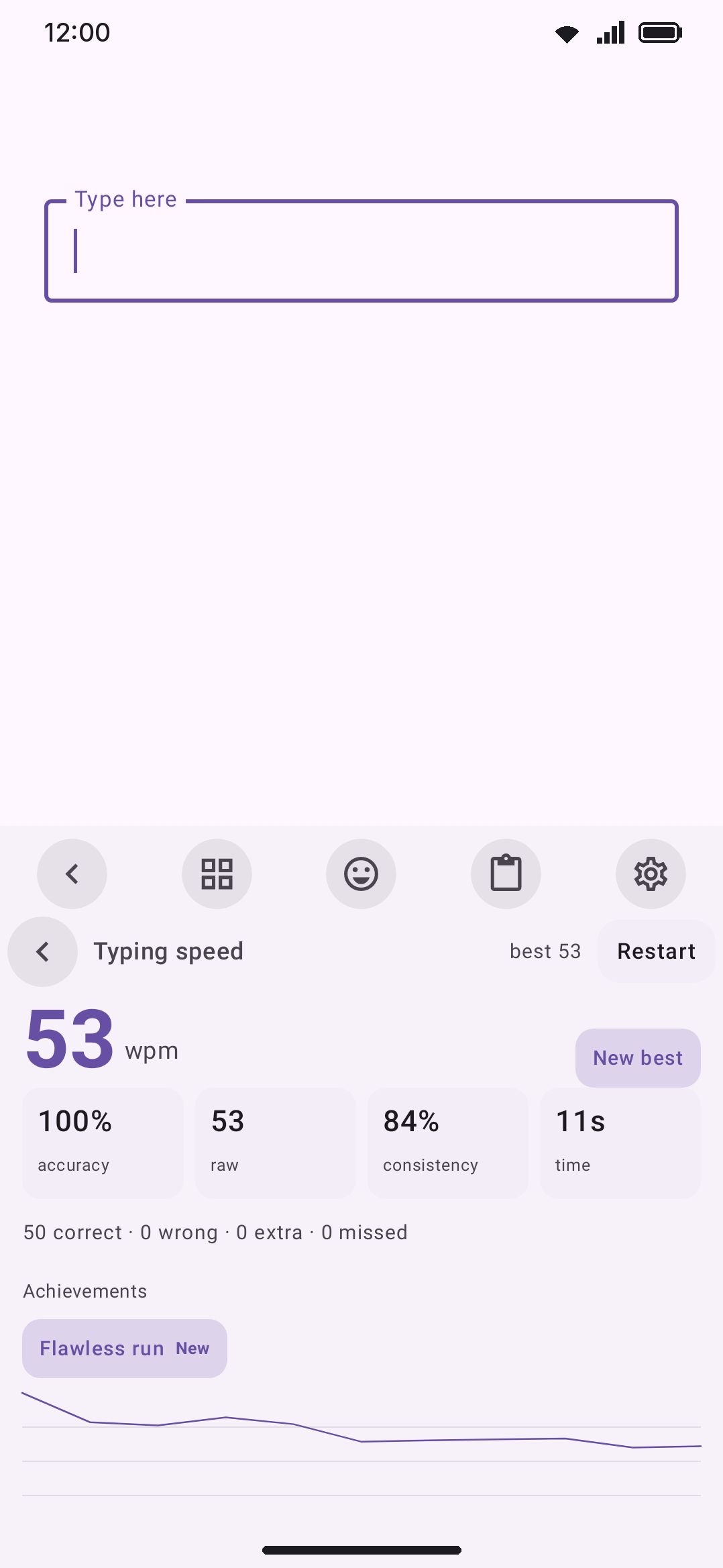
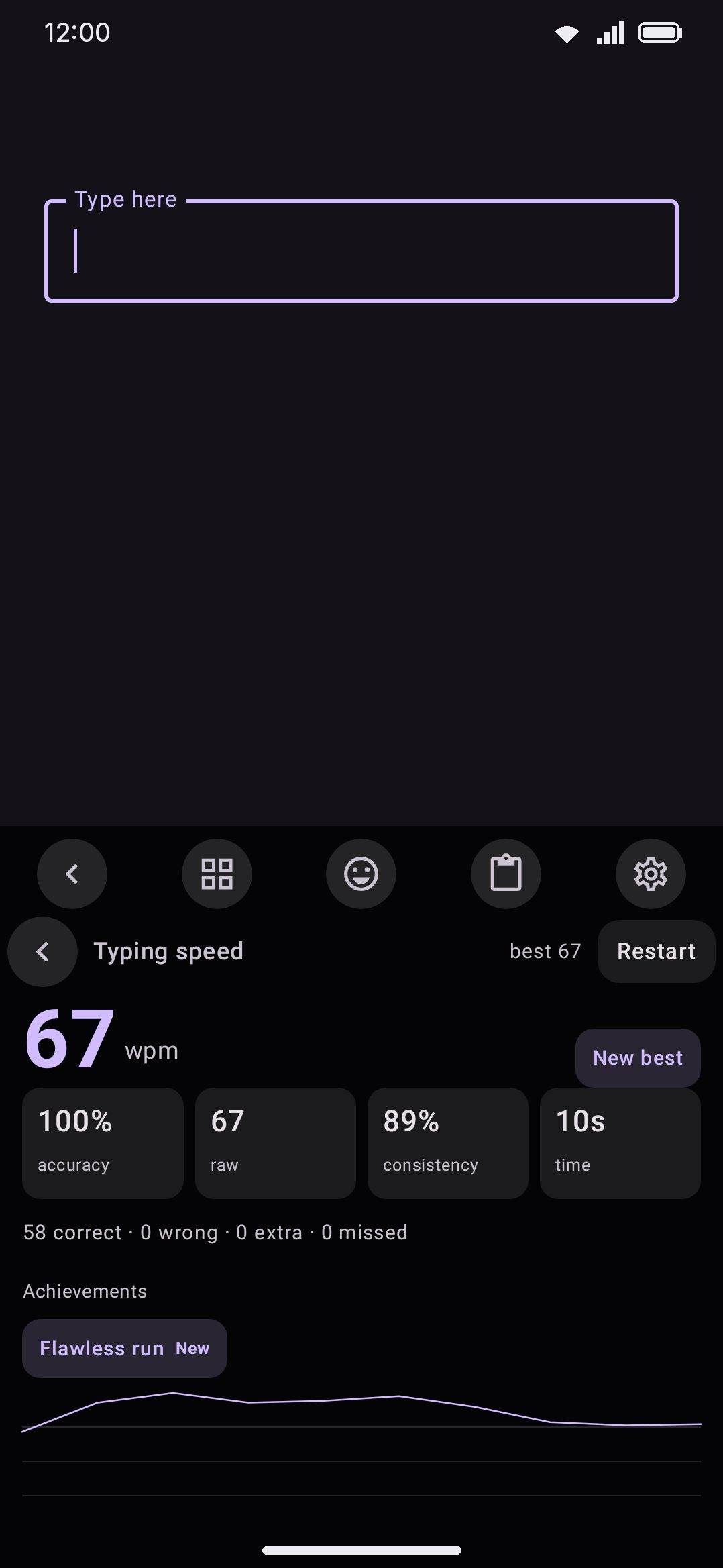
Results show four numbers. Words per minute is correct characters ÷ 5 ÷ minutes, the usual “5 characters = 1 word” convention. Raw speed counts every character you typed whether or not it matched. Accuracy is keystroke-level, so it still counts a mistake after you correct it. Consistency scores how even your pace stayed through the run. Insert score types the result straight into your field as "83 WPM · 96% accuracy (30s)", with your own numbers and config in place of that example. Personal bests are tracked per configuration, so a 15-second sprint and a 2-minute run don’t share a record, alongside a rolling history of your last 24 runs and a running count of tests completed. There are also four achievement badges to chase, listed with their conditions on Easter eggs.
Options
Section titled “Options”- Default test: Timed / Word count / Quote chips. The app opens on whichever you used last.
- Length: for Timed, a slider from 15 to 120 seconds (default 30); for Word count, a slider from 10 to 100 words (default 25). Quote mode has no length control, since a quote runs to its own end.
- Difficulty: the Punctuation and Numbers toggles, both off by default. This group is hidden entirely while Quote mode is selected.
- Records: tests completed, a recent average once you have history, a best-WPM row per configuration you’ve actually run, and Clear records to wipe all of it.
- Achievements: all four badges, listed whether you’ve earned them or not. 100 wpm club (finish a run at 100 wpm or faster), Flawless run (nothing wrong, extra or missed in a run of at least 30 characters), Quick brown fox (finish a quote that uses every letter of the alphabet), and 50 runs. Earned ones carry a green tick, the rest a faded padlock, so this group is where the goals are visible. The panel’s own results screen only shows badges you already have. Same list, with the conditions written out, on Easter eggs.
Details & edge cases
Section titled “Details & edge cases”- What’s offline, and what’s direct-boot safe. All seven tools work with no network connection except Currency, which needs one to fetch rates. Separately, Symbols, Calculator, Unit converter, Password generator and QR generator all still work during direct boot, the window right after a restart before you’ve unlocked the device for the first time. Currency doesn’t, having no network yet, and neither does Typing test, for reasons the app doesn’t surface anywhere. See The toolbar for the full direct-boot picture across every tool.
- Hardware shortcuts. With a physical keyboard attached, double-tap Ctrl then a letter: Y for Symbols, L for Calculator, U for Unit converter, Q for QR generator, P for Password generator. Currency converter and Typing test have no default letter. Reach them through the toolbox (T) or assign one yourself.
- Discoverable by typing. Typing one of a tool’s keywords as a standalone word offers a smart chip straight into it:
symbol/symbols,calc/calculator,convert/unit,currency/forex,qr,password/passgen,wpm. Each list is editable per tool under that tool’s own Keyword shortcut field. - None of these seven are edition-gated. Unlike the scanners and handwriting, which lean on ML Kit, Full and Lite ship all seven identically (see Full vs Lite if you’re comparing builds).
- Every tool here has its own Enabled switch, and an Icon colour override if colorful tool icons are on globally. Both live at the top of that tool’s own settings screen, above everything documented in this page’s Options sections.