
Keyboard fonts
Change the key-label typeface: Google Fonts, your own files, or addon fonts.
The keyboard doesn’t have to draw its key labels in the system font. Pick from a curated set of Google Fonts (20 for Latin, a handful for each other script), import your own .ttf/.otf file, or install one from an addon repository, and do it separately for Latin keys, Bengali keys, and each other script your enabled languages use.
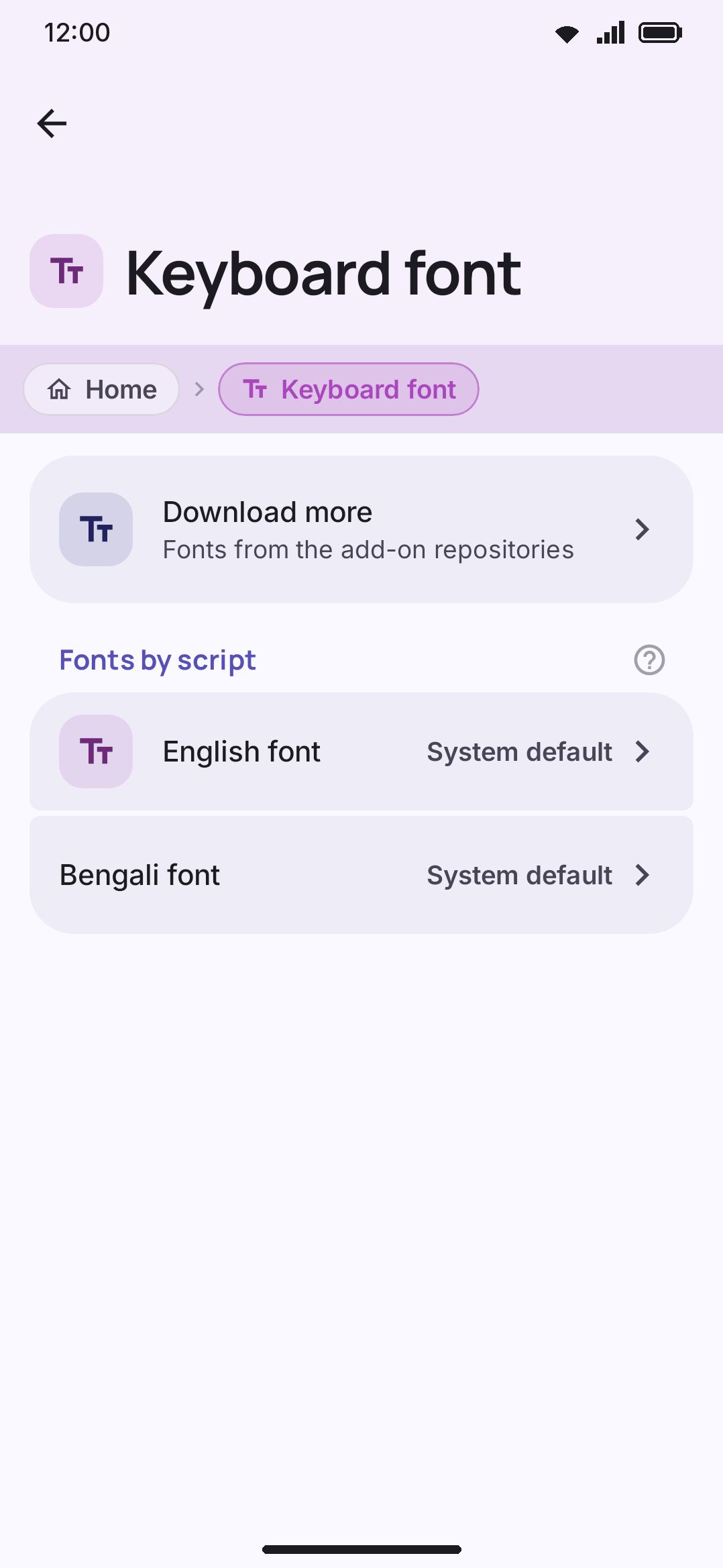
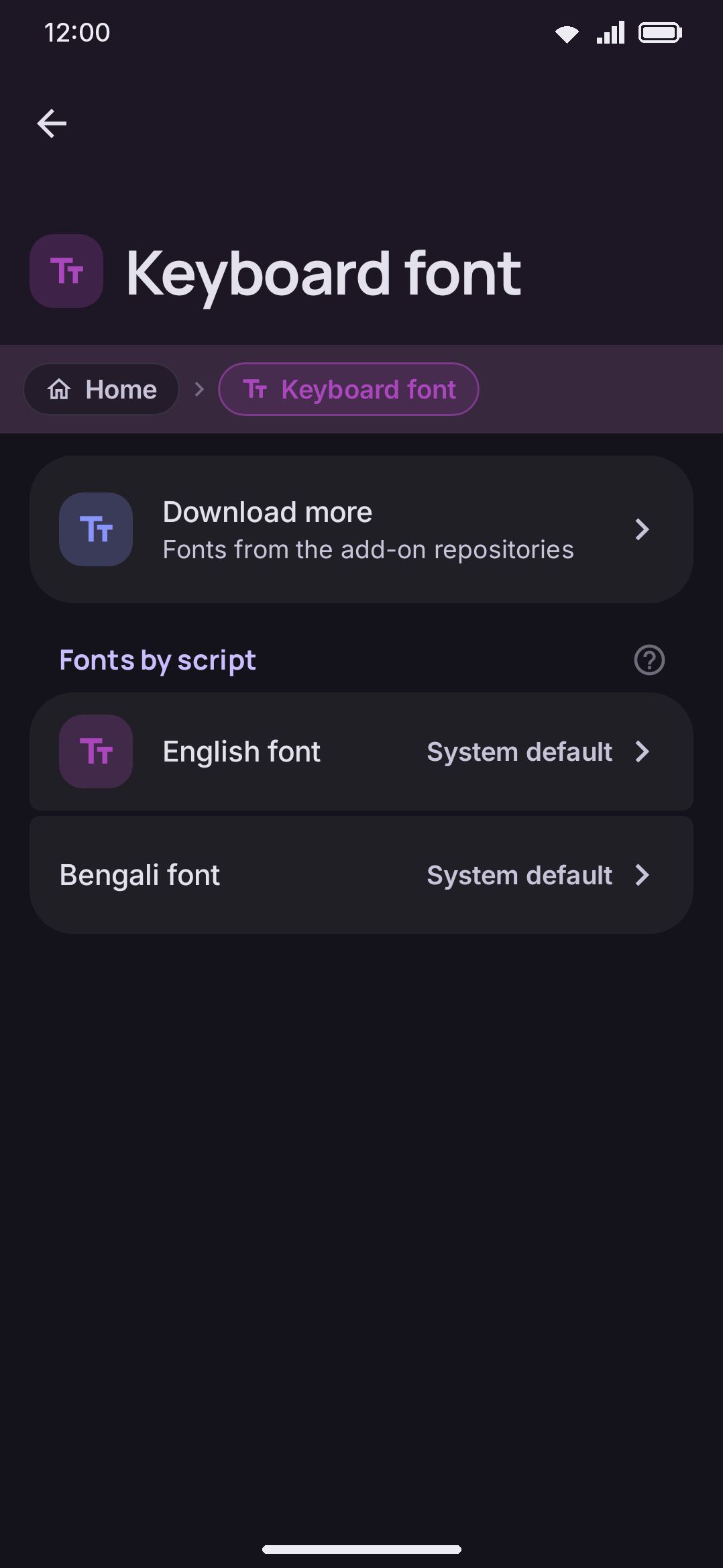
Choosing a Google Font
Section titled “Choosing a Google Font”Every picker is a scrollable list of SettingsGroup rows, and every row renders its own label live in the face it names: nothing to imagine from a font name alone. Fonts are fetched once through the Google Play Services downloadable-fonts provider and cached on-device after that, so the second time you pick one there’s no download at all.
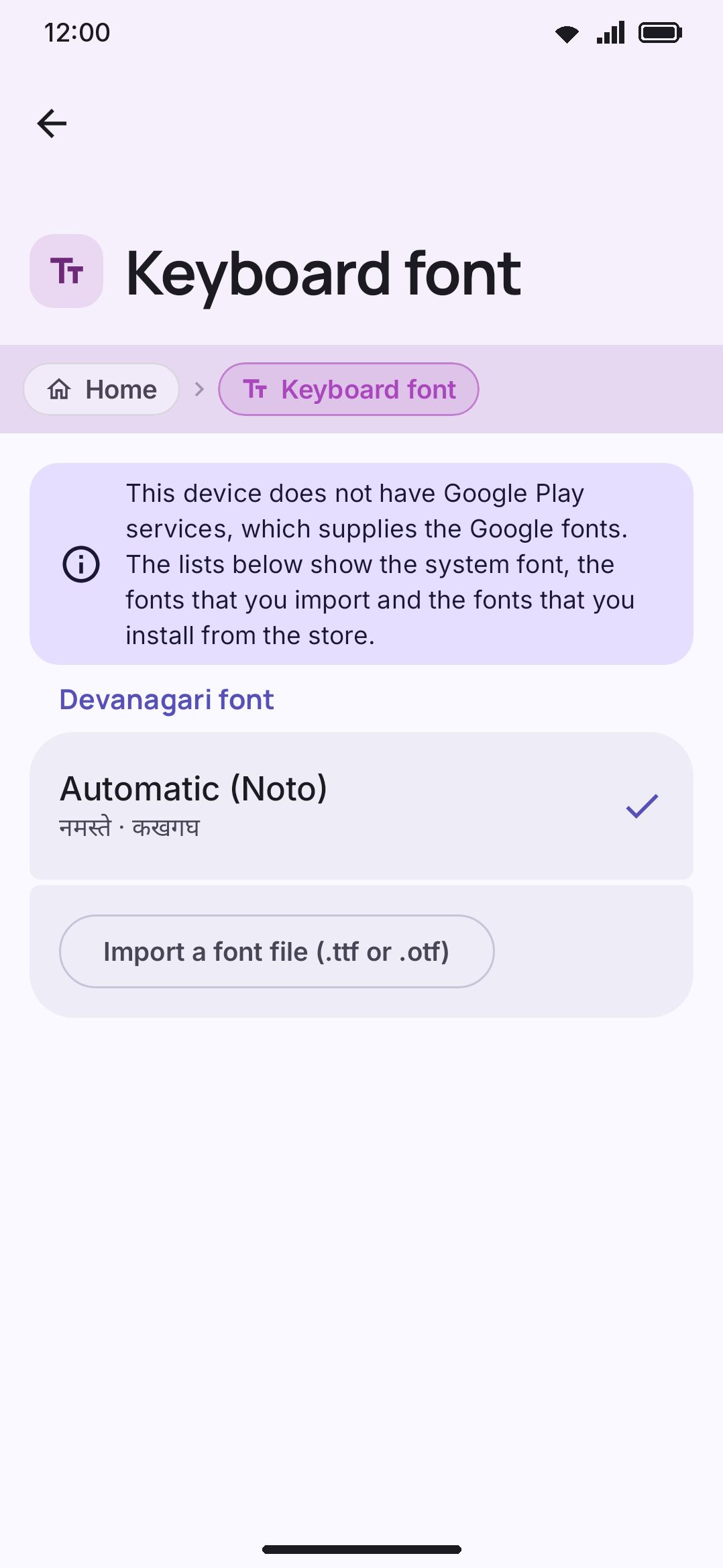
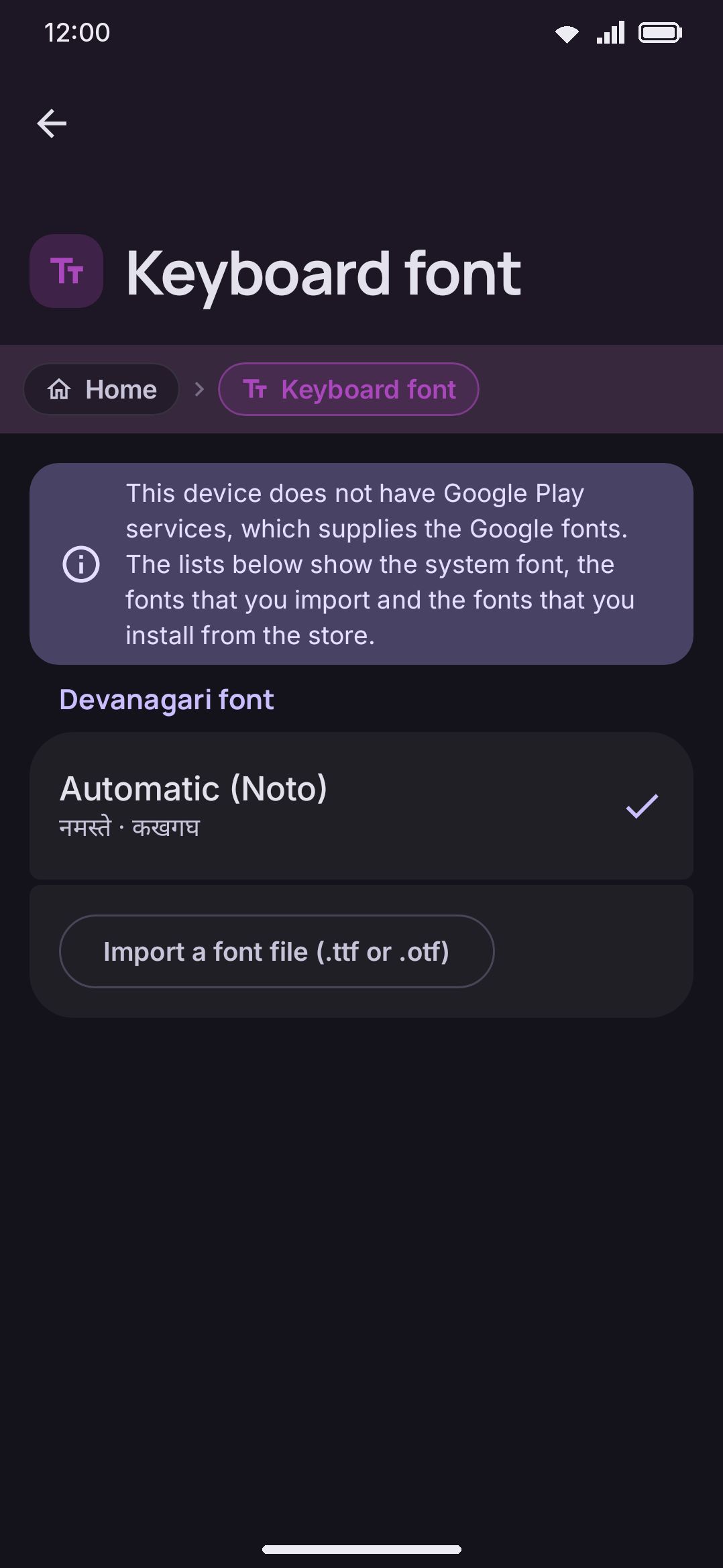
On a device with no Play Services (a de-Googled ROM, most commonly), the Google Font rows don’t appear at all. Picking one there would resolve to the system face and change nothing on screen. Rather than a list of rows that all look identical, you get one paragraph at the top of the screen: Play Services supplies those fonts, and the lists below hold the system font, your imports, and anything you installed from the store. The theme editor’s own font picker drops its Google list on the same devices, for the same reason.
- English gets 20 curated faces: Roboto, Inter, Open Sans, Lato, Montserrat, Poppins, Nunito, Rubik, Ubuntu, Source Sans 3, Merriweather, Lora, Playfair Display, Roboto Slab, Roboto Mono, JetBrains Mono, Comfortaa, Pacifico, Caveat, and Orbitron. This same picker also draws Cyrillic and Greek keys, since neither script has one of its own.
- Bengali gets an Automatic (Noto) row (which draws Noto Sans Bengali) plus 8 alternatives: Hind Siliguri, Noto Serif Bengali, Anek Bangla, Baloo Da 2, Tiro Bangla, Atma, Mina, and Galada, shown only while a Bengali-script language is enabled.
- 21 other scripts (Arabic, Hebrew, Armenian, Georgian, Devanagari, Gurmukhi, Gujarati, Odia, Tamil, Telugu, Kannada, Malayalam, Sinhala, Thai, Lao, Khmer, Myanmar, Ethiopic, Korean, Japanese, and Chinese) each get their own short curated list (from a single alternative for Armenian or Georgian, up to nine for Thai, Chinese, Korean, or Japanese), plus an Automatic (Noto) default row. A script’s section only appears while a language using that script is enabled, so the settings screen never shows pickers for scripts you don’t type in.
- Dozens of other scripts draw with an automatic Noto face too, with no picker at all, since none has a second well-supported face to offer. That covers real shipped-language scripts such as Thaana, Syriac, Tifinagh, Cherokee, N’Ko, Canadian Aboriginal Syllabics, Tibetan, Ol Chiki, Meetei Mayek, and Tai Le, plus notations like music and Braille.
Selecting a font applies it immediately. The English face governs English mode, the Bengali face governs Avro, প্রভাত, and জাতীয় modes. Each script face governs typing in that script, across key labels, the suggestion strip, and the keyboard’s own panels.
Importing your own font file
Section titled “Importing your own font file”Every script section has an Import a font file (.ttf or .otf) button, and its own installed-fonts list once there’s a font that fits it. The button adds the file to one shared library rather than overwriting a single slot, so importing a second font doesn’t evict the first. Each list is filtered to the fonts that declare that script, plus any that declare no coverage at all. Import a Devanagari or Thai font from any section, or install one from an addon repository, and it turns up in that script’s own picker. English and Bengali additionally keep a legacy single-file slot from older builds.
A picked file goes through two checks before it’s accepted:
- A byte-signature sniff that gives a specific rejection message for common near-misses: WOFF/WOFF2 web fonts (“use the .ttf or .otf version”), zip archives, or HTML/XML files saved with the wrong extension.
- An actual font-load attempt, so a file with a plausible header but a broken internal table is still caught before it’s registered.
Two limits apply: 50 fonts in the library at once, and 32 MB per file. Hitting either shows a plain-language dialog instead of a silent failure. Imported fonts live in the app’s private storage under a generated id, never the file’s original name, and if two fonts share a display name the newer one becomes “Name (2)”.
Installing fonts from an addon repository
Section titled “Installing fonts from an addon repository”Fonts are one of the addon types repositories can ship: a text font (font) and an emoji font (emoji_font) are distinct types, each capped at 32 MB, matching the manual-import limit. Neither type is previewable in the catalogue: a font can only really be judged by looking at the keyboard wearing it, so there’s no static preview image, just an install-and-try workflow.
Installing a text font addon adds it straight to the library with no follow-up question. The catalogue’s Use button takes you to the Keyboard font screen and scrolls to the font’s own row, in whichever section lists it, so a Devanagari face lands in the Devanagari section rather than at the top. The Installed fonts heading under English is only the fallback, for when no row on the screen carries that font. An emoji font addon works differently, and asks whether to start drawing emoji with it right away (see below). Uninstalling a text font removes it from the library outright, and clears it from every slot that named it: the English face, the Bengali face, and any per-script override all go back to their automatic default in the same step.
See Installing addons for the general install flow, and Addon repository format if you’re building a repository of your own.
Why a font only shows up where it fits
Section titled “Why a font only shows up where it fits”A font can declare which languages it covers. That claim is what keeps a Latin-only display face out of the Bengali picker’s installed list, where selecting it would draw every key as an empty box. A section lists a font when one of its declared languages matches that section’s script, or when the font declares no coverage at all. A font you import by hand makes no claim, so every section offers it. An addon font’s claim comes from the repository’s own manifest, which is how a Devanagari face lands in the Devanagari section and stays out of the others.
The filter only curates which fonts a picker offers. It isn’t what keeps keys from going blank. Rendering falls back per glyph to the system font automatically, whatever a font claims, so an exotic display face never leaves a key empty.
Emoji fonts are separate
Section titled “Emoji fonts are separate”The font you pick here never touches emoji: key labels and emoji are two independent settings, with their own pickers, their own addon type, and their own defaults. See Emoji customization for choosing between your phone’s system emoji set, Google’s Noto Color Emoji, an installed addon font, or a custom file.
Options
Section titled “Options”- English font takes the system default, one of 20 Google Fonts, or an imported or installed file. It also governs Cyrillic and Greek. Default: system default.
- One section per enabled script: the script’s Automatic (Noto) face, one of its curated Google Fonts, or anything in the library that covers it. Default: Automatic (Noto). English and Bengali additionally keep a legacy single-file slot.
- Installed fonts is the shared library. A section lists the fonts that declare its script or declare no coverage at all, and the heading stays hidden when none of them fit. Delete a font from any section that lists it.
A related but separate control: WM KeyboardAccessibilityReadable font is a one-tap shortcut that sets the English font to Atkinson Hyperlegible, the Braille Institute’s low-vision face where lookalike characters (capital I, lowercase l, digit 1) are drawn distinctly. It’s the same setting as the English font picker above, just reached from Accessibility instead.
Details & edge cases
Section titled “Details & edge cases”- Fonts apply to key labels, the suggestion strip, and the keyboard’s own panels, but not to the text you type, which always commits as plain Unicode and renders with whatever font the receiving app and device use.
- No Play Services means no Google Font rows: they’re removed from every picker rather than left there resolving to the system face, and a short paragraph at the top of the screen says why. The system font, your imported files and the font library are all the app’s own, so those stay.
- With the provider present but the device offline the first time a Google Font is needed, that row quietly renders in the system font instead of erroring; it downloads normally as soon as the provider is reachable.
- The 50-font and 32 MB limits are shared across the whole library: text and emoji fonts, manually imported and addon-installed, all count against the same caps.
- Deleting a font from its row on the Keyboard font screen resets that setting to the automatic default first if it was currently selected, so the keyboard is never left pointing at a file that’s about to disappear. Uninstalling the same font from the Addons screen does the same thing, and clears all three kinds of slot (English, Bengali, per-script) rather than only the one you were looking at.
- A script’s picker section only appears while a language using that script is enabled; disabling the last language of a script hides the section, though the underlying setting isn’t deleted.