
Personal dictionary
Words the keyboard learns from you, and full control over them.
WM Keyboard quietly builds a private, on-device vocabulary out of what you actually type: names, slang, abbreviations, anything the bundled dictionary doesn’t know. Every word in it is safe from autocorrect. A word nothing recognises has to be typed a few times before it gets in, so one bad swipe doesn’t put a misspelling in your dictionary for good. You can review that vocabulary, add to it or remove from it by hand, and wipe it entirely, all from Settings.
What gets learned, and how strongly
Section titled “What gets learned, and how strongly”A word only joins your personal dictionary if every one of these holds at the moment you commit it:
- “Learn from typing” is on. It is by default.
- Incognito isn’t currently pausing learning. Incognito goes active for one of two reasons. Either you switched it on yourself, or the focused field asked not to be learned from (Chrome’s incognito tabs, private-browsing fields elsewhere) and “Follow private browsing” let that request through, which it does by default. Whether active incognito actually pauses learning is a separate switch, “Pause learning,” and it’s on by default too. That one doesn’t live on the Privacy screen with the rest of these. It’s under the Incognito tool’s own settings (WM KeyboardToolsIncognitoWhile incognito).
- The field allows it. Password fields and PIN entry are excluded, and so is every structured field (email, web address, number, phone, date, time, datetime), deliberately independent of whether the app is also hiding the suggestion strip. Only plain text fields qualify.
Within a plain text field, how hard a word is taught depends on how it was committed:
- Tapped from the suggestion strip. Twice the weight of a plain commit, since choosing a candidate deliberately counts for more than just typing it out.
- Typed and committed normally. The default weight.
- Autocorrected into place. The corrected word itself is not added, because an autocorrect target earns no credit for being typed. The word pair around it is still recorded for next-word prediction either way.
- Backspaced right after an autocorrect fires. Restoring your original spelling counts double towards learning that spelling, because deleting a fix is a clear “I meant what I typed.” It no longer saves the word outright, since that was the fastest way for a stray swipe to get nailed into the dictionary forever. Nothing is lost by waiting: that exact correction is already blocked from firing again the moment you undo it. See Autocorrect for the rest of that flow.
A word needs at least two letters to be auto-learned this way. Adding one yourself (see below) has no such floor.
Words wait their turn
Section titled “Words wait their turn”Nothing you type is written to your dictionary while you’re still typing it. Every committed word is held first, and only counted once the text it landed in has stopped moving. That’s what gives you a chance to read back what you wrote: a word you fix, delete or re-pick was never learned in the first place. Only what you actually do to a word counts against it. Backspacing through it, sweeping it away with a delete swipe or typing a fix over it drops it; simply putting the cursor on it, or walking the cursor back through it with a spacebar swipe, leaves it waiting, and it is counted with the rest when you move on.
What differs between words is how many settled uses they need.
A word something already recognises, whether that’s the bundled dictionary, a wordlist you imported, a contact name, an app name, or your own dictionary, needs one. There was never anything in doubt about how it’s spelled.
A word nothing recognises has to be typed three times before it joins your dictionary, and each of those has to settle. Change that count with Remember a new word after under WM KeyboardTypingSuggestions, anywhere from 1 up to 10. A sighting that’s undoing an autocorrect counts double, so one undo plus one ordinary use is enough at the default.
Settling is what stops your slips being counted at all. A word you’ve just typed isn’t evidence of anything yet, because half the time you’re about to fix it, and a glide gives you the wrong real word often enough that counting it on the spot slowly turned the personal dictionary into a copy of the wordlist. So a word is held, unwritten, until one of these happens:
- You close the keyboard.
- You send or clear the field.
- You move to a different field.
- You keep typing far enough past it (about 500 words) that you’re clearly not coming back.
If you go back into that text before any of that, the word you change is dropped and counts for nothing: backspacing over it, deleting it with a delete swipe, or typing a fix on top of it. The word you merely land in is not decided by that alone. Tapping into it, or walking the cursor back through it with the spacebar, leaves it waiting, and it settles with the rest once you move on, so proofreading a sentence does not unlearn it and a word the cursor happens to sit on when you close the keyboard is still counted. The rest of the text you moved past is text you left alone, so tapping up to fix the first line of a note settles everything below it rather than throwing the whole session away. Re-picking a swiped word from the strip drops it too, because you just overruled the guess. So does deleting the word from your dictionary while it’s still waiting.
Two things skip the queue, because in both you’ve told the keyboard directly rather than by leaving text alone: tapping the Add "yourword"? chip, and Add word from the word menu or the Personal dictionary screen. Either way the word goes in once: the space you type straight afterwards finishes the same word you just added, so it isn’t counted a second time on top.
A word nothing recognises is invisible while it waits. It’s never suggested, never shields itself from autocorrect, and never shows up on the Personal dictionary screen until it graduates. Sightings also go stale on their own, so the same slip made in March and again in September never adds up to a word. (A recognised word waiting its one turn is a different matter: it was already in a dictionary, so it’s suggested and safe from autocorrect the whole time. All that’s waiting is your own count of it.)
Being asked instead
Section titled “Being asked instead”If you’d rather decide each one yourself, turn on Ask before saving new words (WM KeyboardTypingSuggestions). Nothing is counted and nothing is saved. Instead, the moment you commit a word nothing recognises, the suggestion strip offers a chip reading Add "yourword"?.
- Tap the chip and the word goes in right away, exactly as though you’d added it by hand.
- Tap the ✕ and the keyboard stops asking about that word, permanently.
- Ignore it and it goes away by itself as soon as you type the next word or press backspace. Nothing is saved.
The chip shares the strip with your word candidates rather than covering them, so it never gets in the way of finishing the sentence. Only one ask-first chip shows at a time: a snippet offer takes priority over this one.
From the suggestion strip
Section titled “From the suggestion strip”Press and hold any word on the suggestion strip and a small menu opens about it. Its items depend on the word and on what you are typing:
- Never suggest puts the word on the suggestion blacklist. For a word already on it, the item reads Suggest again instead.
- Add “yourword” appears while the word you are working on is not in your personal dictionary. It is about the word under the cursor, not the word you held: the suggestions are known words already, and the one you want in is the one you are writing. That covers the word you are typing right now and, with nothing being typed, the word the cursor is parked inside, which is when you usually spot the spelling your dictionary is missing. The word goes in spelled exactly as you typed it, counted as one use, and its capitals are kept (see capitals below). If it was on the blacklist, it comes off.
- Delete “word” appears for a word the keyboard can forget: one in your personal dictionary, one still waiting to be learned, one in Android’s own dictionary, one you adjusted the rank of, or one in a word list you imported. It is forgotten from all of those. A word in an imported list is taken out of the list’s file itself, so it does not come back with “Suggest again”. If the word is also in a downloaded word list, which the keyboard cannot edit, it goes on the blacklist too, so it is gone from the strip either way. Delete edits imported lists under WM KeyboardTypingSuggestions is the switch: turn it off and imported lists are left as you imported them, and the word is blacklisted instead.
- Search all words for “word” appears when the cursor sits inside a word a swipe wrote and that swipe’s path is still kept. Like Add, it is about the word under the cursor rather than the one you held. It reads the stroke again against every word list you have — past whatever limit glide typing normally works under — and fills the strip with the answers, which is the only way back to a word the decoder was never allowed to offer. See Going back to a misread swipe.
- Synonyms for “word” lists words with the same meaning as the word you held, grouped by part of speech and, where the source gives one, by meaning. Tap one and it goes in place of the word, exactly as if you had picked it off the strip: it replaces the word you are typing, the word the cursor is in, or the word a swipe just wrote, and it takes that word’s capitals, so “Happy” at the start of a sentence becomes “Glad”. Held on a next-word prediction, it types the synonym as the next word. It appears for English words, on a keyboard with English among its languages. See Synonyms below for where the words come from.
- Edit is always there. It opens the word card.
Put the cursor inside a word and that word is itself the top candidate on the strip, so the menu for it is one hold away rather than a hunt for a chip that happens to be showing. Tapping that chip does nothing but put the strip away, since it would only replace the word with itself. See When the cursor lands in a word.
Synonyms
Section titled “Synonyms”The synonyms come from a list of sources, which Synonym sources under WM KeyboardTypingSuggestions puts in order. The keyboard asks the first source that is on. When that source has no synonyms for the word, or cannot be reached, it asks the next one, so one service being down or not knowing a word does not leave you with nothing. The panel says at the bottom which source answered.
| Source | Where | What it knows |
|---|---|---|
| Vocabulary packs | on the phone | Wiktionary’s synonyms for the words in the vocabulary packs you downloaded, grouped by meaning. Nothing is sent anywhere |
| Datamuse thesaurus | api.datamuse.com | most English words, ranked by how well each one stands in for yours |
| Wiktionary | kaikki.org | Wiktionary’s full entry for the word, grouped by meaning |
| Free Dictionary API | api.dictionaryapi.dev | the source the Dictionary tool uses |
| Similar words | api.datamuse.com | words with a related meaning, for a word no thesaurus lists synonyms for. The panel says so when these are what you get |
All five are on by default, in that order. Drag a source to move it and turn its switch off to never ask it. An online source receives the word you held and nothing else. A look-up happens only when you tap Synonyms, and Data saver does not hold it back, the same as a vocabulary look-up. The keyboard remembers the last few answers, so opening the same word again asks nobody.
The word card is a panel over the keyboard, and it is everything the dictionary screen can do to one word without leaving the keyboard. It lists everywhere the word was found: your personal dictionary with how often you typed it, the waiting room, each word list that has it with its place in that list (“#4,512 of 300,000”), an imported list, Android’s dictionary, a contact, an app, or the blacklist. Under that come the word’s own controls, and along the bottom the same actions as the menu, so a menu trimmed down in settings still reaches all of them.
Spelling is the first control: the word as it is spelled now, a Change button, and a Keep these capitals switch.
Pressing Change hands the keys to a bar in the strip’s own row, since the card itself covers the keyboard and there is nothing under it to type with. The bar starts from the word as it stands and edits like a small text box:
- Tap in it to put the caret there, drag across letters to select them, or hold to select the whole word.
- Swipe along the spacebar to move the caret. With shift up or selection mode on, the swipe drags out a selection instead. A hardware keyboard’s arrows, Home and End work too.
- Press shift over a selection to cycle it through lower case, Title case and UPPER case, the same as in a text field.
- Glide a word and it goes in at the caret, replacing any selection, with no space after it.
Backspace deletes, the ✓ (or the Enter key) applies it, and the ✕ (or the back gesture) leaves the word alone. Nothing you type there reaches the app you are writing in.
Applying a respelling moves everything the keyboard keeps about the word onto the new spelling: how often you typed it, the language it was last typed in, the word pairs it takes part in, and its rank adjustment. Change nothing but a capital and it is not a move at all, because every list keys the word the same way. It settles the spelling instead and pins it. A word your personal dictionary does not have, one from a downloaded list, has nothing to move: the new spelling is added by hand, which is what puts it in front of the list’s own.
Keep these capitals is the same switch as the dictionary screen’s, for a word the keyboard has already learned; see capitals below.
Then the rank controls. Which of them the card shows is a setting, Adjust rank changes under WM KeyboardTypingSuggestions, set to Both by default:
- Learned weight edits the same count the dictionary screen shows, with the same minus and plus buttons stepping a decade at a time. Lowering it to “Not learned” forgets the word. Raising it on a word the keyboard has not learned adds the word at that weight. It cannot push a word below a word list’s own order, since the count only ever adds.
- Rank adjustment keeps a separate up-or-down setting for the word, from −10 to +10, that the keyboard applies on top of every list. Any word can move either way, a word from a downloaded list included, and what the keyboard learned is untouched. Adjustments show up in a Rank adjustments group at the bottom of the dictionary screen, each with a button to reset it. They never affect autocorrect, only the order of the strip.
Which items the menu shows is up to you. Word menu under WM KeyboardTypingSuggestions is a row of chips for Never suggest, Add and Delete; turn one off and it stays off the menu. Edit cannot be turned off, because the card carries the other three anyway, and neither can Search all words, which only appears where there is a stroke to search at all.
Capitals
Section titled “Capitals”The dictionary keeps one spelling per word, and normally votes on it: type “Boston” with your own capital a few times and the word is offered as “Boston” from then on; type it in lower case often enough and the capital wears off again. The vote runs both ways. A word you have written in lower case for a long time has that standing behind it, up to the same cap the capital gets, so one “Keyboard” typed with Shift does not turn every later suggestion into “Keyboard”; it takes as many capitalised uses as the lower case had, at most eight. A word from one of your wordlists counts as written in lower case from the start, even before your personal dictionary has it: gliding “The” through Shift once adds “the”, not “The”, and it takes eight capitalised uses to turn it. Only a word the keyboard has never seen anywhere takes its capital on the first sighting, since there is nothing to outvote. A capital that auto-capitalise put on a sentence start never counts, and neither does caps lock.
Only a capital you typed is a vote. A swipe types no capital at all: your finger draws letters and the keyboard decides how to spell what it read. So a swiped word never votes on its own spelling, however it comes out. Neither does tapping a suggestion that is capitalised when what you typed was not: the chip is spelled the way the dictionary spells it, and choosing it is choosing the word, not the capital. To teach a capital, type it: press Shift, or glide through the Shift key (see Glide typing).
This is what stops a name you write both ways from getting stuck. Before, a swipe that came back as “Mark” was learned as “Mark”, which made the next swipe come back as “Mark” more strongly still, and “mark” could never be written plainly again.
A word you add yourself is different. Add it by hand, from the dictionary screen or from the strip’s Add item, or respell it in the dictionary screen’s edit dialog or on the word card. Either way its capitals are kept: no amount of later typing changes them. The row reads “capitals kept”, and both the edit dialog and the word card have a Keep these capitals switch to turn that off, or to turn it on for a word the keyboard learned on its own. Keeping “you” in lower case this way is how to stop it ever being offered as “You” after a sentence start.
Why a learned word matters
Section titled “Why a learned word matters”Once a word is in your dictionary, it’s exempt from autocorrect. The correction engine treats anything in your personal dictionary the same as a word from the bundled dictionary, and never “fixes” it away. It also carries a heavy weight in suggestion ranking, so it competes with genuinely common words in the strip almost immediately rather than needing to be typed dozens of times first. See Autocorrect and Suggestions & prediction for how those two mechanisms work in full.
That protection is exactly why a new word waits. It also means a second threshold sits behind it. Learn a word after under WM KeyboardTypingSuggestions runs from Once up to 5, and asks for that many reinforcements of a word already in your dictionary before it’s shielded. Ranking is unaffected either way, so a word below that threshold is still offered on the strip, it just isn’t shielded from correction. With Remember a new word after doing the heavy lifting now, most people can leave this one at Once.
Alongside single words, the same learning pass builds word-to-word pairs, so typing “good” after “have a” can predict “morning”. It builds three-word contexts as well, which win over the two-word ones when they match. It builds word-to-emoji pairs too, so a phrase that’s usually followed by 🎉 can offer it. Pairs are only built out of words the keyboard recognises, at both ends, so a habit is never hung off a possible typo and a misspelling can’t come back as a next-word suggestion. A separate, bundled set of generic English word pairs gives next-word prediction something to work with before you have any typing history of your own. None of those pairs are part of your personal dictionary. They aren’t stored in it, don’t show up on this screen, and can’t be edited or cleared, and your own learned pairs always outrank the bundled ones once you have some.
Adding, editing and removing words
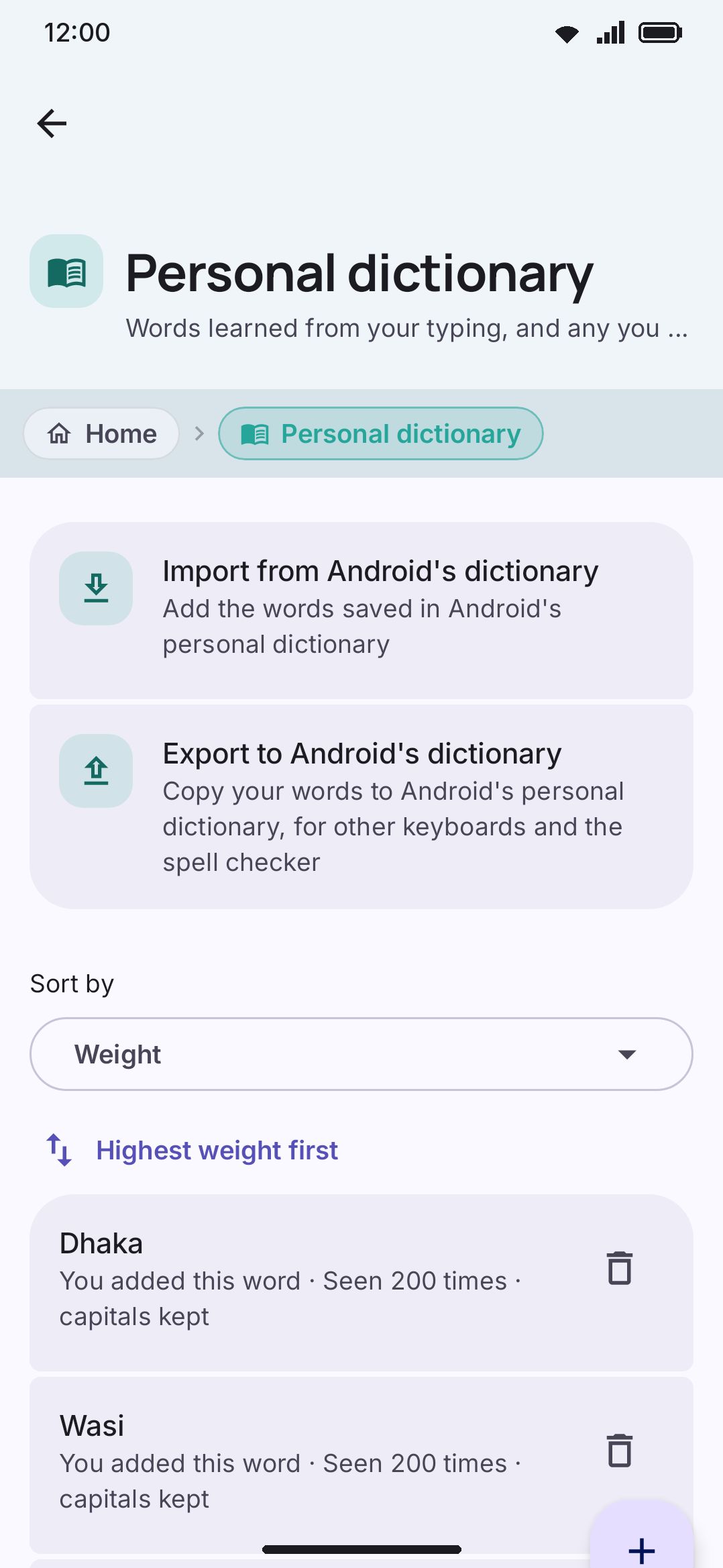
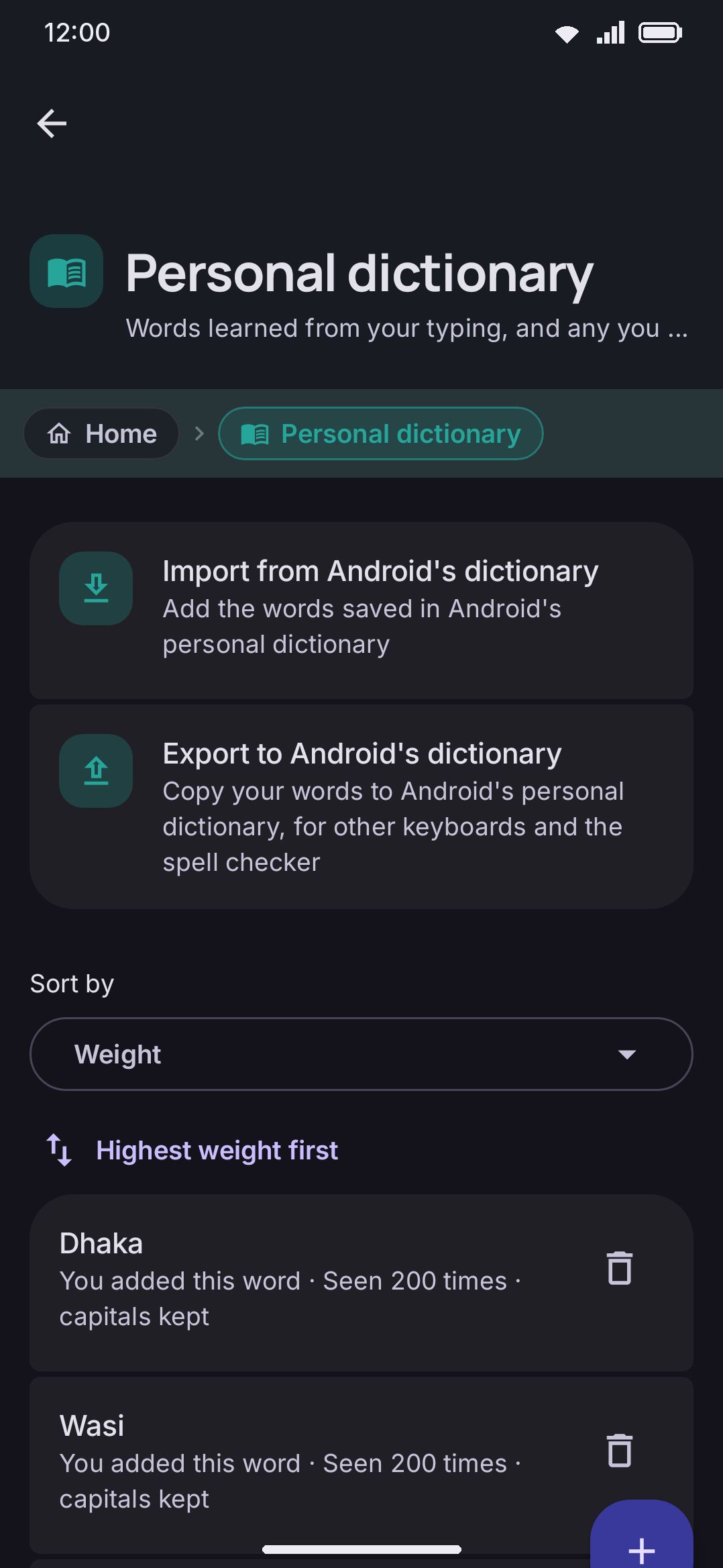
Section titled “Adding, editing and removing words”Every word you’ve typed or added sits in one list, with the highest weight first until you select another order. Once the list passes a dozen entries, a search field appears above it, and the list itself draws 100 rows at a time with a Show N more words row to reveal the rest, so a dictionary of thousands of words never composes all at once. Each row reads “Seen N times”; a word you put in yourself reads “You added this word · Seen N times”, so it shows its count like any other.
Sort by above the list sets the order: Weight, Alphabetical or Date added. The button under it says which way the list runs, and pressing it reverses that: highest or lowest weight first, A to Z or Z to A, newest or oldest first. Both alphabetical orders keep words that start with a capital letter at the top, so names sit together. Words with the same weight or the same date fall back to A to Z. The screen remembers the order for your next visit.
Date added is when a word joined your dictionary, not when you last typed it, so a word you type every day stays where it joined. That makes Newest first the quick way to review what the keyboard picked up recently. Words saved by a version from before this order existed have no date of their own, so they sort by when you last typed them instead. Words learned in the same typing session share a date and sit A to Z among themselves.
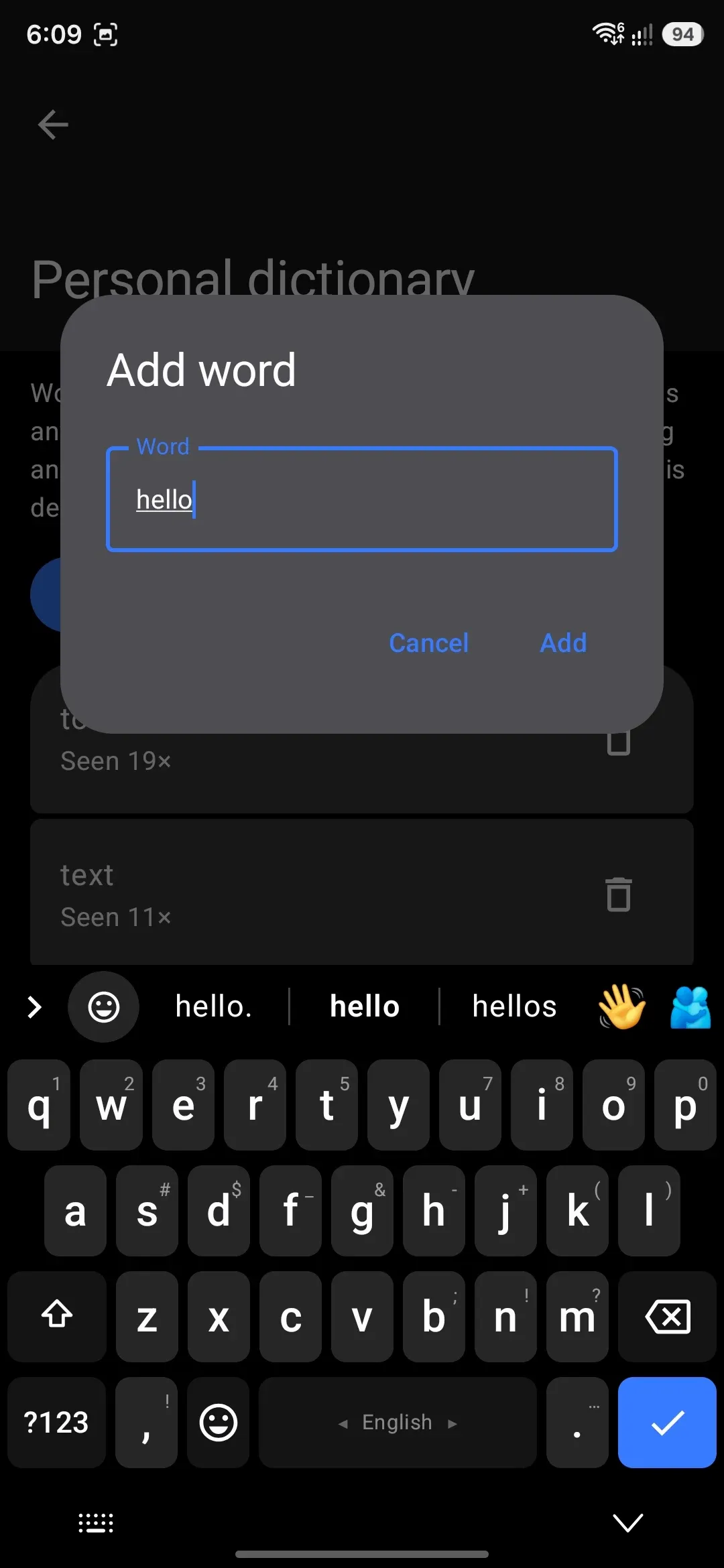
Add word opens a dialog with a single field. Confirm and the word goes in at a weight of one, or one more than it already had, marked as added by hand. Adding a word says it is a word, not that it is a frequent one, so it earns weight the way every other word does, by being typed. What the mark buys is that the word is immediately safe from autocorrect whatever the Learn a word after threshold says, and that it is the last thing compaction (see below) would ever remove. A trash icon on each row removes that word, and drops it out of any word pairs it was part of.
Press any row to edit it. The dialog that opens holds the spelling, the weight and a Keep these capitals switch, and you can change any of them. Fix the spelling and the word keeps everything it had: its weight, the language it was learned under, and every word pair and triple it was part of, so “have a good” still predicts the corrected word afterwards. Respell a word onto one that’s already in the list and the two merge into one entry. The weight is the same number the row reads out as “Seen N times”, typed straight in or nudged with the minus and plus buttons beside it, which step by one below 10, by ten below 100, and so on up a decade at a time. Anything from 1 to 1,000,000 is accepted. Raising a weight makes the word win the strip sooner; lowering it does the reverse, and a word taken down to 1 is back in reach of Remove one-off words unless you added it by hand. Weight has no effect on autocorrect protection: every word on this list is shielded whatever its number, subject only to the Learn a word after threshold.
Remove one-off words appears next to it whenever the list holds anything that’s only been seen once, and clears the lot in one go after a confirmation that tells you how many there are. Older versions saved every new word the first time it was committed, so on an upgraded install this is where the stray swipes and mistyped words are. Words you added by hand are never in there, whatever their weight.
To add a lot of words at once from something you already wrote, open the Learn from text tool in that note or draft. It lists the words the keyboard doesn’t know yet, and adds the ones you keep checked exactly as Add word would.
Words are capped at 32 characters, counted after the word is lowercased. Anything longer is dropped on the floor by both paths: typing it teaches nothing, and Add word closes the dialog as though it worked while the list stays exactly as it was. There’s no error and no warning, so if a long entry never turns up in the list, count the characters.
Every add, edit or remove here updates a version marker the running keyboard watches. If the keyboard is open in another app while you edit the list, it reloads your change instead of silently overwriting it the next time it saves. Before you’ve typed or added anything, the screen reads “Nothing here yet. Words appear as you type, if ‘Learn from typing’ is on in Privacy. You can also add a word above.”
Two related screens are easy to confuse with this one but do something different. The suggestion blacklist is a separate never-suggest list. Blacklisting a word does purge it from this one, though neither screen offers a shortcut to push a word the other way. Custom dictionaries is for importing a bulk word list per language rather than words you’ve typed (see Downloadable dictionaries for that).
Android’s dictionary
Section titled “Android’s dictionary”Android keeps a personal dictionary of its own, shared by every keyboard and the spell checker. Two rows above the word list move words between it and yours, whenever you ask:
- Import from Android’s dictionary lists the words in Android’s dictionary that aren’t in yours yet, all checked. Uncheck any you don’t want and tap Add. They go in as words you added by hand, and a word written there with capitals keeps them. An entry with spaces in it, like “on my way”, comes in as separate words, the same way the keyboard already reads it.
- Export to Android’s dictionary lists your words that Android’s dictionary doesn’t have yet, most used first, and Copy writes the checked ones there. A message says how many went.
An entry with spaces in it is read as its separate words everywhere, but its capitals are left on the phrase: “User Dictionary Manager” in Android’s dictionary teaches the keyboard “user”, “dictionary” and “manager” and nothing about how you capitalise them, so they are still suggested in lower case. A single-word entry written with capitals does keep them. Importing is the exception, since you pick the words yourself: each part comes in as you see it in the list, capitals and all, and unchecking the ones you do not want is the point of the list.
Words match whatever their capitals, so “Boston” and “boston” count as one word and are never offered twice. Android only lets the keyboard currently in use touch its dictionary, so both rows need WM Keyboard to be your current keyboard. Otherwise they say so and do nothing. Neither runs by itself: to copy each new word as the keyboard learns it, turn on Add words to the system dictionary under Privacy.
Clearing everything at once
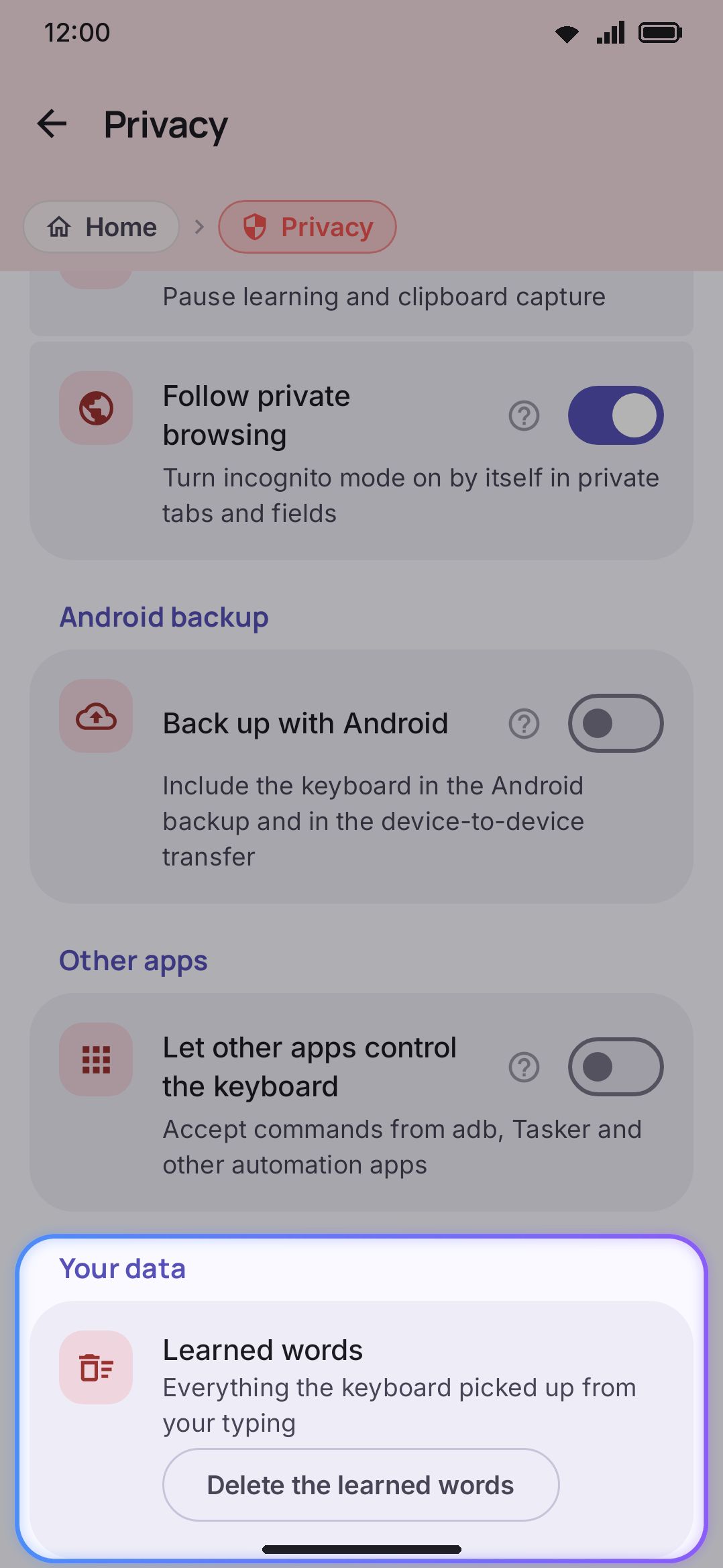
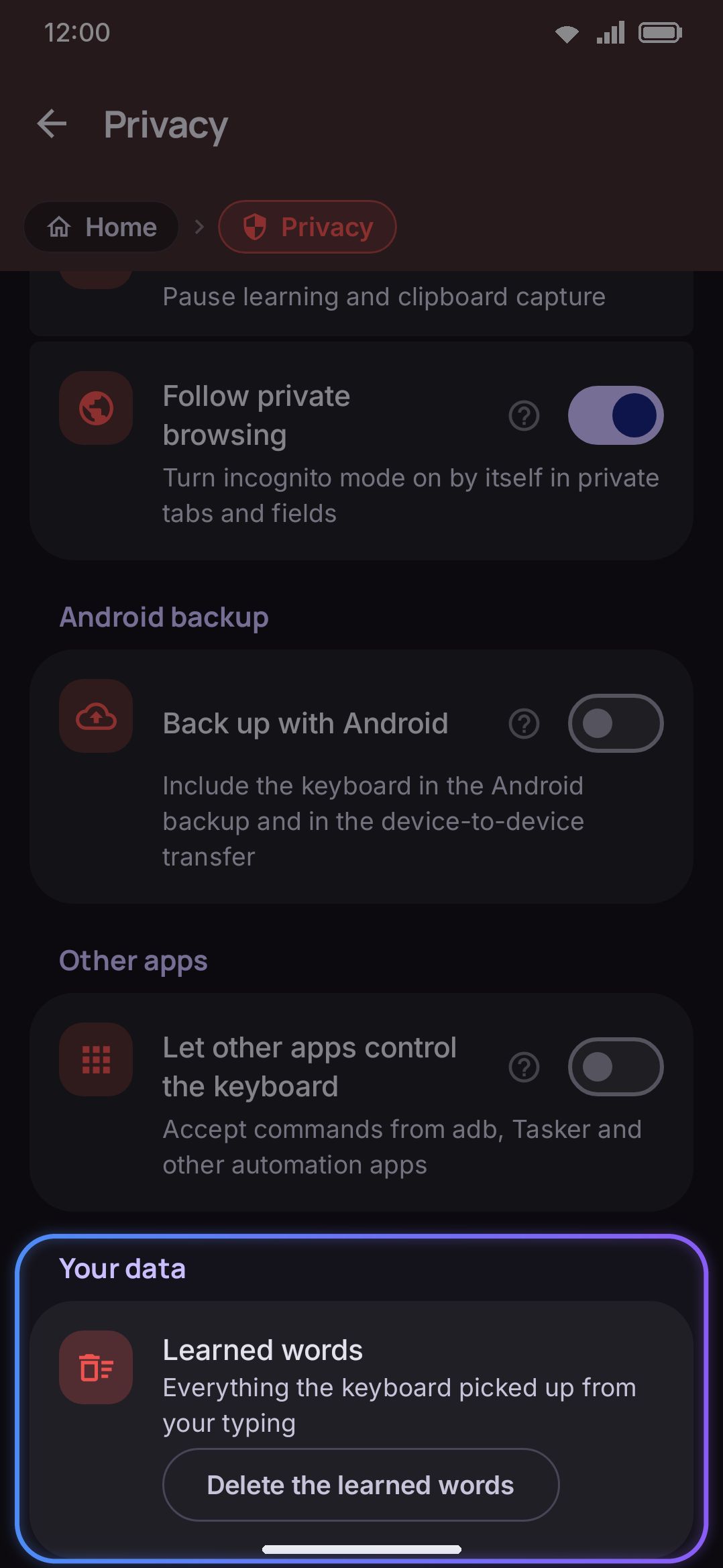
Section titled “Clearing everything at once”The row is called Learned words and its button reads “Delete the learned words”. It asks first: a dialog spells out what goes and waits for you to confirm.
It reaches wider than this word list. Seven files are cleared together, because each learning store lives on its own: your learned words, the new words still waiting to be counted, your rank adjustments, your emoji-usage history, autocorrect’s memory of the corrections you undid, your CJK candidate-pick history, and the language-mix signal behind mixed-language typing.
Like an add or a remove, the delete bumps the version marker a running keyboard watches, so a session open in another app re-reads your vocabulary from disk instead of saving the old copy back over the wipe. Typing statistics live under their own folder and aren’t touched. Clear those from the Statistics screen instead.
Where it lives, and who else can see it
Section titled “Where it lives, and who else can see it”Your personal dictionary is a single JSON file in the app’s private storage, never uploaded anywhere on its own. Two things are true by default, and two are opt-in:
- It’s inert during direct boot. Between a restart and your first unlock, the file is unreachable, since it lives in credential-encrypted storage. The keyboard runs with an empty, in-memory-only vocabulary: nothing is read, and nothing you type in that state is written anywhere. Once you unlock, the real file is reattached and the temporary in-memory copy is discarded rather than merged in.
- Nothing mirrors outside the app by default. An opt-in toggle can additionally copy newly-learned words (not autocorrect targets) into Android’s own shared personal dictionary, so other keyboards and spell checkers can see them too. It’s off by default, one-directional, and forced off automatically during direct boot however you’ve set it, since nothing typed on a lock screen should be learned anywhere. A separate toggle, on by default, does the reverse for a different field of that same system list. It reads back any shortcut entries you’ve defined there (like “omw” → “on my way”) and offers the full phrase as you type the shortcut. Glide the shortcut instead and the full phrase is typed straight away; while you swipe, the floating word, the suggestion strip and the words offered when you hold still show it as
omw = on my way, and one backspace puts the shortcut back. To move words across by hand in either direction, see Android’s dictionary. - Android’s own backup is opt-in. Turning on “Back up with Android” includes your whole keyboard, learned words included, in Android’s standard app-data backup and phone-to-phone transfer.
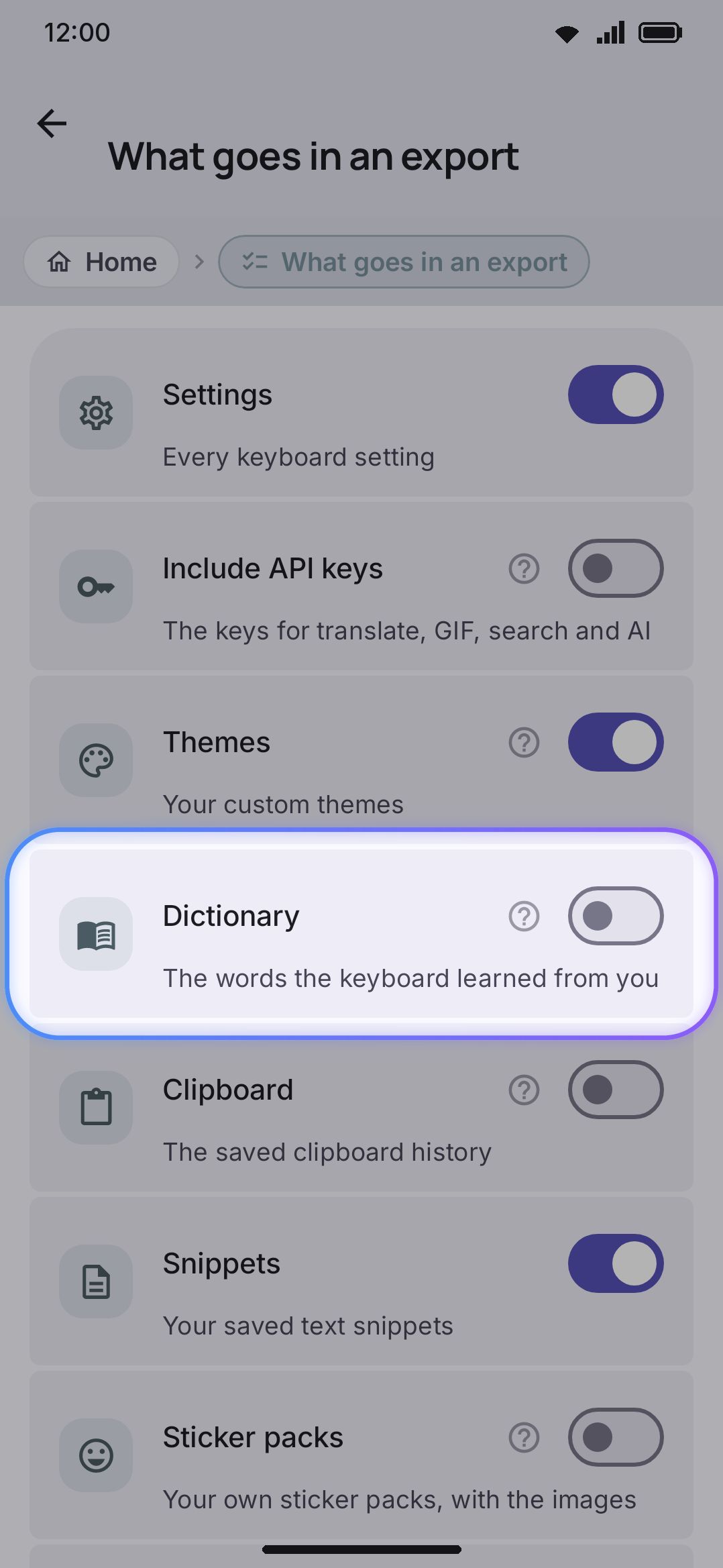
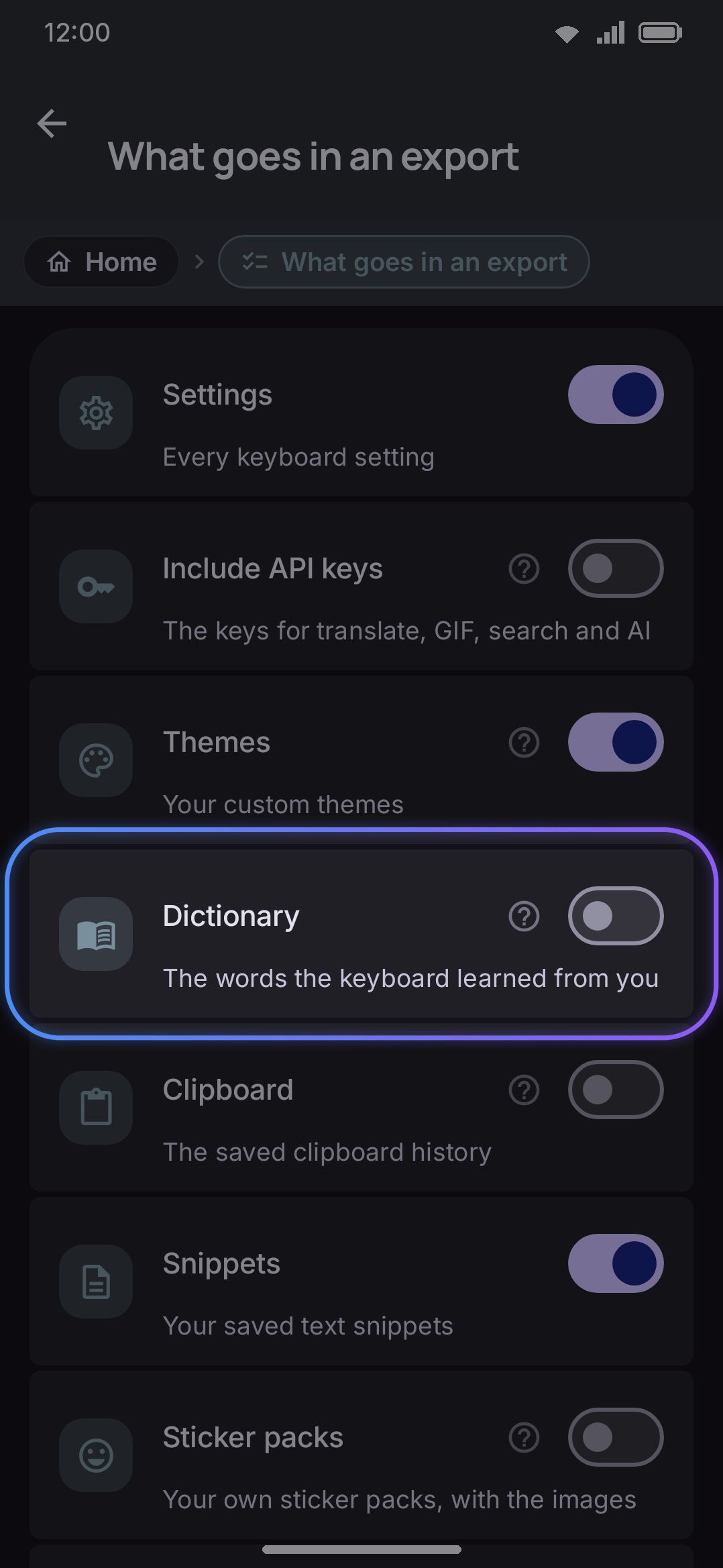
- A manual export leaves it out by default. The Backup & restore screen’s “Dictionary” section covers your personal vocabulary, next-word patterns, rank adjustments, the fixes you have taught autocorrect and where your taps land, and it starts unchecked. A settings file you export and share out of habit carries no typing data along unless you deliberately opt in. Restoring that section does signal a running keyboard to reload, the same as adding or removing a word does.
See Incognito & secure fields for the rest of how incognito and secure fields work, and Backup & restore for the full export/restore and Android-backup picture.
Options
Section titled “Options”| Setting | Default | Where |
|---|---|---|
| Learn from typing | On | Privacy / Learning on this device |
| Add words to the system dictionary | Off | Privacy / Learning on this device |
| Use the Android dictionary | On | Privacy / Learning on this device |
| Expand Android dictionary shortcuts | On | Privacy / Learning on this device |
| Incognito mode | Off | Privacy / Learning on this device |
| Follow private browsing | On | Privacy / Learning on this device |
| Pause learning (while incognito) | On | Tools / Incognito / While incognito is on |
| Learn a word after | Once | Typing / Suggestions |
| Remember a new word after | 3 | Typing / Suggestions |
| Ask before saving new words | Off | Typing / Suggestions |
| Word menu | Never suggest, Add, Delete | Typing / Suggestions |
| Adjust rank changes | Both | Typing / Suggestions |
| Back up with Android | Off | Privacy / Android backup |
| Include “Dictionary” in export | Off | Backup & restore / What goes in an export |
The dictionary screen itself has no settings beyond the word list, its sort order, its two buttons, the two Android rows and the per-word edit dialog. Every toggle that controls whether something gets learned lives on the Privacy screen rather than here, with two exceptions: pausing learning during incognito is under the Incognito tool’s own settings, and the three thresholds that decide when a word gets in and when it’s shielded sit with the rest of the suggestion sliders.
Details & edge cases
Section titled “Details & edge cases”- The in-app description undersells the gate. “Learn from typing” describes itself as skipping “password fields,” but the real gate is broader. Every structured field (email, web address, number, phone, date, time, datetime) opts out too, not only the secured ones.
- The backspace-revert path checks slightly different conditions than ordinary learning. Restoring a word by backspacing right after an autocorrect checks only the setting, incognito, and that the field isn’t a secure one. It doesn’t ask for a plain text field the way normal learning does. In practice that costs you nothing, because the autocorrect it undoes could only have fired in a plain text field in the first place. It’s also counted immediately rather than waiting to settle, since you’ve told the keyboard directly rather than by leaving the text alone.
- A blacklisted word is never learned while it stays blacklisted. The personal dictionary and the suggestion blacklist are independent stores, but adding a word to the blacklist purges it from the personal dictionary and the words still waiting to be learned. Typing it afterward teaches the keyboard nothing while it remains on the list. The blacklist also wins as a candidate, so the word is never offered or autocorrected to either way. Take it off the blacklist and ordinary learning resumes.
- Words added before this version keep their old weight. Earlier versions handed an added word a weight of 200 instead of marking it, so on an upgraded install those words read “Seen 200 times” without the added-by-hand note. Lower the weight from the edit dialog if it crowds the strip.
- Editing only the capitals of a word keeps everything else. The respelling is compared after lowercasing and normalising, so changing only capitalisation is not a rename: the word keeps its weight, its pairs and its age, and only its kept spelling changes.
- Respelling a word keeps its date. A word you respell, or merge into another, keeps the older of the two dates, so fixing a typo does not move it to the top of Newest first.
- A weight edit resets the word’s age. Compaction (see below) scores a word by its weight and how long ago it was last touched. Editing a weight counts as touching it, so a word you deliberately adjusted starts fresh on that clock.
- The list is capped, and stale words go first. It holds 10,000 words before it starts trimming, and words you added by hand outlast the ones the keyboard picked up on its own. See Dictionaries & words for how it chooses.
- A word arrives with the count it earned. A new word that took three sightings to get in reads “Seen 3 times” on the list, not “Seen once”, because the sightings it collected on the way in come with it.
- Turning learning off empties the waiting room too. Switching off “Learn from typing”, or switching on incognito while it’s set to pause learning, throws away the words that were queued but not yet counted. They were typed while it was allowed, but none of them had been written anywhere.
- A language with no dictionary of its own is slower to learn from. Nothing recognises any of those words, so every one of them waits its three sightings. Set Remember a new word after to 1 if you type mostly in a language the keyboard has no wordlist for.
For the rest of the suggestion strip (completions, corrections and next-word prediction), see Suggestions & prediction. To keep a word out of suggestions entirely instead of teaching it, see the suggestion blacklist. For how contact names interact with this same learning path, see Contact-aware typing.