
Privacy at a glance
Offline by default, no telemetry, network per-tool and opt-in. The receipts are in this section.
Typing never touches the network on this keyboard, in any language and on any layout. That covers composing, prediction, autocorrect, gesture typing, spell check and learning. A short list of optional tools does reach the network. This page names every one of them, what sets it off, and how to switch it off.
The short version
Section titled “The short version”Everything the keyboard needs to type, predict, autocorrect and learn from you runs locally. Bundled and downloaded dictionaries, Bangla and other transliteration, gesture typing, emoji search and on-device learning are all local computation, reading and writing files under the app’s own storage. None of it needs a network connection. For what that learning stores and where it lands, see Your data on device. This page is about what leaves the device.
No analytics, crash-reporting, or telemetry SDK is built into the app: there’s no Firebase, Crashlytics, Mixpanel, Sentry, Bugsnag, or Amplitude anywhere in the source tree, and no first-party WM Keyboard server that the app phones home to for any reason.
There is one thing that reports without being a tool you pressed, and it’s worth naming rather than burying: Google’s ML Kit, which is what handwriting, OCR, QR scanning, document scanning and sticker background removal are built on in the full edition. Google documents that its SDK sends device and app information, a per-install identifier, and timing and error data to Google for diagnostics and usage analytics whenever one of those features runs. It never sees what you type, and it can’t be switched off from inside the app. The only control you have is whether you use those features. The lite edition ships no ML Kit at all. Network policy has the full table, alongside the two smaller Google paths (downloadable fonts, and the Play Store libraries).
Play’s own in-app update check is the other non-tool request, and it exists only in builds installed from Google Play: opening the settings app asks the Play Store whether a newer version exists, and nothing about you goes with the question. Builds from any other channel (F-Droid, GitHub, sideload) don’t contain that library at all and never check. Every other network call the app makes is a request you can trace to one specific, named tool, and you don’t have to take that on trust: WM KeyboardPrivacyNetwork activity logs each one as it happens, with the feature, the server and the size. See Network activity.
A fresh install asks for no permissions at all. Each one belongs to a single optional feature: microphone to voice input, camera to the camera tool, and so on. The app asks for it the first time you use that feature, and it explains itself before Android’s prompt appears. There’s an inventory of the lot at WM KeyboardPrivacyPermissions, where you can see what’s granted and hand something back. The full list, along with what refusing does, is on Permissions.
If somebody else picks up your unlocked phone, the Fingerprint lock at WM KeyboardPrivacyFingerprint lock is what stands in their way: a system prompt in front of the settings screens and the delete buttons you pick. Be clear about its limits, because they are the point of this page. It hides screens inside the settings app and encrypts nothing, so an export file, the Android backup, USB debugging and a rooted phone all still read the same data.
The only things that touch the network
Section titled “The only things that touch the network”Every one of these is a distinct, optional tool. Most fetch only while you have that tool open. Three fetch automatically under default settings, and they’re called out below.
| Feature | Reaches | Key required |
|---|---|---|
| Weather | Open-Meteo | No |
| Translate | Google Cloud Translation (or the free translate.googleapis.com endpoint). None with the on-device engine, full edition | Optional |
| Dictionary | kaikki.org, en.wiktionary.org, api.dictionaryapi.dev | No |
| Synonyms, from the word menu | api.datamuse.com, kaikki.org, api.dictionaryapi.dev | No |
| Encyclopedia | Wikipedia | No |
| Currency converter | open.er-api.com, falling back to api.frankfurter.dev (F-Droid edition: currency-api on cdn.jsdelivr.net, then Frankfurter) | No |
| Cryptocurrency prices | api.coinbase.com, falling back to cdn.jsdelivr.net (F-Droid edition: cdn.jsdelivr.net alone) | No |
| GIF & sticker search | KLIPY and/or GIPHY | Yes |
| Web & image search | Brave Search | Yes |
| Photo backgrounds | Unsplash and/or Pexels | Yes |
| AI writing tools | Anthropic, OpenAI, Gemini, Grok (xAI), DeepSeek, any other OpenAI-compatible service you name, or a self-hosted Ollama/LM Studio server on your own network | Yes (bring your own key) |
Every one of those stays off until you open that specific tool. Photo backgrounds carry one qualification: searching happens only while the picker is open, but a rotating background keeps a small set of photos topped up once you turn it on. See Online photos and rotation for when that fetch runs and the four conditions that stop it.
The AI tools go further. Every provider field starts blank, so the feature is inert on a fresh install even with the panel open, and nothing sends until you supply your own key or point it at a server you run. A self-hosted Ollama or LM Studio server is normally reached over plain HTTP rather than HTTPS, because it sits on your own network rather than the public internet. The app allows cleartext traffic app-wide to make that possible, so a backup S3 endpoint you type with an http:// address is reached in the clear too (the app warns you on that screen when it is). Every service in the table above is still contacted over HTTPS.
The exceptions: what fires without you opening a tool
Section titled “The exceptions: what fires without you opening a tool”Three kinds of fetch happen automatically, under their default settings, without you opening anything you’d think of as a “network tool”:
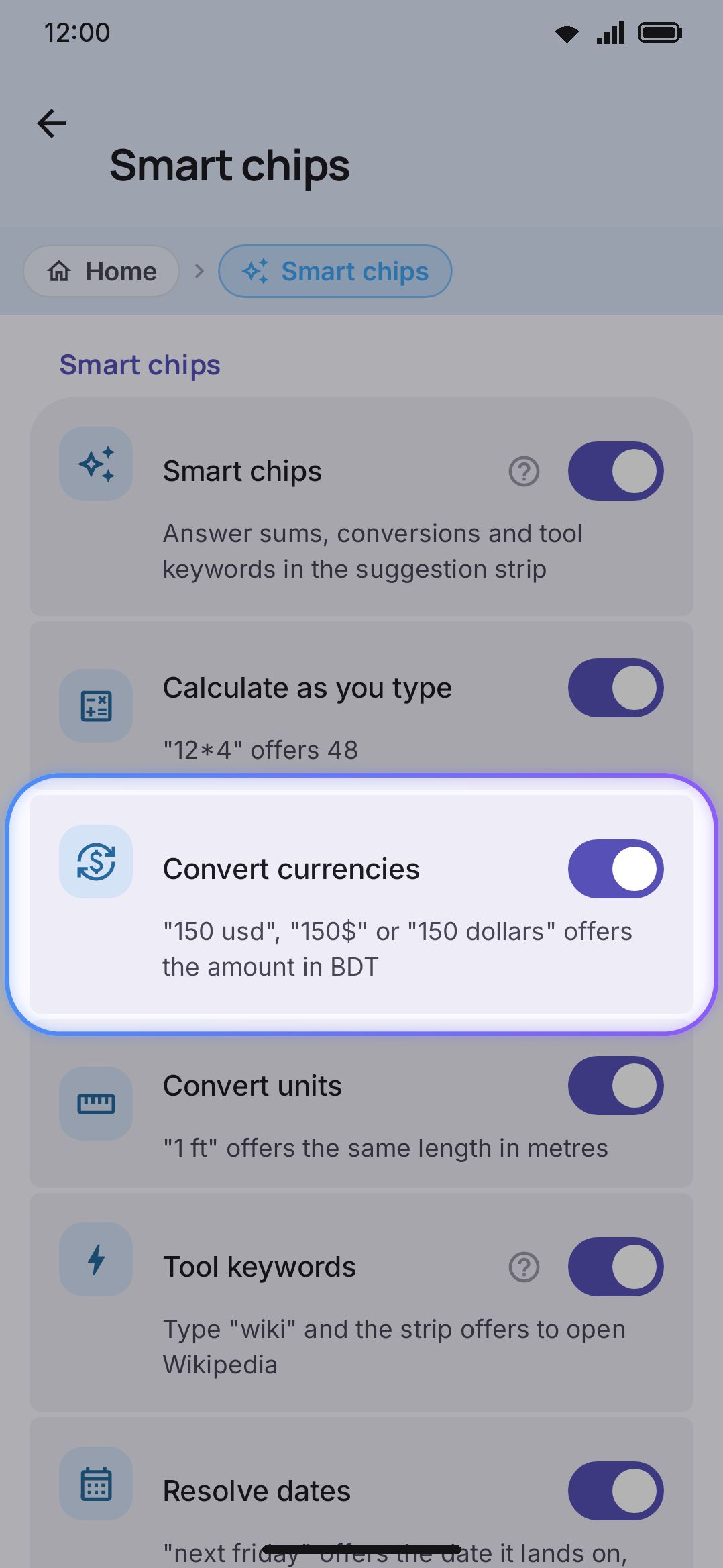
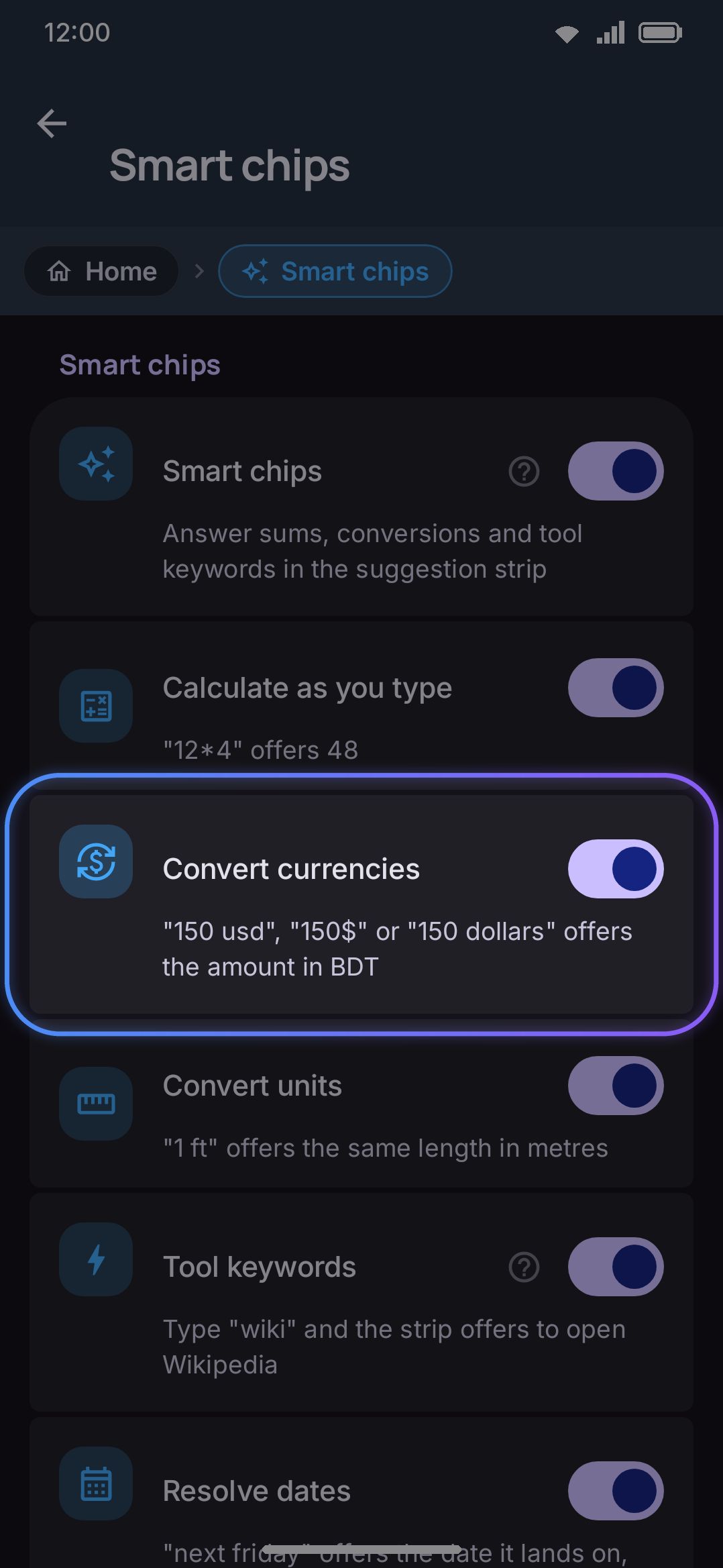
- Smart chips on the suggestion strip. Type something that reads as a currency amount, say “150 usd”, and the strip fetches exchange rates on its own. No tool is open and you tap nothing. It’s gated by WM KeyboardTypingSmart chips, where the master switch and its Convert currencies toggle are both on by default. Results are cached for hours rather than fetched per keystroke. Answer weather questions, in the same group and also on by default, is the other chip that reaches out: type “will it rain” and the strip fetches the forecast, though only once you’ve saved a location for the weather tool, since without one there’s nothing to ask about. The calculator, unit-converter and date chips beside them are fully local, and the lookup and translate-hint chips only offer to open a tool rather than fetching anything themselves. See Smart chips for the exact cache window and the rest of the chip family. The in-app disclosure for currency is honest: the amount is recognized on your phone, and only the exchange rates are fetched. In the F-Droid edition the currency chip waits instead: it reads Get the rate until you tap it, unless you turn on Fetch rates as you type under WM KeyboardToolsCurrency converterOptions. The weather chip waits the same way there: it reads Get the forecast until you tap it, unless you turn on Fetch the forecast as you type under WM KeyboardToolsWeatherOptions.
- Language data downloads. Turning a language on fetches its emoji-keyword pack and its word-pair (n-gram) data in the background. Both are small downloads from the project’s data repository on GitHub. They’re gated by WM KeyboardLanguages & layoutsLanguage dataDownload data automatically, on by default everywhere except the F-Droid build, where it starts off so that edition’s “network is something you opt into” claim holds, with a narrower Download automatically under WM KeyboardEmojiEmoji panelEmoji keywords covering the emoji half. Turn the first one off and both stop. Adding a language asks before it downloads anything either way, and word lists are never fetched automatically.
- Dictionary auto-lookup. Open the Dictionary tool and it looks up the word at your cursor straight away, with no separate search tap. It’s gated by Look up the word at the cursor under WM KeyboardToolsDictionary, on by default. Unlike the two above, it still waits for you to open the tool.
Two more fetch automatically but are off by default, so they don’t belong on that list until you turn them on: Link previews under WM KeyboardClipboard, and QR-scan link previews. Each fetches a page’s preview metadata the moment you copy or scan a matching link.
Power saving mode is the one-tap way to shut off the background half of that list. While it’s active, clipboard link previews, QR-scan link previews and dictionary auto-lookup all drop back to off, and a separate switch in the same group drops the smart chips, so the currency and weather fetches stop with them. See that page for the rest of what it changes.
See Network policy for the complete tool-by-tool breakdown: exact endpoints, what payload each one sends, and how downloads (wordlists, CJK dictionaries, speech and AI models, addons) are fetched and verified.
Open source: verify, don’t trust
Section titled “Open source: verify, don’t trust”WM Keyboard is MIT-licensed and the source is public on GitHub. You don’t have to take this page’s word for any of it. Anyone can read the code behind every claim above, including the exact list of domains each tool calls.
Releases ship as APKs on GitHub (see Installation), signed by the maintainer and published with a SHA256SUMS.txt you can check a download against. The strongest verification is still to build the APK yourself from that same public source and read what goes into it. It is also on F-Droid, which is the interesting one: F-Droid builds from published source itself and rejects proprietary tracking outright, so that listing is a second, independent check on the no-telemetry claim above. The F-Droid build is also reproducible: F-Droid publishes it only after its own build comes out identical to the signed -fdroid.apk on the GitHub release, so the APK carrying the maintainer’s signature is proven to come from that source. Google Play is coming.
The three other repositories the app talks to for downloads are public too. One holds word lists, CJK dictionaries and emoji-keyword packs, and the other two are the sample addon repositories seeded on first launch: the general one and a key-sounds one. That means you can inspect what a download contains before installing it, or instead of installing it. Full attribution for every bundled component, data pack and third-party service lives in the app itself; see About & diagnostics.
Options
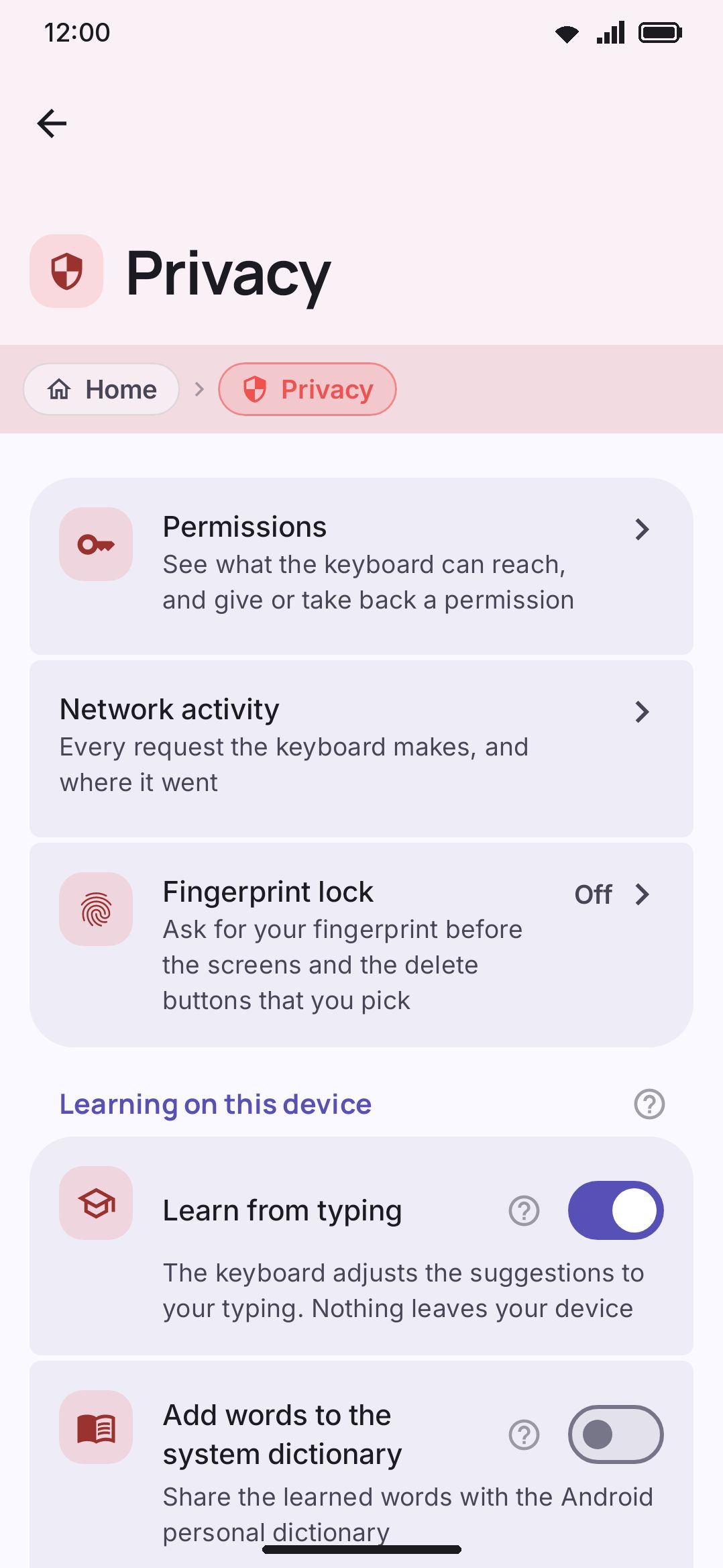
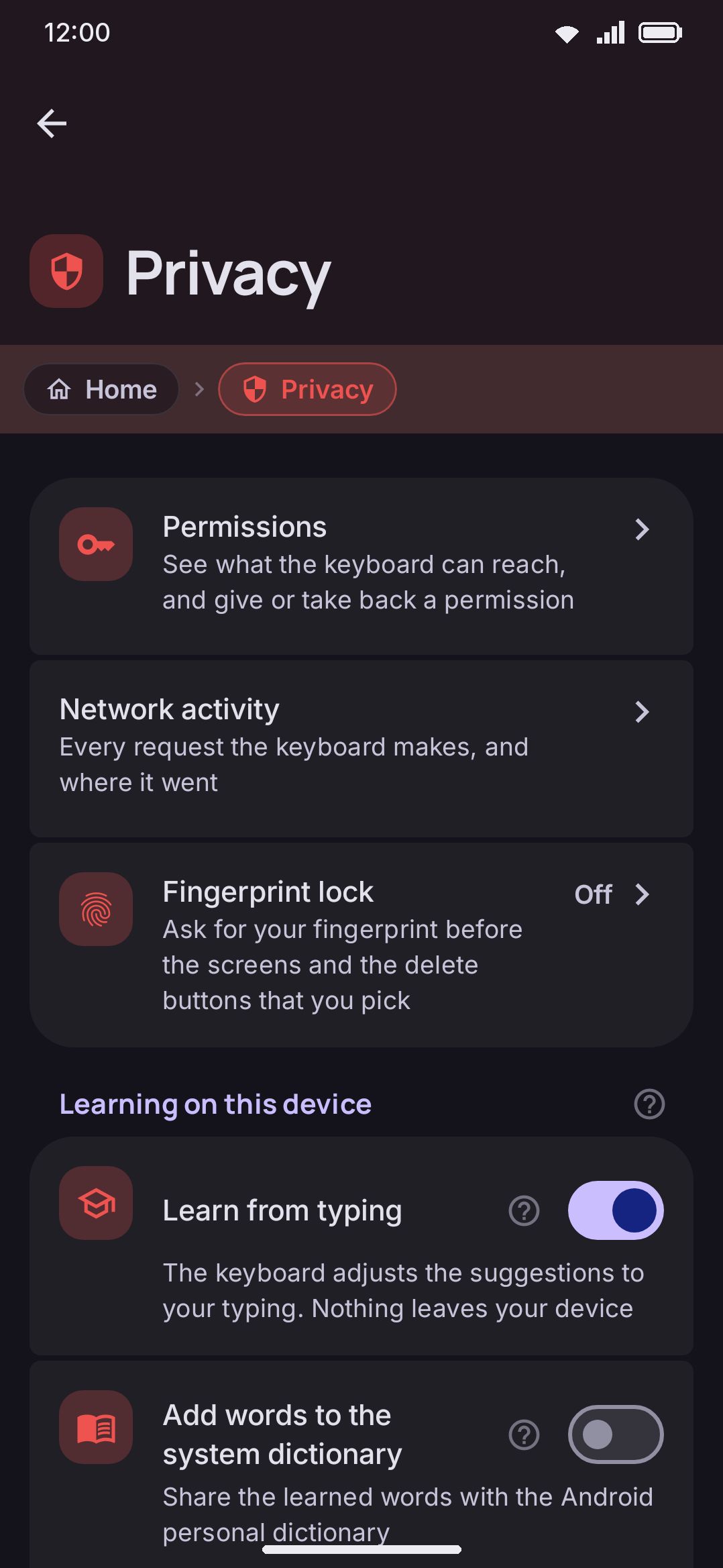
Section titled “Options”The Privacy screen has four groups, each documented in full on its own page:
- Permissions and the lock (an unnamed group at the top, holding two rows). The first opens the inventory of everything the keyboard can reach, and what it currently holds. See Permissions and, field by field, Permissions settings. The second opens the Fingerprint lock, which puts a system fingerprint prompt in front of the settings screens and delete buttons you choose. It is off until you turn it on, and turning it on or off both ask for a check. See Fingerprint lock.
- On-device learning covers what gets learned, incognito mode, and private-browsing detection. See Your data on device and Incognito & secure fields.
- Android backup folds the keyboard into Android’s own backup system, off by default. See Backup & restore.
- Your data holds one row, Learned words, whose delete button sits behind a confirmation. See Your data on device.
Every per-tool network toggle mentioned above lives on that tool’s own settings screen rather than on Privacy. See Network policy for the full list, or the tool settings reference for a screen-by-screen field list.
Details & edge cases
Section titled “Details & edge cases”- Voice dictation can leave the device without appearing on the table above. The default voice engine is Android’s own
SpeechRecognizer. It prefers on-device recognition, but for a language it can’t handle locally it falls back to a network recognizer without saying so. That’s Android mediating the request rather than a call this app makes, and nothing about it is saved by WM Keyboard. Downloading an offline Whisper model Full edition only replaces the fallback with fully local recognition. - Not every network request in the app goes through the same client. First-party API calls (everything in the table above) go through one shared HTTP client. Remote thumbnails and preview images, like GIF and sticker results or addon repository preview art, load through a separate image-loading library. Automatic backup uploads use a third, an ordinary HTTP library. The same rule applies to the first two: they load only inside the panel you’re already using, gated the same way.
- ML Kit’s on-device models Full edition only (OCR, barcode/QR scanning, handwriting recognition, document scanning) run recognition locally once their model is present. Handwriting models are an explicit download you trigger yourself. The OCR, barcode and document-scanner models can be fetched by Google Play services infrastructure the first time you use that feature, which is Google’s own delivery path rather than a request this app makes.
- Opening Settings → Addons re-checks every repository you’ve added, once per visit. The very first time you open that screen it also silently adds two sample addon repositories, so the screen isn’t empty, and the same visit’s refresh is what fetches their catalogues. Removing a starter repository is permanent, and a later visit won’t add it back.
- Downloads confirm before using mobile data, and a few smaller fetches don’t. The Downloads row in Data saver starts at Ask each time, so a language’s whole data set (word list, emoji keywords and word-pair pack), an offline Whisper model and an on-device AI model each stop and name their size on a metered connection. Whisper and AI models also have their own size thresholds, around 150 MB and 500 MB, which still prompt even when the row is set to allow. Downloading one word list, one CJK dictionary or one addon from its own row doesn’t ask. See Network policy for the full download-by-download table, including which of these get a checksum verified.
Where to go next: Network policy has the complete tool-by-tool table. Your data on device covers what’s stored locally. Permissions explains which feature asks for what, and what happens if you refuse. Incognito & secure fields covers pausing learning and clipboard capture. Backup & restore covers what leaves the device only when you choose to export or sync it.