
Key layouts
Every row across the layouts list, the visual editor, and the raw JSON editor, with each control's real default.
Key layouts is where you manage the key grids themselves for every layout you’ve switched on: which key sits where, what it types, what its long-press alternates are. This page is the field reference for its three screens. For the reasoning behind any of it, and a worked example, see Custom layouts & the layout editor instead.
Managing your layouts
Section titled “Managing your layouts”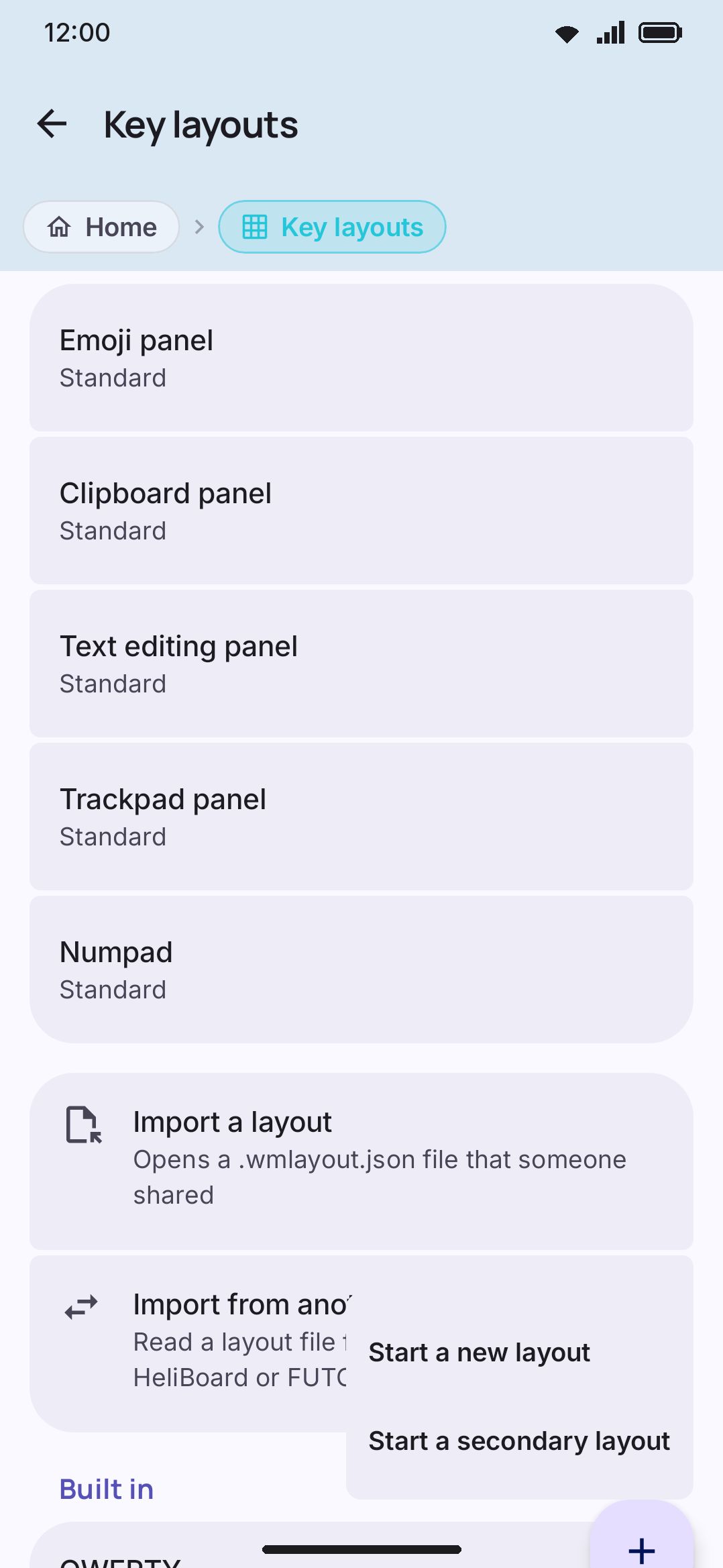
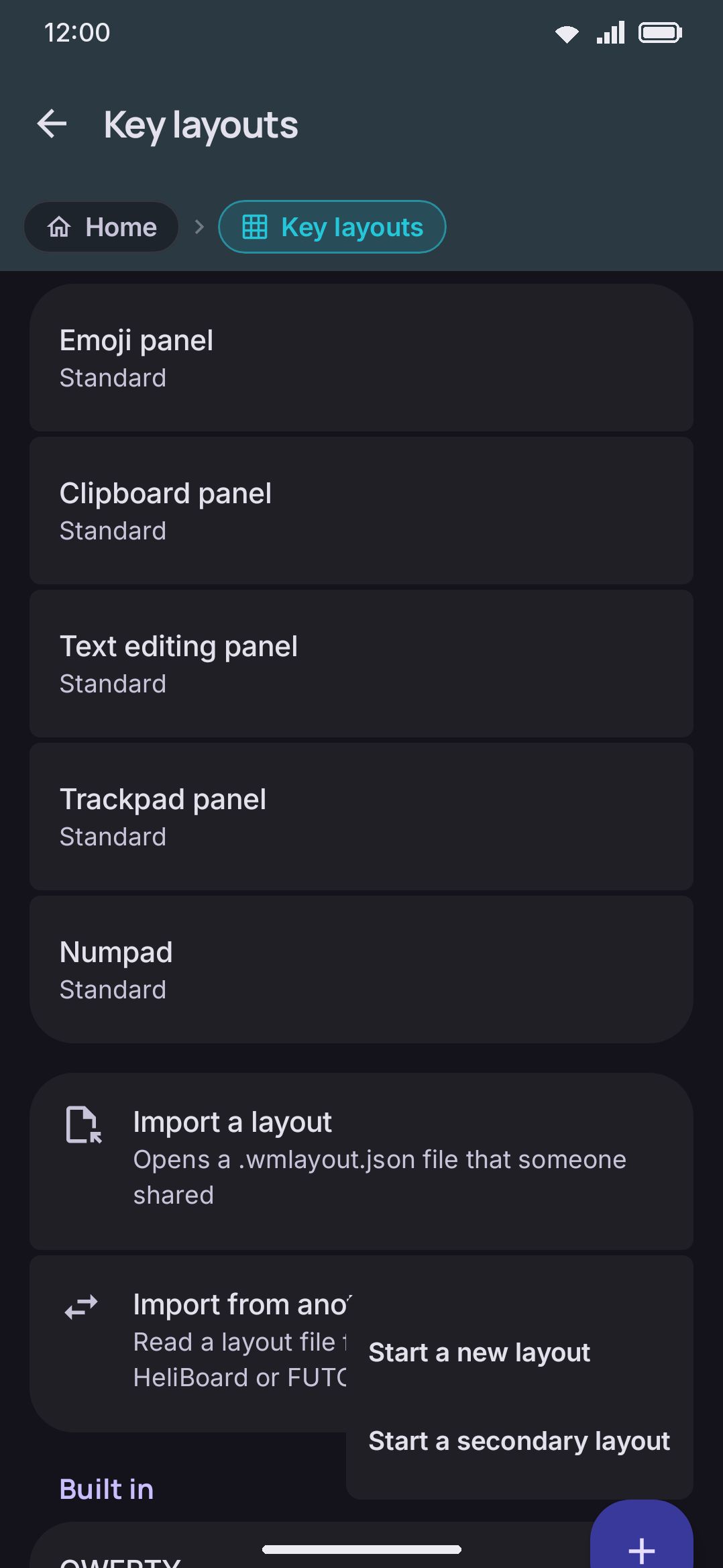
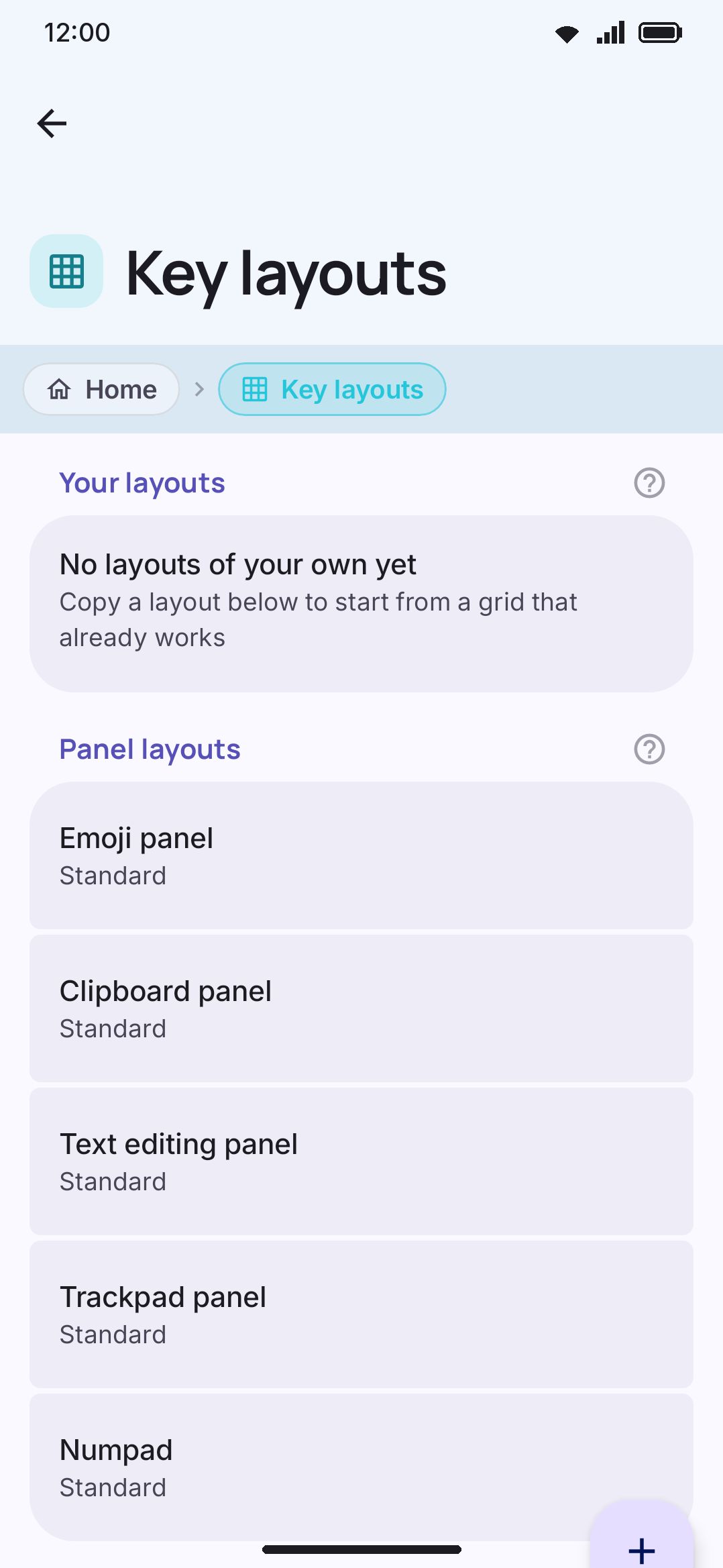
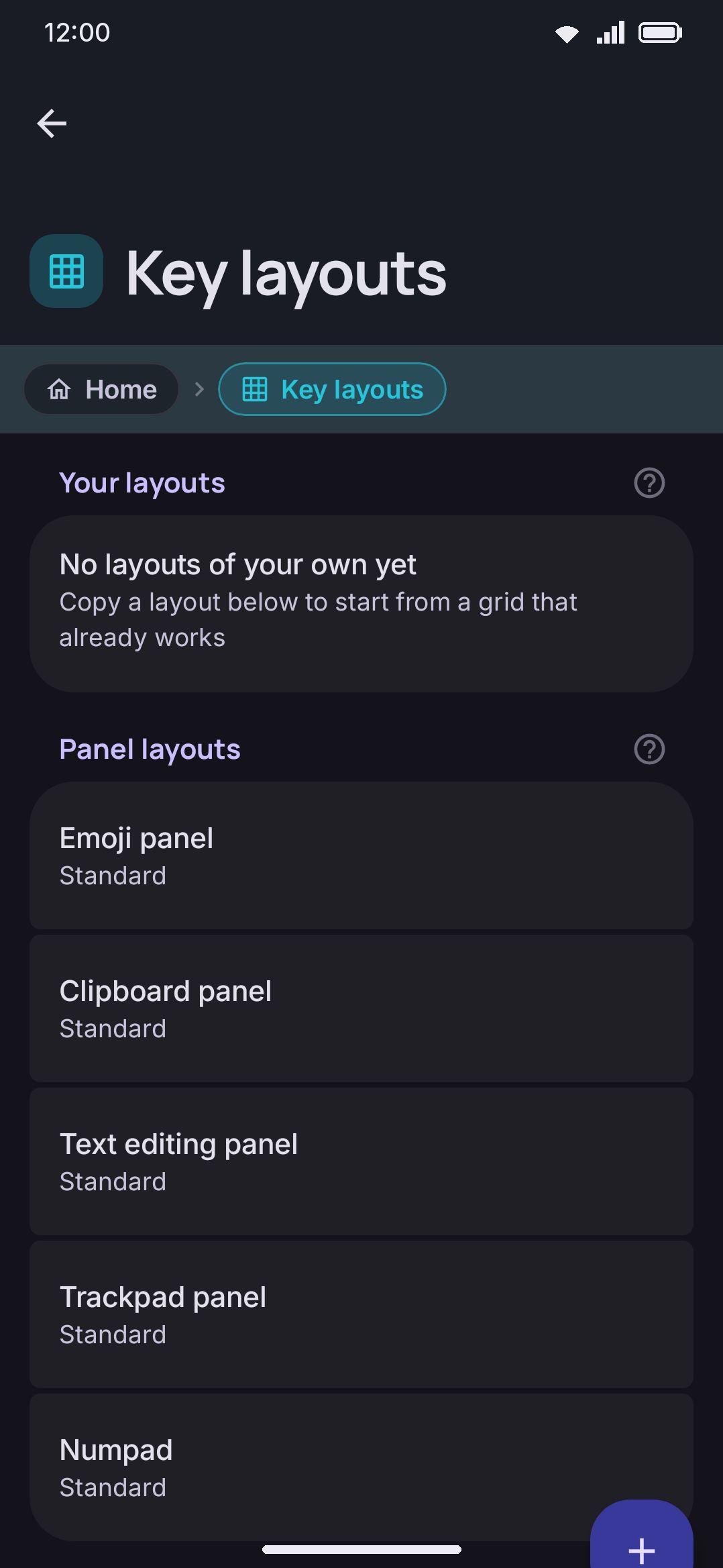
Reach it from Settings home’s Keyboard group, from the Key layouts row in WM KeyboardLayout & sizeYour layouts, or by searching “Key layouts” in settings search. The screen opens with a one-line caption: a layout types the language it’s based on, so a rearranged Bangla grid still uses the Bangla dictionary. Below that sit two named groups, with a pair of import rows between them:
- Your layouts: leads with a Start a new layout row (“Begin from an empty grid with the usual rows”), which makes a layout called “My layout” from the default letters grid with every character key blanked out, then opens it. Enter, shift, space and delete are left in place, since re-adding them is nobody’s idea of a start. Below that row sits every layout you’ve made or edited yourself, on or off. Addon-installed layouts stay out of this group even when enabled. They’re grids you installed rather than grids you built here, so they live under Languages instead. With nothing of your own yet, one row reads “No layouts of your own yet,” with “Copy a layout below to start from a grid that already works” underneath.
- Secondary layouts: leads with a Start a secondary layout row (“A grid of your own that a key or the Secondary layout tool opens, such as a symbols page or a macro pad”), which makes a layout called “My secondary layout” from three rows of blank keys plus an ABC key, then opens it. Below that sits every secondary layout you’ve made, with the same three trailing buttons. A caption under the group explains that a secondary layout isn’t a language and is reached from an “Open a layout” key or the Secondary layout tool. See Secondary layouts.
- Import a layout: an ungrouped row that opens a file picker for a
.wmlayout.jsonfile. - Import from another keyboard: a second ungrouped row directly below it, for a FlorisBoard or HeliBoard layout file (
.jsonor.txt). Subtitle: “Read a layout file from FlorisBoard or HeliBoard.” See Importing from other keyboards for what survives the conversion. - Built in: the enabled shipped layouts, only shown at all once at least one is on.
Built in is the only filtered group. A shipped layout appears there once you’ve switched it on under Languages → Switching. Your own layouts are listed whether they’re on or off, and that’s deliberate. Duplicate and Import both leave their result switched off, so filtering by enabled state made the copy you’d just built vanish the moment you came back to the list. Whether a layout is on is a word in its summary line, not a reason to hide it.
Each row shows the layout’s name, then a summary line: on/off state, language, layout name, row and key counts, and how many layers this layout has authored its own copy of, e.g. “On · বাংলা · Bangla · Avro phonetic · 4 rows · 34 keys”, plus three trailing icon buttons. A secondary layout’s line starts “Secondary layout” instead of an on/off state and a language, and adds “Stays open” when its grid is set to keep itself open:
| Button | What it does |
|---|---|
| Export | Writes the layout to a .wmlayout.json file you name. Reports “The app saved <name>.” or “The app could not write that file.” |
| Duplicate | Creates a copy (id custom_<timestamp>) and opens it in the editor, but without switching to it. A half-finished copy becoming the live keyboard mid-edit is exactly the situation that could leave you unable to type well enough to undo it. |
| Delete / Reset | Removes a layout you made, or drops an override on a shipped one. See below. |
Tapping the row itself (not a button) opens the visual editor.
Import asks to confirm before adding anything. The dialog is headed Import <name>? and reads “The app adds the layout to your layouts, but it does not turn it on. Turn it on under Languages when you are ready to type with it.” If the file needed automatic repairs to become usable, a bulleted “Changed during the import:” list joins that same dialog. A file that isn’t a WM Keyboard layout shows “That file is not a WM Keyboard layout.” and no confirm dialog at all. A successful import always gets a fresh custom_<timestamp> id, never the id inside the file, and reports “The app imported <name>.”
Import from another keyboard gets a confirm dialog of its own, because neither FlorisBoard nor HeliBoard states a language in a layout file and a layout stored without one reads back as English. The dialog carries a Language row, pre-filled with a guess from the letters on the keys, that opens the same searchable language picker the editor uses. Set it before importing: it decides the dictionary, the autocorrect, the script rules, dictation and how shift behaves.
Delete or Reset, depending on which group the row came from:
- On a layout under Your layouts, the button is always Delete:
Delete <name>?, which reads “The app deletes this layout. If the layout is on under Languages, the app turns it off and the keyboard goes back to QWERTY.” - On a Built in row, editing a shipped layout doesn’t fork a new one, since your changes are stored as an override under that same built-in id. So the button only appears once there’s an override to drop, and it reads Reset instead of Delete:
Reset <name>?, which reads “The app discards your changes to this built-in layout. The original grid comes back. Nothing else changes.” An untouched built-in row has no button here at all.
WM Keyboard ships 1,597 layouts in total: 21 compiled built-ins and 1,576 JSON asset layouts, 862 of which are converted Keyman keyboards covering the long tail of languages and scripts. The built-ins are QWERTY plus its English alternates like Dvorak and Colemak, Avro/Probhat/Jatiya for Bangla, and one-off grids for languages like French, Korean, Russian, Arabic, Greek, Hebrew and Hindi. Only a handful show up here at once, so see Options for which ones a fresh install enables.
Editing a layout
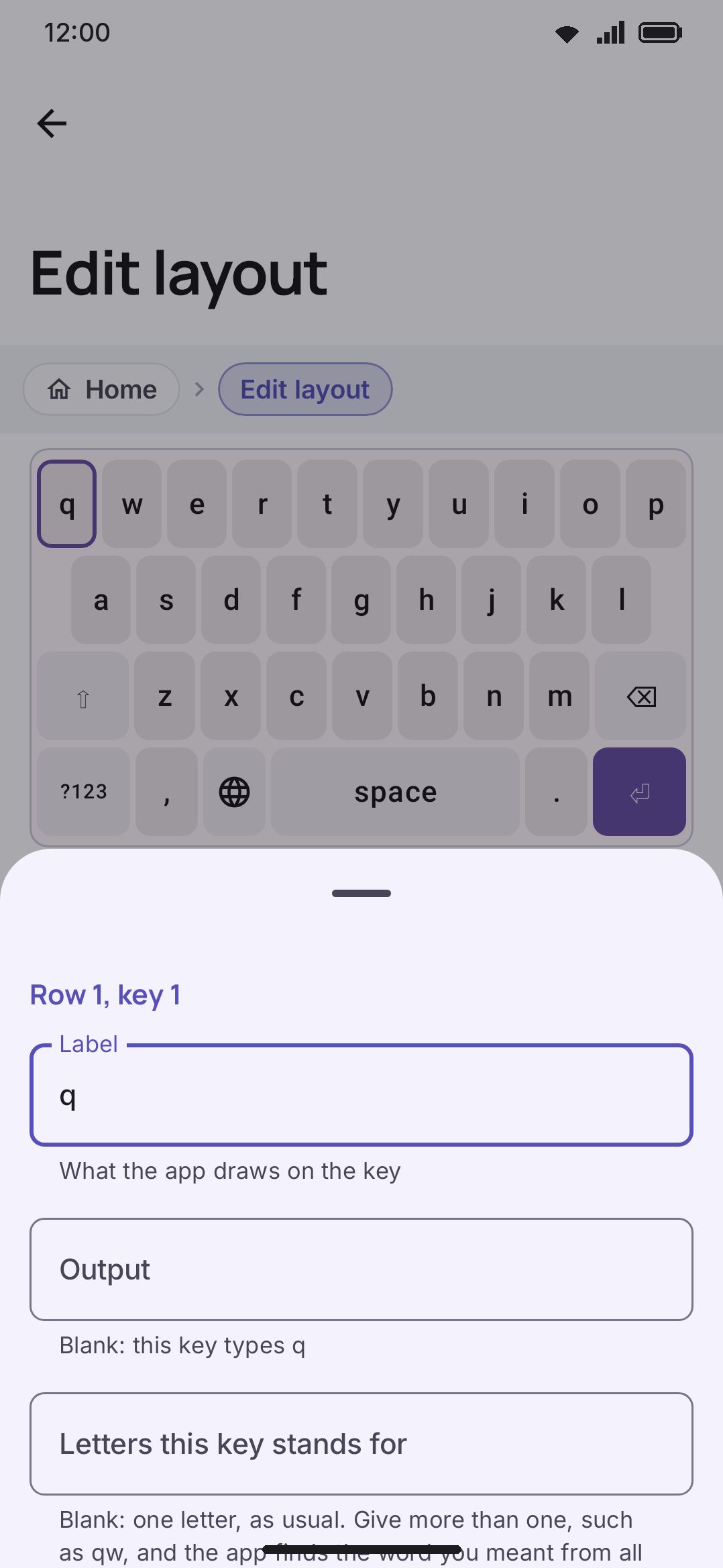
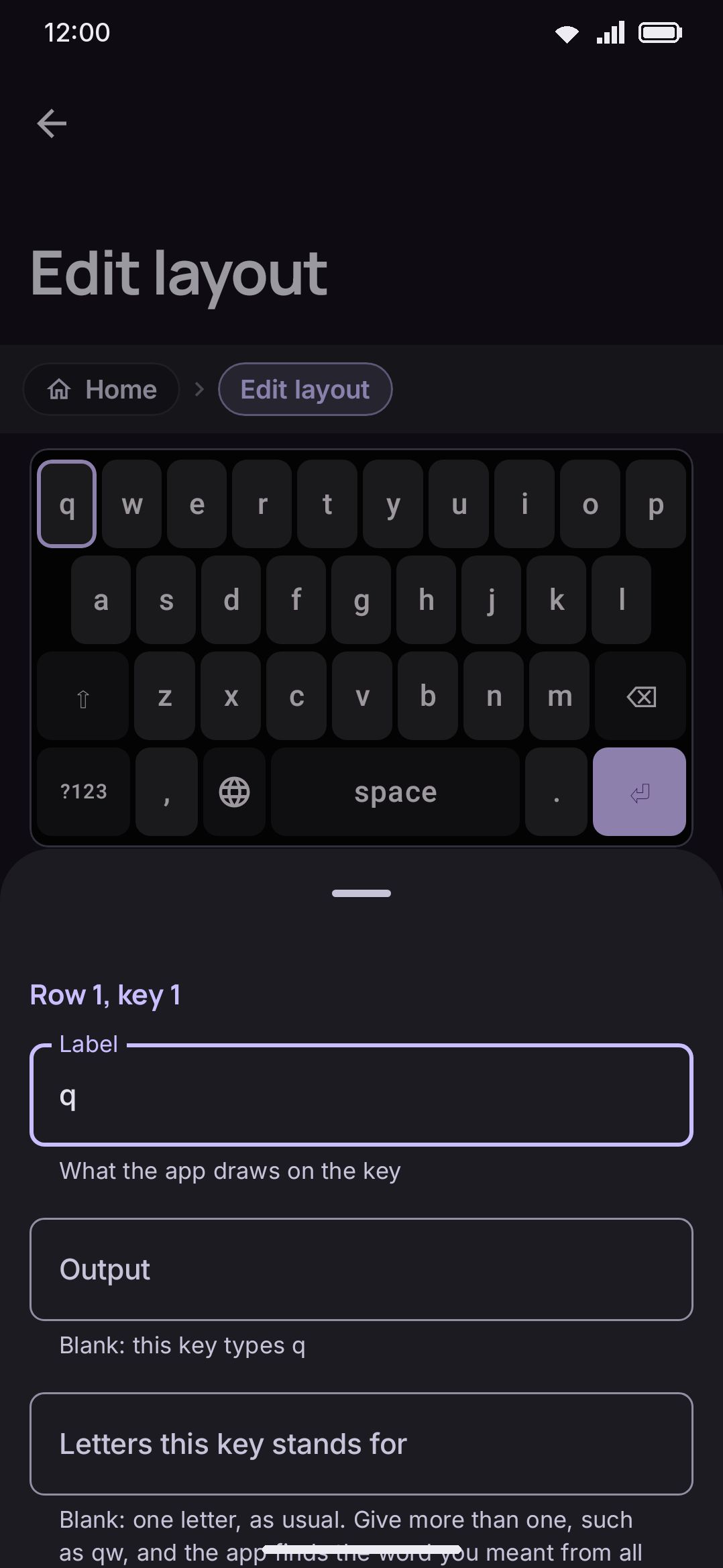
Section titled “Editing a layout”Tap any enabled layout’s row to open Edit layout. The grid is rendered with your actual theme, key shape and font, so what you edit is what you’ll type on. It’s always drawn left-to-right whatever your locale, since a key’s serialized row order has to match “move right” and “move left” consistently. Keys whose action is “switch layout” or “emoji panel” draw the same monochrome icon the keyboard draws rather than the emoji stored as their label, in the grid and in the reorder dialog alike.
The layout’s identity
Section titled “The layout’s identity”Four rows sit above the layer chips, and between them they cover everything about the layout that isn’t a key. A secondary layout shows only the first two, since it types with the language of whatever layout is under it:
- Name: opens a rename dialog. This is the fix for “Probhat copy copy” after a second duplicate.
- Theme: “Inherit the theme that is set” until you pick one. Opens the same theme picker the keyboard modes use, built-ins and your own themes alike, and a Clear button on the row puts it back to inheriting. While the layout is on screen the keyboard draws in that theme, over the one set elsewhere and over an automatic light-and-dark pair. A caption under the group says so whenever a theme is set.
- Language: opens a searchable picker over the whole language registry, and shows “Not set” until one is chosen. It decides the dictionary, autocorrect, script rules, dictation and shift behaviour, so re-language a duplicate here if you rearranged its grid into another language.
- Typing method: a choice, defaulting to Follow the language, over every composer the app has (plain keys, dead keys, phonetic, Indic clusters, Hangul, Telex, VNI, romaji, Pinyin and the rest). Leave it alone unless this layout types the same language a different way, which is the difference between a phonetic grid and a direct grid for one script.
Layers
Section titled “Layers”A layout has up to nine layers, switchable with a row of chips across the top: Letters, Symbols, Symbols 2, Number, Phone, Date, Time, Date & time, and Fn. The editor opens on Letters. After Fn come five more chips, one per panel (Emoji, Clipboard, Text editing, Trackpad, Numpad): a panel tab edits this layout’s own copy of that panel grid, forked from the shared panel layout on the first change, with a caption saying so until then and a Use the shared panel row once it exists. See Panel layouts. A secondary layout has one grid and no chips. None of the nine has to be defined. Any layer you leave untouched falls back to the built-in grid for that layer, so a layout that only rearranges letters still gets a working number pad without you drawing three hundred keys yourself. A pencil icon on a chip marks a layer this layout has authored its own copy of. Tap an unauthored chip and a caption explains that changing anything there forks a copy just for this layout. Fn is the one exception. Nothing ships an Fn layer, so there’s no built-in to show, and the screen offers an Add an Fn layer row instead, which seeds a starting grid (Esc, F1–F12, Tab, the arrows, Home/End).
Undo and redo icon buttons sit above the grid, next to a “The app saves every change” label, because every edit writes immediately. Undo holds up to 30 whole-layout snapshots, for the current session only. They aren’t persisted and they aren’t diffs: restoring a full snapshot per step is simpler than giving every edit an inverse. Editing inside one key’s bottom sheet coalesces into a single undo step for that sheet rather than one step per keystroke.
Tap a key to select it and open its edit sheet (below). Selecting also reveals a row action bar: a “Row N” label, then three icon buttons that add a key to the row, duplicate the row, and delete the row. Delete is disabled once only one row is left. If that row’s total key width disagrees with the rest of the layer, a red warning reads “This row is X wide. The grid is Y.”, and under it a Fit the row to the grid (Y) button scales every key in the row by the same factor until the row lands exactly on the grid. That keeps a row of deliberately mixed key sizes in proportion, which is the difference between it and the key sheet’s “Fill the row”, which grows one key into the slack. The button only appears while the row and the grid actually disagree.
Right below that, a row height slider covers the selected row specifically: a continuous slider from ×0.4 to ×2.5, then a minus / value / plus stepper, then preset chips at ×0.75, ×1, ×1.25, ×1.5 and ×2. The range is the one the keyboard itself honours, so nothing you can set here gets clamped at typing time. The grid preview draws each row at its own height, so a row you make taller looks taller while you edit it.
Below the grid:
| Row | What it does |
|---|---|
| Add a row | Appends an empty row to the current layer |
| Reorder rows | Opens a drag-to-reorder dialog, each item labeled “Row N · X keys” |
| Reorder the keys in row N | Only shown once a row with more than one key is selected |
| Show the shift plane | Redraws every key with its shifted label instead of the primary one, so you can check the shift layer without switching to it |
| Preview at your key height | A toggle, default Off. The preview normally clamps key height so the whole grid fits the screen. On, it draws your real proportions instead, which matters at a tall key height and can push the grid off screen |
| Theme for the layer layer | Opens the theme picker for this one layer, not shown on a secondary layout. “Inherit the theme of the layout” until set; a Clear button on the row puts it back. A layer’s theme beats the layout’s |
| Keep this layer open | A toggle, default Off, per layer, shown on every layer except an ordinary layout’s Letters. On, the layer stays on screen when the keyboard closes, the app changes or another field takes focus — including across the keyboard being stopped and restarted in the background — until a key or a tool takes you somewhere else. On a panel layout, Back stops closing the panel too, so the navigation bar’s ⌄ hides the keyboard instead. Its subtitle carries the warning: make sure the layer has a way off it. Stored as persistent on the layer |
| Add tablet keys automatically | A toggle, default On, not shown on a secondary layout. Covers the whole layout rather than the current layer, like the JSON row below it. On a tablet it lets the keyboard widen this grid by a column each side and fill the space with Tab, backslash, caps lock, a second shift and the arrows. The widening declines on some grids anyway (flick pads, Braille, Morse, anything with no shift key). There the subtitle says the setting has no effect, though the switch still records your answer in case the layout changes later |
| Edit as JSON | Opens Layout JSON for this same layout |
| Reset this layer | Only shown once the current layer is authored. Drops it back to the built-in grid |
The number row and the row in place of the digits
Section titled “The number row and the row in place of the digits”The keyboard draws one row above the grid rather than in it: the number row. On Letters and Symbols it holds the digits; on Symbols 2 it holds arrows and comparison signs (← → ↑ ↓ ± ∞ ≈ ≠ ≤ ≥). While the number row is on, the Symbols layer also gives up its own digit row, which would be a second copy directly under it, and shows = \ < > [ ] { } | ~ there instead.
Neither row is part of the grid, so each gets a small preview of its own under the row settings: Number row on Letters, Symbols, Symbols 2 and an authored Fn layer, and Row in place of the digits on Symbols (only while that layer’s first row is the digits). Tap a key to open the same edit sheet, hold and drag a key to move it along the row, and use the + button to add a key. The first change stores the row in this layer (numberRow, and fillRow for the Symbols stand-in), and Use the standard row puts it back. A caption under each title says when the keyboard shows the row, and says so if Number row or Number row in symbols is off.
A closing caption sits under the whole screen, and which one you get depends on the layout. A layout that isn’t switched on yet gets “Your changes here do not affect typing until you turn the layout on under Languages.” A secondary layout gets “This layout is live as soon as a key or the Secondary layout tool opens it. It does not appear under Languages.” A layout that is on gets the opposite. It’s live while you edit it, so your changes reach typing straight away, and the caption adds that the keyboard puts a delete, space or enter key back if you remove the last one.
The key edit sheet
Section titled “The key edit sheet”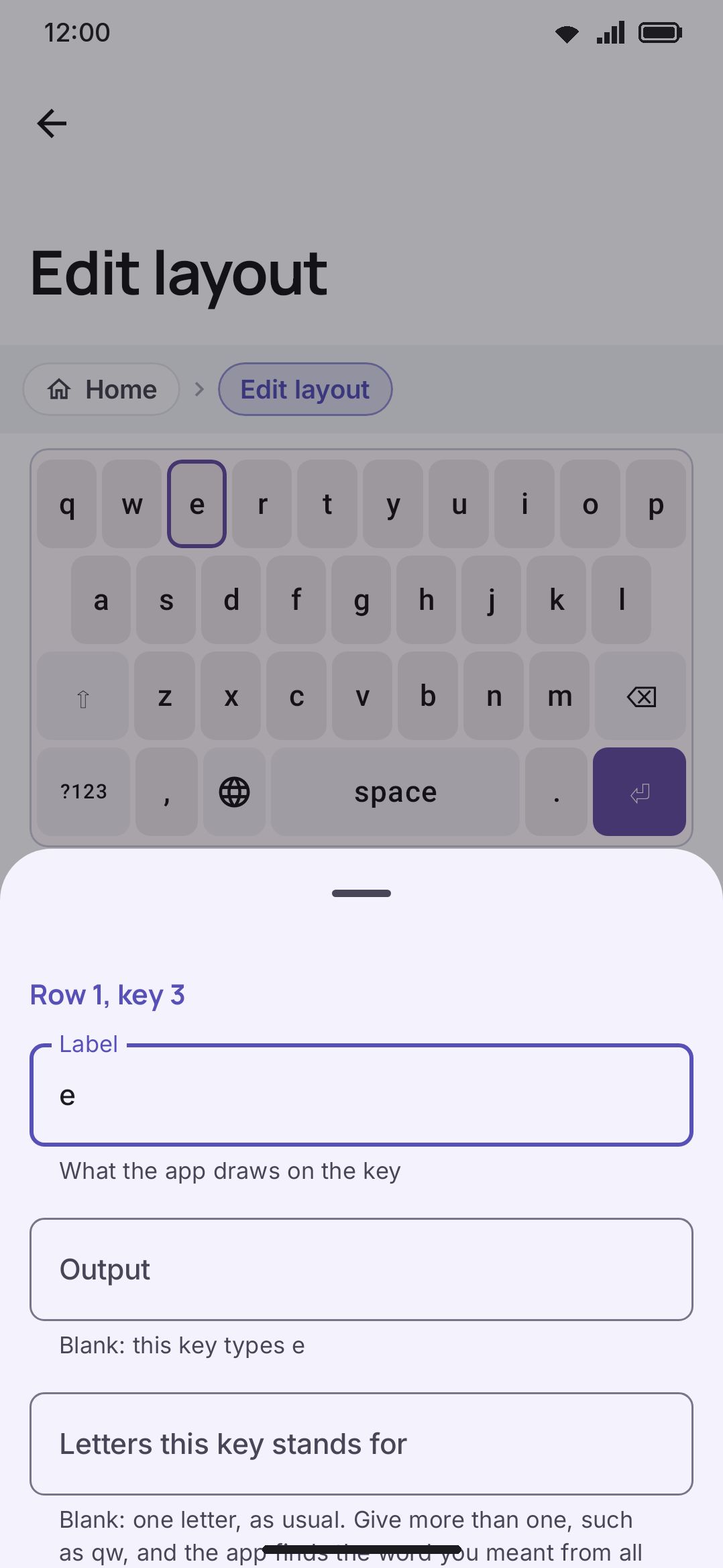
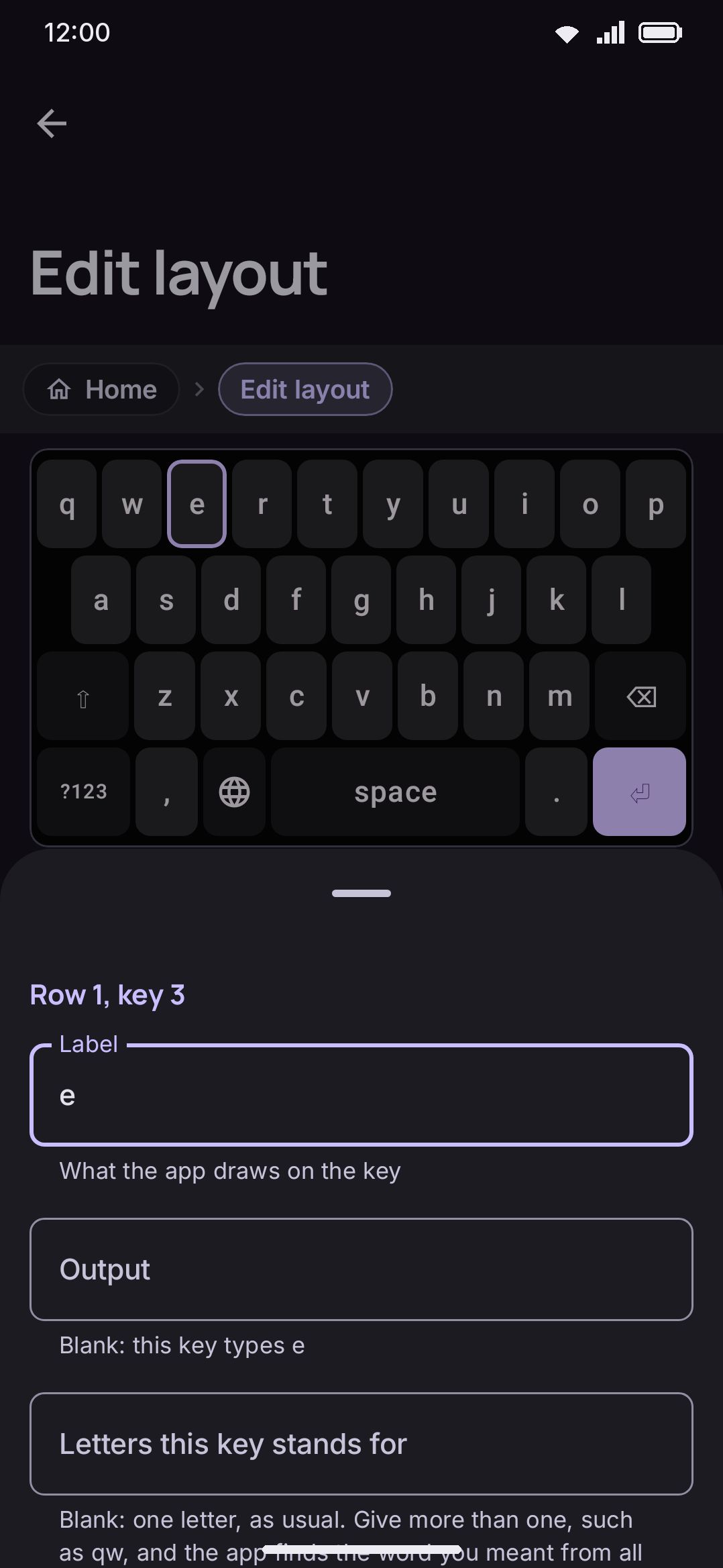
Tapping a key opens a bottom sheet headed “Row N, key M”, with, in order:
- Label: what’s drawn on the key.
- Output: blank by default, meaning the key types its label.
- Shift label: blank by default, meaning shift types the label’s uppercase.
- For keys whose action is “Types text”: Flick directions. A key with none shows an Add flick directions row; once opened, or on a key that already has flicks, four fields follow, Flick left, Flick up, Flick right and Flick down, each default blank (no flick that way). A blank field removes that direction from the key. The grid preview draws every flick’s character at the matching edge of its key. Stored as
flick. - Action: opens a picker with 32 options across seven groups: Typing (types text, shift, caps lock, delete, forward delete, space, enter, new line, kana marks 小゛゜), Layers (symbols page, letters page, emoji panel, switch layout, switch keyboard, Fn layer, open a layout), Modifiers (Ctrl, Alt, Meta), keys apps understand (Tab, Escape, and the four arrow keys), a text editing action, chorded input (Braille dot, Morse dot, Morse dash), and Other (open a tool, broadcast intent, and nothing, a deliberate empty gap that swallows taps).
- Choosing Open a layout opens a picker of your secondary layouts by name straight away, and adds a “Layout” row to the sheet that reopens it. The layout’s name lands as the key’s label unless you already wrote one. With no secondary layouts yet, the picker says so and points at the Key layouts screen.
- Choosing Broadcast intent adds a “Broadcast action” field for the intent-action string an automation app (like Tasker) listens for.
- Choosing Braille dot adds a “Dot number” field, default 1, valid range 1–6. Type anything outside that range and it’s ignored silently, with no error.
- Width: three controls over the same number, default 1.0. A continuous slider from 0.5 to 5.0; a minus / value / plus stepper under it, where the buttons move by 0.05 and the field takes an exact value you type, up to two decimals; and preset chips at 1 / 1.25 / 1.5 / 2 / 4. A “Fill the row” button appears whenever the row has slack left and the key isn’t already sized to it, and it hands over the exact remainder rather than a rounded one.
- Every width lands on a hundredth, so 1.43 is a width you can set, and the number in the field is the number in the file. Widths are stored to that same precision, so nothing is lost between what you set and what you type on.
- The slider stretches if it has to. A key already stored wider than 5.0, which the JSON editor and the import paths can write, keeps its real value on the slider rather than being pinned at 5.0 and quietly cut down the next time you touch it. The typed field reaches all the way to the 12.0 cap that repair enforces.
- For every key except a panel component: Icon, default None. It opens a searchable grid of icons with each icon’s name under it, and No icon takes it off again. An icon on an action key such as Shift, Enter or Delete replaces that key’s usual glyph. On the space bar it replaces the language name, and a Keep the language name switch (default off) appears that draws the icon before the name instead.
- For keys whose action is “Types text” only: Icon hint (default None, the same picker), Alternates for press and hold (space-separated, with a live preview strip that badges the first entry “hint”, since that’s the one the keyboard draws in the key’s corner), and Field adaptation, a choice of None / Comma slot / Full stop slot (default None). Comma slot swaps this key for
@in an email field or/in a web address field. Full stop slot keeps its own character and gains extra long-press alternates for domain endings in those same two field kinds. - Becomes 小゛゜ after a kana, on every key of a layout whose language is Japanese except the 小゛゜ key itself: a switch, default off. While the last kana of the reading you are typing has a small, ゛ or ゜ form, the key draws 小゛゜ and a tap changes that kana, the same as the 小゛゜ key. The rest of the time it is the key you made it. Its press and hold is the 小゛゜ key’s while it stands in, so a globe key’s language picker waits until the word is done. The preview marks the key with a small 小゛゜ in its top corner. A key that already has the switch on keeps the row on any layout, so it can be turned off. Stored as
kanaVariantWhileComposing. - Repeat while held, on a key whose press and hold isn’t already busy: a switch, default off, that makes holding the key do its action over and over, after the same Time before a key repeats wait under Key press and then at Repeating key interval. A row of arrow keys is what it’s for: one press moves the cursor one place, and a hold walks it along. The switch doesn’t appear on keys where a second press does nothing new or undoes the first — the layer and layout switches, modifiers, the language and keyboard pickers, a tool key, the emoji key, Space and the chorded keys — nor on the keys that already repeat, Delete, forward delete and the text editing moves and deletes. Turning it on spends the key’s press and hold: the alternates fields disappear from the sheet, with a line saying where they went, and anything already typed into them is kept and comes back when you turn the repeat off. Stored as
repeatOnHold; a file that writes it onto a key that can’t use it has it dropped on import. - Corner hint: a three-way choice, default From settings, for what this one key does about the app-wide Press and hold hints toggle under Key press. From settings follows it, Always forces the hint on, Never forces it off. It covers both kinds of hint, the icon hint and the first long-press alternate, and it changes nothing else: press and hold still opens the alternates either way. The row appears only when the key actually has a hint to show, or already carries an override. That means an icon hint on any key, or alternates on a text key whose press and hold isn’t taken by a clipboard action. Stored as
hideHintandforceHinton the key, andhideHintwins if a file sets both. - Columns in the popup: a minus / value / plus stepper, default “From settings”, then 3 to 11. It fixes how many alternates this one key puts on a row. “From settings” defers to the keyboard-wide Alternate key columns row under Key press; a number overrides it for this key and leaves every other key alone. The row appears only on a key that actually opens an alternates popup, so a key with nothing to arrange doesn’t carry the control. Stored as
alternateColumns, where 0 is “from settings”; a file that writes something outside 3–11 is clamped into it on import, or dropped back to 0 if it’s negative. - A bottom row: Delete key, move left/right (disabled at the row’s edges), and duplicate key.
Problems
Section titled “Problems”While you edit, the screen continuously lists anything wrong with the current layout under a Problems group, blocking findings first. This never rewrites your grid, it only reports. Findings are either blocking (“You must fix this before you turn this layout on”) or a warning (“Look at this, but the layout still works”):
| Finding | Severity |
|---|---|
| Letters layer has no keys | Blocking |
| No Delete key in Letters | Blocking |
| No Enter key in Letters | Blocking |
| No Space key in Letters | Blocking |
| No Shift key in Letters | Warning |
| A layer with more than 8 rows | Blocking |
| A row with more than 24 keys | Blocking |
| A key with zero or non-finite width | Blocking |
| Symbols, Symbols 2, or Fn with no way back to Letters | Blocking |
| A Braille dot key naming a dot outside 1–6 | Blocking |
| A key using an action this build doesn’t recognize | Blocking |
| An empty row | Warning |
| A row wider than the rest of its layer | Warning |
| A layer set to keep itself open (a reminder that it needs a way off) | Warning |
| A secondary layout with no key that leaves it | Warning |
A secondary layout skips the three Letters key checks (delete, enter, space) entirely, and the repair pass doesn’t add those keys to one either.
Of the four keys the Letters layer is checked for, shift is the one that only warns, since a symbols-forward layout may not want one, and its alternates still reach capitals through long-press.
This list is also the gate. Turning a layout on under Layout & size runs the same check, and a layout with any blocking finding refuses. You get a “Cannot turn on name” dialog, headed “Fix these problems in the layout editor first:” and listing every blocking reason, and the switch stays off. It’s the same list the editor shows, so the two can never disagree. Turning a layout off is never gated.
Behind that sits a second, separate pass that repairs rather than reports. It force-adds a delete, space or enter key and drops keys this build doesn’t recognise. It runs on import, on activation, and again when the keyboard draws the grid, so even a layout you’re mid-edit on stays typeable. See Details & edge cases on the guide page for how the two relate.
The raw JSON editor
Section titled “The raw JSON editor”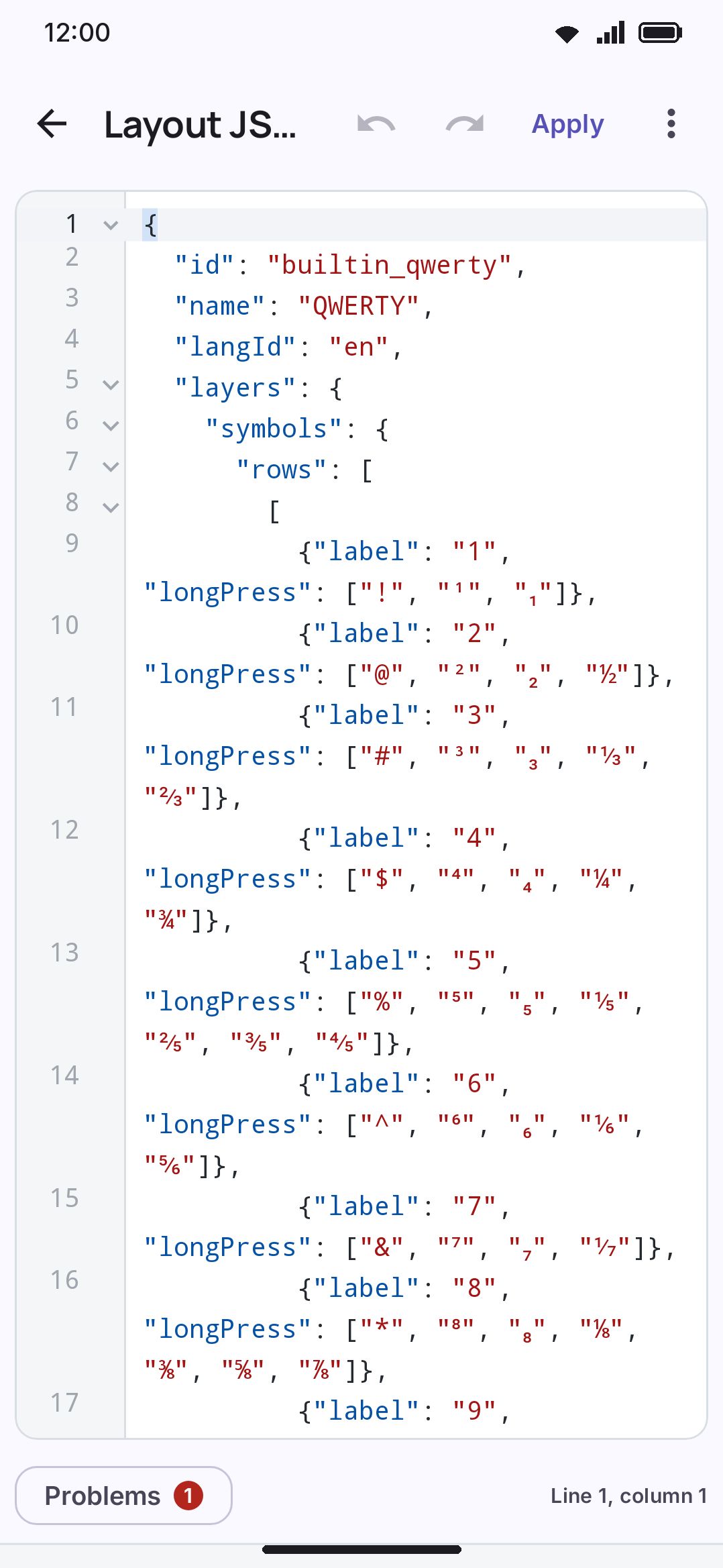
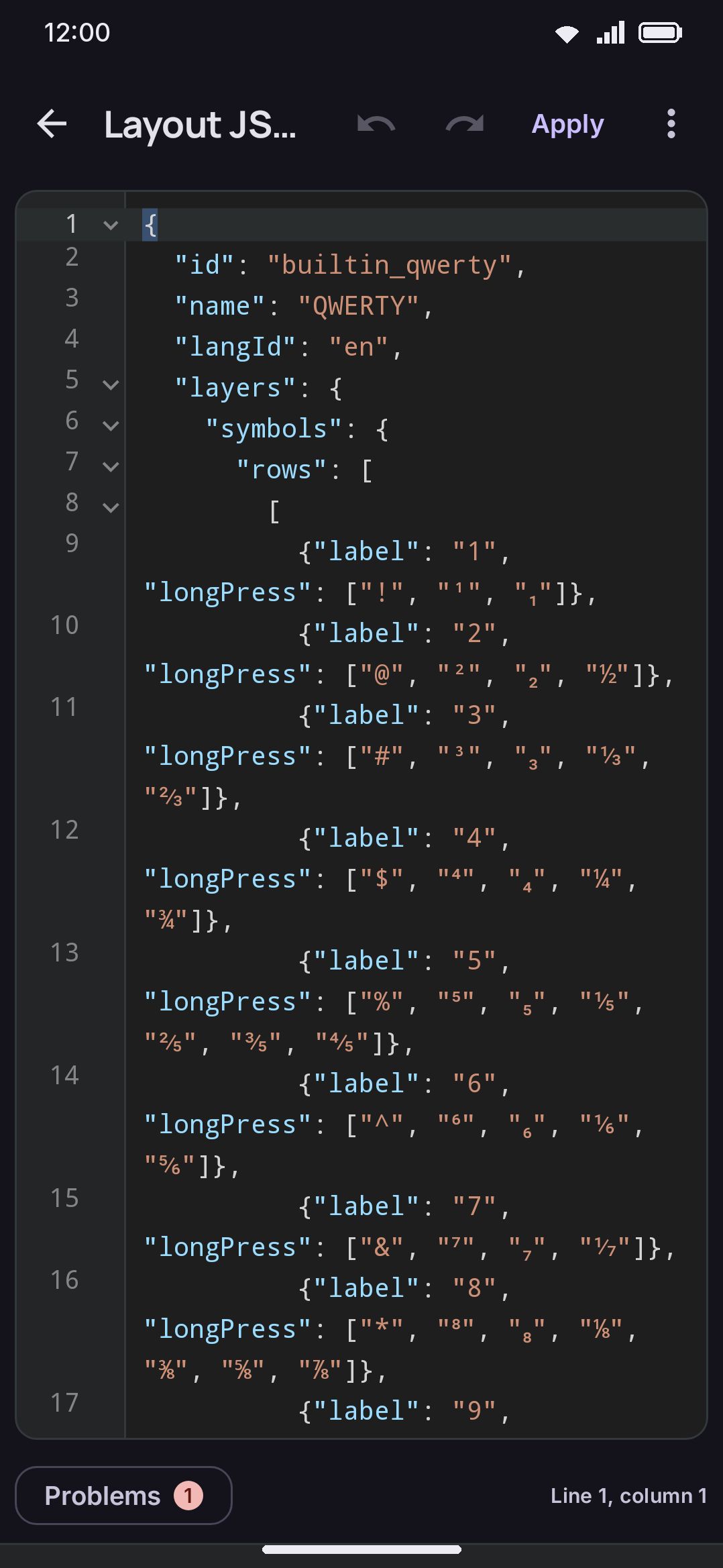
Layout JSON opens from the editor’s “Edit as JSON” row, and it covers anything the grid editor has no control for. It’s a full-screen code editor with its own top bar (back, undo, redo, Apply and a menu), pre-filled with the layout exactly as it’s stored: monospaced on a code background, with a numbered margin, the cursor’s line lit, bracket pairs boxed, a fold chevron on every object and list, and the standard editor colors for keys, strings, numbers and keywords. Long lines scroll sideways unless Wrap in the menu says otherwise.
It knows the layout format. Suggestions open inside a string, on a word typed without quote marks, after the colon of a property with a fixed set of values, and just inside a new object; Suggest on the code keys, or Ctrl+Space, opens them anywhere. A chosen property writes its colon and a blank of its type and opens the list again on that blank, an action type brings the field it needs, a word in a row offers whole keys, and layers offers the layers not yet written. Values come from the device: languages by name or id, tools, editing operations and panel components by their names in your language, icon names, themes, fonts and your secondary layouts. Checks run after each pause in typing. An error marks what Apply can’t read and a warning what Apply ignores or changes, each with a squiggle, a colored line number and an entry under Problems; text that parses also gets the grid editor’s own checks. A strip under the code explains the property or action at the cursor, with its type and default.
The menu holds Find (with replace), Go to line, Format, Wrap, Fold all, Unfold all, text size, Code keys, Copy and Paste. Format indents at two spaces a level but leaves an object or a list on one line while it fits in 100 characters, the same printer the screen fills itself from. On a soft keyboard a row of code keys sits on it: ", :, ,, the brackets, true, false and null, a page of commands, and two cursor keys that slide like a trackpad. Editing follows the usual code habits: a newline carries the indentation on and deepens after { or [, an opening bracket or quote brings its closing half, a typed closer steps over one already there, and backspace over an empty pair takes both. A hardware keyboard gets Ctrl+Z, Ctrl+Shift+Z, Ctrl+Space and Tab (Shift+Tab to move back out, and with a selection Tab moves every line it touches).
Tap Apply to parse what you wrote. Text that isn’t valid layout JSON shows “That is not valid layout JSON.”, the cursor jumps to the first error with Problems open, and nothing changes. Otherwise the id inside the pasted text is discarded and replaced with the id of the layout you’re editing, so pasting another layout’s JSON here can never overwrite that other layout by accident. The result then runs through the same repair pass import uses. If nothing needed fixing, the screen closes on its own. If something did, a dialog headed “Applied, with changes” lists each repair, and the screen closes when you dismiss it.
The file format
Section titled “The file format”An exported .wmlayout.json is a small envelope: a format tag ("wmkeyboard-layout"), an envelope version (currently 1, checked as a sanity tag rather than for migration), the app version and version name that wrote it, and the layout itself. Export uses MIME type application/json. Import deliberately accepts application/json, text/plain and application/octet-stream, since file providers routinely mislabel a plain .json file.
Separately from the envelope version, the layout’s own internal spec carries a version number, currently 2, that tracks the shape of the stored fields. It was bumped when an older field describing the layout’s base input mode was split into a language id and an explicit composer setting. A file from an older build migrates automatically on read.
Options
Section titled “Options”The list screen itself holds no toggles: it manages a layout registry, not preferences. The one real default worth knowing is which layouts a fresh install starts with:
| Setting | Default |
|---|---|
| Enabled layouts | Seeded on first run from your phone’s language list, plus QWERTY, at most four (see Languages overview) |
| Your own layouts | None |
| Setting | Control | Default |
|---|---|---|
| Layer shown | Layer chips | Letters |
| Typing method | Choice, per layout | Follow the language |
| Show the shift plane | Toggle | Off |
| Preview at your key height | Toggle | Off |
| Add tablet keys automatically | Toggle, per layout | On |
| Keep this layer open | Toggle, per layer, and per panel layout | Off |
| Theme | Picker, per layout | Inherit |
| Theme for the layer | Picker, per layer | Inherit |
| Row height (selected row) | Slider 0.4–2.5, stepper of 0.05, or a typed value to two decimals | 1.00 |
| Key width (selected key) | Slider 0.5–5.0 (wider if the key already is), stepper of 0.05, or a typed value to two decimals up to 12.0 | 1.0 |
| Field adaptation (text keys) | Choice: None / Comma slot / Full stop slot | None |
| Braille dot number | 1–6 | 1 |
No separate settings: it edits the same stored layout the visual editor does, just as text.
Details & edge cases
Section titled “Details & edge cases”- Editing a shipped layout doesn’t create a new one. A change to the built-in QWERTY or to a shipped regional grid is stored as an override under that same layout’s id. That’s why its delete button reads “Reset” rather than “Delete”: there’s nothing to delete, only an override to drop.
- Duplicating never switches to the copy. The new copy opens for editing and never becomes the active grid, and that holds for a shipped layout and one of your own alike.
- Addon-installed layouts don’t appear under “Your layouts.” A layout you installed from an addon repository lives under Languages, and it’s uninstalled from Addons rather than from this screen. Editing it here would only produce changes a future update silently discards.
- What the JSON screen shows you is shorter than what’s stored. Its caption says re-opening it leaves out the values that match the default, and it means it. The editor uses its own encoder with defaults omitted. Storage uses the other one, writing every field every time, which is what lets a downgrade read what an upgrade wrote. The difference isn’t small. A plain four-row QWERTY comes to about 33 kB stored, almost all of it
"output":null,"shiftLabel":nullrepeated a few hundred times, and roughly a tenth of that on screen. Nothing is lost either way, since every omitted field has a default. Re-opening also reformats, so your own spacing doesn’t survive. - No per-setting restore button here. The restore control that appears on a settings row once its value differs from the shipped default isn’t wired up on these screens. “Show the shift plane” and “Preview at your key height” are editor state rather than preferences, and “Add tablet keys automatically” and “Typing method” are stored on the layout itself, so none of them declares a default to its row and none grows the icon. The way back on a layout is Reset this layer, or Reset on the row of an edited built-in.
- No edition restriction. Everything on all three screens behaves the same on both editions of the app.
Related pages
Section titled “Related pages”- Custom layouts & the layout editor: the full guide, covering editing, sharing, installing layouts from addons, and every edge case in narrative form.
- Switching languages: where a layout actually gets turned on or off. This screen only ever edits.
- Importing from other keyboards: what the second import row does with a FlorisBoard or HeliBoard file.
- Installing addons and Updates & management: layout as an installable addon type.
- Languages overview: how a fresh install picks which layouts start enabled.
- Layout & size: the differently-named screen for key/row sizing, the number row, and split & floating mode.