
Rows & bars
The symbol row, the fancy text switch, the dictionary bar, row ordering, and editable symbol sets.
The Rows & bars screen controls the strip of rows that stack above and below the key grid. You turn the symbol row and fancy text on here, reorder the rows, and edit which characters each symbol set offers. This page is the field reference. For the reasoning behind each option, read Modes & the symbol row instead.
Options
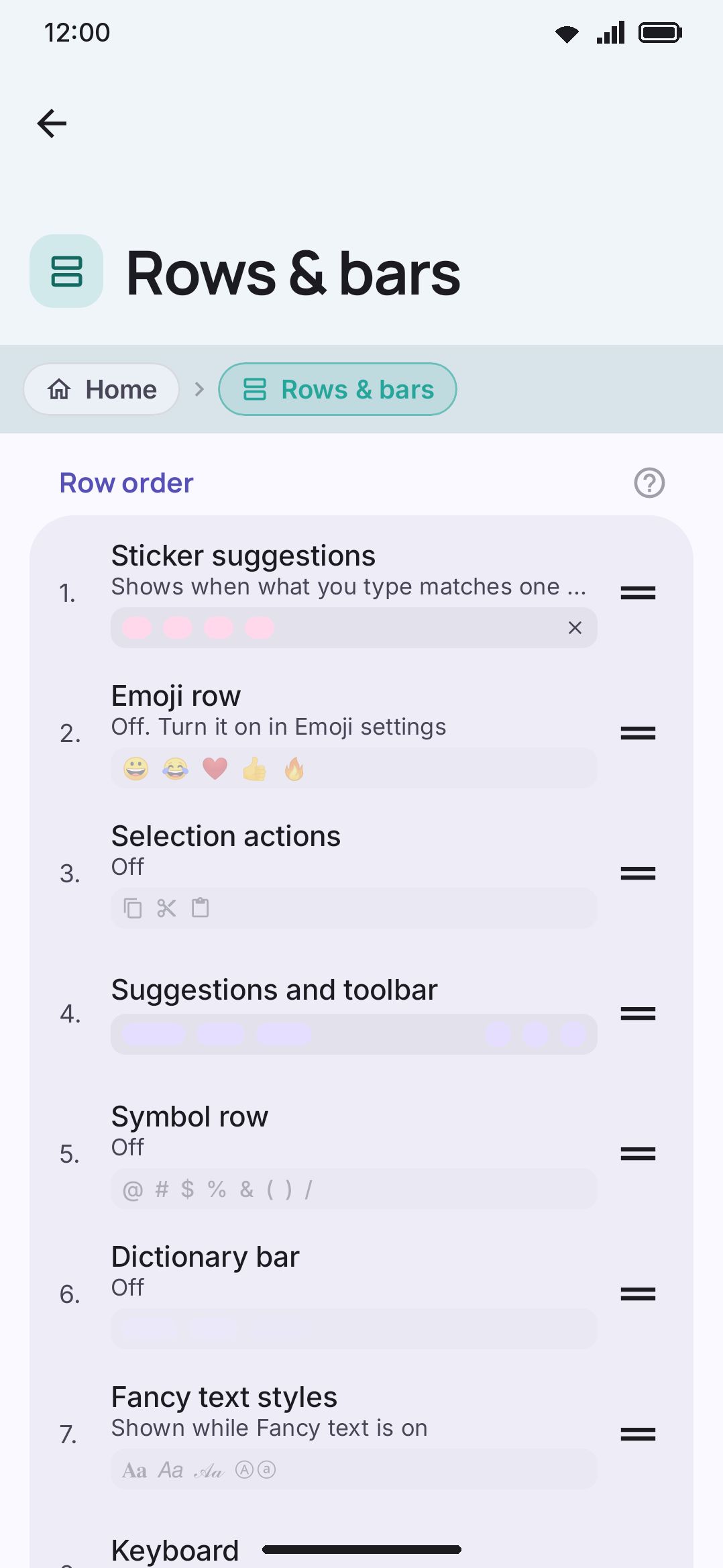
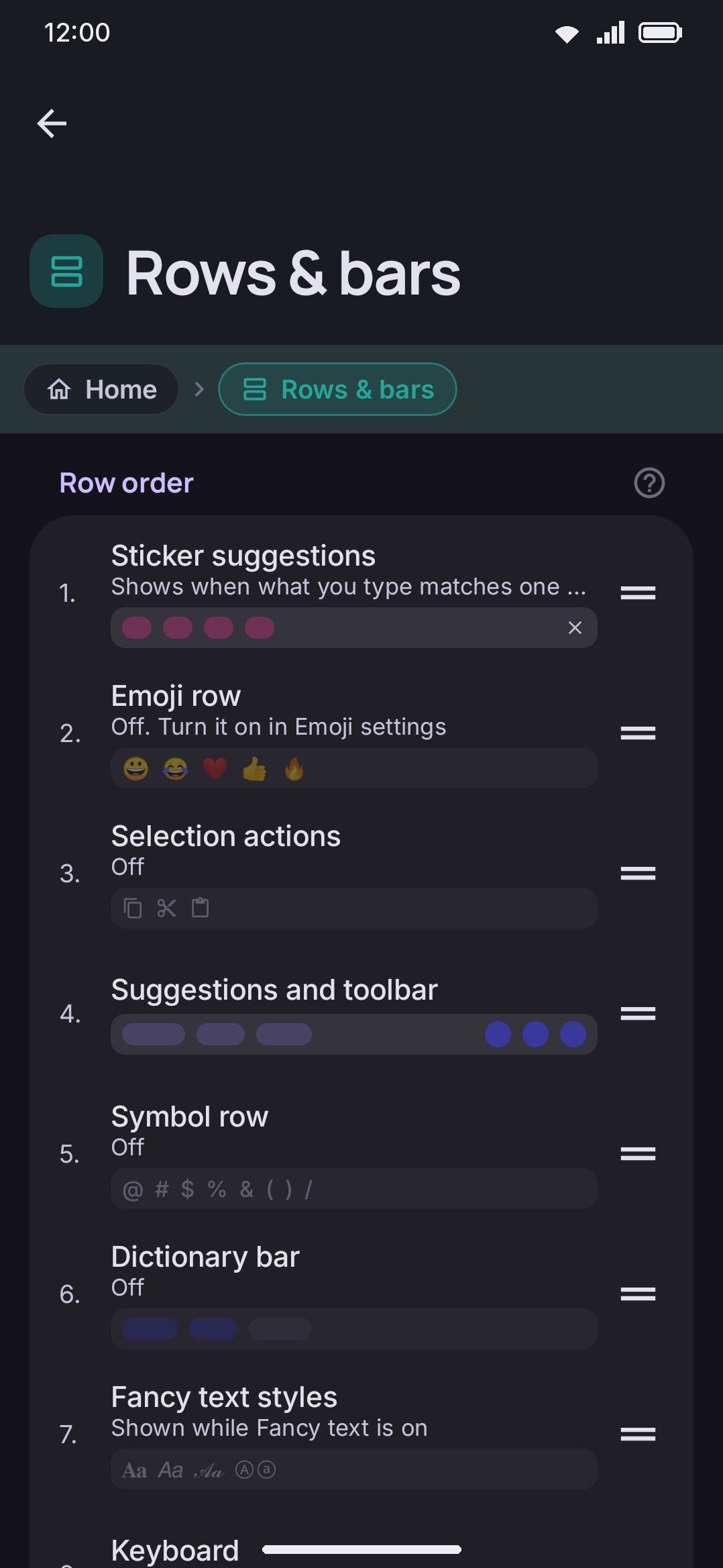
Section titled “Options”The screen has four groups, top to bottom: Row order, Fancy text, Dictionary bar, and Symbol row. Row order is a list you drag, and the keys themselves are one of the rows in it: drag a row above Keyboard to draw it over the keys, or below Keyboard to draw it under them. The Symbol row group is one row that is both a switch and a door: the switch turns the row on, and tapping the rest of the row opens the Symbol row page, which holds the row’s height, lines and scrolling and the Symbol sets group.
Fancy text
Section titled “Fancy text”| Setting | Control | Default |
|---|---|---|
| Fancy text | Toggle | Off |
Fancy text reads On while the fancy keyboard is the active layout, however it got there. Switching it on adds Fancy Text to your language list if it isn’t there and makes it the active keyboard, so the styles row appears above the keys. Switching it off returns to the first other language in your list and takes Fancy Text back out of it, unless the Fancy text tool’s Keep the language after you turn it off option is on. That is exactly what the toolbar tool does, so the two never disagree about what “off” leaves behind. The row of styles starts with Normal, which types plain letters without leaving the fancy keyboard. See Fancy Text for the styles themselves.
Dictionary bar
Section titled “Dictionary bar”| Setting | Control | Default |
|---|---|---|
| Dictionary bar | Toggle | Off |
Dictionary bar adds a row above the keys with one chip per dictionary on the device, for every enabled language: the language’s word list (bundled or downloaded), its emoji keywords (downloaded or imported), and each word list you imported yourself. A coloured chip is on. Tap it and that dictionary switches off in place: the word list stops feeding suggestions and autocorrect, the emoji keywords stop answering emoji search, an imported list is set aside without being deleted. Tap again to bring it back. The chip at the bar’s left edge is a language filter: All shows every language with each chip prefixed by its language, and picking one language shows only its dictionaries with the prefix dropped. The list scrolls when you have many languages, and the pick is remembered.
The switches behind the chips are the same ones on each language’s own screen (Use the word list, Use the emoji keywords) and on the Custom dictionaries screen, so the bar and Settings never disagree.
Symbol row
Section titled “Symbol row”| Setting | Control | Default |
|---|---|---|
| Symbol row | Toggle and page | Off |
| Symbol row height (on the Symbol row page, shown only while Symbol row is on) | Slider, 28–64 dp | 40 dp |
| Lines of symbols (same page, same gate) | Stepper, 1–4 | 1 |
| Scrolling (same page, shown with two or more lines) | Together / Each line alone | Together |
Symbol row is off out of the box. The row on Rows & bars carries the switch, and tapping it anywhere else opens the Symbol row page, where the same switch sits at the top above everything else the row has. Its info button explains what the row does: it shows one symbol set at a time, and a chip at the row’s left edge switches between whichever sets you’ve enabled. A keyboard mode can pick a set automatically per app as well. See The symbol row for how the row behaves once it’s on.
Symbol row height appears under the toggle on the Symbol row page once the row is on. It ships at 40 dp and runs 28–64 dp. The number row’s own Number row height slider on Layout & size covers a wider 32–100 dp, so the two rows can be brought to the same height, or the symbol row shortened to give the keys below it more room.
Lines of symbols stacks the row up to four lines tall, each one a full symbol-row height showing the next entries of the set, so more of a set is on screen without a scroll. Past one line, Scrolling appears: Together moves every line as one grid, and Each line alone lets each line scroll on its own, so one line can sit at its start while another sits at its end.
One thing about the row has no setting behind it, so it’s worth saying here rather than leaving you to look for a control that isn’t there. The row takes itself off screen while the Symbols panel is open, and while any panel running full-bleed has claimed the strip above the keys. A row of symbols on top of a panel of symbols is just noise. The height it gives up goes to the panel rather than shrinking the window, so nothing jumps as the panel opens or closes, and the row comes straight back when you close the panel.
Row order
Section titled “Row order”| Row | Reorderable | Live status shown here |
|---|---|---|
| Emoji row | Yes | Off (enable it in Emoji settings) / Behind a toolbar button / Own row, depending on Emoji settings’ Emoji row |
| Suggestions & toolbar (named Suggestions while the tools have a row of their own) | Yes | Off, depending on Show the toolbar under Appearance → Toolbar, or on Suggestion strip there while the tools are set to Always |
| Symbol row | Yes | On / Off, depending on the Symbol row toggle above |
| Fancy text styles | Yes | On / Shown while Fancy text is on, depending on the Fancy text toggle above |
| Tools row | Yes, while the tools have a row of their own | Off (the toolbar is off) / Behind the arrow button, depending on Where the tools go under Appearance |
| Dictionary bar | Yes | On / Off, depending on the Dictionary bar toggle above |
| Selection actions | Yes | Off / On the suggestion strip / On, depending on Selection actions under Advanced |
| Sticker suggestions | Yes, while Offer your stickers as you type is on | Shows when what you type matches one of your stickers / Opens from the sticker chip on the suggestion strip, depending on Where they show under Stickers |
| Keyboard | Yes | Always shown |
Default order: Sticker suggestions, Emoji row, Tools row, Selection actions, Suggestions & toolbar, Symbol row, Dictionary bar, Fancy text styles, Keyboard. Each row’s status line is read-only here. The emoji row’s line is driven by the Emoji row setting on the Emoji screen, and the symbol row’s and fancy text row’s by the toggles above. This list controls the stacking order and nothing else. Keyboard stands for the key grid itself, and every row moves, the keys included: drag a row above it to have that row draw over the keys, or below it to have that row draw under them. A hidden row keeps its slot empty rather than collapsing the stack, so turning it back on doesn’t change where it lands. An order saved before the fancy text row existed gets it appended at the bottom, nearest the keys; one saved before the tools row existed gets that row just above the suggestion strip, where it always drew. An order saved before the selection actions row existed gets that row just above the suggestion strip too, which is where it draws by default. An order saved before the sticker suggestions row existed gets it at the very top. An order saved before the keys had their own slot keeps every row above them, exactly where it drew before.
The selection actions row is the one row here whose slot can sit empty for a reason that isn’t a setting: it only draws while text is selected, and it takes no height the rest of the time. It disappears from screen entirely when Selection actions is off, or when that feature is set to draw over the suggestion strip instead.
The sticker suggestions row works the same way: it takes no height until something you type matches one of your stickers, and only then slides in. It’s only listed while Offer your stickers as you type is on. Turn that off and the entry goes away, and it comes back where you left it when you turn it on again.
The tools row only exists under the A button and Always choices of Where the tools go, and the list says so by only listing it under those two: with the tools on the strip there is one row carrying both, and the entry for it reads Suggestions & toolbar. Pick A button or Always and that entry becomes Suggestions, with Tools row beside it as a row you place yourself. Moving to the strip and back leaves the tools row where you last put it. Its slot decides which way the strip’s arrow button points: up when the row sits above the strip, down when it sits below, and the arrow turns to face back while the row is open. With the row on screen and the Emoji tool pinned to it, the strip drops its own emoji shortcut rather than showing the same button twice.
Symbol sets
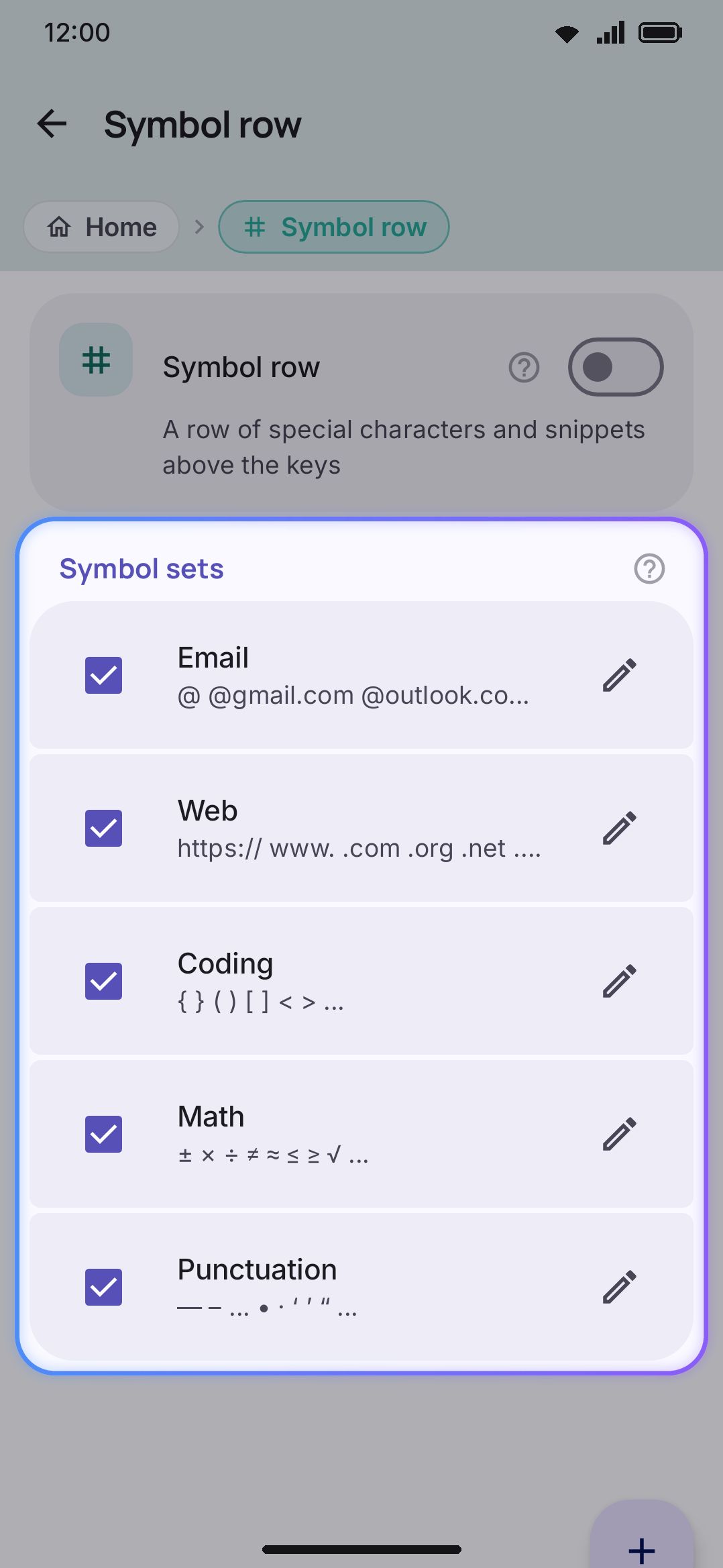
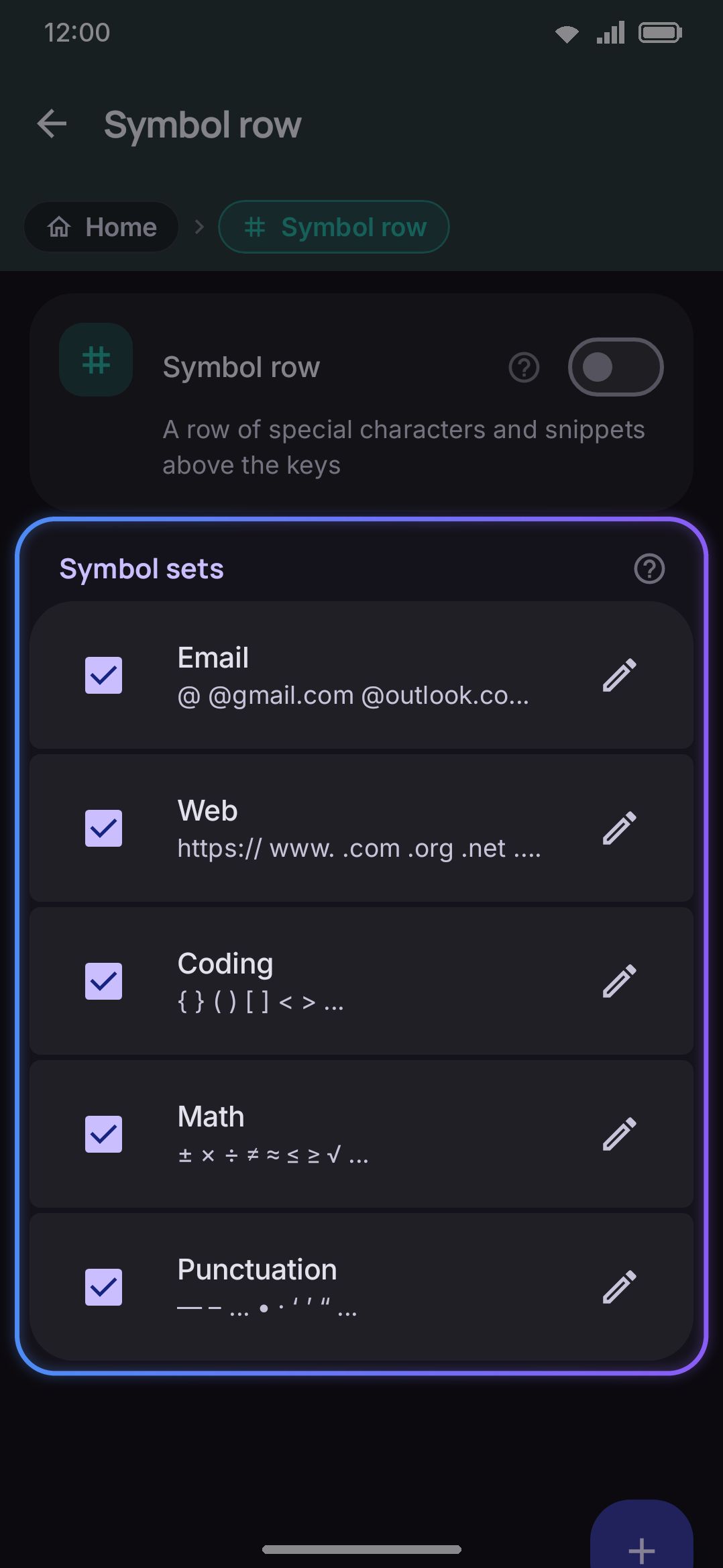
Section titled “Symbol sets”On the Symbol row page, under the row’s own settings. One row per set, built-in sets first in their shipped order, then any custom sets you’ve created. Each row has a checkbox (enabled in the row’s picker or not), the set’s name and a preview of its first characters, and an edit icon.
| Set | Characters / snippets | Enabled by default |
|---|---|---|
@ @gmail.com @outlook.com @yahoo.com @icloud.com @hotmail.com @proton.me .com _ - . | Yes | |
| Web | https:// www. .com .org .net .io / : ? & = # - _ ~ | Yes |
| Coding | { } ( ) [ ] < > ; : = ! & | * / \ " ' ` -> => == != # $ % ^ _ + - and a tab | Yes |
| Math | ± × ÷ ≠ ≈ ≤ ≥ √ π ∞ ° ² ³ ½ ¼ ¾ % ‰ ∑ ∫ Δ μ | Yes |
| Punctuation | — – … • · ‘ ’ “ ” « » ¡ ¿ § ¶ † © ® ™ № | Yes |
All five ship enabled, and Punctuation is the set the row’s picker opens on the first time you use it. Unchecking a set’s box removes it from the row’s picker; the app won’t let the last checked box go to zero, so at least one set always stays available. There are no custom sets by default. New symbol set, the floating button on the Symbol row page, adds one from scratch.
Editing a symbol set
Section titled “Editing a symbol set”Tapping a set’s edit icon opens Edit symbol set, with two text fields and a Press and hold section below them:
| Field | Control |
|---|---|
| Name | Single-line text |
| Characters & snippets | Multi-line text, space-separated |
Save splits the characters field on whitespace, so a multi-character snippet like https:// counts as one entry, the same as a single character. Save stays disabled until that field has something in it.
Press and hold shows one chip per entry already in the characters field. Select a chip, then type the characters and snippets it should offer on a long-press; an entry that already has a popup shows a count on its chip, and an entry removed from the field above drops its chip too.
Editing a built-in set doesn’t overwrite the shipped version. Your edit is stored as a custom entry under the same ID, so anything already pointing at that set keeps working: a keyboard mode’s pinned sets, the row’s own picker. The button in the bottom-left corner then reads Reset set rather than Delete set, and it restores the shipped characters. A set you created from scratch shows Delete set in that spot instead, which removes it outright, drops it from the row’s enabled sets, and clears it from any keyboard mode that had it pinned. A built-in set you’ve never edited shows no button there at all, since there’s nothing yet to reset.
Details & edge cases
Section titled “Details & edge cases”- Row order only orders: it doesn’t enable. The emoji row’s line in Row order is a live read-out of the Emoji screen’s own setting, not something you can flip from here. The symbol row’s line mirrors the toggle at the top of this screen the same way.
- Reordering is drag, with a handle. Press and drag the handle on a row’s right edge; it settles into the slot you drop it in, and every row it passes along the way shifts to make room.
- A hidden row keeps its slot. Turning the emoji or symbol row back on after hiding it drops it back into the same position in the stack, not the top or bottom.
- You can’t uncheck the last enabled symbol set. The checkbox for the only remaining checked set silently does nothing when tapped: there’s no error message, it just won’t go to zero.
- Entries can be removed from the keyboard too. Holding an entry on the symbol row opens a menu with Remove, and on a set you made, Delete the set, which asks first. On a built-in set a removal is stored as the same override the editor writes, so Reset set undoes it. See Holding an entry.
- Editing a built-in set is non-destructive. The edit is stored as an override under the built-in’s own ID, so nothing else needs to be told about it, and Reset set removes the override cleanly.
- Leaving Name blank on save doesn’t leave the set unnamed. It falls back to the built-in’s own name when you’re editing a shipped set, or “My set” for a brand-new one.
- Saving a set also enables it. If the set you just saved or created wasn’t already checked in the picker, saving checks it for you so it shows up in the row right away.
symbolRowActiveSetIdisn’t a row on this screen. It’s the ID of whichever set the row’s picker chip currently shows, and it’s runtime state. It defaults to Punctuation and isn’t editable from Rows & bars directly. Picking a set from the row on the keyboard updates it, unless the active keyboard mode pins its own symbol sets. Then the pick is session-only and doesn’t overwrite this global value.- No edition differences. The symbol row, row order and symbol sets all work identically on the full and lite builds.
Related pages
Section titled “Related pages”- Modes & the symbol row: the why behind these settings. How the symbol row’s picker chip works, what “hidden rows keep their slot” means in practice, and how a keyboard mode can override the symbol row per app.
- Emoji settings: the Emoji row setting that Row order displays but doesn’t control.
- Keyboard modes: where a mode pins its own symbol row state and symbol sets, on top of the global settings documented here.