
Privacy
Every row on the Privacy screen: learning on this device, incognito, Android backup, other apps controlling the keyboard, and the one button that clears learned data.
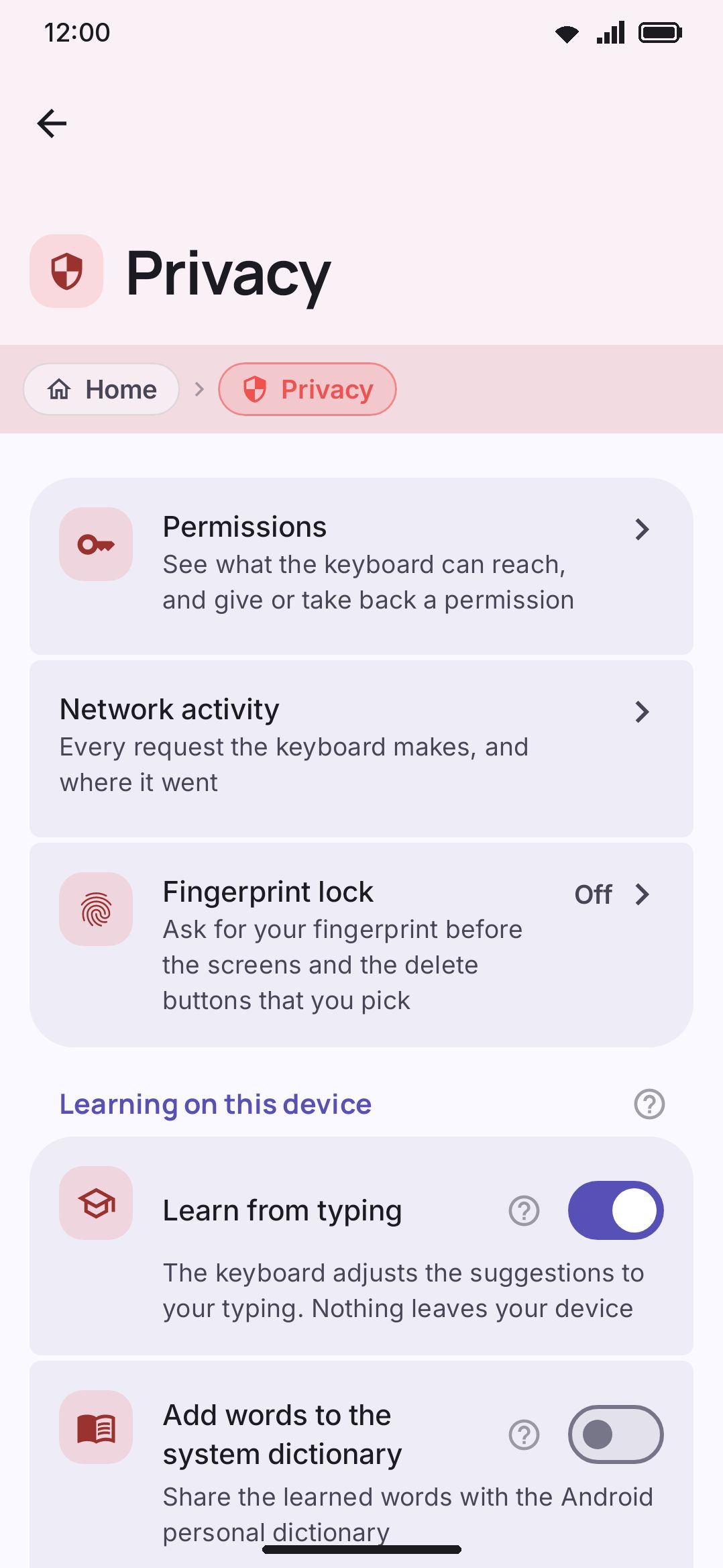
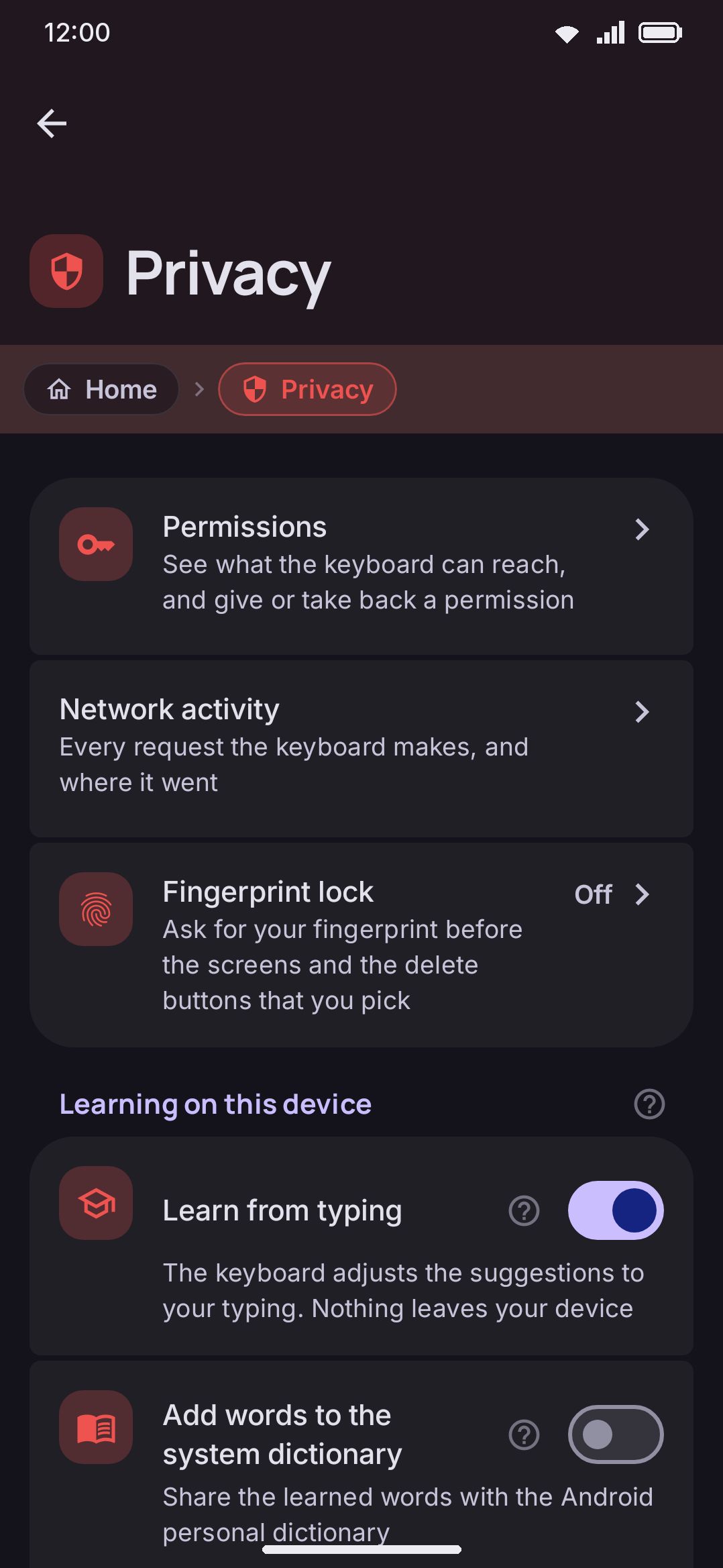
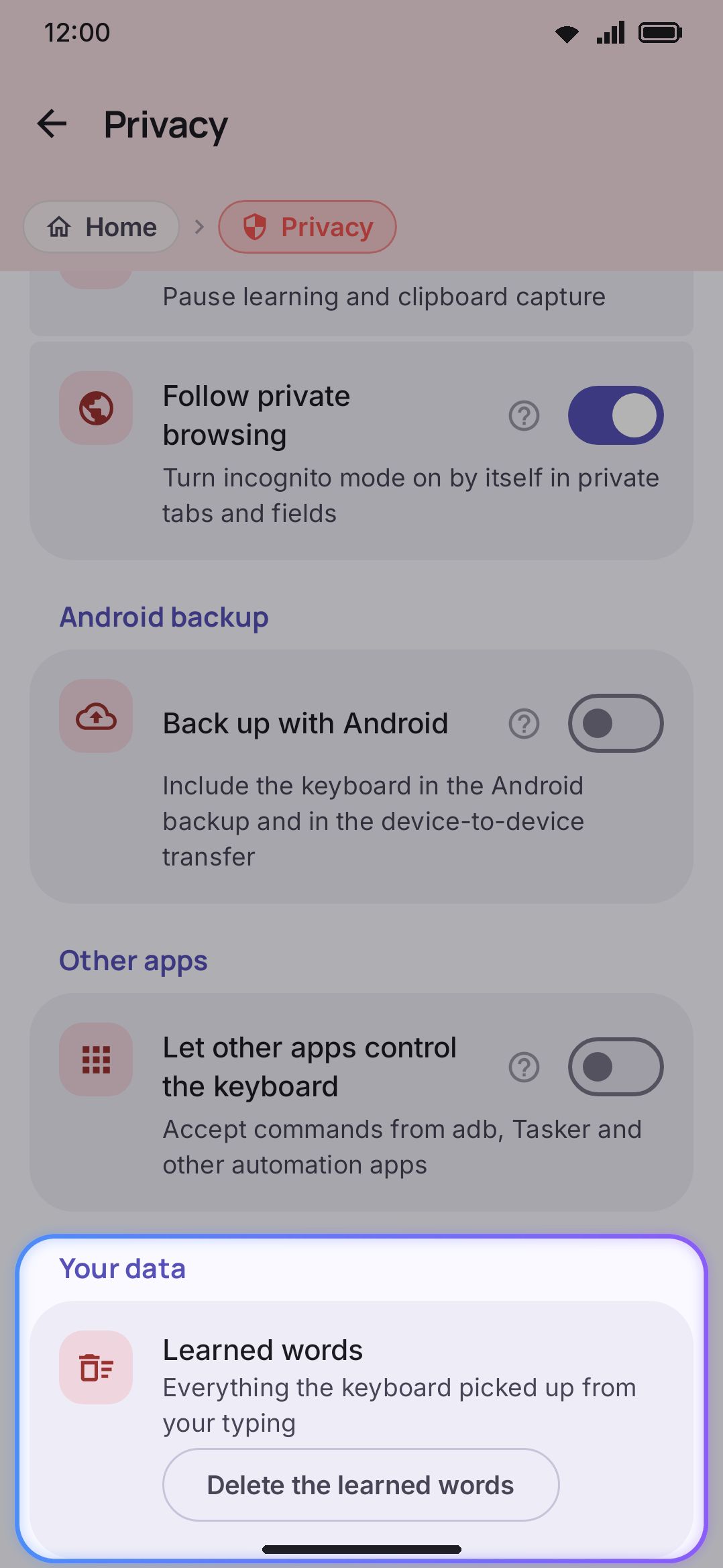
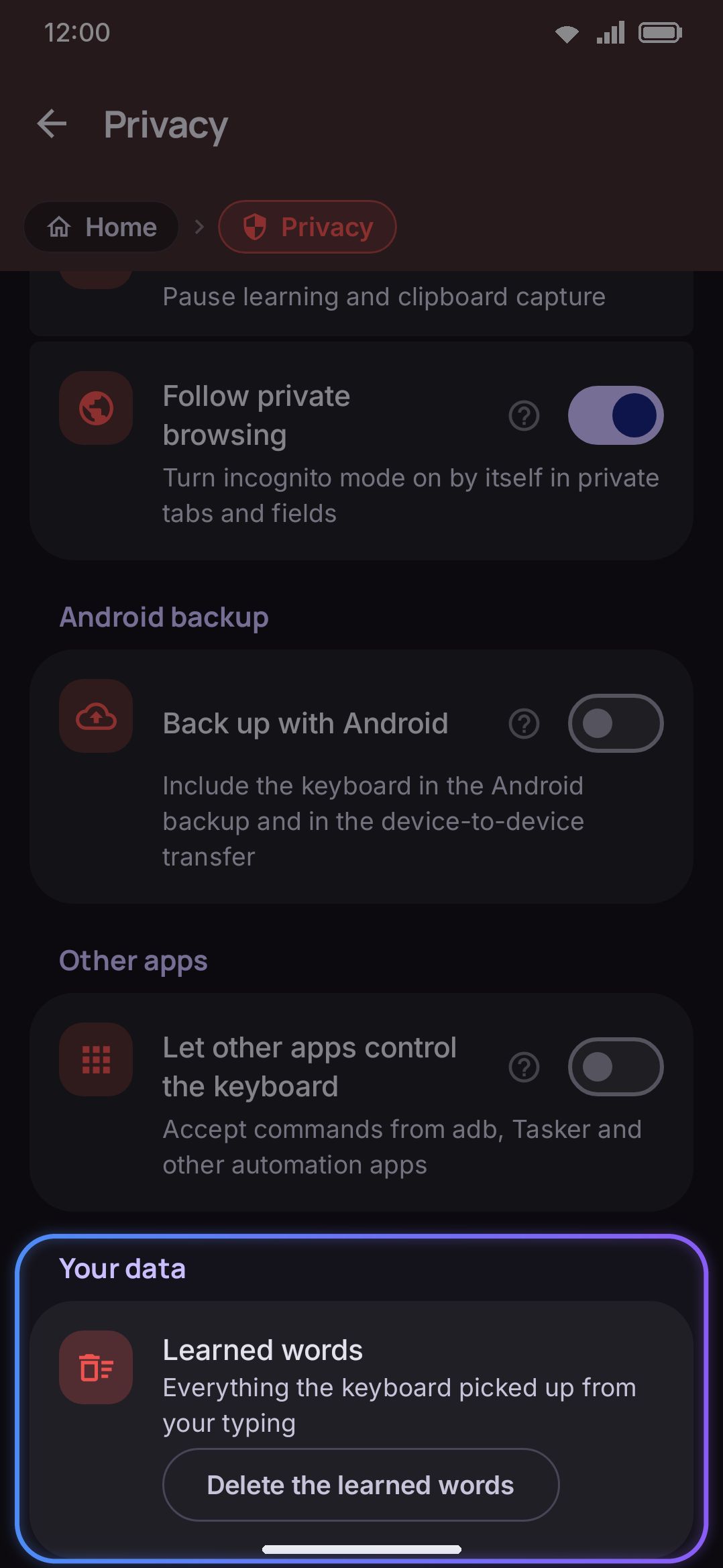
The Privacy screen is five groups, in this order: the way into the permissions inventory, learning on this device and incognito, Android’s own backup opt-in, whether other apps may control the keyboard, and the one button that clears learned data. Nothing else. This page is the field reference. For the reasoning and the rest of the privacy story, start at Privacy at a glance.
Options
Section titled “Options”Permissions
Section titled “Permissions”| Setting | Control | Default |
|---|---|---|
| Permissions | Opens a sub-screen | n/a |
An unnamed group holding three navigation rows, sitting above everything else on the screen. The first is “See what the keyboard can reach, and give or take back a permission”. It opens the permissions inventory, which is a screen of its own and has its own page here, Permissions. Nothing on this row is a setting, so there’s nothing to reset.
Network activity
Section titled “Network activity”| Setting | Control | Default |
|---|---|---|
| Network activity | Opens a sub-screen | n/a |
| Keep a network log | Switch, on that screen | On |
| Show activity on the keyboard | Switch, on that screen | Off |
The second row opens the log of every request the keyboard makes: which feature, which server, how much data, and whether it happened by itself. It keeps addresses and sizes only, never what you typed. The whole screen, and exactly what it does and doesn’t record, is on Network activity.
Fingerprint lock
Section titled “Fingerprint lock”| Setting | Control | Default |
|---|---|---|
| Fingerprint lock | Opens a sub-screen | Off |
The second row in the same group: “Ask for your fingerprint before the screens and the delete buttons that you pick”. The right-hand side reads On, Off, or Not available when this phone has no fingerprint and no screen lock to check against.
It opens a screen of its own, where you turn the lock on and choose what it covers. Turning it on and turning it off both ask for a check. See Fingerprint lock for the full field list.
Worth knowing before you turn it on: the lock hides screens inside the settings app, and it does not encrypt anything. An export file, the Android backup, USB debugging and a rooted phone all still reach the same data.
Learning on this device
Section titled “Learning on this device”| Setting | Control | Default |
|---|---|---|
| Learn from typing | Toggle | On |
| Add words to the system dictionary | Toggle, shown only while Learn from typing is on | Off |
| Use the Android dictionary | Toggle | On |
| Expand Android dictionary shortcuts | Toggle | On |
| Incognito mode | Toggle | Off |
| Follow private browsing | Toggle | On |
Learn from typing is the master switch for the on-device word and word-pair lexicon. Turning it off stops new learning without deleting anything already learned.
Add words to the system dictionary also writes learned words to Android’s own personal dictionary (System Settings → Languages & input → Dictionary), so other keyboards and the platform spell checker see them too. It’s the one setting in this group that writes outside the app, which is why it defaults off even though the keyboard’s own learning already covers the same ground. The row only appears while Learn from typing is on, since words reach the system dictionary through that same learning path.
Use the Android dictionary reads that same system dictionary the other way. Every word in it is a known word: it’s suggested, autocorrect leaves it alone, and typing or gliding it never raises the “add to dictionary?” chip. The list is re-read whenever it changes, so a word added in System Settings works at once.
Expand Android dictionary shortcuts reads the shortcut column of that list. Type a shortcut you’ve defined there, say “omw”, and it offers the full phrase, “on my way”, as a suggestion.
Incognito mode and Follow private browsing are covered in full on Incognito & secure fields, including exactly what pausing learning and clipboard capture means. Two things are worth knowing here. Follow private browsing defaults to on, the opposite of its neighbour “Incognito mode”. And two related toggles, Pause learning and Pause clipboard capture, both on by default, live on WM KeyboardToolsIncognito rather than here. “Follow private browsing” appears on that Tools screen too. It’s the same setting shown in both places, not a second copy.
Android backup
Section titled “Android backup”| Setting | Control | Default |
|---|---|---|
| Back up with Android | Toggle | Off |
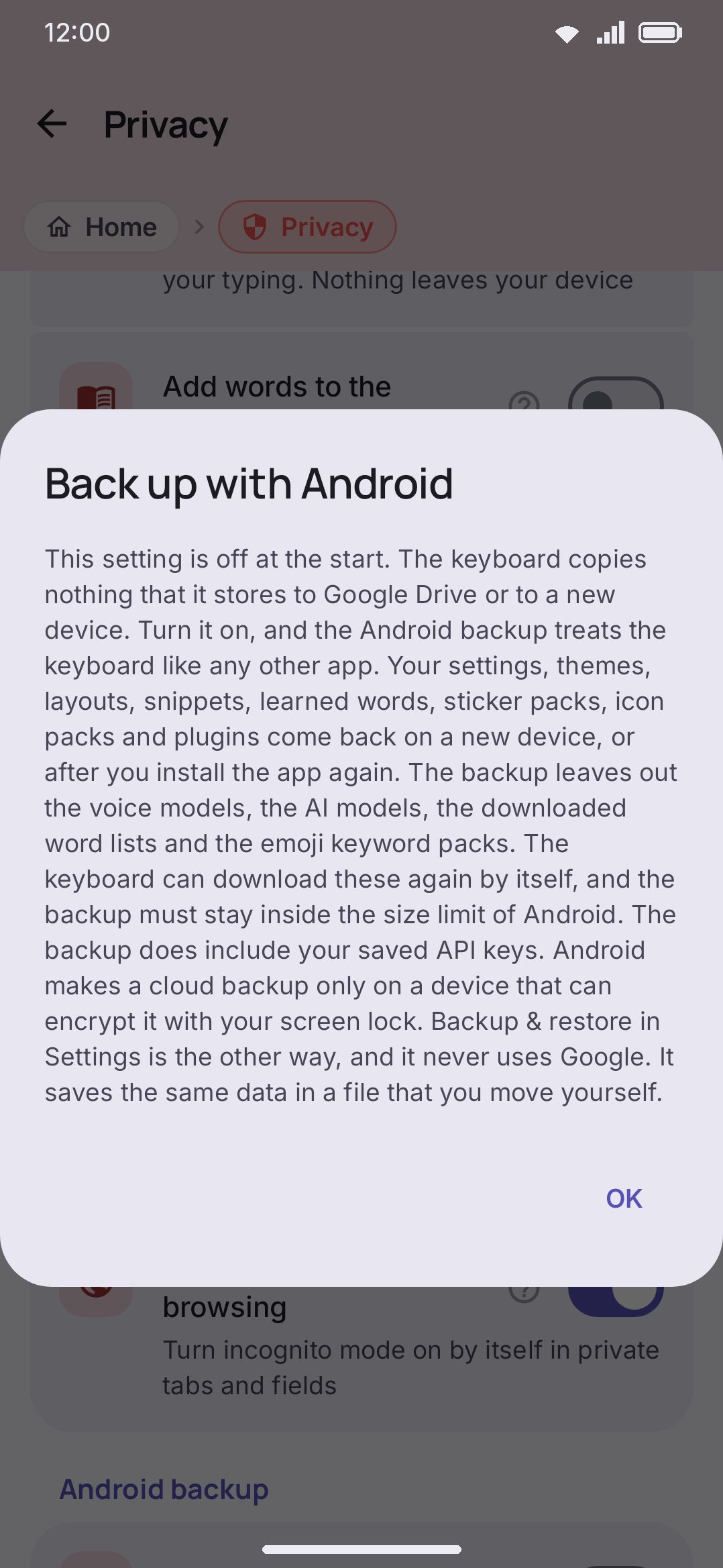
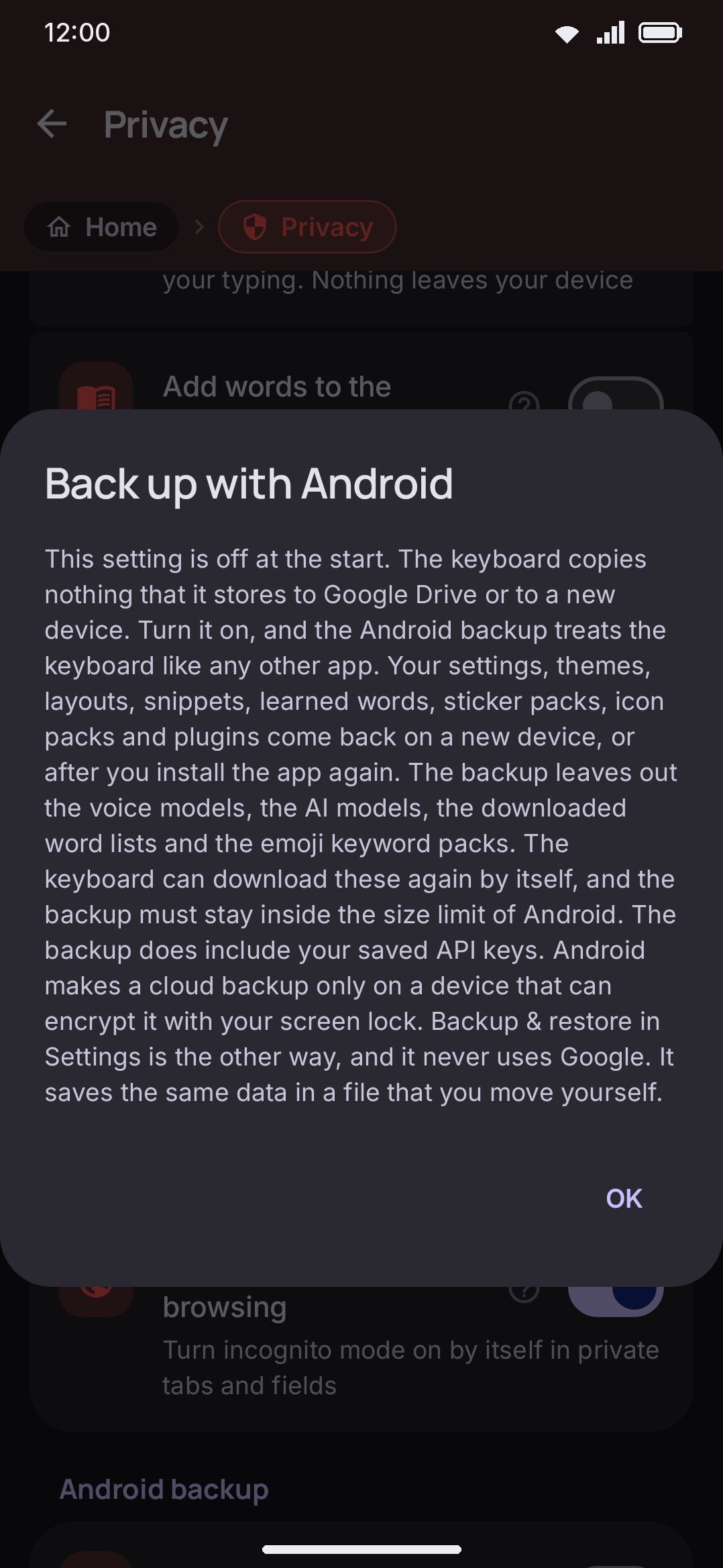
Back up with Android folds the keyboard into Android’s own backup and phone-to-phone transfer system. It’s off by default, so nothing this keyboard stores is copied anywhere until you turn it on. Once on, it includes settings, themes, layouts, snippets, learned words, sticker and icon packs, plugins, imported fonts and the word lists you imported yourself, plus any saved API keys (Translate, AI tools, and the rest). Voice and AI models, downloaded dictionaries, and emoji-keyword packs are left out, because the keyboard can fetch them again on its own. So are four smaller things, all for size: the camera and document-scanner scratch folders, the images behind clipboard entries (the clipboard’s text history stays), and the uncropped originals behind your stickers (the stickers themselves stay). A cloud backup is only made on devices that can encrypt it with your screen lock.
This is a different screen from the sibling Backup & restore item on the Settings home screen (route backup), which exports and imports a settings file by hand and never touches Google at all. See Backup & restore for both paths side by side, and the Backup & restore reference for that screen’s own fields.
Other apps
Section titled “Other apps”| Setting | Control | Default |
|---|---|---|
| Let other apps control the keyboard | Toggle | Off |
| Allowed actions | Opens a sub-screen, shown only while the toggle is on | n/a |
Let other apps control the keyboard decides whether the keyboard listens to commands from adb, Tasker, MacroDroid and other apps that send Android intents. While it is off, it ignores all of them. Turn it on and Allowed actions appears under it, with the number of actions that are on at the right.
Allowed actions has one switch per kind of command, in two groups. The Keyboard controls are on by default: switch language and layout, apply a keyboard mode, change the theme, show and pin the keyboard, sound and haptics, power saving and data saver, size and position, open a tool, and turn incognito on. The Needs more trust group is off by default: turn incognito off, add and block words, back up now, announce layout changes, and type text. The commands behind each row, and how to send them, are on Automation: adb and Tasker.
Your data
Section titled “Your data”A single row, Learned words, with a Delete the learned words button that asks to confirm first. Confirming deletes thirteen files: your word and word-pair lexicon, the new words still waiting to be counted, your emoji-usage history, autocorrect’s revert memory (which corrections you undid), your Chinese/Japanese/Cantonese pick history, and the language-mix tracker that remembers which language you tend to reach for. It also takes the hand and tap key-offset models that learn where your fingers land, and what your own manual fixes taught autocorrect. It also takes your per-app language habit and the glide-outcome store that remembers which word you picked or undid. It also takes the glide-shape store that learns how you draw each word, and the word-rank file. The dialog names the first four, warns that your personal dictionary goes with them, and promises that your snippets and your imported word lists stay.
Your personal dictionary really does go. The Personal dictionary screen edits the same word and word-pair lexicon file the keyboard learns into, so a word you added by hand and a word the keyboard picked up sit side by side, and this button takes both.
This is the only bulk clear on this screen. Personal dictionary entries, clipboard history, and downloads each have their own per-item controls elsewhere. See Your data on device for the complete map of where every other category’s clear control actually lives.
Details & edge cases
Section titled “Details & edge cases”- “Delete the learned words” is one bulk action, not a per-category picker. No dialog lets you choose which of the thirteen files to wipe. Confirming deletes all thirteen at once, with no undo.
- “Follow private browsing” isn’t two settings. The row here and the row of the same name under WM KeyboardToolsIncognito both read and write
autoIncognito; flip it in either place and the other reflects the change. - Saved API keys are included in an Android backup, not excluded the way large downloads are. If that matters to you, use Backup & restore’s manual export instead, which never leaves the device.
- A cloud backup needs an encryptable screen lock. On a device without one, turning “Back up with Android” on has nothing to actually back up into: Android’s own backup system requires it.
- The footer caption names the whole network side. The screen’s own note reads: “Typing works fully on this device. The word lists, prediction, autocorrect, transliteration and emoji search are part of the app, and none of them needs a network connection. The app collects nothing about you and has no analytics of its own. Handwriting, text scanning and QR scanning are built on Google’s ML Kit, which reports its own diagnostics to Google while you use them. Only a tool uses the network, and only at the moment that you press it: translate, weather, web search, image search, GIFs, stickers, dictionary lookup and the AI tools. You can turn off each one of them on the Tools screen.” See Privacy at a glance for the same list with per-tool detail, plus the few fetches that happen without you pressing a tool.
- Allowed actions keeps its switches while the master toggle is off. Turning Let other apps control the keyboard off hides the row and blocks every command, but the choices under it are kept for the next time you turn it on.
- No edition differences. Every setting on this screen behaves the same on both the full and lite builds.
Related pages
Section titled “Related pages”- Privacy at a glance: what leaves the device and what never does, with the receipts.
- Permissions: the field list for the sub-screen the top row on this page opens.
- Fingerprint lock: the field list for the third sub-screen, including everything the lock does not protect.
- Your data on device: everything stored locally, where it sits, and every way to clear it. Not just the one button on this screen.
- Incognito & secure fields: incognito mode, private-browsing detection, and password/secure-field handling in full.
- Network policy: the complete tool-by-tool table of what reaches the network and why.
- Network activity: the log of every request the keyboard makes, on your device.
- Backup & restore: the guide covering both this screen’s “Back up with Android” and the separate manual export/import screen.
- Backup & restore reference: the field list for that separate screen.
- Automation: adb and Tasker: every command the Other apps group lets through, with adb and Tasker examples.
- Tool settings reference: the master tool list. The “Tools / Incognito” toggles that live outside this screen are covered above and in Incognito & secure fields. Clipboard’s own settings are on its tool guide.