
FAQ
Quick answers to the questions everyone asks first.
Quick answers to the questions people ask before they’ve read anything else. Each one links to a fuller page if you want the details.
Is anything sent to the cloud?
Section titled “Is anything sent to the cloud?”No, not by default, and not for typing itself. WM Keyboard’s prediction, autocorrect, gesture typing, and dictionaries all run entirely on your device, and there’s no analytics SDK anywhere in the app. The one exception worth knowing is Google’s ML Kit, which handwriting, OCR and QR/document scanning are built on: it reports its own diagnostics to Google while you use those features, never anything you typed. See Privacy at a glance.
What does need the internet is a handful of optional toolbar tools that are online services by nature: weather (Open‑Meteo), the dictionary look‑up, translate (the Full edition can also translate on the device, with no connection, once you download the languages), currency conversion, Wikipedia, GIF/sticker search (KLIPY, GIPHY), and web/image search (Brave, Google), plus any AI tool you set up with your own API key. Almost all of them make a request only when you open and use the tool. Link previews are the one opt‑in exception. Turn that on and copying a URL anywhere on the device, or scanning a QR code, fetches the page title in the background without any WM Keyboard tool being open. It’s off by default, and Power saving can drop it along with the other background network fetches. See Network policy for the full tool‑by‑tool breakdown of what gets sent where.
There is no release without the internet permission, but you can build one: Building takes one extra property, and everything that runs on the device keeps working in it.
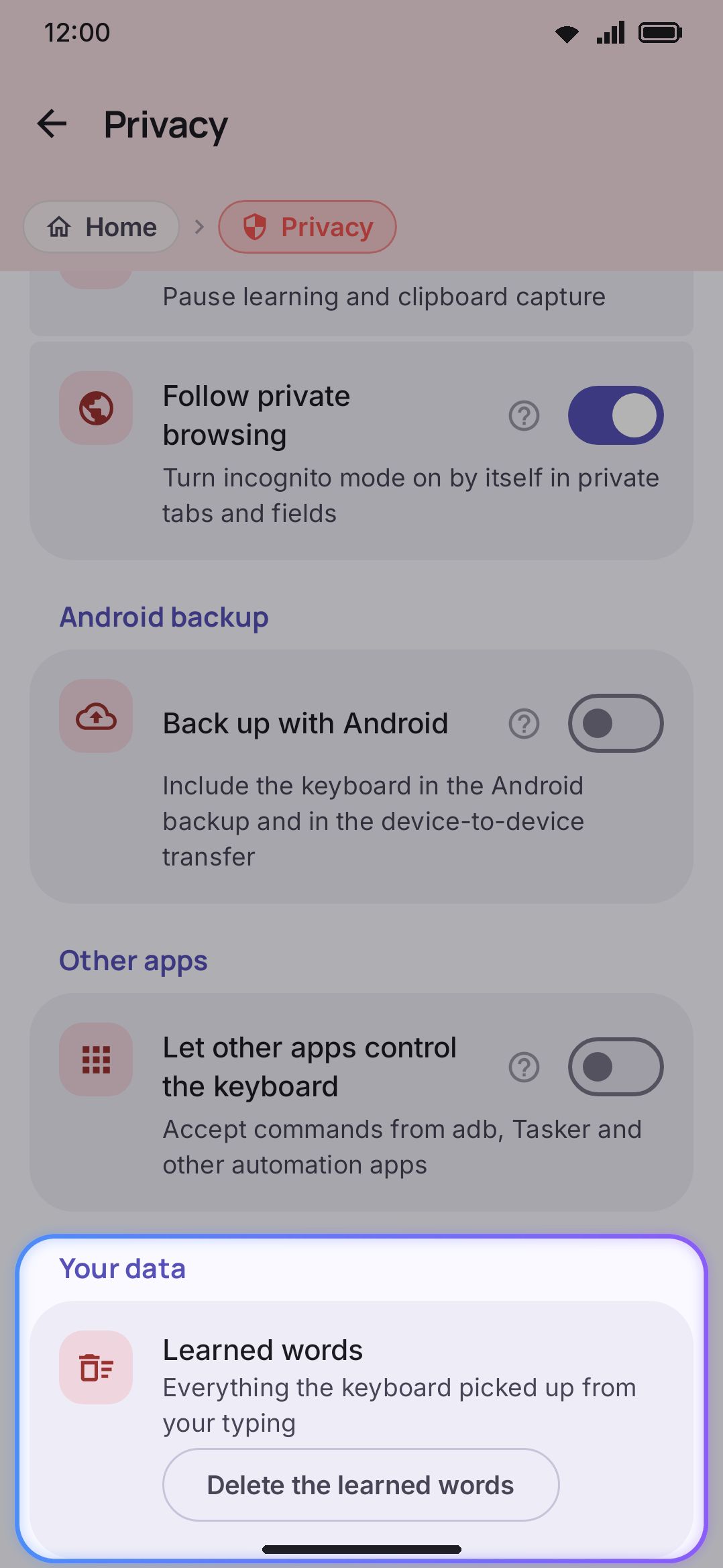
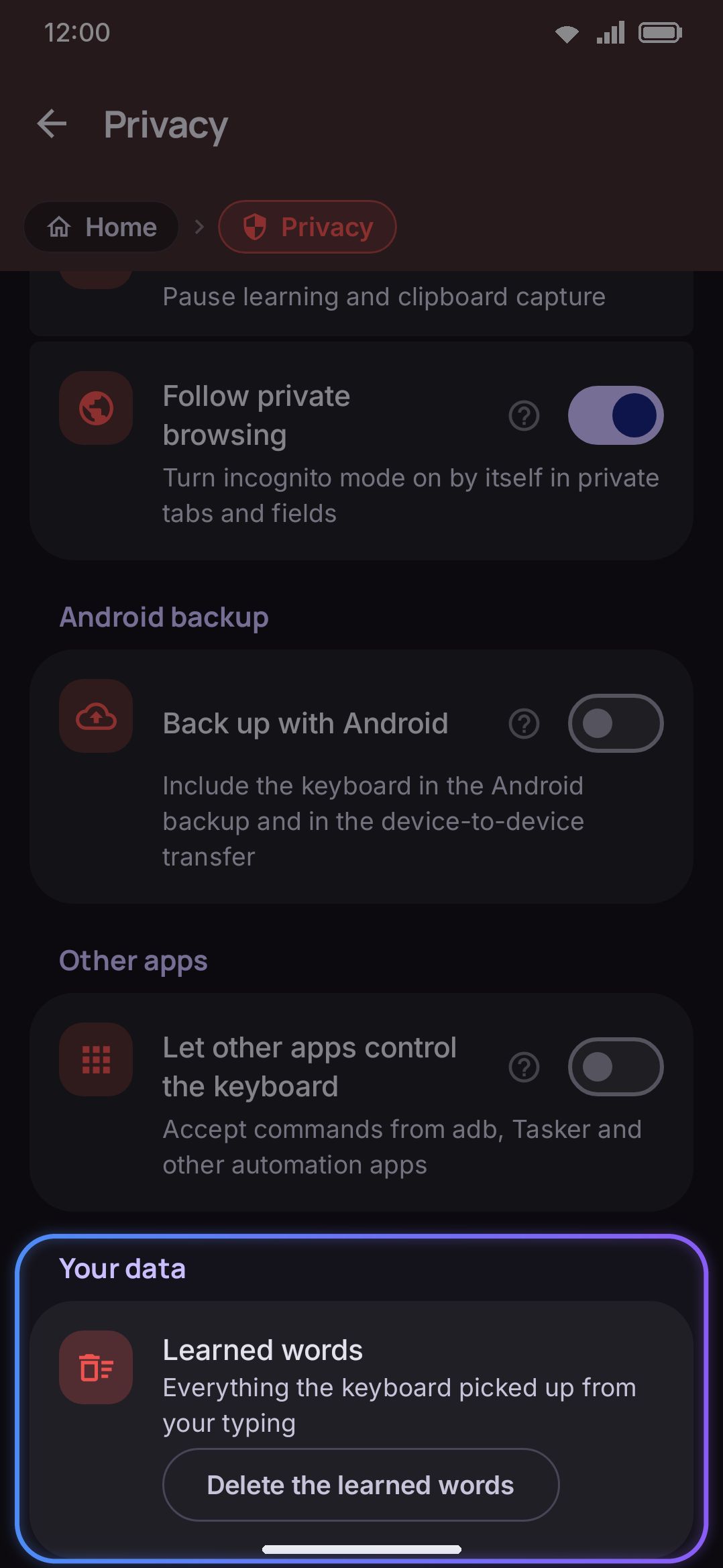
This screen also controls learning, incognito, and Android’s own backup. See Where are my learned words stored? below, and Your data on device for the complete inventory of what’s stored and where.
Why does Android warn me when I enable the keyboard?
Section titled “Why does Android warn me when I enable the keyboard?”Because that warning is standard Android behavior for any third‑party keyboard. WM Keyboard doesn’t add it and can’t turn it off. Every input method has to see everything you type in order to work at all, Gboard and SwiftKey included, so the system shows a generic “this input method may be able to collect the text you type” notice the first time you turn on a keyboard that didn’t come with the phone. None of that dialog’s wording is WM Keyboard’s. It belongs to Android’s own Settings app.
Tapping “Enable keyboard” during setup opens Android’s input method settings directly, which is where that warning lives. See Enable the keyboard for the full setup flow. What happens to your typing once the keyboard is enabled is the previous question’s answer. Your typing never leaves the device, and the rest is limited to the optional online tools and the opt-in link-preview fetch already covered above.
Why doesn’t glide typing work in my language?
Section titled “Why doesn’t glide typing work in my language?”Because the language has no word list installed. A swipe is decoded against the active language’s dictionary, and English and Bangla are the only ones with a list built in. French, German, Spanish and every other language get theirs from a download under WM KeyboardLanguages, on the language’s own page. Until then a swipe has nothing to match and lands as the keys it crossed. With glide typing on, the keyboard tells you: the first time you type in such a language, a chip on the suggestion strip reads “Glide typing needs a French word list”, and tapping it opens the download. See Glide typing for the other things a swipe needs, and Dictionaries for the lists.
Does it use much battery or memory?
Section titled “Does it use much battery or memory?”Ordinarily very little, and there’s a dedicated mode if you want it to use even less.
Nothing runs in the background out of the box. The keyboard is a normal Android input method process, alive while you’re typing and free for the system to pause or reclaim like any other app. Three service components ship in the app, and every one of them is inert until you switch it on: a notification listener (feeds the media-control tool and the one-time-code chip, and needs the notification-access grant), an accessibility service that keeps the keyboard’s own gestures working while a screen reader runs (it reads nothing, and needs its own grant), and a scheduled job for the automatic backup, which is off by default. Turn none of them on and the keyboard exists only while a text field has focus. The two heaviest things it can hold in memory are an offline Whisper voice model and a local LLM. Both are released the moment Android signals memory pressure, and both reload the next time you use them. Word lists use compact, mostly on-disk structures rather than big in-memory maps, so even large downloaded dictionaries barely touch the Java heap.
If you’re on a storage- or RAM-constrained device, two things help further:
- Lite edition drops the ML Kit, Harper, and LiteRT native libraries behind handwriting, OCR/document scanning, grammar checking, offline Whisper, and the local LLM. See Full vs Lite for the full comparison.
- Power saving is a dedicated mode that trims the costliest per-keystroke work: vibration, key sounds, animations, the glide trail, Words on the keys, background network look-ups, screenshot watching, and the on-device voice/handwriting models, either by hand or automatically.
By default, power saving never switches on by itself: only the toolbar tile or the settings switch turns it on, so the keyboard never changes how it feels without you asking. If you want it automatic, Turn on by itself can follow Android’s own battery saver, a low battery (“The battery is low”, 20% out of the box), or either, and those automatic triggers are ignored while the charger is plugged in. Gesture typing and the key‑press popup stay on even under power saving, for opposite reasons. The popup is cheap to draw. Gesture typing is the most CPU-expensive thing the keyboard does, and it stays on anyway, because dropping it would be the most noticeable loss for the people who installed the keyboard for it. Every item here is its own switch, so keep what matters to you and drop the rest.
Where are my learned words stored, and how do I wipe them?
Section titled “Where are my learned words stored, and how do I wipe them?”In a plain JSON file in the app’s private storage, and nowhere else. It’s user_lexicon.json, alongside a dozen more files that quietly track things like emoji usage, undone corrections, CJK picks and language‑mix confidence, listed in full below. Before the phone’s first unlock there’s no file to write to at all. Anything typed in that window stays in memory for the session and is thrown away once the device unlocks, never queued up to save later.
Two different screens manage it, depending on whether you want to edit individual words or wipe everything:
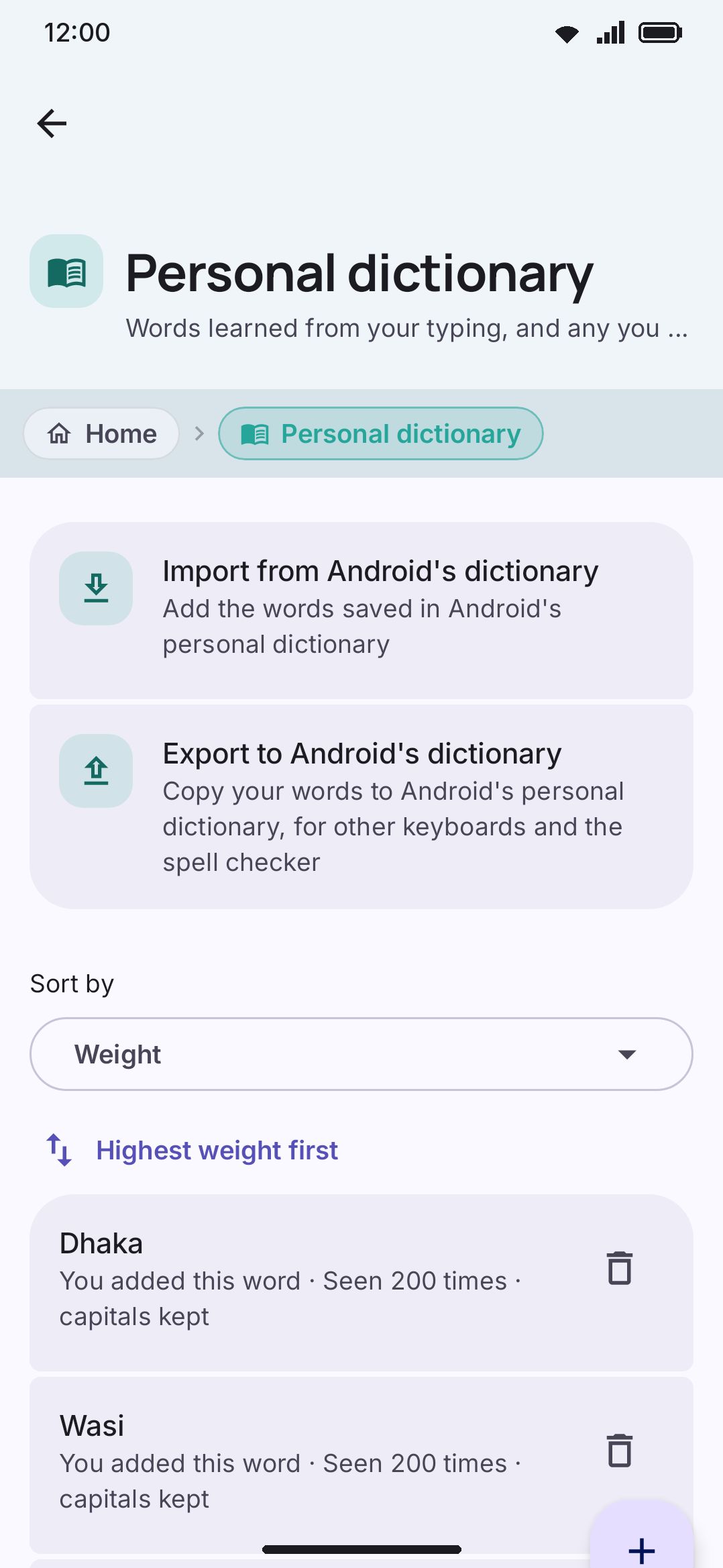
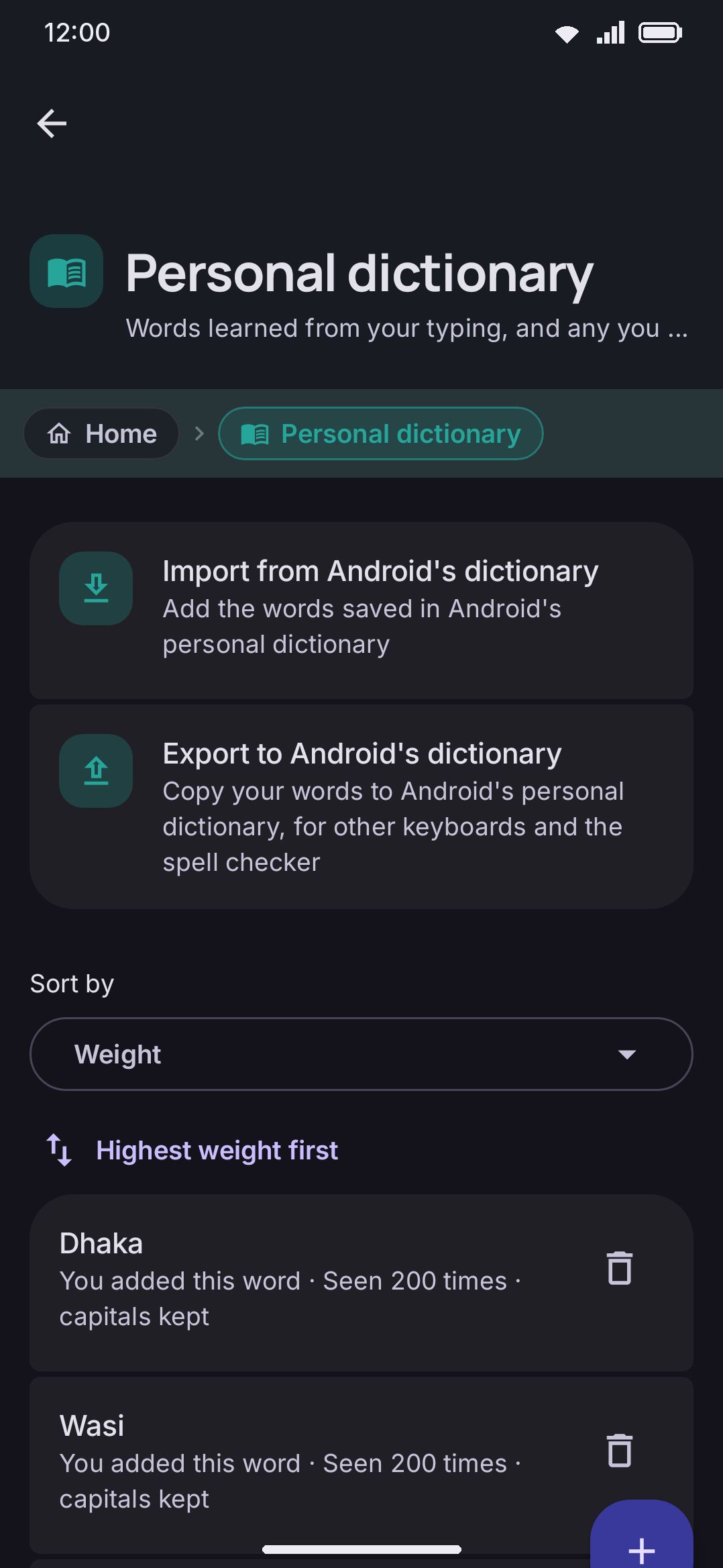
Lists every word the keyboard has learned, with a per‑word delete and a button to add your own. Words you add here read “You added this word.” Words picked up from typing read “Seen 4 times” instead. Changes take effect immediately, even if the keyboard is already open.
WM KeyboardPrivacyYour dataLearned wordsThe bulk wipe. Delete the learned words takes out all 13 learning files in a single pass:
- the learned words, and the new words still waiting to be counted
- your hand and tap-position models
- your per-app and overall language‑mix confidence
- the two glide-typing learning stores
- your emoji usage
- the corrections you undid, and the separate autocorrect-fix memory
- your CJK picks, and the dictionary’s word ranking
Nothing personal is left behind for the keyboard to keep guessing from. Words you added by hand go with them, because the Personal dictionary screen above writes into that same learned-words file rather than a list of its own. Snippets and imported word lists are separate files and stay put.
A running keyboard follows along rather than needing to be restarted. The settings app bumps a version number the keyboard service watches, and the service drops its in‑memory copies the moment it sees the change, so the words it was holding can’t be written straight back over the emptied files.
Learning itself can be switched off entirely, or paused for a while, from the same Privacy screen:
- Learn from typing. On by default. The master switch. Turning it off erases nothing already learned, it only stops anything new being added.
- Incognito mode. Off by default. Pauses learning and clipboard capture until you turn it back off. Existing learned words are left alone either way.
- Follow private browsing. On by default. Turns incognito on by itself in apps and fields that mark themselves private, like Chrome’s incognito tabs and most password managers, for as long as that field has focus.
See Your data on device and Incognito mode for the complete inventory and behavior of each.
How do I report a bug or request a feature?
Section titled “How do I report a bug or request a feature?”Export a diagnostic report from the app first. Then use one of the two Feedback rows on the About screen. Report a bug opens the project’s GitHub issue tracker. Email the developer opens a pre-filled draft to arianmollik323@gmail.com, for anything you’d rather not post publicly. An issue is the better first stop, because it’s searchable and can be tracked to a fix.
This screen shows what the keyboard has recorded since it last started, plus any crash it didn’t survive. The page states plainly that nothing you type is ever recorded here. Share diagnostics hands the report to Android’s share sheet as a file, so no app that only accepts short text can truncate it. Copy to clipboard gives you the same report as plain text. An Include the system log toggle, off by default, adds the process’s full Android log for a hard-to-reproduce bug. Read that log before you send it anywhere: every library in the app writes to it, not only code the keyboard controls.
Holding the crash text on that screen copies it on its own, with the version: and android: lines placed in front of it — the two lines worth keeping whatever else you trim, since they say which build and which Android version the crash came from.
Paste that report into the issue whole, including the header lines at the top. A crash in a release build reads at q3.a(SourceFile:15) — the code is compiled with its names shortened, so the trace names nothing. The header says which build the crash came from, and a bot on the repository uses it to fetch that build’s name table and post a readable version of the trace back on your issue, usually within a couple of minutes. Trimming the report to “just the crash part” is what stops that working.
About → Source code opens the project’s GitHub repository, where you can open an issue or start a discussion the same way you would for any open-source project.
If what went wrong is something the AI tool generated rather than the keyboard misbehaving, use the Report button on the AI panel instead. It builds a draft that quotes the generation itself, which a bug report wouldn’t.
Details & edge cases
Section titled “Details & edge cases”- The Android “collect the text you type” warning and the request for
BIND_INPUT_METHODhave nothing to do with any specific permission WM Keyboard asks for. Both come from registering as an input method, which every keyboard app must do. - “No telemetry” means no analytics or crash-reporting SDK is built into the app. It doesn’t mean no network code exists. The optional tools above are real HTTP clients, and the opt-in link-preview fetch is a real background request, gated by its own switch rather than by opening a tool.
- Power saving’s automatic trigger ignores Android’s per-percentage battery broadcast, which fires on every single point drop. It watches coarser signals instead: battery‑low, battery‑okay, charger in and out, and the system saver being toggled. So it reacts no more often than it needs to.
- Clearing learned words does not touch your typing settings: autocorrect, suggestions, and every other toggle stay exactly as you left them. It only removes the words and history the keyboard has picked up from use.
- Words the keyboard learns from your typing can optionally mirror into Android’s own system‑wide personal dictionary, shared with other apps and keyboards. That’s a separate, off‑by‑default toggle on the Privacy screen (Add words to the system dictionary), because it writes outside the app. Words you add by hand from Personal dictionary’s Add word button stay local to WM Keyboard. Only words picked up from typing get mirrored.