
Contact-aware typing
Your contacts' names and emails, suggested where they help, never uploaded.
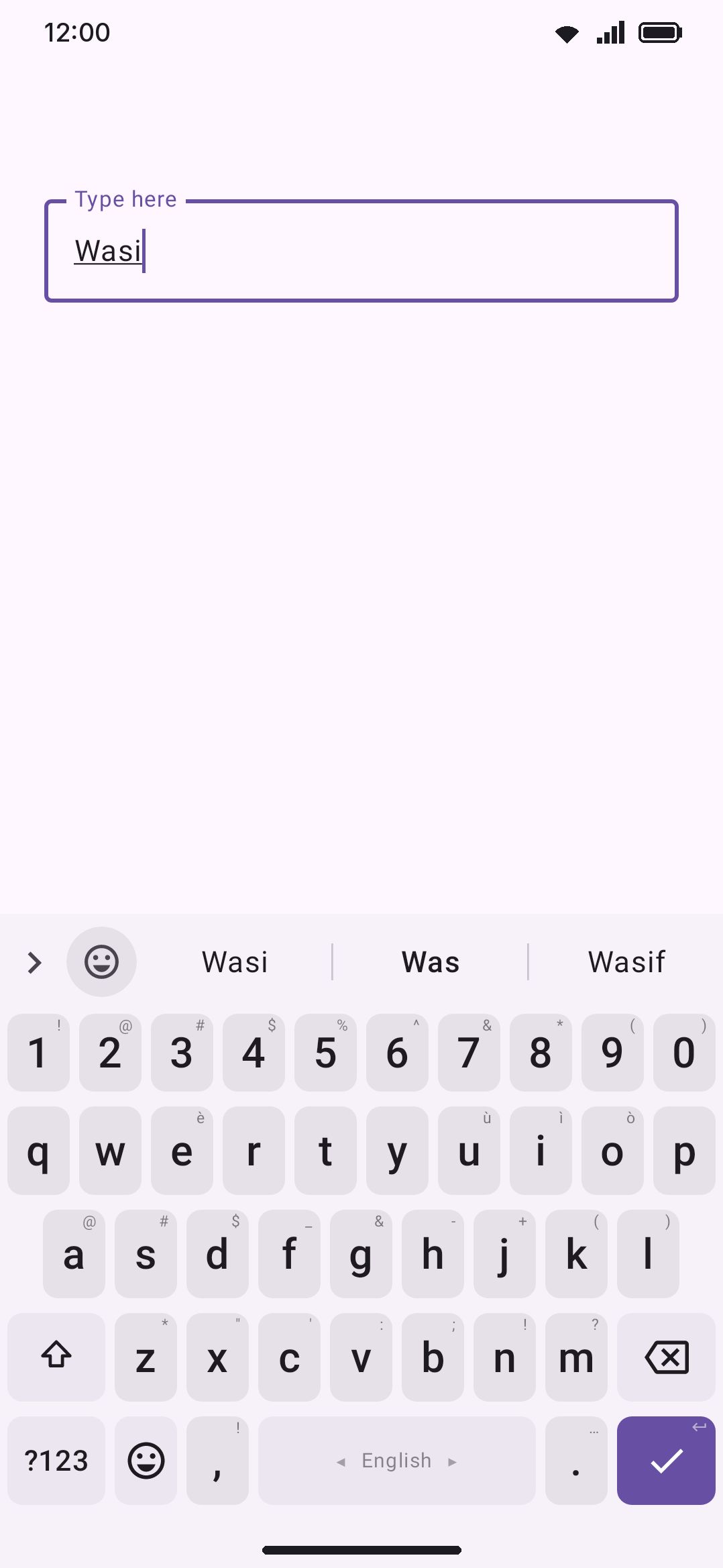
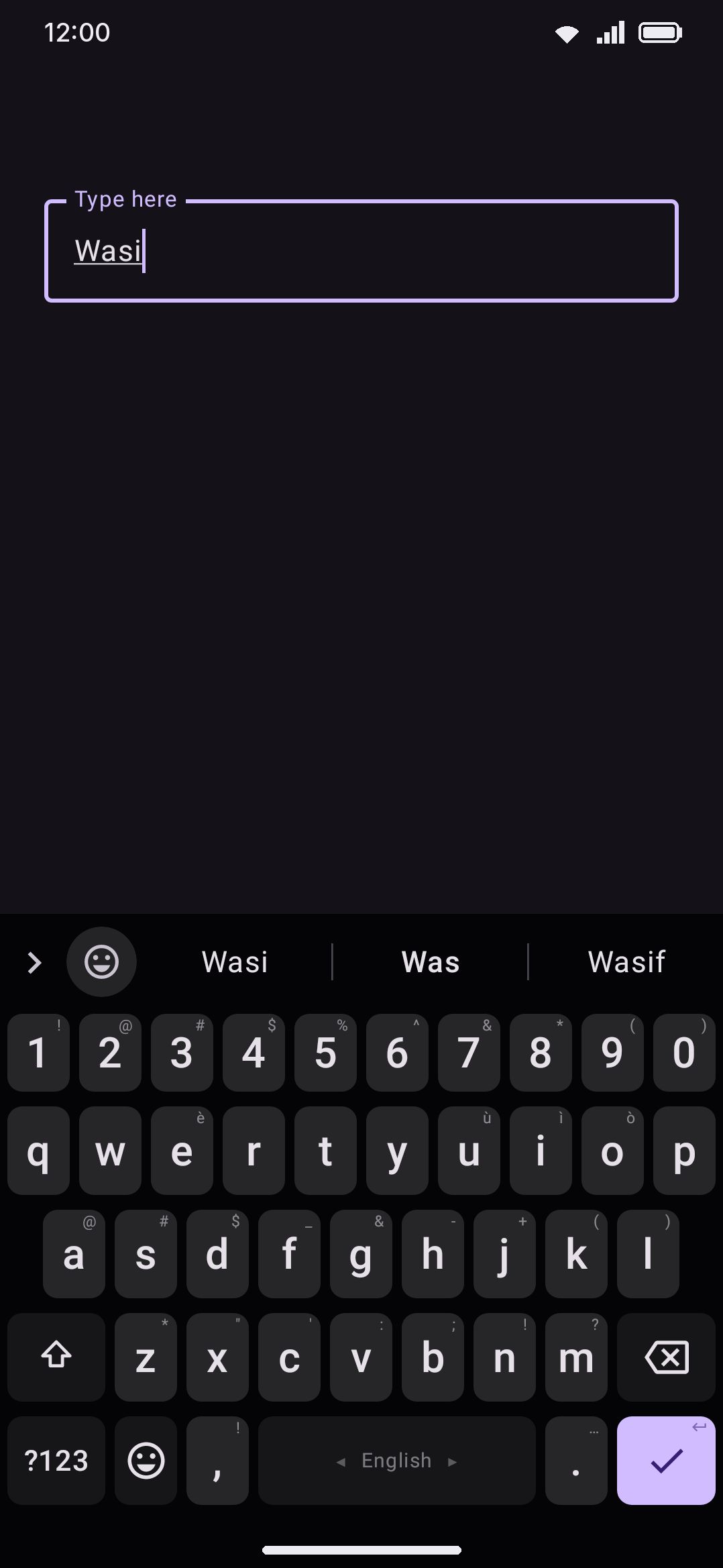
WM Keyboard can complete names and email addresses straight out of your contacts, and app names straight out of your launcher, so "was" completes to Wasi and "john" completes to john.doe@gmail.com. All three sources are off by default, and everything they read stays in memory on the device. Nothing is written to disk and nothing is sent anywhere.
What gets suggested
Section titled “What gets suggested”Three independent sources feed the suggestion strip, each with its own toggle in Typing settings:
- Contact names. Every contact’s display name is split into words (first name, last name, and any middle parts) and offered as a completion, the same way a dictionary word would be. After you finish typing one name, the next part of that same contact’s name is offered as the next word: type “Wasi” and “Mollik” appears next, the way a learned bigram would.
- Contact emails. Type the first couple of characters of an address, from the very start, the way you’d begin typing the name before the
@. The full address is offered to complete. This works both in ordinary text and, with a second toggle, inside actual email input fields. - App names. The labels of apps that appear in your launcher complete the same way (“sign” → Signal), so you don’t have to type an app’s full name out to search or reference it. This needs no permission. It comes from the same package list Android uses to build your home screen and app drawer.
A word that matches a known contact name or a known app name is never “corrected away” by autocorrect. Contact-email addresses aren’t typed out character by character the way autocorrect operates, since you complete one by tapping it from the strip, so this exemption doesn’t separately cover them and doesn’t need to.
Using it
Section titled “Using it”Contact names in the strip
Section titled “Contact names in the strip”Turn on Suggest contact names and start typing a contact’s first or last name. It completes like any other word, ranked above ordinary dictionary and learned words. It works in almost every language mode, not only English, since all it does is match against words extracted from your address book.
The Bangla phonetic (Avro) layout is the exception. While you’re composing a romanized buffer there, the strip is the Bengali candidate list and nothing else, so contact names, contact emails and app names aren’t offered as completions. The name chaining still works: finish a name and the next part of it is still offered as the next word, because that path runs before the Bengali one takes over.
Contact email completion
Section titled “Contact email completion”Turn on Suggest contact emails and type the start of an address anywhere in ordinary text. Two characters are enough to trigger it, and a single letter deliberately isn’t, or one keystroke would dump the whole address book onto the strip. The strip offers matching full addresses from your contacts, ranked above everything else in the strip.
A second setting, Contact emails in email fields too, extends this into fields the keyboard recognizes as email inputs specifically. Those fields keep no composing buffer the way an ordinary text field does, because letters you type there commit straight to the field one at a time. That leaves the everyday word-completion engine with nothing to work with, independently of WM KeyboardTypingSuggestionsSuggestions in every field. This setting carves out an exception just for contact-email completions. It reads the address-in-progress straight from the field instead of from a composing buffer, so the one place you’re most likely to want an email address offered is the one place ordinary suggestions can’t reach. It only has an effect while Suggest contact emails itself is on, and its row only appears in the settings list once that parent toggle is on too. It also needs the master Suggestions switch on, and it stands down in a password field like everything else.
Tapping a suggested email in an email field commits the whole address with no trailing space, since an address is usually the entire field. It also stays out of your personal dictionary, because an address isn’t treated as a word to learn.
App names in the strip
Section titled “App names in the strip”Turn on Suggest app names and installed-app labels complete the same way contact names do, but ranked lower. Ordinary words that happen to also be app names (Files, Photos, Clock) shouldn’t outrank the dictionary, and you type a contact’s name far more often than you reference an app by name. App names complete in the suggestion strip only. They don’t extend into the system-wide spell checker below.
Options
Section titled “Options”| Setting | Default | Needs |
|---|---|---|
| Suggest contact names | Off | Contacts permission |
| Suggest contact emails | Off | Contacts permission |
| Contact emails in email fields too | On (only shown while contact emails are on) | Nothing |
| Suggest app names | Off | Nothing |
Turning on either of the two contact toggles requests the Contacts permission the first time, if it isn’t already granted. Turning a toggle back off never prompts for anything. Both toggles use the same Android permission, so granting it for one covers the other automatically. App-name suggestions need no permission at all. They’re covered by the app’s existing ability to list installed launcher activities.
Turning any of these three off clears its in-memory index immediately. There’s no lingering suggestion from data the keyboard is no longer supposed to be reading.
Contact names in the system spell checker
Section titled “Contact names in the system spell checker”WM Keyboard can also act as Android’s system-wide spell checker, the service other apps’ text fields use for the red squiggly underline. It’s a separate component that you select yourself, under Android’s own Settings → System → Languages & input → Spell checker, where it’s listed as “WM Keyboard (Harper)”. Installing the app doesn’t switch it on automatically, and it isn’t available in the lite edition at all.
When selected, it reads the same Suggest contact names setting described above (there’s no separate toggle for it) to decide whether to load your contacts. If that’s on, the spell checker treats known contact names and emails as correctly spelled, so no red squiggle appears under a name it recognizes. It also puts a matching contact name first in the correction menu when you’ve mistyped one, ahead of ordinary grammar suggestions. Because it runs in its own process, it works this way in any app, even while WM Keyboard isn’t the active keyboard. See the system spell checker page for the rest of what it catches.
Details & edge cases
Section titled “Details & edge cases”- What’s read. A one-shot query against
ContactsContractfor contact display names, and a separate one for contact email addresses, each covering the whole address book in a single pass rather than filtering or searching incrementally. App names come from querying installed launcher activities, the same list your home screen’s app drawer is built from. - What’s stored. Nothing on disk for this feature. Contact names, contact emails, and app names are held as plain in-memory lookup tables, rebuilt from scratch whenever the keyboard process starts with the relevant setting on, and dropped the instant you turn that setting off. If a query fails for any reason, such as a permission revoked mid-session or an unavailable provider, the source silently falls back to empty rather than crashing or retrying in a loop.
- What never leaves the device. There’s no network code anywhere in this path. Contacts, contact emails, and app names are read, indexed, and matched entirely locally.
- Typing a name is still “learning.” The memory-only guarantee covers the index this feature builds. If you type a contact’s name as ordinary text, that word goes through the keyboard’s general on-device learning path like any other typed word. That’s a separate, on-by-default setting, unrelated to the toggles on this page. There’s also a distinct, off-by-default setting that would additionally copy a learned word into Android’s own shared personal dictionary, which other apps can read. Leave it off and this doesn’t apply. See Personal dictionary for both.
- Before you unlock the phone. Right after a reboot, before you’ve entered your device credential the first time, all three toggles behave as off regardless of their saved state. Android’s contacts and app-label providers are themselves locked at that point and can’t be read no matter what the setting says. Nothing about your saved preference changes. The moment you unlock, contact and app suggestions resume on their own.
- Name splitting is punctuation-aware. A contact’s display name is broken on spaces, commas, and similar separators, with stray punctuation trimmed from each piece. A name with a middle initial, or a bracketed label like “(work)”, still indexes its meaningful parts rather than the punctuation around them. Very short fragments (a single letter) aren’t indexed, which keeps initials from cluttering the strip. Matching is case-insensitive, and the name is still shown with its original capitalization when suggested.
- Only real-looking addresses are indexed. A contact’s stored email is only used if it has an
@with something on both sides and no embedded spaces. Malformed entries in your address book are silently skipped rather than offered as junk completions.