
Emoji customization
Emoji fonts, keyword language packs, predictions and the emoji row.
The emoji panel itself (search, skin tones, favourites) is covered in Emoji picker & search. This page is about the settings that shape it: which font draws the emoji, which languages emoji search understands, when emoji get suggested while you type, and whether a dedicated row of them sits above the keys.
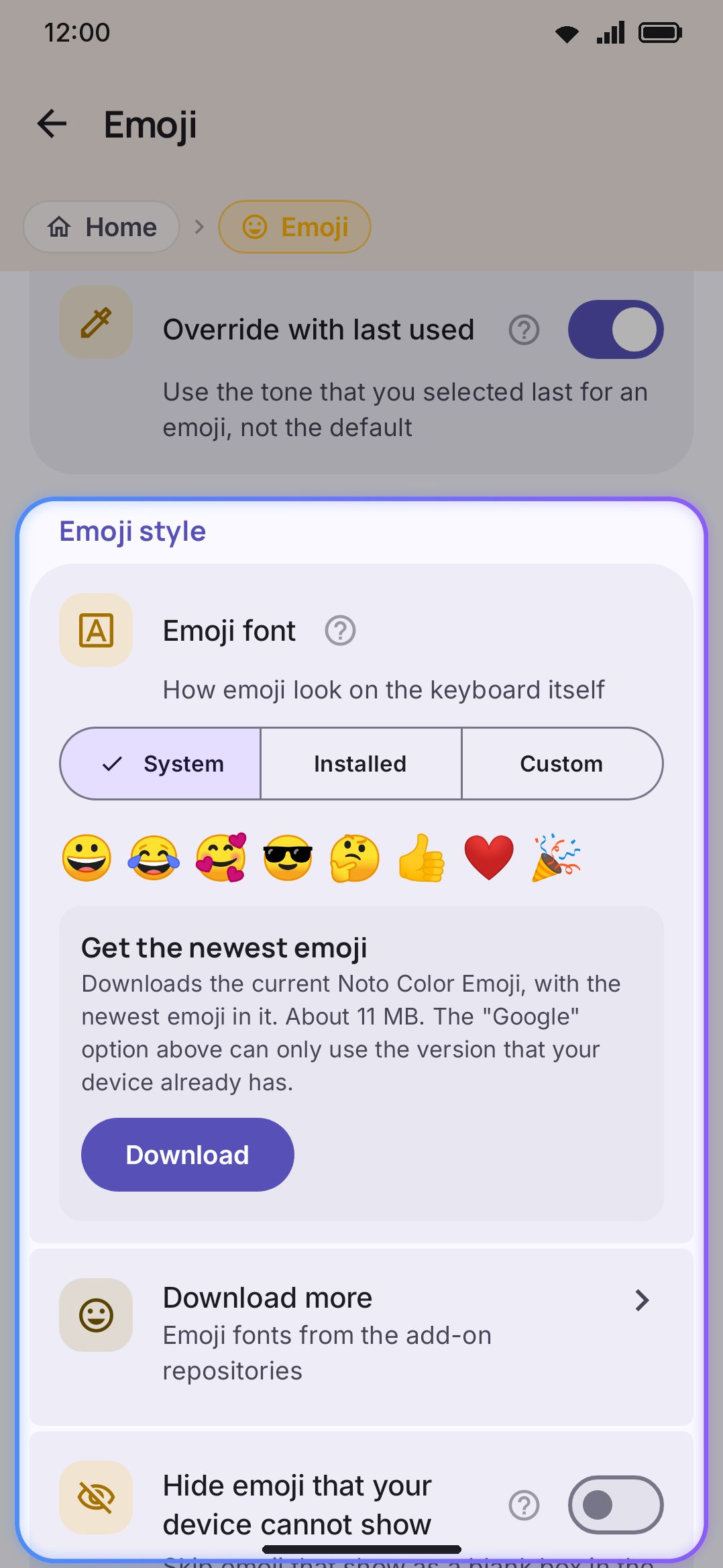
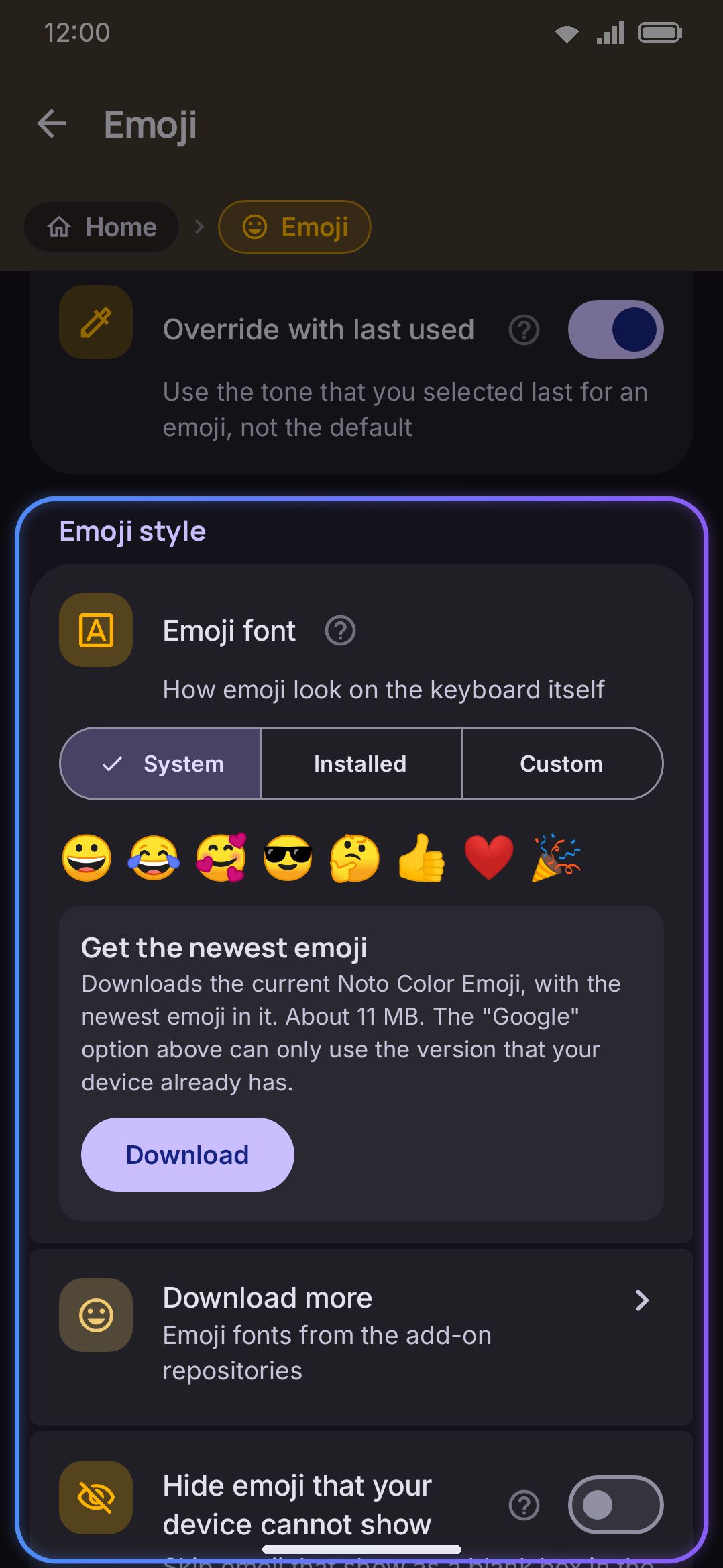
Choosing an emoji font
Section titled “Choosing an emoji font”WM Keyboard ships no emoji font of its own. It draws emoji with whichever one you pick here. A preview row on the settings screen renders 😀😂🥰😎🤔👍❤️🎉 through the real rendering pipeline, so what you see there is what the keyboard shows, not a mockup.
- System (default): your phone’s own emoji pack. On Samsung phones that’s Samsung’s set, not Google’s.
- Google: fetches Noto Color Emoji, the stock-Android look, once through the system font provider and caches it on the device.
- Installed: an emoji font from Addons, such as Twemoji or OpenMoji, picked from a list of whatever you’ve installed. Deleting the font you currently have selected falls back to System automatically.
- Custom: a single font file you import yourself, kept separate from the addon library.
Text you send is always plain Unicode, whichever font you pick. The app or phone on the other end draws it with its own emoji font. This setting only changes how emoji look while you’re composing them.
Fixing emoji that won’t display
Section titled “Fixing emoji that won’t display”Older phones and some OEM skins ship an emoji font that predates the newest emoji, and those show up as an empty “tofu” box. There’s a one-tap fix for that, plus a toggle for tidying away whatever it can’t reach.
Getting a font that has them
Section titled “Getting a font that has them”A card sits under the font picker offering the current Noto Color Emoji, around 10 MB, from WM Keyboard’s own addon repository. Tap Download. The font installs into the font library and selects itself, so the panel and the keys redraw with a face that actually has the new emoji in it. The card then disappears. It comes back as New emoji are available, with an Update button, when the repository publishes a newer build.
Switching Emoji font to Google is not the same thing, and that’s the part that catches people out. A downloadable font is requested by family name with no version attached. The system font provider answers with whichever build of Noto it already has, which on a phone with a recent system emoji font is usually the older of the two, so the boxes stay. Installing a complete addon font like Twemoji or OpenMoji from Addons works as well, and a Download more row right below the picker opens the catalogue filtered to emoji fonts. The download card is the shortcut to the font most people are after.
Hiding the ones that are left
Section titled “Hiding the ones that are left”This toggle (off by default) checks both your chosen font and the phone’s own system font. It only hides an emoji from the panel, search, and suggestions when neither can draw it. An emoji your chosen font is missing but the phone’s system font can still draw isn’t hidden. It’s quietly drawn in the system font instead, in a different style from the rest of the row, so it still gets through.
Emoji search in your language
Section titled “Emoji search in your language”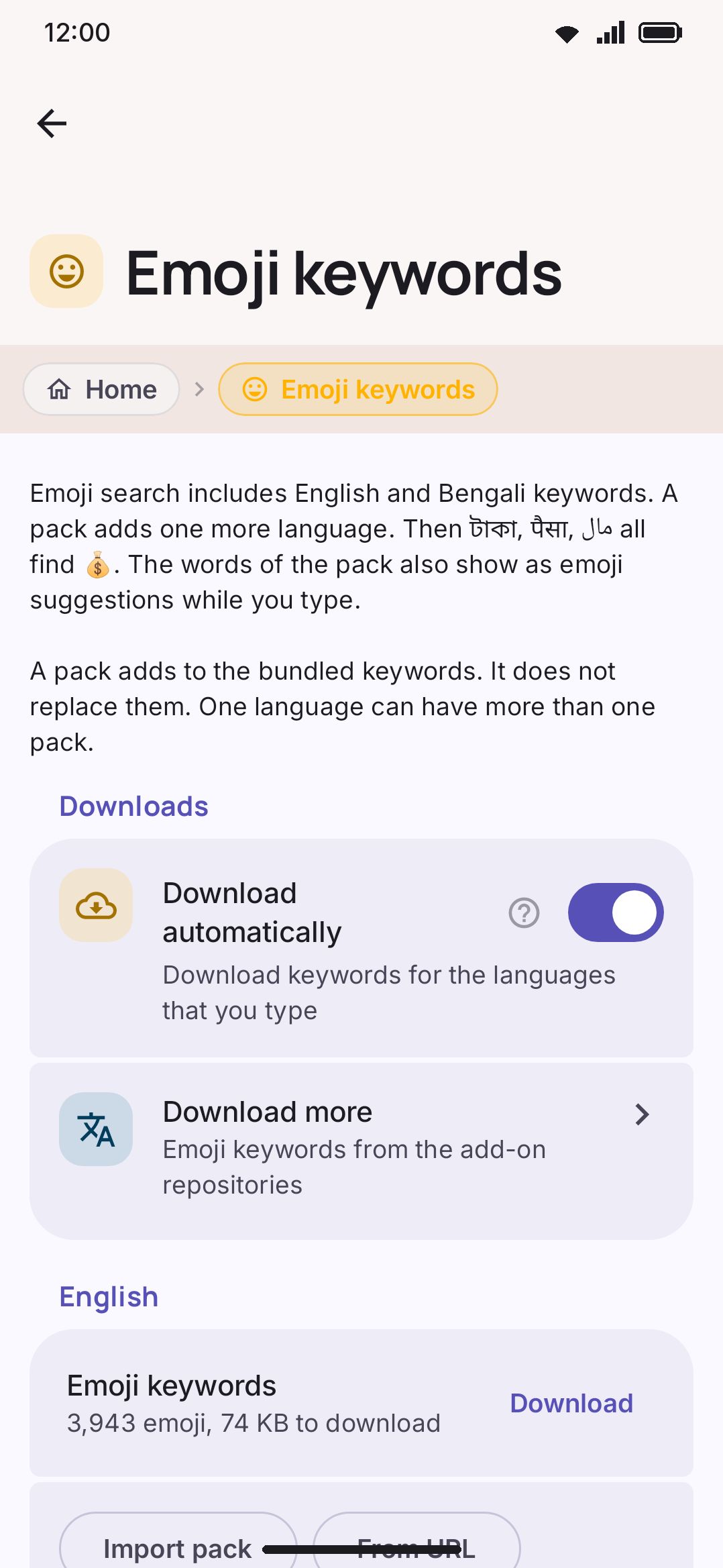
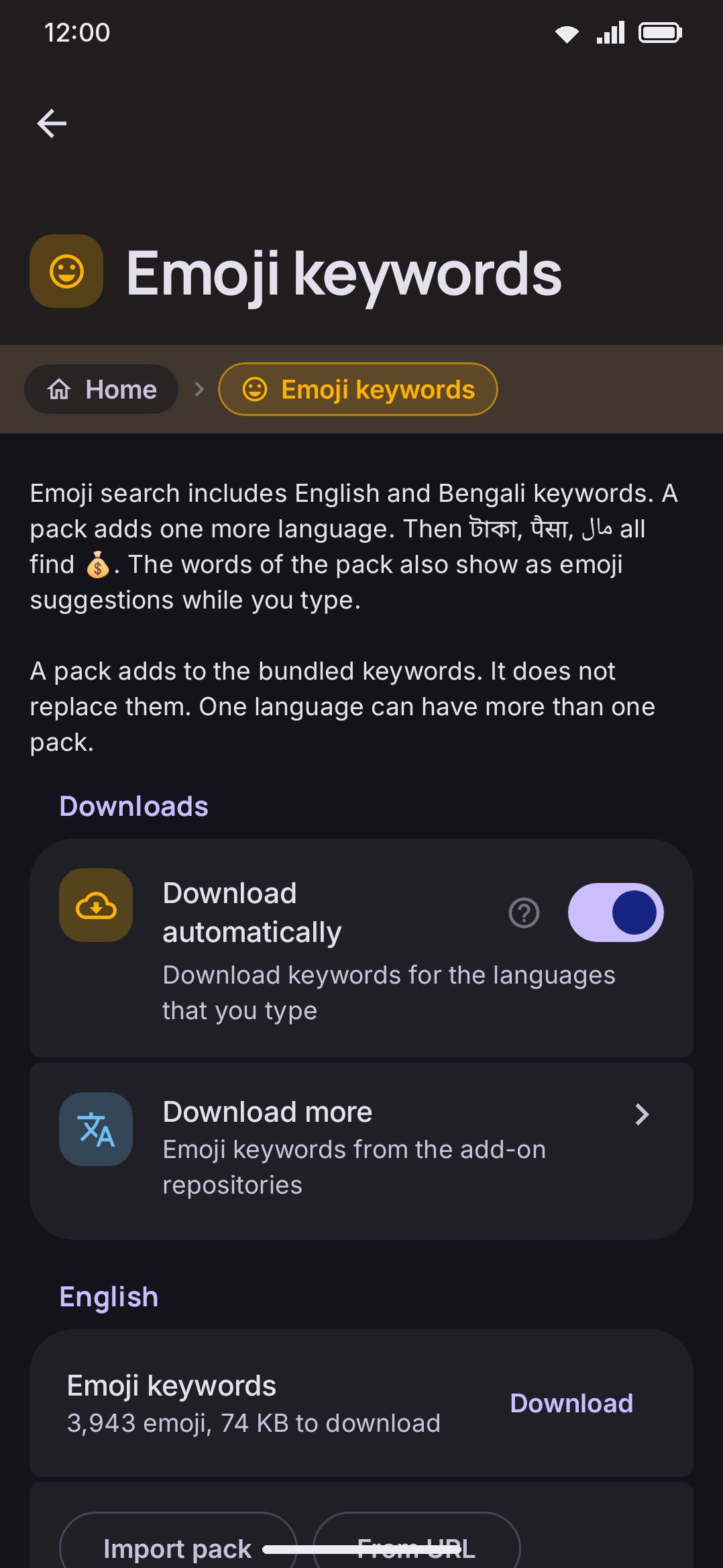
Emoji search ships with English and Bangla keywords built in, so it works out of the box in both languages. For anything else, download a keyword pack. WM Keyboard’s data repository carries packs for 126 languages, each a small gzipped file of {emoji, name, keywords, category} entries sourced from Unicode CLDR.
Packs stack on top of the bundled English and Bangla keywords rather than replacing them, so downloading, say, Spanish adds Spanish search terms without losing the two you already had.
The examples in this screen’s own copy follow the languages you type in. The line ends “…all find 💰”, and the words in front of it are up to three of your own: dinero and お金 for a Spanish and Japanese typist, पैसा and деньги for a Hindi and Russian one. It’s the same feature either way. Showing you a script you don’t read is a poor way to demonstrate it.
Keywords stack, but names don’t. Only one name fits in an emoji’s long-press popup. A pack’s display names are used while you’re typing that pack’s language, and the emoji’s standard Unicode name is used otherwise, so a Spanish pack never renames your emoji while you’re typing Bangla.
Download automatically (on by default) fetches a keyword pack the first time you enable a language you type in, and skips anything already downloaded. Turn it off and packs only arrive when you tap Download next to a language yourself. A wider switch sits above it: Download data automatically under WM KeyboardLanguages & layoutsLanguage data, also on by default, covering every automatic download the keyboard makes. With that one off, packs stay put no matter what this toggle says.
Deleting a downloaded pack leaves a marker behind so automatic download won’t quietly re-fetch it. If you want it back, download it again yourself.
You can also import a pack by hand. Two formats work: a plain tab-separated file (emoji, comma-separated keywords, optional display name), or the data repository’s own JSON file directly. WM Keyboard sniffs the format, so you don’t have to convert anything first. Imported packs are kept separate from downloaded ones on disk, but merge into the same search index.
Emoji suggestions while typing
Section titled “Emoji suggestions while typing”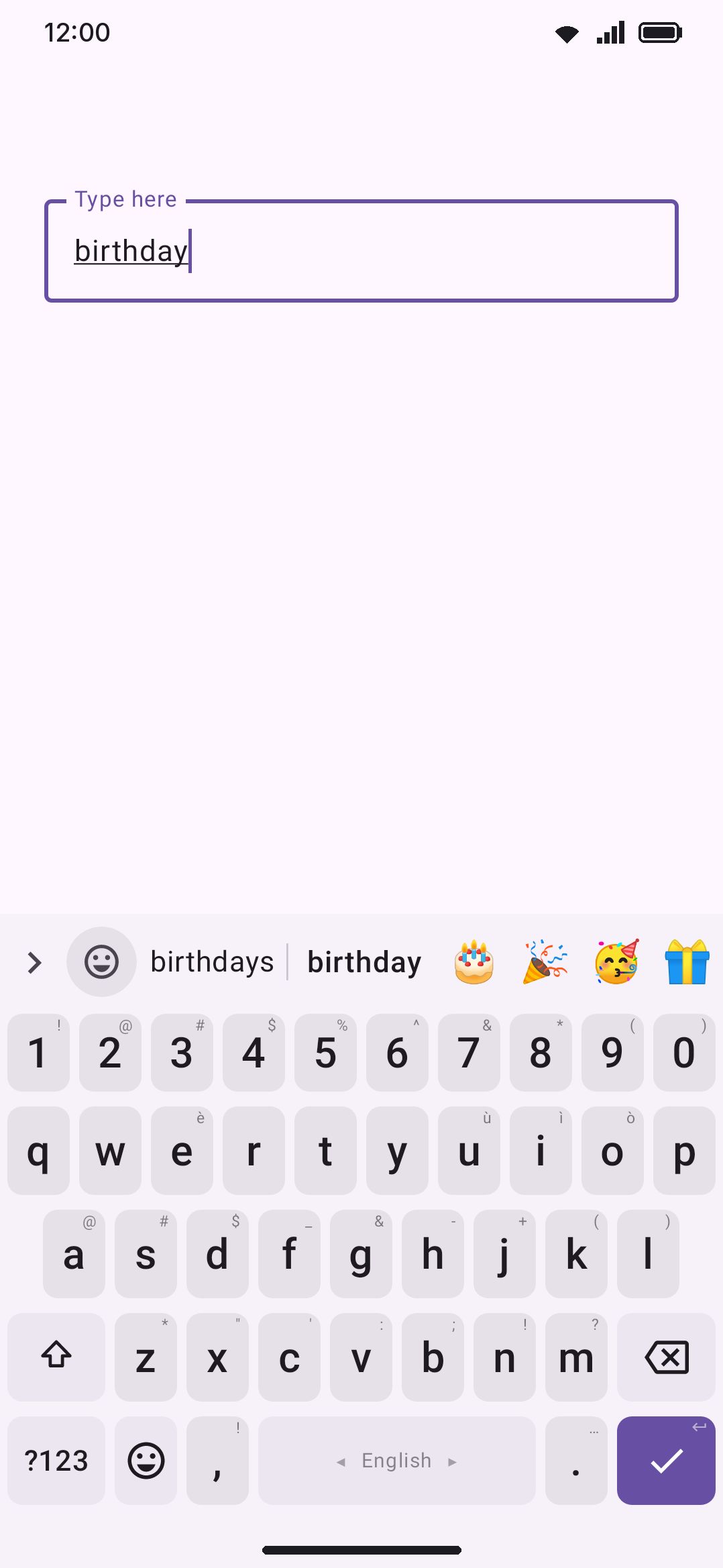
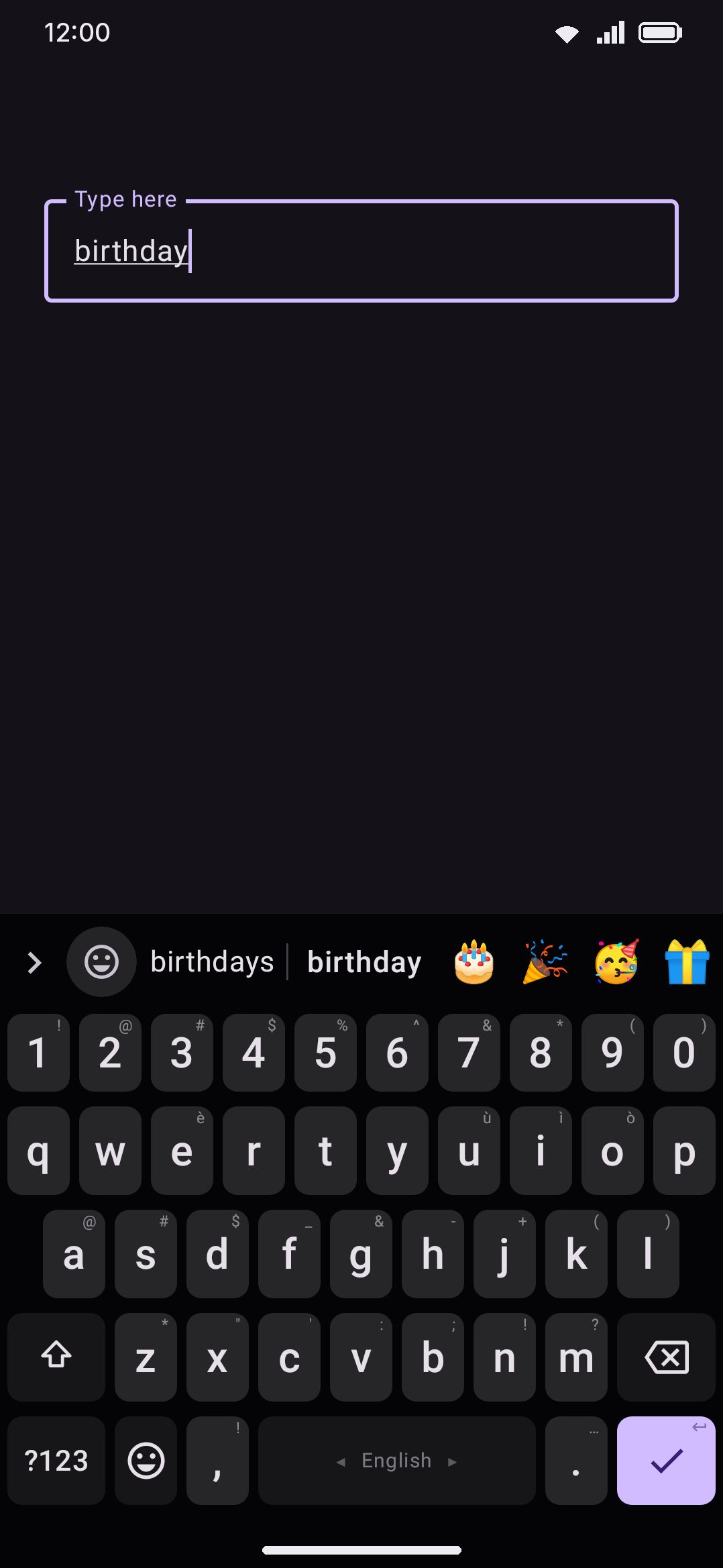
Turn this on (it’s on by default) and matching emoji append to the end of the suggestion strip as you finish typing a whole word. “Birthday” offers 🎂🎉🥳🎁, and it works the same way for Bangla words. It also fires on an empty buffer from words you’ve just typed, learned over time, so a word like “you” can suggest ❤️ without you typing anything new.
The chip doesn’t vanish at the space, which is exactly when you’d reach for it. Type “happy birthday” and 🎂 is still there after the space, until the next word replaces it. Four sources feed the match, stacked so a hit from any one of them counts:
- a small curated table, which is where the ordering judgements (“birthday” leads with 🎂, not 🥳) and the Bangla triggers live;
- GitHub’s own word-to-emoji data, which covers far more English than a hand-written table can: “hooray”, “espresso”, “workout”;
- the
:shortcode:names, which mostly earn their place on two-word matches nothing else can reach. “Alarm clock” offers ⏰, “crossed fingers” offers 🤞. Two-letter codes are left out on purpose, because:it:and:us:are flags, and firing them at anyone typing “it” or “us” is the wrong-emoji case this whole feature avoids; - exact keyword hits from the emoji catalog, in whatever languages you have keyword packs for.
Press an emoji suggestion, the row under the switch, decides what happens when you tap one:
- Replace word (default, Gboard-style): swaps the word you typed for the emoji. Typing “birthday” and tapping 🎂 leaves just 🎂.
- Keep word: adds the emoji after the word instead, giving “birthday 🎂”.
Long-press a suggestion to get the other one for that insert. With Replace word set, holding 🎂 keeps the word and gives you “birthday 🎂”; with Keep word set, holding it replaces the word. The setting decides which of the two a tap does, and the hold is the one-off for the other, so neither costs a trip to settings. Under TalkBack the long-press is announced by what it will actually do, not as “long press”.
Both of those describe tapping while the word is still being typed. Tap the chip after the space and there’s no word left to replace, so the emoji lands at the cursor under either setting: “happy birthday ” becomes “happy birthday 🎂”. A hold there does the same thing as a tap, since there’s no word left for the two modes to disagree about.
Inline emoji search and shortcodes
Section titled “Inline emoji search and shortcodes”Typing a : isn’t part of the suggestions setting above. It has its own toggle, and that toggle lives on the Typing settings screen rather than the Emoji screen:
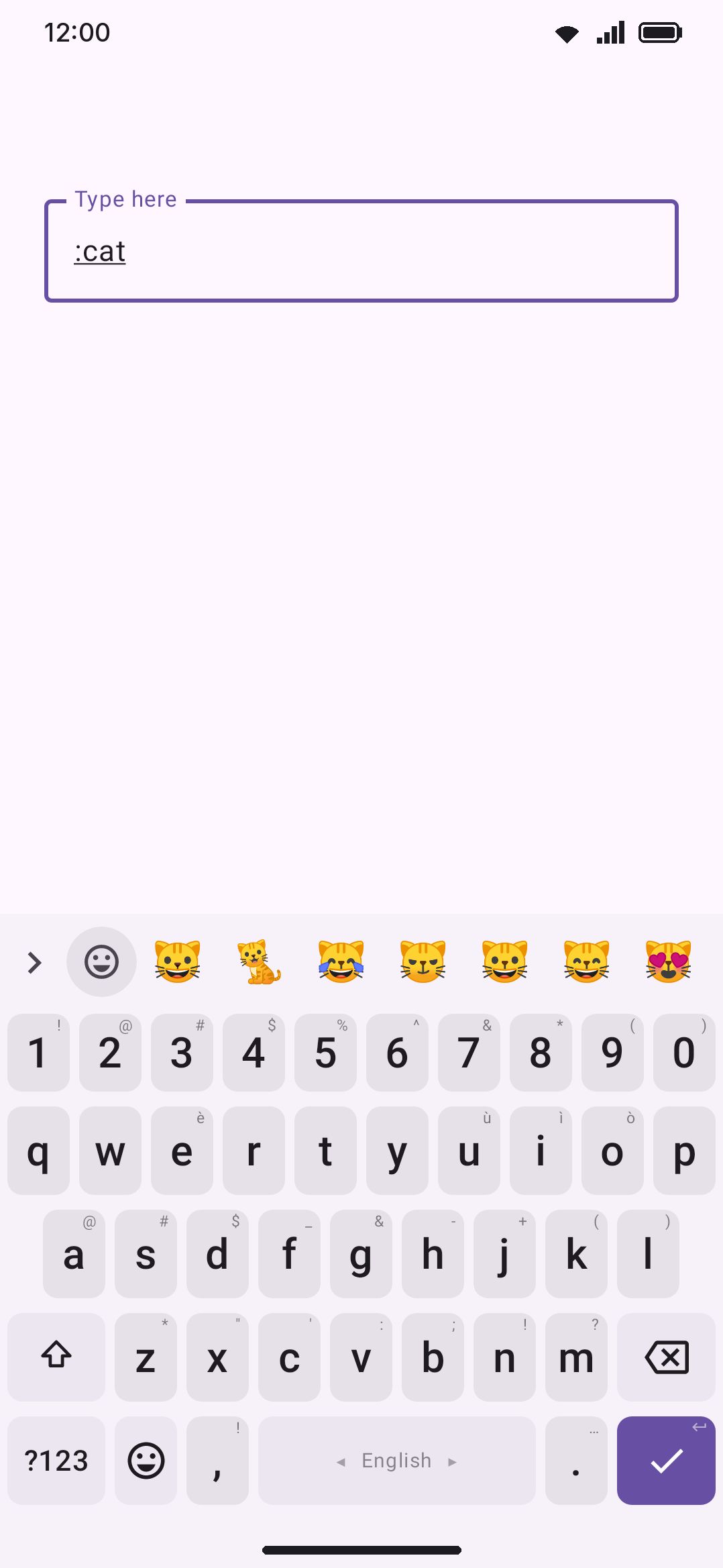
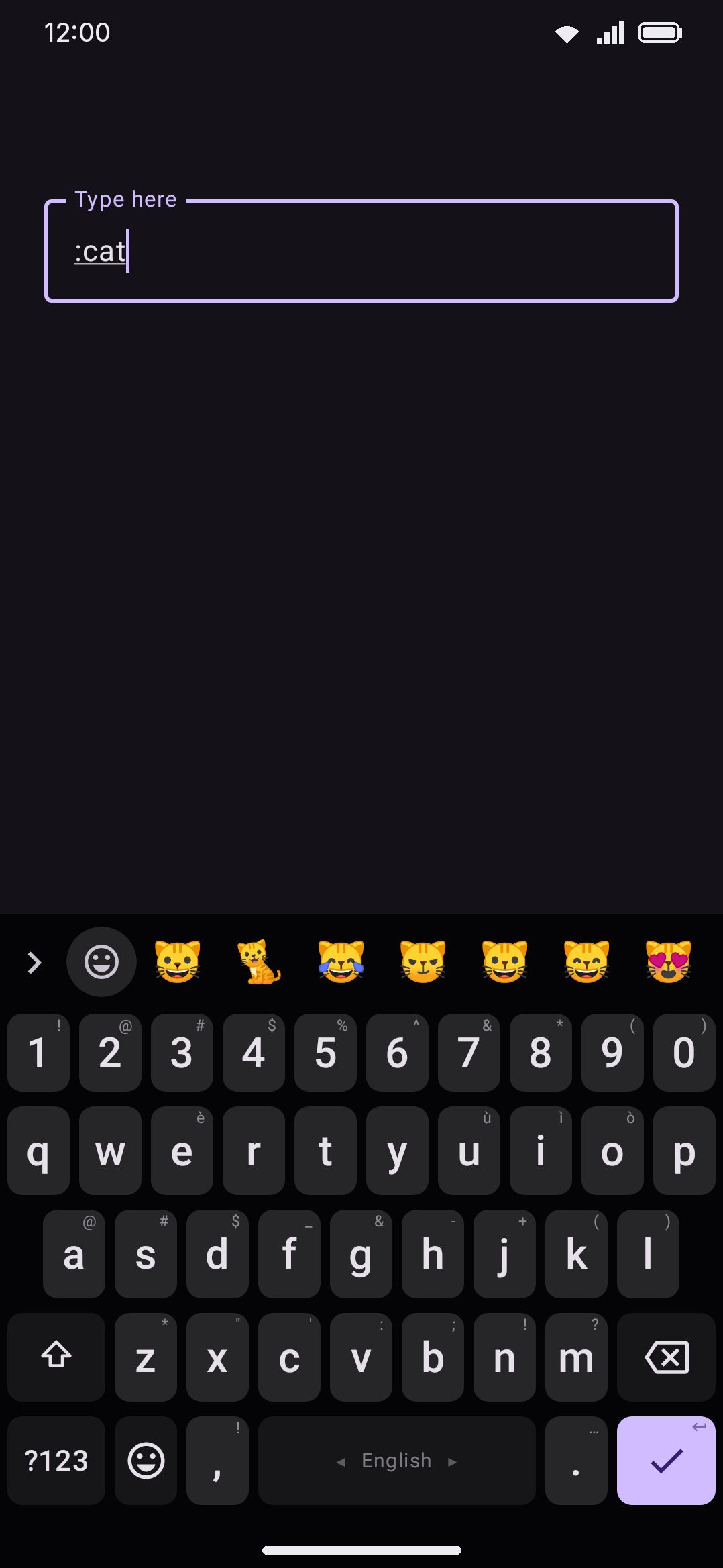
With this on (the default), typing a colon at a word boundary turns the whole suggestion strip into an emoji search: :cat offers 🐱 and friends, replacing ordinary word suggestions entirely while the search is active. Backspacing over the colon returns to normal suggestions.
The same toggle also covers exact shortcode names. If you type the closing colon and the text between the two colons is an exact match (:tada:, :thumbsup:), the whole thing is replaced with the emoji immediately, with no tap needed. A name that’s only a partial or unknown match is left as ordinary typed text. An unrecognized shortcode is never quietly eaten.
The dedicated emoji row
Section titled “The dedicated emoji row”A row of your own emoji, similar to Gboard’s, that sits between the toolbar and the keys.
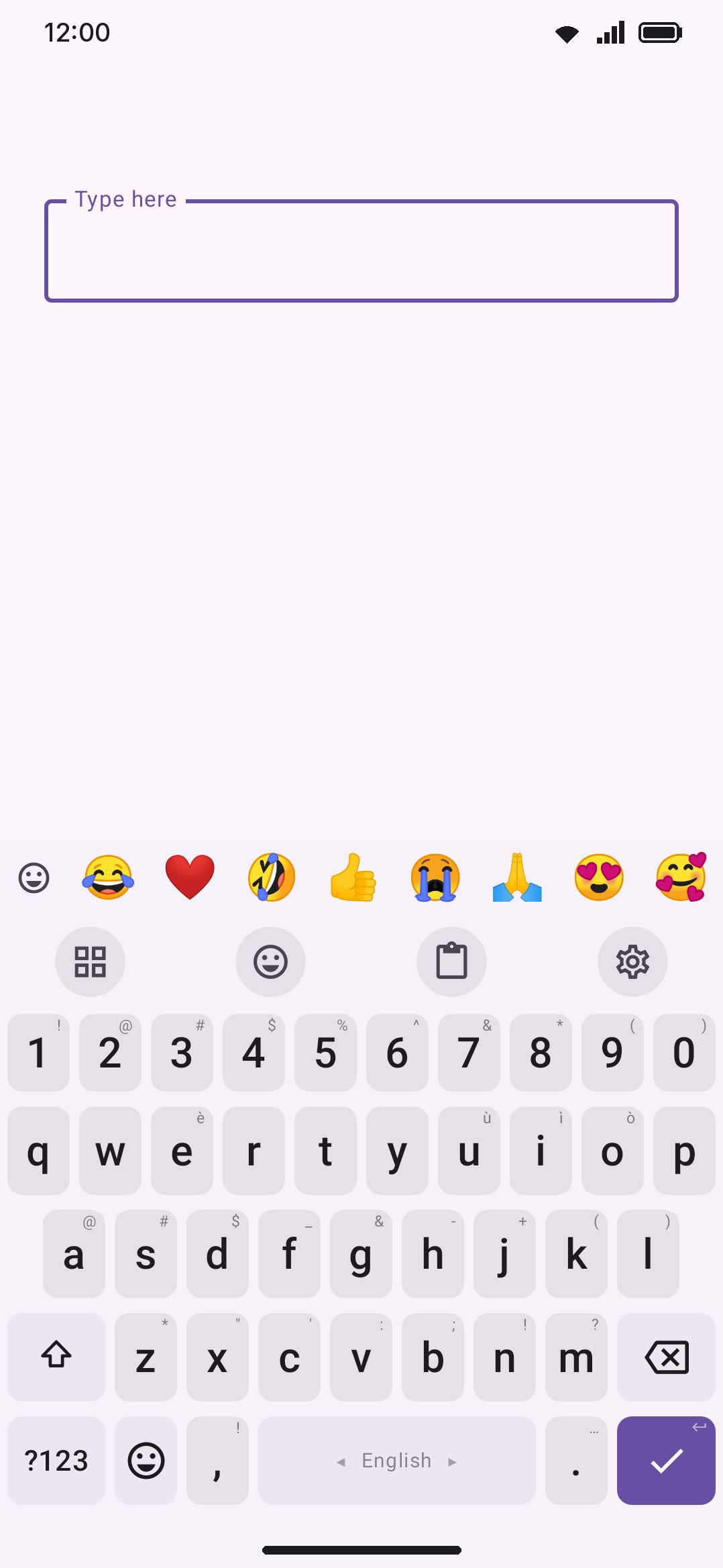
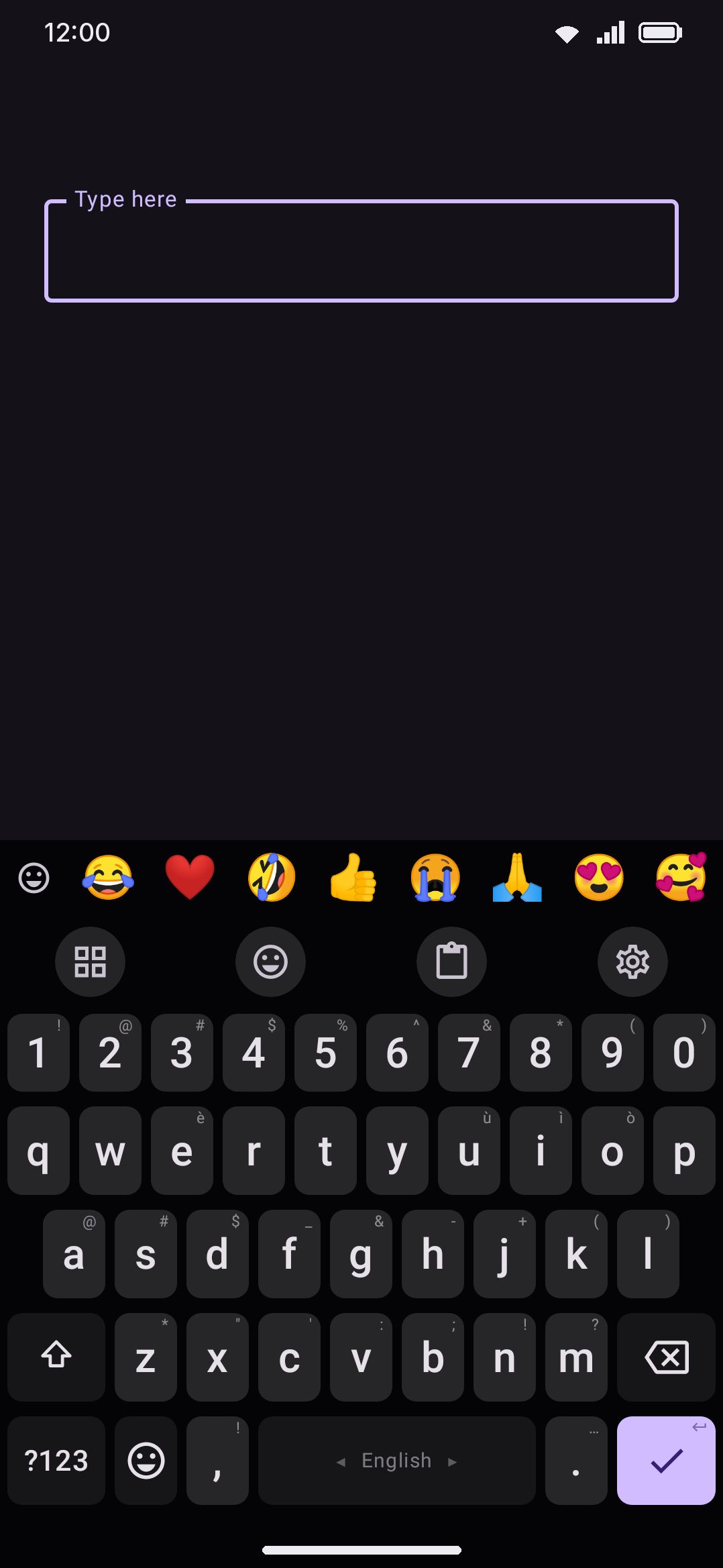
- Off (default): no emoji row.
- Button: adds a toggle to the toolbar strip that swaps it for the emoji row on tap.
- Own row: keeps the emoji row permanently visible above the keys.
Once the row is showing (anything other than Off), three more settings appear:
- Emoji row content: Most used (default), Recent, or Favourites. Whichever you pick, your favourited emoji always sort to the front.
- Emoji in the row: a slider from 3 to 16, defaulting to 8. The row splits its width into that many slots and shrinks the emoji to fit, so a higher number packs more emoji in at a smaller size.
- Scroll the emoji row: on by default. Swipe the row sideways for the emoji past the visible slots. Turn it off and the row never moves: it shows exactly that many slots and nothing past the last one, so a sideways swipe can’t slide the whole thing out from under your finger.
Before you’ve used any emoji there’s nothing of your own to fill the row with, so it starts on a set of 24 common ones. That’s deliberately more than fits across a phone, which is what scrolling is on by default for. They’re the only entries the Default skin tone setting applies to; everything the row picks up from your own history is already an exact emoji, tone included.
Where the row sits relative to the toolbar and the symbol row (above them, below them, in between) is a separate setting under Rows & bars on the settings home screen, not on this screen.
Details & edge cases
Section titled “Details & edge cases”- The font preview is exact, not illustrative. The eight-emoji preview row on the Emoji font setting runs through the same shaping code the keyboard itself uses, including the ❤️ variation-selector workaround, so what you see there is what you’ll get on the keys.
- Installed emoji fonts share storage with text fonts, but are listed separately in the picker. A colour emoji font would make an odd choice for key labels, so the two lists never cross over.
- Bundled Unicode data, not user data. Keyword packs, shortcode names, and the trigger words behind emoji suggestions are all static files. They ship with the app or download from WM Keyboard’s own data repository, and none of it depends on what you type.
- Emoji predictions can drop under battery pressure. Power Saving mode has its own setting that can suppress emoji predictions to save cycles. See Power saving for that behavior.
- Kaomoji and ASCII emoticons are a separate system. They live behind their own two panel tabs, ignore the emoji font setting entirely (they’re plain text), and aren’t searchable or favoritable the way real emoji are. See Kaomoji & text art.
- Two other keys can open the emoji panel directly. The language-switch key can be replaced with an emoji key (on by default, under Layout & size), and the comma key can be too (off by default). Both are separate from the emoji row and the toolbar button described above.