
Keys & typing basics
Key presses, long-press popups, shift behavior, the number row and key previews.
Every key does more than the letter printed on it. A tap commits that letter. A hold opens accents, digits, symbols, or an editing command on six letters you can arm yourself. This page covers what one key does under your finger, before the gestures that travel across several.
Tapping and long-pressing a key
Section titled “Tapping and long-pressing a key”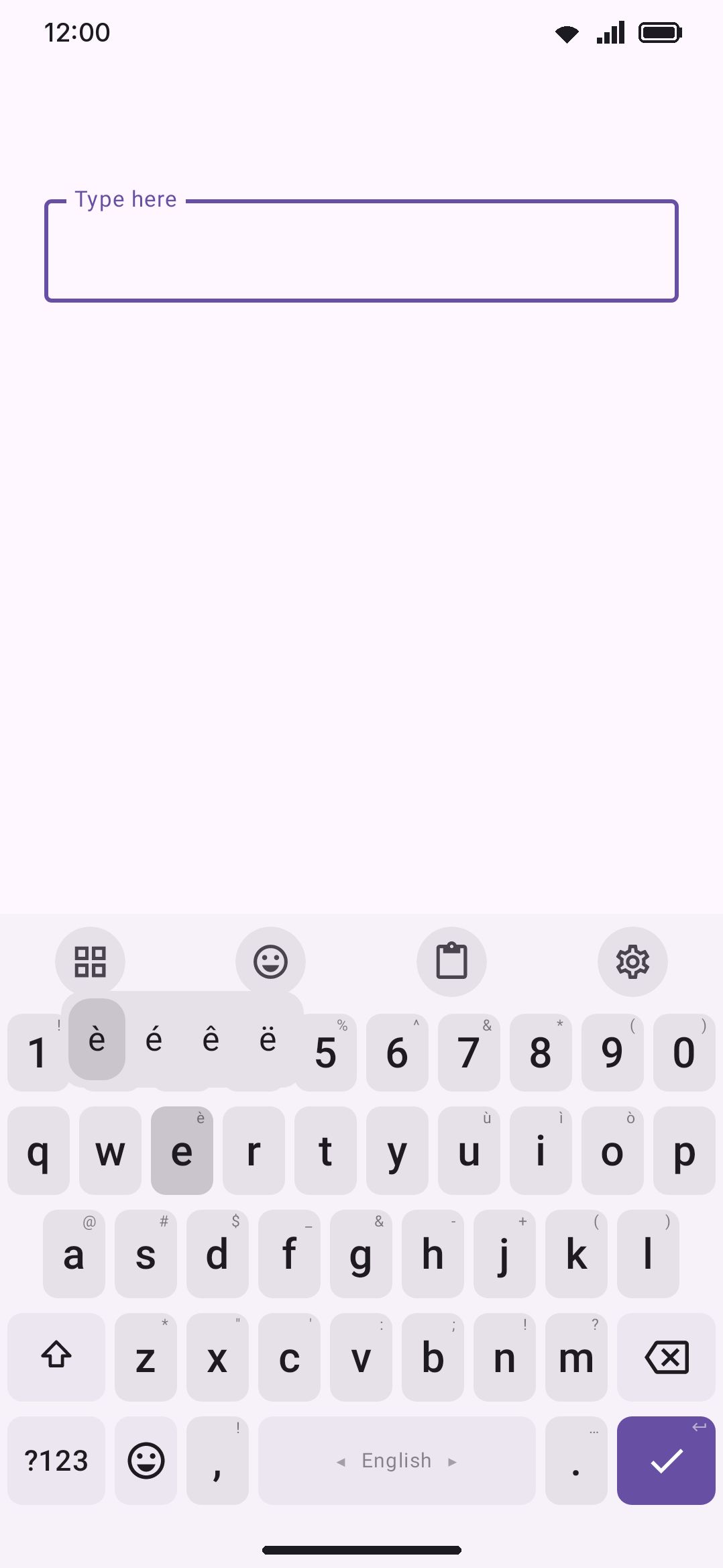
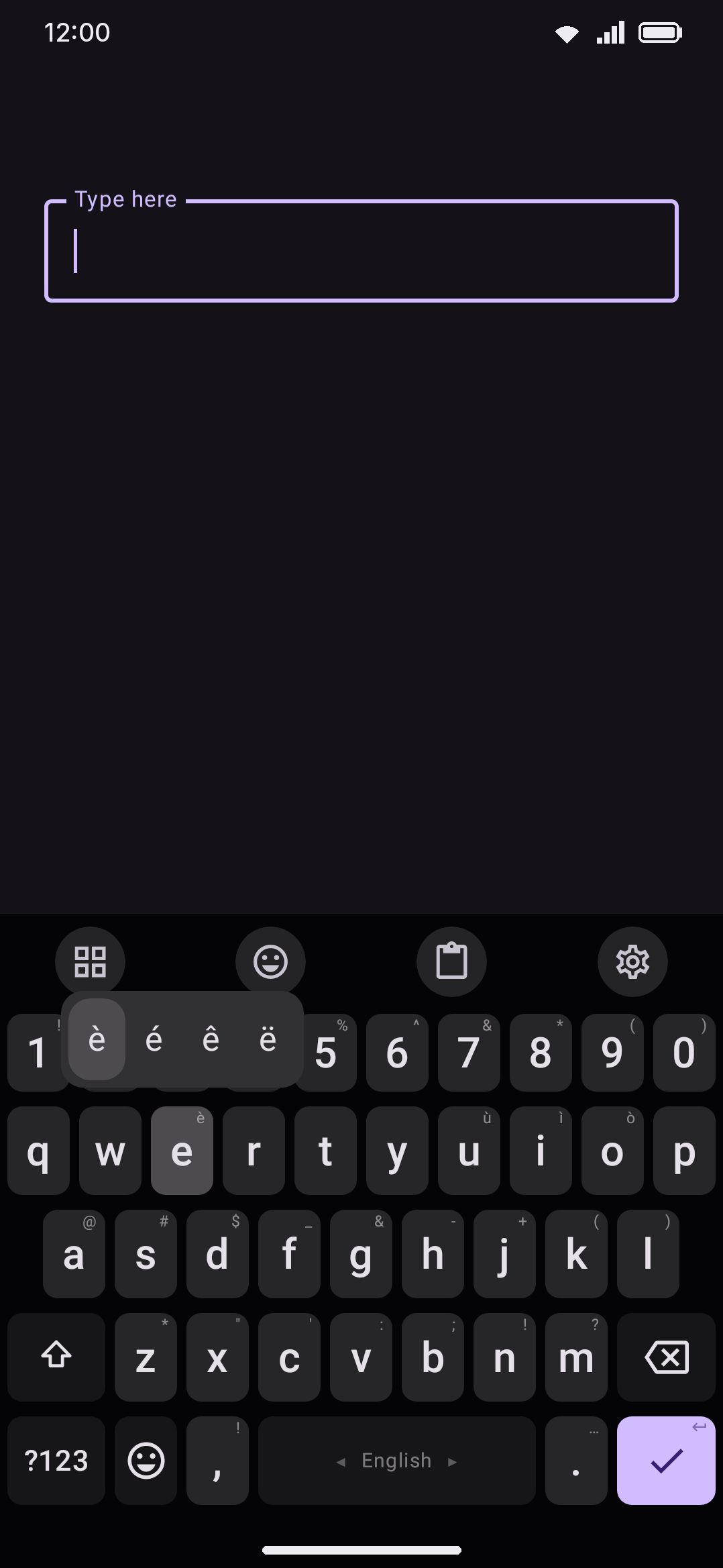
While you hold a key, its character floats in a bubble above your finger. That bubble is the key popup, and it lets you confirm what you hit before you let go. It’s on by default, and by default it grows upward out of the pressed key instead of hovering above it with a gap (the Popup on key toggle). Even a fast tap leaves it up for at least 140 ms after you release, so a quick press still flashes something readable. On number, phone and date/time keypads it stays hidden by default, a numeric PIN field included. Echoing each digit large enough to read over your shoulder is not much of a favor. The Popup on number pads toggle brings it back on those keypads if you want it there.
Hold past the long-press delay (300 ms by default) and the key’s alternates pop up, if it has any. Q–P lead with the digits 1–0. A–L and Z–M lead with a symbol (@, #, $, &…). Some letters carry accented forms after that first alternate: e, u, i, o after their digit (e → è é ê ë, u → ù ú û ü, and so on), and a, s, z, c, n after their symbol. The first alternate also prints as a small corner hint on the key itself, so you can see what a hold will lead with before you commit to it. That’s the Press and hold hints toggle, on by default.
With Shift on or caps lock locked, the popup and the corner hint show capitals: holding e offers È É Ê Ë, and the one you pick is typed as a capital. Digits and symbols stay as they are.
A popup with more alternates than fit across the screen wraps onto a second row and a third, so nothing ever sits off the edge where you can’t reach it. That’s the case you meet with “All accents on press and hold” turned on, or with a raised popup text size, or on a key you gave a long list of your own.
Keep your finger down and you can pick one without a second tap. The first alternate is highlighted as the popup opens, sliding the finger moves the highlight along, and letting go types whatever is lit. Hold and release without moving and you get that first alternate, which is what a hold does on any other keyboard. To back out, slide well away from the popup before you lift. If you’d rather have the older two-step popup, which stays open after you lift so you can tap the one you want, turn Choose without lifting off.
Five settings under Alternate keys shape that popup. Alternate key size and Alternate key spacing make the characters bigger and give each one more room, and the size slider reaches ×3.20, well past what the preview bubble allows. Alternate key columns is Auto by default, fitting as many per row as the screen takes. Set it to a number from 3 to 11 instead and every row gets that many equal columns, so a long list reads as a block and each character stays put between one hold and the next. When that many don’t fit across the screen, the spacing between characters shrinks first, then the number of columns. Closest to the key first flips which end of a wrapped popup the list starts at: off, it fills top-down like lines of text, which puts the first alternate furthest from your thumb; on, it fills from the key outward the way stock keyboards do, so the first alternate is the nearest one.
The popup isn’t only for characters. A key in a custom layout can carry action alternates too, so a hold on Enter can offer Tab, and a hold on any key can open voice typing or the editing pad. Every key can have alternates except the four that hold for something else already: ⌫, ⌦ and Space hold to repeat, and a braille dot holds as part of its chord.
A few more long-press behaviors live under the same Press and hold shortcuts settings group:
WM KeyboardKey pressPress and hold shortcuts- All accents on press and hold (off by default) adds each Latin letter’s complete accent set to its long-press popup. Nothing is taken away to make room: the digit or symbol stays, with every accent beside it.
- Shifted letter on press and hold (off by default) puts each key’s shifted character, the capital in Latin scripts, at the end of its popup. Handy on its own, and the way to type a capital out of the drag off ?123 or ABC, which types on a layer the Shift key isn’t on.
- Press and hold ?123 for the number pad (on by default) makes a long press on the symbols key open a full numeric keypad panel over the current field. A quick tap still switches to the symbols layer as usual.
- Press and hold enter for emoji (off by default) puts an emoji entry at the front of the Enter key’s popup, so a hold and release opens the emoji panel. Where Enter shows Send or Search, the line break stays in the popup next to it.
- Currency keys lets you reorder or replace the glyphs the $ key’s popup offers (৳ € £ ¥ ₹ ₿ by default). Type them space-separated, with the one you use most first.
Shift, caps lock, and auto-capitalization
Section titled “Shift, caps lock, and auto-capitalization”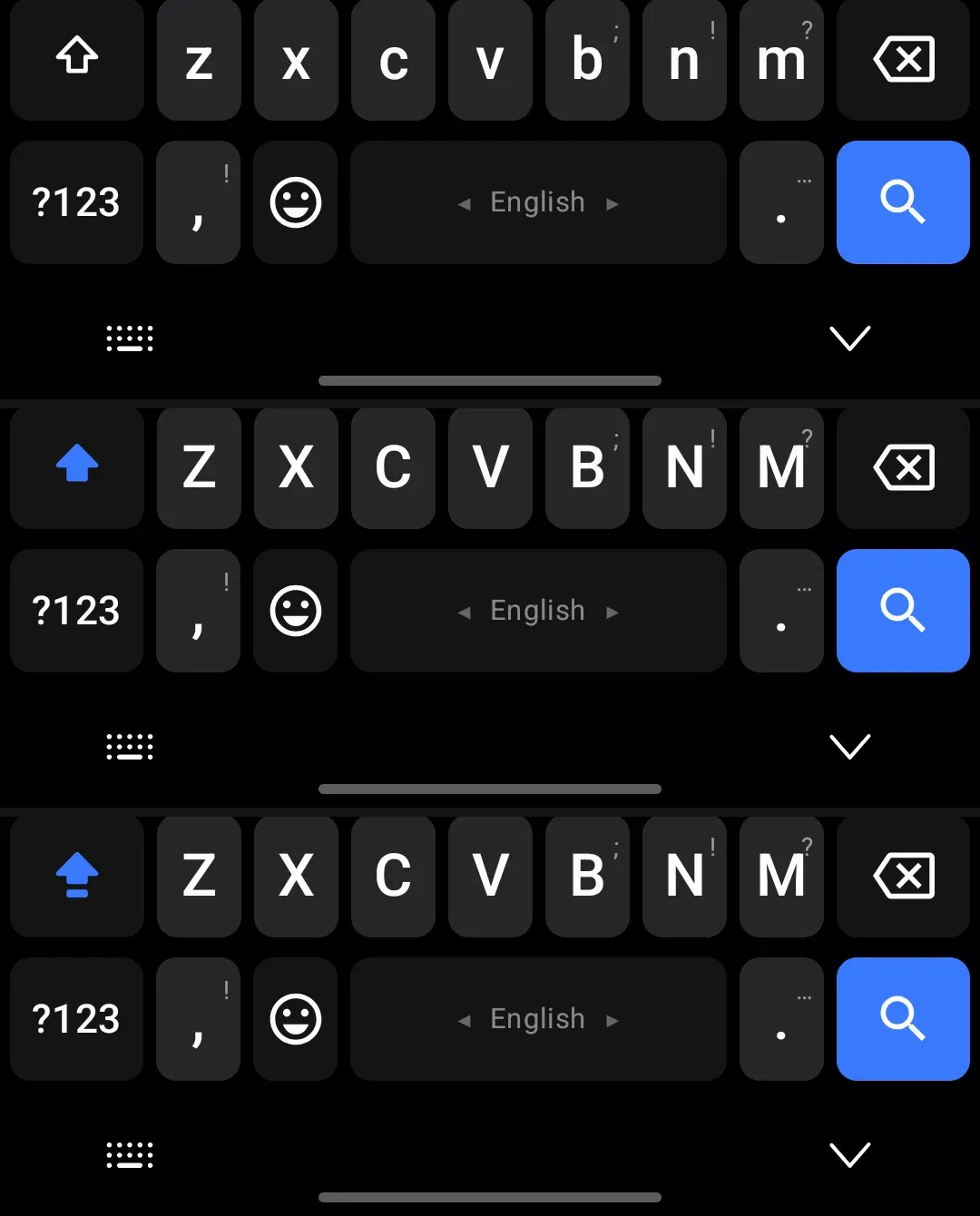
Shift cycles through three states. From off, one tap arms a one-shot Shift that capitalizes only the next letter and then reverts on its own. A second tap inside the caps-lock double-tap window (350 ms by default, adjustable 150–600 ms) locks Caps Lock instead. From either state, a single tap that isn’t a fast double-tap turns it back off. Getting out of caps lock takes one plain tap, not another double-tap.
Auto-capitalization arms Shift for you at the start of a sentence, but only when three things line up: Automatic capital letters is on (the default), the field is a plain text field rather than a structured keypad, and the active language’s script has letter case at all. Bangla, for instance, doesn’t, so auto-capitalize never fires while you type it. It re-checks after every sentence-ending mark (., !, ?, ।) and whenever you move the cursor or switch fields. Caps Lock is off limits to it, so an all-caps line you locked in stays locked in.
Switching language re-checks it too whenever either side has no letter case. On Arabic, Bangla and the like, Shift opens a second set of letters rather than capitals, so a Shift armed or locked on English is dropped when you switch to one of them, and the keyboard opens on its plain letters. Switching back to English at the start of a sentence arms Shift again. Between two languages that both have case, English and Russian say, Shift stays as it was.
WM KeyboardTypingAutomatic correctionsThat toggle lives on the Typing screen rather than here. See Autocorrect for the rest of the automatic-corrections group it sits in.
Hold a letter for a quick edit
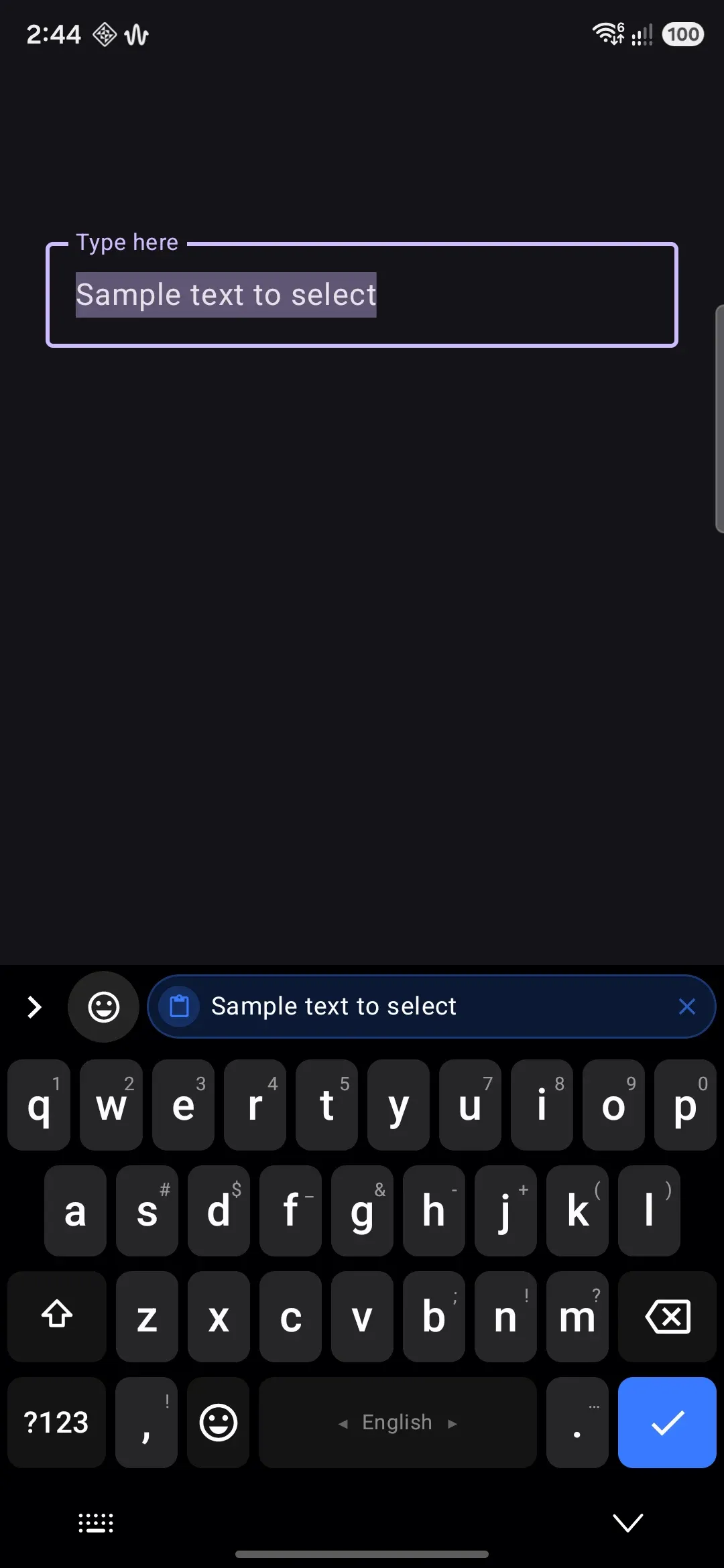
Section titled “Hold a letter for a quick edit”Six letters carry an editing command in their press-and-hold popup: A selects all, C copies, X cuts, V pastes, Z undoes, Y redoes. All six are on by default. They sit at the end of the popup, after the accents the key already has, so a hold on C offers 'çć and then copy, and you slide onto the copy icon to run it. Copy and cut select everything first if nothing is already selected, so one hold in an untouched field copies the whole field.
The same six also run from a slide off the 🌐 key, if you turn on Slide from 🌐 for shortcuts: press 🌐, slide onto C, lift, and the text is copied. See Switching languages.
Those six keys are a c v x z y only because that is the QWERTY answer. The Shortcut keys row in the same group is where you move them onto keys your own layout actually draws. A Bengali or Russian grid has no a to hold, so without that row the switches would do nothing at all.
The Enter key
Section titled “The Enter key”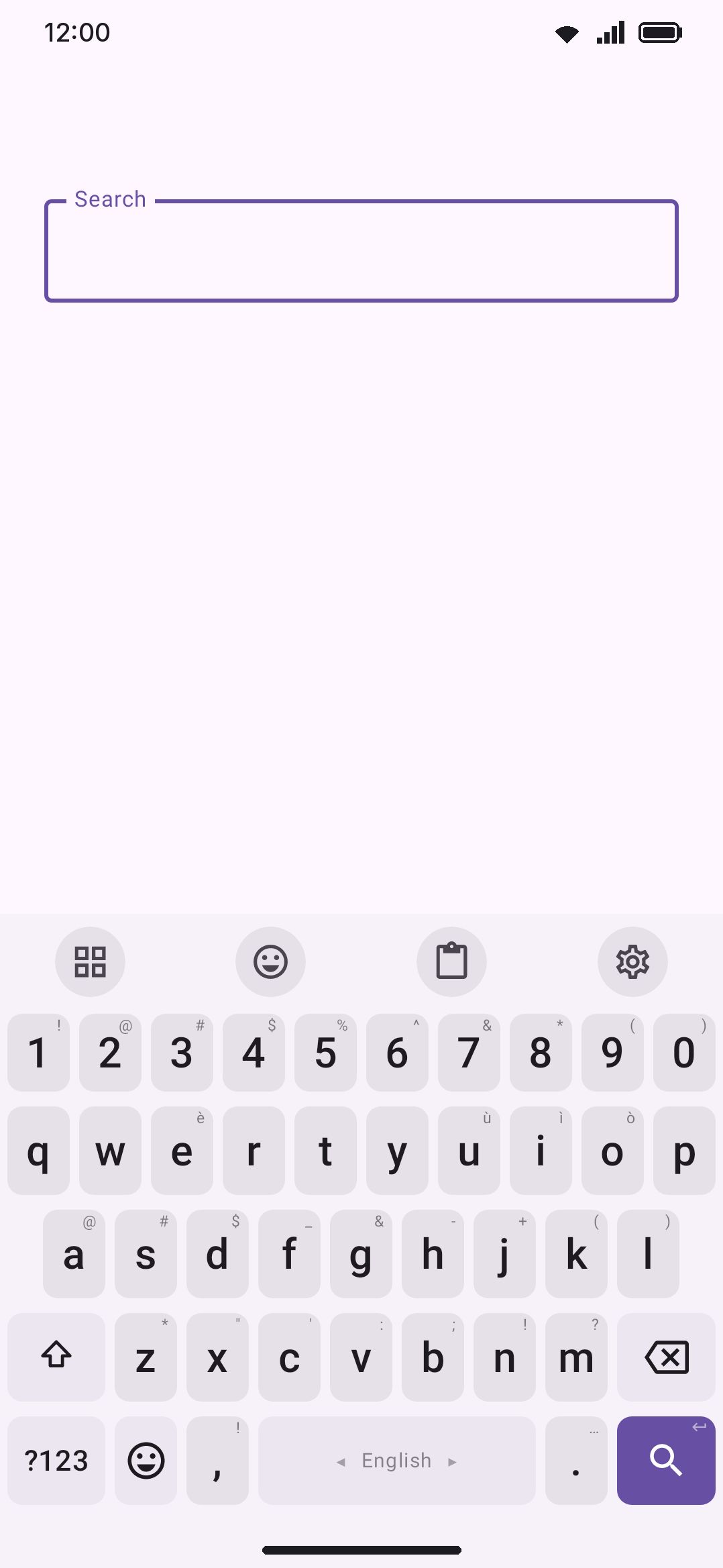
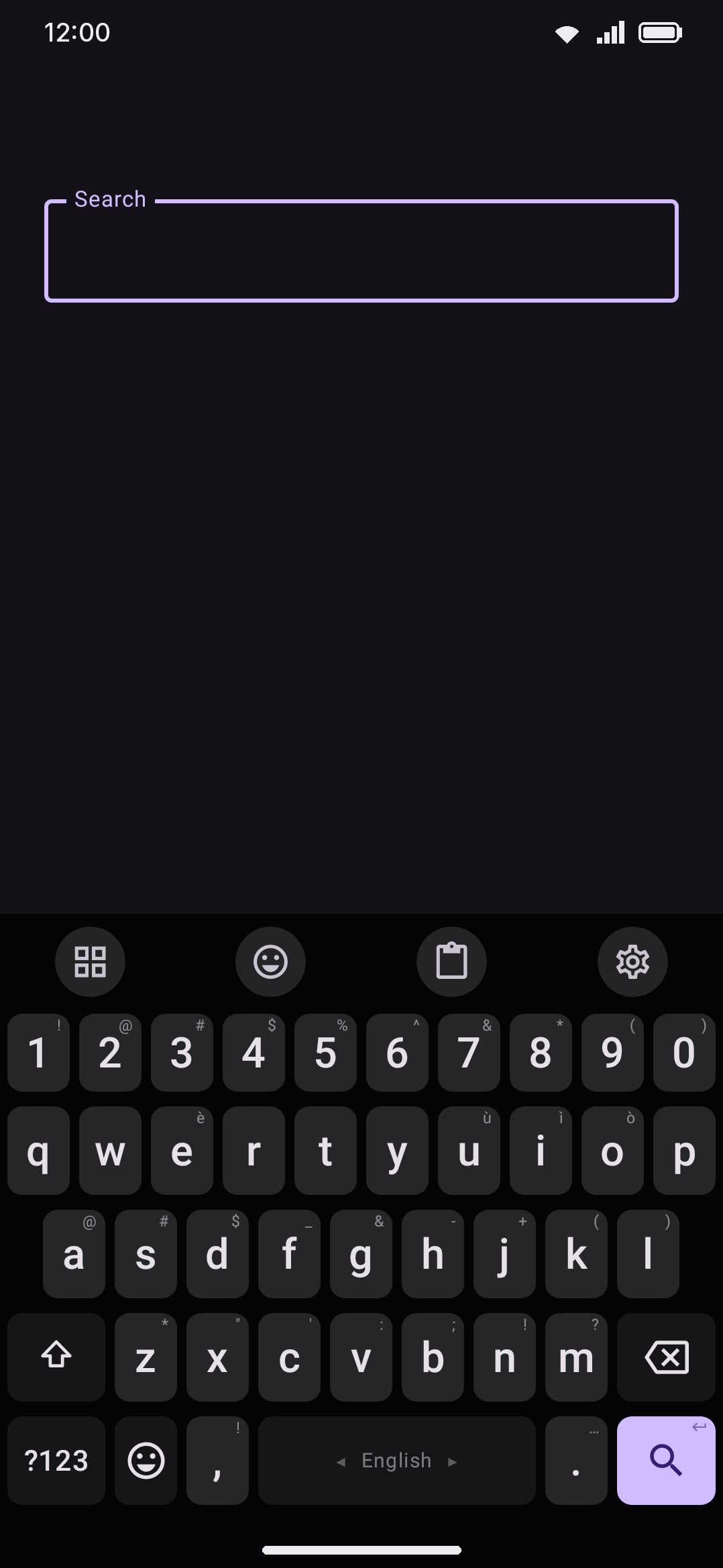
The key’s icon and behavior follow whatever the focused field asks for: Search, Send, Go, Next, Previous or Done, each with its own icon, or a plain newline when the field doesn’t specify. When an app supplies its own label instead of a standard action (“Reply”, “Post”), the key draws that text directly rather than an icon.
A message box that asks for a line break gets one, even when the app also watches for the Enter key press itself. Discord’s is the example: it declares Done and then asks the keyboard not to use it, so the key draws the newline symbol — and now types the break straight into the box rather than pressing a key the app would have read as Send.
Shift and Enter type a new line (on by default) lets you press Shift then Enter, or hold Shift on a physical keyboard, to force a line break in a field that would otherwise send or search. The key itself changes to the newline symbol while Shift is armed, so it never promises a Send it isn’t about to do. Only a Shift you pressed yourself counts. The one-shot Shift that auto-capitalize arms at the start of a message is ignored, so the first line of a chat still sends normally, and Caps Lock is ignored too.
While that setting is on, the key carries both things at once: whichever one it’s about to do fills the key, and the other sits small in the top right corner, the way a letter’s alternate does. So a Send field shows the paper plane with a newline symbol in the corner, and arming Shift swaps the two over — the newline fills the key and the paper plane moves to the corner. Send never leaves the keyboard; it just changes places.
There’s a second way in that doesn’t need the setting at all: in any field where Enter has taken on the app’s own action, press and hold the key. The popup that opens carries a newline entry, the same as Gboard’s. Tap it and you get a line break, whatever the app declared. This one is always available and it never sends.
Number row and numerals
Section titled “Number row and numerals”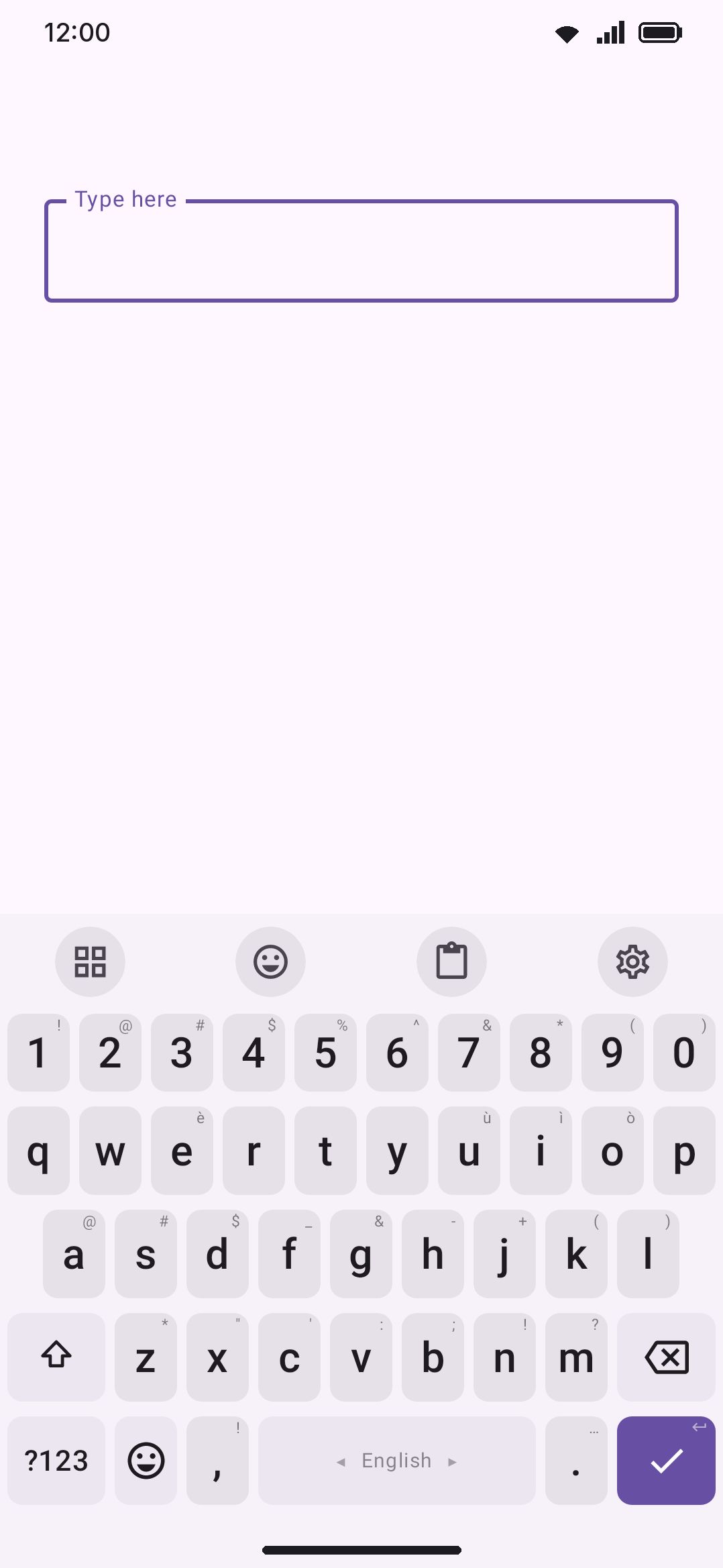
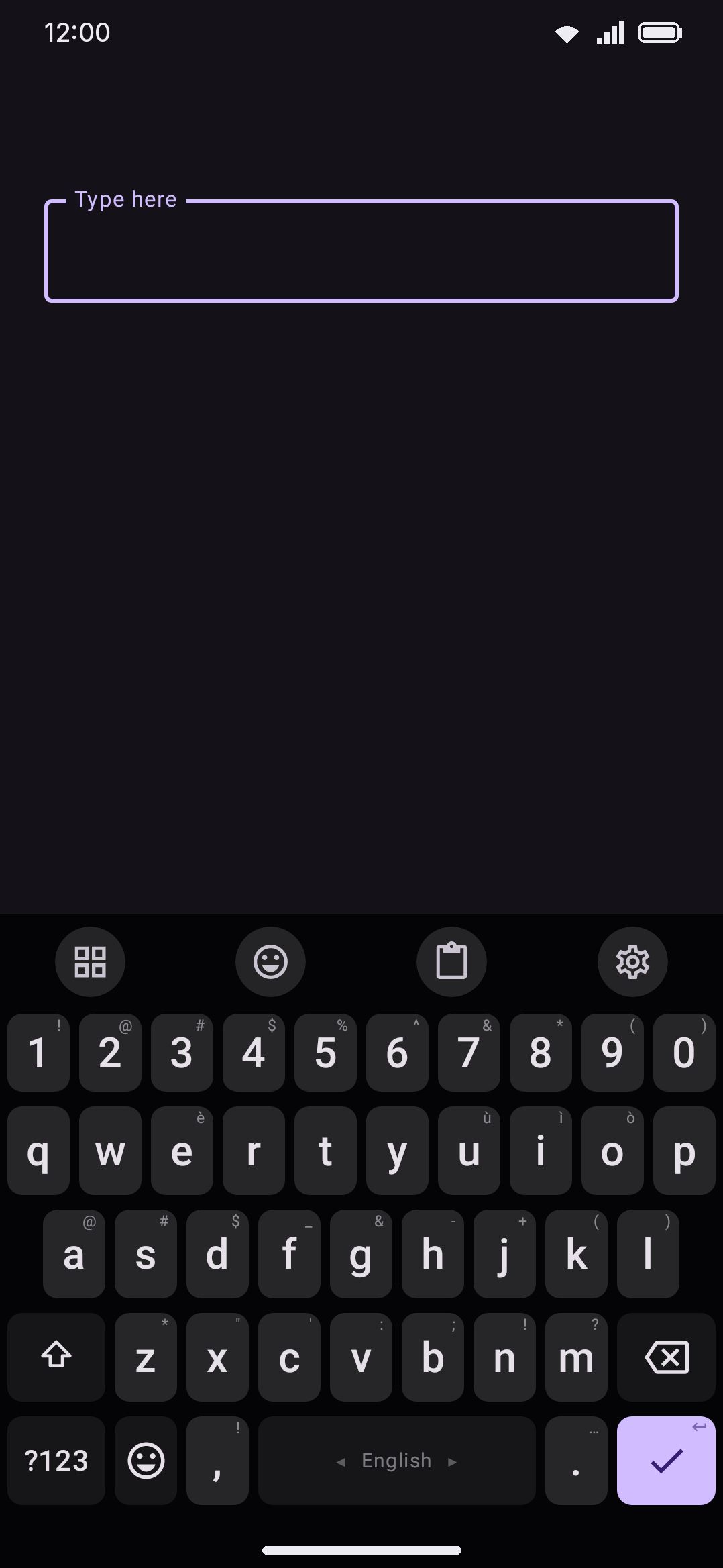
Number row (on by default) gives the digits 1–0 a dedicated row above the letters, so they don’t need a long-press. While it’s there, the digit that would otherwise be the top row’s first long-press alternate is dropped, since the row makes it redundant. A few sub-settings sit under it. Number row height runs 32–100 dp. Symbols on shift (off by default) swaps the row to = \ < > [ ] { } | ~ while Shift is held, instead of digits. Number row in symbols (on by default) keeps the digit row up on the ?123 layer too. The symbols layer’s own second page carries its arrow and comparison symbols either way. You can change the keys of the number row on each layer, and the row that takes the place of the digits on the symbols layer, in the layout editor.
Separately, numeral system decides which glyphs the number row and keypad show, per language: Arabic can display ٠-٩ while English next to it stays on 0-9. Every language starts on Auto, which follows that language’s own convention (Arabic → Arabic-Indic, Persian/Urdu → Persian, Bangla → Bengali, Devanagari-script languages → Devanagari, everything else → Latin). Override it per language on that language’s own screen rather than here (see Languages).
This screen’s Type native digits in setting answers a different question: whether those native glyphs are what actually gets committed when you type them. Text fields, the default, types the native glyphs everywhere except number, phone and date/time fields, which keep plain 0-9. Everywhere commits the native glyphs unconditionally. Display only always types plain ASCII digits, whatever the keys show.
For a language with digits of its own, the other set is a press and hold away on the number row. Hold a digit and the first entry in its popup is the same digit in the other system, so a plain hold and release types it: 1 on an Arabic board that shows ١, and ١ on one you’ve switched to 0-9. Under Display only the hold offers the glyph the key shows, since a tap already types ASCII. Languages that only use 0-9 have nothing to offer, and their popups are unchanged.
Autopilot
Section titled “Autopilot”Autopilot (on by default) quietly widens a key’s touch target toward whichever letter the dictionary expects next as you type a word. A tap that lands just inside a neighboring key can still commit the letter you meant, but only near the shared edge. A deliberate press in the middle of a key is never second-guessed. It applies to the letters layer only, and it needs Suggestions turned on to have anything to predict from. See Autocorrect for how it sits alongside autocorrect as an earlier line of defense against typos.
Strength (1–10, 5 by default) sets how far an expected letter reaches over its neighbor. Two optional views show you what that reach looks like: Show the effect redraws the three likeliest letters at the size their touch areas have grown to, and Outline the touch areas traces the same edge. Both are off by default and are meant for tuning the slider, not for everyday typing. Neither shows during a glide, and neither comes back when you move the caret into an old word. Size of the effect (×1.0 to ×3.0) exaggerates both for readability, multiplying the growth alone; it changes the drawing and never the touch areas themselves.
Multi-touch and key repeat
Section titled “Multi-touch and key repeat”Every finger on the keyboard is tracked on its own, so pressing a second key before you release the first works correctly. Both register, whether that’s rollover typing across the letters or two fast taps on the very same key.
On the default layout, ⌫ and Space are the two keys that auto-repeat on a hold. Repeating has its own wait, Time before a key repeats (300 ms by default, adjustable 150–800 ms), separate from the long-press delay above. The two used to be one number, which meant lengthening the wait before accent popups also slowed backspace down. Past that wait each key fires again on its own cadence, Delete repeat interval and Space repeat interval (50 ms and 100 ms by default, both adjustable 20–200 ms), because a runaway row of spaces costs more to undo than a fast delete does. A held backspace stops on its own once there’s nothing left to delete. Holding delete clears words (off by default, on the same Timing group) turns that repeat into one whole word per tick, at its own slower Word delete interval (140 ms, adjustable 60–500 ms); a single press still deletes one character either way. A forward-delete key (⌦) repeats the same way if you add one to a custom layout, and clears words the same way too. No built-in layout places one, and a physical keyboard’s Delete-forward key goes straight to the system rather than through this engine. Every other key long-presses into its popup or shortcut instead of repeating.
WM KeyboardAccessibilityTouchIgnore repeated presses (off by default) filters out the accidental double-taps a hand tremor causes. Auto-repeat deliberately bypasses that filter: the software repeat is already deterministic, so filtering it would only cap how fast delete or space can go.
Both delete keys also have a drag-to-delete-whole-words gesture, on by default, separate from this hold-and-repeat: leftward on ⌫, rightward on ⌦. Gestures covers them.
Options
Section titled “Options”| Setting | Default |
|---|---|
| Key popup | On |
| Popup on key | On |
| Popup on number pads | Off |
| Minimum / maximum popup duration | 140 ms / 750 ms |
| Popup font size | ×1.00 |
| Popup height | 110 dp |
| Alternate key size | ×1.00 (×0.70–×3.20) |
| Alternate key spacing | 10 dp (0–32 dp) |
| Alternate key columns | Auto (or 3–11) |
| Closest to the key first | Off |
| Choose without lifting | On |
| Popup distance above key | 10 dp (0–96 dp) |
| Popup sideways shift | 0 dp (−64–64 dp) |
| Popup color / Popup text color | Automatic |
| Press and hold delay | 300 ms (100–800 ms) |
| Time before a key repeats | 300 ms (150–800 ms) |
| Delete repeat interval | 50 ms (20–200 ms) |
| Space repeat interval | 100 ms (20–200 ms) |
| Caps lock double press | 350 ms (150–600 ms) |
| Press and hold hints | On |
| All accents on press and hold | Off |
| Shifted letter on press and hold | Off |
| Press and hold ?123 for the number pad | On |
| Press and hold enter for emoji | Off |
| Currency keys | ৳ € £ ¥ ₹ ₿ |
| Press and hold A/C/X/V/Z/Y for select all/copy/cut/paste/undo/redo | On (each) |
Open the Key press tile on the settings home grid, or search “Key press” in settings search. This table covers the Key popup, Alternate keys, Timing and Press and hold shortcuts groups. The same screen’s Haptic feedback and Key press sound groups are covered on Sound & vibration. For the field-by-field breakdown see Key press settings.
A handful of related settings live elsewhere:
- Automatic capital letters is on by default, under WM KeyboardTypingAutomatic corrections.
- Autopilot (WM KeyboardTypingSuggestionsAutopilot) and Shift and Enter type a new line (WM KeyboardTypingEnter key) are both on by default.
- Swipe to delete is on by default, under WM KeyboardKey pressDelete keys, and starts out deleting a word per step of the swipe.
- Number row (WM KeyboardLayout & sizeNumber row) is on, and the numeral commit scope (WM KeyboardLayout & sizeNumerals) starts on “Text fields”. Full breakdown at Layout & size settings.
- Numeral system per language starts on Auto, under WM KeyboardLanguages & layouts(a language)Numerals. See Languages.
- Ignore repeated presses is off by default, under WM KeyboardAccessibilityTouch. See also Accessibility.
Details & edge cases
Section titled “Details & edge cases”- A hold-shortcut on A/C/X/V/Z/Y is appended to the end of that letter’s accent popup, not swapped in for it. With the Copy hold shortcut on,
cstill offers'çćfirst, then Copy. Turn on Action first to move the shortcut to the front instead. - Exiting Caps Lock only takes one tap. The double-tap window matters only on the way into Caps Lock. Any single tap while Shift or Caps Lock is already active turns it off.
- The Enter key never lies about what it’s about to do. With Shift + Enter’s newline override active, the key visibly redraws to the newline symbol first. It doesn’t swap behavior behind an unchanged icon. The action it stepped off doesn’t vanish either — it moves to the key’s corner, so you can see both what Enter does now and what letting the Shift go gives you back.
- A line break from the popup is a real one, even in apps that read Enter themselves. Some chat apps watch for the Enter key press and send on it regardless of what the keyboard meant. The popup entry types the character straight into the field instead of pressing a key, so there’s nothing for the app to catch. Shift + Enter works the same way, and so does plain Enter in a message box that asked for a line break.
- The long-press delay has one home. It’s the Key press → Timing slider (100–800 ms). Accessibility → Touch shows the current value and links to it.
- Number row height is independent of key height. Shrinking the digit row doesn’t touch the letter keys below it, so you can get quick number access without paying for a full extra row of keyboard height.
- Ignore repeated presses only filters repeats of the same key. Two different keys typed quickly are never blocked, so the setting can be raised without slowing normal typing down.
See Gestures for spacebar swipes, cursor control and the backspace word-delete drag. Hardware keyboards covers how physical Ctrl and Shift shortcuts differ from the on-screen ones here, and Sound & vibration covers the rest of the Key press screen.