
File formats
Every file format WM Keyboard reads or writes: extensions, structure, and links to the full spec.
WM Keyboard writes several file formats: themes, layouts, snippet packs, sticker and icon packs, plugins, and backups. Every one of them is plain JSON or a ZIP, never a proprietary blob. This page is the map: what each extension is, where it comes from, and what happens when you open one.
Every format at a glance
Section titled “Every format at a glance”| Extension | Holds | Exported from |
|---|---|---|
.wmtheme.json | One theme | Theme gallery → export |
.wmlayout.json | One custom keyboard layout | Layout editor → export |
.wmsnippets.json | A pack of text snippets | Snippets screen → export |
.wmvocab.json | A vocabulary pack: words with senses, pronunciation, synonyms and triggers | Vocabulary → My lists → export; also hosted gzipped in the data repository |
.yml / .yaml | An Espanso match file | Text expansion → export → Espanso match file |
.zip | An Espanso package | Text expansion → export → Espanso package |
.wmstickers | A sticker pack (ZIP) | Stickers screen → export |
.wmicons | An icon pack (ZIP) | Icons screen → export |
.wmsoundpack | A key-sound pack: many recordings, played one after another (ZIP) | Not produced by the app; built by pack authors, see Sound packs |
.wmplugin | A Lua tool plugin (ZIP) | Not produced by the app; built by plugin authors |
.wmconfig.json | A full settings-and-data backup | Data / Backup & restore → export |
.wmconfig.enc | The same bundle, encrypted under a passphrase | Only the automatic backup writes this, and only with encryption switched on |
.wmsettings.json | A settings-only backup (legacy) | No export path anymore; still accepted on import |
.wmdict | A compiled binary dictionary | Never exported; internal to the app, see below |
.txt word lists, .tsv emoji keywords | Custom dictionaries and keyword packs | Import-only; not produced by the app |
.flex | A FlorisBoard theme extension | Another keyboard’s format, read and converted. See Importing from other keyboards |
.kmp | A Keyman keyboard package: a custom layout and its typing rules | Another keyboard’s format, read and converted. See Importing from other keyboards |
The two Espanso formats are another app’s, read and converted. Neither is claimed by name — .yml and .zip are far too generic for that — but an Espanso match file opened from a file manager is still recognized, because the app claims the YAML content types and works out what the file is by reading it. The same is true of a FUTO Keyboard layout, which is YAML as well. See Importing from Espanso and Importing from other keyboards.
Thirteen extensions are registered as file associations, so tapping one in a file manager, downloads app, or chat attachment opens WM Keyboard’s import dialog directly: everything in the table above except .wmdict, .txt and .tsv. Those three are reached from inside the app instead. .wmdict never faces you at all, and word lists and keyword packs are picked from their own import buttons. You can also share a file into WM Keyboard from another app’s share sheet, which reaches the same dialog. See Opening a file.
Opening a file
Section titled “Opening a file”A tap on any recognized file (from a file manager, a browser download, or a chat attachment) launches a small dedicated activity, not the settings app itself: opening a theme from your downloads shouldn’t drop you into a tour of the settings screens. It shows exactly one confirm dialog, does the import if you accept, and closes.
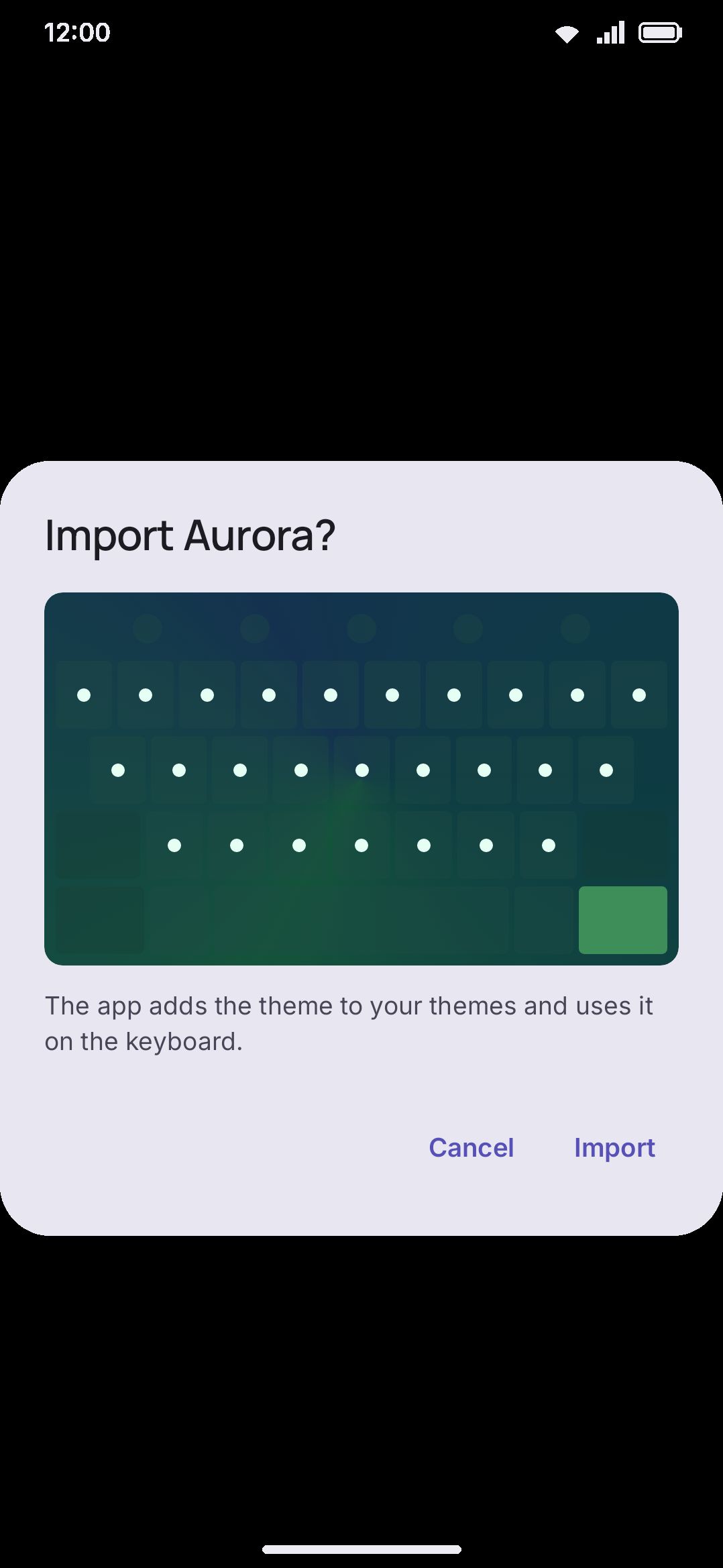
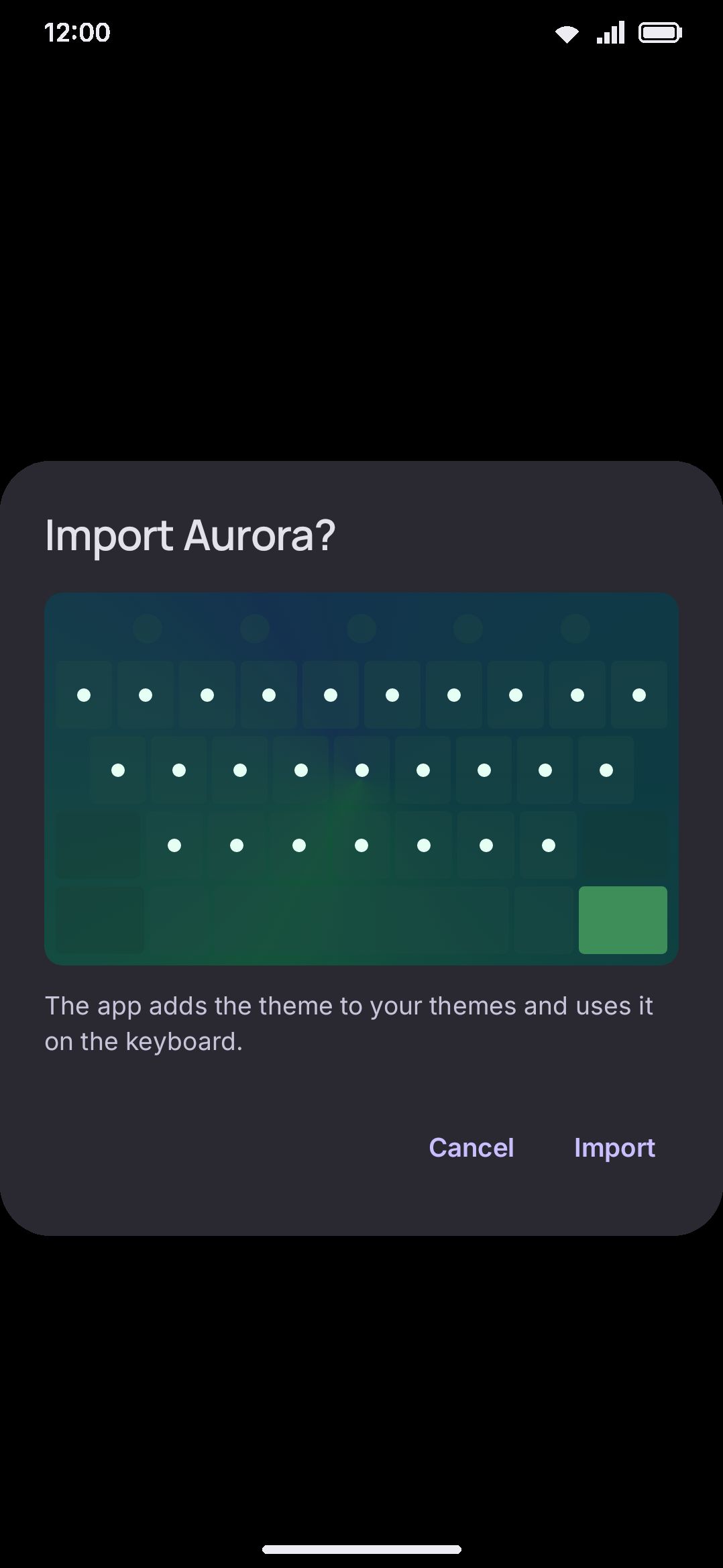
Before the confirm button, the dialog shows what is actually in the file, for the formats where a sentence cannot say it. A theme and a layout are drawn as a miniature keyboard — the theme’s own colours, key shapes and background photo; the layout’s own letter grid, key for key — so a theme called “Dusk” and a layout called “Bijoy” are something you can look at rather than take on trust. A FlorisBoard .flex is drawn the same way, as the converted theme rather than as the file. A snippet pack and a vocabulary pack show their first few entries, a sticker pack shows its images, and a sound pack gives one play button per recording so you can hear how much it varies. A backup and a plugin have no preview: what matters about those is the list of sections and the list of permissions, which the dialog already spells out.
WM Keyboard is offered for a file in two ways. The first is by name, which is why every export uses a compound extension: a .wmtheme.json rather than a plain .json. The second is by type, because the name isn’t always there — a file downloaded in a browser is often handed to other apps as an anonymous id with no file name attached at all, and in that case name matching can’t work. So the app also accepts JSON files and files of unknown type outright, which means WM Keyboard shows up in the “Open with” list for documents that have nothing to do with it. That trade is deliberate: without it, a theme you just downloaded would open in some other keyboard and WM Keyboard wouldn’t even be listed.
If a file turns out to be none of WM Keyboard’s formats but is readable as text, the app offers to open it in a built-in editor rather than leaving you on an error. The editor is the same one behind Edit as JSON: syntax colouring, line numbers, find and replace, folding, go to line, undo, and a symbol row for typing JSON on a phone. Save writes back to the file you opened, when the app that handed it over allowed writing; when it didn’t, the editor offers Save a copy to a place you choose. Anything that isn’t text — an image, a PDF, some other app’s archive — is simply refused, since a screen of binary helps nobody.
Behind that dialog, the app has to figure out what kind of file it’s looking at:
- If the file starts with a ZIP signature, the app opens it as an archive and scans up to 400 entries (capped at 64 KB of manifest content) for a
pack.json,plugin.json,extension.json, orkmp.json. Theformattag inside tells sticker packs, icon packs, sound packs, and plugins apart. File structure alone can’t do it, since sticker, icon and sound packs all use apack.jsonmanifest. Anextension.jsontagged as a FlorisBoard theme is converted rather than installed. Akmp.jsoncarries no format tag at all, and is recognized instead by the two fields every Keyman package carries. See Importing from other keyboards. - If it isn’t a ZIP but its first bytes are an encrypted-backup header, the app stops there and asks for a passphrase. Nothing can be said about the contents until it opens, and decoding megabytes of ciphertext as text to find that out would be wasted work.
- Otherwise, the app reads the file as text and tries each tagged format’s decoder in order: full config backup, then legacy settings backup, then layout, then snippets, then a vocabulary pack, stopping at the first one whose
formatfield matches. - A theme file has no
formattag at all (everyThemeSpecfield has a default, so any JSON object decodes successfully as an all-defaults theme). The.wmtheme.jsonextension on the file name is the only signal that a file was meant to be a theme, so it’s checked last and only by name. - Last of all come the two YAML formats, a FUTO Keyboard layout and an Espanso match file. Neither carries a tag either, and neither has a file name worth trusting, so each is recognized by a key at the start of a line —
rows:for FUTO,matches:for Espanso. A JSON document can’t be mistaken for either, because every key in JSON sits inside quotes. A FUTO layout is offered with a language to confirm before it’s saved, exactly as the layout editor’s own import of one is; an Espanso file’s snippets land in a single folder named after the file, so you can switch the whole pack off at once.
Layout files are deliberately tolerant past their format tag. A hand-edited .wmlayout.json with a typo doesn’t get refused, it gets repaired, and the confirm dialog lists what changed under “The app changed these items during the import”. Plugins take the opposite approach. Nothing about a plugin is auto-repaired, and any problem is a refusal with a reason, because a plugin is code running on assumptions nobody checked.
Importing a .wmsettings.json or .wmconfig.json backup is rollback-safe. The app re-reads the settings it just wrote, and if they don’t come back correctly it reverts the whole settings section rather than leaving you half-migrated.
Exporting a file
Section titled “Exporting a file”Every export (theme, layout, snippet pack, sticker pack, icon pack, or config backup) uses Android’s system “Save As” picker. There’s no fixed export folder; you choose the destination each time, the same way you’d save a photo or a PDF. The app suggests a starting file name (the theme’s own name for a theme, the layout’s name for a layout, and so on), but you can rename it in the save dialog.
Themes and layouts
Section titled “Themes and layouts”.wmtheme.json is the bare ThemeSpec object, encoded with every field written out. Colors are ARGB integers written as 0xAARRGGBB longs. Because it has no format tag, any well-formed JSON object “imports” as a theme, and the file extension is what marks it as one.
When a theme travels as a file (export, or as part of a .wmconfig.json backup), its images travel with it. Local file paths are stripped out and the bytes are embedded as base64 instead, so the file is self-contained and doesn’t reference a path that only exists on the phone that made it. The two background images have dedicated base64 fields. Everything newer (key textures, the popup texture, sticker decals, press-effect images) rides a generic assets map keyed by slot name (keyTexture, popupTexture, decal:<id>, effectImage:<n>, …). See Sharing themes for the in-app side of this.
The format stays plain JSON with unknown-key tolerance on purpose: a theme from a newer app version imports on an older one as a working color theme, minus whatever decorations that version doesn’t know. Fonts and sounds are the deliberate exception. A theme names them by id and never embeds them, so they stay reusable as their own add-ons, and a missing one falls back to the user’s global choice.
.wmlayout.json wraps the layout in a small envelope (format, version, and the layout data) specifically so a corrupted or unrelated file can be told apart from a real layout before anything is applied. See Custom layouts & the layout editor for editing and sharing layouts from the app.
Both formats are plain application/json, not a custom MIME type, since a vendor-specific MIME type would stop most file managers and chat apps from offering the file for sharing at all.
Snippets, sticker packs, and icon packs
Section titled “Snippets, sticker packs, and icon packs”.wmsnippets.json is a tagged JSON envelope listing your snippets. Snippet IDs in the file are never trusted on import, so importing the same pack twice creates two independent sets rather than overwriting the first. Each snippet may carry a trigger (one exact word) or a triggerPattern with triggerWords (a regular expression over the last few words before the cursor, whose captures reach the text as $1…$9). A third field, confirm, makes that trigger offer itself on the suggestion bar rather than expand on its own. A fourth, folderId, files it under one of the envelope’s folders (id, name, an optional enabled, and an optional icon naming one of the built-in icons a folder can wear). A snippet can also carry alternates (further texts it can insert, with text as the first and the default), children (the IDs of snippets it links to, which mean something only inside the file that declares both ends and are re-pointed on import like folder IDs), tags, and multiExpand (default, chips_only or insert_first, overruling the app-wide setting). All of them are written only when they’re set, so a file of plain snippets is byte-for-byte what it always was. The envelope says version 2 since links and several expansions arrived; a file written before them simply has none of those keys, and an older build reads a version-2 file as the plain snippets it also is. A pattern that won’t compile is dropped on import while its snippet is kept. Folder IDs are as untrusted as snippet IDs and are reassigned on the way in, so the grouping survives the trip while the numbers don’t; a folder with no name, a repeated ID, or ID 0 (which is how a snippet spells “in no folder”) is dropped, and its snippets arrive ungrouped. See Snippets.
An Espanso match file is YAML with a top-level matches: list, and an Espanso package is a ZIP holding package.yml, _manifest.yml and a README.md. Both are read under the same caps a .wmsnippets.json gets, 4 MB and 500 snippets, and the YAML is parsed with a loader that builds nothing but maps, lists and text. shell and script variables are read, discarded and never run, in either direction. The full mapping in both directions, and the list of what does not survive it, is at Importing from Espanso.
.wmstickers and .wmicons are both ZIP archives holding a pack.json manifest plus the pack’s image files: up to 500 entries / 64 MB for a sticker pack, and 400 entries / 8 MB for an icon pack. An installed device can hold up to 50 sticker packs and 20 icon packs at a time. In both formats, entry names inside the ZIP are never used as file paths directly, so a maliciously named entry can’t write outside the pack’s own folder.
The full manifest shape, slot-id tables, and supported SVG subset for icon packs are documented once, in the addon repository format’s Sticker packs and Icon packs sections. The same files these export buttons produce are what a repository serves, so there’s no separate packaging step to publish one. See Emoji & stickers and Icon packs for the in-app side.
Plugins
Section titled “Plugins”.wmplugin is a ZIP containing a plugin.json manifest and a Lua script, the only format here that’s code rather than data. The script is capped at 256 KB, and the archive as a whole at 16 entries / 1 MB. Precompiled Lua bytecode is rejected outright, source only. A device can hold up to 50 installed plugins. Nothing about a plugin is silently repaired on import. See Opening a file above.
One distinction is worth knowing. An addon repository’s index requires a sha256 hash for every plugin entry, and the app verifies it before installing from a repository. Opening a .wmplugin file directly (from a file manager or a chat attachment) skips that check entirely, and only the manifest and script validation above apply. See the plugin developer guide and its security model for what a plugin can and can’t do once installed.
Backups
Section titled “Backups”WM Keyboard has two backup formats, and only one of them is still current:
.wmconfig.jsonis the format the app writes today. It bundles twelve independent, opt-in sections (settings, themes, the learned dictionary, clipboard history, snippets, sticker packs, icon packs, imported word lists, emoji history, your list of addon repositories, your typing statistics, and your vocabulary packs with their learning record), each one embedded as the same JSON its own store already produces. A section you leave unchecked isn’t in the file at all. The default export file name is timestamped, likewmkeyboard-backup-20260728-143012.wmconfig.json..wmconfig.encis that same bundle sealed under a passphrase. Only the automatic backup writes it, and only when you switch encryption on, so the manual export button always produces plain.wmconfig.json. Automatic backups carry their ownwmkeyboard-auto-prefix rather thanwmkeyboard-backup-, which is what keeps rotation from ever deleting a file you made by hand. After the timestamp comes the installation that wrote it and the device’s name, as inwmkeyboard-auto-20260923-033823_78c415cf_Pixel-8.wmconfig.enc, so several phones can share one location and each rotates only its own..wmsync.json(and.wmsync.encunder a passphrase) is a sync file, one per device at each location sync uses, namedwmkeyboard-sync_<installation>_<device>. It holds that device’s view of every synced setting and item, each with the time it last changed. It isn’t a backup: the restore list and backup rotation both leave it alone, and importing one by hand isn’t supported..wmsettings.jsonis the older, settings-only format it replaced: a generic dump of every stored preference, with no dedicated export button left in the app. It’s still accepted on import, so an old file keeps working, but new backups are always.wmconfig.json.
Both formats exclude credentials by default: the API keys for translate, GIFs, search, every AI provider, Hugging Face and the two photo services, plus the passwords and tokens for your backup locations (WebDAV, S3, FTP, Dropbox, OneDrive) and the backup passphrase itself. A settings file is the kind of thing people email themselves or drop in a shared folder. Turn on “Include API keys” explicitly if you want them in that export.
WM KeyboardDataBackup & restoreSee Backup & restore for the full export/import flow and what each section covers, and Backup & restore settings for the settings screen itself.
Word lists and emoji keyword packs
Section titled “Word lists and emoji keyword packs”Two plain-text formats exist purely to be imported, never produced by the app:
- A custom dictionary is a
.txtfile, one entry per line asword frequency(frequency is optional and defaults to 1). Lines starting with#are comments. Everything else is read permissively: a line with no parseable frequency becomes a word at frequency 1 rather than being rejected, so most word lists found in the wild import as-is. Imported lists stack, and several can sit under one language at once, capped at 32 MB per file. See Downloadable dictionaries for the app’s own dictionary downloads (a similar word-frequency format, but fetched and filtered through its own stricter parser rather than this loader). - An emoji keyword pack is a
.tsvfile, one row per emoji: the emoji itself, a comma-separated list of keywords, and an optional display name (tab-separated, capped at 8 MB). A file that instead starts with[is read as the data repository’s JSON dictionary format rather than TSV, so a.jsonfile pulled straight from that repository also imports without conversion. See Emoji customization for keyword pack downloads and language coverage.
Vocabulary packs
Section titled “Vocabulary packs”.wmvocab.json is a tagged JSON envelope ("format": "wmkeyboard-vocab", version 1) with a pack block (id, name, langId, description, userCreated, the sources a word’s badges may name, and attribution) and a words array. Every word record needs only word; the rest is optional and omitted when empty: pos, ipa and audio keyed by accent (us, uk), respelling, senses (each with pos, definition, example, dated quotations, synonyms, antonyms, register tags, topics), aggregated synonyms and antonyms, family (derived, related), hypernyms, hyponyms, forms, hyphenation, rhymes, etymology, origin (a chain of lang + word), root, attested, wikipedia, mnemonic, translations (language code → w glosses and optional r romanisations), sources (list ids), and triggers (w the plainer word, its inflected forms, and the Zipf-frequency gap the sensitivity setting thresholds). Lemmas are lowercased and de-duplicated on import; a file past 8 MB inflated or 5,000 words is cut off. The hosted packs are the same file gzipped, with translations in sidecar files beside them (<id>.tr.<code>.json.gz, a map of word → { "w": [...], "r": [...] }). The full build pipeline and licences are documented in the data repository. See Vocabulary.
Addon repository manifest
Section titled “Addon repository manifest”An addon repository is a wmkeyboard-repo.json manifest plus the addon files it indexes, served from any https:// host, no build step or signing required. It can point at 14 addon types in all. Ten are formats already on this page: themes, layouts, dictionaries, emoji keywords, snippets, Espanso packs, sticker packs, icon packs, plugins, and vocabulary packs. The other four are sound packs, fonts, emoji fonts, and key sounds. A sound pack is a .wmsoundpack ZIP, documented at Sound packs. Fonts, emoji fonts, and key sounds use standard file types (.ttf/.otf, .mp3) rather than a WM Keyboard-specific format. A repository is an index over files the app already knows how to use, so the same exports the app produces work as repo payloads with no separate packaging step. The full manifest schema, versioning rules, and a JSON Schema for validation live at Addon repository format. See Installing addons for adding a repository from the app.
Details & edge cases
Section titled “Details & edge cases”- No
.wmdictfile association. Bundled and downloaded dictionaries never appear as an openable file: they’re written straight to app storage by the download pipeline or extracted from the APK, and there’s no in-app export for them. Opening a stray.wmdictfile from a file manager does nothing special; it isn’t on the recognized-extension list. - Compound extensions, on purpose. Every JSON format uses a two-part extension (
.wmtheme.json, not.wmtheme) so the file association can match a file of WM Keyboard’s precisely, by name. (The app is also offered for plain.jsonfiles by type, as described above, but only a compound name tells it what the file actually is.) The underlying Android pattern matching can’t backtrack, so a file name with extra dots in it (my.theme.wmtheme.json) needs its own matching pattern; the manifest carries a few redundant patterns per extension specifically to cover that. - Legacy dictionary folders. Custom word lists were once stored under each language’s old display name (
ENGLISH,BANGLA, and so on) rather than its short language ID (en,bn). The app migrates those folders to the new naming once, automatically, so lists imported years ago aren’t orphaned by a later update. - Zip-bomb guards, in one place. Every archive format (
.wmstickers,.wmicons,.wmplugin) enforces both an entry-count cap and a total-size cap before extracting anything, sized well above what a legitimate pack would ever need: a sticker pack tops out around 500 entries / 64 MB, an icon pack around 400 entries / 8 MB (a full pack is roughly 90 small SVGs), and a plugin around 16 entries / 1 MB.
wmdict, the one format you never touch
Section titled “wmdict, the one format you never touch”.wmdict is the app’s internal binary dictionary format: the compiled form of a bundled or downloaded word list, memory-mapped directly so the keyboard can look up completions without parsing anything at load time. It’s here for completeness. Unlike the others it never faces you, with no export button, no file association, and no reason to ever see one on disk unless you go looking in the app’s own storage.
The format itself is a fixed big-endian header (a WMDC magic number, a version, a flags word, word/node/edge counts, and a table of section offsets) followed by seven 4-byte-aligned sections that together encode a compressed trie. Version 3 is the current one, and it trades a little decode work for a lot of file: edge labels shrink to one-byte indices into a symbol table when the alphabet is small enough, and the per-node child offsets aren’t stored at all. Instead each node keeps a one-byte child count, with a running total checkpointed every so often, and the offset is added back at read time. Queries still answer exactly as PackedTrie does in memory. Bundled dictionaries (English and Bangla) are inflated once out of the APK into app storage the first time they’re needed. Downloaded dictionaries are converted and written the same way, atomically, so a partial download never leaves a broken file behind. For the dictionary experience itself (what’s built in, what you can download, and in what sizes), see Downloadable dictionaries.