
Installation
Install from F-Droid, download a release APK, or build from source, pick Full or Lite, and install it on your device.
Install it from F-Droid, or grab a signed APK from the releases page and install that like any other app. Building it yourself works too, and takes a few minutes if you already have the Android SDK. Google Play is coming.
Downloading a release APK
Section titled “Downloading a release APK”Every release ships sixteen APKs on the GitHub releases page. There are three things to pick: the edition (Full or Lite), the languages the app’s own screens are written in (all of them or English only), and your CPU architecture. The release page puts the common answer first, so most people take the starred cell and stop reading.
-
Open the latest release on GitHub.
-
Pick your edition. Full carries every feature. Lite is much smaller. See Choosing an edition below.
-
Pick your languages.
allhas the app’s own text in 48 languages besides English.enhas English alone and is about 41 MB smaller. This is only about the words the app shows you, on its settings screens and its panels. What you can type is identical either way: every layout and every dictionary is in both. See Choosing a language build below. -
Pick your CPU architecture. Almost every phone made since 2017 is
arm64-v8a. Older or budget devices arearmeabi-v7a. Emulators and a few tablets arex86_64. TheuniversalAPK holds all three and works anywhere, at several times the download size. -
Download the APK to your device.
-
Optional: verify the download against
SHA256SUMS.txtfrom the same release. Runsha256sum <file>on a computer, or use a checksum app on the phone. Compare the result to the line for your file. -
Open the APK to install it.
The release page carries the real size of every file next to its link, so check there rather than here. As a rough guide on arm64-v8a, Full in English is around 67 MB and Lite in English around 12 MB, and the all-languages build of either adds about 41 MB on top.
That 41 MB does not shrink with the architecture you pick, because the translations are stored uncompressed and every APK carries them whole. It is why Lite has a language choice at all: without one, the edition built to be small would stop being small.
Building the APK yourself
Section titled “Building the APK yourself”-
Install a JDK 17 or newer, and the Android SDK. The dictionary-compiler build tool pins its own JDK 17 toolchain. Foojay provisions that toolchain for you if you do not already have one.
-
Clone the repository. From the repository root, run one of these commands:
Terminal window ./gradlew assembleFullIntlDebug # every feature, every language./gradlew assembleFullEnDebug # every feature, English only./gradlew assembleLiteIntlDebug # fewer tools, every language./gradlew assembleLiteEnDebug # fewer tools, English onlyThe task name is the edition, then the language build, then the build type.
Intlis all 48 languages andEnis English alone.For a release build, replace
DebugwithRelease. A release build needs your own signing keystore. Without one the APK comes out unsigned, and Android refuses to install it. The debug builds above are signed with the local debug key and install fine on your own device. -
Find the APK under
app/build/outputs/apk/fullIntl/debug/, or the directory matching whichever task you ran. -
Copy the APK to your device and install it.
The build produces one APK per CPU architecture only when wmkb.splitApks is on, which is how the release APKs above are made. With the flag off, a release build packs all three architectures into one APK, and a debug build carries arm64-v8a alone. See Building from source for the full set of build flags.
Choosing an edition
Section titled “Choosing an edition”Both editions are the same keyboard. Same layouts, same prediction, same themes, same tools. What differs is which on-device intelligence ships in the box:
| Full edition only | Lite edition only | |
|---|---|---|
| Handwriting, OCR text scan, QR/barcode scanner, document scanner | Included | Not included |
| Grammar check (Harper) | Included | Not included |
| Offline Whisper voice dictation | Included | Not included |
| On-device local LLM | Included | Not included |
Lite leaves out the ML Kit and Harper native libraries those features need, so its APK is far smaller: 8.25 MB against 63.2 MB for Full on arm64-v8a. Exact numbers shift as dependencies update. Pick Lite if you’re short on storage, or if you don’t need handwriting, scanning, grammar checking, offline voice or the local LLM. It gets you everything else for a fraction of the download.
See Full vs Lite for the complete feature comparison and how to tell which edition you’re already running.
Choosing a language build
Section titled “Choosing a language build”This choice is about the words the app shows you, not the ones you type.
all carries the app’s own text in 48 languages besides English: its settings screens, its panels, its button labels. It follows your phone’s language on its own, and you can give the app a language of its own under Settings, then Apps, then WM Keyboard, then Language, on Android 13 and up.
en carries English alone, and is about 41 MB smaller for it.
Every layout, every dictionary and every prediction model is in both. Switching your typing language to Bengali works exactly the same in the English build. If you read the app’s screens in English, en costs you nothing at all.
The translations are machine translations from Google Play, and nobody has read them line by line, so expect the occasional clumsy sentence. A string with no translation yet falls back to English. See Languages overview for the list and the caveats.
You can move between the two later. They share a signing key and a version, so installing one over the other is an ordinary update and no setting is lost.
Installing from the APK
Section titled “Installing from the APK”Android blocks installs from outside the Play Store by default. The first time you open the APK, Android shows an “install unknown apps” prompt. Grant the permission to whichever app you opened the file with (Files, a browser download, and so on), then continue. This is standard Android behavior, not anything WM Keyboard adds.
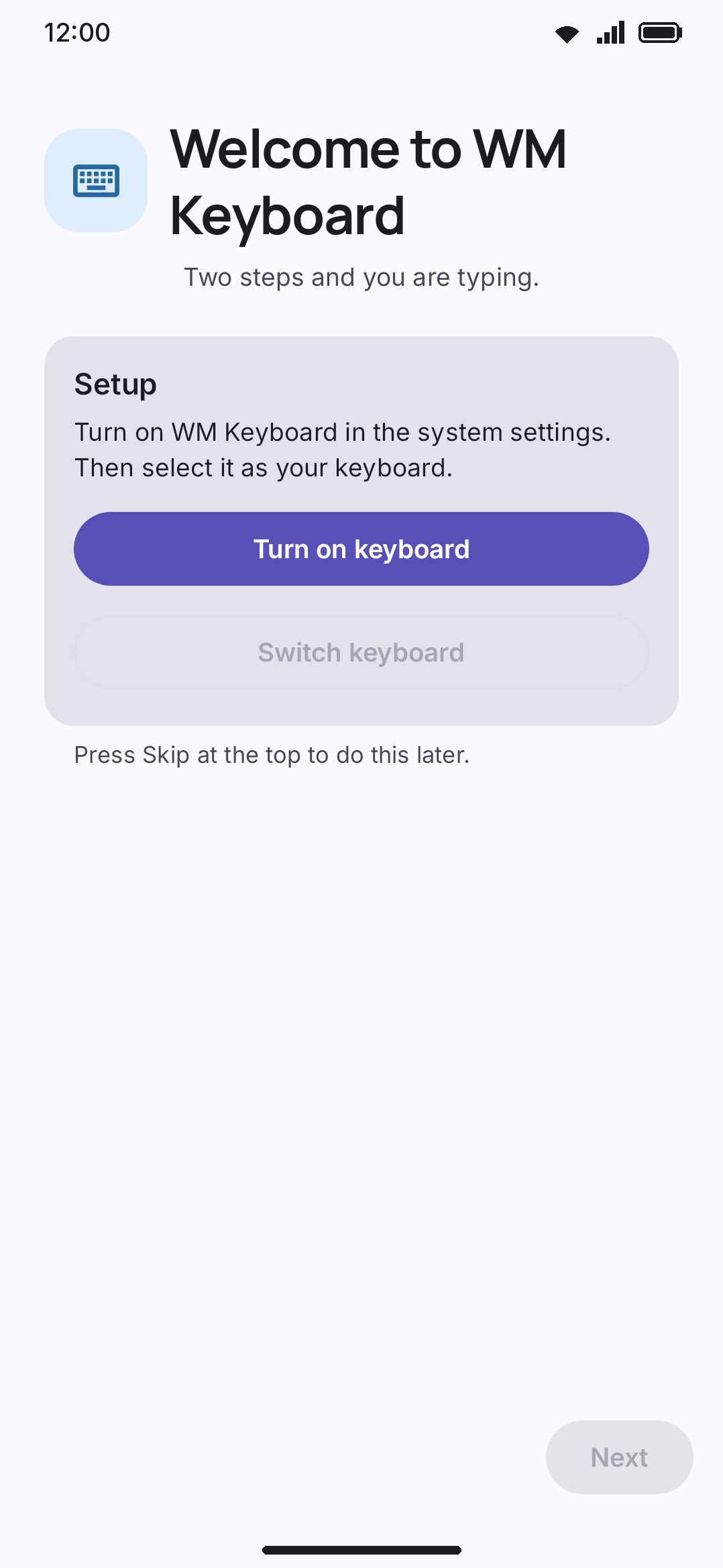
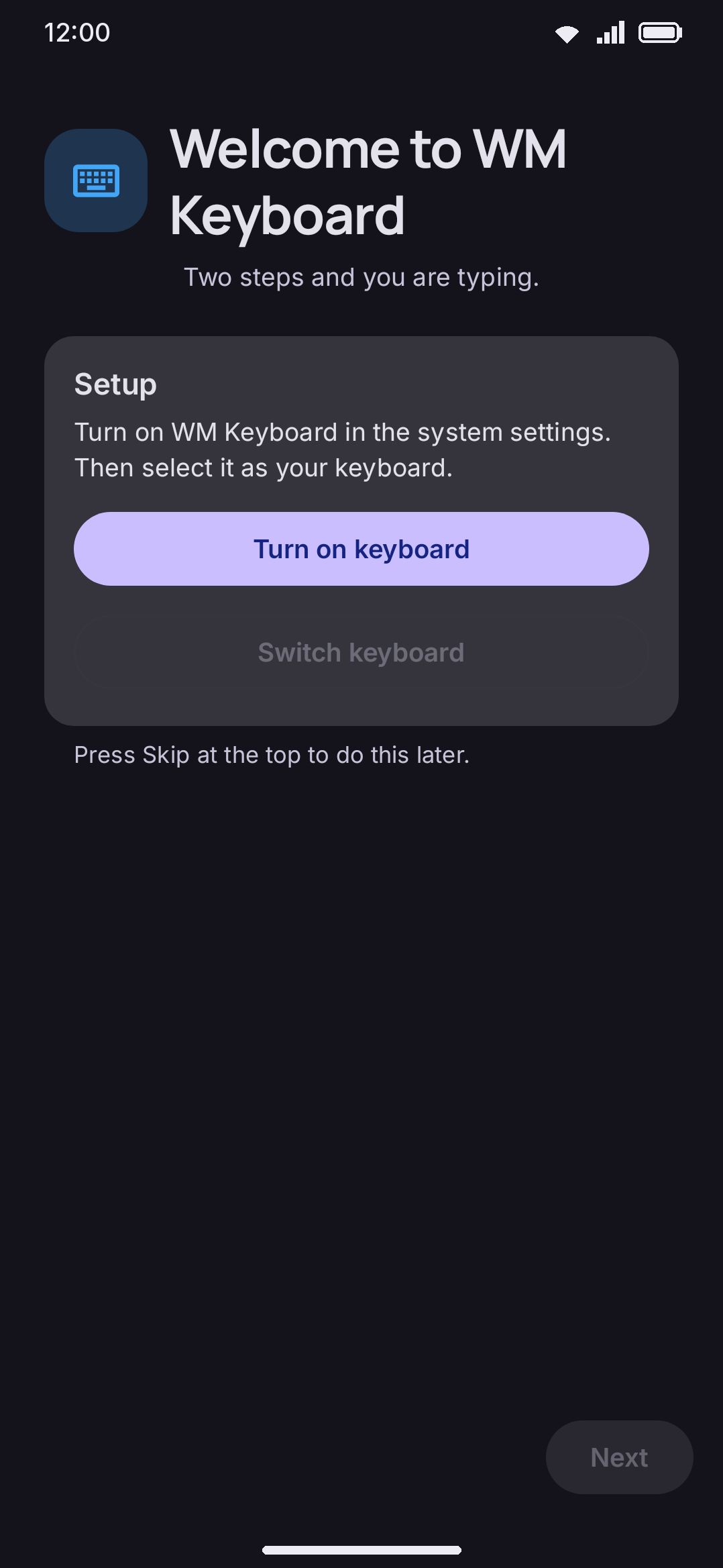
Opening the app for the first time drops you straight into a short setup wizard rather than a home screen. See Enable the keyboard for what each step does. Once you finish the wizard, it won’t run again on later launches.
Updating and what carries over
Section titled “Updating and what carries over”Installing a new build over an existing install (same package, same signing key) works like any Android app update. Your settings, themes, learned words, snippets and everything else stay exactly as they were, automatically.
F-Droid builds and the GitHub APKs share a key from 0.5.10 on, so you can move between them the same way. F-Droid still compiles its copy from source, and it publishes one only after checking it is identical to the -fdroid.apk on the same GitHub release.
The exception is an install from F-Droid of 0.5.9 or older. Those were signed with F-Droid’s own key, and Android will not update an app to a build signed with a different one, so F-Droid can’t update it to 0.5.10. To move over once: export a backup (see below), uninstall, install WM Keyboard from F-Droid again, and import the backup. Every update after that is ordinary.
Reinstalling from scratch or moving to a new phone is different. Nothing carries over on its own unless you set one of these up beforehand.
WM KeyboardDataBackup & restoreExport your configuration to a file, keep the file or move it to another device, then import it after reinstalling. You choose what each export includes. The defaults are:
| Included by default | Off by default |
|---|---|
| Settings, themes, snippets, custom word lists, addon repository list, emoji history, typing statistics | API keys inside settings, stickers, icons, learned dictionary, clipboard history |
Import always shows a confirmation before it writes anything, so restoring isn’t something you discover after the fact.
WM KeyboardPrivacyAndroid backupBack up with AndroidThis separate toggle is off by default. It opts the keyboard into Android’s own backup and phone-to-phone transfer system, which is independent of the manual export above. Leave it off and Android carries no WM Keyboard data across a device switch on its own. Turn it on and Android’s platform-level backup includes this app the next time it runs.
System requirements
Section titled “System requirements”- Android 7.0 (API 24) or newer is the floor the app is built against. It targets Android 16 (API 36).
- Supported CPU architectures:
arm64-v8a,armeabi-v7a, andx86_64. Generic 32-bitx86is not supported. Only the 64-bitx86_64is. - Camera, microphone and sensor access are all optional. Every hardware-backed tool (camera scanner, voice dictation, compass) declares the hardware feature it needs as non-required in the manifest. Missing hardware disables that one tool instead of blocking the install.
Details & edge cases
Section titled “Details & edge cases”- The release APKs, and a build you make yourself with the default flags, both carry a GitHub-releases updater. It checks this project’s releases in the background and shows an “Update available” card on the Home screen. It downloads the APK itself and asks you to confirm before installing. Only a build made for the Play Store channel skips it, and that isn’t a channel you can install from yet.
- Installing over a release APK works only if both were signed with the same key. A release APK replaces an earlier release APK cleanly. It will not install over a build you made yourself, and vice versa. Uninstall first, and export a backup before you do.
- Build release APKs on more than one machine without sharing a signing keystore and they carry different signatures. Android then refuses to install one over the other. You have to uninstall first, which loses your data unless you exported a backup.
- The Backup & restore export has a separate “include API keys” switch, off by default. It covers the translate, GIF, search and AI tool keys you may have entered. An export made with it on is worth treating like a password, because anyone holding the file gets those keys.
- Some data is cheap to fetch again: downloaded (not custom) dictionaries, emoji keyword packs, Whisper and LLM model weights, and cached camera captures. Both the manual backup and Android’s own backup leave all of it out, because re-downloading beats restoring.