
Deep links & launcher shortcuts
Every settings screen and setting has a wmkeyboard:// address. The full route table, the launcher shortcuts, the addon links, and the file associations.
WM Keyboard opens straight to a specific screen from three different starting
points: a long-press on the app icon, a wmkeyboard:// link, or a file you
tap in a file manager. Every settings screen has a link of its own, and so
does every individual setting. This page lists every form each one takes.
Jumping in from the home screen
Section titled “Jumping in from the home screen”Long-press the app icon to get four shortcuts straight into the app, without passing through the home page first: Tools, Languages, AI chat, and Themes. They’re drawn bottom-up, so on most launchers Themes lands closest to the icon and Tools furthest away, even though this list states them in the order they’re declared.
Each shortcut is a static entry. The platform publishes them at install time, and no runtime code is involved. They only exist on Android 7.1 (API 25) and above. WM Keyboard’s minimum supported version is Android 7.0 (API 24), where the platform ignores the shortcuts file entirely and long-pressing the icon does nothing extra.
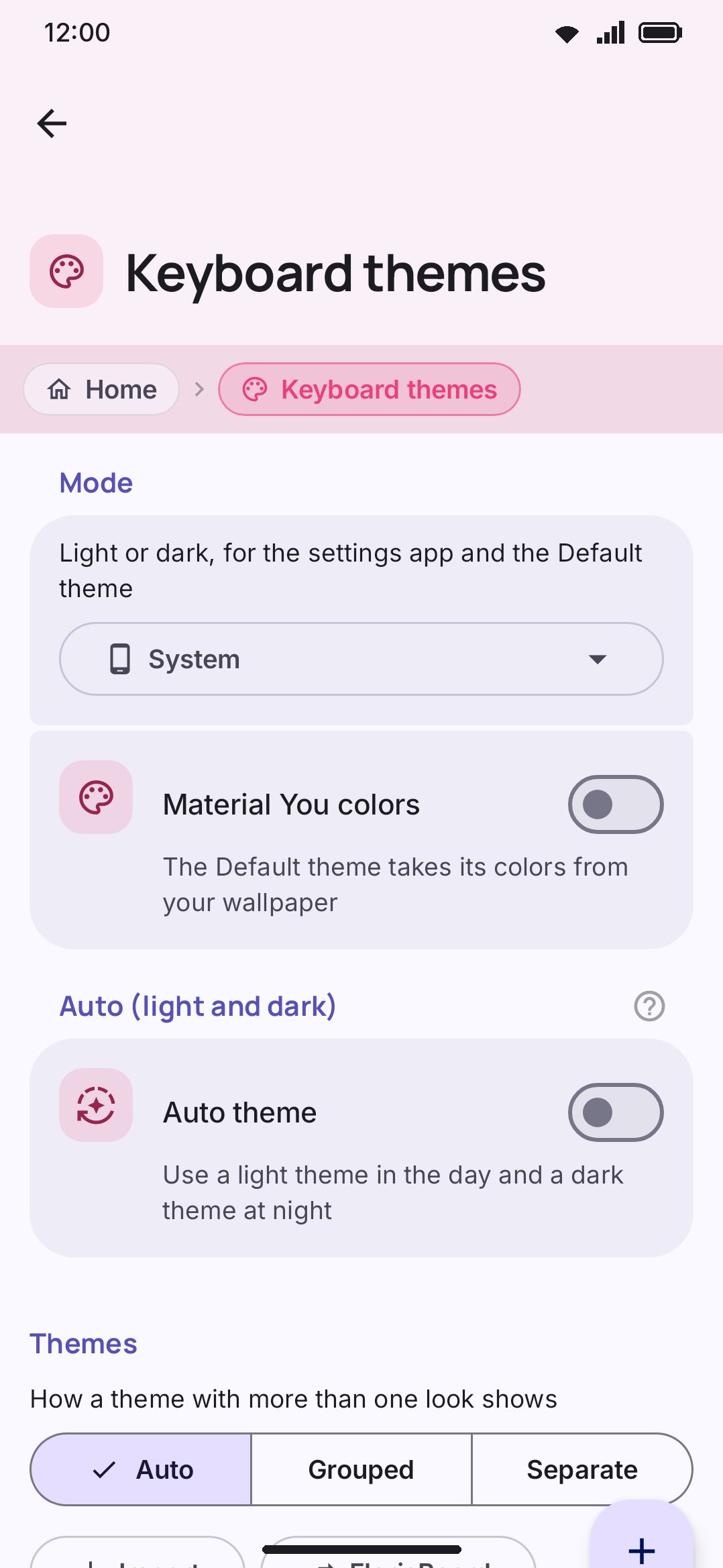
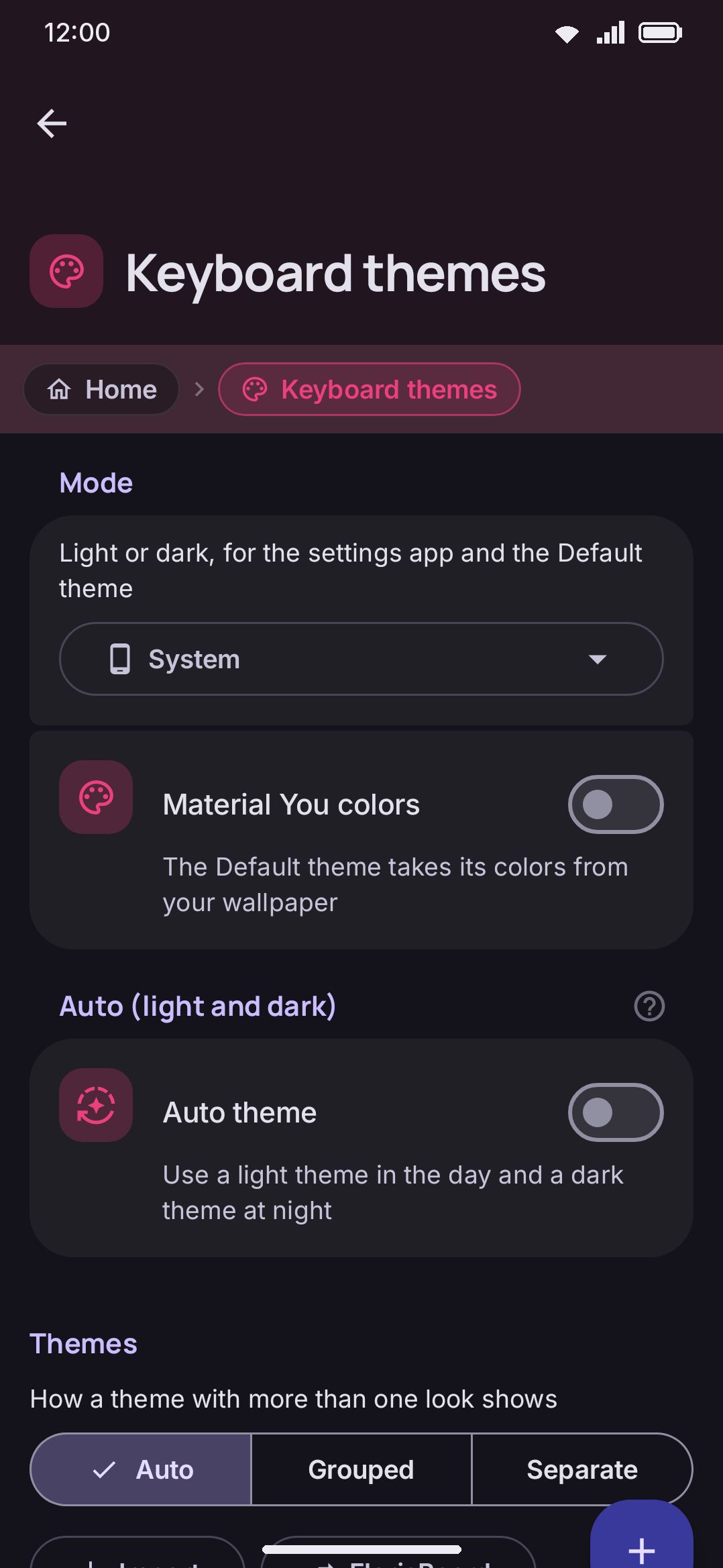
Opening a settings screen with a link
Section titled “Opening a settings screen with a link”Every settings screen in the app has an address:
wmkeyboard://settings/<route>Tap one anywhere on the device and WM Keyboard opens on that screen. A bare
wmkeyboard://settings opens the settings home list. Every launcher shortcut
carries one of these links, and so does every route in the table further down.
The link builder writes any of them for you, with
the screen list, a setting search and every alternative spelling, and reads an
existing link back into plain words.
So does every settings-location chip on this site, when you read it on an Android phone that has WM Keyboard installed. Tap WM KeyboardTypingAutomatic corrections and the app opens on that screen, or scrolls to the row the chip names. Chrome checks that the app is there before the chip becomes a link; a browser that cannot check, such as Firefox, links it anyway. On a desktop the chip is plain text, since nothing there can open the address.
You can send the same link yourself, for example from adb:
adb shell am start -a android.intent.action.VIEW -d "wmkeyboard://settings/typing/corrections"A link opens a screen and changes nothing on the keyboard. To switch the
layout, the theme or another setting from adb or an automation app, send one
of the broadcasts on Automation: adb and Tasker
instead.
Matching is case-insensitive for the screen name, so wmkeyboard://settings/Themes
and wmkeyboard://settings/themes are the same address. Both URI forms parse:
the regular wmkeyboard://settings/themes and the opaque
wmkeyboard:settings/themes with no slashes after the colon. A route the app
doesn’t have opens no screen. Nothing crashes, and the app doesn’t fall back to
the home screen either, because landing you somewhere else would read as the
link having worked. It tells you instead, and looks for a newer version that
has the screen. See Links from a newer version.
Screens that name one of your own things
Section titled “Screens that name one of your own things”Some addresses carry an id: a language, a theme you made, a tool. Write it as the last part of the address.
adb shell am start -a android.intent.action.VIEW -d "wmkeyboard://settings/language/bn"adb shell am start -a android.intent.action.VIEW -d "wmkeyboard://settings/tool/CLIPBOARD"Unlike a screen name, an id is matched exactly, since it is your data rather than a word this documentation chose. Percent-encode anything a URL can’t hold directly. An id the app doesn’t recognize opens the screen anyway, in whatever empty state it draws for one that has been deleted.
Opening one setting, not a whole screen
Section titled “Opening one setting, not a whole screen”A link can point at a single row. The row scrolls itself into view and pulses once. Nothing is switched on or off. You still touch it yourself.
Name the row by the resource name of its title. That is the app’s own internal name for the row, and it survives both translation and an app update, which the words on screen do not.
wmkeyboard://setting/<name>adb shell am start -a android.intent.action.VIEW -d "wmkeyboard://setting/typing_autocorrect_title"The app looks the row up and opens whichever screen holds it, so you don’t need to know where a setting lives to link to it. If you do know, name both. This is the same address written the long way:
wmkeyboard://settings/typing/corrections?setting=typing_autocorrect_titleThe rows you can address this way are exactly the rows settings search can
find, around six hundred of them, across every screen. To get a row’s name,
search for it in the app and note which screen it lands on, then read the name
off app/src/main/res/values/strings.xml, or off the
Settings reference pages, which are organized by
the same screens. A name the app doesn’t have on any screen gets the same
answer as an unknown route: with a screen named alongside it the screen still
opens, and either way the app says it doesn’t have that setting and looks for a
newer version. A name the app has on a different screen from the one the link
names is not missing: the named screen opens, without the row flashing.
With a screen named, setting= can also be a group’s heading, and then the
whole group scrolls into view and flashes. Settings search doesn’t list the
headings, so this only works in the long form, where the link says which screen
the group is on:
wmkeyboard://settings/accessibility?setting=accessibility_vision_titleLinks from a newer version
Section titled “Links from a newer version”A link can point at a screen or a setting that arrived after the version on your phone. That happens most with links from this site, which describes the newest code, and with links shared for a setting that is on GitHub but not in a release yet. So a settings link can say which version it needs:
wmkeyboard://settings/typing/corrections?setting=typing_auto_close_brackets_title&since=0.5.12wmkeyboard://setting/layout_globe_recent_title?since=0.5.12since= changes nothing about where the link goes. A version that has the
screen opens it and ignores the number. A version that does not has something
to tell you now, instead of opening nothing. It shows a dialog, and the dialog
asks the app’s own update source, the same one as Check for updates on the
About screen:
| What the check finds | What the dialog says |
|---|---|
| A release at or past the link’s version | Which version is out and where, with the same Download, Update now or Open F-Droid button as the update card. Open the link again after the update. |
| No release that new yet | The version is not released yet. Wait for the official release, or build the app from its source code on GitHub. A Source code button opens the repository. |
| The link says your version already has it | An update does not help: the link has a mistake in it, or the setting moved or was removed. |
| No update source, as in a debug build | The version to look for, and a Releases button for GitHub’s list. |
A link without since= gets the same dialog. It just cannot say which version
to wait for, so it says the link may be for an unreleased version or may be
mistyped. An F-Droid build asks before it checks, because it never checks for
updates on its own. On the other builds, opening the dialog is the check.
Versions from before this dialog existed ignore since= and open nothing, as
they always did. The link builder and the settings
chips on this site add since= for you, and only when the screen or row is
newer than the first version that opens links at all, so most links stay
short.
Every route
Section titled “Every route”112 screens. Four more exist and are deliberately not addressable. Three have
nowhere to land: the first-run wizard (onboarding), the sticker editor
(sticker_editor), and a single photo’s page (photo_detail). Each of those
three draws from something the screen before it handed over, so opened cold it
would show nothing. The fourth is the preview of one Signal sticker pack
(signal_pack/{packId}/{packKey}). It carries a pack key and asks Signal’s
servers for the pack as it opens, so it only opens from a pack link you pasted
or shared into the app yourself.
Getting in
Section titled “Getting in”| Route | Opens |
|---|---|
home | The settings home list. Also what a bare wmkeyboard://settings opens. |
search | Settings search. |
Typing
Section titled “Typing”| Route | Opens |
|---|---|
typing | Typing. |
typing/corrections | Automatic corrections. |
typing/suggestions | Suggestions. |
typing/autopilot | Autopilot. |
typing/octopus | Words on the keys. |
typing/chips | Smart chips. |
typing/codes | One-time codes. |
typing/gestures | Gestures. |
typing/hardware | Physical keyboard. |
hwshortcuts | Tool shortcuts list. |
dictionary | Personal dictionary. |
customdictionaries | Custom dictionaries. |
blacklist | Suggestion blacklist. |
learnedcorrections | Learned corrections. |
Key press
Section titled “Key press”| Route | Opens |
|---|---|
keypress | Key press. |
keypress/haptics | Haptics and sound. |
keypress/popup | Key popup. |
keypress/shortcuts | Press and hold shortcuts. |
Appearance
Section titled “Appearance”| Route | Opens |
|---|---|
appearance | Appearance. |
appearance/toolbar | Toolbar. |
appearance/toolbox | Toolbox. |
themes | Keyboard themes. |
theme_edit/{themeId} | The theme editor for one of your themes. |
fonts | Keyboard font. |
fonts/{script} | The font picker for one script, named in capitals: fonts/LATIN, fonts/BENGALI. |
icons | Icons. |
photos | Photo services. |
photo_browse | Find a photo online. |
photo_library | Photo collection. |
photo_rotation | Rotating background. |
Layout and size
Section titled “Layout and size”| Route | Opens |
|---|---|
layout | Layout and size. |
layout/size | Size and position. |
layout/onehanded | One-handed, split and floating. |
rows | Rows and bars. |
rows/symbol | The symbol row: height, lines, scrolling and the symbol sets. |
keymaps | Key layouts. |
keymap_edit/{layoutId} | The layout editor for one of your key layouts. |
keymap_json/{layoutId} | That layout as JSON. |
panel_edit/{panel} | A panel’s layout. The panel is EMOJI, CLIPBOARD, TEXT_EDIT or TRACKPAD. |
panel_json/{panel} | That panel’s layout as JSON. |
Languages
Section titled “Languages”| Route | Opens |
|---|---|
languages | Languages and layouts. |
add_language | Add language. |
language/{langId} | One language’s page, for example language/en or language/bn. |
language/{langId}/more | The full layout catalogue for that language. |
Emoji, clipboard and stickers
Section titled “Emoji, clipboard and stickers”| Route | Opens |
|---|---|
emoji | Emoji. |
emoji/panel | Emoji panel. |
emojikeywords | Emoji keywords. |
emojicategories | Emoji categories: the order of the panel’s tabs, and which ones it shows. |
emojiorder/{category} | The emoji inside one category, to drag into your own order. The category is its id in lowercase: emojiorder/smileys, emojiorder/flags. |
clipboard | Clipboard. |
phoneformats | Phone number formats. |
sticker_packs | Sticker packs. |
signal_stickers | Signal sticker packs. |
sticker_pack/{packId} | One of your sticker packs. |
sticker_pack/{packId}/add | One of your sticker packs, with the photo picker open to add stickers. |
| Route | Opens |
|---|---|
tools | Tools. |
tool/{toolName} | One tool’s page. The name is the tool’s own, in capitals: tool/CLIPBOARD, tool/TRANSLATE. |
vocab/packs | Vocabulary packs. |
vocab/lists | My lists. |
vocab/list/{packId} | One of your vocabulary lists. |
vocab/review | Review. |
vocab/browse | Browse words. |
vocab/word/{packId}/{word} | One word’s page in the vocabulary browser. |
voice | Voice typing. |
expander | Text expansion. |
expander/folder/{folderId} | One snippet folder. |
expander/folder/{folderId}/new | A new snippet inside that folder. |
expander/edit/{snippetId} | One snippet. expander/edit/0 opens an empty new one. |
musicapps | Music players. |
kdeconnect/devices | KDE Connect: paired computers and the ones nearby. |
ai_actions | AI actions. |
ai_action_edit/{actionId} | One AI action. |
ai_history | AI history. |
ai_chat | AI chat. |
ai_chat/{conversationId} | One saved conversation. |
symbol_set_edit/{setId} | One symbol set. |
Advanced
Section titled “Advanced”| Route | Opens |
|---|---|
advanced | Advanced. |
modes | Keyboard modes. |
mode_edit/{modeId} | One keyboard mode. |
addons | Add-ons. |
addon_repo/{repoUrl} | One repository. The address is percent-encoded, so prefer wmkeyboard://repo?url= below. |
addon/{repoUrl}/{addonId} | One addon. Same caveat: prefer wmkeyboard://addon?repo=&id= below. |
plugins | Plugins. |
plugin/{pluginId} | One installed plugin. |
plugin_ide | Plugin editor. |
plugin_ide/{draftId} | One plugin project in the editor. |
datasaver | Data saver. |
servers | Servers: every service’s address, read by the F-Droid edition only. |
notifications | Notifications. |
selection_macros | Selection actions. |
selection_macros/actions | Selection actions: the list of actions and their order. |
selection_macros/ai | Selection actions: the AI buttons. |
selection_macros/zones | Selection actions: the time zones. |
Privacy and backup
Section titled “Privacy and backup”| Route | Opens |
|---|---|
privacy | Privacy. |
permissions | Permissions. |
network_activity | Network activity: every request the keyboard makes, and where it went. |
applock | Fingerprint lock. |
automation | Allowed actions: which commands other apps may send the keyboard. See Automation. |
accessibility | Accessibility. |
backup | Backup and restore. |
backup/auto | Automatic backup. |
backup/sync | Sync devices. |
backup/contents | What goes in an export. |
| Route | Opens |
|---|---|
about | About. |
storage | Storage. |
storage/{category} | One storage category, for example storage/themes. |
statistics | Statistics. |
debug_log | Diagnostics. |
licenses | Open-source licences. |
license_text/{asset} | One licence’s full text. |
egg_game | Keycap catcher. |
Sending an intent instead of a link
Section titled “Sending an intent instead of a link”An app holding an Intent rather than writing a URL can name the same two
things as extras on an explicit intent to MainActivity:
| Extra | Holds |
|---|---|
open_route | A route from the table above |
open_setting | A row’s resource name, with or without open_route |
adb shell am start -n com.wasimaster.wmkeyboard/.app.MainActivity \ --es open_route typing/corrections \ --es open_setting typing_autocorrect_titleBoth go through the same checks as a link, so an unknown route opens nothing rather than throwing.
Opening addon links
Section titled “Opening addon links”A repository’s README, a forum post, or a message can link straight into the addon store with three link forms:
| Link | Opens |
|---|---|
wmkeyboard://addons | The Addons screen |
wmkeyboard://repo?url=<address> | Addons, with the add-repository dialog pre-filled |
wmkeyboard://addon?repo=<address>&id=<addonId> | That addon’s detail page |
wmkeyboard://import?url=<address> | The import dialog for any https:// address: a file in a repository, a release asset, a gist, a build artifact. See Importing from a link. |
The url and repo values go through the same address resolution as pasting
one by hand: a bare github.com/user/repo becomes a raw-content URL, a
plain address gets wmkeyboard-repo.json appended, and so on. See
Installing addons for the full
resolution table rather than duplicating it here. If the address doesn’t
resolve, or an addon link is missing its repo or id parameter, the link
goes nowhere rather than opening a broken screen.
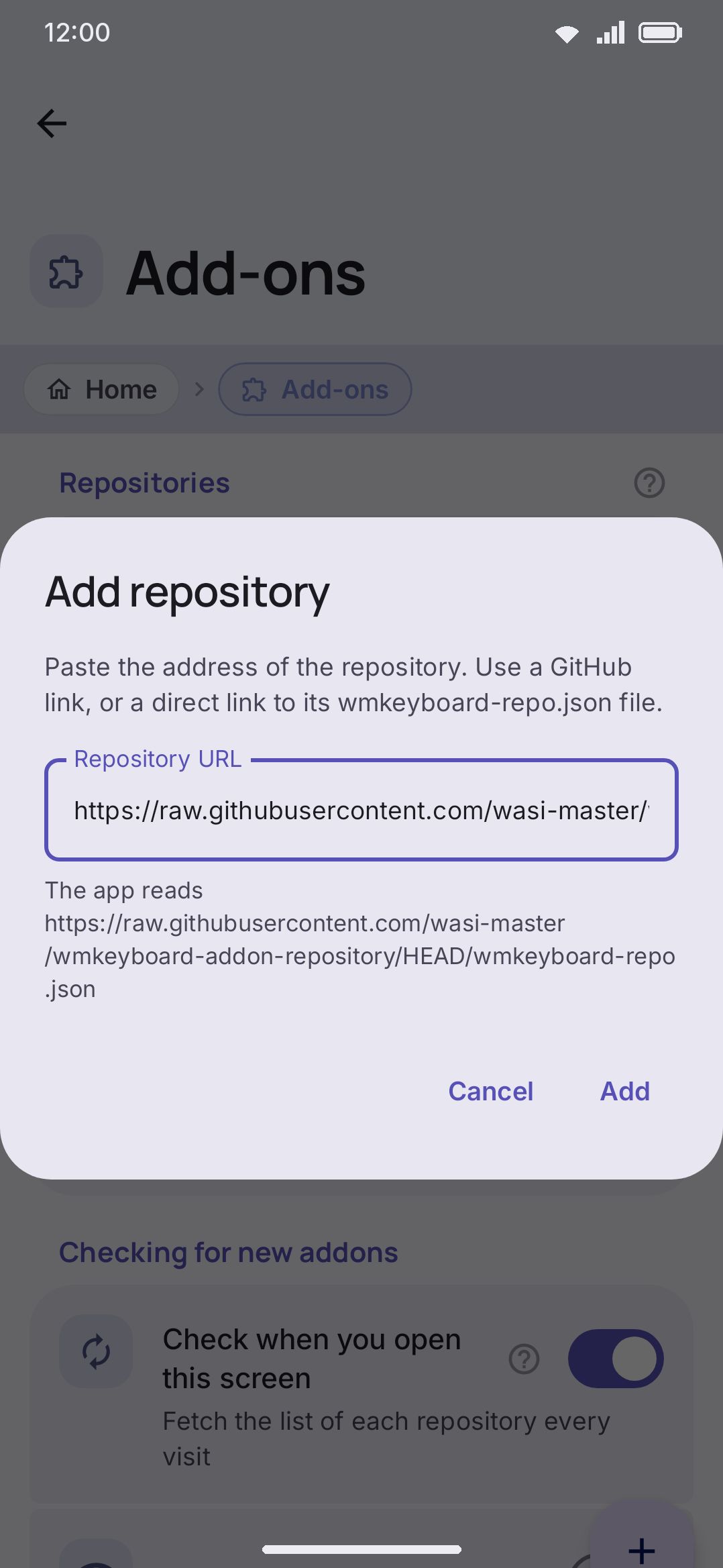
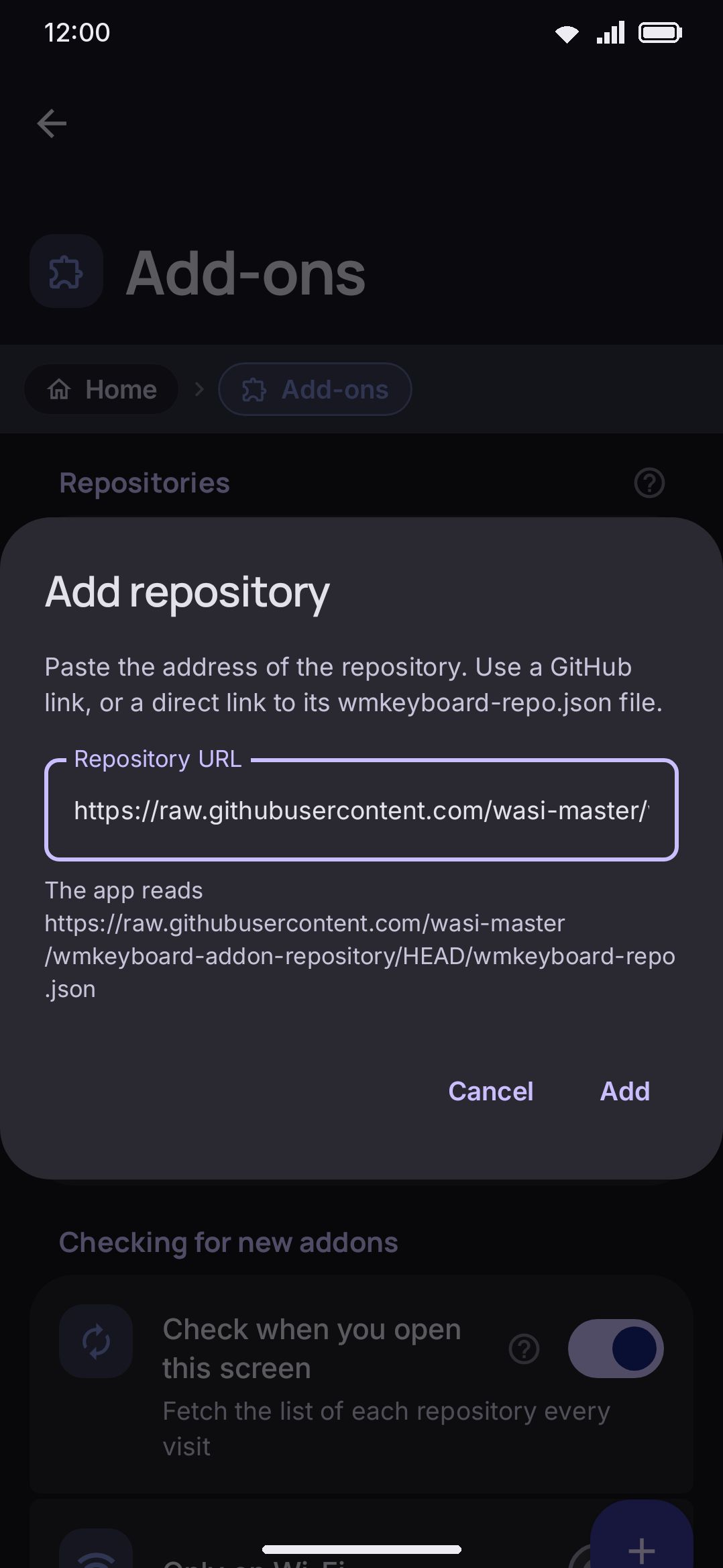
Where a custom scheme cannot be a link at all, such as most chat apps, put
https://wmkeyboard.pages.dev/open/# in front of any of these addresses. WM
Keyboard claims that page, so on a phone that has the app installed the link
opens the screen directly and the page never draws. Without the app, the page
loads and offers to install it. The
link builder writes that form for you, and
explains what happens when the claim cannot be verified.
Like settings links, these are reachable from the web: the manifest declares
a browsable VIEW filter for the addons, repo, and addon hosts, so
tapping one of these links anywhere on the device opens WM Keyboard. If the
app is already open, a second link is delivered to the running instance
instead of stacking a second copy. Following the same link twice, or the same
link the app already handled, is harmless.
Signal sticker pack links
Section titled “Signal sticker pack links”One link that isn’t WM Keyboard’s own is answered as well: sgnl://addstickers?pack_id=...&pack_key=..., the form Signal and Molly open a sticker pack with. It is what the “Add to Signal” button on a pack’s web page fires, so with it you can look through packs in a browser and bring one into the keyboard in a press. With Signal or Molly installed, Android asks which app to use, and WM Keyboard is listed as “Add stickers to WM Keyboard”. Without them, the link opens WM Keyboard directly.
Only the addstickers host of that scheme is claimed. The rest of sgnl:// (chats, device linking, group invites) is Signal’s and stays Signal’s. The https://signal.art/addstickers/ form of the same link is not claimed either, because that domain isn’t this app’s to verify. Paste or share that one instead, as described under Signal sticker packs.
Like every other link, this one only navigates. It opens a confirm naming the server the pack comes from, then a preview of the pack, and nothing is added until you press Add this pack.
Opening files WM Keyboard made
Section titled “Opening files WM Keyboard made”WM Keyboard registers a file association for thirteen extensions. Most are
things it exports itself, plus five it only ever reads: plugin and sound pack
files are built by their authors rather than the app, the settings-only backup
has no export button left, a .flex belongs to FlorisBoard, and a .kmp
belongs to Keyman. Tapping any of these in a file manager offers to import the
file instead of opening it as plain text, and so does sharing one into WM
Keyboard from another app’s share sheet.
| Extension | What it holds |
|---|---|
.wmtheme.json | A theme |
.wmlayout.json | A keyboard layout |
.wmsnippets.json | A snippet pack |
.wmvocab.json | A vocabulary pack |
.wmstickers | A sticker pack (ZIP) |
.wmicons | An icon pack (ZIP) |
.wmsoundpack | A key-sound pack: many recordings of one keyboard (ZIP) |
.wmplugin | A Lua plugin package (ZIP) |
.wmconfig.json | A full backup: any combination of settings, themes, dictionary, clipboard, snippets, stickers, icons, custom word lists, and addon repositories, whichever you chose to include when it was exported |
.wmconfig.enc | The same backup, passphrase-encrypted |
.wmsettings.json | An older, settings-only backup format |
.flex | A FlorisBoard theme extension, converted rather than installed. Not WM Keyboard’s own format at all, and claiming it is the point: someone moving over opens the file they already have |
.kmp | A Keyman keyboard package, converted to a layout rather than installed |
This opens a separate, minimal activity, not the settings app itself, since tapping a theme in a file manager shouldn’t drop you into full settings. It always shows exactly one confirmation dialog before doing anything, and the dialog tells you what happens next.
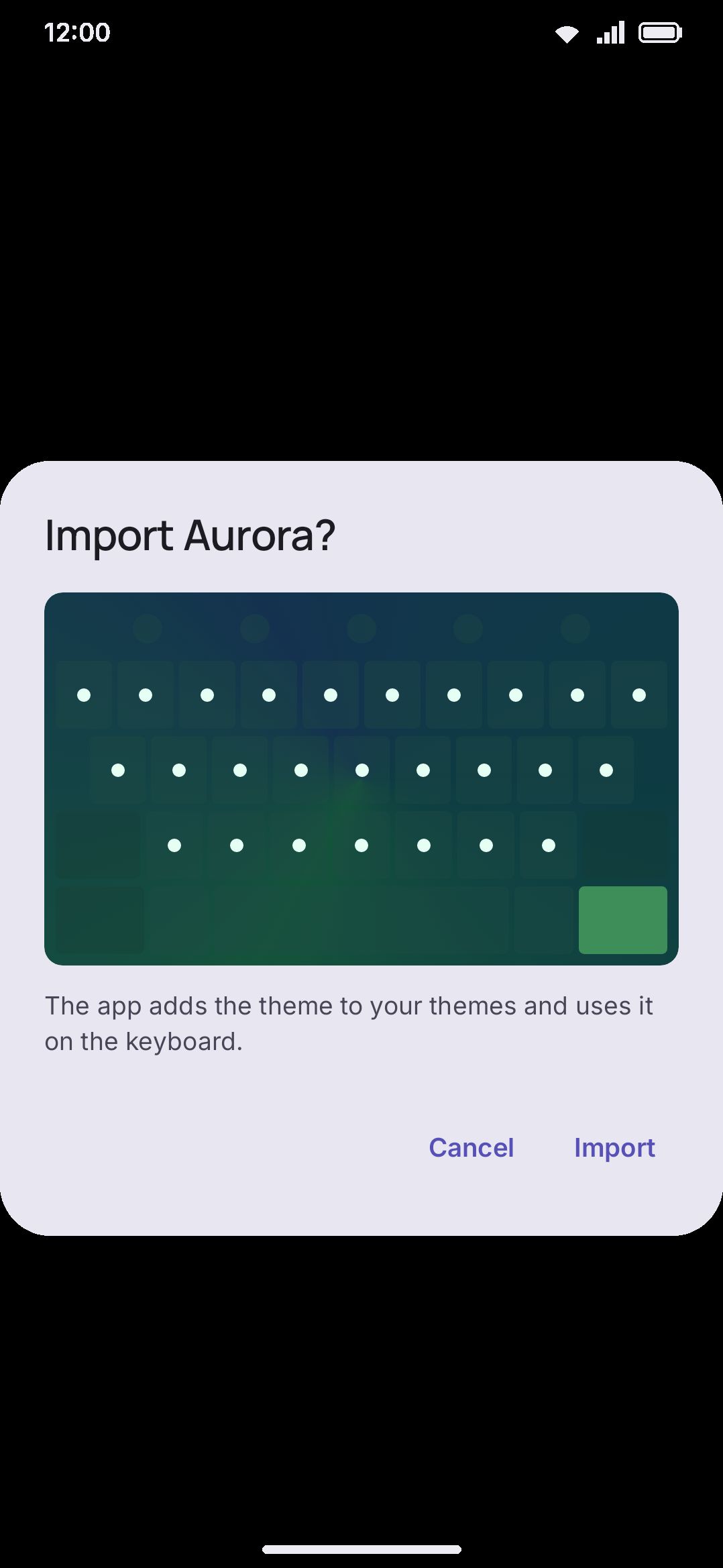
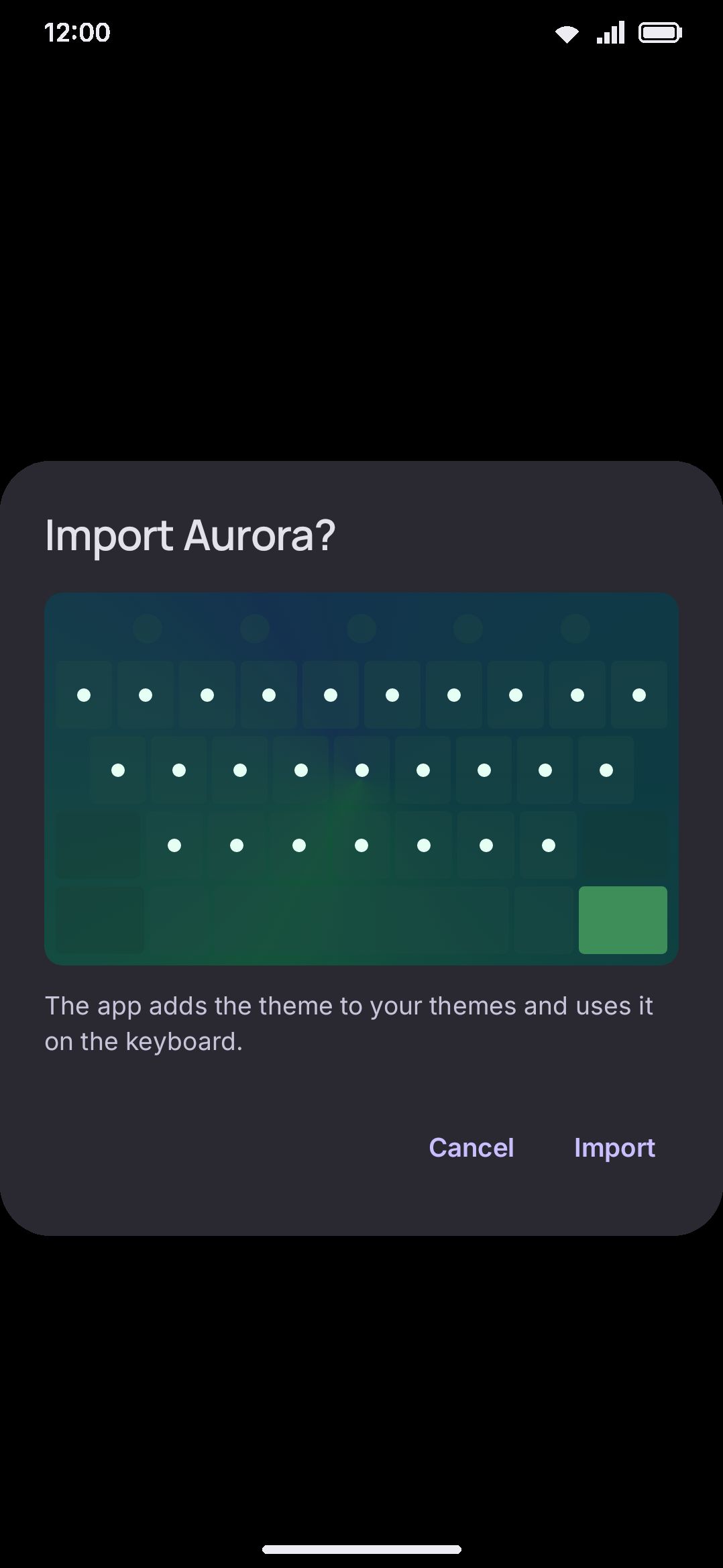
Most formats are also previewed above that wording. Themes and layouts are drawn as a miniature keyboard, sticker packs show their images, sound packs give a play button per recording, and snippet and vocabulary packs list their first few entries. Backups and plugins are not previewed: the sections and the permissions listed below are the whole question for those two.
- Theme. Added to your themes and applied immediately as the active keyboard theme.
- Layout. Added to your layouts but not switched on. Turn it on under Languages when you’re ready.
- Snippets. Added alongside what you already have, with fresh IDs, so importing the same pack twice creates two independent copies rather than overwriting.
- Vocabulary pack. Added to your vocabulary packs. Its words get cards, nudges and flashcards.
- Stickers. Added to your own sticker packs, images copied onto the device. Capped at 50 packs. Past that, the dialog tells you to delete one first.
- Icons. Installed and switched on immediately, replacing the built-in icon set (any icons you’ve set individually are kept).
- Key sounds (
.wmsoundpack). Installed and switched on immediately, so your keys play its recordings in place of the built-in sound. Capped at 20 packs. - Config backup (
.wmconfig.json). Settings merge into your current ones. Dictionary, clipboard, and snippets replace what’s already on the device. If the file contains API keys, the dialog warns that they’ll overwrite the ones you have set. - Encrypted config backup (
.wmconfig.enc). The dialog draws a passphrase field instead of the usual “this file contains…” summary, because nothing inside can be read until it opens. Type the passphrase and confirm, and it imports exactly as the plain.wmconfig.jsonabove does. A wrong passphrase and a damaged file are indistinguishable, so the failure message names both. - Settings backup (
.wmsettings.json). Merges into your current settings the same way a config backup’s settings do: entries named in the file overwrite the matching ones on the device, and anything the file doesn’t mention (including a setting added in a version newer than the backup) is left untouched. Same warning for API keys. - FlorisBoard theme (
.flex). Converted, never installed as one of ours. The dialog leads with how many of the file’s style rules found a home, credits the author and licence, and lists what got dropped. The converted themes are saved but not switched to, which is the opposite of a native theme import. A FlorisBoard extension that is a language pack rather than a theme, or that uses the older Snygg v1 syntax, is refused with a reason. - Keyman keyboard (
.kmp). Its key grid becomes a layout, and its typing rules install with it when the package has any. A package with no on-screen keyboard has nothing to add. - Plugin (
.wmplugin). This one has an extra gate. See below.
A .wmtheme.json file has no internal tag: any JSON object decodes
successfully to an all-defaults theme, so the file’s name is the only signal
that it was meant to be a theme. Renaming a .wmtheme.json file, or pointing
one at unrelated JSON, will “succeed” as an all-defaults theme rather than
failing.
Those extensions are not the whole story, because a file’s name is not always available to match on: a browser download is often passed to other apps as an anonymous id with no name attached. WM Keyboard therefore also accepts JSON files and files of unknown type by type alone, which is what makes a just-downloaded theme openable at all, and which is why WM Keyboard appears in the “Open with” list for files that are none of its business. A file that turns out not to be one of the formats above gets a plain “not a WM Keyboard file” dialog, and if it is readable text, the offer to open it in the app’s own editor instead. See File formats.
Plugins get an extra gate
Section titled “Plugins get an extra gate”Opening a .wmplugin file doesn’t install it the way the other formats do;
it’s gated twice:
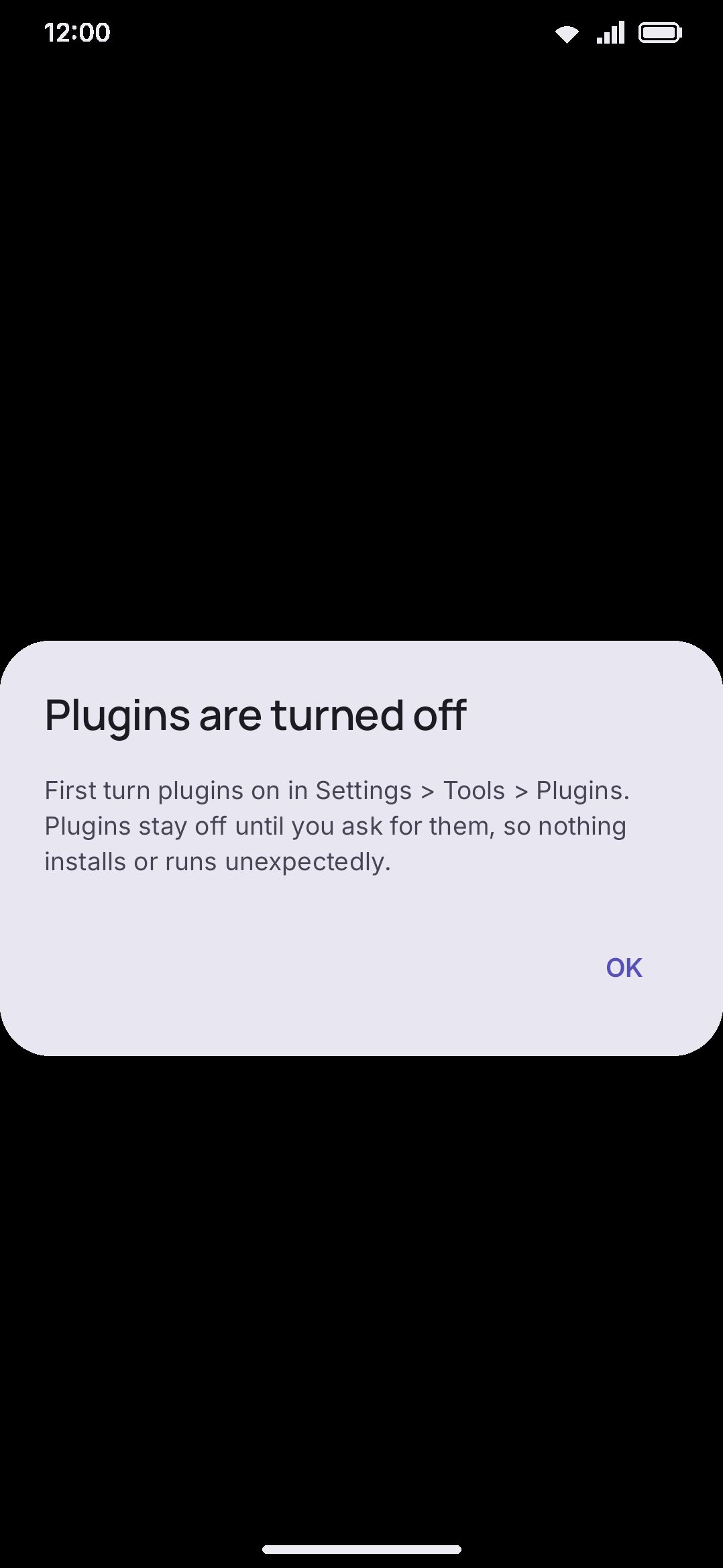
- If the Plugins subsystem is off, the dialog just says plugins are turned off and how to enable them. It doesn’t show the plugin’s name or anything else about it, and nothing installs.
- If it’s on, the dialog reads the plugin’s manifest. It shows the name, description, version, author, and the specific capabilities the plugin declares, or a line saying it asks for nothing beyond its own panel. One more line always follows: plugins run in a sandbox and can’t see what you type, read your clipboard, or use the internet. Only after that do you get an Import button, the same confirm button every other file type on this page uses. Installs are capped at 50 plugins.
Options
Section titled “Options”The Plugins subsystem is off by default. This is the only setting that
changes how a deep link or file import behaves: every other link and
shortcut on this page works unconditionally. See Plugins overview
for what the sandbox allows once it’s on. Opening a .wmplugin file goes
through the exact same sandbox and the same toggle as installing one from an
addon repository.
Details & edge cases
Section titled “Details & edge cases”- Custom scheme, not App Links, for every address above. They all use
wmkeyboard://rather thanhttps://App Links, so there’s no domain to verify and noassetlinks.jsonto depend on: nothing about a link needs a real web page to exist on the other end. The one https address the app does claim is/open/on this site, which exists only to carry one of these addresses to a phone that cannot be handed a custom scheme. - Every link form is browsable. Settings links, setting links and addon links are all declared browsable, so they work from anywhere a link can be tapped: a page on this site, a chat message, a support reply, another app. A launcher shortcut carries the same link on an explicit intent instead, which reaches the activity directly.
- File imports never touch
MainActivity. They land in their own activity, excluded from the recents list, so a stray import screen doesn’t linger in your app switcher. - Content URIs only. File-association matching is by content URI and file
name, not MIME type. Every JSON format uses a compound extension like
.wmtheme.jsonspecifically so it doesn’t claim every plain.jsonfile on the device. The ZIP formats (.wmstickers,.wmicons,.wmplugin) need no such trick, since the extension is already ours alone. Barefile://links aren’t matched. - A repeated link is harmless. Because the app launches in single-top mode, tapping the same addon link twice, or tapping one while the app is already open, delivers it to the running instance rather than opening a second copy. Pasting a repository you’ve already added just reopens it.
- A backup that isn’t one fails safely. If a
.wmconfig.jsonor.wmsettings.jsonfile’s content doesn’t actually decode as a backup, or a settings backup can’t be applied, the dialog says so and nothing changes on the device.
Related pages
Section titled “Related pages”- Installing addons: what happens after an addon link lands you on a screen.
- Addons overview: the broader safety model behind everything an addon can and can’t do.
- File formats: the structure of each exported file.