
Icons
Every row on the Icons screen: the active pack, the 107 per-slot overrides, and the picker behind each one.
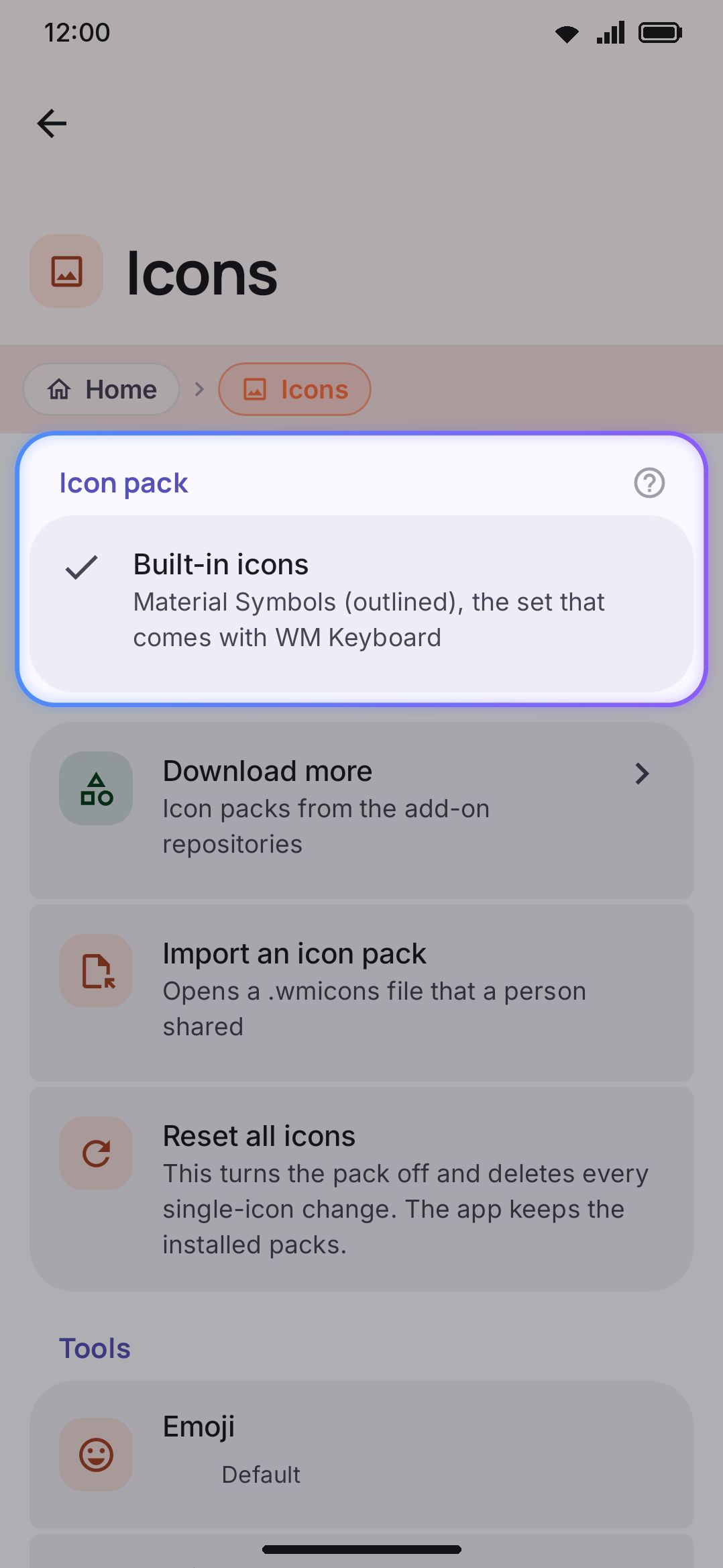
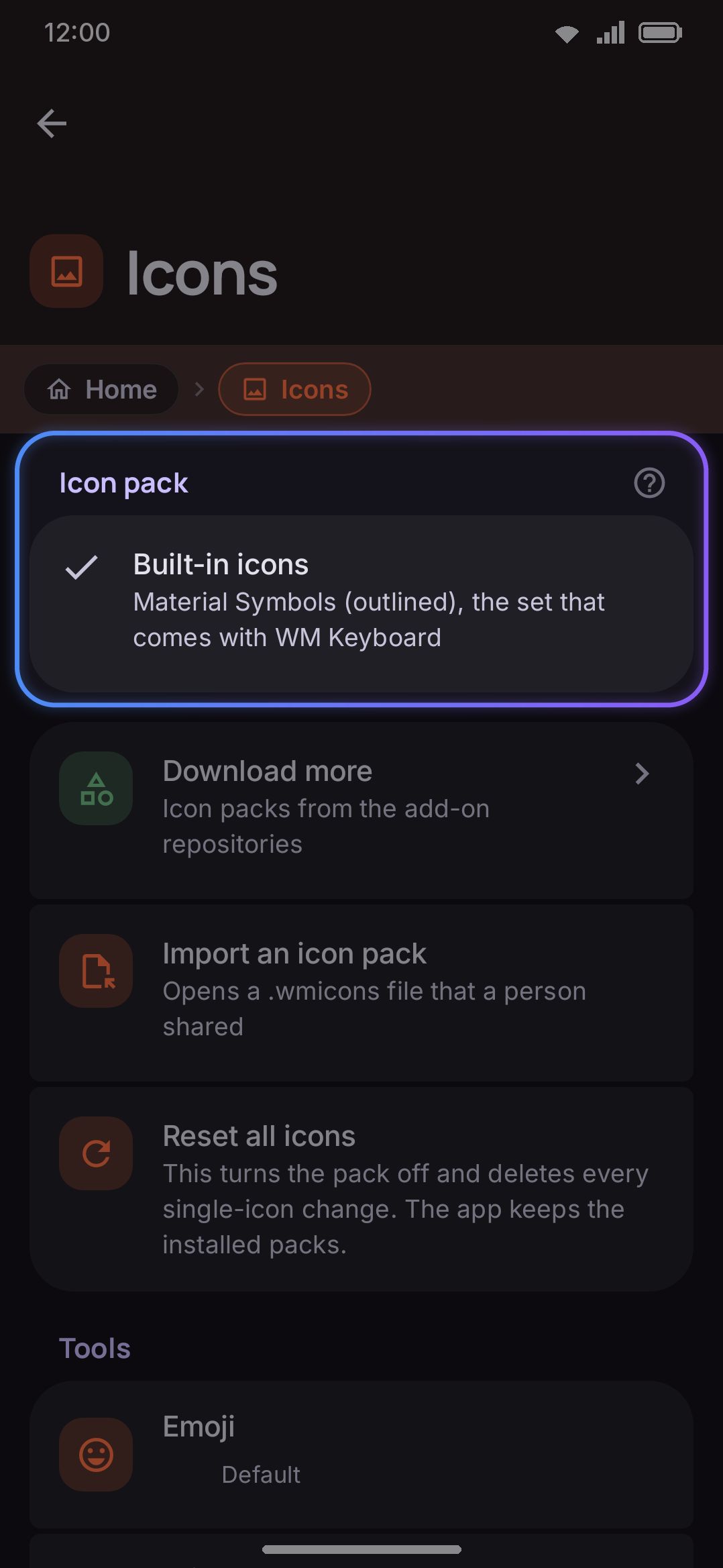
The Icons screen lists every glyph the keyboard draws, grouped by where it appears, with the active pack’s controls above the list. This page walks the screen top to bottom. For why you’d swap icons and how to build a pack of your own, see Icon packs instead.
Options
Section titled “Options”Reach it from Appearance → Style → Icons, or by searching “Icons” in settings search.
Icon pack
Section titled “Icon pack”The first group lists Built-in icons (always the top row, selected whenever no pack is active), followed by one row per pack you’ve installed. Each installed row shows the pack’s name, its icon count, and its author and version when the pack’s manifest set them (for example “42 icons, by Jamie, version 1.2”). Tapping any row switches to it immediately.
Every installed row also carries two trailing buttons the built-in row doesn’t have:
- Export opens a save dialog and writes that pack out as a
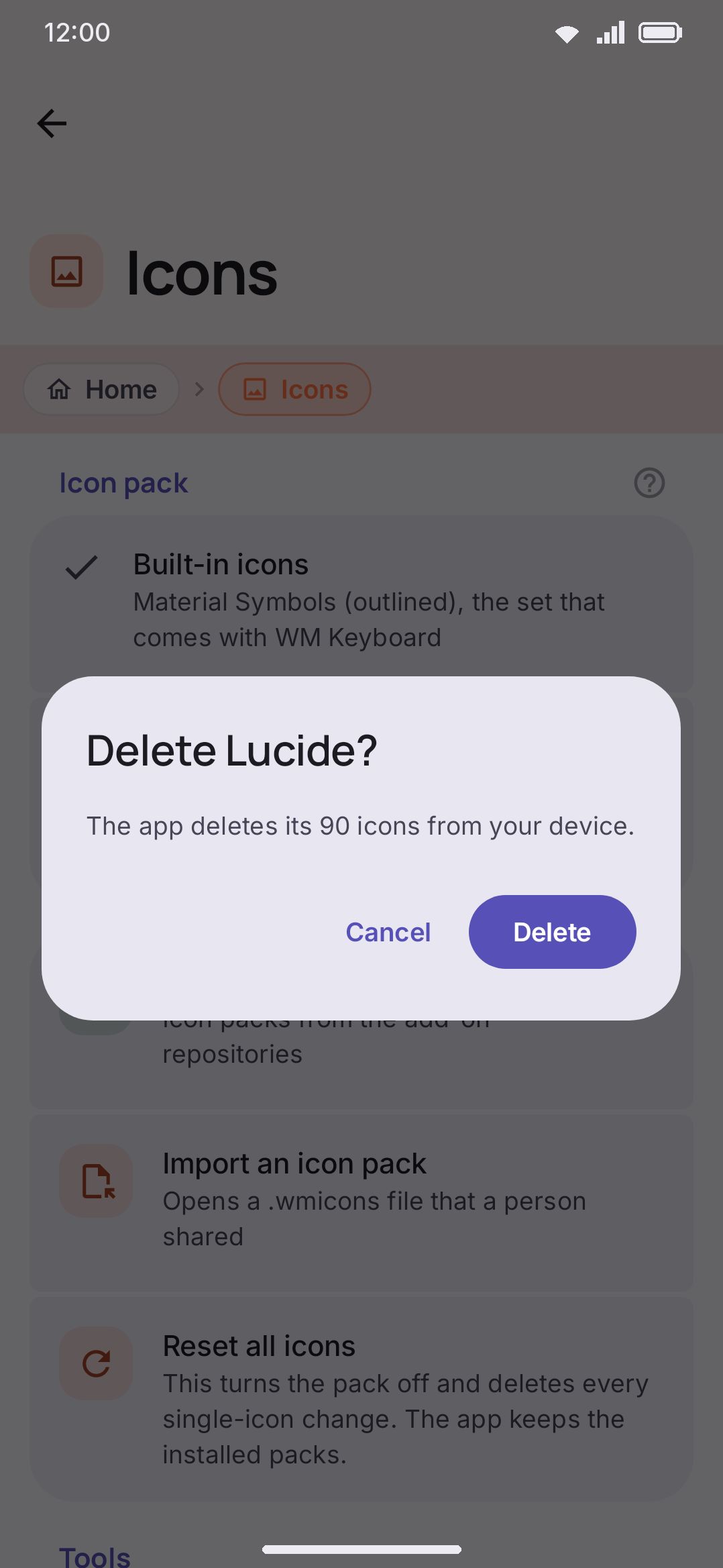
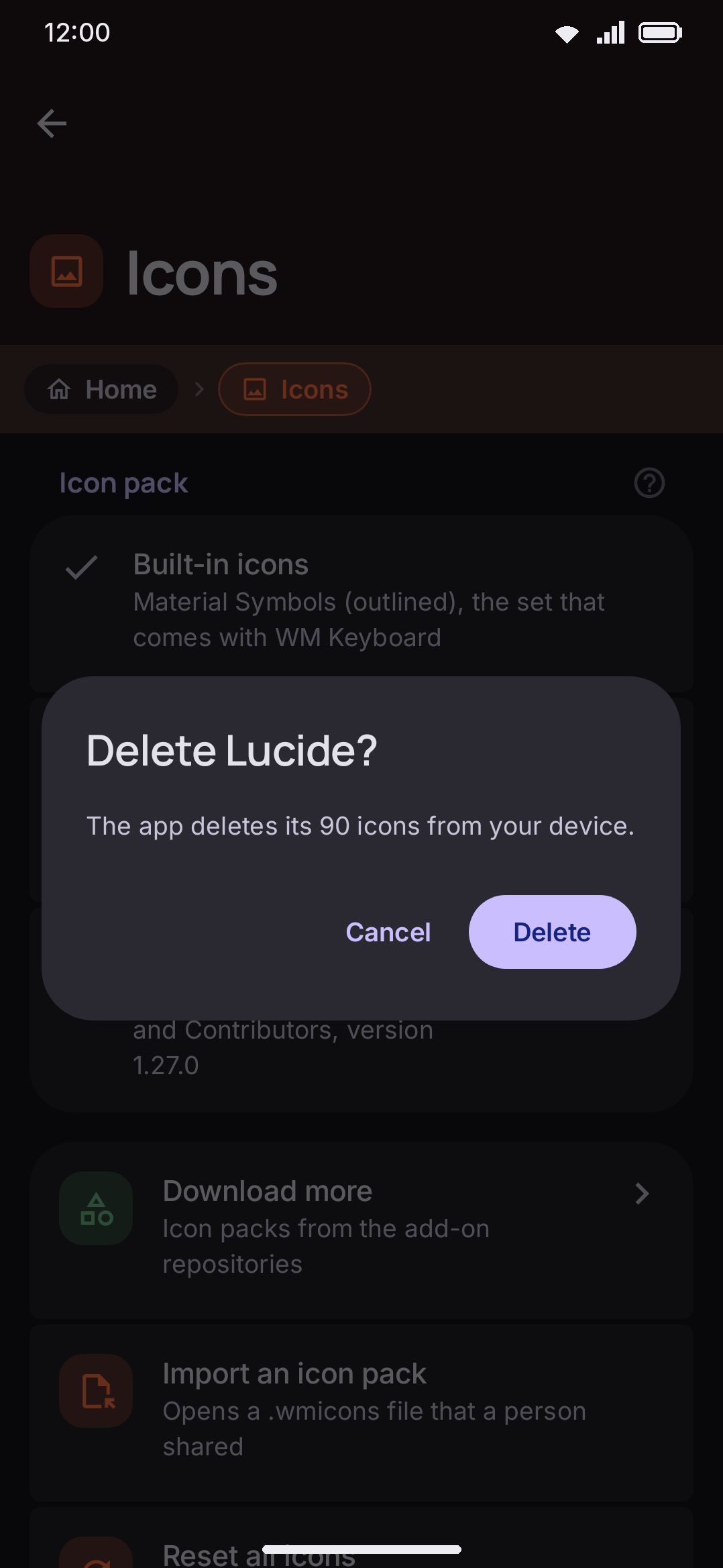
.wmiconsfile, named after the pack. You’ll see “The app saved<pack name>.” on success, or “The app could not write that file.” if the write fails. - Delete asks for confirmation first (a “Delete
<pack name>?” dialog whose body reads “The app deletes its<N>icons from your device.”) before removing the pack’s files and any per-slot override pinned to it.
Download, import and reset
Section titled “Download, import and reset”Three rows sit below the pack list, in their own untitled group:
| Row | What it does |
|---|---|
| Download more | Opens the addon catalogue, already filtered to icon packs |
| Import an icon pack | Opens a file picker for a .wmicons file and installs it, switching to it right away |
| Reset all icons | Turns off the active pack and clears every per-slot override in one step. Installed packs are kept: subtitle reads “This turns the pack off and deletes every single-icon change. The app keeps the installed packs.” |
Download more sits first, next to the file importer, because the two answer the same question from opposite ends. One takes a .wmicons file you already have. The other goes looking for packs in whichever repositories you’ve added. See Installing addons.
Unlike deleting a pack, Reset all icons runs immediately with no confirmation dialog. Afterward you see “Every icon is back to the built-in one.”
The slot list
Section titled “The slot list”Below that, the rest of the screen is the 107 replaceable slots, in four groups, each its own section:
| Section | Covers | Slots |
|---|---|---|
| Tools | Every toolbar tool’s own icon | 72 |
| Keys | Shift, Shift (on), Caps lock, backspace, forward delete, switch language, switch keyboard, emoji key, the plain Enter, and Enter in each of its six action wordings (search, send, go, next, previous, done) | 15 |
| Toolbar | Toolbox, back-to-keys, show-tools, emoji shortcut, close search, incognito badge, power saving badge | 7 |
| Emoji tabs | Search, recent, most used, and one per emoji category | 13 |
Each row’s subtitle names where that icon currently comes from. You get the label of a built-in icon you picked by hand, or “From <pack name>” if it’s pulling from a pack (per-slot override or the active pack), or “Default” once nothing overrides it. The Tools rows use each tool’s own settings-screen name, so a row here and that tool’s own icon setting always agree on what it’s called.
Replacing one icon
Section titled “Replacing one icon”Tapping any slot row opens its picker: a search field (placeholder “Search Material Symbols”) over a grid of the 181 built-in icons, filtered live as you type. Tapping one sets that slot immediately and closes the dialog.
Below the grid, Use my own SVG… opens a file picker restricted to SVG-ish MIME types. A file that parses and fits under 256 KB goes into the reserved My icons pack, and the slot is pinned to it: “The app set a custom icon for <slot>.” A file that doesn’t gets “The app cannot use that file as an icon. The file must be an SVG smaller than 256 KB.”
The dialog’s confirm button reads Use the default, not “OK”. It resets only the slot you’re looking at, not the whole screen. If that slot had been pinned to an SVG you imported into “My icons,” resetting it also deletes that file from the pack, so it doesn’t linger in a later export. Cancel closes the dialog without changing anything.
Details & edge cases
Section titled “Details & edge cases”- Import limits. The device holds at most 20 icon packs at once, and the reserved “My icons” pack counts toward that total. Each SVG inside a pack is capped at 256 KB, and a
.wmiconsarchive itself at 8 MB. Importing past the pack limit reports “You already have 20 icon packs. Delete one first.” A file that isn’t a recognizable icon pack reports “That file is not a WM Keyboard icon pack.” One that can’t be read reports “The app could not read that file.” - Resolution order for any slot is: a per-slot override you picked by hand, then the active pack (if it covers that slot), then the app’s built-in default. Setting one icon from the picker always wins over an installed pack, even after that pack is later updated or swapped for another.
- Deleting the active pack turns off “active pack” entirely rather than only removing that row. Any slot that was relying on it, and wasn’t separately overridden, falls back to the built-in icon.
- Layout key glyphs aren’t here. The per-key symbols a language layout draws into its own keys are never part of this list, so an icon pack can’t touch them. That covers the layout’s keys, not the app’s chrome. See Icon packs for why.
- Colour follows the theme by default. A row’s icon that sets no colour of its own picks up the current theme’s colour. With Colorful tool icons on, it picks up that tool’s own accent colour too. See WM KeyboardTools.
- No edition restriction. Everything on this screen behaves the same on both editions of the app.
Related pages
Section titled “Related pages”- Icon packs: the guide. Why you’d swap icons, installing a pack from an addon repository, and building your own from scratch.
- Appearance: the Style group this screen is opened from, alongside Keyboard themes and Keyboard font.
- Tools: Colorful tool icons, the toggle that decides whether a monochrome tool icon picks up its own accent colour.
- Backup & restore: icon packs are an optional, off-by-default section in a full settings export.