
Gestures
Spacebar cursor and numpad swipes, swipe-down-to-hide, the hint flick, backspace word-delete, and volume-key cursor control.
Past tapping and long-pressing single keys, WM Keyboard has a few drag gestures that move across or along a key. The spacebar, backspace and the volume rocker each do something different when you swipe instead of tap. This page covers what those drags do once they’re moving. Where a gesture belongs to another page, it links there rather than repeating it.
Which swipe fires: quick vs hold
Section titled “Which swipe fires: quick vs hold”The spacebar has two independent swipe slots: Quick swipe on the spacebar (default Language) and Press and hold, then swipe (default Cursor). Which one a drag resolves to depends on when it starts relative to the long-press delay, not on how far it travels. The full timing engine, the language-switch behavior and the hold-drag picker list all live on Switching languages. This page covers the other two things a slot can be set to: Cursor and Numpad.
Each slot’s options are Nothing, Language, Cursor or Numpad. A tap with no movement always types a space, whatever either slot is set to.
Setting Press and hold, then swipe to Cursor or Numpad costs one thing: holding the spacebar no longer opens the hold-drag language picker. A hold can only mean one thing, and that slot is where you said what it means. The picker is still on the 🌐 key’s long press and on a quick swipe set to Language.
Moving the cursor with a spacebar swipe
Section titled “Moving the cursor with a spacebar swipe”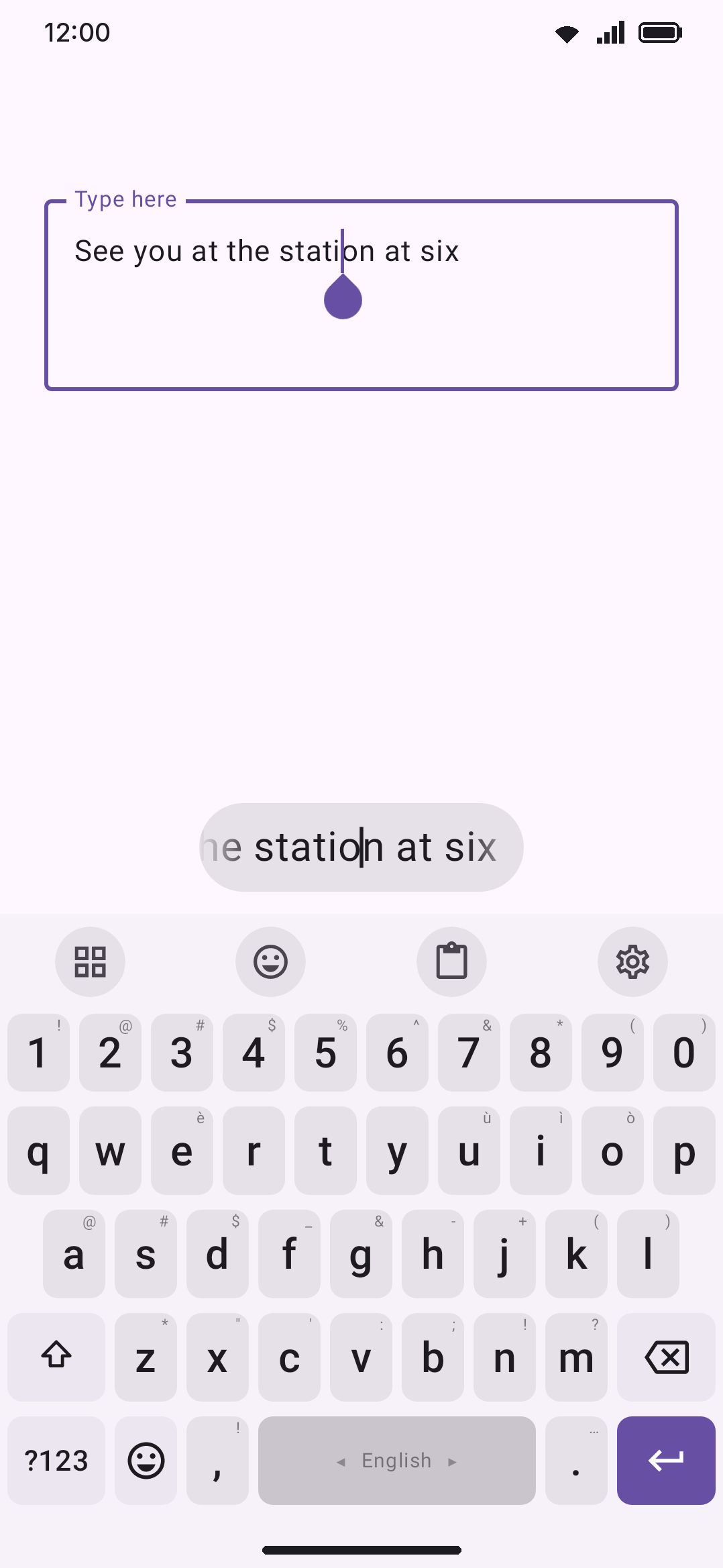
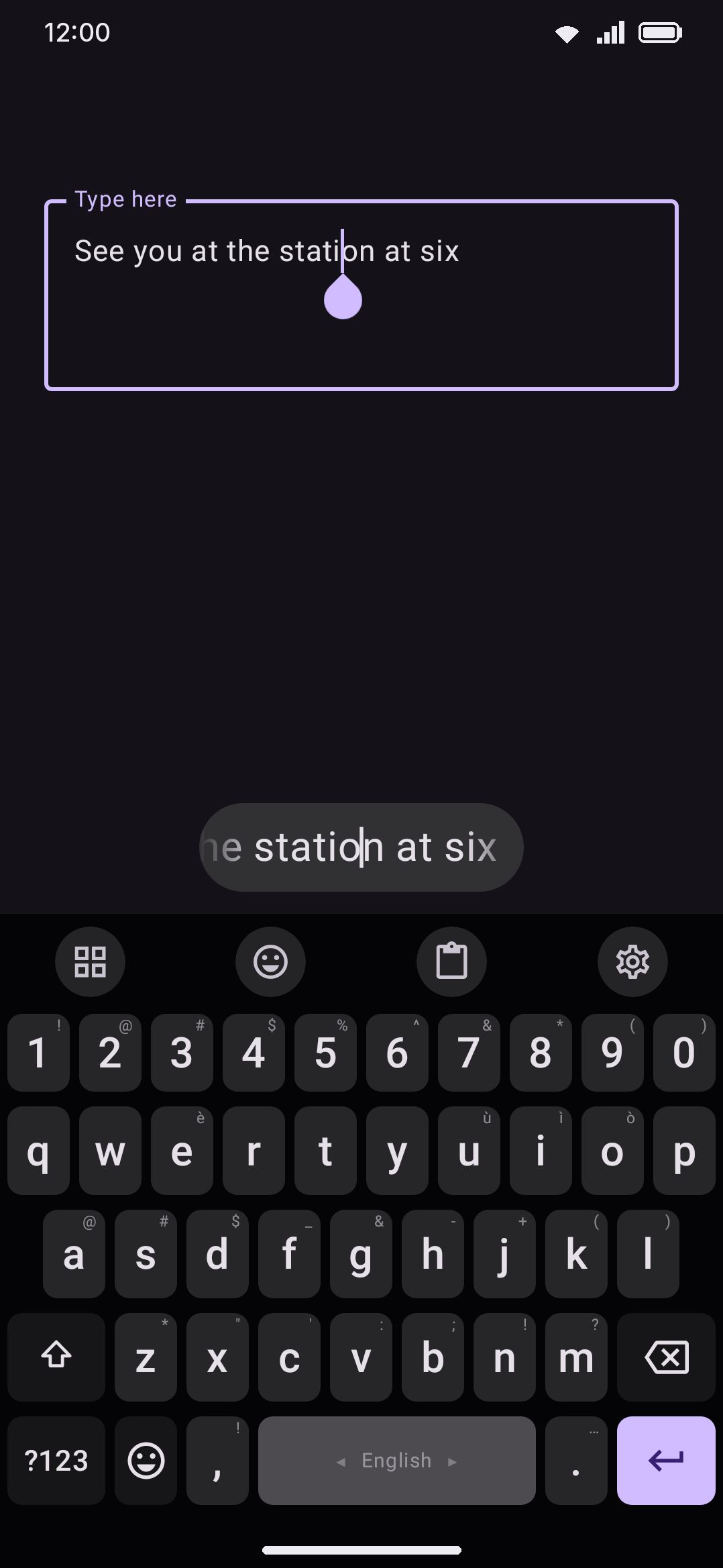
Set a slot to Cursor and the drag moves the text cursor instead of typing. The caret steps one character for every 16 dp of horizontal travel, in whichever direction you drag. That distance is a slider of its own, Cursor speed, which sits under the two swipe pickers and runs 8–32 dp. Shorter moves the caret faster. Any composing text in progress (a word mid-transliteration, say) commits first, without autocorrect, so the cursor lands where you can see it rather than jumping past a word that was still being corrected.
WM KeyboardTypingGestures2-D cursor touchpad2-D cursor touchpad (off by default) turns the same drag into a touchpad. A vertical component now steps the cursor up and down through the text too, on the same Cursor speed distance. Both axes send real arrow-key events rather than computing a raw text offset, so vertical movement follows whatever line-wrapping the app is doing instead of guessing at it. The toggle only appears once one of the two swipe slots above is set to Cursor, and Cursor speed appears beside it.
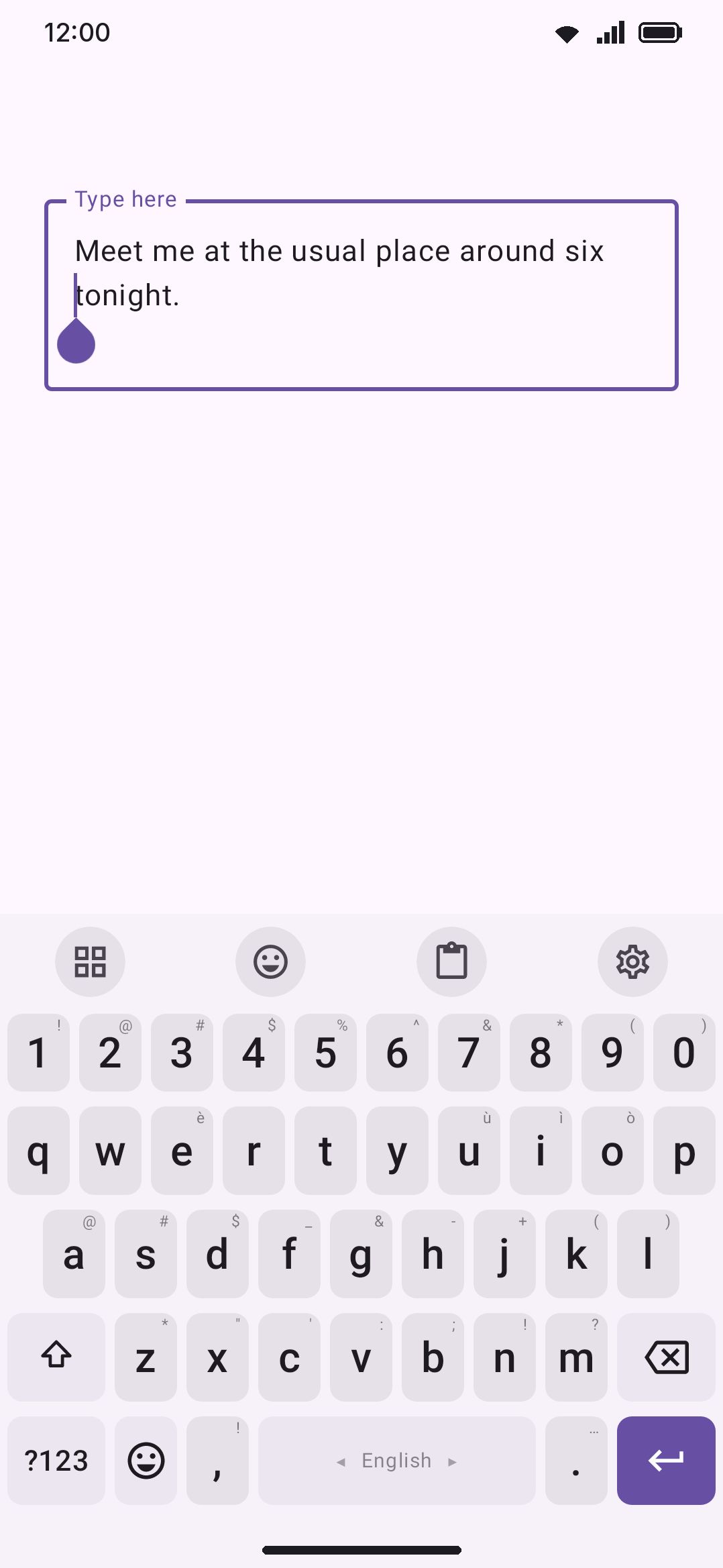
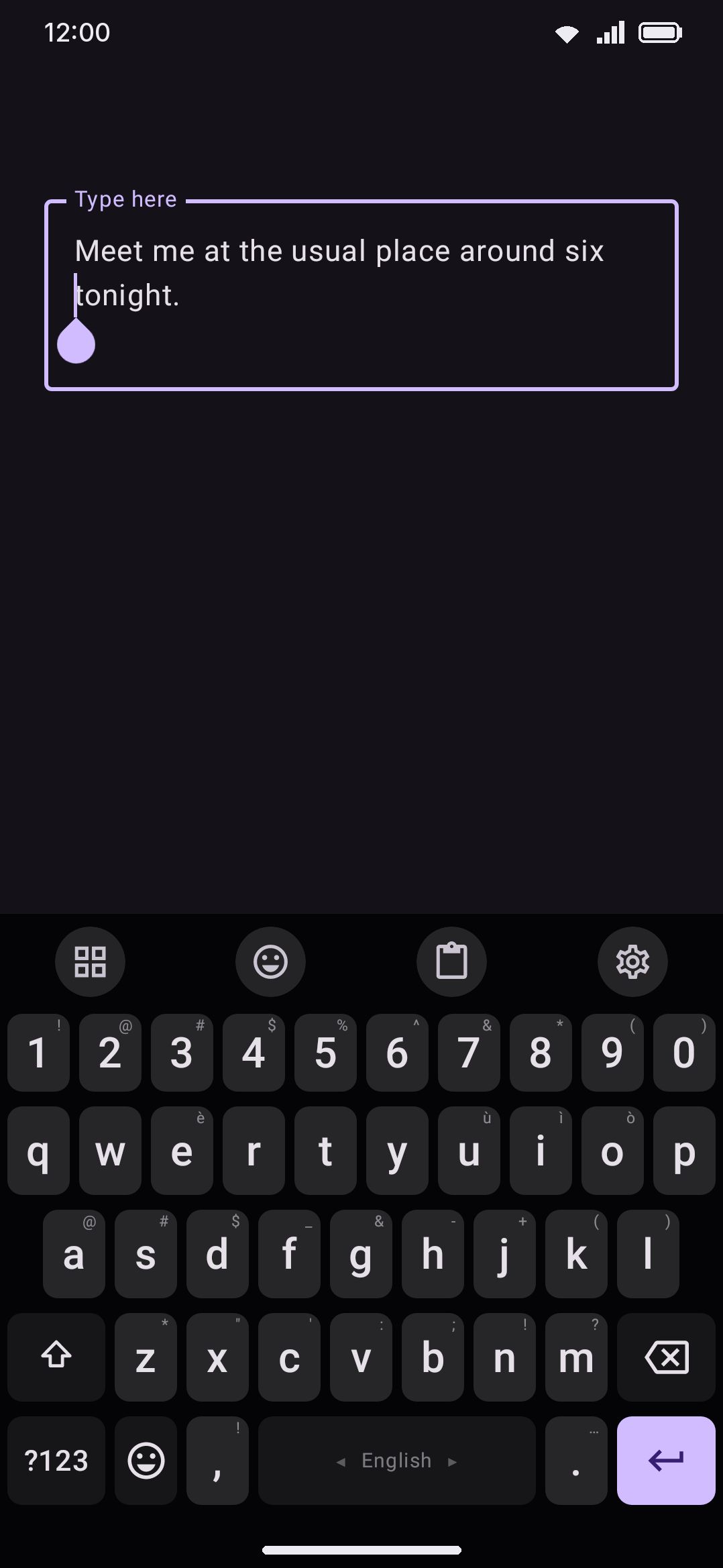
WM KeyboardTypingGesturesCursor magnifierNext releaseCursor magnifier (on by default) shows the line of text around the cursor, enlarged, in a bubble over the text while the drag moves the cursor. It comes up once the drag has resolved to Cursor and goes when you lift your finger. The bubble is the keyboard’s own drawing of the text the app hands it, not a zoomed picture of the screen, so it uses the keyboard’s colours and font. It sits above the cursor, or below it when the cursor is too close to the top of the screen, for apps that tell the keyboard where their cursor is, which most do. For an app that doesn’t, or when the cursor is scrolled out of sight or hidden behind the keyboard, it sits just above the keyboard instead. In a password field it shows dots, never the password. It never takes a touch and it goes the moment you lift your finger. It appears beside Cursor speed, and the trackpad has a separate switch for the same bubble.
The same drag selects text instead of moving through it while selection mode is on, on either axis. Turn the mode on from the toolbar’s Selection mode tool, or hold that tool down and scrub the spacebar with your other thumb. A Shift you pressed yourself does it too, lock included, exactly as Shift+Arrow would: lock Shift, then scrub. A Shift the keyboard armed by itself at a sentence start doesn’t count, so an ordinary drag never selects behind your back.
Swiping down to hide the keyboard
Section titled “Swiping down to hide the keyboard”A straight downward drag on the spacebar dismisses the keyboard, once it clears a short threshold and is steeper than it is wide. It’s off by default, so a stray vertical wobble mid-drag never closes the keyboard on you.
The 2-D cursor touchpad, when it’s on, claims the vertical axis ahead of this only once a drag has actually resolved to the Cursor action. Hold time decides that resolution, same as any other spacebar swipe. With the defaults (quick swipe = Language, press and hold then swipe = Cursor), a downward flick fast enough to clear the hide threshold before the long-press delay elapses still belongs to the quick-swipe slot, so it dismisses the keyboard. Only a drag held past that delay hands the vertical axis to the touchpad.
Swiping down on a key for its hint
Section titled “Swiping down on a key for its hint”Every key with press-and-hold characters shows the first of them in its corner: the 1 on q, the accents on a vowel, the currency signs on $. With this on, a short, quick swipe straight down on the key types that corner character outright, with no hold to wait out. It’s the same character the popup would put first, on any key that has one, on every layer. Off by default.
The swipe has to be all four things at once: down (within about 30° of straight down), short (between half a key’s height and two of them), straight, and quick (under a quarter of a second from touch to lift). A drag that misses any of those is whatever it always was, so a slow pull down is still a glide and a tap that drifts is still a tap. The keys with a drag of their own keep it: the spacebar’s swipes, backspace’s delete swipe, the modifier and ?123 drags, and a kana key’s four flick arms.
The one real cost is with glide typing. A very fast glide of a short word whose stroke runs straight down between neighbouring rows, “ed” for instance, can read as a flick and type the hint instead. The timing rule is what keeps that rare, since even a short glide usually takes longer than a flick, but it’s why the setting ships off.
Swiping up on a letter for its capital
Section titled “Swiping up on a letter for its capital”The same flick the other way. With this on, a short, quick swipe straight up on a letter types its capital, so a single capital in the middle of a word or a name needs no trip to Shift. On a key that has a shifted character of its own, such as a number-row key with a symbol above it, the swipe types that character instead. Keys whose Shift changes nothing (a digit with no shifted twin, a script without capitals) don’t take the swipe. It doesn’t touch Shift either: a Shift you armed is still armed for the next letter. Off by default.
The rules are the ones the hint flick uses, pointed up: within about 30° of straight up, between half a key’s height and two of them, straight, and under a quarter of a second. When Words on the keys shows a word on the key, a swipe up still takes that word, as it always has. The glide cost is the mirror image too: a very fast glide of a short word that runs straight up between neighbouring rows, “de” for instance, can type a capital instead.
Swiping to add ‘s
Section titled “Swiping to add ‘s”The apostrophe is rarely a key of its own, so a possessive usually costs a long press and a tap. Pick a key here, comma, full stop or a real apostrophe key if the layout has one, and a short straight swipe from that key to s adds 's to the word before the cursor: “developer” becomes “developer’s”. Off by default.
The same swipe to another letter adds a contraction instead:
| Swipe to | Adds | Example |
|---|---|---|
| s | 's | what → what’s |
| t | 't | don → don’t |
| d | 'd | she → she’d |
| m | 'm | I → I’m |
| l | 'll | we → we’ll |
| r | 're | they → they’re |
| v | 've | you → you’ve |
't only goes on a word ending in n, so “what” never becomes “what’t”. A word that already has an apostrophe isn’t extended again, and a word in capitals gets its suffix in capitals: “WHAT’S”.
While you swipe, a line runs from the key to your finger, the same line a modifier drag draws, so you can see the swipe is being read.
It’s a gesture in its own right, not a glide-typing feature. It works after a tapped word, after a glided one, and on the word you’re still typing, with glide typing on or off. A space after the word moves behind the 's, so you get “developer’s ” and never “developer ‘s”. The chosen key still types its own character when you press it. Holding it still opens its long-press popup as usual, but once your finger starts to move the swipe owns the stroke, so a slow swipe no longer opens the popup and types !. A stroke that isn’t the swipe types the key if you lift back on it, and nothing if you lift anywhere else. A short flick down still types the hint when Swipe down to type the hint is on.
The shape is what separates it from a glide: short and straight, its path no more than 1.6× the straight line between the two keys. A real word glided from the same key to one of those letters wanders further than that, so it decodes as a word. The spacebar can’t start this swipe, since a stroke off the spacebar is always a spacebar swipe. It only extends English words: any word on an English layout, and on another language’s layout with English among its secondary languages (Banglish on Avro, for one), a word spelled in Latin letters. A word still being typed on Avro counts when its preview shows it in English. Glide typing and handwriting never start from the chosen key, so the swipe works even on a layout that puts that key right beside a letter.
Opening the numpad with a swipe
Section titled “Opening the numpad with a swipe”Set a slot to Numpad and the numeric keypad panel opens the moment your drag crosses the initial touch slop. There’s no further distance to cover. The swipe triggers the panel and then goes inert until you release, and the release types nothing. It’s the same panel that ?123’s long-press and the toolbar’s Numpad tool open. See Text editing for what’s on it.
Your own keys on the spacebar long press
Section titled “Your own keys on the spacebar long press”Type the characters you want into this field, with a space between each one, and holding the spacebar opens them in the same popup a letter key’s accents use. Emoji, punctuation, a signature character, anything you can type into the box. Leave the field blank (the default) and nothing changes.
The field is deliberately blunt about what it costs: keys you put here take the spacebar’s long press over completely. The hold-drag language picker no longer opens, and neither does the space repeat. Both of those are still reachable elsewhere. The 🌐 key opens the picker on a hold and cycles on a tap, a spacebar swipe still switches language, and a second tap still types a second space. Clear the field to get the hold back.
Swipes are untouched. The popup only opens on a hold that stays still, so a quick swipe, a hold-then-swipe and the swipe down to hide all behave exactly as they did.
Once the spacebar carries keys, it draws the first one small in its top right corner, the same corner hint every other key uses. That hint is the one thing on the keyboard that says the long press changed, so leave Press and hold hints on if you want it. It lives on the Key press screen and ships on.
A layout can carry its own set instead. Open a layout in the layout editor, tap the spacebar, and the alternates fields are there like on any other key. The setting comes first in the popup, and the layout’s own keys follow it.
Deleting more than a character with backspace
Section titled “Deleting more than a character with backspace”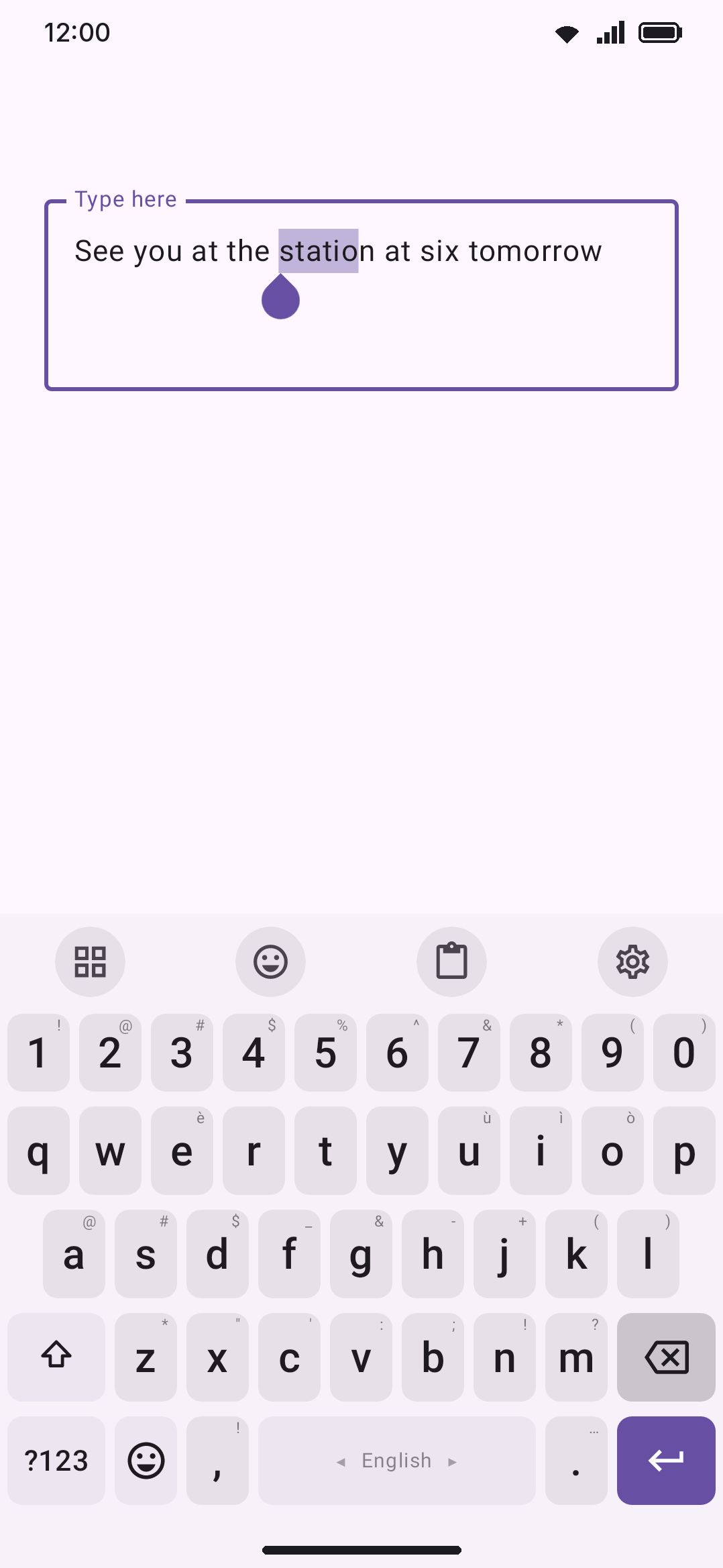
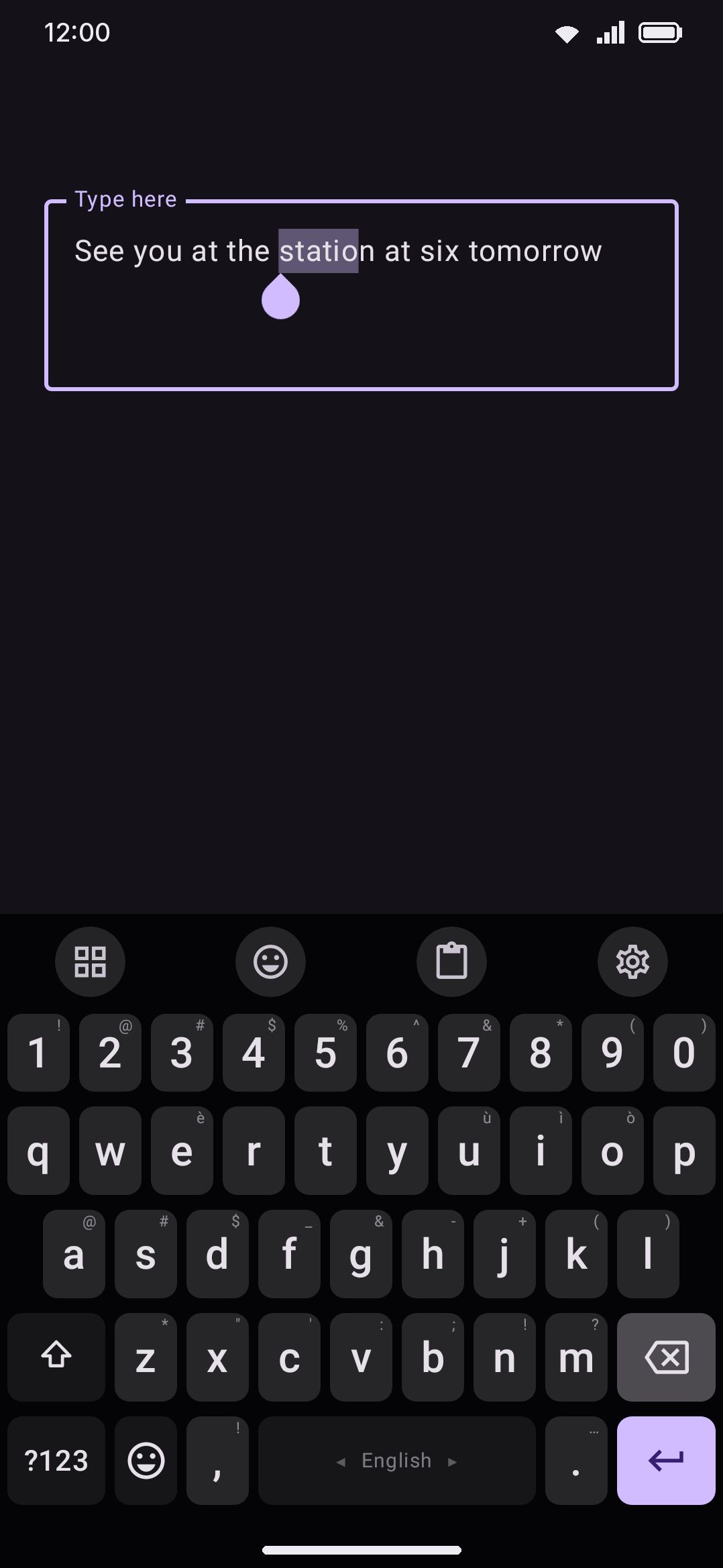
Swipe to delete (on by default) lets a leftward drag on ⌫ take out more than the one character a press does. Backspace treats tap, hold-to-repeat and this swipe as one gesture. A press that stays still starts the normal hold-to-repeat once Time before a key repeats has elapsed, exactly as described on Keys & typing basics. Moving left past a small slop cancels that repeat and switches to the swipe. Backspace owns the whole stroke: glide typing, handwriting and the floating-word flick never start from it, even though the key sits right beside the bottom letter row, so neither a swipe nor a held, repeating backspace that drifts onto the letters types a word on top of what it deletes. That holds with Swipe to delete off too, and the same goes for ⌦.
Swipe deletes picks what one step of that swipe takes off:
- Words (the default) clears a sentence in one pull.
- Characters walks back a letter at a time, which is the finer tool when the fix is inside a word rather than at the end of it. A whole multi-part emoji, or a whole conjunct in a script that asks for it, still counts as one character, the same as a backspace press does.
Each step costs a certain amount of leftward travel. In Words mode the cost shrinks as you go, so clearing a whole sentence is one long pull rather than a series of flicks. The first word costs the most: Word delete distance, 72 dp by default and adjustable 32–120 dp in the same Delete keys group. Every word after it costs less, on a fixed curve derived from that one number, down to a floor past which extra words get no cheaper. In Characters mode there is no curve at all: every character costs the same Character delete distance, 20 dp by default and adjustable 8–48 dp, so the count stays easy to follow.
Seeing what the swipe will delete
Section titled “Seeing what the swipe will delete”Show what you will delete (on by default) makes the swipe select the text instead of deleting it as the finger passes over it. The highlight grows a word or a character at a time, so you can see exactly how far the gesture has got, and the delete happens when you lift your finger.
While the highlight is up the swipe is still undoable: dragging back to the right shrinks it a step at a time, and dragging all the way back to where the swipe started leaves the text alone entirely. The gesture retraces its own steps, so a word that cost a short pull on the shrinking curve gives itself back for the same short pull.
Turn the setting off to get the older behaviour, where each word or character goes the moment the swipe passes it. Deleted text cannot be given back, so dragging right only re-anchors the gesture, and the next word costs the full first-word distance again instead of picking up where the shrinking curve left off. A few editors cannot hold a selection while the keyboard drives it, and a search box drawn by the keyboard itself (emoji search, for one) has no cursor to select with. The swipe falls back to deleting as it goes in both cases, with no setting to change.
Holding delete to clear words
Section titled “Holding delete to clear words”Holding delete clears words (off by default) changes what the hold does, not what the swipe does. With it on, a delete key that stays still under your finger starts taking one whole word per repeat once Time before a key repeats has elapsed, instead of one letter. A single press is untouched and still deletes one character, so nothing you do quickly changes.
Word clearing gets its own speed, Word delete interval (140 ms by default, adjustable 60–500 ms), which only appears while the setting is on. It is deliberately slower than Delete repeat interval: at the letter speed of 50 ms a held key would empty a paragraph before you could lift your finger.
The words come off exactly as a swipe step takes them, so the whitespace next to the cursor goes with the word beyond it, and a run of punctuation counts as a word of its own. Holding still stops on its own once there is nothing left to delete.
Deleting forward with ⌦
Section titled “Deleting forward with ⌦”⌦ is not on any built-in typing layout. Add one to a row, to a key’s press-and-hold alternates, or to the text-editing pad in the layout editor, and it gets the same three gestures backspace has, each pointed the other way: a press deletes the character after the cursor, a hold repeats, and Swipe on forward delete (on by default) lets a rightward drag take whole words or characters ahead of the cursor.
The finger travels the way the deletion travels, which is the only difference in the gesture. Everything that shapes it is shared with backspace rather than doubled: Swipe deletes, Show what you will delete, Word delete distance and Character delete distance all govern both keys, so tuning the pull on one tunes it on the other. Holding delete clears words covers ⌦ too, clearing the words after the cursor.
Where you put a delete key does not change what it is. The text-editing pad’s own ⌫ and ⌦ are these keys, not a weaker copy of them: the swipe, the preview, the word-clearing hold and the delete repeat interval all apply there exactly as they do on the letters row.
One step deletes any trailing whitespace plus the run of same-kind characters behind the cursor, where letters and digits count as one kind and punctuation as another. That’s what stops a step from stalling on a run like ... or a string of dashes. It also means a word glued to punctuation (a contraction, a trailing comma) can take more than one step to clear, since the letters and the punctuation are different kinds and each gets its own step.
A few things a word-delete step does specially, rather than falling back to plain character deletion:
- If there’s an active text selection, one step clears the whole selection instead of doing word math.
- If a word is still mid-composition (a transliteration buffer, for a phonetic layout), one step clears the entire composing word in one go.
- Inside a panel’s own search box (emoji, clipboard or dictionary search, a plugin’s text field, the typing-test box) or mid-stroke on a handwriting panel, word deletion steps down to one character at a time. Word-deleting the field hidden behind the overlay would be invisible and wrong, so it doesn’t try.
See Sound & vibration for the Vibrate on delete swipe haptic that ticks on each word this gesture removes.
Dragging from a modifier key
Section titled “Dragging from a modifier key”Drag from Shift onto a letter and lift, and you get the capital: one movement instead of a shift tap and then the letter. A band stretches from the key you started on to your fingertip while you drag, drawn in the glide typing trail’s colour and width. It stays a straight line rather than tracing the path your finger took, because the chord is the two keys at its ends and the route between them means nothing. While you drag from Shift the letters turn to capitals, and the key under your finger lights up the way a pressed key does, so you can see which capital the lift will type. The same light follows your finger from Ctrl, Alt and Meta, on any key that has a combination to send.
Ctrl, Alt and Meta keys work the same way, and send the combination to the app: Ctrl to C copies, Ctrl to Z undoes, Ctrl to Enter sends the message in the apps that bind it. Shift does that too on any key that isn’t a letter, so Shift to Enter is a real Shift+Enter and Shift to Tab tabs backwards.
A capital dragged out of Shift is typed, not sent as a key press, so the word still gets its suggestions, its autocorrect and its spot in the learned words. Shift’s own tap, double-tap for caps lock, and press-and-hold all still work exactly as they did.
Every layout has a Shift key. None of the shipped ones have a Ctrl, Alt or Meta key, so add one from the layout editor, or import a layout that already carries a modifier row.
A few rules keep the drag from firing when you didn’t mean it:
- Lift outside the key grid and nothing happens. That’s the slide-away cancel every key has.
- Wander off the modifier and back onto it, and it acts like a plain tap: Shift arms, Ctrl arms, and a second tap locks either.
- Keys that only change what the keyboard shows have no combination to send, so landing on ?123, the emoji key or the globe does nothing. Nor does Shift onto Ctrl, or either onto itself. (Dragging from ?123 is a gesture of its own, below.)
- A letter your device’s keyboard map can’t name (Bengali letters, currency signs, combining marks) sends nothing under Ctrl rather than typing itself. Shift is unaffected by this, since it types the character rather than sending a key press.
Dragging from ?123 or ABC
Section titled “Dragging from ?123 or ABC”Drag off ?123 and the symbols come up under your finger. Lift on one and it types, and the letters are back before you’ve moved your hand. It’s the quick way to drop in a single symbol or a piece of punctuation without two trips through the layer key, and it’s the gesture the stock Android keyboards have had for years.
ABC works the same way in the other direction. Drag off it and the letters show for as long as you hold, so a layer of your own can type one letter without leaving. Starting from the ?123 key of the first symbols page reaches the second one, where the arrows and the maths signs live, exactly as a tap on it would.
The drag works from a panel too. Put ?123 or ABC on the text editing pad, the Numpad or any other panel layout, drag off it, and that layer shows over the panel for as long as you hold. Lift and the panel is back, with the emoji or clipboard list still where you left it. A panel isn’t one of the keyboard’s layers, so ABC on a panel always shows the letters.
While you drag, the key under your finger lights up the way a pressed key does, and a straight band stretches from the key you started on to your fingertip, the same one the modifier drag draws.
Hold still over a key and its press-and-hold popup opens. Slide onto the character you want, lift, and that’s what you get. This popup always follows your finger, whatever Choose without lifting is set to, because lifting is what ends the gesture: a popup waiting for a separate tap could never be answered here.
Letters arrive lowercase, since the Shift key is back on the layer you came from. Shifted letter on press and hold (Key press → Press and hold shortcuts, off by default) puts each letter’s capital at the end of its popup, which is how you get one out of this gesture.
Nothing about the keyboard’s own layer changes while you hold. A tap on ?123 still switches layer and stays there, and a press that never travels is a tap.
A few rules keep the drag from firing when you didn’t mean it:
- Lift outside the key grid and nothing happens, the same slide-away cancel every key has.
- Lift on a key that only moves the keyboard around, such as the ABC key now sitting where you started, Shift, the emoji key or the globe, and nothing is typed. Sliding back to where you began is how you cancel.
- An ABC key on the letters layer has no other layer to show, so a drag off it does nothing at all.
- If you held the key long enough to open its own popup first (a ?123 key with alternates of its own), that popup keeps your finger and the layer stays where it is.
Volume keys as a cursor control
Section titled “Volume keys as a cursor control”Volume keys move the cursor (off by default) repurposes the hardware volume rocker while the keyboard is on screen: volume down moves the cursor one character left, volume up moves it one character right. Holding a volume key repeats for free, riding Android’s own hardware key-repeat rather than a separate timer. Both the press and the release are swallowed, so the app underneath never sees a stray volume keypress. It applies only while the keyboard is actually shown. Once it closes, the volume keys go back to controlling volume. With Selection mode on, or with a Shift you pressed yourself still up, each press selects a character instead of stepping past it, so the rocker drags a selection out.
Release the keys while audio plays (on by default) hands the volume keys back to ordinary volume control the instant something is playing: music, a video, a podcast. Typing a reply never costs you the ability to turn the sound down. The keys return to the cursor the moment playback stops. This is re-checked on every key press rather than latched once, so starting or stopping playback mid-typing takes effect immediately. Turn it off if you’d rather the volume keys always moved the cursor while the keyboard is open, playback or not.
Gestures that live on other pages
Section titled “Gestures that live on other pages”A few more drags belong to features big enough to have their own page, so they’re only linked here:
- Language switching (the spacebar’s Language swipe, the hold-drag picker list, and the globe key’s tap-vs-long-press) is fully covered on Switching languages.
- Swiping across the letters to write a whole word, or to draw handwriting instead, is one setting with two outcomes. See Glide typing for the default word-swipe mode and Handwriting for drawing ink over the keys.
A printable table of every gesture on one page lives at Gesture cheat sheet.
Options
Section titled “Options”| Setting | Default |
|---|---|
| Quick swipe on the spacebar | Language |
| Press and hold, then swipe | Cursor |
| 2-D cursor touchpad | Off |
| Cursor speed | 16 dp (8–32 dp) |
| Cursor magnifier | On |
| Swipe down to hide the keyboard | Off |
| Swipe down to type the hint | Off |
| Swipe up for a capital | Off |
| Swipe to add ‘s | Off |
| Arrows on the spacebar | On |
| The spacebar shows | Language |
| Spacebar text | Blank (live language name) |
| Swipe to delete (backspace) | On |
| Swipe deletes | Words |
| Show what you will delete | On |
| Word delete distance | 72 dp (32–120 dp) |
| Character delete distance | 20 dp (8–48 dp) |
| Swipe on forward delete | On |
| Holding delete clears words | Off |
| Word delete interval | 140 ms (60–500 ms) |
| Volume keys move the cursor | Off |
| Release the keys while audio plays | On |
Open the Typing tile in settings, or search “Gestures”, “Delete keys” or “Volume keys”. The last two rows live under Typing / Key press rather than Delete keys, and Word delete interval only appears while Holding delete clears words is on. Cursor speed and Cursor magnifier only appear while a swipe slot is set to Cursor. Swipe deletes, Show what you will delete and the two step distances only appear while Swipe to delete is on, and the two distances are one setting each: Words mode shows Word delete distance, Characters mode shows Character delete distance. The Gestures group’s language-switching settings (Arrows on the spacebar, The spacebar shows, Spacebar text) are covered on Switching languages instead of here. For the field-by-field breakdown see Typing settings.
Details & edge cases
Section titled “Details & edge cases”- Numpad is a discrete action, not a distance-based one. Cursor keeps stepping for as long as you keep dragging. A swipe assigned to Numpad only needs to clear the initial slop once: the panel opens immediately and the rest of the drag does nothing.
- A hint flick is judged when the finger lifts, never while it’s moving. Nothing is claimed early, so a downward stroke that turns out to be longer, slower or bendier than a flick is decoded as the glide or read as the tap it always was. The one stroke it does take from glide typing is a fast, straight, short one, and the duration cap is what stops most short glided words from qualifying.
- The ‘s swipe is judged at the lift too, and never claims a stroke a glide could want. Glide typing doesn’t start strokes on punctuation keys, so a stroke off the comma or full stop is never a word in the first place, whether glide typing is on or off. Only a swipe that actually changed the field keeps the lift; one with nothing behind the cursor to extend lands as the key’s own tap.
- Two settings hide the keyboard on a downward swipe, two words apart. “Swipe down to hide the keyboard” lives here under Typing → Gestures and applies to the spacebar. “Swipe down to hide” under Appearance → Toolbar applies to the toolbar strip. They don’t affect each other, and both are off out of the box.
- The 2-D cursor touchpad only takes precedence over swipe-down-to-hide once a drag has resolved to Cursor. Hold time decides which slot governs a drag. With the defaults (quick swipe = Language, press and hold then swipe = Cursor), a fast downward flick inside the long-press delay belongs to the quick-swipe slot and dismisses the keyboard instead of moving the cursor down through lines.
- A held delete key and a swiped one can disagree about the unit, and that’s on purpose. Holding delete clears words is a Key press setting about the repeat; Swipe deletes is a Delete keys setting about the drag. One can be Words while the other is Characters.
- Swiping the wrong way on a delete key cancels the repeat and does nothing else. Either key claims a drag past the slop in either direction, so the hold stops as soon as your finger travels. Only travel in the key’s own direction takes text: leftward on ⌫, rightward on ⌦.
- Backspace’s word-delete acceleration resets on a reversal, not on release. Dragging right mid-swipe doesn’t bring back a deleted word. It only means the next leftward word costs full travel again instead of the shrunk amount.
- Volume-key cursor control re-checks “is audio playing” on every key press, not once at the start of the drag, so control passes back and forth live as playback starts and stops.
- A drag off ?123 or ABC is never read as a word either, for the same reason as a modifier drag: ?123 sits against the bottom row beside the spacebar, and a touch that starts there belongs to the layer drag.
- A drag off a modifier or Shift key is never read as a word. Glide typing and handwriting both measure where your finger landed, and a touch that started on one of those keys belongs to the chord drag. Shift is the one you may notice: it sits against the bottom letter row, so a glide that used to be startable from its inner edge now capitalizes instead. Start the word one key further in.
- A stroke from the spacebar is never read as a word either. Glide typing, handwriting and the floating-word flick all leave it alone, so a language or cursor swipe is always that swipe. Glide typing used to decide by distance to the nearest letter, measured in key widths, and on a phone turned sideways the keys are twice as wide as a row is tall, so the whole spacebar counted as “near a letter” and a language swipe glided a word instead.
- Caps lock is not a drag source. It’s a state you leave switched on, so holding it for one key means nothing, and Shift is one key away for anyone who wants that.
- Ctrl to A, C, V or X goes through the same route as the toolbar’s copy and paste. Those four reach text fields that a raw key event doesn’t, such as web views and Compose fields. Ctrl shortcuts as raw key events, under Typing / Key press, opts back out of that for terminal apps.
- Word deletion falls back to character-by-character inside overlay search boxes (emoji, clipboard or dictionary search, a plugin text field, the typing-test box, or an in-progress handwriting stroke), since word-deleting the real field hidden behind the overlay would be invisible and wrong.
See Keys & typing basics for tap and long-press behavior on single keys, Switching languages for the spacebar’s Language swipe and the hold-drag picker, Glide typing for swiping across the letters, and Text editing for the numpad panel and the other cursor tools.