
Backup & restore
Every switch on the Backup & restore screen: locations, automatic backup, sync between devices, what goes in an export, and what an import merges or replaces.
The Backup & restore screen is where you choose where backups go, how often they run, how your devices sync, and where you write your keyboard to a file or read one back in. This page is the field reference for every switch, button, and message on it. For the reasoning behind the merge-vs-replace split and a walkthrough of moving to a new phone, see Backup & restore instead.
Options
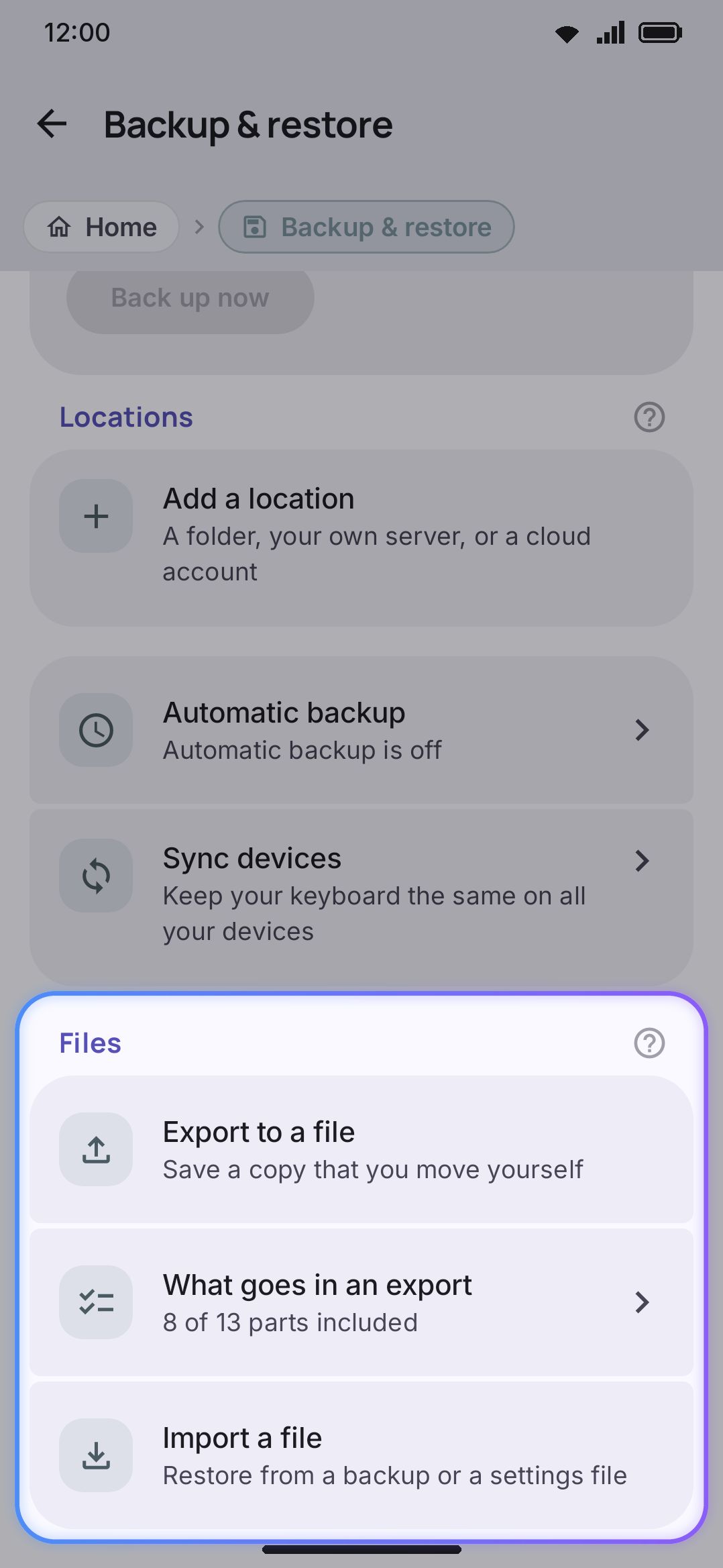
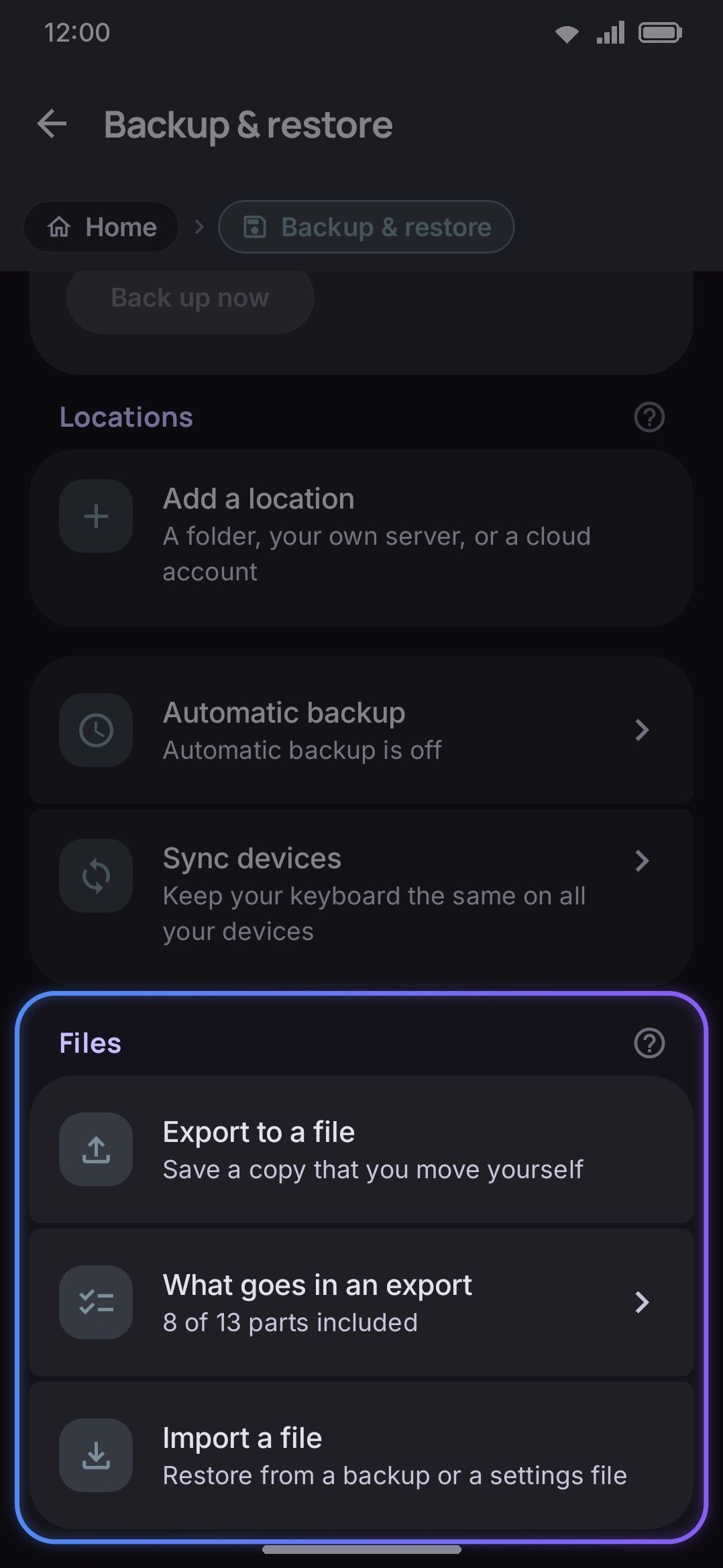
Section titled “Options”Reach it from the Data group on the settings home screen, or by searching “Backup & restore” in settings search. From the top, the screen has:
| Part | What it is |
|---|---|
| Status card | Whether automatic backup is on, how often and to how many locations, when the last backup was, and when this device last synced. Back up now runs a backup straight away. Sync now appears while sync is on |
| Locations | One card per place backups can go, and Add a location |
| Automatic backup | Opens the schedule, the passphrase, where backups go, and what goes in |
| Sync devices | Opens sync between your devices |
| Files | Export to a file, What goes in an export, and Import a file |
The status card turns red when the last backup or the last sync failed, and says why.
Locations
Section titled “Locations”A location is one place backups can go: a folder, a server, or a cloud account. You can add any number, of any kind, for example two WebDAV servers and a Dropbox. Add a location opens a list of the kinds this build can reach:
| Location | What it needs | Notes |
|---|---|---|
| Folder | Choose a folder, a folder picker | Anywhere a files app can reach: the device, an SD card, or a cloud app’s synced folder |
| Google Drive | Where in Drive (Hidden app folder, the default, or A folder you can see), Folder in My Drive for the second, and Allow access to Drive, plus a line saying whether it’s allowed | The hidden folder is visible to no other app, the Drive app included. A folder you can see is an ordinary folder in My Drive, made on first use; the app can open only the files it made itself. Each choice asks Google for its own permission |
| Dropbox | Sign in / Sign out, plus “Signed in.” or “Not signed in yet.” | You get a folder of your own under Apps |
| OneDrive | Same sign-in row as Dropbox | Same folder-under-Apps arrangement |
| WebDAV | Service, then Server, User name, Password and Folder; or, for Other WebDAV server, Server address, User name, Password | Service knows the address shape of Nextcloud, ownCloud, Seafile, Koofr, pCloud (US and EU), Yandex Disk, kDrive, Hetzner Storage Box and 4shared, and shows the address it builds. Nextcloud adds Sign in with Nextcloud, which opens your server’s login page and fills in an app password. Tailscale Taildrive asks only for the Share (your tailnet, the computer and the share name, as Tailscale shows them) and a Folder, with no sign-in. The folder is made on first use. User name can stay empty for a server that doesn’t ask for one. A plain http address gets a warning and is refused at upload time, because the password rides along on every request. The exception is an address on your Tailscale network (Taildrive’s 100.100.100.100, a 100.64.0.0/10 tailnet address or a ts.net name), where Tailscale encrypts the traffic |
| S3 | Service, Endpoint (for Other S3 service), the service’s account field where it has one, Bucket, Region, Folder in the bucket, Access key ID, Secret access key, Put the bucket in the path (toggle, default off, only for Other S3 service) | Service fills in the endpoint and the addressing for Amazon S3, Cloudflare R2, Backblaze B2, Wasabi, Google Cloud Storage, DigitalOcean Spaces, Hetzner, Scaleway, OVHcloud, Akamai (Linode), Storj, IDrive e2, MinIO and Garage, and lists example regions. R2 asks for the Account ID, IDrive e2 for the Endpoint, MinIO and Garage for Server and port. A plain http endpoint gets a warning |
| SFTP | Server, Port (default 22), User name, Password, Private key, Key passphrase, Directory, Server key, Allow old algorithms (toggle, default off) | A password, a key, or both; the key is tried first. Ed25519, ECDSA and RSA keys in OpenSSH or PEM form work, encrypted or not. The first connection saves the server’s key, and after that the app connects only to a server with the same key: Forget the server key is for when you really did change the server. The folder is made on first use. Old algorithms add SHA-1 for old NAS firmware |
| Windows share (SMB) | Server, Share, Folder, User name, Password, Domain, Port (default 445), Encrypt the connection (toggle, default on) | SMB 2 and 3, signed after the sign-in. Encryption needs SMB 3, and with the toggle on, a server that can’t encrypt is refused. Turning it off puts a warning under the toggle. A server that answers a wrong password with a guest session is refused as a wrong password. The folder is made on first use |
| Git repository | Host (GitHub, GitLab, or Gitea / Forgejo), Server, Repository, Access token, Branch, Folder, Commit message, Commit author name, Commit author email, Add [skip ci] (toggle, default on), Allow a public repository (toggle, default off) | Leave Server empty for github.com, gitlab.com or codeberg.org; type an address for your own server or GitHub Enterprise. You can paste the whole repository address into Repository. Empty Branch is the default branch. The commit message takes {action}, {file}, {device} and {date}. Each backup, and each deleted old backup, is a commit, and the history keeps all of them, so a public repository is refused unless you allow it. Sync through a Git location commits its sync file each time it changes |
| Email (IMAP) | Server, Security (TLS, STARTTLS or None; default TLS), Port (993, or 143), User name, Password, Mail folder (default “WM Keyboard backups”) | Each backup is one email in its own folder, made on first use. Most services want an app password. Some, such as Gmail, keep a deleted email in another folder, so old backups can still count against your quota |
Three of these only appear when the build can reach them, and all three conditions are decided when the APK is built. Google Drive needs the Google Play services library, which the F-Droid build leaves out. Dropbox and OneDrive each need a client id compiled in. A kind with nothing behind it is left off the list rather than shown and then refused.
The location opens in a sheet. Every kind has an optional Name, with an example that suits the kind, for the day you have two of them. Typed details save when you tap Add or Save, so a half-typed address is never tried by a backup that happens to run meanwhile. Test the connection makes the same first call a backup makes, with what’s on screen now, and says “It works. Backups can go here.” or what went wrong.
Dropbox and OneDrive sign in through your browser. When you approve, the browser hands you straight back to this screen. The row reads “Signing in…” over a progress bar for the second or two it takes to finish with the service, then “Signed in.” The sign-in finishes even if Android closed the app while you were typing your password. For Google Drive, Google shows its own account picker and consent screen. If you come back from it without access, a message says the app couldn’t finish signing in, instead of the button quietly staying as it was.
Each card shows the location’s name, what tells it apart (the folder, the server, the bucket), and how its last backup went: “Last backup: <relative time>”, “No backup here yet”, “Automatic backups do not go here”, or what went wrong. A location that sync uses adds “Syncs here.” The menu on each card has Restore from <name> and Remove. Removing a location leaves the backups already there where they are, and forgets how to sign in to it.
Restore from <name> lists every automatic backup at that location, newest first. Each row shows the device that made it (“This device” for this phone), when, and the size. A lock marks one that has a passphrase. Tap a row to download that backup and open the ordinary import confirmation, which lists what’s inside before anything changes. For an encrypted backup the app tries your stored passphrase first, and asks only when that doesn’t open it. This is the only way back for a Google Drive backup, because the app’s Drive folder is hidden from every other app, the Drive app included.
Automatic backup
Section titled “Automatic backup”This page writes a backup on a timer to the locations you tick. It stays inert until at least one ticked location has everything it needs.
| Setting | Type | Default | Shown when |
|---|---|---|---|
| Back up automatically | Toggle | Off | always (off until a ticked location is usable) |
| How often | Slider over 1, 2, 3, 4, 6, 8, 12, 18, 24, 36, 48, 72, 96, 120 and 168 hours | 24 hours (1 day) | Back up automatically on |
| Backups to keep | Slider, 1–30 | 5 | Back up automatically on |
| Only while charging | Toggle | On | Back up automatically on |
| Only on Wi-Fi | Toggle | On | Same, and only while a ticked location needs a connection (anything but a Folder) |
| Back up to | A tick box per location | On for every location | always |
| Protect with a passphrase | Toggle | Off | always |
| Passphrase | Password field | empty | Protect with a passphrase on |
| What goes in a backup | The same thirteen switches as the export list, with their own settings | Same defaults as the export list | always |
Each backup goes to every ticked location. A location you untick keeps its settings and gets no backups until you tick it again. One passphrase covers the automatic backups and the sync files, so use the same one on every device that syncs.
Include API keys under What goes in a backup is yours to turn on. Without a passphrase, its subtitle strongly suggests turning one on first, and turning it on asks you to confirm, because anyone who can open the location could then read your keys. It doesn’t refuse.
Sync devices
Section titled “Sync devices”Sync keeps your devices the same. Each device keeps one sync file at the locations you tick. Every device reads the files of the others, and the newest change to each setting wins.
| Setting | Type | Default | Shown when |
|---|---|---|---|
| Sync this device | Toggle | Off | always (needs a location) |
| When to sync | Choice: Soon after a change / On a schedule / Only when I ask | Soon after a change | Sync on |
| How often | Slider, the same stops as the backup interval | 6 hours | Sync on, On a schedule |
| Sync API keys and passwords | Toggle | Off | Sync on |
| Sync through | A tick box per location | the first location, when you turn sync on | always |
| What syncs | The thirteen section switches, with their own settings | Settings, Themes, Snippets | always |
| Keep on this device: Toolbar and toolbox | Toggle | Off | always (needs Settings ticked in What syncs) |
| Keep on this device: Languages and layouts | Toggle | Off | always (needs Settings ticked in What syncs) |
| Sync now | Button | always |
Soon after a change pushes about a minute after you stop changing things, and pulls every hour and each time the app starts. On a schedule runs at the interval you set. Only when I ask runs only when you tap Sync now. Turning sync on runs the first sync straight away, and on that first sync the settings of your other devices win. Anything only this device has goes to the others.
Your devices must share at least one ticked location. Tick more than one and the sync file goes to each, so sync keeps working while one service is down.
Some settings never sync, because they only fit one device: the keyboard size and position on each screen, one-handed mode, the floating keyboard, the hardware keyboard, paired KDE Connect computers, the app lock, what’s installed or downloaded on the device, and this screen’s own settings. Everything else in a ticked section syncs, including settings added in later versions.
Keep on this device holds back two more groups when you want them different here, a phone and a tablet with different toolbars for example. Toolbar and toolbox covers which tools there are, their order and how they look. Languages and layouts covers the layouts you switch between, the extra languages and the layout picked for each app. A ticked group isn’t sent, and changes from your other devices don’t touch it. Untick it and this device takes what your other devices have, as it did when it first joined.
Sync API keys and passwords is off by default. It works with or without a passphrase. Without one, the subtitle strongly suggests turning one on first, and turning it on asks you to confirm.
Export
Section titled “Export”What goes in an export is thirteen toggles, top to bottom. Twelve are independent; the thirteenth, Include API keys, only exists while Settings is on:
| Setting | Subtitle | Default |
|---|---|---|
| Settings | Every keyboard setting | On |
| Include API keys (shown only while Settings is on) | The keys for translate, GIF, search and AI | Off |
| Themes | Your custom themes | On |
| Dictionary | The words the keyboard learned from you | Off |
| Clipboard | The saved clipboard history | Off |
| Snippets | Your saved text snippets | On |
| Sticker packs | Your own sticker packs, with the images | Off |
| Icon packs | Your own icon packs, with the images | Off |
| Custom word lists | The word lists you imported for any language | On |
| Add-on repositories | The add-on sources you added, so you can install from them again | On |
| Emoji history | Your recent emoji, your favourites and the skin tone of each one | On |
| Typing statistics | Your daily typing counts and your all-time speed | On |
| Vocabulary | Your word lists, imported packs and learning progress. Downloaded packs are left out; they can be downloaded again. | On |
| Swipe style | How you swipe: where your finger lands, the readings you corrected, and the shape you draw each word in | Off |
Sticker packs and icon packs default off because their images make the file larger, not out of any privacy concern. Dictionary, Clipboard and Swipe style default off because they’re your personal typing history rather than configuration; the swipe shapes are filed under the words you drew them for. Emoji history is personal too, but it defaults on: it’s a few hundred bytes, and unlike a word list or a model there’s nowhere to download it back from. Add-on repositories carries only the repository addresses you’ve added, not the addons installed from them.
Export to a file stays disabled until at least one toggle is on. Tap it to open Android’s save dialog. The name takes the form wmkeyboard-backup-<date>-<time>.wmconfig.json, timestamped down to the second so repeated exports don’t overwrite each other. The file goes wherever you choose, and nothing is uploaded anywhere. Afterward you see one of:
| Result | Message |
|---|---|
| Wrote successfully, Settings on with Include API keys on | “The app exported the backup with your API keys in it. Keep that file as safe as a password.” |
| Wrote successfully, otherwise | “The app exported the backup.” |
| Couldn’t write the file | “The app could not write that file.” |
Import
Section titled “Import”Import a file opens a document picker for any file type. It reads the file and tries to decode it before changing anything. Nothing is written until you confirm a dialog.
| Outcome | What happens |
|---|---|
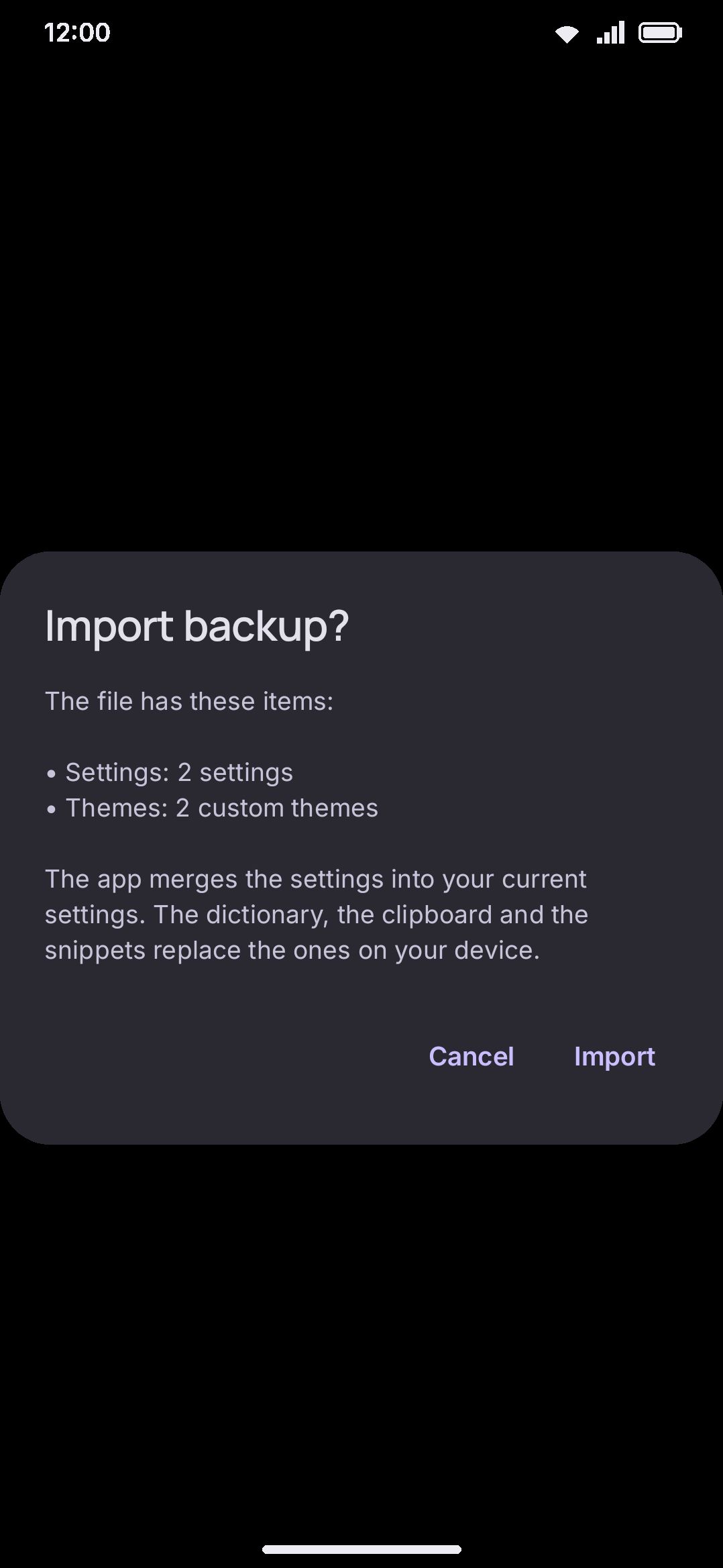
File is a current .wmconfig.json bundle | An “Import backup?” dialog lists each section found (for example “Themes: 3 custom themes”), states that settings merge while dictionary, clipboard, and snippets replace, and adds a warning if the file contains API keys |
File is a legacy .wmsettings.json file | An “Import settings?” dialog states how many settings will be overwritten, warns about included API keys, and notes any entries that couldn’t be read and will be skipped |
| File can’t be read from disk | “The app could not read that file.” |
| File doesn’t decode as either format | “That file is not a WM Keyboard backup.” |
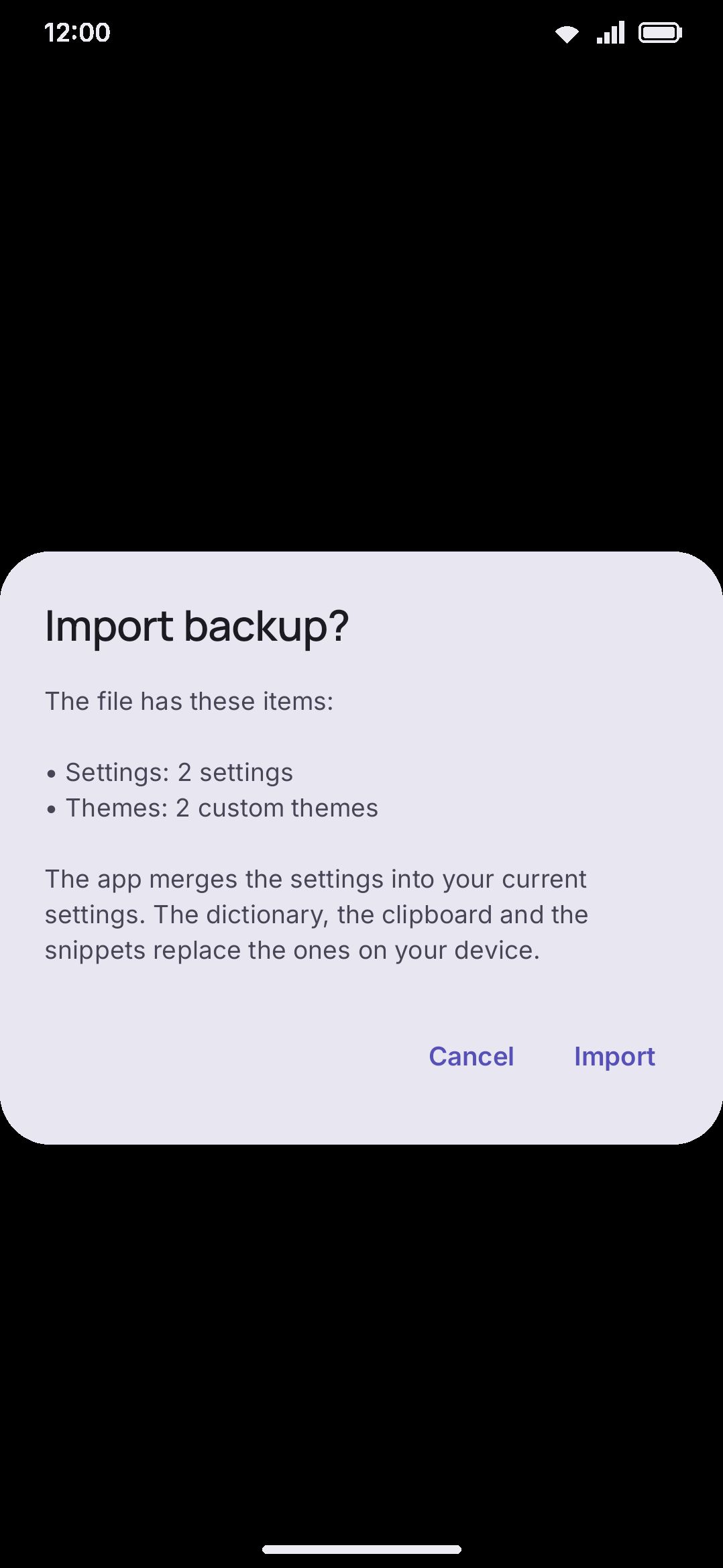
Confirming a current-format import applies each section independently and merges or replaces depending on which one it is:
| Section | On import |
|---|---|
| Settings | Merges. Only the preferences present in the file are overwritten, and everything else on the device is left as-is |
| Themes | Replaces. The entire custom-theme list is swapped for what’s in the file |
| Dictionary | Replaces |
| Clipboard | Replaces |
| Snippets | Replaces |
| Sticker packs | Replaces. The local collection is cleared and rebuilt from the file |
| Icon packs | Replaces, with the same clear-and-rebuild |
| Custom word lists | Replaces, with the same clear-and-rebuild |
| Add-on repositories | Merges. Incoming repository addresses join your existing list, and a duplicate address is skipped rather than overwritten |
| Emoji history | Replaces. Recents, use counts, favourites and per-emoji skin tones all come from the file |
| Typing statistics | Replaces. The day-by-day counts and the all-time totals both come from the file |
| Vocabulary | Replaces, but only your own word lists and packs. A downloaded catalogue pack stays put, since the bundle never carried it, and the learning-progress record is written whole |
| Swipe style | Replaces. The finger-position model, the corrected readings and the learned shapes all come from the file |
Settings import is rollback-safe. After writing, the keyboard re-reads its own settings to confirm they still parse, and it undoes the write if they don’t. The other sections in the same file still apply even when settings roll back. After a confirmed import you see either “The app restored <sections>.”, a lowercase comma-separated list of what changed, or “The file has nothing to restore.” A rolled-back settings portion appends “The app could not apply the settings. Your settings did not change.” A confirmed legacy import instead reports how many settings it restored, or says “The app could not apply that backup. Your settings did not change.”
Opening a .wmconfig.json or .wmsettings.json file from a file manager routes through this same read-then-confirm flow rather than importing silently.
Details & edge cases
Section titled “Details & edge cases”- An emoji-history import lands live. The keyboard holds its emoji history in memory while it runs and writes it out when a field closes, so a restore could have been overwritten seconds later. Importing bumps a counter the running keyboard watches, which makes it drop its copy and re-read the file. The panel’s Recent and Favourites tabs refresh on the spot, with nothing to restart.
- Two file formats, one import path.
.wmconfig.jsonis the current, full-bundle format that Export to a file and the automatic backup write today..wmsettings.jsonis an older, settings-only format the app still accepts on import, for files made by earlier versions. Nothing in the current app writes one anymore. - The Themes toggle’s own in-app description undersells it. Its info text says a theme’s background image doesn’t travel to another phone, and that only the theme itself does. In the current app the image does travel. It’s embedded in the export and written back to local storage on import, so a restored theme keeps its picture. See Backup & restore for the accurate version.
- The API-keys switches cover files this screen writes. They have no effect on Android’s own backup system, which is a separate opt-in covered on the Privacy screen and copies saved API keys regardless of anything on this page.
- Add-on repositories is a bookmark list, not the addons themselves. What an installed addon leaves behind on this screen is in whichever section matches its type: a theme, icon pack, or sticker pack you installed from a repository is already covered by that section.
- The automatic backup asks the system for two things, both yours to turn off. A charger, from Only while charging, and an unmetered connection, from Only on Wi-Fi. It never asks for an idle device, because the work is a few seconds of copying rather than the kind of job that wants the phone asleep. The Wi-Fi requirement is dropped while only Folder locations are ticked, since they need no connection at all, and the toggle is hidden then for the same reason. With it off, a backup to any other location still waits for some connection, mobile data included, so a run never starts on a phone that is offline and then gets reported as a sign-in problem. An interval is a period, not an alarm clock, so a run lands somewhere inside the window rather than on the hour. Back up now ignores all of it and runs immediately.
- Changing either condition reschedules the job on the spot. Both toggles are part of what the app compares against the job already queued, so flipping one takes effect without waiting for the current period to end. That matters, because the interval restarts when the job is replaced. Keep changing the conditions and you keep pushing the next run back.
- Turning the automatic switch on with nowhere usable to go does nothing. The row says what’s missing and stays off: “Add a location first.” with no locations, and “Tick a location in Back up to.” when none is ticked. A location card says what it lacks: “Choose a folder first.” for a Folder, “Sign in first.” for Dropbox and OneDrive, and “Fill in the connection details first.” for WebDAV, S3, SFTP, SMB, FTP, Git and IMAP. “Usable” is a cheap check, not proof the upload will work: a folder grant exists, a WebDAV address is filled in, an S3 bucket and key pair are present, an FTP server and user name are filled in, an SFTP server and user with a password or a key, an SMB server, share and user, a Git repository and token, an IMAP server, user and password, or a Dropbox or OneDrive token was stored. Google Drive counts as usable as soon as you add it, because the permission lives with your Google account rather than in a field here. Test the connection is how to find out for sure.
- Several locations, one run. The file is built and checked once, then copied to each ticked location, and each one rotates its own old backups. The run counts as done when any location got the file, and a location that failed says so on its card. A notification names the kind of location that failed.
- Locations are filed as secrets, alongside your API keys. The list of locations holds the WebDAV, FTP, SFTP, SMB and IMAP passwords, SFTP private keys, Git tokens, the S3 secret and the Dropbox and OneDrive sign-ins, so it’s stripped from an export unless Include API keys is on, and kept out of pre-unlock storage either way. With it on, a phone restored from that file gets its locations and sign-ins back; a Folder location then asks for its folder again, because a folder permission means nothing on another phone. Sync never carries locations. Some things never travel at all, on or off: the Back up automatically switch itself, every sync setting, the per-install salt, and the last-run times and errors. That’s deliberate. Restore a bundle on a new phone and you don’t want its automatic backup or its sync coming back switched on by itself.
- One location can hold several phones’ backups. Each automatic backup’s name records the device and this installation, like
wmkeyboard-auto-20260923-033823_78c415cf_Pixel-8.wmconfig.json. Backups to keep counts only this installation’s backups, so two phones sharing a Dropbox each keep their own five and never delete each other’s. Backups from before names carried a device count as this phone’s and are rotated out as new ones arrive. The installation id is not a setting. It never goes into an export or Android’s backup, so a phone restored from either one starts its own set of backups instead of taking over the old phone’s. Clearing the app’s storage or reinstalling makes a new one. Sync files are named the same way,wmkeyboard-sync_<installation>_<device>.wmsync.json(.wmsync.encwith a passphrase), one per device, rewritten in place, and never counted as backups. - Every toggle and slider on this screen carries the usual restore button once you move it off its default, in Automatic backup, Sync devices and What goes in an export alike. See Putting one setting back. The text fields are the exception, because an address or a password has no shipped value to go back to.
Related pages
Section titled “Related pages”- Backup & restore: the guide. Why each default is what it is, Android’s own backup system, and a step-by-step for moving to a new phone.
- Privacy: the Back up with Android toggle that folds the keyboard into Android’s own backup, separate from the export on this page.
- What are addons?: how installed addons relate to the repositories this screen’s Add-on repositories toggle backs up.