
Offline voice (Whisper)
Dictation that never touches the network: Whisper models running on your device.
Offline Whisper is a second dictation engine that runs entirely on your phone. Instead of streaming audio to a speech-recognition service, it records what you say and transcribes it locally with an OpenAI Whisper model, so nothing ever leaves the device.
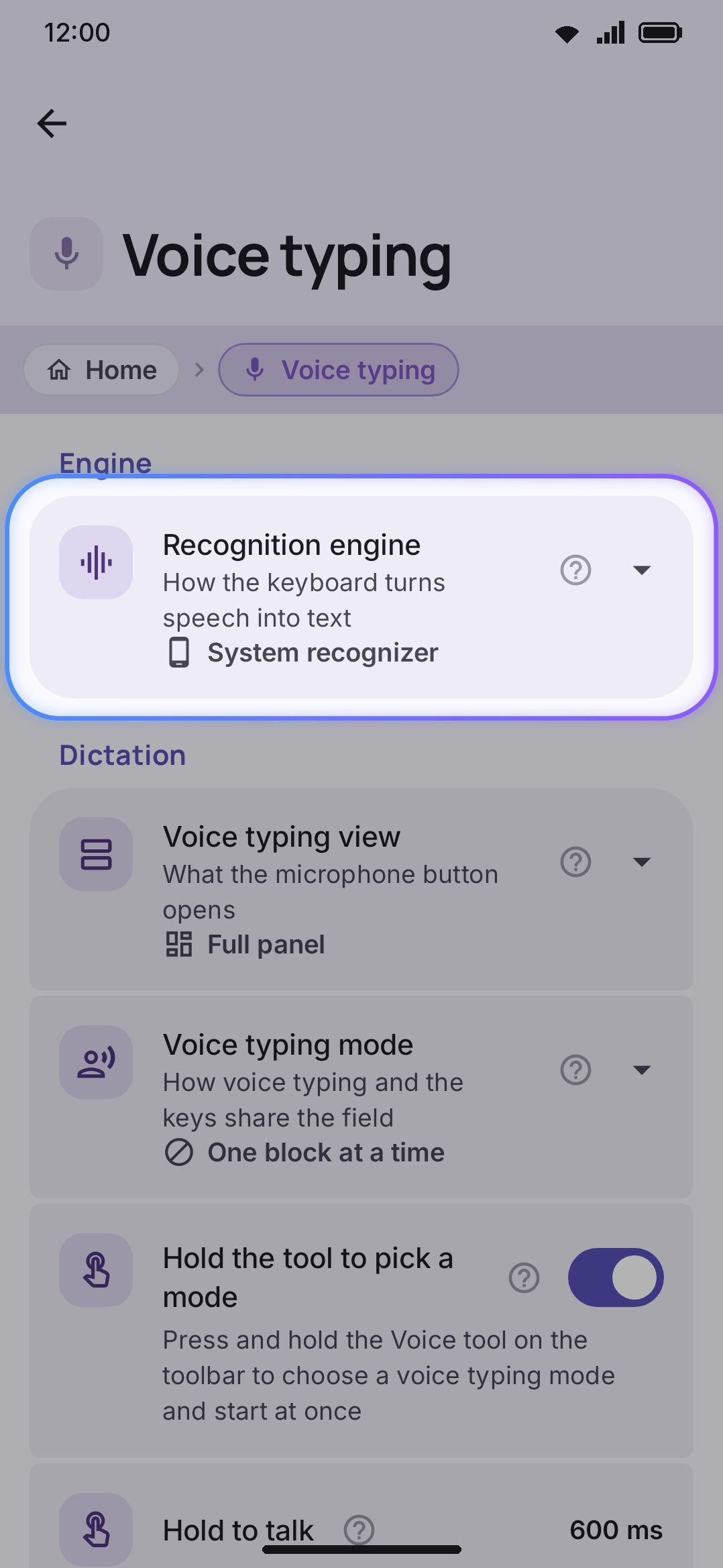
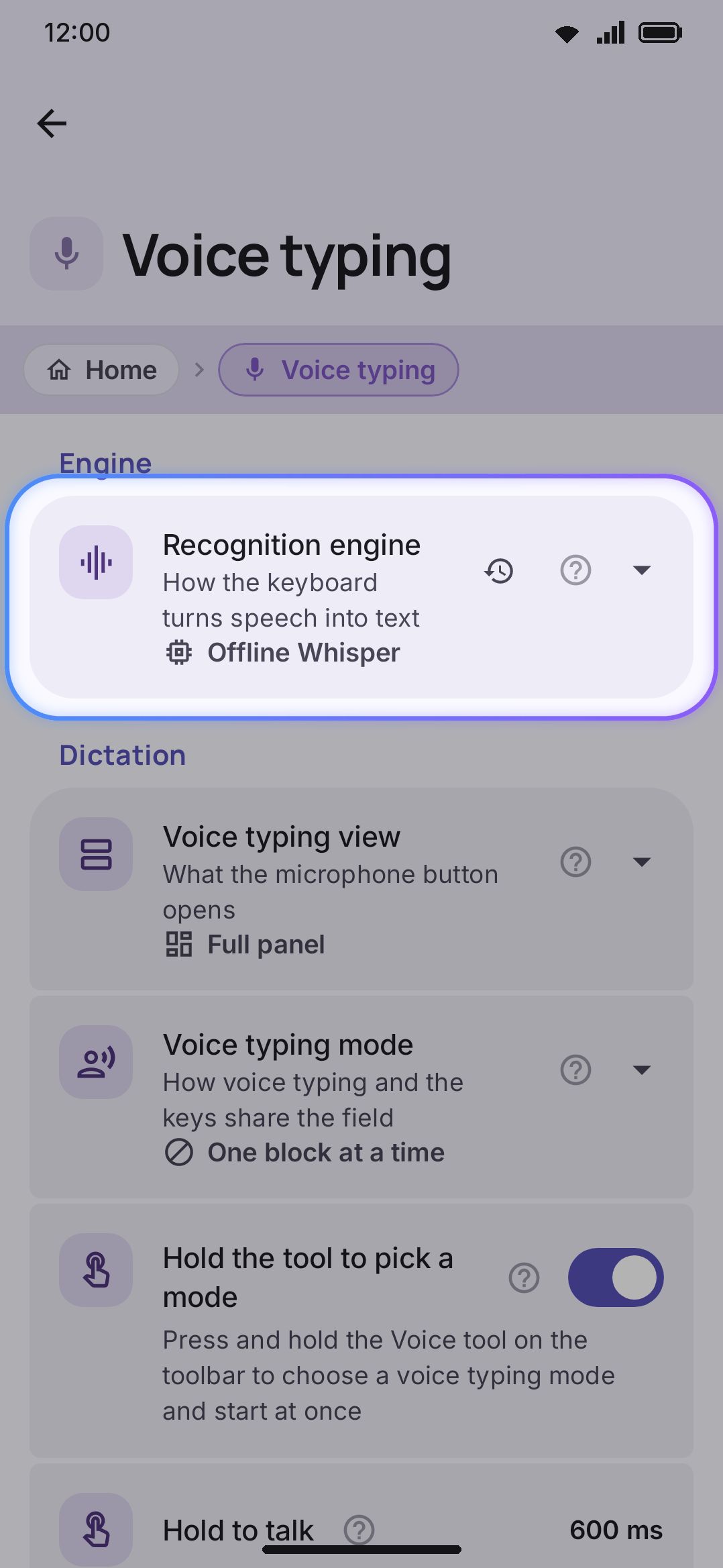
Why offline dictation
Section titled “Why offline dictation”The system recognizer, covered in Voice typing, is fast and shows words as you speak. It also leans on your OS and its installed languages, and without the on-device language pack it sends audio to a recognizer service. Offline Whisper trades all of that away for a hard guarantee: it works across many languages and never sends audio anywhere.
You feel that trade every time you dictate, because Whisper doesn’t stream. It records into a buffer and transcribes the whole clip once you stop talking, or once you hit the 30-second cap (see Details & edge cases). The panel shows “Listening. Press when you are done.” rather than live partial words. That press doesn’t need aim: the whole panel left of the action rail takes it, so does anywhere on the compact bar, and so does the Voice tool on the toolbar (see Starting dictation).
Bigger models trade download size and speed for accuracy:
- Tiny: fastest multilingual model. Fine for clear speech, struggles with noise.
- Base: balanced accuracy and speed.
- Small (recommended): the best accuracy that still runs comfortably on a phone, noticeably better on accents and background noise than Base.
- Medium: near-desktop accuracy. Expect several seconds per phrase and close to a gigabyte of RAM while it runs.
- Turbo: large-v3-turbo, so it’s about as accurate as Large at half the download, and much better than the small models at working out which language you’re speaking. An 820 MB download. It was trained for transcription only, so translation isn’t offered for it.
- Large: the most accurate graphs there are, and far too big for most phones. A 1.5 GB download that only high-memory devices can load. Two are listed, and if you’re going to spend the 1.5 GB, Large v3 is the one to take: it’s the newer model and it recognises languages much more reliably than the original Large.
The model catalog
Section titled “The model catalog”On the Play Store build the interpreter that runs these models is not in the app you install: it is a small extra part (about 2 MB) that Google Play delivers the first time you need it. The Whisper settings screen offers it at the top until it is here, the keyboard asks for it on its own the first time you dictate with a model downloaded, and until it lands dictation says so instead of recording. Direct-download builds carry it from the start.
The catalog has 29 downloadable models. Ten are multilingual graphs: seven auto-detect the spoken language, and three are grouped models you can pin to one language. The other 19 are single-language models covering 13 languages, several at more than one size: English, German, Spanish, French, Hindi, Italian, Japanese, Portuguese, Russian, Tamil, Telugu, Urdu, and Chinese. A single-language model only appears in the catalog once you’ve enabled that language on the Languages screen.
The screen is four sections in a row: the per-language routing list, then Your voice models, then a short Suggested for your languages shortlist, then a collapsed browse section holding everything else. Browse carries one filter, a chip per size, and it splits what’s left into the models that take any language and the ones locked to a single one. Each row wears its size, how many languages it covers, and its download size as small chips. Small is the only model carrying a Recommended badge.
Turbo and Large v3 need a 128-band mel spectrogram, where every older Whisper model needs 80. Each one downloads a different filterbank file alongside its graph, and the audio pipeline reads the band count from that file. If the two files ever disagree, dictation fails with a message instead of decoding noise into confident-looking words.
When a language can only be guessed at
Section titled “When a language can only be guessed at”Every model has to decide which language you’re speaking, unless it was built for one language or belongs to a grouped model that takes the language as an input. The grouped models list 40 and 26 languages, and those lists are compiled into the graph itself, so a language outside them cannot be forced no matter what the app asks for.
For those languages, and Bangla is one of them, a model can decide you’re speaking a bigger neighbouring language and hand back fluent sentences in the wrong one. Nothing errors, because as far as the model is concerned it did its job. Two things help:
- The model-per-language list says so on any affected language, and points at Turbo and Large v3, which get the language right far more often than the small models do.
- When the wrong language happens to be written in a different alphabet, WM Keyboard converts it back. Bangla read as Hindi is the common case: the model still transcribed the Bangla words it heard, it just spelled them in Devanagari, and the two alphabets line up closely enough to map across. You get readable Bangla instead of a line you can’t read at all. It can’t rescue a genuinely wrong language, only a wrong alphabet.
Whisper itself has an “initial prompt” that biases spelling and vocabulary, and its own way of forcing a language. Neither is available here. The community .tflite conversions this app uses were exported with the entire generation loop traced inside the graph. That leaves two inputs: the spectrogram, and on a grouped model a number selecting one of the languages it was built with.
Picking a model per language
Section titled “Picking a model per language”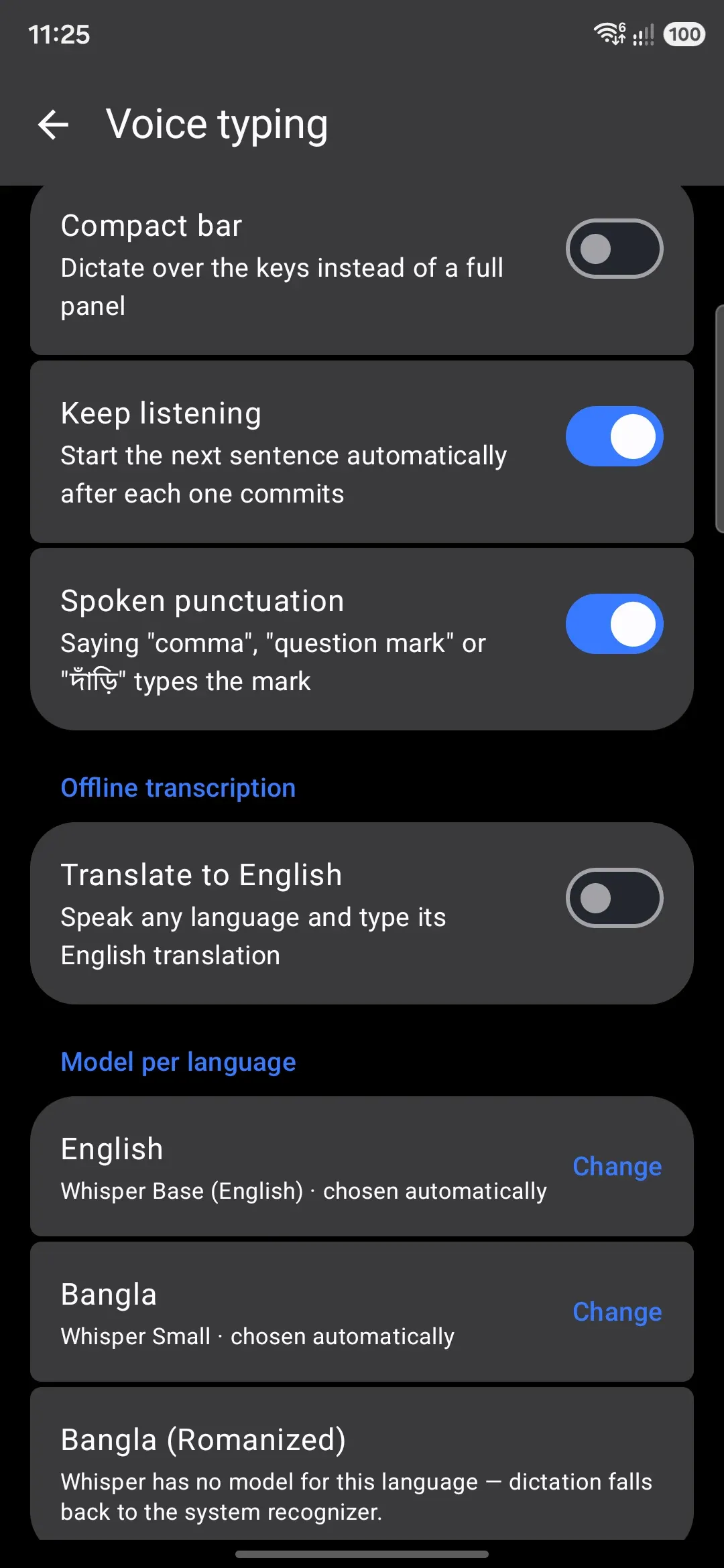
Rather than one global model for every language, WM Keyboard resolves a model per enabled language and falls back in this order:
- A model you’ve explicitly pinned to that language, if it’s downloaded and covers it.
- The largest downloaded single-language model for that language.
- The model that Model for other languages names, if it’s downloaded and covers the language. See Options.
- The best-ranked downloaded model that covers the language at all.
- As a last resort, that same fallback or the first downloaded model, even if it can’t actually transcribe that language.
That last step is deliberate: it produces wrong words rather than a dead microphone. When a language’s assigned model can’t cover it, the row is flagged in the error color with a note to download one that does.
Downloading and managing models
Section titled “Downloading and managing models”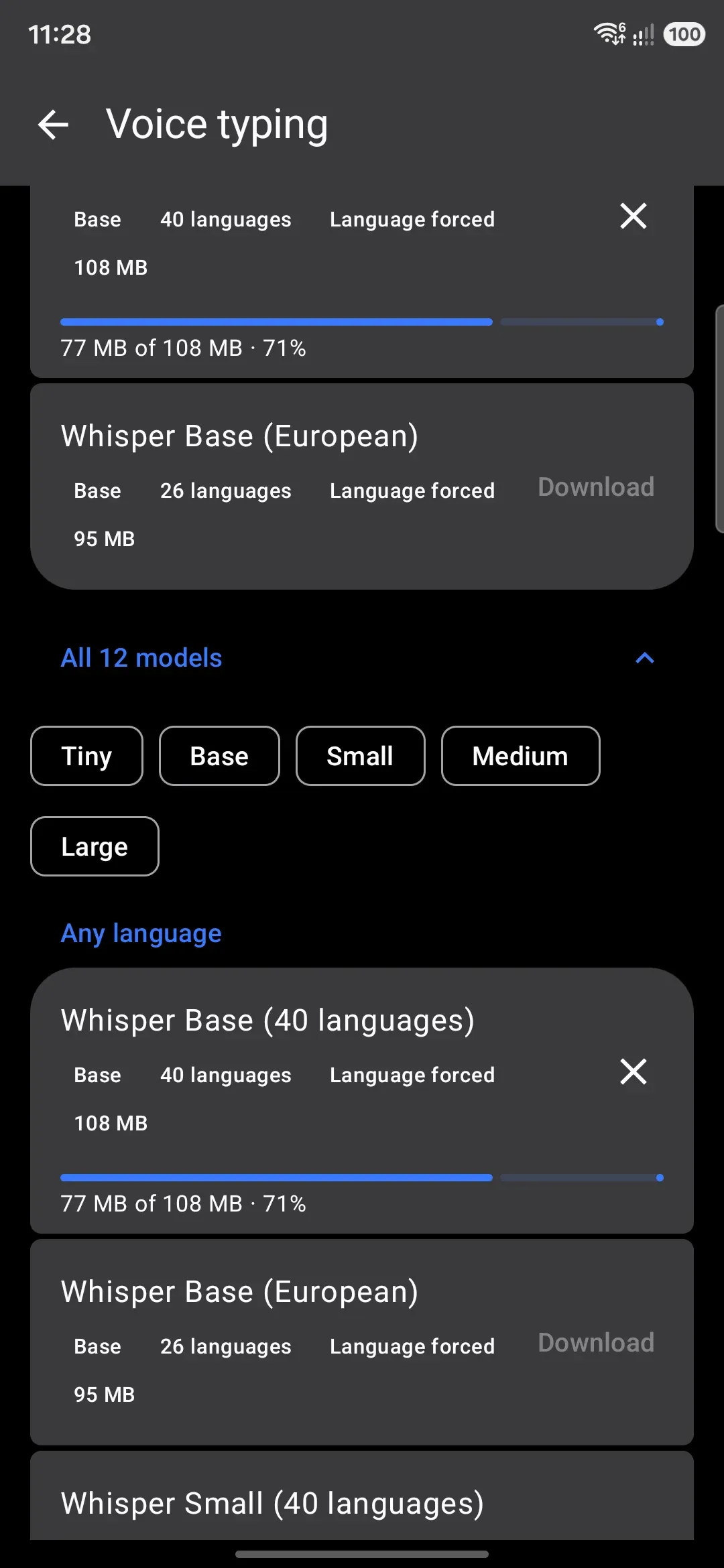
Each catalog row carries its own Download button on the right. Tapping the row itself does something else. It expands the row to show what the model is and which languages it covers, so you can read up before spending the bandwidth. Once a model is on disk, that button becomes a delete icon. A failed attempt offers Retry, and an interrupted one offers Resume.
Each model downloads as two files (the .tflite graph and a companion vocabulary/filterbank file), with the smaller vocabulary file fetched first so a broken connection fails fast. Downloads are resumable: if you lose connection or leave the app, the next attempt picks up where it left off instead of restarting.
Only one model downloads at a time. Before it starts, WM Keyboard checks that you have enough free space: the remaining bytes plus a safety margin. If you don’t, the download stops with a message telling you roughly how much to free up. On a metered connection, any model at or above roughly 150 MB asks you to confirm before it uses mobile data.
Downloaded models live in the app’s private storage, not shared storage: the screen shows total space used and lets you delete a model to reclaim it. Deleting a model also clears any per-language pin that pointed at it, and clears the app’s own fallback if that was the deleted model. If an app update ever drops a model from the catalog, leftover files show up as reclaimable space with a one-tap “Free up” button.
If you downloaded Tiny (English) in version 0.5.8 or earlier and dictation with it came back empty most of the time, that was the model file, not your microphone. Its source has since changed to a conversion that works, and the old file is recognised and discarded, so the model shows as not downloaded until you download it again.
When exactly one model is on disk, the app quietly adopts it as that fallback, so dictation works right after your first download with no setup step in between. It does the same again if you delete whichever model was holding the job.
Options
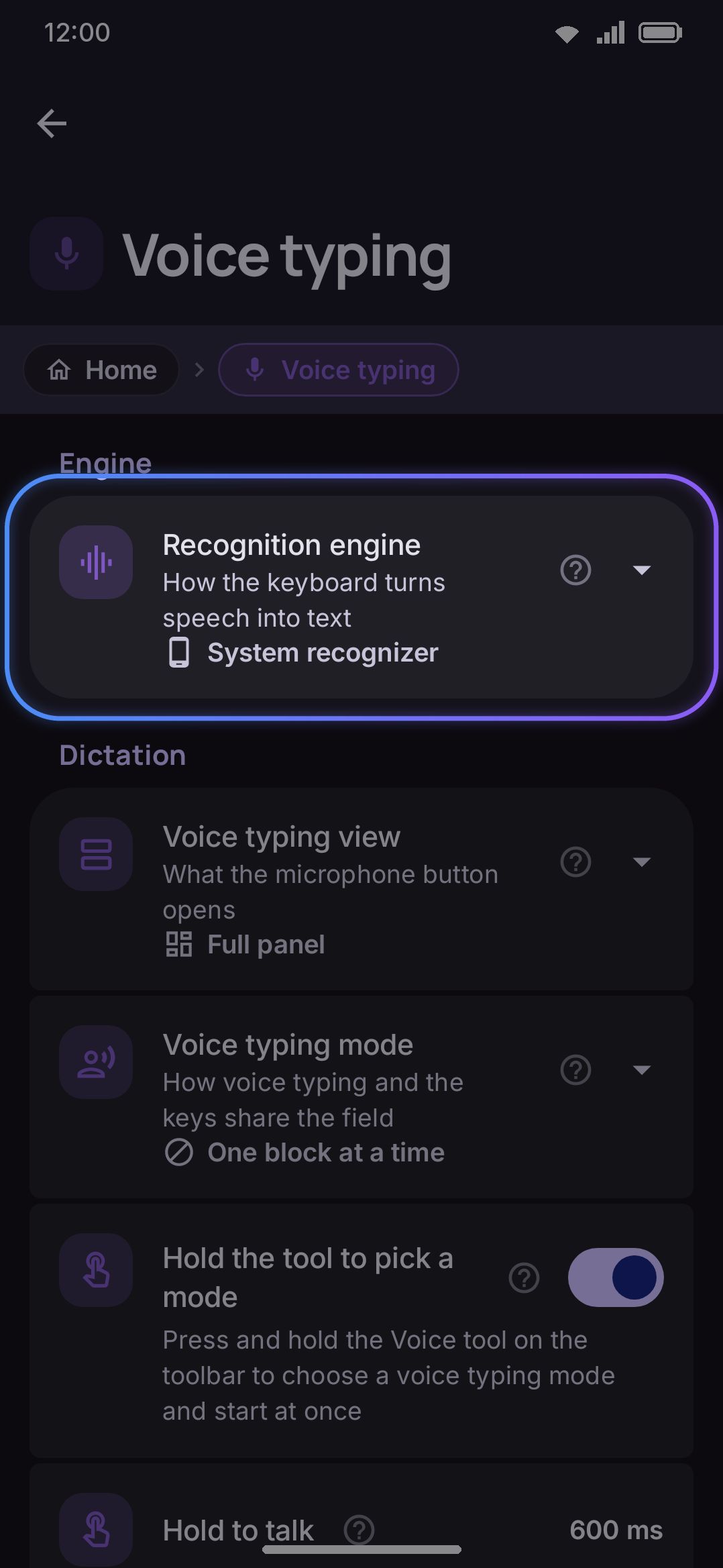
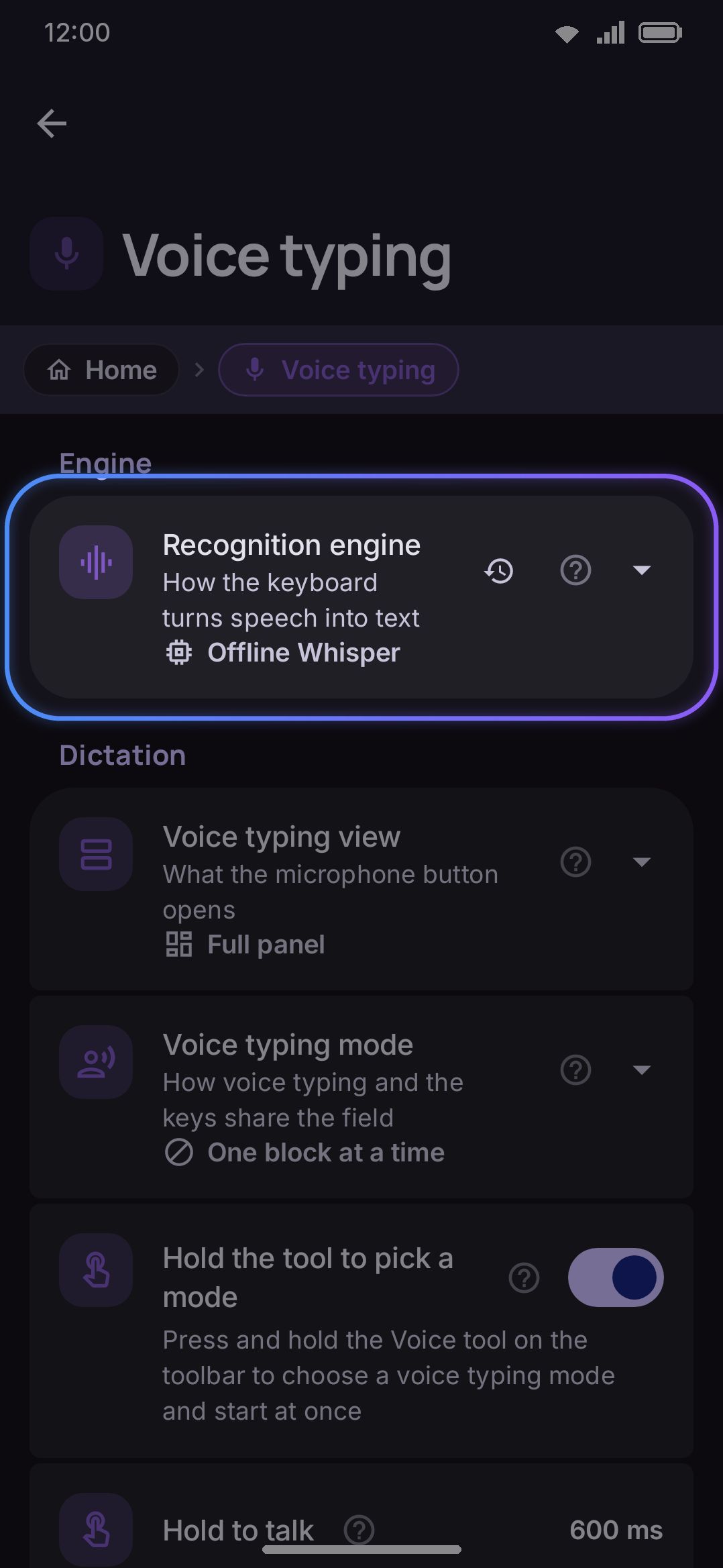
Section titled “Options”The Whisper-specific controls live inside the same Voice typing screen as the system-recognizer settings. There’s no separate destination for them. The Recognition engine picker appears Full edition only, since it’s what lets you switch to Whisper in the first place. The rest of the table only shows up once you’ve selected the offline engine there.
| Setting | Default | What it does |
|---|---|---|
| Recognition engine | System recognizer | Switches dictation between the system speech recognizer and offline Whisper. Hidden entirely on the lite edition: there’s no disabled option, dictation is always the system recognizer. |
| Translate to English | Off | Speaks any language and types its English translation instead of a transcription, when the routed model supports it. |
| Model per language | Automatic | Pins a specific downloaded model to a language, overriding automatic routing. One row per enabled language, each with a Change button. |
| Model for other languages | Automatic | The fallback step 3 of the routing order uses. Only shown once more than one model is on disk. |
Model for other languages sets that fallback by hand. It sits under Your models, below the per-language list, and it only appears once you have more than one model on disk, where the choice means something. Automatic is the default and keeps the old behaviour: the best downloaded model that covers the language you’re typing in. Pick a model instead and every unpinned language uses that one.
Dictation still resolves per language, from the language of the active layout, the same way the system recognizer follows the layout’s locale. The app also fills the fallback in for you when a model is the only one on disk, and clears the choice if you delete that model.
Nine of the 10 multilingual models support translation. Turbo doesn’t, because large-v3-turbo was trained for transcription only, and none of the 19 single-language models do either. If a language routes to one of those, the translate toggle has no visible effect for it.
Details & edge cases
Section titled “Details & edge cases”Every clip is a fixed 30-second window. Whisper always processes a full 30-second spectrogram: a short utterance is padded, and hitting the 30-second mark auto-triggers transcription of whatever was captured. Anything you say after that mark isn’t recorded, so for the last five seconds the line under the microphone counts down (“Stops in 3 seconds”) instead of saying “Listening”, and it turns to “Transcribing…” the moment recording ends. The model’s own work is therefore roughly constant per phrase rather than scaling with how long you spoke. The preparation in front of it isn’t: the padding is silence, whose spectrogram is known without computing it, so only the part you spoke is analysed. The model also loads while you’re still talking instead of after you stop, so the first phrase of a session doesn’t wait for it.
A silent clip types nothing. Whisper has no way to answer “I heard nothing”. Hand it a silent window and it writes the likeliest caption for one, which after training on subtitled video is “Thank you.” or “Thanks for watching!”. So a clip shorter than 0.3 seconds, or one whose loudest moment is no louder than a quiet room, is never transcribed at all. A clip that is faint but not silent is transcribed, and if all that comes back is one of those stock phrases it isn’t typed. Say “thank you” at speaking volume and it’s typed like anything else. A transcript that is only a sound caption, such as [Music] or (coughs), is never typed, and a word or short phrase the decoder repeats five or more times in a row is folded back to one. The transcription server gets the same treatment, which also saves the upload.
An open microphone winds down. With Keep listening on, a full 30-second clip with nothing in it starts the next one quietly, but only twice in a row; after that dictation goes idle. The type-while-you-speak modes allow twelve, as they do for the system recognizer.
A microphone that drops out keeps what it had. If capture fails in the middle of a clip, because another app tore it down or the audio service restarted, what you said up to that point is transcribed as though you had pressed stop. If it fails before anything was recorded, the panel says the microphone couldn’t be opened.
Only three rows here can be reset. Recognition engine, Translate to English and Model for other languages are ordinary settings, so each grows the usual restore button once you move it off the default. See Putting one setting back. The per-language routing rows and the catalog aren’t settings rows at all, so they have no button. You undo a pin by opening that language’s dialog and picking Automatic again.
Speed has no benchmarked numbers. The app carries no measured per-device timing table. The only official guidance is the relative sizing above, with Tiny fastest and the two Large graphs slowest and heaviest on RAM, plus a general note that bigger models are more accurate and slower to download and to transcribe.
Full edition only. Offline Whisper is unavailable on the lite edition: the “Recognition engine” section doesn’t render at all, so dictation always uses the system recognizer there. See Full vs Lite if you’re not sure which one you have.
Power saving can silently override your choice. Its “On-device models” option is on by default. Power saving never turns on by itself unless you set Turn on by itself, but once it’s on, by hand or by a trigger you chose, dictation falls back to the system recognizer even with Whisper selected and a model downloaded. If dictation seems to have switched engines on its own, check your power-saving settings first.
No mic opens without a model. With Whisper selected and nothing downloaded, the panel says so and offers both ways forward rather than opening the microphone. One chip opens this screen so you can download a model. The other switches back to the system recognizer and starts listening right away, and that switch is saved, the same as changing the engine in settings. The compact bar has room for one line, so it points you at settings, where both choices live.
Panel keys don’t end a recording. Space, backspace and enter on the voice panel’s right-hand rail edit the text while the microphone stays open, so you can add a space or fix a character without losing what you’ve said. A keystroke that lands while a clip is being transcribed behaves the same way. The audio is already captured, so the words still arrive. They just land after whatever you typed. Typing on the keyboard itself during a system-recognizer dictation still ends that utterance, because its live partial text sits in the editor and a keystroke inside it would corrupt it.
Privacy and downloads are separate concerns. Transcription itself makes no network calls. The only network activity Whisper causes is fetching a model file over HTTPS from its public repository when you tap download (see Network policy for the full picture of what WM Keyboard can send and when).
Attribution. The engine is TensorFlow Lite, branded LiteRT (Apache-2.0, Google). The model architecture and weights are OpenAI’s Whisper (MIT). The .tflite graphs themselves are third-party conversions hosted on Hugging Face, not built by this project. Full credits are in the app’s About screen.
Related: Voice typing covers starting dictation, strip vs. panel mode, continuous mode, and spoken punctuation, all shared behavior between the system recognizer and Whisper.