
Modes & the symbol row
Letters, symbols, numbers: how modes work and how the symbol row is arranged.
“Mode” means two different things on this page: the letters/symbols layer under your thumb, and the keyboard-wide profile (theme, tools, symbol row) that switches itself on for a given app or field. Both are covered here, along with the symbol row that sits between them.
Switching between letters and symbols
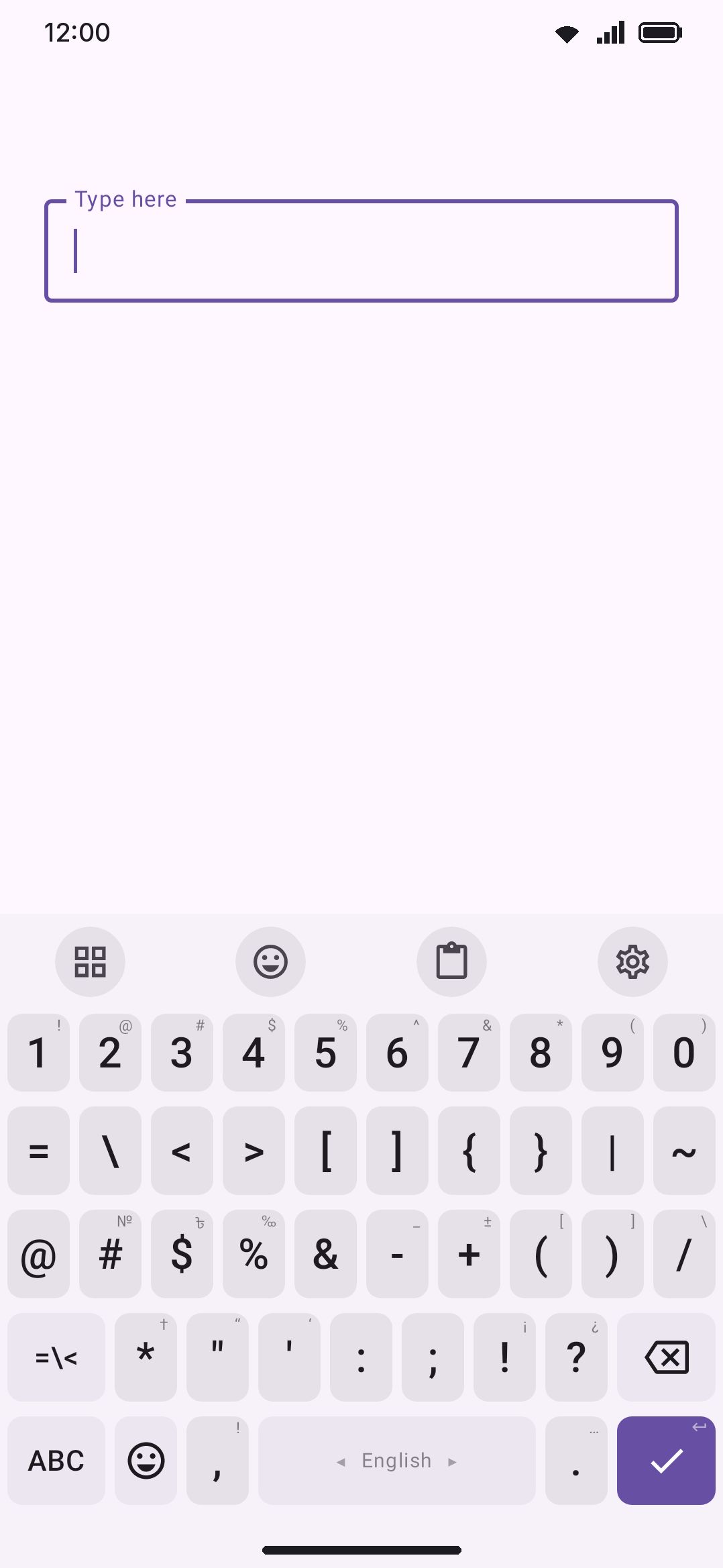
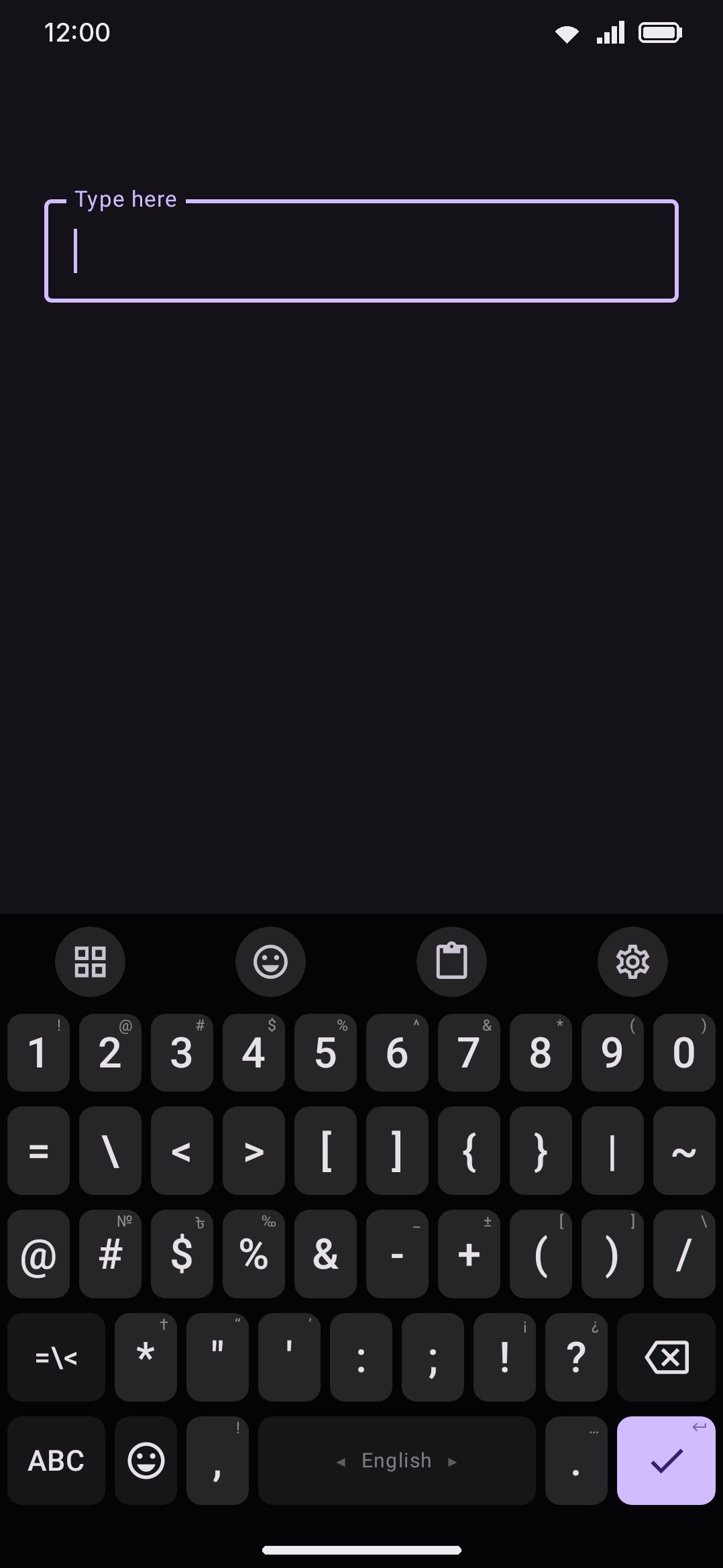
Section titled “Switching between letters and symbols”Tapping ?123 steps through the symbol pages. ABC always jumps straight back to letters, from any page. The cycle is short and doesn’t grow a third stop:
- Letters → Symbols. ?123 on the letters layout opens the first symbol page (digits,
@,#, currency, brackets, punctuation). - Symbols → Symbols 2. The key relabels to =\< at 1.5× width. Tapping it opens the second page (math and typographic symbols, a dead-key accent key, more punctuation).
- Symbols 2 → Symbols. The same corner now reads ?123 again and goes back one page. There’s no page 3, so it just bounces between the two.
- Letters key wins from anywhere, including from the Fn layer. Pressing ABC while Fn is active leaves Fn entirely and drops any Fn lock, rather than returning to whatever Fn was layered over.
Pressing ?123 to leave letters also drops any in-progress handwriting ink on the writing surface, since letters is the only layer that hosts it. The keyboard’s height doesn’t jump when you cycle: its row count is fixed to the tallest reachable grid (letters, symbols, symbols-2, Fn and the field’s own keypad), so shorter pages pad rather than resize.
WM KeyboardKey pressPress and hold shortcutsPress and hold ?123 for the number padPress and hold ?123 for the number pad turns a long press on ?123 into a shortcut straight to the number pad panel, skipping the symbol pages. It’s on by default. A quick tap always cycles the layers as described above, whatever this setting says; only the long press changes.
Coming back automatically
Section titled “Coming back automatically”Most trips to ?123 are one character long: a full stop, a question mark, a comma. Go back to the letters notices that and returns you to the letter keys as soon as you type one of them, so you don’t press ABC yourself every time. It’s off by default, and the characters that trigger it are yours to edit (they start as ! ? . , ; :) in Characters that go back just below the toggle.
Digits stay off the list on purpose, because typing “12” is exactly when you want the symbols to stay. Only single-character keys count either way, so a .com key won’t send you back, and both symbol pages behave the same. Full detail is in the Layout & size reference.
The emoji panel has had the same setting for a while, under Emoji → Return to the keyboard after you insert.
The symbol row
Section titled “The symbol row”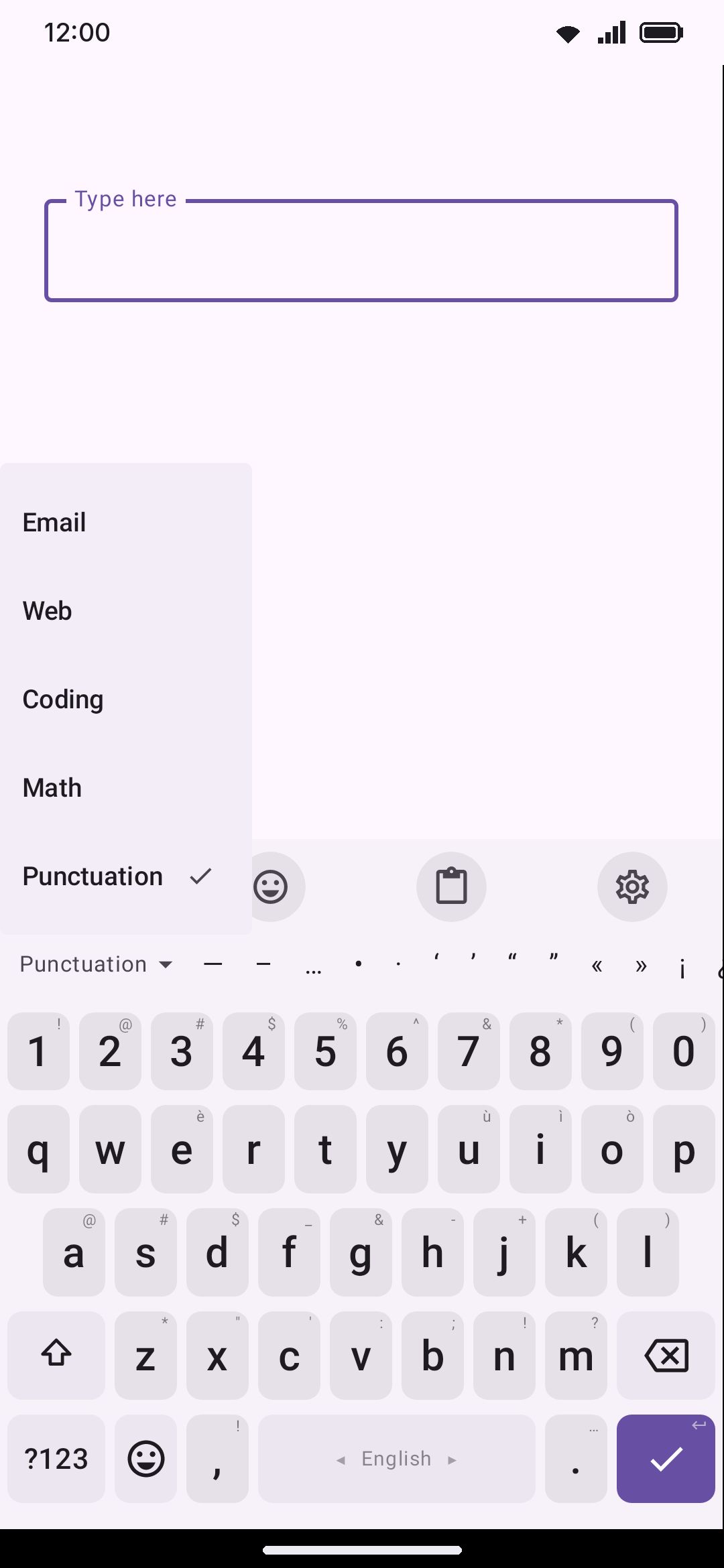
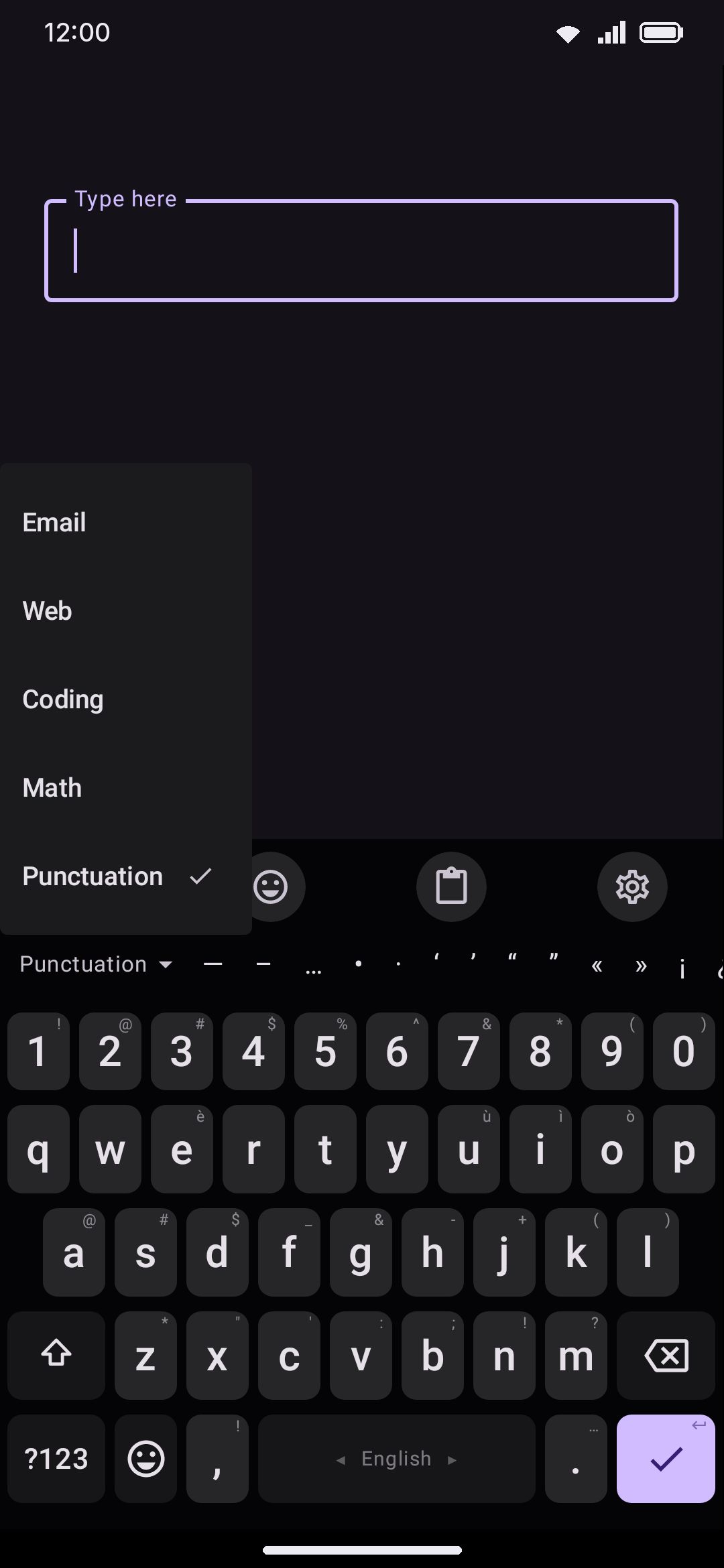
The symbol row is a strip of one-tap characters and snippets that sits above the key grid, independent of the ?123 pages below it. It’s for the character you reach for constantly without wanting to leave the letters layout. It’s off by default.
Five built-in sets ship with it, and every one is enabled by default: Email (@, common domain endings), Web (https://, www., path characters), Coding (brackets, operators, ->, =>, a tab key), Math (±, ×, ÷, fractions, Greek letters) and Punctuation (the set the row opens on by default). A chip at the row’s left edge opens a dropdown of whichever sets you’ve enabled, but only when more than one is enabled. With just one, there’s nothing to switch between.
Enable or disable sets with the checkboxes in Symbol sets. At least one has to stay checked. Tap a set’s edit icon to rename it or rewrite its characters, entering them space-separated so a snippet like -> counts as one entry the same way a single character does. Editing a built-in set doesn’t touch the shipped version: your edit is stored as an override under the same ID, so anything that references that set (a keyboard mode’s symbolSetIds included) keeps working unchanged. Delete your override and the original characters come back, which is why the icon reads Reset rather than Delete on a built-in. New symbol set creates one from scratch.
Press and hold
Section titled “Press and hold”Any entry of a set can carry a popup of its own. Open the set’s editor, and under Press and hold tap the entry’s chip, then type the characters and snippets it should offer, space-separated the same way. A tap on the entry still types it; holding it opens the popup, and the popup behaves exactly like a key’s alternates: the same column count, font size and padding from Key press settings, and the same hold-to-select, so you can slide onto an entry and let go. The first entry in the box is what a plain hold and release types. An entry with a popup shows its first alternate in the corner, the way a key does, under the same Key hints switch.
Holding an entry
Section titled “Holding an entry”Hold an entry that has no popup of its own and a menu opens, the same way holding a word on the suggestion strip does. What it offers depends on the set and on the mode you’re in:
- Remove “https://” (or whichever entry you held) takes that entry out of its set. On a built-in set the change is saved as your edit of that set, so Reset set in the set’s editor brings the entry back. A set’s last entry stays.
- Hide the row in Browser (or whichever mode is on) shows while a keyboard mode turns the row on or picks its own sets. It sets that mode’s Symbol row to Off, so the row stays away whenever the mode is active. The global row and every other mode are untouched, and the mode keeps its set list for when you turn the row back on.
- Delete the “name” set shows on a set you made yourself. It asks first. A mode that offered only that set shows your global sets instead. The five built-in sets can’t be deleted: remove entries from them, hide the row, or uncheck the set on the Symbol row page.
- Symbol row settings opens the settings behind what the row is showing. When a mode is why the row is there (the row is off globally, or the mode picks its own sets), that’s the mode’s editor, scrolled to its symbol row settings. Otherwise it’s the Symbol row page.
An entry that has a popup keeps its popup on a hold. Hold another entry of the same set to reach the menu.
WM KeyboardAdvancedKeyboard modesBrowserCustom symbol setsNext releaseMore than one line
Section titled “More than one line”Lines of symbols stacks the row up to four lines high, each one as tall as Symbol row height, so more of a set is on screen without scrolling. Entries are dealt down the lines in turn: the first entry on the top line, the second under it, and so on. With two or more lines a Scrolling choice appears. Together moves the lines as one grid, so a scroll on any line moves all of them. Each line alone lets every line scroll on its own. The two look the same until a line is actually scrolled, and the picker chip stays at the left edge whatever the count.
The row hides itself automatically whenever the special-characters panel or another full-bleed panel is open. A second row of symbols on top of a symbols panel would just be noise.
Row order
Section titled “Row order”Six rows can stack above the key grid: the emoji row, the tools row, the toolbar, the symbol row, the dictionary bar and the fancy text styles row. By default they run top to bottom as emoji, tools row, toolbar, symbol row, dictionary bar, fancy text styles, with emoji on top because it’s reached for most often and the style strip at the bottom, next to the keys whose letters it changes. Drag the rows into any order in Row order. A hidden row (symbol row off, emoji row set to off or button-only, fancy text styles while the fancy keyboard isn’t the one typing, the tools row while the tools share the strip) keeps its slot empty rather than collapsing the stack, and turning it back on doesn’t change where it lands.
The tools row is the one Where the tools go adds under its A button and Always choices. Where you put it decides which way the strip’s arrow points: up for a row above the strip, down for one below.
The Fancy text toggle on the same screen turns the fancy keyboard on and off, the same as the Fancy text tool on the toolbar, which is when the styles row appears.
This is a global setting. A keyboard mode (below) can turn the symbol row on or off and change which sets it offers, but it can’t reorder the rows. Row order is the same everywhere.
Keyboard modes
Section titled “Keyboard modes”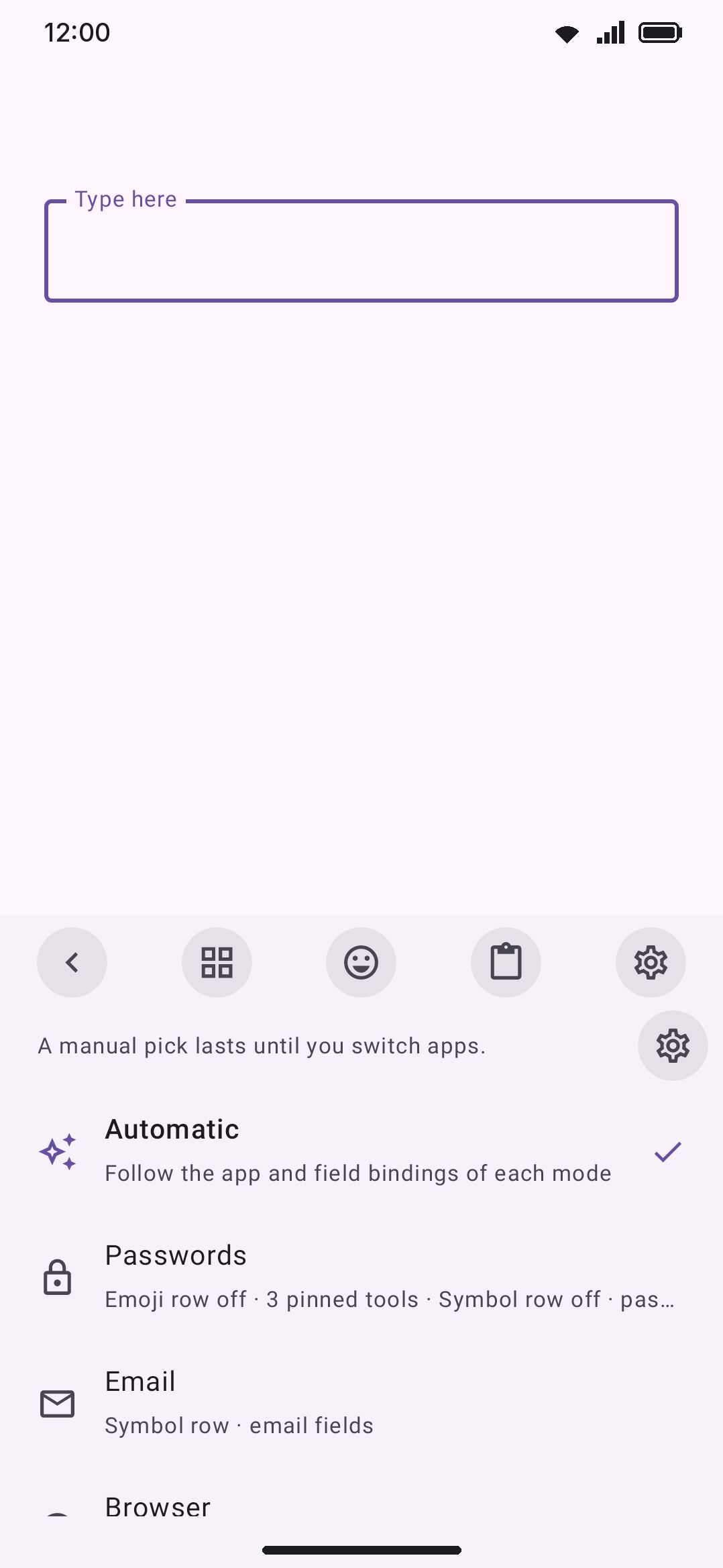
Beyond the global settings above, WM Keyboard can carry a different profile into different apps and fields, with its own theme, its own pinned toolbar tools and its own symbol row setup, switching automatically as you move between them.
WM KeyboardAdvancedKeyboard modesEach mode has an off switch of its own, at the end of its row on the Keyboard modes screen and at the top of its editor as Use this mode. Off, the mode never activates and the Modes tool doesn’t list it, but nothing inside it is lost: it’s the way to silence the Passwords mode on every password box, say, without deleting it. The whole feature has an off switch too. Use modes, at the top of the Keyboard modes screen, is on by default; turn it off and the keyboard keeps one setup everywhere, the Modes tool leaves the toolbar and the toolbox, and nothing switches itself as you move between apps. Your modes are kept and the list stays editable, so turning it back on restores all of them. It’s also offered as a card during setup, because a keyboard that quietly looks different in the next app reads as a keyboard that lost your settings if you didn’t know it was going to.
A mode can override the emoji row’s presentation, whether the symbol row shows and which sets it offers, the theme, the toolbar’s pinned tools and toolbox order, the layout it types on, and four typing switches: autocorrect, automatic capitals, suggestions and automatic spaces. Anything left unset inherits the global value.
Automatic spaces is one switch over every space the keyboard types without you pressing for it: after punctuation, after a suggestion you pick from the strip, and before and after a word you glide. Turn it off in a mode and every space in those fields is one you typed, so two glided words in a row run together. That’s the point in a file manager renaming an extension, in a terminal, or anywhere a stray space is a mistake rather than a courtesy. Turn it on and all three are on, including the space after punctuation, which is off by default everywhere else.
A mode’s layout is a hard override in the same sense its theme is. The switch ring is untouched, and your own layout comes back when the mode ends. Switch that layout off later and the mode falls back to inheriting whichever layout you’re on.
Six modes ship by default:
| Mode | Changes | Activates on |
|---|---|---|
| Passwords | Emoji off, symbol row off, toolbar replaced with password generator, clipboard, settings | Password fields |
| Symbol row on (Email, Punctuation sets) | Email fields | |
| Browser | Symbol row on (Web set) | URL fields |
| Chat | Emoji row always on, emoji/GIF/sticker/voice appended to the toolbar | A text field in any of 15 messaging and social apps (WhatsApp, Messenger, Instagram, Telegram, Signal, Discord, Facebook, Facebook Lite, TikTok, Snapchat, Viber, LINE, KakaoTalk, WeChat, Beeper), plus any notification reply box |
| Writing | Toolbar replaced with AI, text editing, voice, clipboard, emoji; symbol row on (Punctuation) | Keep, Docs, Samsung Notes, Word, OneNote, Obsidian, Notion, Evernote, Joplin (plus mail app bodies), and any text field |
| Coding | Symbol row on (Coding, Math sets) | Termux, Acode, RK Editor, Spck |
Passwords and Writing replace the toolbar outright instead of adding to it. Nothing that opens a network-facing panel belongs next to a password box, and Writing’s own pins want the bar to themselves, so the global Settings shortcut doesn’t ride along into a writing session. Chat appends its tools to your existing pins instead.
If an existing install already had its own mode list saved before Chat and Writing shipped, both are appended automatically on upgrade. A mode you’ve since deleted stays deleted and isn’t re-added. A later round topped up the Chat mode the same way, adding the nine apps it didn’t have yet (Facebook, Facebook Lite, TikTok, Snapchat, Viber, LINE, KakaoTalk, WeChat, Beeper) and the notification-reply field type to a stored copy. An app you’d already bound to another mode is left where it is.
Editing a mode
Section titled “Editing a mode”Tap a mode in Keyboard modes to open its editor, which is headed with that mode’s own name and glyph — both carried up from the row you tapped. It holds a name and an icon, then What this mode changes: Emoji row (Inherit/Off/Button/Row), Symbol row (Inherit/On/Off), a theme picker with a Clear button, a Layout picker offering the layouts you’ve switched on, and the Autocorrect, Automatic capitals, Suggestions and Automatic spaces switches, each inheriting until you set it. Further toggles give the mode its own pinned toolbar tools, toolbox order and symbol sets, each with its own reorderable chip list. Below that, Turn on automatically for holds the field-type chips, the field-hint list and the app picker that decide when the mode kicks in.
Edits save immediately as you make them, so there’s no save button, though a brand-new mode isn’t written to disk until its first edit. Only the six built-in modes have anything to reset to. A mode you create from scratch has no default to fall back on.
How a mode gets picked
Section titled “How a mode gets picked”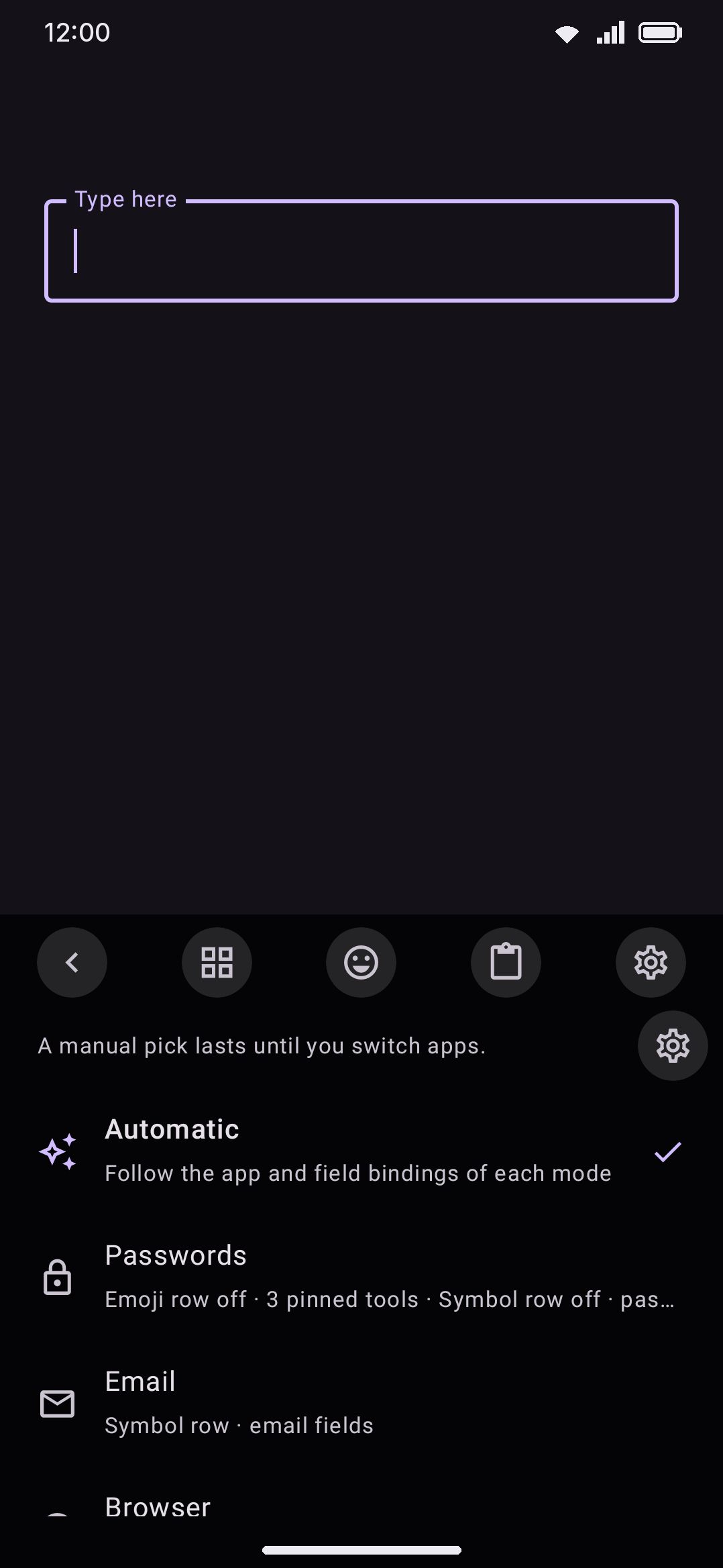
WM Keyboard re-checks which mode should be active every time you focus a field. A field can match more than one kind at once, since a password box always adds Password on top of whatever else it reports. The built-in field-type categories used here (Password, Email, URL, Number, Phone, Text, Notification replies, Multi-line text, Single-line text, No suggestions) are deliberately narrower than the field-kind detection covered in The keyboard adapts to the field. Text in particular means plain free text only. A password field also reports as text-capable at the OS level, but it’s explicitly excluded from the Text category, so a mode bound to Text (a chat composer, a document body) can never take over a login form.
The last three chips describe the shape of a text box rather than what goes in it, and a field reports one of them on top of its kind. Multi-line text is a box that takes line breaks (an editor, a note body); Single-line text is every one-line box (a rename dialog, a title, a search field); No suggestions is a field that asked the keyboard to keep its word suggestions to itself, which is what most code editors do. They exist for apps whose fields all look alike to the categories above. A file manager’s rename box, text editor and code editor are all plain text as far as Android says, but only the editors are multi-line, and only the code editor turns suggestions off. Password boxes never report a shape, for the same reason they’re excluded from Text.
Field hints is a list of words the field’s placeholder (the grey text an empty box shows) must contain, case ignored. It’s the one thing an app writes on a field that says what the field is for: a rename dialog might say “Enter name” on one tab and “Extension” on another while its field type stays the same, so a mode bound to the hint “extension” with autocorrect and automatic spaces off catches exactly that box. The catch is that hints are the app’s own wording in the app’s own language, so a hint you add while the app is in English stays silent once the app runs in French.
A mode’s apps list, field-type chips and field hints combine as an AND when more than one is set: a mode bound to an app, a field type and a hint needs all three to match. Set only one and that alone is enough. Set none and the mode never activates on its own. It shows as “Manual only, from the Modes tool” in its settings-list subtitle and is only reachable by picking it yourself.
Notification replies is the exception to that AND. The inline reply box in the notification shade belongs to the system UI, so the package the keyboard sees there is the shell’s rather than the app you’re answering, and an app binding could never match it. A mode carrying that chip matches the reply box on its own, apps ignored (a hint binding still has to hold). That’s why the shipped Chat mode carries it alongside Text.
When more than one mode’s bindings match, the one that names a field hint wins over one that names a field type, which wins over one that only names apps. So a password box inside a coding app still gets the Passwords mode rather than Coding, and the “Extension” box of a rename dialog gets the mode written for it rather than the one for every single-line field. Beyond that, the first match in your mode list wins.
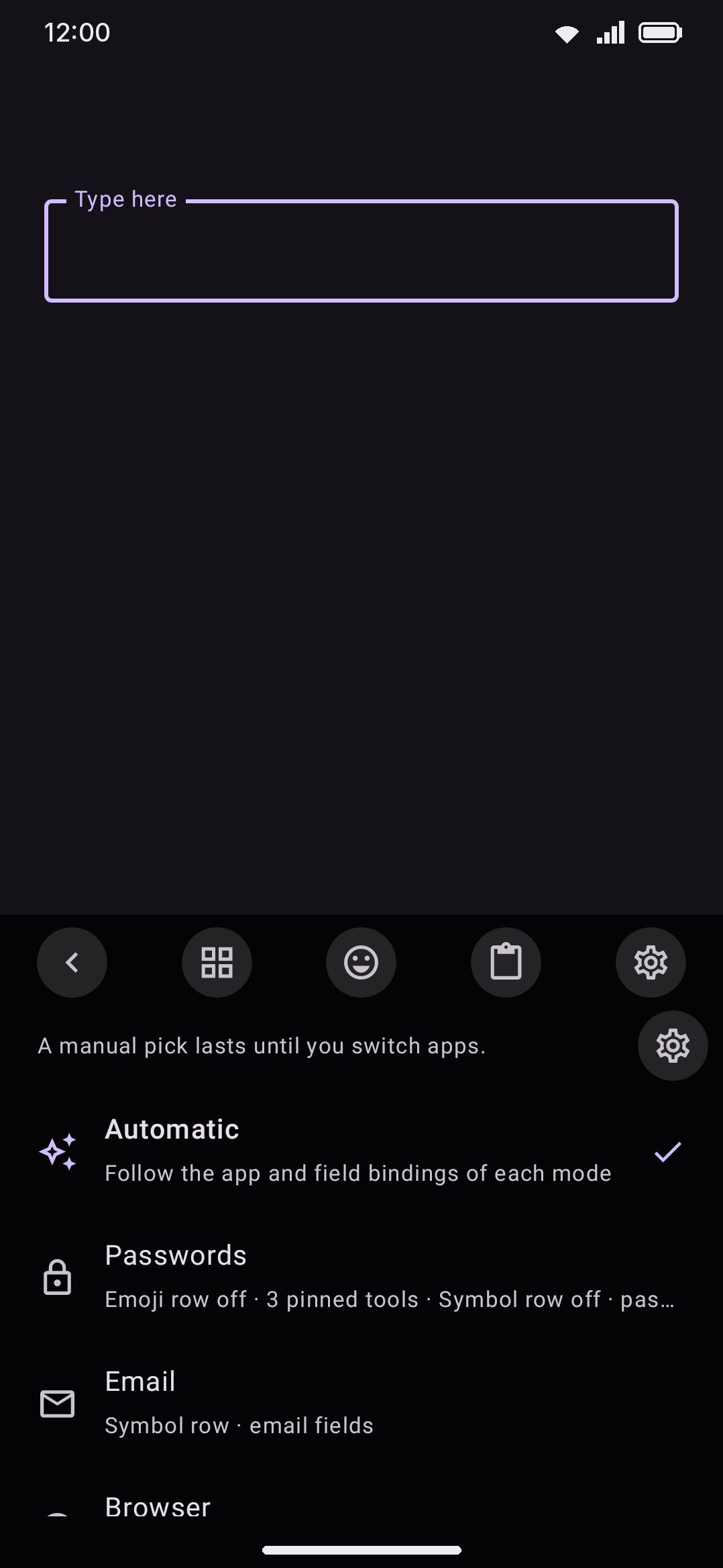
You can also override the automatic pick from the keyboard itself. Open the Modes tool, from the toolbar or the toolbox, for a list starting with Automatic and its “Follow the app and field bindings of each mode” subtitle, then one row per mode. Tapping a mode pins it by hand. How long that pin lasts is A mode you pick by hand, under Keyboard modes: Until you change app, the default, or Until you change it, which keeps the mode on until you pick another or turn it off.
Rearranging tools inside a mode
Section titled “Rearranging tools inside a mode”When a mode prescribes its own pinned toolbar tools or toolbox order, a tool you drag on the keyboard while that mode is active needs somewhere to go. Drags edit the active mode, on by default, sends that drag into the mode itself. The rearrangement then sticks for apps that resolve to that mode, and every other app keeps its own arrangement. The first time this happens you’ll see a one-off toast naming the mode. For the Chat mode it reads “The keyboard saved the tool order only for the Chat mode. Other apps keep their own order.”
Turn the toggle off and drags always edit the global tool order instead. If the active mode still prescribes its own list, though, that list keeps winning on screen whatever you just dragged, because the mode’s fixed list is applied on every recomposition. Turning this off doesn’t make a mode’s tool order editable from the keyboard. It only stops on-keyboard drags from targeting modes at all.
A mode with no pinned tools or toolbox order of its own is unaffected either way. There’s nothing for it to own, so drags always go to the global order.
Options
Section titled “Options”These settings live on four separate screens.
WM KeyboardKey press| Setting | Default |
|---|---|
| Press and hold ?123 for the number pad | On |
| Setting | Default |
|---|---|
| Go back to the letters | Off |
| Characters that go back | !?.,;: |
| Setting | Default |
|---|---|
| Symbol row | Off |
| Fancy text | Off |
| Enabled symbol sets | All 5 built-ins |
| Dictionary bar | Off |
| Row order (emoji / tools / toolbar / symbol / dictionary bar / fancy text styles) | Emoji, Tools row, Toolbar, Symbol, Dictionary bar, Fancy text styles |
| Setting | Default |
|---|---|
| Use modes | On |
| A mode you pick by hand | Until you change app |
| Keyboard modes list | 6 seeded modes |
| Drags edit the active mode | On |
Details and edge cases
Section titled “Details and edge cases”- A custom or hand-edited layout can’t get stuck on a symbol page. If a symbols/symbols-2/Fn layer in a layout file has no key that leads back to letters or symbols, WM Keyboard silently appends an ABC key to it so the layer always has a way out.
- Picking a set from the row’s chip usually becomes the new default. It’s written back to the same setting the row opens on next time, so there’s no separate settings entry for it beyond the enabled-sets list. The one exception: if the active keyboard mode prescribes its own symbol sets, a pick from the chip is session-only. It never overwrites the mode’s own list, and it lasts only until the next field, since focusing a field resets the session pick either way.
- A mode’s symbol-row override only sets on/off and which sets. It can’t reorder the emoji/toolbar/symbol stack, which stays global no matter which mode is active.
- The manual mode pick is never written to disk. It lives only in the running keyboard service. On the default Until you change app it also clears the instant the focused app’s package changes, so closing and reopening the keyboard in the same app keeps it while switching apps doesn’t. Set to Until you change it, the pick survives an app switch and waits for you to choose another mode.
- No edition split. Symbol pages, the symbol row and keyboard modes all work the same on both the full and lite builds.
For how a field’s type is detected in the first place, see The keyboard adapts to the field. For the full settings screens referenced above, see Rows & bars, Keyboard modes and Key press.