
Hardware keyboards
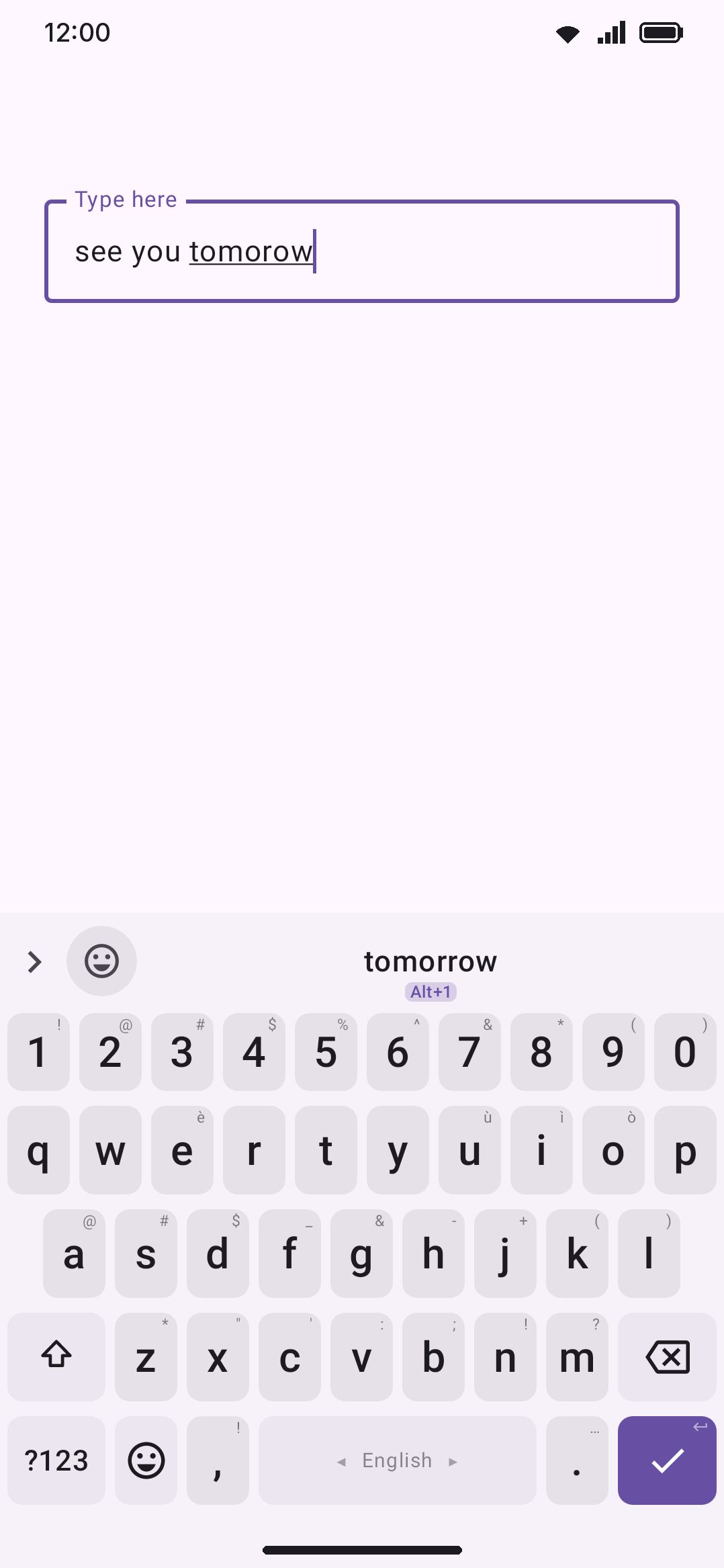
Physical keyboards route through the same engine: autocorrect, suggestions and tools included.
Plug in a Bluetooth or USB keyboard and WM Keyboard keeps running underneath rather than getting out of the way. Autocorrect, suggestions and transliteration all work on physical keystrokes exactly as they do on the soft keys. A leader key opens any tool without your hand leaving the keys.
Typing on a physical keyboard
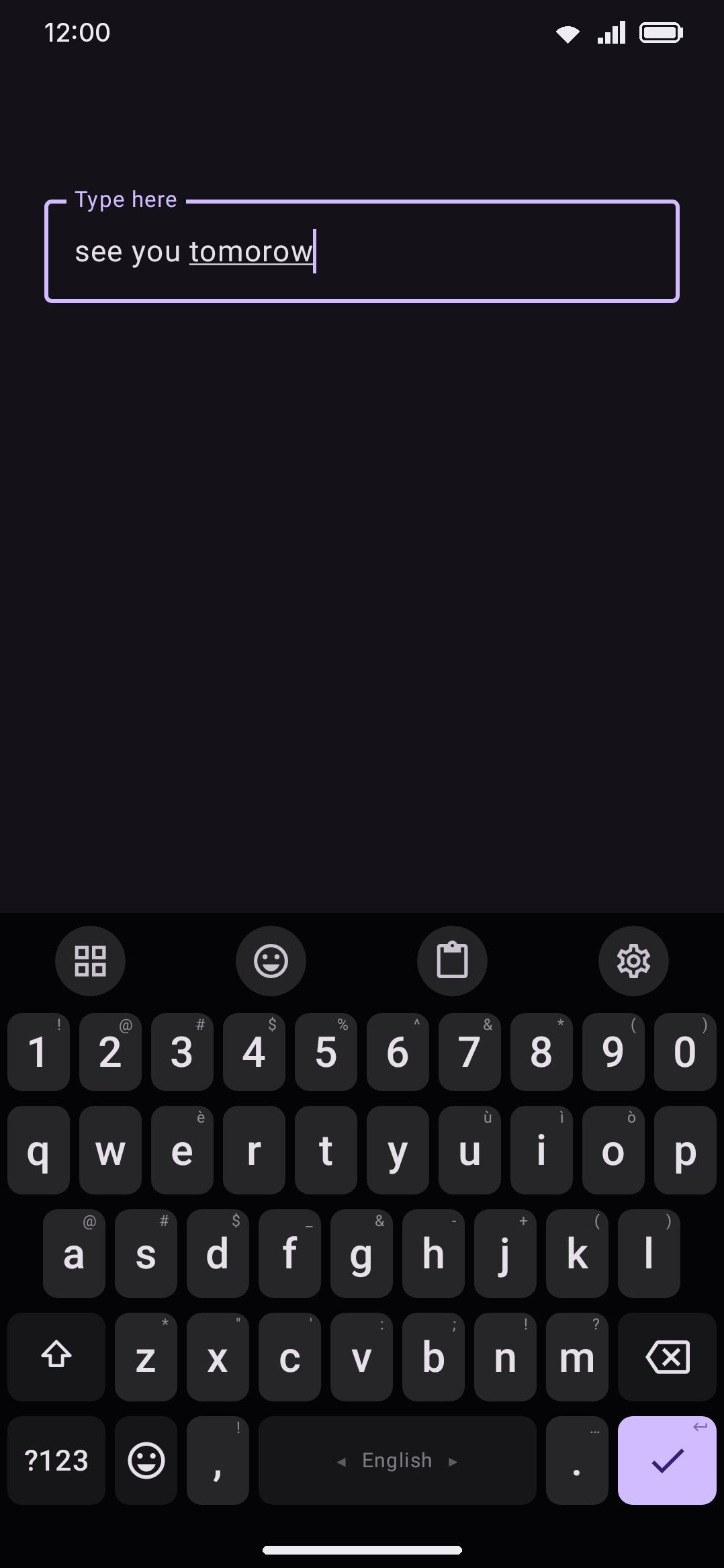
Section titled “Typing on a physical keyboard”With Process the physical keys on (the default), a key you press on a physical keyboard runs through the same code path as a tap on the screen. Phonetic layouts transliterate as you go, words compose for suggestions, autocorrect fires on Space, and ⌫ undoes a swipe or a correction instead of just deleting a character. Wrap the selection with brackets carries over too, and it’s on by default: select some text, type a bracket (either half) or a quote on the physical keyboard, and it wraps the selection the same way a tap would.
Turn the toggle off and physical keys type their raw characters straight into the field. The keyboard’s own layout owns input entirely from there, and correction is the system’s business rather than WM Keyboard’s.
Two things stay true no matter how this toggle is set:
- Shortcuts, navigation and function keys always go straight to the app. Ctrl+C, the arrow keys, Tab, Esc and forward-delete are never intercepted for typing. Only actual character keys are. AltGr combinations look like a shortcut and aren’t one: a German keyboard’s AltGr+Q for ”@” arrives as Ctrl and Alt together, and the keyboard reads that as a character, decoding it the way the system does.
- Password fields and structured fields never get autocorrect help. Email, URL, number, phone, date, time and date-time fields, and anything marked as a password, always take raw physical typing. There’s nothing to transliterate or correct in a field that isn’t ordinary prose.
Android composes a physical dead key (an accent key that combines with the next letter) before the keystroke reaches the keyboard, so WM Keyboard doesn’t run its own accent logic on top. You get the accented character the same way any other app would see it. One soft-keyboard-only behavior is worth knowing: a bare press of the physical Shift key is only a modifier, so it doesn’t cycle a selection’s capitalization the way tapping the on-screen Shift key does.
Opening tools with the leader key
Section titled “Opening tools with the leader key”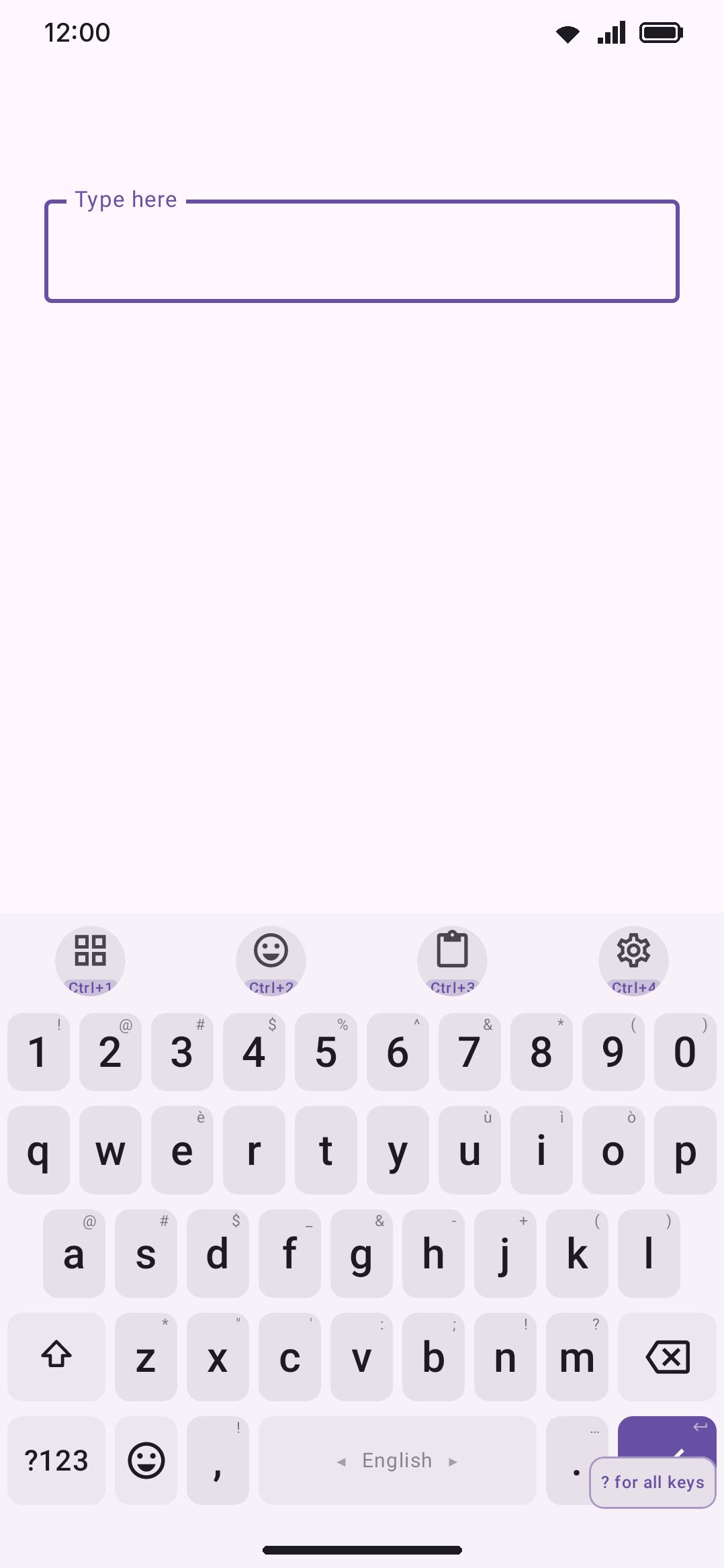
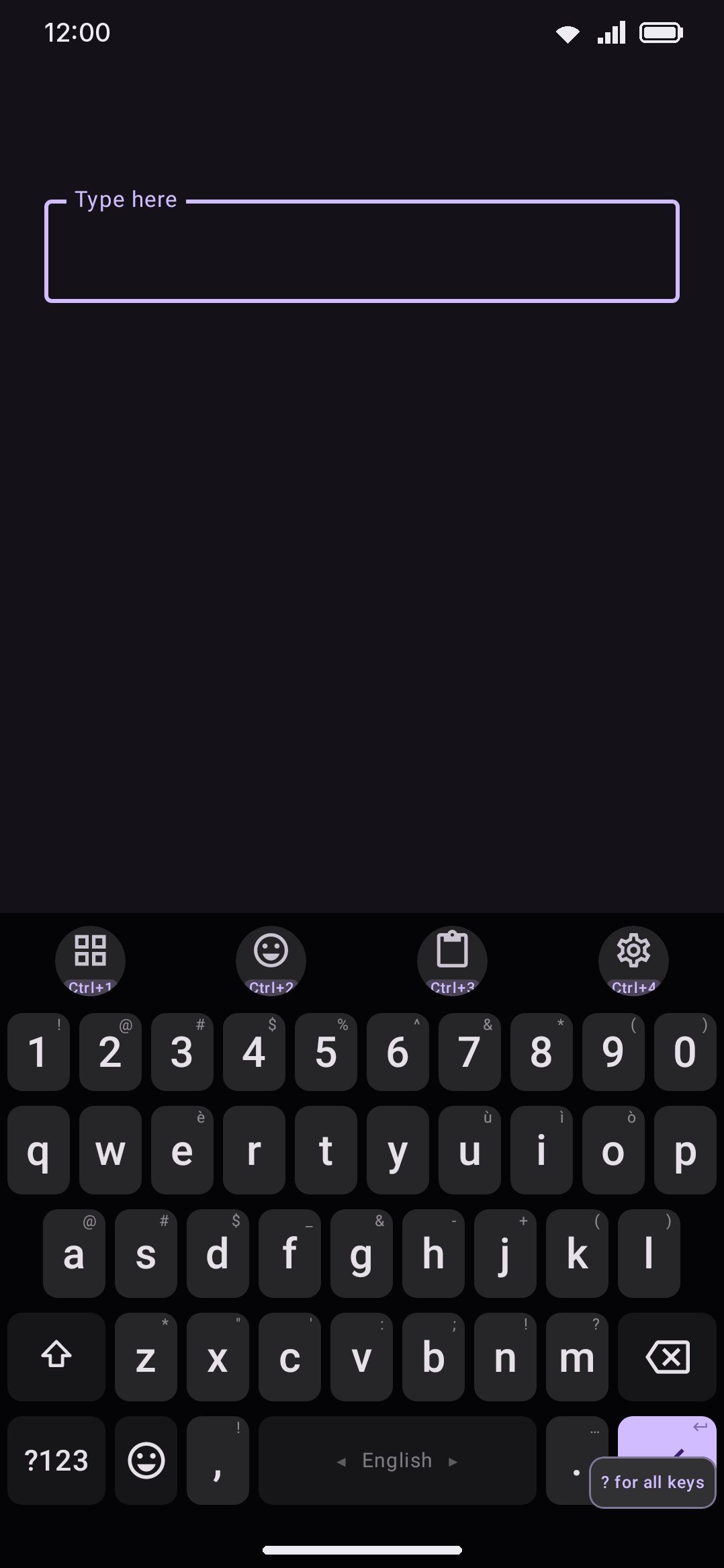
Tool shortcuts (on by default) let you open any tool without touching the screen at all. Double-tap Ctrl, a combination nothing else uses, and every button on the keyboard sprouts a small badge under its icon showing the key that operates it. Press that key and the button fires. Press nothing and the badges disappear on their own.
The badges cover everything on screen:
| Where | Key |
|---|---|
| Toolbar icons | 1 onward, counting from the toolbox button at the start |
| Toolbox tools | the tool’s own letter, or Shift+a spare key for the ones with no letter (all 26 letters first, then the digits) |
| Symbol row | Shift+a letter |
| Emoji row | Shift+1 onward, counting from the left like the toolbar |
| Suggestions | 1 to 9, left to right (see below) |
The badges spell their modifier out, Ctrl+2 and Shift+Q, because those are the names printed on a PC keyboard. WM KeyboardTypingPhysical keyboardWrite the modifier names swaps them for the shorter ⌃ and ⇧ glyphs if you’d rather have the space back.
WM KeyboardTypingPhysical keyboardTime to press a key sets how long they stay up: eight seconds by default, anywhere from one to thirty. Keep it long while you’re learning them and short once you aren’t. The keyboard does nothing else until the time runs out or you press a key.
T still opens the full toolbox from anywhere, and ? opens the cheat sheet: a complete legend of every key, including the tools that aren’t on screen to wear a badge. While the badges are up, a small ? for all keys pill in the bottom-right corner points at it. The legend has a close button of its own, so you’re never stuck in it without a keyboard.
Ctrl and a number, with no leader
Section titled “Ctrl and a number, with no leader”The toolbar’s numbers also work as a direct chord, so the common tools are one keystroke away rather than three. Ctrl+1 is the toolbox button, Ctrl+2 the first tool after it, and so on to Ctrl+0 for the tenth button. Anything past the tenth stays reachable through the toolbox.
That’s the one setting here worth a second thought before you leave it on. Browsers and editors use Ctrl+number to switch tabs, and while you’re writing in a text field the keyboard takes the key first. Turn it off and the same numbers still work after the leader key.
The tool letters
Section titled “The tool letters”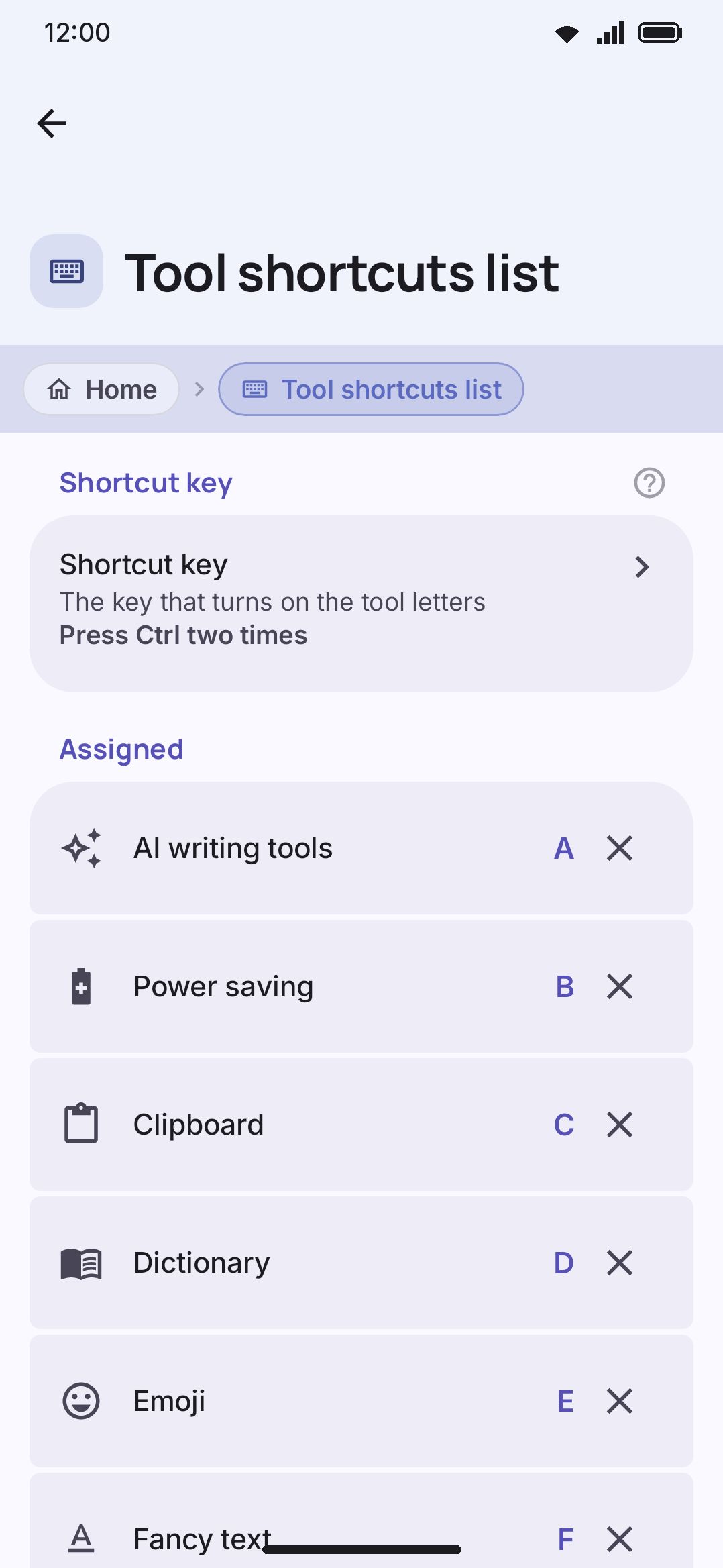
The default letter for each tool is close to its own initial, wherever that letter was still free:
| Key | Tool | Key | Tool |
|---|---|---|---|
| A | AI writing tools | O | Settings shortcut |
| B | Power saving | P | Password generator |
| C | Clipboard | Q | QR code generator |
| D | Dictionary | R | Translate |
| E | Emoji | S | Snippets |
| F | Fancy text | U | Unit converter |
| G | GIFs | V | Voice typing |
| H | Hide keyboard | W | Web search |
| I | Image search | X | Text editing |
| J | Apps | Y | Special symbols |
| K | Stickers | Z | Undo |
| L | Calculator | ||
| M | Media controls | ||
| N | Numpad |
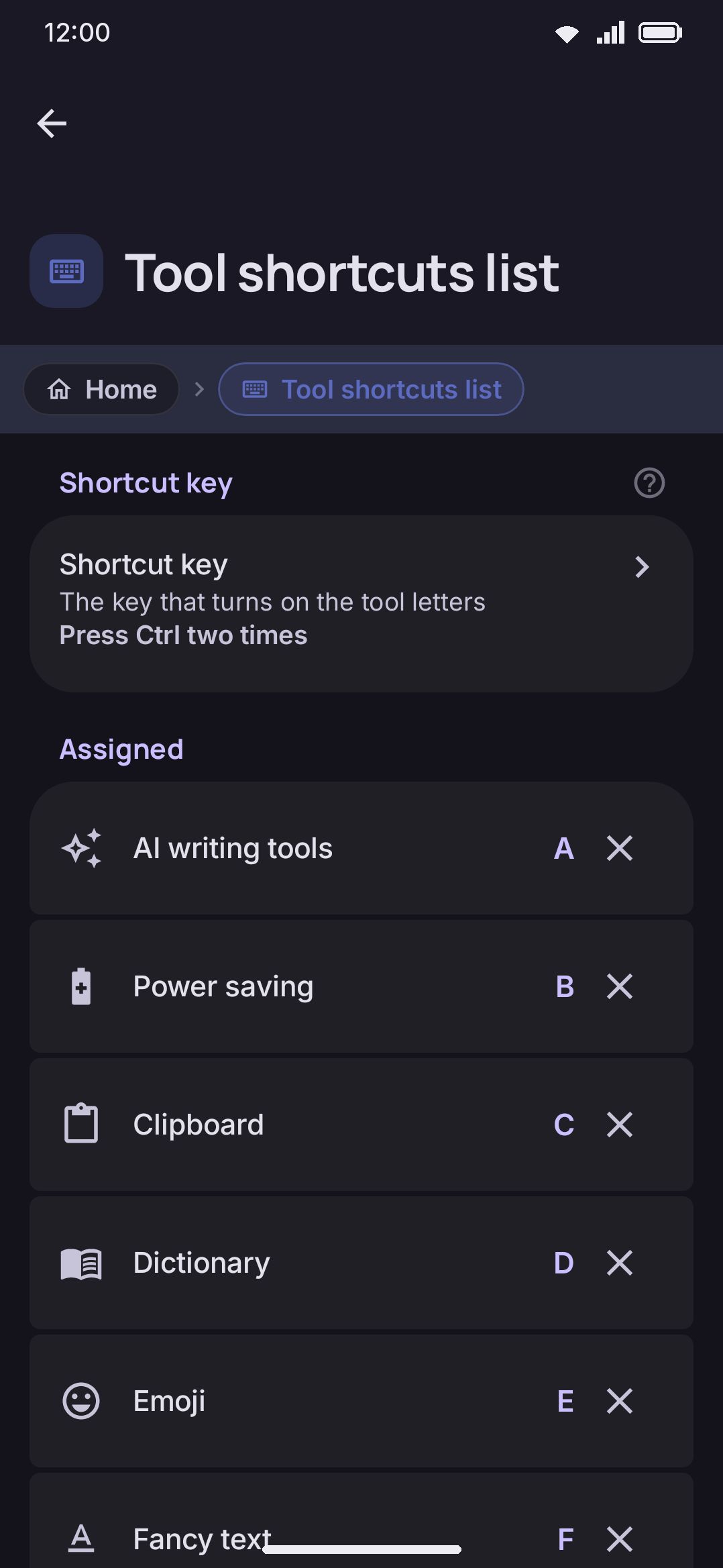
Open Tool shortcuts list to change any of it. (The screen is reachable only while Tool shortcuts is on.) Tap the shortcut key row to pick a different double-tapped modifier, Ctrl, Alt or Shift, or to capture an arbitrary chord live from an attached keyboard. Tap any tool’s row to type a new single letter or digit for it. Reset to defaults puts every letter and the shortcut key itself back the way they started.
T and ? are reserved and can never be bound to a tool: they always open the toolbox and the cheat sheet, respectively. The full binding table and cheat sheet also live in Hardware shortcuts.
There are dozens of tools and only 25 bindable letters on the bare tier (T is spoken for), so “give everything its own key” is arithmetically impossible on one tier. The ones with no letter of their own get a Shift+key assigned automatically while the toolbox is open, drawing on the letters first and then the digits. The Shift tier uses all 26 letters, Shift+T included, because only the bare T is reserved. That’s what the badges in the grid are showing. They follow the grid’s order, so they stay put unless you rearrange the toolbox itself.
Symbols and emoji from the keyboard
Section titled “Symbols and emoji from the keyboard”While the toolbox is closed, the same Shift tier goes to the symbol row and the emoji row. Double-tap Ctrl, then press Shift with the key shown under the cell you want, and it’s inserted.
The symbol row takes the letters and the emoji row takes the digits: Shift+1 for the first emoji, counting from the left exactly the way the toolbar’s numbers do. Letters against digits means the two pools can never collide, so adding a character to a symbol set never renumbers the emoji beside it.
An open toolbox takes the whole tier for itself and the rows drop their badges while it’s up. That’s deliberate: sharing would move the rows’ keys around every time a panel opened, and a key that moves is a key nobody learns.
macOS shortcuts
Section titled “macOS shortcuts”Off by default, and worth turning on for a keyboard built for a Mac. With it on, Command (the key beside the space bar, which Android sees as Meta) and Option behave the way they do on macOS:
| Chord | Does |
|---|---|
| ⌘+C / V / X / A | Copy, paste, cut, select all |
| ⌘+Z / ⌘+Shift+Z | Undo, redo |
| ⌘+← / → | Start, end of the line |
| ⌘+↑ / ↓ | Start, end of the text |
| ⌥+← / → | One word left, right |
| ⌥+⌫ | Delete the word before the cursor |
| ⌘+⌫ | Delete to the start of the line |
Hold Shift with any of the moves to select instead. Ctrl keeps its usual meaning throughout. On a Mac it’s a separate modifier with its own habits, and an app that already handles Ctrl+C should keep getting it. Every other Command chord (⌘+F, ⌘+S) goes straight to the app, and some devices let the system claim a few Command chords, which never reach the keyboard to be remapped at all.
One deliberate difference from the on-screen long-press shortcuts: ⌘+C with nothing selected does nothing, rather than selecting the whole field first. That’s what every other keyboard on a Mac does, and quietly copying a half-written message is a poor surprise.
Switching language
Section titled “Switching language”A keyboard with its own language key (some have a globe or 한/영-style key) can always switch. Press it and the keyboard moves to the next enabled language, flashing a small list so you can see where you landed. With 🌐 goes back to the last language on, it goes back to the language you used last instead, and quick presses go further back. That needs no setting and can’t collide with anything, since apps have no use for the key.
For every other keyboard there’s Ctrl+Space changes the language, on by default. Ctrl+Space works the way Alt+Tab does for windows. Keep Ctrl held and each press of Space steps through the list on screen. Add Shift to step backward. Release Ctrl and you switch to whatever is highlighted. A quick tap-and-release is a one-step switch. Esc cancels, and the rows in the list can be tapped too.
One thing to know: some apps want Ctrl+Space for themselves, code editors especially, where it shows completions. While you’re in a text field the keyboard takes it first. If that bites you, this is the toggle to turn off, and the dedicated language key and the spacebar keep working either way. ⌘+Space is untouched regardless, since it belongs to the system’s own keyboard switcher. Whether you see the list depends on Show the keyboard for shortcuts below. With that off the switch still happens, and you find out from the spacebar label the next time the keys are up.
Driving a tool with the keyboard
Section titled “Driving a tool with the keyboard”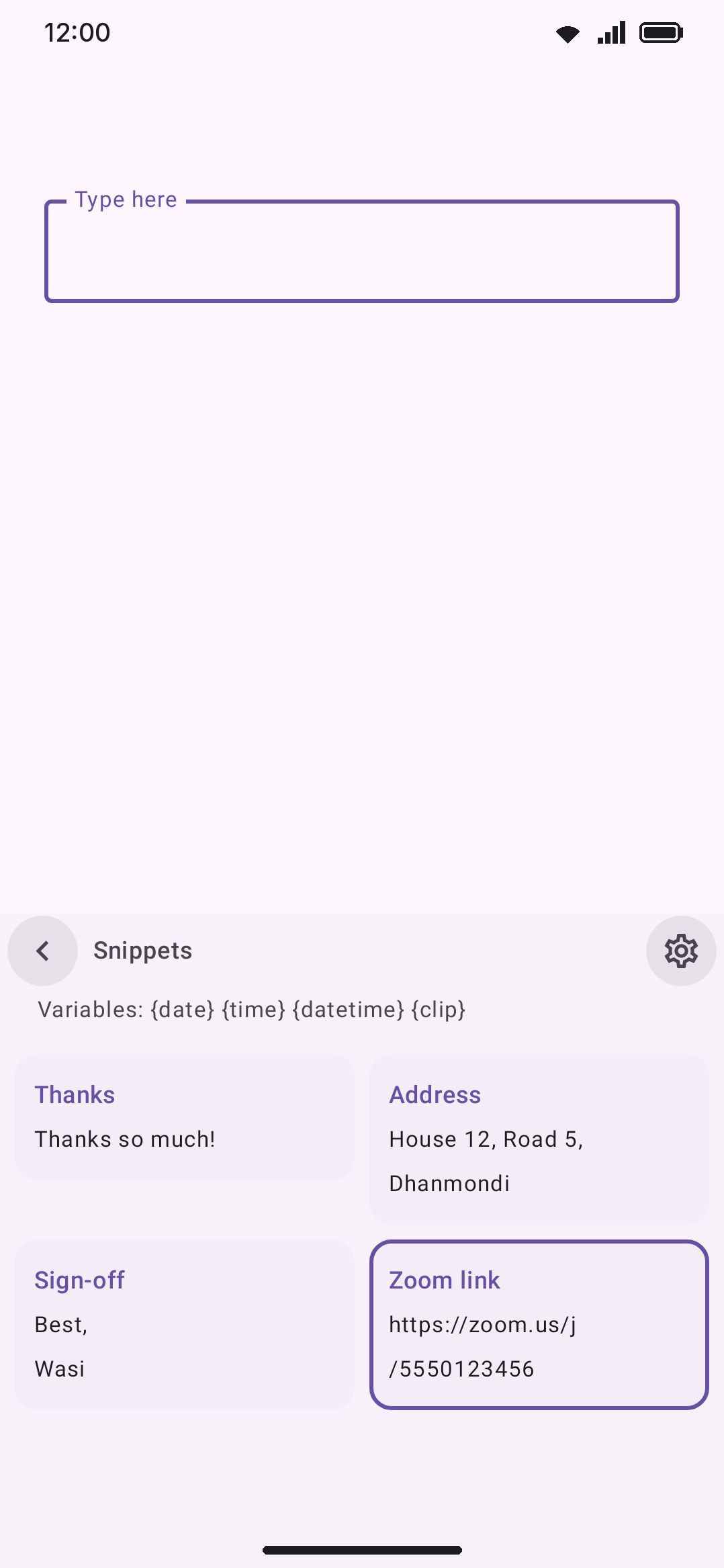
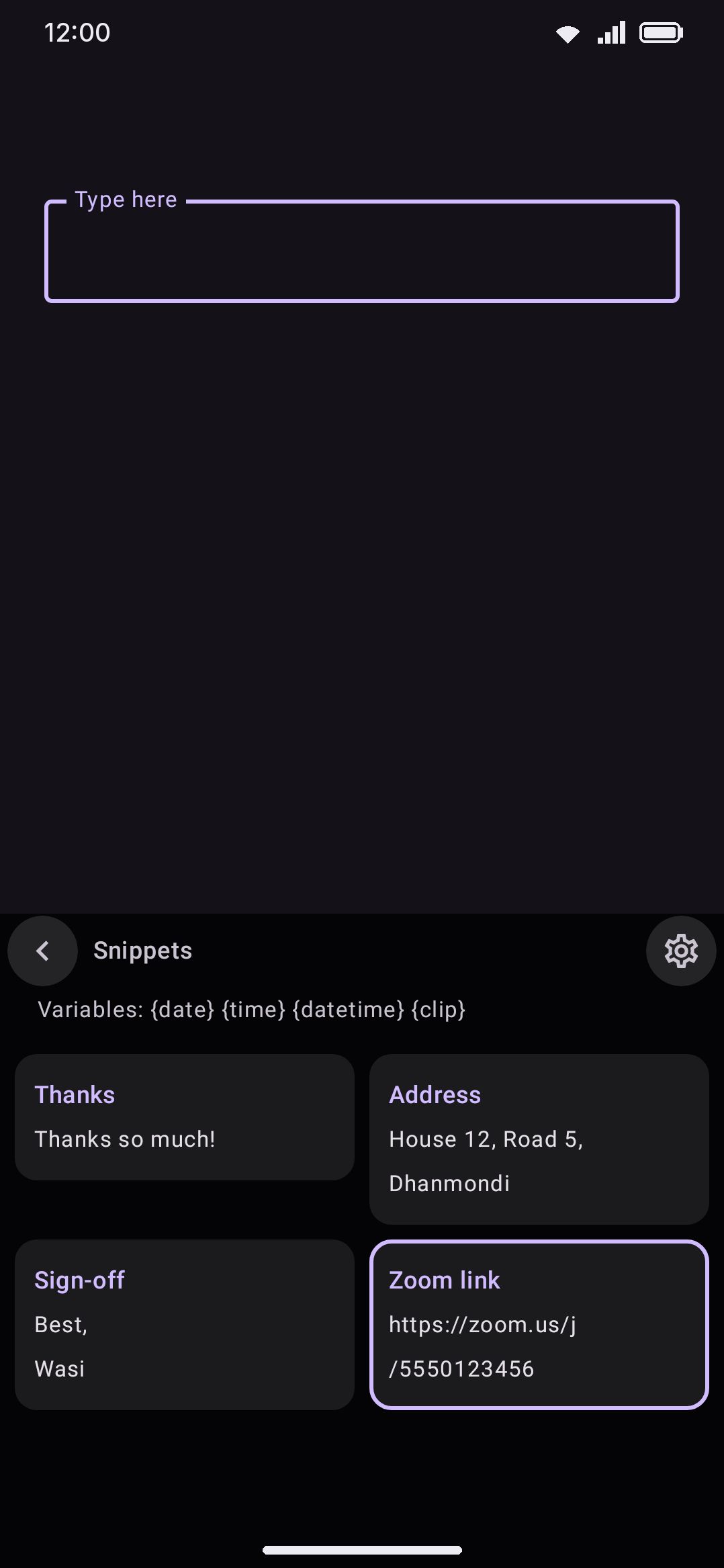
Once a tool is open, Arrow keys move a highlight (on by default) lets you drive it without touching the screen. The arrow keys move a highlighted outline over the panel’s results, chips or search box. Enter activates whatever’s highlighted. Tab jumps between the panel’s sections (search, category chips, then results) once the highlight exists. Home and End jump to a section’s first and last item, and PageUp/PageDown move four rows at a time through a long grid. The highlight is a filled, outlined ring in your theme’s accent color, and it only ever appears after you press a key. It never shows up while you’re using the keyboard by touch.
This covers nearly every tool, searchable or not: the AI panel’s actions and Replace/Insert buttons, translate’s language picker, media controls’ transport, the password generator’s options, a running plugin’s buttons and text boxes, the calendar’s month arrows and day grid, the sound & haptics switches and style chips, the weather refresh, the voice tool’s mic. The camera and scanner tools join in once they’re showing a captured photo or a scanned result. The live viewfinder itself stays touch-only.
The grammar strip is navigable too, with one difference. You’re usually mid-sentence while it’s open, so the arrows keep moving your cursor. The highlight appears only when you open the tool from the shortcut key, and Enter on an issue applies its top suggestion.
A few tools work by typing rather than highlighting. The calculator and the unit and currency converters take digits and operators straight from the physical keys (type 2*3 and the display shows 2×3), and in the calculator Enter is the = key. The text-editing and numpad panels stay touch-only on purpose, since a physical keyboard already does everything they offer. The compass, level and moon phase have no buttons at all, and the handwriting canvas is for fingers and pens.
Esc closes the tool (on by default) makes Esc shut whatever panel or picker the keyboard has open. It only consumes the key when the keyboard actually has something open. With nothing open, Esc goes straight to the app, so it still stops a page loading or backs out of insert mode in an editor.
Picking a suggestion from the keyboard
Section titled “Picking a suggestion from the keyboard”The suggestion strip can’t be tapped while you’re typing on a physical keyboard, so Number keys select suggestions gives you a keystroke instead. It has three modes:
- Off. Number keys always type digits.
- Alt + number, the default. Alt+1 through Alt+9 commit directly, with no leader key first. Browsers and chat apps sometimes claim Alt+number for tab switching, so this is the one to change if that bites.
- After the shortcut key. Double-tap the shortcut key, then press 1 through 9. Nothing else uses it, at the cost of one extra keystroke. In this mode the bare numbers belong to the strip, so the toolbar’s tools rely on the Ctrl+number chord above.
In practice the strip is what sets the ceiling, not the digits. It draws between two and six chips (WM KeyboardTypingSuggestions, Number of suggestions, three out of the box), so the numbers only ever run as far as the words you can actually see.
WM KeyboardTypingPhysical keyboardShow the suggestion numbersIn Alt + number mode the strip is the one surface that wears its badges all the time: a small Alt+1, Alt+2, Alt+3 under the words, for as long as a physical keyboard is attached. That’s on by default, and you can turn it off if you’d rather have the clean strip. After the shortcut key has no equivalent, because a bare 1 does nothing until the leader is pressed, so its numbers only appear once it is.
The numbers count slots, left to right, not the engine’s ranking. That matters if you use WM KeyboardTypingSuggestionsBest suggestion in the middle, which draws the runner-up first: the strip still reads 1, 2, 3 across, and Alt+1 commits the leftmost word you can see rather than the one the engine ranked first.
Options
Section titled “Options”| Setting | Default |
|---|---|
| Process the physical keys | On |
| Tool shortcuts | On |
| Shortcut key | Double-tap Ctrl |
| Ctrl + number opens a toolbar tool | On |
| Write the modifier names | On |
| Time to press a key | 8.0s |
| Arrow keys move a highlight | On |
| Esc closes the tool | On |
| Number keys select suggestions | Alt + number |
| Show the suggestion numbers | On |
| macOS shortcuts | Off |
| Ctrl+Space changes the language | On |
| Show the keyboard for shortcuts | On |
Show the keyboard for shortcuts covers the case where a physical keyboard is attached and there’s no reason for the on-screen keyboard to be up. Press a shortcut that opens a tool and the keyboard comes up anyway, because the tool needs somewhere to draw. It hides again once you close the tool.
A related setting lives elsewhere. WM KeyboardAppearanceToolbarOnly the toolbar with a hardware keyboard hides the key grid entirely, leaving just the suggestion strip and toolbar, whenever a physical keyboard is attached. You’re typing on the physical keys anyway. It’s off by default and doesn’t affect anything documented on this page.
Details and edge cases
Section titled “Details and edge cases”- The tool picker waits eight seconds for a key before it disarms itself. Adjustable from one to thirty under Time to press a key.
- The badges never resize the keyboard. They’re drawn over the buttons rather than added beside them, so double-tapping Ctrl can’t shove the app’s text out from under your hands.
- Toolbar badges only show when the toolbar does. With suggestions occupying the strip instead, Ctrl+number still opens the same tools, with nothing on screen to label them. The cheat sheet lists them either way.
- Reserved chords still work as a shortcut key, with a warning. Capture a chord like Ctrl+C, Ctrl+V, Ctrl+S or Ctrl+Tab as your shortcut key and the picker warns you it’s “usually the app’s own shortcut”, then lets you use it anyway. It’s a nudge, not a block.
- Process the physical keys only governs typed characters. Turning it off stops physical keys from running through autocorrect and suggestions. Tool shortcuts, panel navigation and Esc keep working regardless, since none of them touch typed text.
- No edition split. Everything on this page works the same on both the full and lite builds.
- Presence detection is automatic. The keyboard notices a physical keyboard attaching and detaching through the system’s own configuration, which is also what drives the separate “Only the toolbar with a hardware keyboard” setting above.
For the complete shortcut and cheat-sheet reference in one table, see Hardware shortcuts. For the toolbar setting that hides the key grid when a keyboard is attached, see Appearance settings.