
Text editing & cursor tools
A cursor pad, selection helpers, and undo/redo: precision editing from the keyboard.
Fixing a typo three lines up, selecting a whole paragraph, or nudging the cursor one character at a time is fiddly on a touchscreen with no physical arrow keys. WM Keyboard adds a dedicated text-editing panel, a set of one-tap cursor tools for the toolbar, and one-tap undo/redo. Together they stand in for the arrow keys and Ctrl-shortcuts a hardware keyboard would give you.
Moving and selecting text
Section titled “Moving and selecting text”Open Text editing from the toolbar, or from the toolbox if you haven’t pinned it there (see the toolbar for pinning and the toolbox in general). On a hardware keyboard, use the leader key: double-tap Ctrl, then press X.
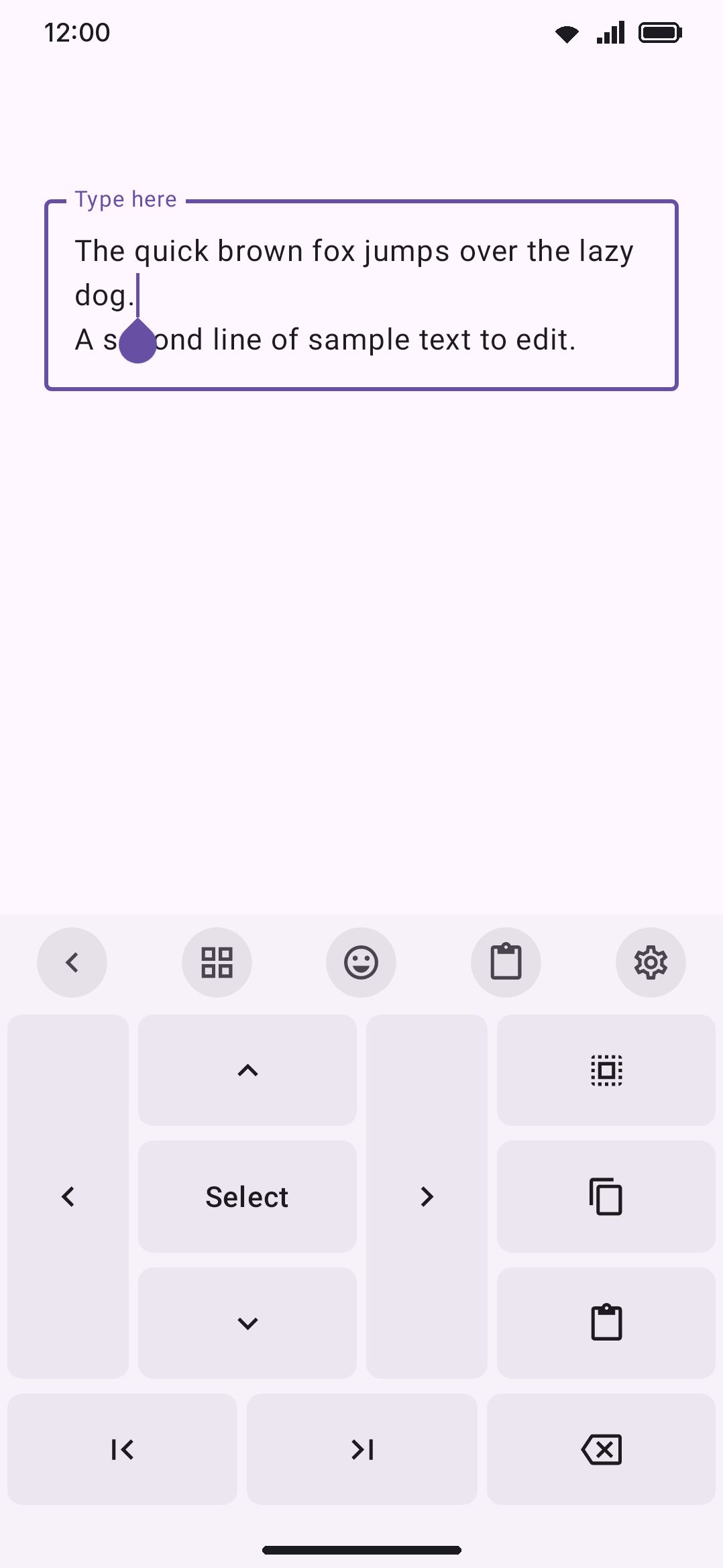
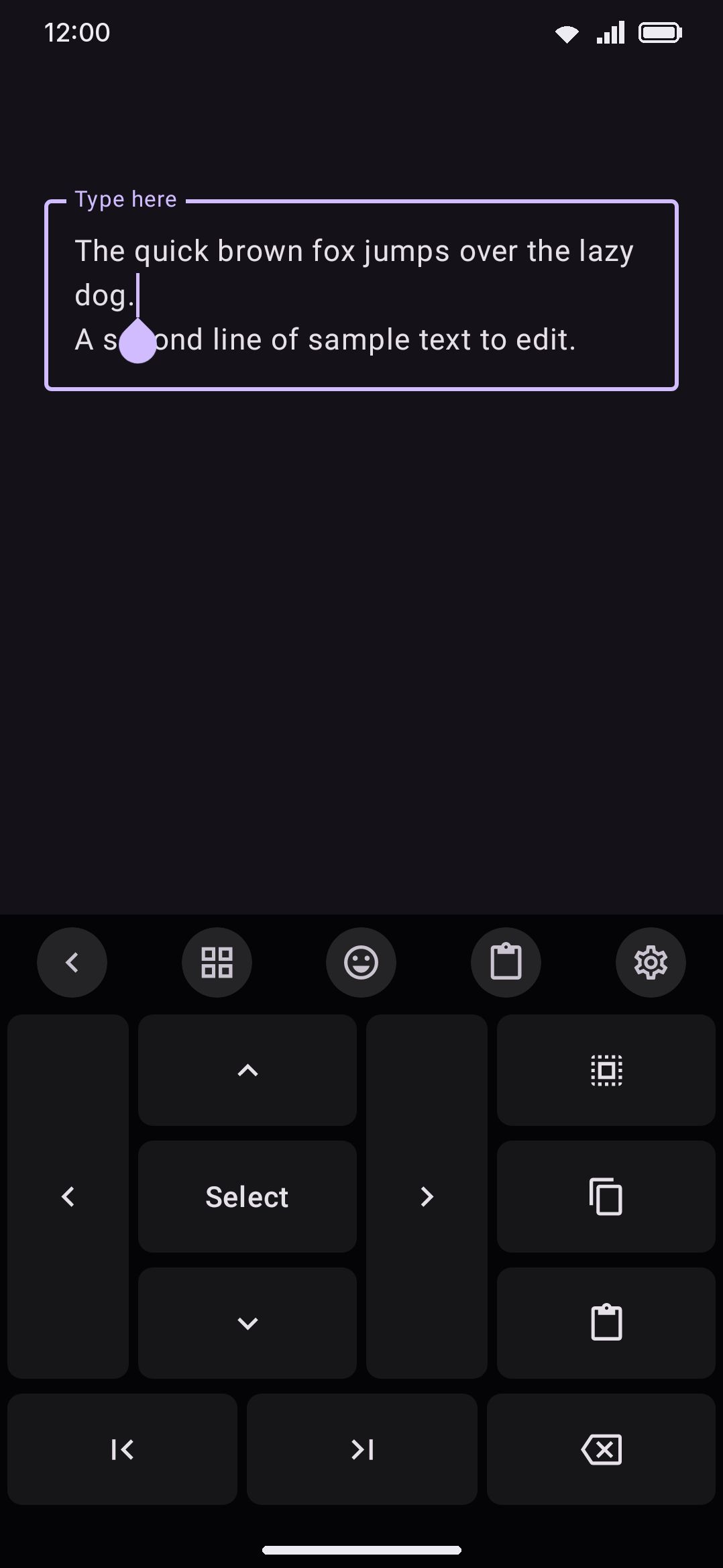
The panel is a d-pad cluster: ◀ and ▶ span the full height on either side, with ▲, a Select toggle, and ▼ stacked in the middle. A bottom row adds Home, End, and Backspace. Each of those keys sends the field a real key event, the same one a hardware arrow key would send, rather than a movement the keyboard computed itself. So the cursor behaves exactly as it would with a physical keyboard plugged in.
Tap Select to turn selection mode on. The key lights up while it’s active. With Select on, every arrow, Home, or End move extends the selection instead of just moving the caret. The panel wraps each move in a real Shift press rather than a background modifier flag, since some editors only pick up Shift state from the key events themselves. Tap Select again to turn it off, or see below for the two actions that flip it automatically. The toolbar’s Selection mode tool is the same mode from outside the panel: either one turns it on, either one turns it off, and both light up while it’s on. The difference is how long it lasts. The panel’s toggle ends when the panel does, and the tool’s mode stays on until you press it again.
Select answers the same three gestures the tool does. One tap toggles, two quick taps select the word at the cursor, three select the line, and a press and hold turns selection mode on only for as long as your finger stays down. Both extra gestures read the same two switches under WM KeyboardToolsSelection modeOptions the tool does, so turning either off turns it off on both surfaces. The one thing that overrides the hold is a long press you assigned yourself: give a Select key alternates in the layout editor and the hold opens those instead, which the editor warns you about as you bind them. Tapping is never affected.
Once something is selected, the keyboard can offer what to do with it: Selection actions puts the edits, a find and replace, the case options, Call, Open, QR and a good deal more above the keys, depending on what you selected. That bar is off by default and lives under Advanced.
Holding ◀, ▶, ▲, ▼, or Backspace auto-repeats after the keyboard’s own key repeat delay, then keeps repeating at an interval you can tune (see Options below). That start delay defaults to 300 ms and is adjustable from 150 to 800 ms under Key press.
Copying, pasting, and cutting
Section titled “Copying, pasting, and cutting”The panel’s second column holds Select all, Copy, and Paste. There’s no Cut button in the panel: cutting lives elsewhere, as a press-and-hold letter shortcut (see below).
- Select all selects the whole field and doesn’t touch selection mode either way, so a follow-up arrow key moves the caret unless selection mode was already on for some other reason. It’s also a toolbar tool of its own (see below), so it needn’t cost a panel.
- Copy copies the current selection and turns selection mode back off.
- Paste inserts the clipboard content at the cursor (replacing any selection) and doesn’t touch selection mode either way.
All three also exist as their own toolbar tools, Copy, Cut and Paste, under the Quick actions group in WM KeyboardTools. Pin any of them and the operation costs one tap with no panel to open first. They do exactly what the panel’s keys do, including copy and cut ending selection mode. Copy and cut work before you unlock the phone; paste doesn’t, because the clipboard isn’t readable yet.
Copy and paste run through the target field’s own handling, the same as if you’d triggered them from that app’s text-selection menu. What exactly gets copied, and whether a “Copied” system toast appears, therefore follows the app you’re typing into. WM Keyboard can add its own “Copied” confirmation on top, off by default, under WM KeyboardClipboardPanel (see Clipboard manager).
Pasting into a password field clears the system clipboard afterward by default, so a copied password doesn’t linger (also configured on the Clipboard manager page, not here).
One-tap cursor tools for the toolbar
Section titled “One-tap cursor tools for the toolbar”The panel above costs one tap to open and another to act. If you reach for the same cursor move often, pin its toolbar tool instead and skip the panel entirely. They call the same underlying handler, so the move itself is identical either way. The toolbar adds two things the panel has no room for: Shift extends the selection, and a hold repeats the move.
| Tool | What it does |
|---|---|
| Cursor left / Cursor right | Move the cursor one character |
| Word left / Word right | Jump a whole word (Ctrl+Arrow) |
| Cursor up / Cursor down | Move the cursor a line |
| Line start / Line end | Jump to the start or end of the line |
| Page up / Page down | Scroll the cursor a page |
| Select word | Select the word at the cursor |
| Select line | Select the entire line at the cursor |
| Select all | Select the whole field |
| Selection mode | Every cursor move selects text until you turn it back off |
Select all is the panel’s Select all key on the toolbar: it selects the whole field and leaves selection mode where it found it. Select word and Select line don’t send Ctrl+Shift+Arrow. The keyboard works out the word or line boundaries around the cursor itself and sets the selection directly. Both turn selection mode on afterward. Both do nothing if the cursor sits on whitespace or punctuation with no word to grab, or on an empty line.
Hold Shift to select
Section titled “Hold Shift to select”Tap Shift before a cursor tool and the move extends the selection instead of collapsing it, the way Shift+Arrow does on a physical keyboard. Shift lock works too, which is the easier one for dragging a selection out over several taps. Shift isn’t spent by the move, so it stays on and every following tap keeps extending. To stop, tap Shift again: that puts it back down and leaves the selection where it is. One more Shift tap after that, with the selection still standing, re-cases it (see Details & edge cases).
Only a Shift you pressed yourself counts. The keyboard arms Shift by itself at the start of a sentence, and an ALL CAPS field arms the lock, so reading those would turn an ordinary cursor tap into a selection you never asked for and your next keystroke would type over it.
Auto-capitalize leaves your Shift alone while a selection is live, so the second tap extends the selection instead of dropping it.
A held or locked Shift reaches every cursor move you make from the keyboard itself, not only the toolbar’s tools: the spacebar cursor swipe on both axes, the volume keys when they’re set to move the cursor, and a layout’s own arrow keys. Lock Shift and scrub the spacebar and you’re dragging a selection out with one thumb each. The text-editing panel as shipped has no Shift key, so its own Select toggle is the answer there, unless you put a Shift key on the panel in its layout editor, where it works exactly like this.
Selection mode
Section titled “Selection mode”Selection mode is the toolbar’s version of holding Shift down, without a hand tied up doing it. Press it once and it stays on: from then on every cursor move extends the selection instead of collapsing it. Press it again to turn it off. The tool lights up while it’s on, and so does the panel’s own Select key, because they’re the same mode seen from two places.
Every cursor move obeys it, not just the toolbar’s:
- the arrows, Home and End in the text-editing panel
- the one-tap cursor tools above
- the spacebar cursor swipe, including its 2-D mode
- the volume keys, when you’ve set them to move the cursor
- arrow keys on the keyboard itself, on a layout that has them
That’s the point of a mode over a held Shift: whichever hand you’d normally move the cursor with is free to do it, and navigating never cancels the selection you’re building.
Turning it off keeps the selection. Only the extending stops, so what you’ve selected is still there to copy, cut, or type over.
Two more gestures on the same button:
- Press and hold for a temporary mode. Selection mode is on for as long as your finger stays down and off the moment you let go, again leaving the selection intact. Good for one quick selection when you don’t want to remember to switch the mode back off. It’s on by default and can be turned off under Options.
- Press twice quickly to select the word at the cursor, or three times to select the line. Both leave the mode on, so you can widen the selection from there with any cursor move. The first press of a pair still toggles the mode, exactly the way the first tap of a Shift double-tap still arms Shift. If that trips you up, the shortcut is switchable off.
Selection mode ends by itself when you move to a different text field, and a press and hold ends when the keyboard closes. It survives everything else: panels opening and closing, layout switches, and any amount of cursor movement.
Hold to repeat
Section titled “Hold to repeat”Holding a cursor tool on the toolbar keeps the move going for as long as your finger is down, at the same repeat interval the panel uses. It saves a tap per character when you’re crossing a paragraph.
Eight tools repeat: Cursor left, Cursor right, Word left, Word right, Cursor up, Cursor down, Page up and Page down. Line start, Line end, Select word, Select line and Select all don’t, because a second press of any of those lands exactly where the first one did. Selection mode doesn’t either: its hold is the temporary mode described above.
The toolbox grid can do it too, but that one is off until you ask for it, one tool at a time. See Options for why.
Two things a hold does on every other tool are worth knowing about here:
- Hold and drag still moves the tool. Once your finger travels far enough to read as a drag, the repeat stops and the tool picks itself up as usual. The moves it already made stay, so a deliberate drag costs you a caret move or two. Move the caret back afterward.
- Hold opens a tool’s settings page. Repeat spends that gesture on whichever surface it’s turned on for. With the toolbar switch on and the toolbox one off, which is how it ships, a toolbox hold still opens any tool’s page. Turn a tool’s toolbox switch on as well and that tool’s page is only reachable under WM KeyboardTools.
A Hide keyboard tool (one tap dismisses the keyboard) shares the Cursor section with these on the WM KeyboardTools screen, but it isn’t a cursor move itself.
None of the cursor tools is pinned to the toolbar out of the box, and Text editing is pinned only on a large tablet. A phone’s default row is Emoji, Clipboard and Settings, a small tablet adds GIF and Voice, and a large tablet adds Translate and Text edit on top of those. A pinned tool that setup left switched off is dropped from the row rather than drawn dead, so the “keep it simple” answer on a large tablet gets five of the seven. Everything else waits in the toolbox. The onboarding answer matters too. “Recommended” turns on Text editing, Undo and Redo, but leaves out the numpad, Hide keyboard and every cursor tool above. If you don’t see one, open WM KeyboardTools and turn it on.
Undo and redo
Section titled “Undo and redo”The toolbar’s Undo and Redo tools fire immediately, with no panel: one tap sends the field’s own undo or redo keyboard shortcut. Undo always sends Ctrl+Z. Redo sends Ctrl+Shift+Z by default, or Ctrl+Y if you flip the redo shortcut setting.
This isn’t a typing history WM Keyboard keeps of its own. It has no way to reach into another app’s private undo stack. It sends the same shortcut a hardware keyboard would, and relies entirely on the app you’re typing in supporting it: an editor with no undo shortcut just ignores the tap.
The numeric keypad
Section titled “The numeric keypad”Numpad opens a dedicated 4×4 number pad over whatever field you’re in. Don’t confuse it with the keyboard switching to a numeric layout on its own, which happens in a field already typed as a phone or number field. Numpad is a panel you open by hand, and it works over any field, numeric or not.
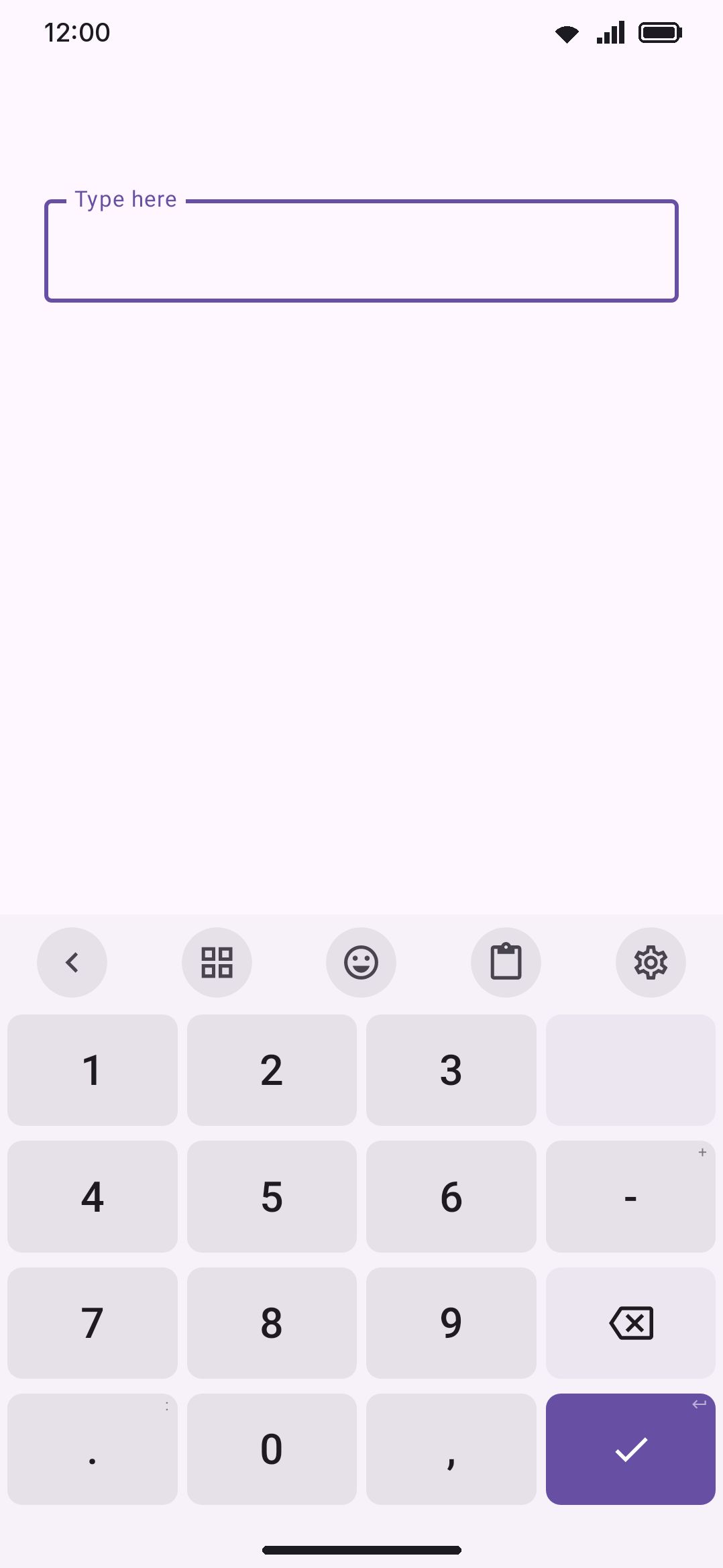
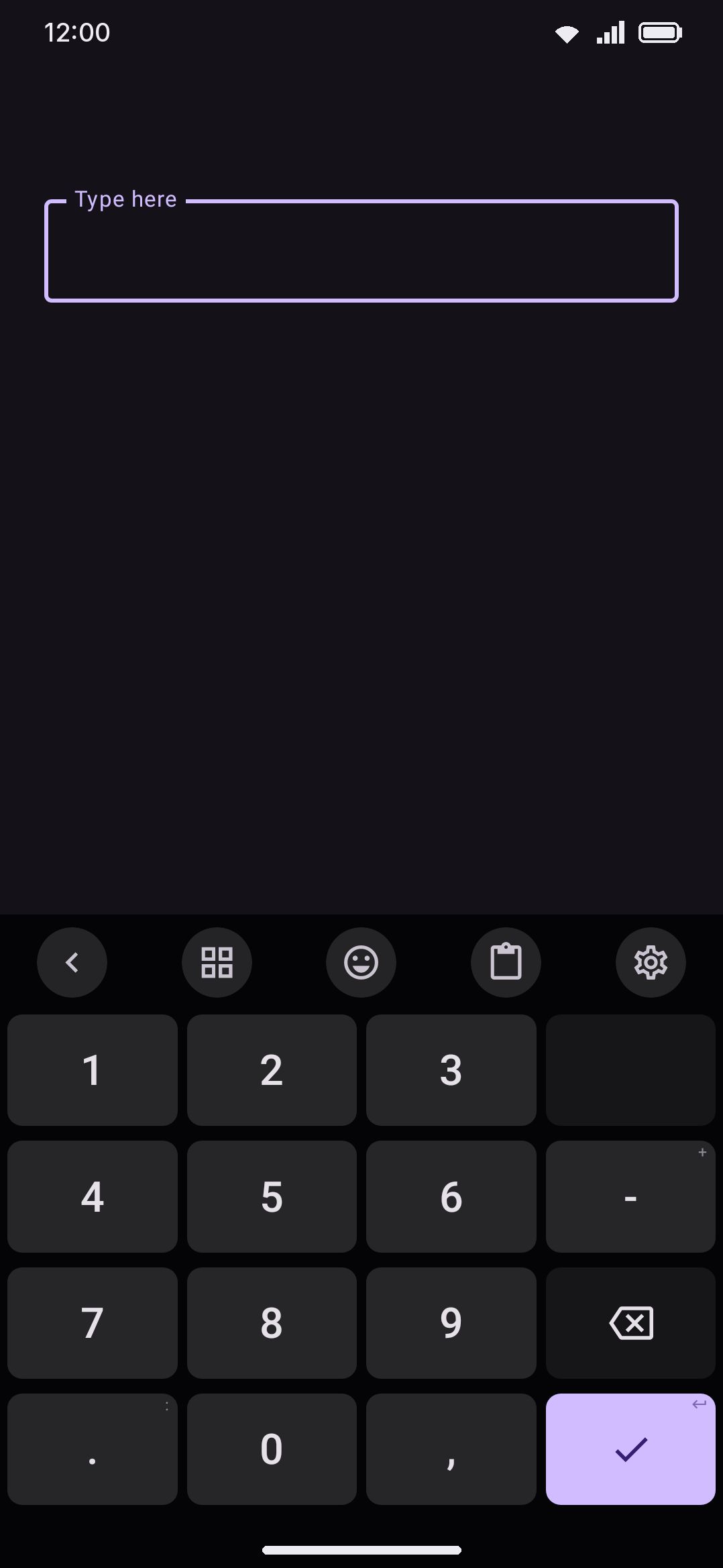
It comes in two layouts, switched under Options:
- Phone-style (default):
1 2 3 ⌫/4 5 6 +/7 8 9 −/. 0 , ⏎ - Calculator-style:
7 8 9 ⌫/4 5 6 +/1 2 3 −/. 0 , ⏎
Backspace repeats on hold like the rest of the keyboard, and Enter sends a normal Enter key.
The quick alternative: spacebar cursor swipe
Section titled “The quick alternative: spacebar cursor swipe”You don’t have to open a panel at all for the most common move: sliding the cursor a short distance. By default, a long swipe on the spacebar moves the cursor (a short swipe switches language instead), and there’s an optional 2-D touchpad mode that adds vertical line movement to the same gesture. Full mechanics, including how to reassign what each swipe length does, live on Gestures.
Options
Section titled “Options”Text-edit panel repeat speed
Section titled “Text-edit panel repeat speed”Key repeat interval: default 60 ms, adjustable from 30–200 ms. It sets the pause between repeats while you hold an arrow key in the panel, and while you hold one of the toolbar’s cursor tools. The panel’s two delete keys are the exception: they repeat at the keyboard’s own Key repeat interval for delete under Key press, because they are the delete keys — see below. Lower is faster. The delay before repeating starts is the keyboard’s own key repeat delay in the panel, and the system’s long-press timeout on the toolbar.
Panel layout
Section titled “Panel layout”The panel’s grid is a panel layout: the same editor, the same key sheet and the same undo as a key layout. The row reads Standard until you change something, then Your own.
Every key on the panel is a key whose action is a text editing action, one of twenty-one: the four arrows, word left and right, page up and down, start and end of the line, start and end of the text, Select, Select all, Select word, Select line, Cut, Copy, Paste, Delete and Forward delete. Pick a key in the preview and the sheet lets you change its action, its width in grid units, how many rows it covers, and its alternates for press and hold. You can also put ordinary keys on the pad: Enter, a tool key, or anything else the Action picker offers.
Press and hold only works on keys that don’t repeat. The four arrows, word left and right, page up and down, Delete and Forward delete all repeat while you hold them, at the repeat interval above, and that’s the point of holding them, so the sheet doesn’t offer alternates on those. Everything else (Home, End, start and end of the text, Select, the selects, Cut, Copy, Paste) has a hold going spare, and that’s where an alternate goes. Holding such a key opens the alternates popup, the way it does on any key of the keyboard, and sliding onto the entry and letting go runs it.
The pad’s Delete and Forward delete are the keyboard’s own delete keys. They carry every gesture the key on the letters row has: a swipe takes words or characters with the same select-first preview, Holding delete clears words applies, and each stops at the end of the text it eats into. They use the delete key’s repeat interval rather than the panel’s for the same reason. Delete takes what is behind the cursor; Forward delete takes what is ahead of it, and its swipe runs rightward. See Gestures for the settings that shape both.
Two of those pairings ship: Home and End hold to the start and end of the text rather than the line. Widths and spans mean exactly what they mean in a key layout, and the panel places them with the same geometry the keyboard draws its keys with, so the tall left and right arrows in the standard arrangement are simply a key three rows deep. The pad has no component cell, so its rows share the height of the key area by their row heights. Use the standard layout at the bottom of the editor puts the shipped layout back.
A layout you made on an earlier version, when the pad had an editor of its own, carries over the first time this version reads it, key for key.
Hold a cursor tool to repeat
Section titled “Hold a cursor tool to repeat”Hold to repeat on the toolbar: on by default. Holding one of the eight repeating cursor tools on the toolbar keeps moving the cursor. Turn it off and a hold there opens that tool’s settings page instead, the way a hold on any other toolbar tool does. It’s one switch shown on all eight of their settings screens, so flipping it on any one of them flips it everywhere.
Hold to repeat in the toolbox: off by default, and this one is per tool. Turn it on and holding that tool in the toolbox grid repeats the move as well.
It’s per tool, and off to start with, because of what it costs. A hold in the toolbox is how you reach any tool’s settings page from the keyboard. A tool that repeats there has spent that gesture, so its own page is then only reachable under WM KeyboardTools. That’s a fair trade for the one or two moves you actually hold down and a bad one across the whole grid, which is why it’s answered a tool at a time rather than all at once.
The Key repeat interval slider sits under both, the same slider the text-editing panel uses, and it shows as soon as either surface repeats. Dragging a tool to move it survives both switches on both surfaces.
Selection mode gestures
Section titled “Selection mode gestures”Press and hold to select: on by default. Holding the tool on the toolbar turns selection mode on until you let go. Turn it off and a hold there opens the tool’s settings page instead, the way a hold on any other toolbar tool does.
Two presses select a word: on by default. Two quick presses select the word at the cursor and three select the line, on the same 350 ms window the Shift key uses for caps lock. Turn it off if you flip the mode on and off faster than that and don’t want a word selected on the way past.
Both switches cover the panel’s Select key as well as the toolbar tool. The two buttons count their taps separately, so alternating between them never reads as a double tap.
Dragging the tool to move it works with either switch on: once your finger travels far enough to read as a drag, the mode ends and the tool picks itself up as usual.
Numpad layout
Section titled “Numpad layout”Calculator-style layout: off by default. It puts 7 8 9 on the top row like a desk keypad instead of 1 2 3 like a dialer. It only reaches the shipped pad: a pad you laid out yourself is drawn as you laid it out.
Panel layout: the pad is a panel layout like the text editing pad, so it has a shared grid under Key layouts → Panel layouts, a tab in every key layout’s editor for a grid of that layout’s own, and with them a theme, a “keep this layer open” switch, press-and-hold alternates on its keys, and any key the Action picker offers. What the keyboard draws, in order: the typing layout’s own Numpad tab, the shared Numpad layout if you changed it, the layout’s own Number layer if it authored one (key for key, in the order it drew them), and last the shipped pad in the digit order the switch above asks for.
Undo/redo shortcut
Section titled “Undo/redo shortcut”Redo sends Ctrl+Y: off by default, so Redo sends Ctrl+Shift+Z. The same toggle appears on both the Undo and Redo tool’s own settings screen. Both are standard redo shortcuts, and which one an app responds to varies. If redo does nothing, flip this.
Press and hold shortcuts
Section titled “Press and hold shortcuts”One Hold shortcuts row with six chips, all on by default. Each one puts its command at the end of that letter key’s press-and-hold popup, after the accents:
- Select all
- Copy: copies the current selection. If nothing is selected, it selects everything first.
- Cut: the same rule as copy, but it cuts.
- Paste: pastes the clipboard at the cursor, replacing any selection.
- Undo: the same shortcut as the toolbar’s Undo tool.
- Redo: the same shortcut as the toolbar’s Redo tool.
A Shortcut keys row sits under them. A, C, V, X, Z and Y are the QWERTY answer, so on a layout with no Latin letters that row is where you move the six onto keys you actually have.
This is the only place cut lives: there’s no Cut button in the text-editing panel itself, and no Cut toolbar tool.
Details & edge cases
Section titled “Details & edge cases”- Shift on a live selection re-cases it rather than switching Shift off, with one exception: a Shift that’s currently holding the selection open. There the first tap is read as putting the modifier down, so a selection you dragged out with Shift can always be ended with the same key; the tap after that re-cases. That’s the “Tapping Shift with text selected cycles its case” toggle in the next bullet, on by default; turn it off and Shift goes back to being a plain Shift.
- Two Typing-screen toggles change what Select mode does elsewhere on the keyboard, even though neither is on this page’s own settings screens. Typing a bracket or quote with text selected wraps the selection in the pair instead of replacing it (on by default). Either half works:
(and)both turn a selected “abc” into “(abc)”. Tapping Shift with text selected cycles its case instead of arming Shift for the next letter (also on by default, and a no-op in caseless scripts like Bengali). Both live under WM KeyboardTypingAutomatic corrections. - Every tool on this page works before you’ve unlocked your device for the first time after a restart (direct boot). The panel, the cursor tools, undo/redo and the numpad only touch the input connection, never stored data, so none of them wait on your device being unlocked. Compare Media controls, which can’t.
- Nothing here is edition-gated. The panel, every cursor tool, undo/redo, and the numpad all work identically on the full and lite builds.
- The hardware leader key reaches Text editing (X) and Numpad (N) as panels, and fires Undo (Z) directly. There’s no leader-key letter for Redo or for any individual cursor tool.
- All copy and paste actions here go through the target app’s own text-selection handling, not a WM-Keyboard-side clipboard bypass (see Clipboard manager for the separate clipboard history panel these actions feed into).