
Keyboard modes
Per-app and per-field profiles with auto-activation.
Keyboard modes is a single screen with two levels: a list of modes, and a per-mode editor that decides what a mode changes and when it turns on. This page walks the settings screen itself. For the concepts behind modes, including how activation is resolved and how the on-keyboard Modes tool overrides the pick by hand, see Modes & the symbol row.
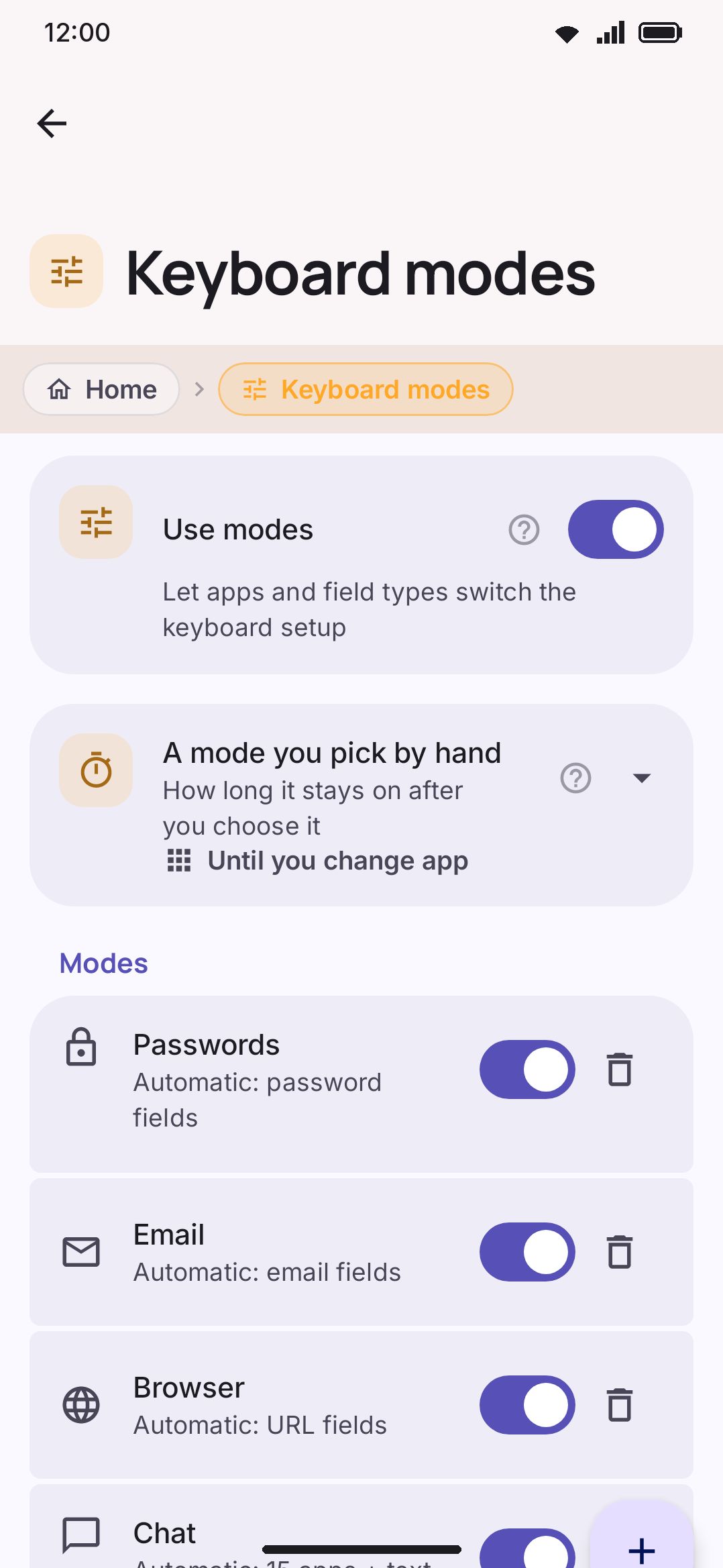
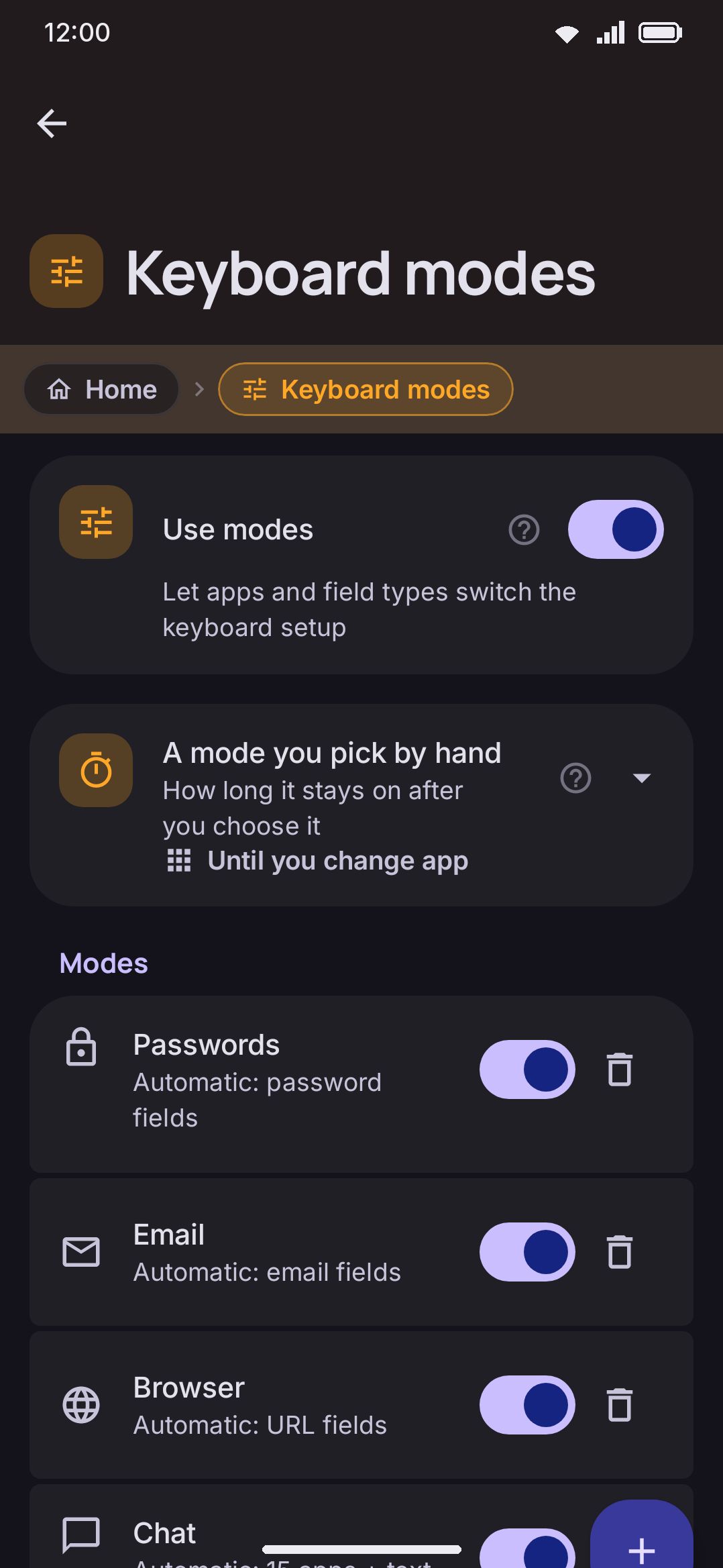
You reach this screen three ways: Home → Keyboard modes, the settings search index, or the on-keyboard Modes tool’s own settings entry (Edit the keyboard modes, which shows the live mode count as its value). All three land on the same list.
The modes list
Section titled “The modes list”The first control on this screen is Use modes, the master switch for the whole feature, on by default. Turn it off and the keyboard uses one setup everywhere: no mode ever activates, the Modes tool disappears from the toolbar and the toolbox, and per-mode themes and tool sets stop applying. Your modes are kept, not deleted. The list below stays on screen and stays editable, and turning the switch back on restores every one of them exactly as it was. Turn it off if you found your emoji row or pinned tools different in another app and would rather they never moved. Turning it off also hides A mode you pick by hand just below and the whole Rearrange tools group at the foot of the screen. Neither controls anything while no mode can activate.
Under it, A mode you pick by hand chooses how long a manual pick from the Modes tool lasts: Until you change app (the default) or Until you change it. It sits above the list because it governs every mode. See Rearranging tools below for the other list-level control.
Below those, each mode’s row shows its icon, its name, and a one-line summary of what triggers it. A mode with no apps, field types or hints bound reads “Manual only, from the Modes tool”. Everything else reads “Automatic:” followed by the app count, the field types and/or the hint count it’s bound to, joined with a + because all of them have to match. The shipped Chat mode reads “Automatic: 15 apps + text, notification replies fields”. Tap a row to open that mode’s editor. The switch at the end of the row is the mode’s own on/off: turn it off and the mode never activates, the Modes tool stops listing it, and its row reads “Off. Its setup is kept” in place of the summary. Everything inside it stays as it was, so it comes back whole when you turn it on again. Next to the switch, the bin icon opens a “Delete name?” dialog that asks first.
New mode adds a row and opens a fresh editor. The mode isn’t written to disk until you make your first edit inside it; backing out of an untouched new-mode editor leaves nothing behind.
Editing a mode
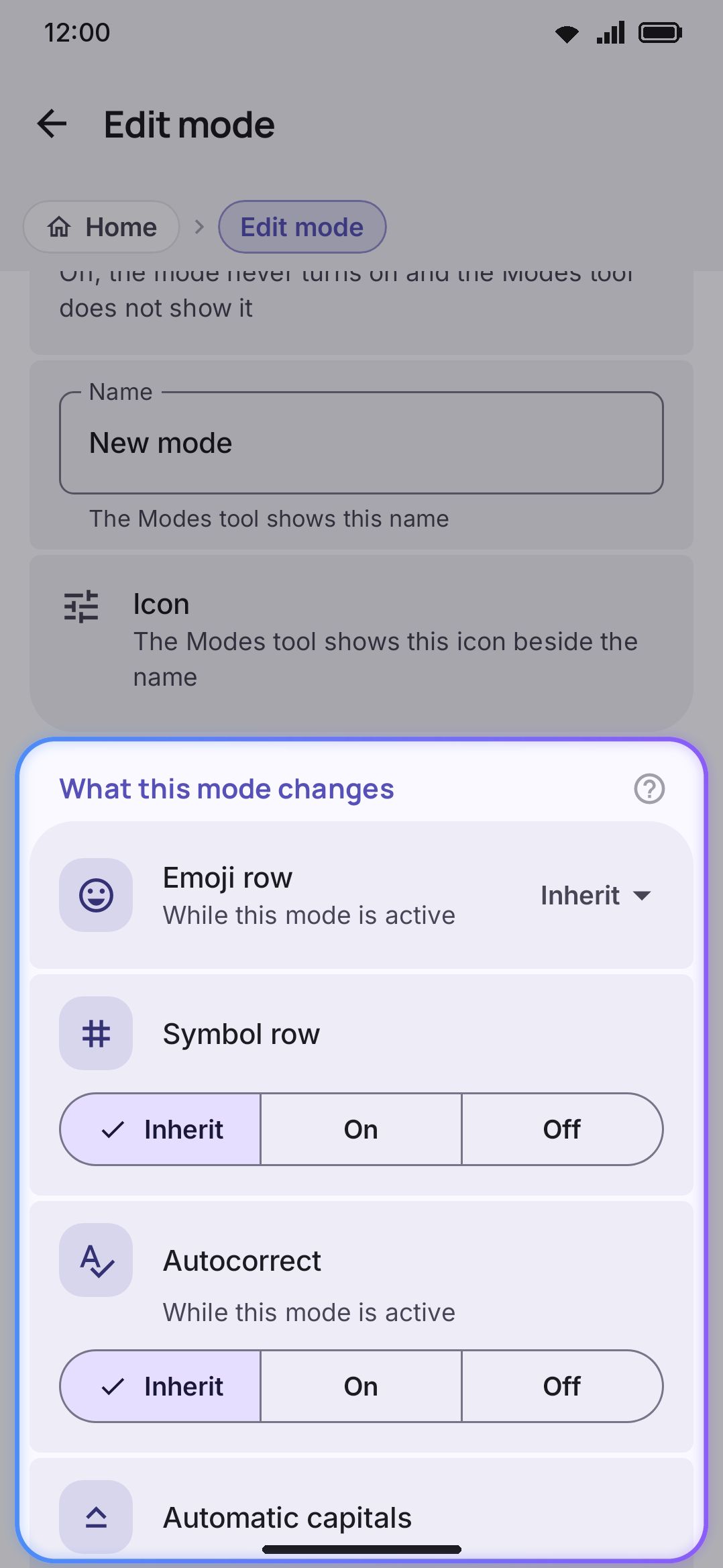
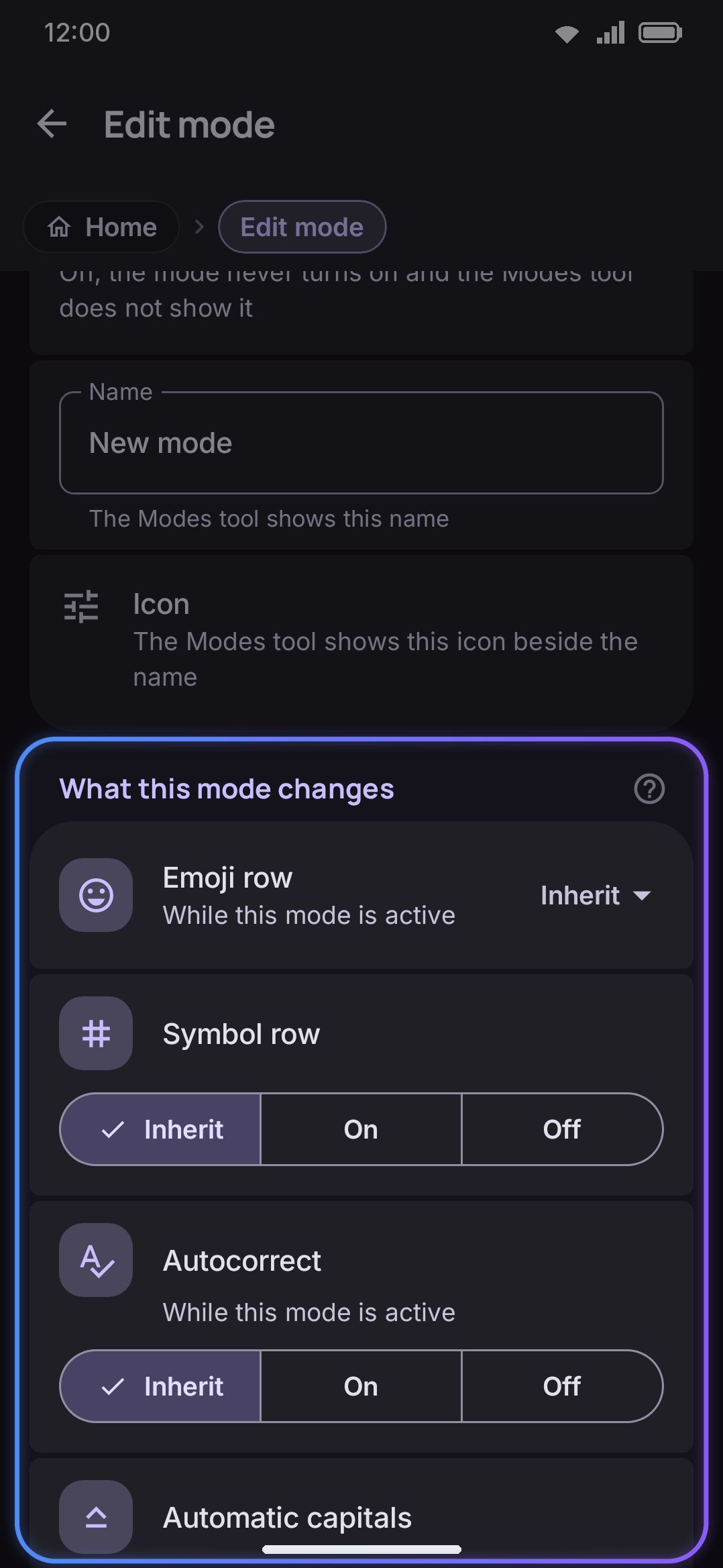
Section titled “Editing a mode”Tapping a mode opens Edit mode, starting with its Name (shown in the Modes tool) and Icon: a picker of 36 bare-icon chips (tune, chat, forum, write, note, article, book, mail, lock, shield, key, web, search, code, terminal, work, school, science, home, person, group, call, shopping, money, calendar, game, music, video, camera, palette, travel, fitness, cloud, bolt, star, favorite) in a scrolling grid, no text labels or clear option.
What this mode changes
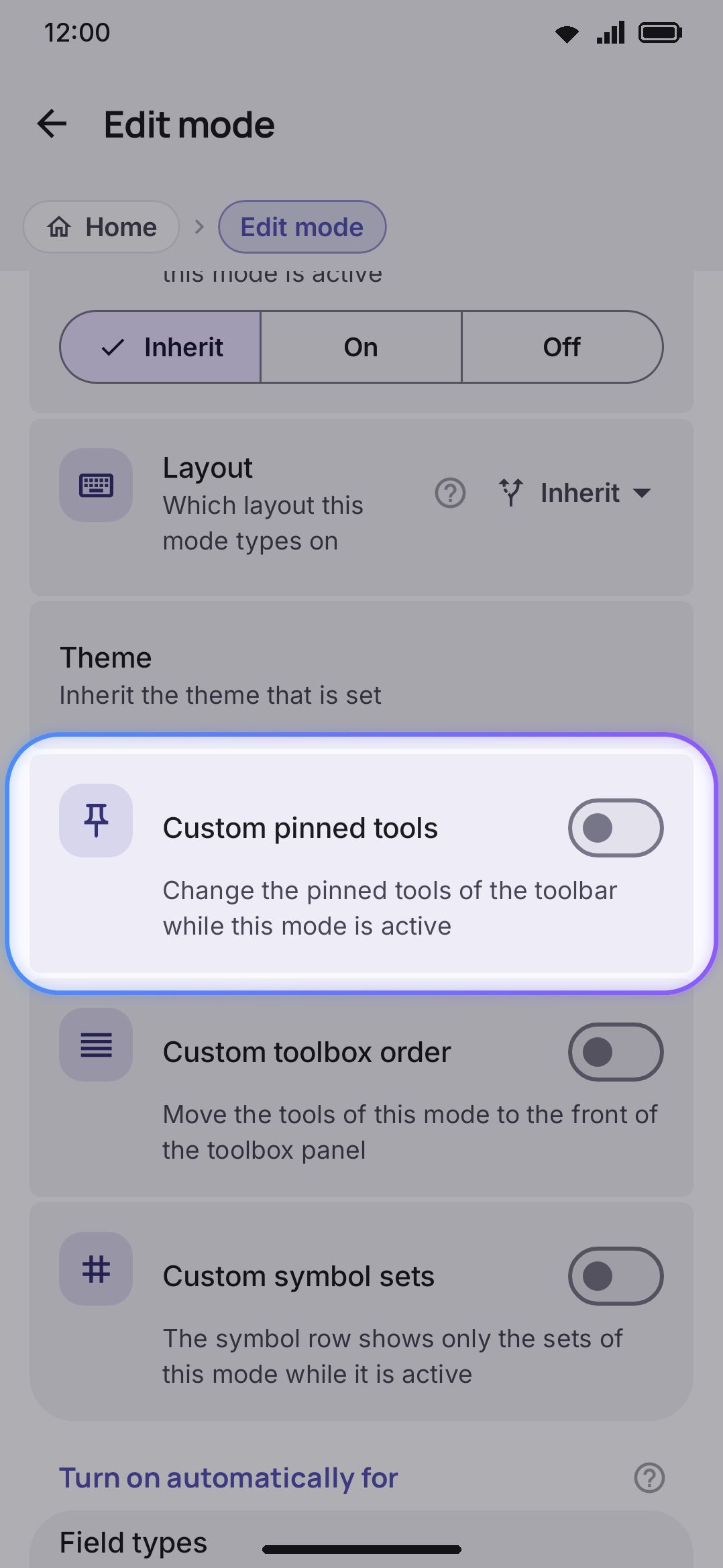
Section titled “What this mode changes”Every override here defaults to Inherit (unset, so the mode falls through to whatever the global setting says), except on the six built-in modes, which ship with specific values (see the table below).
| Override | Options |
|---|---|
| Emoji row | Inherit / Off / Button / Row |
| Symbol row | Inherit / On / Off |
| Autocorrect | Inherit / On / Off |
| Automatic capitals | Inherit / On / Off |
| Suggestions | Inherit / On / Off |
| Automatic spaces | Inherit / On / Off |
| Layout | Inherit, or any layout you currently have switched on |
| Theme | Inherit, or any built-in or custom theme |
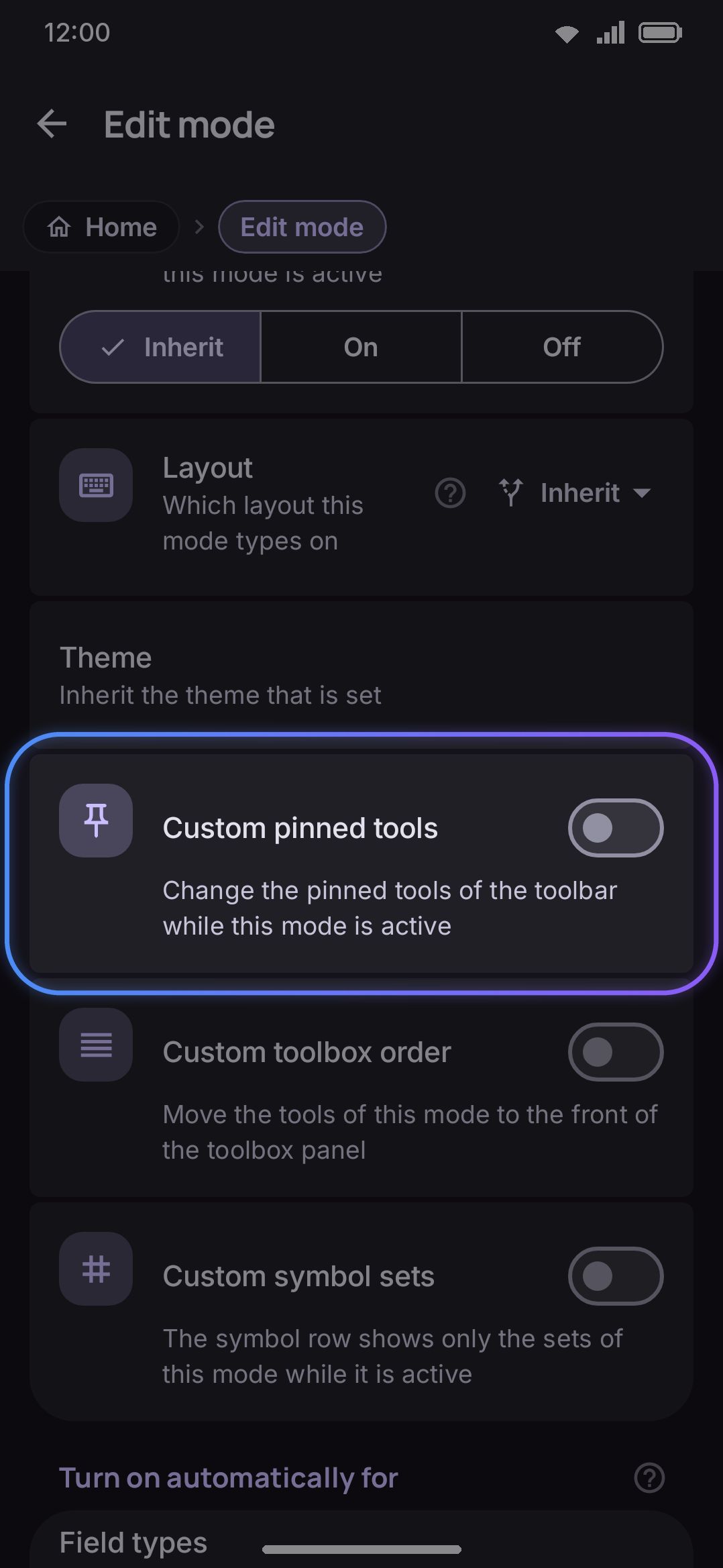
| Custom pinned tools | Off, or a toolbar tool list of its own |
| Custom toolbox order | Off, or a toolbox order of its own |
| Custom symbol sets | Off, or a symbol-set list of its own |
Autocorrect, Automatic capitals, Suggestions and Automatic spaces are the four typing overrides, and they’re why a Coding mode is worth having: a mode that only redressed the keyboard would still correct your identifiers into English words.
Automatic spaces is one switch over every space the keyboard puts in that you didn’t press for: the space after punctuation, the one after a suggestion you pick from the strip, and the ones before and after a glided word (the one in front has no switch of its own; only a mode turns it off). Off means every space in the field is one you typed, which is what you want when you’re renaming a file extension, typing a command, or filling a structured field. On turns all three on, including the space after punctuation, which is off by default everywhere else.
Layout pins the mode to one layout while it’s on, whichever layout you were typing on before. Only layouts you’ve switched on are offered, and the spacebar swipe order is left alone. Switch that layout off later and the mode falls back to Inherit, since the keyboard won’t pin itself to something it can’t draw.
Theme opens a picker: Inherit, Default (system), the built-in themes (a theme with variants gets a heading and its variants under it), then your own custom themes alphabetically. A Clear button appears once a theme is set. Picking one adds a note about what that means. While the mode is active the keyboard wears that theme whatever is set elsewhere, and an auto light/dark pair stands down for the mode’s lifetime. Your own choice comes back unchanged the moment the mode ends.
Custom pinned tools, once turned on, reveals a Pinned tools behaviour choice: Add to mine appends to your global pins, Replace mine pins only these tools. It also adds a chip picker over your currently enabled, build-supported tools, and a Change the pinned tool order drag-to-reorder dialog. Switch to “Add to mine” and any tool that’s already one of your global pins drops out, so it doesn’t appear twice.
Custom toolbox order works the same way minus the append/replace choice. Turning it on seeds an empty list, a chip picker adds tools, and Change the toolbox order reorders them. The picked tools lead the toolbox panel, and everything else keeps its usual place behind them.
The symbol row itself can switch Symbol row to Off for the mode it’s showing in: hold an entry on the row and pick Hide the row in name. See Holding an entry.
Custom symbol sets seeds from your current symbol-row sets (or the built-in defaults if none are enabled), offers every set (built-in and custom) as toggle chips, guards against emptying the list to zero, and reorders with Change the symbol set order. The first set in that order is what the symbol row opens on while the mode is active.
Activate automatically for
Section titled “Activate automatically for”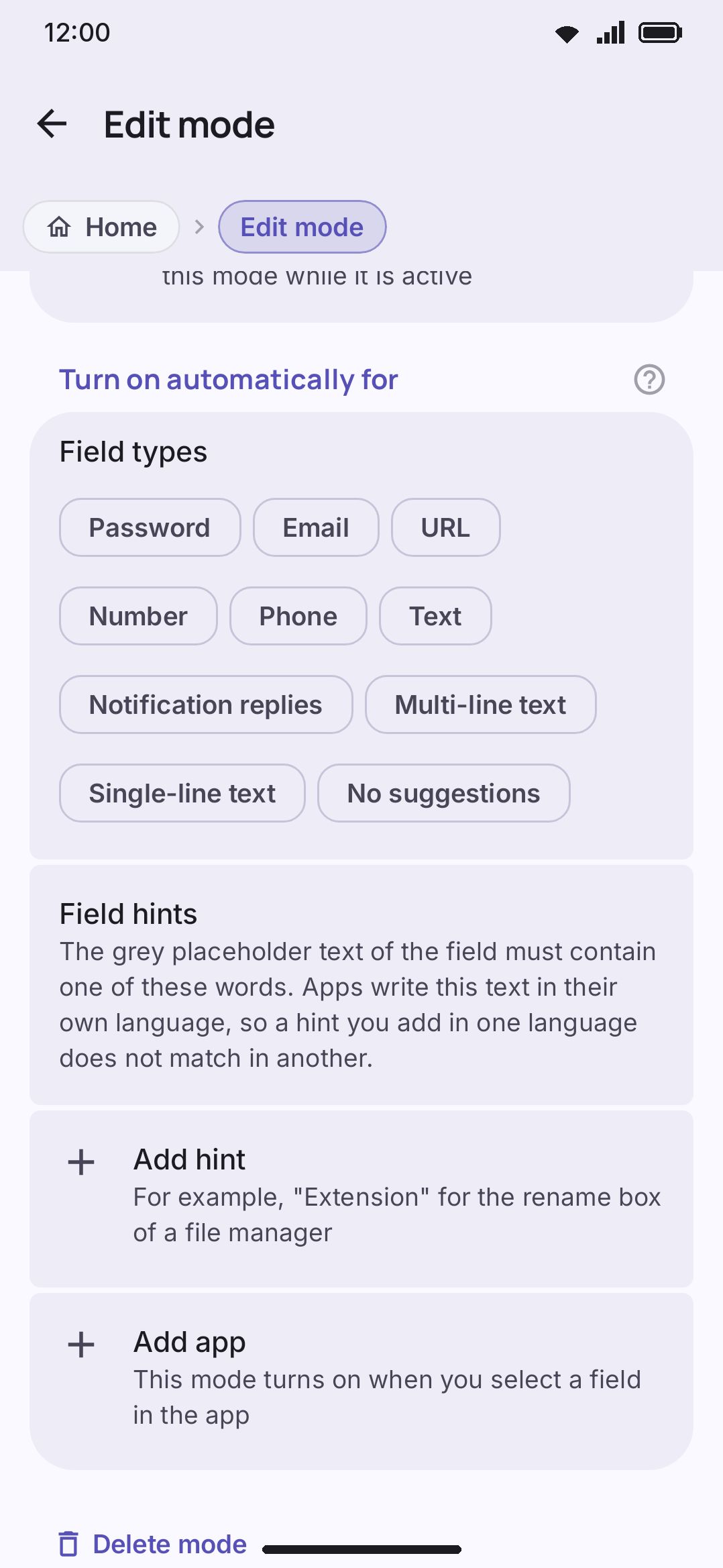
Field types is a row of chips for the ten kinds a mode can match: Password, Email, URL, Number, Phone, Text, Notification replies, Multi-line text, Single-line text, No suggestions.
Text means plain free-text only. A password field is excluded from it even though it also reports as text-capable, so a mode bound to Text can never take over a login form.
Notification replies is the inline reply box in the notification shade, and it’s the one chip that ignores the app list. The system UI draws that box, so the package the keyboard sees there belongs to the shell, never to the app whose notification you’re answering. A mode with this chip ticked matches the box whatever its bound apps say. That’s how the shipped Chat mode still gets chat treatment in a reply you fire off without opening the app.
Multi-line text, Single-line text and No suggestions describe the shape of a text box rather than what goes in it, and every text field reports one of the first two on top of its kind. They tell apart fields Android otherwise reports identically: a file manager’s rename box is single-line, its text editor is multi-line, and its code editor is multi-line with suggestions turned off. Password boxes report no shape, for the reason they’re excluded from Text.
Field hints is a list of words the field’s placeholder text (the grey text of an empty box) has to contain, case ignored. One row per hint, each removable, and an Add hint row that opens a one-line dialog. Apps write that placeholder in their own language, so a hint added in English does not match when the app runs in another language.
Below that is the app list. One row per bound app, resolved to its display name and falling back to the raw package name, each removable. An Add app row at the end opens a searchable picker of every launcher app on the device.
Set apps, field types and hints together and all of them have to match, so a mode bound to your chat apps and the Text field type stays off their search boxes. Set only one and it matches on that alone. Set none and the mode is manual-only, reachable from the Modes tool. Notification replies is the single exception to the AND, as above, though a hint still has to hold. When several modes match at once, one that names a hint beats one that names a field type, which beats one that only names apps. A mode picked by hand from the Modes tool beats both, for as long as A mode you pick by hand says. See How a mode gets picked for the full resolution order.
Use this mode
Section titled “Use this mode”The first row of the editor is Use this mode, the same switch the list row carries. It’s the answer to “how do I stop this mode without losing it”: off, the mode is invisible to the keyboard and untouched in settings. The shipped Passwords mode is the usual reason to want it, since it replaces the pinned tools on every password box whether or not you pinned the Password Generator yourself.
Reset and delete
Section titled “Reset and delete”At the bottom of the editor, Delete mode opens the same “Delete name?” dialog the list row’s bin icon does. Both paths ask first, and the dialog says the mode and everything set up inside it goes, apps and pinned tools and overrides included. Reset to default appears only on the six built-in modes, matched by ID, so an edited built-in still offers it. A mode you created has nothing to reset to. Reset asks to confirm as well: it discards your edits and puts the mode’s pinned tools, toolbox order, symbol row, apps and field types back to what it ships with.
The six default modes
Section titled “The six default modes”Six modes are seeded on first run. You can edit or delete any of them freely.
| Mode | Emoji row | Symbol row | Toolbar | Toolbox leads with | Apps | Field types |
|---|---|---|---|---|---|---|
| Passwords | Off | Off | Replaced: password generator, clipboard, settings | Password generator, clipboard, snippets, numpad, symbols, settings | None | Password |
| Inherit | On (Email, Punctuation) | Inherit | Clipboard, snippets, text edit, voice, symbols | None | ||
| Browser | Inherit | On (Web) | Inherit | Clipboard, web search, snippets, QR scan, voice, incognito | None | URL |
| Chat | Always on | Inherit | Added: emoji, GIF, sticker, voice | Grammar, translate, camera, image search, clipboard, snippets, then the pinned four | 15: Messenger, Instagram, Telegram, WhatsApp, Signal, Discord, Facebook, Facebook Lite, TikTok, Snapchat, Viber, LINE, KakaoTalk, WeChat, Beeper | Text, Notification replies |
| Writing | Inherit | On (Punctuation) | Replaced: AI, text edit, voice, clipboard, emoji | Grammar, dictionary, vocabulary, OCR, doc scan, calendar, clipboard, snippets, translate, undo, redo, then AI, text edit, voice, emoji and trackpad (clipboard is already in the list) | Keep, Google Docs, Samsung Notes, Word, OneNote, Obsidian, Notion, Evernote, Joplin, Gmail, Outlook, Yahoo Mail, ProtonMail, K-9 Mail | Text |
| Coding | Inherit | On (Coding, Math) | Inherit | Snippets, clipboard, text edit, trackpad, symbols, calculator, numpad, undo, redo, cursor keys | Termux, Acode, RK Editor, Spck | None |
Passwords and Writing replace the toolbar outright rather than adding to it. Chat appends its four tools to whatever you already have pinned.
An install that already had a saved mode list before these modes grew gets topped up on upgrade, in two rounds so far:
- Chat and Writing were added as whole modes the first time, since a stored list frozen before they existed would never have picked them up.
- Chat’s own bindings were topped up in the round after that: the nine apps it was missing (Facebook, Facebook Lite, TikTok, Snapchat, Viber, LINE, KakaoTalk, WeChat, Beeper) and the Notification replies field type were appended to the stored mode.
Both rounds run once and leave your edits alone. A mode you’ve deleted isn’t re-added, an app you’d already bound to some other mode is skipped rather than routed twice, and a field type the mode already has isn’t duplicated.
How long a hand-picked mode lasts
Section titled “How long a hand-picked mode lasts”This choice sits at the top of the modes list screen and covers every mode at once. It only applies to a mode you pick yourself from the Modes tool, never to one that switches on for an app on its own. The row itself is absent from the screen while Use modes is off, since there’s no mode left to pick by hand.
Until you change app is the default and the keyboard’s older behaviour. It suits a mode you reach for once, then leave. Until you change it keeps the mode on until you pick another one or turn it off, which suits a mode you meant to stay in.
Rearranging tools
Section titled “Rearranging tools”This toggle sits in the Rearrange tools group at the foot of the modes list screen rather than inside an editor. It governs what happens when you drag a tool on the keyboard itself while a mode with its own pinned tools or toolbox order is active. The whole group is absent from the screen while Use modes is off, since no mode is active to receive the drag.
Drags edit the active mode is on by default. It sends that drag into the currently active mode, so the rearrangement sticks for apps that resolve to that mode, and every other app keeps its own arrangement. Turn it off and drags edit the global tool order instead. If the active mode still prescribes its own list, that list keeps winning on screen, since a mode’s fixed list applies on every redraw. A mode with no pinned tools or toolbox order of its own is unaffected either way, because there’s nothing for it to own.
Tool order can differ per app: whichever mode an app resolves to decides the arrangement you see there.
Options
Section titled “Options”| Setting | Default |
|---|---|
| A mode you pick by hand (Until you change app / Until you change it) | Until you change app |
| Keyboard modes list | 6 seeded modes (table above) |
| Drags edit the active mode | On |
| Setting | Default |
|---|---|
| Name | Mode-specific (see table above) |
| Icon | Mode-specific |
| Emoji row | Inherit, except Passwords (Off) and Chat (Row) |
| Symbol row | Inherit, except Passwords (Off) and Email/Browser/Writing/Coding (On) |
| Autocorrect | Inherit, on every built-in too |
| Automatic capitals | Inherit, on every built-in too |
| Suggestions | Inherit, on every built-in too |
| Automatic spaces | Inherit, on every built-in too |
| Layout | Inherit, on every built-in too |
| Theme | Inherit, on every built-in too |
| Custom pinned tools | Off, except Passwords/Chat/Writing |
| Custom toolbox order | Off; all six built-ins define their own toolbox order |
| Custom symbol sets | Off, except Email/Browser/Writing/Coding |
| Field types | Mode-specific |
| Field hints | None on every built-in |
| Apps | Mode-specific |
Linking to one mode
Section titled “Linking to one mode”The six built-in modes have the same ID on every install, so a link can open one mode’s editor and scroll to one of its rows, such as the Browser mode’s Custom symbol sets above:
wmkeyboard://settings/mode_edit/mode_browser?setting=modes_symbol_sets_title| Mode | ID |
|---|---|
| Passwords | mode_password |
mode_email | |
| Browser | mode_browser |
| Chat | mode_chat |
| Writing | mode_writing |
| Coding | mode_coding |
Scrolling to a row on one mode is new in version 0.5.12. An older version opens the mode’s editor and pulses nothing, and the chips, the link builder and the /open/ page say which version a link needs.
A mode you made has an ID of its own that only your install knows, so a link to it works on your phone and nowhere else. The link builder offers the six in a list and every row of the editor to scroll to. A link to a built-in mode you deleted opens an empty editor for a new mode with that ID, the same as New mode does, and nothing is saved unless you edit it.
Details & edge cases
Section titled “Details & edge cases”- A brand-new mode isn’t saved until its first edit. Navigating into a freshly created mode’s editor and backing out without changing anything leaves the modes list exactly as it was.
- Only the six shipped modes offer Reset to default, matched by ID. Rename a built-in mode and it keeps its reset option. A mode you created from scratch never gets one.
- Off is not deleted. A mode whose Use this mode switch is off keeps every binding and override and simply never reaches the keyboard. Resetting a built-in mode turns it back on, since the shipped copy is on.
- Both delete paths ask first. The bin icon on a list row and Delete mode at the bottom of the editor open the same “Delete name?” dialog. Resetting a built-in mode confirms too.
- Hints beat field types beat apps when modes collide. If two modes could both apply, the one that names a hint is preferred over one that names a field type, and that over one that only names apps: a password field inside a coding app still gets the Passwords mode, and a rename box whose hint reads “Extension” gets the mode bound to that word over one bound to every single-line field.
- The tool and symbol-set pickers only offer what’s currently available. A tool disabled globally, or unsupported in your build, is missing from a mode’s own pinned-tools and toolbox-order chip lists too. A lite build, for instance, has no tools that need ML Kit or the grammar engine.
- Legacy installs migrate quietly. Older Browser and Email modes that still carried hard-coded app lists from before they became field-only are migrated to app-less bindings automatically when their settings are next read.
Related pages
Section titled “Related pages”- Modes & the symbol row: the concepts. How activation is resolved, the on-keyboard Modes tool for manual overrides, and the symbol row these modes can also control.
- Rows & bars: the global symbol row, row order and symbol-set editor that a mode’s overrides sit on top of.
- Themes: the theme picker a mode’s Theme override opens.
- Tools: the toolbar tools and toolbox a mode’s pinned-tools and toolbox-order overrides rearrange.