
Instruments
Flashlight, compass, bubble level, moon phase, and weather: glanceable tools between sentences.
“Instruments” is this site’s name for five small utility tools that Settings groups together as “Utilities,” alongside Calendar and Plugins: Flashlight, Compass, Bubble level, Moon phase and Weather. None of them makes you leave the keyboard to check something. Four open as a panel that replaces the key rows. Flashlight is the odd one out, a single tap with no panel at all.
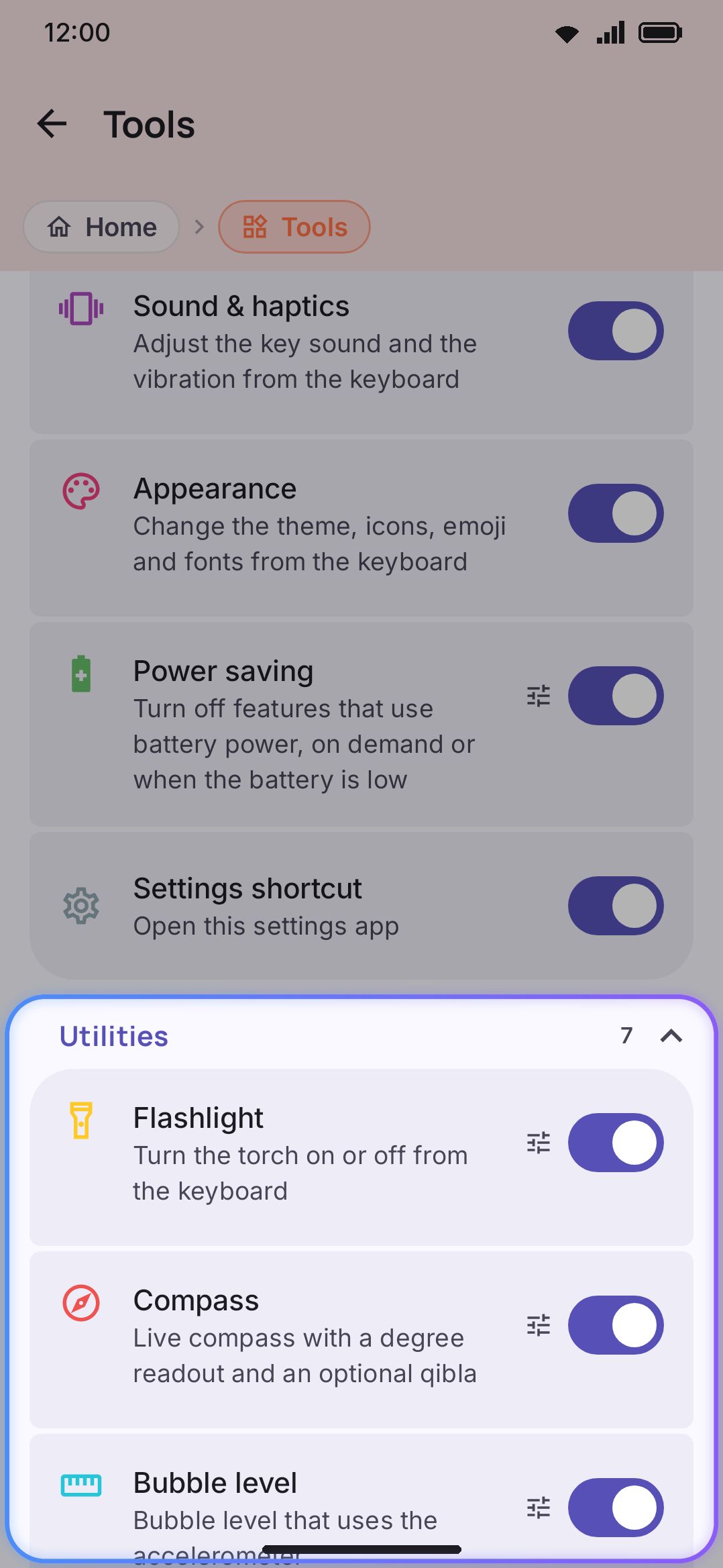
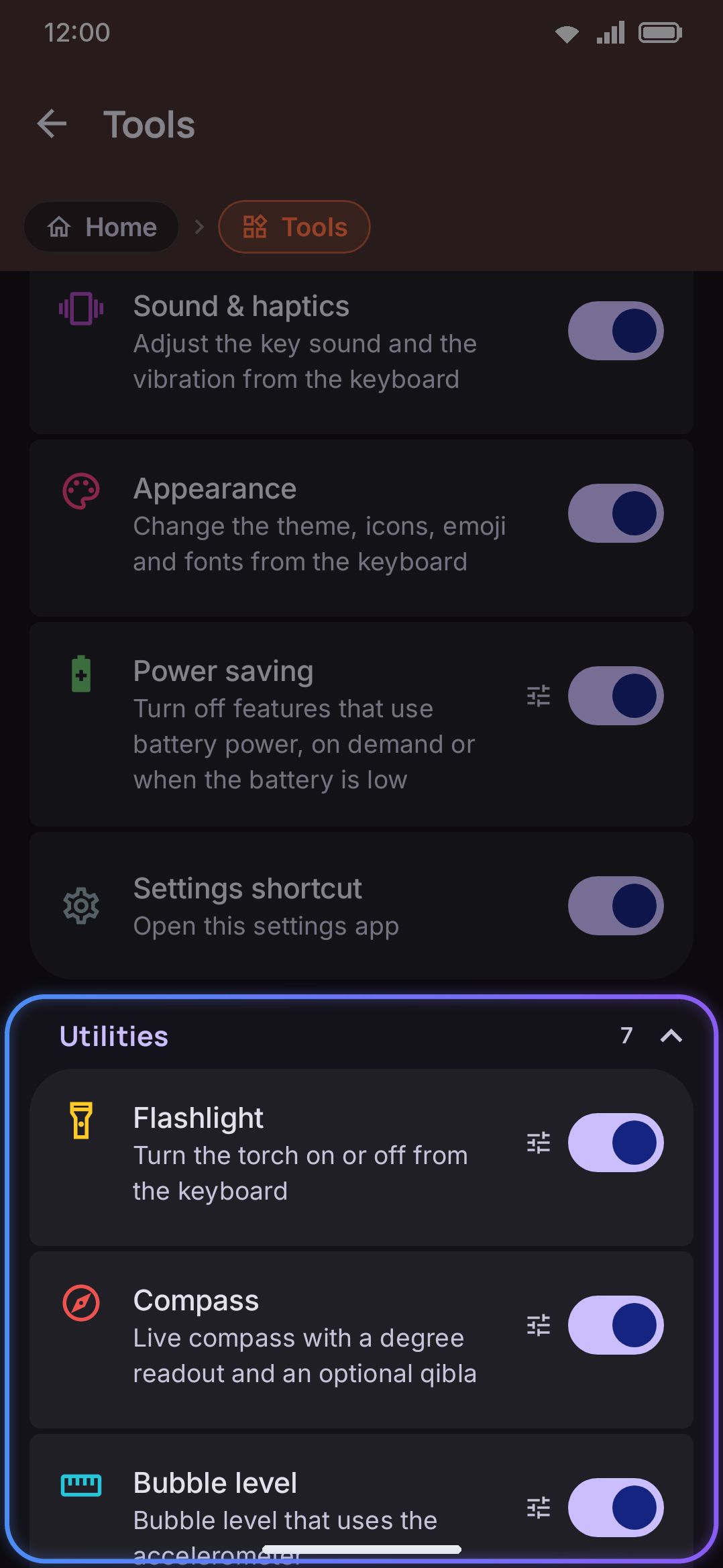
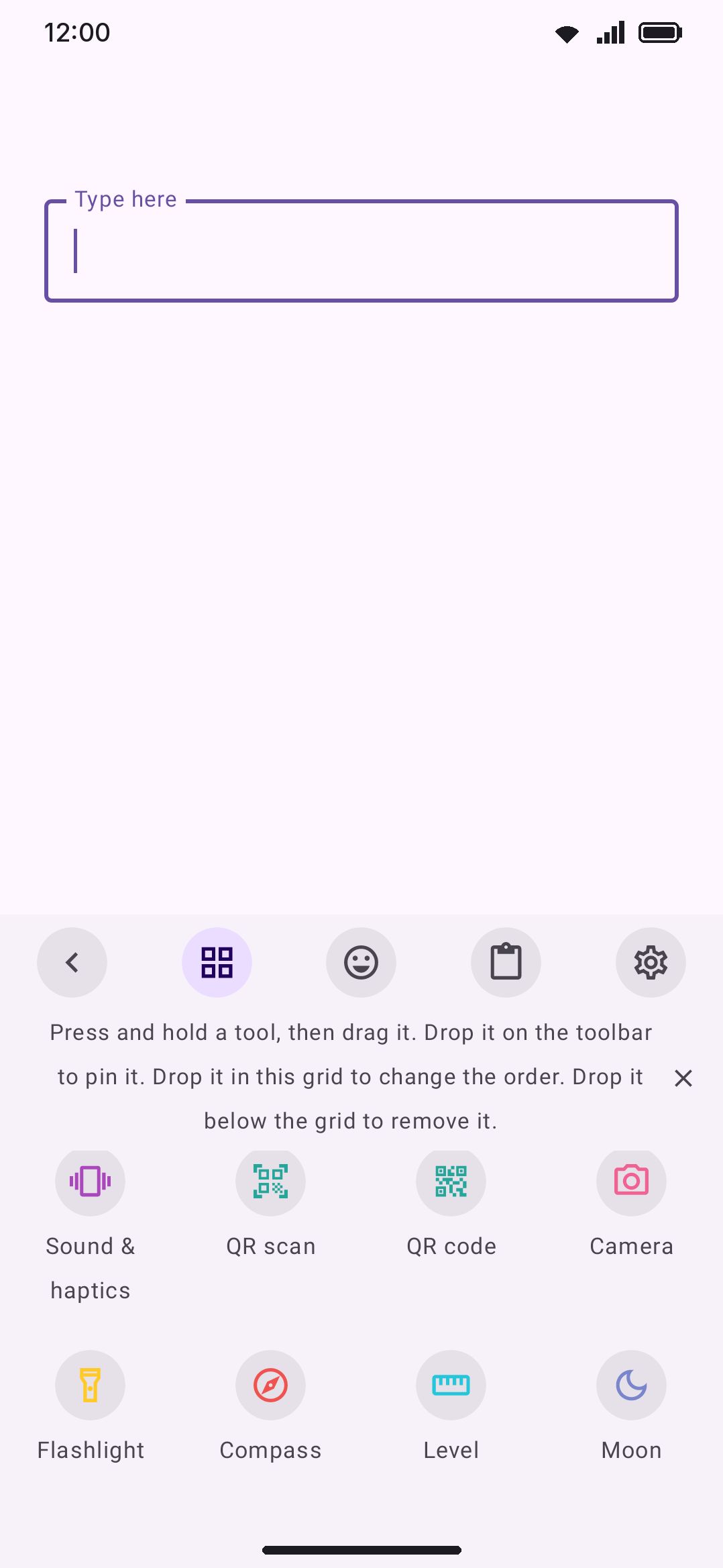
Open any of the five from the toolbar if you’ve pinned it, or from the toolbox. None ships pinned by default, and none is in the onboarding wizard’s Recommended set, so the first time you want one you’ll probably find it in the toolbox. Weather is the one the “show me everything” answer does turn on, next to Calendar. The toolbox doesn’t label a “Utilities” section the way Settings does, and it doesn’t keep the five together either. Flashlight, Compass, Bubble level and Moon phase sit as a block near the end of the default ranking, after the scanners and the camera and just before the one-tap cursor moves. Weather is much earlier, right after Calendar in the everyday run.
None of the five needs an Android runtime permission. The torch doesn’t need the CAMERA permission (that’s only for the separate camera tool), and Weather’s location is typed or searched rather than read from the device’s GPS. Neither edition is short-changed either: Full and Lite behave identically across all five.
Flashlight: a one-tap torch
Section titled “Flashlight: a one-tap torch”Tapping Flashlight turns the device’s torch on or off immediately. There’s no panel to open or close. If the device has no flash, a toast says “Your device has no flashlight” and nothing else happens.
The toolbox tile mirrors the torch’s real state. Flip the torch on from the system quick-settings tile instead of the keyboard and the Flashlight tile lights up to match. Turning it off from either place turns it off in both.
Options
Section titled “Options”- Turn off with the keyboard: on by default. On, closing the keyboard or switching apps switches the torch off with it, so it’s never left burning in your pocket. Off, the torch stays on until you toggle it again from the tool or the system quick-settings tile.
Compass, with an optional qibla bearing
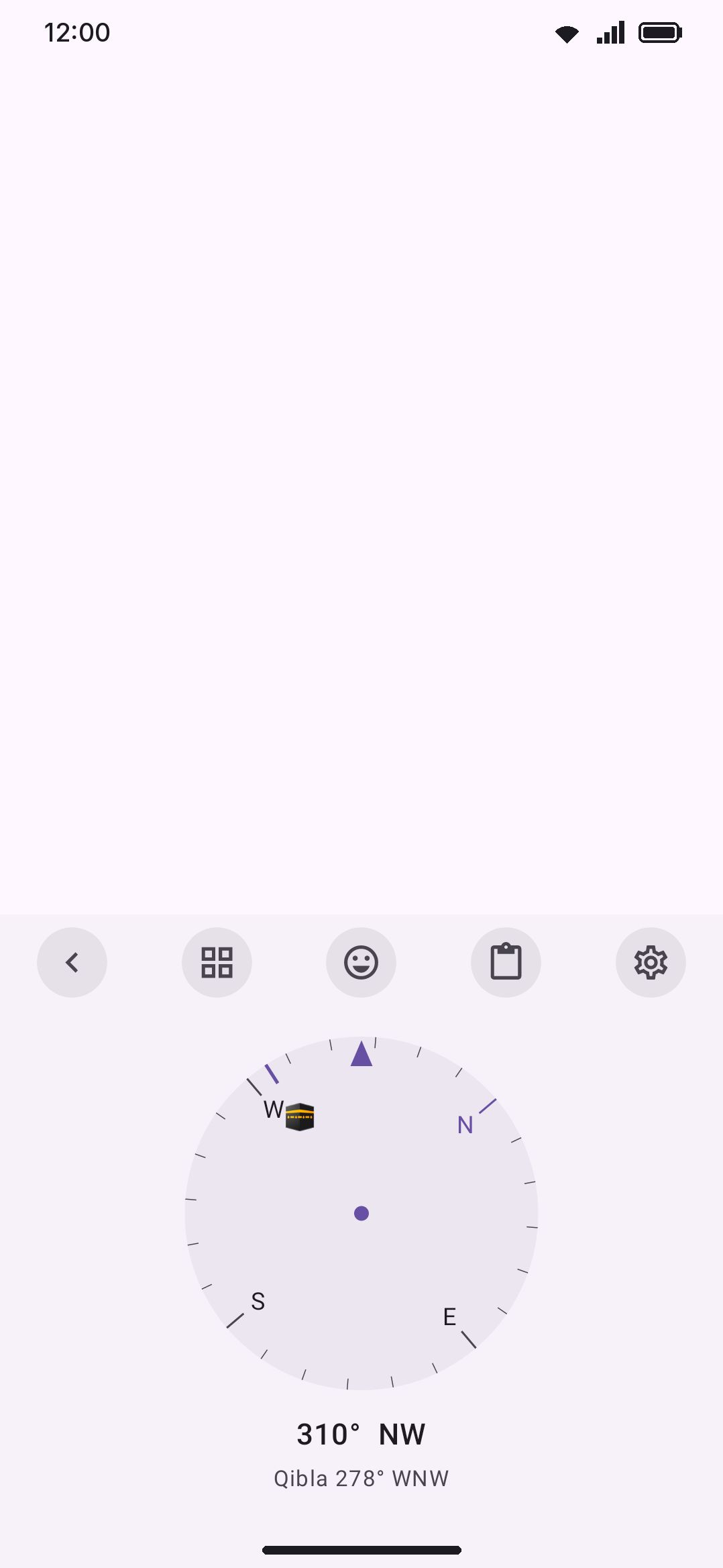
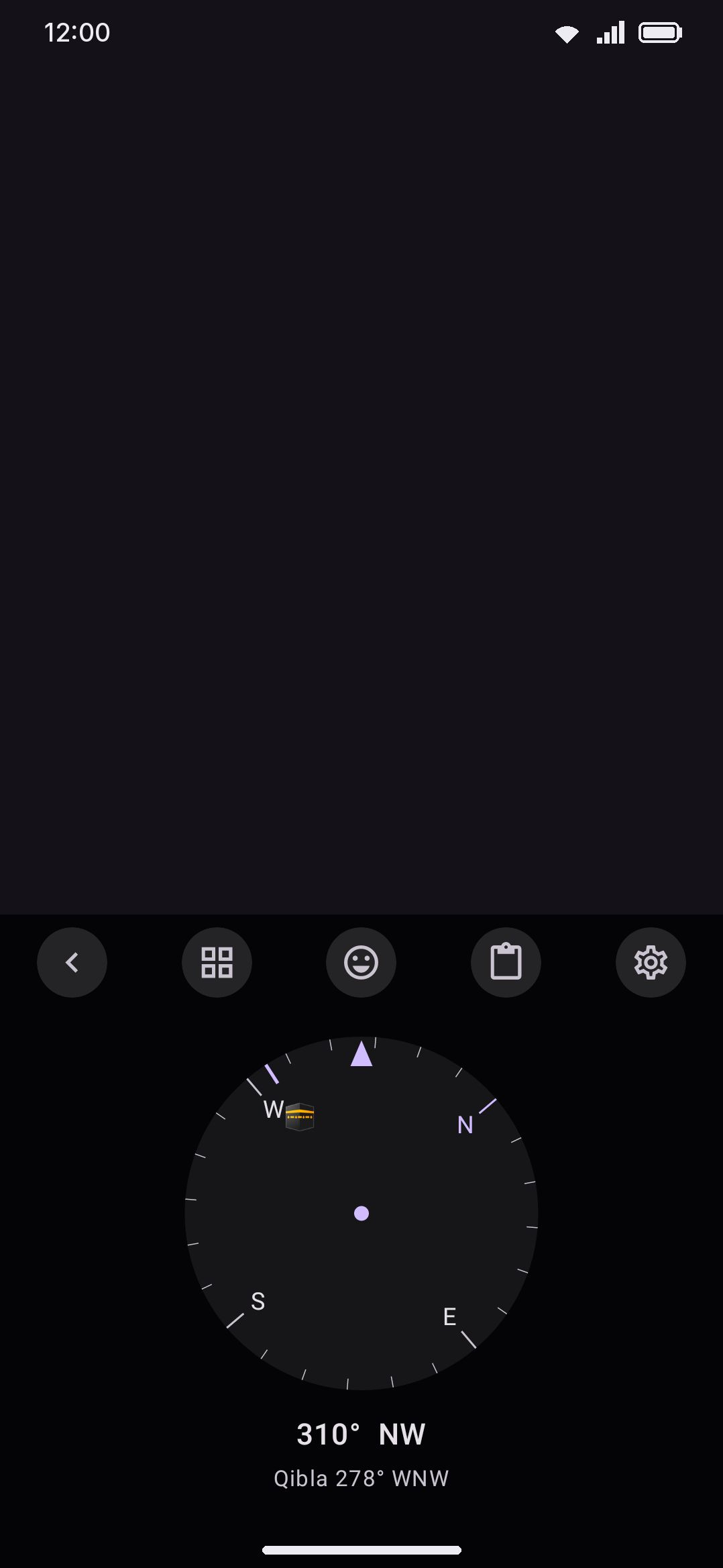
Section titled “Compass, with an optional qibla bearing”Compass draws a live rose from the device’s rotation-vector sensor, with a fixed needle at the top marking the way you’re actually facing. The heading glides smoothly rather than jumping with every sensor sample. On a device with no orientation sensor at all, the panel says so instead of drawing an empty rose.
Turn on Show the qibla and a 🕋 marker rides the rose, pointing toward the Kaaba. The compass has no location field of its own. It reuses whatever location you’ve already saved in the Weather tool’s settings, and without one saved the panel prints “Qibla needs a saved location. Save one in the settings of the weather tool.” instead of a bearing. Everything is calculated on-device from that saved latitude and longitude. The compass itself never touches the network.
Options
Section titled “Options”- Degree readout: on by default. It shows the numeric heading and a 16-point cardinal (N, NNE, NE, … NNW) under the rose. Before the sensor has reported it reads “Calibrating…” instead.
- Show the qibla: off by default. Turn it on before saving a location and the settings screen shows a caution of its own: “No location is saved yet. Set one under Tools → Weather.”
Bubble level
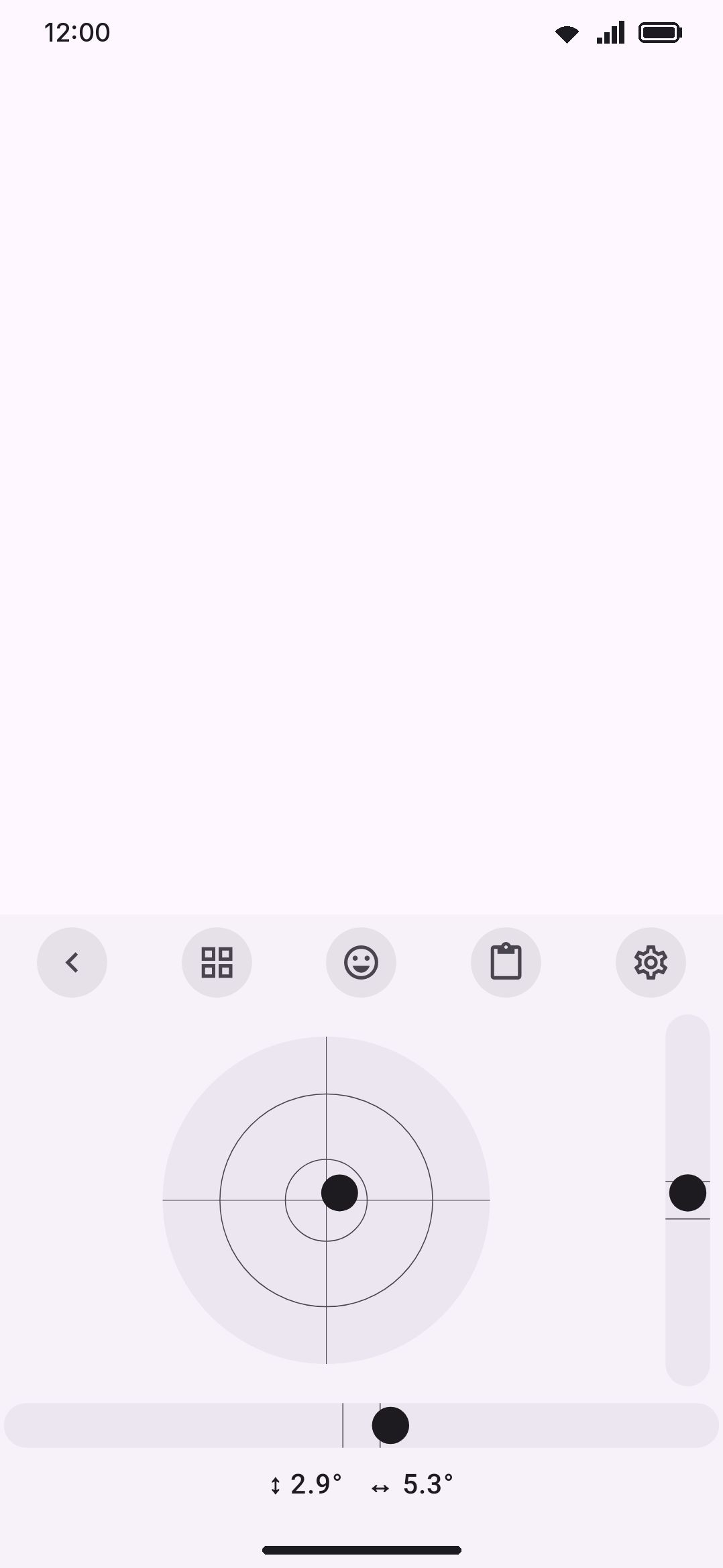
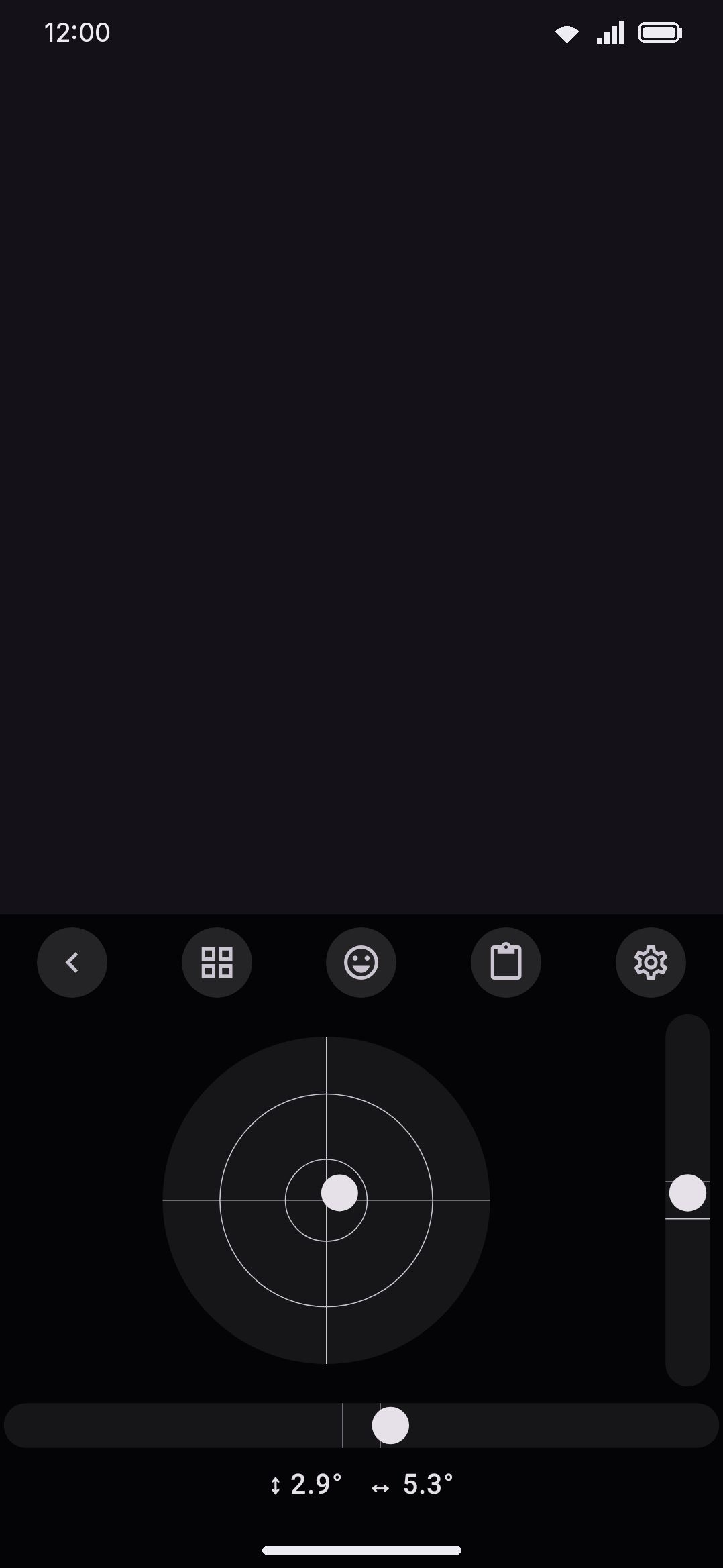
Section titled “Bubble level”Bubble level turns the accelerometer, or the gravity sensor on a device that has one, into three gauges at once. A circular bullseye bubble combines pitch and roll, and a vertical and a horizontal tube vial each track one axis alone. The bullseye turns accent-colored once both pitch and roll are within about a degree of flat. Each tube vial turns accent-colored independently on its own single-axis threshold, so a vial can read level a moment before or after the bullseye agrees.
Options
Section titled “Options”- Angle readout: on by default. It shows pitch and roll in degrees below the gauges, colored to match the bullseye’s flat/not-flat state.
Moon phase
Section titled “Moon phase”Moon phase is arithmetic rather than a lookup. The panel computes the current phase from a fixed synodic-month constant and a reference new moon, with nothing fetched over the network. It’s accurate to within a few hours, which is plenty for “is it worth looking up tonight” and not built for precise astronomical prediction.
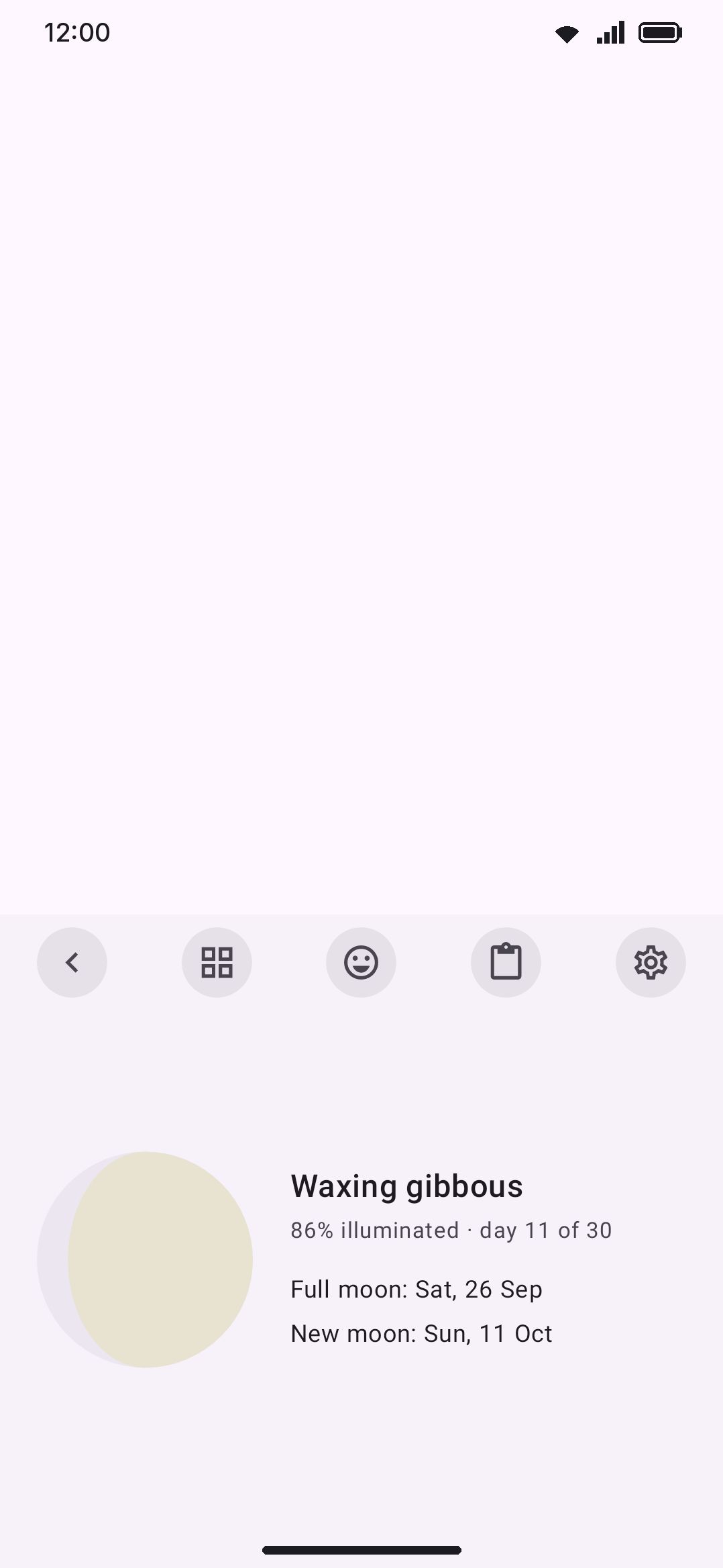
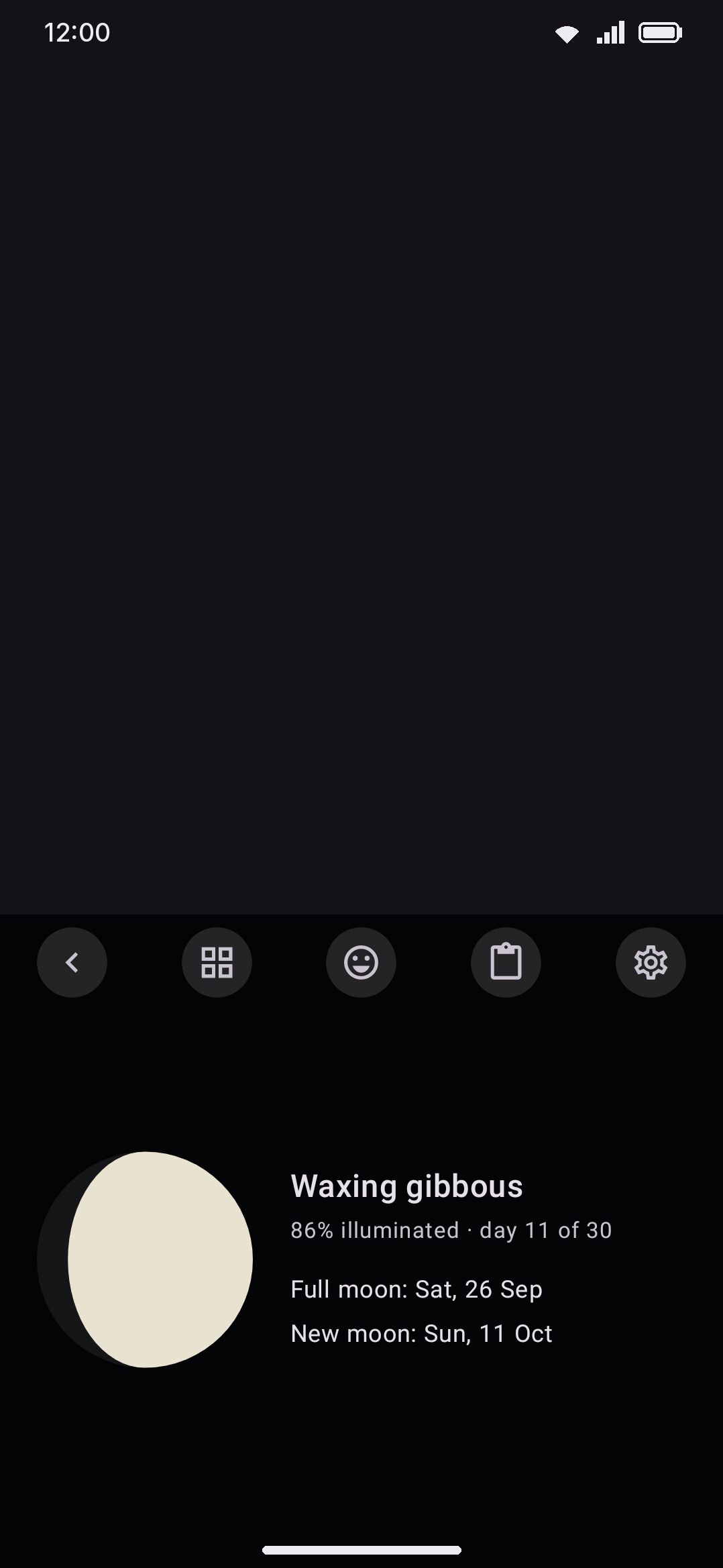
The panel shows a painted lit/dark disc, one of eight phase names (New moon, Waxing crescent, First quarter, Waxing gibbous, Full moon, Waning gibbous, Last quarter, Waning crescent), the percentage illuminated, how many days into the roughly 30-day cycle you are, and the dates of the next full and new moon.
Options
Section titled “Options”- Southern hemisphere: read off your phone’s region, so it starts on in Australia, Brazil or South Africa and off in Bangladesh or the UK. It mirrors the lit disc the way the moon actually looks south of the equator. Only the drawing changes, never the phase name, dates or illumination percentage.
Weather
Section titled “Weather”Weather shows current conditions and a same-day high/low for one saved location, sourced from Open-Meteo. No account and no API key are needed. You set the location yourself, either by searching a city or place name (which hits Open-Meteo’s geocoding endpoint) or by typing latitude and longitude directly. The keyboard never requests device location access to fill this in for you.
A fetched result is reused for as long as How often to check says, 15 minutes out of the box, so reopening the panel is usually instant. A refresh button in the panel forces a new request. Until you save a location the panel shows a prompt with an Open settings shortcut instead of any weather data. If a fetch fails it shows a retry button rather than stale numbers.
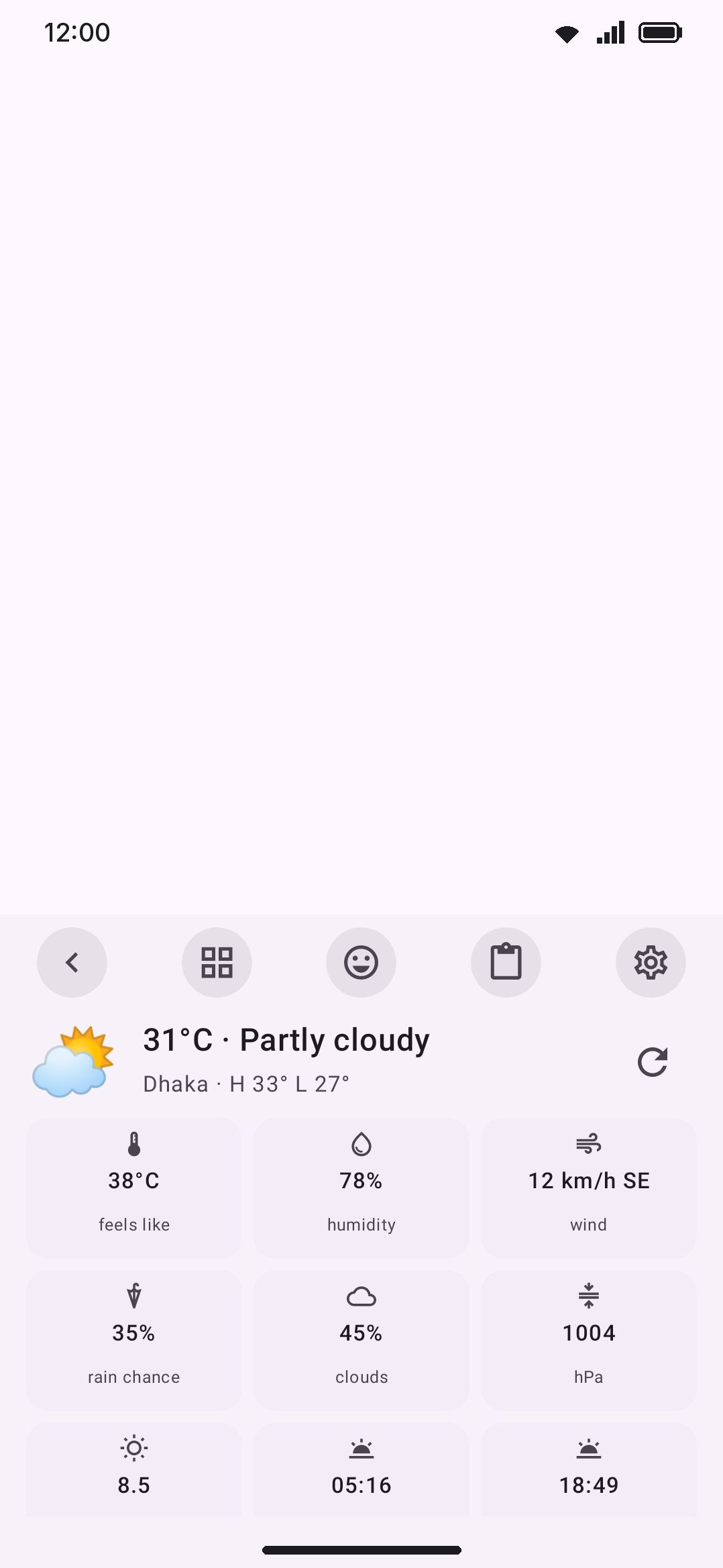
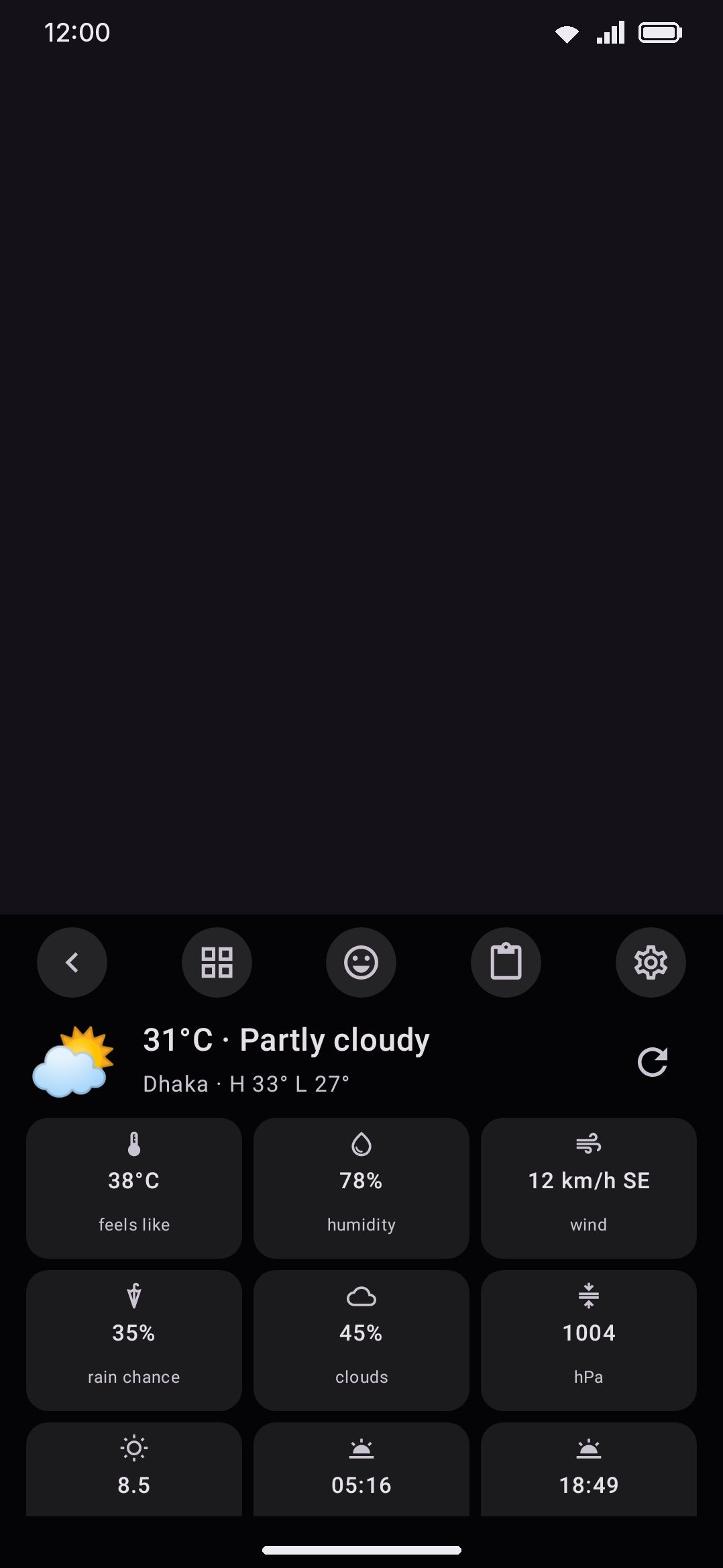
Once a location is set, the panel shows an emoji and short description for the current conditions, the place name with today’s high and low, and a wrapping grid of stats. Feels-like temperature, humidity, and wind speed with an 8-point cardinal direction always appear. Rain chance, cloud cover, pressure, UV index, sunrise and sunset each appear only when Open-Meteo’s response actually includes them.
Options
Section titled “Options”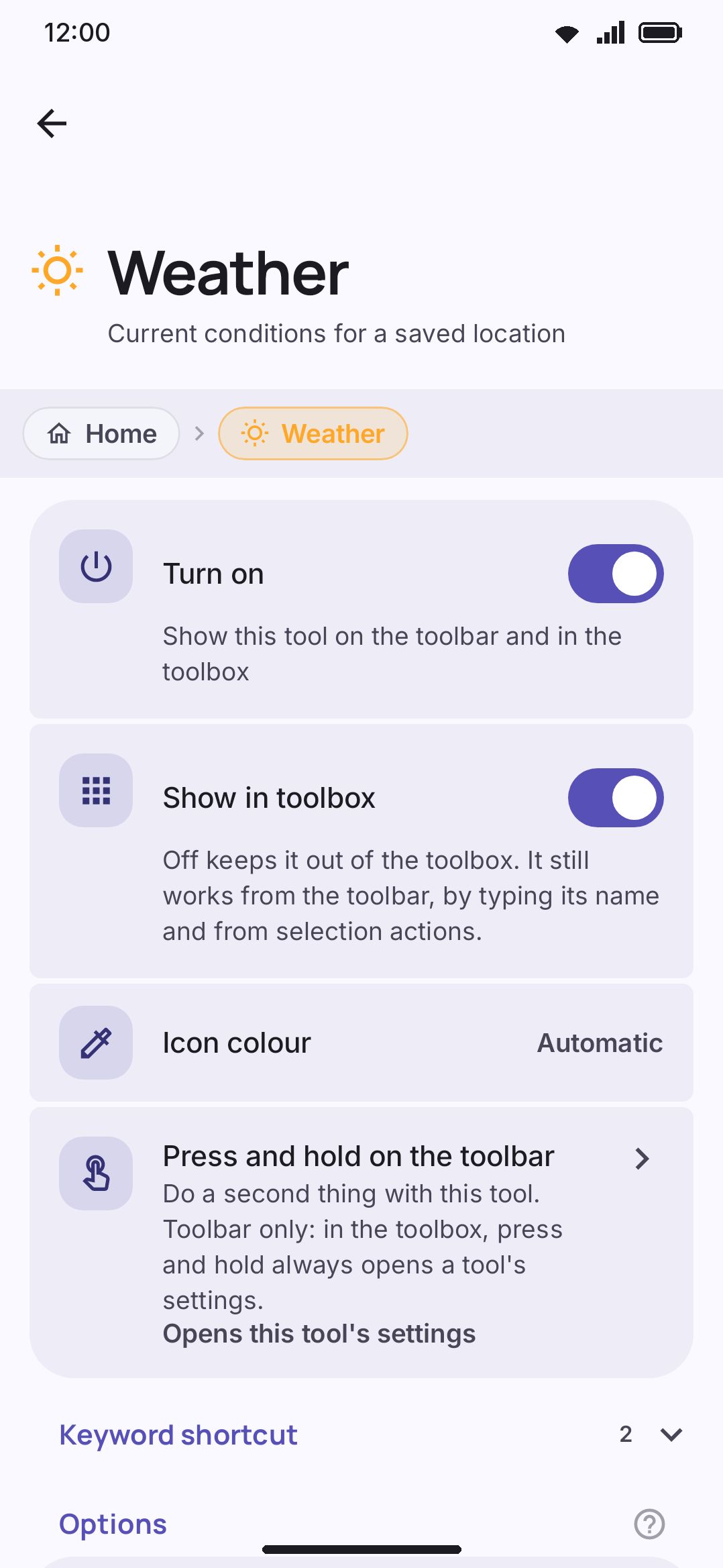
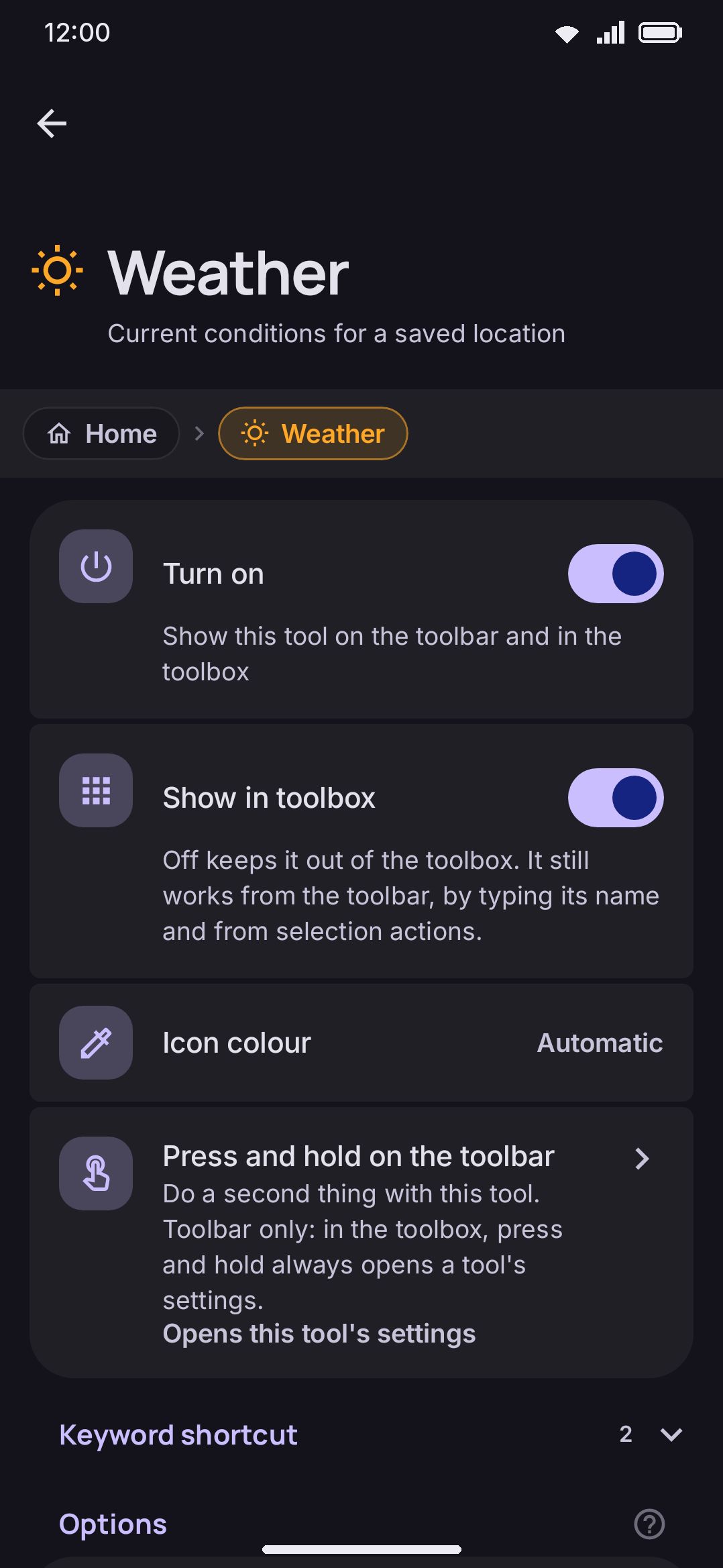
- Location: unset by default. It opens a dialog with a search field, backed by Open-Meteo’s geocoding API, plus manual latitude and longitude fields if you’d rather skip the search.
- Fahrenheit: off by default, so temperatures show in Celsius until you turn this on. It moves the current, feels-like, and day’s high and low temperatures. Wind speed follows this switch too: km/h with Celsius, mph with Fahrenheit. Pressure stays in hPa, which has no second unit here.
- Fetch the forecast as you type: on by default, off in the F-Droid edition. On, a weather chip fetches the forecast it needs as soon as you type a weather question. Off, the chip reads Get the forecast and fetches nothing until you tap it. The panel fetches when you open it either way.
- How often to check: how long a reading is reused before the tool fetches again. 1 to 180 minutes, default 15. The panel’s refresh button still forces a fetch whatever this says.
Those four rows are the whole screen. The settings screen carries its own privacy note underneath: “The weather and the place search both use Open-Meteo, only when you use them. The keyboard makes no other network requests.” Weather is the only one of the five instruments that reaches the network at all. See network policy for what every network-touching feature sends and when.
Details & edge cases
Section titled “Details & edge cases”- None have a default hardware-keyboard letter. Tools such as web search (W) and dictionary (D) ship with a leader-key letter, and none of these five do. Reach them through the toolbox shortcut (double-tap Ctrl, then T) or rebind a letter to one yourself.
- Four keep working before your first unlock. Weather doesn’t. Flashlight, Compass, Bubble level and Moon phase are all direct-boot safe. They’re pure sensor readings or arithmetic, so they work right after a restart, before you’ve entered your PIN or pattern for the first time. Weather is the exception: it needs network access and reads a location saved in credential-encrypted storage, and neither is available until you unlock.
- Every tool here has more than a bare switch. Each of the five gets a “Tune” icon in WM KeyboardTools, meaning it has real options beyond the shared Enabled toggle. None of them is one of the toggle-only tools on that screen.
- Colored tool icons under WM KeyboardTools is on out of the box, so each of these five already wears its own accent color in the toolbox and in the Tools list itself. The pinned toolbar row keeps the theme’s plain icon color regardless, same as every other tool.
For the toolbar and toolbox mechanics these five share with every other tool (pinning, the toolbox drag, and what “direct-boot safe” means more broadly), see the toolbar.