
Emoji
Every row on the Emoji settings screen: access, suggestions, the emoji row, skin tones, fonts, the panel page, and keyword packs.
The Emoji screen collects every setting behind emoji access, suggestions, the panel, and emoji fonts in one place, grouped exactly as they appear on screen. This page is the field reference. For the emoji panel itself, with search, skin tones and favourites, see Emoji picker & search. For the reasoning behind fonts, keyword packs, suggestions, and the emoji row, see Emoji customization.
Options
Section titled “Options”Access
Section titled “Access”| Setting | Control | Options / range | Default |
|---|---|---|---|
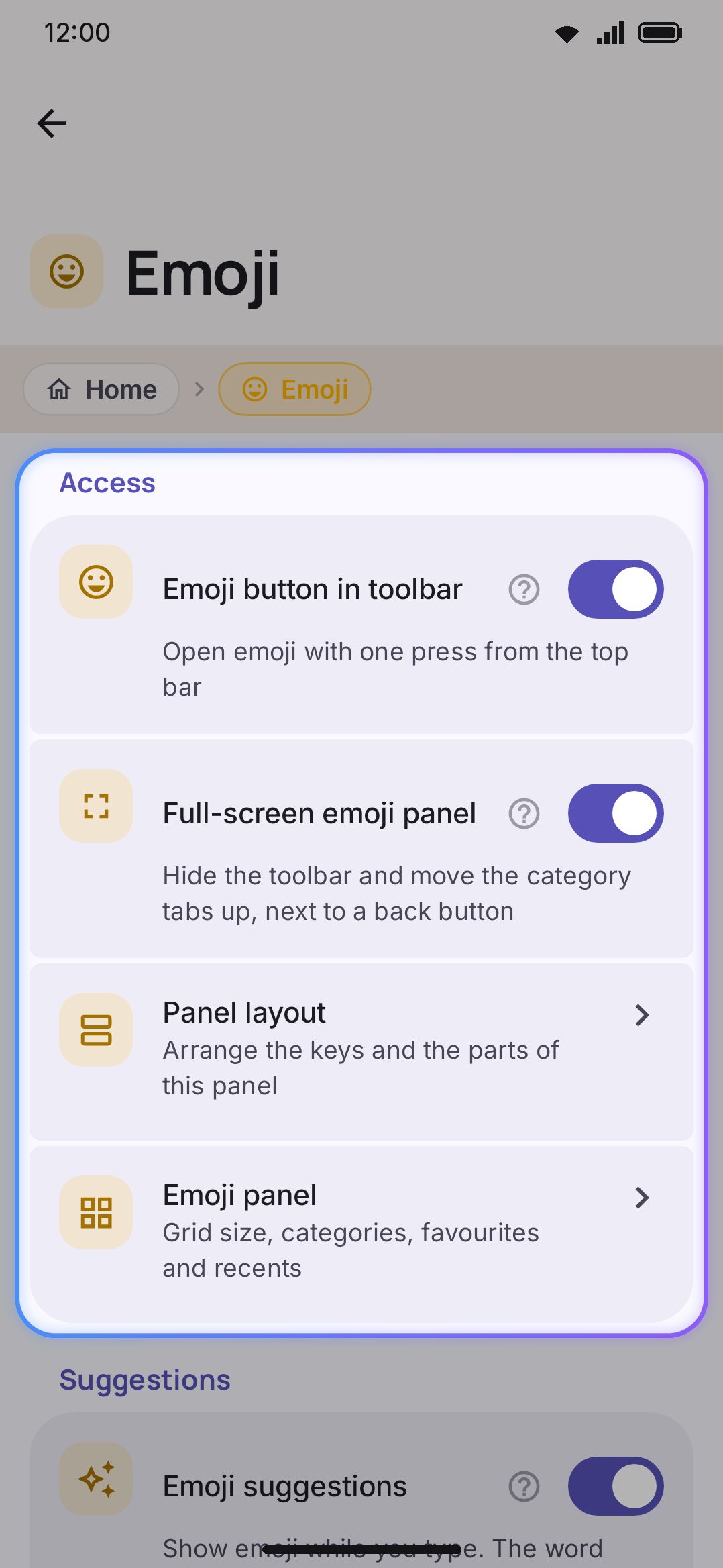
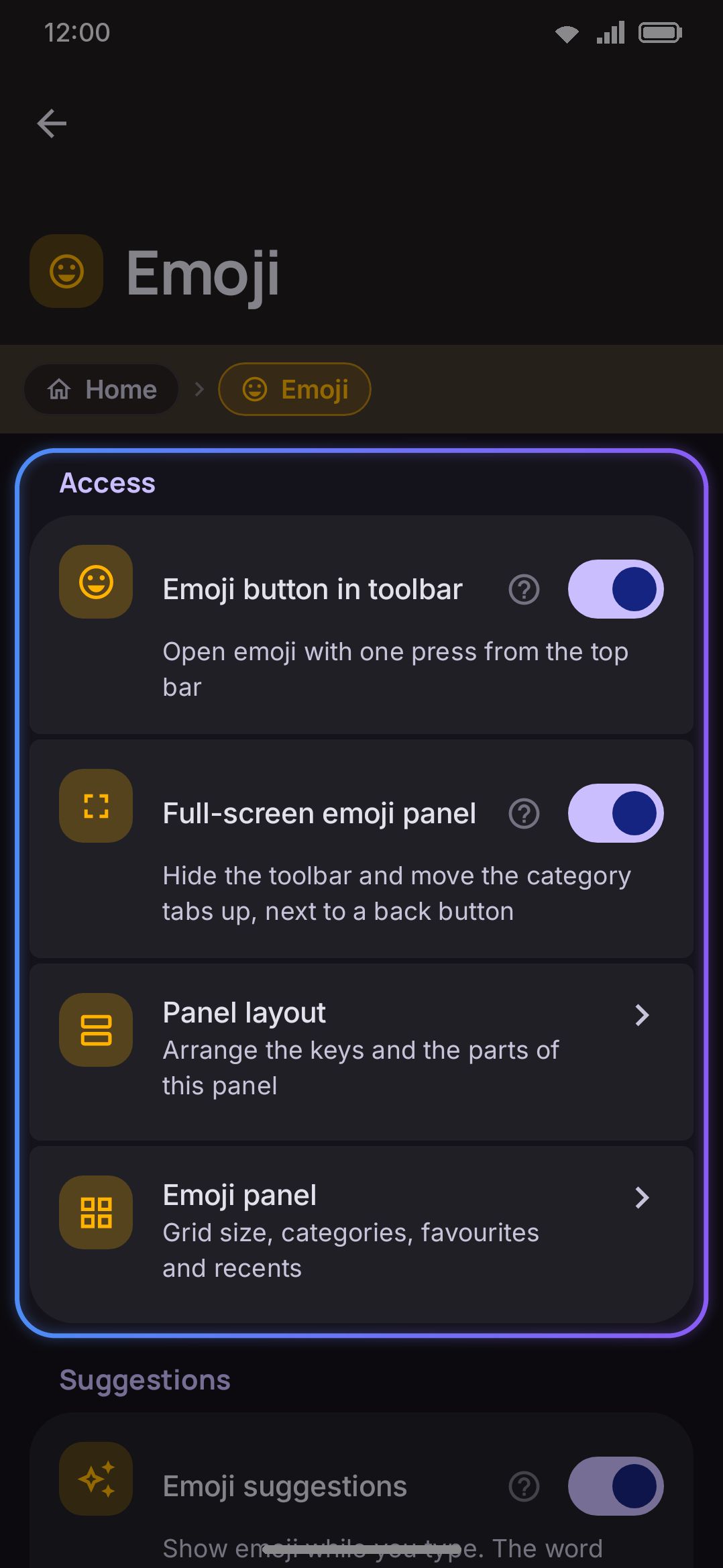
| Emoji button in toolbar | Toggle | On / Off | On |
| Full-screen emoji panel | Toggle | On / Off | On |
| Panel layout | Nav row | n/a | opens the emoji panel’s layout editor |
| Emoji panel | Nav row | n/a | opens the Emoji panel page |
Emoji button in toolbar keeps a one-tap emoji launcher in the top bar even while suggestions are showing.
Full-screen emoji panel makes the panel take over the whole keyboard: the toolbar, emoji row, and symbol row step aside, and the category tabs move into the row they leave behind, next to a back button. Turn it off to keep the toolbar within reach while picking emoji.
Panel layout and Emoji panel are the two doors to the panel itself, side by side: the first edits the panel’s grid of tabs, search and rows, the second holds every other panel setting. They sit together in this group so that everything about the panel starts from one place.
Two more emoji-access toggles live on a different screen. See Details & edge cases below.
Suggestions
Section titled “Suggestions”| Setting | Control | Options / range | Default |
|---|---|---|---|
| Emoji suggestions | Toggle | On / Off | On |
| Press an emoji suggestion (shown only when Emoji suggestions is on) | Choice | Replace word / Keep word | Replace word |
Emoji suggestions appends matching emoji to the end of the suggestion strip as you finish typing a whole word. “birthday” offers 🎂🎉🥳. It works in English, and in any other language whose keyword pack you have. English and Bangla keywords are built in, so those two work with nothing downloaded.
Press an emoji suggestion decides what happens when you tap one. Replace word swaps the typed word for the emoji entirely, Gboard-style: “birthday” plus a tap on 🎂 leaves just 🎂. Keep word adds the emoji after it instead, giving you “birthday 🎂”. Long-pressing a suggestion runs whichever of the two this setting didn’t pick, so the other behaviour is one hold away rather than a trip back to this screen.
Emoji panel
Section titled “Emoji panel”This group is a page of its own, opened from the Emoji panel row in the Access group of the Emoji screen. On the screen itself the Emoji row and Skin tone groups come next, in that order; they are documented below.
| Setting | Control | Options / range | Default |
|---|---|---|---|
| Grid size | Slider | 36–64 | 44 |
| Emoji size | Slider | 20–36 | 28 |
| Recent emoji kept | Slider | 8–96 | 32 |
| Clear emoji history | Button (confirms first) | n/a | n/a |
| Return to the keyboard after you insert | Toggle | On / Off | Off |
| History tab | Choice | Recent / Most used | Recent |
| Clear recents button (shown only when History tab is Recent) | Toggle | On / Off | Off |
| Kaomoji and Emoticons | Toggle | On / Off | Off |
| Emoji descriptions | Toggle | On / Off | On |
| Animated emoji | Toggle | On / Off | On |
| Send emoji as image | Toggle | On / Off | On |
| Emoji categories | Opens Emoji categories | n/a | n/a |
| Emoji keywords | Opens Emoji keywords | n/a | n/a |
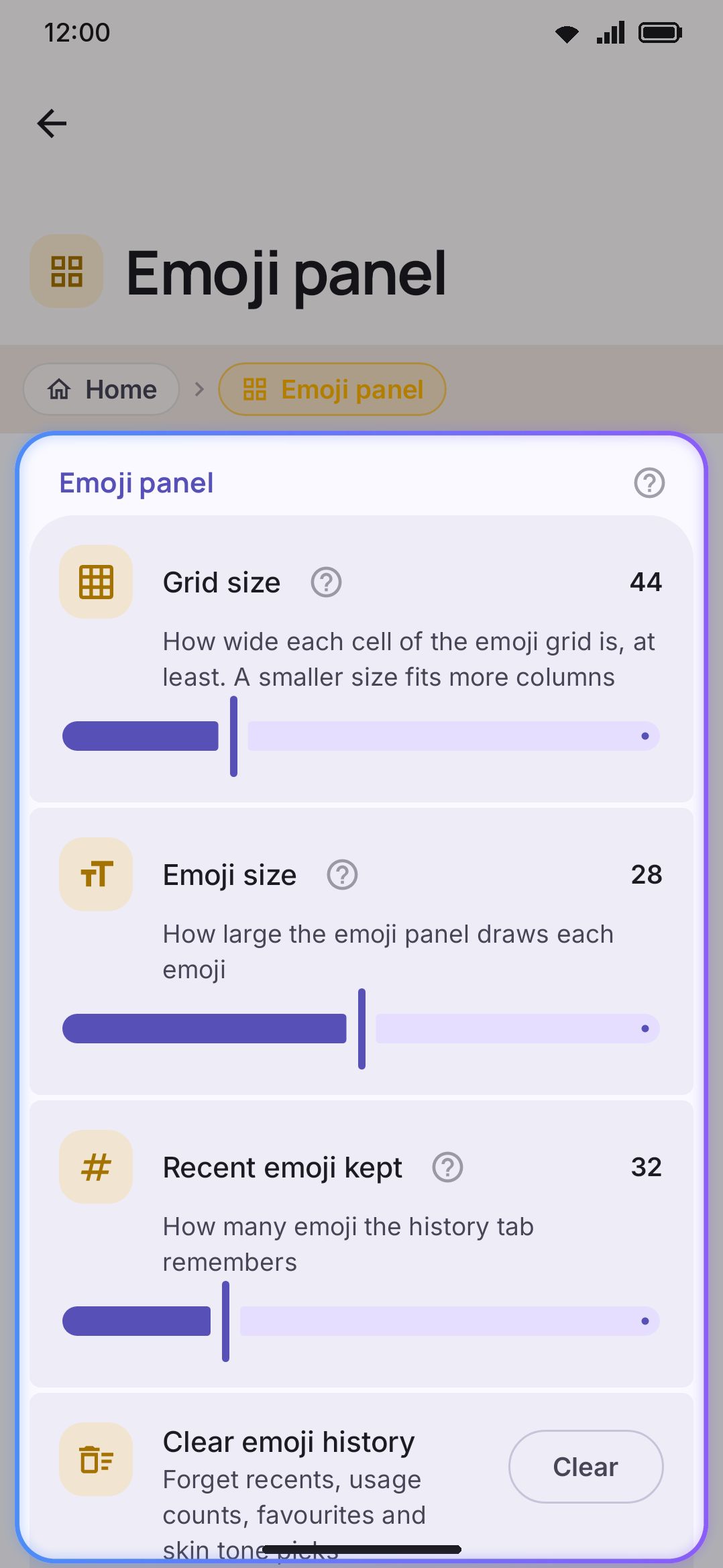
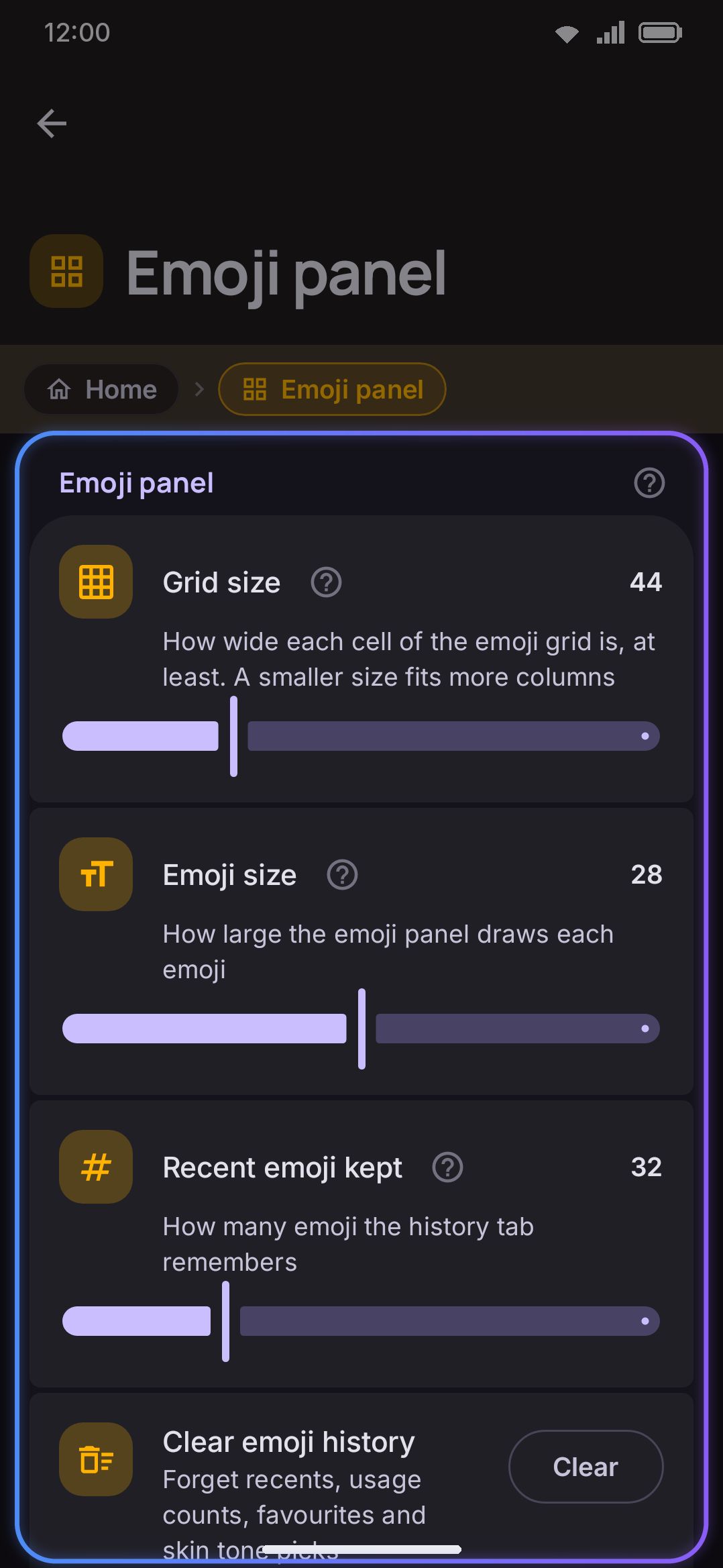
Grid size is the least each cell of the emoji grid may be. A smaller size fits more columns. When Emoji size needs more room than that, the cells grow to fit it.
Emoji size is how large each emoji is drawn, on every tab and in search results. The long-press popup keeps its own size regardless.
Recent emoji kept caps the history tab. 32 is about one row on a small phone and four on a tablet. Lowering it trims the list straight away.
Clear emoji history empties the history tab, unpins your favourites, and puts each emoji’s skin tone back to the default. It confirms first, and it can’t be undone. The emoji themselves are untouched.
Return to the keyboard after you insert closes the emoji panel the moment you insert a single emoji, instead of leaving it open to pick several in a row. The clipboard panel shares this setting, so a single paste closes it the same way.
History tab sets what the panel’s first tab shows. Recent lists emoji in the order you last used them, and Most used ranks by frequency. Favourited emoji are pinned to the front of either list.
Kaomoji and Emoticons adds two extra tabs to the end of the panel’s tab strip: Kaomoji (Japanese-style faces) and Emoticons (Western ASCII faces). Full coverage: Kaomoji & text art.
Emoji descriptions shows the emoji’s Unicode name above the favourite and skin-tone controls on its long-press popup, so near-identical emoji are easier to tell apart.
Animated emoji adds a looping preview and a Send animated emoji button to that same long-press popup, for the roughly 880 emoji Google publishes an animation of. Full coverage: Animated emoji.
Send emoji as image adds a Send image as sticker button to the popup for every emoji. It draws the emoji at 512×512 in your chosen emoji font and sends it as a WebP image. Full coverage: Sending an emoji as a picture.
Emoji categories is a navigation row, not a setting stored here: it opens the sub-screen documented below, where you reorder the panel’s category tabs, hide the ones you never open, and arrange the emoji inside each one.
Emoji keywords is a navigation row, not a setting stored here: it opens the sub-screen documented below.
Emoji row
Section titled “Emoji row”| Setting | Control | Options / range | Default |
|---|---|---|---|
| Emoji row | Choice | Off / Button / Own row | Off |
| Emoji row content (hidden when Emoji row is Off) | Choice | Most used / Recent / Favourites | Most used |
| Emoji in the row (same visibility gate) | Slider | 3–16 | 8 |
| Scroll the emoji row (same visibility gate) | Toggle | On / Off | On |
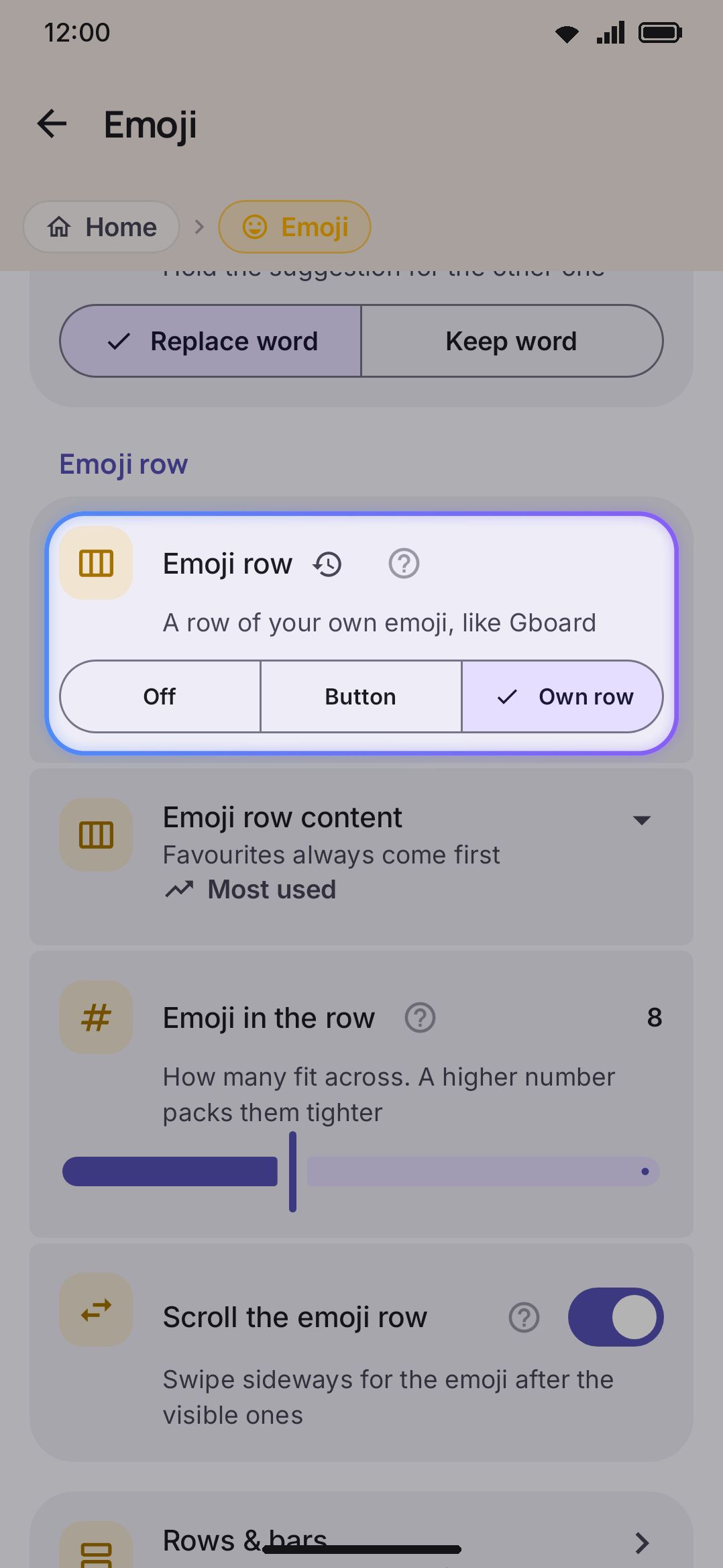
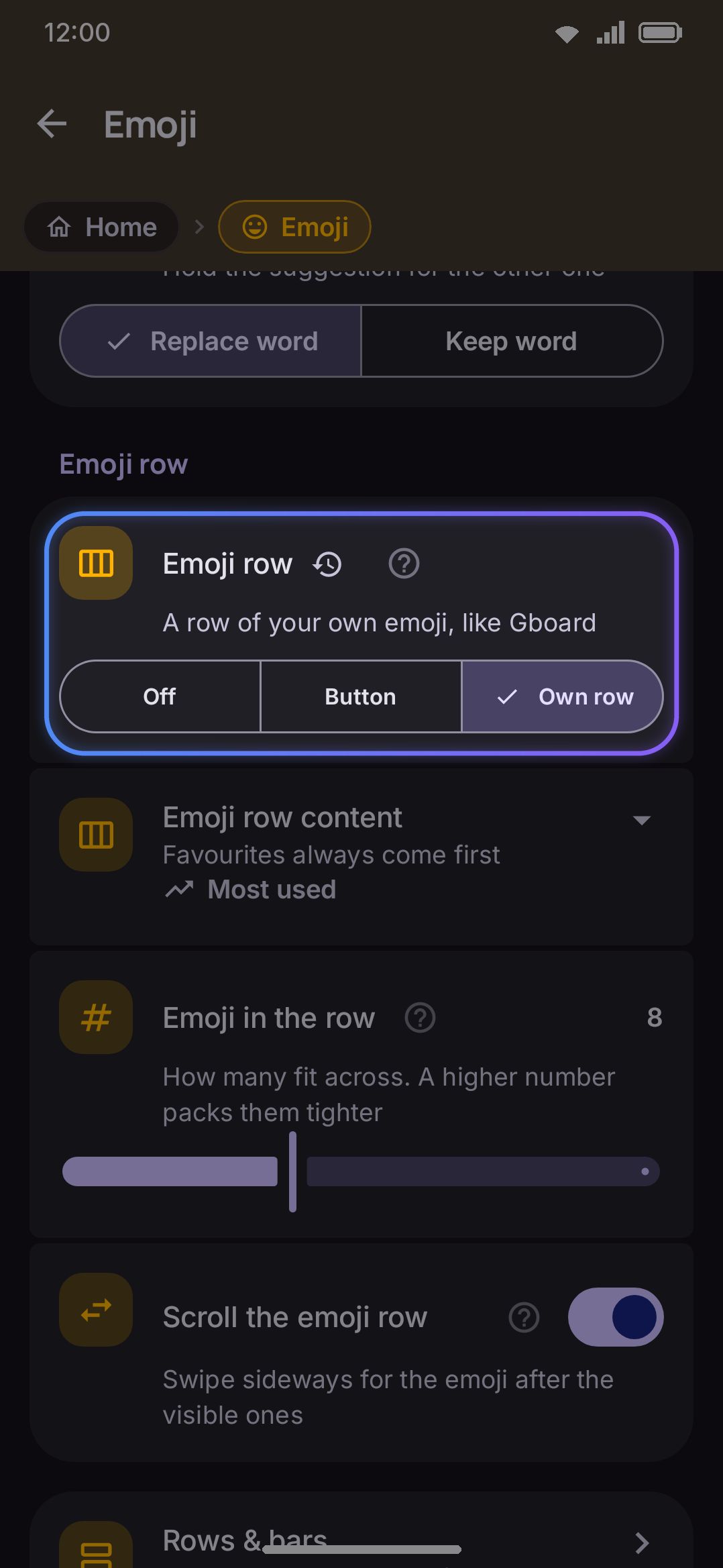
Emoji row controls a dedicated strip of your own emoji, similar to Gboard’s. Off (default) hides it entirely. Button adds a toggle to the toolbar that swaps the suggestion strip for the emoji row on tap. Own row keeps it permanently visible between the toolbar and the keys.
Emoji row content picks what fills the row: Favourites always sort first regardless of which of the three you choose.
Emoji in the row splits the row’s width into this many slots and shrinks the emoji to fit, so a higher number packs more, smaller emoji across. Scroll the emoji row is on by default, so the emoji past the last slot are a sideways swipe away. Turn it off and anything past the last slot isn’t shown at all, which also means the row can’t slide under a tap.
Until you’ve used enough emoji to fill the row from your own history, it falls back to a fixed set of 24 common ones, drawn in your Default skin tone.
When Emoji row is set to Own row, a caption on this screen points to Rows & bars for where the row sits relative to the toolbar and symbol row; by default it’s first, above both.
Skin tone
Section titled “Skin tone”| Setting | Control | Options / range | Default |
|---|---|---|---|
| Default skin tone | Choice | ✋ / ✋🏻 / ✋🏼 / ✋🏽 / ✋🏾 / ✋🏿 | ✋ (None) |
| Override with last used | Toggle | On / Off | On |
Default skin tone sets the Fitzpatrick tone applied to toned emoji (👍, 🙏, 🧑…) wherever they’re drawn: the emoji panel’s grid, the suggestion strip and emoji search results.
Override with last used, on by default, keeps a tone you picked yourself from an emoji’s long-press popup ahead of that default, for that emoji only. Turn it off and the default tone wins everywhere.
Emoji style
Section titled “Emoji style”| Setting | Control | Options / range | Default |
|---|---|---|---|
| Emoji font | Choice | System / Google / Installed / Custom | System |
| Get the newest emoji (only while there’s something to download) | Card with a Download button | n/a | n/a |
| Download more | Opens the addon catalogue, filtered to emoji fonts | n/a | n/a |
| Hide emoji that your device cannot show | Toggle | On / Off | Off |
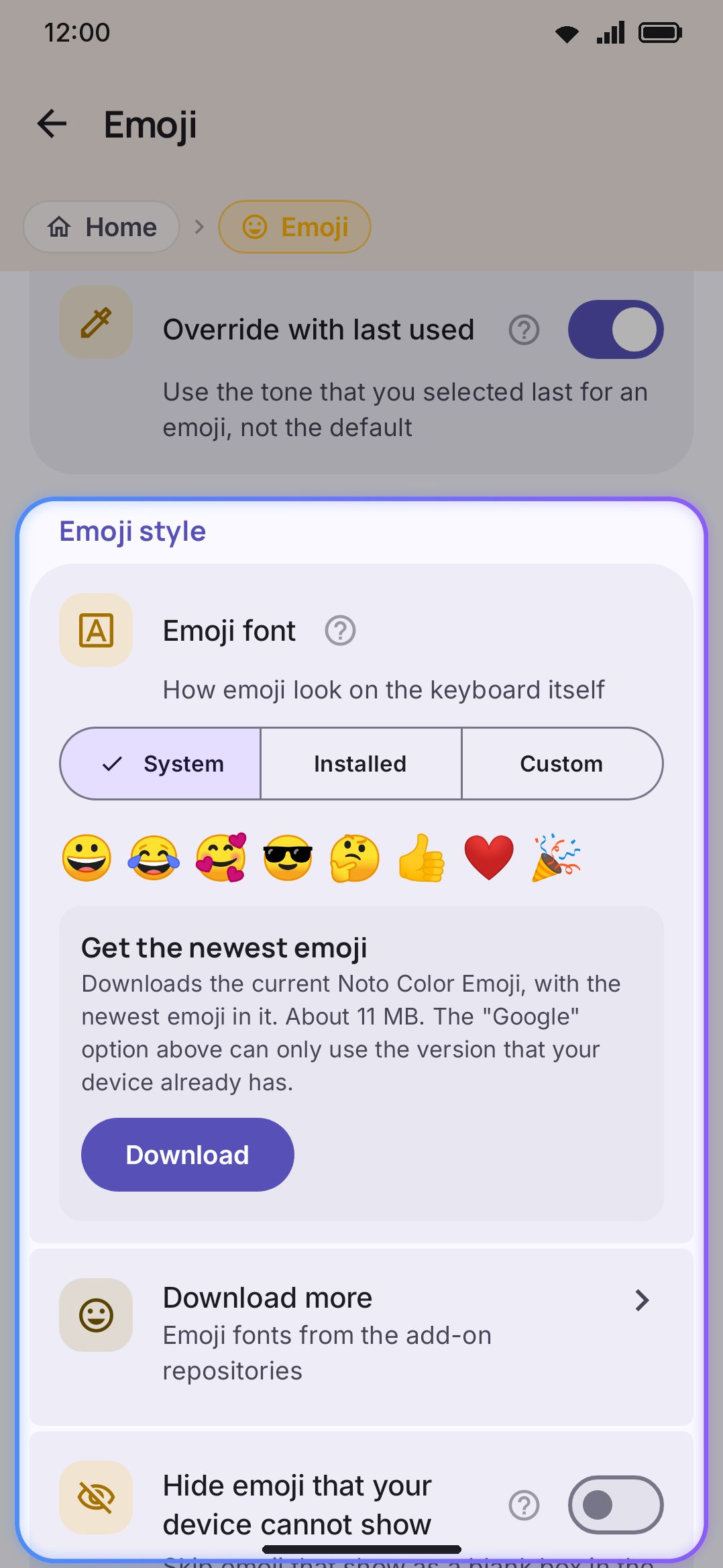
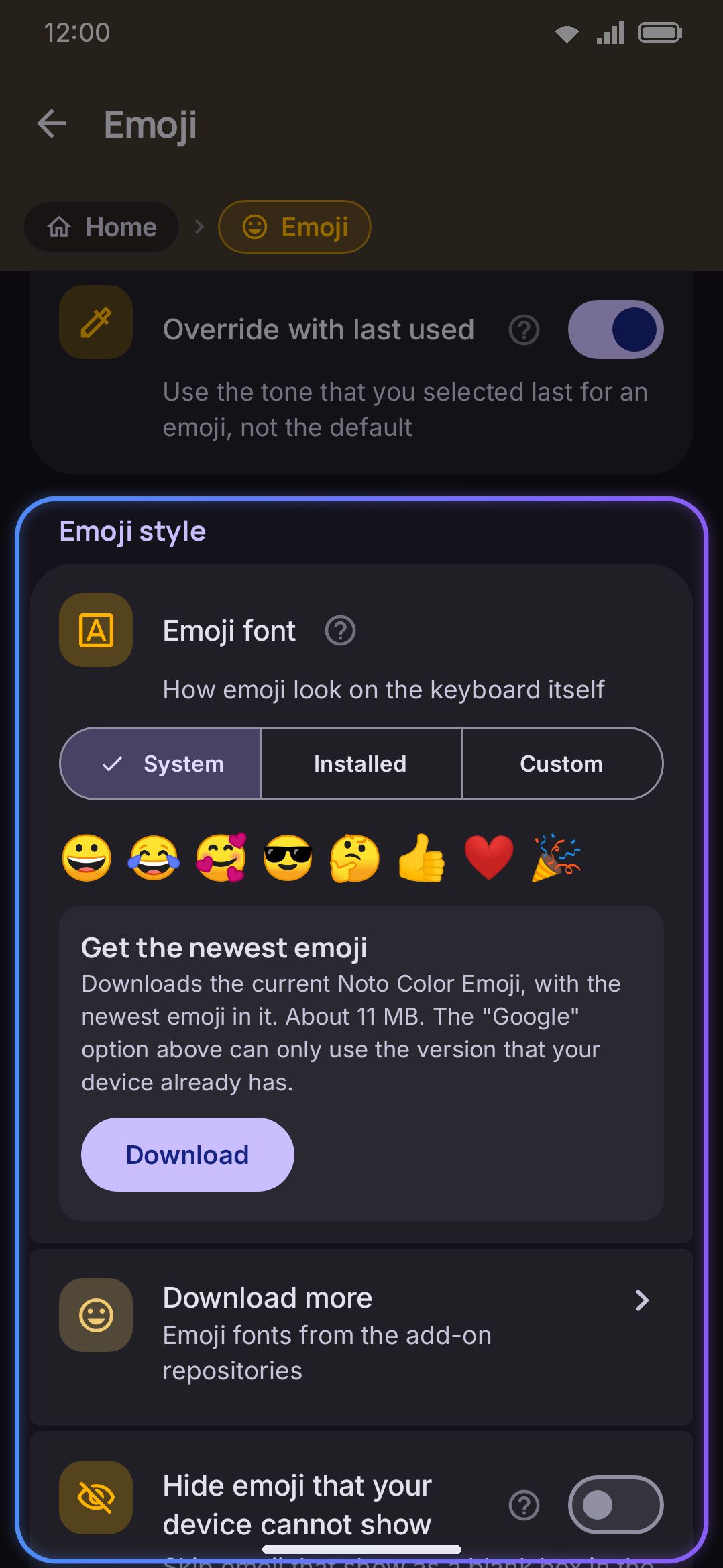
Emoji font decides which font draws emoji on the keyboard itself. WM Keyboard ships no emoji font of its own. A live preview row (😀😂🥰😎🤔👍❤️🎉) runs through the real shaping pipeline, so it shows exactly what the panel will draw. System uses your phone’s own emoji pack. Google fetches Noto Color Emoji once through the system font provider and caches it. Installed picks from an emoji font installed via Addons. Custom uses a single font file you import through a document picker. Whichever you choose, the text you send stays plain Unicode, and other apps and phones draw it with their own emoji font.
Get the newest emoji is a card rather than a row, sitting just under the font choice and its preview. It’s the one-tap route to emoji your phone is too old to draw. Tap Download. It fetches the current Noto Color Emoji (around 10 MB) from WM Keyboard’s addon repository, installs it into the font library, and points Emoji font at it as Installed. The Google choice above can’t do that job. A downloadable font is asked for by family name with no version in the request, so the system font provider serves whichever build it happens to have. On a phone with a recent system emoji font, that’s the older of the two.
The card only shows when there’s something to do:
- Nothing in your font library yet: Get the newest emoji, with a Download button.
- A newer build published since you installed yours: New emoji are available, naming the version, with an Update button.
- Otherwise it isn’t on the screen at all.
While the download runs the button becomes a progress bar, and a failure leaves the card in place with the reason and a Retry button. It’s the same file that’s published as an emoji-font addon, so this shortcut and the catalogue install the same font.
Download more opens the addon catalogue filtered to emoji fonts, for faces like Twemoji or OpenMoji from whichever repositories you’ve added. See Installing addons.
Hide emoji that your device cannot show is off by default. It hides an emoji from the panel, search, and suggestions only when neither the chosen font nor the phone’s own system font can draw it. An emoji missing from just the chosen font is drawn quietly in the system font instead, in a different style.
Long-pressing any emoji in the panel opens its favourite and skin-tone controls: two-person emoji like 🤝 let you set each person’s tone independently.
Emoji categories
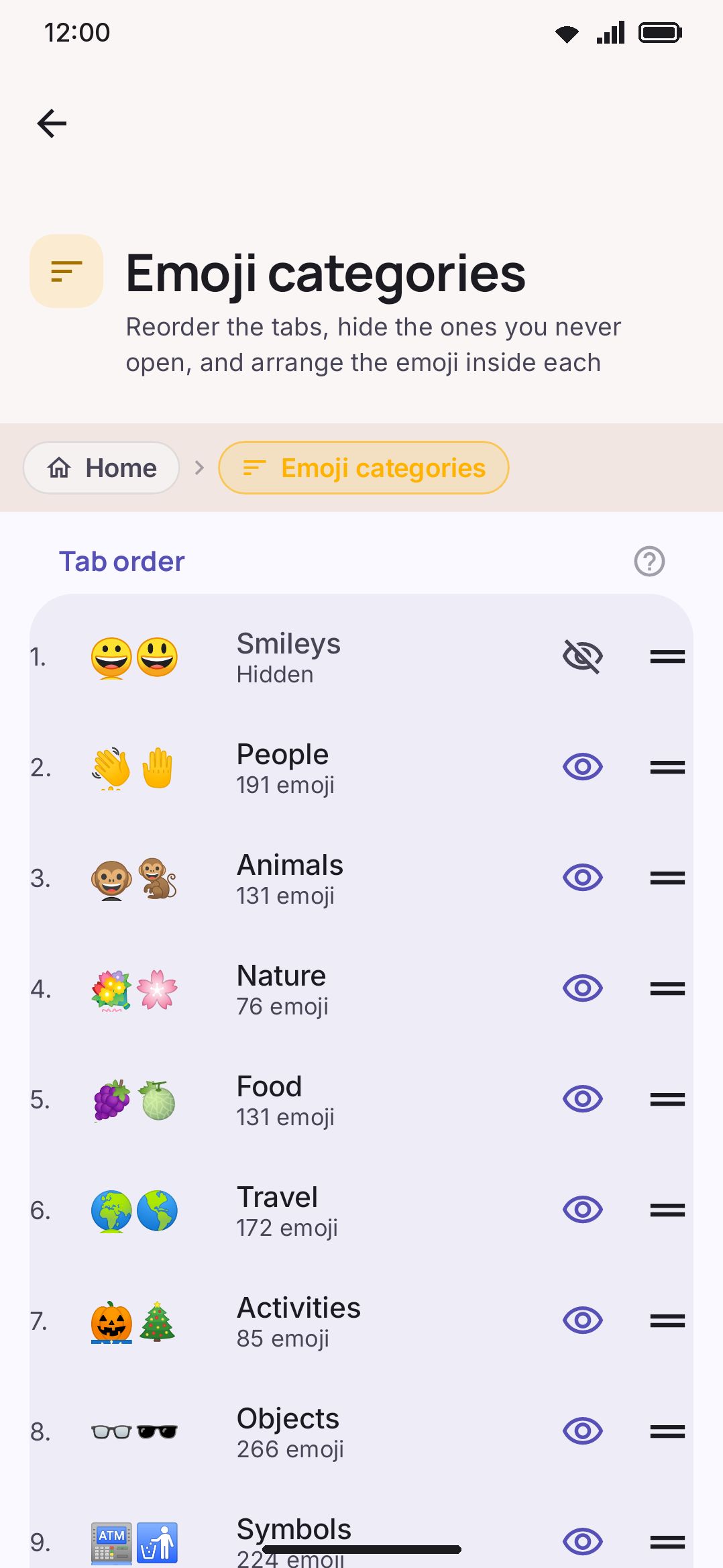
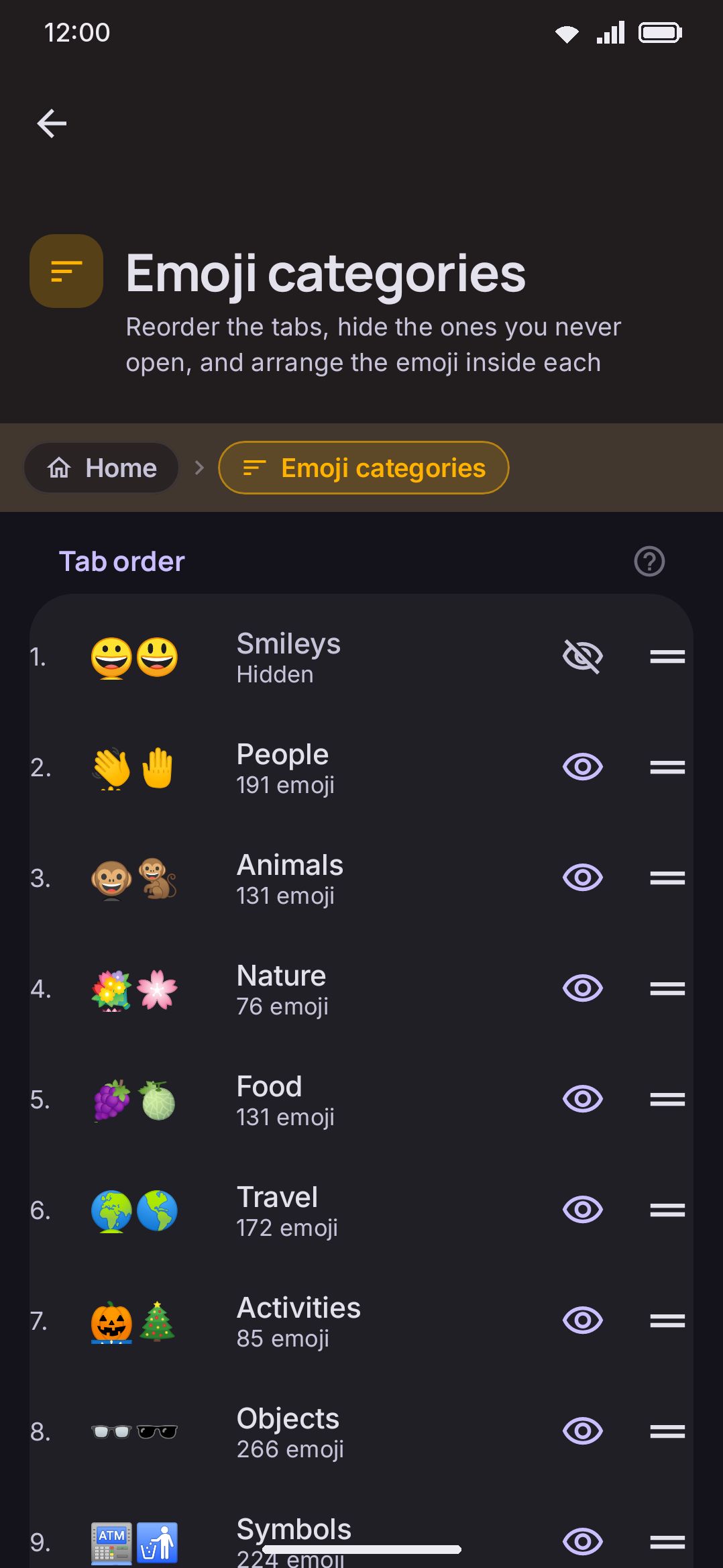
Section titled “Emoji categories”The emoji panel ships its categories in the order Unicode defines them, which is rarely the order you reach for them in. This screen is where that changes. Nothing here touches the emoji themselves: it is an arrangement laid over the catalogue, and resetting it puts everything back.
| Control | What it does |
|---|---|
| Drag handle | Moves a category’s tab in the panel’s tab strip |
| Eye | Hides a category’s tab, or brings it back |
| The row itself | Opens that category’s emoji, to arrange them |
| Reset every order | Puts the tabs, the hidden ones and every category’s emoji back the way they shipped |
Reordering a tab. Drag a row by its handle. The order you leave it in is the order the tabs appear in the panel, left to right.
Hiding a tab. Press the eye on a category you never open and its tab leaves the panel. The emoji are still found by emoji search, and they still appear in the suggestion strip — only the tab goes. The last visible category cannot be hidden: the panel pages by category, so a panel with none would have nothing to page.
Arranging the emoji inside a category. Press a category to open its grid, then press and hold an emoji and drag it where you want it. Dragging to the top or bottom edge scrolls. The order you leave is the order that category’s page shows. Reset in the top bar puts one category back on its own.
Three tabs are deliberately not listed here:
- Recent (or Most used) orders itself by what you use, with your favourites pinned to the front. Reorder those from any favourited emoji’s long-press popup.
- Kaomoji and Emoticons are switched on and off by the Kaomoji and Emoticons toggle above, and always sit at the end of the strip.
Emoji keywords
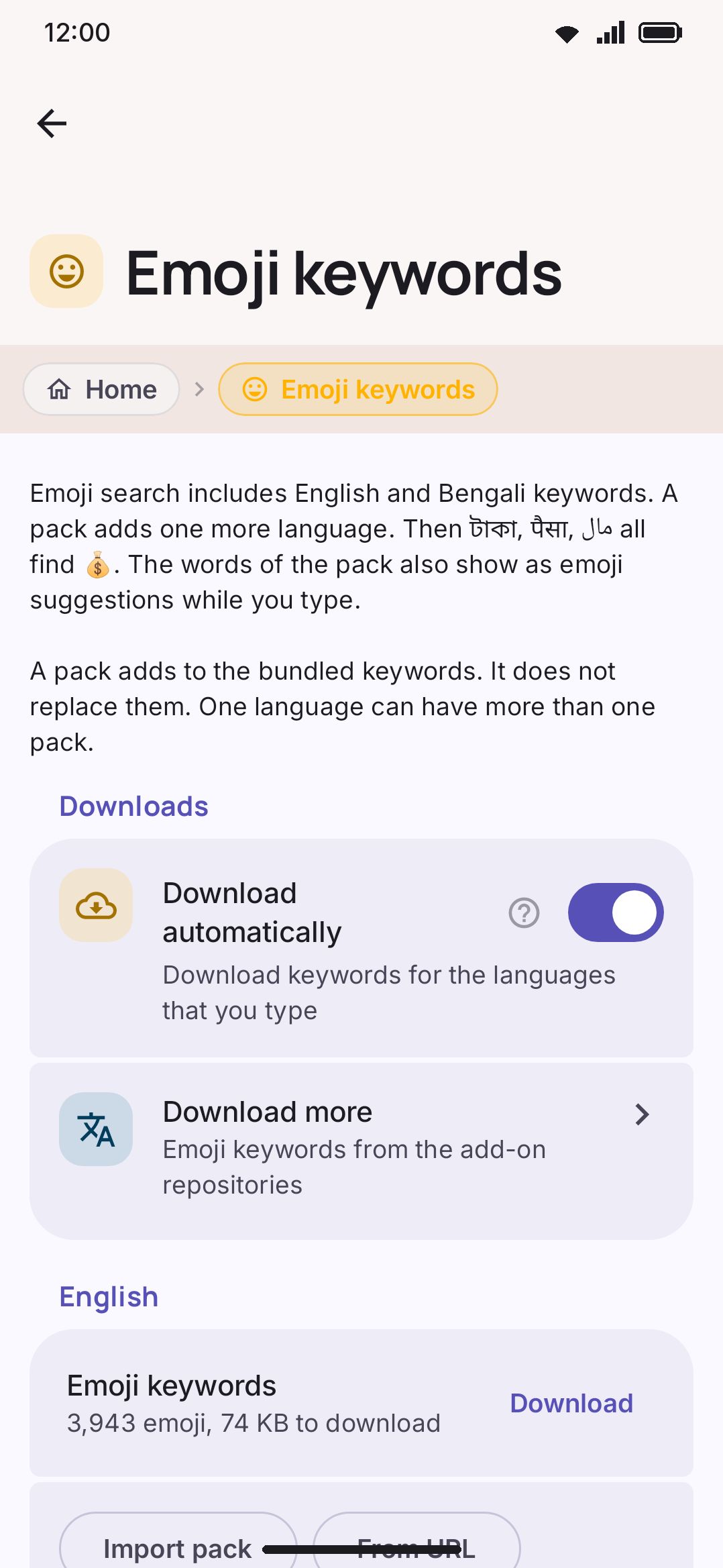
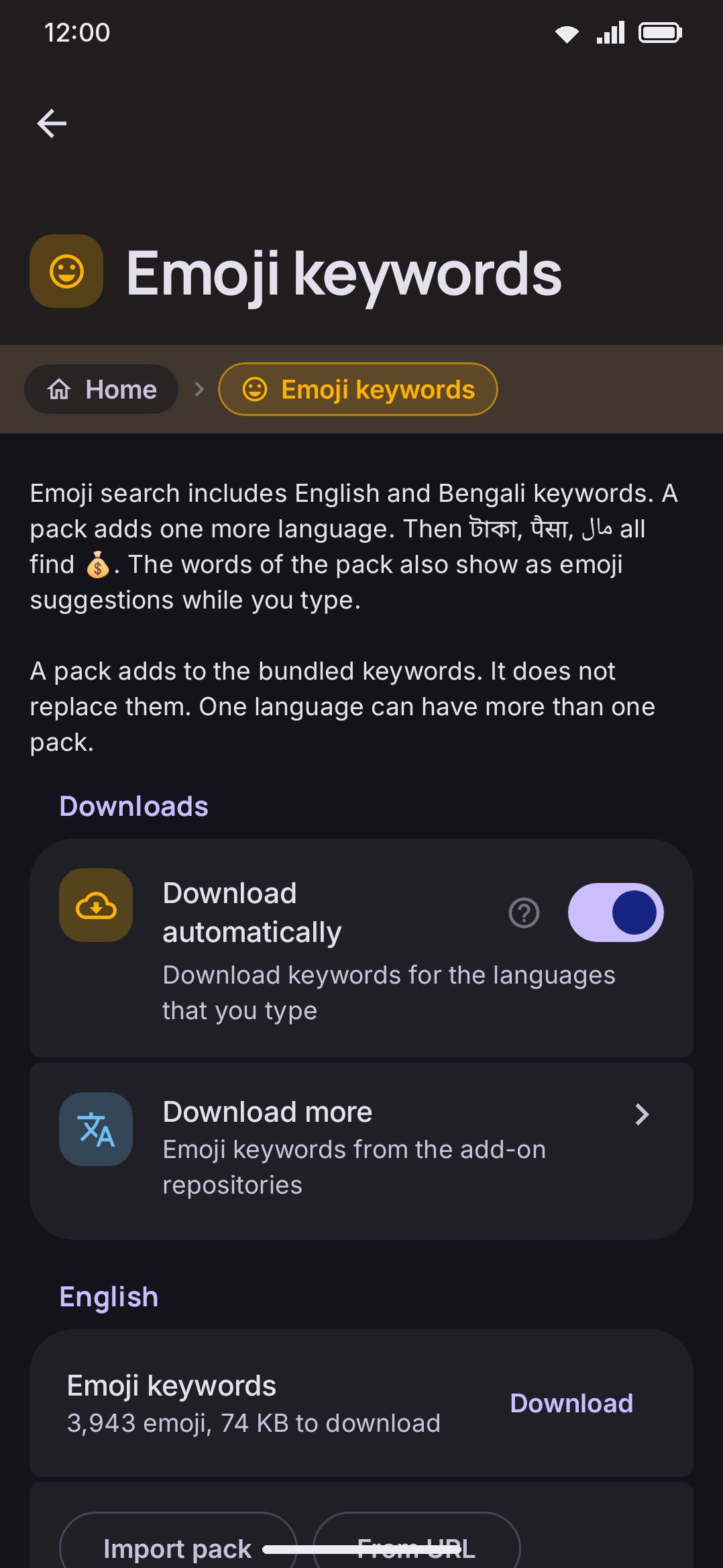
Section titled “Emoji keywords”Reached from the Emoji keywords row in the Emoji panel group above, this sub-screen manages the per-language dictionaries emoji search matches against. English and Bangla keywords ship built in. Everything else needs a pack.
| Setting | Control | Options / range | Default |
|---|---|---|---|
| Download automatically | Toggle | On / Off | On |
| Download more | Opens the addon catalogue, filtered to emoji keywords | n/a | n/a |
Download automatically fetches a keyword pack (roughly 100 KB) in the background the first time you enable a language you type in. Off leaves it to the Download button next to each language below.
Download more sits in the same group and opens the addon catalogue filtered to emoji keyword packs, which is where a pack lives if it isn’t one of the 126 the data repository carries.
Below that, one group appears per language you’ve enabled (plus any language that already has a downloaded or imported pack, even if you’ve since turned it off). Each group shows:
- A download/delete row with the pack’s emoji count and size, for any language the data repository covers.
- Any packs you’ve imported by hand, each with its own delete button.
- Import pack (a document picker) and From URL buttons.
Packs stack on top of the bundled English and Bangla keywords rather than replacing them, and a language can have several at once. The import format is a tab-separated file: one emoji per line, then its comma-separated keywords, and optionally a display name. Lines starting # are ignored. The JSON emoji dictionaries from the wmkeyboard-data repository import as they are, with no conversion needed.
The data repository currently covers 126 downloadable language packs: fewer than its raw language count because a handful of codes get remapped or merged with duplicates, and a few packs the source data leaves nearly empty are left out.
Each enabled language’s own settings screen also carries a matching Emoji group with the same download row and a shortcut back to this same screen, so you can start a download from either place and see the same state in both.
Details & edge cases
Section titled “Details & edge cases”- Two more emoji-access shortcuts live on a different screen. Emoji key instead of 🌐 (on by default) turns the 🌐 key into an emoji-panel launcher. Comma key opens emoji (off by default) does the same to the comma key. Both are under WM KeyboardLayout & sizeBottom row keys, not here. Turning on the comma-key version also removes the emoji tool from the toolbar, per its own info text.
- Inline
:word:emoji search is a Typing setting, not an Emoji one. WM KeyboardTypingSuggestionsInline emoji search (on by default) turns a colon at a word boundary into a live emoji search in the suggestion strip, and auto-commits exact shortcode matches like:tada:. It’s unrelated to the Emoji suggestions toggle above. - Press an emoji suggestion only appears while Emoji suggestions is on. Turning suggestions off hides the choice entirely rather than disabling it.
- Clear recents button only appears while History tab is Recent. The Most used tab is a computed ranking rather than a remembered list, so there’s nothing on it to clear.
- Emoji row content, count, and scrolling only appear while Emoji row is not Off.
- Installed and Custom emoji fonts each reveal their own extra controls. A font list pulled from Addons for Installed, an import button for Custom, shows only while that choice is selected.
- Kaomoji and emoticons insert as plain text. Tapping one from those two tabs types it directly. It never joins your emoji recents or most-used history.
- Power Saving mode can drop emoji suggestions independently of the toggle here. See Power saving for its own emoji-prediction toggle.
- The toolbar’s Emoji tool has its own mini-settings panel with a duplicate “Emoji button in toolbar” toggle and an “All emoji settings” shortcut back to this screen. See Tools for toolbar-tool customization in general.
- No edition differences. Every setting on this screen and its keyword sub-screen works the same on both the full and lite builds.
Related pages
Section titled “Related pages”- Emoji picker & search: the panel itself. Search, skin tones, favourites and recents.
- Emoji customization: the reasoning behind fonts, keyword packs, suggestions, and the emoji row.
- Kaomoji & text art: what the Kaomoji and Emoticons tabs add.
- Layout & size: the 🌐-key and comma-key emoji shortcuts.
- Typing: inline
:word:emoji search and shortcodes. - Rows & bars: where the emoji row sits relative to the toolbar and symbol row.
- Addons: installing emoji fonts for the Installed choice.
- Power saving: dropping emoji suggestions to save battery.