
Sharing themes
Export a theme as a file, import someone else's, or publish it in an addon repository.
Every theme, yours or a built-in, exports to a single self-contained file. Any .wmtheme.json file imports back in, no matter where it came from. An addon repository serves that same format, so publishing a theme takes no extra packaging step.
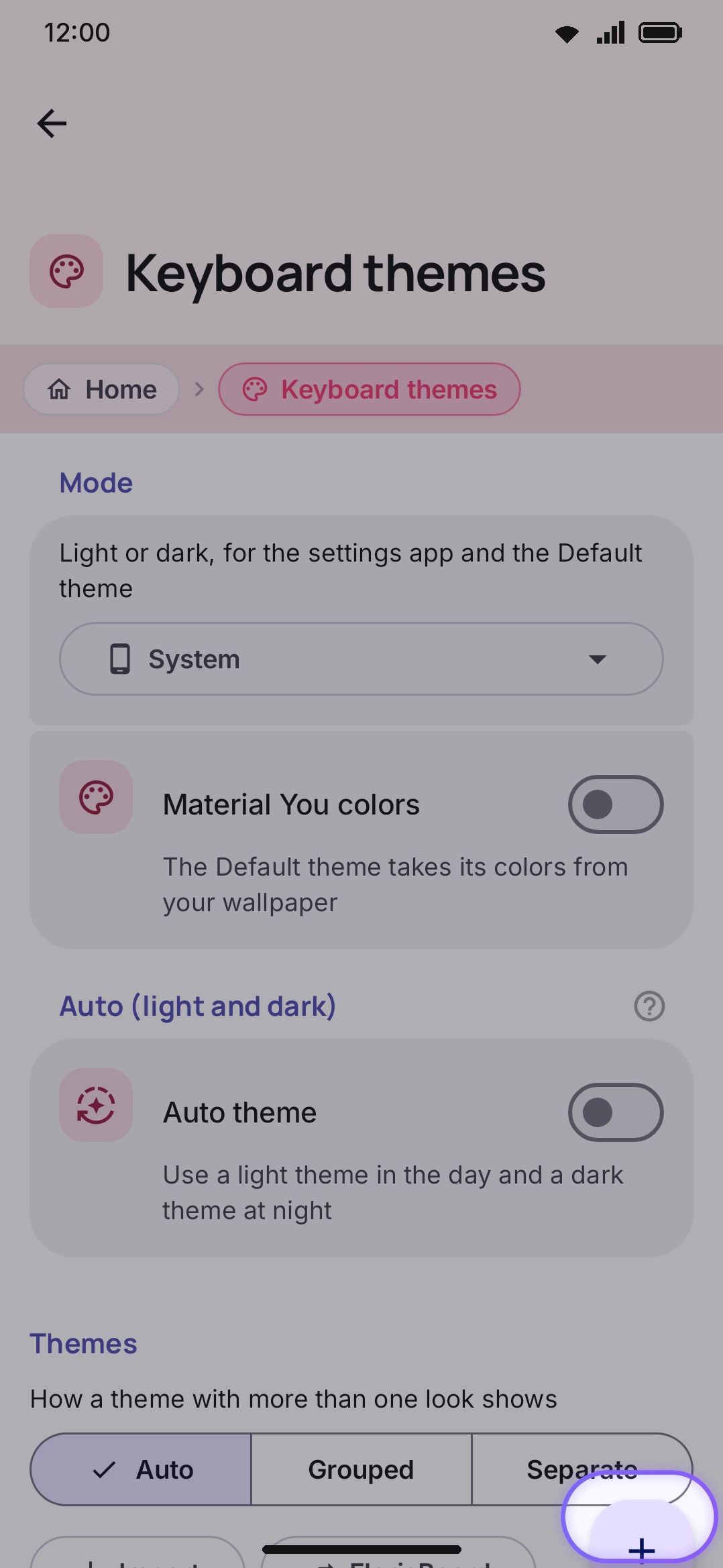
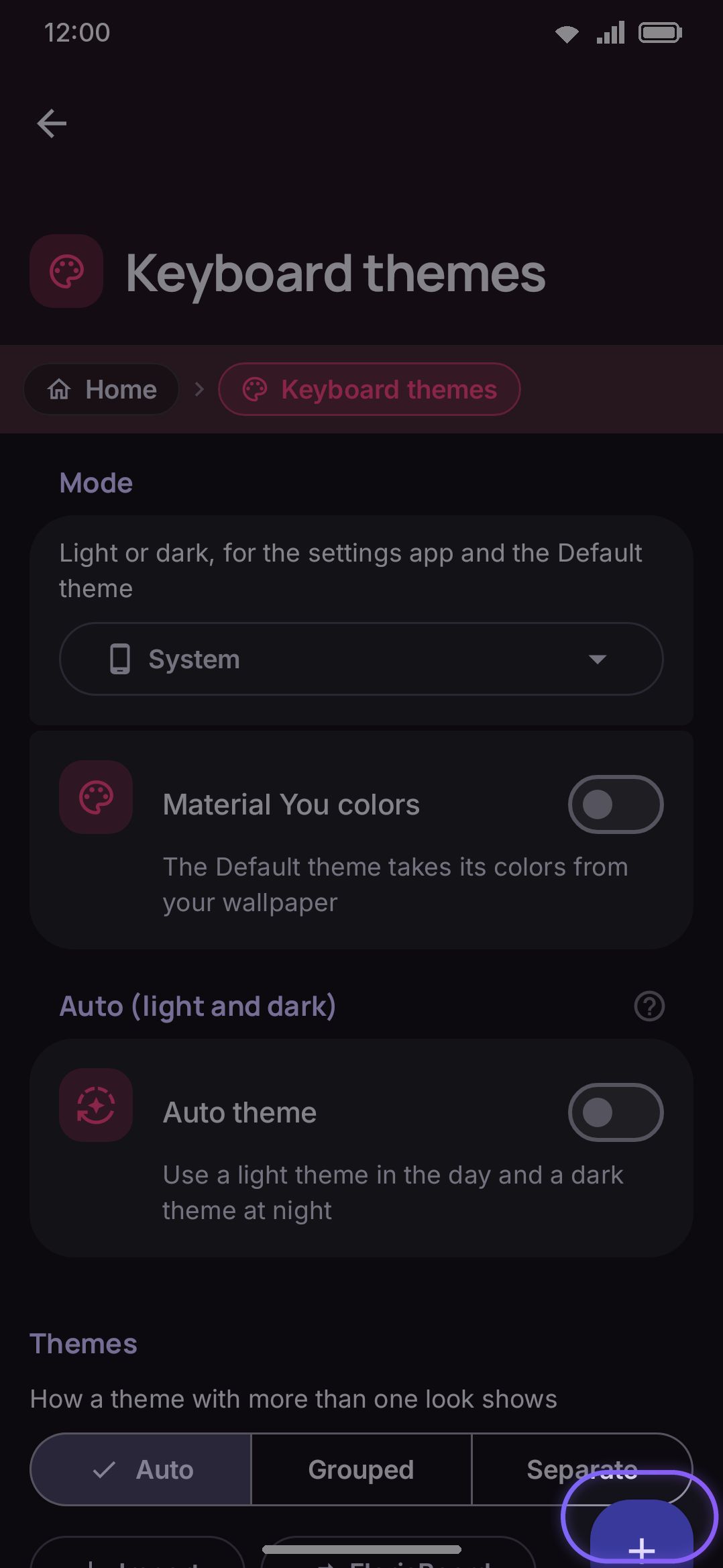
Exporting a theme
Section titled “Exporting a theme”Every card in the gallery has an export icon (a small upload glyph), except the Default (system) card. That one is generated live from your device’s Material You color scheme rather than stored anywhere, so there’s nothing fixed to export. Custom themes and every built-in theme export fine.
Tap export and the system “Save as” picker opens, so you choose the destination and filename yourself. The suggested name is the theme’s own name plus the .wmtheme.json extension, so a theme called “Midnight” suggests Midnight.wmtheme.json. The picker uses the plain application/json MIME type on purpose rather than a custom one, so file managers and chat apps don’t hide the file the way they might hide an unrecognized vendor type.
What a card exports depends on how the gallery is drawing it. A grouped family card exports the whole family, every look in one file. A separate card exports the single look it shows, with the other looks and the group name stripped out, so the person you send it to gets one theme rather than a family with holes in it. Flip Theme gallery style if you want the other one; see Theme families and looks.
The exported file is the whole theme, written as plain JSON with no wrapper or format tag around it: colors, gradients and radii, but also the typeface, sound and key-texture choices the theme carries. Unlike a layout or settings export, a theme file identifies itself by its .wmtheme.json extension rather than by a marker inside. If the theme has a background image, the app reads that image off disk and embeds it as base64 instead of leaving behind a path that only exists on your device. The export is self-contained, so opening it on another phone doesn’t mean re-picking the photo. A theme with no background image has empty image fields. There’s no size limit on a local export, so a theme with a large background photo makes a correspondingly large file.
Importing a theme
Section titled “Importing a theme”There are three ways a theme gets imported, and they don’t all behave the same way: two apply the theme immediately, one doesn’t. Three more buttons on the same row, FlorisBoard, HeliBoard and Gboard, read someone else’s format rather than this one. They’re covered separately below.
From the Import button
Section titled “From the Import button”The Import button, first of the row above the cards, opens a file picker scoped to JSON-ish files. It’s intentionally permissive about the exact MIME type, since file providers report a .json file as text/plain or application/octet-stream about as often as they get it right. Pick a .wmtheme.json file and it’s added to Your themes under a freshly generated ID. The ID stored inside the file itself is discarded, so importing the same file twice creates two separate custom themes rather than updating one in place. Any embedded background image is written back out to local storage as part of the import.
Importing this way both adds the theme and switches the keyboard to it immediately: there’s no separate confirmation step for “use it now.”
By opening the file elsewhere
Section titled “By opening the file elsewhere”Tapping a .wmtheme.json file in a file manager, or choosing “open with” on one from a chat app, hands it to a small confirmation dialog rather than dropping you into the settings app. It asks “Import theme name?” with the note that the theme is added to your themes and applied to the keyboard, then Import and Cancel. Confirming has the same immediate-apply effect as the in-app Import button: added to Your themes and switched on right away.
From an addon repository
Section titled “From an addon repository”See Addon repositories for how repositories work generally. Installing a theme from one behaves differently from the two file-based flows above: it’s added to Your themes but not switched on automatically. Browsing a repository shouldn’t repaint your keyboard behind your back, so after the install finishes you get a separate, dismissable prompt: “Theme name is installed”, asking “Use it as your keyboard theme now?” with a Switch to it button and a Not now dismiss option. Declining leaves the theme sitting in Your themes, installed but not worn, until you tap it yourself.
A theme listing in a repository also isn’t previewable in the addon browser the way a dictionary or sticker pack is. You judge a theme by seeing the keyboard wearing it, which a static preview panel can’t honestly show. Unlike a plugin, a theme’s checksum in the repository manifest is optional rather than enforced, since a theme isn’t executable code. A theme with no checksum installs exactly like one that has it, with no extra warning either way.
From a FlorisBoard file
Section titled “From a FlorisBoard file”The gallery’s FlorisBoard button reads FlorisBoard’s own .flex theme packages instead of .wmtheme.json, and converts every theme inside one into a custom theme here. A converted theme is saved without being switched on, so you can look at it before wearing it. You can open a .flex straight from a file manager too. A file that carries both a day and a night version becomes one theme with two looks rather than two entries. Both FlorisBoard style formats are read, the 0.4 one and the 0.5 one. What converts cleanly and what gets reported instead of guessed at are in Importing other keyboards.
From a HeliBoard or LeanType theme
Section titled “From a HeliBoard or LeanType theme”The HeliBoard button reads the colour themes those two keyboards share. They have no theme file at all: a theme is a line of JSON copied out of the menu at the top of their colour screen, which is why their themes circulate as forum posts. So the button asks where yours is, Paste or Open a file, and reads either. Both of that keyboard’s export shapes work, the ten named colours and the forty-odd internal roles of its all colours mode. Like a FlorisBoard import, the theme is saved without being switched on, and the result message says how many of its colours landed. See Importing other keyboards.
From a Gboard theme or the Rboard collection
Section titled “From a Gboard theme or the Rboard collection”The Gboard button asks where the theme is. Open a file reads a Gboard theme .zip: the file Gboard itself exports, and the format the Rboard community shares hundreds of themes in. A ZIP that holds several themes (an Rboard pack) lists them so you can pick one, or Add all. Browse Rboard opens a list of the packs in the Rboard repository on GitHub; the list is fetched only when you open that screen, and a pack only when you press it. The Google Play build has no Browse Rboard, so there the button opens the file picker straight away. Every theme ends on a dialog with a preview, the count of style rules that came across, and a line for each thing that could not. Like the other two conversions, a theme is saved without being switched on. Gboard draws a theme with or without key borders, and a theme that ships both becomes one theme with two looks. You can also open a Gboard theme or an Rboard pack straight from a file manager. See Importing other keyboards.
Publishing a theme
Section titled “Publishing a theme”Publishing requires no extra packaging. A repository serves the exact .wmtheme.json file the Export button produces. Export the theme. Drop the file into your repository’s themes/ folder. Reference it from the repository manifest. See Addon repository format for the manifest shape and a worked theme entry.
Details and edge cases
Section titled “Details and edge cases”- No limit on custom themes. Unlike sticker packs or plugins, there’s no cap on how many themes you can import or create.
- Re-importing a file always creates a new theme. Because the ID inside the file is discarded on import, editing a file externally and re-importing it adds another entry rather than replacing the original; delete the old one yourself if you don’t want both.
- Deleting the active theme falls back to Default. If you delete a custom theme that’s currently applied, the keyboard falls back to the Default (system) theme. Its background image files stay on disk for now: two themes can share an image file, so only a later housekeeping pass removes the ones nothing points at any more, and only once they’ve gone a full day unreferenced.
- Import and export work the same in both editions. There’s no feature gap between the full and lite builds for exporting, importing, or installing themes from a repository.
- A background image travels with every export, portrait and landscape both, so restoring a theme on a new device doesn’t require re-picking either photo. See Image backgrounds for how those images are set in the first place.