
Migrating from another keyboard
Coming from Gboard, SwiftKey or FUTO? Feature equivalents and what to set up first.
Switching keyboards is mostly muscle memory, and WM Keyboard was built with that in mind. Dozens of its behaviors deliberately follow Gboard and SwiftKey conventions, right down to code comments that say so. This page maps the features you already rely on to their WM Keyboard equivalent, and calls out the handful of places where migration isn’t a straight swap.
Finding the feature you know
Section titled “Finding the feature you know”If a term below doesn’t match what your old keyboard called it, this is where to look for it in WM Keyboard.
| You know it as | WM Keyboard equivalent | Default |
|---|---|---|
| Glide typing / Flow | Gesture typing: drag through letters instead of tapping | On |
| Swipe-to-handwrite | A gesture-typing sub-option that recognizes handwritten letters instead of a glide path | Off (glide path) |
| Clipboard manager | The Clipboard tool: history with pinning, and a paste chip for your last copy | History on, entries expire after 24 hours or once you pass 100 items |
| Theme store / custom themes | A full theme editor: 29 built-in themes (including ports of well-known editor palettes like Dracula, its light half Alucard, Nord and Solarized), custom colors, background images (including a landscape-specific one), scheduled light/dark, and .wmtheme.json import/export | Follows system light/dark, Material You colors on |
| Voice typing / dictation | The Voice tool: a full-screen panel by default, or a compact bar over the keys | Full panel; continuous listening and spoken punctuation both on |
| Autocorrect strength | A confidence multiplier you can tune, rather than a plain on/off switch | On, ×4 (adjustable ×1.5–×10) |
| Emoji suggestions replacing the typed word | Emoji insert mode set to replace the word, with a long press on the suggestion keeping the word instead | On |
| “Virtual key” haptic feel | A Haptic style picker. Tap asks the platform for its keyboard-tap effect, the one an OEM tunes for its own keyboard, but setup skips past it. Key, the generic virtual-key buzz, is what setup actually picks on most phones, falling back to Heavy where the platform effects aren’t supported | On, style Key or Heavy, picked by setup |
Voice typing, glide typing, and several tools are covered in their own pages: Voice typing, Glide typing, Clipboard, and Themes. Autocorrect and gesture settings live under Typing settings. Tune the confidence multiplier there if the default feels too eager or too quiet.
Did your old keyboard cover handwriting, OCR text scanning, QR scanning, document scanning, offline dictation, or an on-device AI model? Check that you’re running the Full edition only build. Lite edition only leaves those out to save space. See Full vs Lite for the complete comparison.
Bringing your dictionary across
Section titled “Bringing your dictionary across”There’s no one-click “import my personal dictionary” button. Most keyboards keep their learned words in a format no other app can read. The exception is the AOSP family (HeliBoard, LeanType), whose backup file can be imported here, learned words and word pairs included. Here’s what actually happens, and your real options.
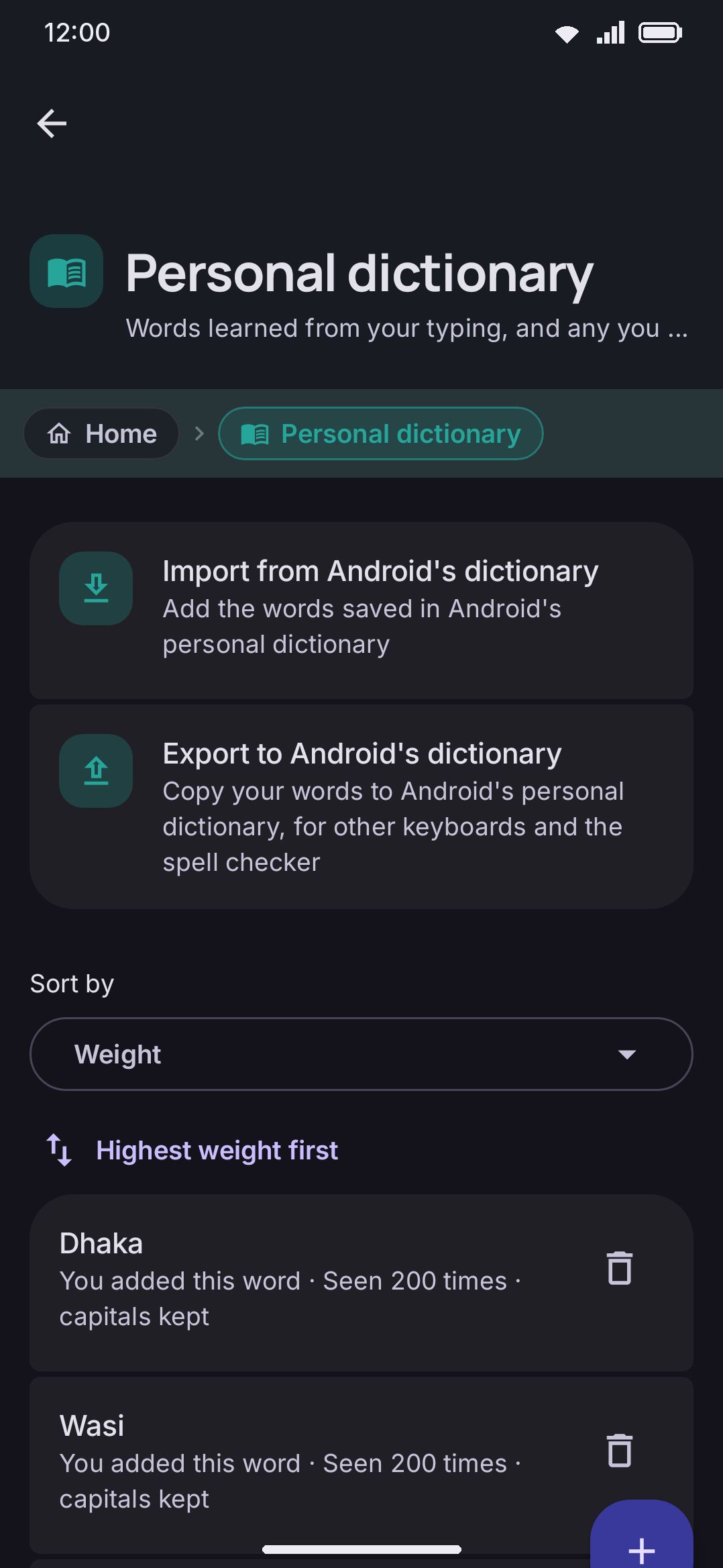
Words you’ve typed build up in an on-device dictionary automatically, the same way any predictive keyboard learns your vocabulary. There’s nothing to migrate beyond typing normally with Learn from typing switched on. You can also add words one at a time from the personal dictionary screen. Anything added that way reads “You added this word.” Words the keyboard picked up from typing read “Seen 4 times” instead.
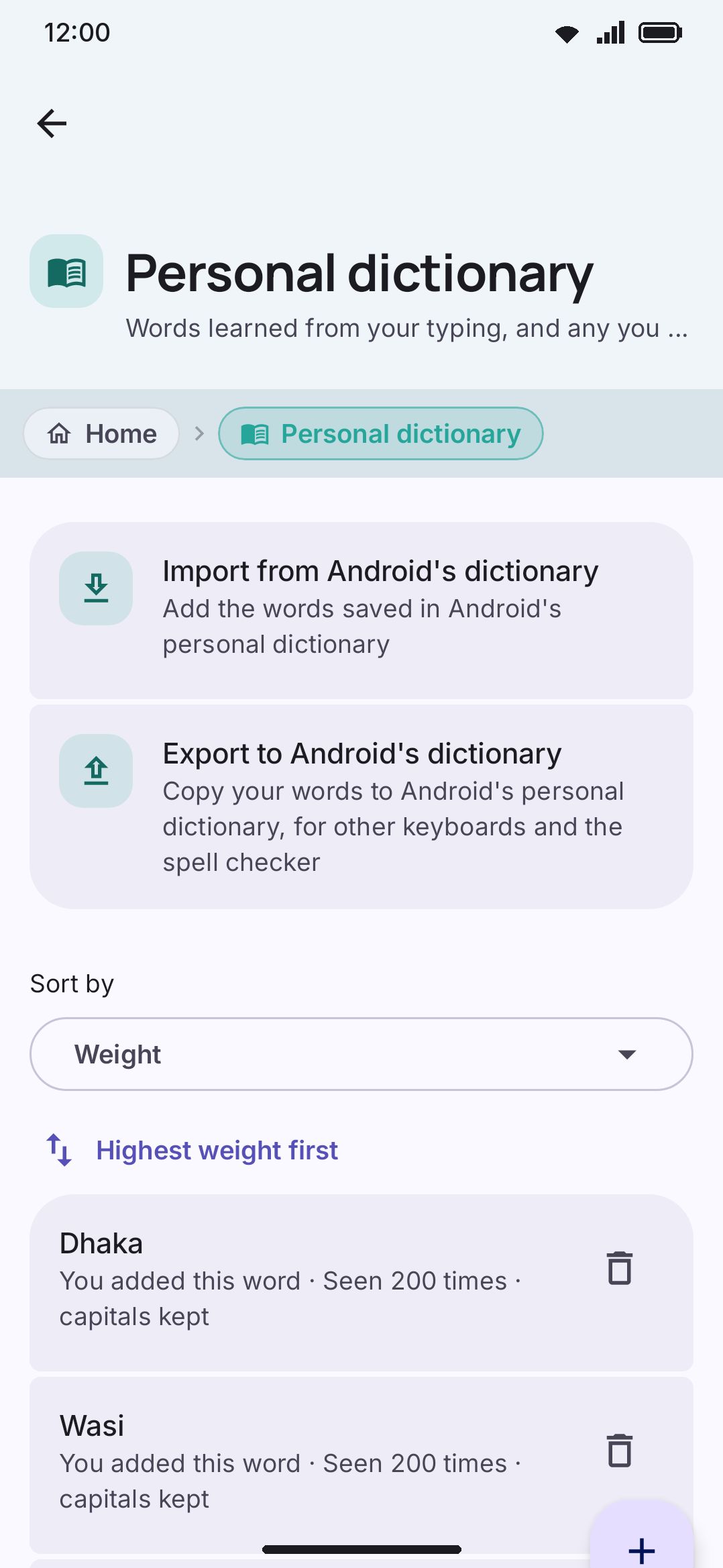
For seeding a large vocabulary at once (brand names, jargon, a whole word list you already have), use Custom dictionaries instead. It’s a different feature (word lists layered per language, mainly meant for languages with no bundled dictionary), but it’s the closest thing to a bulk import:
- Import a plain text file, or pull one from an
http://orhttps://URL. - Format: one word per line, optionally followed by a space and a frequency number; lines starting with
#are ignored. - A
.combinedword list or a compiled.dictdictionary from an AOSP-derived keyboard (HeliBoard, LeanType, FUTO, OpenBoard, or one pulled from a GApps package) imports as it is, with nothing to convert first. Its word pairs and shortcuts can come too: a dialog asks which parts you want. - A HeliBoard or LeanType backup
.zipimports its dictionaries, including the user history: the words that keyboard learned from you and the word pairs it saw you type. - Words imported this way are never autocorrected away.
- Files are capped at 32 MiB per import.
So if your old keyboard can export a word list, import it here. See Dictionaries & words for the full screen reference, and Importing from other keyboards for what each part of a dictionary becomes.
Settings worth changing on day one
Section titled “Settings worth changing on day one”The first-run wizard covers most of this already (see Enable the keyboard for the full walkthrough). If you skipped or rushed past its pages, these four are worth doing by hand:
- Add every language you actually type in. A fresh install enables only what your phone’s own language list told it to, plus English. Add the rest from Settings → Languages, where a Suggested for you group offers the likely ones first.
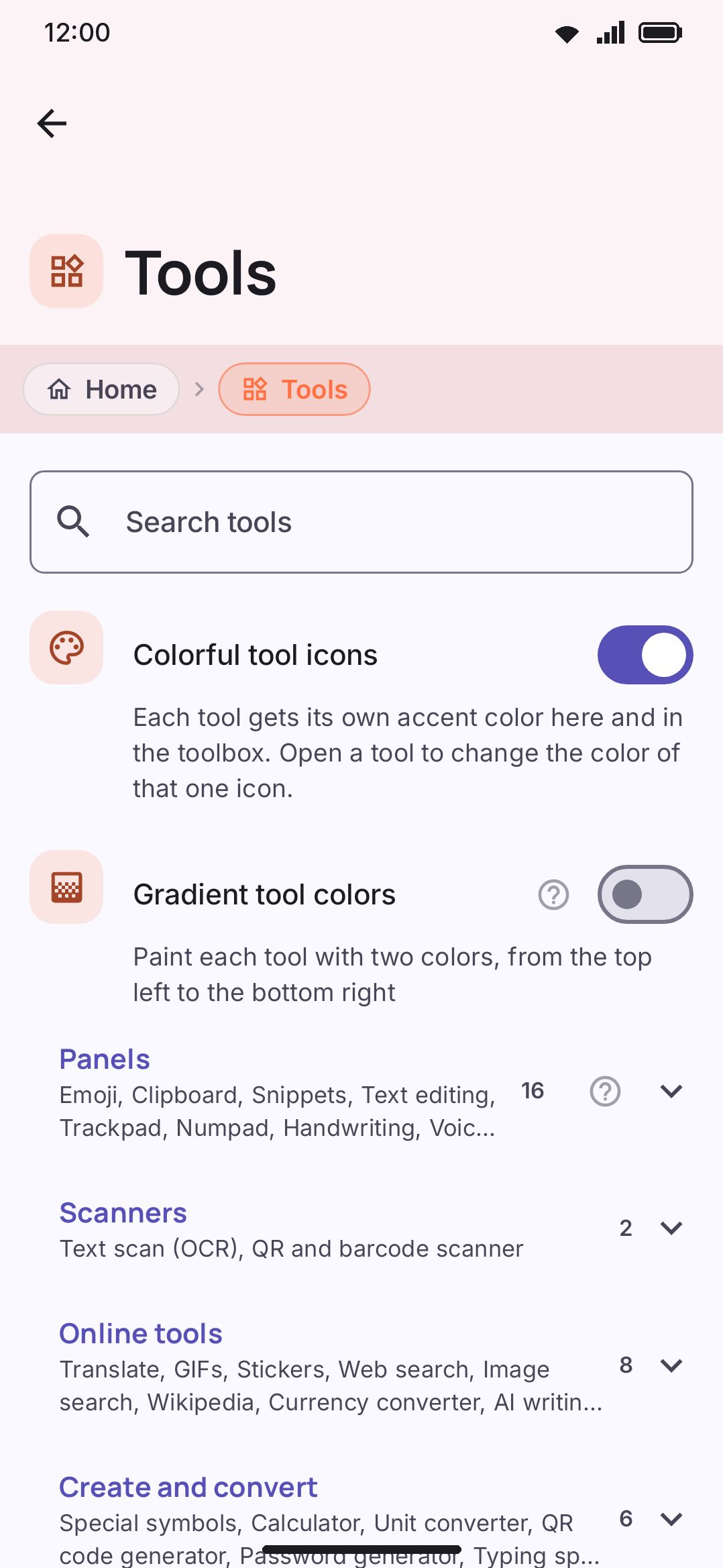
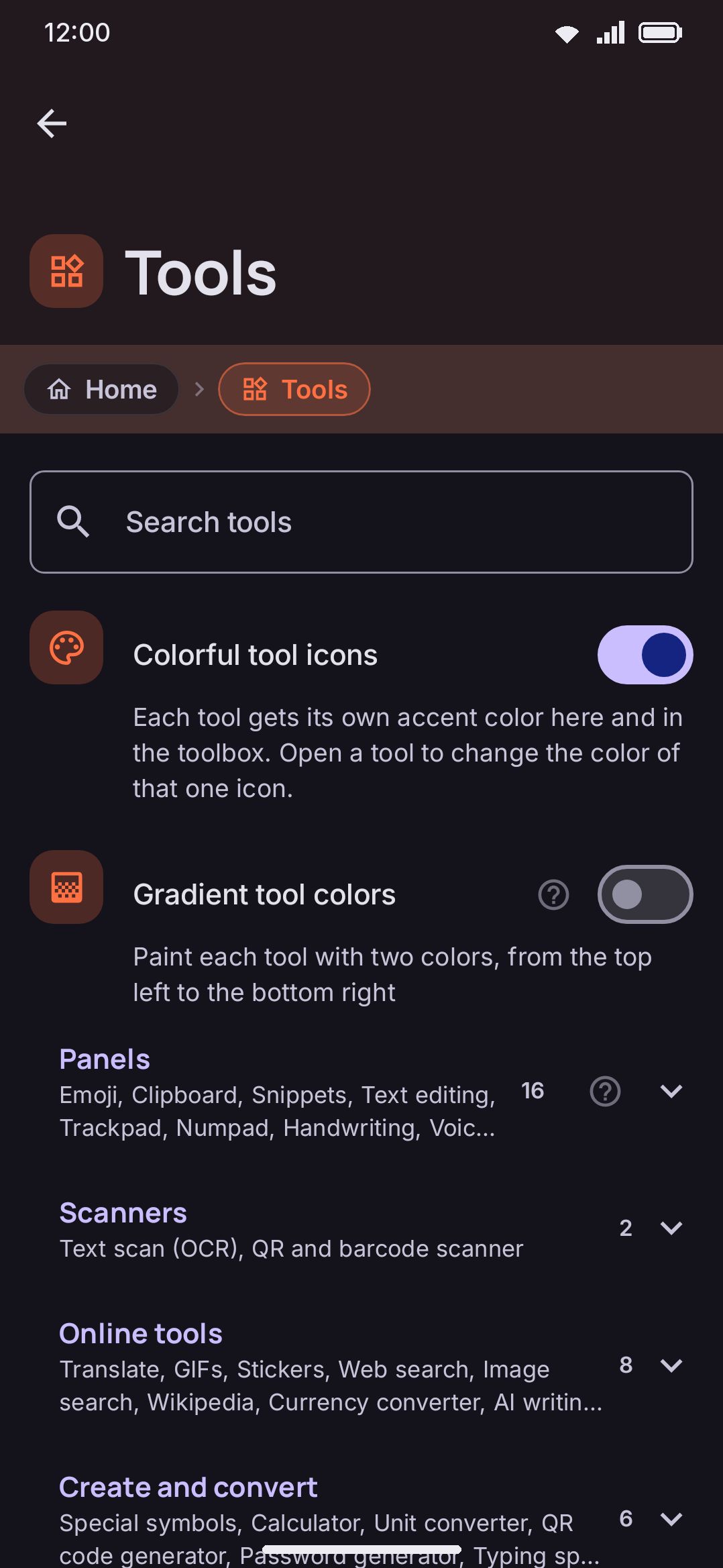
- Trim the toolbox. Every tool ships switched on by default, 75 of them on a Full edition only build. Setup narrows that for you, and the persona quiz’s “how much do you want” answer is what picks the size: “Keep it simple” lands 8 tools, “A good middle” 22, “Show me everything” 37. Answering applies the set on the spot, before the Tools page shows up, and that page’s Recommended button puts the same set back if you’ve been toggling. On the Settings → Tools screen there’s no bulk switch at all, so flip off the ones you don’t want one at a time. To get the buttons back, replay the wizard from About / Run setup again.
- Check your spacebar swipe directions, if cursor-on-a-quick-swipe is what you’re used to. Untouched, a quick swipe switches language and a hold-and-swipe moves the cursor. The wizard’s gesture page offers four pairings and puts a “Recommended” badge on whichever one matches your persona answer: say you type several languages and it marks Language on both slots, say you type one and it marks Cursor on both. That answer has already written the pairing by the time you reach the page, so the badge is a description rather than an offer. Set it to what your thumbs expect. See Gestures.
- Revisit autocorrect strength if your old keyboard’s felt looser or tighter. WM Keyboard’s confidence multiplier defaults to ×4 out of a ×1.5–×10 range. That sits nearer the eager end than the conservative one, but well short of the most aggressive setting.
What WM Keyboard does differently
Section titled “What WM Keyboard does differently”WM Keyboard is MIT-licensed, ships no analytics or crash-reporting SDK, and its core (dictionaries, prediction, transliteration, emoji search) runs fully on-device with no network connection required at all. That’s the part that doesn’t change no matter what you toggle.
What does reach the network is a long list of individually optional tools. Each one calls out only when you open it, or when you configure it with your own API key: weather, dictionary lookups, translation, GIF and sticker search, web and image search, currency conversion, the AI writing tools, downloadable dictionaries and emoji-keyword packs, addon repositories, and clipboard link previews (off by default). None of it runs in the background, and none of it runs while you’re just typing. See Privacy at a glance and the full tool-by-tool network table for exactly what each one sends and when.
Two more things migrating users tend to look for:
- Incognito mode pauses learning and clipboard capture on demand. A Follow private browsing toggle engages it by itself for fields the app flags as private, like Chrome incognito tabs. It can’t detect apps that never send that flag.
- Backup is opt-in and local by default. Android backup is switched off out of the box. Turn it on and settings, themes, layouts, learned words and saved API keys travel through Android’s own encrypted backup. Voice and AI models, downloaded dictionaries and emoji keyword packs are left out, because they’re too large.
Options
Section titled “Options”- Personal dictionary lists every word the keyboard has learned, with a button to add one manually and a way to remove any entry.
- Custom dictionaries import word lists per language, from a file or a URL, as described above.
- Every tool this build ships is switched on before setup runs. Flip each one off individually here. The Recommended and Everything buttons appear only on the setup wizard’s Tools page, not on this screen.
- Learn from typing (on by default). Personalizes suggestions from what you type, entirely on-device. Turn it off and a rebuilt dictionary stops growing.
- Add words to the system dictionary (off by default). Mirrors learned words into Android’s own dictionary for other apps to see.
- Follow private browsing (on by default). Engages incognito mode by itself for fields the app flags as private.
- Back up with Android (off by default). Opts into Android’s encrypted backup for settings, themes, and learned words.
See the Privacy settings reference for the rest of that screen.
Details & edge cases
Section titled “Details & edge cases”- The setup wizard can be replayed any time from About / Run setup again, and a replay never rewrites settings on its own. Reopening the app otherwise just goes to the Home screen. Reinstalling over an existing install (same signing key) keeps the
onboardingDoneflag, so only a clean reinstall, or a fresh phone with no settings backup, shows the wizard unasked. - Backup & restore can move your learned-word dictionary between two phones that both already run WM Keyboard. It’s a WM-Keyboard-to-WM-Keyboard path only, never an import from another app, and an export leaves the dictionary section out unless you turn it on yourself.
- Custom dictionaries and the personal dictionary are two separate features that both feed suggestions. The personal dictionary holds words you’ve typed or added one at a time. Custom dictionaries hold bulk lists, layered on top of a language’s bundled dictionary or standing in for it.
- On a Lite edition only build, tools that need on-device ML never appear as options: handwriting, OCR, QR/barcode and document scanning, grammar checking, offline Whisper dictation, and the on-device AI model. There’s nothing to disable, because that edition doesn’t contain them.