
Installing addons
Paste a repository URL, browse the catalogue, install what you like.
An addon repository is just a URL (a GitHub repo or any https:// host) that
points at a small JSON index of themes, layouts, dictionaries and the rest.
You add the repository once, browse what it offers in a searchable grid, and
install one addon at a time.
Adding a repository
Section titled “Adding a repository”Open Add repository. Paste an address into the field. As you type, the
dialog shows what the address resolved to (The app reads <url>), so you can
see where the data comes from before anything is fetched:
| You paste | It fetches |
|---|---|
github.com/user/repo (with or without .git, with or without a scheme) | raw.githubusercontent.com/user/repo/HEAD/wmkeyboard-repo.json |
github.com/user/repo/tree/branch or .../blob/branch | the same, from branch instead of the default |
a direct link ending in .json | used as-is |
| a repository page on Codeberg, GitLab, SourceHut, Bitbucket or a self-hosted Forgejo | that forge’s own raw wmkeyboard-repo.json address |
any other https:// address | treated as a folder; wmkeyboard-repo.json is appended |
a bare host/path with no scheme | assumed to be https:// |
Plain http:// is rejected rather than silently upgraded to https, and so is
anything with a non-https scheme. The Add button stays disabled until the
address resolves.
If the address doesn’t resolve, or the resulting page can’t be read as an addon repository, you get an error dialog rather than a half-added entry. Pasting a repository you’ve already added isn’t an error either: it just opens the existing one, so following the same link twice is harmless.
Browsing the catalogue
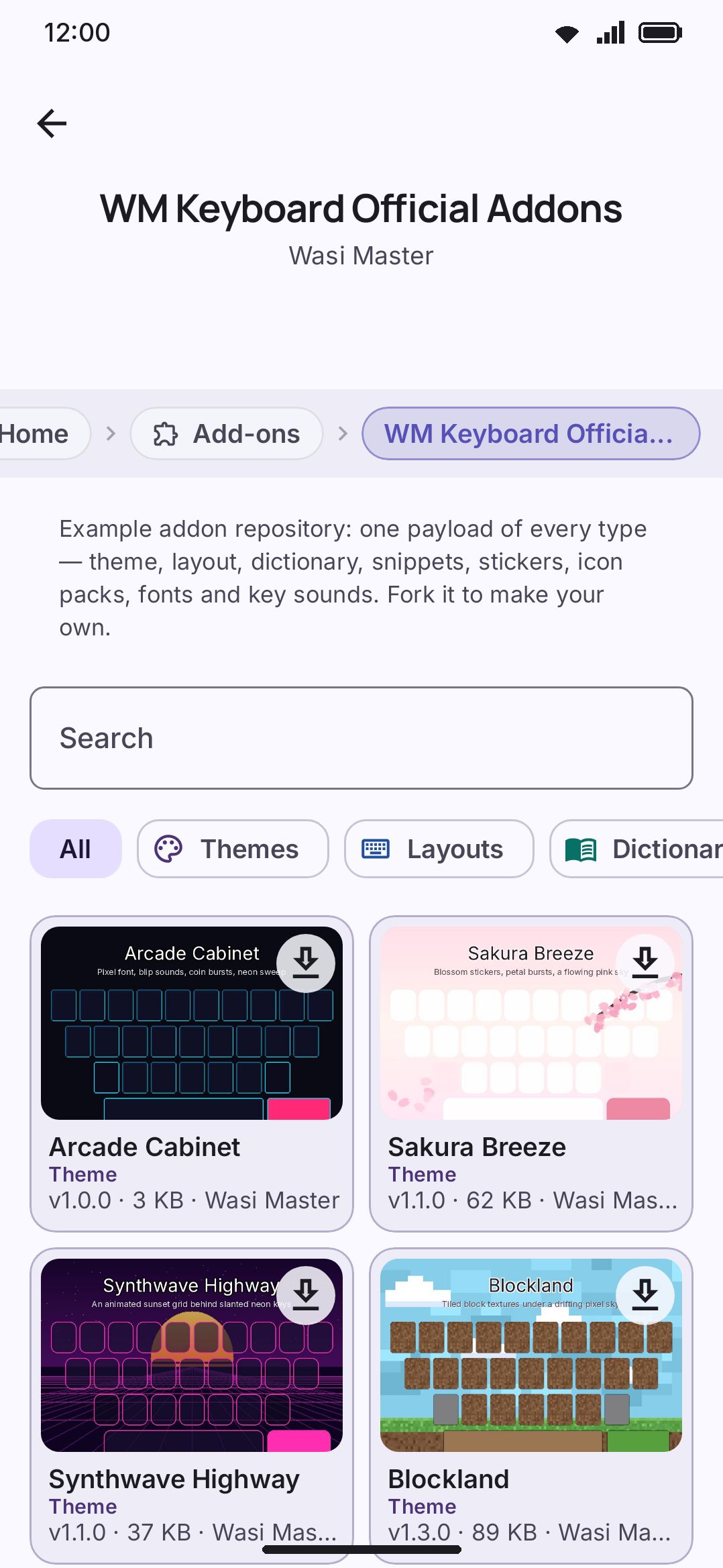
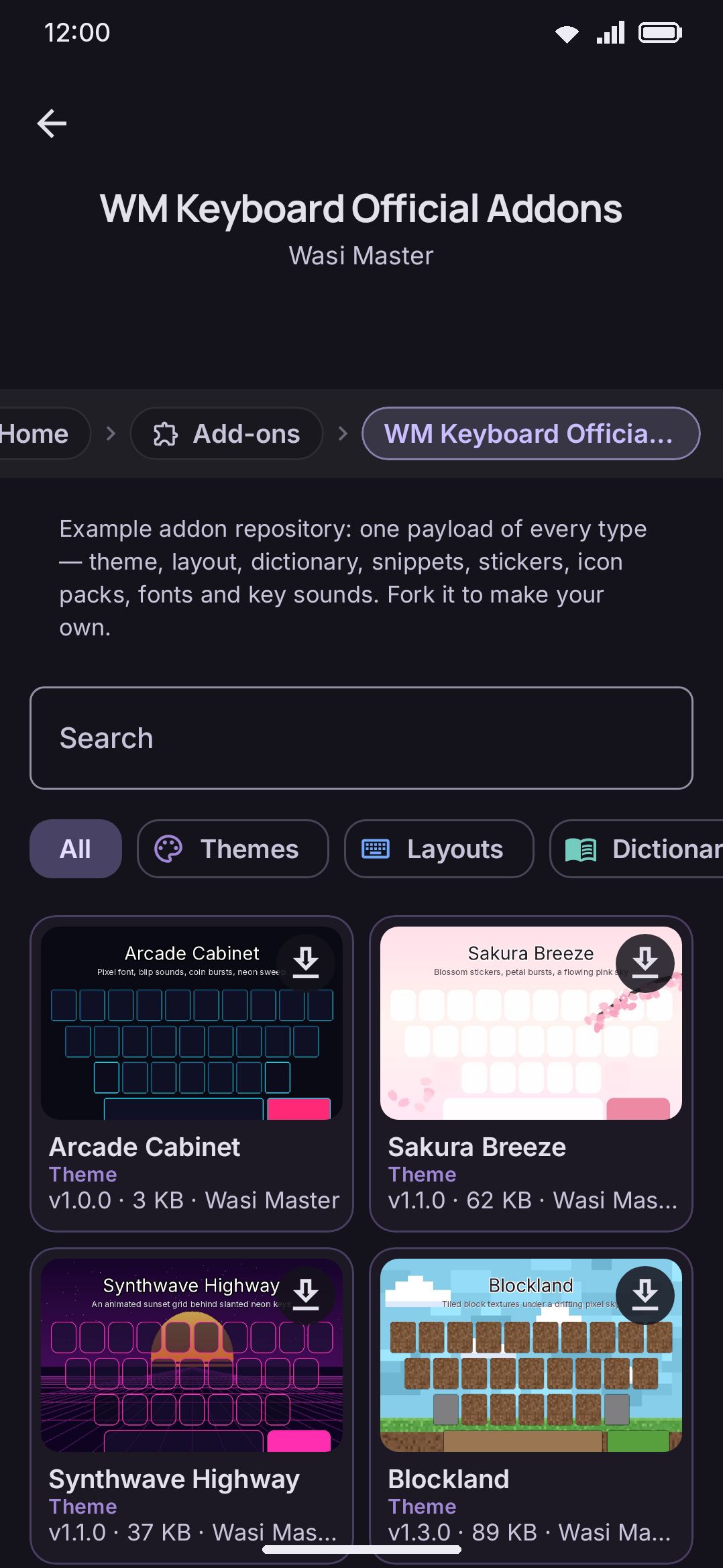
Section titled “Browsing the catalogue”Each repository gets its own screen. At the top is a search field that matches an addon’s name, description, author and tags. Under it sits a row of type filter chips built from whatever that repository actually contains, and then the grid of cards.
Every card shows the addon’s first screenshot (or a plain icon in its type’s
colour if it has none), a status badge that doubles as the install button, and
a line of version · size · author. Tap a card to open its detail page, where
the fuller description and licence live.
If the manifest declares a licence, the detail page shows it as its own row:
the identifier (MIT, OFL-1.1, and so on) inline where there is one, or
“Press to read the licence” when there’s only full text to show. Tapping opens
the complete text in a scrolling dialog. An addon that declares no licence
information at all gets no licence row, rather than a row saying it has none.
Installing an addon
Section titled “Installing an addon”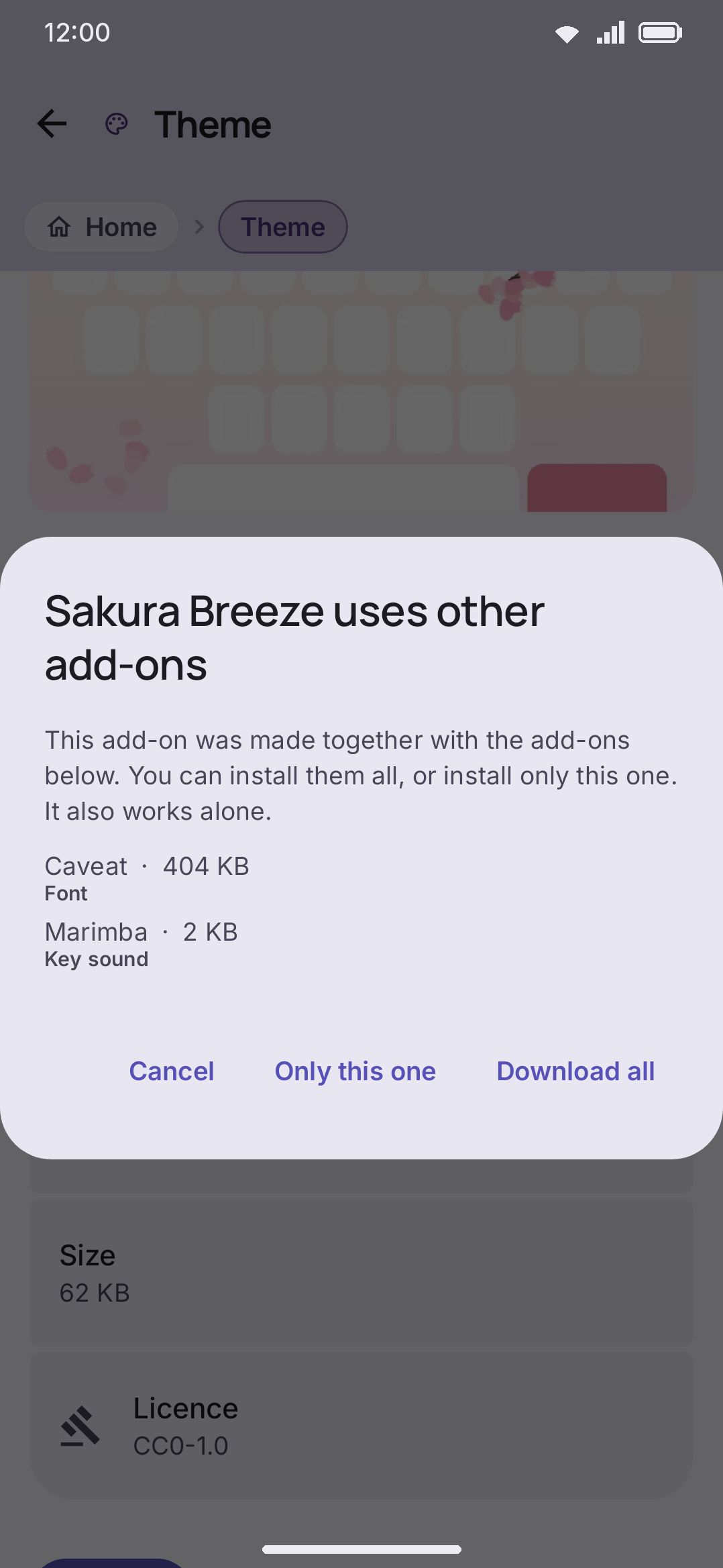
Tap the download arrow on a card, or Install on its detail page. Installing always does two things and stops. It puts the file on your device, and then, for themes, layouts, icon packs, emoji fonts, key sounds, sound packs and plugins, it asks whether you want to switch to it. Fonts, dictionaries, emoji keyword packs, snippet packs and sticker packs have nothing to “switch to”. They’re live the moment they land.
That split matters because a repository is meant to be safe to browse. Installing three themes while you’re comparing them should not repaint your keyboard three times.
The question only appears the first time you install something with a slot to fill: updating an addon that wasn’t already active just updates it quietly. If the addon you’re updating was the one you had active, it’s automatically re-applied under its new id instead of asking you to re-confirm a choice you never revoked.
| Type | Question | Confirms as |
|---|---|---|
| Theme | “Use it as your keyboard theme now?” | Switch to it |
| Icon pack | “Use its icons on the keyboard now?” | Switch to it |
| Emoji font | “Draw emoji with it now?” | Switch to it |
| Key sound | “Use it as your key sound now?” | Switch to it |
| Sound pack | “Use this sound pack for your keys now?” | Switch to it |
| Layout | “Turn it on so you can type with it?” | Turn on |
| Plugin | “Turn it on so it shows in the plugins panel?” | Turn on |
Dismissing the prompt just says “Not now”. The addon stays installed either way, and every detail page carries an outlined “Use it: open …” button that takes you straight to the right settings screen if you change your mind later.
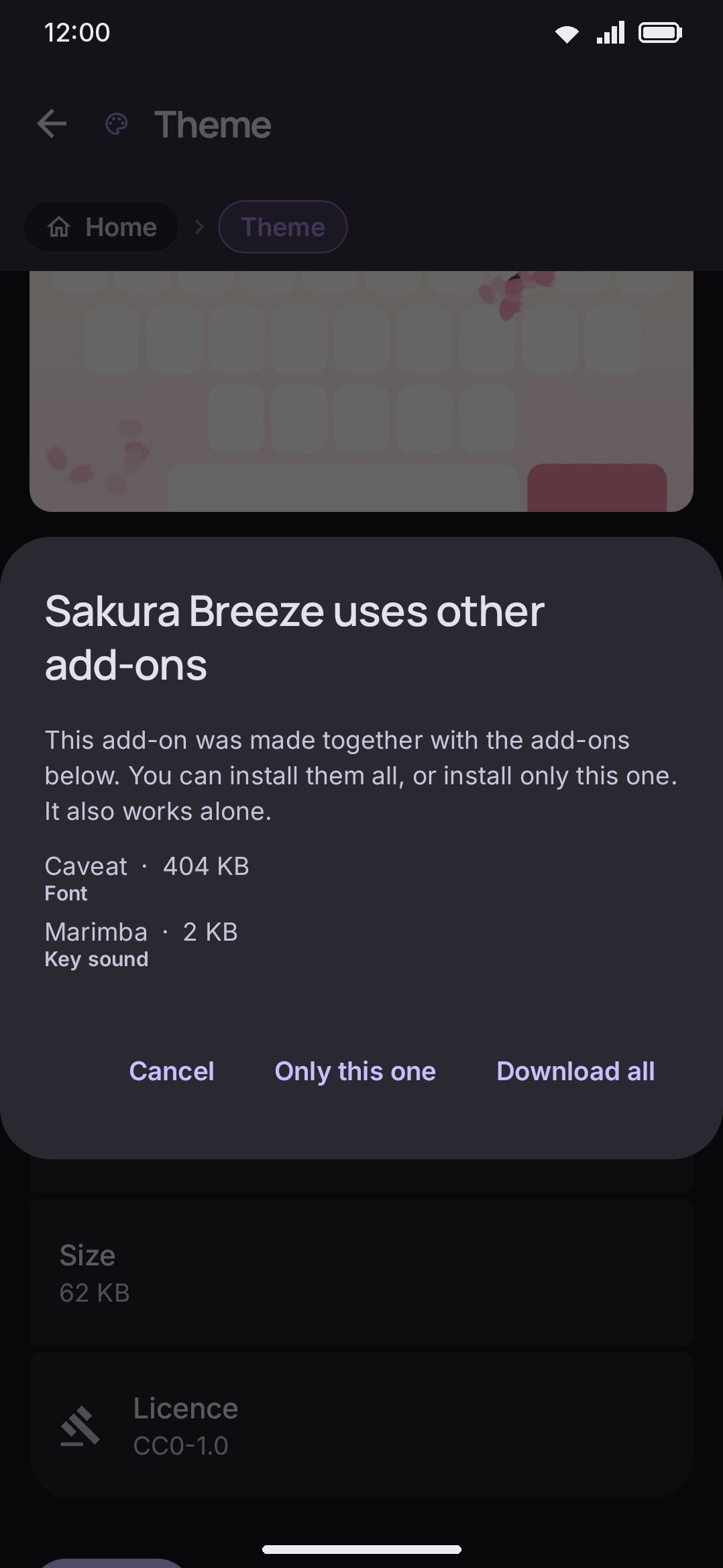
Some addons were designed alongside others. A theme that wants a particular font and key sound says so, and installing it offers to fetch them in the same tap. You still get asked about one thing, the addon you tapped. Its fonts and sounds install quietly, and saying yes to the theme is what puts them on the board. “Only this one” skips them, and the theme falls back to your global font and sound.
Where each type lands
Section titled “Where each type lands”Installing hands the downloaded file to the same importer the app uses for a file you open by hand, so an addon from a repository and one you drag in from Downloads end up identical:
| Type | Lands as | Opened from |
|---|---|---|
| Theme | A new custom theme in your gallery | Themes |
| Layout | A new custom layout, off until you enable it | Layout & size → Your layouts |
| Dictionary | Extra words for one language (needs the manifest to say which) | Custom dictionaries |
| Emoji keywords | Extra search terms for one language’s emoji | Emoji keywords |
| Snippets, Espanso | Added to your snippet list under fresh ids | Snippets |
| Stickers | A new local sticker pack | Sticker packs → Your packs |
| Icon pack | Added to your icon library | Icons → Icon pack |
| Font | Added to your font library | Fonts → Installed fonts |
| Emoji font | Added to your font library | Emoji → Emoji font |
| Key sound | Added to your sound library | Key press → Sound style |
| Sound pack | Added to your sound library as a whole pack | Key press → Sound pack |
| Plugin | Lands on disk switched off | Plugins → Allow plugins |
| Vocabulary | Extra words for one language’s downloadable list (needs the manifest to say which) | Vocabulary packs → Installed packs |
A dictionary, emoji keyword pack or vocabulary pack that doesn’t say which language it’s for gets rejected rather than guessed at, and each type has its own size cap on what it will download:
| Cap | Types |
|---|---|
| 1 MB | Plugin |
| 4 MB | Layout, Snippets, Espanso, Key sound |
| 8 MB | Emoji keywords, Icon pack, Vocabulary |
| 16 MB | Theme, Sound pack |
| 32 MB | Dictionary, Font, Emoji font |
| 64 MB | Stickers |
Plugins are a special case. Installing one requires “Allow plugins” to already be on. If it is off, the detail page tells you so before you even tap Install, with a shortcut straight to the switch:
WM KeyboardToolsPluginsAllow pluginsEven with the switch on, a plugin installed from a repository always lands disabled. You still turn it on yourself, through the prompt above or from the plugins list. A plugin is also the one type where the manifest’s checksum isn’t optional: without one to verify against, the install is refused outright. See Plugin permissions for what a plugin can and can’t reach once it’s running.
An addon can also declare a minimum app version. If your build is older than that, its detail page still shows it, but the install itself is refused until you update WM Keyboard.
Managing your repositories
Section titled “Managing your repositories”The Addons screen lists every repository you’ve added, with the count of addons in each and a three-dot menu for Refresh, Open homepage (when the manifest declares one), and Remove.
Removing a repository only removes it from that list. Anything you already installed from it keeps working. You just stop getting update checks for it. The app adds two repositories automatically the first time you open the Addons screen (a sample one and a repository of typing sounds), so there’s something to browse before you’ve found one of your own. Removing either is permanent, and it won’t come back.
Repositories refresh every time you open the Addons screen, as long as Check when you open this screen is on (it is by default). Only on Wi-Fi, under it and off by default, skips that check on a metered connection. Pulling the list down ignores both of those switches, because making the request is the point. A repository that’s briefly unreachable keeps showing what it last had rather than emptying out.
Options
Section titled “Options”Reach the Add-ons screen from the home grid, or find it through settings search. Adding and browsing repositories, and installing from them, all happen on this one screen and the ones you navigate to from it. Two addon-related switches sit elsewhere: the plugin subsystem switch above, and Add-on repositories on the Backup screen, which decides whether your repository list rides along in a settings export. See the Addons settings reference for a full screen-by-screen breakdown, and Updates & management for the repository cap and what backup covers.
Details & edge cases
Section titled “Details & edge cases”- Repository files are plain data, never code. Adding a repository or installing a theme, dictionary, sticker pack or any other type never executes anything (the one exception, a plugin, still only lands as an inert file until you separately turn it on). There are fourteen addon types in total. That’s themes, layouts, dictionaries, emoji keyword packs, snippets, Espanso packs, sticker packs, icon packs, fonts, emoji fonts, key sounds, sound packs, plugins and vocabulary packs.
- Updating replaces rather than duplicates. When a newer version of an installed addon comes in, the old copy is removed only after the new one verifies successfully, so you never end up with two copies of the same theme.
- A failed install doesn’t need cleanup. If a download is rejected (wrong checksum, over the size cap, not enough free space), the partial download is always deleted, whether the install succeeded or failed.
- The catalogue card’s install button and the detail page’s Install button do the same thing. You never have to open an addon just to install it.
See What are addons? for the trust model and the full addon-type table, Updates & management for update checks and uninstalling, and the addon repository format reference if you want to publish your own.