
Snippets & text expansion
Reusable text blocks with variables, inserted from a panel or expanded by keyword.
Snippets are reusable pieces of text (a mailing address, a canned reply, a sign-off) that you save once and reuse everywhere you type. Insert one with a tap from the panel, or type its trigger word and let it expand on its own as you finish typing.
Opening the panel
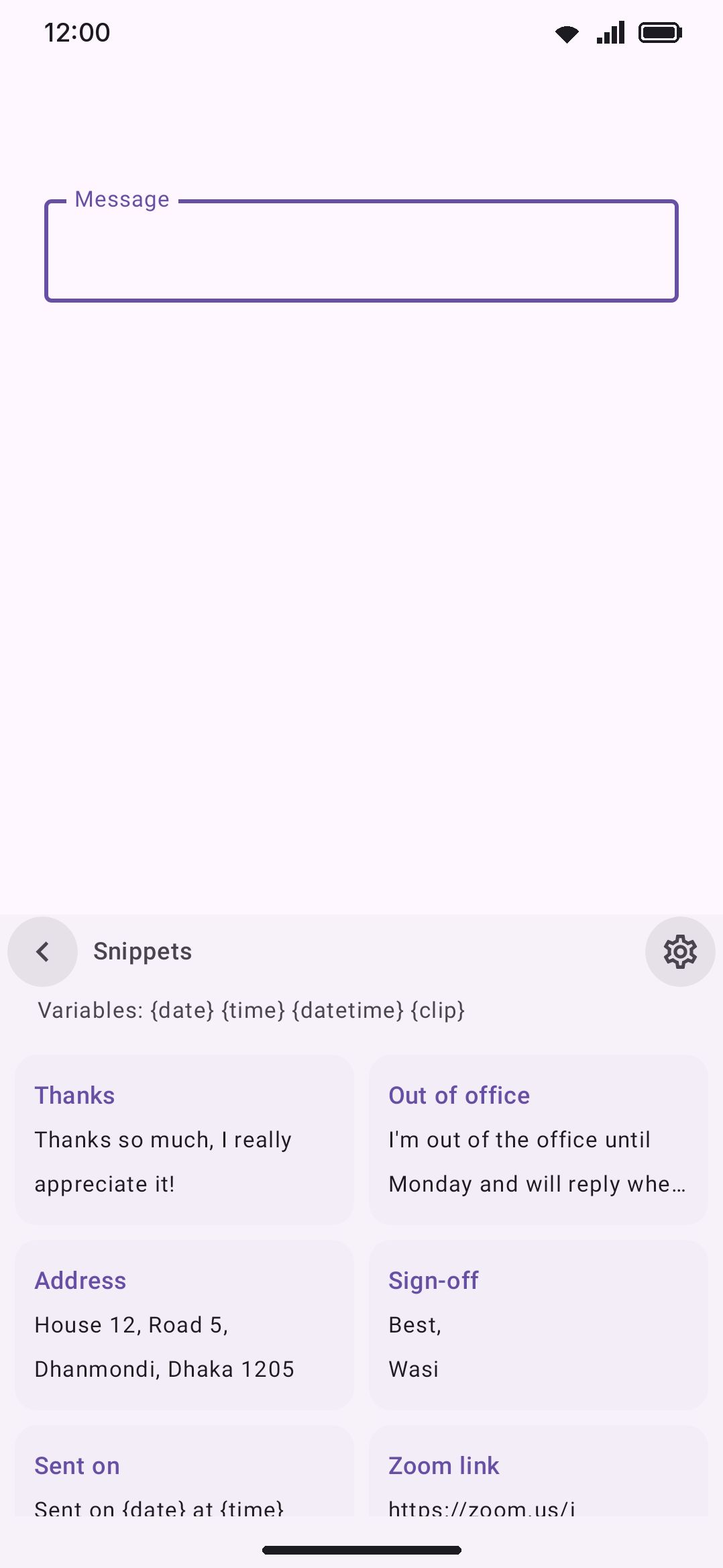
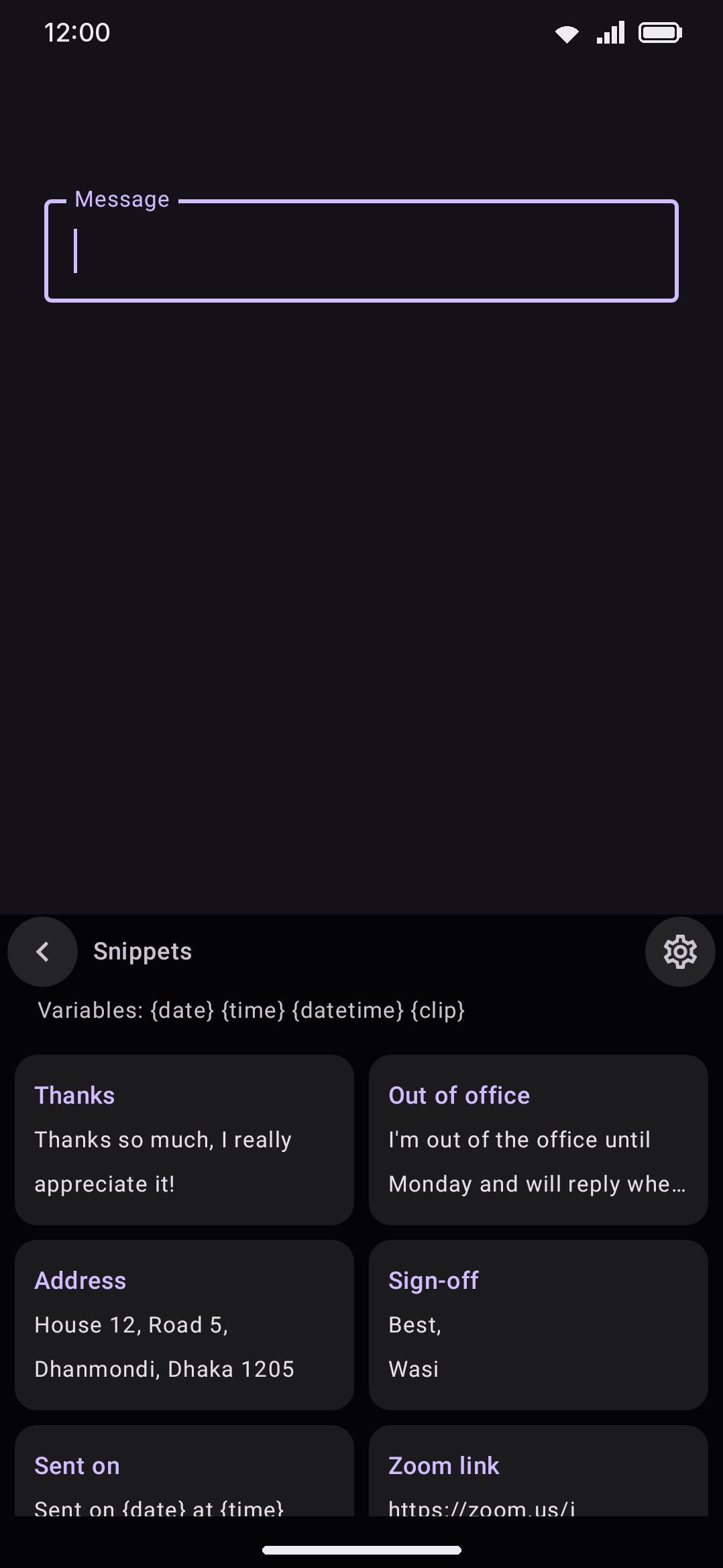
Section titled “Opening the panel”Open Snippets from the toolbar if you’ve pinned it there, or from the toolbox. Snippets isn’t pinned by default on any device. A phone starts with Emoji, Clipboard and Settings, and a tablet starts with five or seven pins, none of them Snippets. So the first few times you’ll likely reach it through the toolbox, or by typing its keyword. On a hardware keyboard, double-tap Ctrl to arm the leader key, then press S (see hardware shortcuts for the full letter-to-tool map).
Each snippet shows as a card in a two-column grid: its label in bold on top, the snippet text underneath. That text is the raw template rather than an expanded preview, so a card containing {date} shows the literal token instead of today’s date. Tap a card to insert it. A card with more than one thing to insert shows a count beside its name: press and hold it and the panel lists everything it offers, its own expansions first and then the snippets it links to, with a › on any of those that has more behind it. Anything you were mid-typing gets committed first, so a half-finished word can’t get swallowed into the snippet. With nothing saved yet, the panel shows the same variable hint plus a shortcut straight to Snippets settings.
If you’ve made any folders, the panel opens on them instead: folder tiles first, then whatever you’ve filed in no folder at all, in the same grid. Tap a folder to go inside it, and the header takes the folder’s name while you’re there. Back (the header arrow, the system Back gesture, or Esc on a hardware keyboard) climbs out of the folder before it closes the panel. Press and hold a folder tile to switch its automatic expansion on or off without leaving the app. With no folders anywhere the panel is exactly the flat grid it always was.
The panel re-reads the snippet file every time you open it. Settings and the keyboard share that file, so an edit you make in Settings shows up the next time you switch to this panel, not while it’s already open. Unlike Clipboard, there’s no search inside the panel, so keep labels short and distinct if your list grows.
Auto-expanding as you type
Section titled “Auto-expanding as you type”Give a snippet a trigger and it expands on its own. Type the trigger by itself, then finish it with a space, punctuation or Enter. What you typed is replaced with the expanded snippet instead of being committed literally. Matching is case-insensitive and exact: omw matches OMW but not omww, with no partial or prefix matching. You can also glide a trigger: swipe omw and the snippet is typed as soon as you lift your finger, and one backspace puts the trigger back. While you swipe, the floating word, the suggestion strip and the words offered when you hold still all show the trigger with its expansion beside it, like omw = on my way. That works for a one-word trigger that doesn’t ask first; a trigger with punctuation or a space in it still has to be typed. To match something that varies, like a name or a time or a phrase, use a pattern trigger instead.
Triggers with punctuation or spaces in them
Section titled “Triggers with punctuation or spaces in them”A trigger doesn’t have to be a single bare word. It can lead with punctuation, as in :shrug, ;ty or //date. It can hold spaces, as in gr db or on my way. It can do both, as in :gr db. Type the whole thing, finish it the usual way, and it expands like any other trigger.
The punctuation form is the convention almost every Espanso package uses. The spaces form is what makes a trigger a phrase rather than a code you have to memorise: gr db for ./gradlew assembledebug reads like the command it stands for.
Both work the same way under the hood, and it’s worth knowing because it explains the one rule below. The keyboard’s word buffer only ever holds letters, digits and apostrophes, so by the time you finish typing :shrug the colon has already gone into the field, and by the time you finish gr db so has “gr ”. Only the last word is in the buffer. So the keyboard looks that word up, and only when it could finish some trigger does it read the short run of characters in front of it to check the rest. A snippet list with no trigger of this kind in it costs nothing at all.
The rule that follows: a trigger has to end in a word. One made entirely of punctuation (->) can’t be watched for, and neither can one ending in it (x: or gr db:), because there’d be nothing to look up. Punctuation in the middle is fine, so a-b and :a.b both work.
Two smaller ones:
- The longest match wins.
::xbeats:xif you have both, andgr dbbeats a plaindb. - A trigger that starts with a letter or a digit needs a word boundary in front of it, the same as a plain trigger does.
gr dbfires after a space or a punctuation mark, but not in the middle of “xgr db”. A trigger that starts with punctuation doesn’t need one, because the punctuation is the boundary.
Everything in front of the last word can run to 32 characters. That’s room for a couple of words, not a sentence.
Several triggers
Section titled “Several triggers”One snippet can answer to as many triggers as you like. The Triggers field on the editor screen takes one at a time: type a trigger, press the + button at the end of the box, and it becomes a small chip you can tap to edit or press the ✕ to remove. Enter does the same thing, and so does a comma, so pasting “brb, omw, ttyl” gives you three chips. You never have to save and reopen the snippet between triggers: add all four, then press Save once. Spaces don’t split any more, since a trigger is allowed to contain them, and any run of whitespace inside one is saved as a single space. Each trigger fires the same snippet in exactly the same way. A spelling that repeats another is quietly dropped, and the app keeps the first 256.
Matching capitals
Section titled “Matching capitals”Match the trigger’s capitals carries how you typed the trigger into what comes out. Off (the default), omw and OMW both expand to whatever the snippet says. On:
- typing it in capitals gives you the expansion in capitals:
ALHgives “ALTHOUGH” - typing it with one leading capital gives you the style you picked: First letter (
Alhgives “Although”), Every word, or All capitals - typing it in lower case changes nothing
It matters for snippets that fix ordinary words rather than expand codes. A pack that turns “a bas” into “à bas” would otherwise mangle “A Bas” at the start of a sentence. Espanso calls this propagate_case, and packages that correct spellings lean on it heavily.
Trigger expansion is skipped while you’re mid-transliteration or mid-conversion. For phonetic composers like Bangla-style transliteration, or Pinyin/Japanese-style conversion, the composing buffer holds an input spelling rather than the literal word you meant as a trigger, so expansion would misfire.
This is a different mechanism from the Keyword shortcut field on the Snippets settings screen (see Options), which is a smart chip that offers to open the Snippets panel when you type “snippet” or “snippets.” It has nothing to do with any individual snippet’s own trigger word.
Pattern triggers
Section titled “Pattern triggers”A word trigger matches one fixed word. A pattern trigger matches the last few words before the cursor with a regular expression, and hands whatever it captured to the snippet’s text. One snippet then covers every name, every time, every phrase:
| Pattern | Snippet text | You type | You get |
|---|---|---|---|
^hello (.+)$ | Hello, $1! Nice to meet you. | hello John + space | Hello, John! Nice to meet you. |
^thanks (.+)$ | Dear $1,Thank you for your message… | thanks Sarah + space | The whole letter, addressed to Sarah |
^/gh (\S+)$ | https://github.com/$1 | /gh wasi-master + space | https://github.com/wasi-master |
\s+([.,?!:;]) | $1 | hi + space + . | hi. |
Each pair of brackets in the pattern is a capture, and $1 to $9 put those captures into the text. $0 is everything the pattern matched. Four transforms are available when you want the capture reshaped: ${1:upper}, ${1:lower}, ${1:title} and ${1:trim}. A literal dollar sign is $$.
Some details worth knowing:
- Matching is case-insensitive by default, so
HELLO Johnworks too. Start the pattern with(?-i)if you want it to care. ^and$are optional. The pattern always has to fill the whole span it’s matched against, sohello (.+)behaves exactly like^hello (.+)$. Most people write the anchors anyway, and the examples here follow suit.- Words to match caps how far back a pattern can reach: three words by default, up to eight. It’s there because names are short. With a cap of three,
^hello (.+)$can turn “hello John Smith” into a greeting but will leave a whole sentence alone. - A pattern never reaches across a line break, so a snippet can’t swallow the paragraph above the one you’re writing.
- The shortest match wins. If two patterns both fit, the one that eats fewer of your words is the one that runs. A plain word trigger always beats a pattern.
- A pattern can start on the space in front of a word.
\s+([.,?!:;])with the text$1pulls a stray space back out from in front of a full stop or a comma. The space and the word after it count as one word for the words-to-match cap. - Backspace takes it back. One press right after an expansion restores exactly what you typed, spacing and capitals included, and the pattern won’t fire again on that same text.
Patterns run on every space you type, so the keyboard is careful about what they cost. Start a pattern with a plain word (^hello , ^/gh ) and it can be skipped entirely unless that word is actually behind your cursor, which is nearly always. A pattern that starts with something variable instead, like ^(.+)$ or ^\d+, has to be tried after every word. The editor says so when you write one. A pattern that turns out to be pathologically slow is stopped rather than allowed to stall your typing.
Everything else about word triggers applies here too: patterns are skipped mid-transliteration and mid-conversion, and they never run in password fields or in fields that ask for no suggestions.
A pattern either expands on its own or asks first, never both. Which one it is decides when it’s looked for at all: the expanding kind is checked on the space, Enter or punctuation that ends a word, the asking kind on every keystroke (see below). Punctuation gets a second look once the mark itself is in the field, so a pattern about the mark (the space fixer above) sees it. That second look is skipped when the first one already expanded something.
Ask before it expands
Section titled “Ask before it expands”Every snippet has an Ask before it expands switch on its editor screen. Turn it on and the trigger stops rewriting your text. Instead, the moment it matches, the snippet appears as a chip on the suggestion bar showing the text it would insert, and nothing goes into the field until you tap it. Keep typing and the chip goes away, leaving what you typed exactly as you typed it.
The chip arrives as soon as the trigger is typed. There’s no need to press space first, and that goes for both kinds of trigger:
- A word trigger offers itself while you’re still typing the word. Type
brband the chip is there before you reach the space bar. Press space instead of tapping and you get a literal “brb.” - A pattern offers itself mid-phrase, and keeps up as you type. With
^hello (.+)$, typing “hello Jo” already shows a chip reading “Hello, Jo!”. The next letter re-reads it as “Hello, Jon!”, and so on. The offer survives the space that ends the word, so you can finish the phrase and then decide.
Tapping the chip swaps the words it matched for the expansion and keeps any trailing space. What the chip shows is exactly what goes in.
The chip shares the suggestion bar with your word candidates, so turning an offer down never costs you the predictions you were about to use. Backspace takes an accepted expansion back the same way it does an automatic one. The offer isn’t remembered anywhere. It’s worked out fresh from the text in front of the cursor, so moving the cursor, editing from elsewhere, or carrying on typing all stop it matching, and the chip goes.
One cost worth knowing: an asking pattern is checked on every keystroke rather than once a word, so it reads a little of the text in front of your cursor each time you type. The check is debounced and runs off the typing path, and it doesn’t happen at all unless you have an asking pattern installed. Plain word triggers are free either way, because matching one is a dictionary lookup on the word you’re typing, with nothing to read.
This is what the Pattern Replies pack in the addon repository uses. Canned replies written by somebody else are exactly the case where silent rewriting is unwelcome: “hello John” turning itself into a paragraph you didn’t ask for is a worse outcome than one extra tap. Every pack’s preview says which way each of its snippets goes, so you can see it before installing.
Several expansions
Section titled “Several expansions”A snippet doesn’t have to say one thing. Add a second expansion and typing its trigger offers you both, as chips on the suggestion bar, and you pick the one you meant.
The Expansions section on the editor screen is a list. The first row is the default, marked with a star: it’s what a tap in the snippets panel inserts, and what any export that has no way to say “several” carries. The arrows move a row up or down, so promoting an expansion to the top is how you change the default. There’s no separate button for it.
What happens when the trigger fires is up to you, in Settings → Text expansion → When a snippet has several expansions:
- Chips only (the default) inserts nothing. Every expansion sits on the suggestion bar and the text stays exactly as you typed it until you press one. Your word candidates keep working beside them, so ignoring the offer costs nothing.
- Insert first puts the default in straight away, the way a one-expansion snippet always has, and offers the rest as chips. Pressing one swaps what was just inserted for it, and you can keep swapping. Backspace still takes the whole thing back to the trigger you typed.
Any one snippet can overrule that. Once it has more than one expansion, its editor grows a row of its own with the same two choices plus App setting, which is what it starts on.
The bar scrolls sideways when there are more chips than fit. Nothing is hidden behind a “more” button, because reaching for one would mean leaving the bar and losing the text you were in the middle of.
Linked snippets
Section titled “Linked snippets”A snippet can also point at other snippets, and typing its trigger offers those too.
This is the part that turns a snippet list into something closer to a map of the words you use. Give “continent” the links Asia, Africa and Europe, and typing “continent” offers all three. Give “address” the links Home, Work and Email, and one trigger covers all the addresses you own.
Add them under Linked snippets in the editor. The picker searches by name, trigger or tag, and you can pick several at once. The editor also tells you which snippets point at the one you’re editing, under “Linked from”, because a snippet can sit under more than one parent and there’s otherwise no way to see it: Tehran belongs under Iran, under Capitals and under Cities all at once.
On the suggestion bar, a linked snippet shows as one chip carrying its default expansion. If that snippet has more of its own, whether other expansions or links, the chip grows a › on the end. Press the chip to insert what it says; press the › (or hold the chip) to go one level in, and the bar fills with what that snippet offers, with a back arrow to climb out. So “continent” → Asia → Iran → Tehran walks down as far as you’ve built it.
Links are a graph rather than a tree, so two snippets can share a child and a pair can point at each other without any harm: a walk never re-enters somewhere it has already been, it just stops offering the way back.
Tags are free words you file a snippet under so you can find it again. Add them in the editor the same way you add triggers: type one, press enter, it becomes a chip. They do nothing while you type; they’re for searching in the snippet picker when a list has grown past the point of scrolling it.
Template variables
Section titled “Template variables”A snippet’s text can include any of these tokens. They’re substituted the moment the snippet is inserted, not when you save it, so {date} always reflects the day you actually type it:
| Token | Expands to |
|---|---|
{date} | Today’s date, e.g. 19 Jul 2026 |
{time} | Current time, 24-hour, e.g. 16:45 |
{time12} | Current time, 12-hour, e.g. 4:45 PM |
{datetime} | Date and time together |
{isodate} | ISO date, e.g. 2026-07-19 |
{isotime} | ISO timestamp with a UTC offset |
{weekday} | Day name, e.g. Sunday |
{day} | Day of month |
{month} | Month name |
{year} | Four-digit year |
{timezone} | Your time zone’s full name, e.g. Bangladesh Standard Time |
{timestamp} | Unix time in seconds |
{clip} | Your latest clipboard entry |
{selection} | Text currently selected in the field |
{app} | Name of the app you’re typing into |
{package} | That app’s package name |
{uuid} | A fresh random UUID, different every time it’s used |
{cursor} | Not text; marks where the cursor lands after insertion |
{random:a|b|c} | One of the alternatives, picked fresh each insertion |
{timezone} is the one worth a second look. It writes the zone’s long name, not an offset, so you get “Bangladesh Standard Time” or “Central European Summer Time” rather than GMT+06:00. An offset only shows up for a zone with no name of its own. The settings screen’s reference card gives GMT+06:00 as its example, which is the fallback rather than the usual case, but the live preview next to it always shows what you’d actually get. If you want the offset itself, {date:XXX} or {date:ZZZZ} will give you one.
{date:pattern} takes any date pattern you like, for example {date:EEEE 'week' w} or {date:dd/MM/yy}. A + or - and a number of seconds before the colon shifts it: {date+86400:dd/MM/yy} is tomorrow, {date-86400} was yesterday, and a bare {date+3600} is an hour from now in the usual format. It’s checked before the plain {date} token, so a literal pattern can’t be partly swallowed by it. A malformed pattern quietly expands to nothing instead of breaking the rest of the snippet. Tokens the expander doesn’t recognize, like {nope}, are left untouched. A variable with nothing to draw on expands to an empty string rather than leaving the raw token behind, which is what you get from {app} outside the keyboard or {clip} with an empty clipboard.
Managing snippets
Section titled “Managing snippets”Find the list under Settings → Text expansion (see Options below for the exact path). The Snippets tool page has one row that opens the same screen.
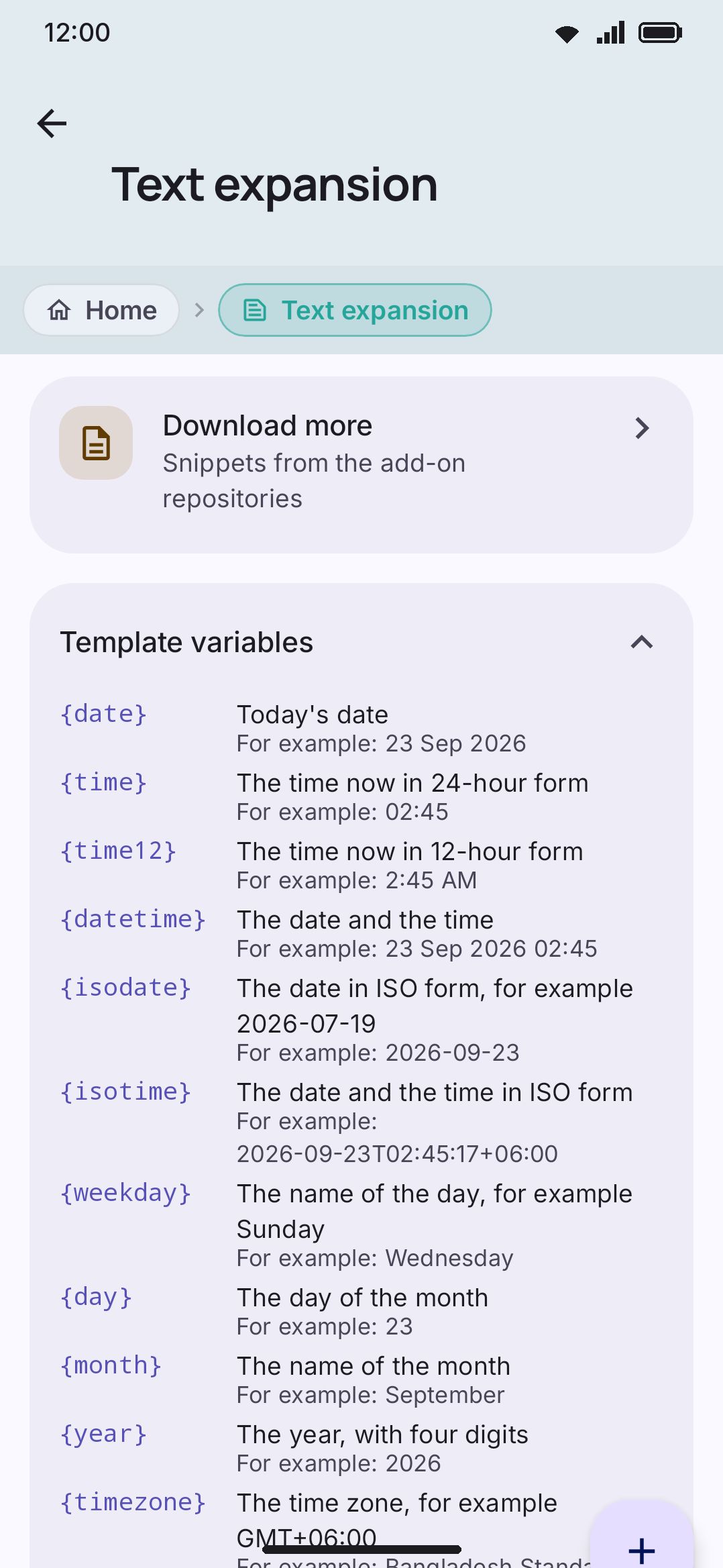
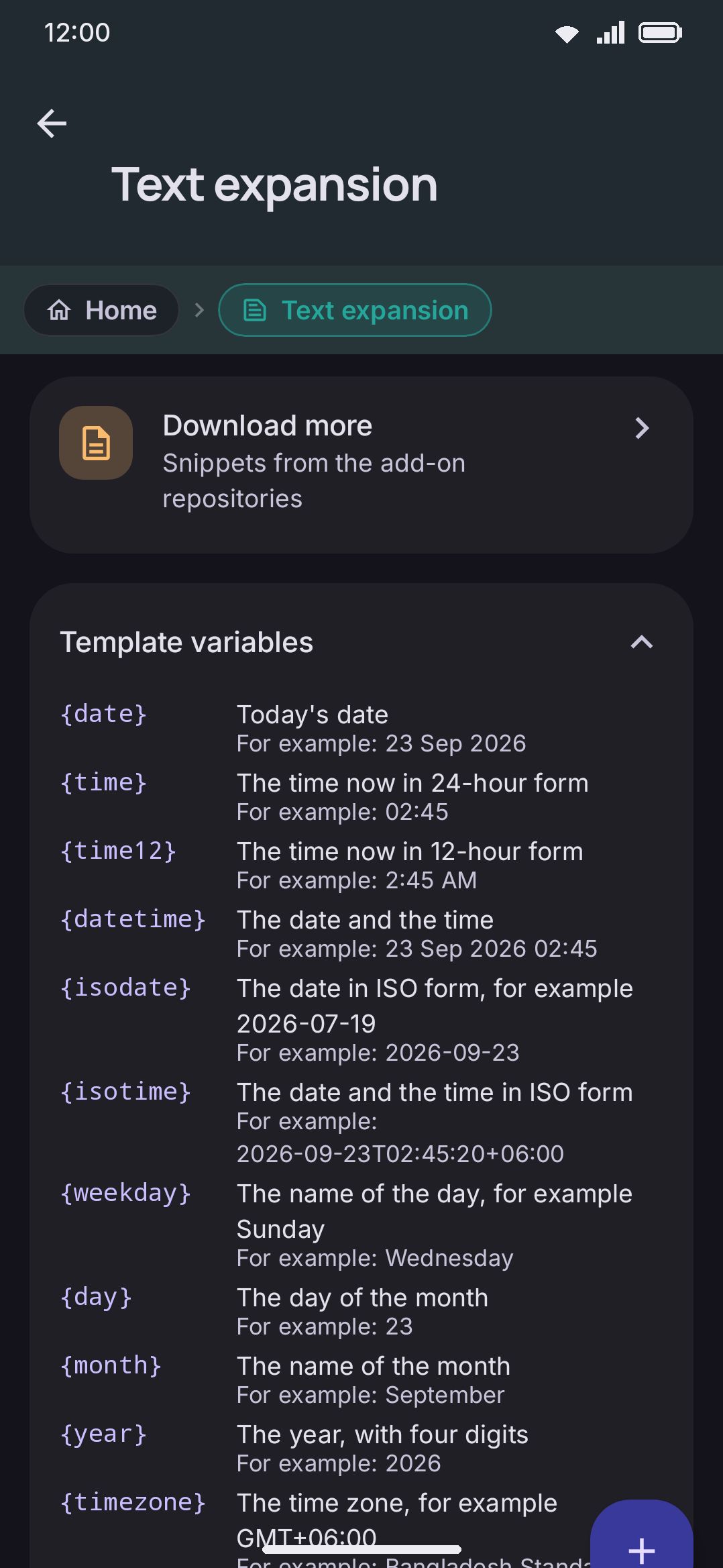
The settings screen opens with a reference card listing all 18 variables plus {date:pattern}, each with a live example. Below it:
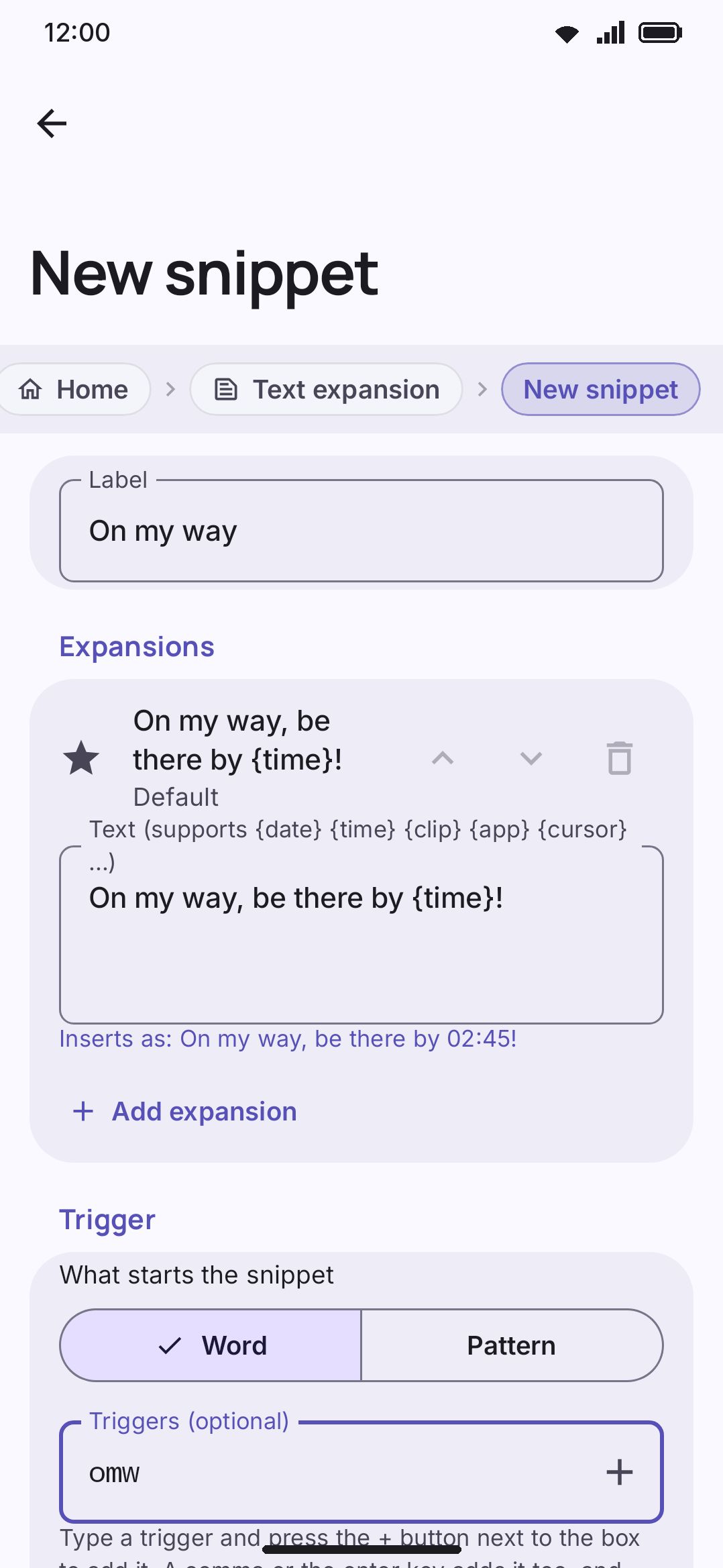
- Add snippet opens the editor screen: a label, an optional folder, the expansions it can insert, and a Word / Pattern switch for how it expands as you type.
- The section that holds both is called Trigger. Choosing Word gives you the Triggers chip field and a Match the trigger’s capitals switch that reveals its style choice when you turn it on. Choosing Pattern gives you the pattern itself, chips that write
(.+),$1,^and$at the cursor, a words-to-match picker, and a Try it box. Type into Try it what you’d type on the keyboard, and the result appears underneath. A pattern that won’t compile is flagged as you type, with the regular-expression engine’s own complaint under it. Save stays disabled until you fix it. - Under both is Ask before it expands, which turns the trigger into a suggestion-bar offer instead of an automatic rewrite (see Ask before it expands).
- Below that come Linked snippets and Tags.
- Pressing a saved snippet reopens the same screen, filled in, to edit it. Nothing is saved until you press Save.
- The trash icon at the end of the row deletes it immediately, and so does swiping the row aside in either direction. There is no confirmation prompt. Instead a bar appears at the foot of the screen naming what went, with Undo on it for a few seconds; undo puts the snippet back with its own id, its place in the list, and the links any other snippet had to it. Once that bar goes, the delete stands, so keep an export around for anything that took a while to write. Deleting a second snippet replaces the bar rather than queueing behind it — only the last delete can be undone.
- Every row also shows a live “Inserts as: …” preview whenever the expanded text would differ from what you typed, and “Expands by itself from: …” if you’ve set a trigger (or the pattern itself, if you set one of those). A snippet set to ask first says “Offers itself after: …” instead. A snippet with more than one expansion, or with links, counts them on a line of its own.
Snippets have a stored order. New ones append to the end, and the pencil button on the heading above a list of them turns that list into one you drag into order, so the ones you use daily can go back to the top. Press the tick to leave. That matters because the snippets panel draws in the same order and has no search of its own. Each list is ordered on its own: the snippets inside a folder, and the ones in no folder at all.
Folders
Section titled “Folders”Folders group snippets that belong together: a set of work replies, a pack you installed, the handful of things you only use for one project. They’re one level deep, and a snippet is in at most one of them.
The Folders section on the Text expansion screen is where you make them, and New folder asks for a name. Pressing a folder opens it, the same way the keyboard’s snippet panel does, and inside you get the folder’s own page: its name, its icon, its switch, and the snippets filed in it. So the main screen lists folders and then whatever is in no folder at all under “Not in a folder”, instead of repeating every folder’s contents down the page.
A folder can wear an icon of its own, picked from the same set a keyboard mode picks from. It’s on the folder’s page under Icon, and it shows up on the folder row in Settings and on the folder tile in the snippets panel. Plain folder in that picker puts the ordinary folder drawing back.
The pencil button on the Folders heading is where the rest lives. Press it and each folder’s switch is replaced by a drag handle and a trash icon: drag to set the order they’re drawn in everywhere, or delete one. Deleting asks first. By default the snippets inside survive and become ungrouped, and a switch in that same question deletes them along with the folder if that’s what you meant. An empty folder goes without being asked about. Press the tick on the heading to go back to the normal view. The editor grows a Folder picker once at least one folder exists, and the + button on a folder’s own page writes a new snippet straight into that folder.
Each folder row carries a switch, and that switch is the point of the whole feature. (It’s also on the folder’s own page, as Expand while you type.)
- On is the normal state. Everything about the folder’s snippets works the way it always has.
- Off stops the folder’s snippets expanding while you type. Their word triggers and pattern triggers don’t fire, and their ask-first chips don’t appear. Nothing else changes: the snippets are still there, still listed in the panel, and still insert when you tap them. It’s the difference between a set of canned work replies that must not fire in the middle of a personal message, and having to delete them.
Because switching a folder off is exactly the kind of thing you realise mid-message, you can also do it from the keyboard: press and hold a folder tile in the snippets panel. The tile dims and says “Off” while it’s disarmed. The change is written straight to the shared file, so Settings shows it too.
A folder switched off costs nothing at all while you type. Its snippets are left out of the trigger index entirely, so the keyboard’s “could anything match here?” checks answer no without doing any work.
Import and export
Section titled “Import and export”Import and Export each start by asking which format you mean. This app’s own is one of three; the other two are Espanso’s, which is what lets a package from the Espanso Hub work here and your own snippets work on a desktop. Importing from Espanso can also fetch straight from a pasted web address, and always shows what conversion costs before it writes anything.
Export writes every current snippet to a .wmsnippets.json file (see file formats), along with the folders they’re filed in. A folder with nothing in it isn’t written, so exporting doesn’t carry empty shelves along. Import always adds alongside what’s already there rather than replacing it, so importing the same file twice leaves you with two copies. The file’s folders come back as new folders of the same name, and a snippet that was in none stays in none.
Rows are repaired rather than rejected when something’s off. A snippet with no text is dropped. Text over 20,000 characters is trimmed. A blank label is filled in from the snippet’s own first line. A trigger pattern that won’t compile, or that runs past 200 characters, is removed while the snippet itself is kept. Only the first 500 snippets of an oversized file are kept, and the first 100 folders. A folder with no name, or one repeating another’s ID, is dropped and its snippets arrive ungrouped. Once the import finishes you get a summary of everything that changed.
Options
Section titled “Options”Everything about the snippets themselves lives here, under Features on the settings home screen, rather than on the tool page: the list, the two reference cards, folders, Add, Import and Export. Snippets expand while you type whether or not the tool sits on the toolbar, so they aren’t really the tool’s settings.
WM KeyboardToolsSnippetsThe tool page carries only what belongs to the button:
- All Text Expander settings: opens the screen above.
- Enabled: which way this starts depends on how you answered the setup wizard. Snippets is in the “recommended” and “show me everything” starter sets, so only the simplest answer leaves it switched off. Turning it off removes Snippets from both the toolbar and the toolbox.
- Icon colour: only shown if colorful tool icons is turned on globally. Overrides just this tool’s icon color.
- Keyword shortcut: the words that make the Smart chips suggestion offer to open this panel. “Snippet” and “snippets” out of the box, editable or clearable here. This only controls opening the panel, and it’s unrelated to a snippet’s own trigger word (above).
Beyond that, there’s nothing global to configure about expansion. There’s no on/off switch separate from the tool. How matching works is set per snippet instead, on the editor screen: word or pattern, how far back a pattern may reach, and whether it expands on its own or asks first. The nearest thing to a group switch is a folder, which arms and disarms everything filed in it together. Having no pattern snippets at all is what keeps the matching machinery out of the typing path entirely.
Snippet packs and backups
Section titled “Snippet packs and backups”Someone can package a set of snippets as an installable addon: a .wmsnippets.json file up to 4 MB. You can preview it before installing, so you see the actual snippets it contains rather than installing blind. Installing a pack adds its snippets alongside anything you already have, in a folder of its own named after the pack. That’s what lets you silence a whole pack with one switch, find it again in six months, and see at a glance which snippets are yours. If the pack file declares folders of its own they’re flattened into the pack’s folder, since folders are one level deep.
Uninstalling a pack removes exactly the snippets that pack added and leaves your own snippets and any other installed pack untouched. Its folder goes with it, unless you’ve moved something else into that folder, in which case the folder is yours now and stays. Packs you installed before folders existed are filed into one the next time you open the Addons screen, using the name the pack was installed under. If you’ve already sorted a pack’s snippets by hand, that arrangement is left exactly as you made it. See installing addons for the general install/preview/uninstall flow.
That’s a different mechanism from the whole-app config backup (.wmconfig.json). That backup has its own optional Snippets section you can include or leave out when backing up everything at once, alongside themes, dictionary, clipboard, stickers and your settings. The plain settings backup (.wmsettings.json) is different again: it deliberately leaves snippets out, since these two flows already cover them.
Details & edge cases
Section titled “Details & edge cases”- Snippets aren’t available before you’ve unlocked your device once after a restart. The snippet file lives in credential-encrypted storage, so this tool sits out any lock-screen or pre-unlock typing until then.
- Ships the same way in both the full and lite editions: there’s no edition gating on this tool.
- The 500-snippet and 20,000-character limits above are enforced only on import. Adding snippets one at a time from the editor screen has no equivalent cap.
- Because the panel re-reads the snippet file only when you open it, a snippet you just added in Settings won’t appear if you already had the panel open. Close and reopen the panel (or switch to another panel and back) to pick it up. Triggers themselves are refreshed whenever you tap into a text field, so a snippet you just saved starts expanding straight away even if you never open the panel.
{uuid}generates a new value on every insertion, including inserting the same snippet twice in a row. It isn’t fixed per snippet.- A tap in the snippets panel always inserts the default expansion, never a picker: one tile, one insertion. Hold it if you want the choice.
- Chips on the suggestion bar go the moment the text they were talking about changes: a keystroke, a backspace, moving the cursor, opening a panel. A swap chip verifies the text is still there before it replaces anything, so a press that lands late does nothing rather than eating the wrong words.
- Every expansion of a pattern snippet sees the same captures, so
$1means the same thing in the second one as in the first. - Tapping a pattern snippet in the panel inserts its text with the captures left blank and puts the cursor in the first gap, since a tap has no words to capture.
Hello, $1! Nice to meet you.goes in as “Hello, ! Nice to meet you.” with the cursor after “Hello, ”. A plain snippet is unaffected: a$1in its text is a dollar sign and a one. - Capture text is spliced in exactly as you typed it. A template variable that lands inside a capture stays literal rather than expanding. Type “note remember
{clip}” into a^note (.+)$pattern and the token goes in as written, so text in the field you’re typing into can never pull your clipboard in behind you. - A snippet that parks the caret inside itself with a
{cursor}marker swallows the key that triggered it, so the space or full stop you pressed doesn’t land in the middle of what was just inserted. A marker at the very end leaves the caret at the end, and the key you pressed goes in as usual. - Word triggers only fire where the keyboard keeps a composing buffer, so they’re skipped in password fields and when you’ve turned suggestions off entirely. Patterns are stricter: they also stay out of fields that ask for no suggestions, where a word trigger still works.
- Swiping a word with gesture typing, or tapping one from the suggestion strip, doesn’t fire a pattern. The next word you type by hand does.