
Dictionaries & words
Personal dictionary, custom word lists, the blacklist and emoji keywords.
WM Keyboard keeps your words in four separate screens, reached from two different corners of Settings: what it has learned from your typing, dictionaries you import yourself, words it must never suggest, and emoji search keywords for languages beyond English and Bangla. This page is the field reference for all four. For the reasoning and full mechanics behind each, see the guide pages linked in every section.
Personal dictionary
Section titled “Personal dictionary”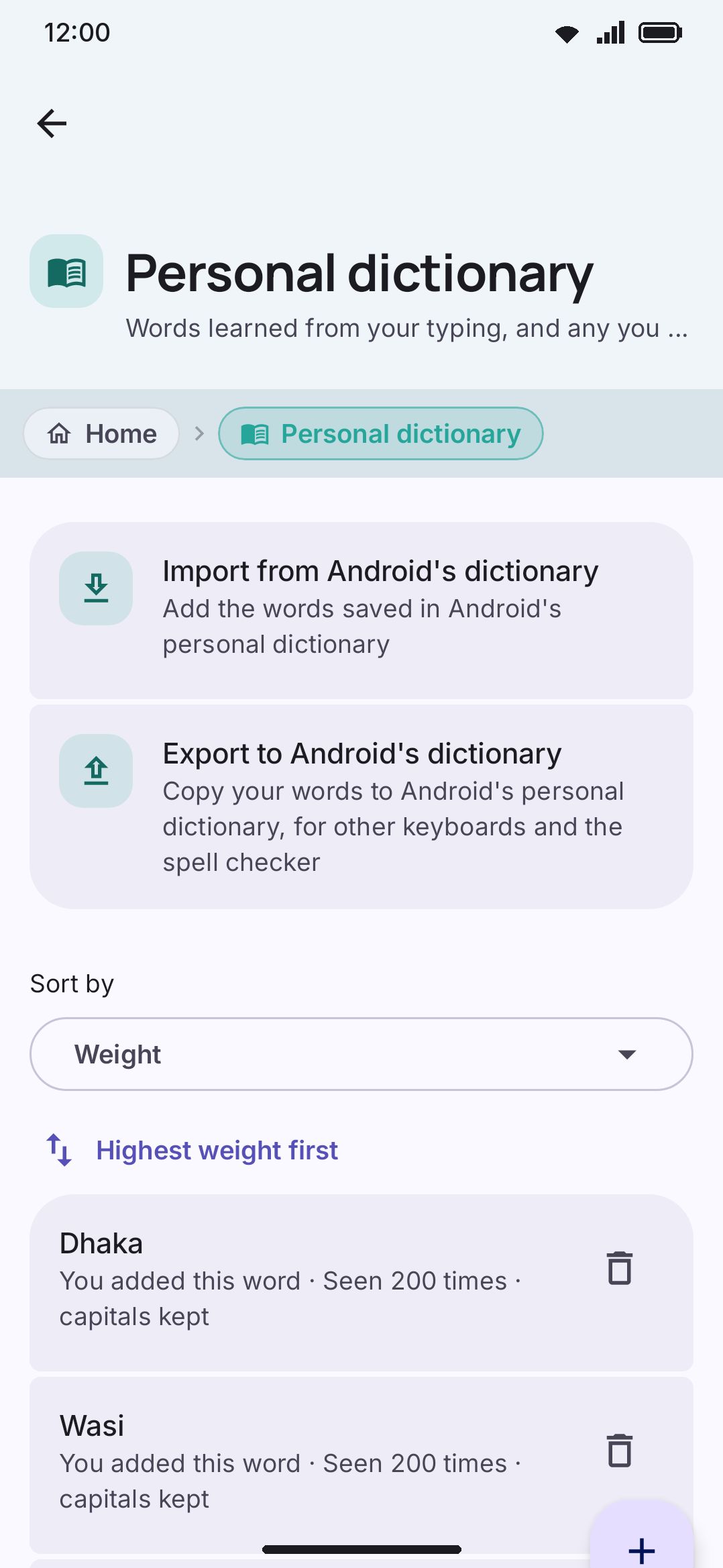
Every word the keyboard has learned from your typing, plus any you add by hand, sorted with the highest weight first. Sort by above the list changes that to Alphabetical (words that start with a capital letter first) or Date added, and the button under it reverses the direction. The screen remembers the order. Each row reads “Seen N times”. A word you added by hand reads “You added this word · Seen N times”, so it shows its count like any other. Press a row to open an edit dialog where you can respell the word or change that weight, anywhere from 1 to 1,000,000. New words the keyboard is still counting are not on this screen: they only appear once they have been typed enough times to be saved. See Personal dictionary.
Past 12 words the list grows a search box above it, with a clear button in the field. Type into it and only the matching words stay on screen; a term that matches nothing says so rather than showing an empty list. Below 12 words there’s no box, since the list is short enough to read.
Add word opens a single-field dialog, adds one to the word’s weight and marks the word as added by hand. A word the keyboard has never seen lands at a weight of 1 and reads “You added this word · Seen 1 time” straight away. A word you’d already typed 50 times goes to 51. Adding a word says it is a word, not that it is a frequent one, so it earns weight the way every other word does, by being typed. The mark is what keeps it safe from autocorrect and from the clean-ups below. The trash icon on a row removes that word, and drops it from any word pairs it was part of. Every add and every remove signals a running keyboard session to reload the list, so your edit isn’t silently overwritten.
Remove one-off words sits beside it whenever anything in the list has only been seen once, and clears all of those together after a confirmation naming the count. It is there for installs upgraded from versions that saved every new word on first sight, where those rows are mostly stray swipes and typos. Words you added by hand are never included, whatever their weight.
Import from Android’s dictionary and Export to Android’s dictionary sit above the list. Each opens a checklist of the words missing on the other side, all checked: import adds the checked words as words you added by hand, and export copies them into Android’s own personal dictionary. Both need WM Keyboard to be your current keyboard, because Android shares its dictionary with no other app. See Android’s dictionary. To add the new words from a note or draft instead, use the Learn from text tool.
The dialog takes anything you type, but the store won’t: a word over 32 characters (measured after lowercasing) is dropped silently, so the dialog closes and the list is exactly as it was. The same limit applies to words learned from typing.
A row whose capitals are kept as written reads “capitals kept” after its count; the edit dialog’s Keep these capitals switch turns that on or off. When you have moved words up or down from the keyboard’s word card, a Rank adjustments group at the bottom lists them, each with a button to reset it. See Personal dictionary for the card.
Before you’ve typed or added anything, the screen says there’s nothing here yet, that words appear as you type when “Learn from typing” is on in Privacy, and that you can add one above. The screen itself carries no toggles. Everything that governs whether a word gets learned in the first place (Learn from typing, Incognito, Follow private browsing) lives on the Privacy screen instead. See Personal dictionary for the full learning-weight mechanics, what disqualifies a field, and how to clear everything at once.
The list is capped at 10,000 words
Section titled “The list is capped at 10,000 words”Nothing on the screen says so, but the store is bounded. That’s the answer when words you know you typed are no longer in the list. The check runs when the keyboard is dismissed after learning something new, and only then. Once the list has gone over 10,000 words, it’s trimmed back to 9,000 in one go. Cutting a thousand rather than one keeps it from re-trimming on every dismissal from then on.
What gets cut is decided by a decaying score, not by raw weight. The file keeps a counter that ticks once per save that had something new in it, and a word’s score is its weight halved for every 64 ticks since you last typed it. A word you still use holds its place, while a typo learned last year quietly sinks to the bottom whatever its count was. Words you added by hand count as deliberate, and so does any word at weight 100 or more, which is how an older version marked the words you added. Deliberate words go only after every organic word has already gone. Losing a word loses the word pairs built on it too.
Smaller caps sit alongside it, on the next-word data rather than on the words: 5,000 first words for word pairs, 2,000 two-word contexts, and at most 32 followers remembered for each, all trimmed least-used-first. None of them ask before trimming, and there’s no undo. A word you want kept for good is worth adding by hand rather than leaving to be relearned.
Custom dictionaries
Section titled “Custom dictionaries”A Download more row leads, opening the add-on repositories’ dictionaries. Under it, one group per enabled language, each listing the word lists you’ve imported for it. A row’s headline is the filename without its extension, its subtitle is the word count (plus its word pairs and shortcuts, for a list imported from an AOSP dictionary), and it carries two controls: a switch and a trash icon. The switch turns a list off without deleting it (the file is renamed, not removed), and a switched-off row reads “Switched off, still on the device” in place of its word count. That’s the cheap way to find out whether a bad import is what’s polluting your suggestions. Import word list (or Import another, once one exists) opens a file picker, where you can select more than one file. From URL opens a dialog to pull one down instead. A language with no lists yet still gets its own group and both buttons, ready for a first import.
A language you’ve since switched off keeps its group, headed “language (language switched off)”, so its lists stay reachable rather than sitting on disk with nothing pointing at them. That group has no import buttons, since a list imported there wouldn’t be read, but the switches and trash icons still work.
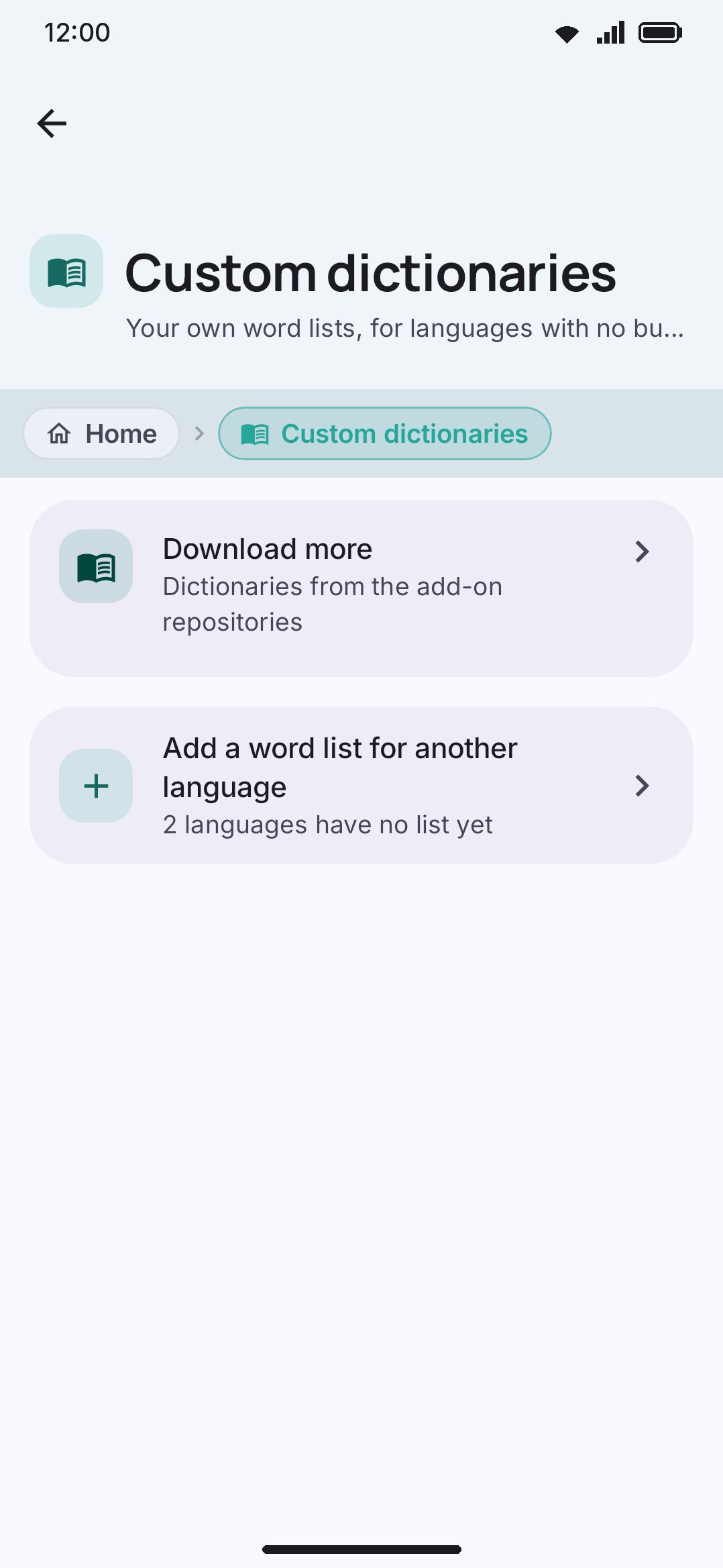
The format, per the screen’s own description: one word per line, optionally followed by a space and a frequency number. Lines starting with # are ignored. Imported words are never autocorrected away.
Two formats from other keyboards import as they are, with nothing to reformat first:
.combinedword lists, the source format every AOSP-derived keyboard’s dictionary is built from. The header line is recognised and the indentedword=the,f=222records are read as words and frequencies,bigram=andngram=records as word pairs, andshortcut=records as shortcuts.- Compiled
.dictdictionaries, which is what HeliBoard, LeanType and FUTO download and what comes out of a GApps package. The app unpacks one into an ordinary text list at import, so the word count, the switch, the trash icon and removing a single word all work on it afterwards exactly as they do on a list you wrote yourself. Files built with acodePointTableread correctly. - Version 4 dictionaries, the format AOSP keyboards write on the device (a user history, for one). Each is two files,
NAME.headerandNAME.body: select the two together. - A
.zip, such as a HeliBoard or LeanType backup. The app takes every dictionary out of it and leaves the rest (layouts, blacklists, images) alone.
When the file holds more than words, Choose what to import opens first. It lists each dictionary it found, with the language code the file names, and one checkbox for each part the file has: Words, Word pairs (for next-word predictions) and Shortcuts (the long form shows as the first suggestion when you type the short form, the way “omw” offers “on my way”). All start checked. The word pairs and shortcuts stay with the list: its switch turns them off too, and its trash icon deletes them. They do not depend on the Word pairs download of the language, or on the setting for Android’s dictionary shortcuts.
Frequencies in both are 0 to 255, and are scaled onto the 0 to 10000 range this app’s own lists use, so an imported word keeps its rank against the bundled dictionary rather than sinking below all of it.
Only the older 402 revision of version 4 is turned down, with a message that names the version. A .header selected without its .body, or a .body without its .header, gets a message that asks for the other file.
Version 0.5.9 and earlier didn’t unpack anything. They copied whatever you picked into the list as it was, so a compiled .dict imported back then sat on the device as raw binary and was read as tens of thousands of junk “words”. Those junk words could show up as suggestions, and they also switched glide typing off for the language. After an update the keyboard repairs such a list by itself the next time it loads your word lists. A .dict it can read is unpacked in place, exactly as a fresh import would be: same name, same switch position, with its word pairs and shortcuts beside it. A file it can’t read (one half of a version 4 dictionary, or anything else that isn’t text) is switched off and reads as zero words, so it can’t pollute anything. Delete that row and import the file again, both halves together for version 4.
A local-file import over 32 MiB is turned down before it’s even read, with “That file is too large to import.” A URL import enforces the same 32 MiB cap mid-download, but every failure there, oversized file or dead link or network error alike, surfaces as “The app cannot download that list. Check the URL and try again.” Only http:// and https:// URLs are accepted, and anything else is caught before the download starts with its own message, “The app accepts only http:// and https:// links.” A successful import reports “The app added N words to <language>.”, or lists the word pairs and shortcuts as well when there were some. An empty file reports “The app found no words in that file. Make sure that it is a word list.” Every successful import or removal signals a running keyboard session to reload.
Lists are additive, so several can sit under one language, and for English and Bangla they stack on top of the bundled dictionary rather than replacing it. That’s a different mechanism from the downloadable wordlists reached from a language’s own Dictionary section, which do replace the built-in English or Bangla list. See Downloadable dictionaries for that pipeline, its size tiers, and the full list of every available wordlist.
Suggestion blacklist
Section titled “Suggestion blacklist”Words the keyboard must never suggest or autocorrect to, listed alphabetically with a trash icon per row. Add word opens the same single-field dialog shape as the personal dictionary; whatever you type is stored trimmed and lowercased, so capitalization and stray spaces don’t create duplicate entries. The list is empty by default, and nothing is blacklisted until you add something yourself. Once it has entries, a Clear the blacklist row appears above them and empties the lot behind a confirmation. Clearing only unblocks the words; nothing you’ve taught the keyboard is touched. Words also arrive here from the keyboard: Never suggest on a held suggestion, and Delete on a word that is still in a read-only word list.
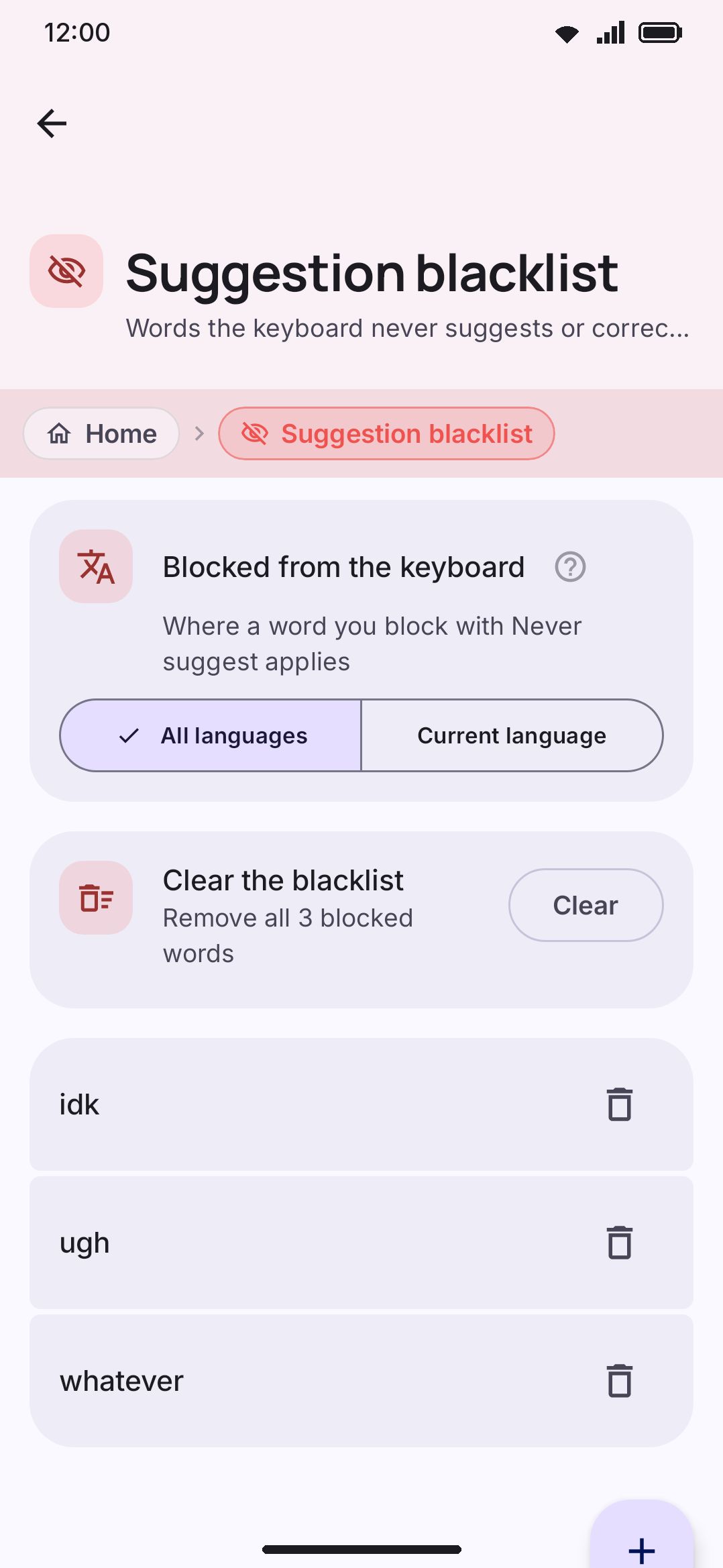
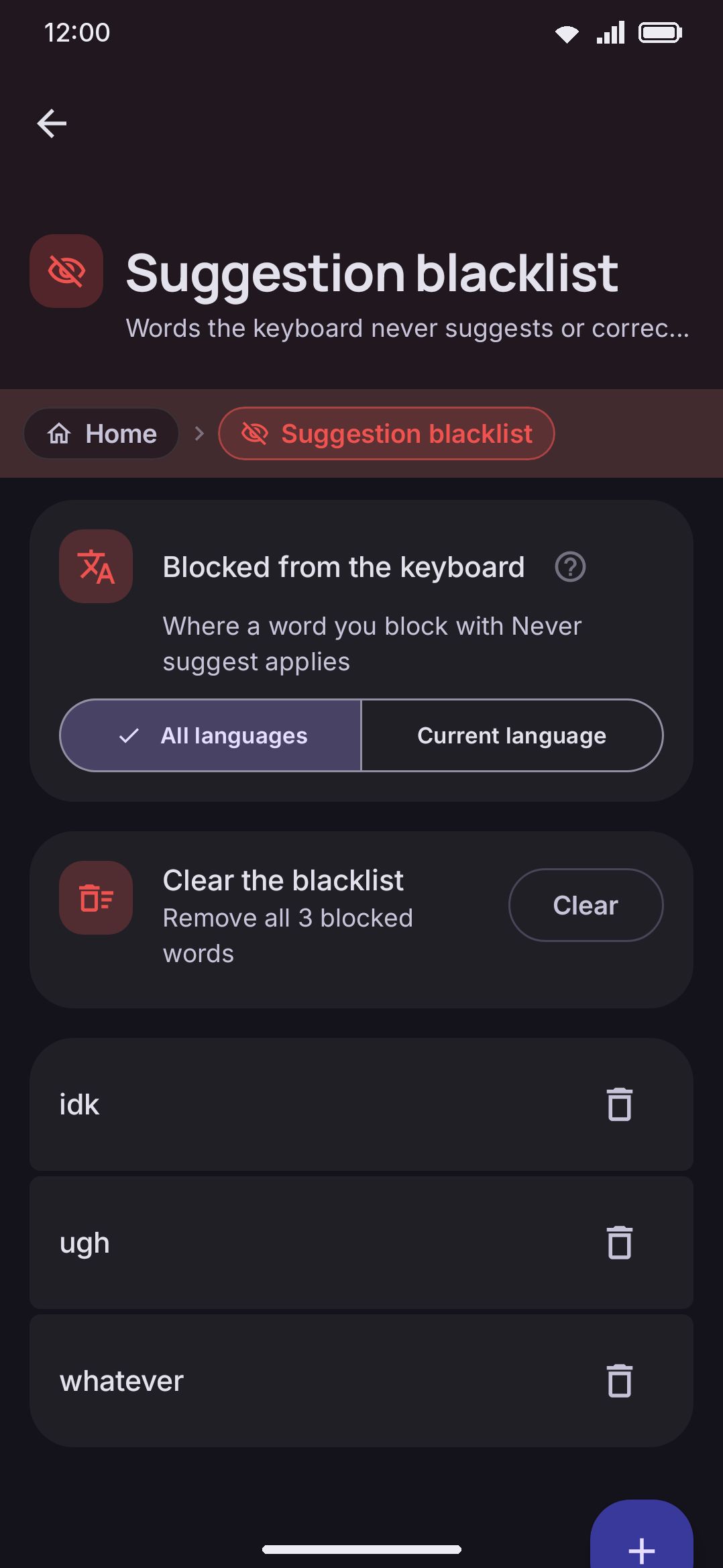
Before you add anything, the screen reads “No words in this list yet. Add a word above.” Back on the Typing screen, the nav row’s subtitle changes with the list: “Words to never suggest or autocorrect to” while empty, or “N words never suggested” once it has entries. See Suggestion blacklist for exactly which suggestion paths it filters and how it interacts with the personal dictionary.
Emoji keywords
Section titled “Emoji keywords”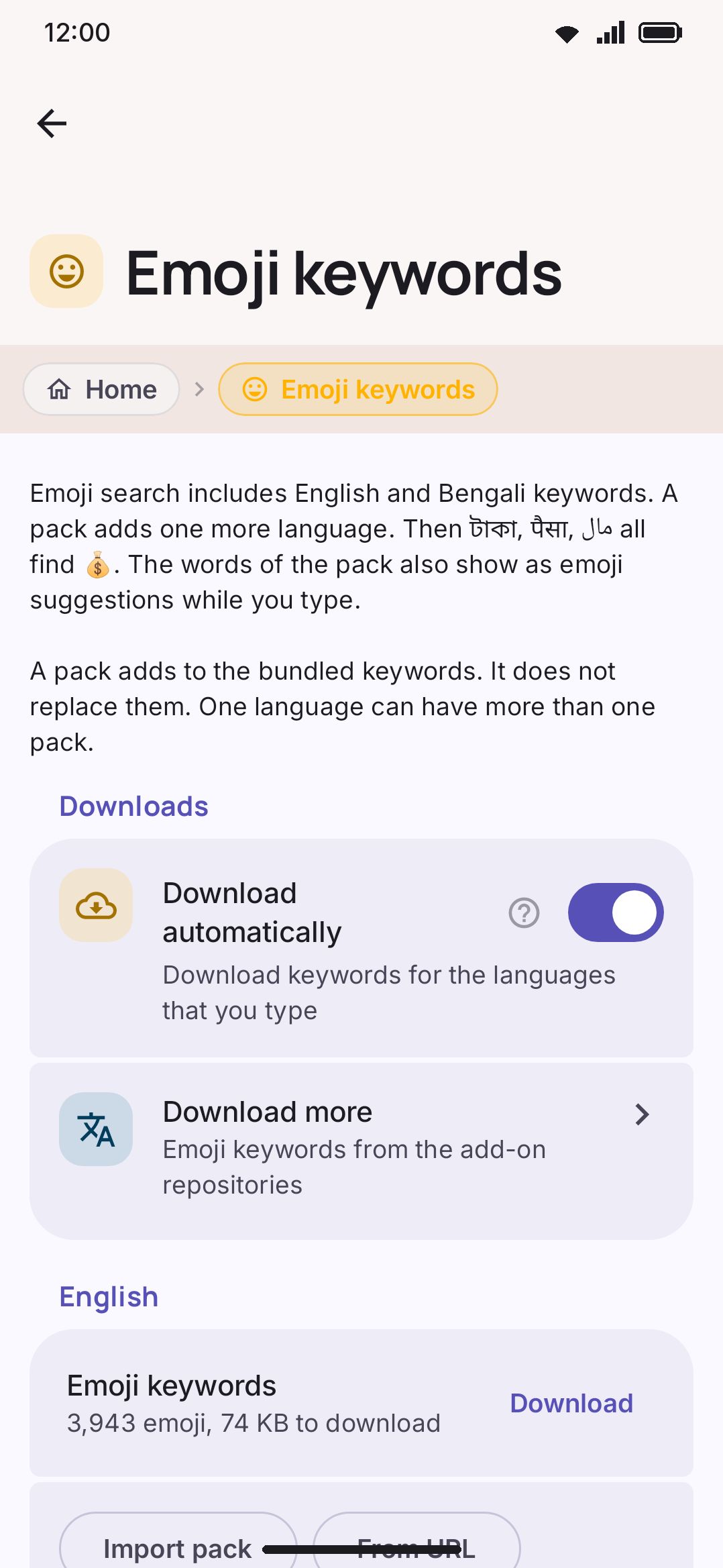
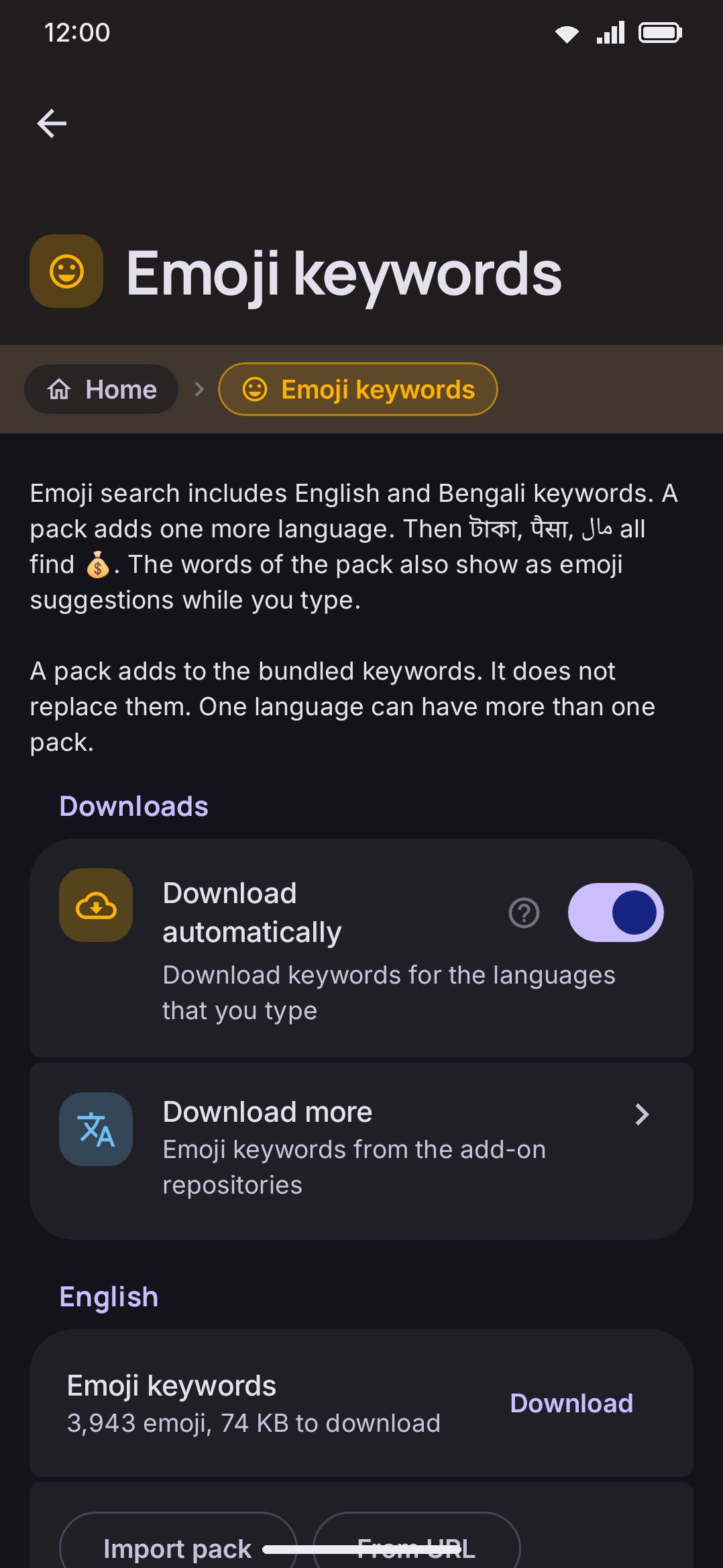
The densest of the four screens. A Downloads group sits up top, holding the Download automatically toggle and a Download more row into the add-on repositories’ keyword packs. Under it, one group per language, each holding up to two kinds of row.
Download automatically (WM KeyboardEmojiEmoji panelEmoji keywordsDownloads) defaults to on, so turning a language on fetches its keywords in the background, around 100 KB, once. Off leaves the per-language Download buttons below as the only way to get them.
Each language group can carry a bundled-catalog row (only shown for the 126 languages the wmkeyboard-data repo covers) and any number of user-imported packs below it:
- Bundled catalog row: reads “N emoji, size to download” before you download it (for example “3,943 emoji, 74 KB to download”), “Waiting…” while it’s queued, then a progress bar and a Cancel button while it transfers, then “N emoji, size” plus a delete icon once it’s there. A failure leaves an error message and a Retry button.
- Imported packs: one row per file, headline the filename minus extension, subtitle “N emoji”, trash to remove. Import pack/Import another and From URL buttons work exactly as they do on Custom dictionaries.
A language’s group appears here if it’s currently enabled, has a downloaded catalog, or has an imported pack. So you can still delete a pack for a language you’ve since turned off.
The import format is a tab-separated file: one emoji per line, then its comma-separated keywords, then optionally another tab and a display name. Lines starting with "# " are ignored. A bare # isn’t a comment here, since it starts the keycap row. The repo’s own JSON dictionaries import as-is too. The size cap is 8 MiB, smaller than Custom dictionaries’ 32 MiB, and it’s enforced the same way for local files and URL downloads. Once the download starts, every failure collapses onto one code path, so a dead link or a network error reports the same “That file is too large to import.” as a genuinely oversized file. A URL with the wrong scheme is the exception, since it never gets that far. A successful import reports “The app added keywords for N emoji to <language>.” An empty file reports “The app found no emoji in that file. Make sure that it is a keyword pack.”
See Emoji search in your language for why 126 languages, what auto-download does in practice, and how a pack changes what you see while typing.
Details & edge cases
Section titled “Details & edge cases”- Custom dictionaries truncates malformed lines silently rather than skipping them. The parser splits each line on its last space. If that trailing token isn’t a number the frequency defaults to 1, but the line is still cut at that last space. A genuine multi-word phrase, or any word with a trailing non-numeric token, loses everything after the final space instead of importing as written. Check a hand-written list for stray trailing words before you import it.
- Emoji-pack URL imports report the wrong error more often than not. Custom dictionaries tells a too-large file apart from a failed download. The emoji-pack importer doesn’t. A dead link, a network error and a genuinely oversized file all show “That file is too large to import.” The one failure it names correctly is a URL that isn’t
http://orhttps://, which is caught before the download and says so. - The two import screens share a shape but not their limits. Custom dictionaries caps at 32 MiB, Emoji keywords at 8 MiB. Both accept only
http:///https://URLs, and both stack multiple lists per language rather than replacing what’s there. - None of these four screens are gated by edition. Full and lite builds show identical dictionary, blacklist and emoji-keyword screens.
- Three separate stores, easy to conflate. The personal dictionary is what you’ve typed. Custom dictionaries are lists you import. The blacklist is what to withhold. A word can sit in more than one at once, and the blacklist always wins as a candidate, whatever is learned or imported.
Related pages
Section titled “Related pages”- Personal dictionary: learning weights, incognito interaction, and clearing everything at once.
- Suggestion blacklist: every suggestion path it filters and how it interacts with autocorrect.
- Suggestions & prediction: how completions, corrections and next-word prediction fit together.
- Downloadable dictionaries: the other word-list mechanism, reached via Languages, with size tiers and the full wordlist table.
- Emoji customization: the conceptual explanation behind emoji keyword packs.
- Backup & restore: the Dictionary section of a manual export, off by default, and Android-backup opt-in.