
Your data on device
Exactly what WM Keyboard stores, where, and how to erase it.
Everything WM Keyboard remembers about you goes into the app’s own private storage on this phone. That means words you’ve typed, things you’ve copied, and dictionaries you chose to download. None of it syncs anywhere unless you turn on a backup yourself, which has a page of its own: see Backup & restore.
What’s stored, and where
Section titled “What’s stored, and where”Everything below lives under the app’s private storage. No other app can read that folder, and nothing off the device can either.
| What | Where | How it gets there |
|---|---|---|
| Words and word-pairs you type, in any script | learning/user_lexicon.json | Learned automatically while Learn from typing is on, and the same file your personal dictionary writes into |
| Autocorrections you undid | learning/correction_stats.json | Recorded whenever you revert a correction, including with learning off or in incognito: undoing a correction is you telling the keyboard it got that word wrong |
| Chinese, Japanese and Cantonese picks | learning/cjk_history.json | Learned automatically |
| Which language you tend to reach for when mixing languages, overall and per app | learning/language_mix.json and learning/app_language_mix.json | Tracked automatically |
| Words you flipped between English and Bangla or Hindi on a phonetic layout | learning/phonetic_script_choices.json | Recorded when you flip a word with backspace or pick the other script, while learning is allowed |
| Emoji you’ve used | learning/emoji_usage.json | Learned automatically |
| New words still waiting to be typed enough times to be learned | learning/pending_learn.json | Held automatically |
| Where your finger lands on keys, and when tapping | learning/key_offsets.json and learning/tap_offsets.json | Learned automatically, to fit key hit-testing to your hand |
| Fixes you’ve taught autocorrect | learning/learned_corrections.json | Learned automatically, separate from the revert memory above |
| Swipe shapes, and the readings you corrected | learning/glide_outcomes.json and learning/glide_shapes.json | Learned automatically while gesture typing |
| Words you’ve ranked higher or lower from the word card | learning/word_ranks.json | Adjusted automatically as you rank a word |
| Clipboard history, including copied images | clipboard/history.json and clipboard/images/ | Captured automatically while clipboard history is on |
| Snippets you’ve saved | snippets/snippets.json | You write these yourself |
| What you sent the AI tool and what it answered | ai/history.json | Only if you turn AI history on; it’s off by default |
| Your saved AI chat conversations | ai/chats.json | Kept automatically while Keep your conversations is on; unlike the row above, it’s on by default |
| Every keyboard setting | A DataStore file, keyboard_settings.preferences_pb | You choose these yourself |
| Downloaded wordlists, CJK dictionaries and emoji-keyword packs | dict/, cjk_dicts/, emoji_dict/ | You download these yourself, per language |
| Downloaded offline AI and speech models Full edition only | models/, whisper/ | You download these yourself |
| Downloaded text scanner languages Full edition only | ocr/tessdata/ | You download these yourself, per language, from the text scanner or its settings page |
| The addon repositories you added, and a record of what you installed from them | addons/ | You add these yourself |
| Installed addons themselves | wherever that kind of thing normally lives: fonts/, keysounds/, iconpacks/, plugins/, stickers/, and the settings file for themes and layouts | You install these yourself |
| Your sticker packs, plus the photos you cut them out of and how you edited each one | stickers/<pack>/ and stickers/.originals/ | You add these yourself, from your gallery or from search results |
A few things worth knowing about that table:
- Clipboard entries aren’t always full copies. A copied file, folder or video is stored as a reference to the app that owns it, not as duplicated bytes. Only copied images actually land in
clipboard/images/. Copying a multi-gigabyte video doesn’t multiply it. - AI history is the only row there that’s off by default. Nothing is written until you turn it on. Even then, nothing is written from a password field or in incognito, and turning the setting back off deletes the file rather than hiding it. There’s a Delete all history button on the screen itself too.
- The photos behind your stickers stay on the phone.
stickers/.originals/holds the picture each sticker was made from, plus the crop, the erased parts and the border, so the sticker editor can reopen the edit later. Exporting a pack, backing settings up and Android’s own backup all skip that folder and carry the finished stickers only. WM KeyboardAboutStorageSticker packs shows how much space it uses and lets you delete it on its own. - Downloaded dictionaries are a different folder from imported ones. A wordlist you download from the dictionaries catalog goes in
dict/. A plain-text list you import yourself lives in a separatedictionaries/folder, treated as configuration rather than a download. Both are covered on that page. - Your personal dictionary is not a separate file. A word you add by hand goes into the same
learning/user_lexicon.jsonthe keyboard learns into, which is why the bulk delete below takes both. Word-by-word control over what’s in there is its own screen. Review, delete or add entries from Personal dictionary.
Before you unlock your phone
Section titled “Before you unlock your phone”Modern Android phones encrypt this app’s storage under your device credential, meaning your PIN, pattern or biometric. Until you enter it once after a reboot, nothing in the table above can be read, by this app or any other. That’s also what makes it possible to type your own unlock PIN with this keyboard. The keyboard has to run in that window, so a small, separate area of storage holds just enough for it to look and behave correctly beforehand. That area isn’t covered by your credential, and it’s readable from the moment the phone powers on.
What lives there is narrow by design: your keyboard’s appearance and behavior, meaning layout, theme, sizing and sounds, mirrored from your real settings. Beside that mirror sit the few things the keyboard needs before an unlock and cannot get anywhere else, chiefly the built-in dictionaries it unpacked from the app so it can still predict, plus the crash log. Any API key you’ve entered is explicitly excluded, for Translate, the AI tools and the rest, along with your backup passwords and tokens. Everything else in the table above stays in the normal, credential-encrypted storage and is unreachable until you unlock. That includes learned words, CJK and emoji history, the language-mix tracker, clipboard history, snippets and every download. So the keyboard types off the built-in word lists only, with no learned vocabulary and no clipboard history, and nothing you type in that window is recorded. The moment you unlock, it swaps back to your real files.
One consequence is worth spelling out. A phone that’s been unlocked once since it last rebooted counts as “unlocked” here, even if you lock the screen again. What matters is whether the storage has been decrypted this boot, not whether the lock screen happens to be showing. For what the lock screen itself changes about typing, see Incognito & secure fields.
Clearing what’s stored
Section titled “Clearing what’s stored”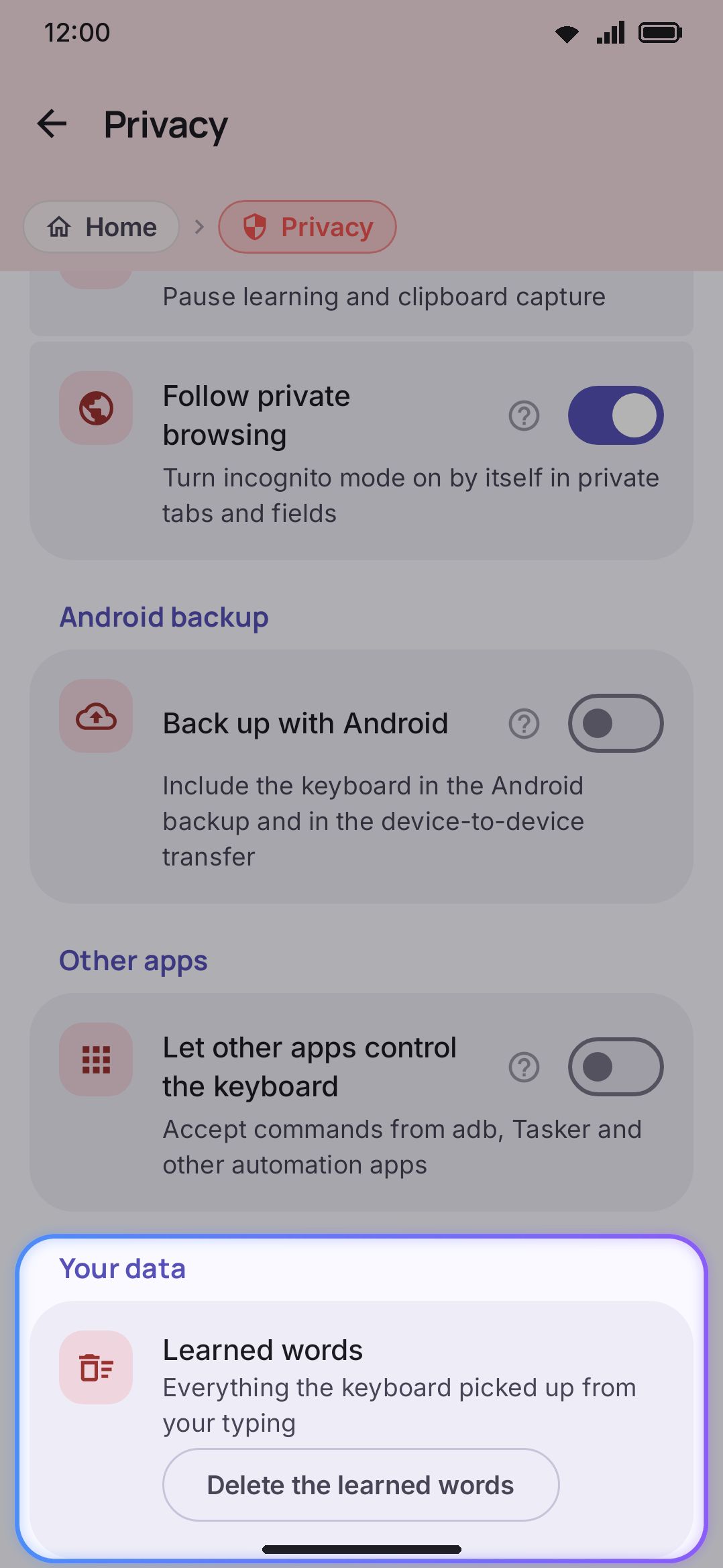
Deleting the learned words cannot be undone.
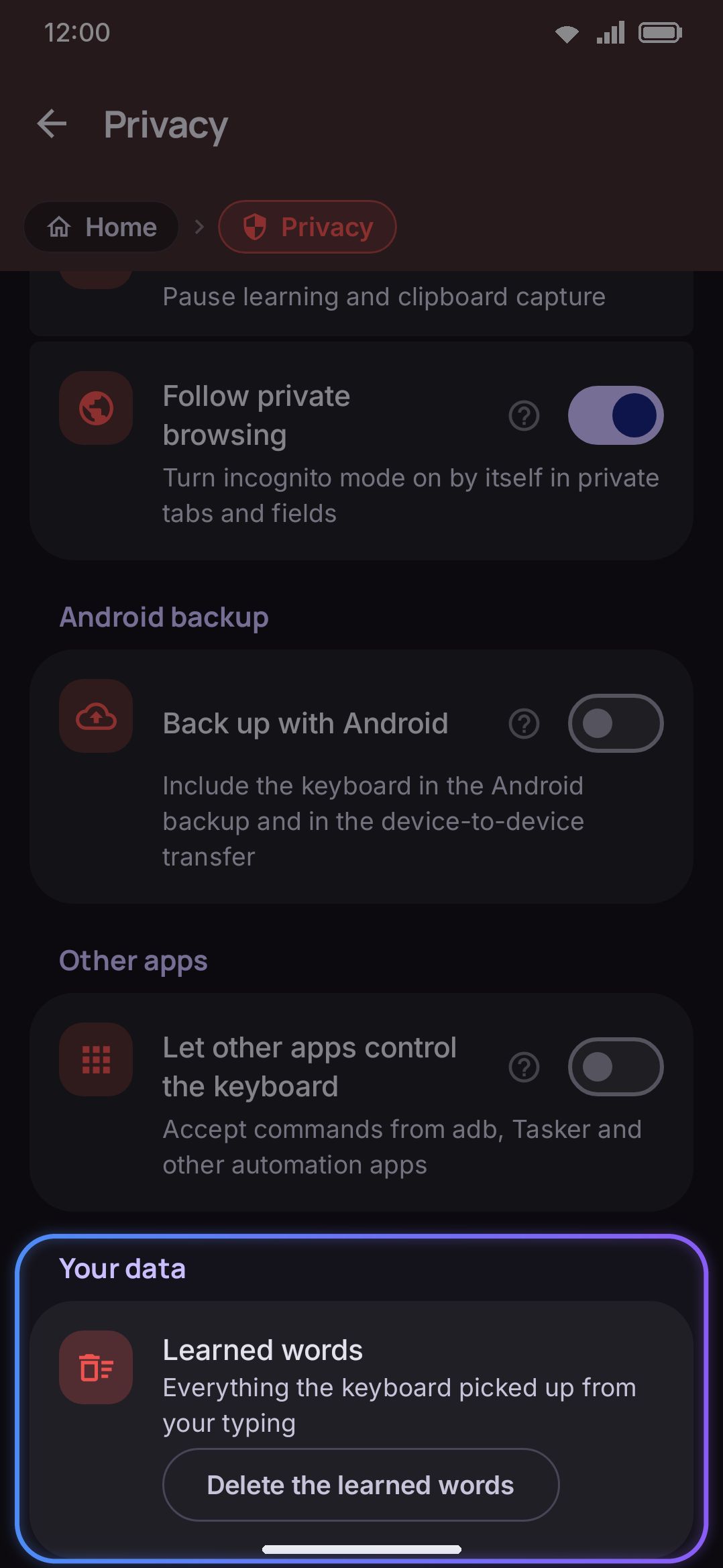
Open Privacy. Tap Delete the learned words. A dialog lists what goes and asks you to confirm.
Confirming deletes 13 files: your word and word-pair history, the new words still waiting to be counted, and your emoji-usage history. It also takes your autocorrect revert memory and your Chinese/Japanese/Cantonese pick history, plus the language-mix tracker and its per-app twin. Finally, it clears the fixes you’ve taught autocorrect, both of your finger’s key-position models, your swipe-typing outcomes and shapes, and your personal-dictionary word rankings. Your personal dictionary goes with the first of those, because words you add by hand live in the same file, and the dialog says so. Your snippets and your imported word lists stay.
Beyond that one bulk action, clearing works two ways: per-item where the data lives, and per-category on the storage screen.
- Personal dictionary has its own screen with per-word delete, and it is also the only way to take out one learned word rather than all of them. Deleting a word also undoes its effect on the bigram map, so nothing orphaned survives. See Personal dictionary for the full picker.
- Emoji usage has no control of its own on the Privacy screen, though Delete the learned words takes it along with everything else. Two ways to trim it on its own live elsewhere. Long-press an emoji on the history tab for Remove from recents, which drops it from recents, usage counts and favourites in one go. Or turn on WM KeyboardEmojiEmoji panelClear recents button (off by default), which adds a Clear recents button to the panel’s Recent tab. That button wipes the whole recents list at once and leaves usage counts and favourites untouched. See Emoji picker for both.
- Clipboard has per-item delete and pin in the panel itself. History also shrinks on its own, because entries expire and the list is capped. See Clipboard for the exact numbers and how to change them.
- Downloaded dictionaries, CJK packs, emoji-keyword packs and AI/speech models each have a per-item remove action on their own settings screen, wherever you downloaded them from.
Clearing by category
Section titled “Clearing by category”The storage screen lists everything above as its own row, shows what it costs you in megabytes, and gives every row a clear action. That includes the rows the panels give you no bulk control over: Learned words (the whole learning/ folder, language-mix tracker included), Clipboard, Typing statistics, AI history, each download category, and your own themes, sticker packs and icon packs. Personal rows confirm once before deleting.
Settings is a row there too, and clearing it is the reset-to-defaults you’re probably looking for. It wipes every stored preference, plus the themes, layouts, keyboard modes, symbol sets and AI actions you made, and the keyboard comes back exactly as it was on install. It’s the only row that confirms twice, and it can’t be undone. If you only want one setting back rather than all of them, every row you’ve changed has its own small restore button. See Putting one setting back.
The storage screen has no single button for wiping the lot at once. Free up space at the top only clears caches, and the personal and download rows go one at a time. For a genuine clean slate, go through Android instead: Settings → Apps → WM Keyboard → Storage & cache → Clear storage, or uninstall the app. Both are destructive, and neither can be undone for anything you haven’t backed up. See the next section.
What Android’s own backup can include
Section titled “What Android’s own backup can include”Turning on Android’s own backup is a separate opt-in, off by default, and covered in full on Backup & restore. This page only covers what that choice means for the data listed above. With it off, nothing in the table leaves the device this way. Turn it on and an Android backup carries your settings and learned words along with everything else it covers. Seven things are always left out regardless of the toggle: downloaded dictionaries, CJK packs, emoji-keyword packs, offline AI and speech models, clipboard images, the photos your stickers were cut from, and the scratch files the camera and document scanner leave behind. They’re excluded because they’re large and easy to make again, not because they’re sensitive.
Options
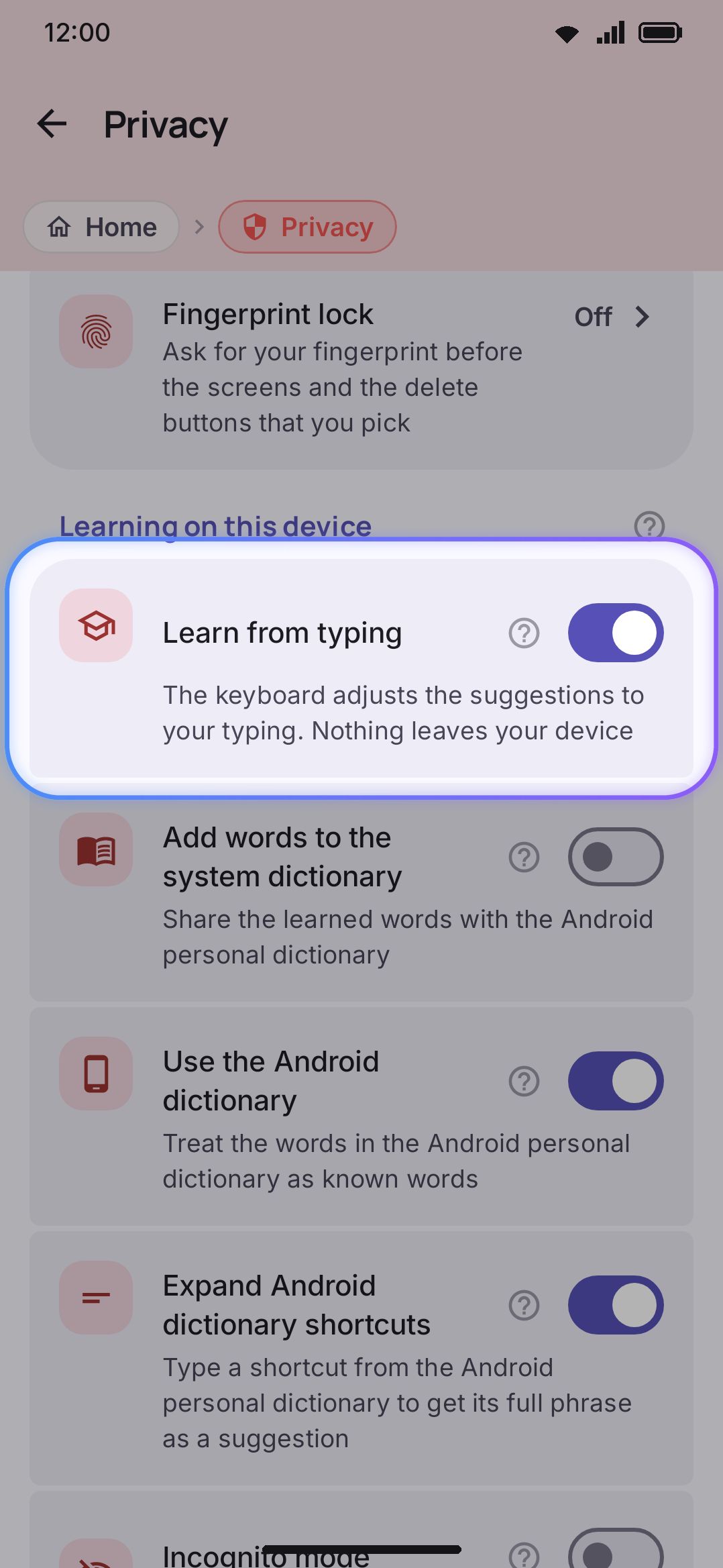
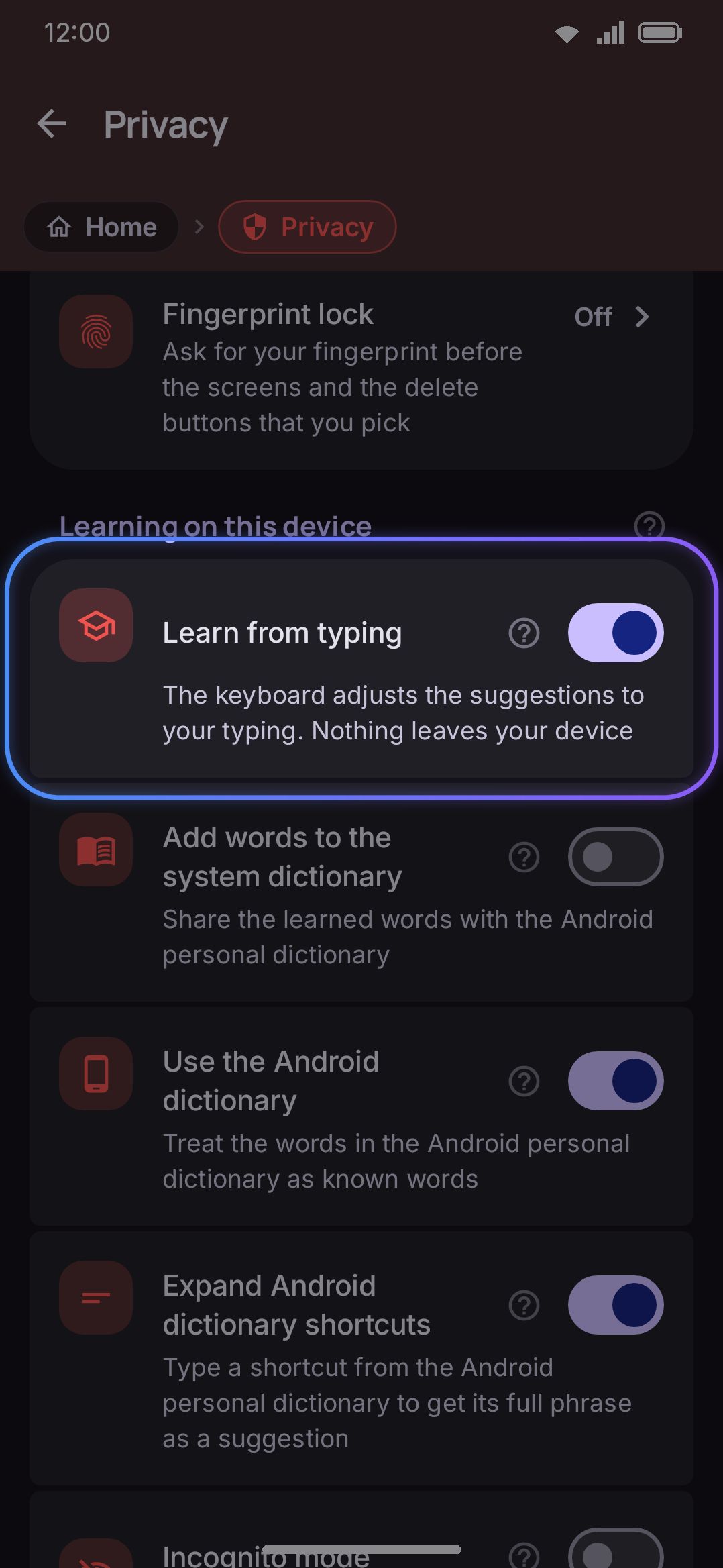
Section titled “Options”- Learn from typing (default on). Personalizes suggestions from what you type. Turn it off and no new words or pairs are recorded, though existing ones stay until you clear them.
- Add words to the system dictionary (default off). Also writes learned words to Android’s own system personal dictionary (System Settings → Languages & input → Dictionary), so other keyboards and the platform spell checker see them too. This is the one setting on this screen that writes data outside the app.
- Use the Android dictionary (default on). The mirror image of the setting above. Every word in Android’s own system dictionary counts as a known word: the keyboard suggests it, autocorrect leaves it alone, and typing or gliding it never brings up the “add to dictionary?” chip. The list is read again each time it changes, so a word you add in System Settings works straight away. A single-word entry is also offered with the capitals you wrote it in — “Boston”, “AOSP” — but an entry with spaces in it is not: “User Dictionary Manager” makes “user”, “dictionary” and “manager” known words, spelled the ordinary way, because those capitals belong to the phrase rather than to each word in it. The phrase itself comes back whole through its shortcut.
- Expand Android dictionary shortcuts (default on). Reads the shortcut column of that same system dictionary. A shortcut you’ve defined there, like “omw” for “on my way”, offers the full phrase as a suggestion when you type the shortcut.
- Incognito mode and Follow private browsing live in the same group and pause learning and clipboard capture entirely. See Incognito & secure fields for how those work.
- Back up with Android (default off). Covered in Backup & restore.
Details & edge cases
Section titled “Details & edge cases”- “Add words to the system dictionary” points the opposite way from “Use the Android dictionary” and “Expand Android dictionary shortcuts”. The first writes learned words out to Android’s system dictionary. The other two read words and shortcuts back in from it. All three are independent, so turning one on doesn’t affect the others.
- The in-app privacy caption covers the network side rather than storage. The note at the bottom of the Privacy screen names the tools that reach the network by hand. That’s translate, weather, web and image search, GIFs, stickers, dictionary lookup and the AI tools, each one only on the tap that uses it. It’s a per-tap list rather than a complete one, so it leaves out link previews and the download screens. None of that changes what’s described on this page, because none of it is stored beyond what’s already listed above. See Network policy for the complete list.
- Voice input can leave the device even though nothing on this page tracks it as “stored.” For a language without an on-device speech model, dictation falls back to Android’s network-based recognizer for that session, without announcing it. Nothing about that fallback is saved by WM Keyboard itself.