
Media controls
Play, pause and skip whatever is playing (with album art) from the keyboard.
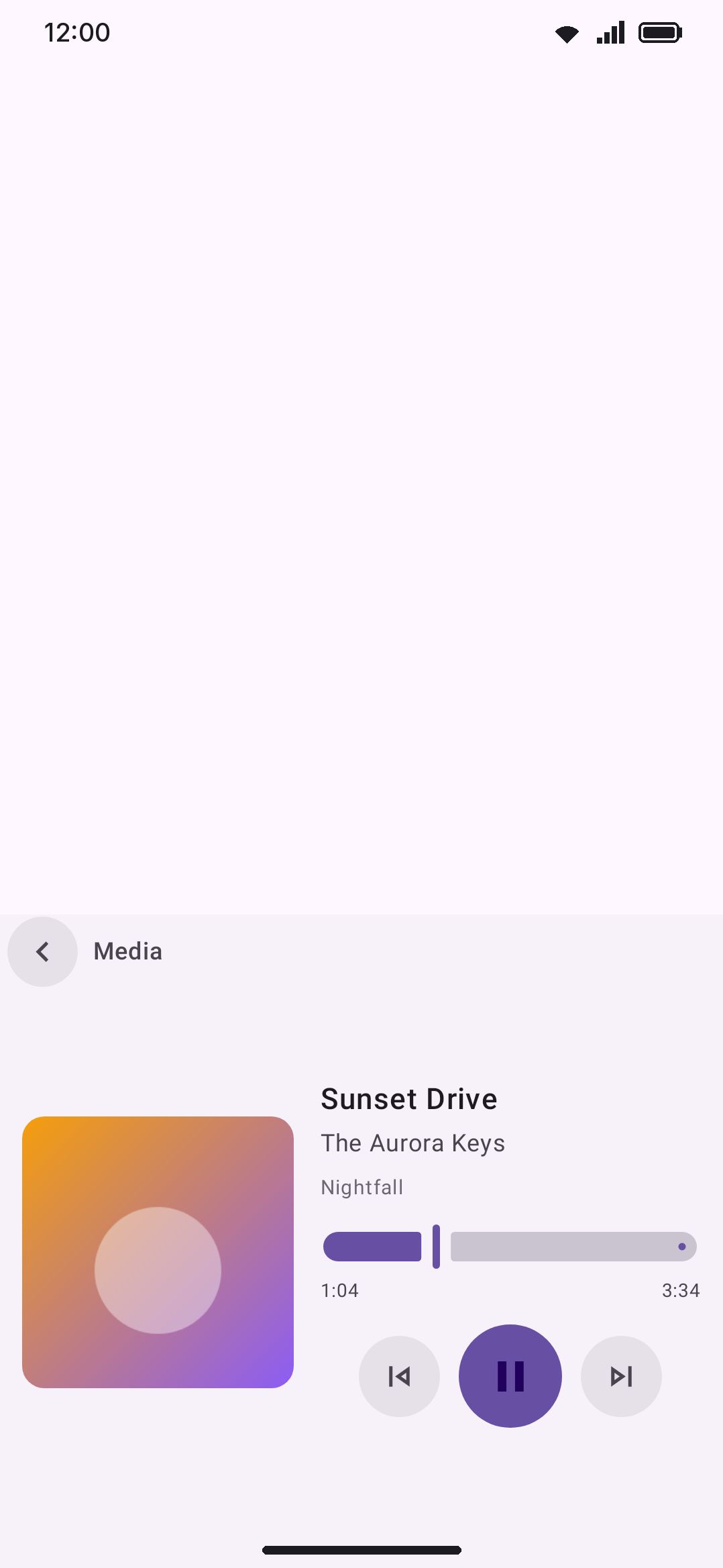
Media controls turns the keyboard into a transport for whatever is playing elsewhere on your phone: album art, track title, a seek bar, and play/pause/skip. It’s the same session your lock screen and quick-settings tile already show, so it saves you from switching apps just to pause a song.
Opening the panel
Section titled “Opening the panel”Open Media controls from the toolbar, or the toolbox if you haven’t pinned it. It isn’t pinned out of the box, so the first time you’ll likely reach it through the toolbox. Once notification access is granted it pins itself while music is playing, which is how you’ll usually reach it after that: see Pinning while music plays. On a hardware keyboard, use the leader key: double-tap Ctrl, then press M. Unlike many other tools it has no suggestion-strip keyword shortcut, so there’s no word you can type to summon it.
The panel shows one of three things:
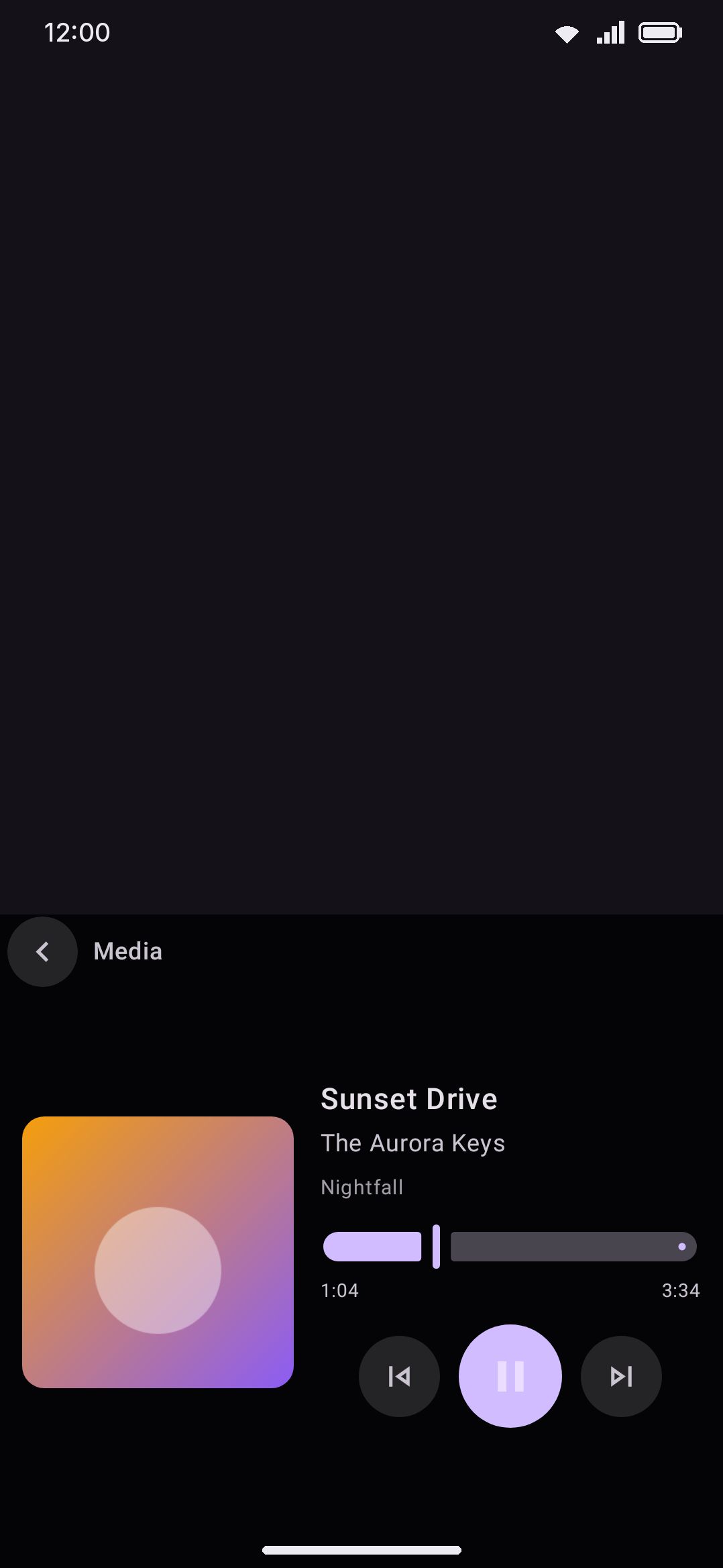
- Now playing: album art (or a music-note placeholder if the app didn’t publish any), title, artist and album, with a seek bar and Previous / Play-Pause / Next buttons.
- “Nothing plays now”: shown when no app currently holds an active media session, with a line underneath telling you to start a song, video or podcast in any app. Do that and its controls appear here automatically.
- A one-time access prompt: shown until you grant notification access. See below.
The transport
Section titled “The transport”- Play/Pause toggles playback. Previous and Next skip a track. Both go dim and unresponsive if the current app’s session doesn’t advertise that action. Some players don’t expose a “next track” action for the current content, during a live stream or a single long file for instance.
- The seek bar only appears once the session reports a track duration. Drag it and release to jump playback to that point. It’s disabled the same way the skip buttons are, whenever the session doesn’t support seeking.
- Controls act on whichever app currently owns the active media session, usually the one you left playing. If more than one app is publishing a session at once, it’s the one actively playing. There’s no in-panel app switcher, so open the source app directly to change what’s playing.
Options
Section titled “Options”- Enabled: which way this starts depends on how you answered the setup wizard. Media controls is only in the “show me everything” starter set. Pick either of the two simpler answers and it arrives switched off, so you turn it on here. Turning it off removes Media controls from both the toolbar and the toolbox.
- Icon colour: only shown if colorful tool icons are turned on globally (on by default). It overrides this tool’s icon colour, purple out of the box.
- Pin while music plays: on by default. See below.
- Music players: which apps count as music. Only shown while the pin is on.
- Notification access: reports whether the grant is in place, and opens the screen that gives it. Same grant as the one the panel asks for, in a row you can check without opening the keyboard.
Pinning while music plays
Section titled “Pinning while music plays”With Pin while music plays on, starting a song puts Media controls on the toolbar by itself, so pause and skip are one tap away instead of a trip through the toolbox. Stop the player and the pin goes with it.
It is deliberately unobtrusive:
- The tool goes on the end of the toolbar. Nothing you pinned yourself moves, and their hardware digit shortcuts keep the numbers you already know.
- If you have already pinned Media controls by hand, nothing happens. There is one slot for one tool, and your own pin wins.
- The pin is never written to your pinned-tools list. It is drawn, not saved, so it cannot survive a reboot or turn up in a backup.
- Pausing does not unpin. The pin arms the first time an app on your Music players list actually plays, then stays through a pause so you can still hit play again, and clears when that player gives up its session.
- Dragging the pinned icon around the toolbar pins it properly, the same as dragging any tool out of the toolbox. That is the way to make it permanent.
The pin needs notification access, same as the panel. Without it, the keyboard cannot see that anything is playing, so nothing is ever pinned.
Power saving turns the pin off. Keeping it accurate means watching the media session for as long as the keyboard is on screen, which is the sort of background work a low battery should not pay for. The tool stays in the toolbox.
Which apps count as music
Section titled “Which apps count as music”Any app can hold a media session: a video, a game, a browser tab with an autoplaying clip. Pinning a music transport because of one of those would be noise, so the pin only fires for apps on this list.
WM Keyboard ships it ticked for the players most people use, streaming services, offline players, podcast and audiobook apps. No such list can name every music app, so the picker is there to fix the gaps:
- The Players group leads with the installed apps that look like players, which means anything declaring a media browser service (the one Android Auto and Assistant use to find music apps), plus whatever you have already ticked.
- The search box below finds anything else on your phone, by app name or by package name.
- Reset to the shipped list puts back the ticks a fresh install starts with.
- An app you ticked and later uninstalled stays in the list, marked as not installed, so reinstalling it does not mean finding it again.
Untick everything and nothing ever pins, which is a perfectly good way to keep the pin switched on but silent for now.
Granting notification access
Section titled “Granting notification access”The Android API that hands over another app’s media session is MediaSessionManager, and it’s gated behind notification-listener access, the same permission class notification-reading apps use. This tool never reads a single notification anyway. One other feature shares that grant: the one-time code chip, which does read notification text, and only while you have it switched on. See privacy at a glance for how this fits the keyboard’s per-tool, opt-in approach to anything that touches data outside the keyboard itself. The panel explains the grant up front:
WM Keyboard needs notification access to show and control the media. This tool reads no notification content, only the media session. The same access powers the optional one-time code chip, which reads notification text only while you have that turned on.
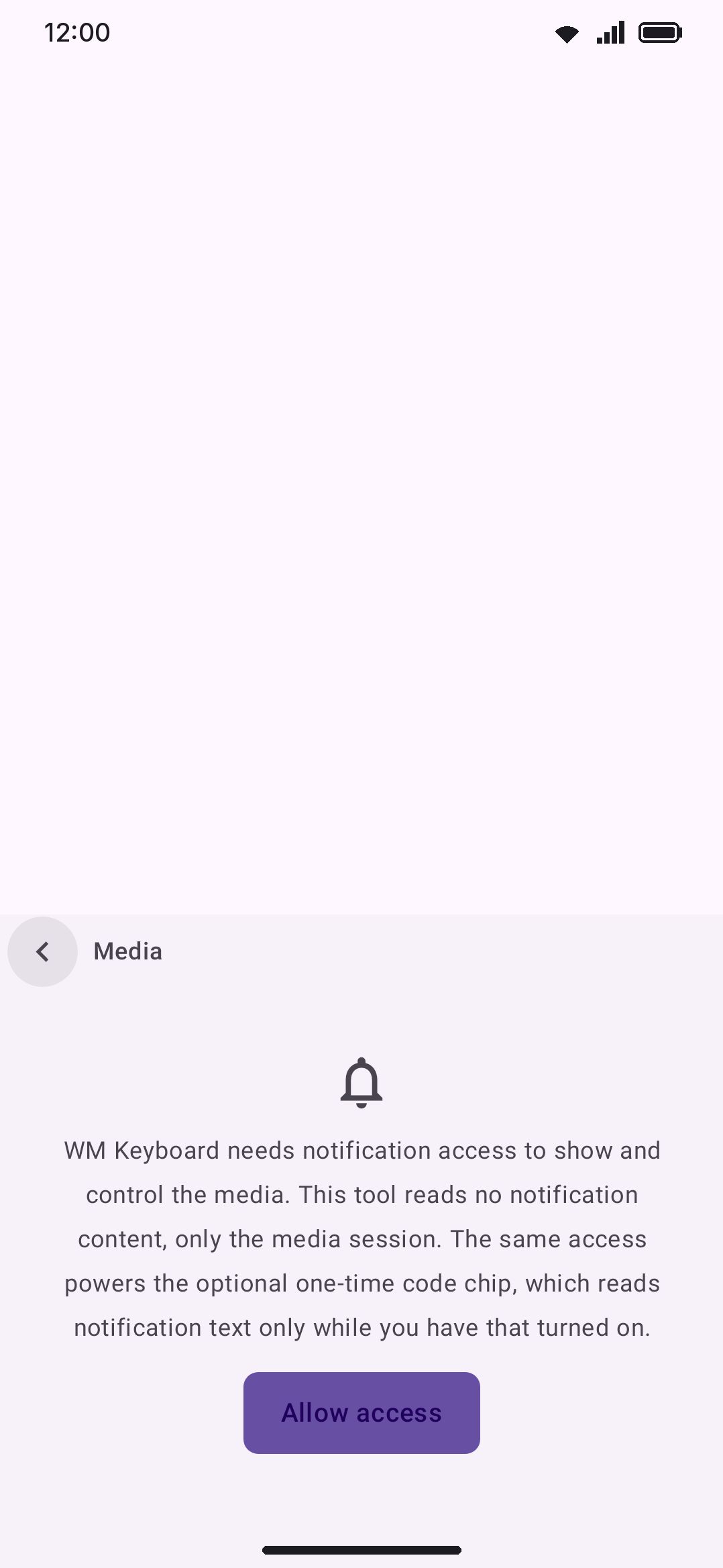
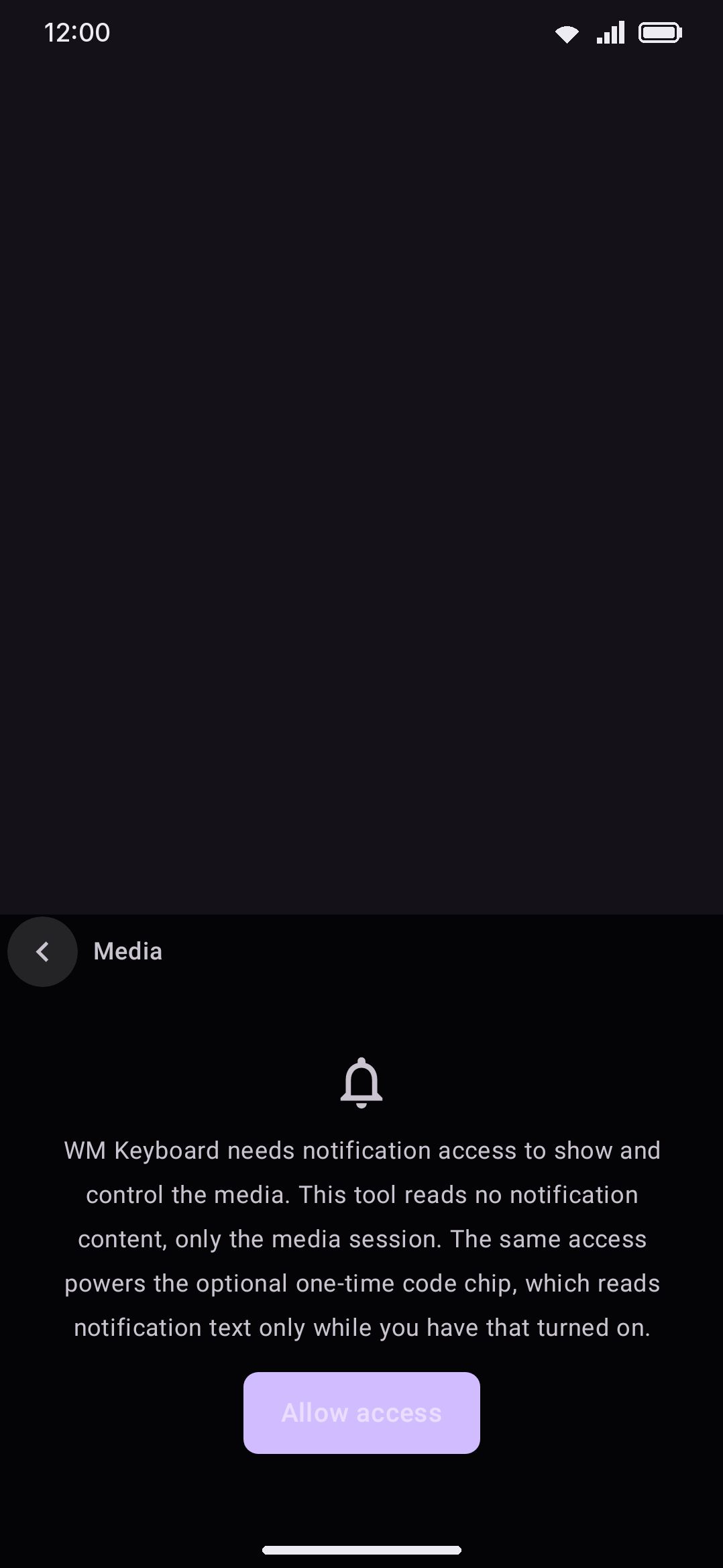
Tap Allow access. A short explanation appears first, restating what the access is for. Tap Open system settings on it. Your device’s Notification access screen then opens on WM Keyboard’s row. On Android 10 and older it opens the full list instead, so find WM Keyboard yourself. Look for “WM Keyboard media controls and one-time codes.” That’s the label the system lists it under, and it names both features because both ride on the one grant.
An IME cannot show its own permission dialog, which is why this detour through system Settings is needed. You do it once, and you can revoke it at any time from the same Settings screen. The keyboard re-checks the grant every time it returns to the foreground, so grant it in Settings and come back: the panel picks it up without being reopened.
Details & edge cases
Section titled “Details & edge cases”- Works with anything that publishes an Android media session: music players, YouTube, podcast apps and the like. That isn’t every app that makes sound. An app has to implement the platform’s Media Session API for its controls to show up here. One that plays audio without publishing a session won’t appear.
- The listener service that unlocks this (
MediaNotificationListener) is one component worn by two features. For media controls it is an empty stub: the tool needs the grant, not the notifications, and nothing on that path reads a notification. The service’s one working method belongs to the one-time code chip, and it returns immediately unless that chip is switched on. Never renamed, because Android stores the grant against the component name. - The seek bar is touch-only: it doesn’t participate in hardware-keyboard focus-ring navigation, so Tab/arrow-key cycling skips over it. The three transport buttons do take the ring, and Enter on a dimmed Previous or Next does nothing, exactly like a tap.
- Media controls has no direct-boot support. It isn’t available on the lock screen before you’ve unlocked your device once after a restart, since the notification-listener grant and session data aren’t available that early.
- This tool ships in both the full and lite editions. There’s no edition gating to worry about here.