
Clipboard manager
History, pinning, search and rich media, with password hygiene built in.
The clipboard tool keeps a running history of what you copy: text, images, files and more. A paste from ten minutes ago is still one tap away instead of gone the moment you copy something new. On a phone it’s one of only three tools pinned to the toolbar out of the box, alongside Emoji and Settings. A tablet starts wider, because three icons across a twelve-inch bar is mostly empty space. A small tablet pins five (Emoji, GIF, Clipboard, Voice, Settings) and a large one pins seven, those five plus Translate and Text edit. Clipboard is in all three sets.
Opening the panel
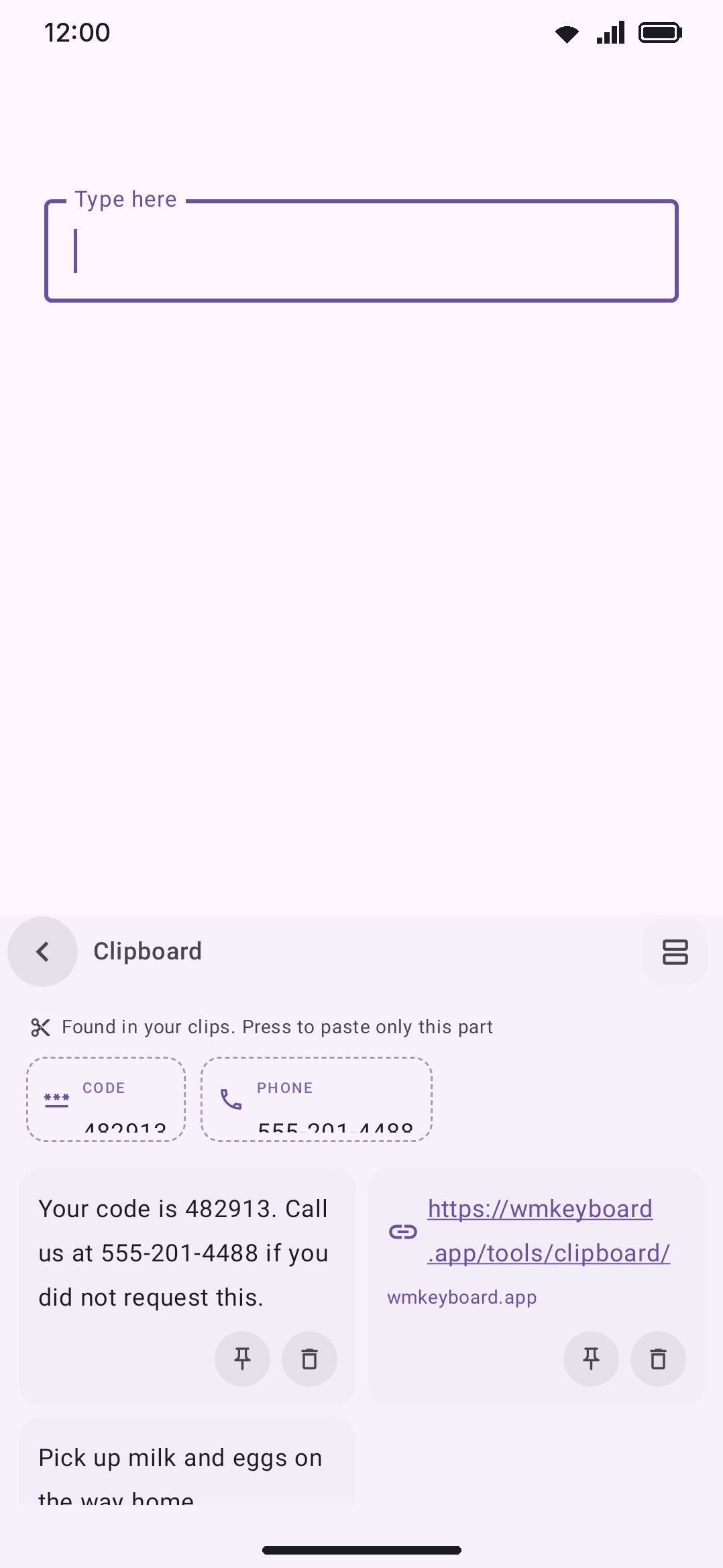
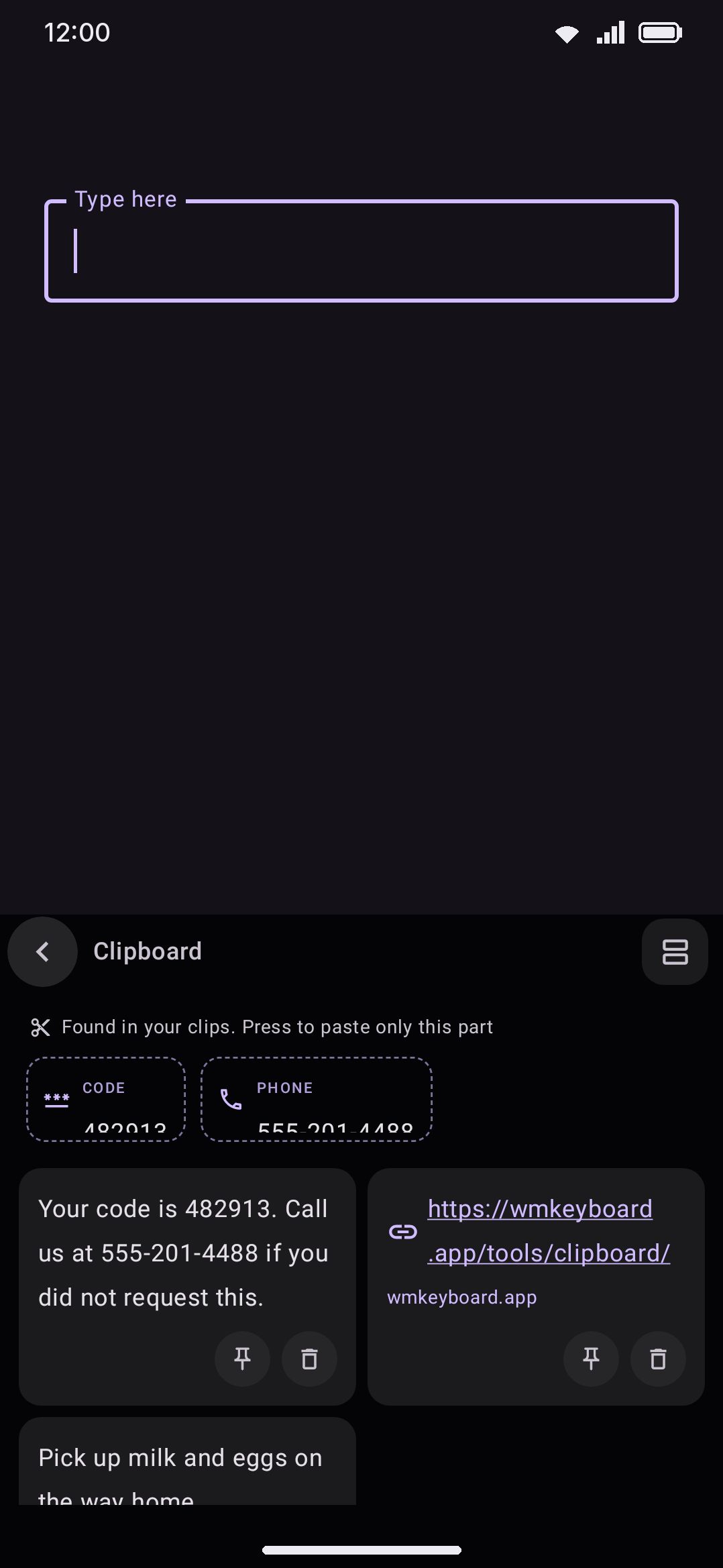
Section titled “Opening the panel”Tap Clipboard on the toolbar. If you unpinned it, open the toolbox and tap it there. See the toolbar for how pinning works. On a hardware keyboard, use the leader key: double-tap Ctrl, then press C.
Cards lay out in a staggered grid, two columns by default, rather than a fixed one, so a short text clip doesn’t get stretched to match a tall image beside it. Pinned clips sort first by default (flip that to put them last instead). Tap any card to insert it. Copying the same content again moves the existing card back to the top rather than adding a duplicate.
Grid or list
Section titled “Grid or list”The square button beside the search box switches the history between the grid and a list. The list gives each clip a whole row: the text across the full width, up to three lines of it, with the pin and delete circles at the end, and a picture as a small thumbnail at the start of its row. It’s the easier one to read when your clips are long text. The button shows the view a tap takes you to, and the choice sticks. It’s the same setting as History layout under Options. The button is a cell of the panel layout (Grid or list switch in the component picker), so you can move it or drop it. With the full-screen panel on, it sits at the right end of the header.
Numbered clips
Section titled “Numbered clips”Turn on Number the clips and every clip gets a small number: at the start of its row in the list, and next to the pin in the grid, so a card never gets taller for it. The number belongs to the clip, not to the spot it’s drawn in. Search the history and the results keep the numbers they had, so the third clip is still number 3 when it’s the only match. Numbers follow the panel’s order from the top, pinned clips included.
Columns, lines and times
Section titled “Columns, lines and times”Three settings change how much each clip shows. Grid columns sets how many columns the grid has, one to four (two by default): more suits a history of short text, fewer gives long text and pictures room. The list is always one clip per row. Lines per clip sets how many lines of text a clip shows, up to 20, in both views. Its default, Auto, is six lines on a card and three in a row. Longer text ends in an ellipsis. Time on each clip puts a small time next to the number: Time copied reads “5 min. ago”, and Time left counts down to when the expiry deletes the clip. A pinned clip, or any clip while expiry is off, has no time left to show. The times update while the panel is open.
However many lines you ask for, a clip’s preview is cut before it’s laid out: at the line after the last one shown, and never past 4,000 characters. A clip that holds a whole document costs no more to draw than a short one.
Editing a clip
Section titled “Editing a clip”Press and hold a text clip and tap Edit in its popup. An editor opens where the history was, with the keys back underneath it, and your typing goes into the clip rather than into the app you’re writing in. Enter starts a new line. Tap the text to move the cursor, or use the spacebar and arrow keys like anywhere else. Save keeps the change and Cancel (or Back) leaves the clip as it was.
An edited clip keeps its place in the history, its number, its pin and its age, so it doesn’t jump to the top and push the others around. A few things do change:
- Rich text becomes plain text once you change it, since the old formatting was for the old words. The editor says so before you save. Saving without a change keeps the formatting.
- A link’s fetched preview is dropped, and whether the clip counts as a link at all is worked out again from the new text.
- If the new text matches another clip, the two merge into the one you edited, the same way copying something twice never makes two entries.
- If the clip expired while you had it open, saving adds your text back as a new clip instead of losing it.
Images, files, folders and videos have no text to edit, so their popup has no Edit. Neither does a hidden password or code: the panel never shows its text, and an editor would. Editing only changes the history. What’s on the system clipboard stays as it was.
Every card carries two small circles along its bottom edge: a pin and a delete. Tap the pin to keep a clip out of reach of the expiry and the entry cap. Tap the bin to drop it. Swiping a card left or right until it slides off deletes it too, unless you’ve turned off Swipe to delete under Options: then a sideways swipe does nothing, and the card’s press-and-hold popup gets a red Delete button instead. Neither the bin nor the swipe asks first, so a bar pops up at the bottom of the panel for five seconds saying Clip deleted, with an Undo button that puts the clip back in the spot it had, pin and all. Delete a few more while the bar is up and it counts them (“3 clips deleted”), and one Undo brings back the lot. If you’ve asked Android for more time under Accessibility, Time to take action, the bar stays up that long instead. Once it’s gone the delete is for good. Don’t want the bar? Turn off Undo a deleted clip under Options.
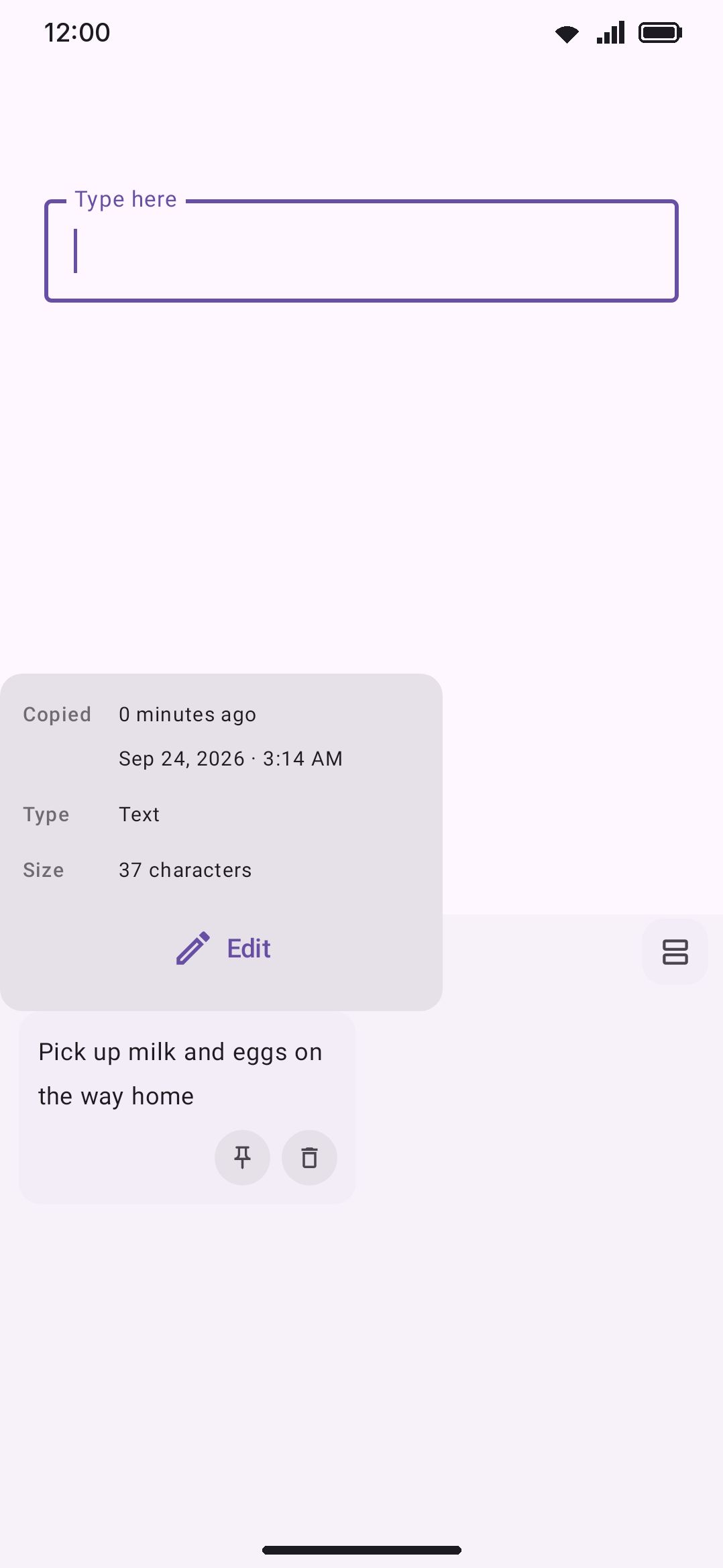
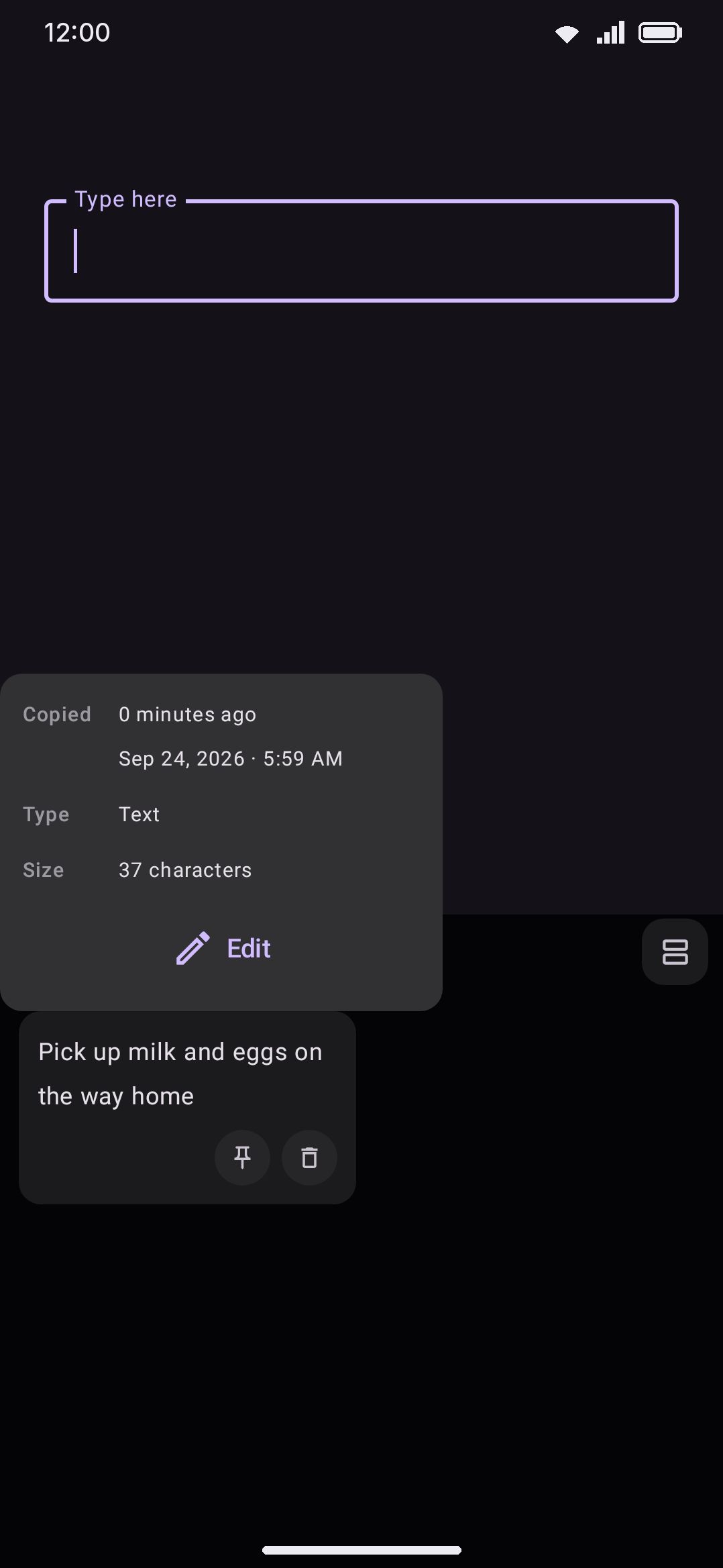
To see a clip’s info popup instead, press and hold its card. The popup gives the time it was copied, its type and size, and (if source tracking is on) the app it came from. An image clip gets one extra line there: Send as sticker, which runs the picture through the sticker processor before it goes.
What gets captured
Section titled “What gets captured”Turning clipboard history off stops capture entirely. Even with it on, two things skip a copy: incognito being active and set to pause the clipboard, and a copy taken from a password field. Neither one reaches history, whatever else you have configured.
Clips are stored under seven kinds. The panel groups them like this:
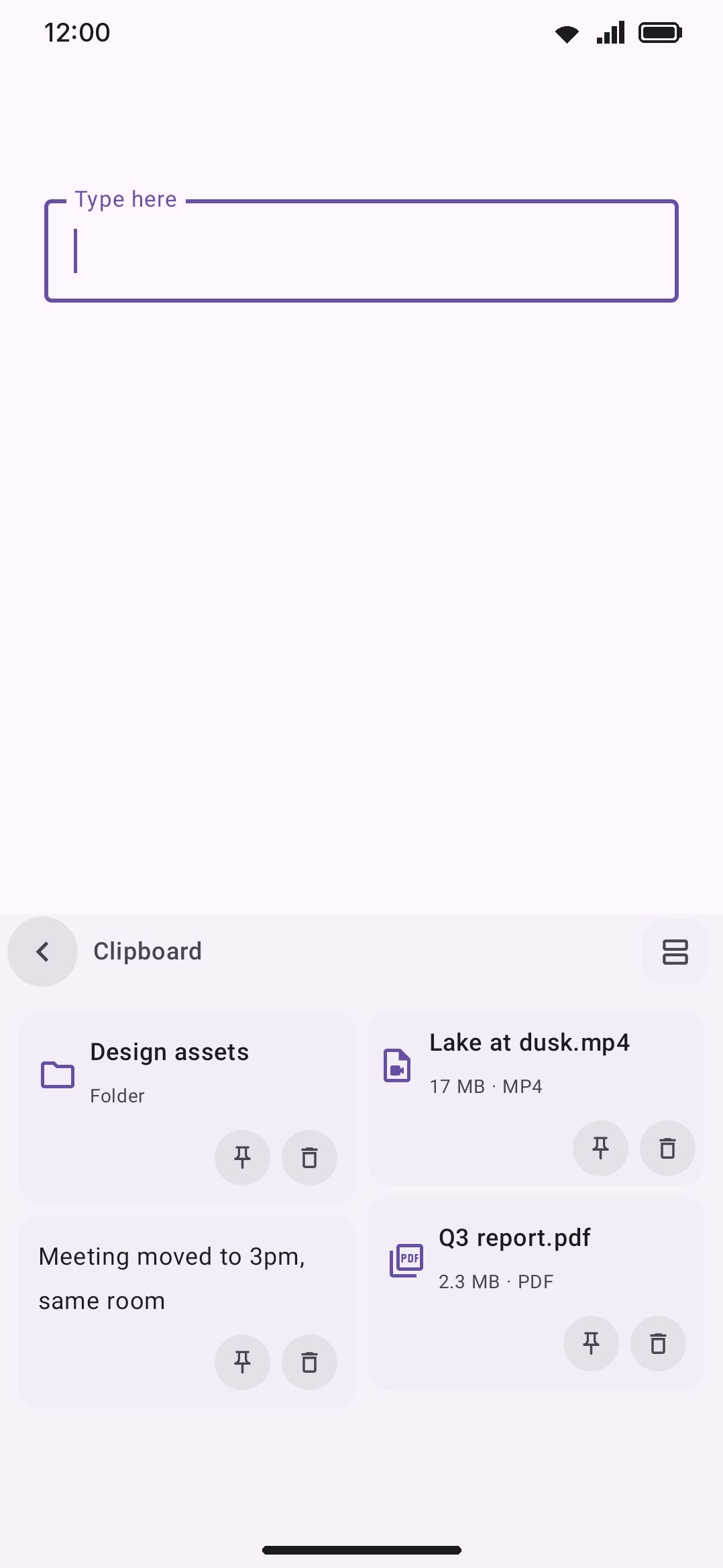
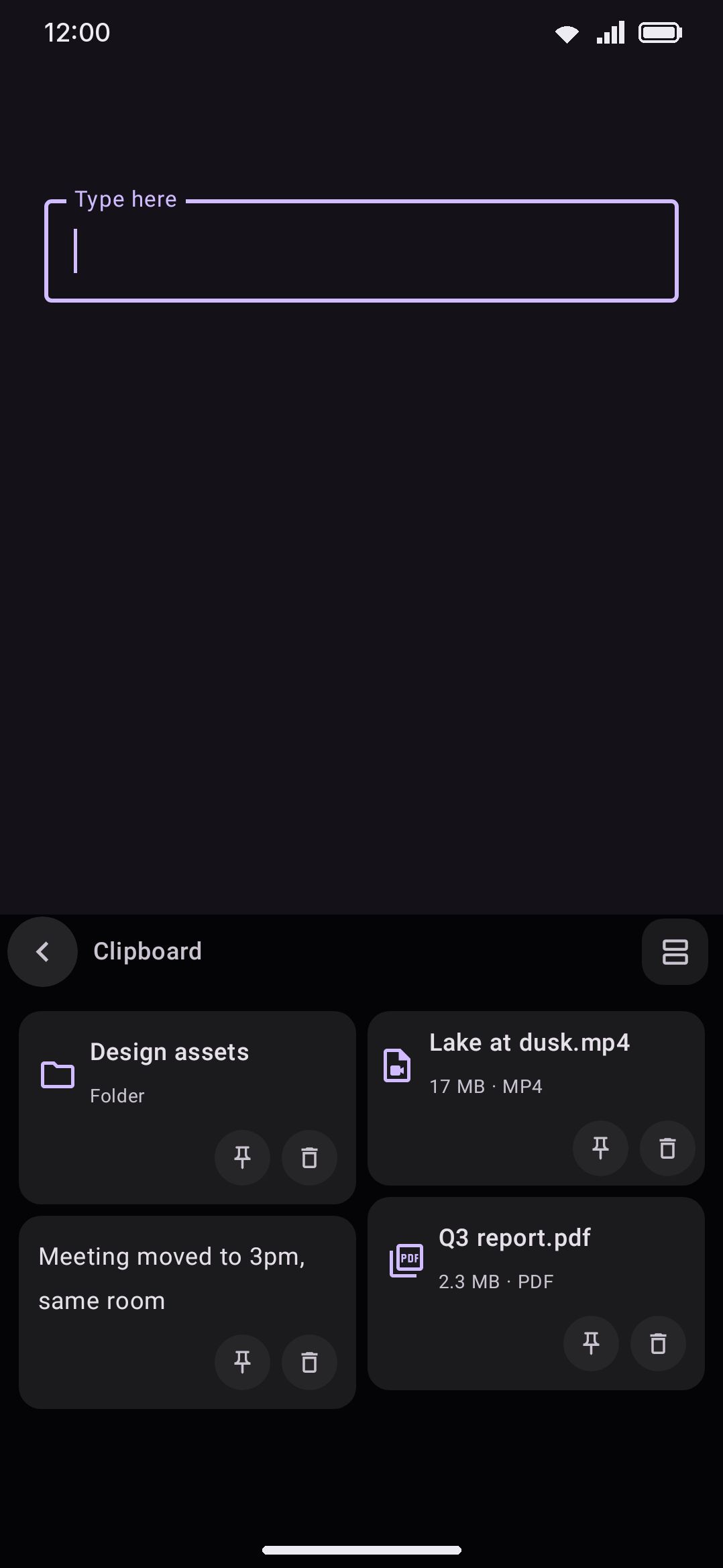
- Text and rich text: the plain content, shown as-is.
- Links: shown as the raw URL, or as a fetched title and description if link previews are on.
- Images: copied into the app’s own storage, so the source app can discard its copy without losing yours. Also captures device screenshots directly, if you turn that on.
- Files and videos: not copied. Only the file’s URI, name, MIME type and size are kept, so copying a multi-gigabyte video costs nothing. A video card even shows a frame grabbed from the very start of the clip instead of a blank icon. Copying several files or a whole folder at once keeps up to 20 items from that one copy.
- Folders: a reference, same as files. A folder can’t be attached to anything, so tapping its card types the folder’s name into the field and hands the folder’s URI back to the system clipboard for a file manager to use.
Pasting rich media
Section titled “Pasting rich media”Tapping an image, file, or video card negotiates a MIME type with the focused field. The keyboard offers the clip’s own type, and sends it via commitContent when the field advertises that it takes one. If the field wants PNG but the clip is a static WebP, it converts on the fly. Animated WebP is left alone, so an animation is never silently flattened into a still. If nothing matches, the item goes back onto the system clipboard and a toast tells you to paste it there. That happens when the field takes no rich content at all, or when the permission to read the file has lapsed.
Expiry and the entry cap
Section titled “Expiry and the entry cap”Unpinned clips fall off two ways. WM KeyboardClipboard sets an expiry in hours, where 0 turns expiry off. It also caps how many unpinned entries history keeps at once, and once that cap is hit the oldest unpinned clip drops with each new copy. Pinning a clip exempts it from both. A pinned clip never expires and never counts against the cap.
A third limit is on the length of each clip, and it starts off. Longest clip kept keeps all of what you copy by default. Set it (1,000 to 100,000 characters; Gboard cuts at 20,000) and a longer copy is stored cut to that length, so a copied book doesn’t fill the history and every backup of it. Rich text that gets cut is stored as plain text, since its formatting no longer matches. Only the history is cut: the system clipboard still holds the whole copy, so an app’s own paste is unchanged.
Finding a clip again
Section titled “Finding a clip again”Turn on the search bar and a search pill appears at the top of the panel, once you have at least one clip. Tap it and your keystrokes go to the search field instead of into your document, the same trick the emoji panel uses. The panel shrinks to just the field and its results while you type.
Matching is a case-insensitive substring search, and it reaches past a clip’s own text. A clip with no text of its own is still found by what it is: “image”, “picture” or “screenshot” for a copied picture, “video”, “movie” or “recording” for a clip, “folder” for a folder. The file format works too, because all of that is indexed alongside the file name, the source app and any link preview’s title and description.
Pulling codes and links out of a clip
Section titled “Pulling codes and links out of a clip”Turn on entity detection and the panel scans your recent clips for one-time codes, phone numbers and links. Each one becomes a dashed-outline chip above the history grid, so the six digits inside a verification text are one tap away rather than a copy-select-paste. Tapping a chip pastes just that fragment and leaves the full clip in place. Press and hold a chip to see it highlighted inside the message it came from.
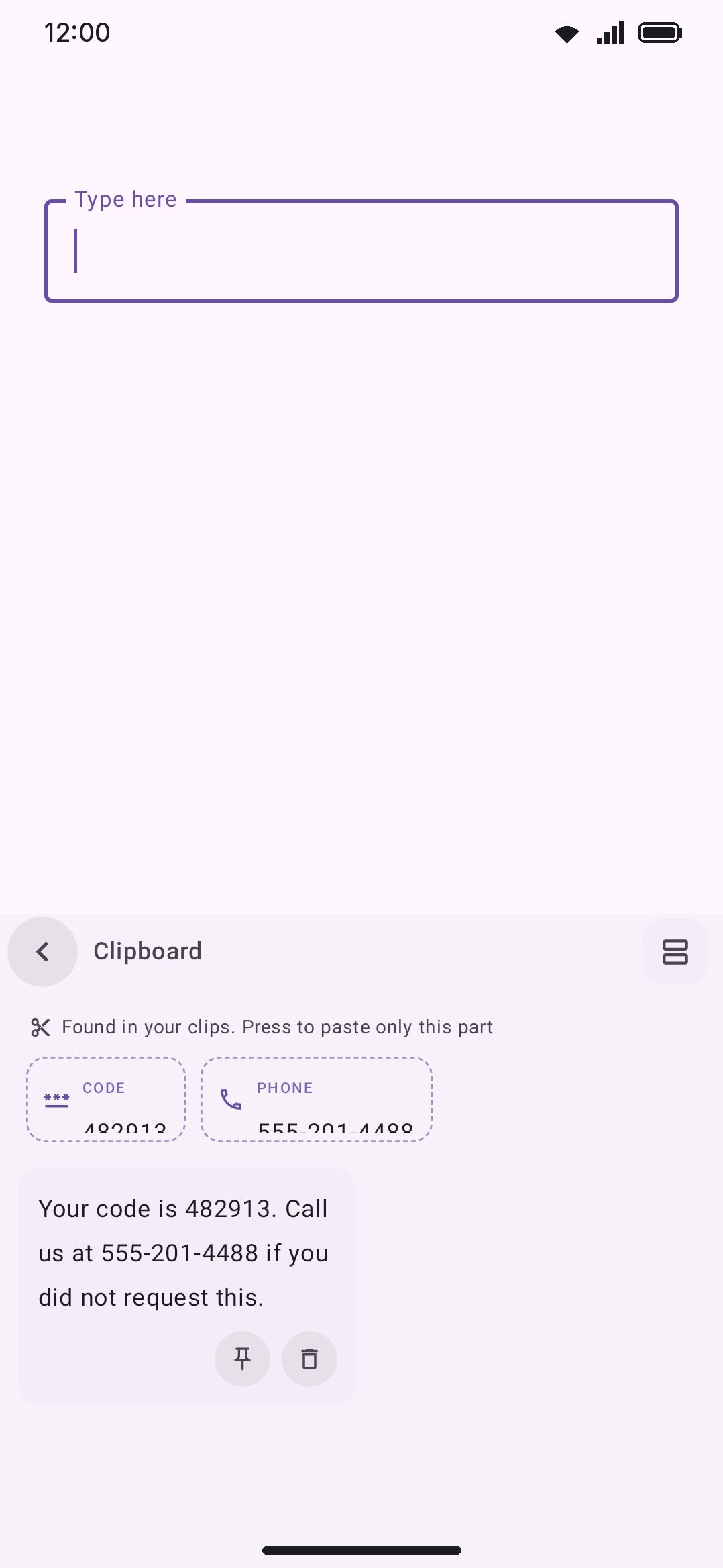
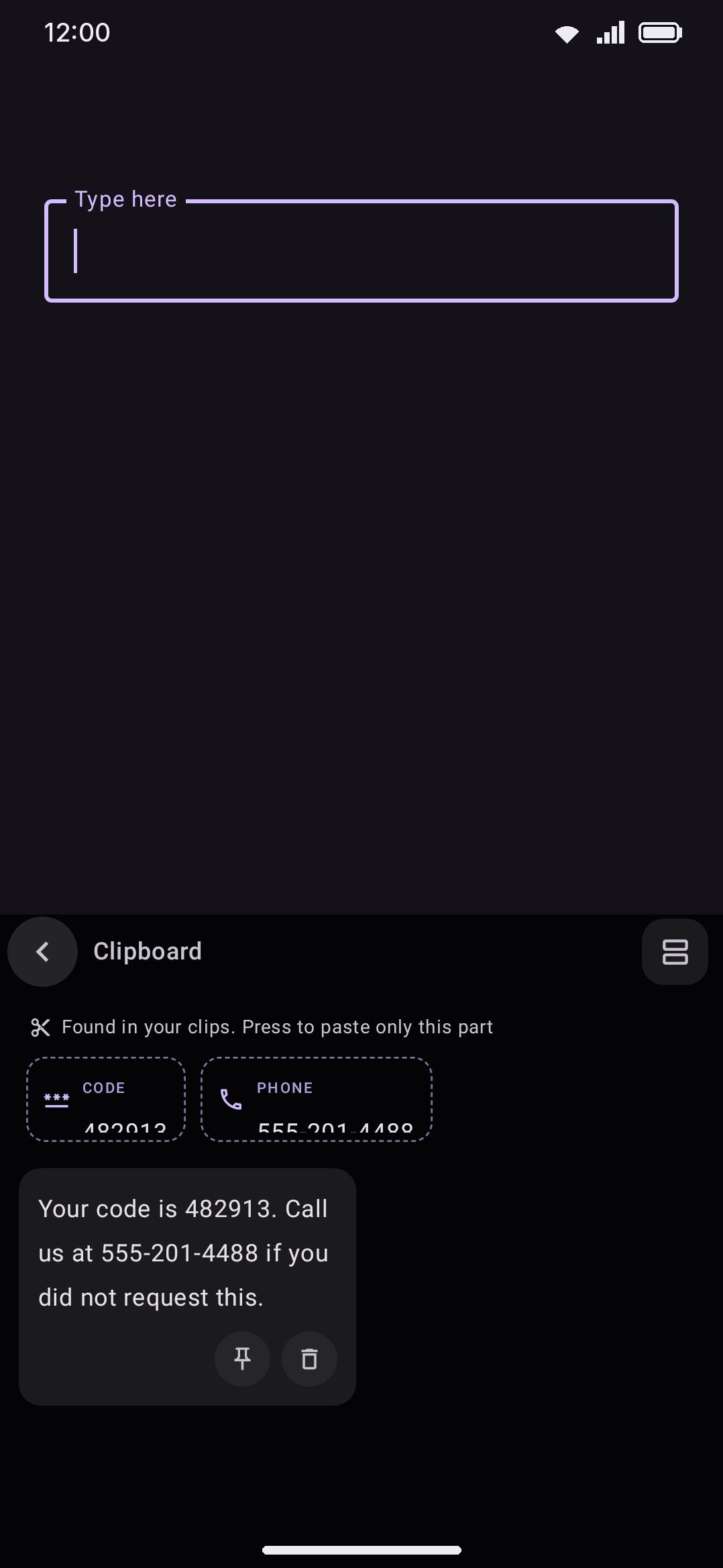
Detection is conservative on purpose. A 4-digit year is never mistaken for a code, and a run of digits after a currency symbol or a # is never mistaken for a phone number. Google’s G-123456 verification prefix is stripped, so only the code itself pastes. Pulling a fragment out of a longer message is the panel’s job alone. The suggestion strip only ever offers a copied code when the clip is the bare code, which is the Suggest copied codes rule under Options.
Phone numbers are the one fragment with no shape of their own, so they get an extra setting. Without it, anything with 7 to 15 digits counts, which is how an invoice total or a tracking number ends up wearing a phone chip. The list starts with one format for your own country, worked out from your phone’s region. Open Phone number formats from the clipboard settings to change it, or to add the second country you copy numbers from. Give it a number you copy often. The screen turns that into a format like +880 1XXX-XXXXXX: it keeps the dial code and makes the rest wildcards, and you can type digits back over a wildcard to pin it. After that, only numbers matching one of your formats become chips.
The matching is forgiving about the things people vary and strict about the things they don’t. Spaces, hyphens, brackets and dots are ignored on both sides. The same format accepts the number with its country code, without it, or with a leading 0 in its place. What it won’t accept is the wrong length, the wrong leading digit, or an explicit + naming a different country. There’s a test field on the screen, so you can paste a number in and see the answer before you trust it. Add as many formats as you like, one per country you deal with, and delete them all to go back to catching everything. Phone number formats is the field reference for that screen: the mask characters, the length bounds, and every bit of leeway spelled out.
This entity strip is a different mechanism from Smart chips, which reacts to what you’re currently typing rather than to what you’ve copied. The two look alike, both dashed outlines, but they share no code.
Passwords are handled deliberately
Section titled “Passwords are handled deliberately”The clipboard tool can treat a copied password or code as sensitive in two independent ways: at copy time, and at paste time. Both are off out of the box, so a password you copy is kept, shown and pasted like any other clip. They’re here for when you’d rather it wasn’t.
At copy time, WM KeyboardClipboardPasswords and codes chooses what happens to a clip Android itself marks sensitive. That’s the flag a password manager sets when you copy a login. You can keep it like any other clip (the default), hide it and forget it quickly, or never save it at all. Hiding and forgetting is the one to pick if you want this at all. Never saving would trade away the everyday “I pasted a password into the wrong field” recovery, and it closes a risk a short timer already closes. Turn on recognizing sensitive clips yourself and the same handling covers anything that merely looks like a password or a bare code. That’s for managers older than the flag, or a code you copied by hand, and it’s narrow enough that a sentence, a link or an email address never qualifies.
A hidden clip shows as a row of dots and a character count in the panel, and it’s never revealable there. It’s also left out of the strip’s paste chip, the entity strip and the settings backup. It expires on its own timer, independent of the ordinary history expiry above and not capped by it. Pinning a sensitive clip overrides all of that, the same as pinning anything else. Switch back to keeping them like any other clip and the clips that were hidden turn back into ordinary ones.
At paste time, turn on forgetting after a password paste. The clip is then deleted from history the moment you paste into a password field, and from the system clipboard too if that still holds exactly what you pasted. Every paste route fires it: a tap on a card, the strip’s paste chip, a pasted entity chip, a long-pressed V, the text-editing panel’s Paste, and a hardware Ctrl+V. So the rest of an SMS can’t sit on the clipboard after you’ve pasted only its code.
Options
Section titled “Options”Everything below lives on the Clipboard screen, under Features on the settings home screen, rather than on the tool page. Your copies land in the history whether or not the panel’s button is on the toolbar, so these aren’t really the tool’s settings.
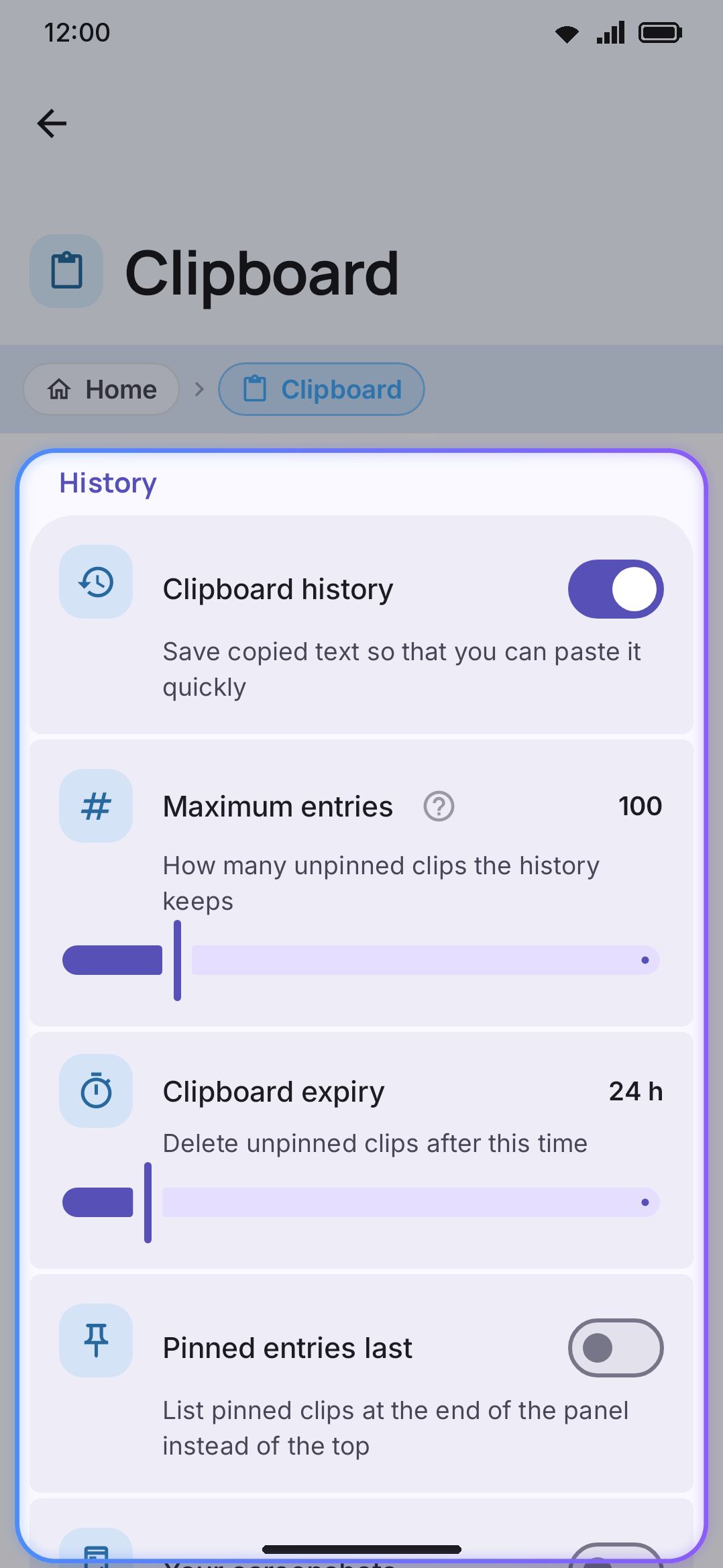
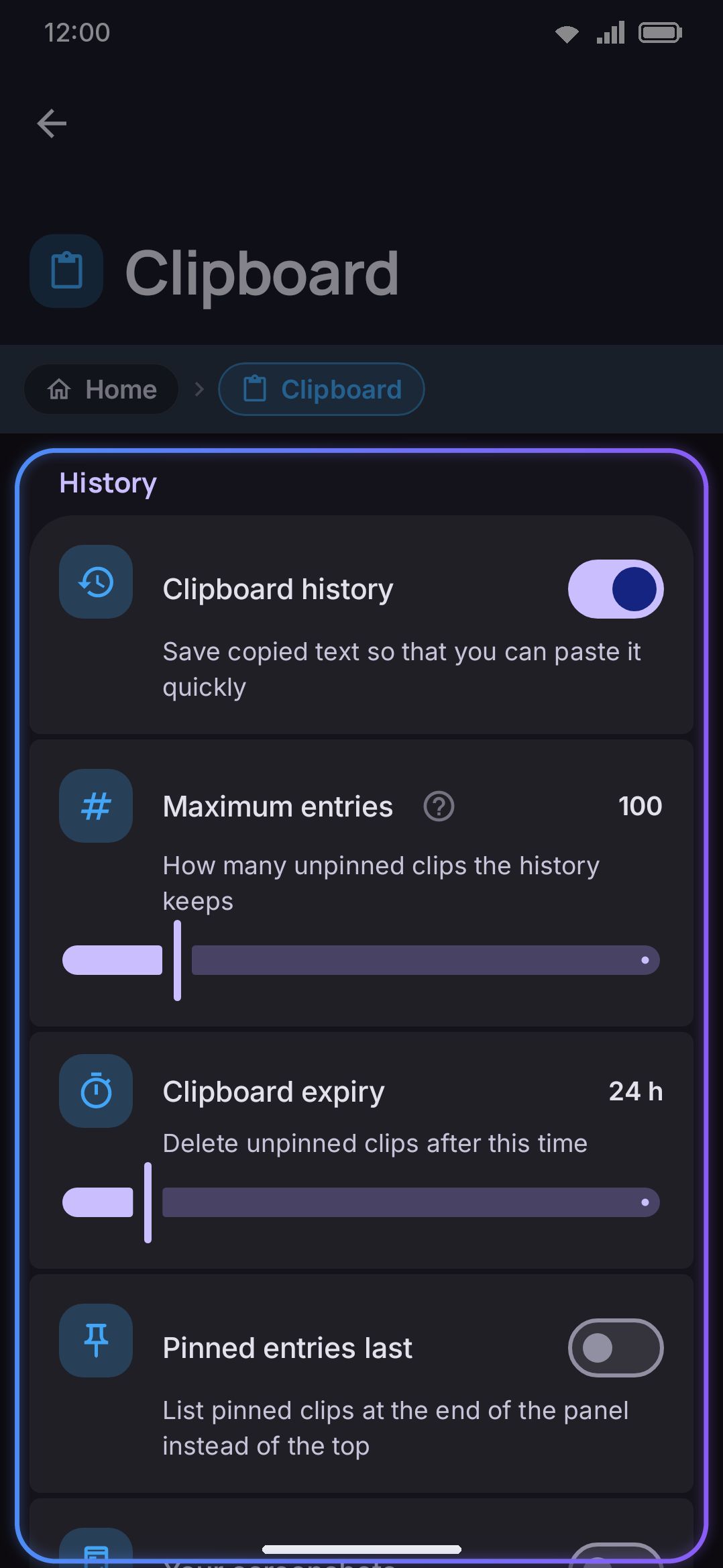
History, in the order the rows appear:
- Clipboard history: master capture switch, on by default.
- Suggest the last copy: offers your latest copy as a paste chip on the suggestion strip. On by default.
- How long the paste chip stays: 30 s to 30 min, default 5 minutes, or Until dismissed at the bottom of the slider. Shown only while “Suggest the last copy” is on. Typing never dismisses the chip, since it’s meant to survive writing the message you’ll paste into. Shorten it if you’d rather a copied password or address stopped being on screen.
- Suggest copied codes: Any field by default, and only shown while “Suggest the last copy” is on. A code on its own is otherwise treated as a secret and kept off the strip, since the chip sits in view while you type something else. A code you copied by hand is the case that rule was never aimed at: you copied it to paste it, and it sits one tap away in the clipboard panel either way. Code boxes only narrows it to fields that ask for a code — a number keypad, or a name like “OTP” or “verification code” — if you’d rather a code never showed up over the keys of a message, and Never keeps the strip clear of codes entirely. Only a bare code qualifies at any setting. A copied password is never offered.
- Pop-up when you copy: off by default. It lives in this group but it isn’t a history setting at all, see below.
- Clipboard expiry: hours before an unpinned clip is removed, 0–168, default 24 hours (0 means never).
- Maximum entries: how many unpinned clips history keeps, 5–500, default 100.
- Longest clip kept: No limit (default), or 1,000 to 100,000 characters in steps; a longer copy is stored cut.
- Panel layout: opens the panel’s layout in the layout editor. The search box, the grid or list switch, the strip of copied fragments and the history are cells you can move and resize, and any key can join them: an abc, space and backspace row along the bottom, say, which is what the old “Bottom control row” switch used to add. A layout made with that switch on carries over.
- Full-screen clipboard panel: on by default, so this is what the panel does unless you say otherwise. The history takes the whole keyboard, and a slim back header stands in for the toolbar, the emoji row and the symbol row. Picking the right clip gets easier the more of them are on screen, which is why that trade is the default. Start a search and the panel drops back to its compact size so the keys fit underneath. Turn it off to keep the toolbar visible while the panel is open.
- History layout: Grid (default) or List, the same choice as the switch in the panel.
- Grid columns: 1–4, default 2. Greyed out while the history is a list.
- Lines per clip: Auto (default: six on a card, three in a row) or 1–20.
- Time on each clip: None (default), Time copied or Time left. See Columns, lines and times.
- Number the clips: puts a number beside every clip; off by default.
- Swipe to delete: a sideways swipe across a clip deletes it; on by default. Off, the swipe does nothing and a Delete button joins the clip’s press-and-hold popup. The bin works either way.
- Undo a deleted clip: shows the Undo bar for a few seconds after you delete a clip with the bin or a swipe; on by default. Off, a delete is immediate and final.
- Pinned entries last: moves pinned clips to the end of the panel instead of the top; off by default.
- Search bar: enables the search pill described above; off by default.
- Detect codes, numbers and links: enables the entity chips; on by default. Detection runs entirely on the device.
- Phone number formats: a nav row, shown only while detection is on, opening the mask editor covered in Phone number formats. Its subtitle counts your saved formats, and says every number becomes a chip once you have deleted them all.
- Forget after you paste a password: the paste-time purge described above; off by default.
- Link previews: fetches a copied link’s page title and description directly from the linked site; off by default, and the toggle’s own description says so plainly.
- Your screenshots: shows device screenshots in the panel alongside copied text and images; off by default. While it’s on without the photos permission granted, a row appears underneath to open system settings.
- Show the source app: records which app a clip was copied from, for the long-press info popup; off by default, and needs the Usage Access permission. It’s a best-effort guess of the foreground app at copy time, not a precise log. It gets the same “grant this” row underneath until you do.
Passwords and codes
- Sensitive clips: keep (default), hide-and-forget, or never save. See above.
- Let the keyboard find them: extends sensitive handling to clips that merely look like a password or code; on by default, shown only when sensitive handling isn’t set to “keep.”
- Forget sensitive clips after: the hidden-clip timer, 1–120 minutes, default 5; shown only under the hide-and-forget option.
The tool page carries only what belongs to the button:
- All clipboard settings: opens the screen above.
- Enabled: whether Clipboard appears on the toolbar and in the toolbox.
- Icon colour: only shown if colorful tool icons is turned on globally. Overrides just this tool’s icon color.
- Keyword shortcut: the words that make the Smart chips suggestion offer to open this panel.
Backups and exports
Section titled “Backups and exports”The whole-app config backup has its own Clipboard section, off by default when you export. It only ever includes pinned and recent text clips. Images and files are deliberately left out, since they live on the device they were copied on and wouldn’t open anywhere else. Sensitive clips are excluded from an export regardless of that toggle.
Details & edge cases
Section titled “Details & edge cases”- Every toggle and slider on this screen carries the usual restore button once you’ve moved it off its shipped value, so the rows that grew one are the ones you’ve changed.
- The clipboard tool needs the device to have been unlocked at least once since restart. Its history lives in credential-encrypted storage, so it sits out any lock-screen or pre-unlock typing until then.
- Ships the same way in the full and lite editions. Nothing about this tool is edition-gated.
- Link previews make a direct, unauthenticated request to whichever site you copied a link from, not through any of the app’s own network services. Turn that setting on and the site sees a request from your device the moment you open the panel with a fresh link in history.
- A file or folder clip is only as good as the URI permission grant behind it. If that’s lapsed by the time you tap it (the source app cleared its cache, for instance), pasting puts the URI back on the system clipboard with an explanatory toast rather than failing silently.
- “Pop-up when you copy” appears in this same screen’s History group but is actually a feedback setting. It’s about the keyboard’s own copy shortcuts (A/C/V/X and the text-editing panel’s copy button), not clipboard history. It only fires in fields that give no copy feedback of their own, and it’s off by default.
- Pausing capture while incognito is on is a separate Incognito setting, not part of this screen.