
Enable the keyboard
Turn WM Keyboard on in system settings and make it your active input method.
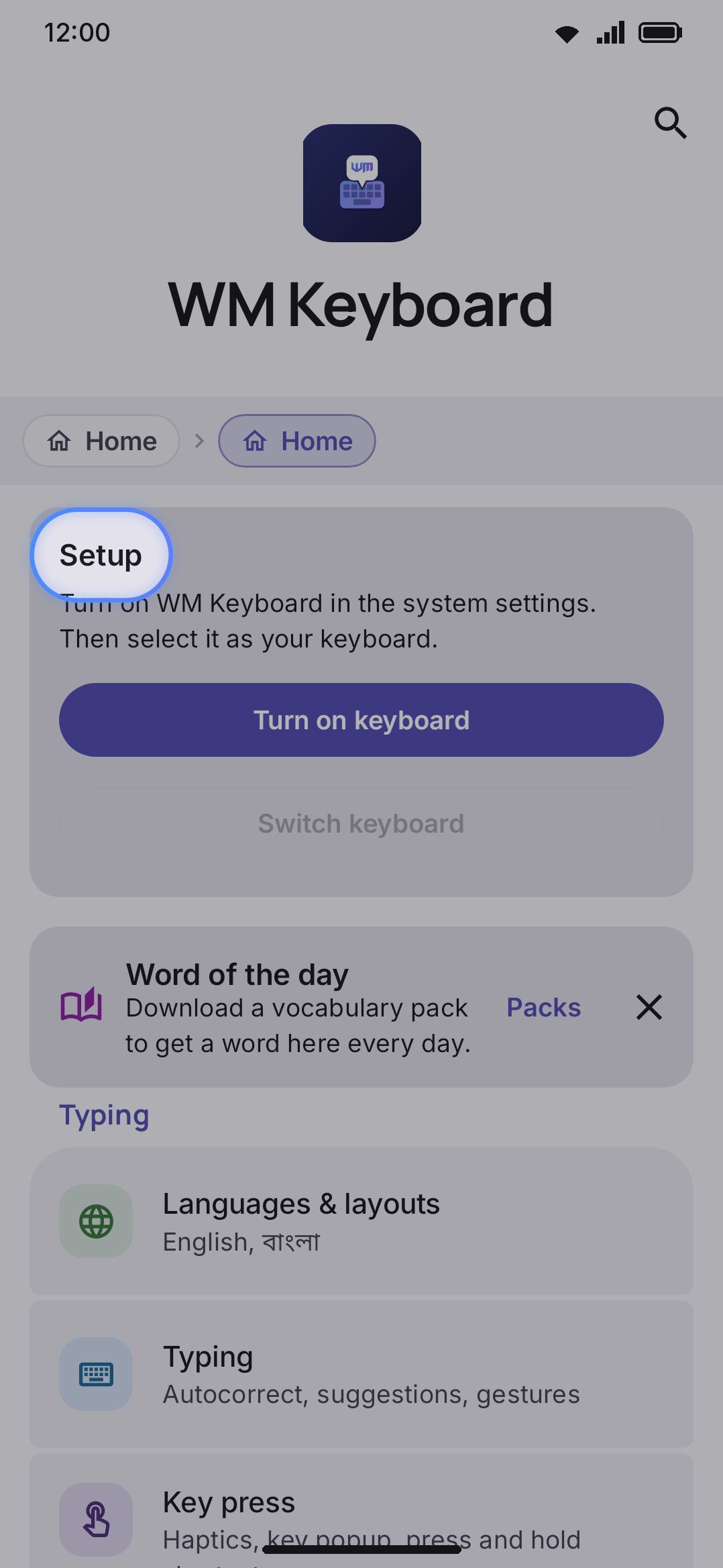
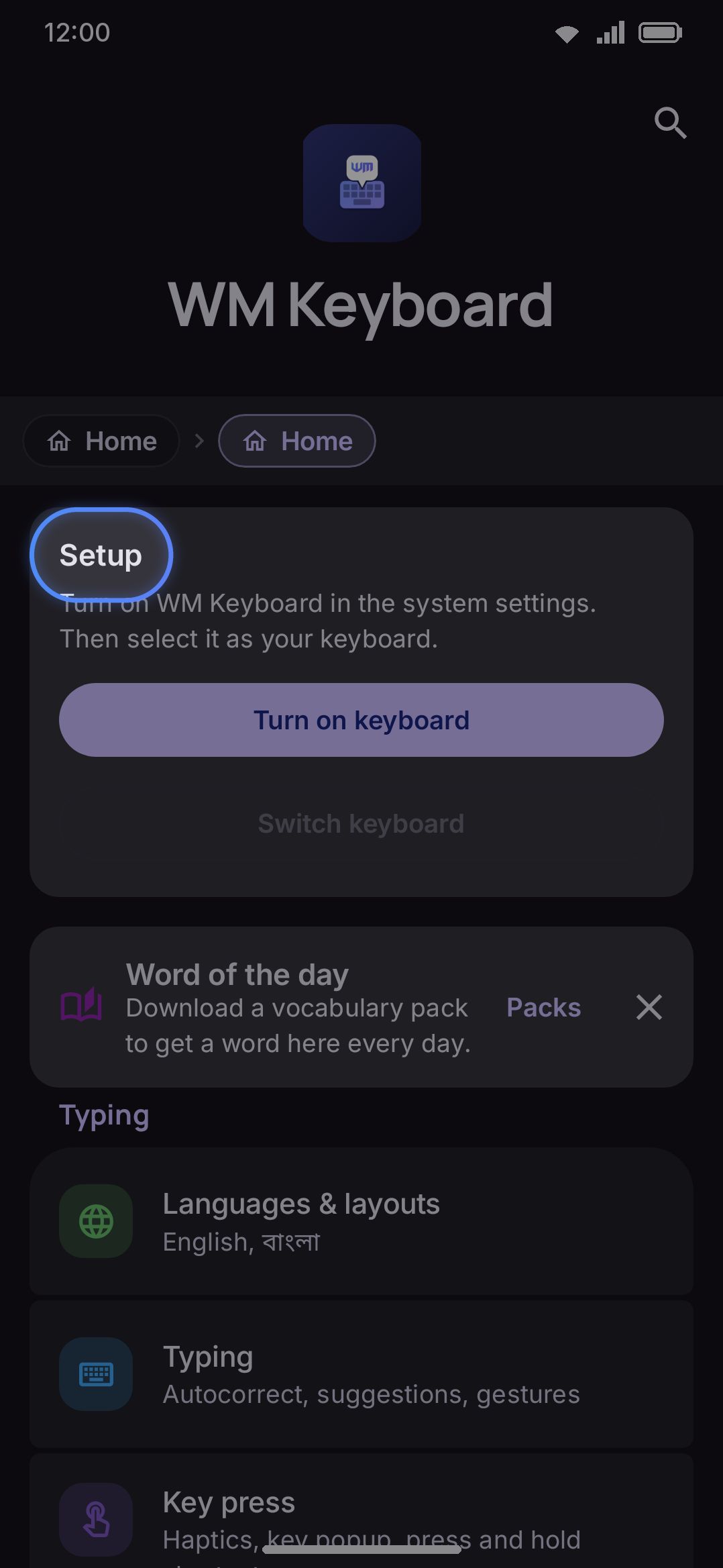
Installing WM Keyboard doesn’t make it your keyboard. Android keeps every installed input method switched off until you enable it and then pick it as the active one. The app’s Home screen has a card that walks you through both steps, and it disappears the moment you’re done.
Using the setup card
Section titled “Using the setup card”The card sits at the top of the app’s Home screen until both steps are done, and it isn’t a first-run-only banner: leave setup half finished and it’s still there on the next launch. While it’s on screen it checks Android’s input-method state about once a second. There’s no callback for “the user switched keyboards” while your app sits behind a system dialog, so polling is the only way to notice.
Both steps are always drawn, stacked, with only the one still to do live as a button:
- Not enabled. The card reads “Turn on WM Keyboard in the system settings. Then select it as your keyboard.” Turn on keyboard is the live button. Switch keyboard sits under it as a grayed-out outline, because there is nothing to switch to yet.
- Enabled, not selected. The card reads “WM Keyboard is turned on. Press the button below to switch to it.” Turn on keyboard now carries a checkmark and goes quiet. Switch keyboard becomes the live button.
- Enabled and selected. The card goes away entirely. A green checkmark and “Your active keyboard” appear under the app name at the top of the Home screen instead. Nothing left to do.
Tap Turn on keyboard to open the system screen. Turn WM Keyboard’s toggle on there. Tap Switch keyboard to open Android’s “Change keyboard” sheet, which lists every enabled input method on the device. Tap WM Keyboard in that sheet to make it active. Both screens are also reachable through Android’s own Settings app, if you’d rather not use the card at all.
The setup wizard’s first page embeds the same card. There it stays put once you’re done, as a short “WM Keyboard is your active keyboard” row with a checkmark in your app accent color.
What the system permission warning means here
Section titled “What the system permission warning means here”Enable any third-party keyboard and Android shows its own warning about keyboards being able to see everything you type. That text is the stock OS wording. WM Keyboard doesn’t write it and can’t customize it, and it reads a little differently on each Android version. The warning exists because some keyboards phone data home, which makes it worth knowing what this one does.
Core typing runs entirely on-device: the spelling dictionaries, transliteration, emoji search, prediction, everything you actually type with. All of it works with no network connection at all. A handful of optional toolbox features do reach the network, and only when you open them yourself. Weather, the word-definition lookup, translate, GIF and sticker search, web and image search, Wikipedia, and the AI writing tools pointed at a cloud provider each call their own service, and several want your own API key before they work at all. None of that runs in the background, and none of it runs while you’re just typing. See Privacy at a glance for the full breakdown.
Running the setup wizard
Section titled “Running the setup wizard”The first time you open the app, it drops you into a short setup wizard instead of the Home screen. Every choice writes straight to settings as you make it. Going back, skipping ahead, or tapping Skip in the top corner therefore loses nothing, and you can change any of it again later.
The wizard tailors itself to a short quiz on its Make it yours page, so not everyone sees every step. The full list:
-
App language (only where English isn’t the first language). Which language the app’s own menus and settings are shown in: System default, then the languages your phone and your region suggest, then English, with Show all languages under them for the rest. A pick applies at once and the page comes back in that language, so the rest of the wizard reads in it too. The page appears when your phone’s region (from the SIM, the network, the time zone or the language setting, in that order) is outside the US, the UK, Ireland, Canada, Australia, New Zealand and the English-speaking Caribbean, and never on an English-only build. Change it later under About, App language.
-
Welcome. The setup card from above, embedded in the wizard. Enable and select WM Keyboard here and the wizard advances on its own. You do not have to tap Next after you come back from system settings.
-
Make it yours. Three quick questions, all optional. How many languages you type in, whether you want a simple or a fully loaded keyboard, and how private it should be. Each answer’s subtitle spells out what picking it changes. Answers apply their defaults on the spot, and the rest of the wizard trims itself to match. Leave all three alone and you get the short version. What the quiz changes below lists every setting each answer writes.
-
Your languages (hidden if you answered “just one” language and only one is enabled). Your currently enabled languages come first, each with its layouts individually switchable, then a short Suggested for you list, then a search box for the other 840-odd. The suggestions come from your phone’s own language settings and region. See Suggested languages for exactly what’s read. A language that ships one layout is added on the spot. A language that ships several (Bangla ships Avro, Probhat and National) opens a picker first, with its first layout already checked and a miniature of each key grid. Check as many as you want, but at least one.
-
Look & feel. Two controls only: theme mode (Auto/Light/Dark/AMOLED), then a grid of keyboard themes that match the mode you picked. Choose Auto and the grid splits into a Light tab and a Dark tab, so you pick one theme for each half.
-
Emoji (skipped for “keep it simple” answers). Your default skin tone, picked from six raised hands. Every emoji of a person or a hand uses it from then on, and holding one emoji in the panel still gives that emoji its own tone. An Emoji images section follows it only if your phone’s emoji font can’t draw everything, or if the phone ships an emoji set of its own: pick which emoji you want to see, with a live preview of each option, plus a toggle that hides emoji your device would otherwise draw as blank boxes, and a pointer to importing a full emoji font. Samsung phones get that second half even though nothing is missing on them: everything draws, but it draws in Samsung’s set rather than the images most other phones show. Answer “keep it simple”, or leave the quiz alone, and this page is skipped entirely; both halves of it live on under Emoji customization.
-
Typing feedback (skipped for “keep it simple” answers). Haptics, key sounds, and the key popup bubble.
-
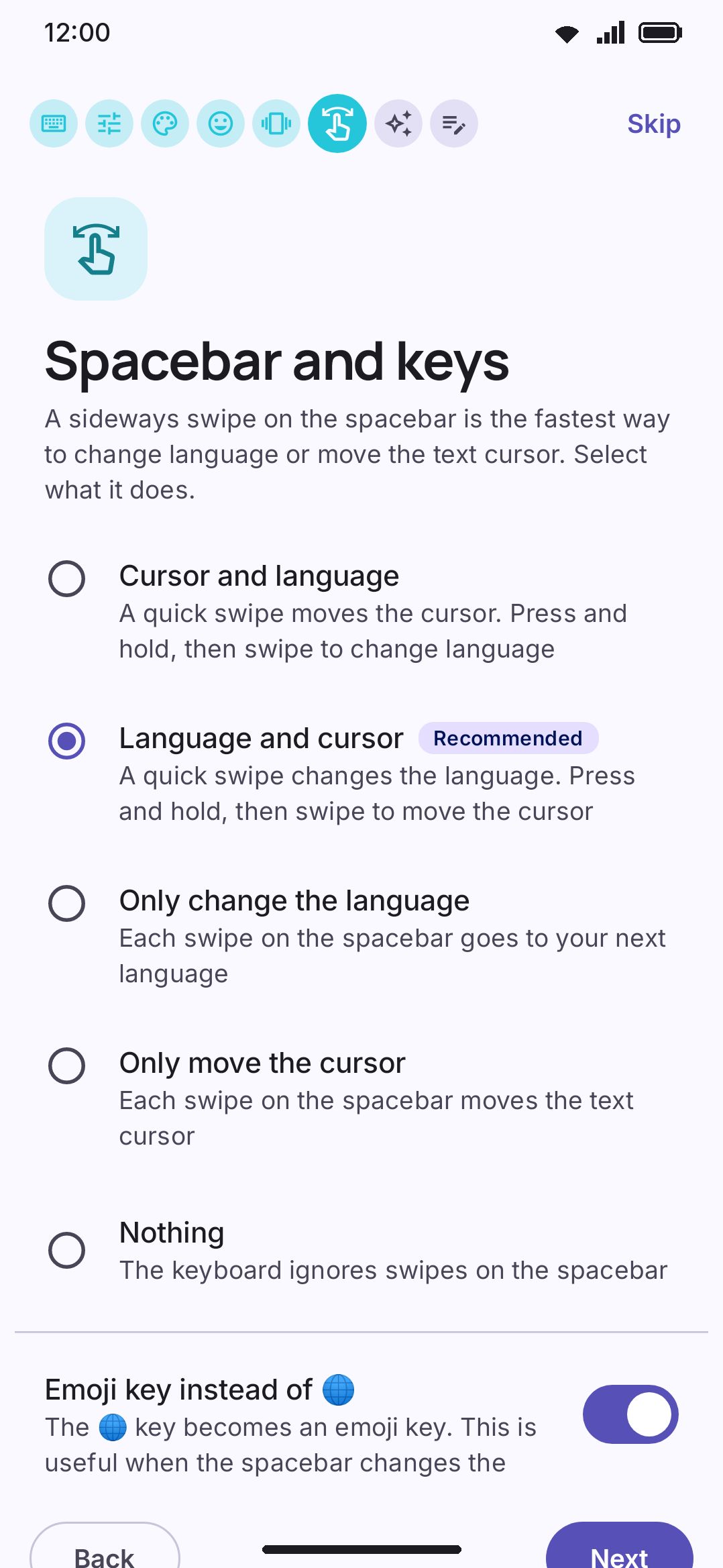
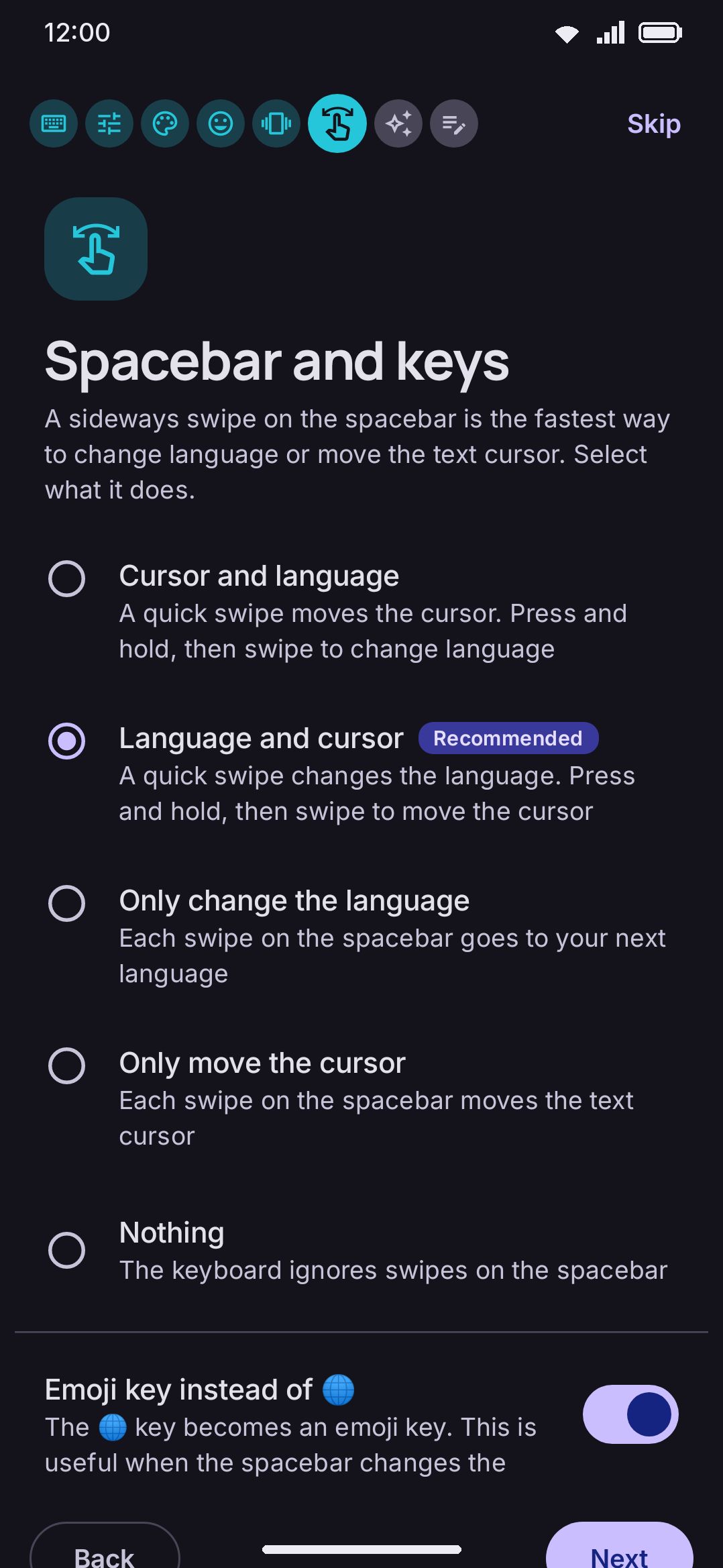
Spacebar & keys (skipped for “keep it simple” answers). One choice sets both spacebar-swipe directions, short and long, and a “Recommended” badge follows your quiz answer. There’s also a toggle to replace the 🌐 key with an emoji key, and a number row toggle.
-
Worth knowing about. A short tour of the features most keyboards don’t have: smart chips, per-app keyboards, tool hotwords, the toolbox, photo backgrounds, clipboard history and more. Most cards carry a switch right on them. The rest say where the feature lives. The per-app keyboards card sits second on every path and its switch is the master switch for modes: modes are the one feature here that changes the keyboard without being asked, so setup offers the off switch rather than leaving you to find it after the first surprise.
-
Your tools (only for “show me everything” answers). Every toolbar tool, each with its own switch, plus quick “Recommended” and “Everything” buttons.
-
Tool setup (only for “show me everything” answers with Calendar, Weather, or Compass enabled). First-run choices for whichever of those you kept: alternate calendars and which days count as the weekend, a saved place and a temperature unit, or a qibla toggle.
-
Try your keyboard. A live text field, so the keyboard appears in the theme you just picked. Up to three “try this” prompts come with it, drawn from what you enabled. Type
12*8=for a smart chip, typetranslatefor its hotword chip, or open the toolbox.
What the quiz changes
Section titled “What the quiz changes”Each answer does two things: it writes a few settings there and then, and it decides which of the later pages you get. Here’s the whole mapping, so you can see what you agreed to.
How many languages do you type in?
| Answer | What it writes | What it does to the wizard |
|---|---|---|
| Just one | Both spacebar swipes (short and long) move the cursor, and the 🌐 key stays an emoji key, which is what a fresh install ships | Your languages is skipped, unless you already have two or more enabled |
| Two or more | Both spacebar swipes change the language, and the emoji key next to the spacebar turns back into the 🌐 language key | Your languages appears |
Neither is a one-way door: the Spacebar & keys page later offers the same choice again, with a Recommended badge on whichever one matches your answer.
What kind of keyboard do you want?
| Answer | Toolbar tools it turns on | What it does to the wizard |
|---|---|---|
| Keep it simple | Eight: emoji, GIFs, stickers, clipboard, voice typing, AI writing tools, grammar check, and the settings shortcut | The short path. No Emoji, no Typing feedback, no Spacebar & keys, no Your tools |
| A good middle | 22: those eight plus themes, dictionary, fancy text, translate, autocorrect, snippets, one-handed, split, text editing, trackpad, handwriting, text scan, undo and redo | Adds Emoji, Typing feedback and Spacebar & keys |
| Show me everything | 37: those 22 plus Wikipedia, vocabulary, power saving, keyboard modes, numpad, special symbols, calculator, unit converter, currency, password generator, calendar, weather, media controls, apps and hide keyboard | Adds Your tools, and Tool setup when calendar, weather or compass is among them |
A set that can’t run in full on your phone gets topped up rather than left short. Part of it may be unavailable, because a Lite build has no handwriting and no text scan, or because the phone has no Google services. Wikipedia and power saving then come in behind whatever’s missing, so a “recommended” set never quietly arrives two tools smaller.
How private should it be?
| Answer | What it writes |
|---|---|
| Standard | Nothing. The shipped defaults already are the standard behaviour |
| Extra strict | Turns off Learn from typing, Clipboard history and Count typing statistics, and adds the Incognito tool to whichever set the question above landed |
Leave the quiz alone entirely and you get the short page list, the same one “keep it simple” gets, plus the middle tool set when the wizard closes.
Switching keyboards later
Section titled “Switching keyboards later”Once WM Keyboard is set up, there are a few ways to change which keyboard is active, or which of WM Keyboard’s own languages is:
- The Home screen’s Switch keyboard button comes back whenever WM Keyboard stops being the active keyboard, because the whole setup card returns with it. While WM Keyboard is active the card is gone, and the Home screen says “Your active keyboard” instead. Reach the picker from Android’s own settings in that case.
- The 🌐 key and spacebar swipes cycle between WM Keyboard’s own enabled languages. They don’t open the system keyboard picker, so they can’t switch you to a different keyboard app. A fresh install draws the emoji key in the 🌐 key’s slot, so spacebar swipes are the language switch until you put the globe back.
The option below lists WM Keyboard’s languages individually in Android’s own switcher sheet, rather than as one generic “WM Keyboard” entry. It’s off by default. Turn it on if you want to jump straight to one language from the system sheet.
Options
Section titled “Options”- List languages in the Android switcher (off by default). Registers each of your enabled layouts as an Android input-method subtype, so the system’s “Choose input method” sheet lists them individually and can jump straight to one. Left off, the keyboard exposes no subtypes and the sheet lists it under its own name, the way keyboards without subtypes appear.
- Show app name first (off by default, and only shown while the option above is on). Prefixes each subtype’s label with “WM Keyboard ·” instead of just the language name.
- Select languages in the system settings (also only shown while the first option is on). Opens Android’s own subtype list. On Android 14 and newer the keyboard turns them on for you, so this is a repair tool. On Android 13 and older you have to turn them on here yourself, or the sheet shows only one.
- Learn from typing (on by default). Personalizes suggestions from what you type, entirely on-device.
See Privacy at a glance and the Privacy settings reference for the rest of that screen.
Running it again
Section titled “Running it again”The wizard isn’t a one-shot. WM KeyboardAboutRun setup again replays it whenever you like. A replay presets nothing and seeds nothing, so walking through with Next writes no settings at all. It skips the Welcome page outright when the keyboard is already enabled and selected. Finishing a replay drops you back on the About screen.
Details & edge cases
Section titled “Details & edge cases”- Whether the wizard appears has nothing to do with whether the keyboard is enabled. A “have you finished onboarding” flag drives it, not a check of Android’s input-method state. Enable and select WM Keyboard entirely from system Settings, without ever opening the app, and the wizard still appears on first launch. Its Welcome page just already shows the “done” state and lets you move straight past it.
- Skipping the wizard early still lands a sane tool set. Finishing it, or skipping over the untouched everything-enabled default, replaces that default with the recommended set. Answer “keep it simple” first and you get the smaller essential set instead.
- On a Lite build, the Tools page doesn’t offer handwriting, OCR, QR/barcode scanning, document scanning, or grammar checking as options at all, since those features aren’t built into that edition. See Full vs Lite.
- Installing over an existing WM Keyboard install (same signing key) keeps the wizard from running again.
onboardingDoneis a regular setting, so it carries over like any other. A clean reinstall, or a new phone with no settings backup, shows the wizard again. See Installation for what does and doesn’t carry over.