
About & diagnostics
Version, licence, and source links, where to send a bug, and a diagnostics screen for pulling a shareable report.
About has its own group on the Settings home screen: one tap gets you the build you’re running, every licence bundled into the app, and a diagnostics screen for pulling a shareable report when something needs debugging.
Sharing the app
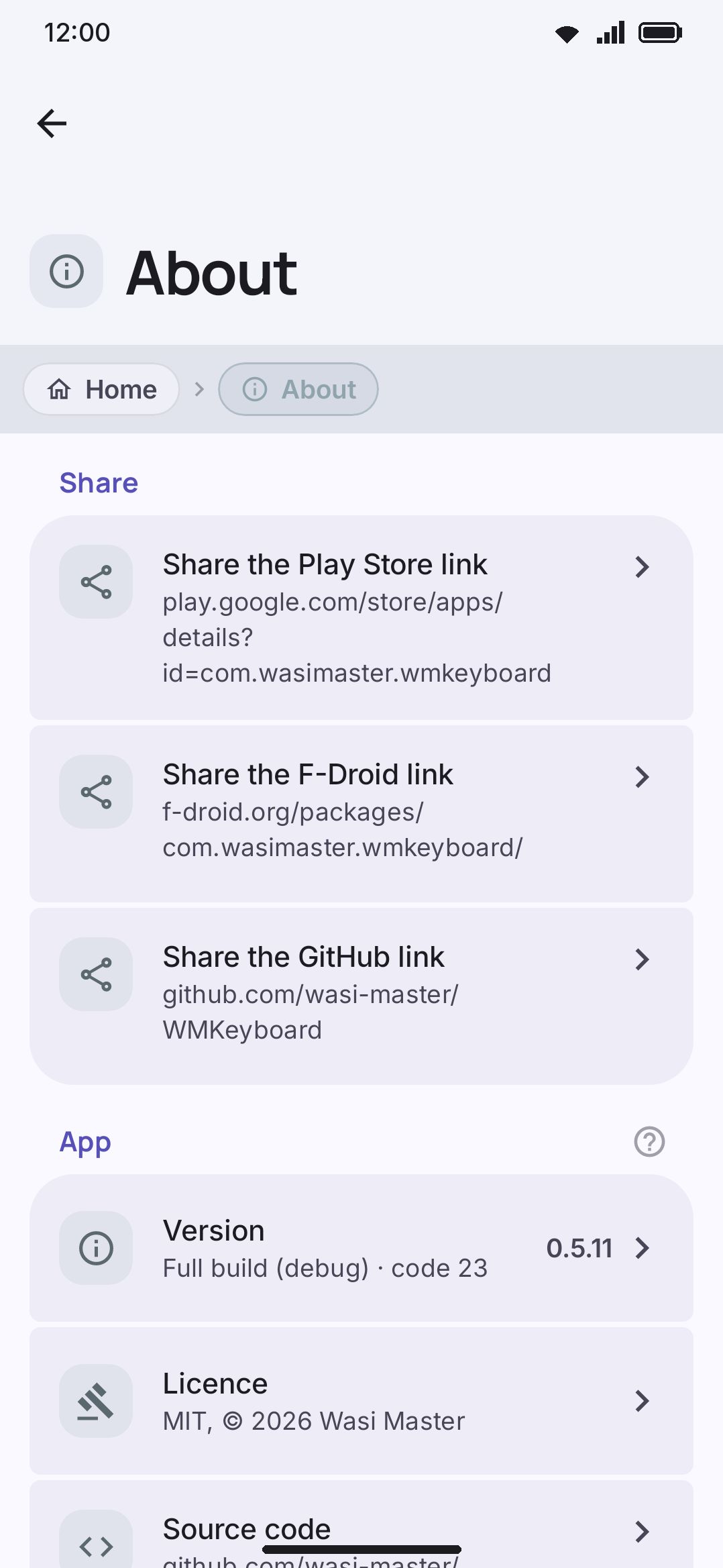
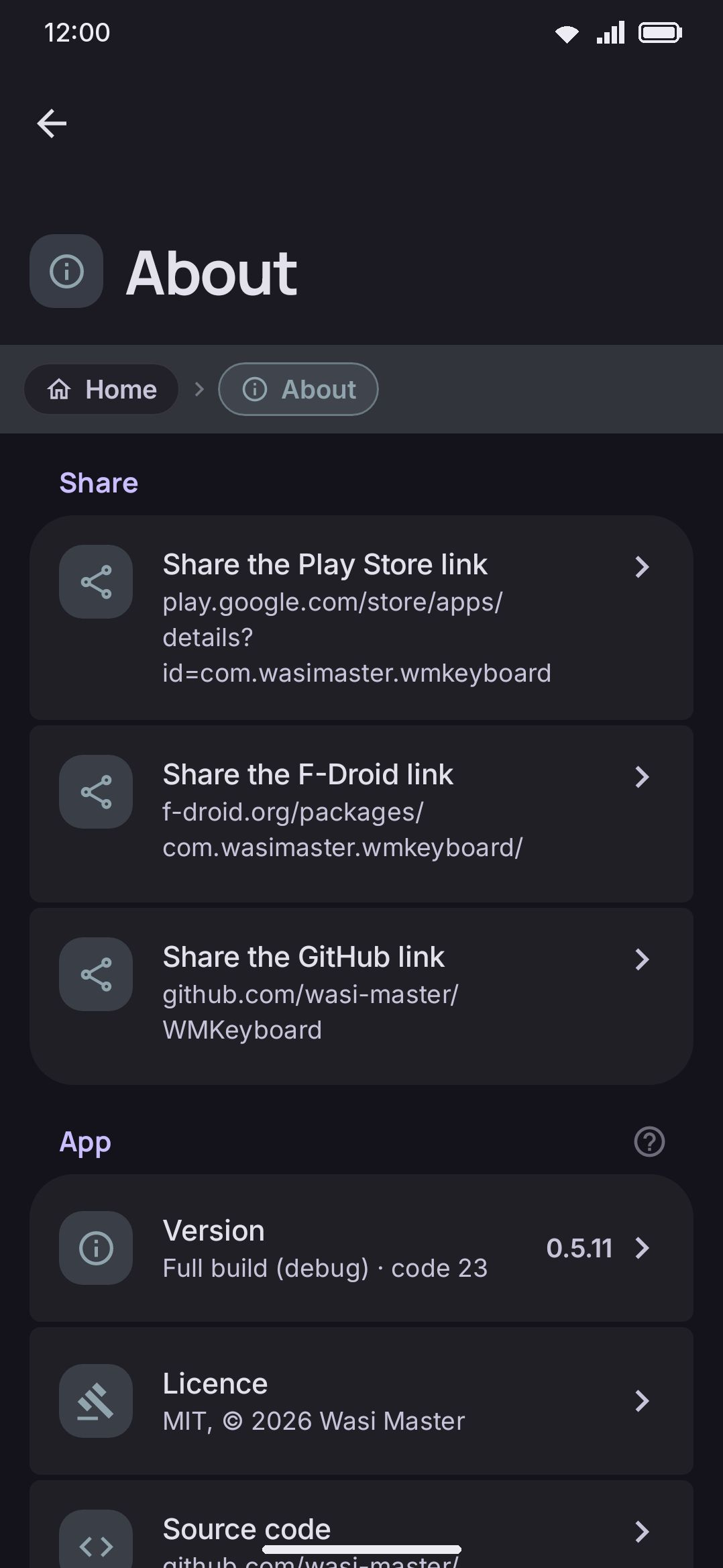
Section titled “Sharing the app”The Share group at the top has up to three rows: Share the Play Store link, Share the F-Droid link, and Share the GitHub link. Which of them you get depends on where the build came from. A Play Store build drops the F-Droid and GitHub rows. An F-Droid build drops the Play Store row. A sideloaded build belongs to neither store and shows all three. Each row opens the Android share sheet rather than the destination itself, pre-filled with a one-line pitch and the matching link (play.google.com/store/apps/details?id=com.wasimaster.wmkeyboard, f-droid.org/packages/com.wasimaster.wmkeyboard, or the GitHub repository). Pick whichever app you want to send the recommendation through.
Checking version, licence, and source
Section titled “Checking version, licence, and source”The App group holds ten rows:
- Version shows the edition, build type and store channel as its subtitle (“Full build (release · Play Store)”, or “Lite build (debug)” on something you sideloaded), with the build number after “code,” and the version name as the row’s trailing value. It navigates nowhere, but it isn’t quite inert. Tap it seven times and you get the hidden mini game, with a toast counting you down from the fourth tap.
- Licence shows “MIT, © 2026 Wasi Master” and opens the app’s own MIT licence text in full underneath it, monospaced and horizontally scrollable.
- Source code opens the GitHub repository directly in your browser; unlike the Share rows above, this one navigates immediately rather than opening a share sheet.
- Short app name is a switch, off by default. Turn it on and your app drawer and home screen call the app WMK instead of WM Keyboard, so a narrow launcher grid doesn’t cut the name short. See Changing the name under the icon.
- App language picks the language the app’s menus and settings are shown in, separate from your phone’s. On the English-only download from GitHub it says so instead, and offers to fetch the version with every language. See Changing the app’s language.
- Storage opens the storage screen below, which is where you see what the app keeps on your device and delete any of it.
- Statistics opens Statistics: how much you type, day by day, plus the switch that turns the counting off.
- Diagnostics opens the diagnostics screen covered below.
- How you set the keyboard up shows the two answers you gave the setup wizard, as depth · languages. “A good middle · Several languages”, for instance, or “Not answered” if you skipped it. Depth is one of Keep it simple, A good middle, or Show me everything, and languages is One language or Several languages. These aren’t decoration. They still decide how many tools get pinned, how the theme gallery is laid out, and which pages the wizard would show you. Tapping the row opens the wizard at that first question.
- Run setup again walks you back through the first-run wizard. A replay changes nothing on its own, so your settings stay as they are. See Running it again.
Underneath the group, a caption spells out what the MIT licence means in practice: you can use, modify, and redistribute the app, provided the copyright notice and licence text travel with it.
Changing the name under the icon
Section titled “Changing the name under the icon”Short app name changes one label: the name your launcher shows under the icon, in the app drawer and on the home screen. Everything else keeps the full name, WM Keyboard. That includes the Android app settings, the list of keyboards, notifications, and the Play Store and F-Droid listings.
A few things happen when you flip it:
- If you opened the app from its icon, the About screen opens again, with the switch highlighted. Android closes an app when the icon it was opened from goes away, so the app reopens itself before that happens. If you came in from the keyboard’s own settings button, nothing reopens.
- Your launcher can take a few seconds to show the new name.
- Most launchers move a home-screen icon over to the new name. If yours removes it instead, add it again from the app drawer.
- The long-press shortcuts on the icon (Themes, Languages and the rest) stay the same under either name.
The choice is kept by Android rather than in the app’s settings, so it survives updates but doesn’t travel in a settings export or a backup. Resetting the row puts the full name back.
Changing the app’s language
Section titled “Changing the app’s language”App language opens a list of every language the app is translated into, each written in its own script, with its name in the current language underneath. System default, at the top, follows your phone and names the language that means right now. Pick one and the screen restarts in it at once. Resetting the row goes back to System default.
This only changes the words the app shows you. The languages you type in are a separate list, under Languages.
- Android 13 and newer already have this setting, under Settings, Apps, WM Keyboard, Language. The row here and that screen change the same value, so a change in one shows in the other. If you set a language on Android 12 and then upgrade the phone, the app moves your choice over the first time it opens.
- Android 12 and older have no such setting, so the app keeps the choice itself and applies it to the settings app. The keyboard stays in your phone’s language on these versions.
- Play Store builds download a language the first time you pick it if the Play Store did not install it with the app, so the screen can take a moment to restart. If the download fails, the app shows English until the next try.
- F-Droid builds carry every translation.
Getting every language on the English-only download
Section titled “Getting every language on the English-only download”GitHub releases come in two kinds: intl, with every translation, and en, English only and a good deal smaller. On an en install the row reads This download of the app has English only and names how many languages the other one adds. Press it to switch:
- A dialog says what happens next. Press Download.
- The row finds the
intlbuild of the newest release your install can have. That is usually the same version you already run, or a newer one if an update is out. Then it downloads the file for your phone. On a metered connection you’re asked first, the same as for any update. - The row changes to Install every language. Press it when you’re ready. The app and the keyboard restart once, the same as after an update.
It’s the same app, signed with the same key and at the same version, so it installs over the English-only one and keeps every setting, word and theme. The download goes through the same checks as an update: the checksum from the release, then the signing key. See What a GitHub build checks before it installs.
While the switch is under way the Updates group below hides its status row, because the App language row is showing that download. Keep English only, under the row, stops the switch and deletes what it downloaded. A switch that fails and is left alone gives way to the ordinary update check the next time it runs. After the install, the home screen says Every language is here once, and App language becomes the ordinary picker.
A copy of the en build with no GitHub updater in it, such as one you built yourself, links to the releases page instead.
The setup wizard asks the same question as its very first page when your phone is somewhere English isn’t the first language. See Running the setup wizard.
Updating the app
Section titled “Updating the app”Directly under that caption sits an Updates group. What it can do depends on where your copy came from, because that decides who is allowed to install a new one:
| Your build | What the group does |
|---|---|
| Play Store | Asks the Play Store, and hands the update over to it |
| GitHub release | Asks this project’s releases page, downloads the APK that matches your phone, and installs it |
| F-Droid | Asks F-Droid what F-Droid has, and opens F-Droid |
The F-Droid build deliberately doesn’t download anything itself. F-Droid signs its builds with its own key, so an APK from the GitHub releases page can’t install over an F-Droid install even if you fetch it by hand. Asking F-Droid rather than GitHub also means the version you’re offered is one you can actually get: F-Droid builds from source on its own schedule, so a tag can exist on GitHub days before F-Droid has it.
The first row follows whatever the updater is currently doing, and its label always matches what pressing it will do:
| Row | When you see it | What it does |
|---|---|---|
| Check for updates | Nothing in flight. The subtitle reads “Ask if a newer version is out”, “Checking…”, “This is the newest version”, or a line naming what went wrong last time | Checks now, ignoring the six-hour gap between automatic checks |
| Download the update | A newer version is out. The subtitle names its version and download size | Starts the download |
| Get the update | The same thing on an F-Droid build, naming the version | Opens F-Droid |
| Downloading the update | While it downloads. The subtitle counts bytes | Nothing; it isn’t pressable. A Cancel button on the home-screen card stops it, and what’s downloaded so far is kept |
| Install the update | The download finished and passed its checks | Installs it |
| Installing the update | While it installs | Nothing; it isn’t pressable |
Underneath, a Release page row appears whenever an update is on offer, so you can fetch the file yourself.
Reading what changed
Section titled “Reading what changed”Wherever an update is offered, on the home-screen card and in the dialog that asks about it, a What’s new button opens that version’s release notes in a dialog of their own. These are the full notes, the same ones the release page carries: headings, bullets, and links to the issues a change closed, laid out rather than shown as raw markdown. Tapping a link opens it in your browser.
The notes are fetched the moment you press the button, not with the update check, so nothing is downloaded for a release you never asked about. The dialog opens straight away and shows a progress bar until they arrive. A release that never had notes written for it says so instead of opening empty.
GitHub builds only. An F-Droid build has a page to send you to and no notes behind it, so it offers no button, and the Play Store shows its own “What’s new” in the store listing.
What a GitHub build checks before it installs
Section titled “What a GitHub build checks before it installs”Downloading an APK and handing it to Android is the one thing in this app that replaces the app, so it’s worth knowing exactly what’s checked and in what order:
- The file name has to match the release and your phone: the right edition, the same languages build as yours (every language, or English only), and the right CPU, falling back to the universal build if your CPU has no build of its own.
- The downloaded bytes are hashed and compared against the checksum published in the release. A file that doesn’t match is deleted, not installed. A release that publishes no checksum at all is refused rather than trusted.
- The APK’s signing key is compared against the key your current install is signed with. A mismatch stops there and tells you to fetch the file yourself, which is also what happens if you’re running a build you compiled locally.
- Android is asked to install it, and shows its own confirmation.
The download goes to the app’s own storage and shows up on the storage screen as Downloaded update, so you can delete it. Deleting it costs you the download and nothing else.
Android asks you to confirm the first update this way. After that, your phone knows this app is the one that updates itself and may skip its confirmation screen, so the update installs when you press Install and nothing else appears. That’s why the button warns you: installing closes the app and restarts your keyboard, so the moment is yours to pick rather than something that happens mid-sentence. The next time you open the app it shows an Updated to card once, so a quiet update still leaves a trace. Some phones, Xiaomi and Oppo among them, show their own confirmation every time regardless.
The two switches
Section titled “The two switches”Ask me about updates, on by default, lets the app put a new version in front of you when you open it. Turn it off and nothing arrives uninvited: the card on the home screen and this row are still there when you go looking. The app never downloads anything without being asked either way.
Include pre-releases appears on GitHub builds only, and is off. Turn it on to be offered test versions before they’re finished.
Both live in their own small preferences file rather than in the main settings store, so they don’t travel in a settings export or a theme share. They still reset like any other row.
Automatic checks happen at most once every six hours, and only while you have the settings app open. There’s no background check and no notification. A check sends nothing but a request for the list of releases, and the app asks for it conditionally, so an unchanged list costs no data and doesn’t count against the limit GitHub applies to everyone sharing your IP address.
Seeing what the app is using
Section titled “Seeing what the app is using”Storage breaks the app’s disk use into named pieces and lets you delete them one at a time. At the top is a ring split three ways, App / Data / Cache, with your device’s own free space underneath. Then the pieces themselves, in six groups: The app itself, Downloads, Looks and add-ons, Your data, Caches, and The rest. Rows with nothing in them are hidden until you tap Show what uses nothing.
The figures come from Android’s own storage stats rather than from adding up file sizes, so they match what Settings → Apps → WM Keyboard reports, down to the block rounding. Every size on the screen is rounded up to your filesystem’s block size, which the app reads from the device and which is 4 KB almost everywhere. That’s why a thousand tiny sticker files “cost” more than their bytes. A device too old to report exact numbers gets an estimate, and says so.
Tap a row to open that piece on its own: what it holds, how big each item in it is, and a delete button per item. Free up N MB at the top, which names the amount it would recover, clears every cache in one go and never touches anything you made. Deleting anything else asks first, in wording that matches what you’d lose. A cache is free to delete. A download can be fetched again. Something you made, or the keyboard learned, is gone for good.
A few rows worth knowing about:
- Sticker packs lists one row per pack, plus Images you made stickers from, the photos the sticker editor keeps so you can edit a sticker again later. Deleting that row keeps every sticker and only costs you the ability to resume those edits.
- Downloads covers the things the app fetched and can fetch again: word lists, CJK dictionaries, emoji keyword packs, and (on the full build) the speech and AI models, which are usually the biggest rows on the screen.
- Your data is the personal end: learned words, clipboard history, snippets, AI history, and your own imported word lists. This group is also where the reset lives, and it asks twice.
Anything the app writes that no row claims lands in Other data under The rest, so nothing is invisible; a new feature that stores files is meant to add its own row rather than grow that one.
Reporting a bug
Section titled “Reporting a bug”The Feedback group is where a problem goes. It has two rows:
- Report a bug opens the project’s GitHub issue tracker in your browser (
github.com/wasi-master/WMKeyboard/issues). Start here if you can. An issue is public and searchable, so someone else may have already hit the same thing, and it can be tracked to a fix rather than sitting in an inbox. - Email the developer opens a draft to
arianmollik323@gmail.comin your mail app, pre-filled with headings for what happened, what you expected, and how to reproduce it, plus the build, Android version, and device model at the bottom. Use this when the report has anything in it you’d rather not post publicly. Only mail apps show up in the chooser, since the row uses amailto:intent rather than a generic share.
Either way, take Diagnostics along. It names the exact build and device, and it never contains anything you typed. A phone with no mail app installed shows a toast with the address instead of opening anything.
Something a model wrote isn’t a bug in the app, and it has its own button. See Reporting a result in the AI tool.
Documentation, third-party notices, and word lists
Section titled “Documentation, third-party notices, and word lists”Two more single-purpose groups round out the screen:
- Documentation links to this documentation site (User guide) and to the privacy policy, both opening directly in your browser. The policy row goes to the page that is true of the APK you’re holding, so a full build opens Privacy policy (Google Play edition) and a lite build opens Privacy policy (F-Droid edition).
- Third party has one row, Open-source licences, which opens the licence browser below.
- Word lists has one row, Dictionaries, explaining that the seed bigrams, loanword map, and offensive-word list are hand-curated for this project and covered by its licence, while downloadable wordlists keep their own sources’ licences, listed under Open-source licences. Like Version, this row is informational only and doesn’t navigate anywhere. See Every wordlist for the full, filterable list of what’s downloadable per language.
Browsing the licences
Section titled “Browsing the licences”Tapping Open-source licences opens a three-group screen: everything bundled into the APK, data the app can download, and the online services its tools call. Tap a row with a bundled licence text and it opens in full, monospaced and horizontally scrollable, matching the licence viewer described above. Rows without a bundled text, mostly the online services, open the provider’s terms in your browser instead.
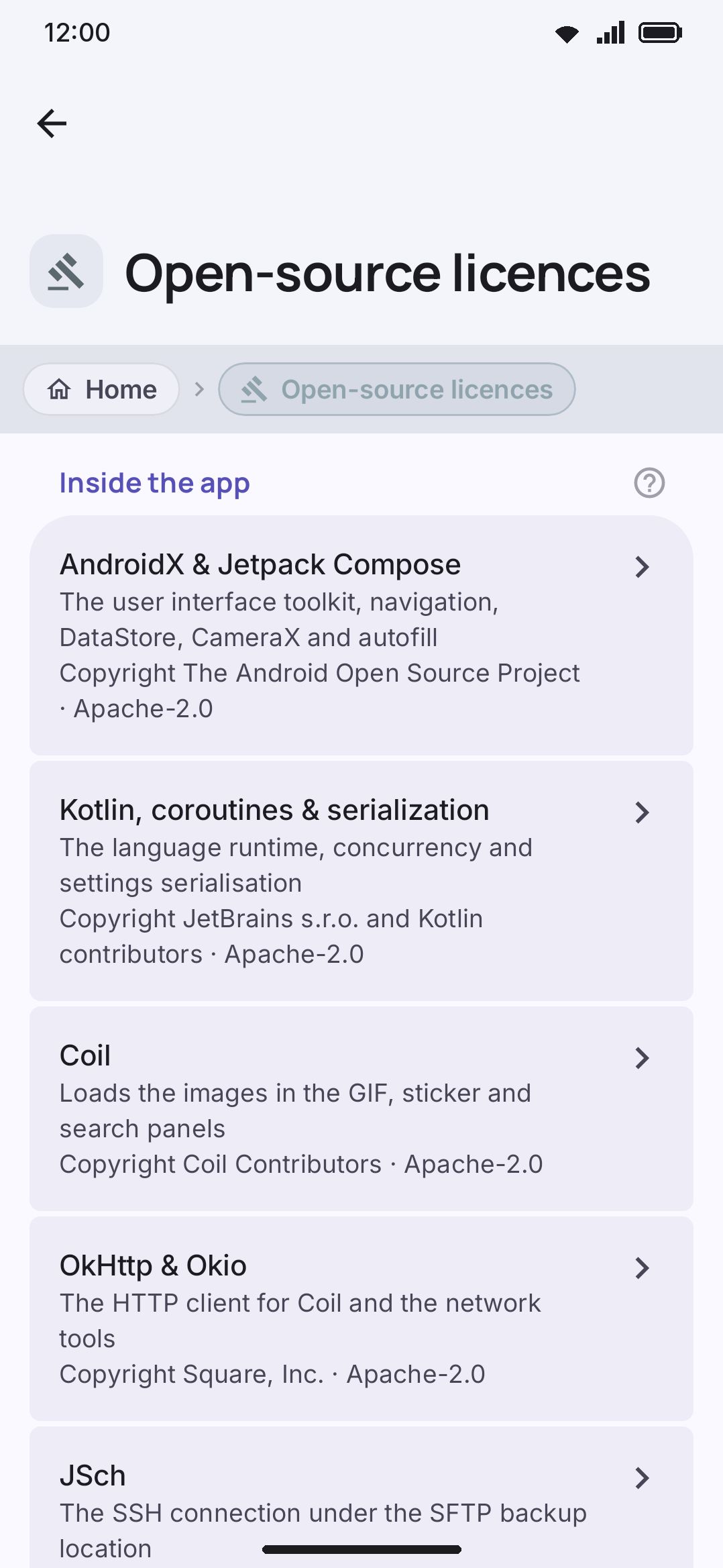
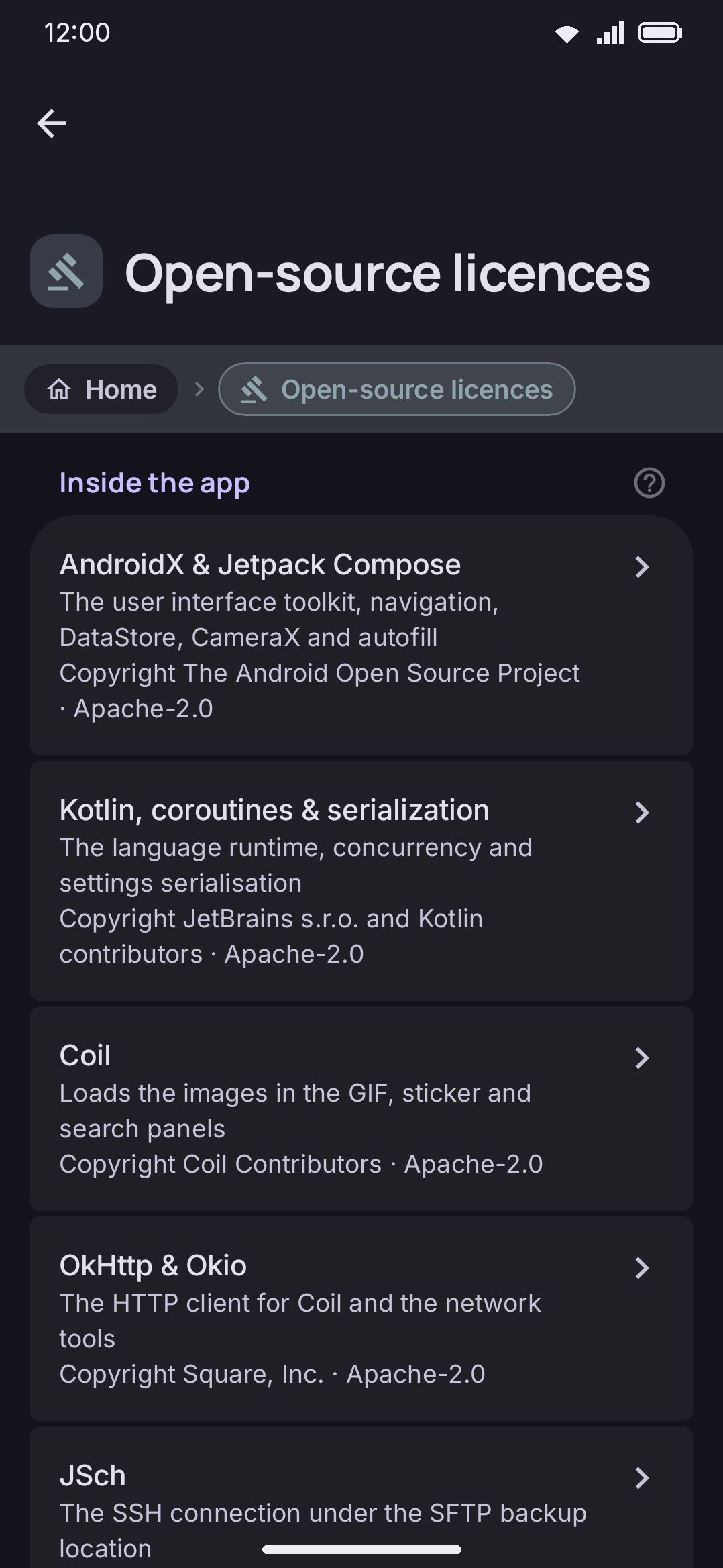
Inside the app always lists AndroidX & Jetpack Compose, Kotlin/coroutines/serialization, Coil, OkHttp & Okio, ZXing, and LuaJ, all Apache-2.0 or MIT. Full edition only adds Harper and its Rust dependencies (grammar checking), Google ML Kit (handwriting and scanning), LiteRT-LM (the local AI models), and LiteRT plus OpenAI Whisper and whisper_android (offline speech-to-text). The Lite edition only build doesn’t link those features, so their licences don’t apply to it. A Play build adds one more, Play In-App Updates. It isn’t open source, so it opens Google’s SDK terms in your browser rather than a bundled text. Both editions also list Unicode CLDR & emoji data, gemoji, Keyman keyboard layouts, OpenCC, the LSHK Jyutping table, the bundled editor colour palettes (Dracula, Nord, Solarized, Catppuccin, Tokyo Night), Google Fonts, and Inter & Manrope. Those last two are the faces the settings app itself is set in. They ship as files in the APK, so they carry their own notice rather than the generic one.
That makes 22 bundled components on a full Play build and 14 on a lite F-Droid one. The gap is the seven entries gated behind grammar checking, ML Kit, the local LLM and Whisper, plus the Play updates entry. So a full F-Droid build lists 21, and a lite Play build 15.
Data packs you can download covers the frequency wordlists, offensive word lists, emoji keyword dictionaries and Noto Animated Emoji served from the WM Keyboard data repository, plus the CJK-specific conversion data: CC-CEDICT, mozc, rime-cantonese & CC-Canto, a Chinese stroke code table, and the Unicode Unihan database. Ten rows in all, since the AOSP dictionaries have their own. A Full edition only build adds two more for downloads only it can make: the sticker editor’s own U²-Net-P background remover (Apache-2.0) and the on-device AI models (Apache-2.0, or Google’s Gemma Terms of Use for Gemma 3). A caption underneath notes these keep their upstream licences whether or not they’re actually installed on your device.
Online services lists what each network tool talks to and under what terms: Brave Search, KLIPY & GIPHY, Wikipedia, Google Translate, Open-Meteo, Frankfurter & ExchangeRate-API, Coinbase & the other coin-price sources, the Free Dictionary API, Wiktionary & kaikki.org, Datamuse, Hugging Face, and the bring-your-own-key AI providers (Anthropic, OpenAI, Google AI, xAI, DeepSeek, and whichever OpenAI-compatible service you point the escape hatch at). None of their code or data ships inside the app; see Network policy for what each one actually sends and when.
Diagnosing a problem
Section titled “Diagnosing a problem”Diagnostics is where you go if something’s misbehaving and you want to send in what the keyboard recorded, or just look at it yourself. It never contains anything you typed. That’s a hard design rule stated in the logging code’s own documentation, not only a promise in the UI copy.
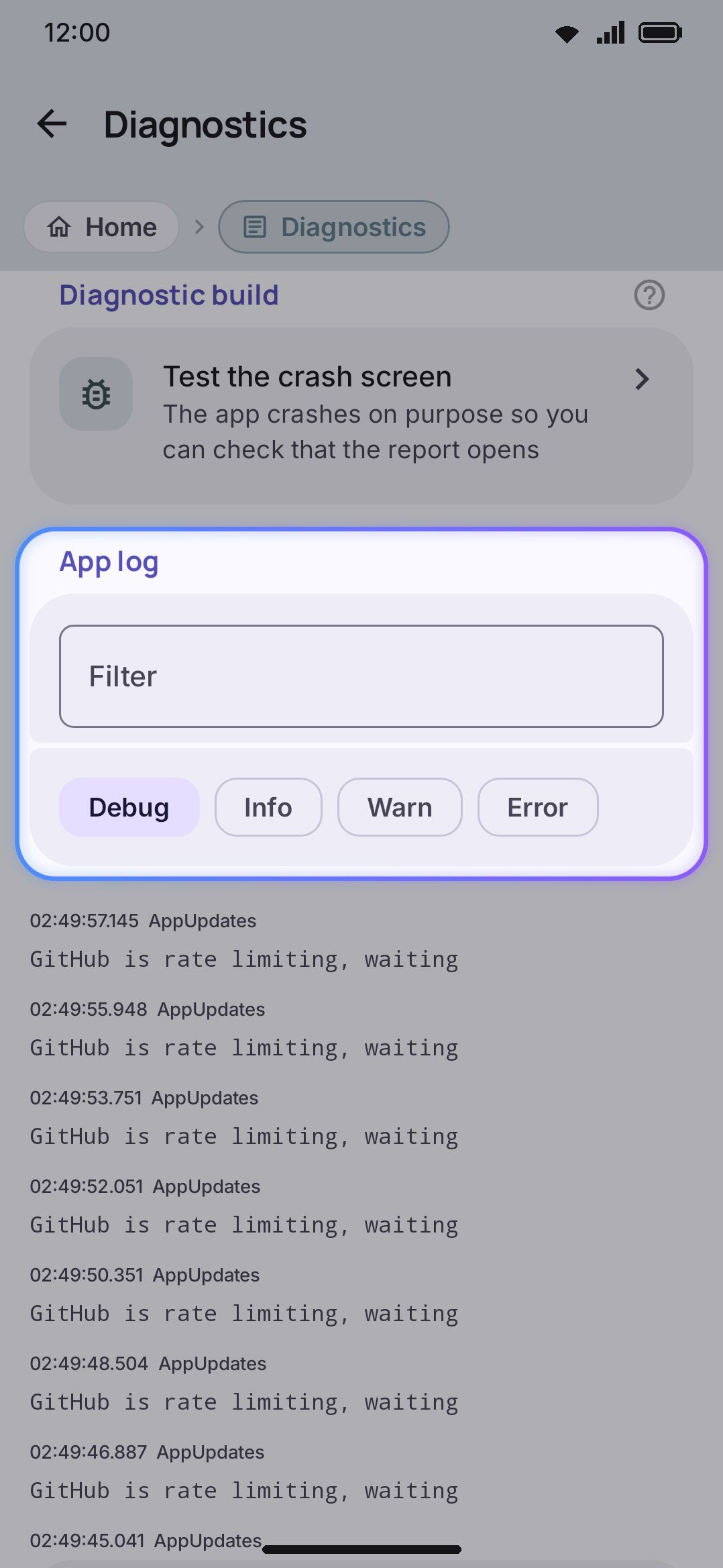
The Report group has three controls:
- Share diagnostics writes the full report to a file and sends it through the share sheet. A file rather than inline text is deliberate: a report can run to tens of kilobytes, and some receiving apps quietly drop share intents that large.
- Copy to clipboard copies the same report as plain text instead, with a confirmation toast.
- Include the system log is a toggle, off by default. It adds this process’s own Android log to the report, meaning everything it printed, its libraries included. An info button next to it explains why it’s opt-in. Unlike the app log, the keyboard doesn’t control what ends up in the system log, so read it before you send it anywhere. This one isn’t stored anywhere at all. It belongs to the screen, so it goes back to off every time you leave and come back, and it carries no restore control.
If the app has crashed since it was last cleared, a Crashes group appears above the app log with the crash record and a Clear crashes button. It only shows up when there’s something to show.
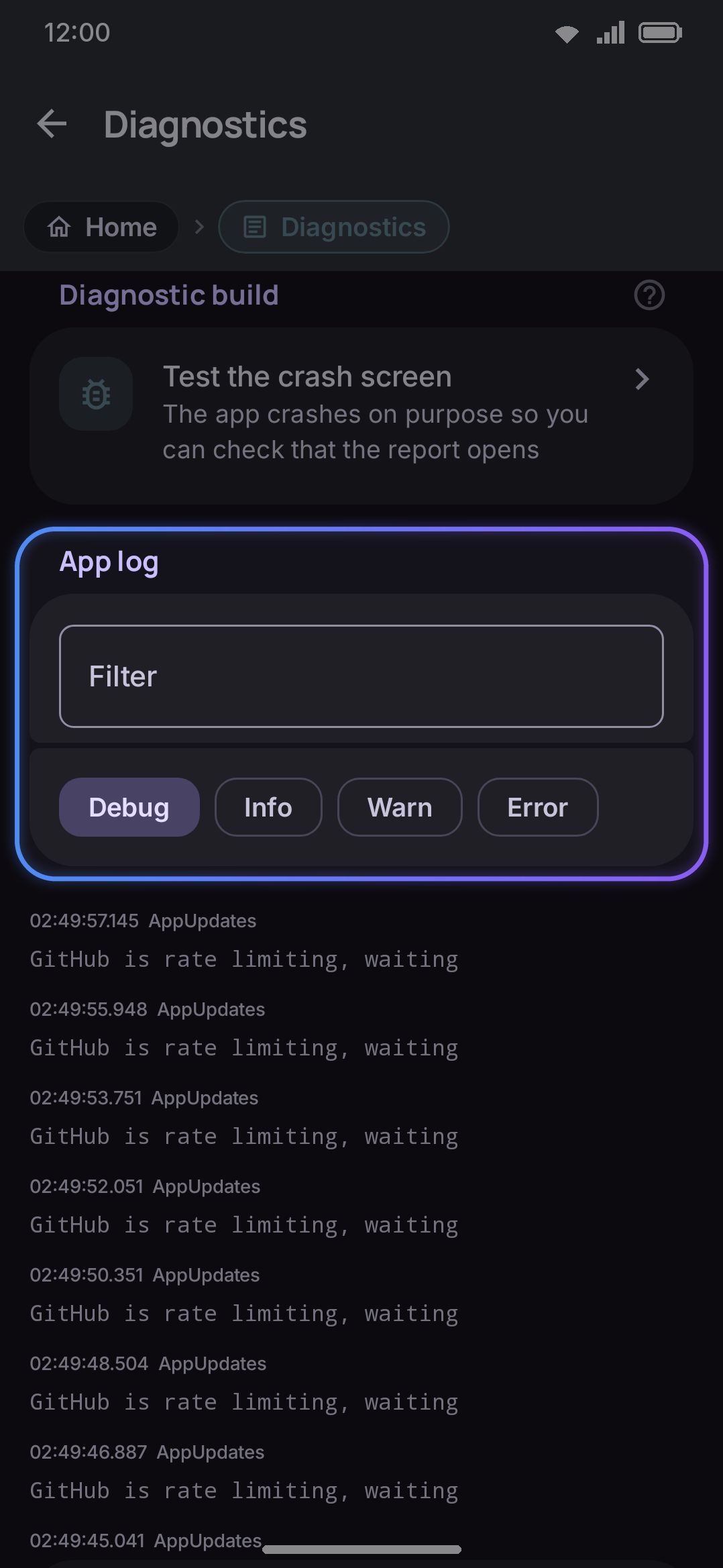
The app log itself is a free-text filter field plus one level chip per severity (Debug, Info, Warn, Error). The chips pick one level at a time rather than combining, and the chosen one keeps every entry at or above it. Debug is selected when you arrive, which shows the lot. Entries list newest first, with a timestamp and tag above each monospaced message, colour-coded by severity. Pull down to re-read the log without leaving the screen. Turning on Include the system log above adds another group underneath showing that raw log: the third group on the screen if no Crashes section is showing, the fourth if one is. A Clear app log button sits at the very bottom, on its own.
Options
Section titled “Options”There are only four switches and one picker in this whole tree. Everything else is either a display-only row (Version, Dictionaries) or a read-only browser (the licence and diagnostics screens).
WM KeyboardAbout| Setting | Control | Default |
|---|---|---|
| Short app name | Toggle | Off |
| App language | Choice | System default (on the English-only build, an offer to switch) |
| Setting | Control | Default |
|---|---|---|
| Ask me about updates | Toggle | On |
| Include pre-releases | Toggle | Off (GitHub builds only) |
| Setting | Control | Default |
|---|---|---|
| Include the system log | Toggle | Off, and off again on every visit |
See Privacy at a glance and Network policy for what the app does and doesn’t send over the network in general. Diagnostics itself never touches the network on its own, since sharing or copying the report is something you trigger and send yourself.
Details & edge cases
Section titled “Details & edge cases”- The licence-text screen’s title is always “Licence,” never the specific component’s name. Tapping into AndroidX’s Apache-2.0 text or the app’s own MIT text lands on a top bar that just says “Licence” either way, so rely on the row you tapped (or the text itself) to know which one you’re reading.
- Several bundled components share one licence asset. Every Apache-2.0 entry opens the same Apache-2.0 text rather than a per-project copy: AndroidX, Kotlin, Coil, OkHttp & Okio, ZXing, OpenCC, and, on a full build, Harper and LiteRT/LiteRT-LM. The per-project attribution (name, what it’s used for, copyright line) is what you saw on the list row before tapping in.
- Licence texts don’t reflow. They’re hard-wrapped at a fixed column width and rendered monospaced, so long lines scroll sideways instead of wrapping to the screen width.
- The word-list attribution splits by kind, not by download status. The three word lists that ship as source (seed bigrams, loanword map, offensive-word list) are covered by the app’s own MIT licence. Every wordlist you download separately keeps its own upstream licence, listed under Open-source licences whether or not you’ve actually downloaded it yet.
- Sharing a link isn’t the same as opening one. The three Share rows always hand off to the system share sheet with a pre-filled message. Source code, Report a bug, User guide and Privacy policy open a browser tab directly, and so does any row inside the licence browser without a bundled text. Email the developer is the odd one out again: it opens a mail composer, not a browser or a share sheet.
- A report is a draft, not a submission. Both the Feedback rows and the AI panel’s Report button hand you something to read and edit. Nothing is sent until you send it, and the app has no reporting server of its own.
See Privacy at a glance for what leaves the device and when, Network policy for the tool-by-tool network breakdown referenced above, and Every wordlist for the downloadable dictionaries this page’s Word lists group points at.