
AI chat
A full back-and-forth conversation with whichever model you set up, on the keyboard's AI panel or in the settings app, as one shared list of chats.
The AI tool runs one-shot actions against the text in a field. Chat is the other half: a normal back-and-forth conversation with the same model, kept on your device.
You can chat in two places, and they’re the same chats. The keyboard’s AI panel has a Chat mode, for asking something and dropping the answer straight into whatever you’re writing. The settings app has a full-screen version, for longer conversations. Start one on the keyboard, carry it on in the app, come back: there’s one list, and an answer that’s still streaming in shows up on both.
Chatting on the keyboard
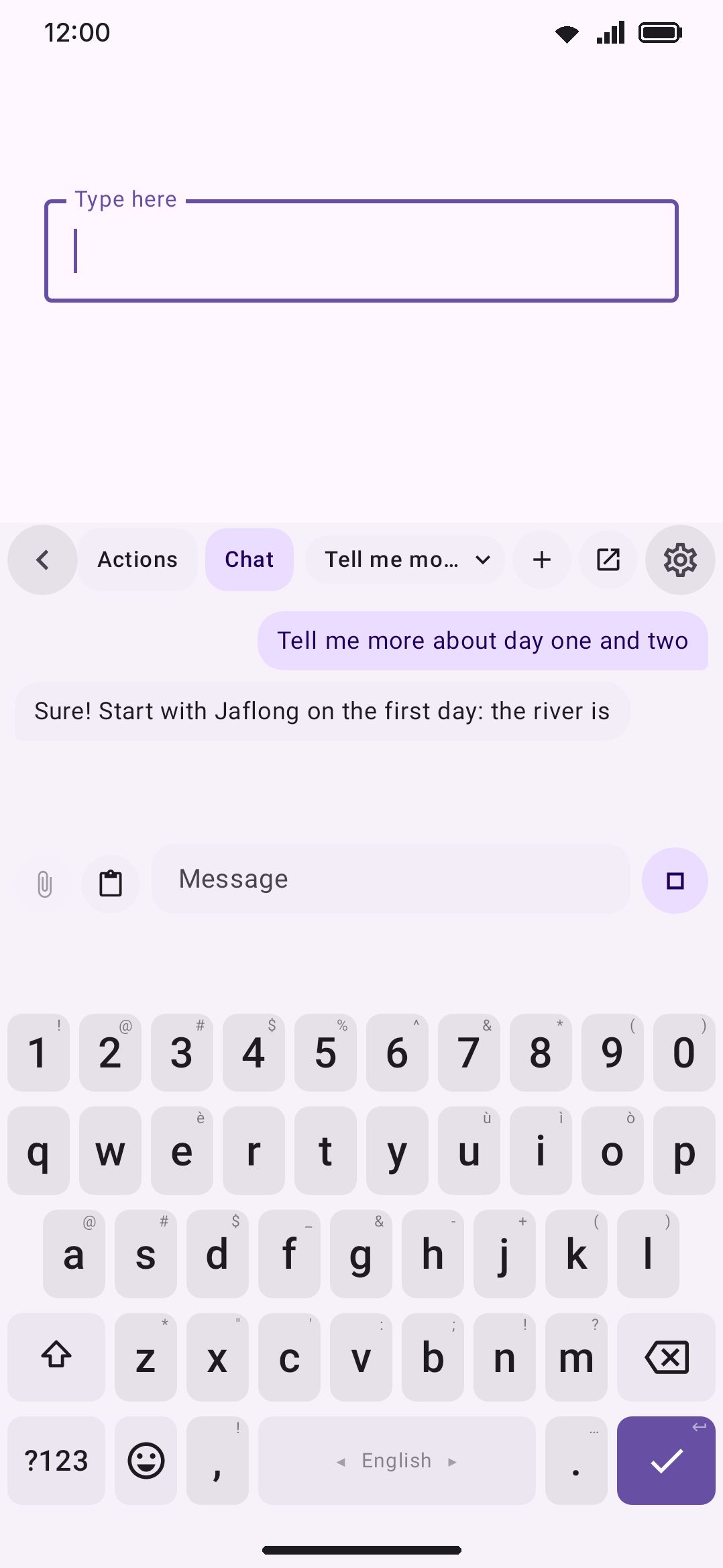
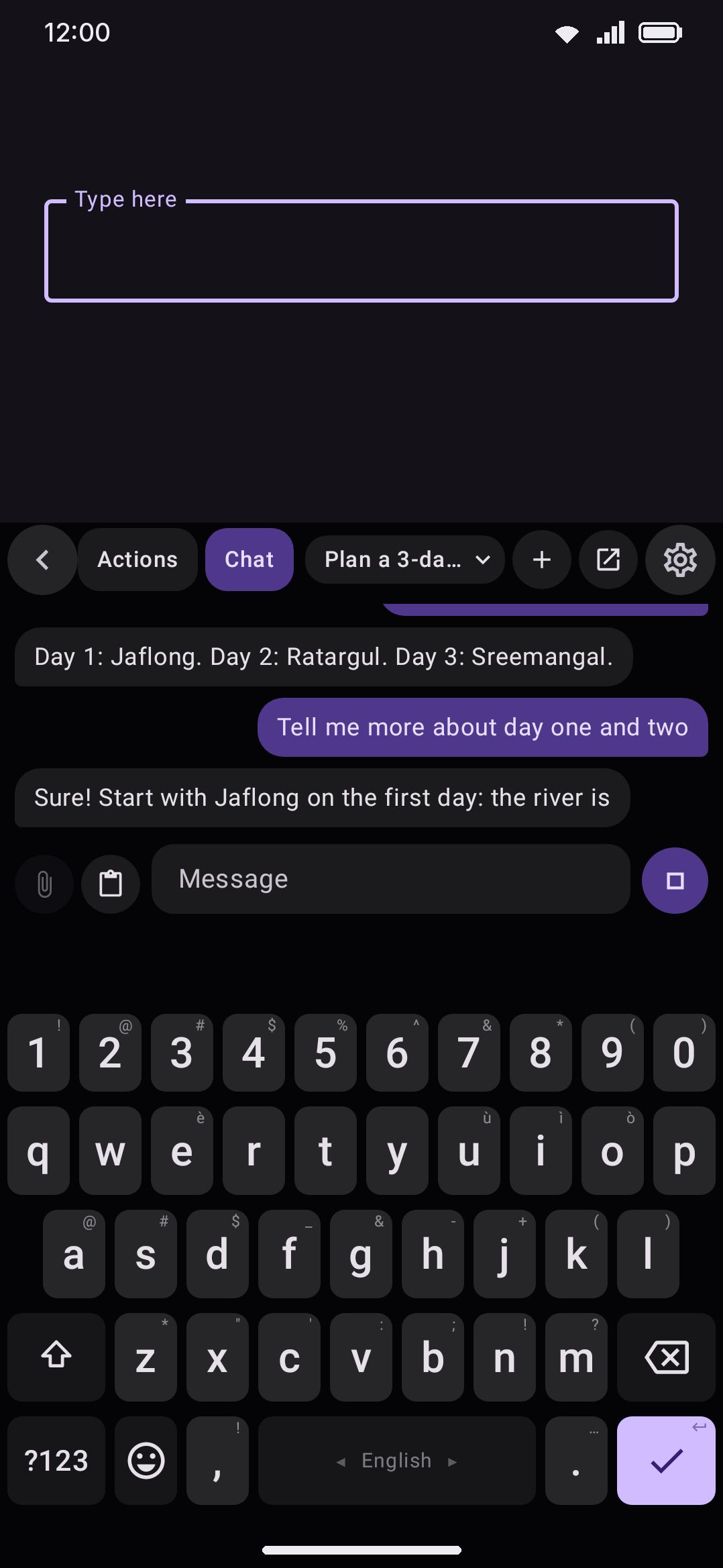
Section titled “Chatting on the keyboard”Open the AI tool from the toolbar. The panel’s header has two chips, Actions and Chat. Tap Chat. The panel remembers which one you left it on, so if chat is what you use, the AI button opens chat from then on.
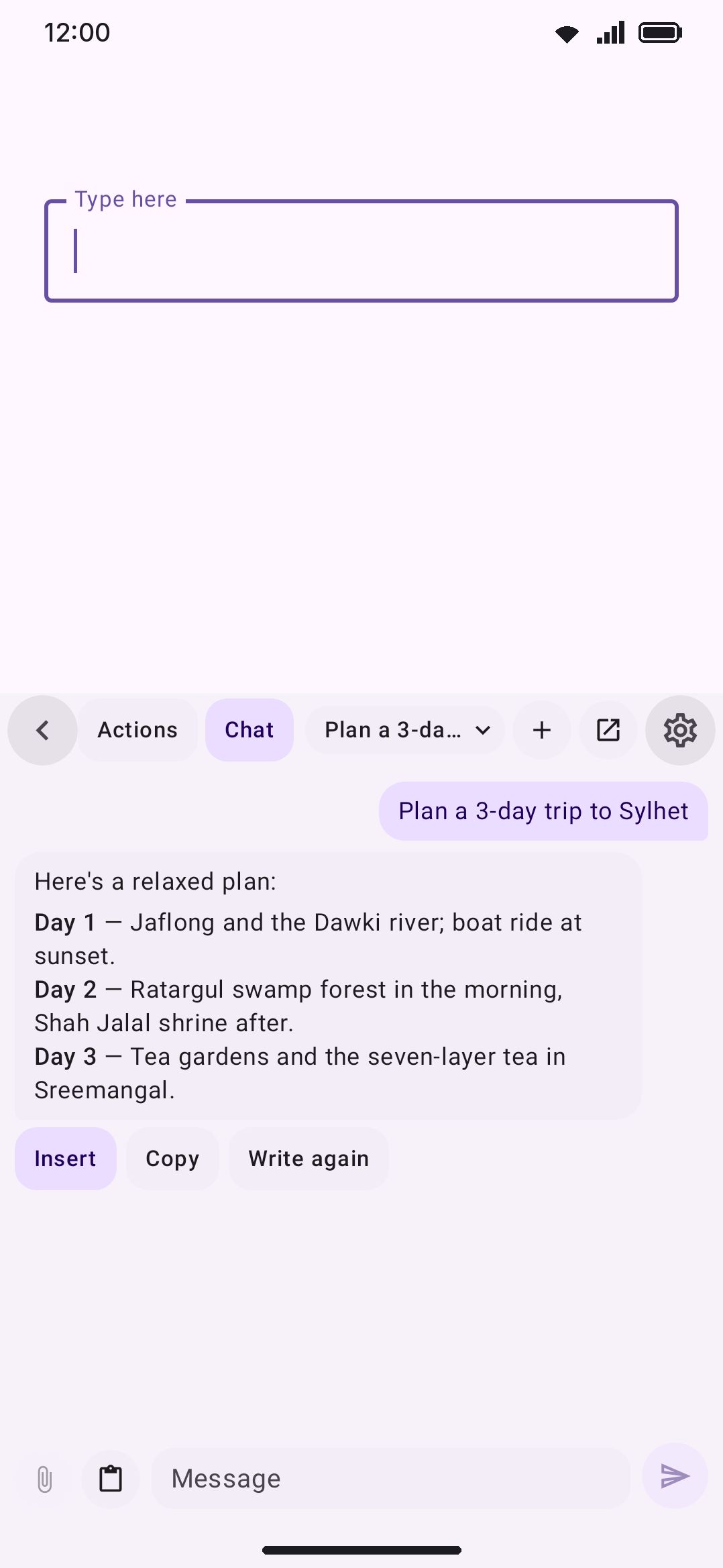
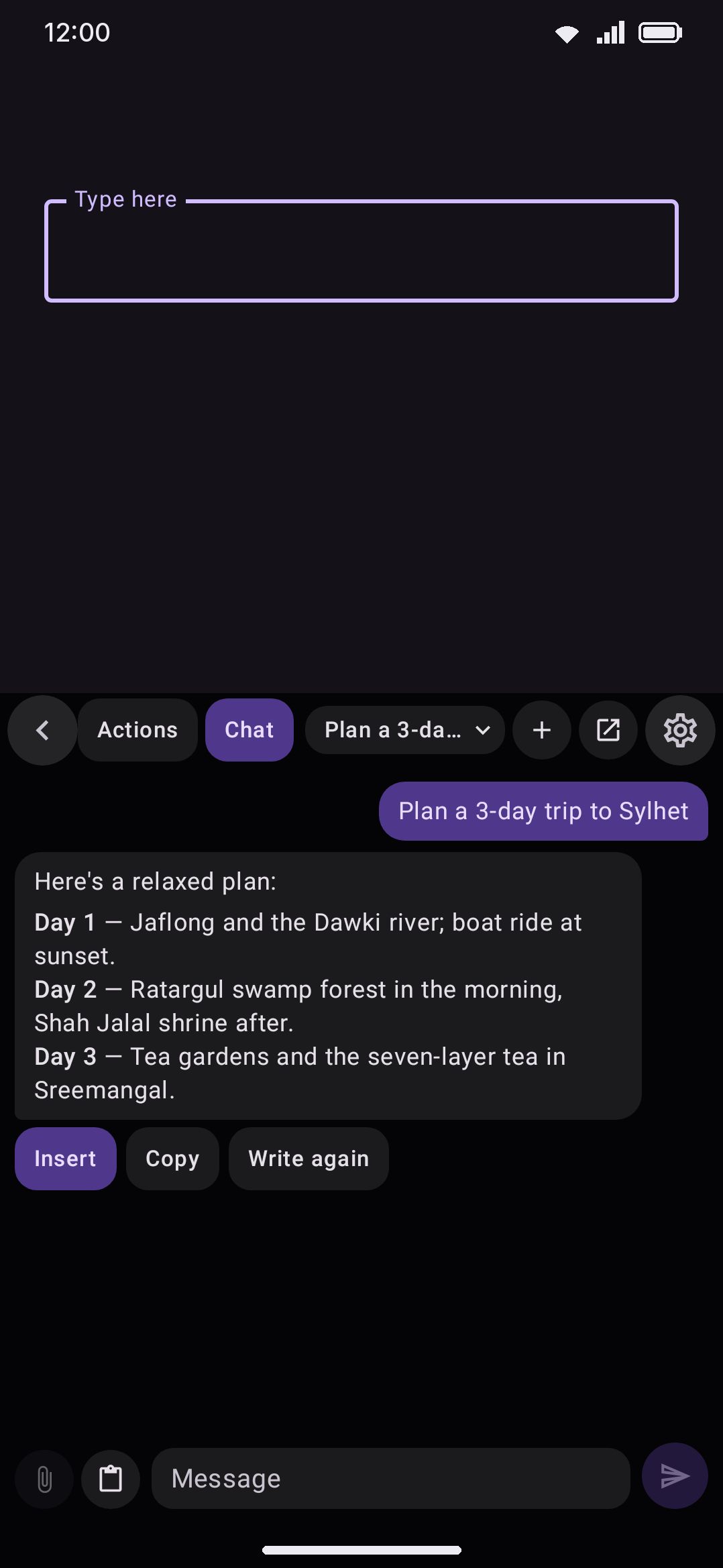
Tap the message box and the keys come up underneath, with the last few messages still in view above it. The keyboard gets taller while you type so the conversation doesn’t disappear. On a short screen the conversation gives up room first: the keys under the message box always keep their full height. Tap the conversation, or press Back, and the keys step aside again so you can read. Your half-typed message stays where it was, even if you close the panel.
Glide typing, suggestions and the caret all work in the message box the way they do in any of the keyboard’s own fields. Nothing you type there reaches the app behind the keyboard.
Getting an answer into your text
Section titled “Getting an answer into your text”The newest answer always shows its buttons. Tap any older bubble to bring out its own.
- Insert puts the answer in the field at the cursor, with markdown markers stripped, since a text field won’t render them.
- Copy copies the answer as written. Long-pressing a bubble copies it too, in one move.
- Write again throws the newest answer away and asks for another.
- Edit, on your own newest message, pulls it back into the message box along with the answer it got, so you can fix the question and send it again.
- A code block gets its own Copy and Insert, which take just the code, exactly as written.
Answers are drawn with their formatting: headings, lists, bold, inline code and code blocks. While an answer is still streaming, a code block waits for its closing fence before it offers its buttons.
Sending your text along
Section titled “Sending your text along”The paperclip beside the message box quotes what you’re working on. With text selected in the field, it takes the selection; otherwise it takes the whole field. A line above the message box says which, and how long it is. The model gets your message followed by that text, clearly marked off, and the bubble notes that text went with it. Tap the paperclip again to drop it.
It’s greyed out over an empty field, and it never reads a password field.
The clipboard button next to it pastes your latest clip at the caret.
An empty chat offers a few openers: Reply to this and Explain this quote the field for you, Help me write starts the sentence. They only fill the message box. Nothing is sent until you send it.
Asking about another tool’s text
Section titled “Asking about another tool’s text”Wikipedia, Dictionary, Vocabulary and Grammar check can hand their text to the chat. Each has an Ask AI chip (on Grammar check, a sparkle on each issue card), and in Wikipedia, Dictionary and Vocabulary a long press on the text selects a passage with Ask AI on the bar over it. Either way the AI panel opens in chat mode on a new conversation, with the text attached the way the paperclip attaches the field’s, and the line above the message box names where it came from, for example “About Wikipedia: Cat”. The keys come up under the message box, and three openers stay on screen while you type: Explain simply, Summarise and Hard words. The text goes with your first message only.
The chips show only while the AI tool is on, and not on the lock screen.
Switching chats
Section titled “Switching chats”The chip in the header with the chat’s title opens your list of chats: tap one to open it, New chat to start fresh, Delete twice to remove one. The plus button starts a new chat from anywhere. The arrow button opens the current chat in the settings app, which is the place to go when you’d like a full screen or selectable text.
The Enter key
Section titled “The Enter key”By default Enter starts a new line, and the send button sends. If you’d rather Enter sent the message, turn on WM KeyboardToolsAI writing toolsEnter sends the message.
When chat isn’t offered
Section titled “When chat isn’t offered”On the lock screen the panel shows only its actions. Chats are stored encrypted behind your unlock, and a transcript isn’t something to draw over a lock screen.
A chat started while incognito is on is never saved. You can read it and carry it on until the keyboard’s process ends, and then it’s gone.
Chatting in the app
Section titled “Chatting in the app”It sits in a group headed Chat on the AI tool’s settings screen, under the reasoning and panel options. There’s a faster way in too: long-press the app icon on your launcher and pick AI chat, which lands you on the conversation list without going through Home.
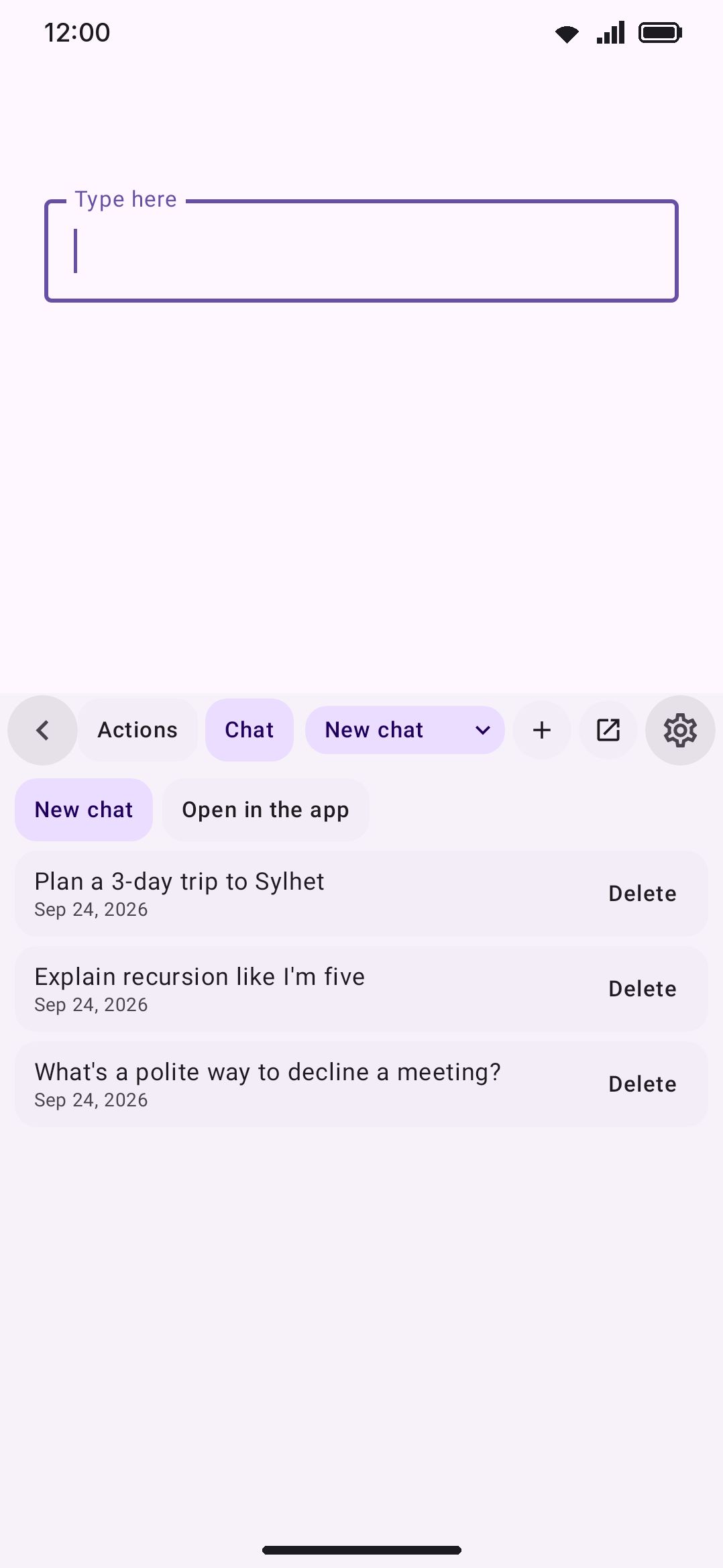
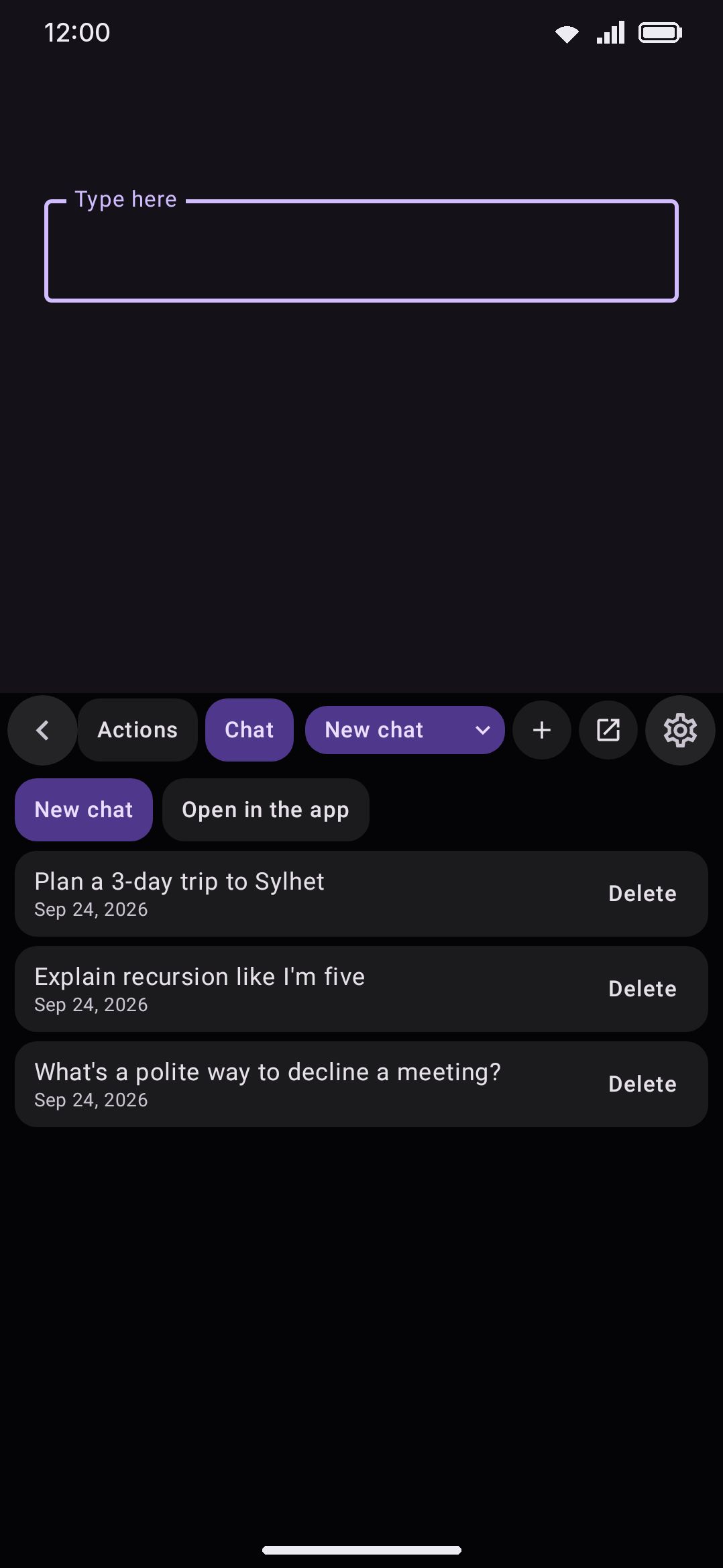
The list is your saved conversations, most recently updated first. Each row is the chat’s title and how long ago you touched it, with a delete button on the right that asks first and names the chat it’s about to remove. New chat is both a button at the top of the list and a plus in the top bar.
Nothing saved yet? You skip the empty list entirely and land in a new chat, because an empty list with one button on it isn’t worth a screen. A chat is only written down on your first send, so opening one and backing straight out leaves no row behind.
Titles aren’t something you type. The first line of your first message becomes the title, cut to 48 characters on a word boundary.
Picking the model
Section titled “Picking the model”A scrolling row of chips above the transcript lists everything you can talk to right now: models you’ve downloaded on-device first, then every provider you’ve configured. “Configured” means the thing it needs is filled in. That’s an API key for the cloud services, an address for Ollama or LM Studio, and both an address and a model name for Other service. With fewer than two to choose from, the row doesn’t appear at all.
Two things worth knowing about that row:
- It doesn’t touch the keyboard’s own setting. Chatting to Gemini while the AI tool is set to Claude leaves the tool on Claude. The chip is the chat’s choice and nothing else reads it.
- It’s frozen while an answer is coming in. The chips grey out until the answer lands or you stop it, since swapping models halfway through a reply has no sensible meaning.
Your pick is remembered for next time, and each conversation also remembers the last model that answered in it.
Sending, stopping, retrying
Section titled “Sending, stopping, retrying”Type in the box and hit send. While the answer streams, the send button becomes Stop.
- Stop keeps what arrived. The partial answer stays in the transcript, labelled “Stopped”, rather than vanishing as if you’d never asked. An on-device generation is a native call that can’t truly be interrupted. It finishes quietly in the background instead, and the model’s own memory of the conversation is kept in step with what you can see.
- A failed turn shows the error in its own bubble with a Retry button. Only the newest failed message gets one, because retrying something from the middle of a transcript would answer out of order. Retry re-sends the message the failure was answering, so nothing is duplicated.
- Leaving doesn’t cancel anything. Navigate away mid-answer and the generation carries on. Come back and it’s either still streaming or already in the transcript.
Every message has a Copy button under it, and the text itself is selectable, which the keyboard’s version can’t offer. The newest answer adds Write again, and your own newest message adds Edit, both exactly as on the keyboard. Answers render the same formatting on both, and a code block has a Copy of its own. There’s no Insert here, because there’s no field behind this screen to insert into.
A Play Store build adds a Report button along the bottom edge of every finished answer. It follows the same route the panel offers under Reporting a result: a draft opens in your own mail app holding the provider, the model, the message the answer replied to, and the answer itself, with a blank line at the top for what went wrong. Nothing is uploaded when you tap it, so a report only exists once you send the mail. Your own messages carry no Report button, and neither does a failed turn, because neither one is a generated answer. With no mail app installed, a message says so instead. GitHub and F-Droid builds show no Report button here at all, since Play’s AI-generated-content policy is the only reason for it. The keyboard panel’s own Report button has no such restriction.
Reasoning models follow the same Show model reasoning setting the keyboard panel uses. With it on, the raw stream renders with the thinking part dimmed. With it off, you get a “Reasoning…” line until real answer text starts arriving.
An on-device model gets a live session per conversation, seeded with the saved transcript, so it keeps the context of what you’ve already said. Switching conversation, model, compute backend or context size closes that session and opens a fresh one, seeded the same way.
Nothing set up yet
Section titled “Nothing set up yet”With no downloaded model and no configured provider, the chat screen says Nothing to chat with yet and offers one button back to the AI tool settings. That’s the same setup you’d do for the keyboard panel: see Choosing where it runs.
On-device models are Full edition only, so on a Lite build chat only works once you’ve configured a cloud or self-hosted provider. See Full vs Lite if you’re not sure which one you have.
What’s kept, and where
Section titled “What’s kept, and where”Conversations live in one file in the app’s private storage, in the same folder as the AI history. It shows up as AI chats on the storage screen under WM KeyboardAboutStorage, so you can at least see what it costs you. Your data covers what else is in there.
Two rows decide whether that file exists at all. Both sit on the History screen, under WM KeyboardToolsAI writing toolsHistory, in a group headed Chats:
- Keep your conversations is on by default. Turn it off and chats live only until you close the app, and whatever is already saved is deleted with it. That’s the same contract the AI history switch has.
- Delete all chats clears every saved conversation after a confirmation, without turning the feature off.
Three caps keep the file from growing without limit:
| What | Cap | What happens past it |
|---|---|---|
| Conversations | 50 | The one you touched longest ago drops off |
| Messages per conversation | 200 | The oldest messages drop off the front |
| Characters per message | 20,000 | The rest is cut |
Text you attached from a field is saved with its message, under the same 20,000-character cap, because the conversation wouldn’t make sense to the model without it on the next turn.
Deleting a conversation from the list removes it for good. There’s no undo, which is why the dialog names the chat first.
What leaves your phone
Section titled “What leaves your phone”Exactly what the AI tool sends, and only when you hit send:
- An on-device model sends nothing. The whole conversation stays on the phone.
- Any other provider gets the conversation so far, because that’s what makes a reply follow on from the last one. That includes any field text you attached with the paperclip, and only the text you attached: the keyboard’s chat never reads the field on its own. A fixed instruction rides along with it: answer in plain text, and keep it as short as the question allows. Your API keys stay on the device.
- The transcript itself goes nowhere. It’s deliberately left out of settings backups, the same as the AI history and for the same reason: your own conversations shouldn’t ride along in a file you export and mail to yourself. See Your data.
Details & edge cases
Section titled “Details & edge cases”- Max response length applies here too. For a cloud or self-hosted model, the AI tool’s ceiling bounds a chat reply the same way it bounds a panel result, reasoning-model multiplier included. See About “Provider maximum”. On-device, the Context size row is what bounds it, exactly as on the panel.
- The chat prompt isn’t one of your actions. The panel’s action prompts are for transforming text in a field, which is a different job. Chat has its own fixed prompt and nothing on this screen edits it.
- Nothing here is written to the AI history. That log records panel runs. A conversation is only in the chat file.
- The launcher shortcut is one of four. Long-pressing the app icon offers Tools, Languages, AI chat and Themes, and nothing else. The
wmkeyboard://settings/scheme behind those four reaches three more screens (Typing, Appearance and Search) that no shortcut points at. See Deep links & launcher shortcuts. - Deleting a chat mid-answer is handled. If a generation finishes for a conversation you’ve already deleted, the answer is dropped rather than resurrecting the row.
- Reasoning is stripped from what’s saved. Only the answer lands in the transcript, the same way the keyboard panel only commits the answer.
Related: AI tools covers the providers, the on-device model catalog, the panel’s actions, and the history.