
Hardware shortcuts
Physical-keyboard shortcuts and the leader key, all in one table.
This is the flattened, all-in-one-table version of what a physical keyboard can do in WM Keyboard: the leader key that opens tools, every default letter binding, and the keys that drive an open panel. For the walkthrough with explanations of each setting, see Hardware keyboards.
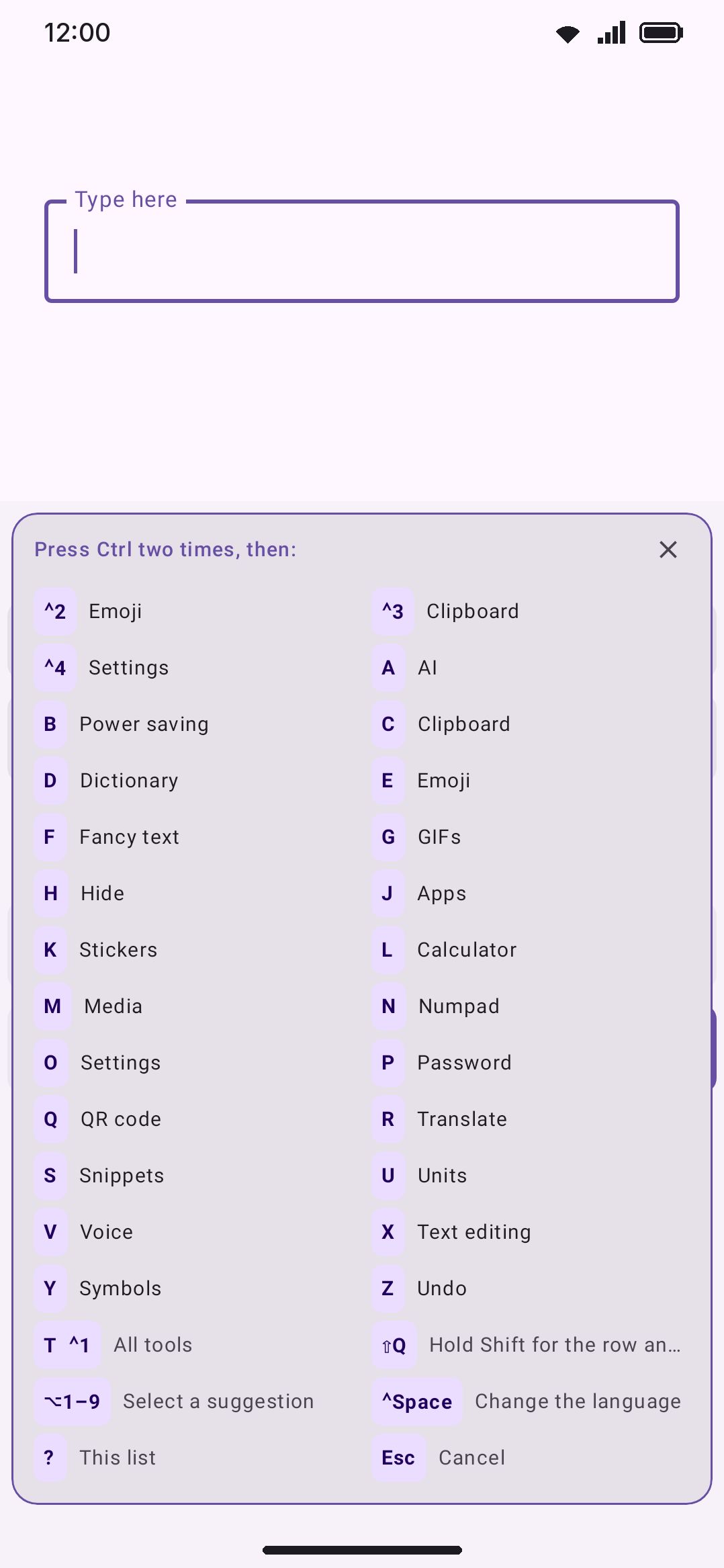
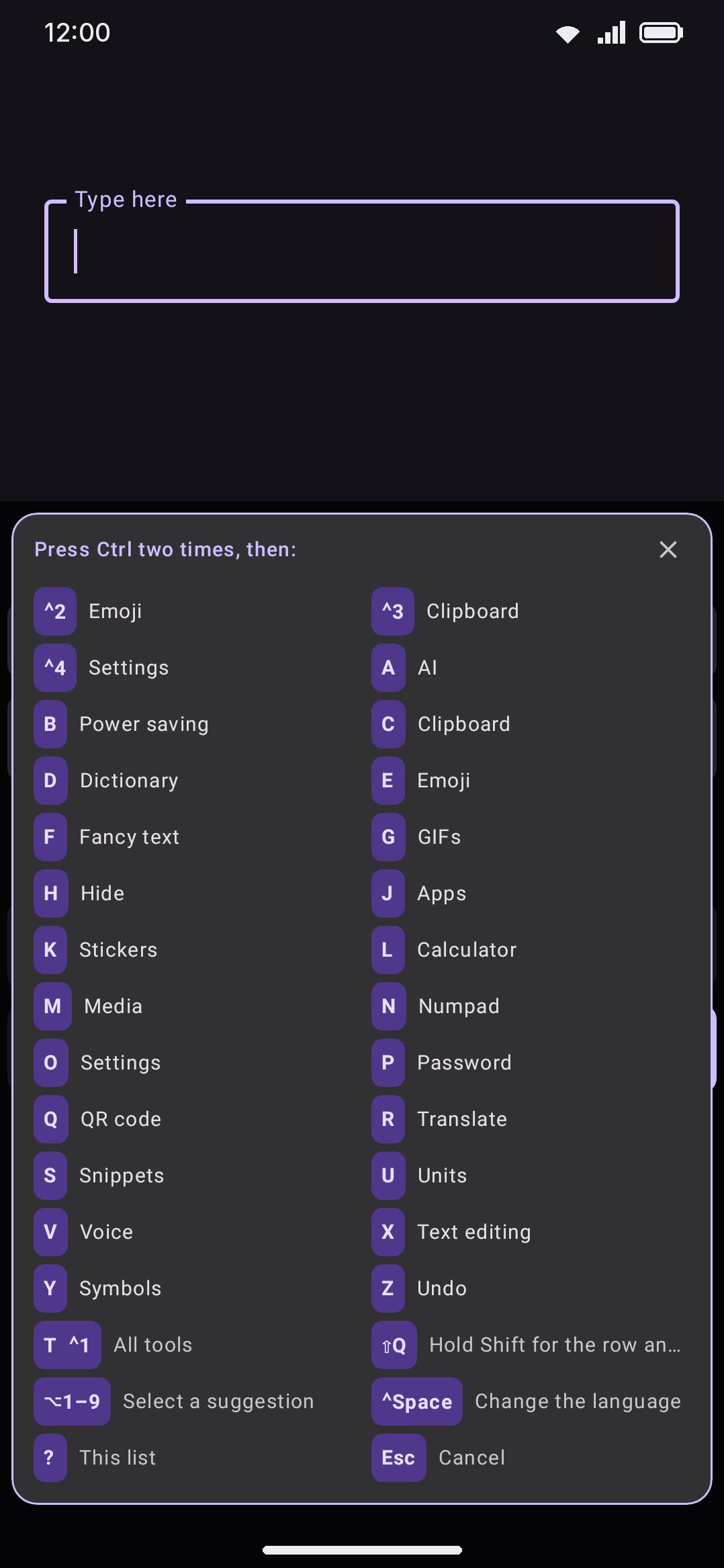
Opening the tool picker
Section titled “Opening the tool picker”Double-tap Ctrl (the default shortcut key). Every button on the keyboard then shows a badge with the key that operates it. Press a letter to open that tool, T for the full toolbox, or ? for the complete legend shown above. The legend is where to look for tools that aren’t on screen to wear a badge. Badges spell their modifier out (Ctrl+2, Shift+Q) unless you turn Write the modifier names off. They stay up for eight seconds by default, and Time to press a key takes that anywhere from one to thirty. The legend has its own close button, so it is never a dead end without a keyboard.
You can pick a different double-tapped modifier (Ctrl, Alt or Shift) or capture an arbitrary chord instead, from WM KeyboardTypingPhysical keyboardTool shortcuts list. A captured chord that the focused app is likely to want still works, but the capture dialog warns that it’s “usually the app’s own shortcut”. That’s a nudge rather than a block, and it covers these eleven:
Ctrl+A, Ctrl+C, Ctrl+V, Ctrl+X, Ctrl+Z, Ctrl+Y, Ctrl+S, Ctrl+F, Ctrl+Space, Ctrl+Tab, and Alt+Tab.
A chord with no modifier at all is flagged the same way, since it would swallow ordinary typing instead of arming the picker.
Every tool’s letter
Section titled “Every tool’s letter”The default letter is the tool’s own initial, wherever that letter was still free. Change any binding from WM KeyboardTypingPhysical keyboardTool shortcuts list: tap a tool’s row to capture a new letter, or Reset to defaults to put every letter and the shortcut key back the way they started.
| Key | Tool | Key | Tool |
|---|---|---|---|
| A | AI writing tools | O | Settings shortcut |
| B | Power saving | P | Password generator |
| C | Clipboard | Q | QR code generator |
| D | Dictionary | R | Translate |
| E | Emoji | S | Snippets |
| F | Fancy text | U | Unit converter |
| G | GIFs | V | Voice typing |
| H | Hide keyboard | W | Web search |
| I | Image search | X | Text editing |
| J | App launcher | Y | Special symbols |
| K | Stickers | Z | Undo |
| L | Calculator | ||
| M | Media controls | ||
| N | Numpad |
T and ? are reserved and can never be bound to a tool.
The remaining 48 tools ship with no default letter at all: KDE Connect, flashlight, compass, bubble level, redo, moon phase, weather, calendar, incognito, themes, autocorrect, sound & haptics, handwriting, camera, vocabulary, text scan (OCR), QR & barcode scanner, document scanner, grammar check, Wikipedia, currency converter, keyboard modes, typing speed test, plugins, one-handed mode, split and floating keyboard, resize, trackpad, secondary layout, keep the keyboard on screen, selection actions, every cursor-move tool, select word, select line, selection mode, and copy, cut and paste. There aren’t 47 letters left to give them, so they get a Shift+key instead, assigned automatically in toolbox order and shown as a badge under each one while the toolbox is open. Handwriting, the three scanners and grammar checking only appear in the list at all Full edition only.
Toolbar buttons
Section titled “Toolbar buttons”Each button on the toolbar answers to a number, counting from the toolbox button at the start:
| Keys | Opens |
|---|---|
| Ctrl+1 | The toolbox |
| Ctrl+2 … Ctrl+0 | The first to the ninth pinned tool |
| Double-tap the shortcut key, then 1–0 | The same buttons, unless the numbers are set to pick suggestions |
The chord is on by default, and WM KeyboardTypingPhysical keyboardCtrl + number opens a toolbar tool turns it off. You may want that, because browsers and editors use Ctrl+number to change tab, and the keyboard takes the key first while a text field has focus. A toolbar longer than ten buttons leaves the rest without a number. Those stay reachable through the toolbox.
Symbol and emoji rows
Section titled “Symbol and emoji rows”Double-tap the shortcut key and each cell in the symbol row and the emoji row shows a Shift+key badge that inserts it.
| Row | Keys |
|---|---|
| Symbol row | Shift+a letter, in keyboard order (Q, W, E, …) |
| Emoji row | Shift+1 onward, counting from the left |
Letters against digits, so the two pools cannot collide and editing one row never renumbers the other. An open toolbox claims the whole Shift tier for its own tools. The rows drop their badges until it closes.
Switching language
Section titled “Switching language”WM KeyboardTypingPhysical keyboardCtrl+Space changes the language, on by default.
| Chord | Does |
|---|---|
| Ctrl+Space | Step forward through your enabled layouts |
| Ctrl+Shift+Space | Step back |
| The dedicated 🌐 / language key, if your keyboard has one | Switch to the next layout |
Keep Ctrl held and each press of Space walks a list on screen. Release Ctrl to commit whatever is highlighted, or press Esc to cancel. A quick tap and release is just a one-step switch. With only one layout enabled the chord falls through to the app untouched, so nothing is stolen for a switch that has nowhere to go. Meta+Space is left alone on purpose: that one belongs to Android’s own keyboard rotation. The dedicated language key is claimed whatever this setting says, since no app wants it. See Hardware keyboards for the walkthrough.
macOS shortcuts
Section titled “macOS shortcuts”WM KeyboardTypingPhysical keyboardmacOS shortcuts, off by default.
| Chord | Does |
|---|---|
| ⌘+C / V / X / A | Copy, paste, cut, select all |
| ⌘+Z / ⌘+Shift+Z | Undo, redo |
| ⌘+← / → | Start, end of the line |
| ⌘+↑ / ↓ | Start, end of the text |
| ⌥+← / → | One word left, right |
| ⌥+⌫ | Delete the word before the cursor |
| ⌘+⌫ | Delete to the start of the line |
Hold Shift with a move to select. Ctrl is untouched, and every Command chord not in this table goes straight to the app.
Picking a suggestion from the keyboard
Section titled “Picking a suggestion from the keyboard”| Mode | Keys | Default |
|---|---|---|
| Off | No keys | |
| Alt + number | Alt+1–Alt+9 | Yes |
| After the shortcut key | Double-tap the shortcut key, then 1–0 |
The two modes reach different depths. Alt + number stops at nine, so a tenth entry has no key. After the shortcut key counts the same way the toolbar does, 1 to 9 and then 0 for the tenth, which matters on a CJK candidate strip far more than on the word strip (that one holds at most six). In Alt + number mode the strip shows its keys under the words whenever a physical keyboard is attached, which WM KeyboardTypingPhysical keyboardShow the suggestion numbers turns off. After the shortcut key takes the bare numbers for itself, so the toolbar’s tools then rely on the Ctrl+number chord.
The numbers count slots from the left, not the engine’s ranking, so with WM KeyboardTypingBest suggestion in the middle on the strip still reads 1 2 3 across and 1 commits the leftmost word.
Driving an open panel
Section titled “Driving an open panel”Once a tool is open, the arrow keys move a highlighted ring over its search box, category chips or results. Press Enter to activate whatever the ring is on. Press Tab to cycle between the panel’s sections once the ring exists, or Shift+Tab to go backward. Press Esc to close the panel. See Options below.
Not every panel offers the same sections, and a few offer none at all. “Actions” means a panel’s command buttons (Replace, Insert, Retry, Send, the mic, the shutter, Restart), which is often the only thing a panel needs a ring for:
| Panel | Sections |
|---|---|
| GIFs, Stickers | Search, chips, categories, results |
| Emoji, Clipboard, App launcher | Search, chips, results |
| Translate | Search, chips, results, actions |
| Dictionary, Web search, Image search, Wikipedia | Search, results |
| Special symbols, Grammar check | Chips, results |
| Themes | Chips, categories, results |
| AI writing tools | Actions, chips, results |
| Password generator | Chips, actions, results |
| Unit converter | Categories, chips, actions |
| Calculator, Currency converter | Chips, actions |
| Sound & haptics | Actions, chips, results |
| Calendar, Text scan (OCR) | Actions, results |
| Toolbox, Snippets, Keyboard modes, Media controls, Plugins, the candidate grid | Results only |
| Voice typing, Camera, QR and barcode scanner, QR code generator, Weather, Typing speed test | Actions only |
| Text editing, Trackpad, Numpad, Handwriting, Compass, Bubble level, Moon phase | None |
The last row is the deliberate gap. Text editing and Numpad re-implement keys a physical keyboard already sends to the field, so ringing them would capture the very arrows they duplicate. Handwriting’s canvas and the trackpad surface are pointer-only, and the sensor trio has no controls to move between. Everything else on the list does answer to the arrows.
A plugin panel is navigable too. Its buttons, toggles, and input boxes are enumerated in order and make up its results section, so the ring walks whatever that plugin drew.
Grammar check is the one panel where an arrow press won’t summon the ring. It sits alongside live editing in the field, so the arrows keep moving the caret. Open it with its tool shortcut and the ring is already there.
Tab only belongs to the keyboard once the ring is already up: before that, it’s still normal field navigation (or terminal completion), so an armed picker never steals it. The same goes for Enter: with no ring on screen it keeps its ordinary meaning, running the panel’s search or the field’s own editor action, instead of being swallowed.
What always reaches the app
Section titled “What always reaches the app”WM Keyboard doesn’t reimplement the app’s editing shortcuts. Any Ctrl or Meta combination (copy, paste, undo, save, whatever the app binds it to) is passed straight through, whether or not Process the physical keys is on. AltGr is the one combination that looks like a shortcut but isn’t: it arrives as Ctrl+Alt held together, so it falls through to the normal character path instead (a German keyboard’s AltGr+Q still types ”@”).
Three settings are the exceptions, and each says so on its own row. Ctrl + number opens a toolbar tool claims Ctrl+1 through Ctrl+0, on by default. Ctrl+Space changes the language claims Ctrl+Space and Ctrl+Shift+Space, on by default, and only while you have two or more layouts enabled. macOS shortcuts claims the Command and Option chords in the table above, off by default. Nothing else is intercepted.
The physical-key behavior WM Keyboard adds on top is all on this page: the leader and its picker, Esc closing an open panel, the focus ring, and the suggestion hotkeys. They work regardless of the Process the physical keys toggle, since none of them touch typed text. That toggle only governs typing itself. See Hardware keyboards for what typing on a physical keyboard does and doesn’t intercept.
Options
Section titled “Options”| Setting | Default |
|---|---|
| Process the physical keys | On |
| Tool shortcuts | On |
| Shortcut key | Double-tap Ctrl |
| Ctrl + number opens a toolbar tool | On |
| Write the modifier names | On |
| Time to press a key | 8.0s |
| Arrow keys move a highlight | On |
| Esc closes the tool | On |
| Number keys select suggestions | Alt + number |
| Show the suggestion numbers | On |
| macOS shortcuts | Off |
| Ctrl+Space changes the language | On |
| Show the keyboard for shortcuts | On |
A related pair of settings lives in the same Typing screen’s WM KeyboardTypingVolume keys group rather than here, since they’re volume-key shortcuts and not part of the leader/picker mechanism:
| Setting | Default |
|---|---|
| Volume keys move the cursor | Off |
| Release the keys while audio plays | On |
With Volume keys move the cursor on, volume down and up move the text cursor one character left or right while the keyboard is open. Everywhere else, and as soon as the keyboard closes, the volume keys behave normally. Release the keys while audio plays (shown only while the setting above is on) gives the volume keys back to actual volume control whenever something is playing, so replying to a message never costs you the ability to turn the sound down.
Details and edge cases
Section titled “Details and edge cases”- Reserved chords still work as a shortcut key, with a warning. Capturing one of the eleven reserved combinations above just gets you a caution in the capture dialog. It isn’t blocked.
- The double-tap fires on the second tap’s release, not its press, and any other key pressed in between resets it: Ctrl-tap, Ctrl+C, Ctrl-tap never arms the picker. A held, auto-repeating modifier doesn’t count as a tap either.
- Process the physical keys only governs typed characters. Turning it off stops physical keys from running through autocorrect and suggestions, but the leader, tool shortcuts, panel navigation and Esc keep working regardless.
- A letter can only ever open one tool. Capturing a letter that’s already bound offers to reassign it: the other tool loses that letter the moment you confirm, so two tools can never share one. A capture takes a digit too, not only a letter, and an X on the row unbinds a tool without opening the dialog.
- A tool you’ve turned off in Tools keeps its letter, but the letter does nothing. The row in the shortcuts list still shows the binding, labeled “This tool is off in Tools,” and pressing it from the picker just vibrates instead of opening anything. The letter also drops off the cheat sheet while the tool stays disabled. A tool whose API key is missing counts as off the same way.
- No edition split for the mechanism itself. The leader, the default 25-letter table and panel navigation work identically on full and lite builds. Only the five tools gated to Full edition only (handwriting, the three scanners, and grammar checking) are absent from the picker on lite, the same as everywhere else in the app.
- Presence detection is automatic. WM Keyboard notices a physical keyboard attaching and detaching through the system’s own configuration; nothing here needs to be told which mode it’s in.
For the full explanation of every setting on this page, plus what typing itself does and doesn’t do on a physical keyboard, see Hardware keyboards. For the toolbar setting that hides the key grid whenever a keyboard is attached, see Appearance settings.