
Power saving
A lighter keyboard when the battery is low: what turns off and when.
Power saving drops the parts of WM Keyboard that cost the most battery: vibration, key sounds, animations, the glide trail, background network fetches. It goes on with one tap. It never turns on by itself unless you ask it to follow Android’s battery saver or a low battery. It’s a view laid over your settings rather than a rewrite of them. Turn it off and everything comes back exactly as you had it, because nothing was ever changed.
Turning it on
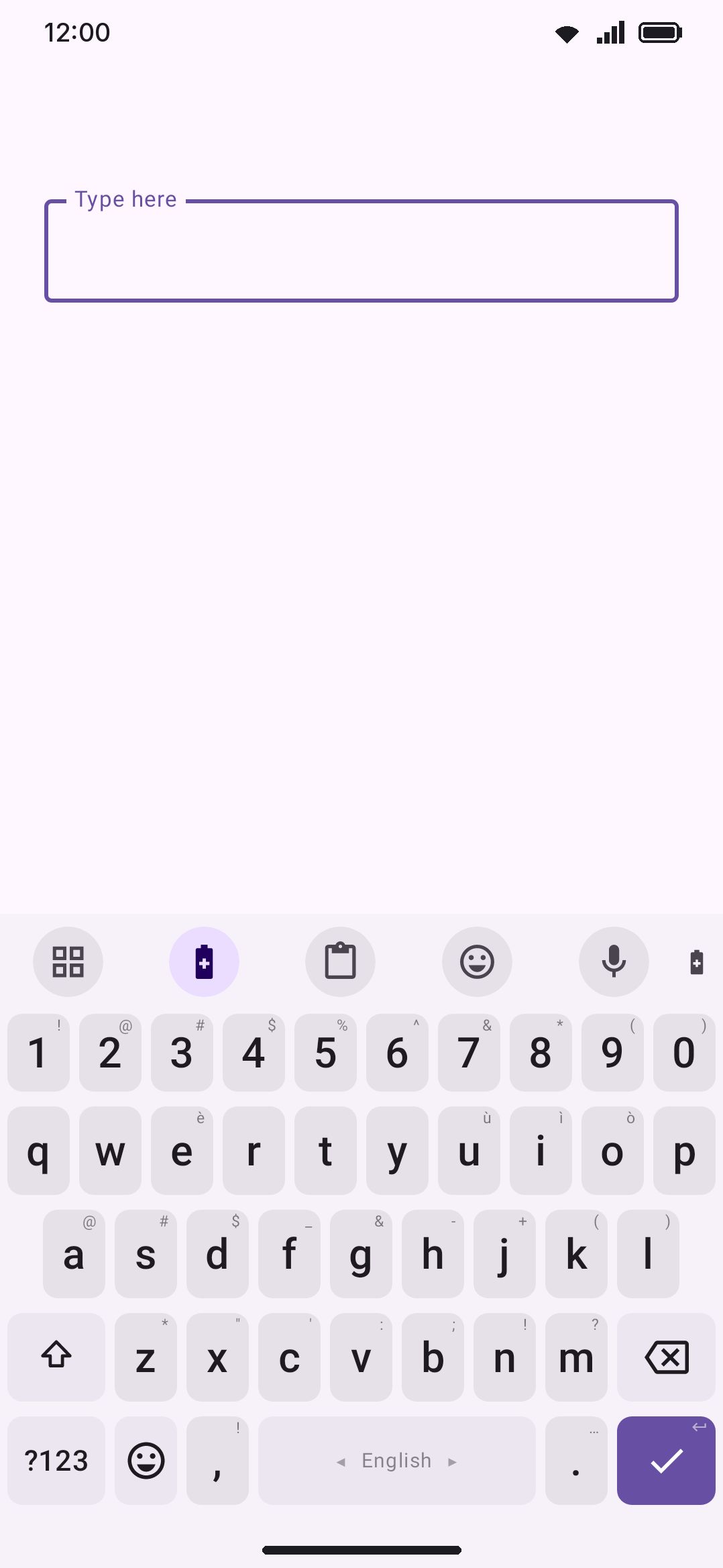
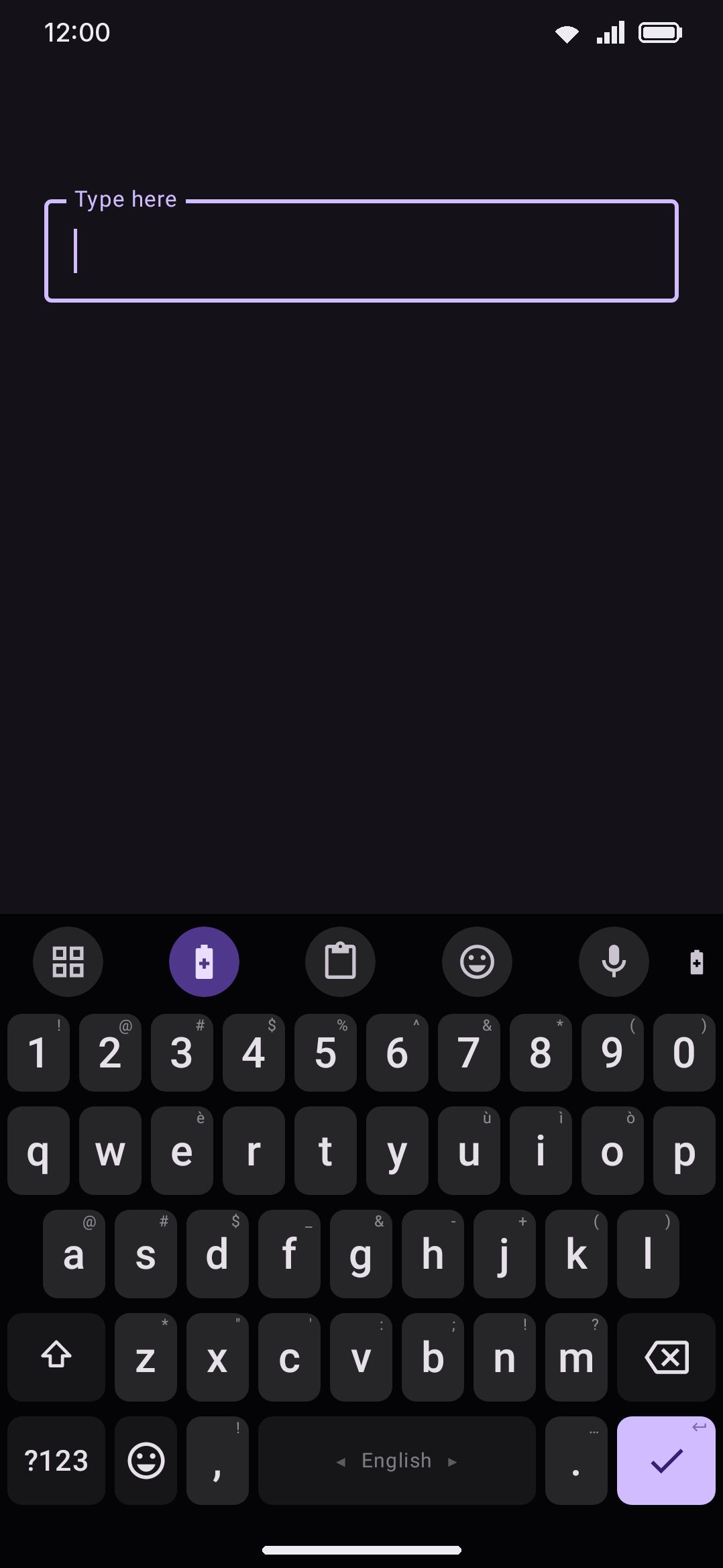
Section titled “Turning it on”The quickest way is the Power saving toolbar tile. One tap flips it on or off, and a toast confirms which (“Power saving is on”, “Power saving is off”). Nothing ever pins it to the toolbar for you, so drag it up from the toolbox yourself, or reach it from Tools in settings the way you’d reach any other tool. On a physical keyboard, double-tap Ctrl and press B to do the same without touching the screen. See Hardware keyboards for the rest of the leader-key shortcuts.
However you flip it, the manual switch is sticky. It survives the keyboard being torn down and rebuilt between fields, and neither a full battery nor the charger going in turns it back off. Once you’ve turned it on by hand, it stays on until you turn it off by hand.
Switching on by itself
Section titled “Switching on by itself”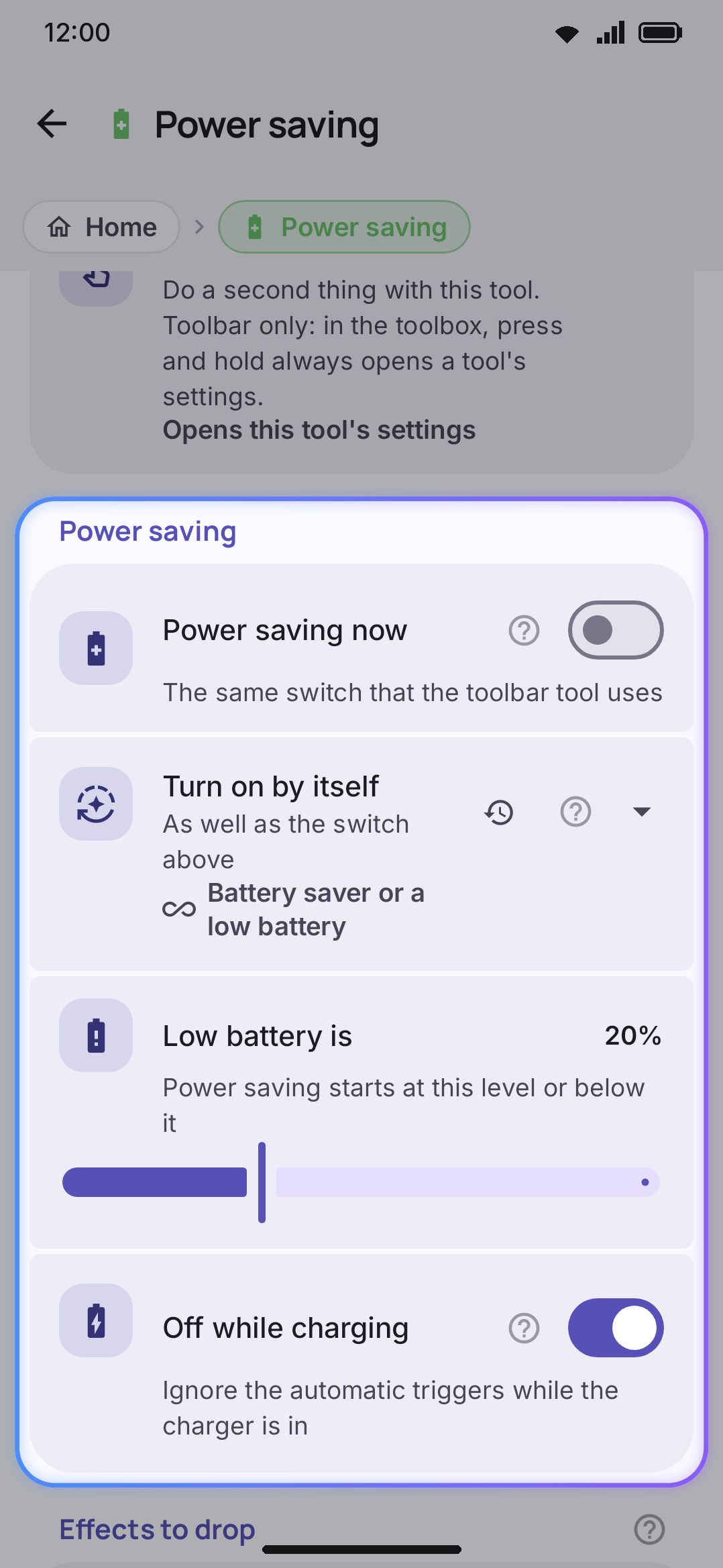
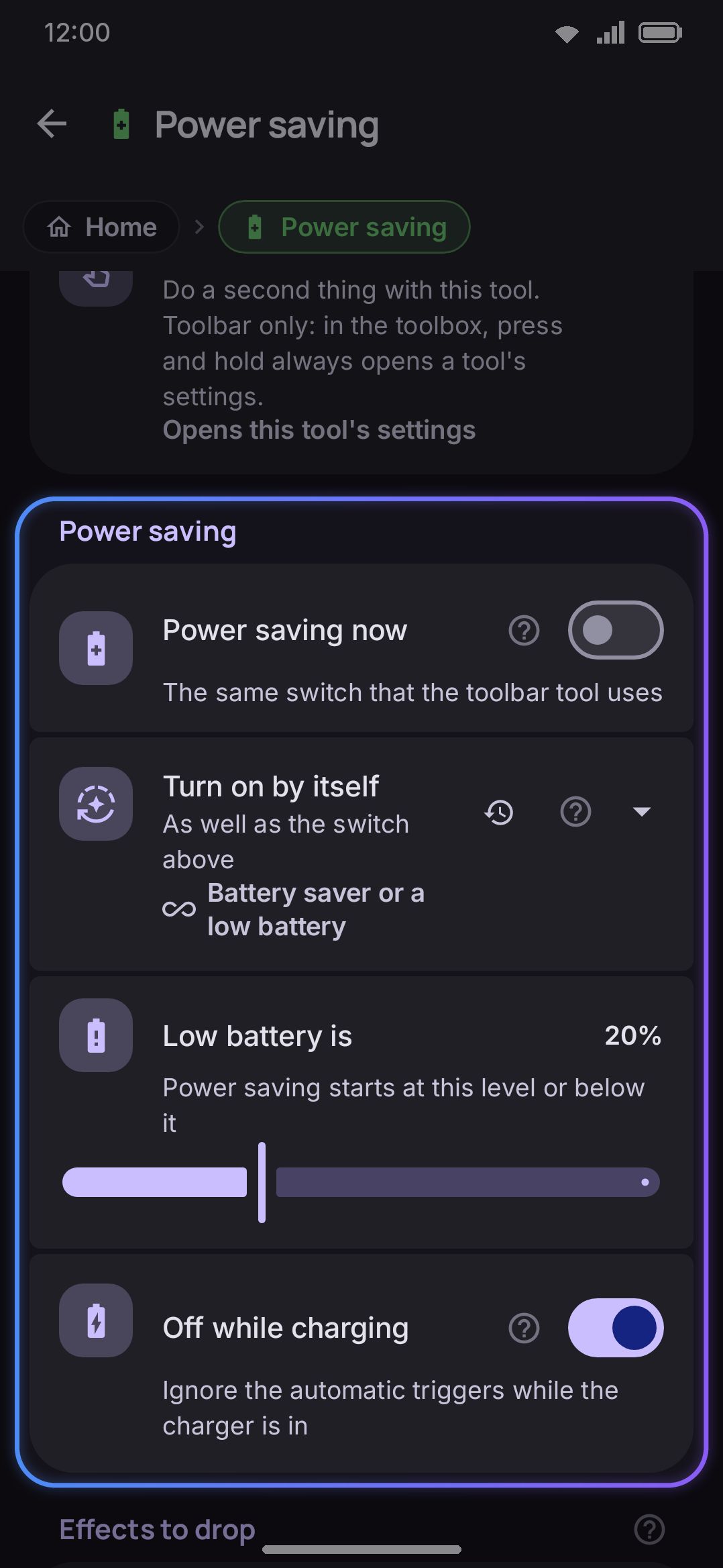
Beyond the manual switch, Turn on by itself decides whether power saving also arms automatically:
- Only when I turn it on, the default. The manual switch is the only way in, so the keyboard never changes how it feels on its own.
- Android’s battery saver is on. Power saving follows the system’s own Battery Saver toggle in lockstep.
- The battery is low. It arms once the battery drops to or below Low battery is, a slider from 5% to 50% (default 20%). The slider only appears on this trigger and the next.
- Battery saver or a low battery. Either condition arms it.
Two things temper the automatic triggers. Off while charging (on by default) suppresses them entirely while the charger is in, since there’s nothing to save with power flowing in, and a phone sitting at 100% on the charger counts as charging too. An unread battery level, before the keyboard has taken a reading, is always treated as “not low”, so it can never falsely trigger on startup. Neither of these touches the manual switch: turning it on by hand means it, charger or no charger.
The keyboard watches a handful of coarse system broadcasts (battery low, battery okay, charger connected and disconnected, battery-saver mode changed) rather than the noisy per-percent battery broadcast. Toggling the charger or the system’s battery saver mid-sentence therefore takes effect immediately. The exact battery percentage is a different matter: it’s re-read only each time the keyboard comes back on screen. On The battery is low trigger, crossing your threshold while the keyboard is already open doesn’t switch power saving on until you switch fields or reopen it.
What gets dropped
Section titled “What gets dropped”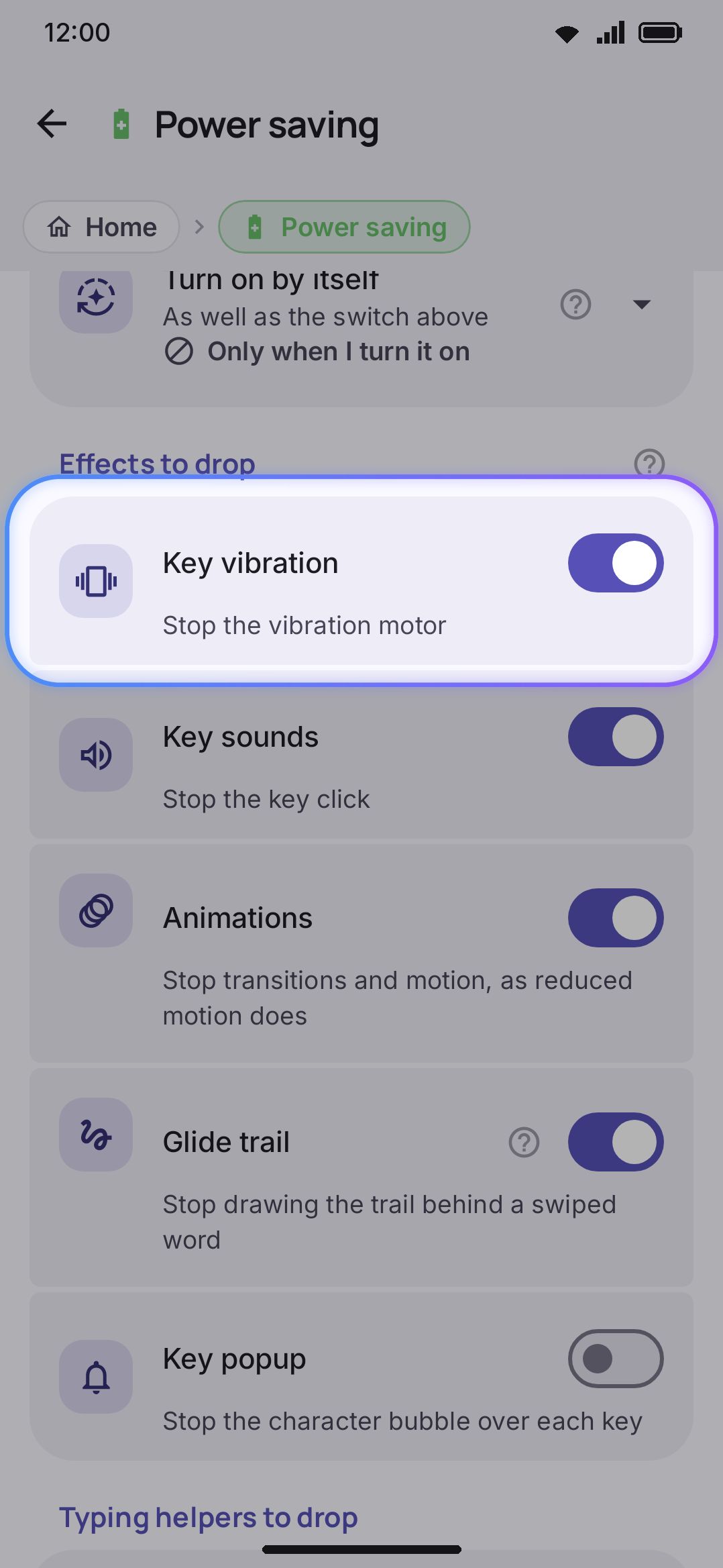
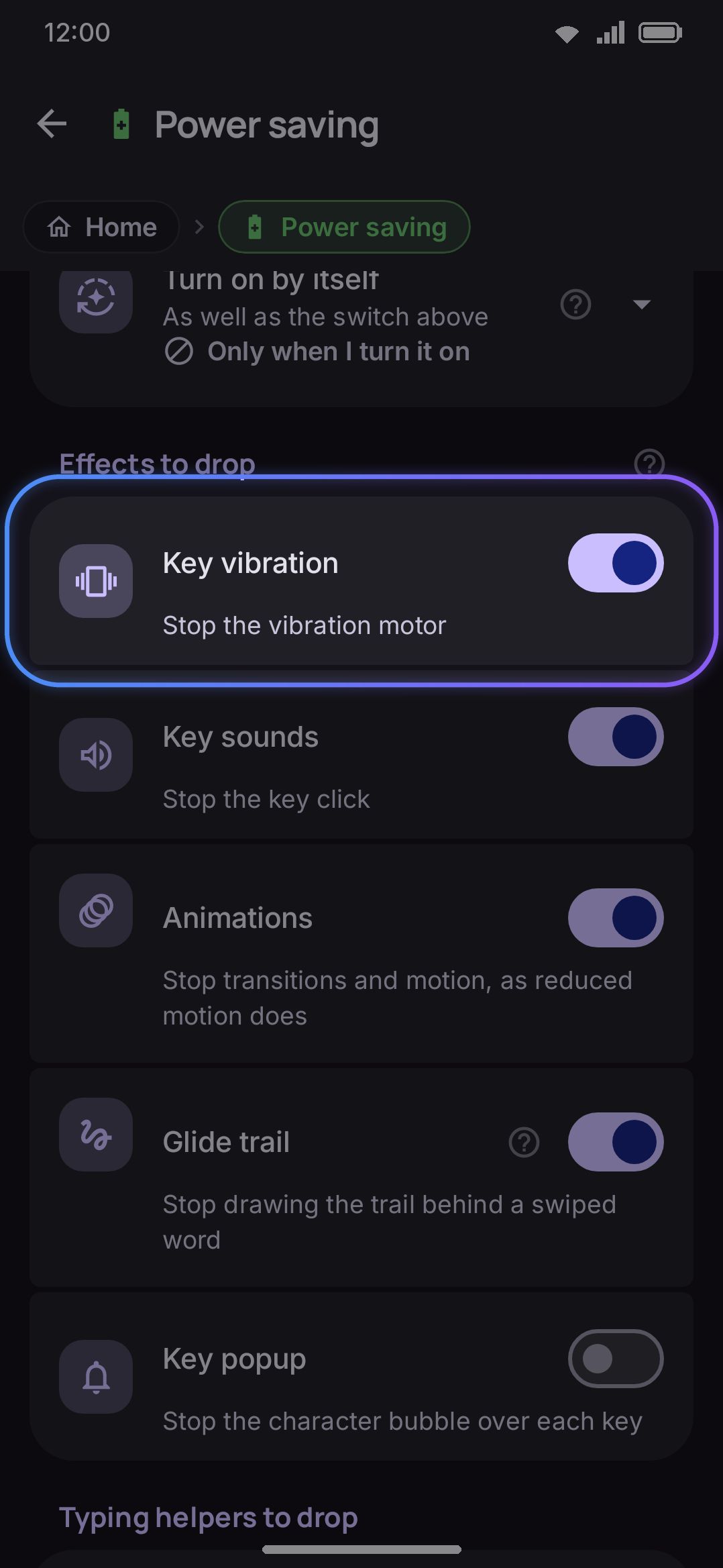
Power saving is thirteen independent switches rather than one bundle of “reduce everything”, plus a fourteenth drop with no switch of its own. Each switch defaults to whatever gives up the least for the most battery back. Turn any of the thirteen back on individually if that trade-off doesn’t suit you.
| Switch | Default | What it drops |
|---|---|---|
| Key vibration | On | The vibration motor on every keystroke (the single biggest per-key power draw). |
| Key sounds | On | The key click sound. See Sound & vibration. |
| Animations | On | Every transition and motion effect (the same flag Reduce motion uses), so it can end up on even if you never touched that toggle. |
| Glide trail | On | Only the comet trail drawn behind a swipe. The swipe itself keeps decoding: see Glide typing. |
| Key popup | Off | The character bubble over a pressed key. Off by default, since it’s cheap to draw. |
| Glide typing | Off | Swipe-to-type entirely. Left off by default: decoding a swipe is the most expensive thing the keyboard does, but it’s also why many people installed it, so only the trail is dropped unless you opt into this too. |
| Emoji suggestions | Off | Scanning what you type for emoji to suggest. Off by default: it’s a dictionary look-up on a word you’ve already typed, and a strip that stops offering emoji reads as broken rather than as saving power. |
| Smart chips | Off | The calc, currency, unit and keyword chip family: see Smart chips. Off by default for the same reason as emoji suggestions: a few pattern matches on the current word aren’t where a battery goes. Clipboard’s own entity detection (pulling codes, numbers and links out of what you copy) isn’t affected either way. |
| Background network | On | Unrequested fetches only: link previews for copied URLs and scanned QR codes, and the dictionary’s look-up-on-selection. Tools you open by hand (translate, search, GIFs) still work. |
| Screenshot watching | On | Watching the screenshot folder for new images to offer in the clipboard. |
| On-device models | On | Whisper dictation falls back to the system recognizer, and the letter-swipe action falls back to gesture typing if it was set to handwriting. See Offline voice and Handwriting. |
| Typing statistics | Off | Counting your keystrokes, words and speed. Off by default: the counters are a few integer bumps per keystroke, so the saving is speculative. Days spent saving power record nothing, and they never drag your speed averages down. |
| Media tool pin | On | Putting Media controls on the toolbar by itself while music plays. The pin itself costs nothing to draw, but keeping it right means watching the media session for as long as the keyboard is up. The tool stays reachable from the toolbox. |
Power saving also always turns off Words on the keys, the predicted words that float over the keys. Unlike the switches above, this one has no settings row of its own. Whenever power saving is in force, the floating words are off, full stop.
Power saving only does anything useful if at least one of these is on. Turn every switch off and the tile’s toast admits it plainly: “Power saving is on. No feature is set to stop yet.”
If what you’re protecting is a data allowance rather than a battery, Data saver is the same idea pointed at the network, with a per-feature ask-first answer power saving has no use for. Both can be on at once, and either one holding a fetch back is enough.
Options
Section titled “Options”The Power saving group holds the four controls above:
| Setting | Default |
|---|---|
| Power saving now | Off |
| Turn on by itself | Only when I turn it on |
| Low battery is | 20% (5%–50% range) |
| Off while charging | On |
Below it the thirteen switches sit in three cards: Effects to drop (Key vibration, Key sounds, Animations, Glide trail, Key popup), Typing helpers to drop (Glide typing, Emoji suggestions, Smart chips) and Background work to drop (Background network, Screenshot watching, On-device models, Typing statistics, Media tool pin).
Details & edge cases
Section titled “Details & edge cases”- Nothing is ever overwritten. The reduced settings are computed on the way out, the moment power saving applies. The stored values never change, so turning it off, the charger going in, or the battery recovering all bring every feature back exactly as you set it.
- Turning off the manual switch doesn’t always turn saving off. If an automatic trigger, low battery say, is still holding it on, the toast reads “Power saving stays on. The battery trigger is on.” instead of “Power saving is off”.
- The toolbar tile lights up while power saving is actually in force, the way the Incognito tile does. It follows the fully resolved state rather than just the manual switch, so it’s lit while an automatic trigger is holding things on too.
- Never pinned for you. Power saving is in none of the shipped toolbars, phone or tablet, so it’s always yours to pin. Whether it arrives switched on depends on setup: the wizard’s “Show me everything” answer turns it on, “A good middle” and “Keep it simple” don’t, and it’s also topped up into a shorter set when something else in that set can’t run on your device (the lite build’s missing handwriting and text scanning, or a phone with no Google services).
- Works before you unlock your device once after a restart, and behaves identically on the full and lite editions.
Related: Sound & vibration for haptics and key-click tuning on their own, Glide typing for how the trail and the decoder split apart, Accessibility for Reduce motion outside of power saving, and Network policy for the fuller picture of what WM Keyboard can and can’t send.