
Voice typing
Dictation through your device's speech engine: a full panel, a compact bar over the keys, or a draggable bar with the keyboard out of the way.
Voice typing turns speech into text using your device’s own speech recognizer: no setup, works in any language your device supports. Tap the mic, talk, and words appear as you speak.
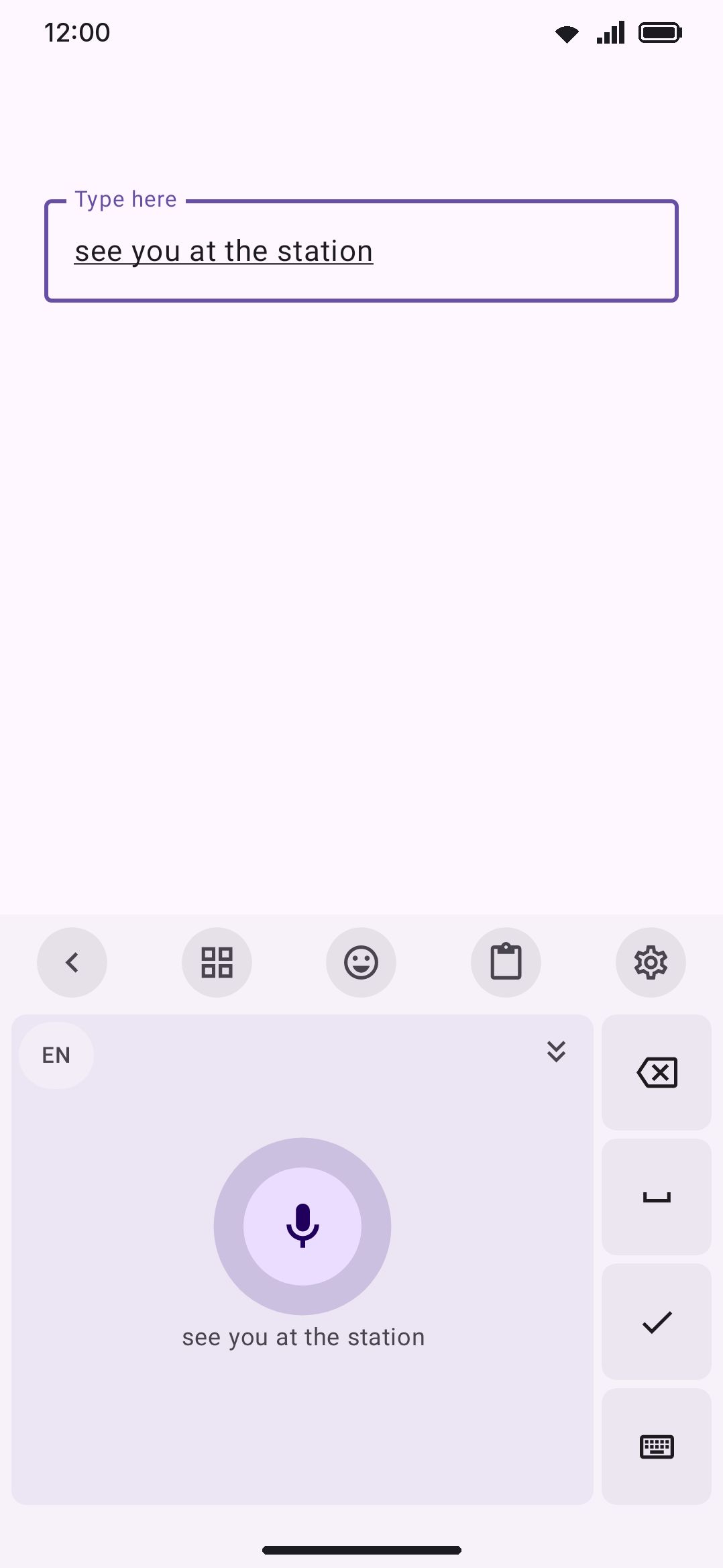
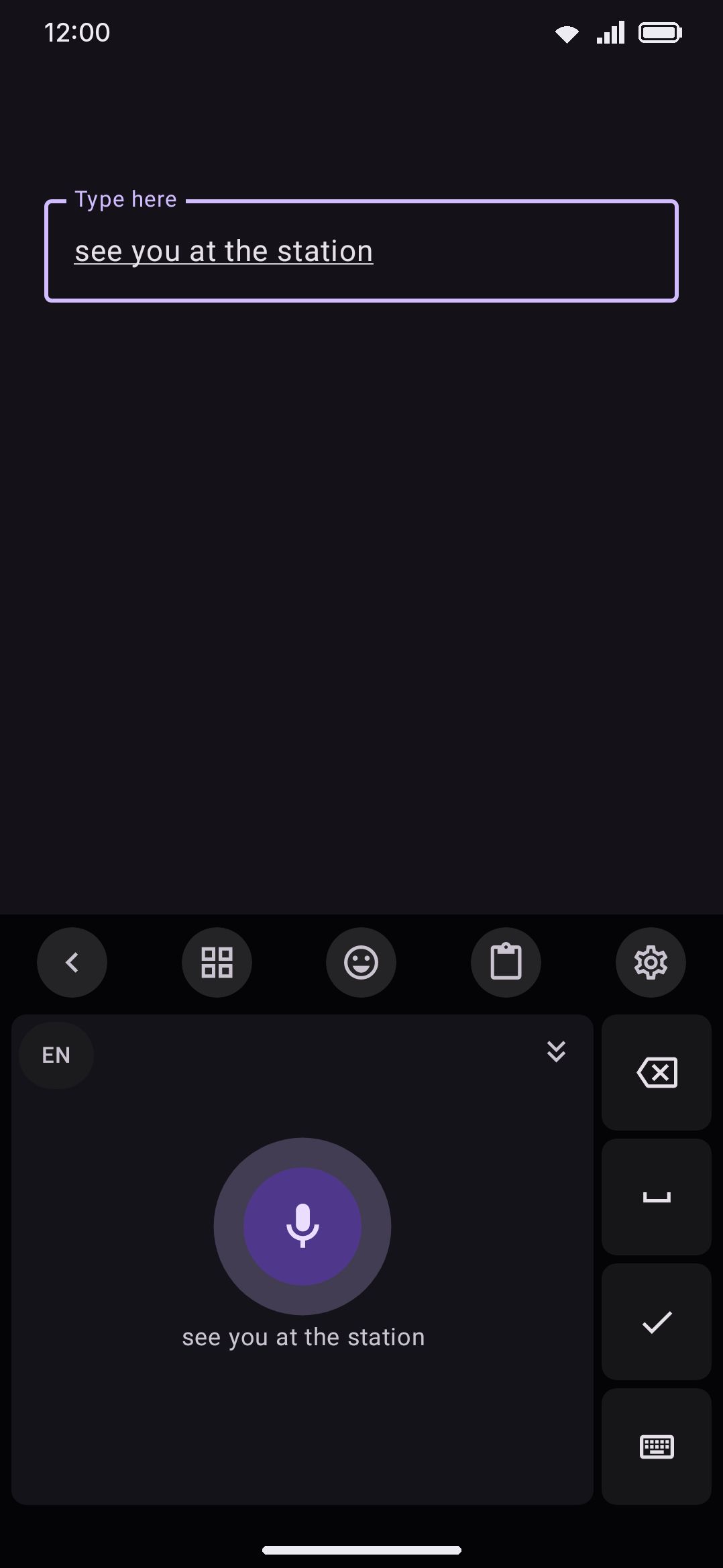
Starting dictation
Section titled “Starting dictation”Open Voice typing from the toolbar (or the toolbox if you haven’t pinned it). What opens depends on Voice typing view, covered below. There are three of them:
- Full panel (the default) replaces the whole keyboard with a large mic button and a level-driven pulse ring. A four-key action rail runs down the right side: Delete, Space, a context-aware Enter, and a key that closes the panel and returns you to normal typing. In a search box that Enter key shows a search icon, rather than promising a newline it won’t insert.
- Compact bar over the keys replaces the suggestion strip with a small mic and status text, and the keys stay visible underneath. Dictate a sentence, then tap a letter key to fix a misheard word without leaving the view.
- Collapsed bar, keyboard hidden hands the keyboard’s whole window back to the app you’re typing in and leaves a small draggable pill of dictation controls floating over it. See The collapsed bar.
You aren’t locked into the one you picked. The panel and the compact bar each carry a collapse button down to the pill, and the pill carries a button back up, so switching is one tap from wherever you are.
Tap the mic to start listening. Tap it again to finish. While it’s listening you don’t have to hit the mic itself: in the full panel the whole area left of the action rail is the stop button (it picks up a faint tint to show it), and on the compact bar anywhere that isn’t another button stops it. The stop press tends to happen mid-thought without looking, so it gets the biggest target on the screen.
The Voice tool on the toolbar is a stop button too. Tap it while a dictation is running on the panel or the compact bar and the phrase is finished exactly as if you had tapped the mic, then the view closes once the words are in. So one button starts a dictation and ends it, which matters most with Whisper or a transcription server, where nothing is typed until you say you’re done. To throw a dictation away instead, use the compact bar’s close button or the panel’s keyboard key.
With the Voice tool pinned to the toolbar, press and hold it instead of tapping and a small menu lists the three voice typing modes, with the one in force ticked. Pick one and dictation starts in it at once, and that mode stays the mode until you pick another. It is the quick way to switch between one block at a time and typing while you speak without a trip through settings; Hold the tool to pick a mode on the Voice typing screen gives the hold back to the toolbar if you would rather bind it to another tool. The full panel adds walkie-talkie dictation on a long press: holding the mic past the Hold to talk threshold (200 to 1500 ms, default 600) starts listening only while your finger stays down, and releasing stops it immediately. A quick tap-and-release still toggles listening on, same as before. Neither bar has the gesture. Both bar mics are plain tap-to-toggle buttons.
Recognized words stream into the text field live as you talk. That’s the system recognizer only. Offline voice covers how Whisper’s panel differs. WM Keyboard works out the spacing around what you dictate from the characters already next to the cursor, so starting mid-sentence or dictating over a selection doesn’t leave a double space or a missing one.
Every word you dictate is learned the same way a typed word is, so frequent dictated vocabulary starts showing up in suggestions and autocorrect too.
If the mic can’t open
Section titled “If the mic can’t open”- Password and other secure fields never get a mic. Tapping the voice tool in one shows a brief “You cannot use voice typing in a password field” toast and opens nothing. If you land in a password field with a view already open, the panel reads “Voice typing does not work in password fields.” and the compact bar reads “Not available in password fields”.
- No microphone permission shows an explanation and an “Allow microphone” button. Tapping it opens a system permission prompt through a small trampoline screen (IMEs can’t show permission dialogs directly), and the keyboard rechecks automatically once you’re back. The bars have room for one line, so they say “The app needs microphone permission” with an Allow chip.
- No speech recognizer on the device (rare, typically no Google app installed) shows “Speech recognition is not available on your device.” in the panel, or “Speech recognition is not available” on either bar.
Typing while you dictate
Section titled “Typing while you dictate”By default, dictation owns the field while it runs. The words being recognized sit there as composing text, and the first key you press ends the session. Voice typing mode offers two other ways to work, both of which leave the mic open while you use the keyboard.
- One block at a time (the default) is the behaviour described everywhere else on this page. Speak, watch the words appear live, and the first keystroke stops the mic.
- Type while you speak keeps the mic running through everything you do. Nothing goes into the field until you pause: each phrase lands whole, at wherever your cursor is by then. Keys, glide typing, suggestions, cursor moves, layout switches and panels-that-aren’t-a-panel all carry on around it.
- Type while you speak, plain text is the same, minus every text rule. No spoken punctuation, no punctuation from the recognizer, and no spaces added around what lands. You control all of it from the keys. It’s the one to pick for code, terminals, and anywhere you want exactly the words you said and nothing else.
A pause is not a full stop. The recognizer capitalizes the first word of every phrase as if it opened a sentence, because it can’t see the field; the keyboard can, and it keeps that capital only where the words in front of your cursor end a sentence — nothing at all, a new line, or a full stop, question mark or exclamation mark, in whatever script wrote it. A phrase that lands after a comma, or after a word you just typed, starts small. This is about what’s written, not about the keys: the capital lands on the first word of an empty field whether or not that field asks the keyboard for sentence capitals, and whether or not Automatic capitals is on. The word I and its contractions keep their capital anywhere, and so does anything with a second capital inside it (NASA, McKinsey). A name at the start of a phrase can’t be told from a sentence capital, so shift it the way you would a typed one. Spacing and the capital are read again after every phrase, so a long dictation with pauses in it comes out as one sentence rather than a row of them. Plain text is judged the same way. It asks the recognizer for no capitals, so usually there is nothing to decide, but the system recognizer puts one on regardless and Whisper has no such switch at all — and when a capital does arrive, where your cursor sits still decides it. What plain text drops is the punctuation and the spacing, not the first letter of a sentence.
The reason the default can’t do this is worth knowing: a partial result is cumulative. Each one rewrites the whole phrase, not just the new words, so a letter you type into the middle of it gets overwritten by the next partial a moment later. The two interactive modes solve that by never putting a partial in the field at all. You lose the live preview of the sentence, and in exchange you get the whole keyboard back while the mic is open.
Pair them with Compact bar over the keys, which is where they make the most sense. In that view an interactive session shrinks to a single pulsing mic at the left of the suggestion strip, and the strip keeps its room, so your candidates, the emoji row and the clipboard chip all stay reachable while you talk. Tap the mic to end the session. Tapping the voice tool does the same and puts the mic away once the last phrase has landed; with nothing running it just puts it away. If something goes wrong (no permission, no recognizer, no offline model), the full compact bar comes back for as long as it has something to tell you.
Two smaller things change in these modes. They always keep listening, whatever Keep listening is set to, because a session that ended at the first pause would leave you typing into a closed mic. And they’re far more patient with silence: twelve quiet retries instead of two, which is roughly a minute and a half of not talking, because silence is the normal state of a mode where you speak a line and then spend a while fixing it by hand.
Dictating into the keyboard’s own boxes
Section titled “Dictating into the keyboard’s own boxes”The keyboard’s own text boxes, such as the AI chat and its Custom prompt, the emoji, GIF, dictionary and clipboard searches, Find and replace, the clip editor and a plugin’s text box, carry a small mic at the right end of their suggestion strip. Tap it and speak: the phrase goes into that box at its caret, in place of any selected text, and never into the app behind the keyboard. The Voice tool does the same while one of these boxes has the keys.
While it listens, the strip shows what has been heard so far in place of the suggestions. Tap the mic or anywhere on that line to finish, or the close button to throw the phrase away. Dictation stops at the first pause, whatever Keep listening is set to, and it ends by itself if the box closes before the words arrive.
It uses the same engine, language, spoken punctuation, spacing and capitals as dictation anywhere else. A search box drops the full stop a recognizer puts at the end of a phrase, so you search for cat rather than Cat.. Nothing dictated into these boxes is learned, the same as typing into them. A password field behind the keyboard doesn’t stop you here, because the words never reach it.
The mic sits on the suggestion strip, so it only shows while Suggestions is on (Typing → Suggestions). The typing test, the word card’s spelling and the Learn from text speller don’t get one. Neither do the calculator and the converters, which have no strip.
The collapsed bar
Section titled “The collapsed bar”The third surface isn’t a keyboard at all. Pick Collapsed bar, keyboard hidden, or tap the collapse button in the panel or the compact bar, and the keyboard gives its whole window back to the app you’re typing in. What’s left is a small pill of dictation controls floating on top. Only the pill itself is touchable: taps anywhere around it go through to the app underneath, so you can scroll the thing you’re dictating into while you talk.
Drag it wherever you want it. Where it settles is remembered, so it comes back in the same place next time:
- Lying flat, it snaps to the nearest of three rests across the screen (left, centre or right) and keeps whatever height you dragged it to. It starts centred and docked at the bottom.
- Standing upright, it docks to whichever side edge you let go nearest, and keeps its position along that edge. It starts on the right, halfway down.
The hamburger swaps the row of controls for a second page: back, undo, the language chip, a button that stands the bar upright (or lays it flat again), and a shortcut into the voice settings. The first page has the status line, undo when there’s something to undo, an exit button, backspace, and the mic.
That exit button is two different buttons depending on how you got here, which is worth knowing because they don’t do the same thing:
- Arrived by collapsing from the panel or the compact bar, you get an expand button that takes you back to the surface you came from. It undoes the switch.
- Chose the collapsed bar in settings, and you get a keyboard button instead. That brings the keys back for now, and the bar stays your default for the next time you open voice typing.
The bar isn’t just for one field. It stands in for the keyboard on every new field until you bring the keyboard back, and it survives the keyboard’s process being killed in between. Two things put the keys back on their own without disarming it: a password field, which never gets the bar, and a panel opened over the top (a hardware shortcut can do that). Both end the current dictation session, and closing the panel brings the bar back.
Undoing a dictated phrase
Section titled “Undoing a dictated phrase”An Undo control appears (bottom-left in the panel, as a small icon on either bar) right after a phrase commits, as long as it’s still sitting immediately before your cursor. Tapping it removes exactly that dictated text in one step. It disappears again once you dictate something else, edit the text some other way, or the text it would remove is no longer where dictation left it.
Continuous mode
Section titled “Continuous mode”With Keep listening on (the default), finishing one sentence doesn’t stop dictation. The next listening session starts on its own, so you can keep talking sentence after sentence without re-tapping the mic. Turn it off and each session ends after one utterance. Tap the mic again for the next one.
Between sentences the mic is really closed for a moment: the recognizer has stopped hearing and is working out the words. The pulse ring goes away and the line shows ”…” for exactly that stretch, so you can see when to wait. It comes back when the next sentence is listening. Pressing the mic while it’s working out the words makes that sentence the last one.
Continuous mode is also patient with silence: a pause that would normally time out the recognizer just restarts listening quietly instead of surfacing an error, but only for two silent retries in a row. After that it gives up and goes idle, so an abandoned open mic doesn’t sit there listening forever.
Dictation ends completely the moment you type a key, swipe, or tap a suggestion. There’s no pausing and picking up where you left off. Partial results build up as one continuous chunk, so typing in the middle of an utterance would corrupt it rather than interrupt it. Whichever view you’re in stays open afterward, so you can tap the mic to resume. A tap on the Voice tool is the exception among the ways out: it finishes the phrase first (see Starting dictation). Dictation also stops when you close the panel, dismiss either bar, or switch to a different tool panel.
That last paragraph describes the default mode. If you want the mic to survive typing, see Typing while you dictate. Both interactive modes ignore the Keep listening setting and always chain.
Spoken punctuation
Section titled “Spoken punctuation”With this on (the default), saying certain words types the punctuation mark instead of the word itself. It only applies to finished phrases, never to the live partial text, and it knows two sets of words: English and Bangla. The sentence marks come first:
| Say (English) | Types | Say (Bangla) | Types |
|---|---|---|---|
| “new paragraph” | two line breaks | “নতুন প্যারা” | two line breaks |
| “new line” | line break | “নতুন লাইন” | line break |
| “question mark” | ? | “প্রশ্নবোধক চিহ্ন” / “প্রশ্নবোধক” | ? |
| “exclamation mark” / “exclamation point” | ! | “বিস্ময়সূচক চিহ্ন” / “বিস্ময়বোধক” | ! |
| “full stop” / “period” | . | “দাঁড়ি” | । |
| “comma” | , | “কমা” | , |
| “colon” | : | “কোলন” | : |
| “semicolon” | ; | “সেমিকোলন” | ; |
Punctuation attaches straight to the word before it with no space. The trade-off is deliberate. While this is on, a sentence that genuinely uses one of these words as a word types the symbol instead. Turn it off if you want to say “period” or “comma” out loud and have it come out as a word.
English also knows the marks past the end of a sentence. Each one sits against its neighbours the way it would if you had typed it: an opening mark closes up to the word after it, a joining mark closes up on both sides, and an operator keeps a space on each side.
| Say | Types | Spacing |
|---|---|---|
| “ellipsis” / “dot dot dot” | … | after the word: wait… |
| “open quote”, “close quote” | " | around the words: said "hi" twice |
| “open parenthesis”, “close parenthesis” | ( ) | around the words: see (page two) now |
| “open bracket”, “close bracket” | [ ] | same |
| “open brace”, “close brace” | { } | same |
| “apostrophe” | ' | joins: rock'n |
| “hyphen” | - | joins: well-known |
| “dash” | - | stands apart: one - two |
| “en dash”, “em dash” | – — | joins |
| “slash” / “forward slash” | / | joins: and/or |
| “backslash” | \ | joins |
| “underscore” | _ | joins: snake_case |
| “at sign” | @ | joins: me@example |
| “caret” | ^ | joins |
| “hashtag” / “hash sign” / “pound sign” | # | before the word: #blessed |
| “dollar sign” | $ | before the word: $5 |
| “tilde” | ~ | before the word |
| “percent sign” | % | after the word: 50% |
| “degree sign” | ° | after the word |
| “asterisk” | * | after the word |
| “copyright sign”, “registered sign”, “trademark sign” | © ® ™ | after the word |
| “ampersand” | & | stands apart: salt & pepper |
| “plus sign”, “equals sign” | + = | stands apart: two + two = four |
| “greater than sign”, “less than sign” | > < | stands apart |
| “vertical bar” | | | stands apart |
A symbol whose plain name is an everyday word only answers to its longer name, which is why so many of these end in “sign”. “Fifty percent is greater than ten plus one” stays a sentence; “fifty percent sign” is 50%.
A language other than English or Bangla has no table, so its dictation is typed exactly as it was heard.
Language and engine
Section titled “Language and engine”Voice typing doesn’t have its own language picker: it dictates in whatever language your active keyboard layout is set to. If you have both English and at least one non-English language enabled, a small EN / বাং chip appears in the corner of the panel. Tapping it switches your active layout to the other language’s first enabled layout, and dictation follows along. With only one language enabled, or with several non-English languages and no English one, no chip appears.
On Android 12 and up the system recognizer prefers to run fully on-device, once your phone has that language’s model installed. It’s faster, needs no network, and skips the little beep before it starts listening. If a language’s on-device model can’t handle recognition, WM Keyboard falls back to the network recognizer transparently.
On Android 13 and up, a chip offers to download a model that’s available for your language but not installed yet. It’s named for the language you’re actually dictating in: “Get Spanish for offline voice typing”, “Get Bangla for offline voice typing”, and so on. A dictation language the catalogue doesn’t recognise reads “Get this language for offline voice typing” rather than guessing. Tap the chip to start the system’s own download. Progress shows on the chip until the model is installed.
Options
Section titled “Options”Everything below lives on the Voice typing screen, under Features on the settings home screen, rather than on the tool page. The microphone can be reached from a key or a hardware shortcut with the tool nowhere on the toolbar, so these aren’t really the tool’s settings.
| Setting | Default | What it does |
|---|---|---|
| Voice typing view | Full panel | A choice of three, not a switch: which surface the mic button opens. Full panel, Compact bar over the keys, or Collapsed bar, keyboard hidden. |
| Voice typing mode | One block at a time | Another choice of three: whether the keys work while the mic is open. One block at a time, Type while you speak, or Type while you speak, plain text. See Typing while you dictate. |
| Hold the tool to pick a mode | On | A press and hold on the toolbar’s Voice tool opens a menu of the three modes; picking one makes it the mode and starts dictation. Off gives the hold back to the toolbar’s own press-and-hold action. |
| Hold to talk | 600 ms | How long you hold the microphone before a tap becomes a press-and-hold, from 200 to 1500 ms. Raise it if a slow press keeps stopping your dictation. Lower it if you mean to hold and it keeps latching on. |
| Keep listening | On | Starts the next sentence automatically after each one commits. |
| Spoken punctuation | On | Saying “comma”, “question mark” or “দাঁড়ি” types the mark. |
All six sit in a group headed Dictation. An Engine group above it holds the Recognition engine choice: System recognizer (the default), Offline Whisper in an edition with the offline engine built in (see Offline voice (Whisper)), and Transcription server in every edition, which sends each phrase to a speech-to-text server you run (see Transcription server). With the system recognizer in use, the screen ends with this note about what it sends:
Recognition uses the speech recognizer of your device. On Android 12 and later it runs on your device when the language model is installed. If it is not, the audio goes to the recognizer service while you speak. Press and hold the microphone to speak in walkie-talkie style. It stops when you let go.
Words to listen for
Section titled “Words to listen for”A recognizer trained on everyone’s speech spells a name its own way. The Words to listen for group tells it about yours. It shows for the system recognizer and the transcription server. Offline Whisper can’t take a hint, so the group isn’t there while it’s the engine.
- Listen for my words (on by default) sends a list of your own words with each phrase: the words you added by hand, the words in Android’s personal dictionary (when Use the Android dictionary is on), and the words the keyboard learned from your typing that no word list has, such as names, most used first. Common words the recognizer already knows are left out, since they don’t help. The system recognizer also gets permission to use what it knows about your phone itself, such as your contacts; the keyboard never reads your contacts for this.
- More words to listen for takes your own list, separated by commas. These go first, ahead of the words from your dictionary.
The system recognizer gets up to 200 words as a biasing list. It reads the list on Android 13 and later, and only if the recognizer on your phone supports biasing: Android leaves that to the recognizer, and one that doesn’t simply ignores it. A transcription server gets up to 150 words as part of its prompt; see Words and the prompt for why that list is shorter and how it’s ordered.
WM KeyboardToolsVoice typingThe tool page carries only what belongs to the button:
- All voice typing settings: opens the screen above.
- Enabled: whether Voice typing appears on the toolbar and in the toolbox.
- Icon colour: only shown if colorful tool icons is turned on globally. Overrides just this tool’s icon color.
- Keyword shortcut: the words that make the Smart chips suggestion offer to open this panel.
Privacy: what leaves your device
Section titled “Privacy: what leaves your device”On-device recognition (Android 12+, once the language’s model is installed) never sends audio anywhere. Without that model installed, dictating with the system recognizer sends your audio to the OS’s speech recognition service while you talk (the same behavior any app using Android’s standard speech APIs has). See Network policy for the fuller picture of what WM Keyboard can and can’t send.
Want a hard guarantee that audio never leaves the device, whichever model is installed? Offline voice typing with Whisper is a second dictation engine that transcribes entirely on-device. It’s a bigger download and it doesn’t stream words live the way the system recognizer does. In exchange it makes no network calls at all, beyond the one-time model download.
Want the phone to do less work instead? A transcription server sends each phrase to a server you choose, on your own network or a hosted service, and types what comes back. The audio goes to that address and nowhere else.
With Listen for my words on, the list of your own words goes to the same place the audio goes: the system recognizer, or your transcription server. On-device recognition keeps it on the phone too.
Details & edge cases
Section titled “Details & edge cases”Errors show specific messages. A network problem says “No connection. Check your network and try again.” A busy recognizer, or another app holding the mic, says “The microphone is busy. Close the other apps that use it and try again.” A language the device can’t recognise at all says “Speech recognition does not support this language on your device.” A network hiccup mid-utterance keeps whatever was already heard instead of throwing it away. The Microphone access tile in Quick Settings, or the developer Sensors off toggle, can let a session start and then hand it silence. The panel notices and says “The microphone is blocked. Turn on Microphone access in Quick Settings, then try again.” Either bar says “Microphone blocked in Quick Settings”. Tap the mic again once you’ve turned access back on.
Switching tools closes dictation. Opening any other panel (Handwriting, Clipboard, Emoji, and so on) ends the current dictation session first.
Every row carries the usual restore button once you move it off the default listed above. See Putting one setting back. Where the collapsed bar last rested isn’t one of those rows. It has no control on the settings screen, and you reset it by dragging the bar somewhere else.
The three views aren’t full equivalents. Continuous mode, spoken punctuation, and undo behave the same way whichever one you’re in, because they live in the dictation session rather than in the view. Two things are panel-only: hold-to-talk, and the offline-model download chip. The EN / বাং language-switch chip sits on the panel and, behind the hamburger, on the collapsed bar. The compact bar doesn’t get one. Dictation still follows your active layout’s language there. You just switch layouts some other way, with a spacebar swipe or the language picker, instead of tapping a chip. Neither bar prompts you to download an offline model.
Related: Offline voice (Whisper) covers the second dictation engine, including its model catalog, per-language routing, downloads, and the full offline privacy guarantee.